BVMP: How to Add Products to Cart
Procurement Portal: Brightview
1. Click on Search Products
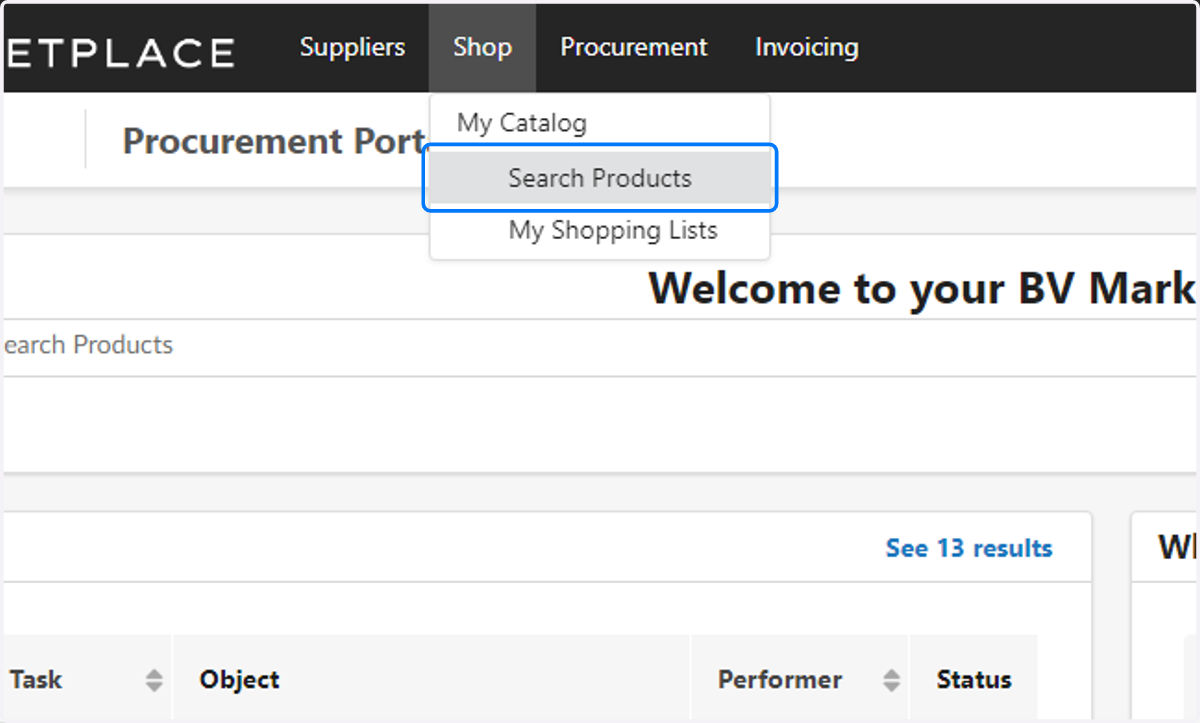
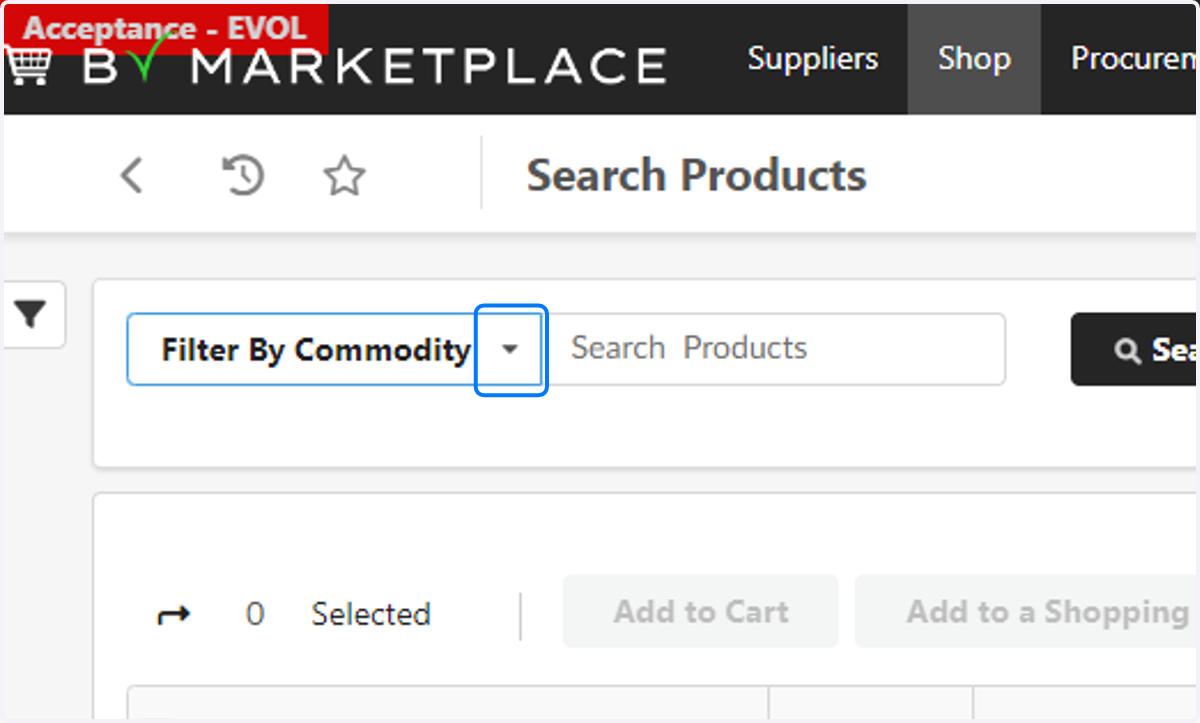
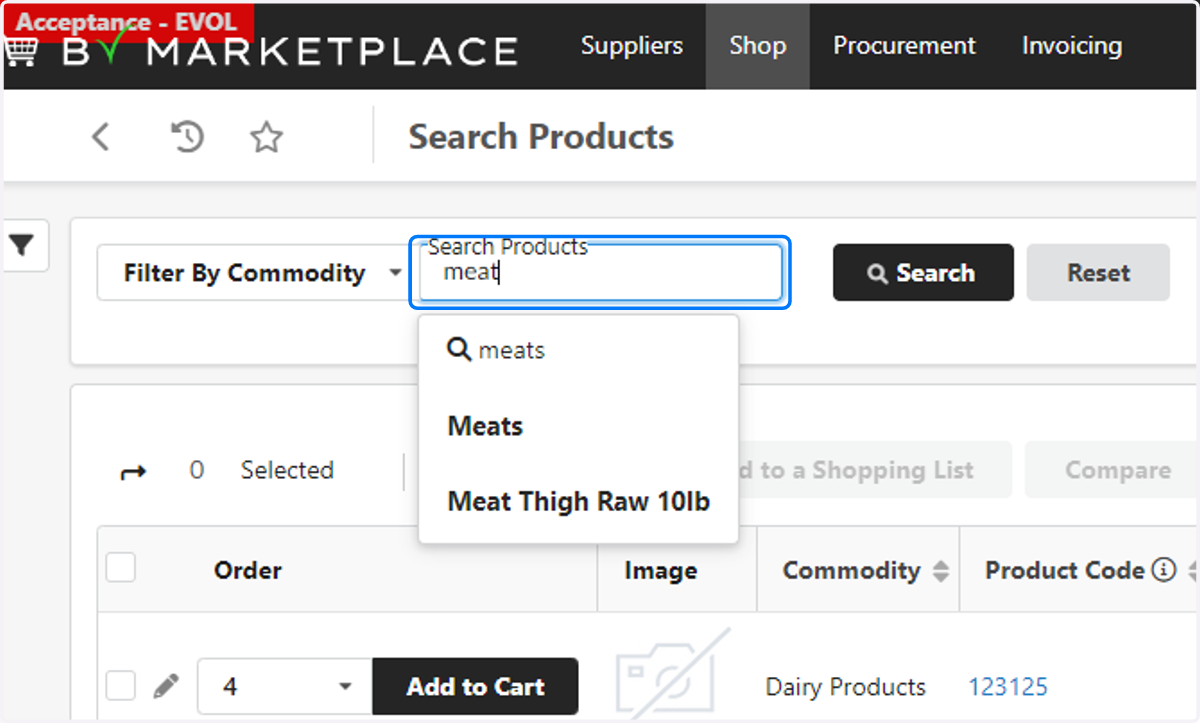
2. You can find items in the catalog by filtering by commodity, or searching for products by keyword.
Remember! Commodity means category
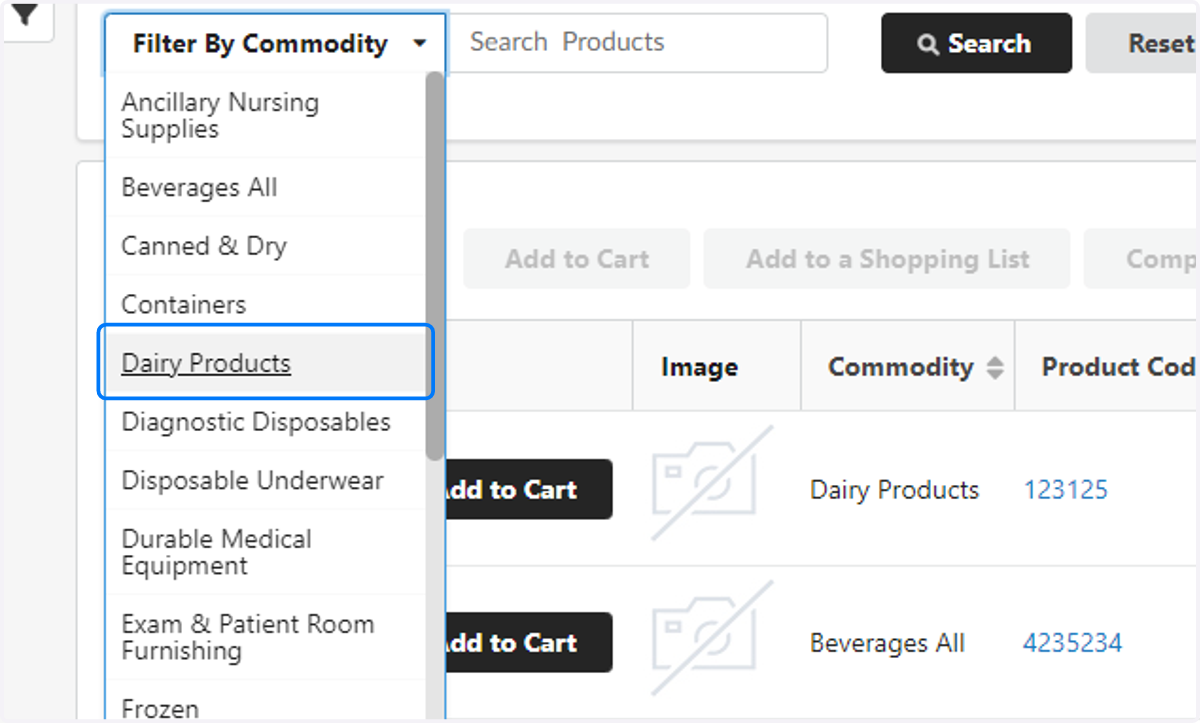
3. Click on the Commodity you want to find products under.
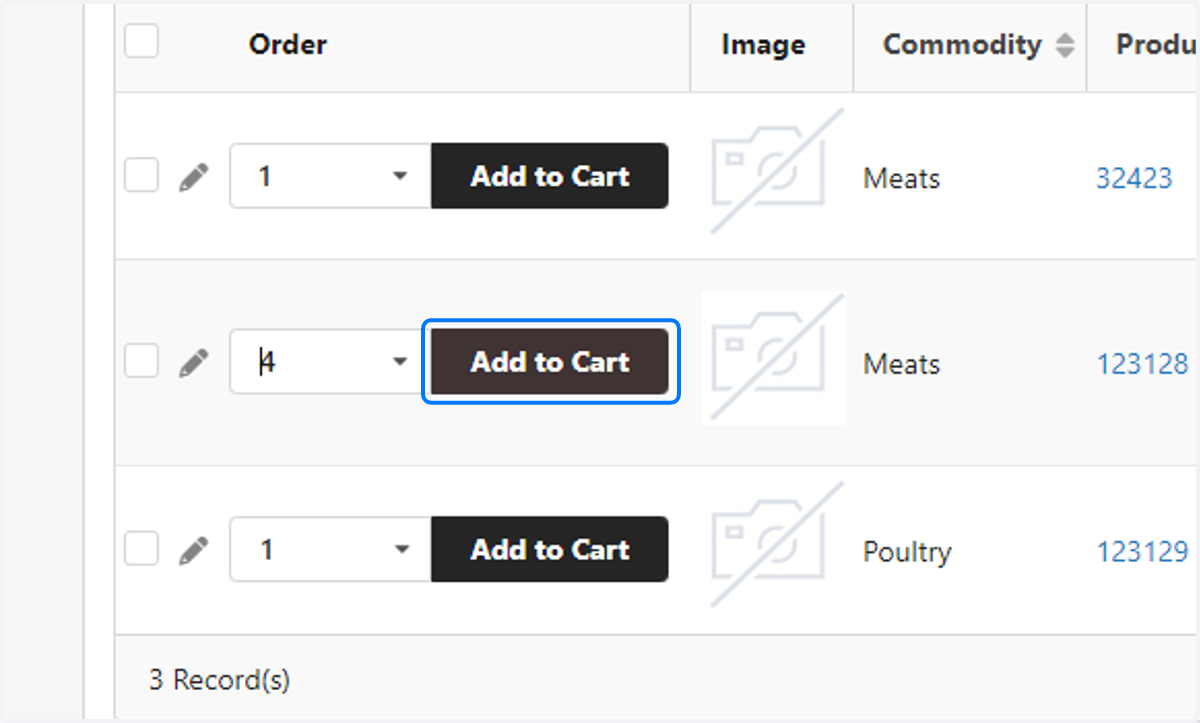
4. Use the drop down, or enter in the quantity
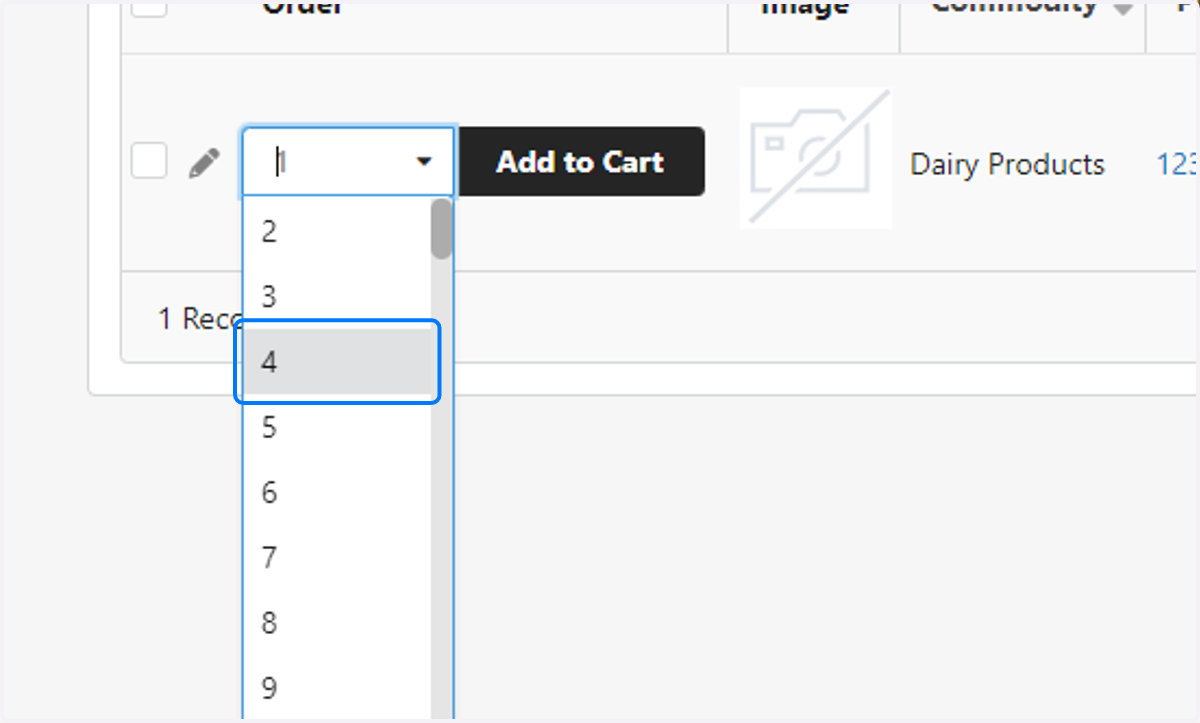
5. Click on Add to Cart
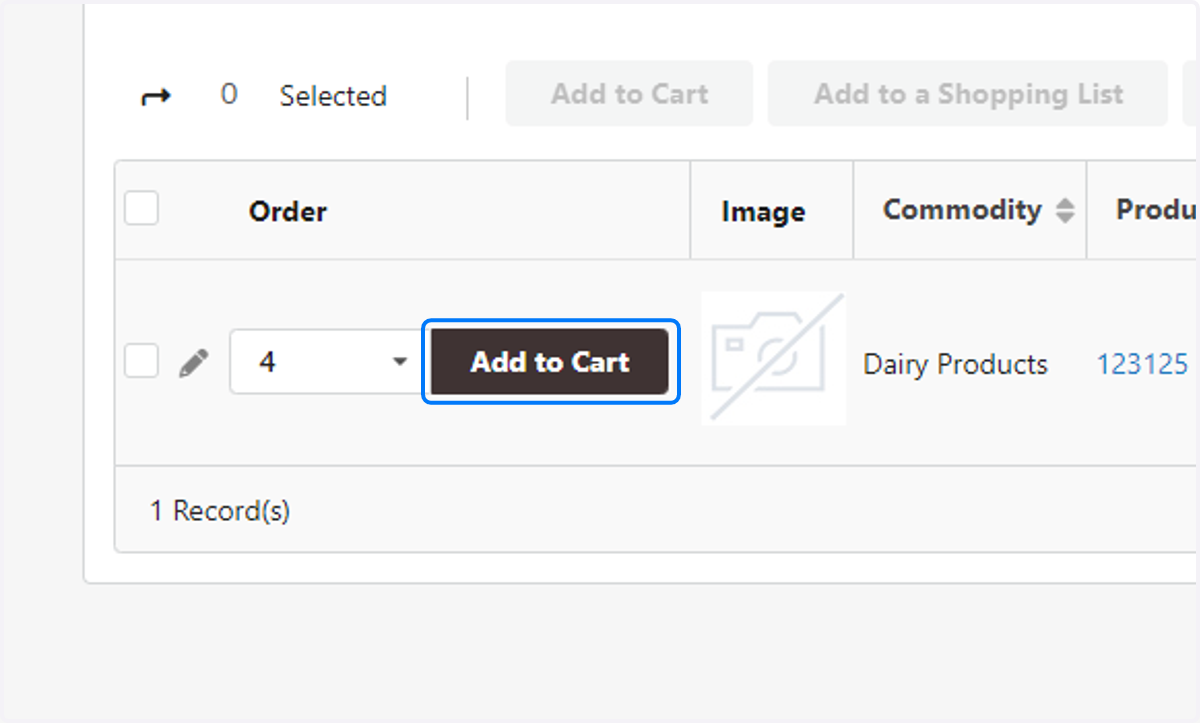
6. You can find items in the catalog by filtering by commodity, or searching for products by keyword.
7. Update the quantity.
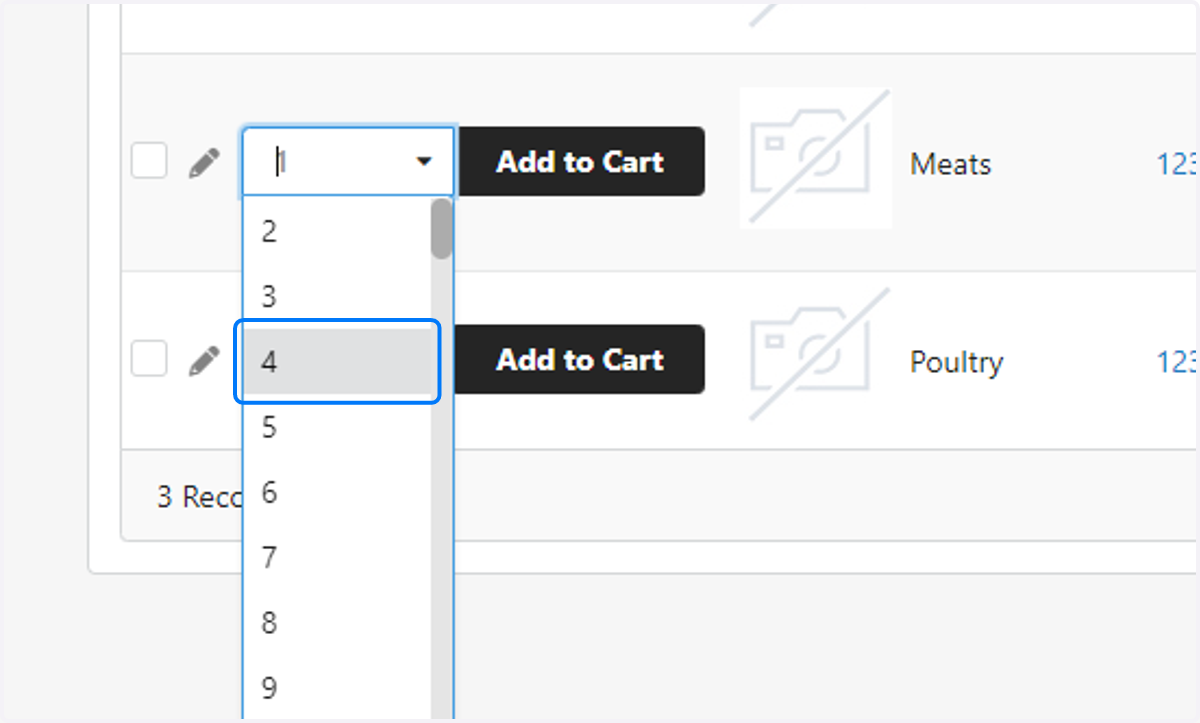
8. Click on Add to Cart
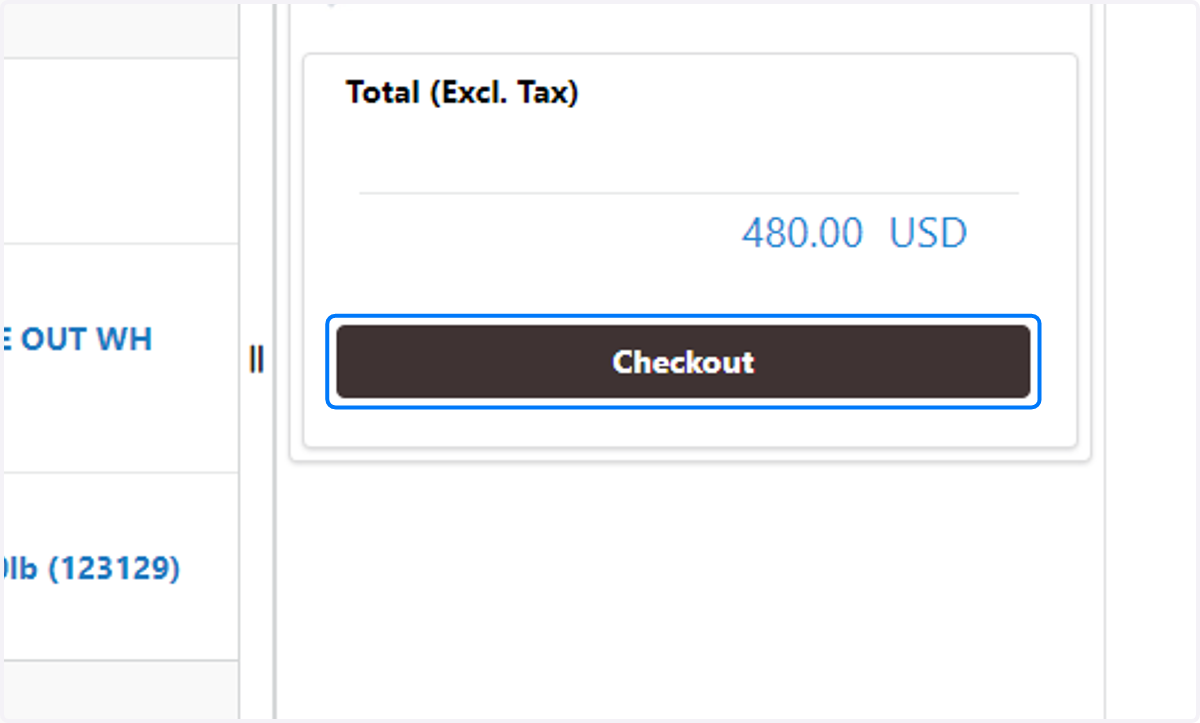
9. Click on Checkout
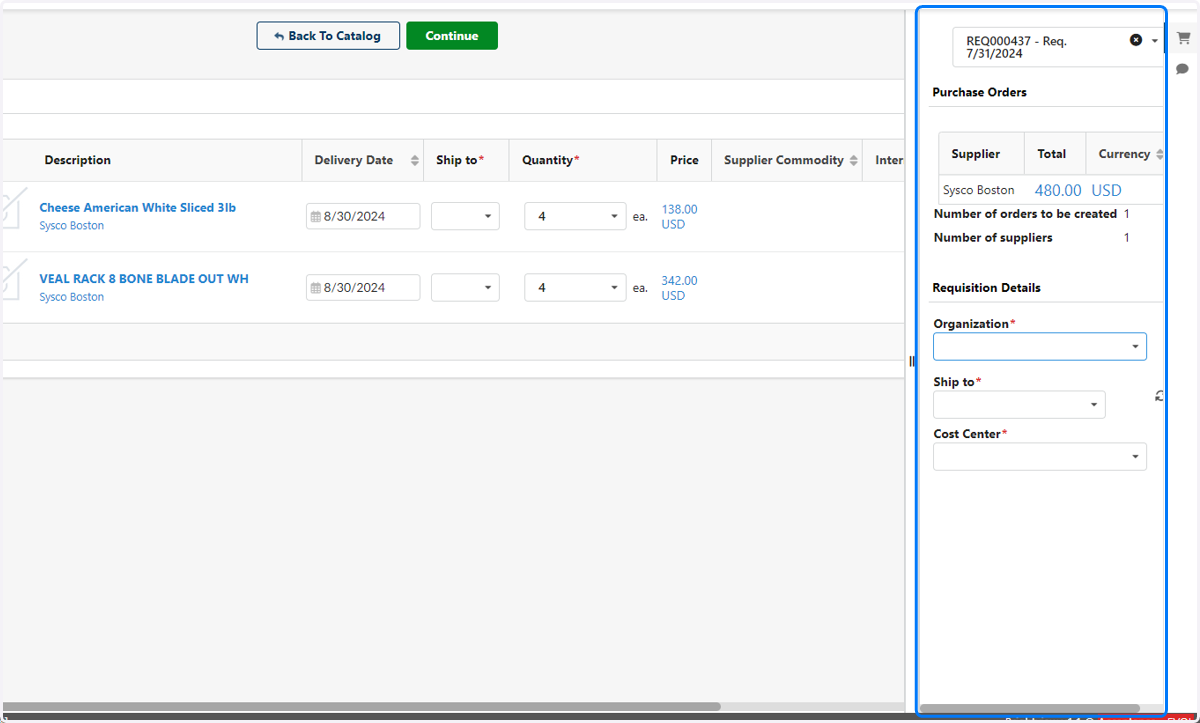
10. A Purchase Order Summary will pop up on the right hand of the screen. You'll need to fill in some details here.
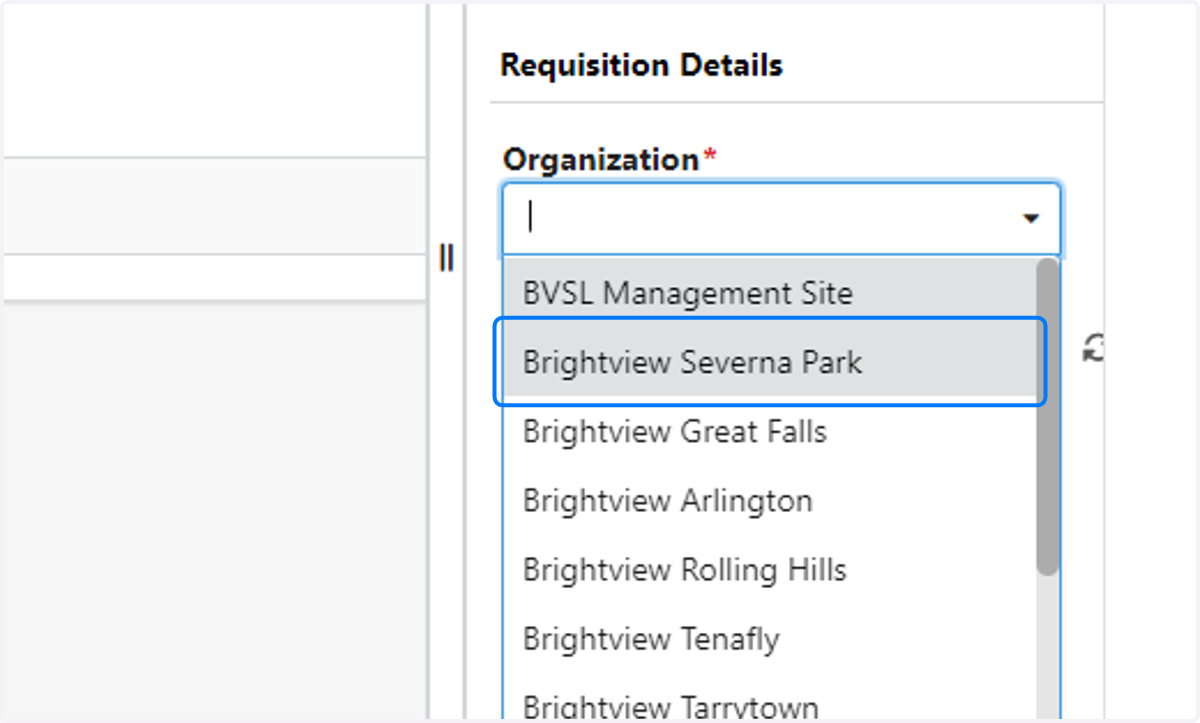
11. Select the Brightview location your products should ship to.
Note: you will only have access to the locations applicable for your role.
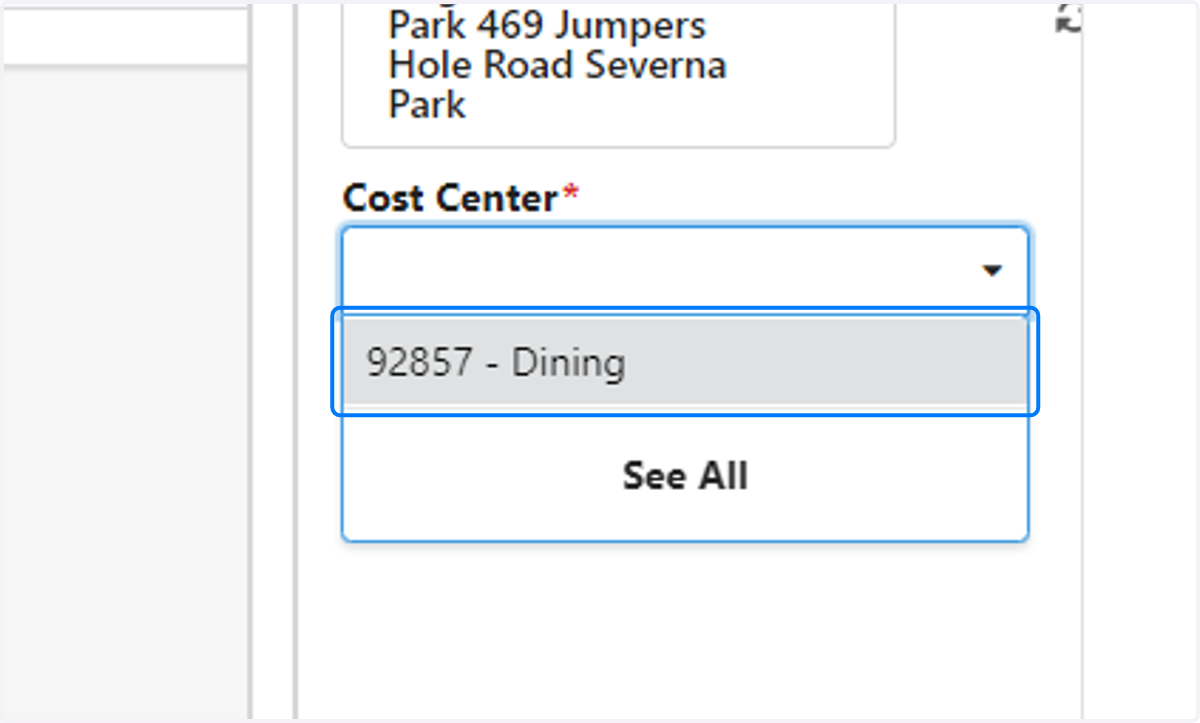
12. Select the Cost Center associated with this purchase.
Note: You will only have access to Cost Centers associated with your role.
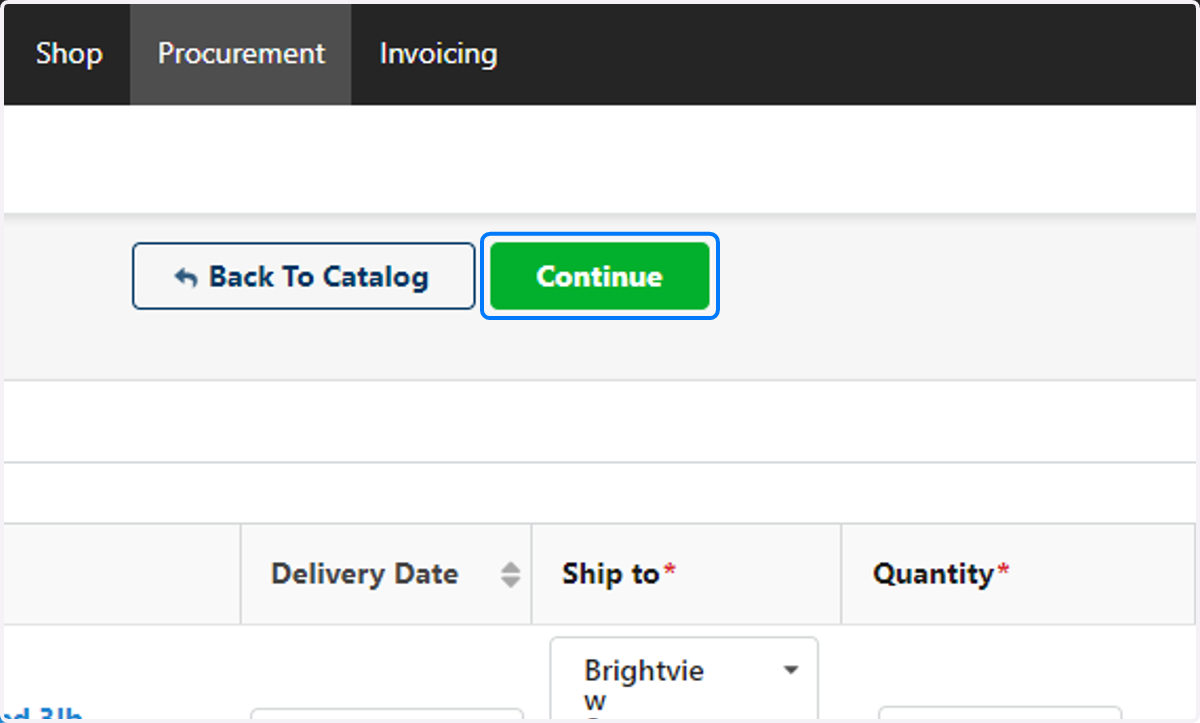
13. Click on Continue
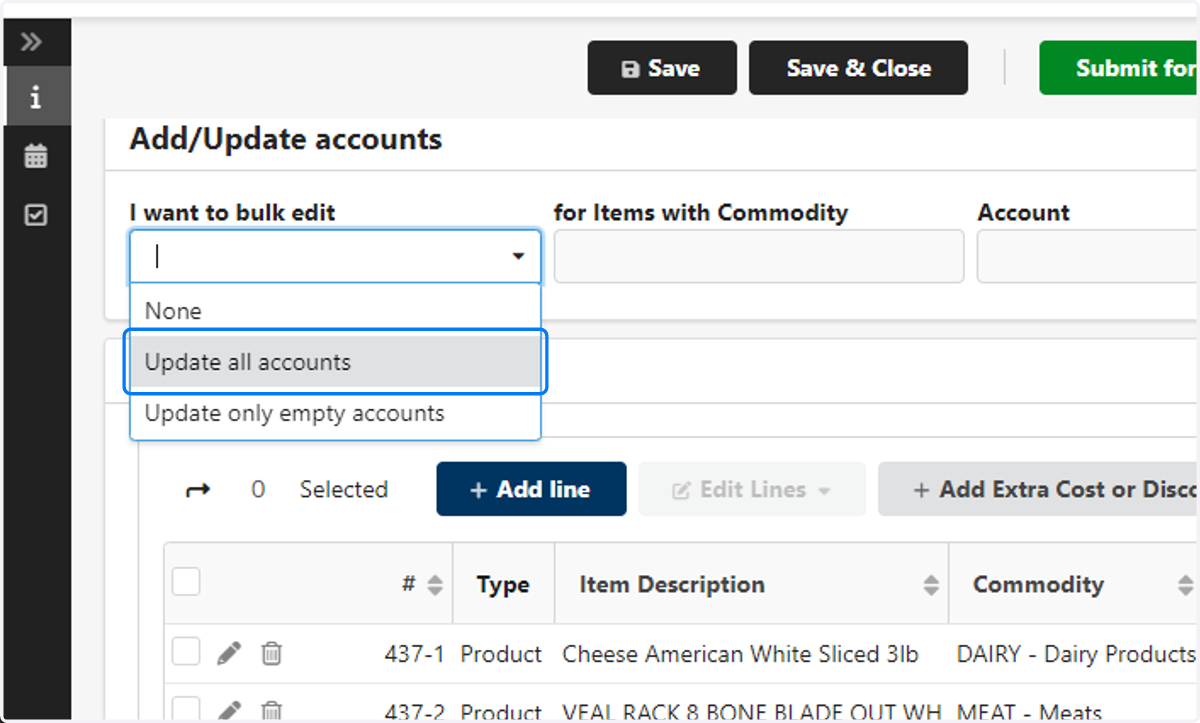
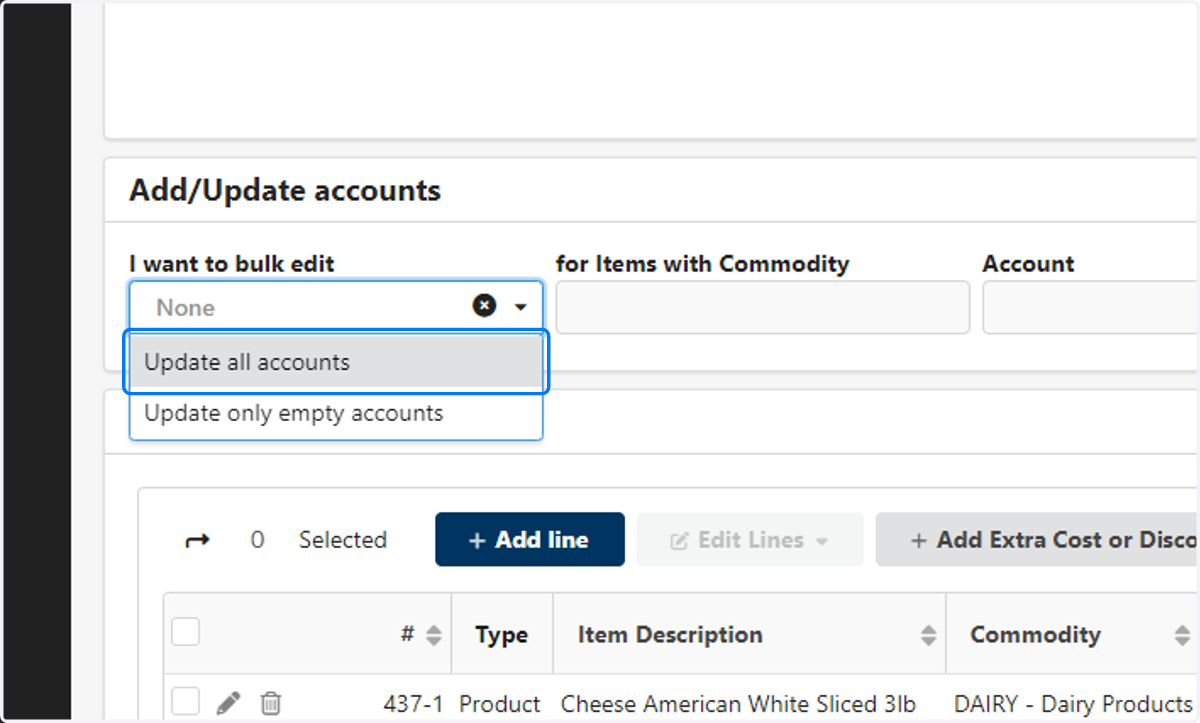
14. Scroll down to Add/Update accounts. Under the "I want to bulk edit" click on Update all accounts.
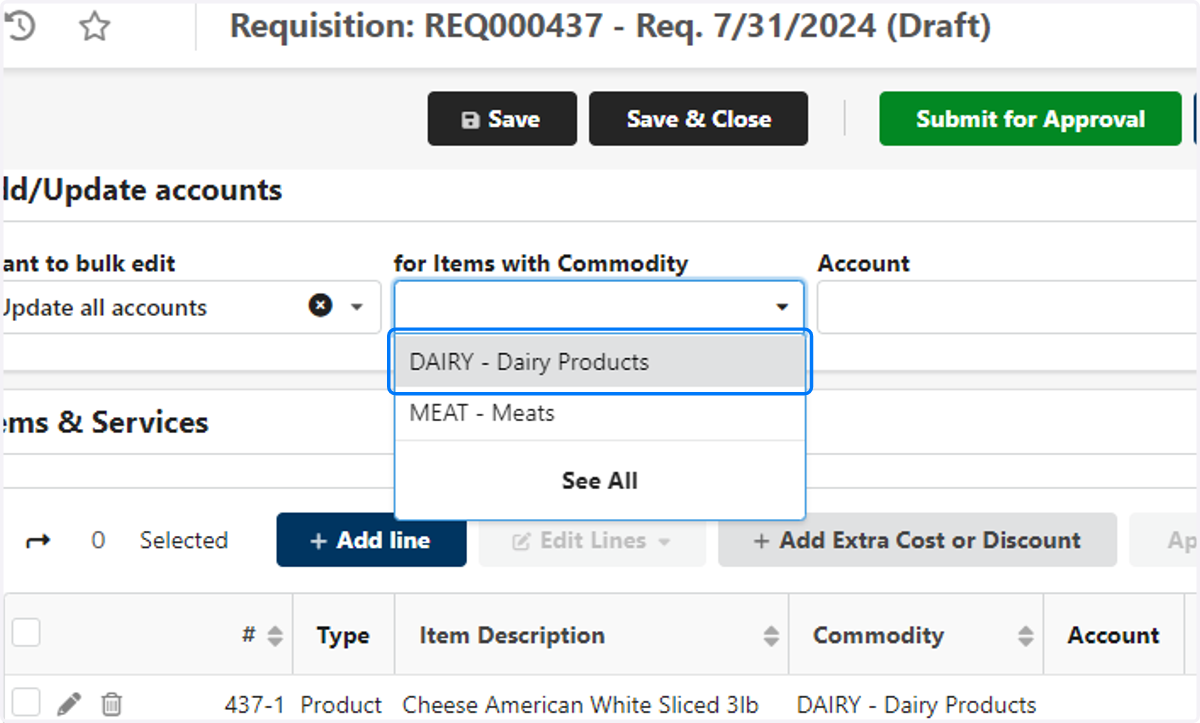
Note: You will need to do this for each commodity.
15. Select one of the commodities.
16. Select the GL Code for this purchase.
Note: You will only have access to the GL Codes applicable for your role.
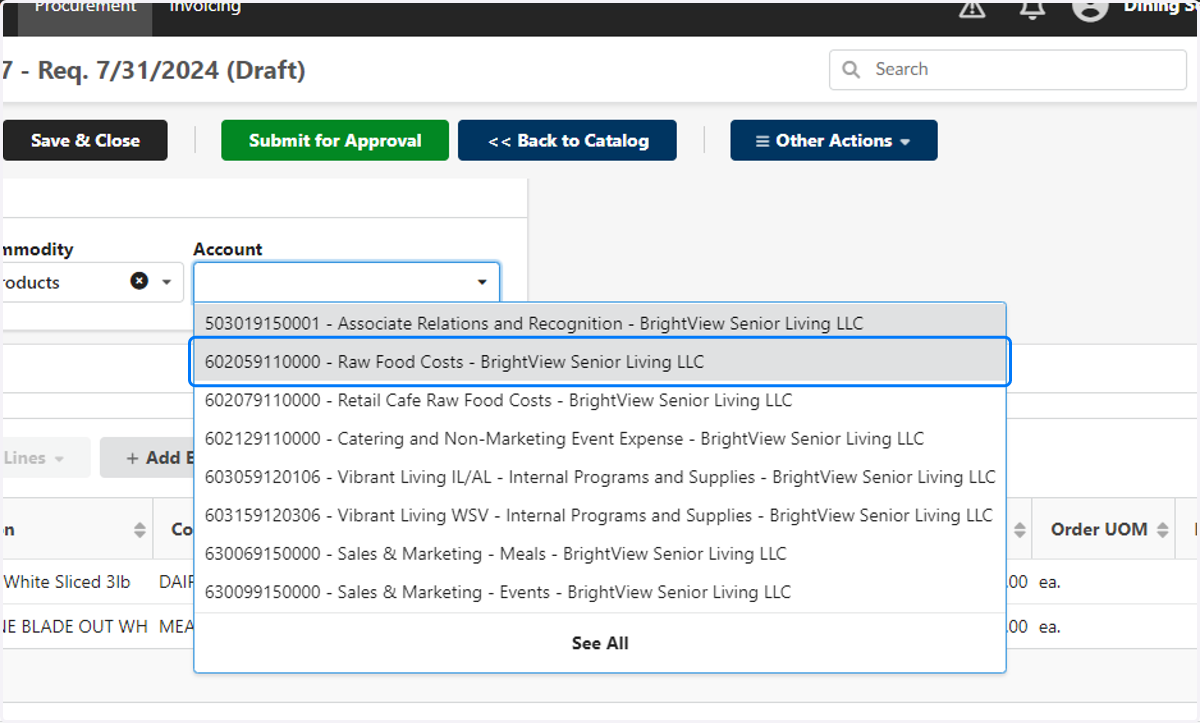
17. Click on Save! (When in doubt, Save!)
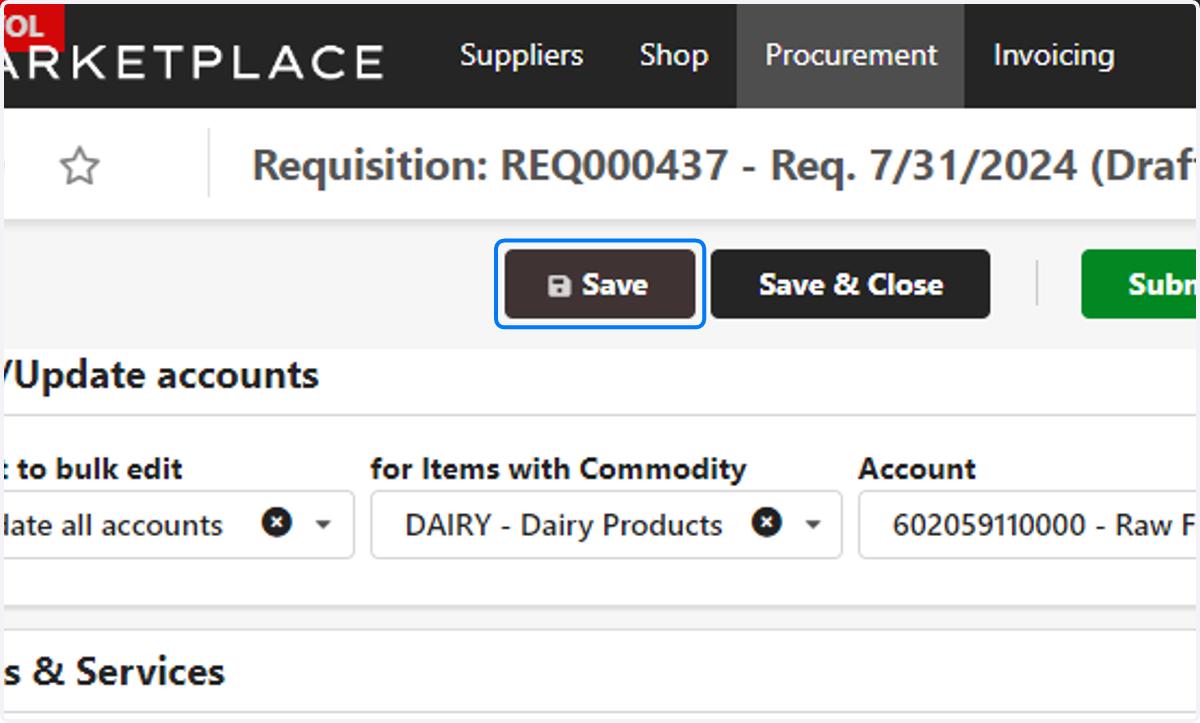
18. Go through the Add/Update account steps for each commodity
19. Click on Save after updating each commodity
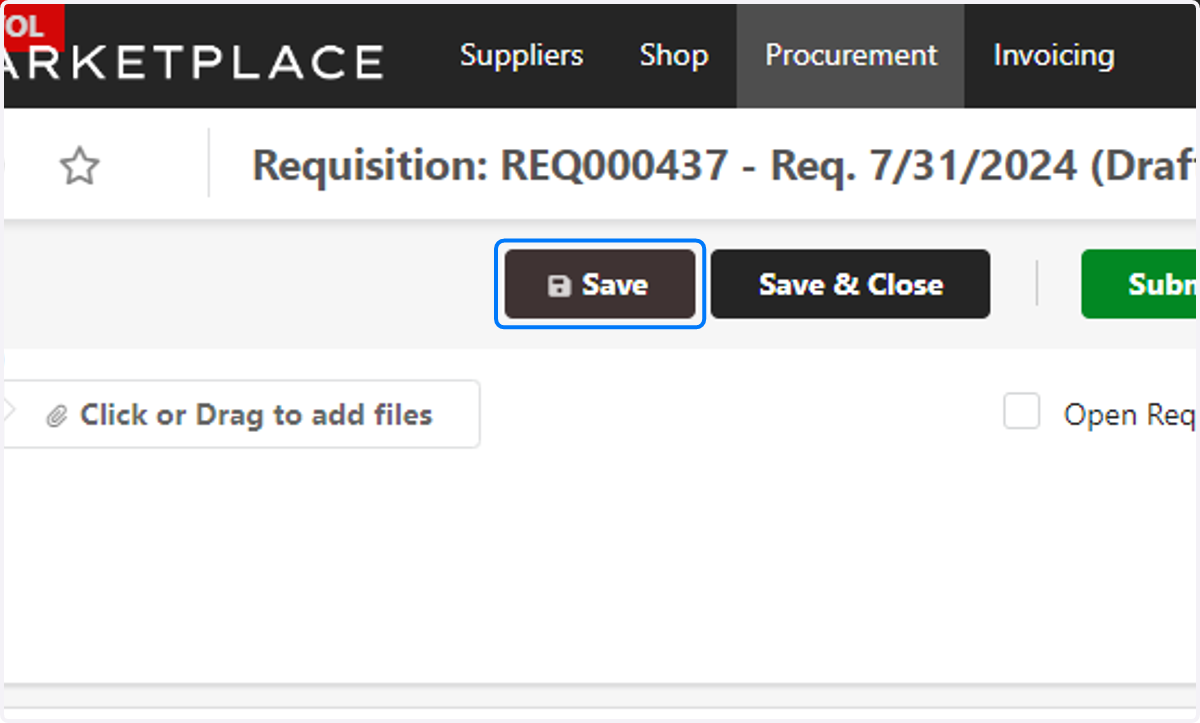
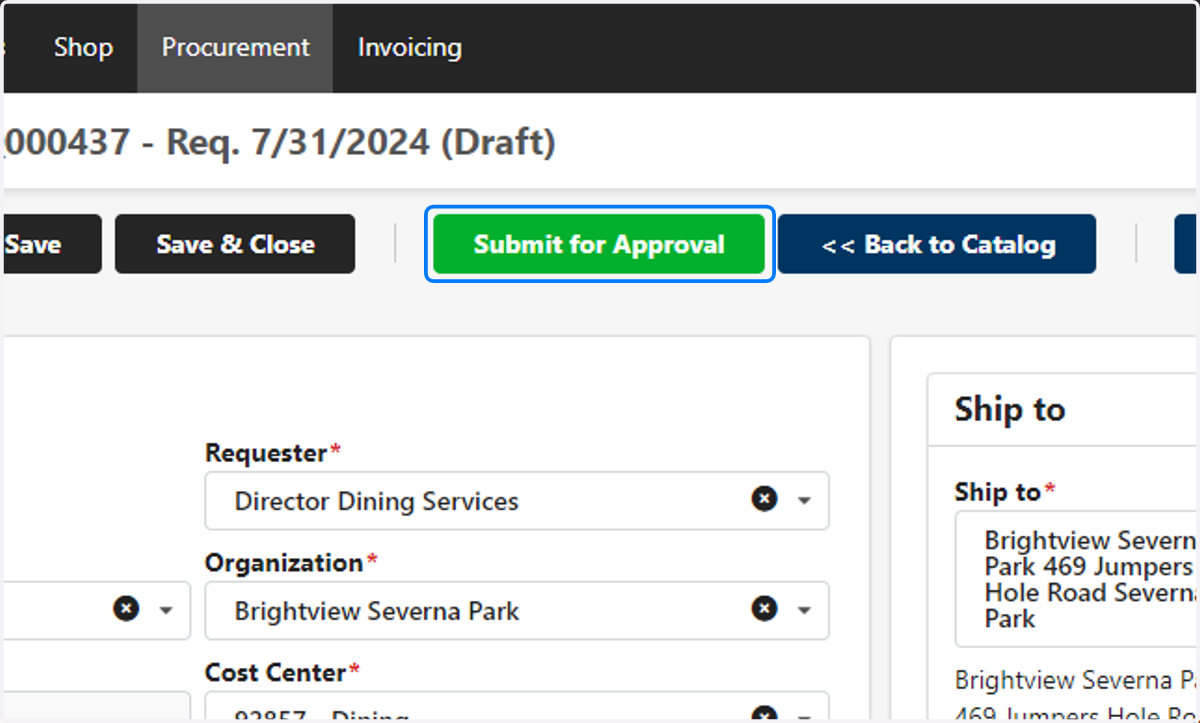
20. Click on Submit for Approval. You did it!!