Navigating LoadOps Dispatch Page: Assigning Trips to Drivers
We've redesigned LoadOps Dispatch Page to bring more actionable information to the dispatch page
Loadops
1. Click on DISPATCH
If you receive a blank white page it may be due to the deployment. In most cases you can log out and log back in to resolve the issue. In extreme cases for some browsers you may need to clear the cache
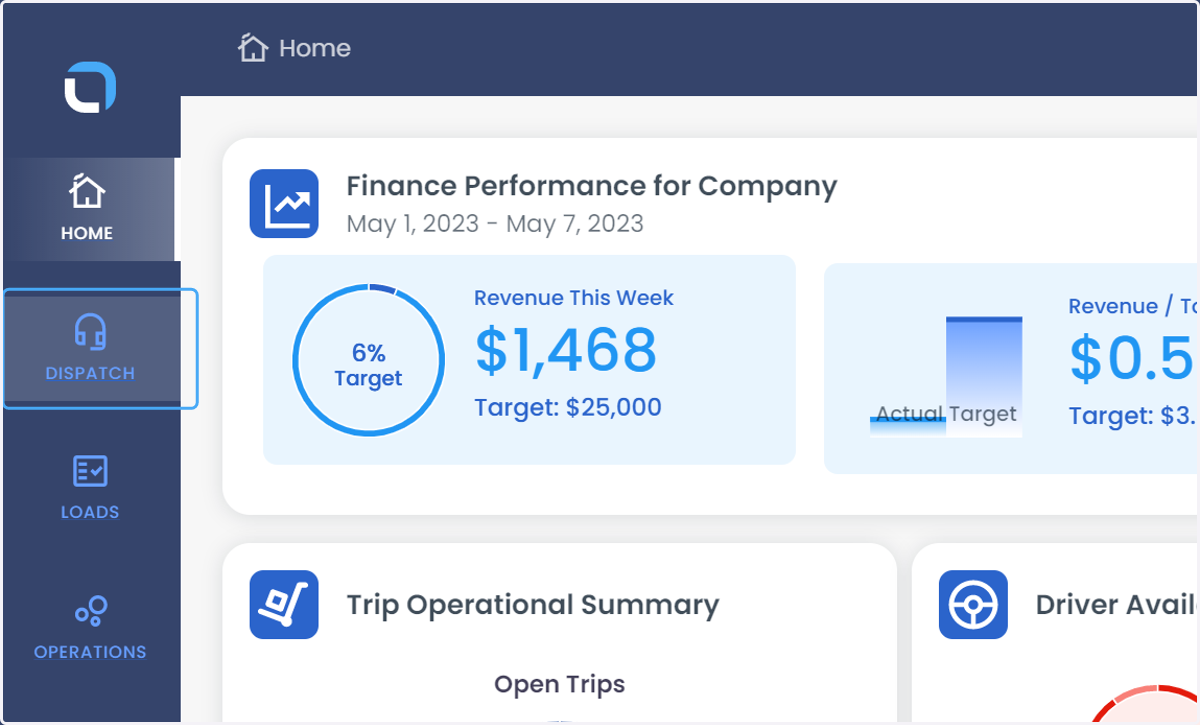
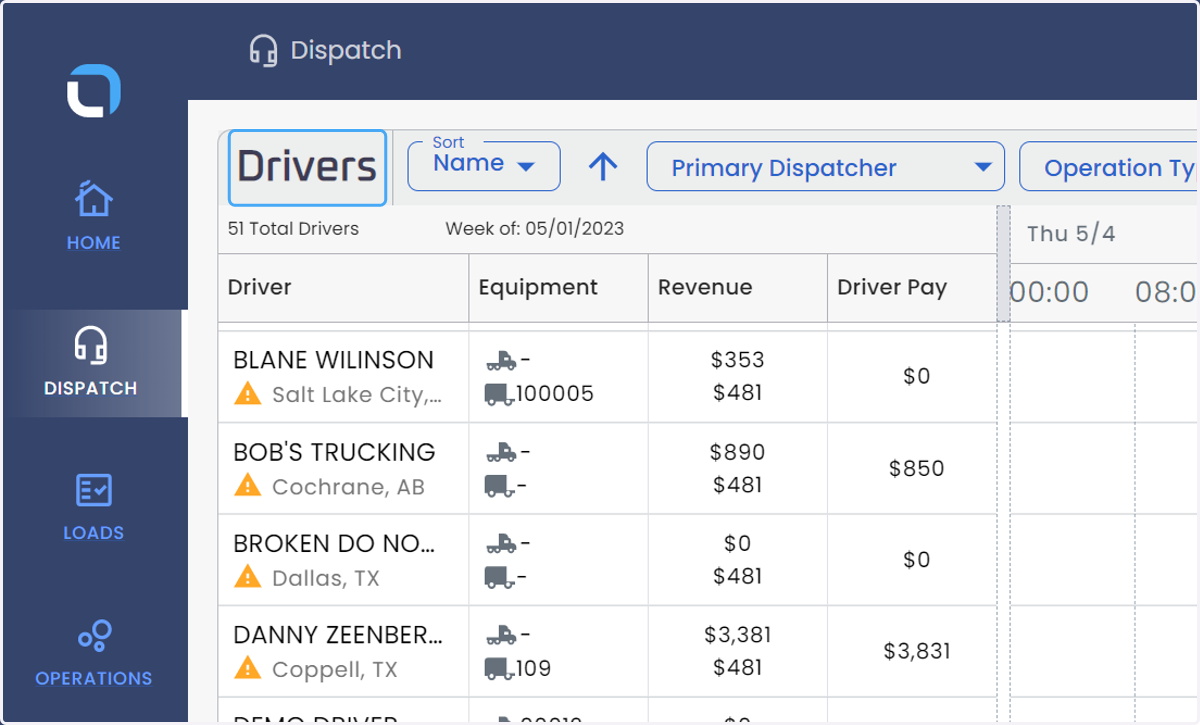
2. We've added a two-panel design that shows drivers over trips so that you can view all the relevant data simultaneously
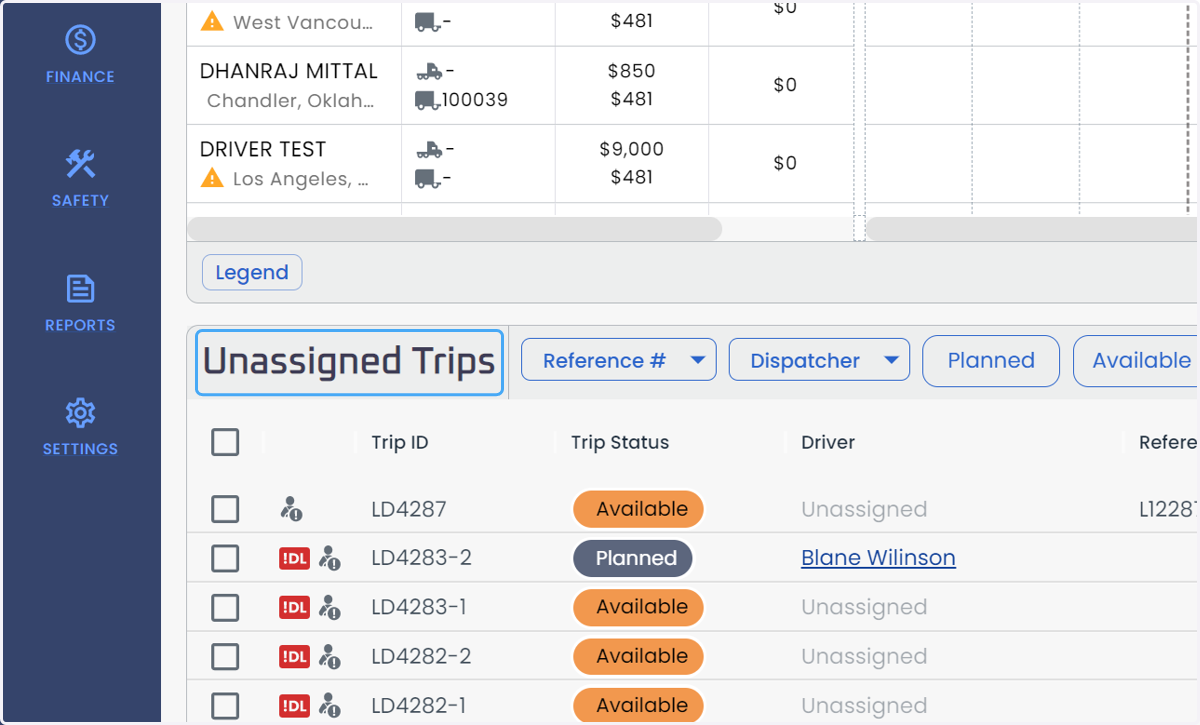
3. Unassigned Trips are shown on the bottom panel which includes both AVAILABLE and PLANNED trips
Planned trips are reserved for a driver but will not be visible to the driver until changed to ASSIGNED Status
4. Click on Maximize / Minimize to switch the focus between the top and bottom panel
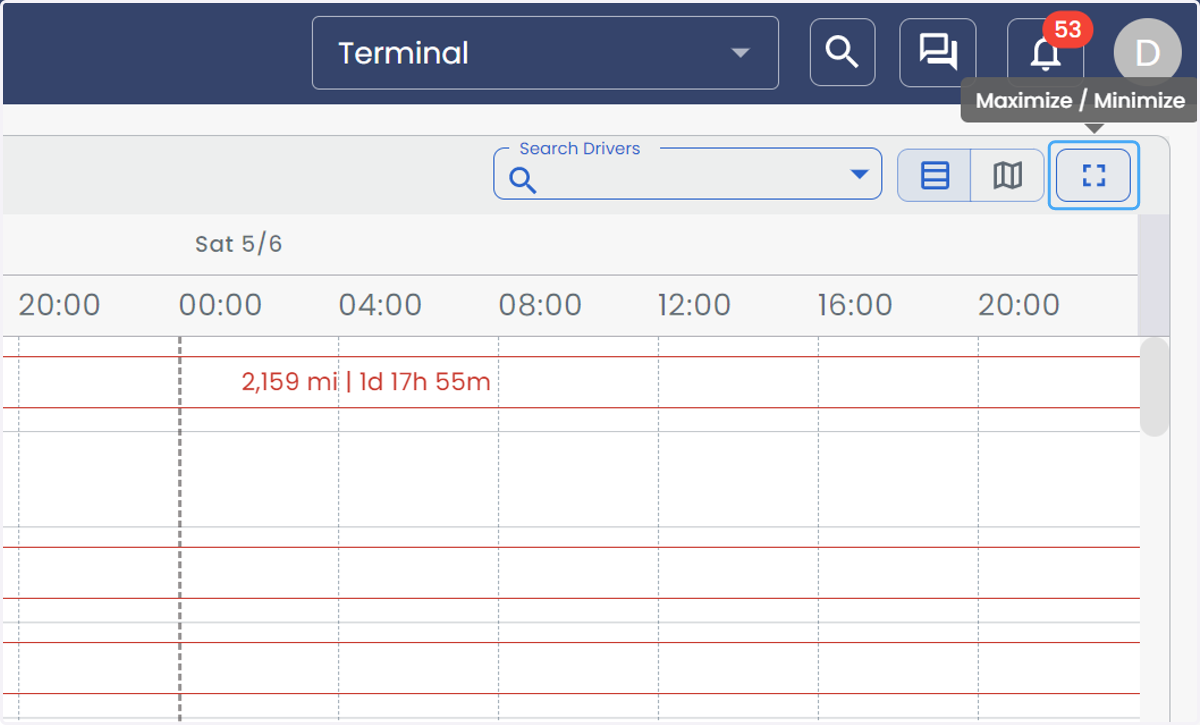
5. Click on Maximize / Minimize
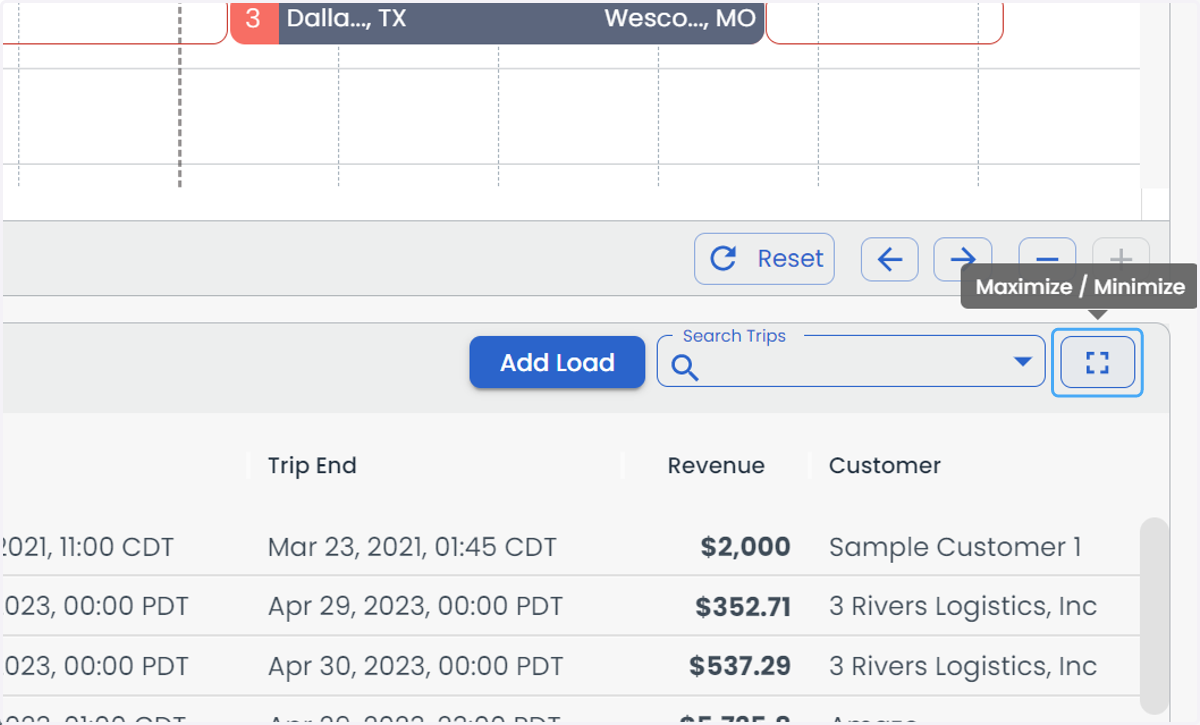
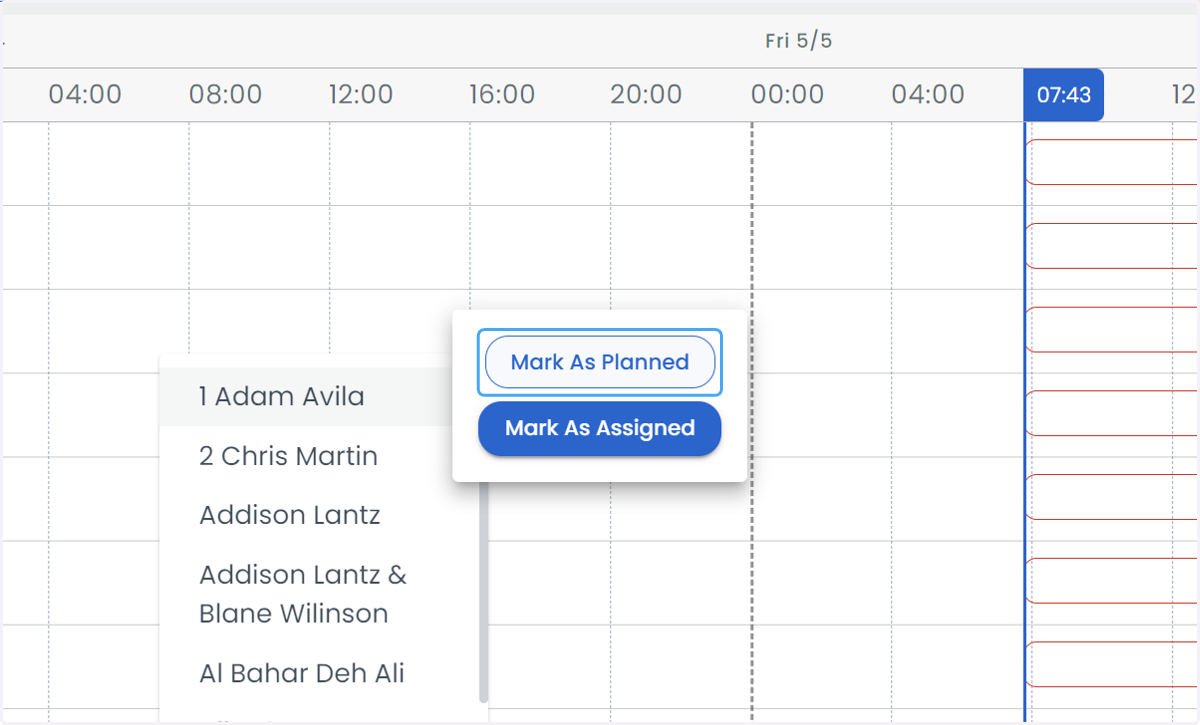
6. Trips can be directly Planned and/or Assigned to drivers directly from the Trip Grid
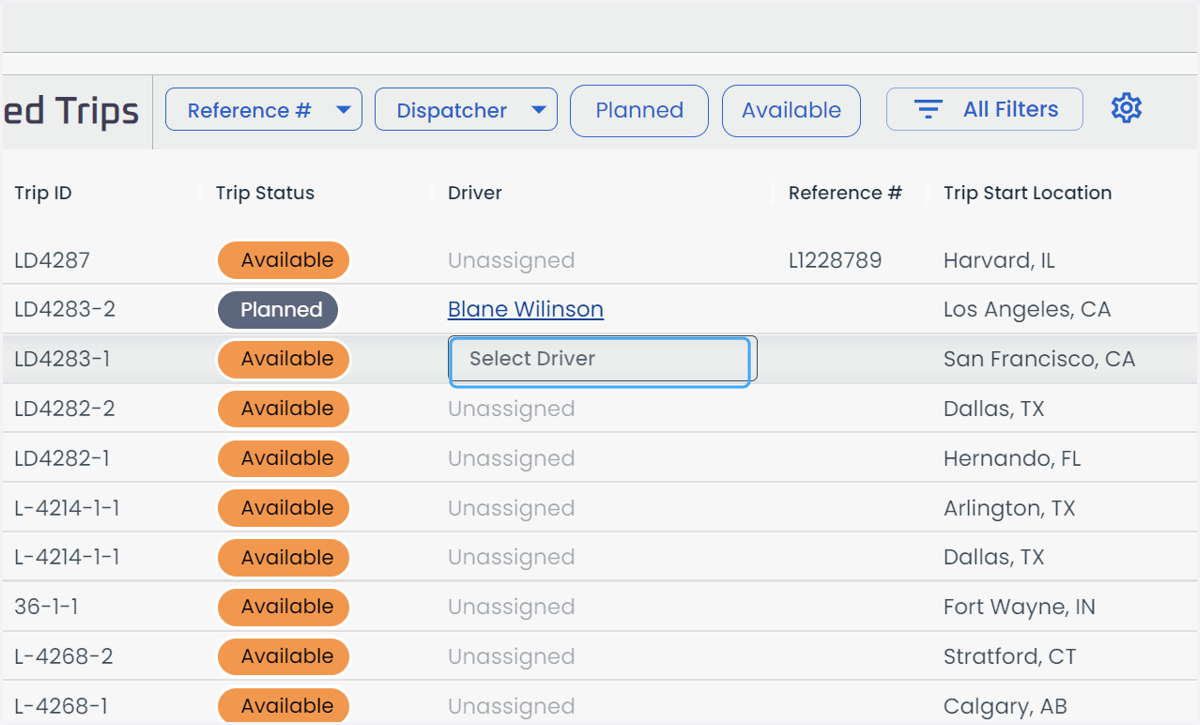
7. Click on 1 Adam Avila
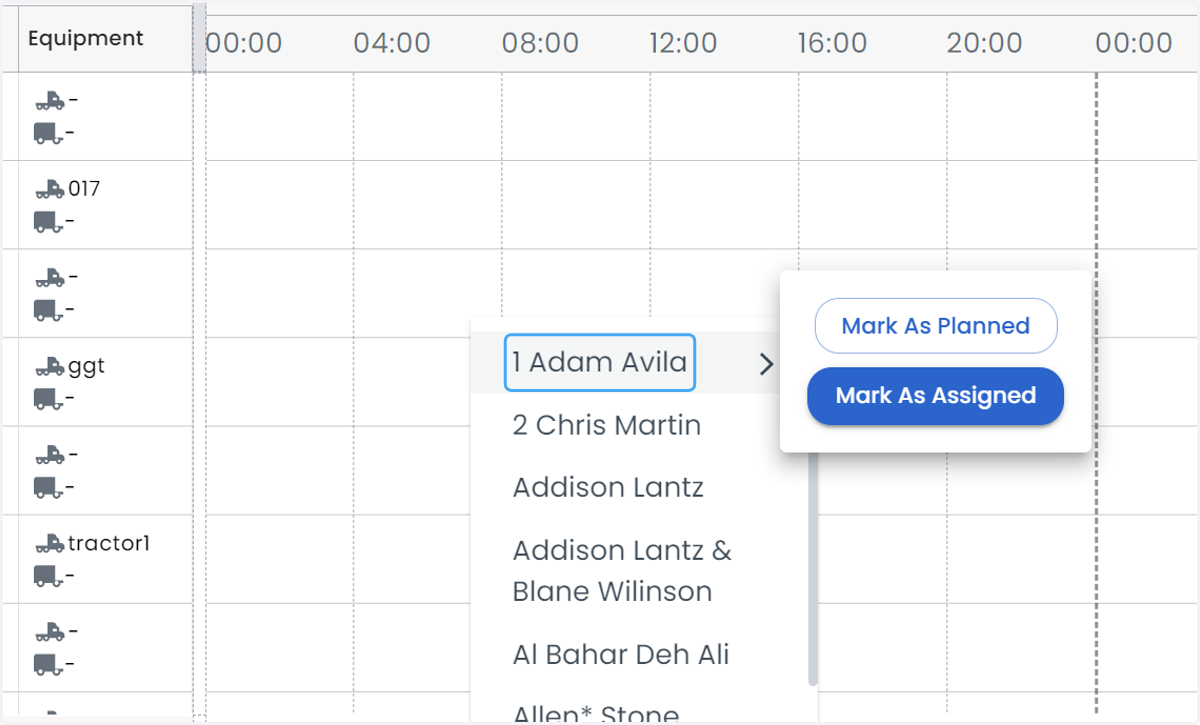
8. Click on Mark As Planned
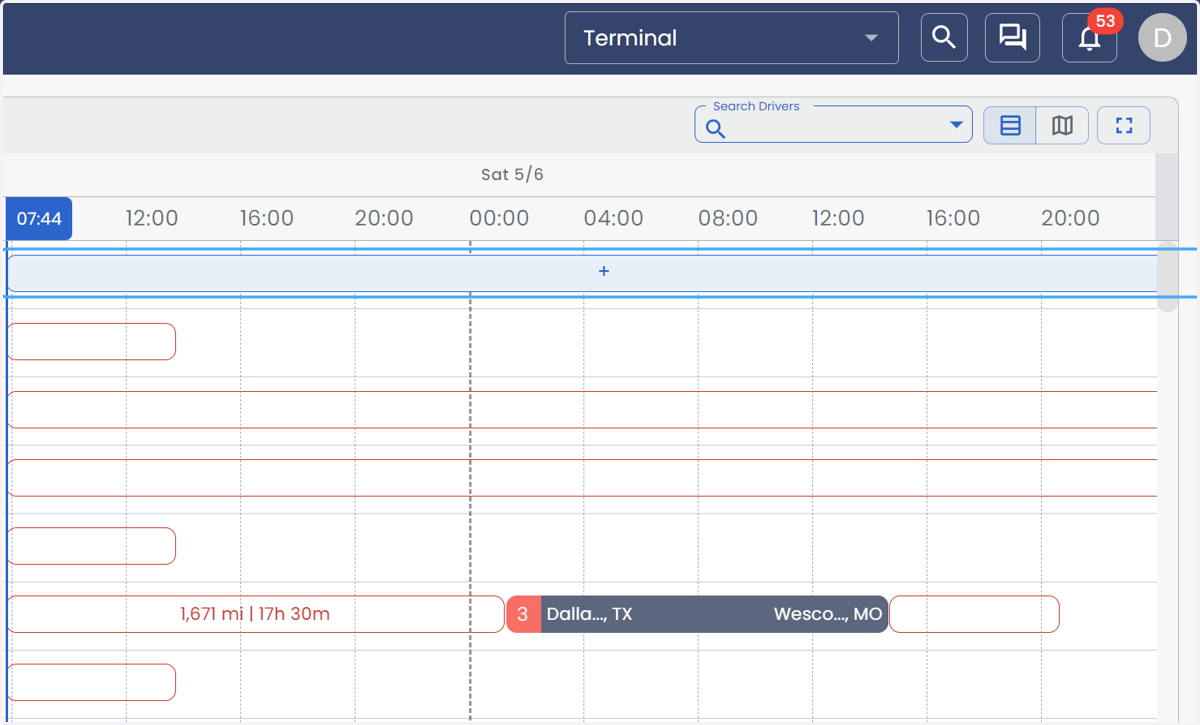
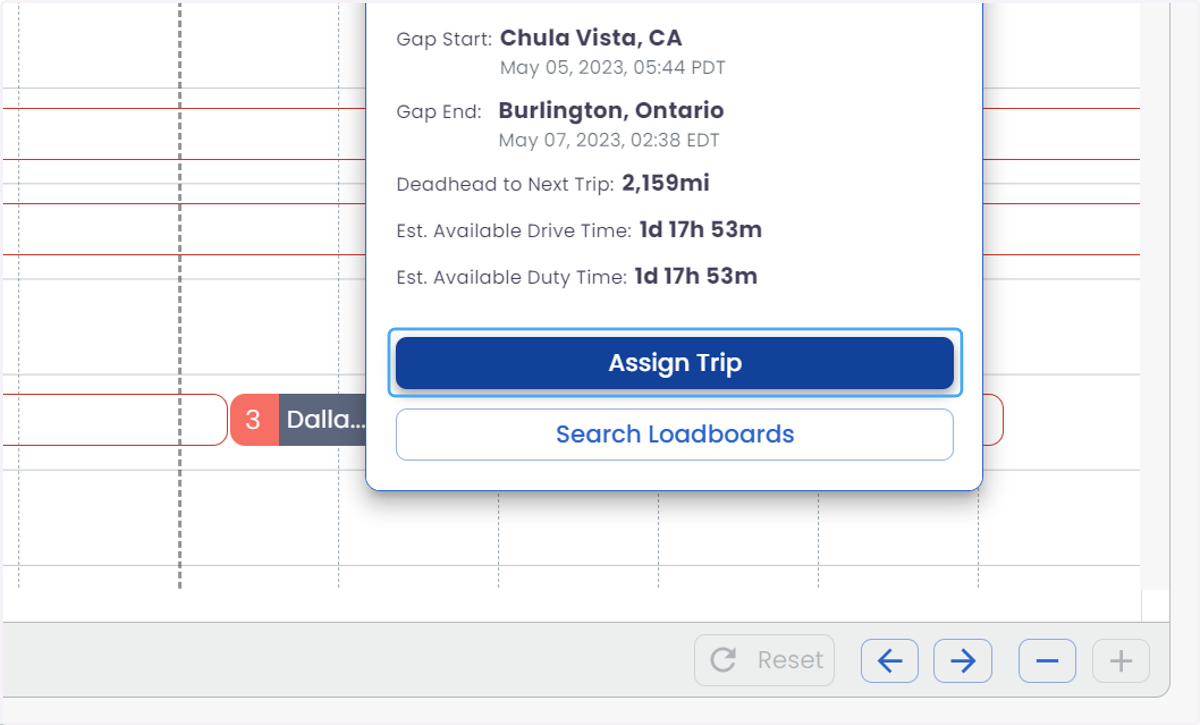
9. And Drivers can have a Trip assigned directly from the Gantt chart by selecting a gap in their timeline
10. Click on Assign Trip
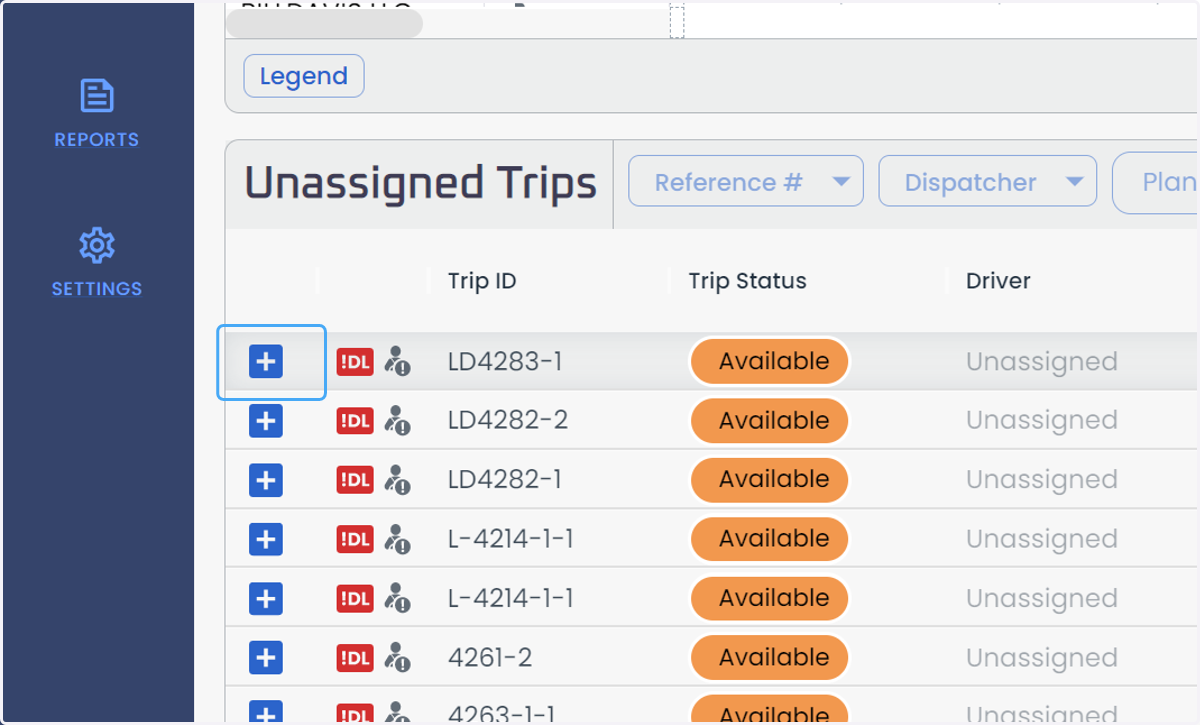
11. Click on the available plus icon to select the trip
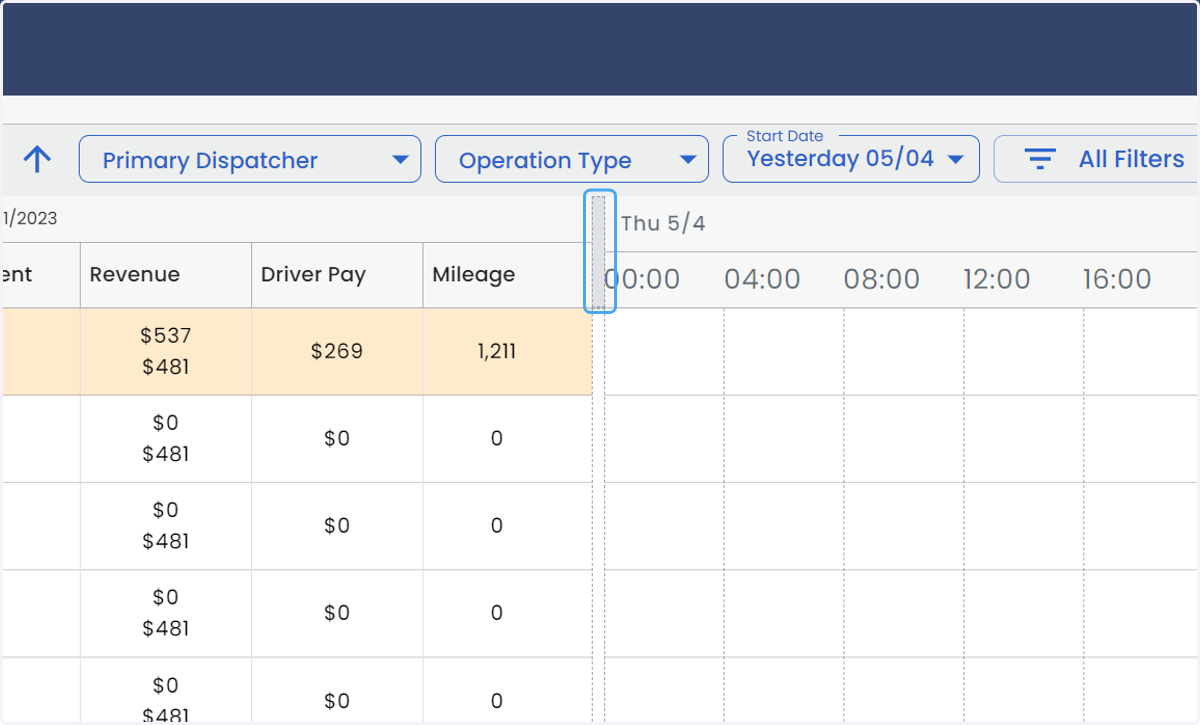
12. The Gantt has an adjustable grid to show more KPIs for the driver including revenue, driver pay, and mileage
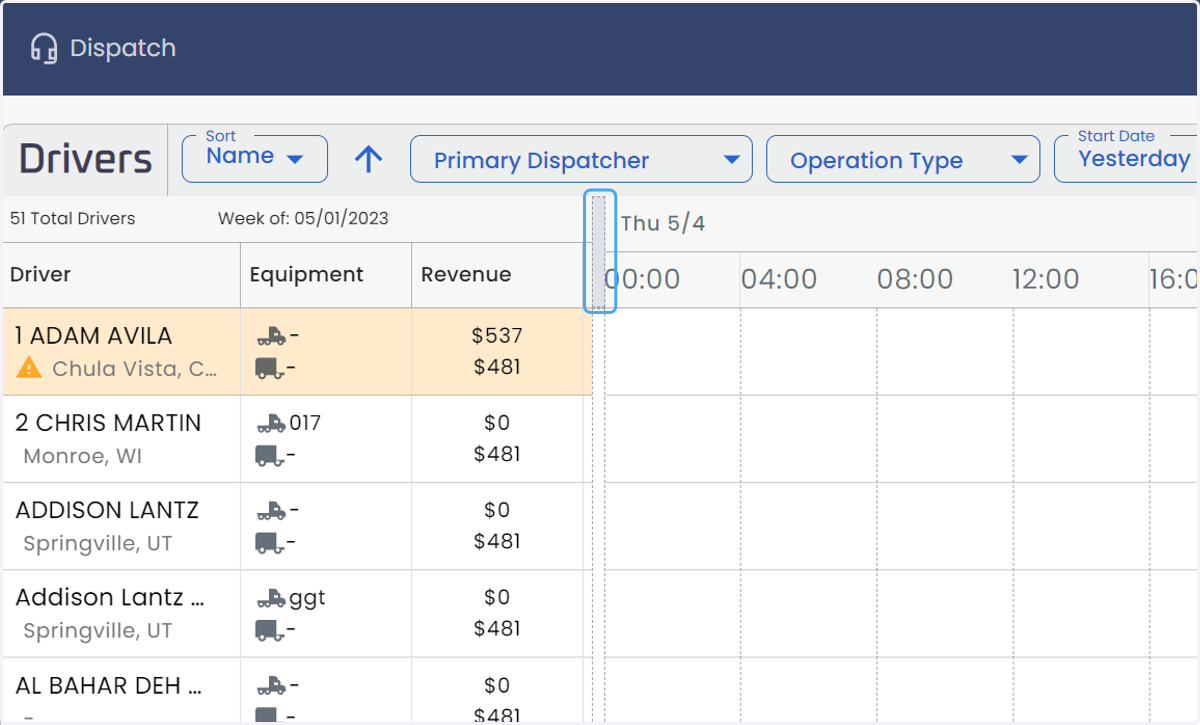
13. Click on Revenue
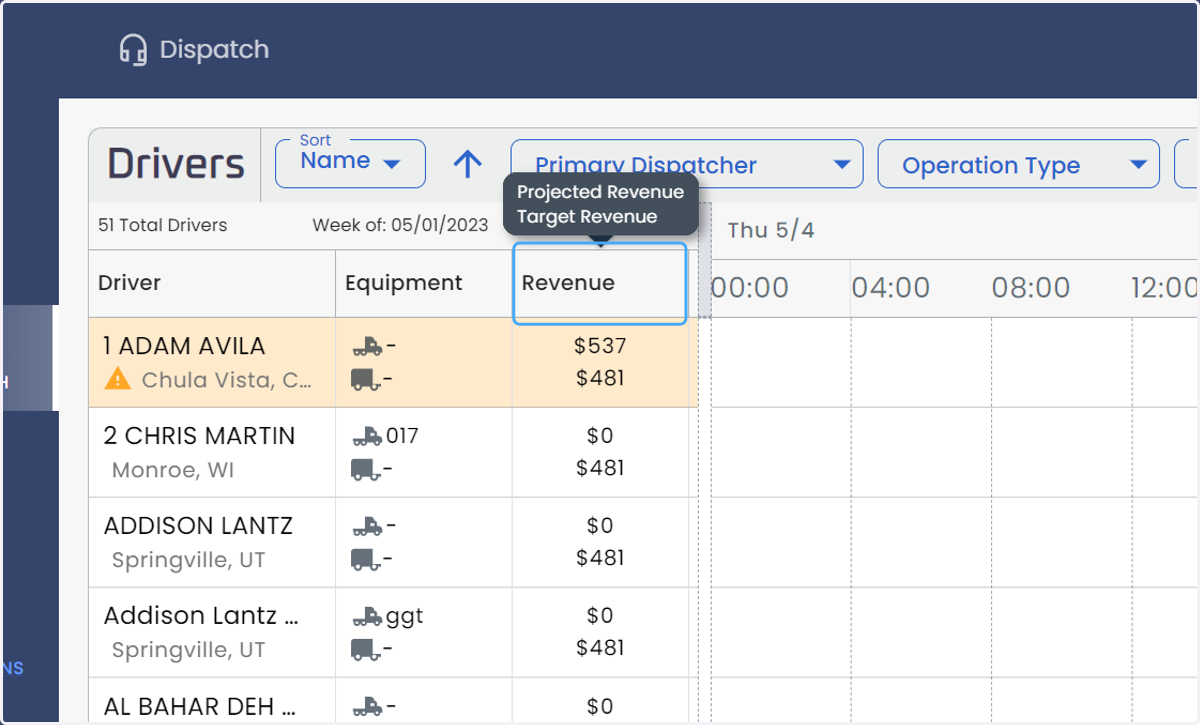
14. Drag highlighted element
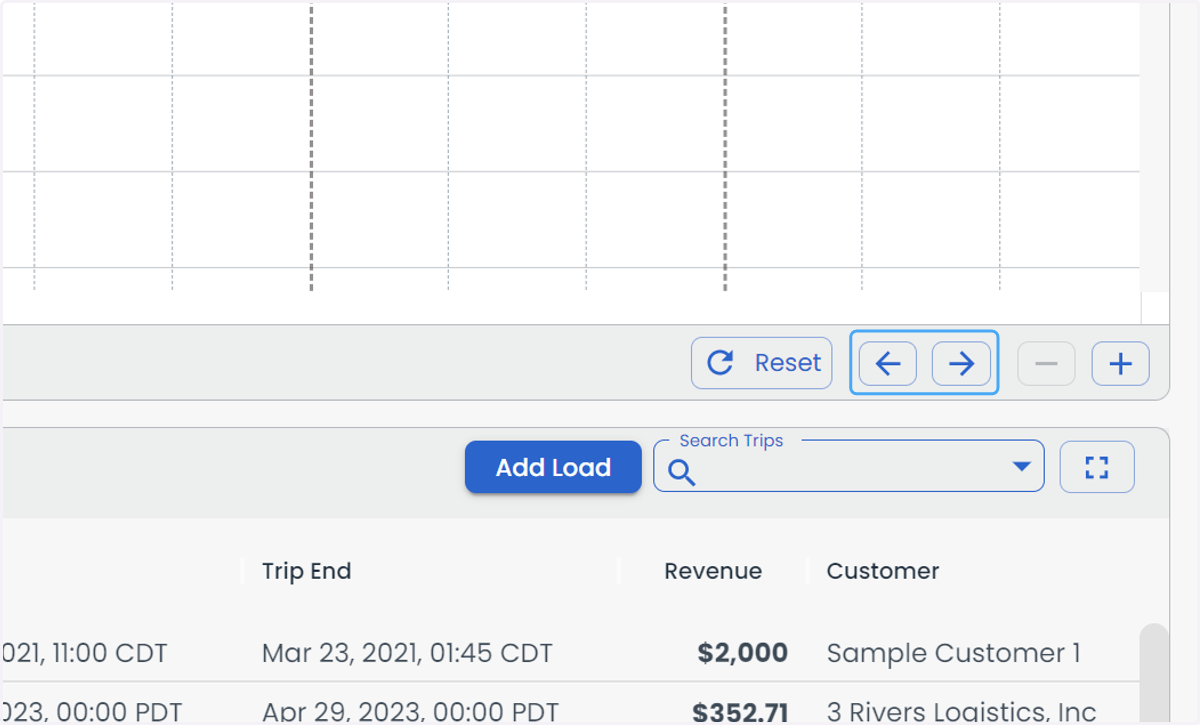
15. Zoom in or out to change the number of days that are viewed
Fully Zoomed out is a 7 day view of 21 total days loaded (7 historical week, 7 current week, 7 future week)
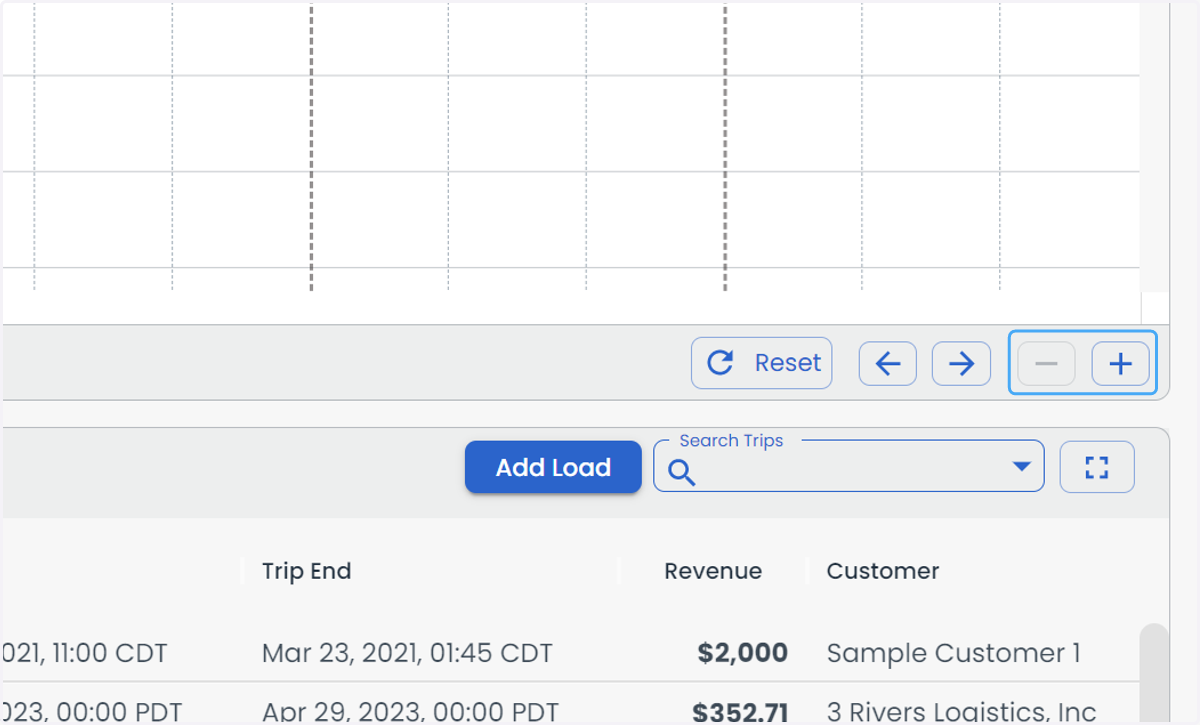
16. Use the Arrows to move foward and backward in the timeline