Workflow of the Purchase Section: Purchase Orders, Invoices, Payments, and Returns
Introduction to Purchase Orders (PO): In the realm of procurement, Purchase Orders (PO) play a pivotal role in establishing a structured workflow. A PO is a formal document that signals the intent to purchase goods or services, outlining essential details and serving as a precursor to the Purchase Invoice. Let's explore how to seamlessly navigate through the Purchase Orders process.
1. Open Purchase Section
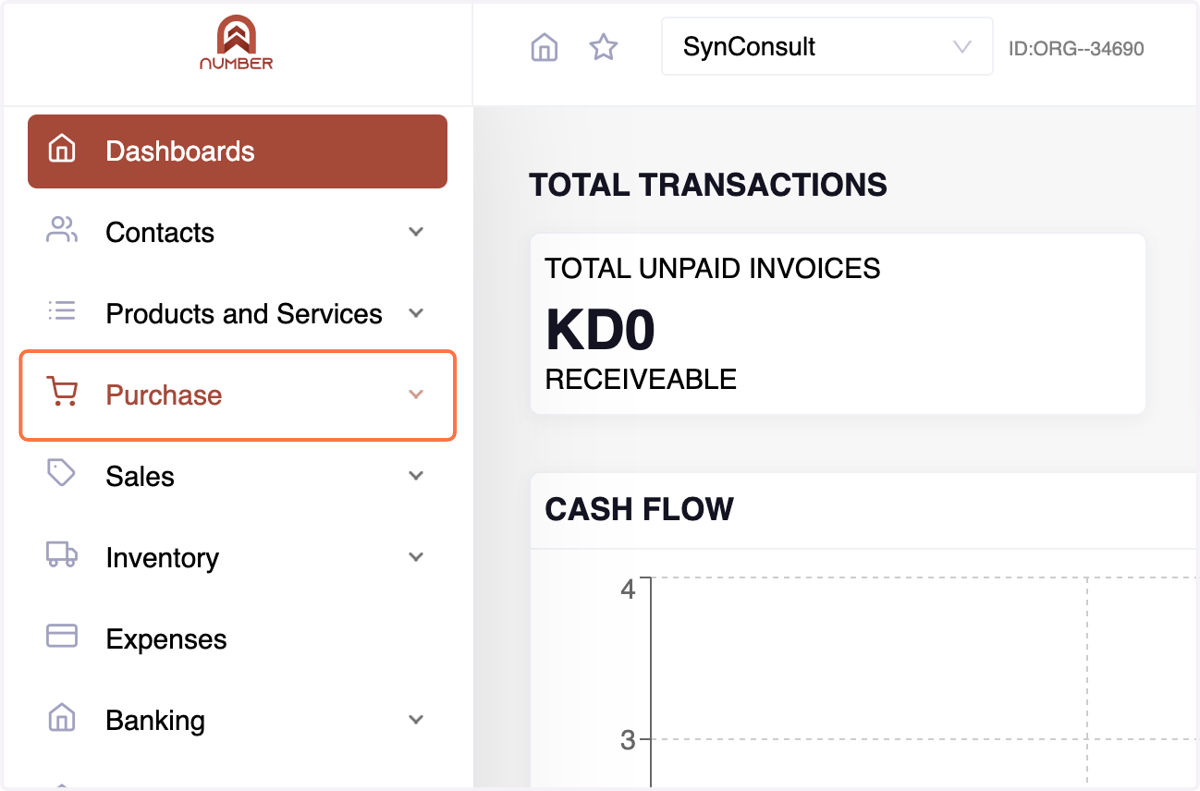
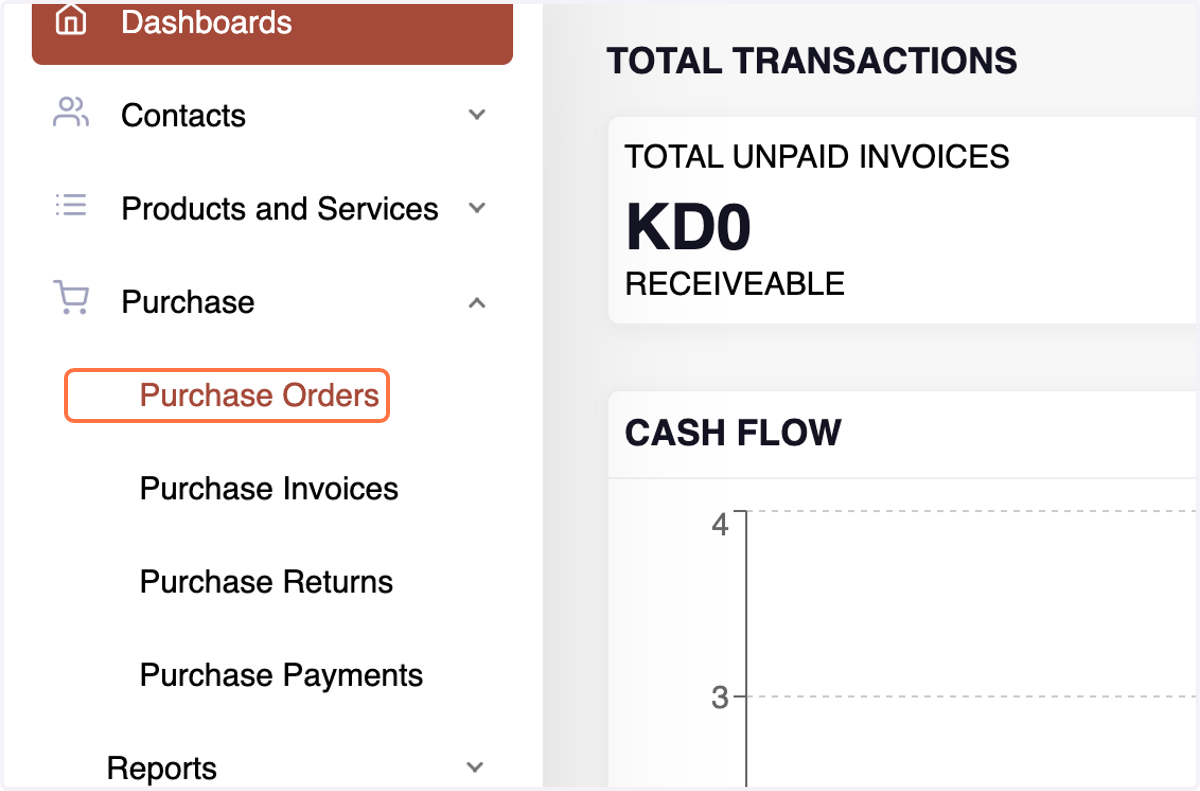
2. Navigate to the Purchase Order Menu.
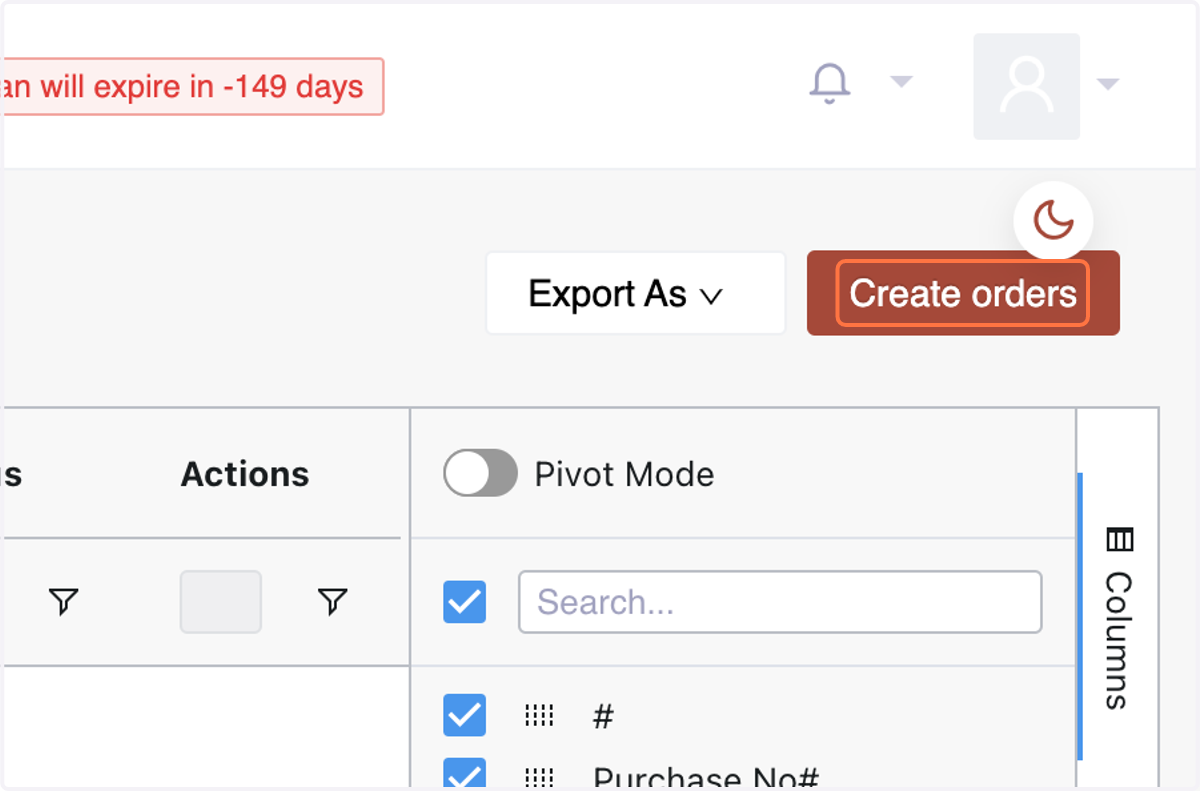
3. Click on Create orders
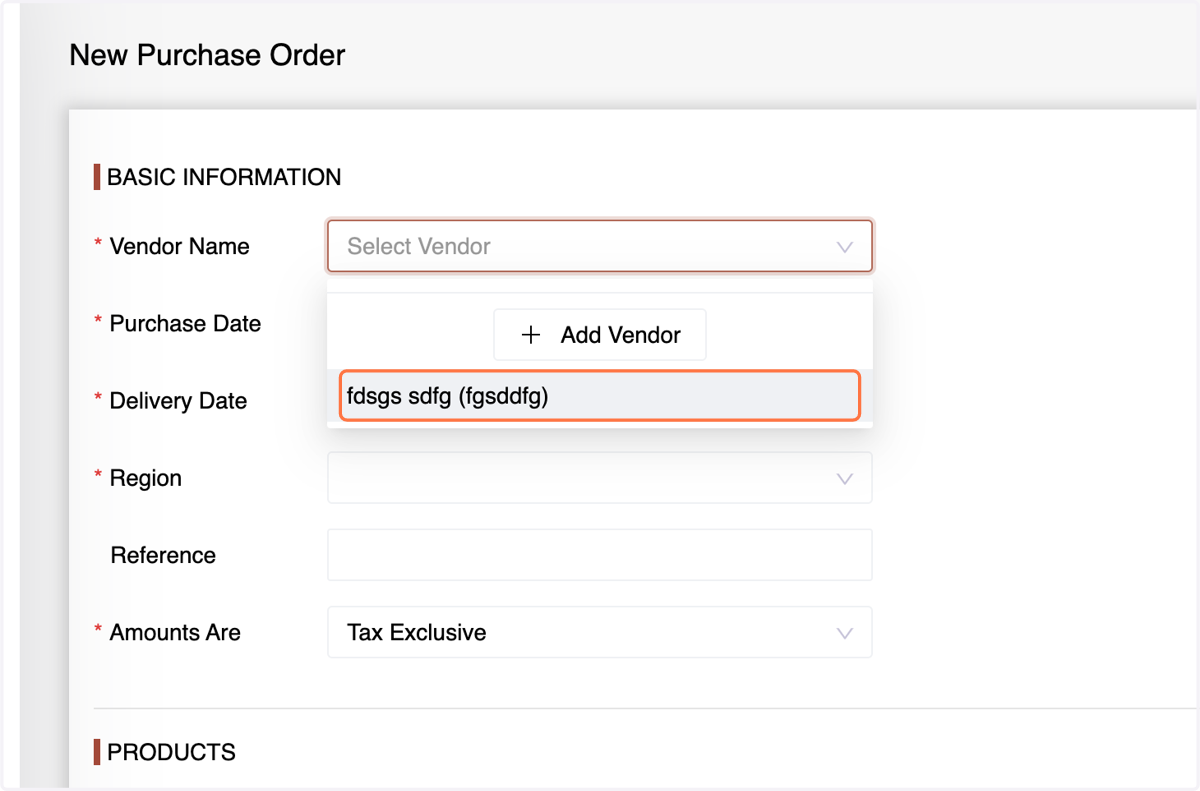
4. Enter The Basic Details Such as "Vendor Name,"
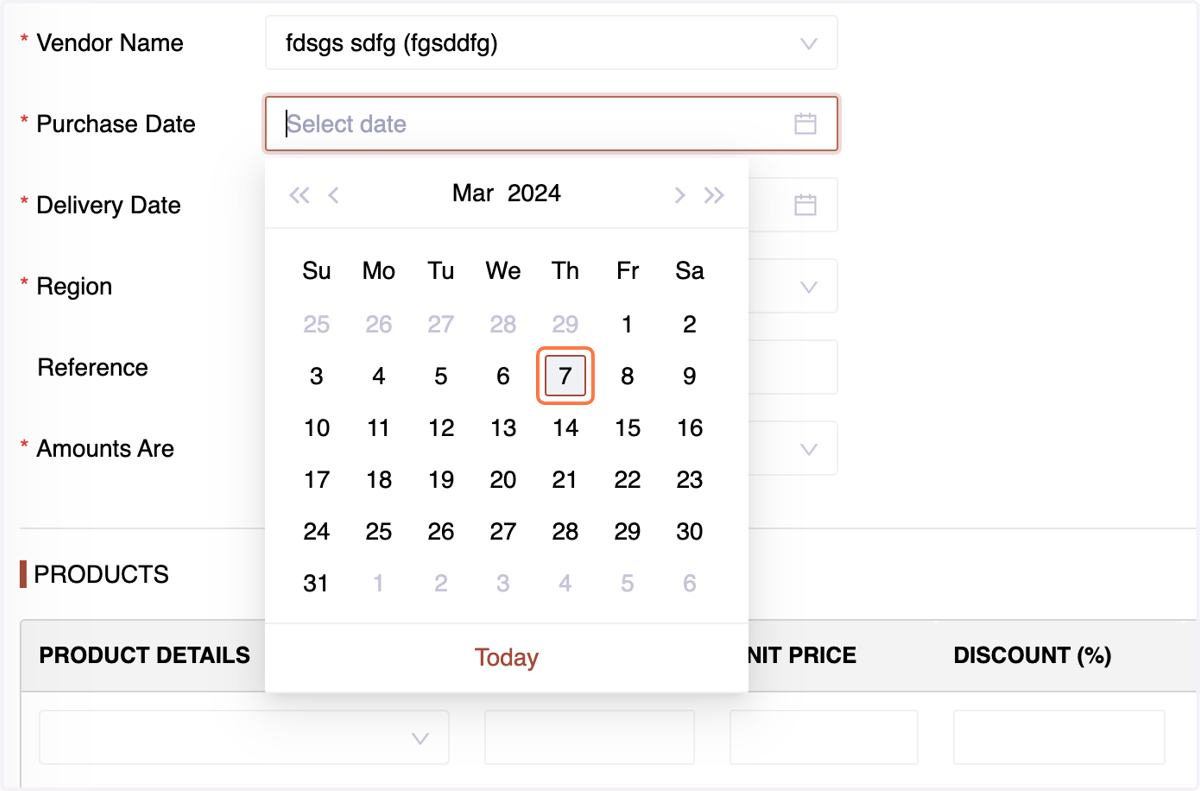
5. Purchase date,
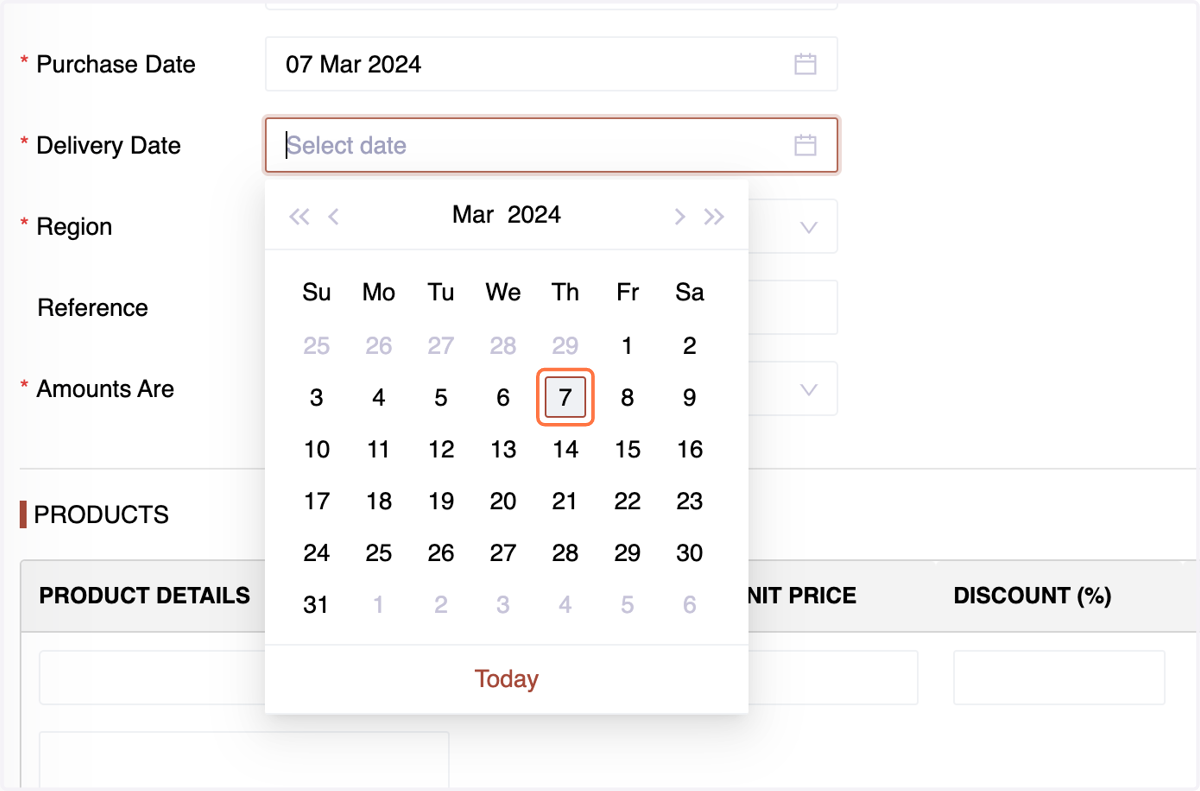
6. Delivery Date,
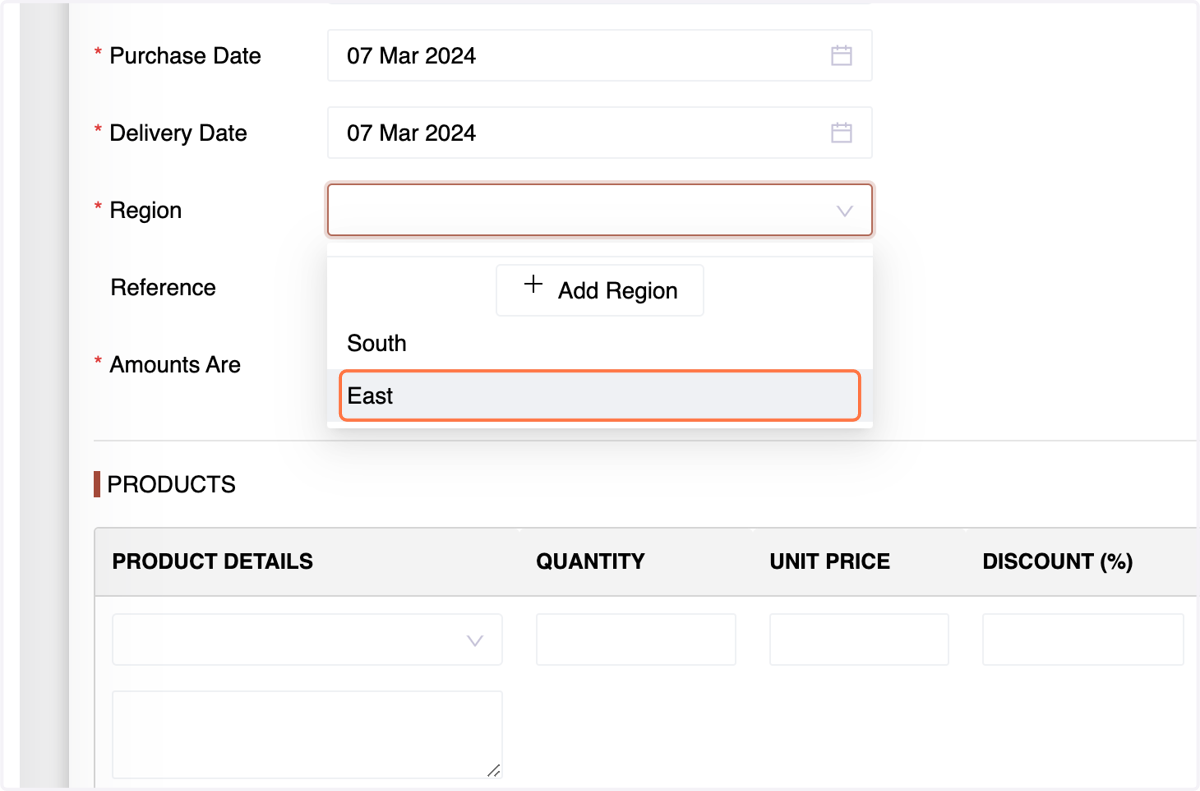
7. Region or the Branch,
8. Reference if any,
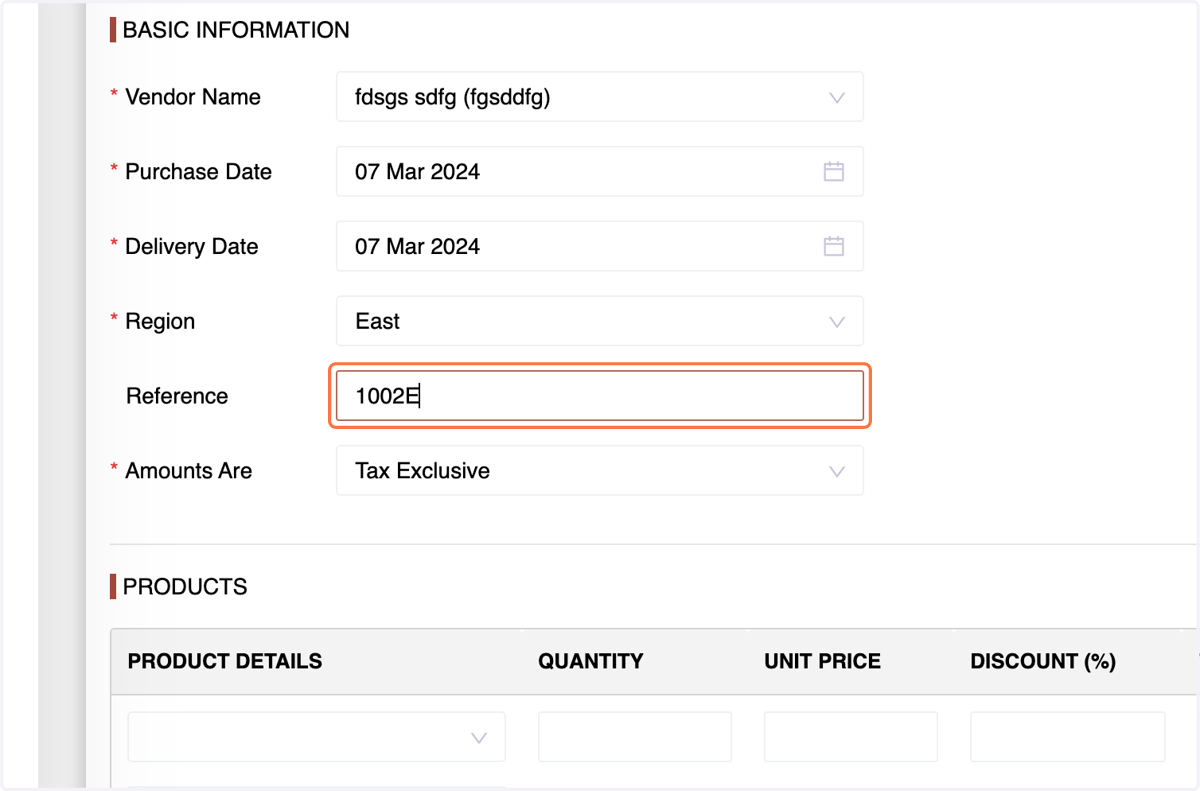
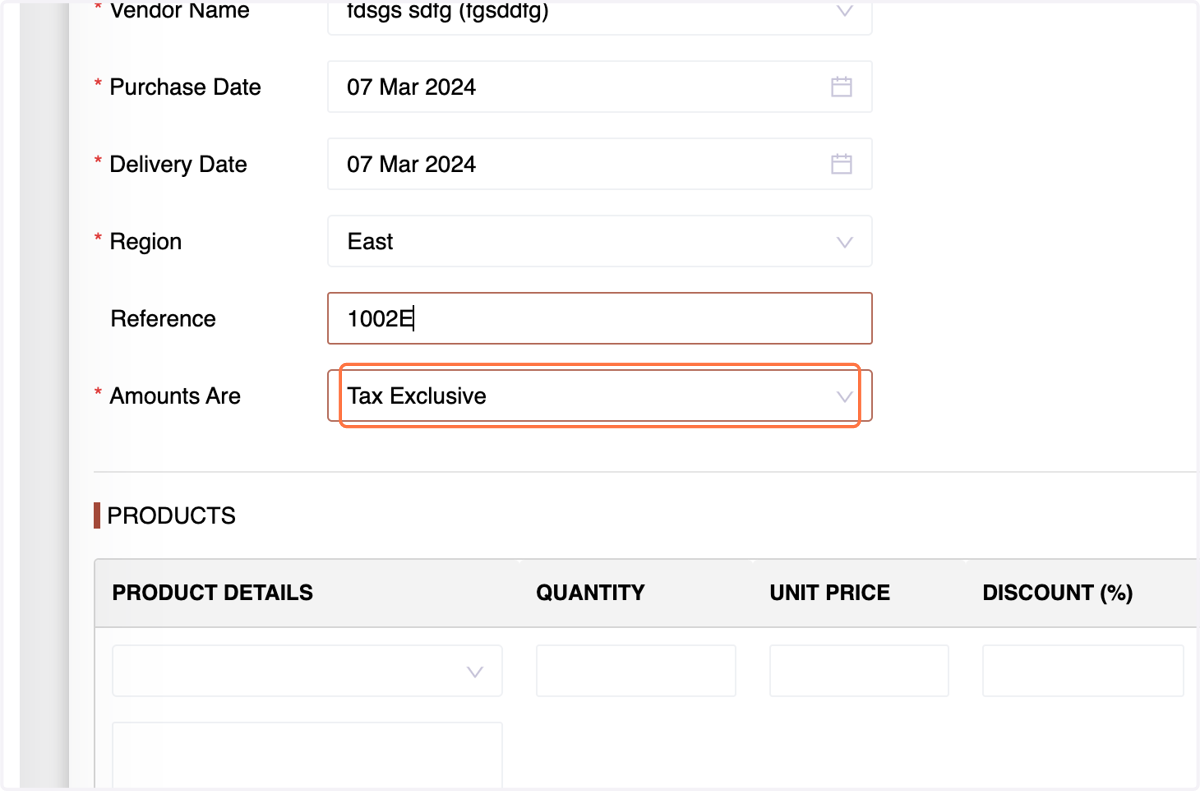
9. Tax Status
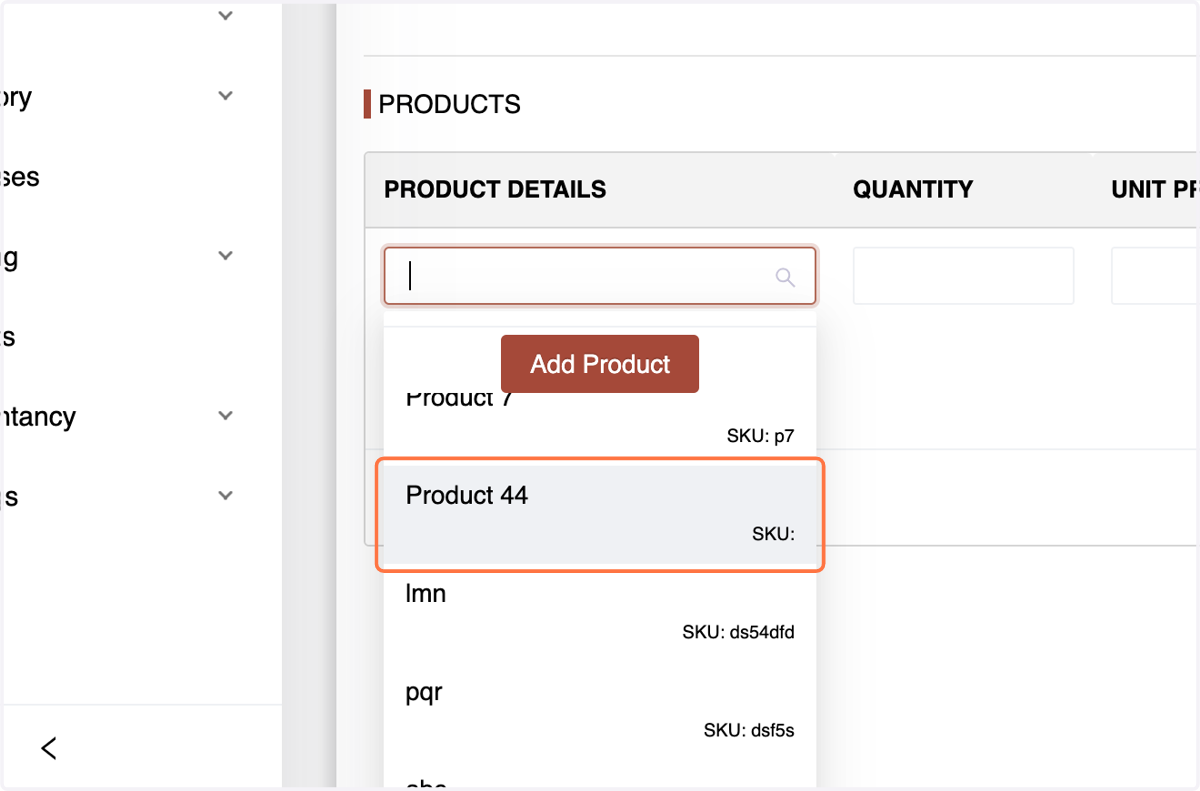
10. Specify the product,
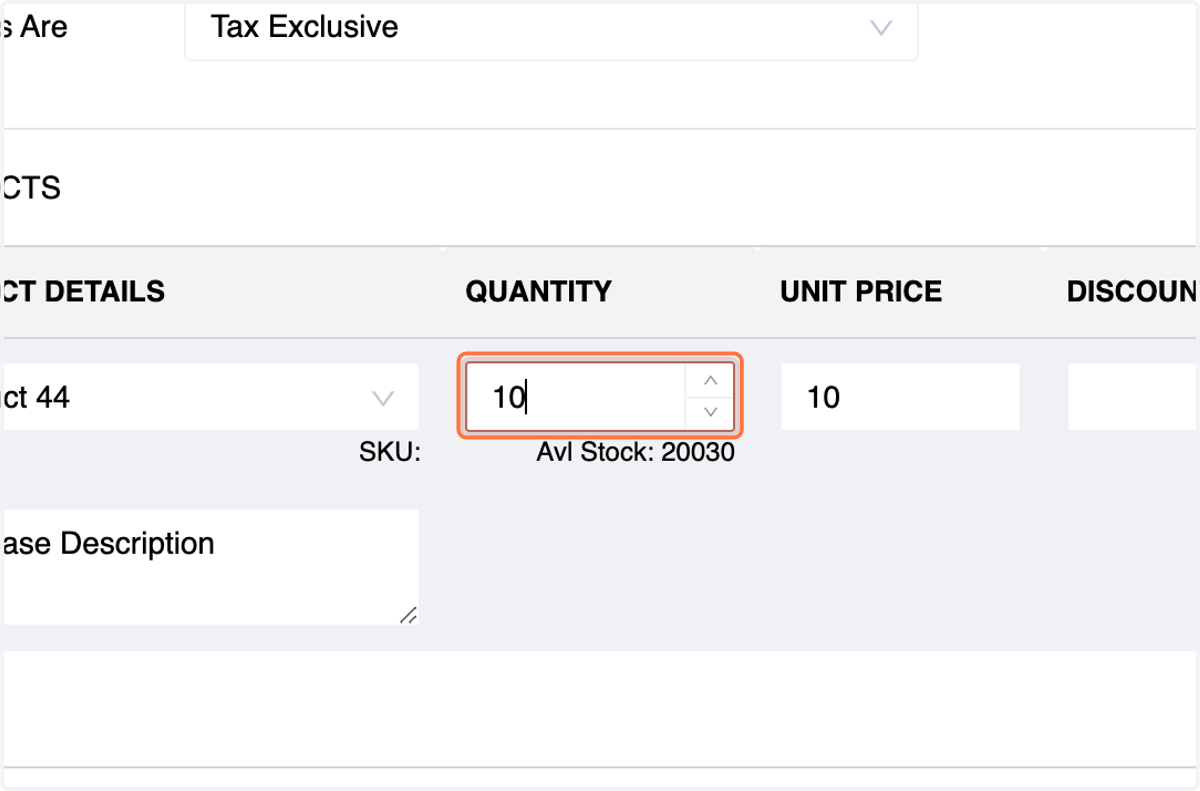
11. Quantity, any applicable discount or Terms
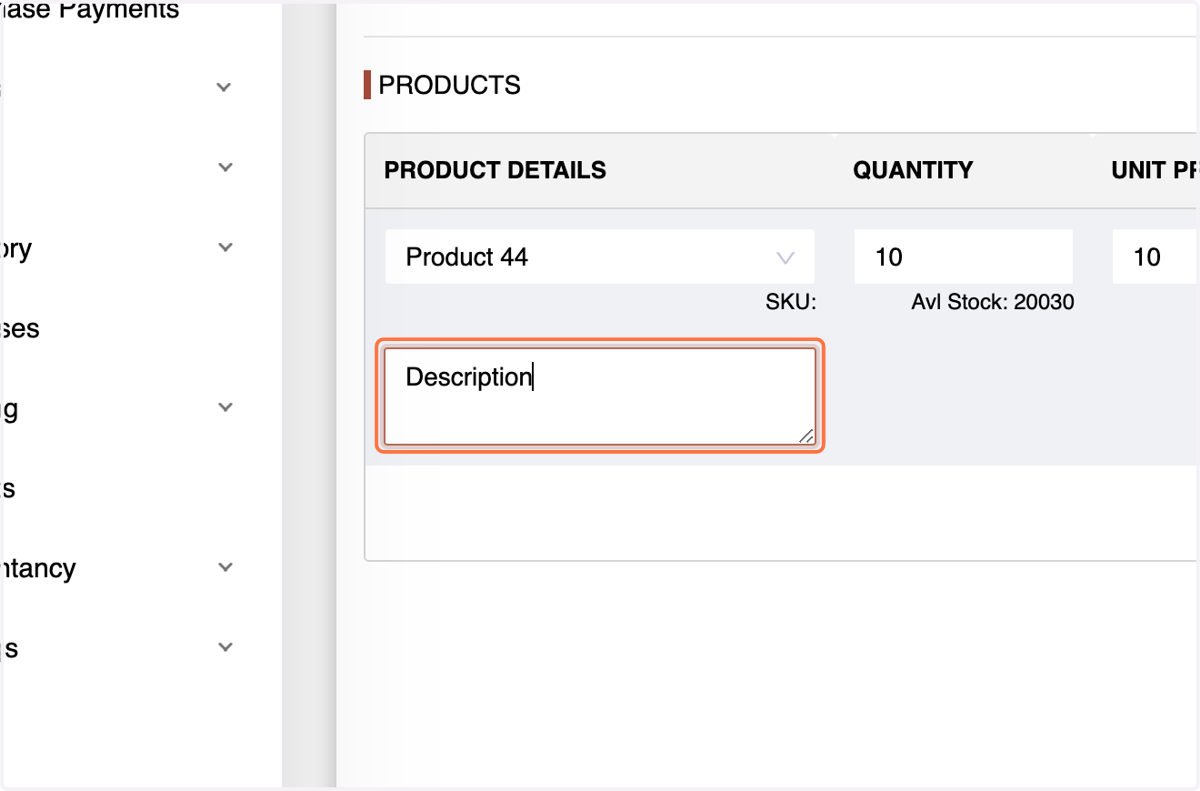
12. Enter the Product Description if Applicable
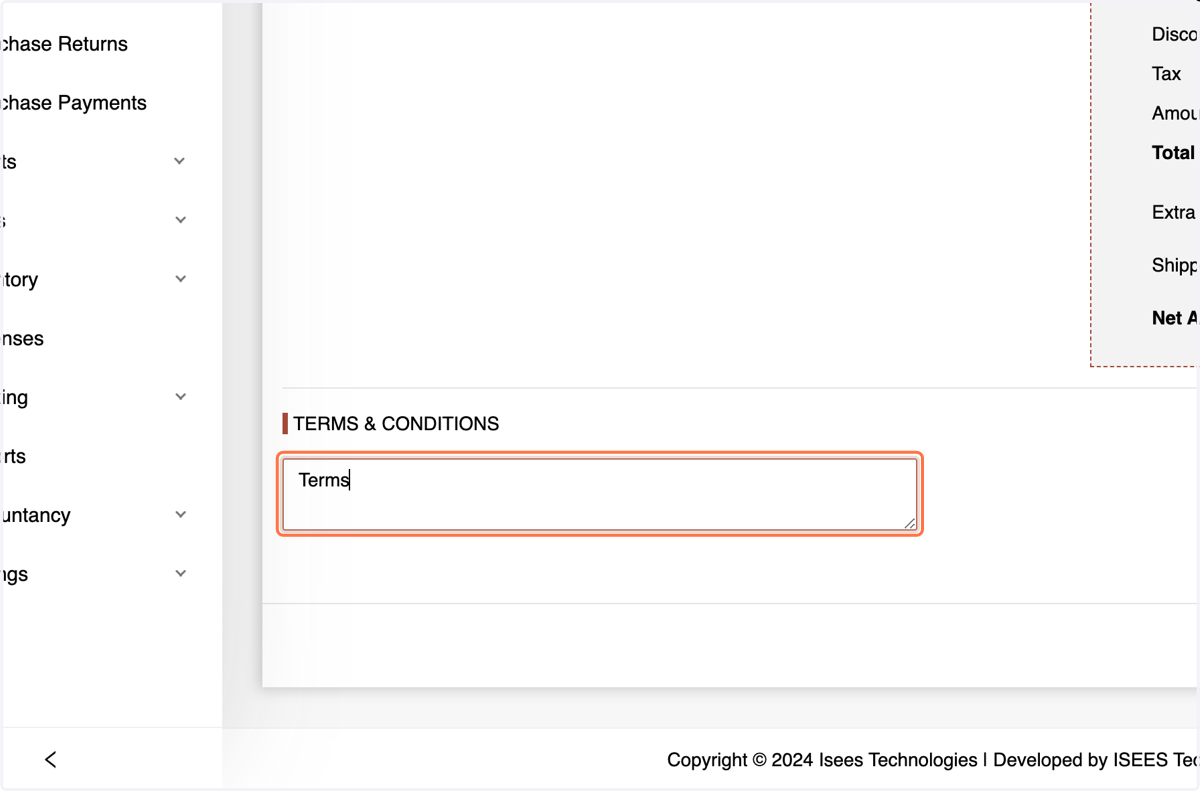
13. Enter Terms
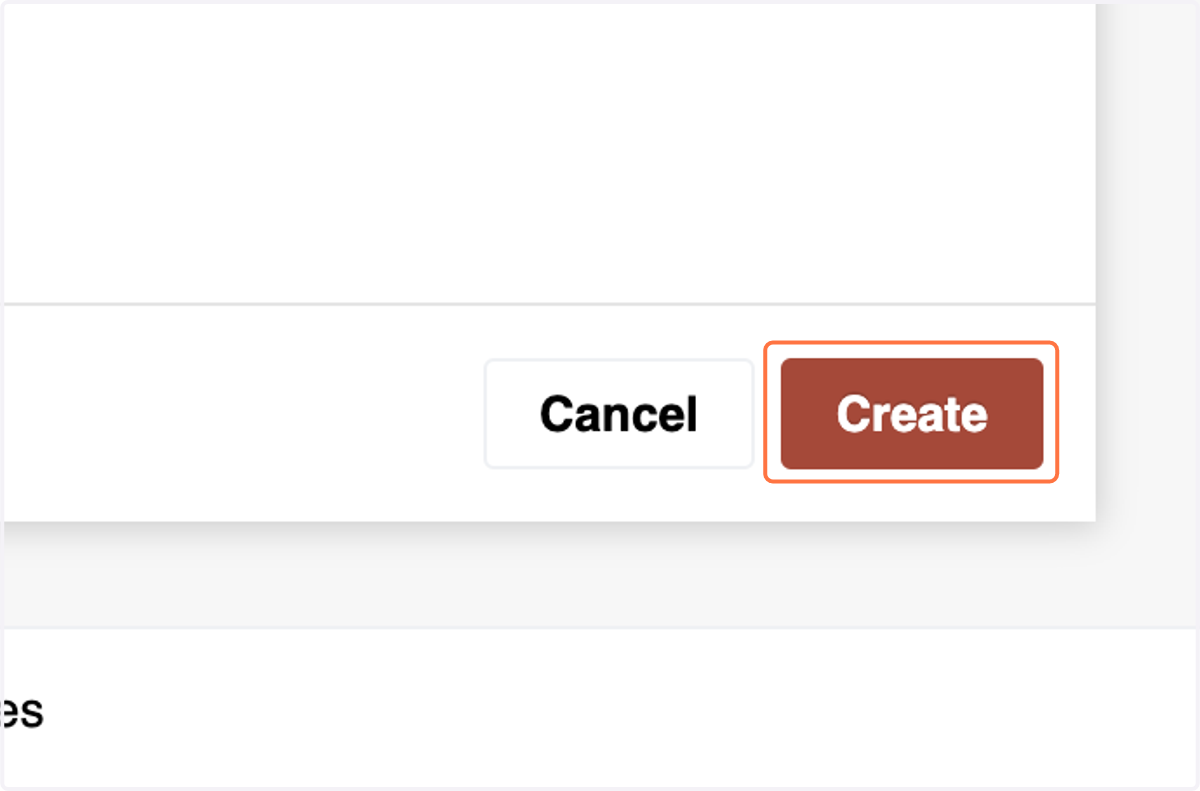
14. Click "Create" to list the Purchase Order.
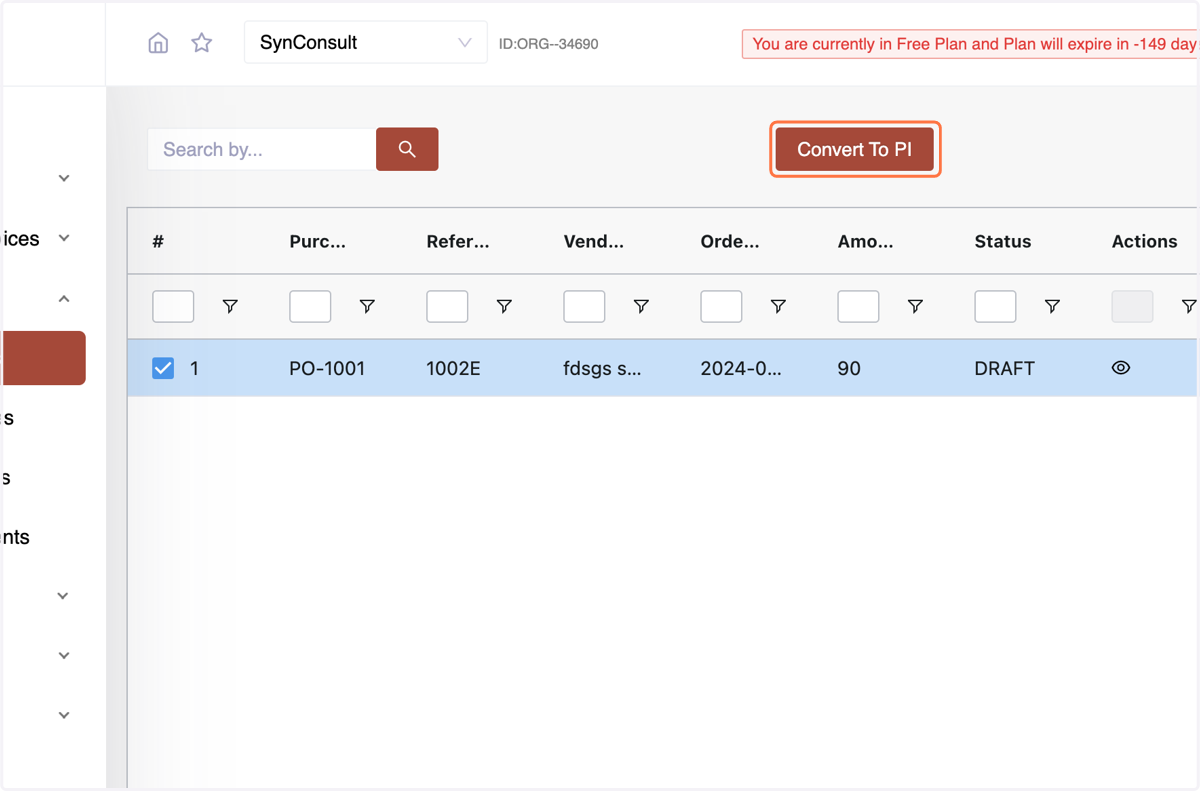
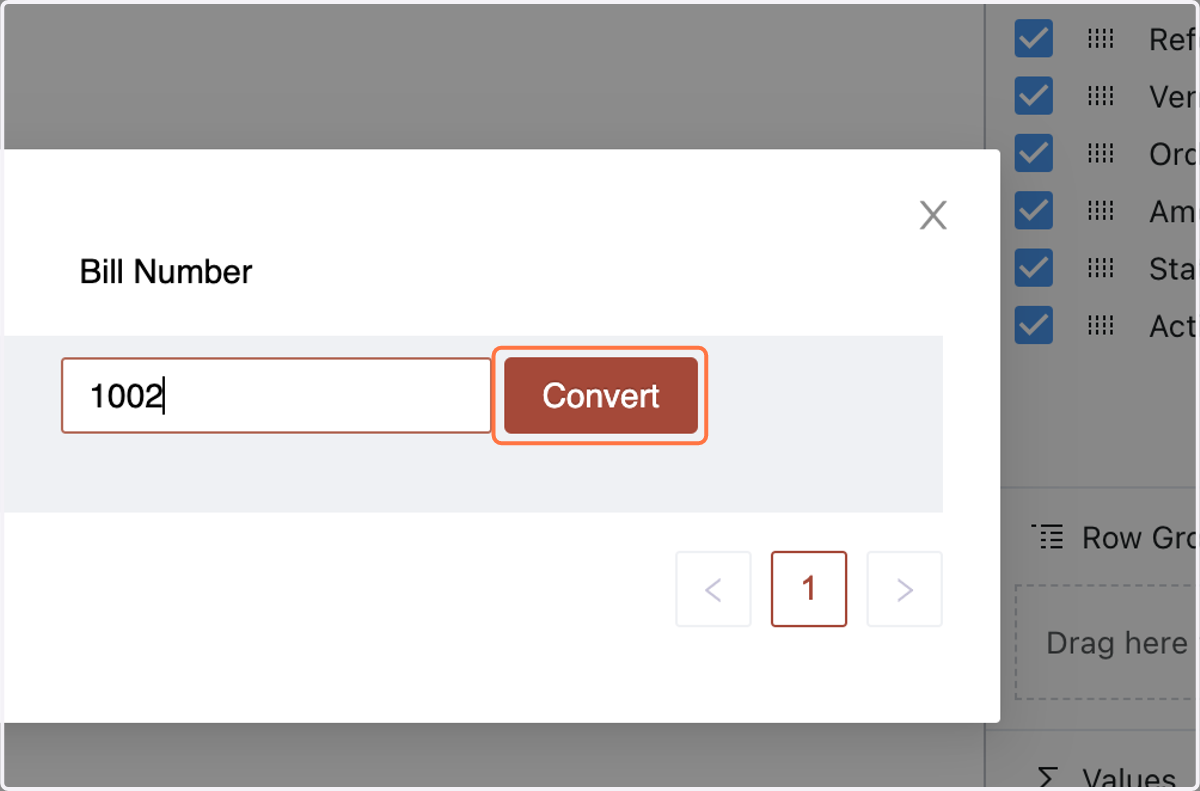
15. Convert a Purchase Order to an Invoice with one click by selecting and choosing "Convert to PI."
16. Enter the Bill Number and Click o Convert, The Purchase Order is now converted to Purchase Invoice. EASY!
Introduction to Purchase Invoices: Purchase Invoices are crucial documents in the financial transactions between a buyer and a seller. They outline the details of the products or services purchased and serve as a record for payment. Let's delve into the steps for creating Purchase Invoices.
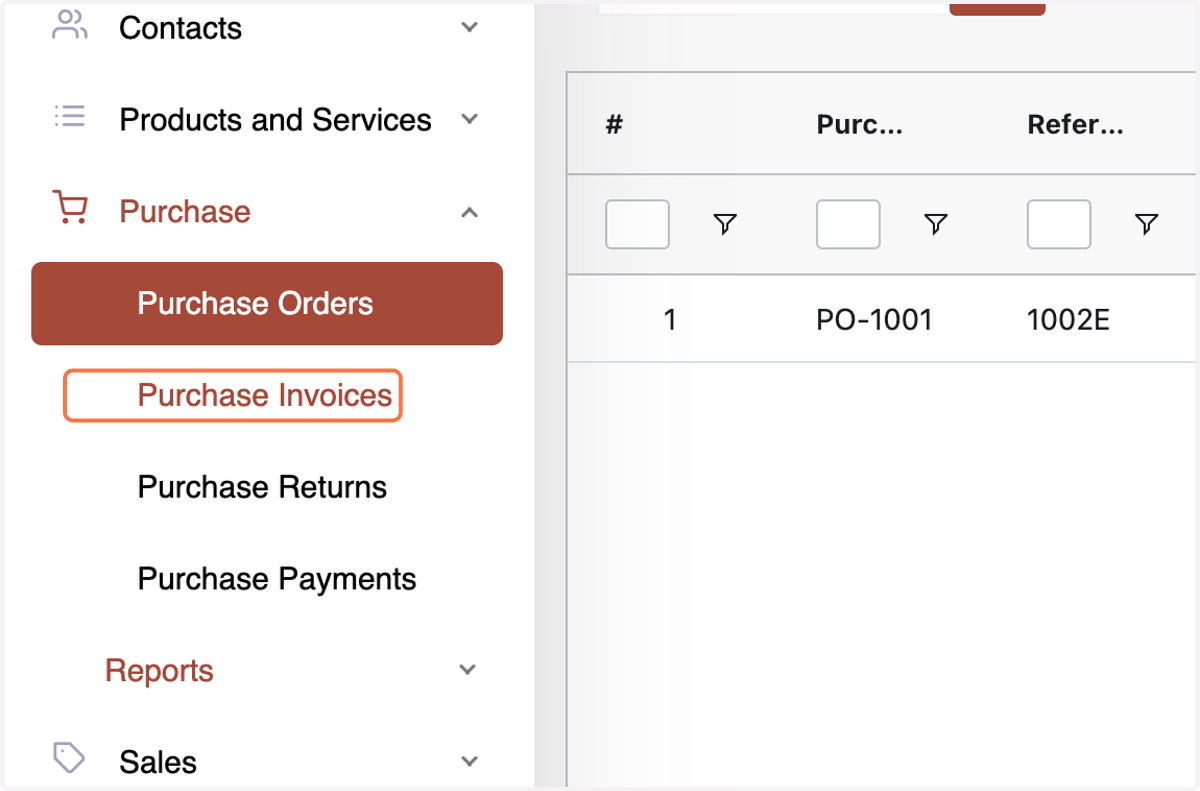
17. Creating Purchase Invoices: Navigate to the Purchase Invoice Menu.
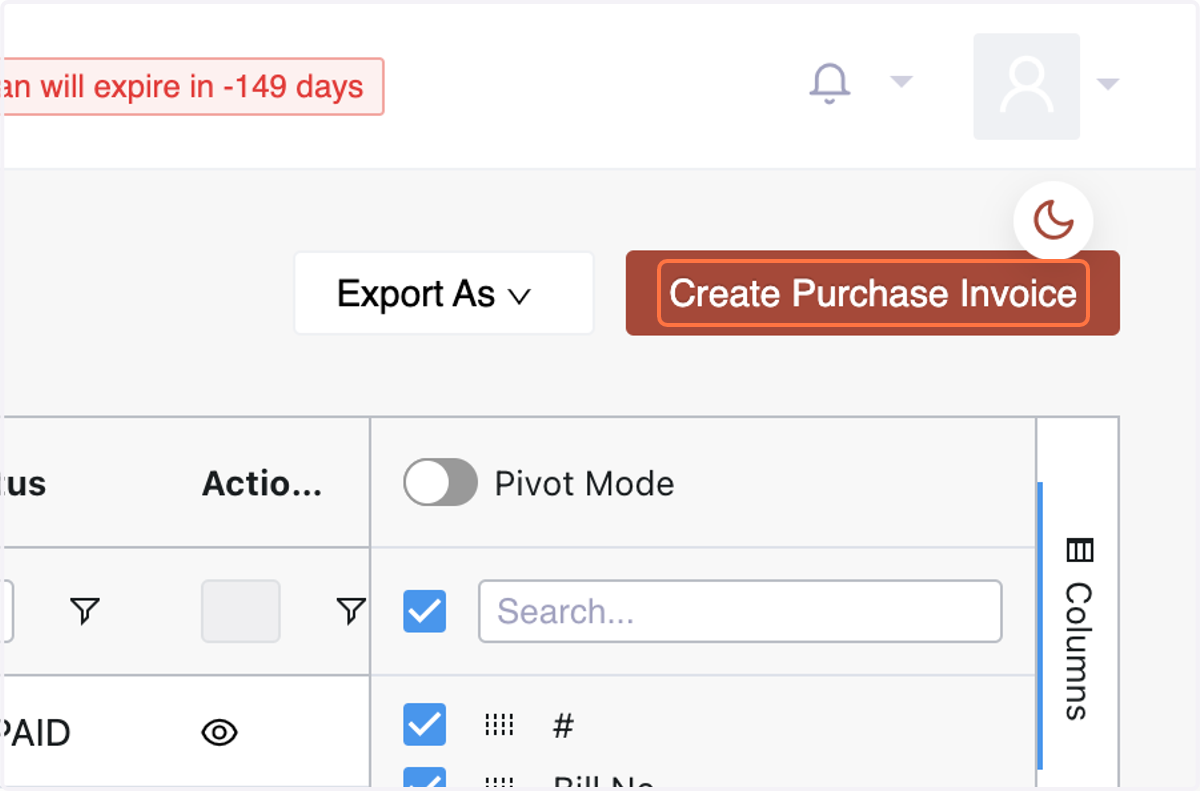
18. Click on Create Purchase Invoice
19. Enter vendor details,
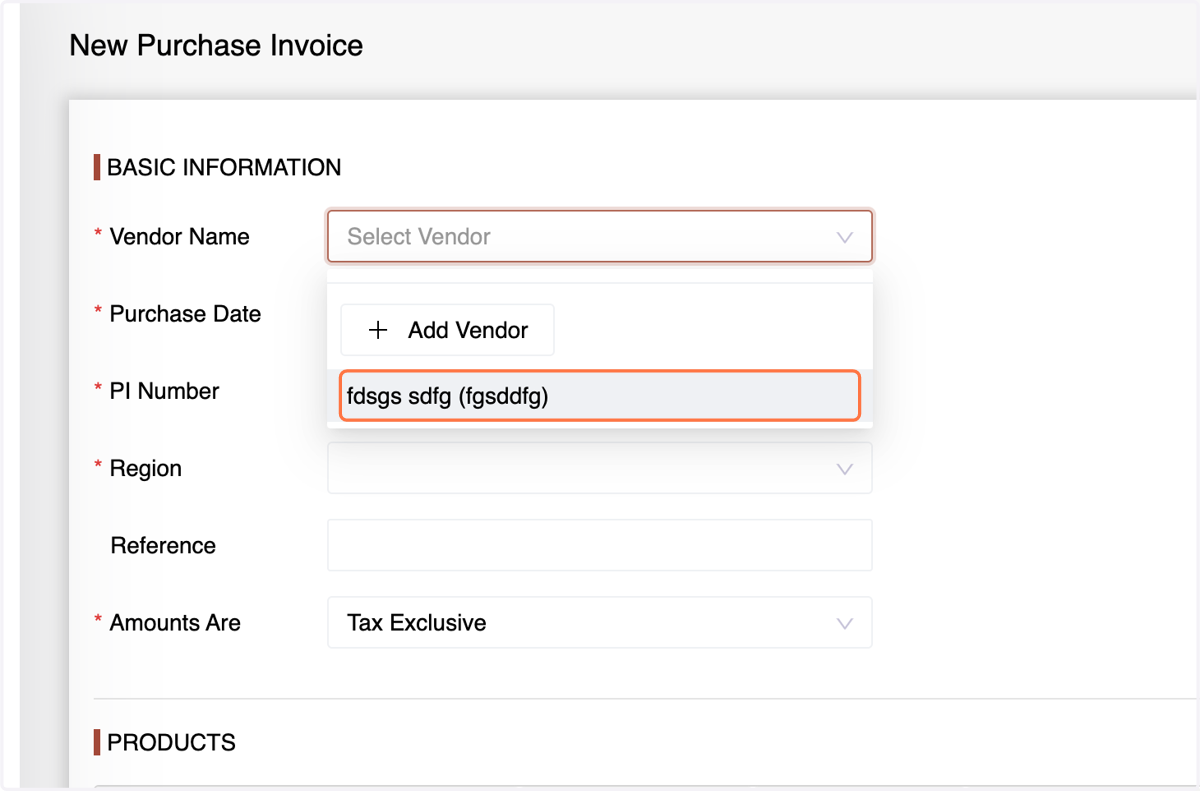
20. purchase date,
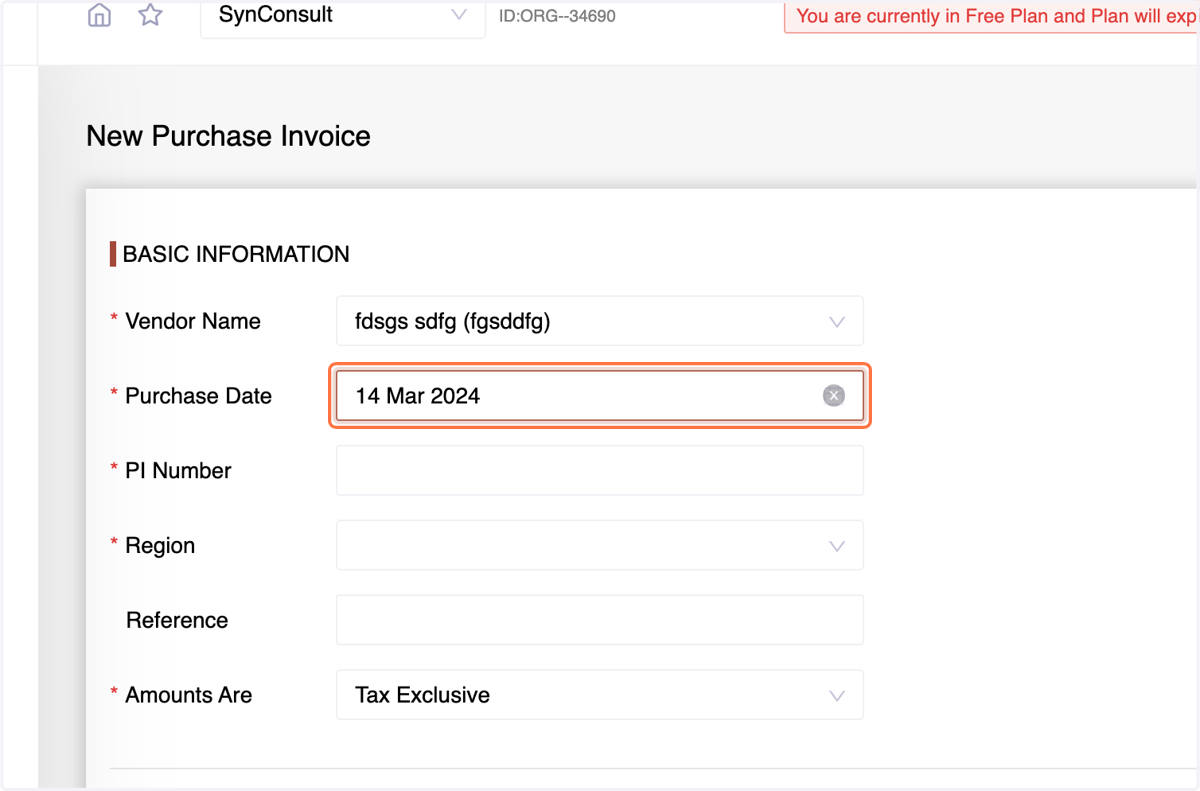
21. PI number,
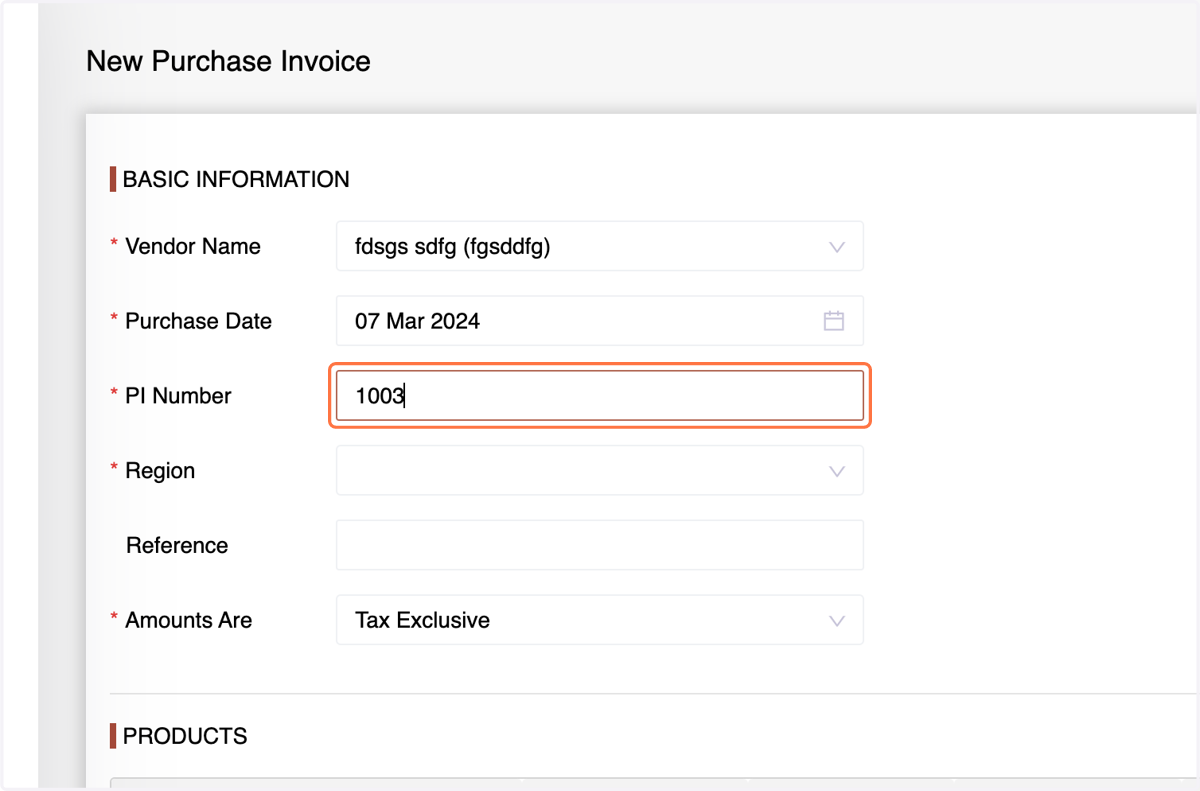
22. region,
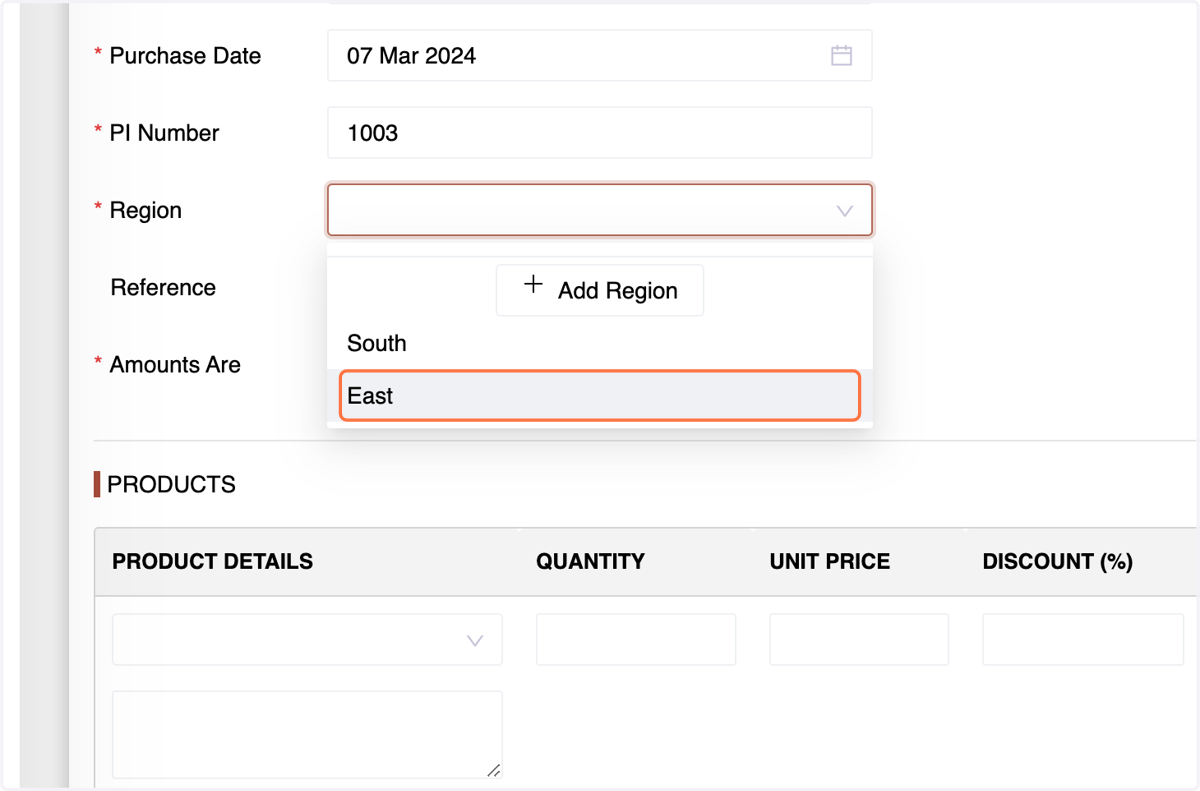
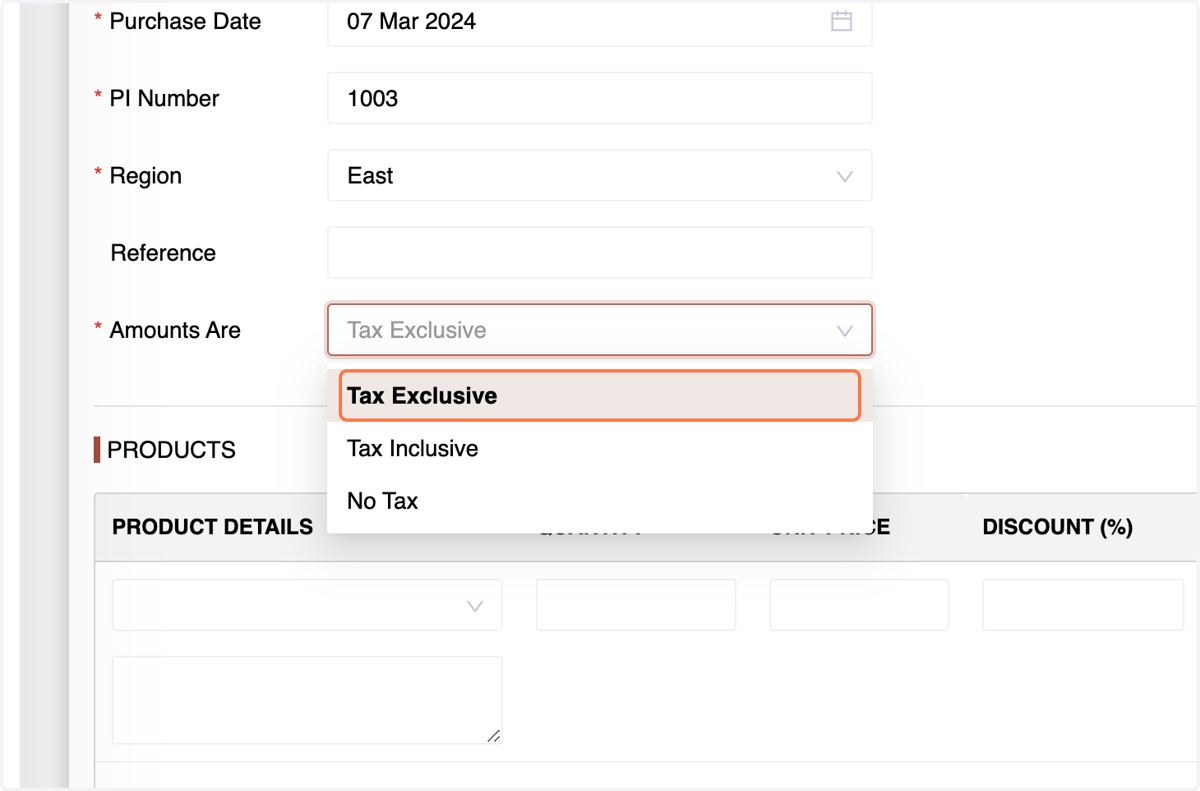
23. reference, and tax information.
24. Specify the product,
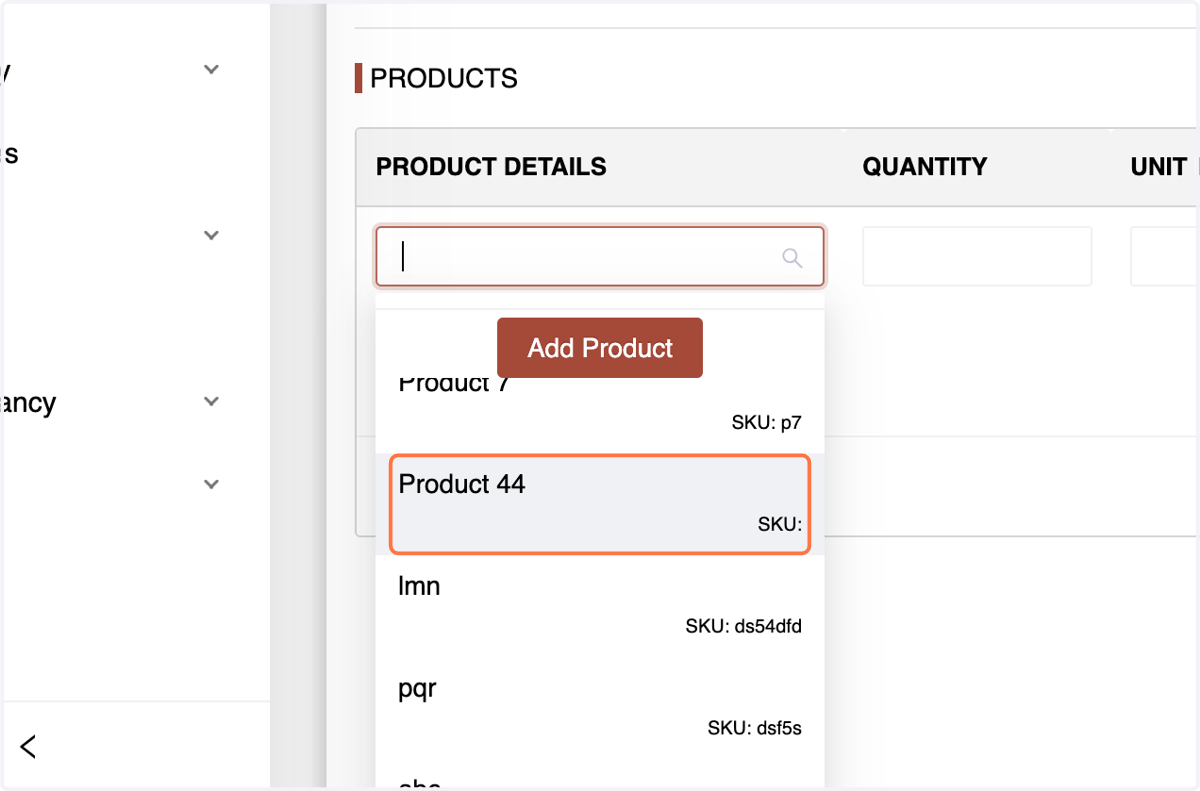
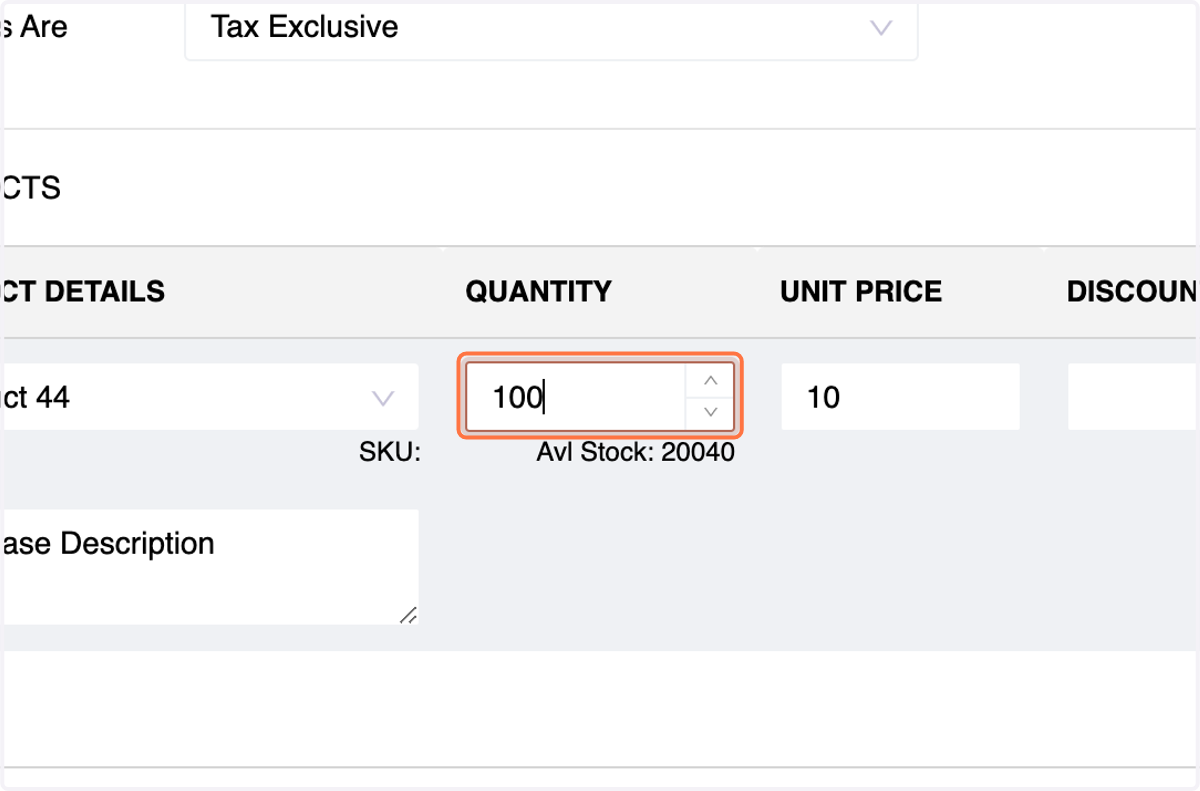
25. quantity, price, discounts, and terms.
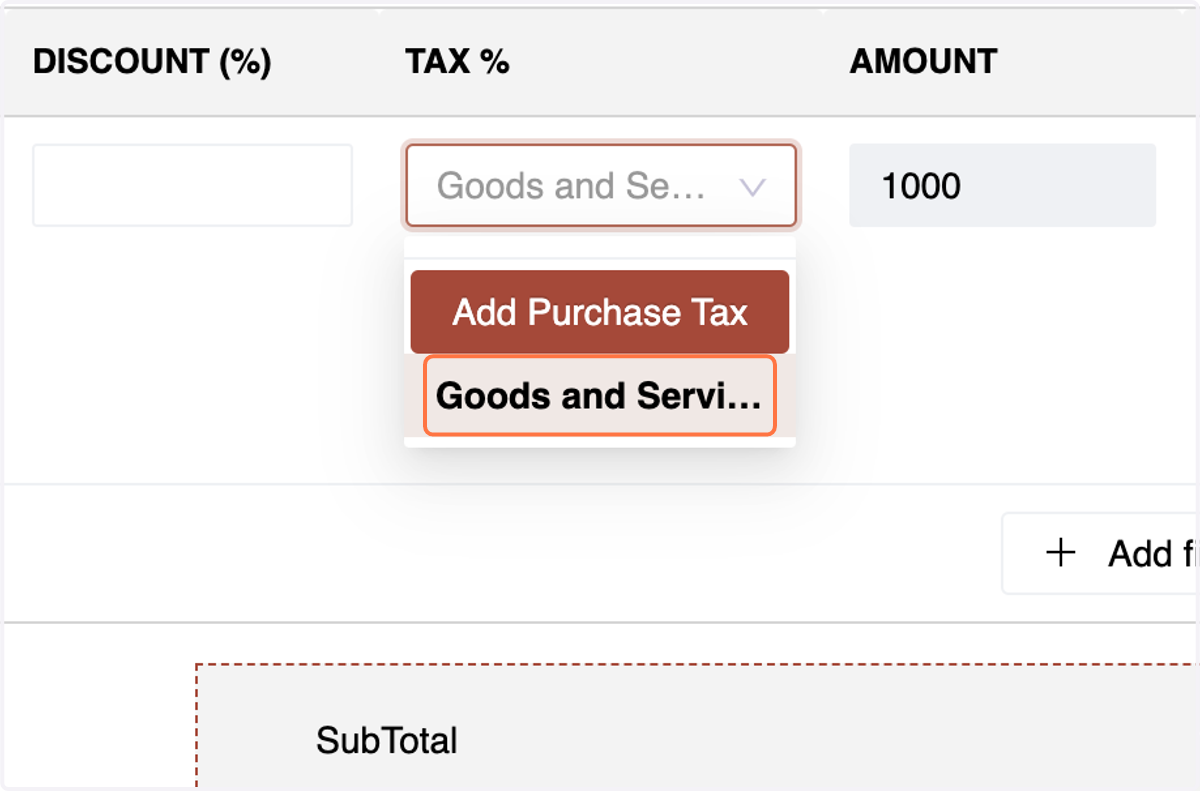
26. Choose Tax if Any
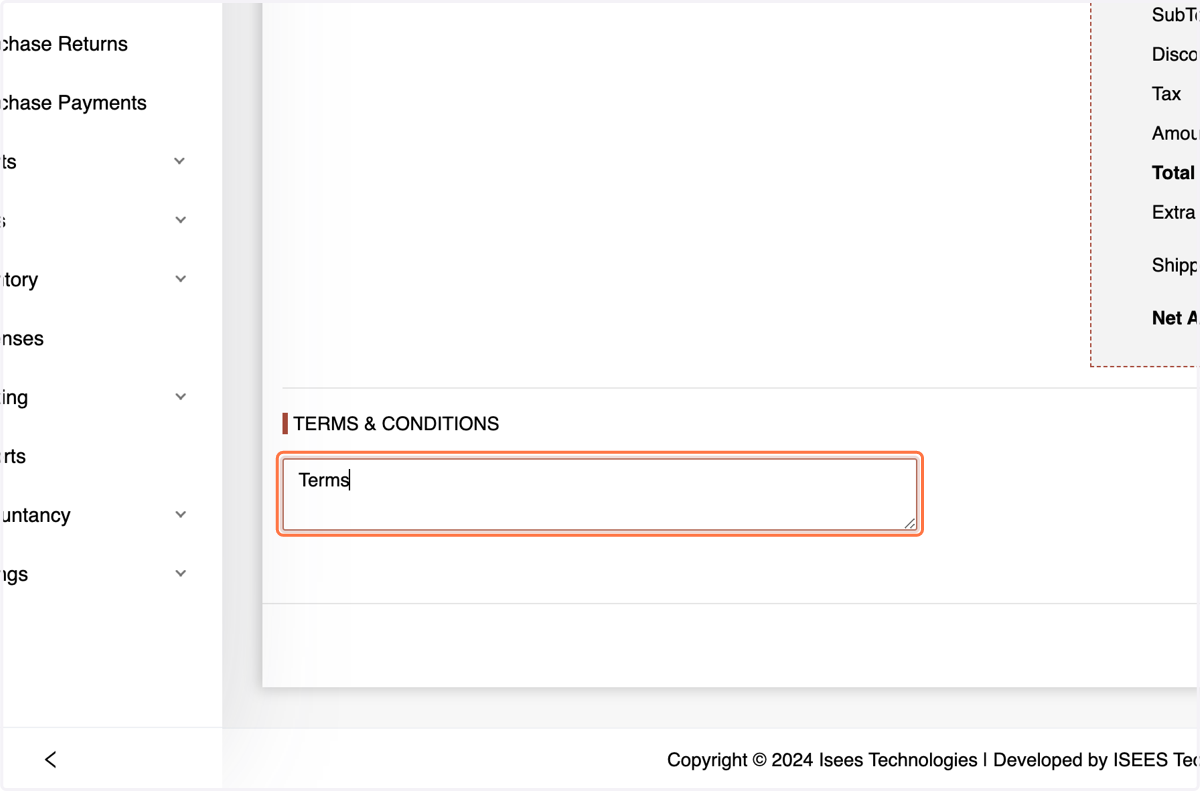
27. Enter the Terms
28. Click "Create" to generate the Purchase Invoice.
Introduction to Purchase Payments: Managing payments related to purchases is streamlined in the Purchase Payments section. This involves settling outstanding invoices efficiently. Let's explore the steps to execute Purchase Payments seamlessly.
29. Creating Purchase Payments:Navigate to the "Purchase Payment" section under "Purchase".
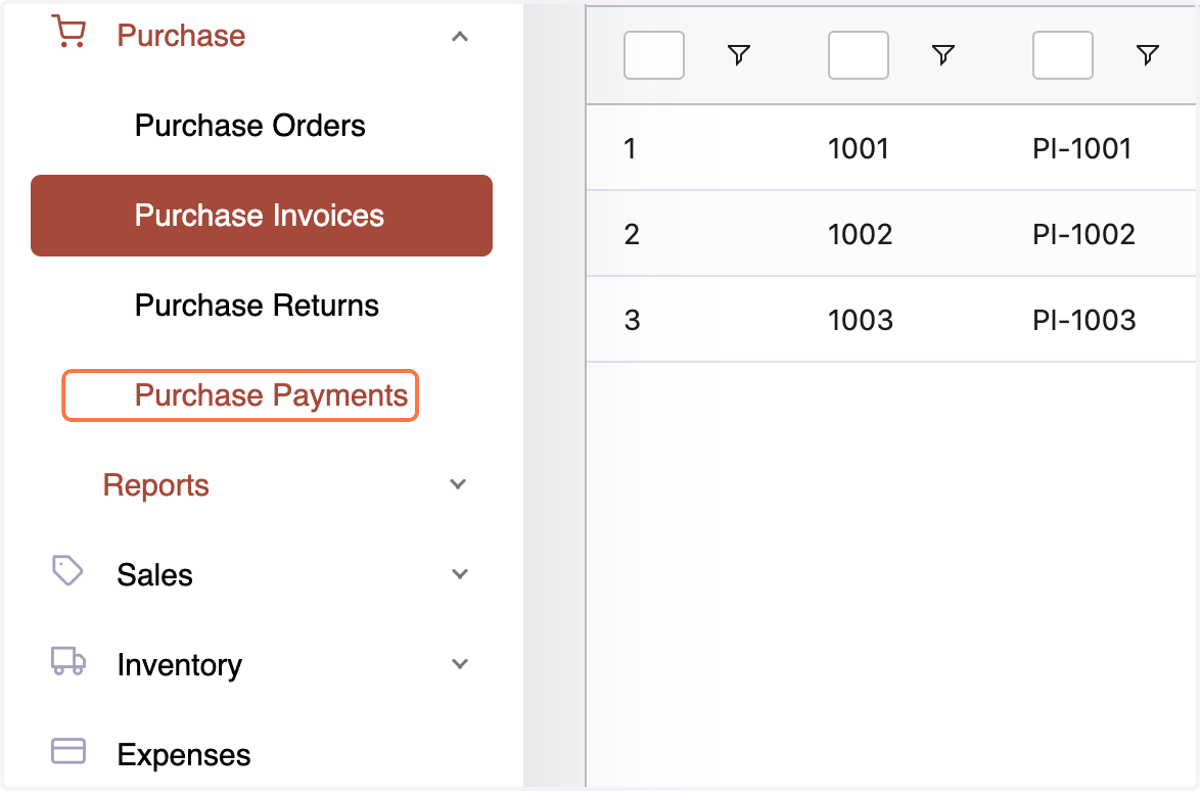
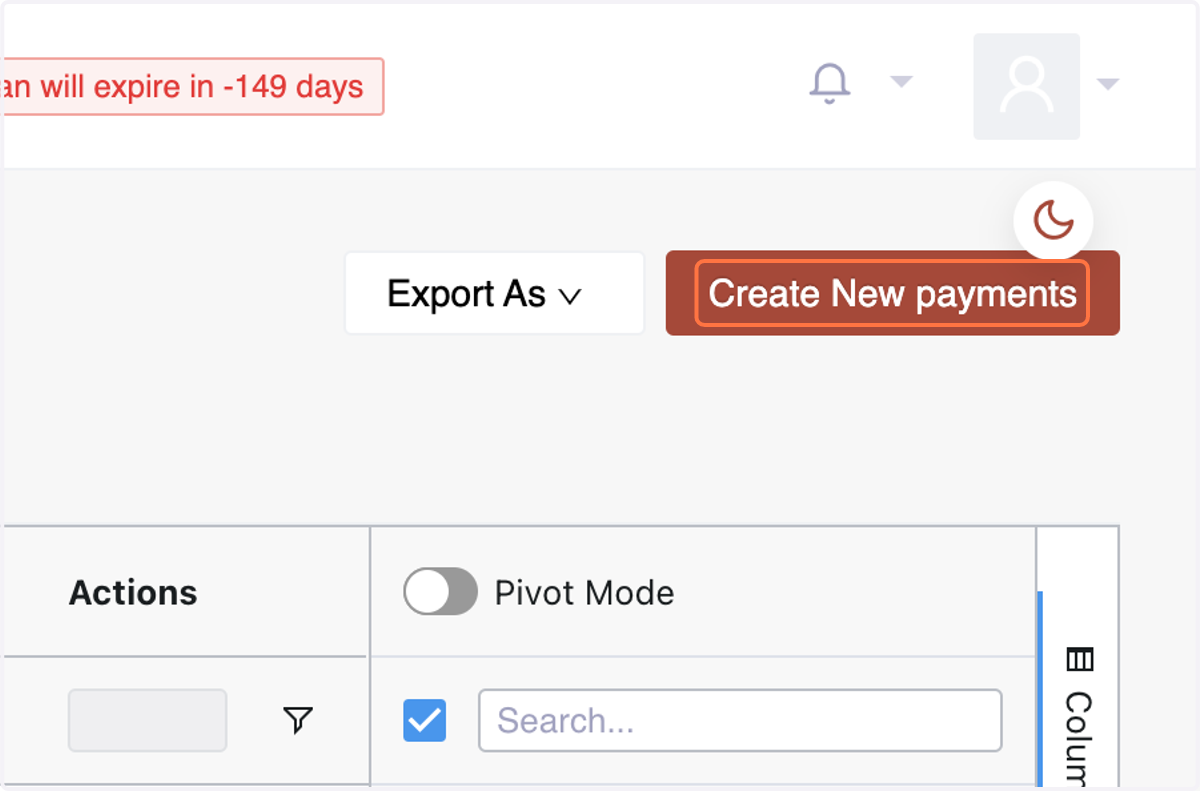
30. Click on "Create Purchase Payment."
31. Choose the vendor,
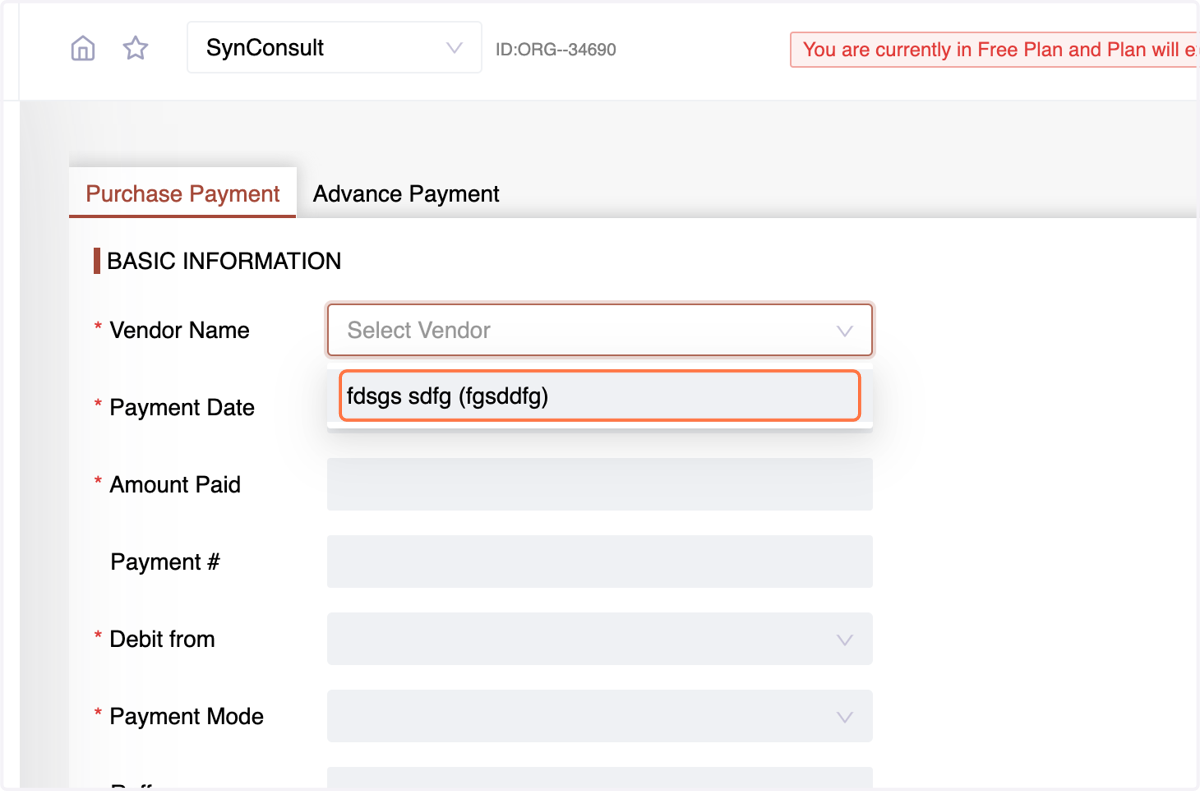
32. enter payment date,
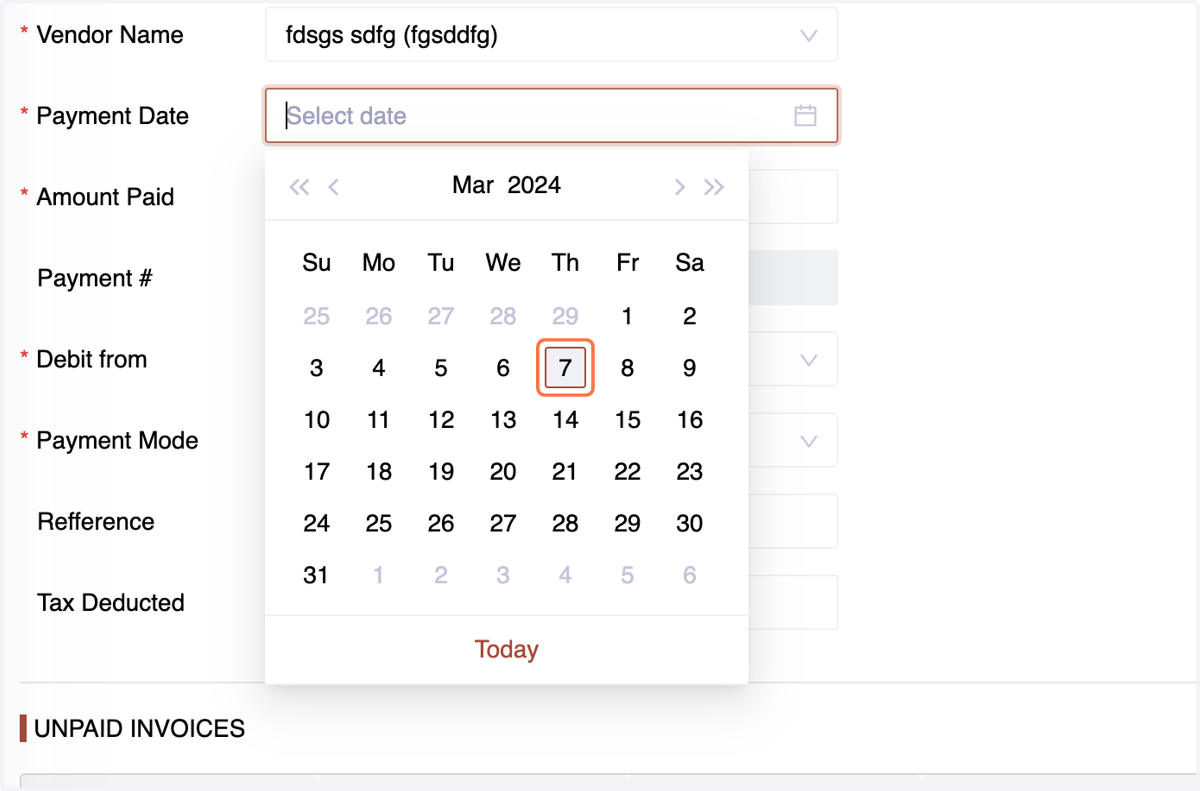
33. amount,
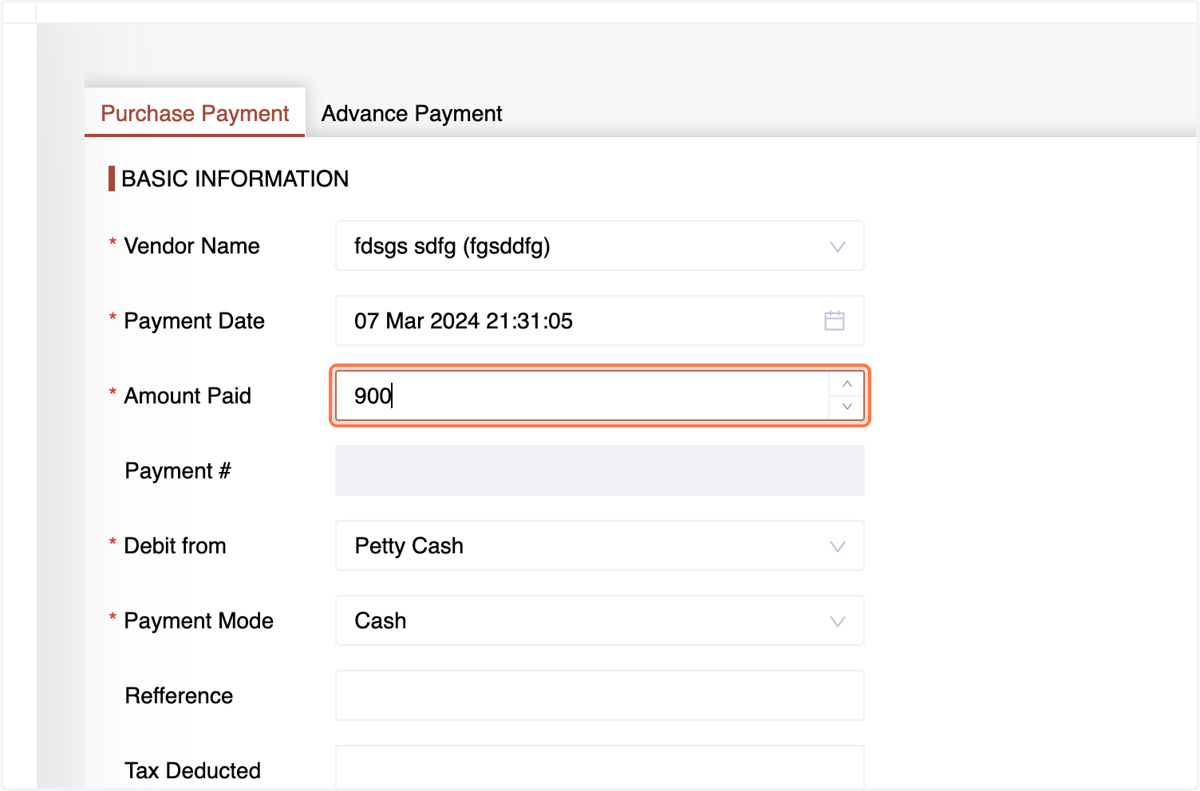
34. After choosing the vendor, the system will display all unpaid invoices associated with that vendor. Upon entering the payment amount, the system will automatically distribute the amount among the listed invoices.a step towards better cashflow management.
You have the option to modify the automated distribution of the amount.
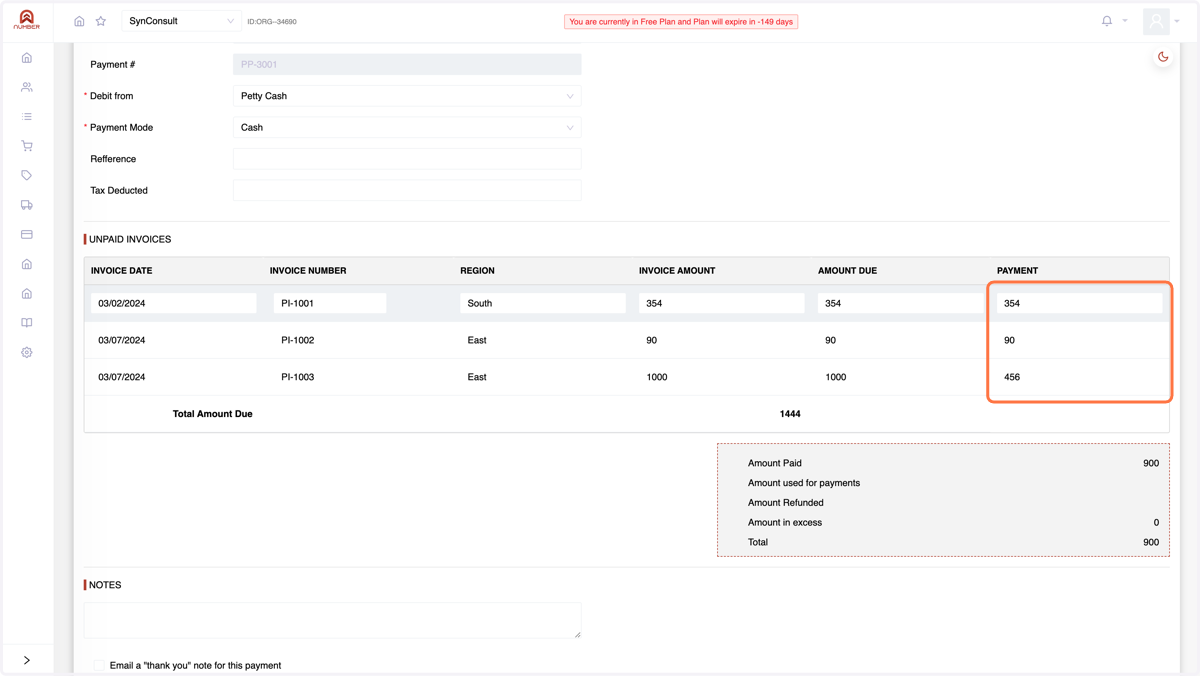
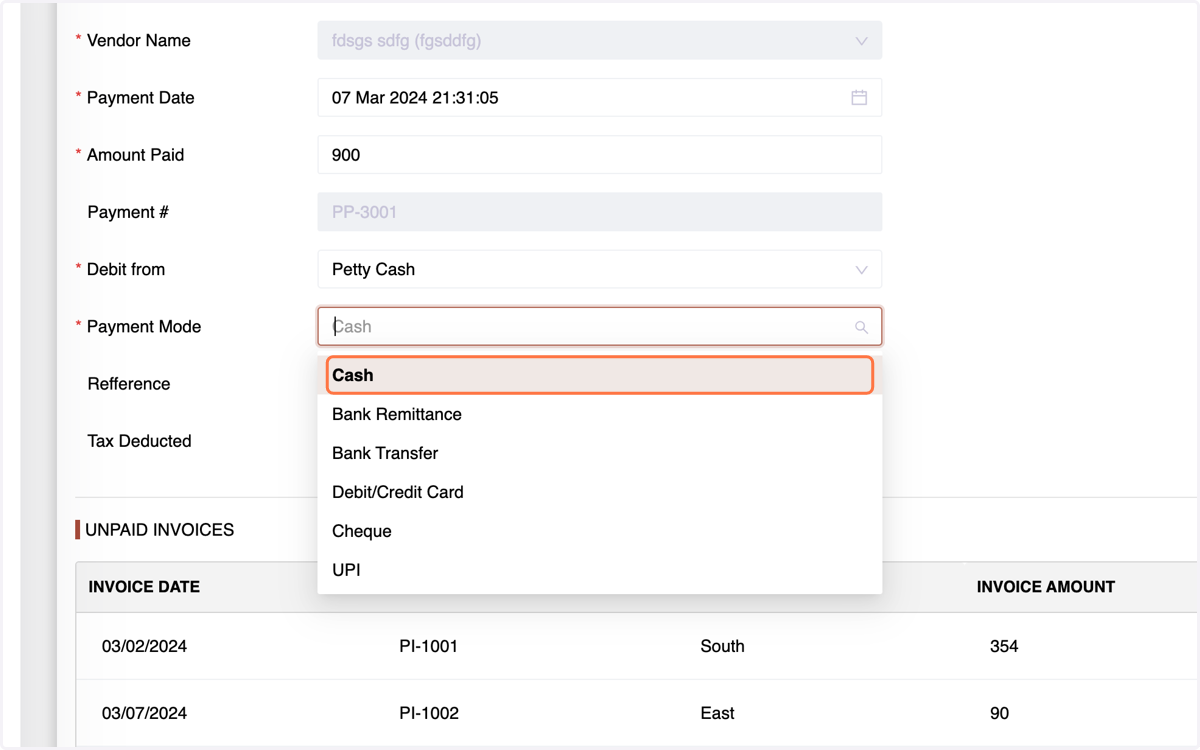
35. Specify the Account the amount is debited from,Specify payment mode
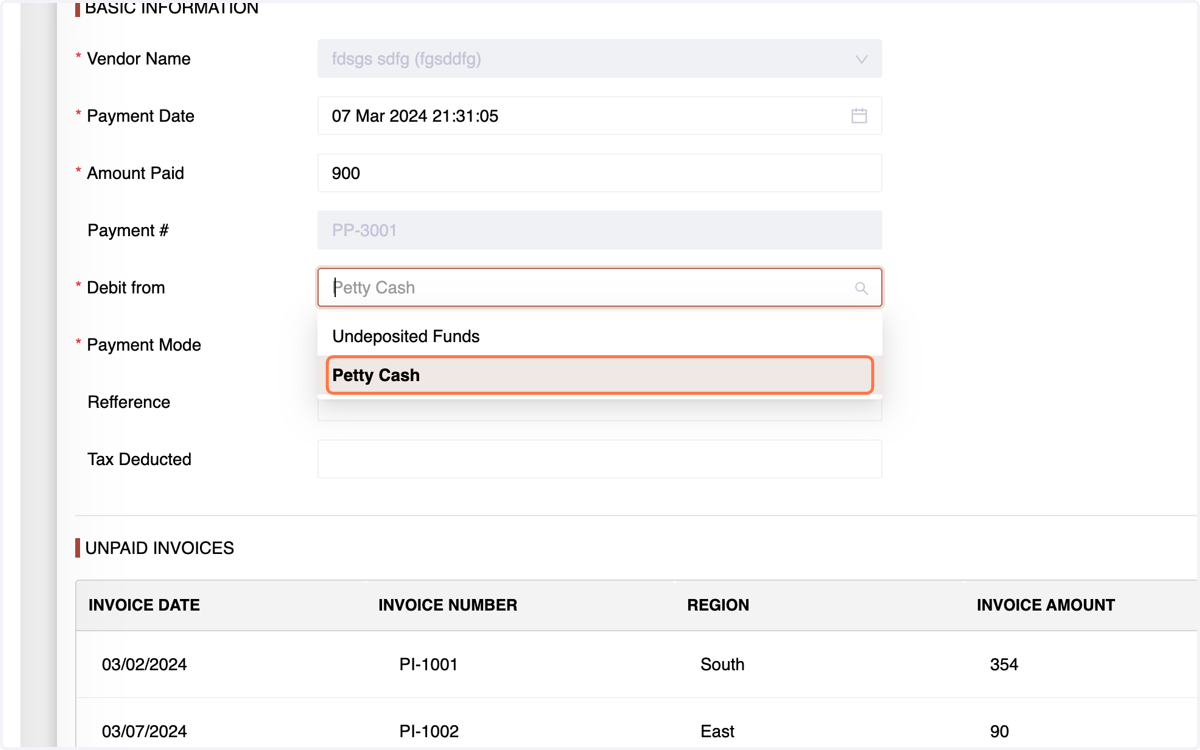
36. Click on Cash
37. Review listed invoices and click "Send" to complete the payment.
The status of invoices in the invoice section will indicate whether they are paid, unpaid, or partially paid.
Introduction to Purchase Returns: In the event of needing to reverse a purchase, the Purchase Returns process comes into play. This section allows for the seamless return of purchased products. Let's understand how to execute Purchase Returns efficiently.
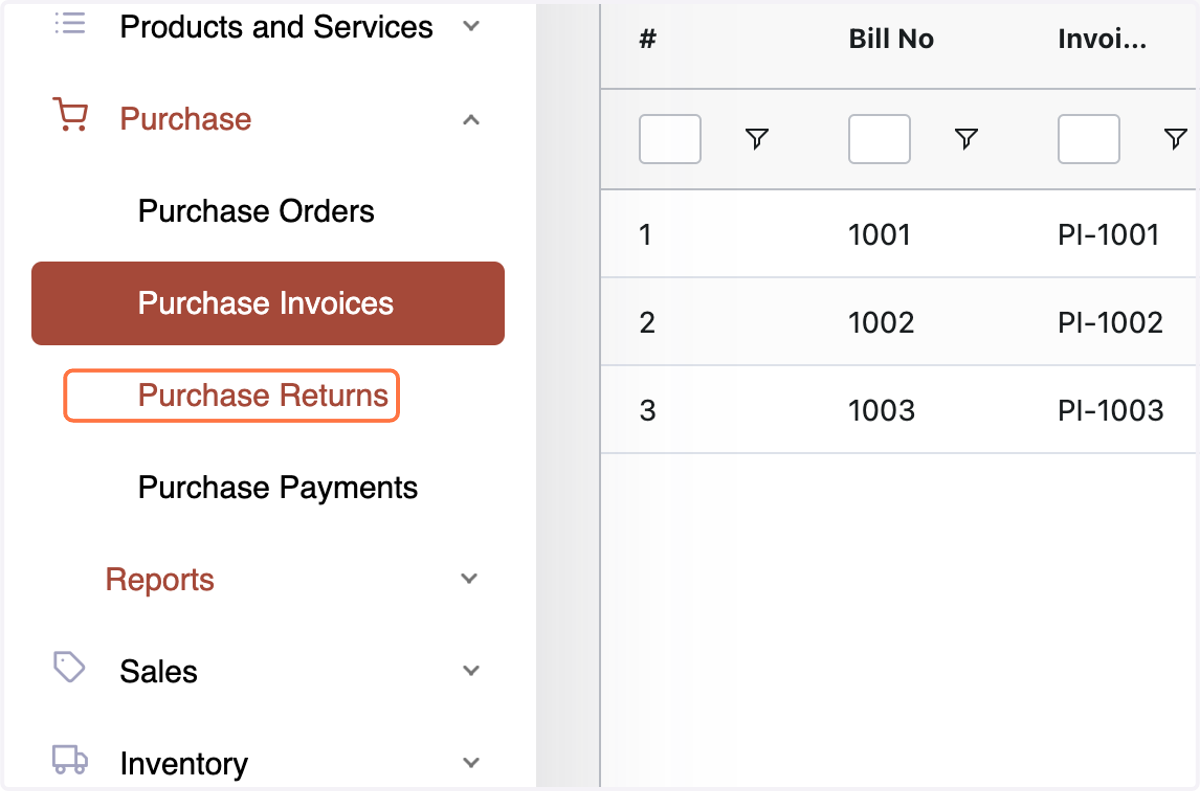
38. Creating Purchase Returns:Navigate to the Purchase Return Menu:
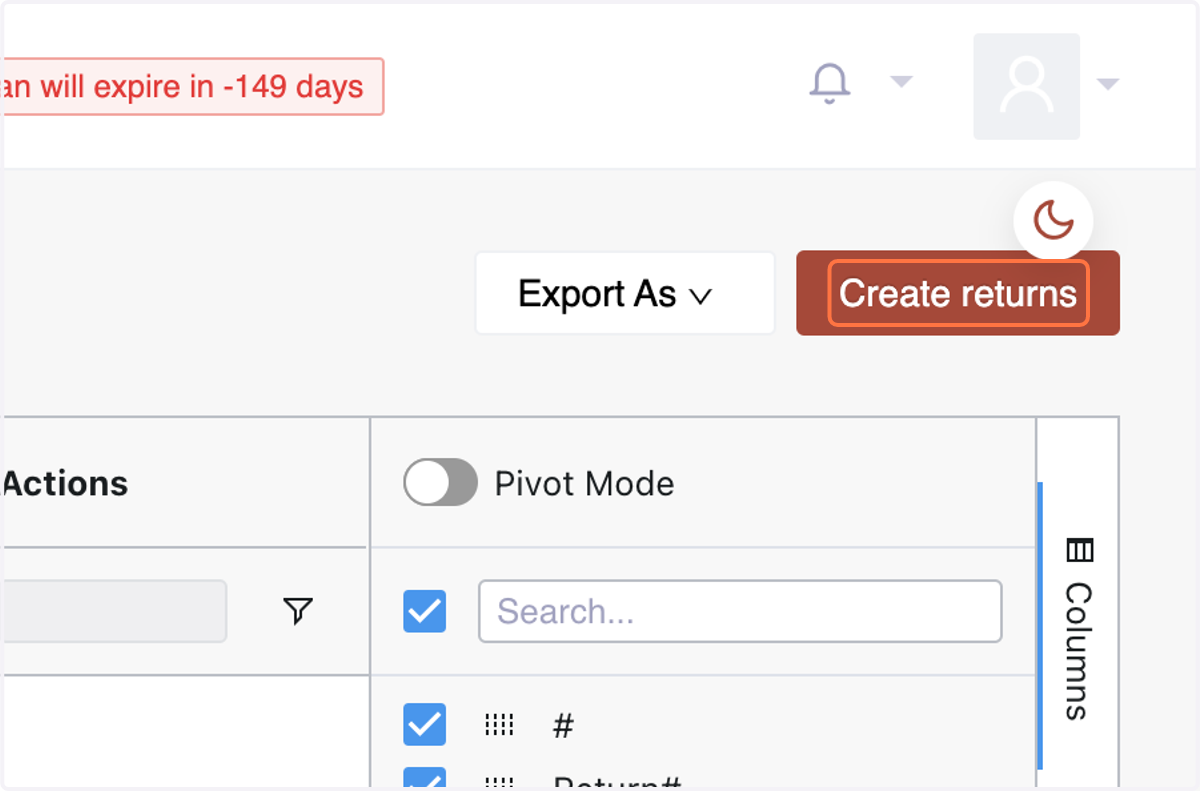
39. Click on "Create Returns."
40. Fill in basic information, select the vendor,
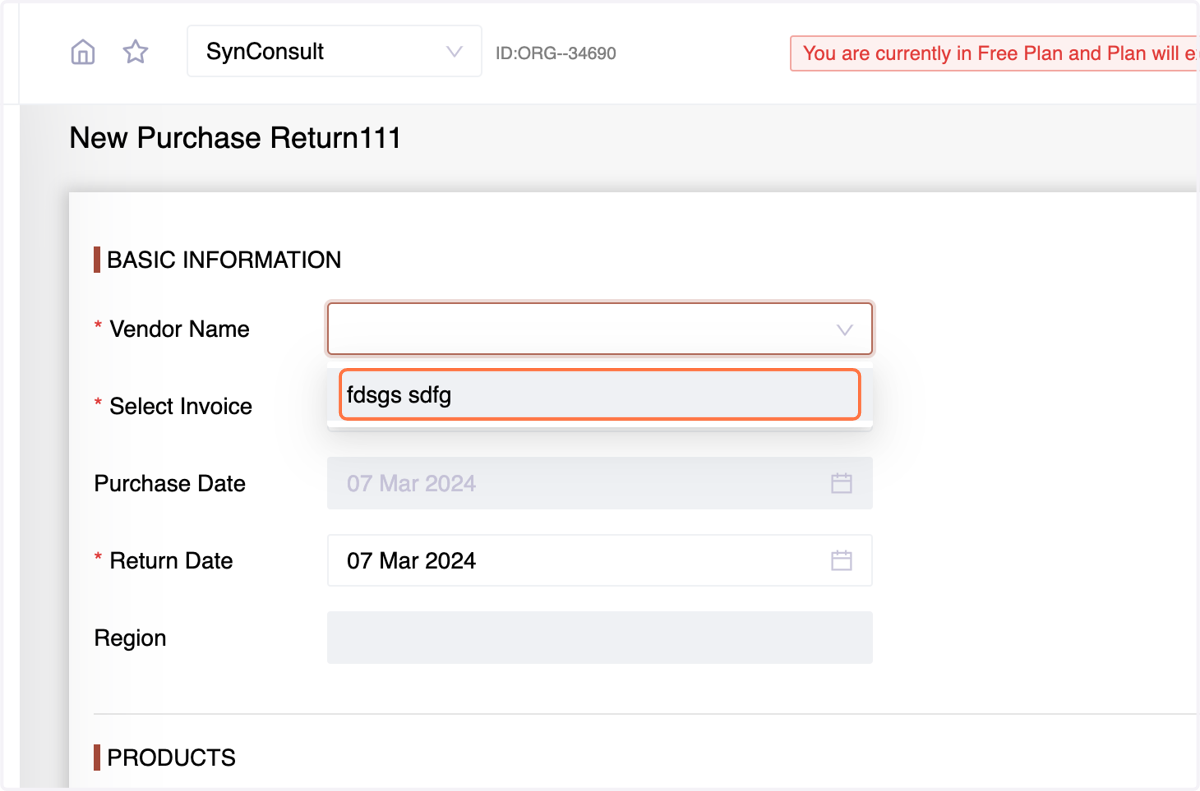
41. and choose the relevant invoice,Enter return date, region,
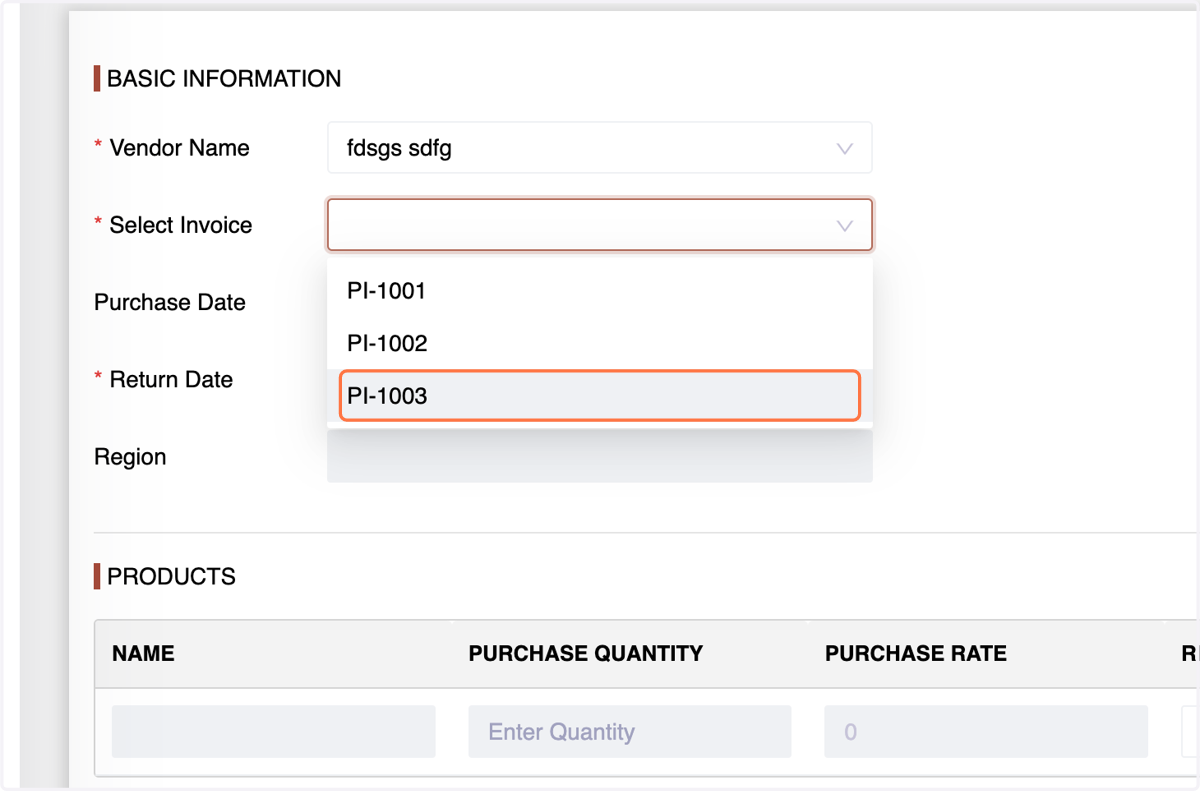
42. quantity, reason.
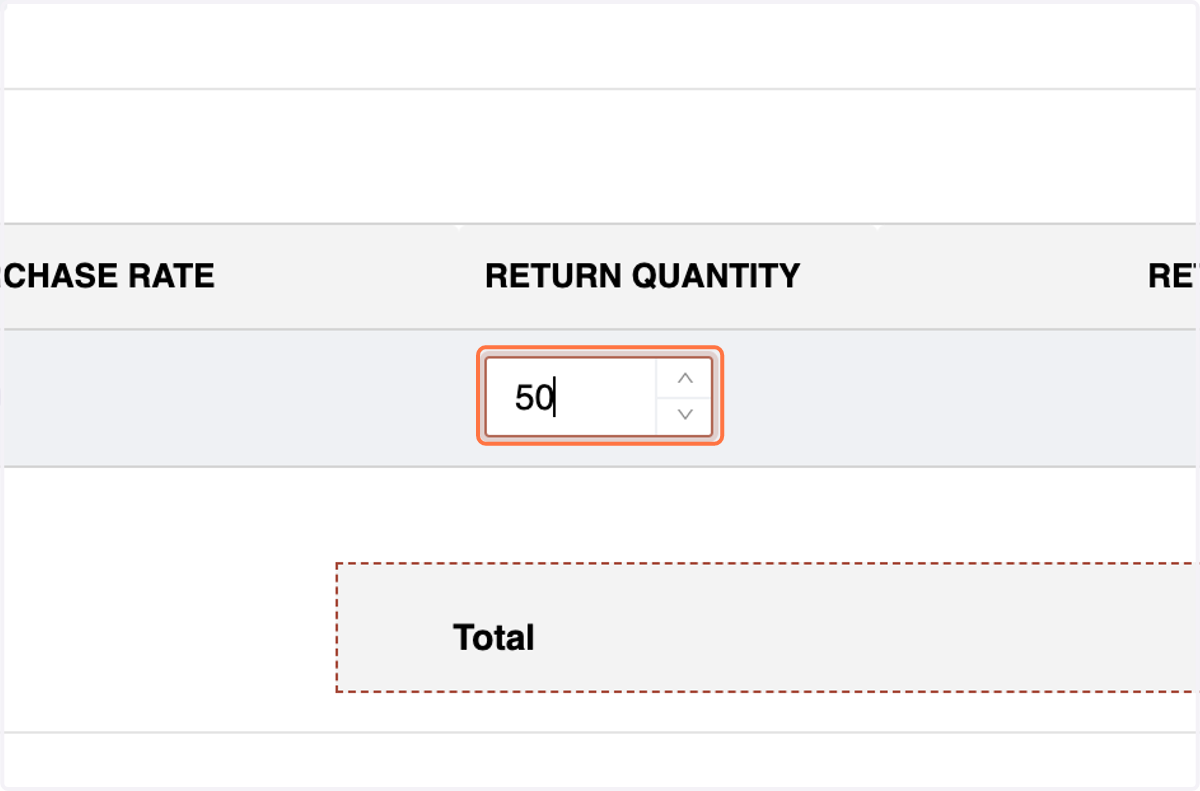
43. Click "Create" to complete the return process.