Reports in PES Markets
⭐ Section 1: Program Report
There can be times when a summary of information is most useful, whether for your needs or in supporting program information requests from others at your institution. When that need arises, take advantage of PES's summary report capabilities. It's quick, exportable, and already formatted for easy sharing or transmission. This guide will walk you through how to create reports in the PES Markets system.
Section 1 covers generating a Program Report (Steps 1 - 9)
Section 2 covers generating a Summary Report (Steps 10 - 22)
Section 3 covers generating an AI Report for a written overview of the Scorecard (Steps 23 - 31)
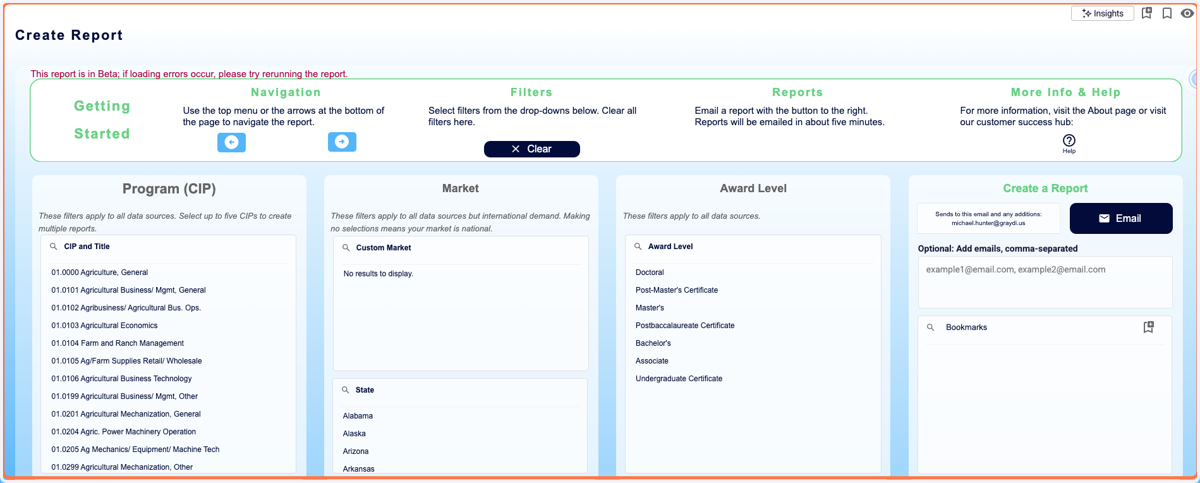
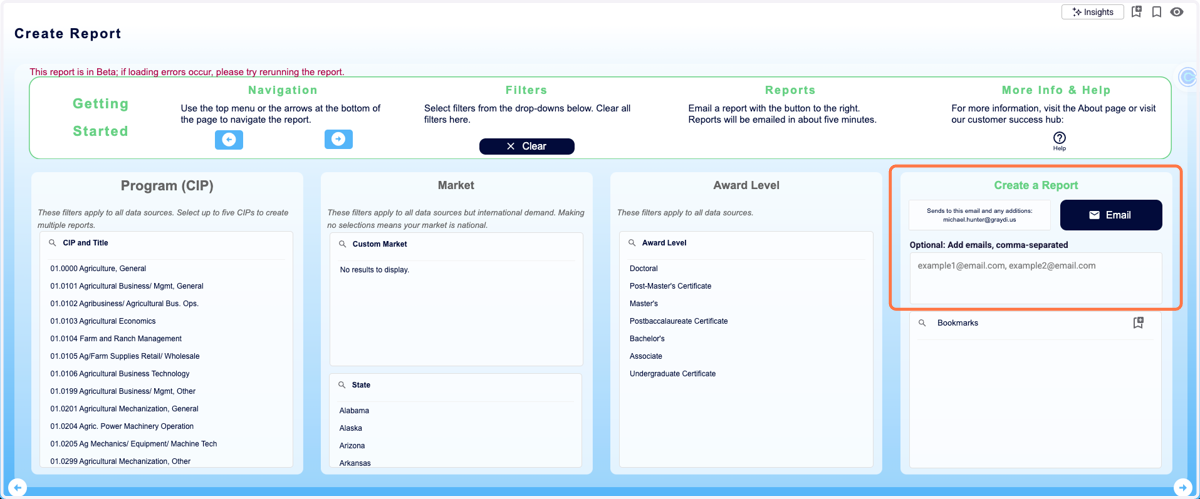
1. On this screen, you have a series of filters you can select on this screen to create a report for a program.
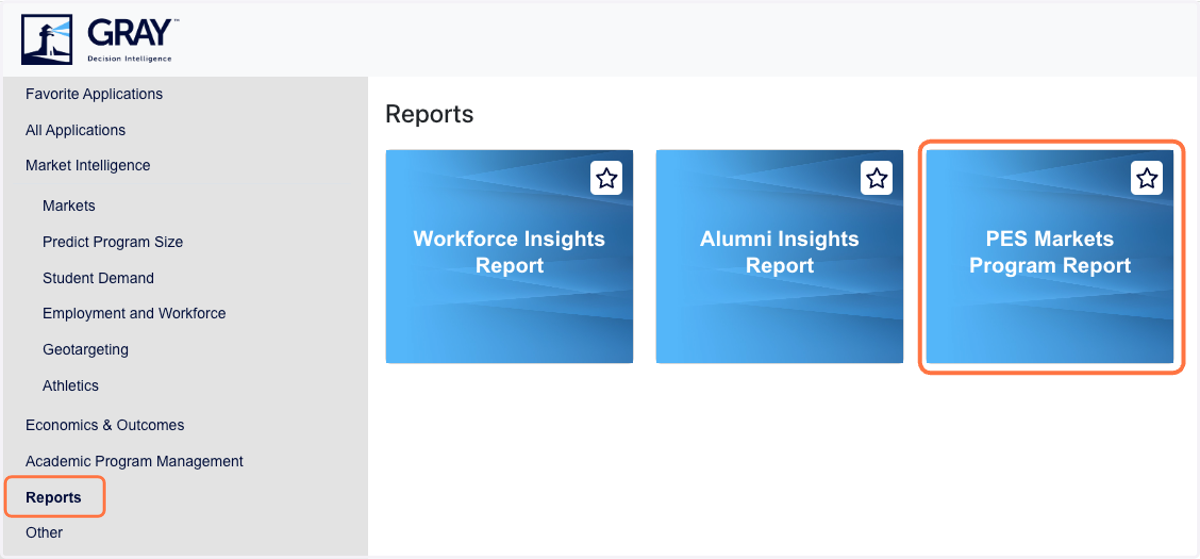
2. To access the Program Report, click on the Reports option in the navigation menu, then click on the PES Markets Program Report.
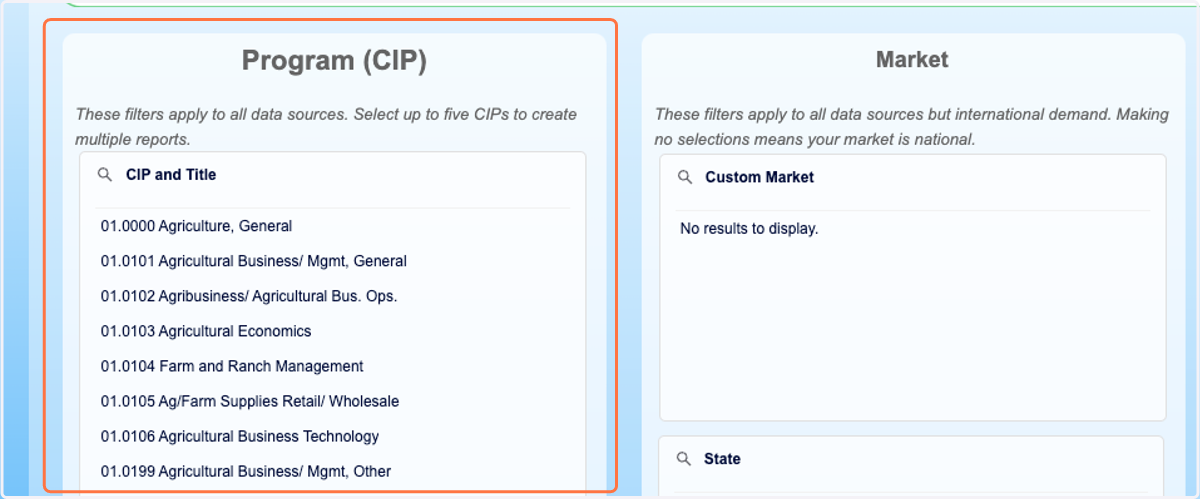
3. Select the Program CIP code(s) you want to create a report for.
You may select up to 5 programs at a time.
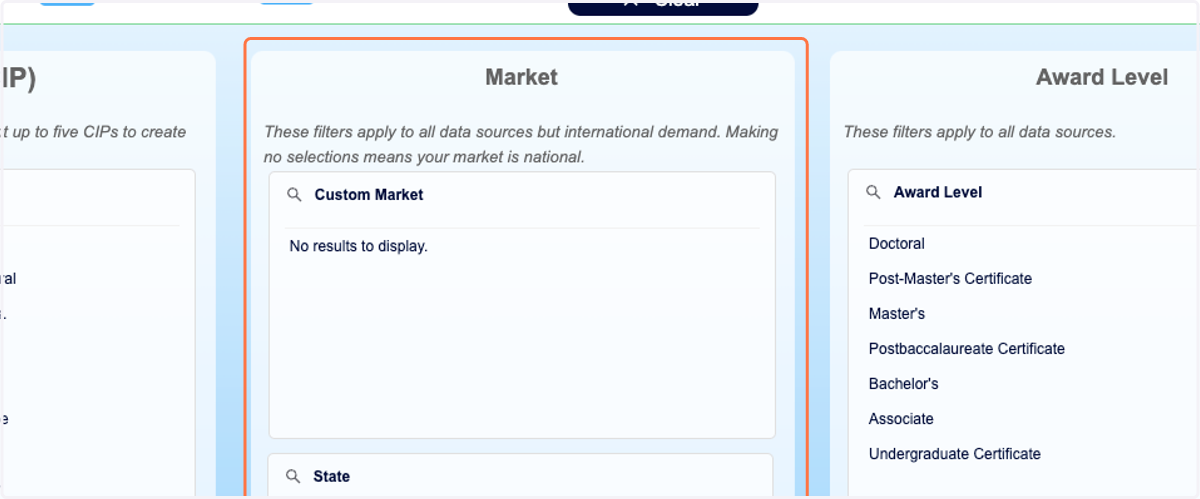
4. Select a Market. You can select either a state market or one of the custom markets from your PES Markets app.
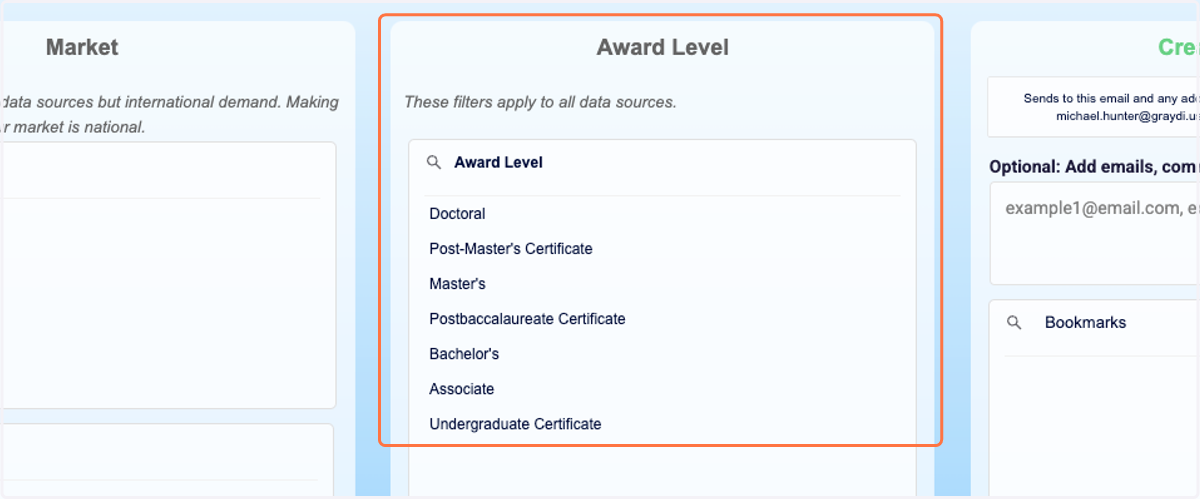
5. Select an Award Level.
6. You can email the report to yourself or to others by entering their email addresses in the textbox and clicking the email button.
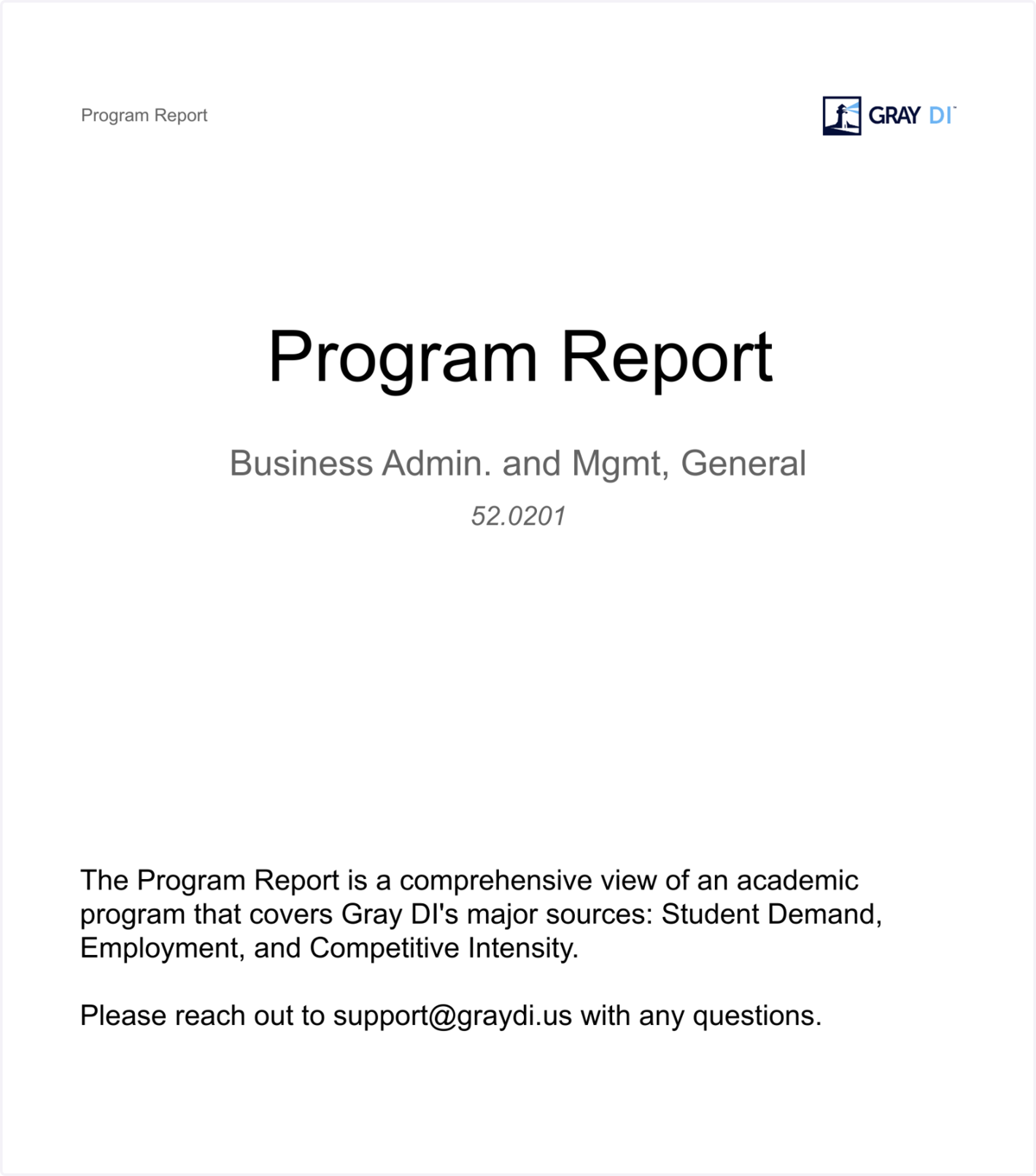
7. Sample Program Report Cover Page
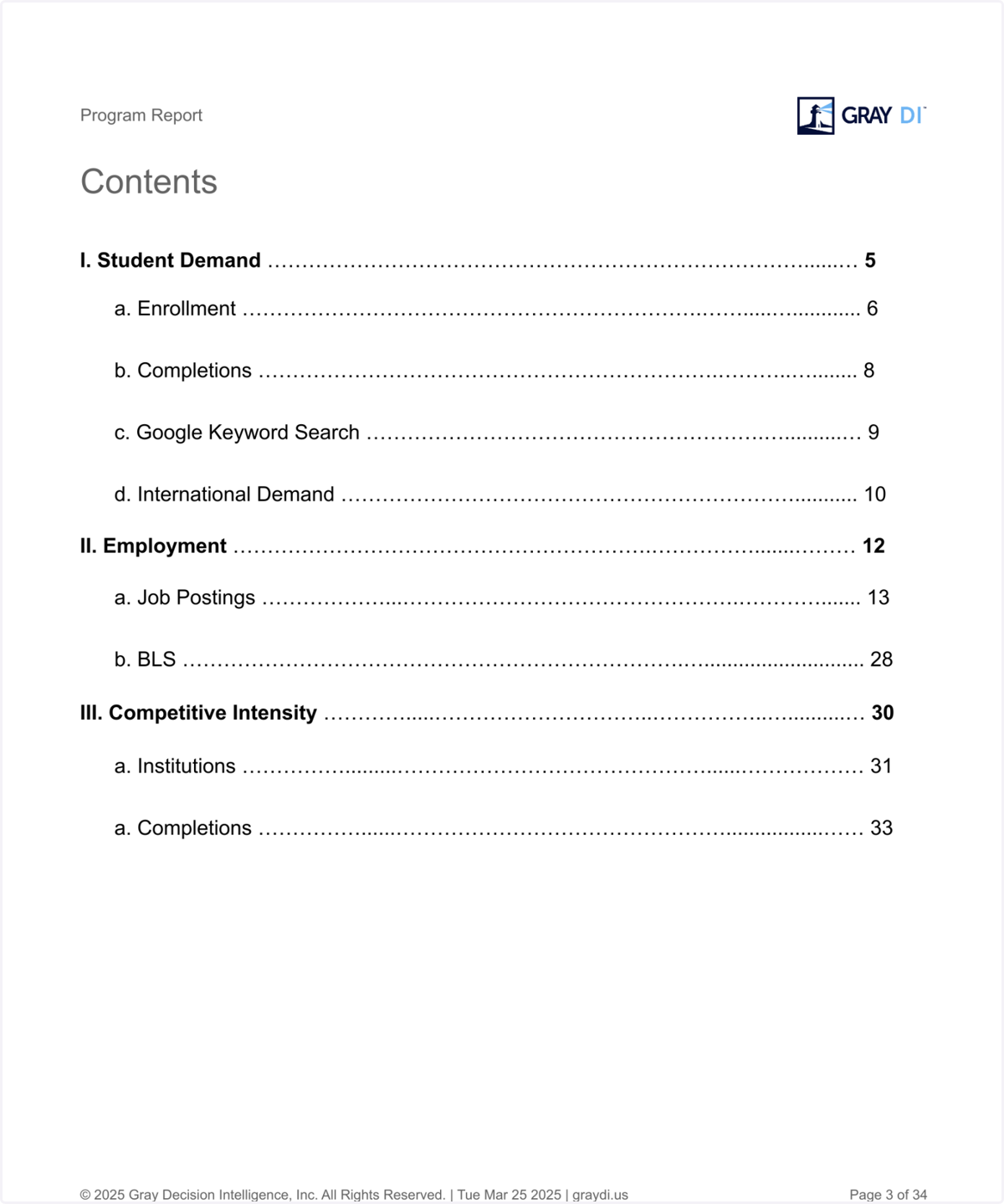
8. Sample Program Report Table of Contents
The program report is divided into in-depth, multi-page sections on student demand, employment, and competitive intensity.
⭐ Section 2: Summary Report
9. Start on the Getting Started page.
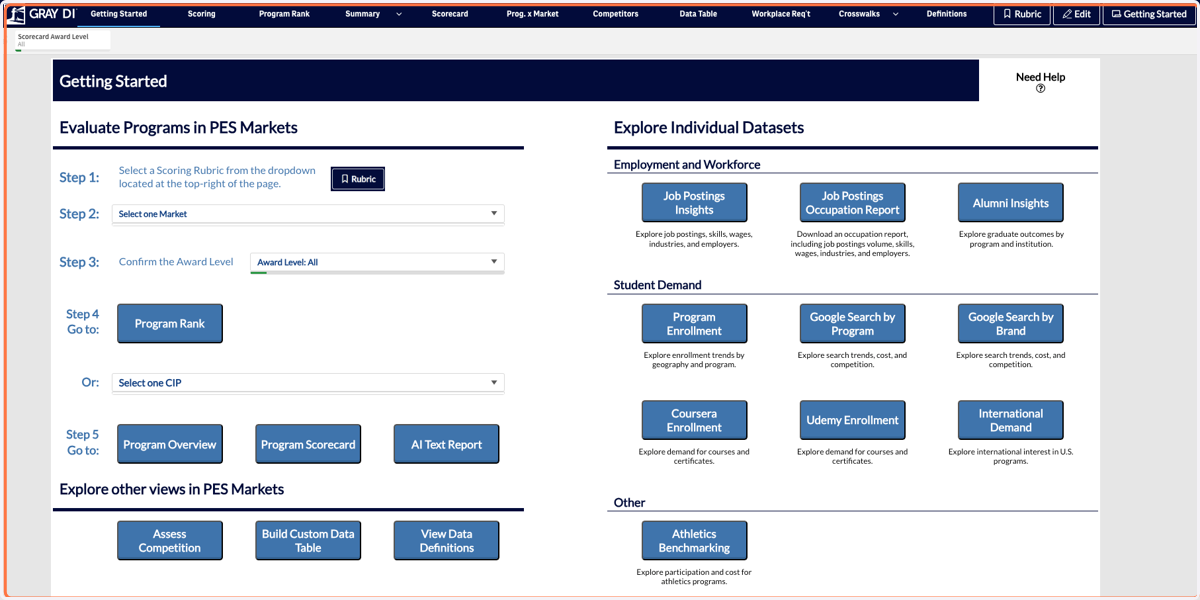
10. Start by selecting a scoring Rubric.
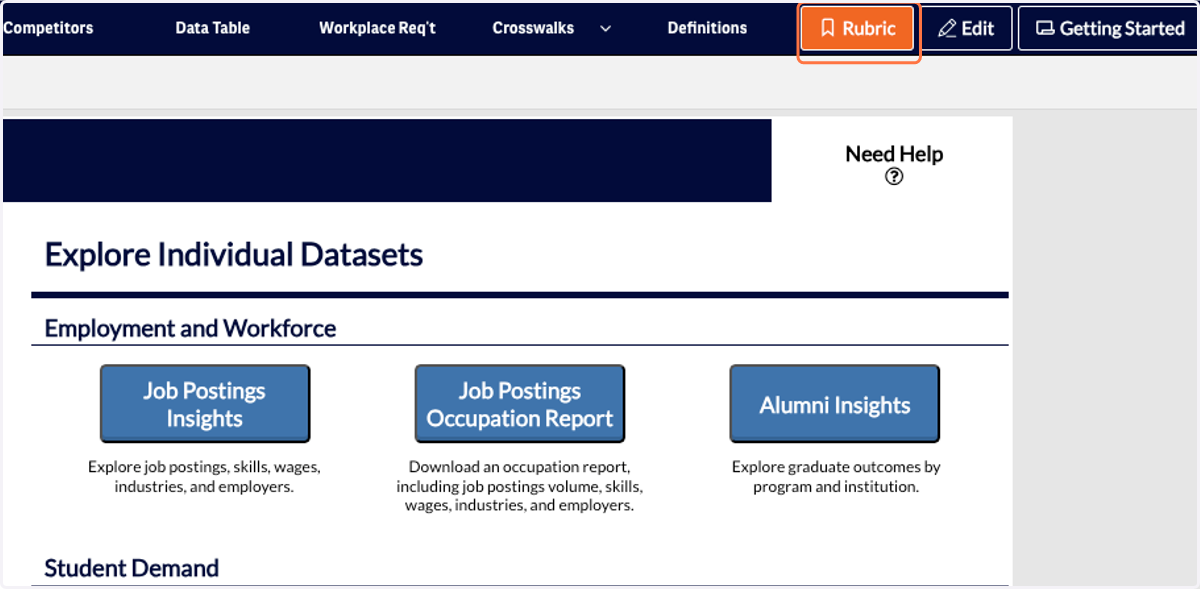
11. Select the scoring rubric that best matches your current search.
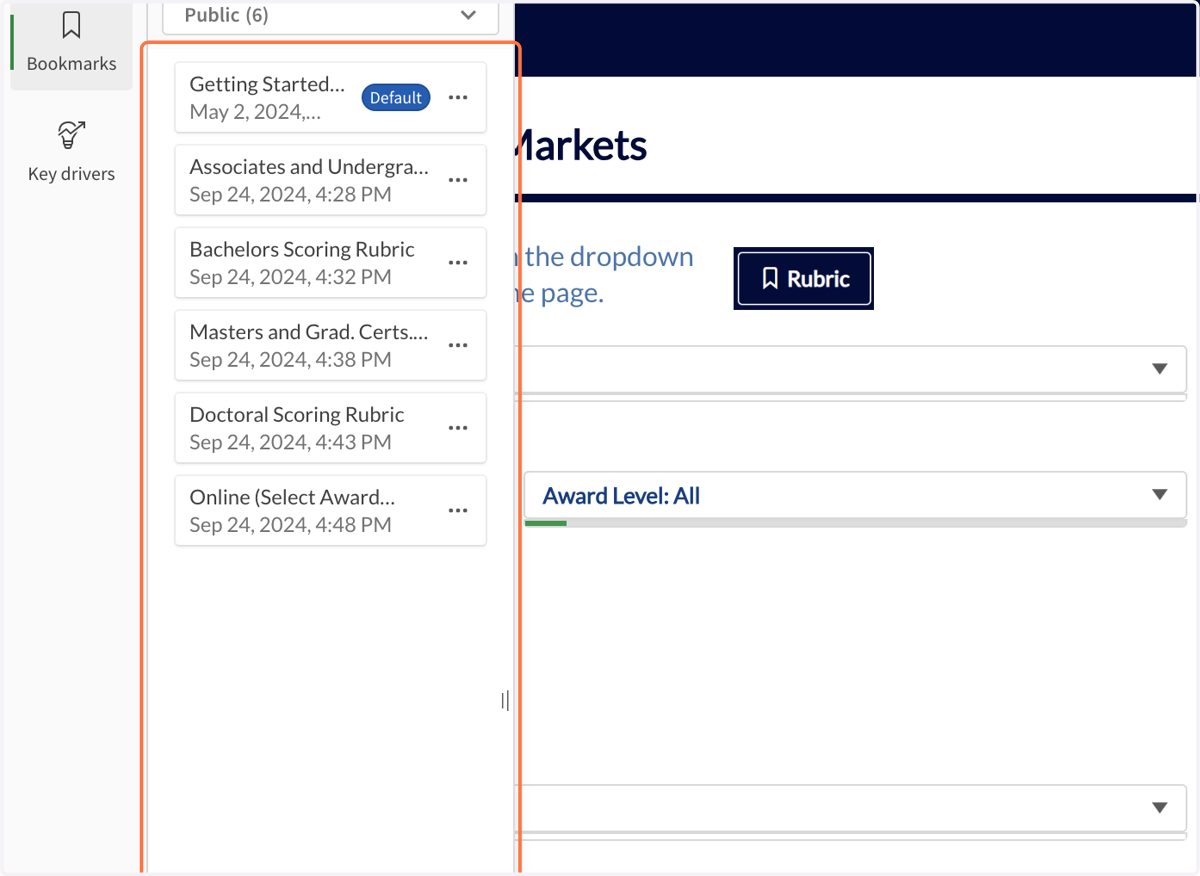
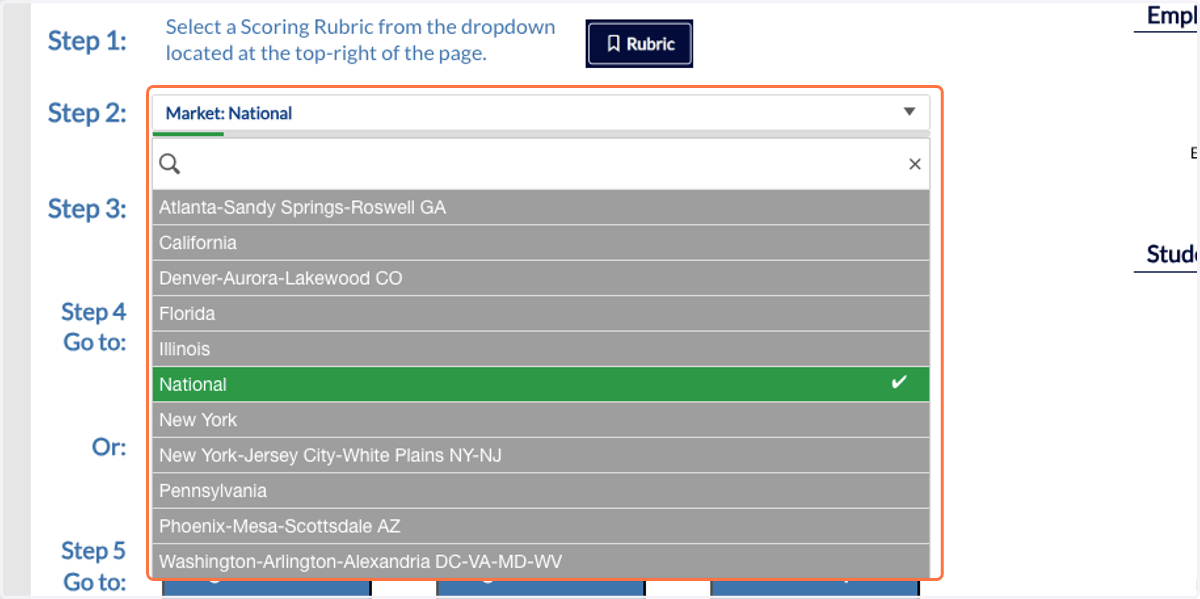
12. Open the Market drop-down menu to select a geographic market.
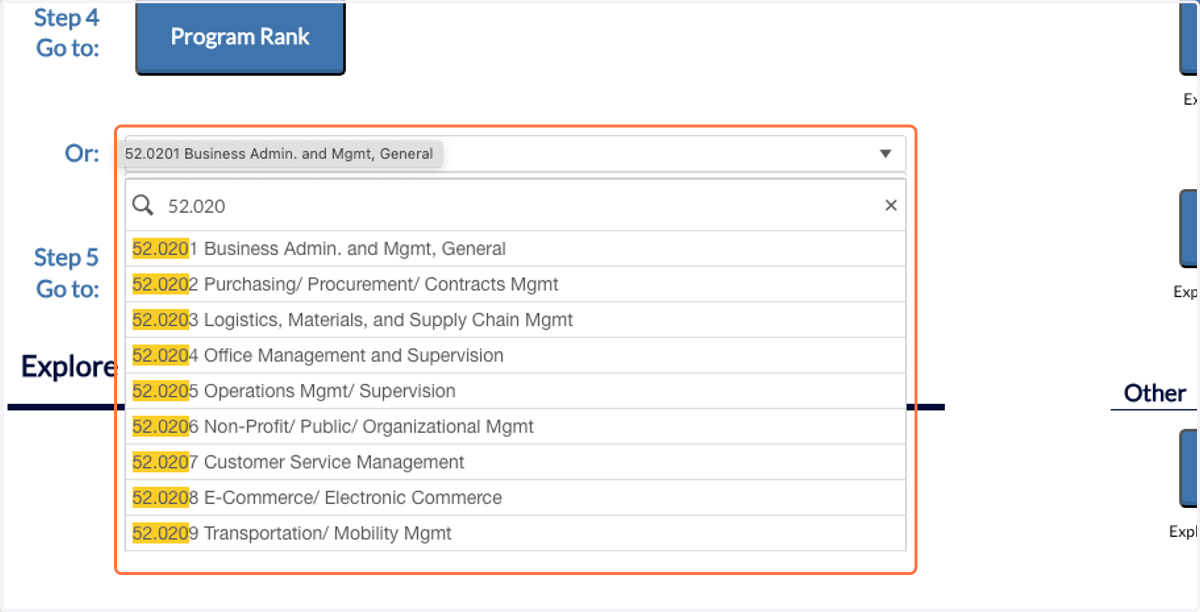
13. Select the CIP code you would like to generate a report for.
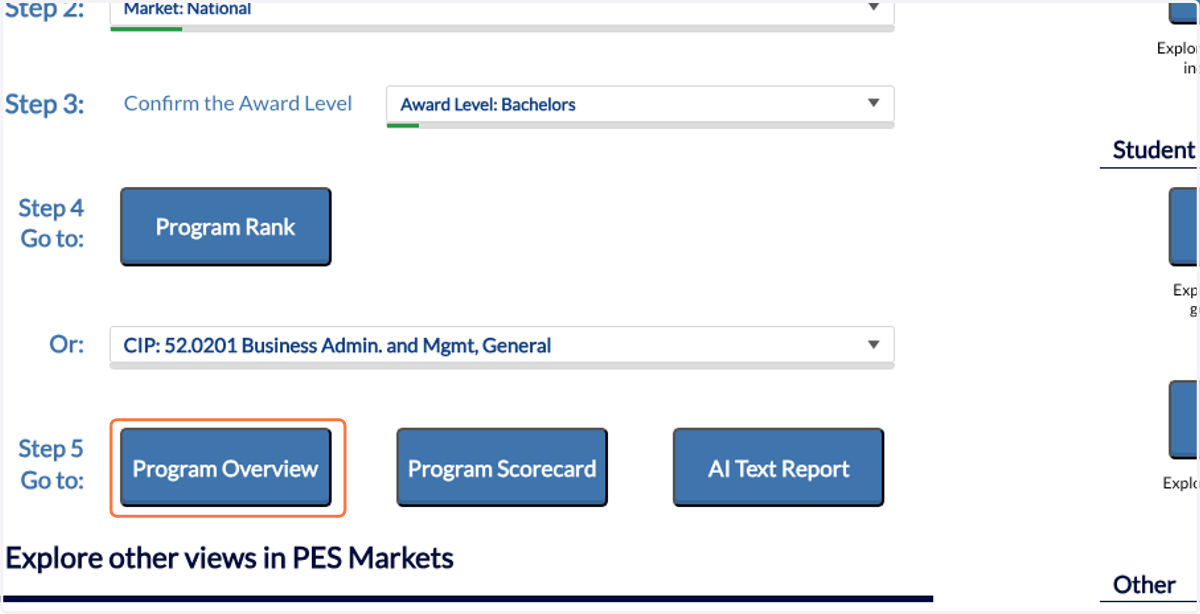
14. Click on the Program Overview button on the Getting Started page.
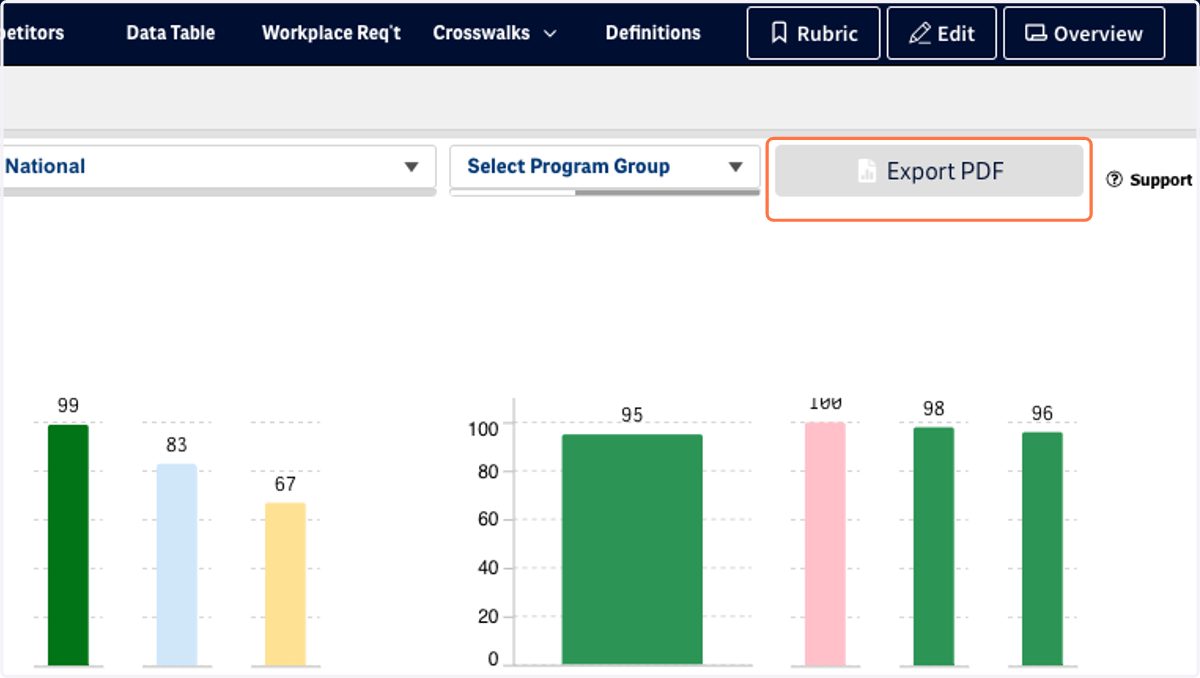
15. Click on the Export PDF button to export this report. This will include each of the Summary pages (Overview, Student Demand, Competetive Intensity, Employment) and the Scorecard.
Note: This will take a few minutes, the report will go to your downloads folder when it is complete.
16. Sample Report Cover Page.
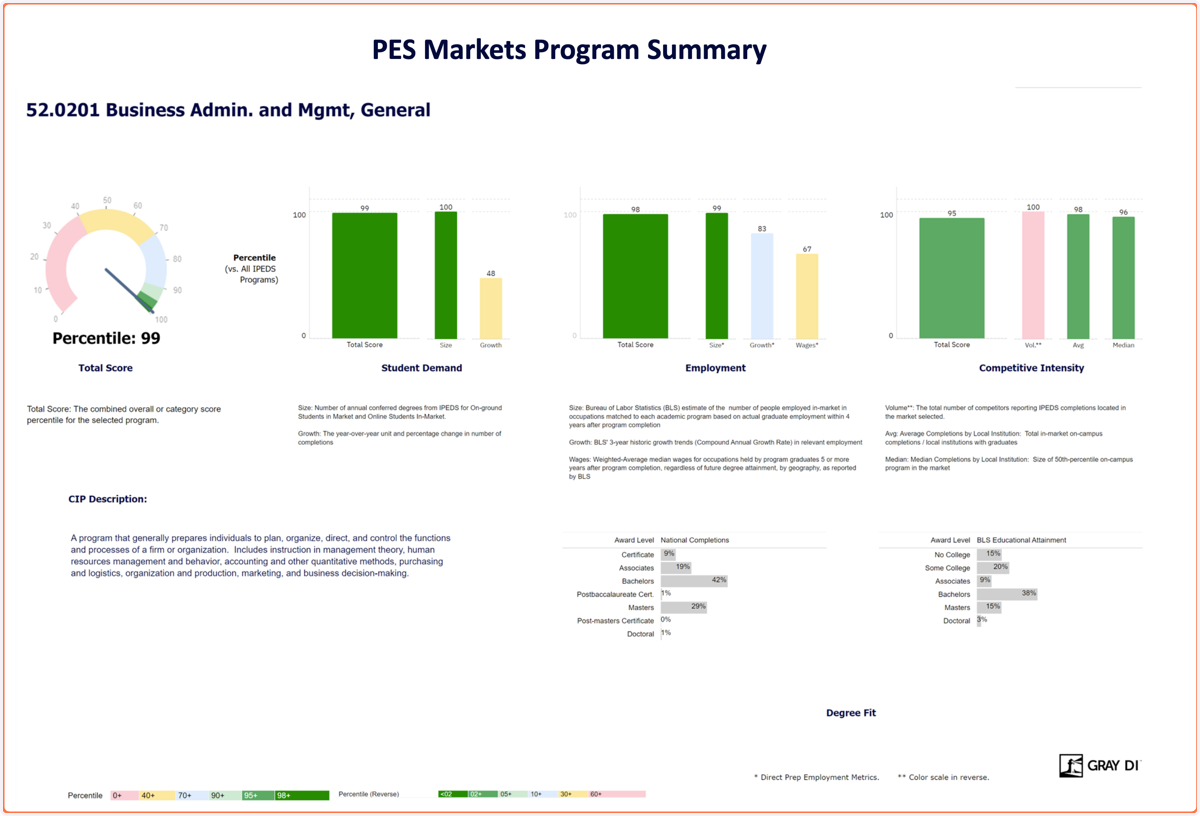
17. Sample Report Summary Page.
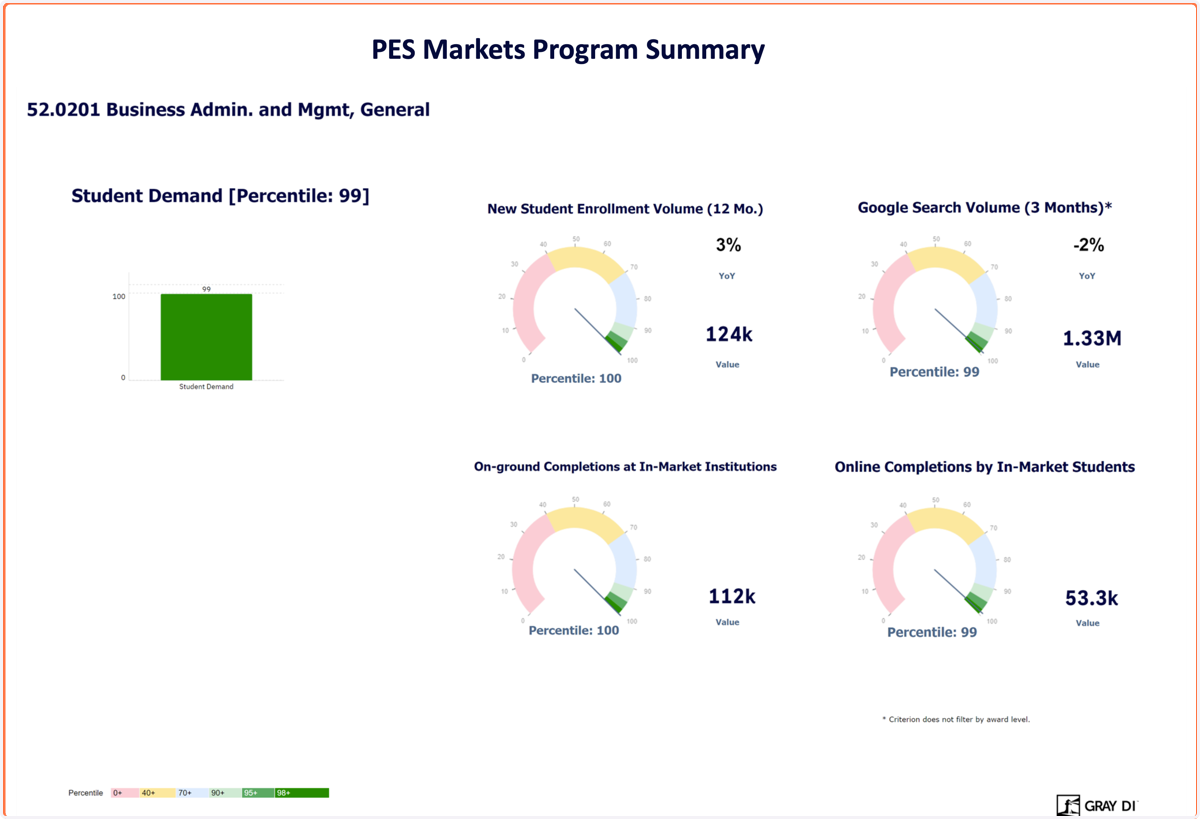
18. Sample Report Student Demand Page.
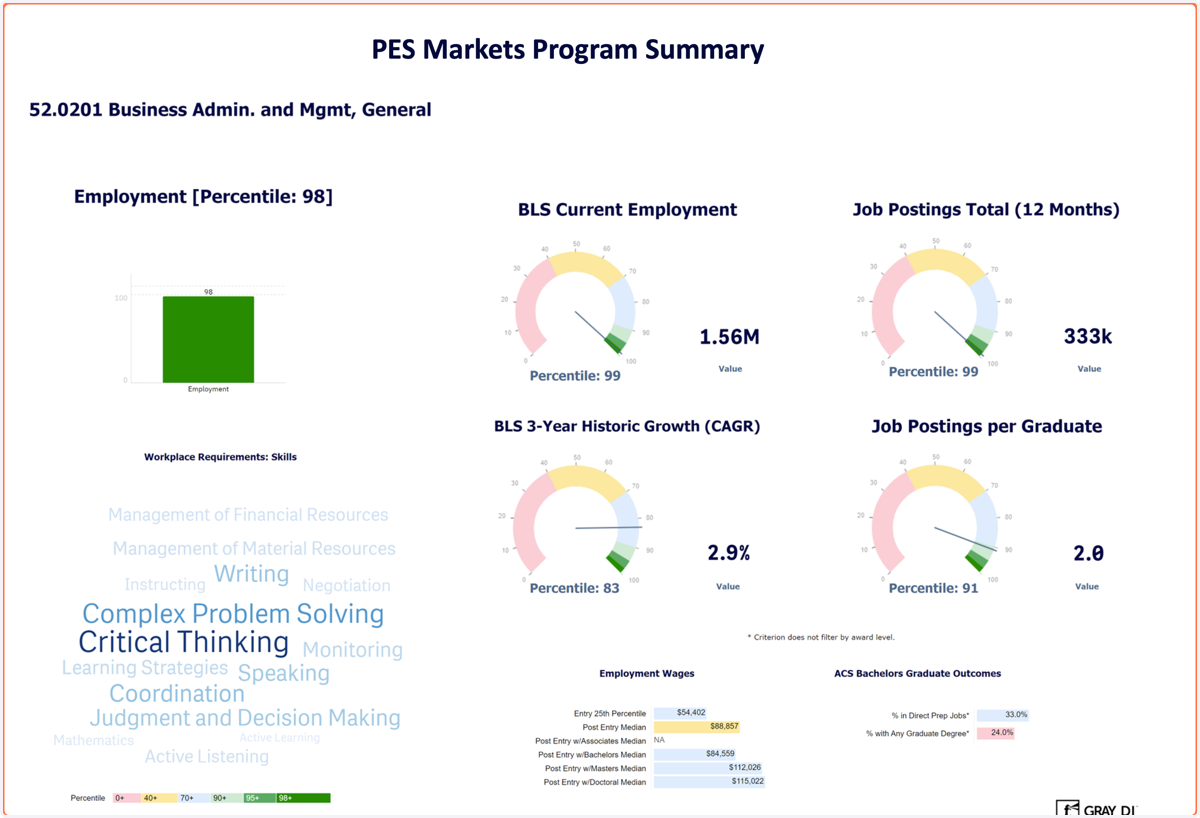
19. Sample Report Employment Page.
20. Sample Report Competetive Intensity Page.
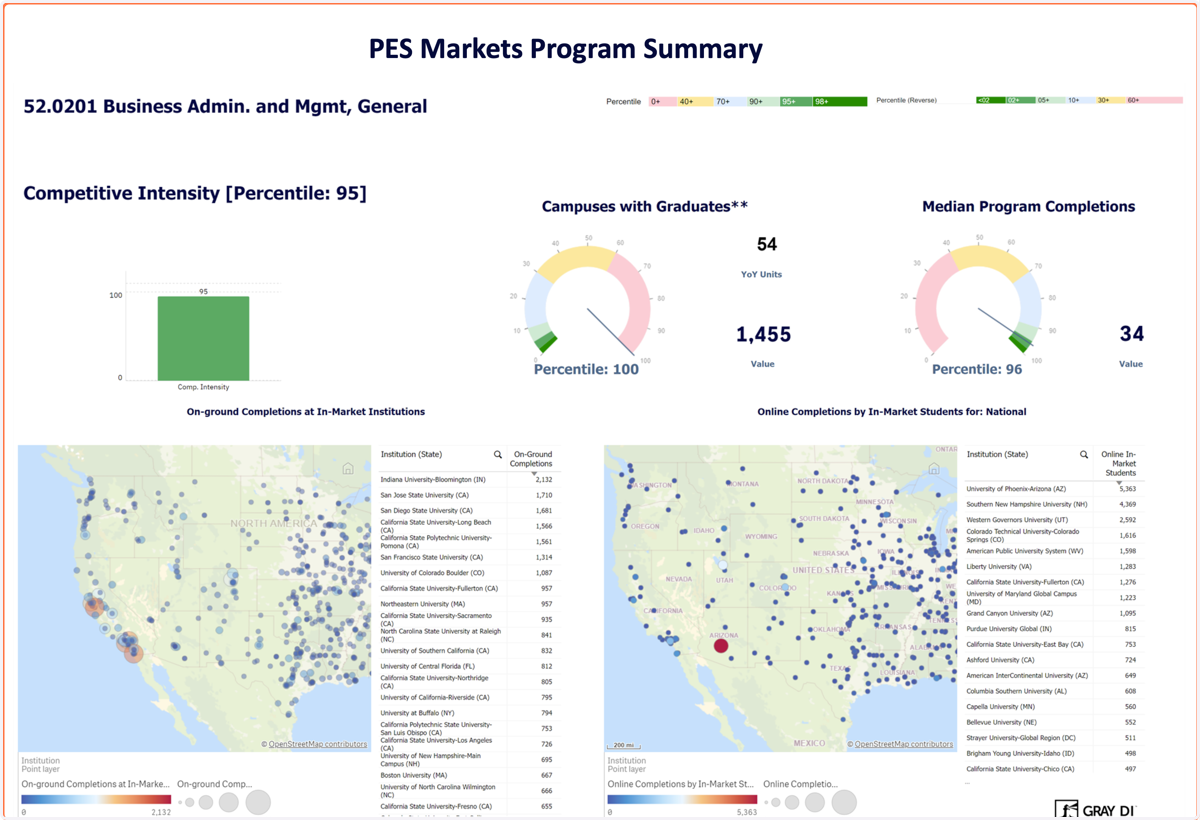
21. Sample Report Scorecard Page.
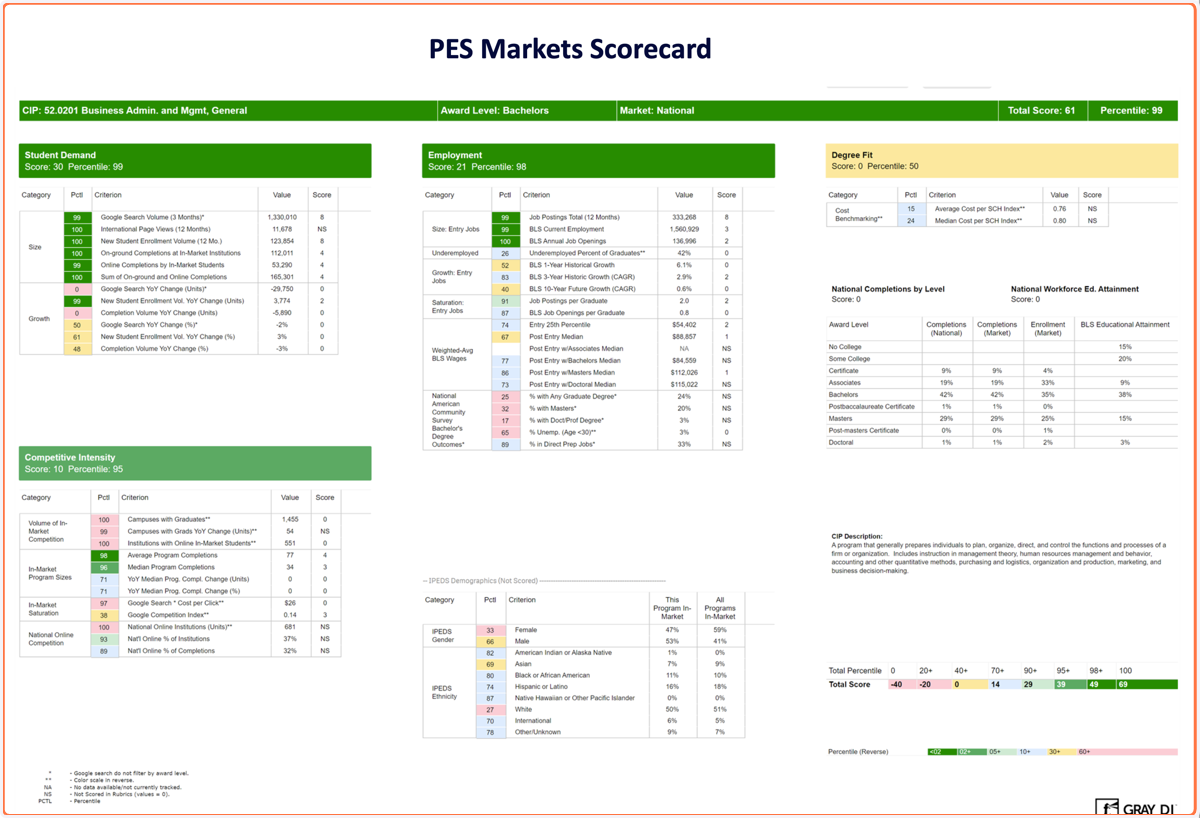
⭐ Section 3: AI Report
22. To create an AI Report, start on the Getting Started page.
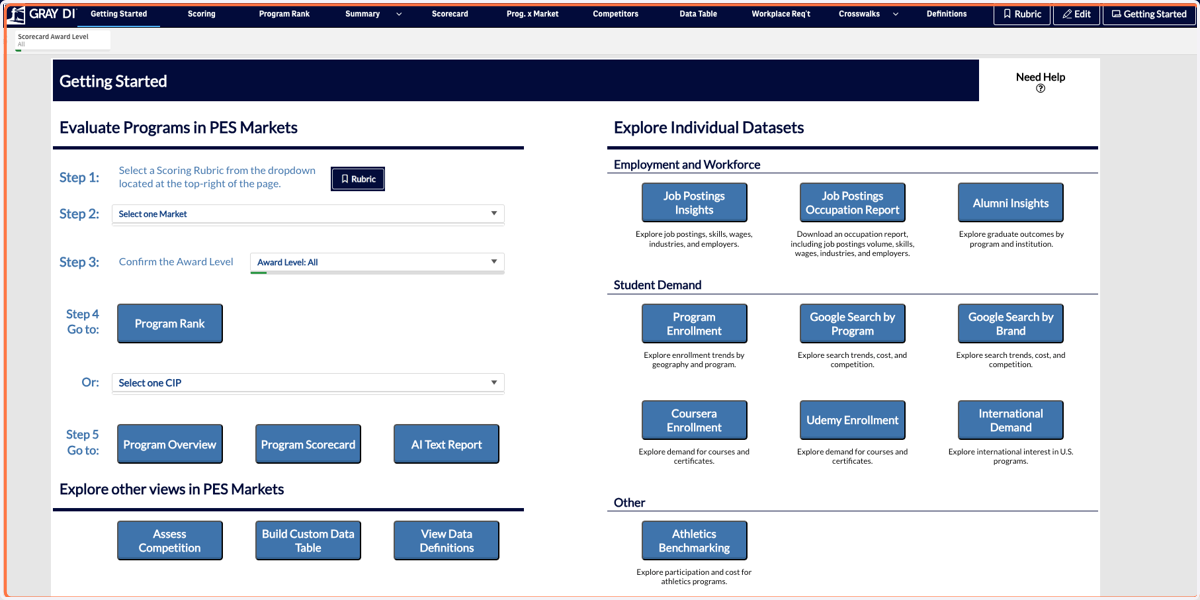
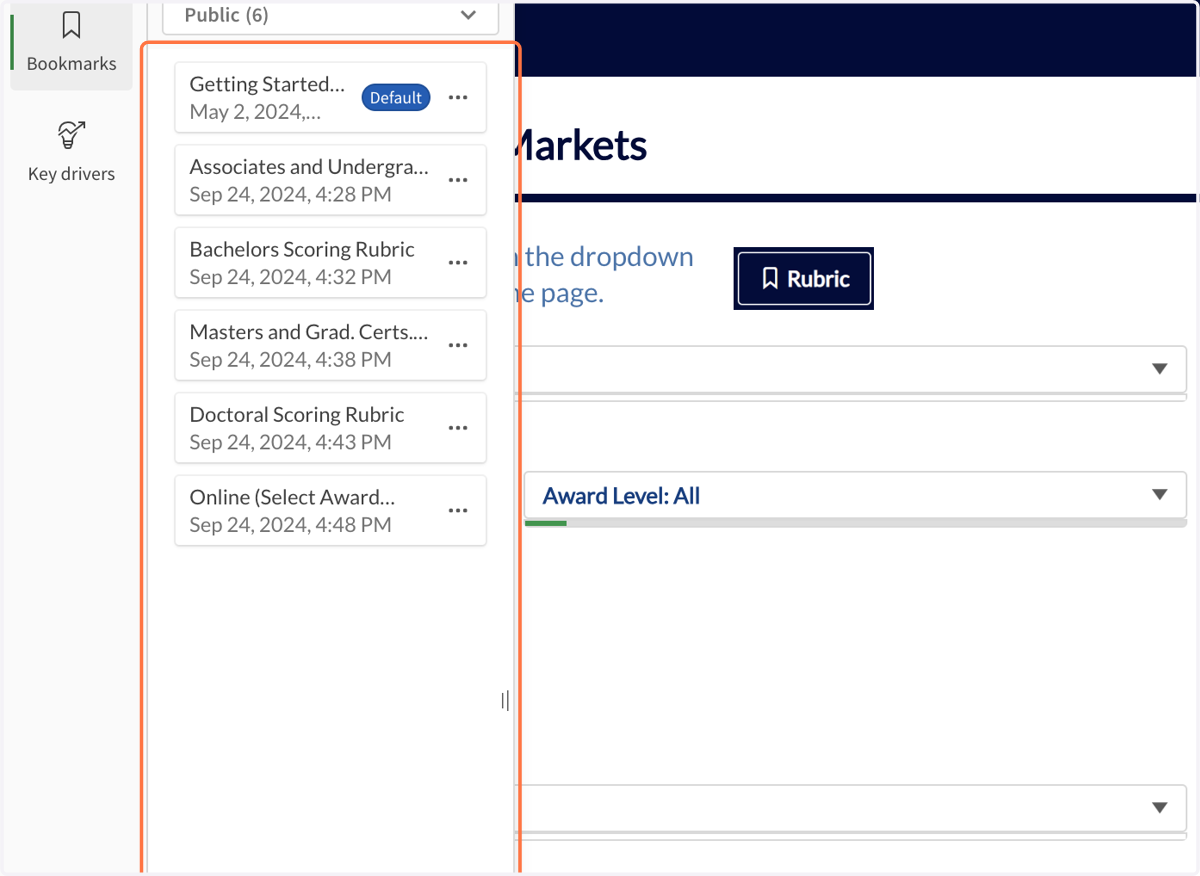
23. Start by selecting a scoring Rubric.
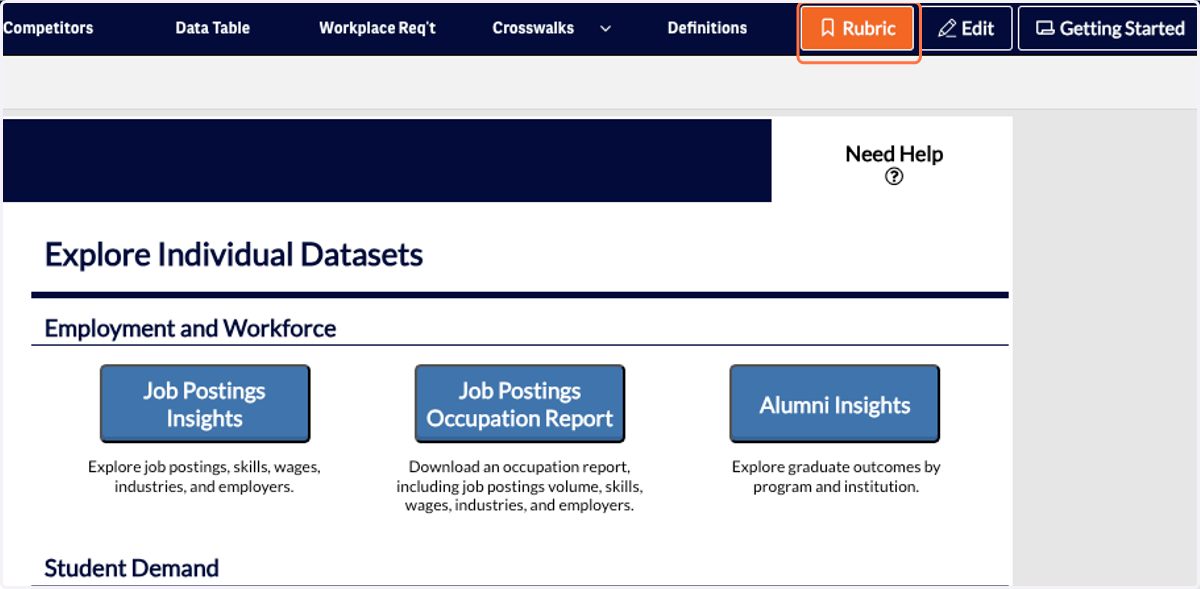
24. Select the scoring rubric that best matches your current search.
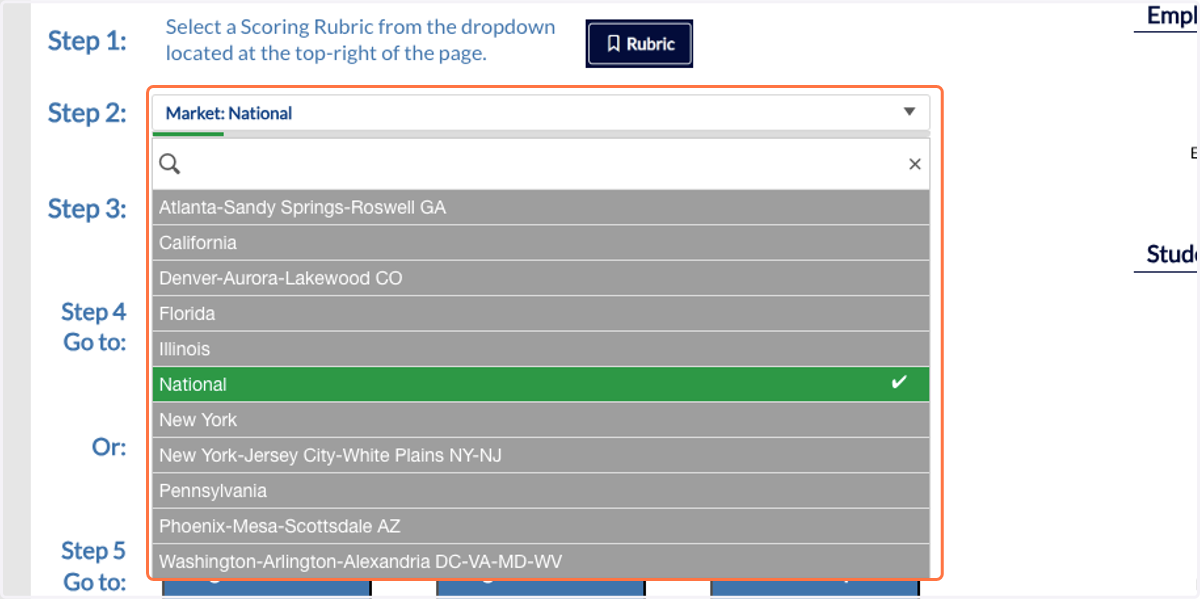
25. Open the Market drop-down menu to select a geographic market.
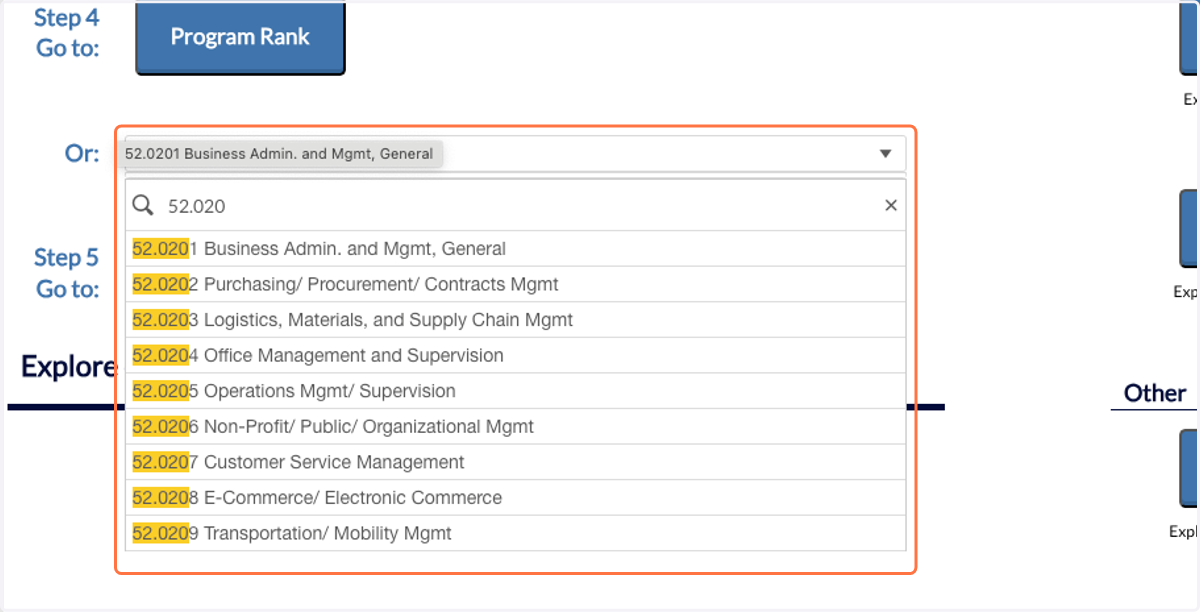
26. Select the CIP code you would like to generate a report for.
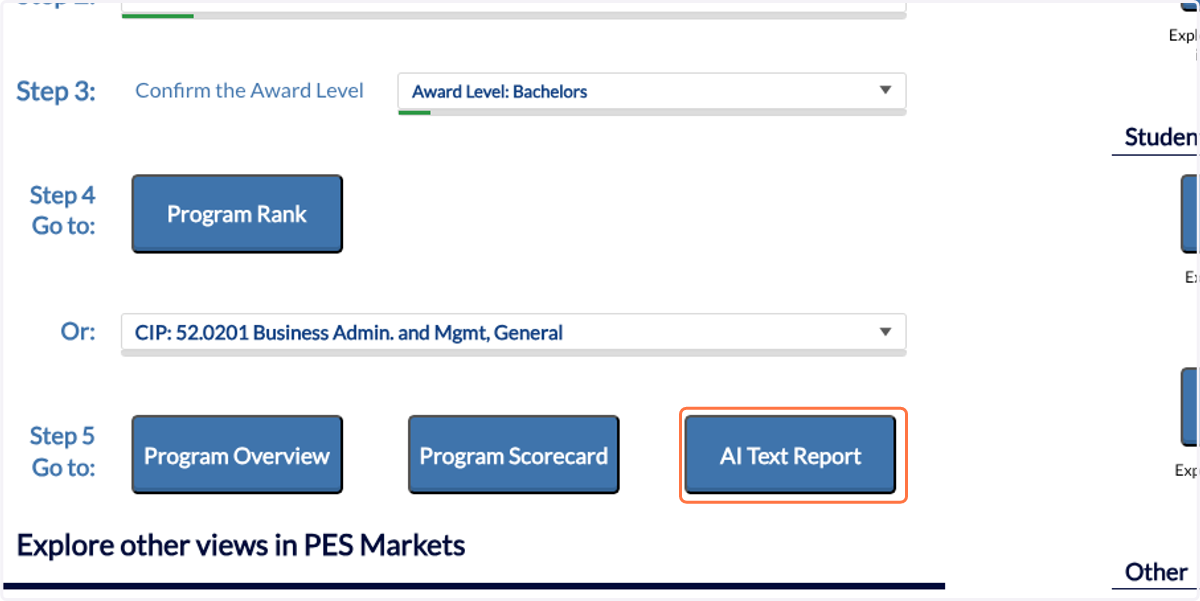
27. Click on the AI Report button in the top right hand corner of the Scorecard.
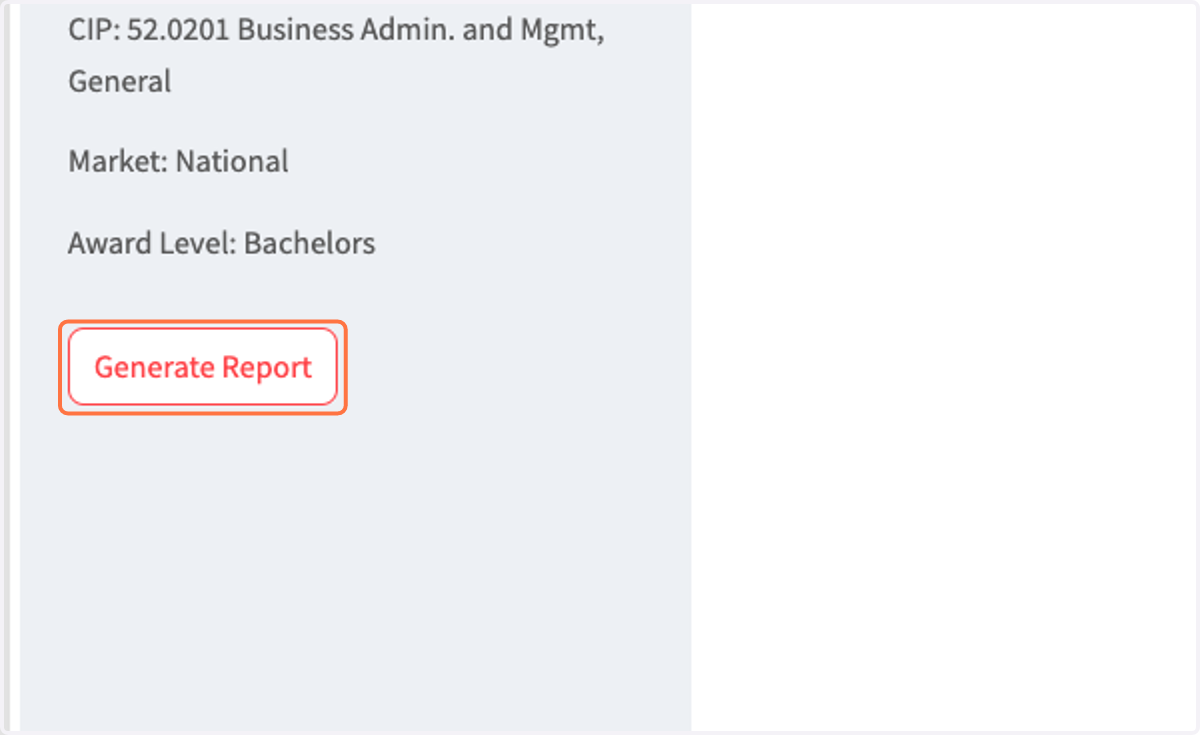
28. Select Generate Report. This step will take a few minutes to run.
29. Now you will have an AI-generated summary of the data on the Scorecard.
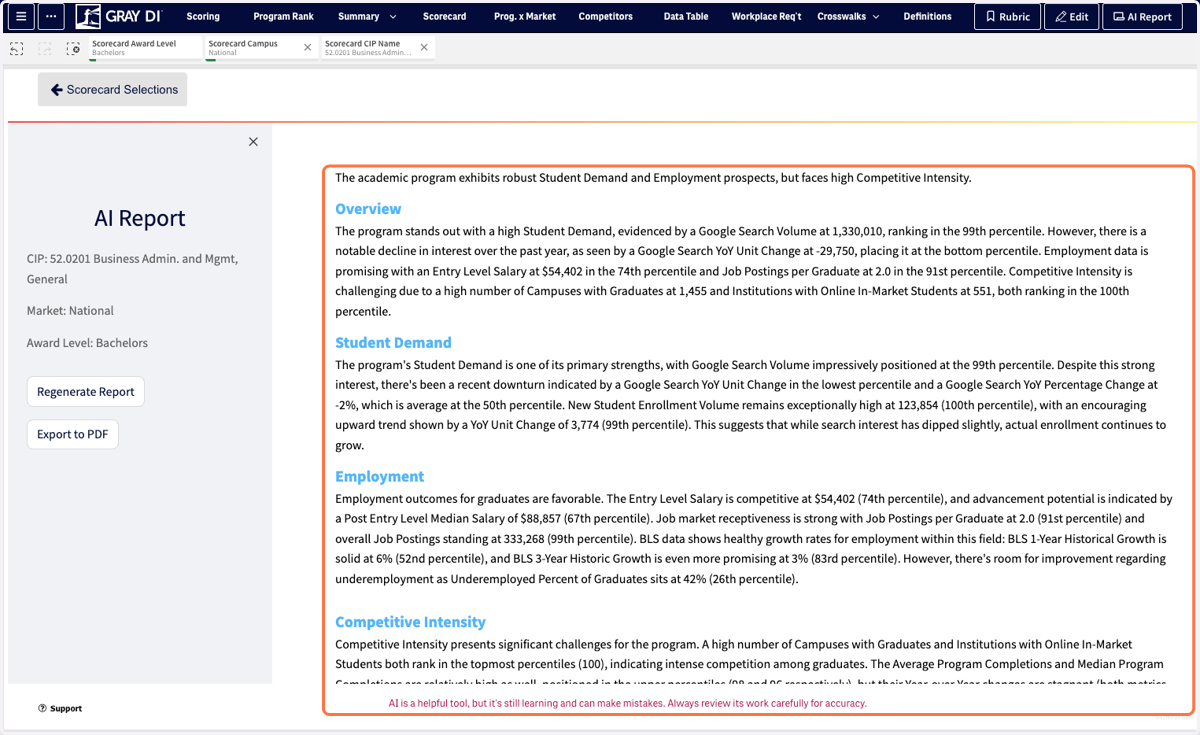
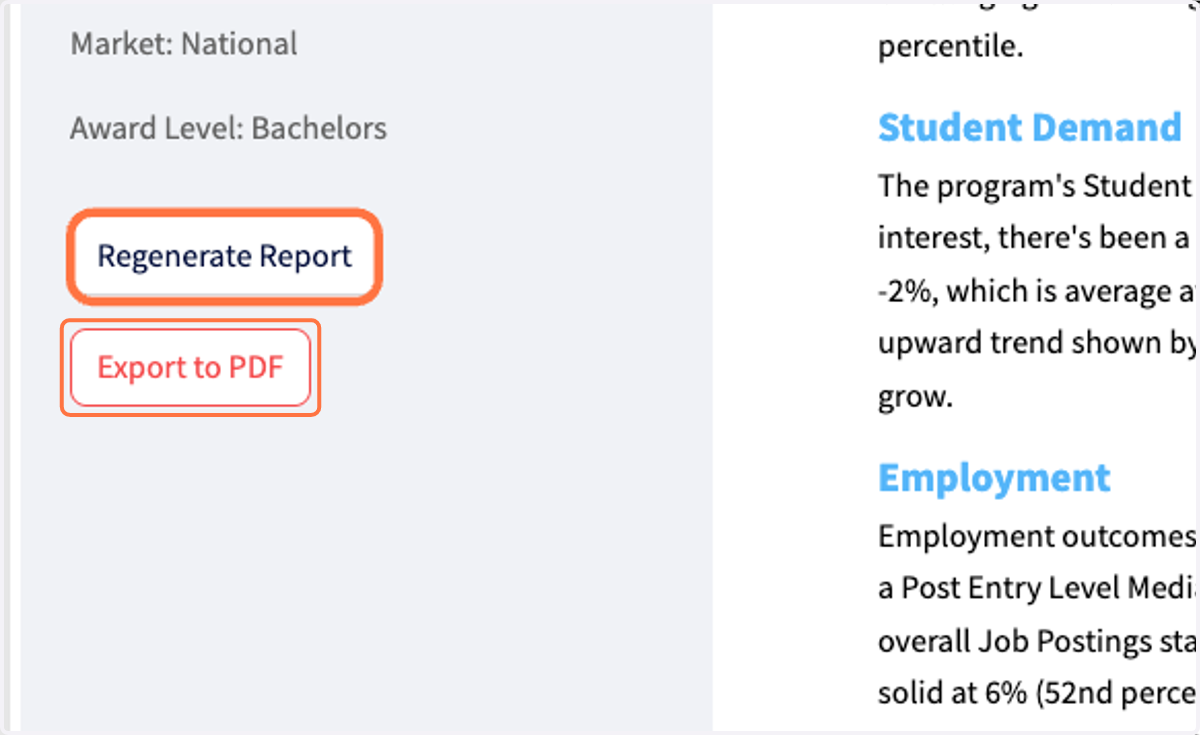
30. To export this AI report click on Export to PDF, or you can select Regenerate Report to generate a new summary.
Note: This may take a few minutes to run.