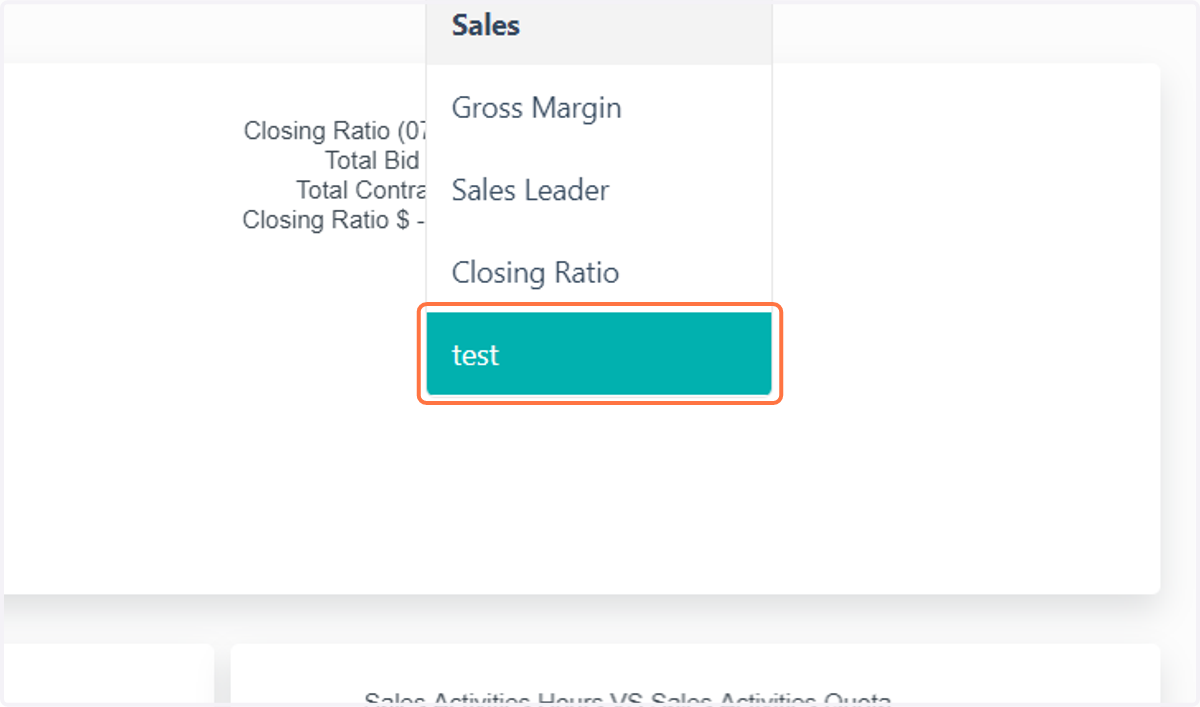
Creating and Publishing a Custom Report in Followup CRM
FollowUpCRM
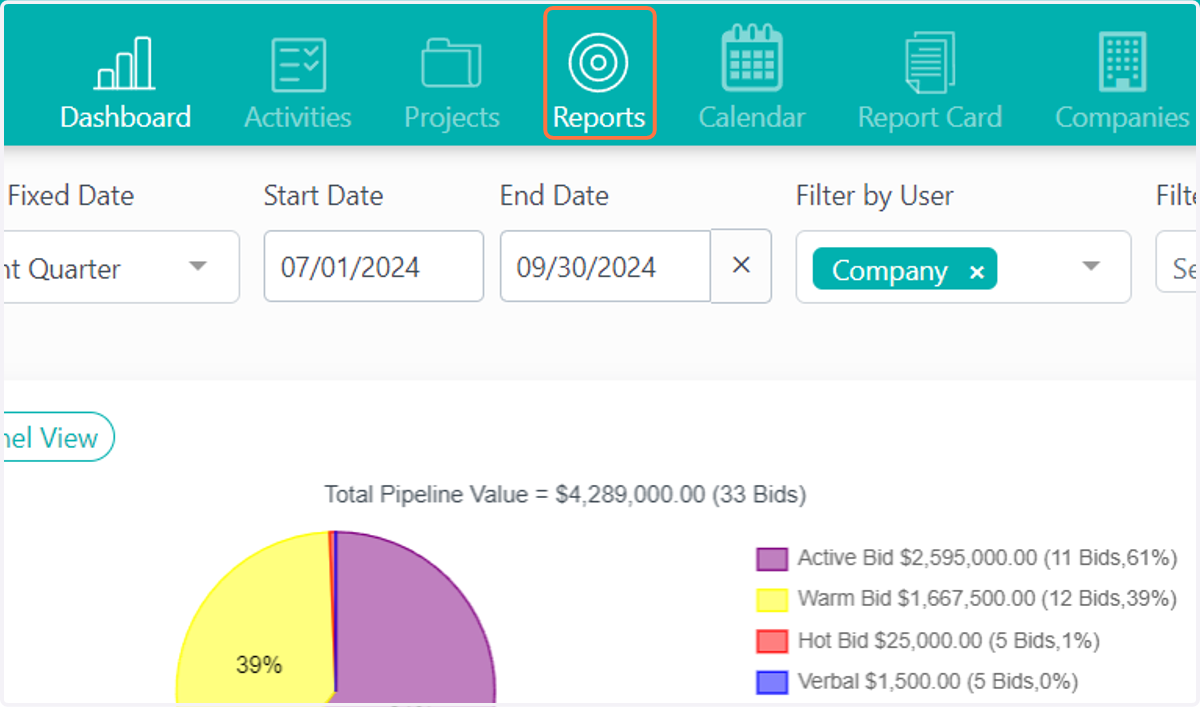
1. Click on Reports
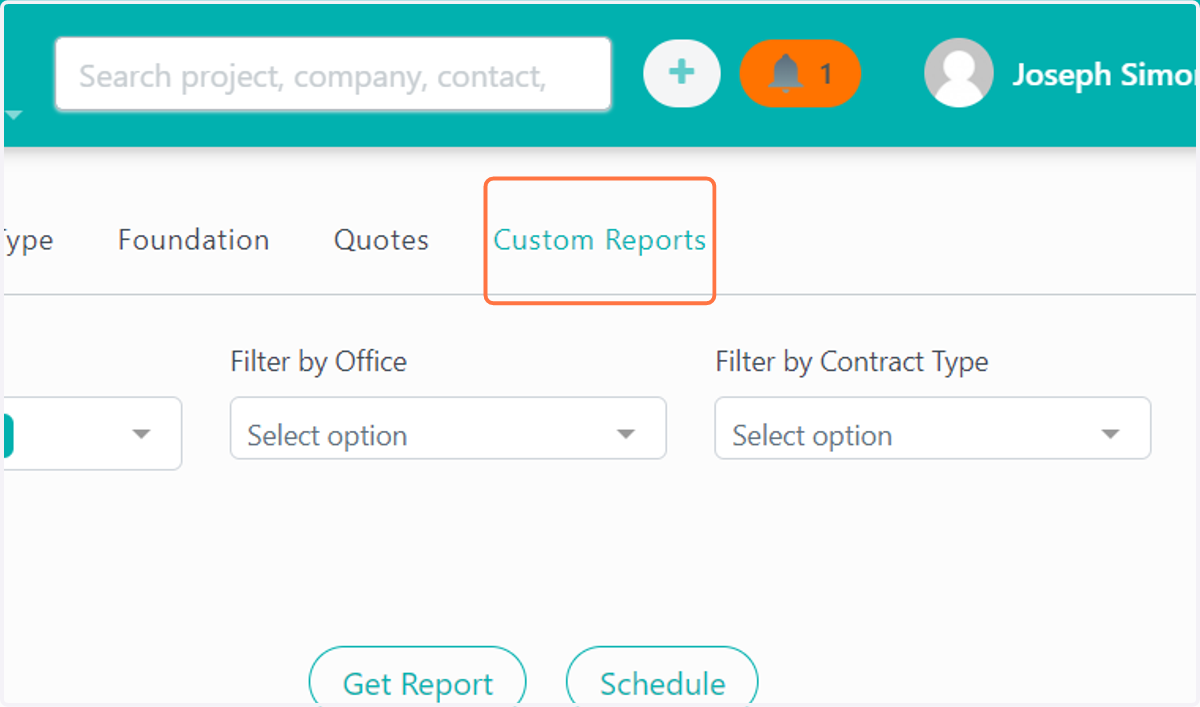
2. Click on Custom Reports
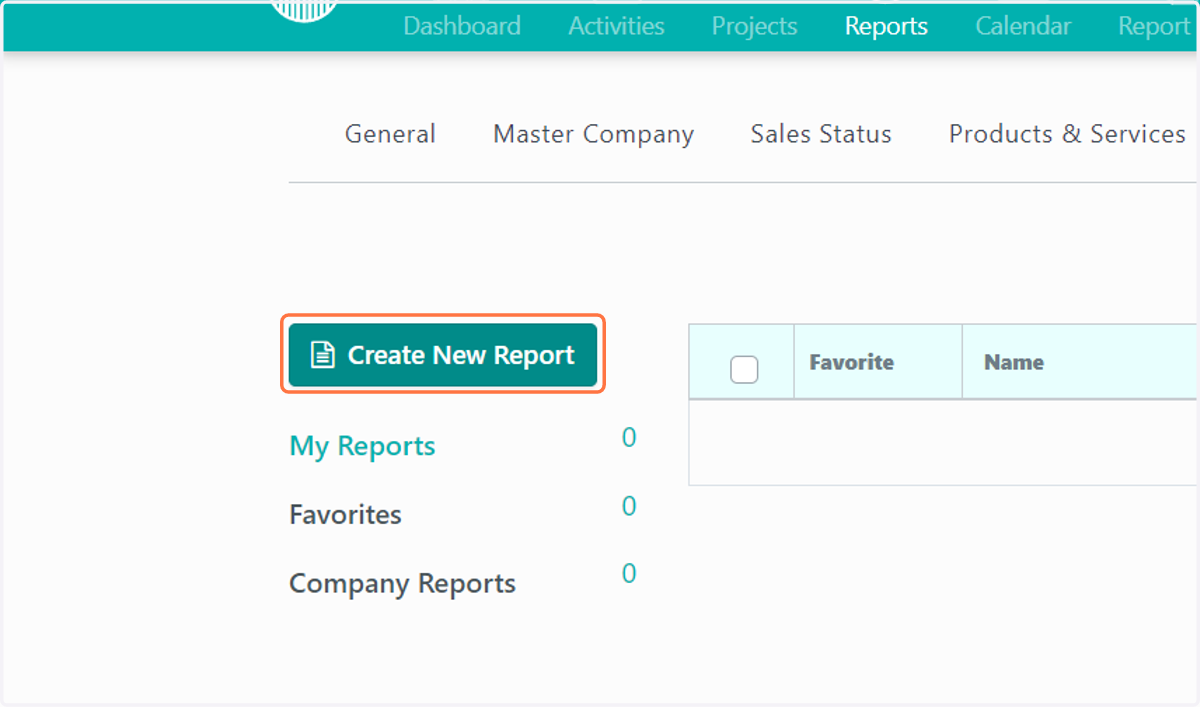
3. Click on Create New Report
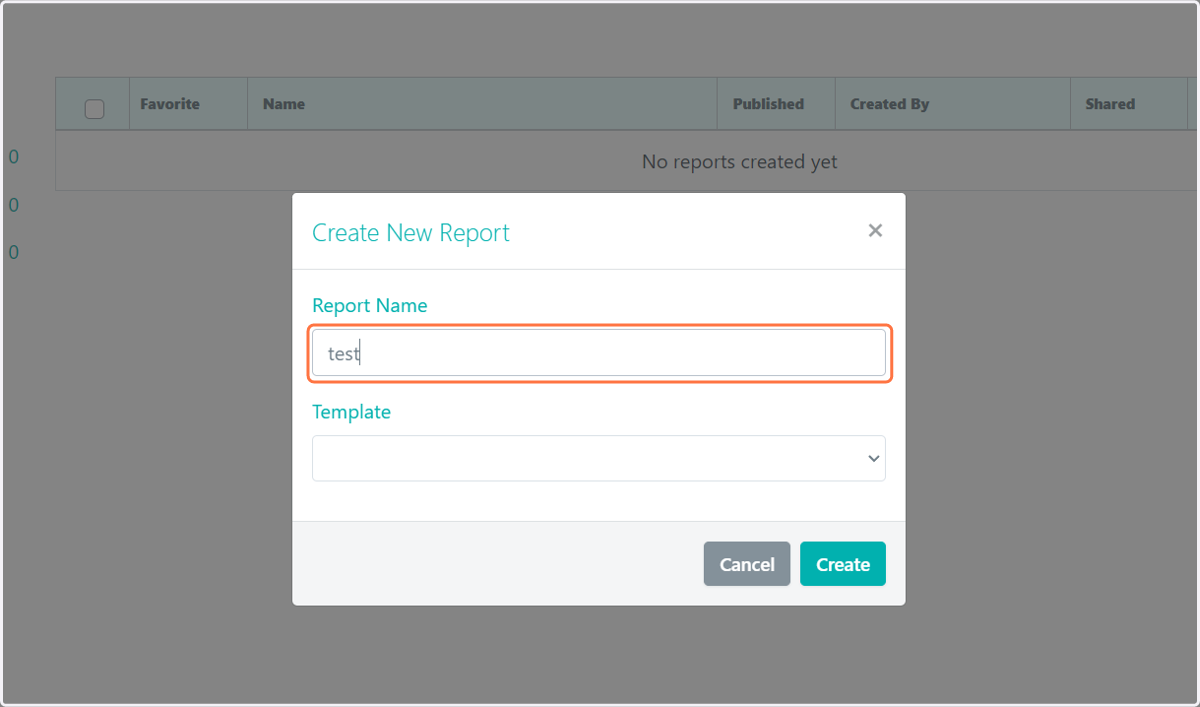
4. Type in name of report
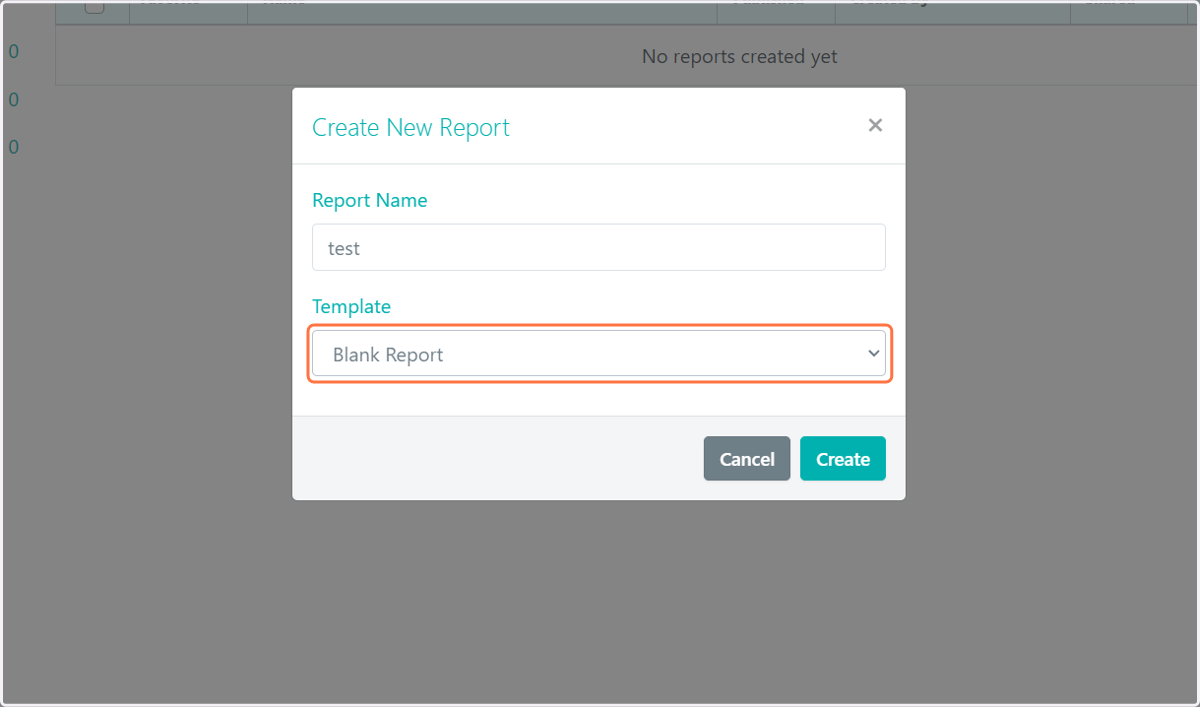
5. Choose from a blank template or one that has already been created
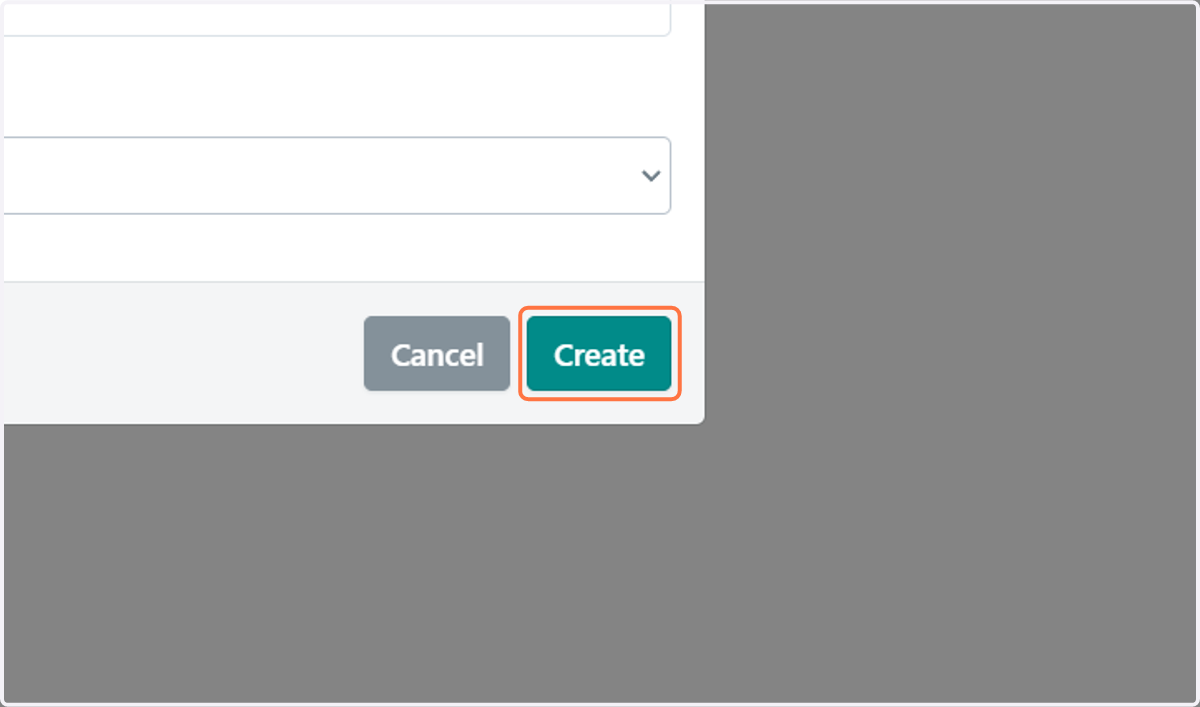
6. Click on Create
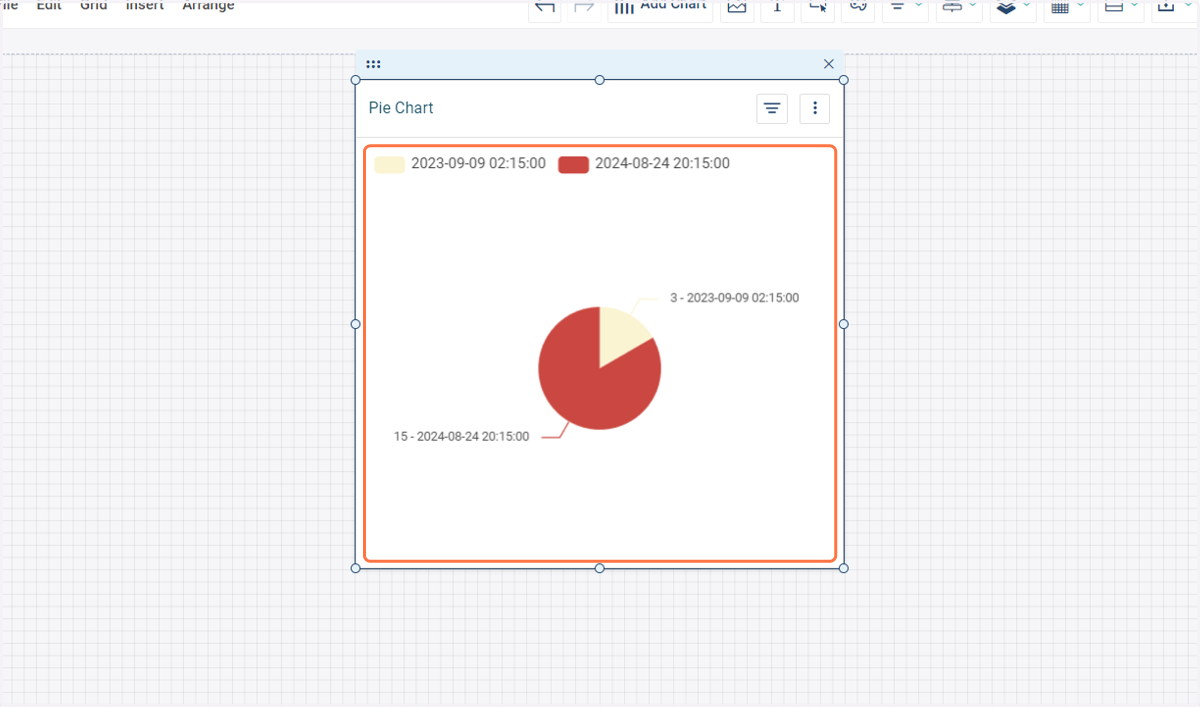
7. View canvas and begin to add material
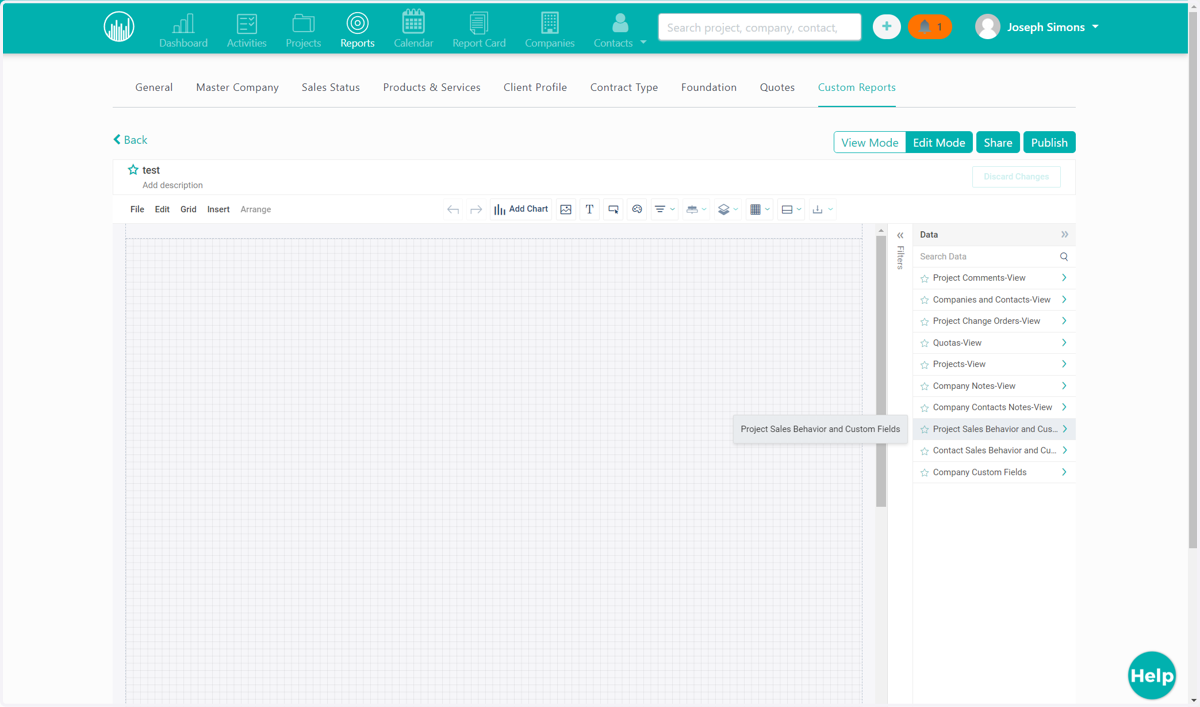
8. Once material is created publish report to dashboard
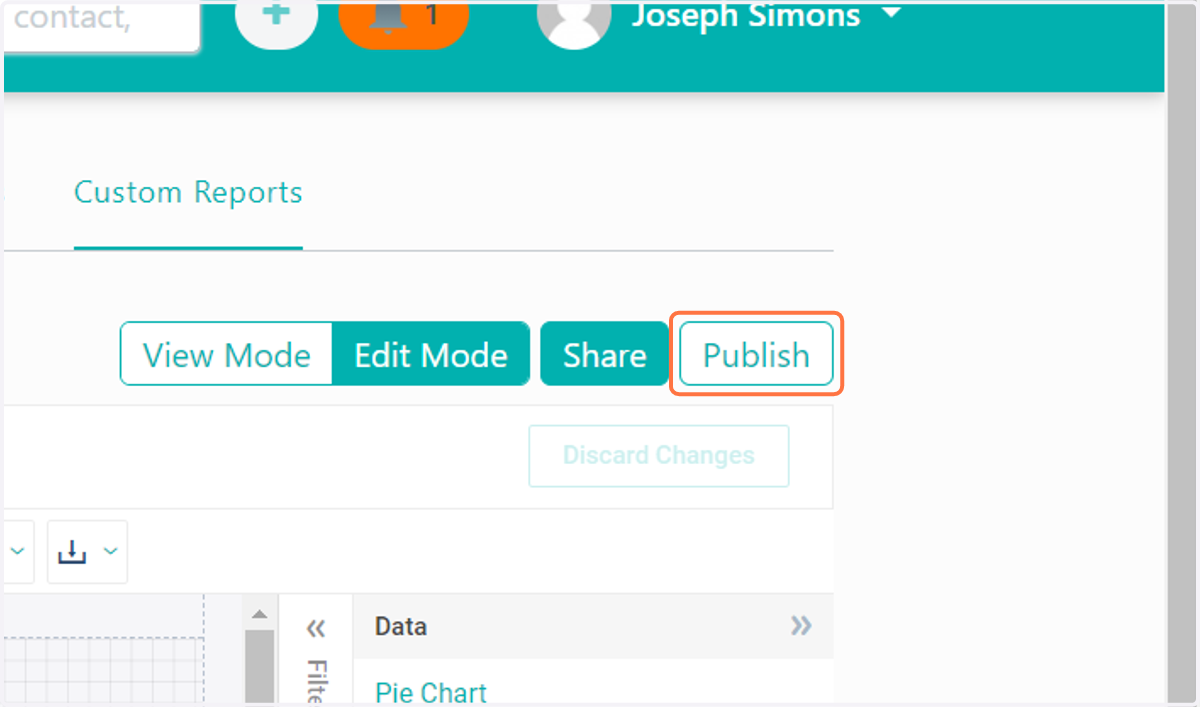
9. Click on Publish
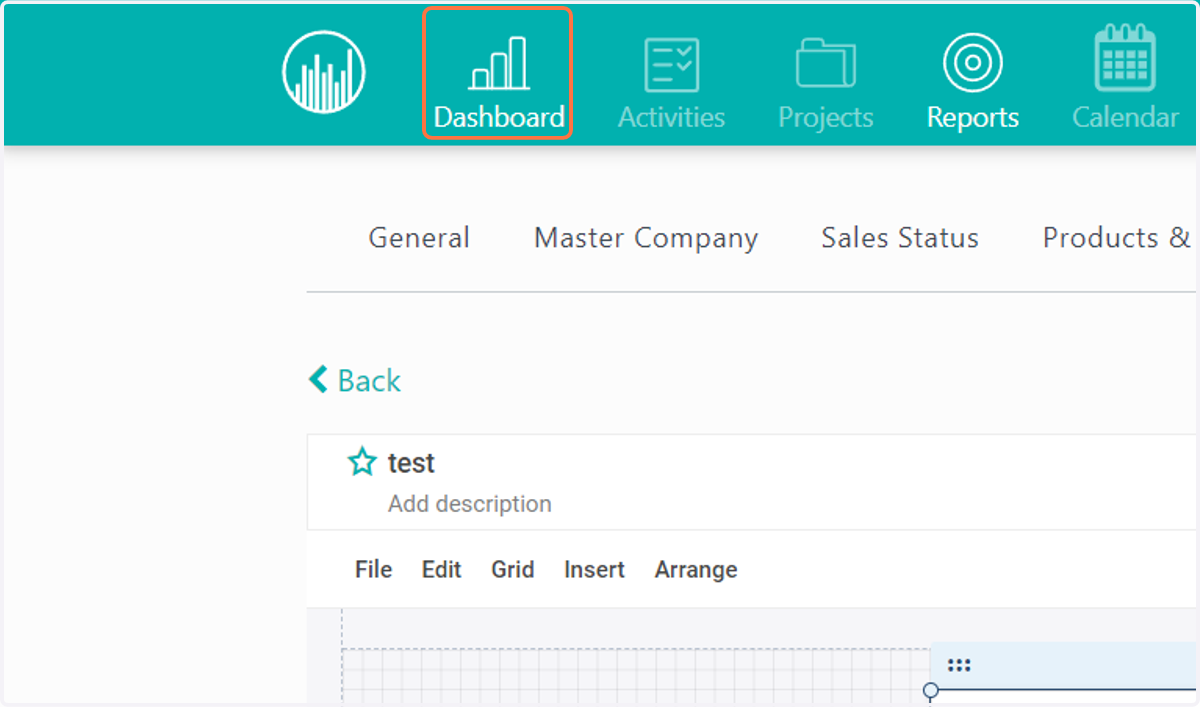
10. Click on Dashboard
11. Filter by report type
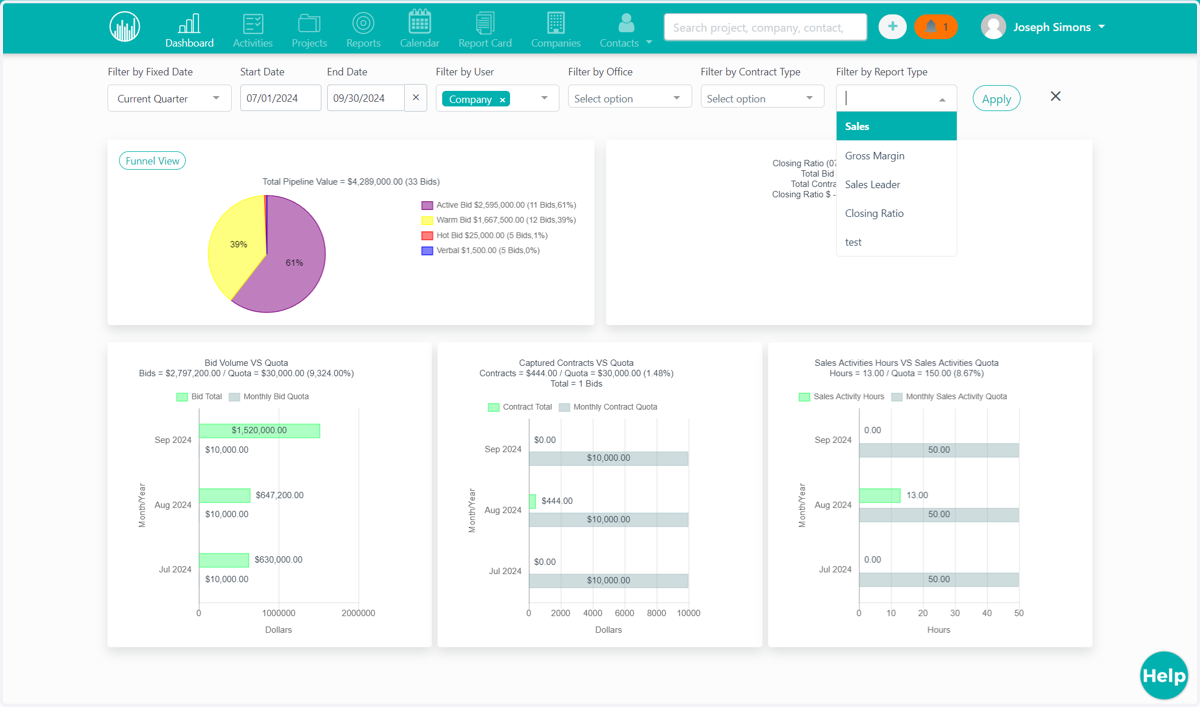
12. Click on custom report