How to troubleshoot Length of Stay Pricing not functioning correctly?
A step-by-step guide to identify and resolve issues with Length of Stay (LOS) Pricing.
RevMax
1. Check the Length of Stay (LOS) Map settings by navigating to the Length of Stay Pricing Page within your RevMax System.
Click on Dynamic Pricing Rules
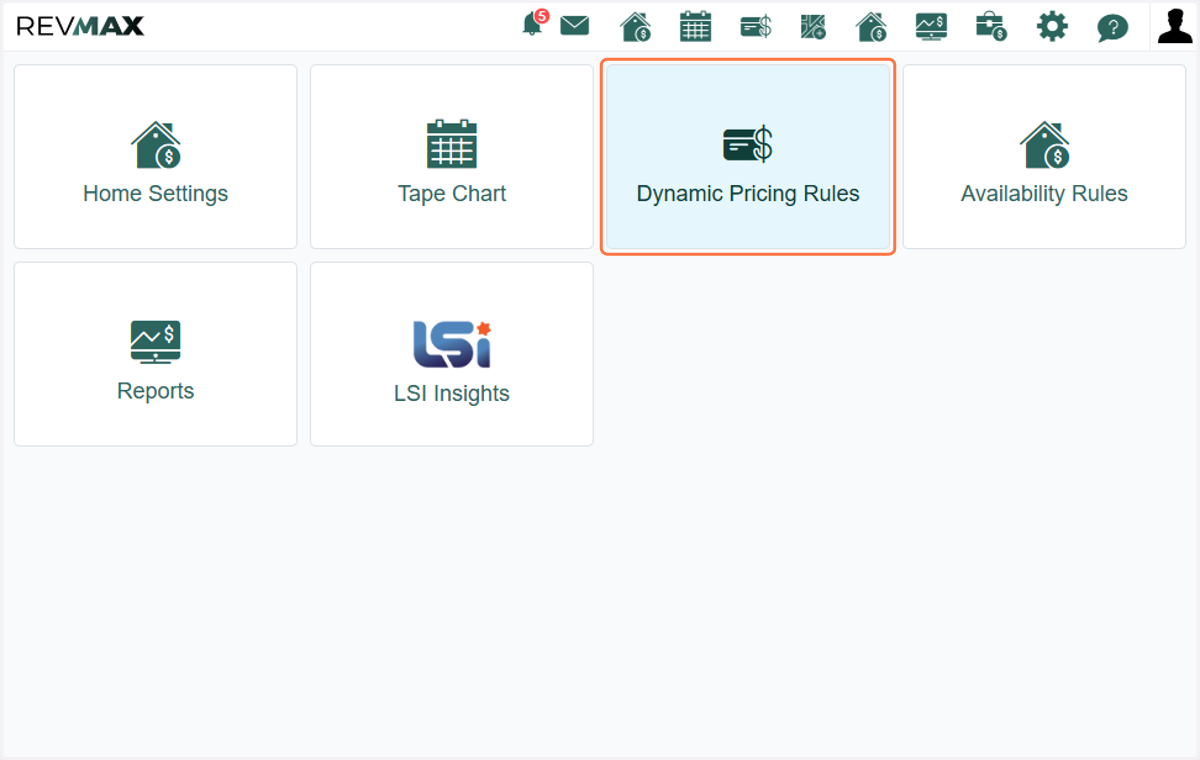
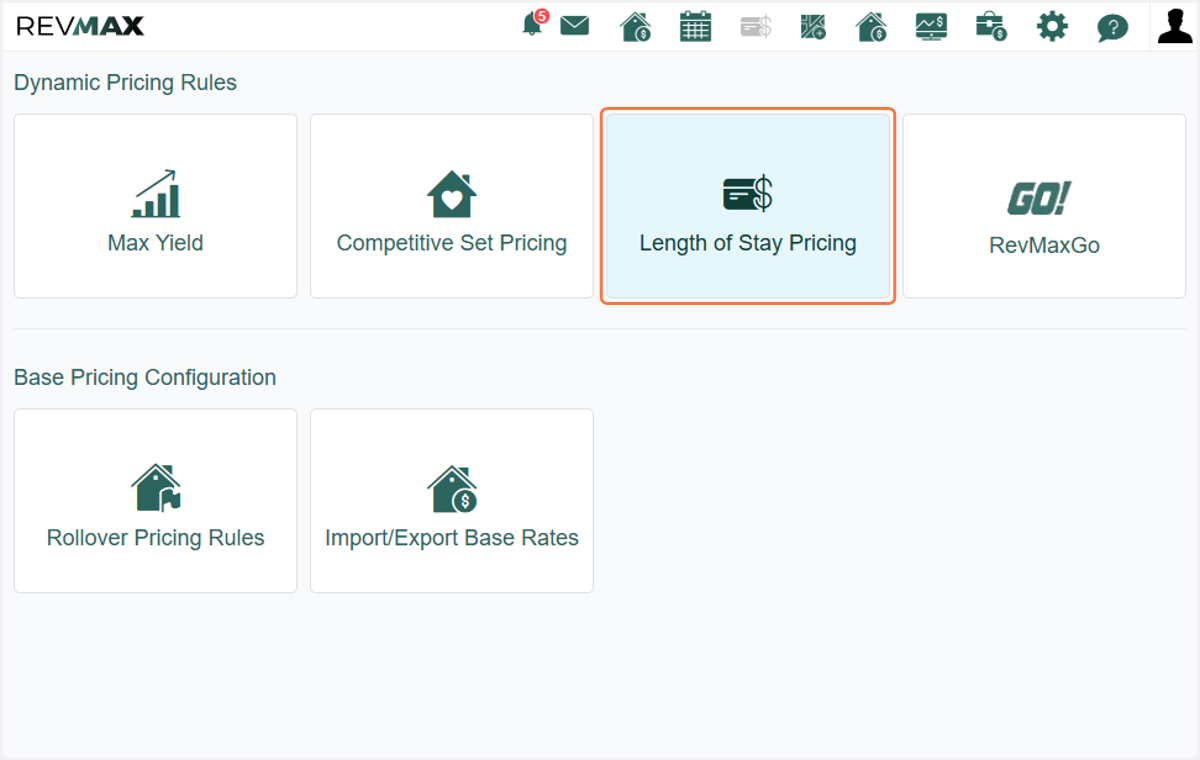
2. Click on Length of Stay Pricing
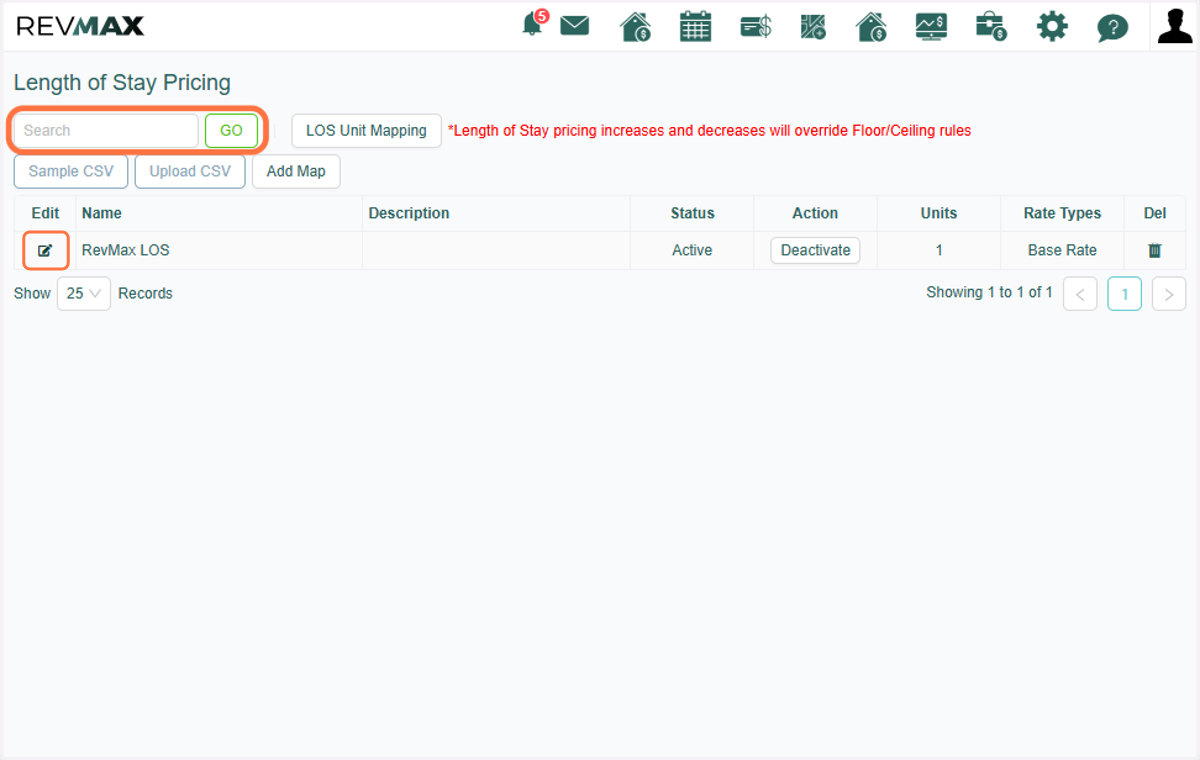
3. Verify the unit and the date period in question to ensure you are reviewing the correct map.
Click on the "Edit" icon to view the values configured within the map. You can also use the Search bar to filter and identify which map the unit is using.
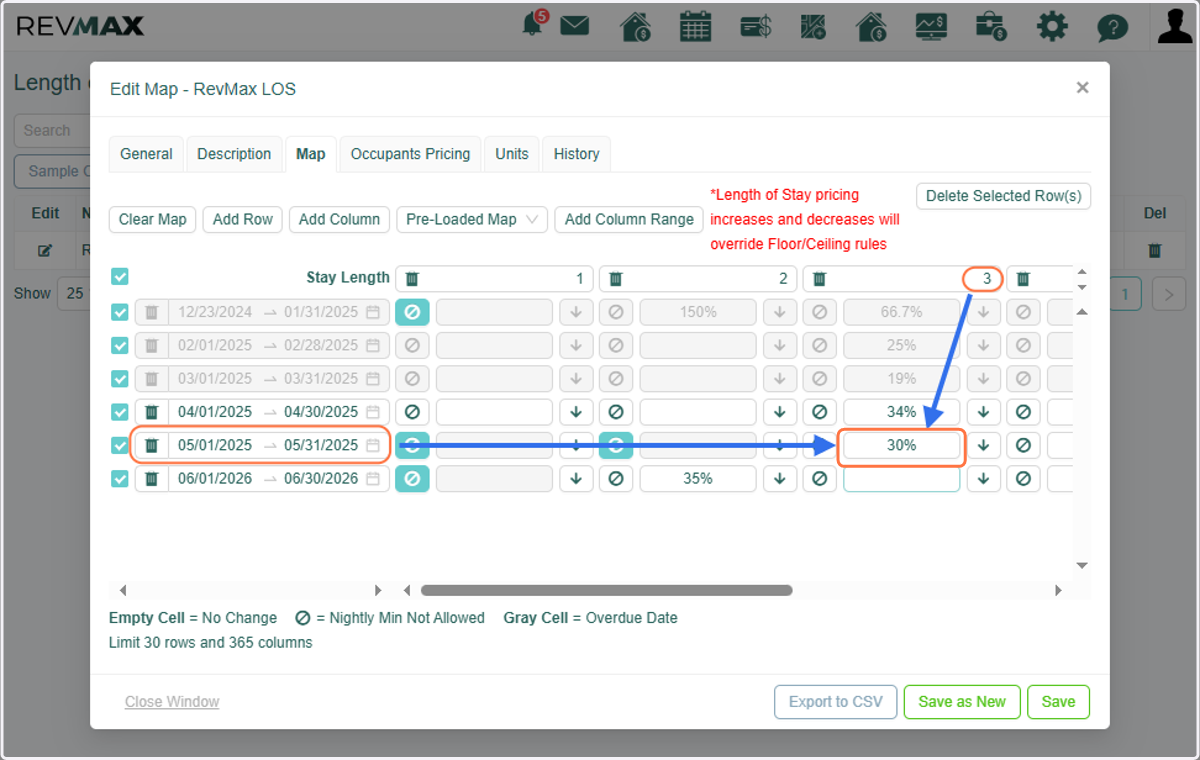
4. Click on Map Tab to see the date range and night minimums being set.
When reviewing the map, be sure to check the following:
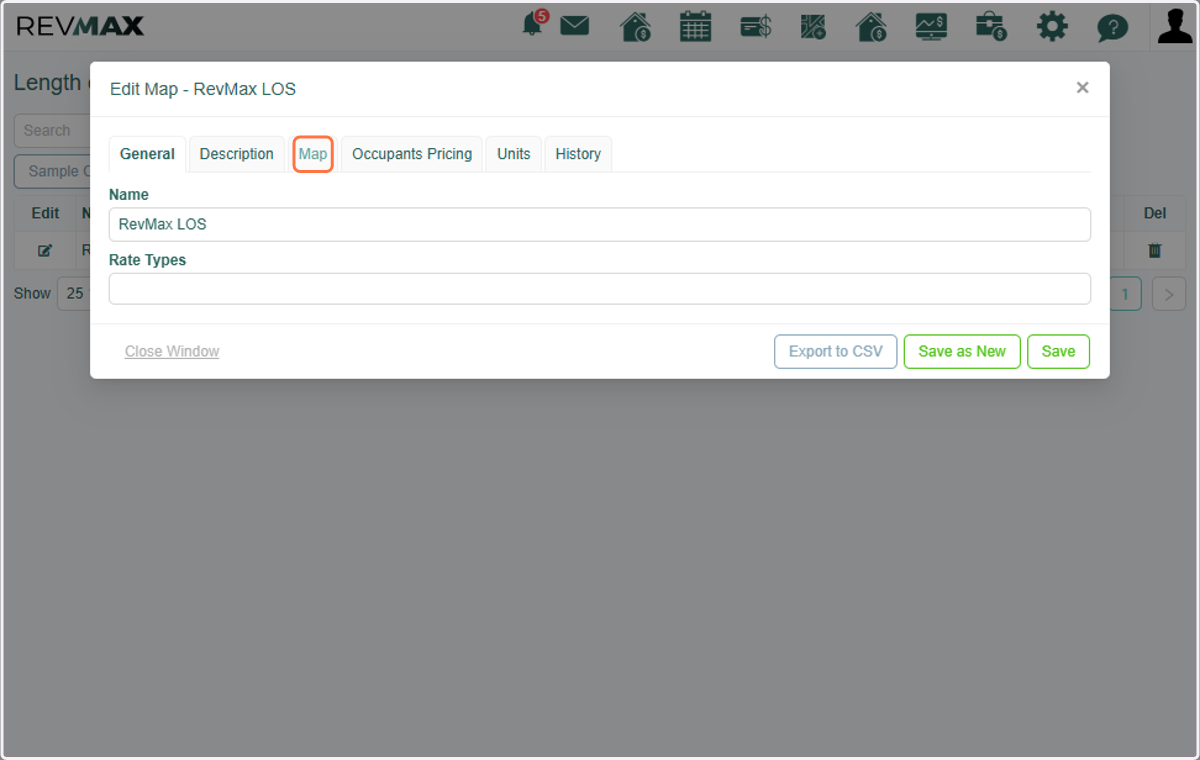
5. -If the date is not included in the map, this is why LOS pricing isn't functioning.
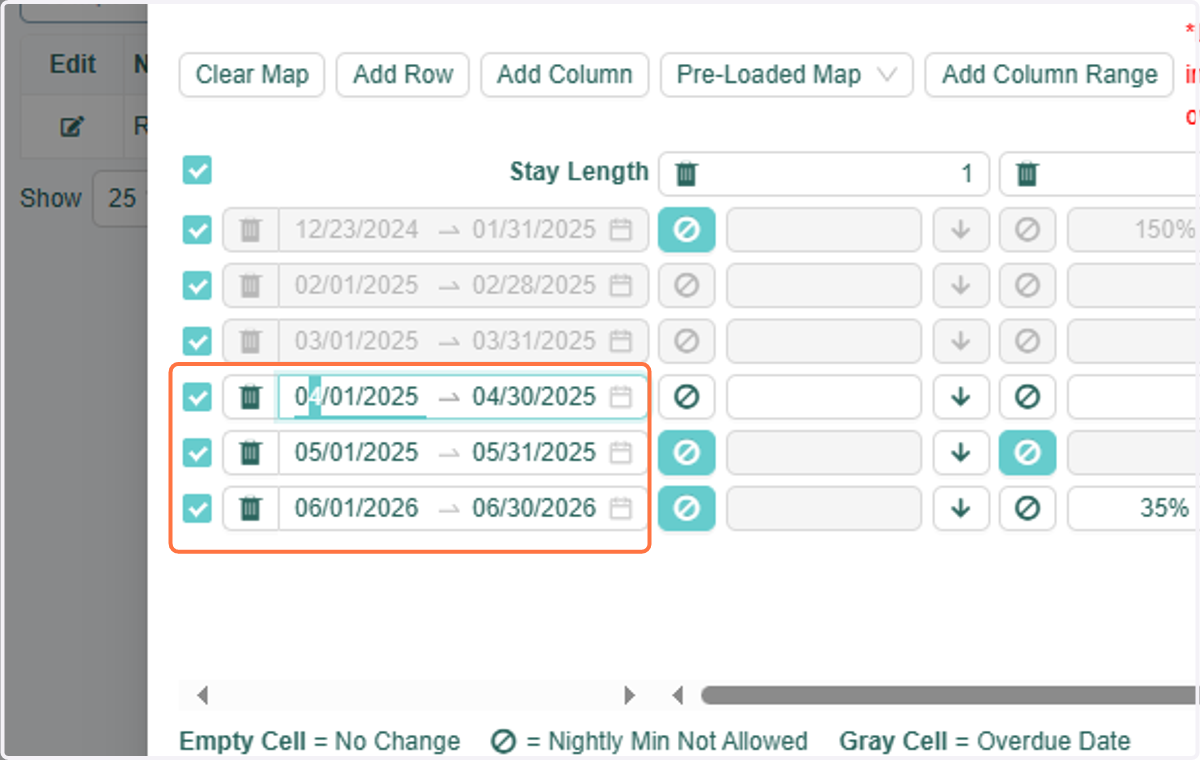
6. -If the date is included in the map but there is no value set for the night minimum, you need to add a value for LOS pricing to apply.
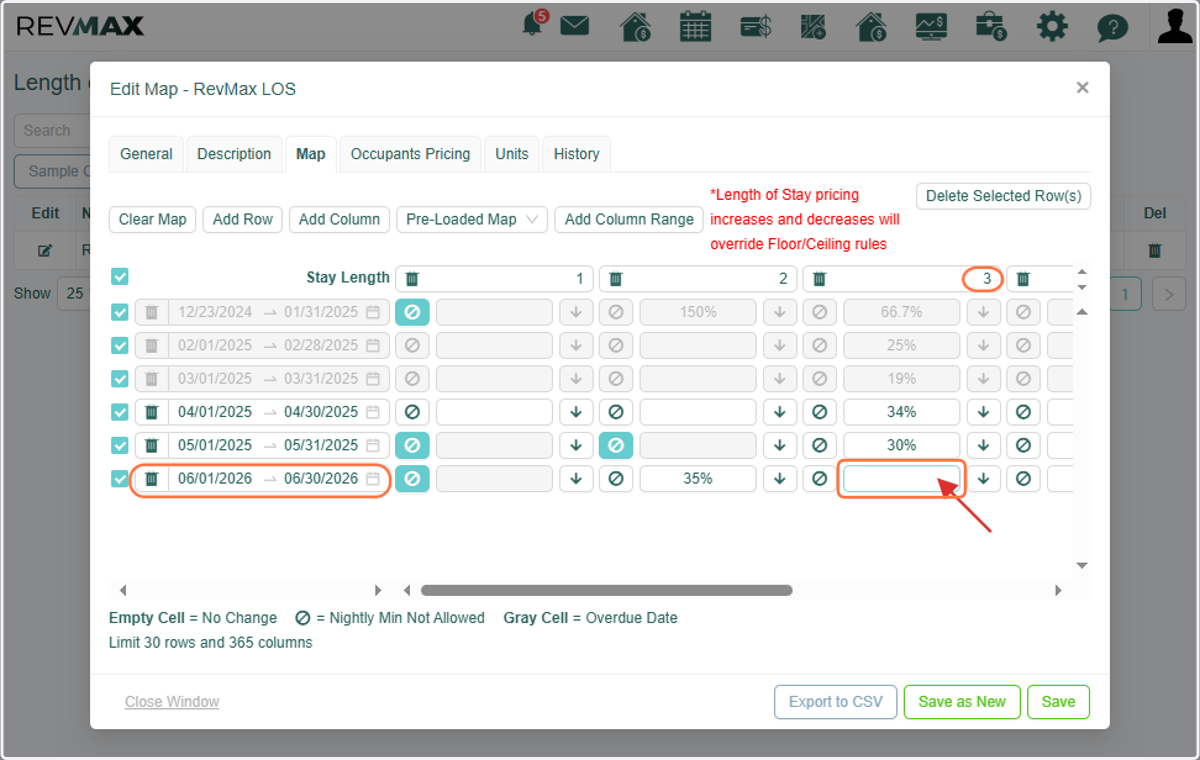
7. -If the date is included in the map but the restriction icon is selected, this explains why the specific night minimum cannot be booked
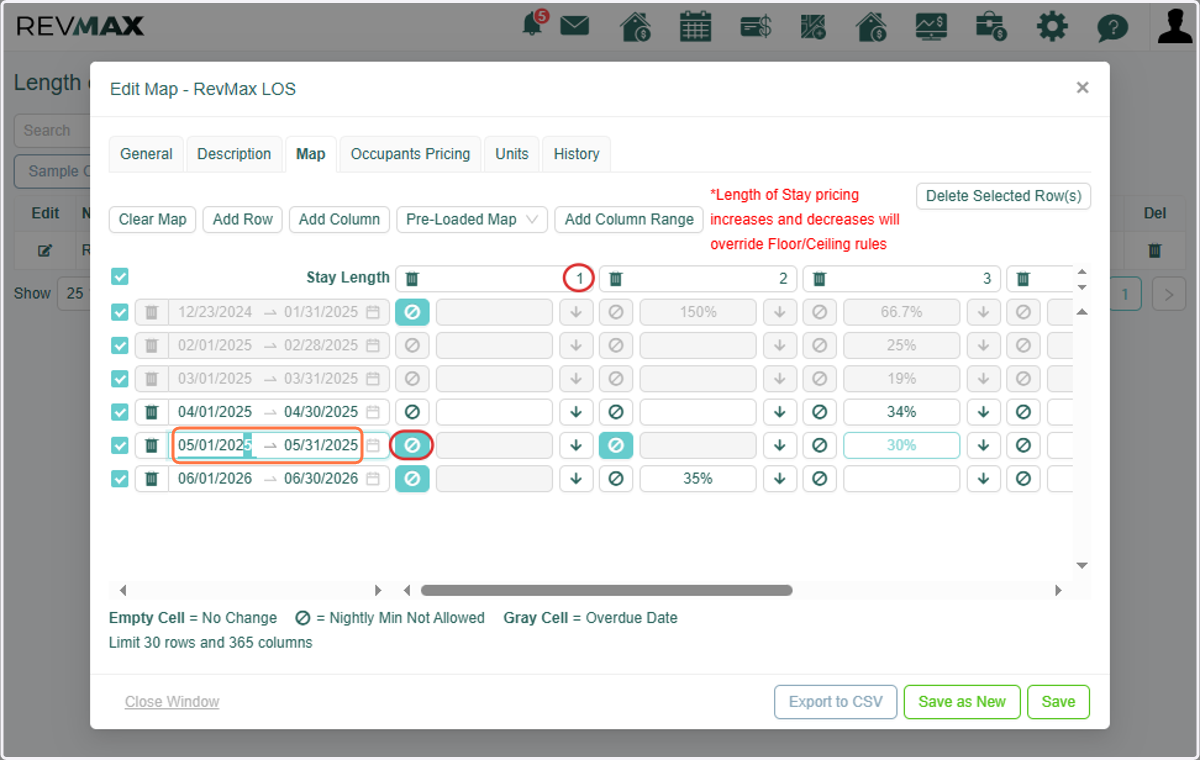
8. - If the date is included in the map and the night minimum values are correctly applied, but LOS still does not work, proceed to Step 9.
Streamline Vacation Rental Software
9. Check the LOS Map in Streamline to ensure it is synced and all details match.
Click on the Search icon.
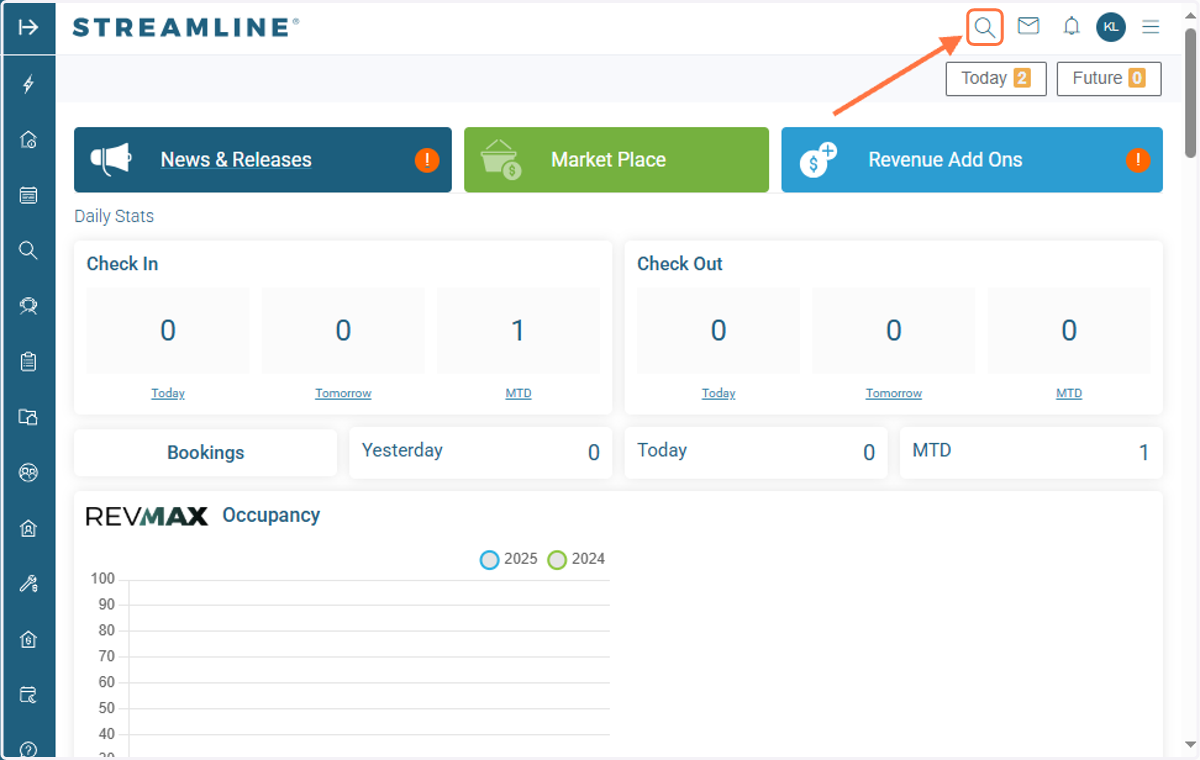
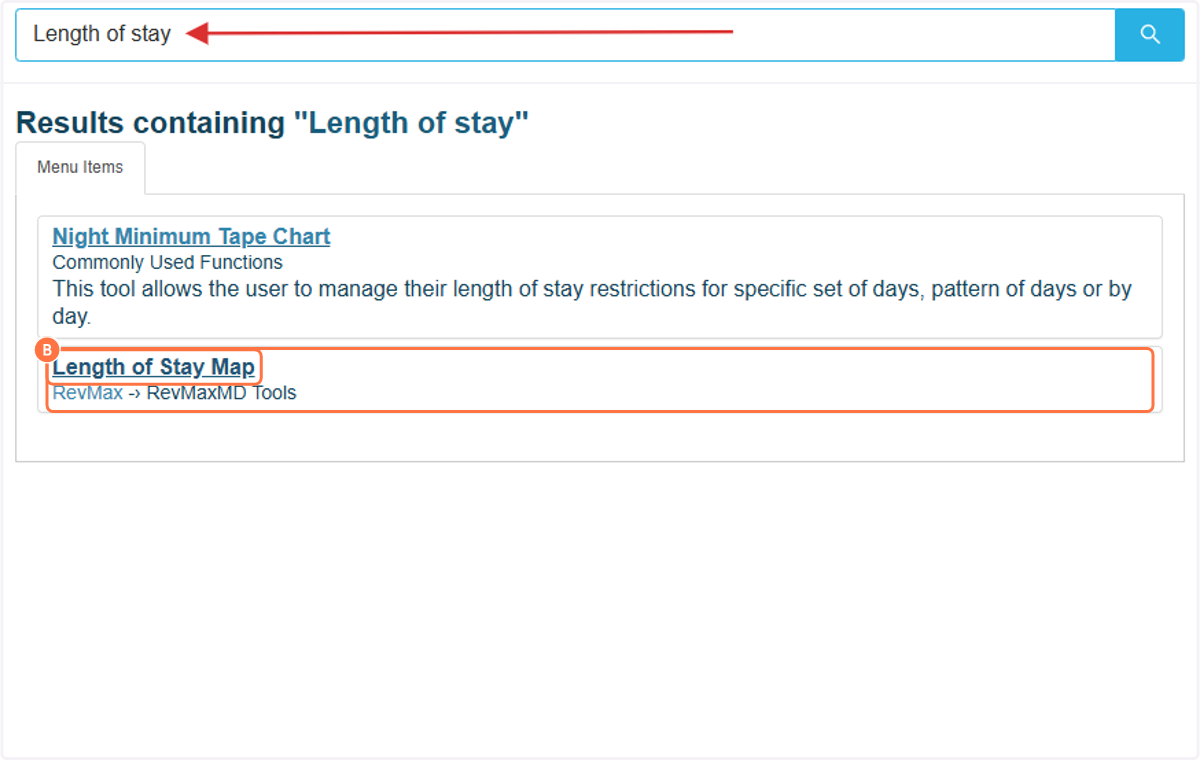
10. A. Type in "Length of Stay" in the Search bar.
10. B. Click on Length of Stay Map option on the drop down.
11. A. Check if the LOS Map values are properly synced. You can search by the unit name to filter the map assigned to the unit.
11. B. To view the values, click on the Edit Icon.
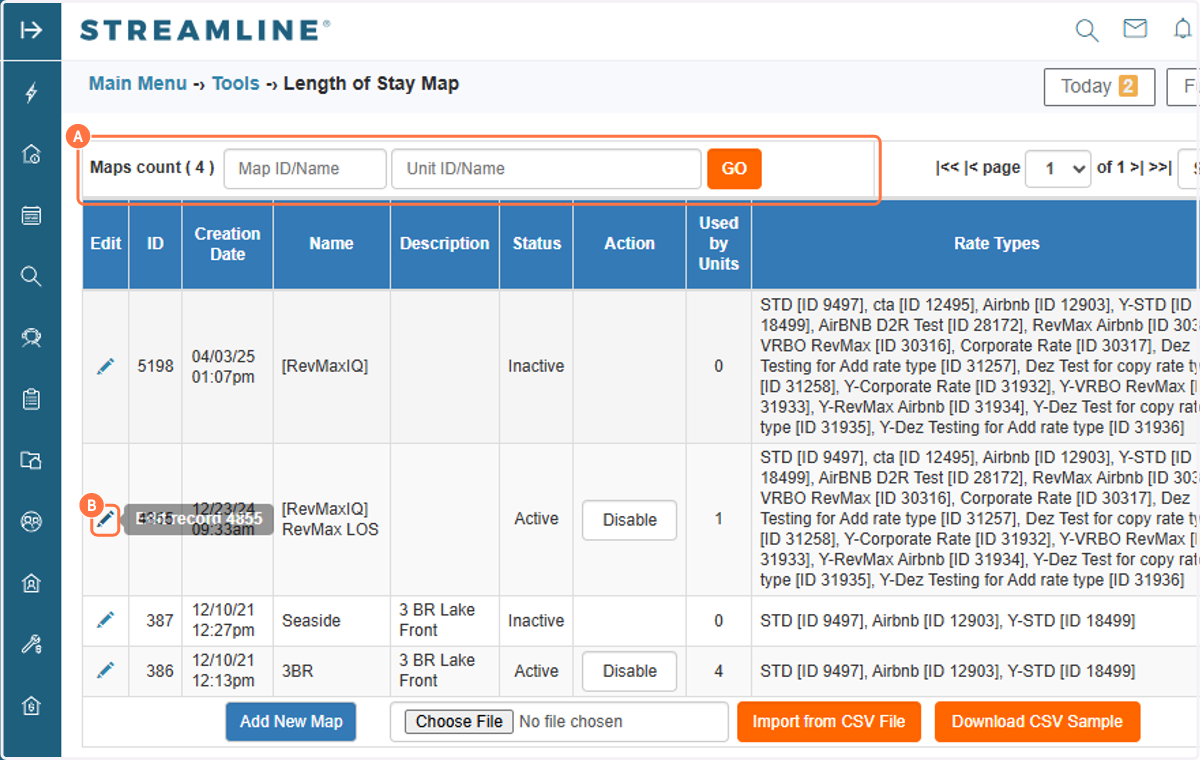
12. Verify that the values are correctly set. Please note that any adjustments to the values cannot be made directly within this map; all changes must be completed in RevMax.
If you have recently set up an LOS Map in RevMax, please allow the system up to 5 minutes to update.
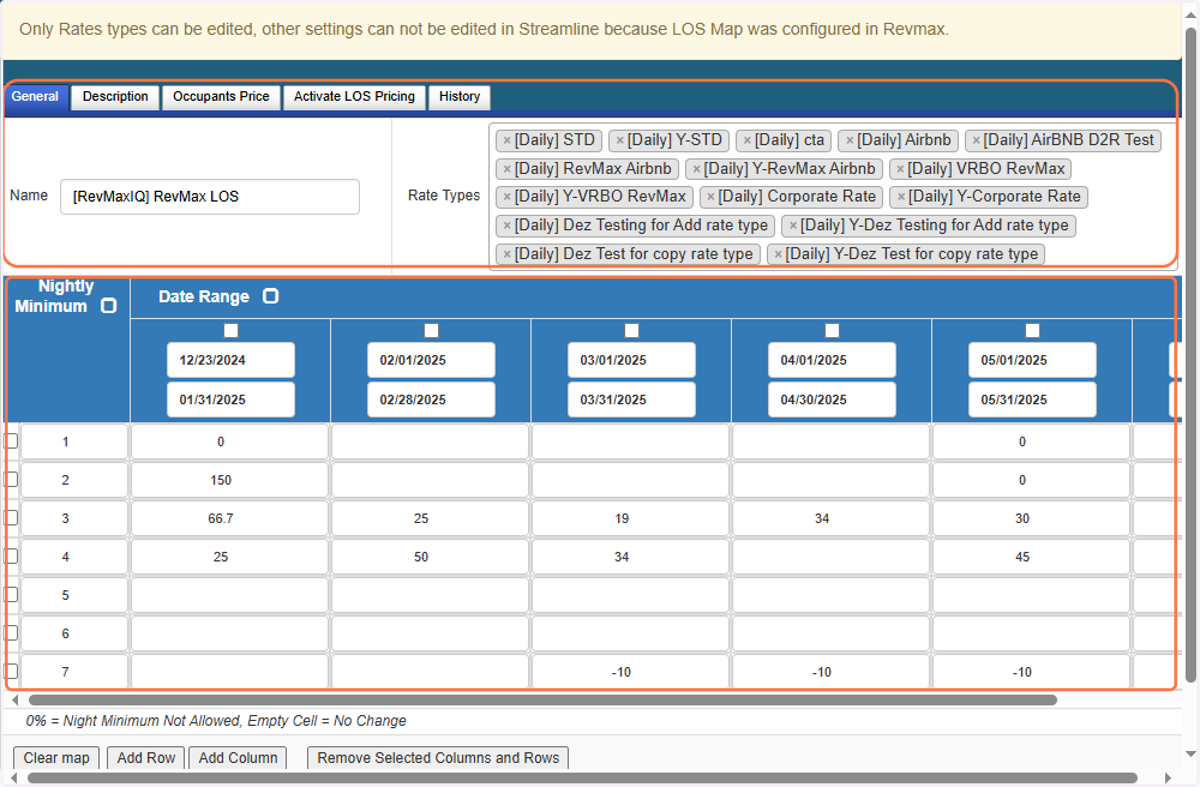
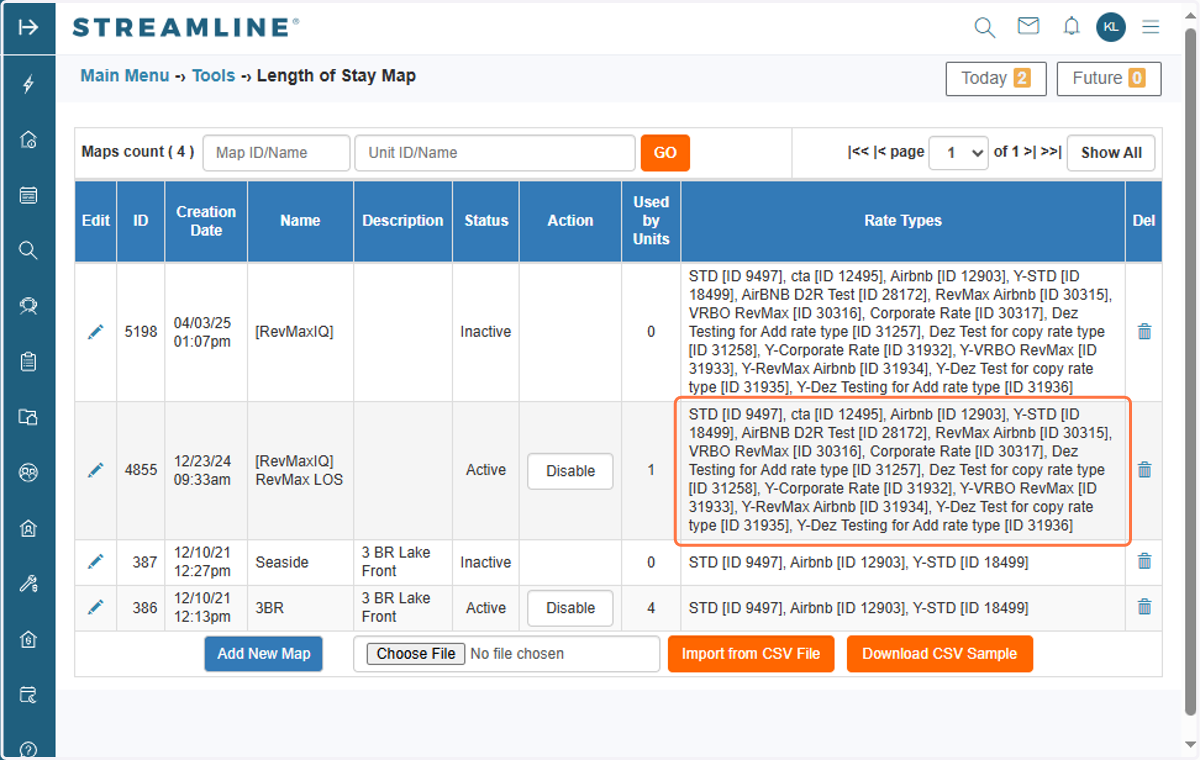
13. - Review the Rate Types set on the map. Note that only certain OTA Rate Types work with the LOS Map (specifically VRBO, Airbnb, and Booking.com). If your OTAs are pulled from the Y-STD rates, make sure that the Y-STD Rate Type is set in all maps, along with the STD Rate Type.
*Note: A list of LOS Maps associated with the rate type can also be seen when you navigate to the Manage Rate Type page within Streamline.
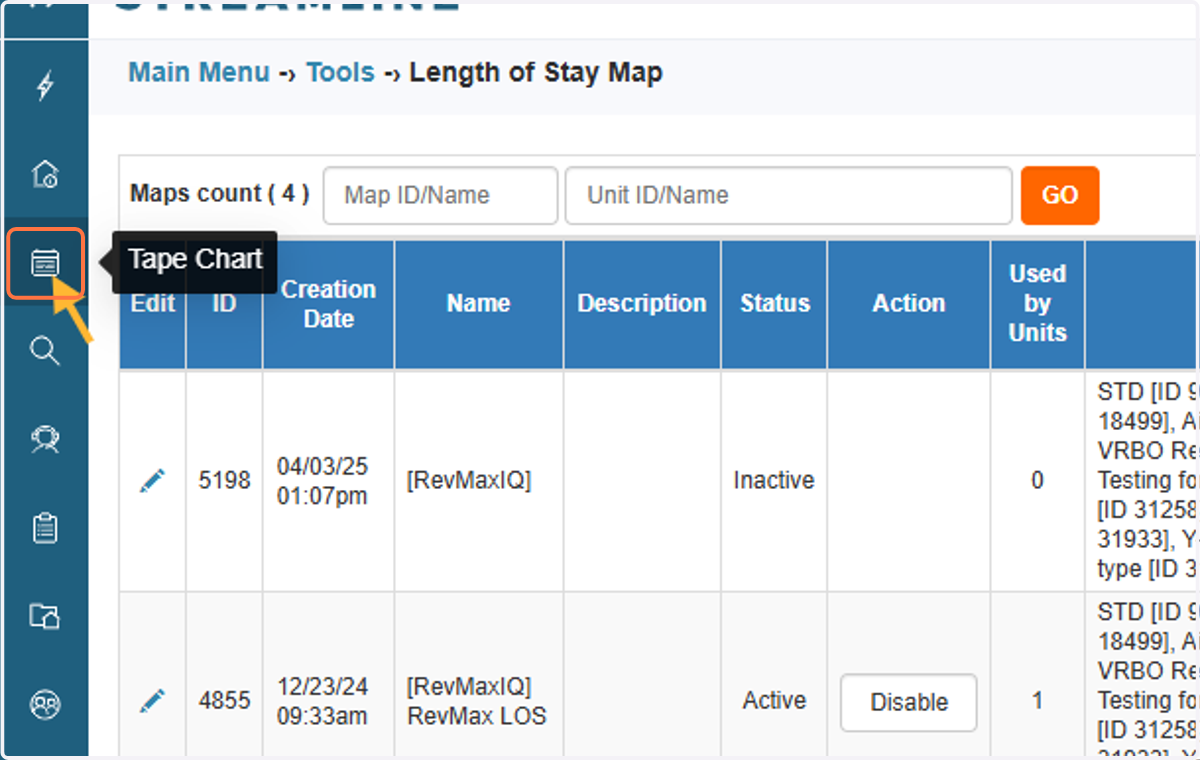
14. If all the settings mentioned above are correctly configured, conduct a test by going to your Streamline Reservation tape chart and test a booking for the preferred date period.
15. When doing a test booking, the value set on the night minimum will be added on the nightly rate.
Example below: Unit Kim 5th Ave Condo
Nightly Rate for 3 nights:
5/2/2025: $676.20 + 30% = $879.06
5/3/2025: $676.20 + 30% = $879.06
5/4/2025: $583.80 + 30% = $758.94
LOS Pricing of 30% mark up for a 3-night minimum booking is applied.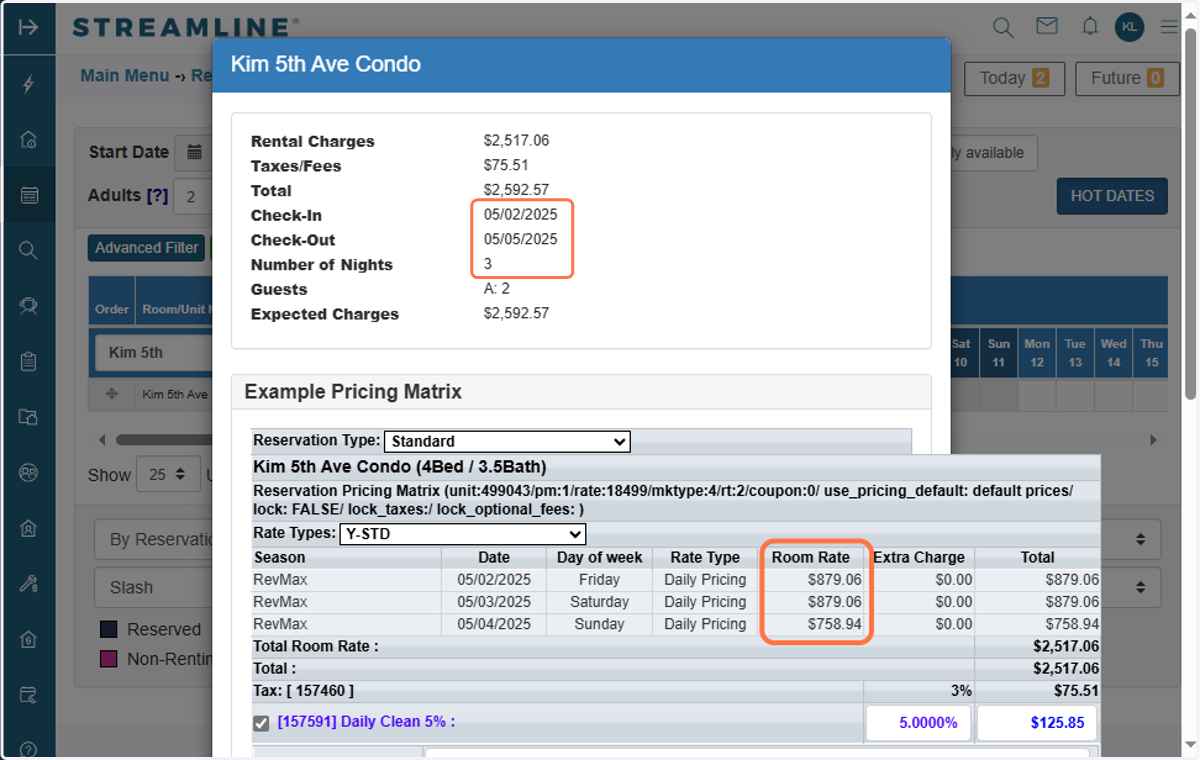
RevMax
16. -If LOS pricing still does not apply after checking each step, please feel free to reach out to the RevMax Support Team for assistance.