Entering Payment and W9 Information
Dashboard
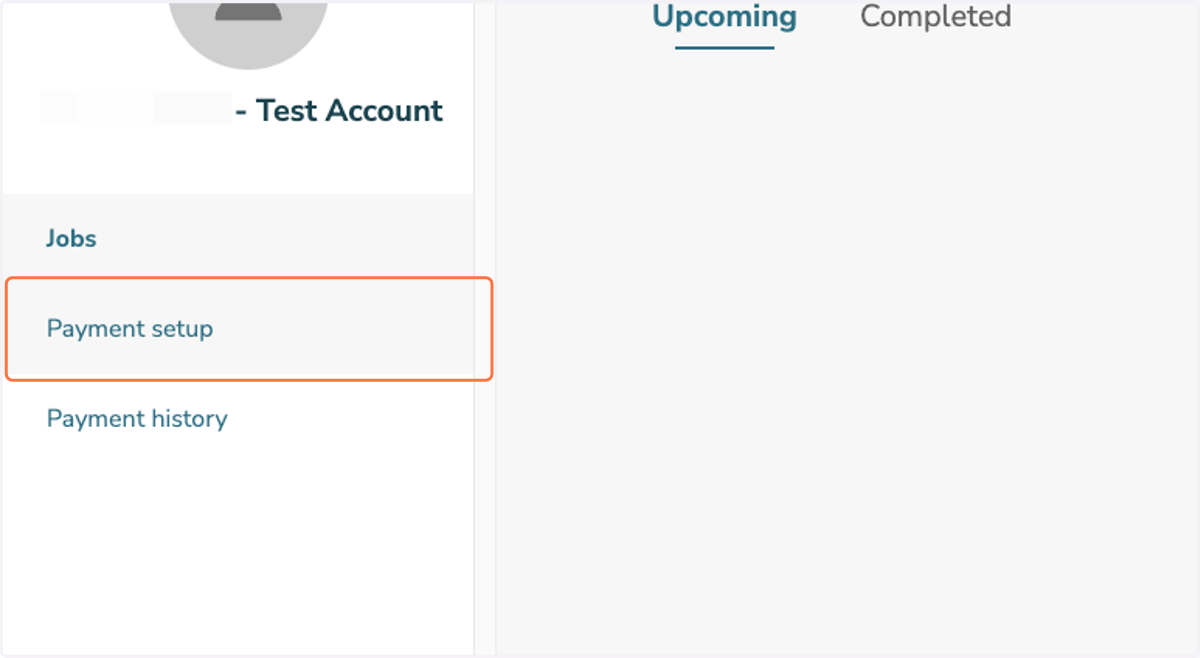
1. Click on Payment setup.
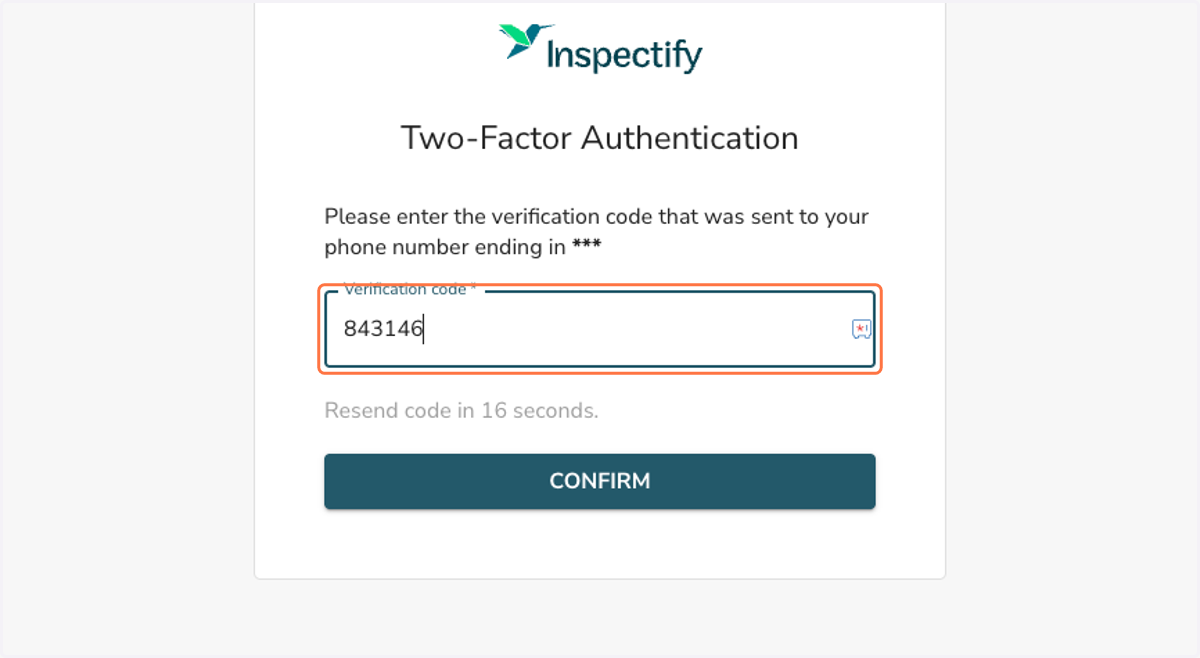
2. Type Verification code that is sent to your phone number listed on file. Click Confirm.
If you encounter an error, please reach out to partnerships@inspectify.com.
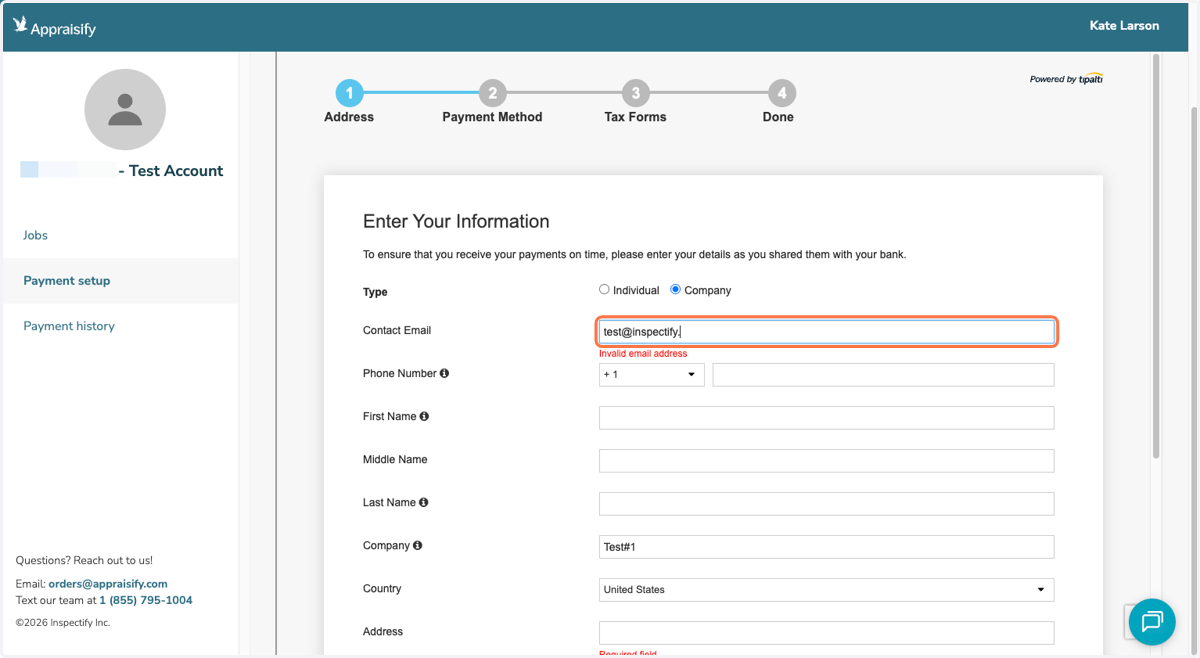
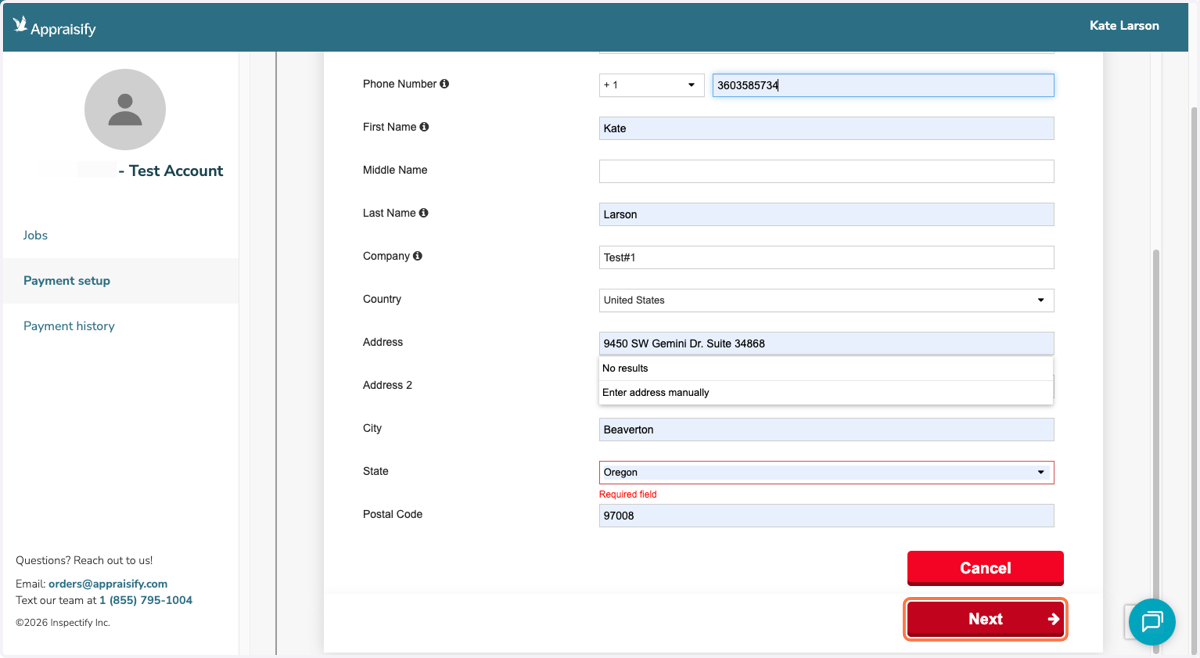
3. Click Edit, then fill out or update your personal information as needed.
4. Click on Next.
5. Click on Edit to enter your payment information. You can select Direct Deposit/ACH, Check, or PayPal.
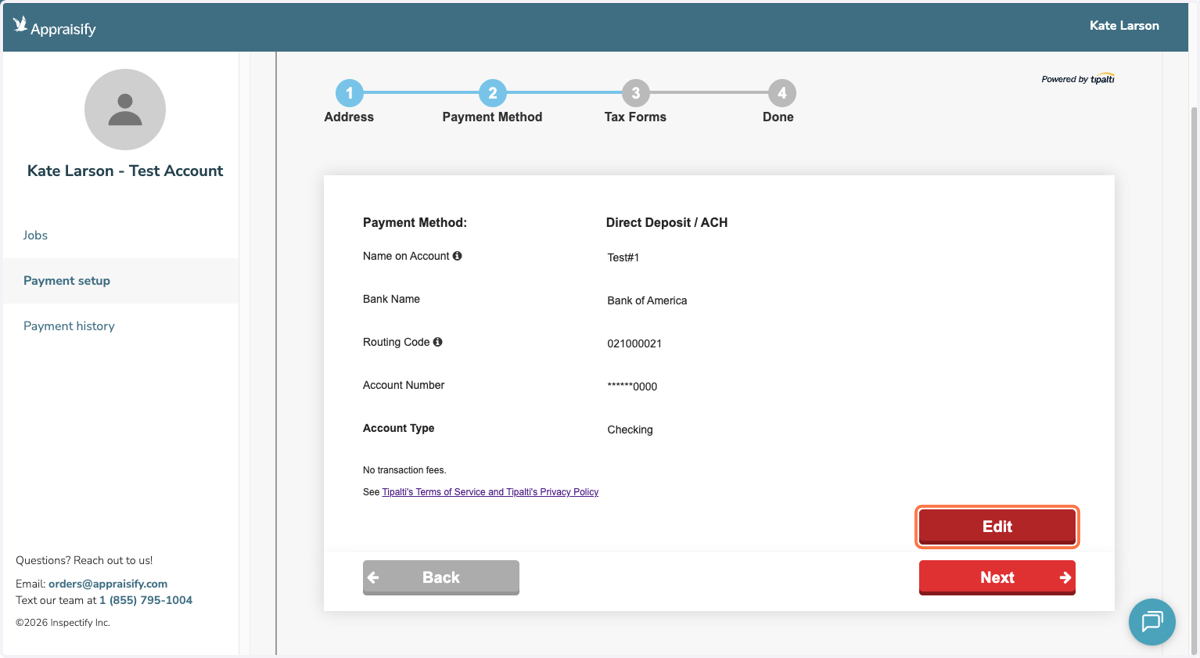
6. Click on Next once you are done.
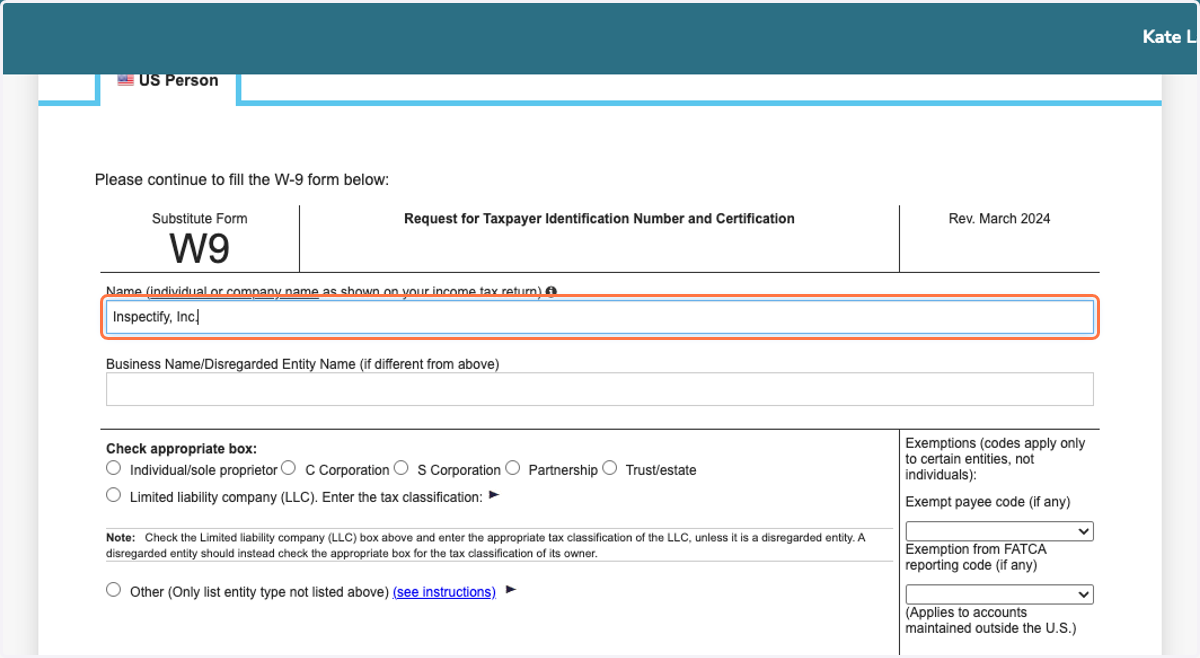
7. Fill out your W9 as reflected on your current tax forms.
8. Click on Next to submit information.
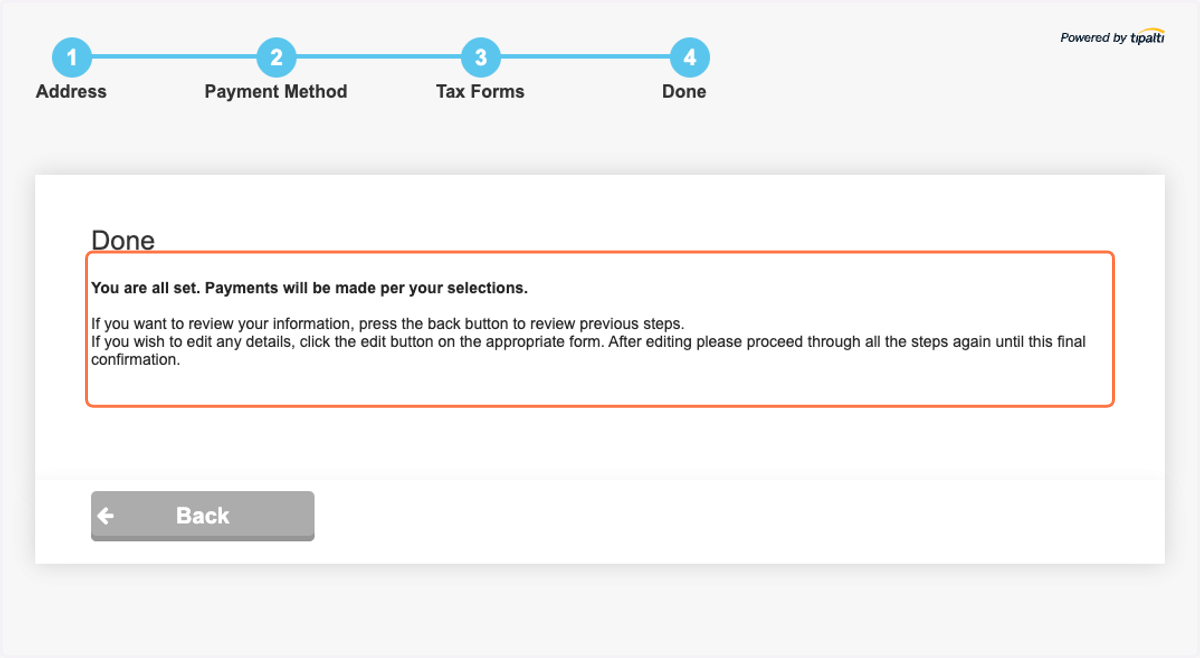
9. Done!