BVMP: How to Add Services to Cart
Procurement Portal: Brightview
1. Under the Procurement tab, click on Create
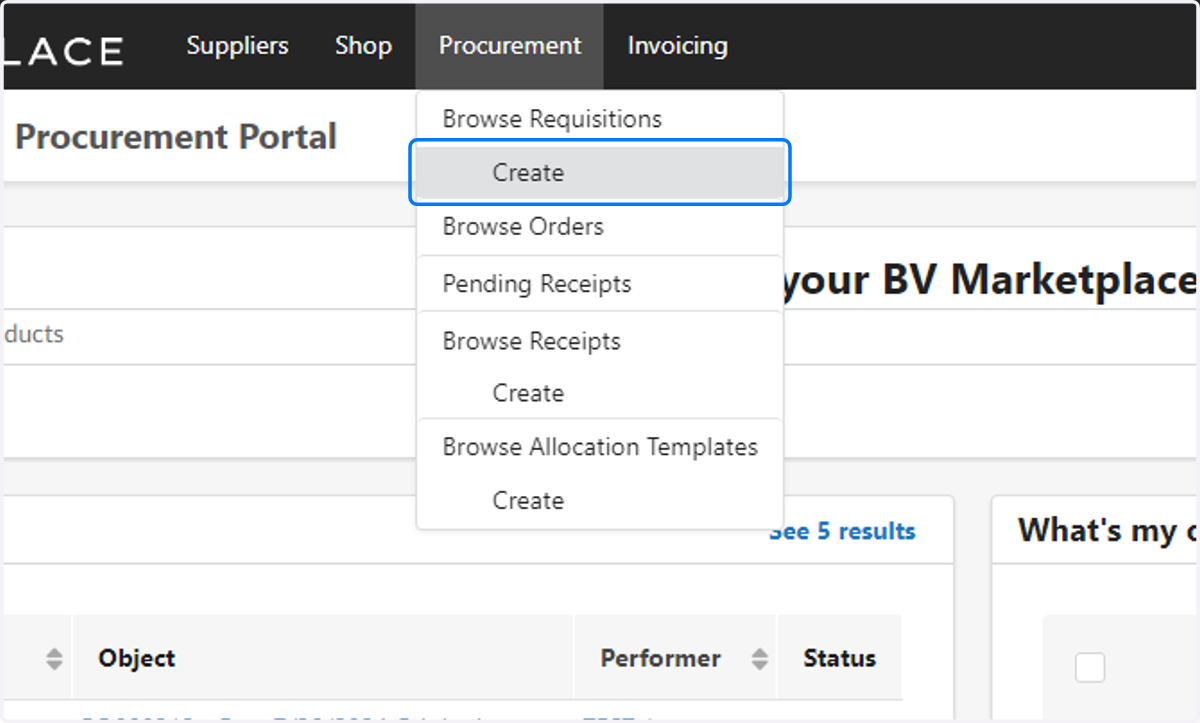
2. Rename the Requistion to identify the specific service and supplier

3. Select the Brightview location.
Note: You will only have access to the locations applicable for your role. If in a community, the organization will default to your community

4. Select the Cost Center for this Service
Note: You will only have access to the Cost Centers applicable for your role. This should default to your most common Cost Center.
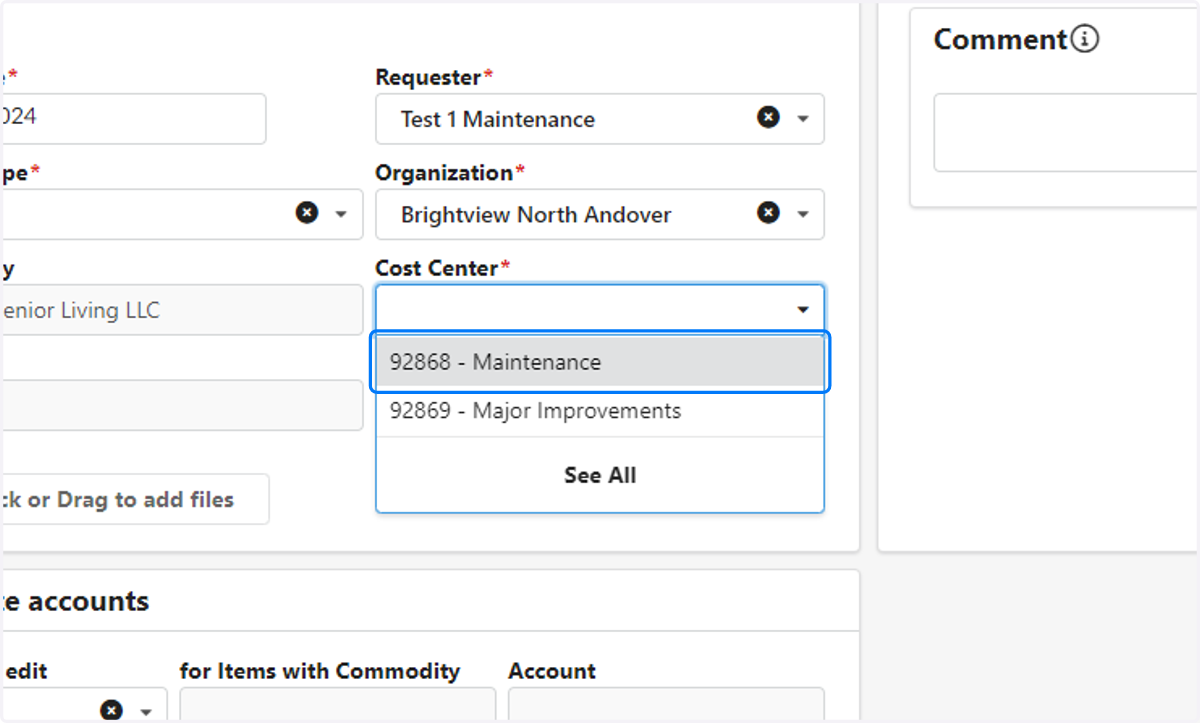
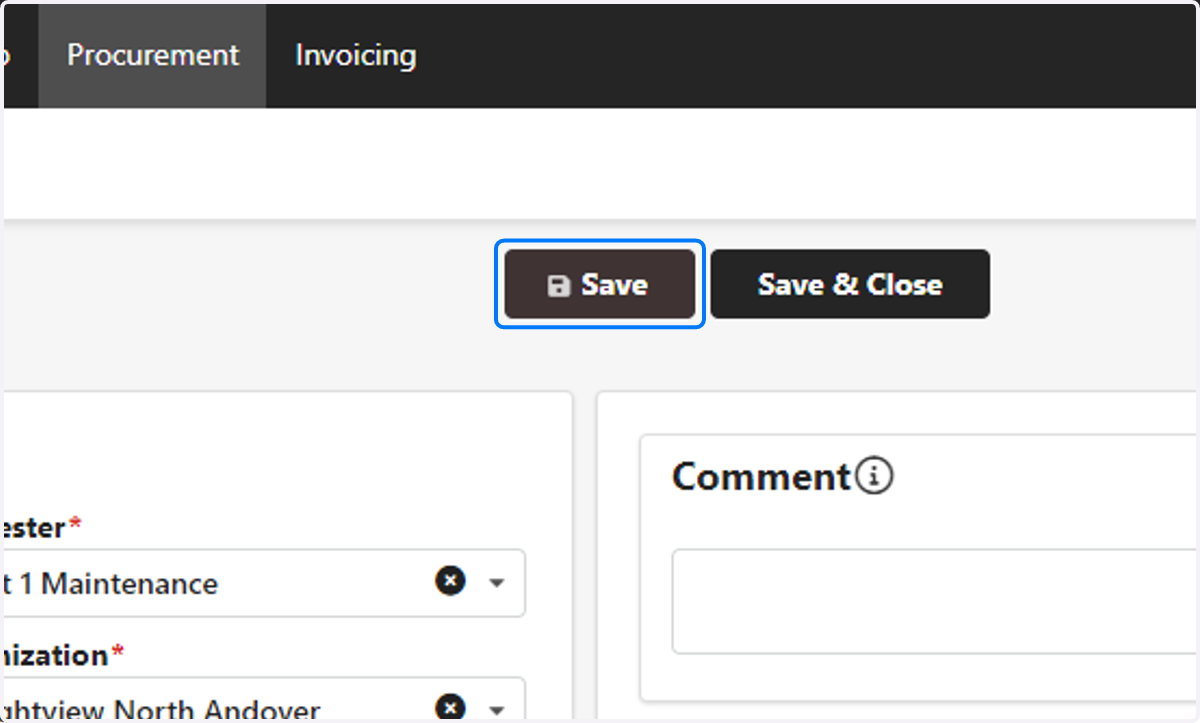
5. Click on Save
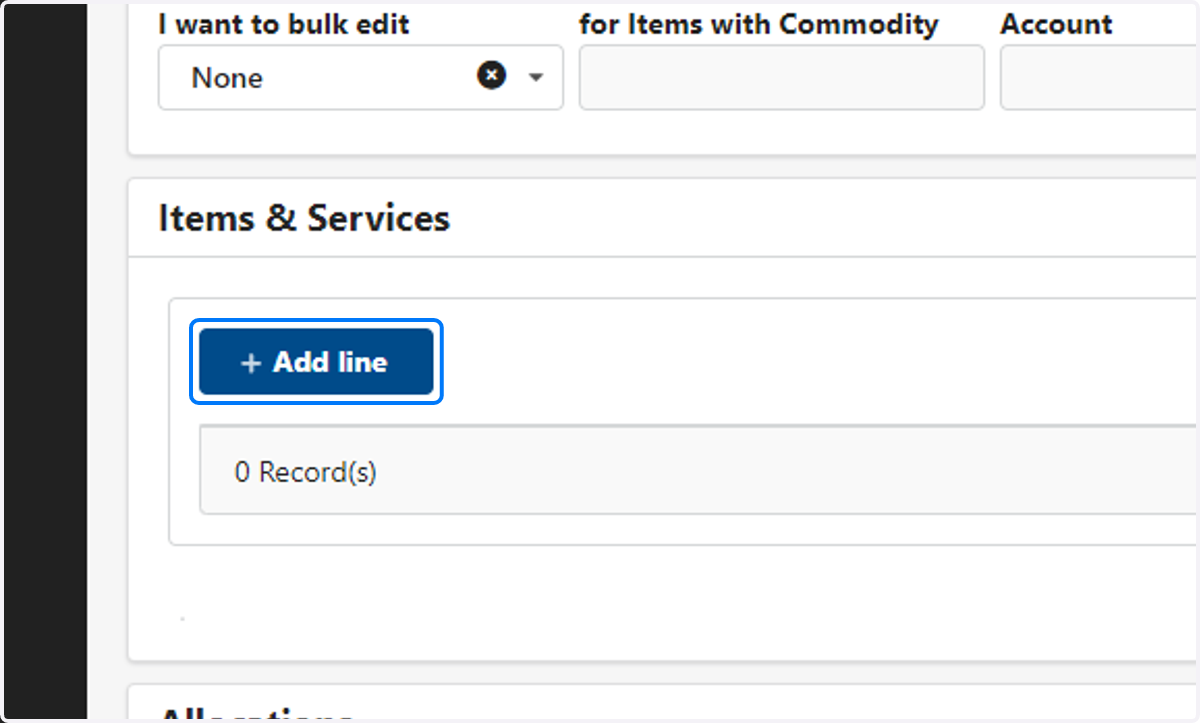
6. Scroll down to Items & Services. Click on Add line
7. Type in a short description of the service
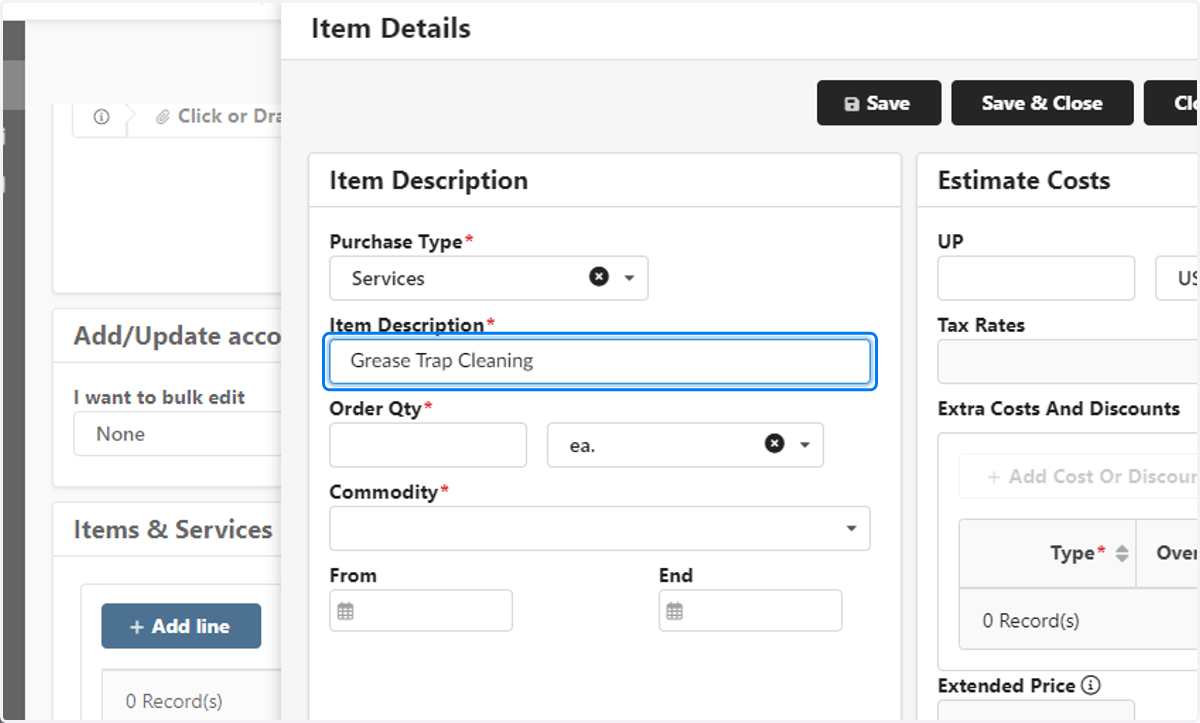
8. Enter the quantity
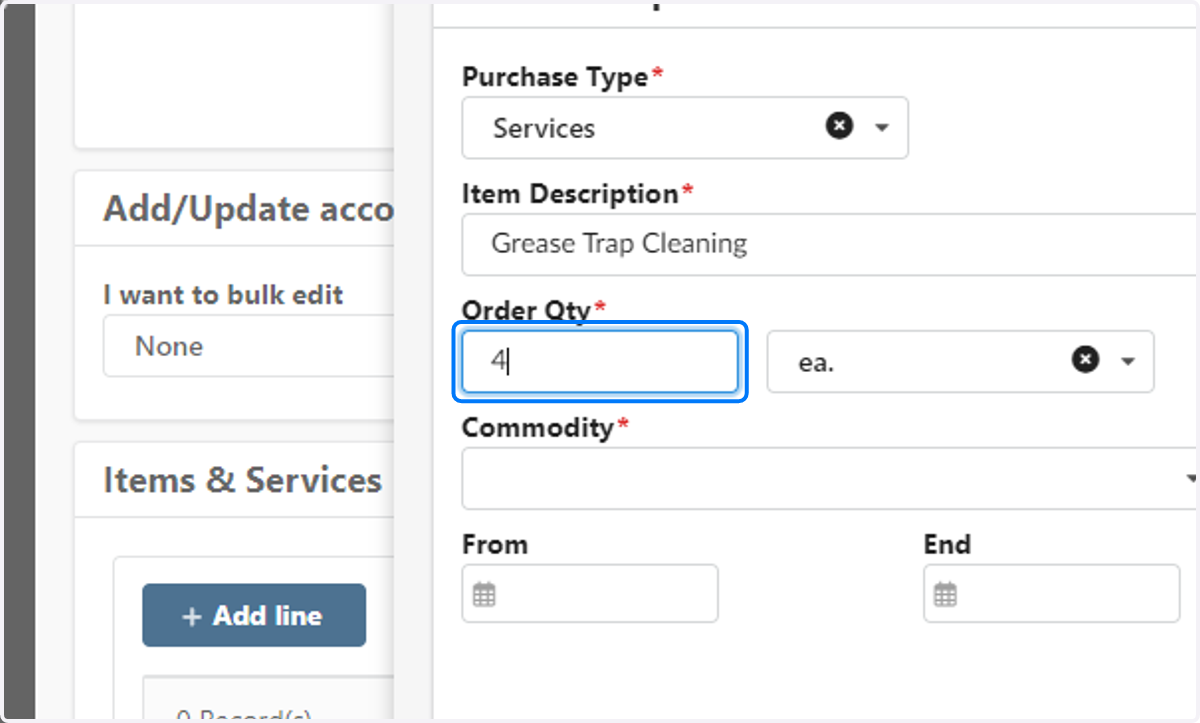
9. Enter in the Commodity. You can search by typing in part of the word or select See All and browse.
Reminder: Commodity means Category

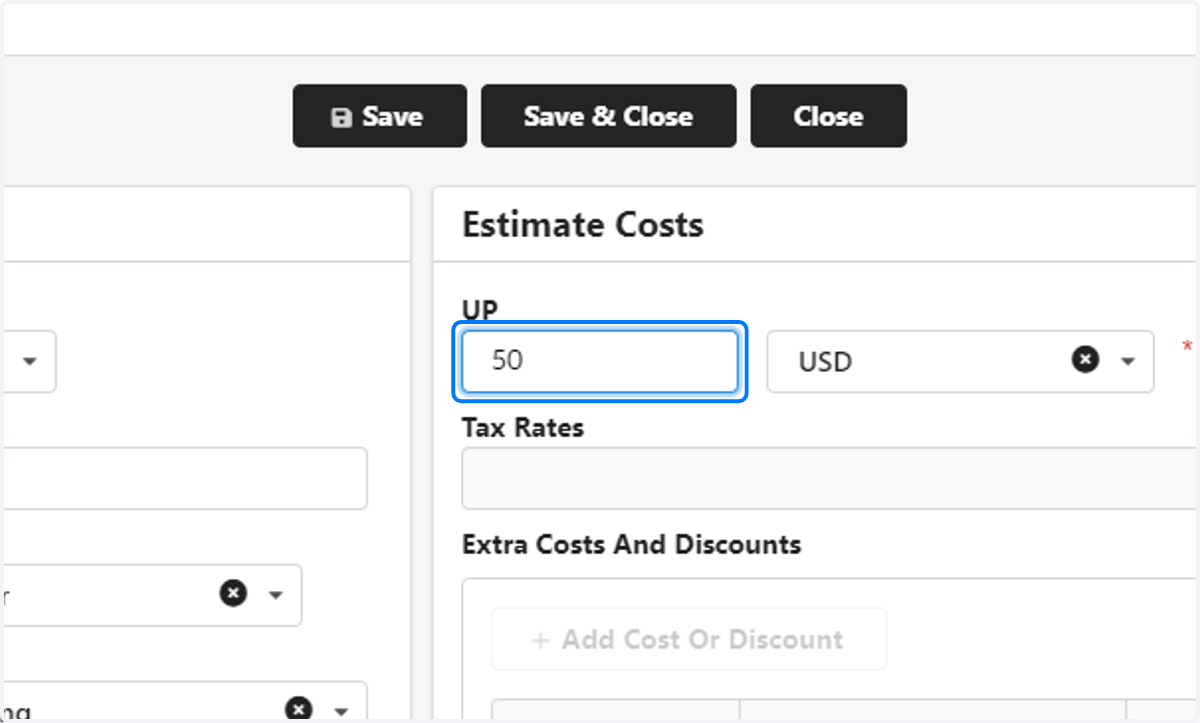
10. Update the Unit Price
Reminder: This is the price per each, not the total cost.
11. Search for your supplier under the Supplier drop-down. Again you can type their name or service type in or select See All and search. You will need to ensure a Supplier contact is available and selected.

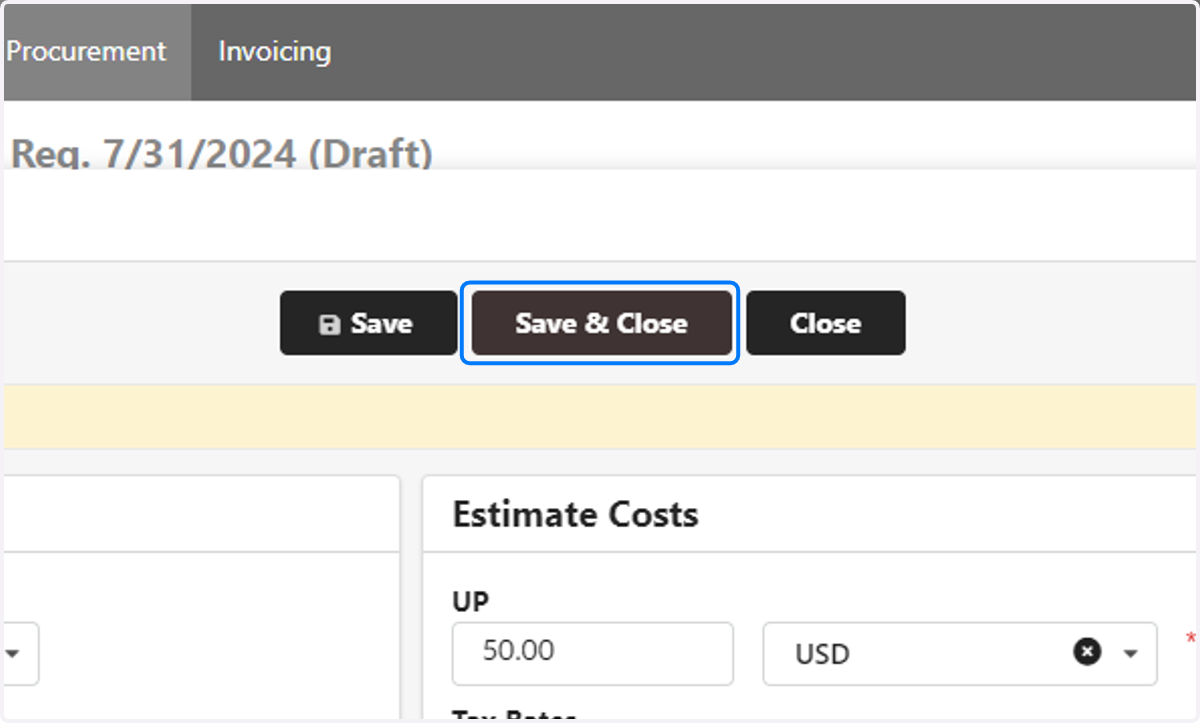
12. Click on Save & Close
13. Under Add/Update accounts, use the drop down under "I want to bulk edit" and click on Update all accounts.

14. Click on the Commodity

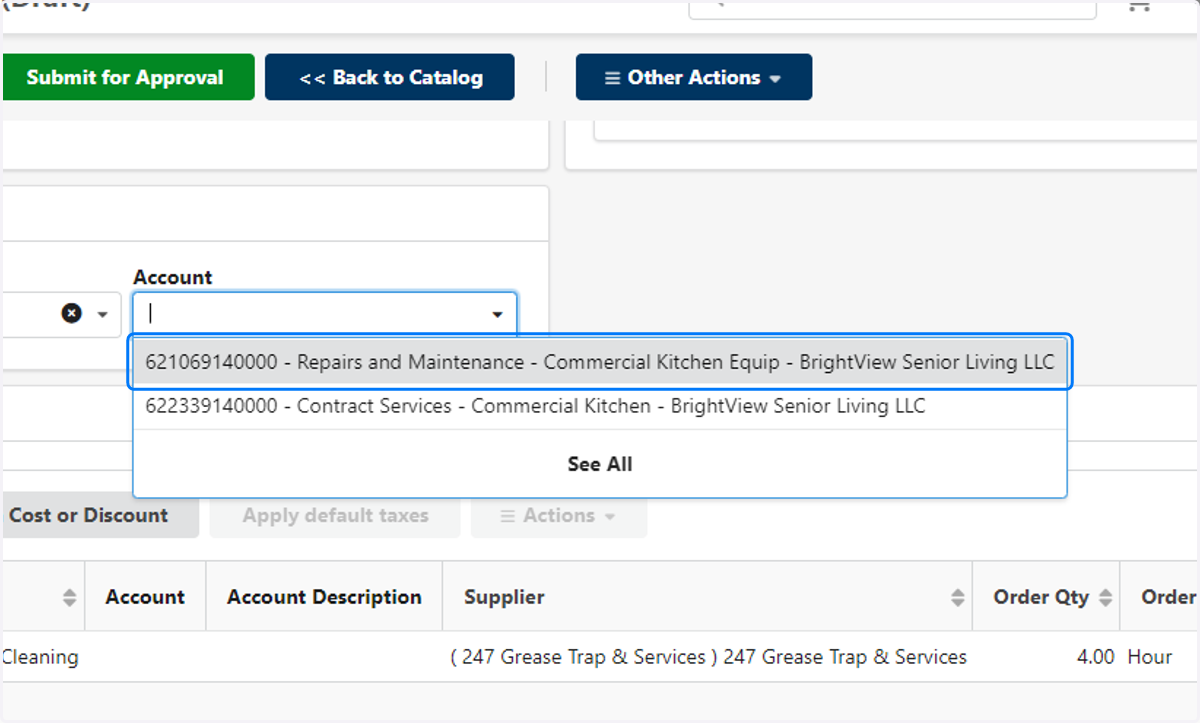
15. Select the GL Code associated with this service.
16. Click on Save

17. Click on Submit for Approval. You did it!!
