Steps to Access and Use the PaineWebberJames Q&A Dashboard
AskMyAdvisor™
Go to https://app.askmyadvisor.co/painewebberjames
1. Click on alert
This is a demo
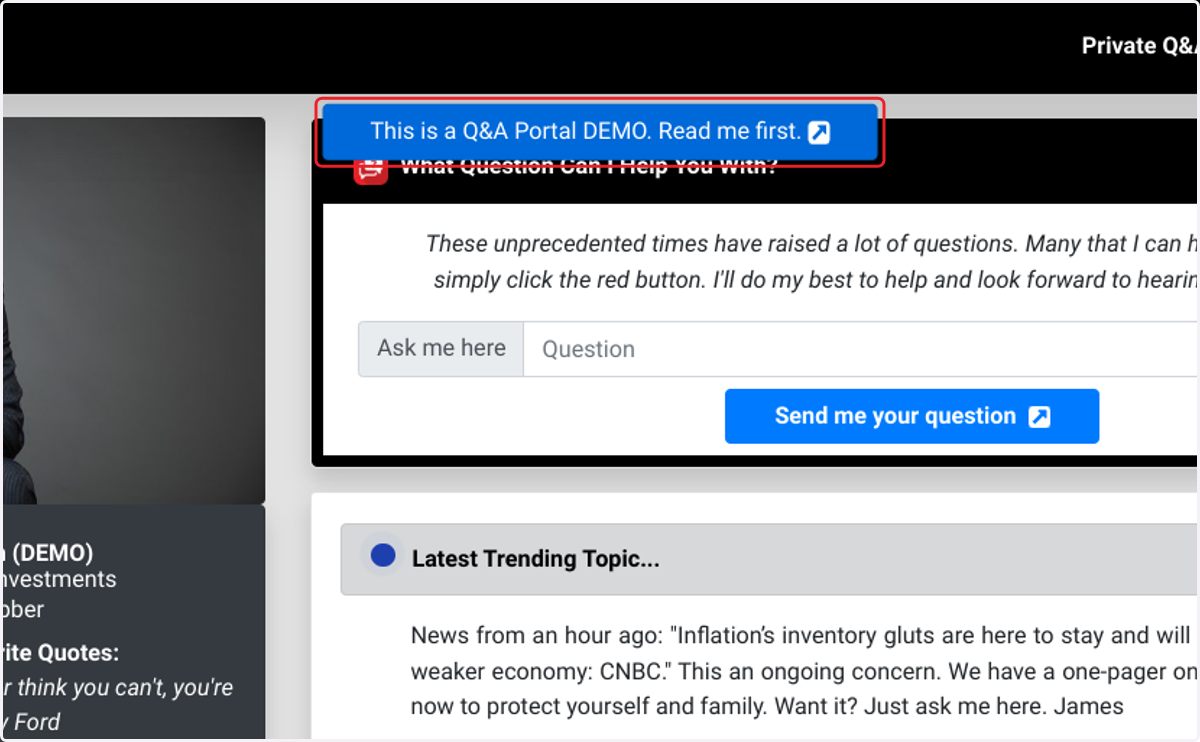
2. Click on document
Brief information about
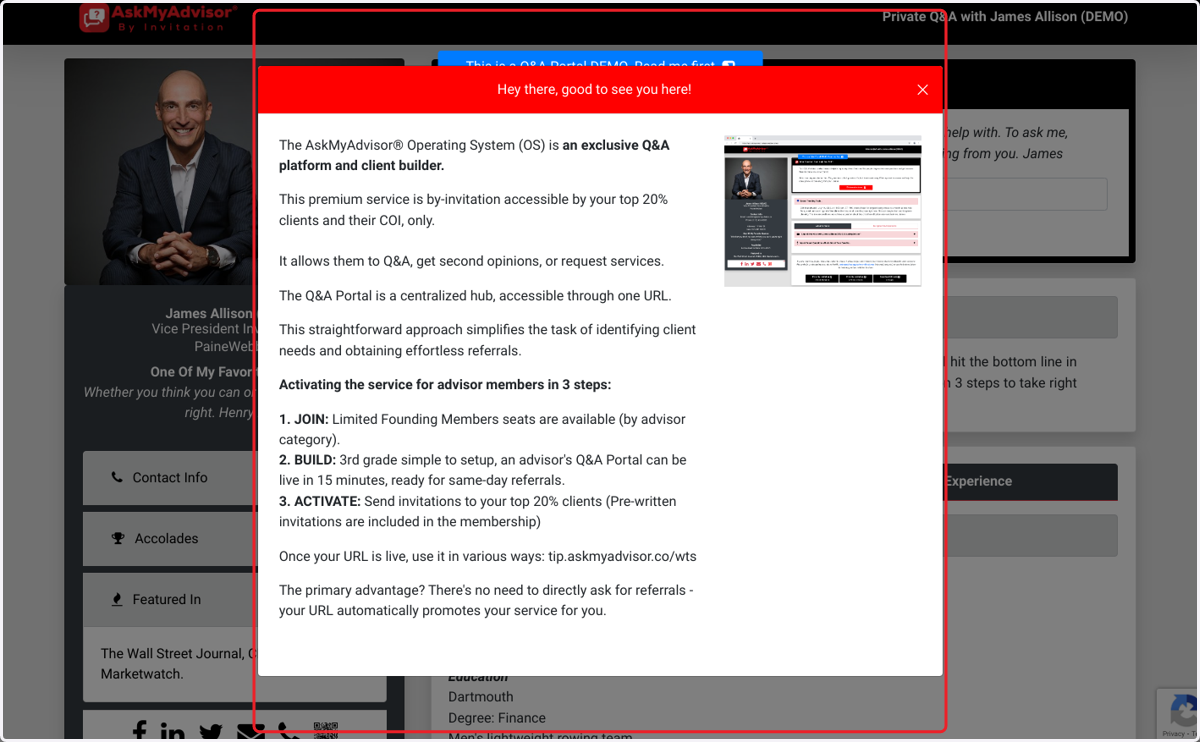
3. Click on James Allison (DEMO)…
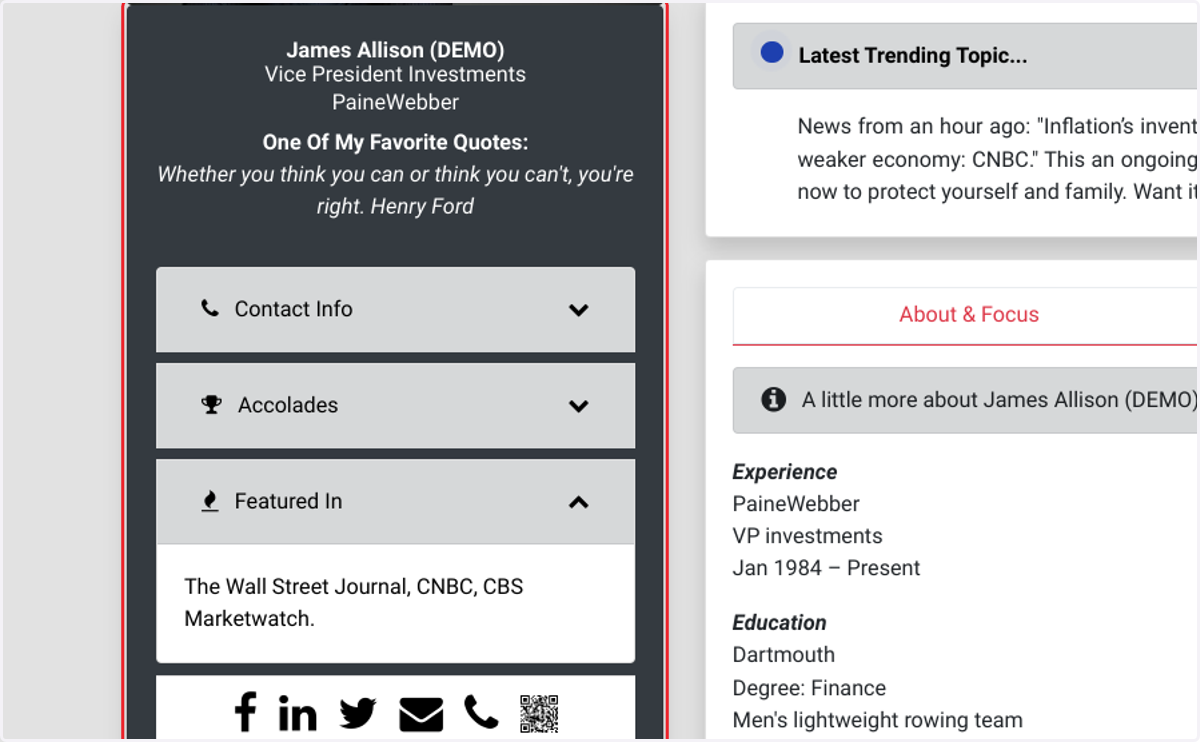
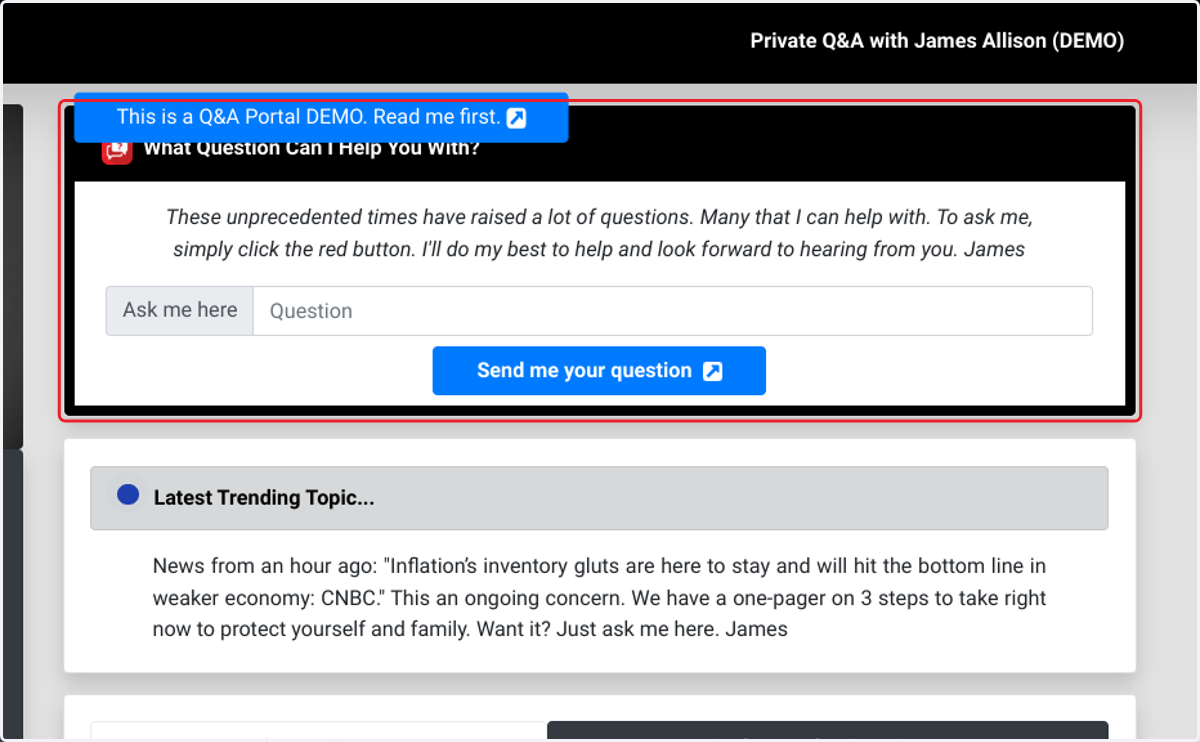
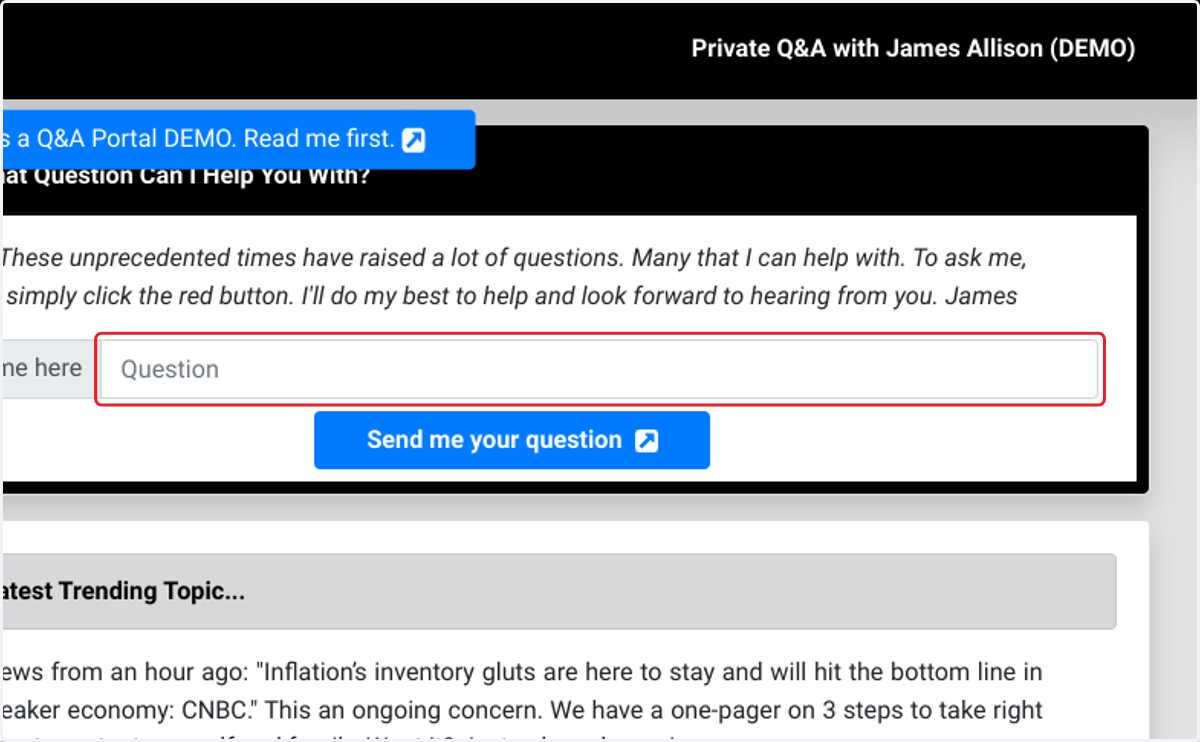
4. Click on What Question Can I Help You With?…
This is the #1 CTA button. This is where it all begins.
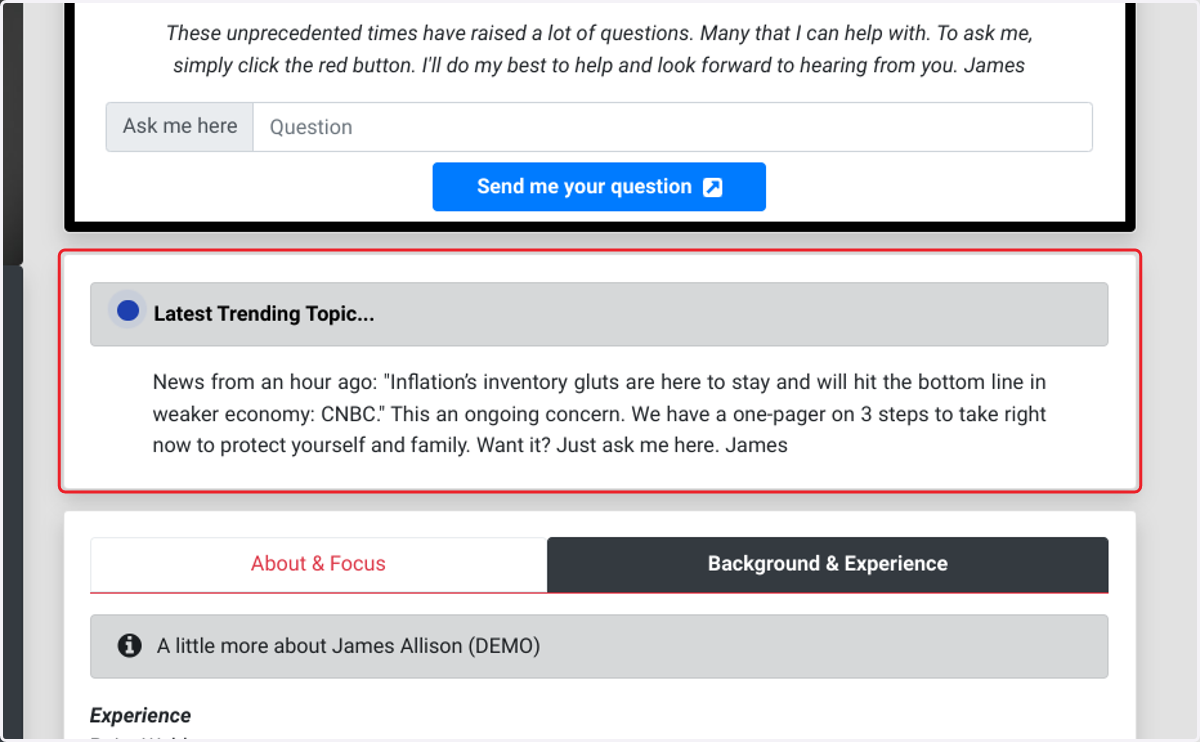
5. CTA #2
Here you have breaking news, etc. Can you post instantly and drive traffic here to stir up Q&A.
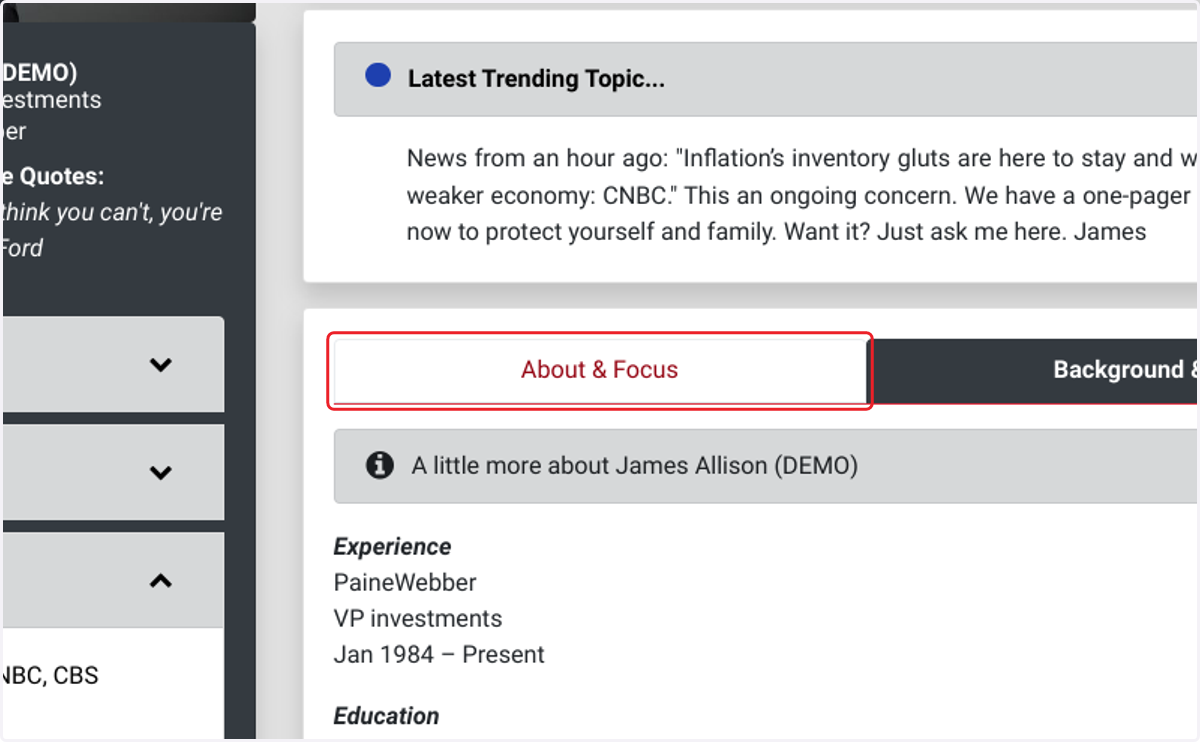
6. Click on About & Focus
7. Click on About & Focus…
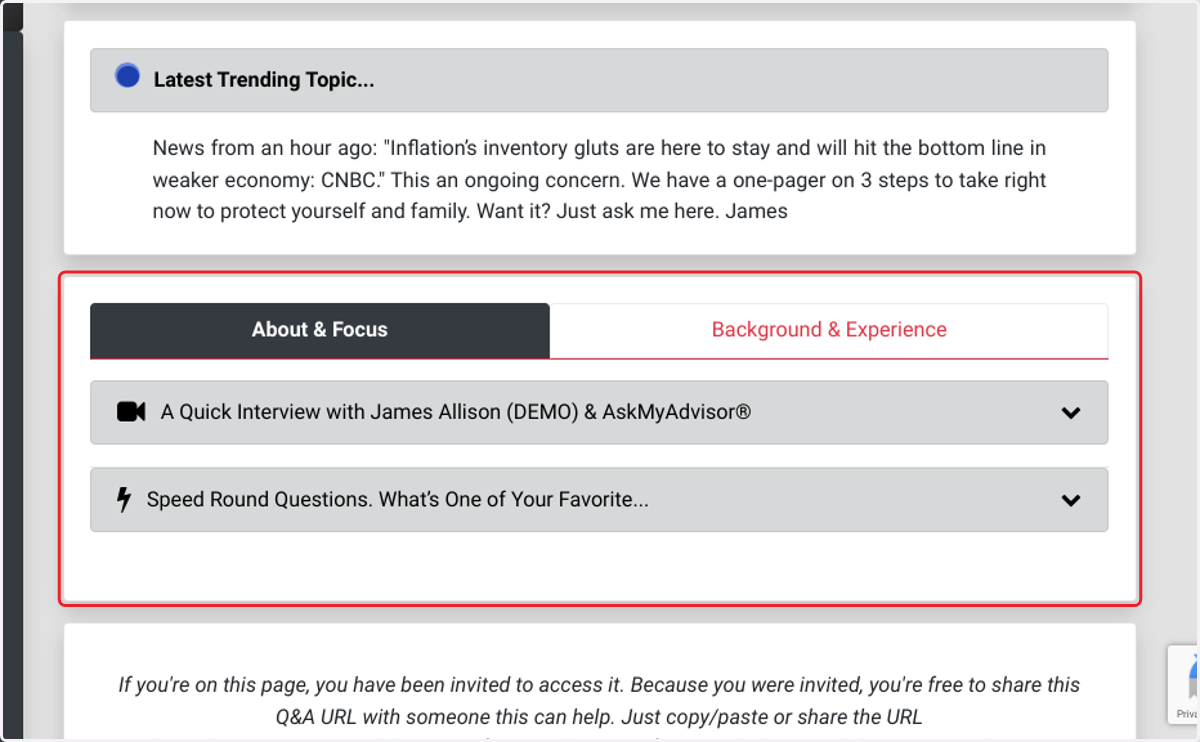
8. Click on alert
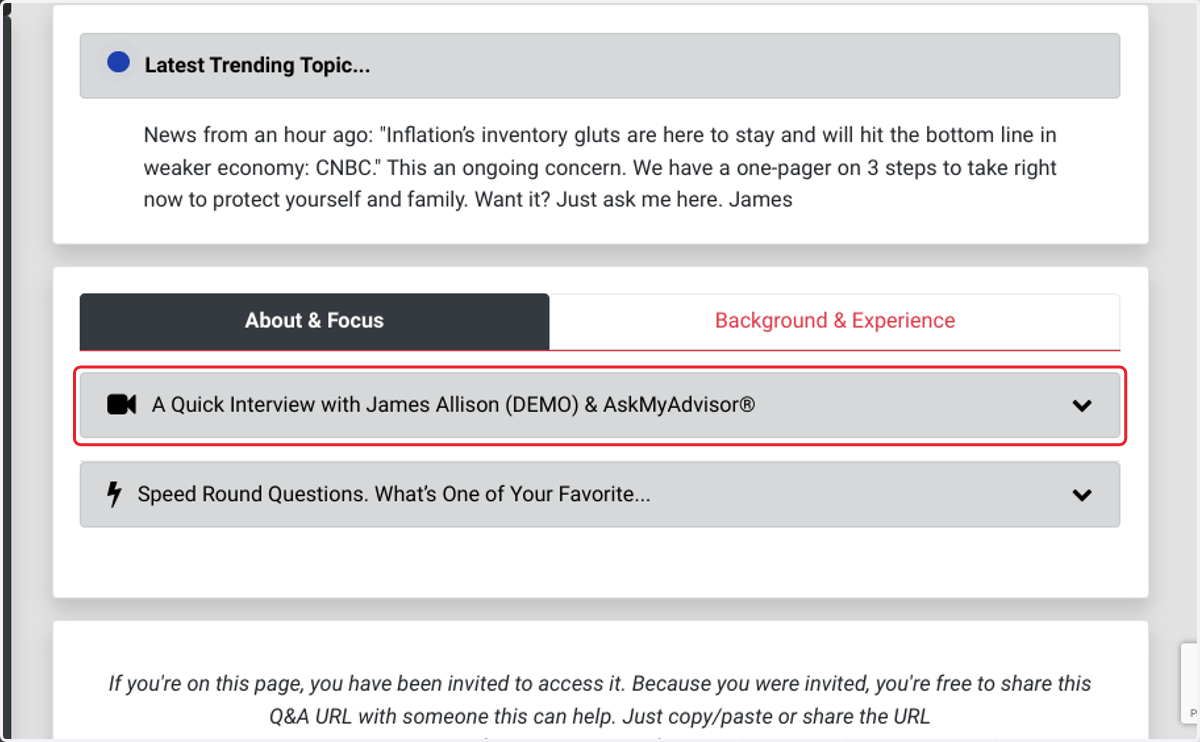
9. Click on About & Focus…
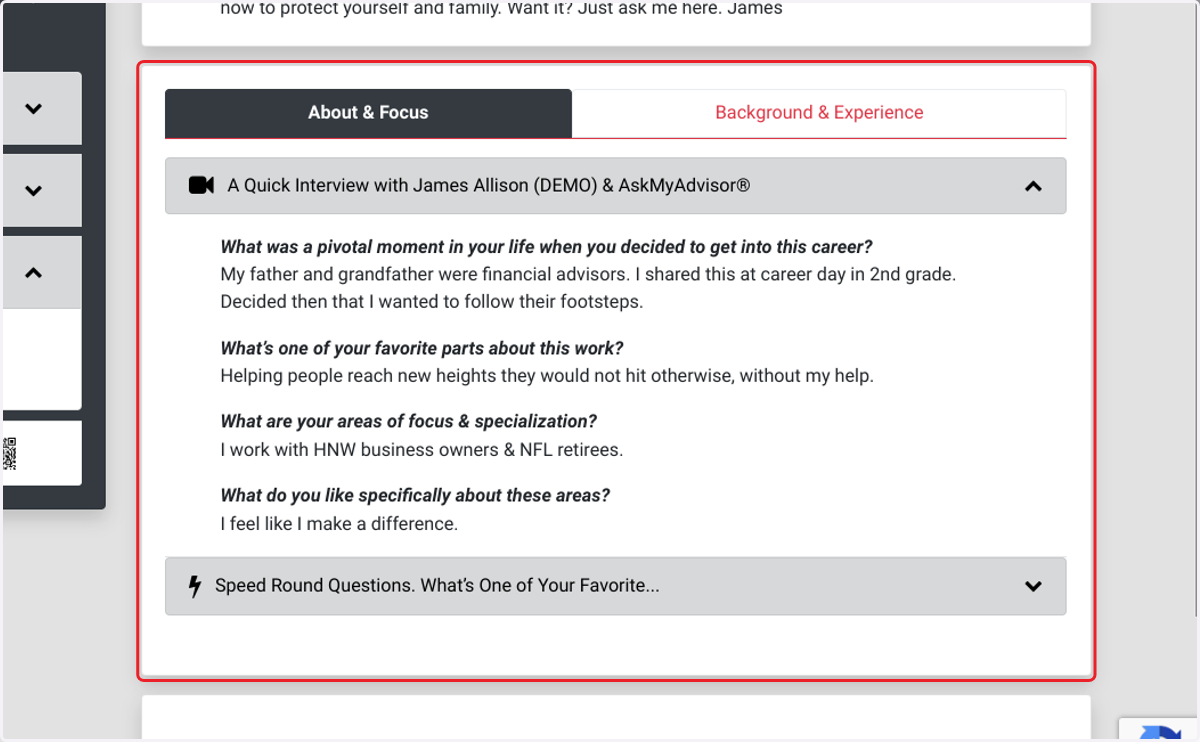
10. Click on alert
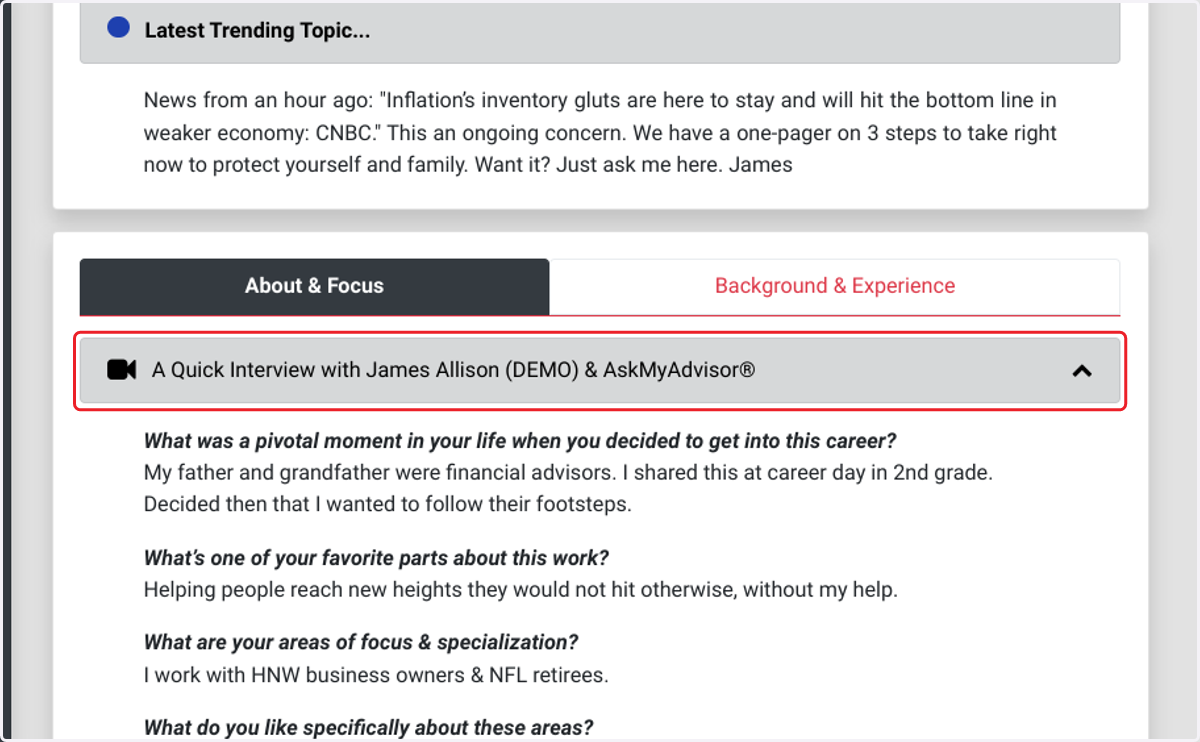
11. Click on About & Focus
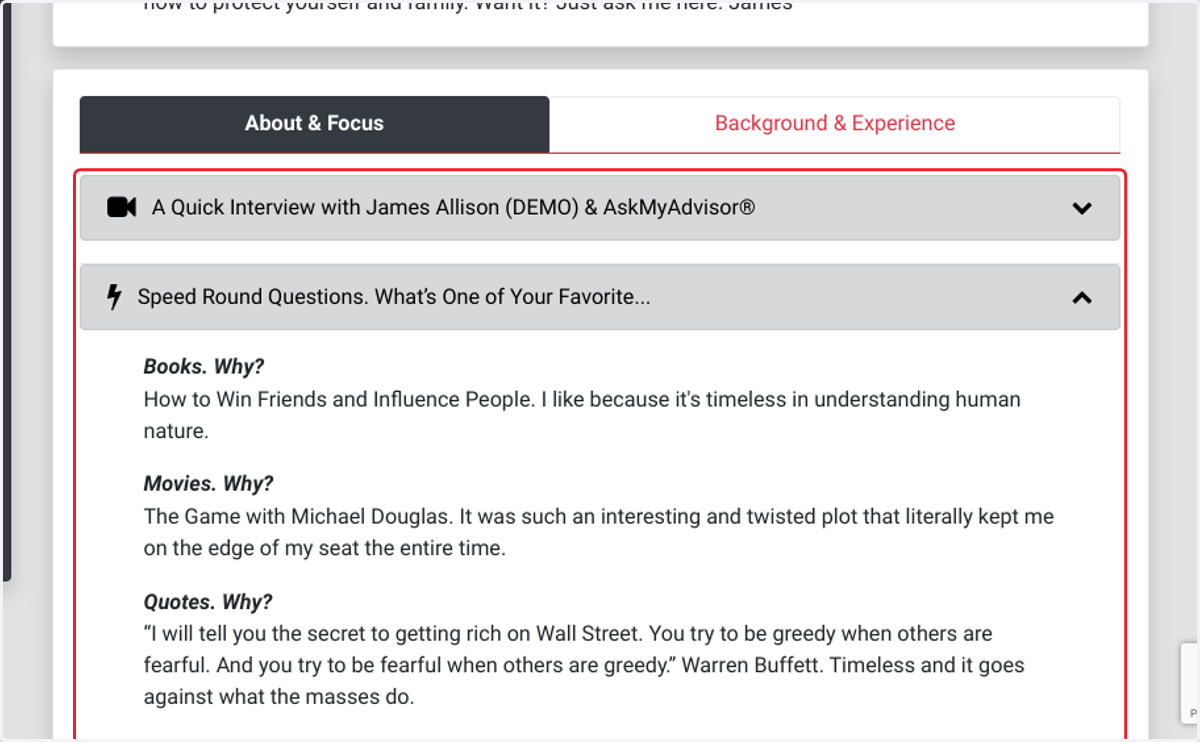
12. Click on If you're on this page, you have been invited to access it. Because you were invited, you're free to share this Q&A URL with someone this can help. Just copy/paste or share the URL askmyadvisor.app/painewebberjames (via email, text, etc.) or use the buttons below to inst…
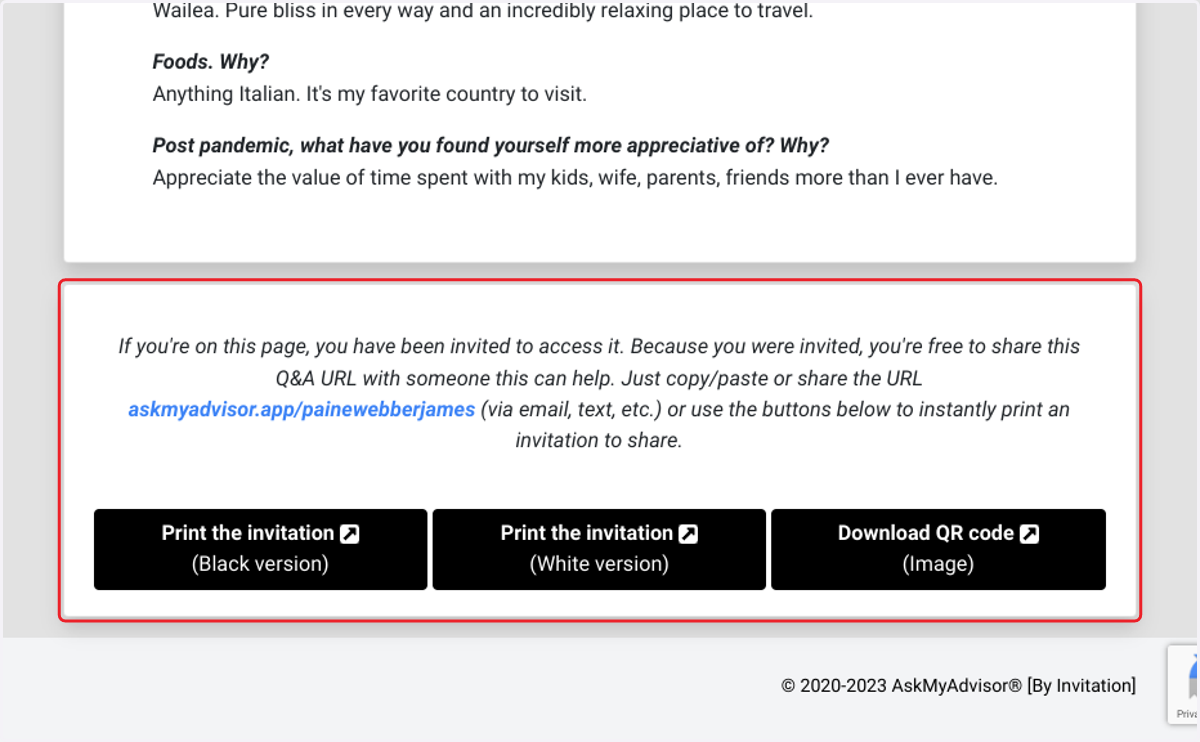
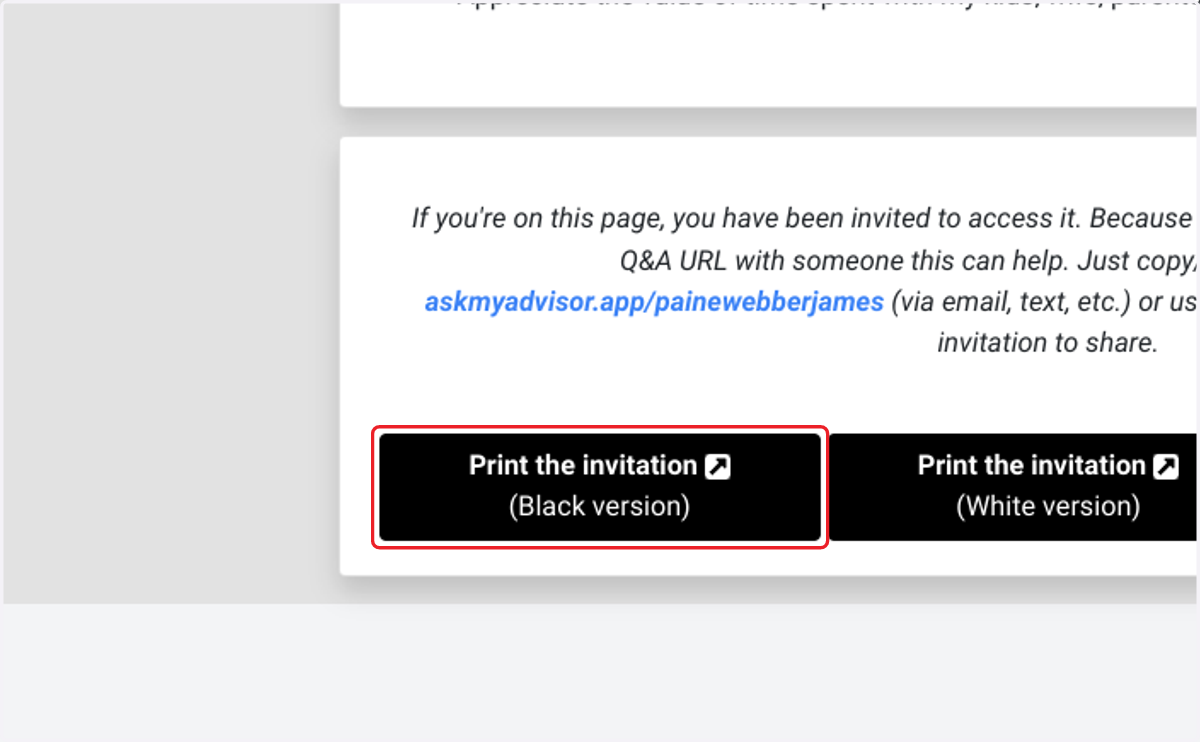
13. Click on Print the invitation …
14. Click on Question
15. Click on document
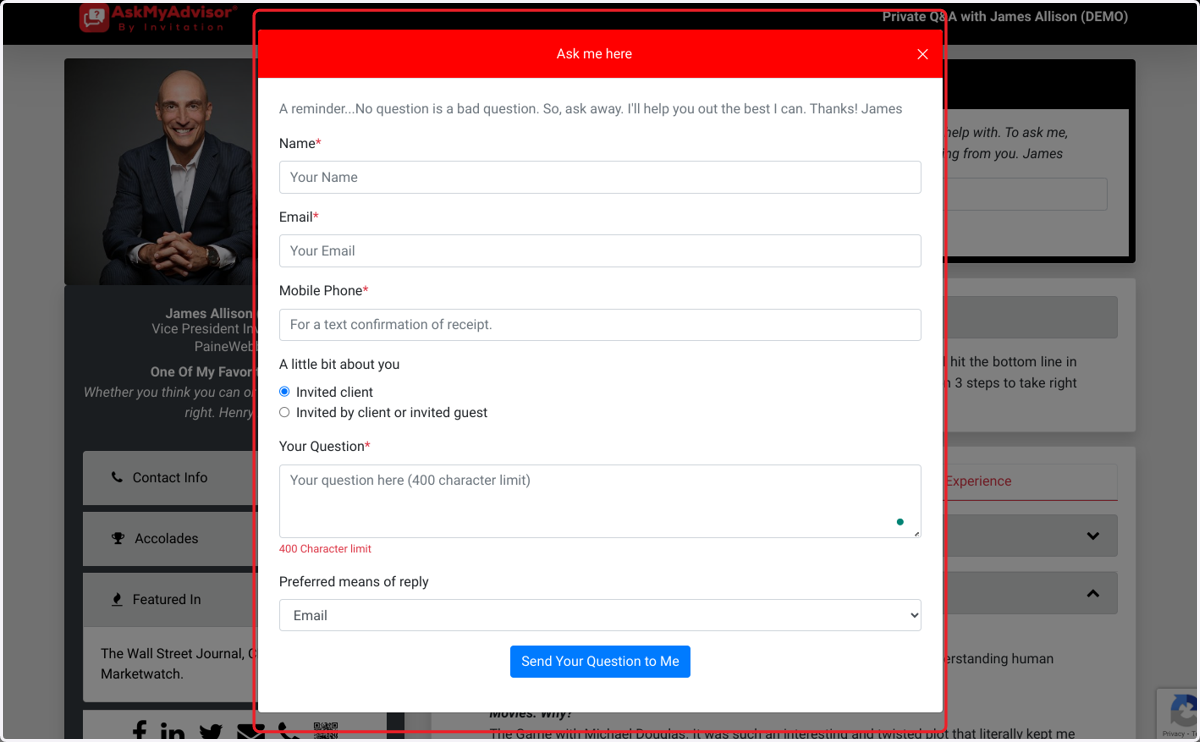
16. Click on Send Your Question to Me
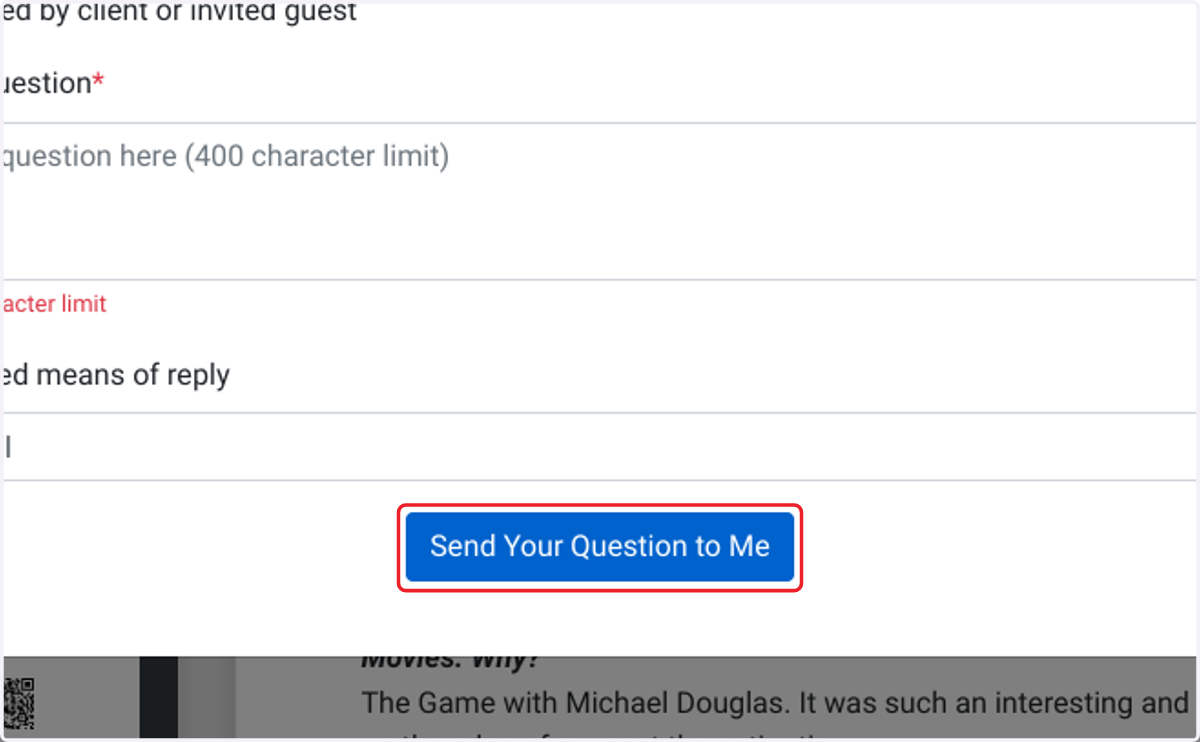
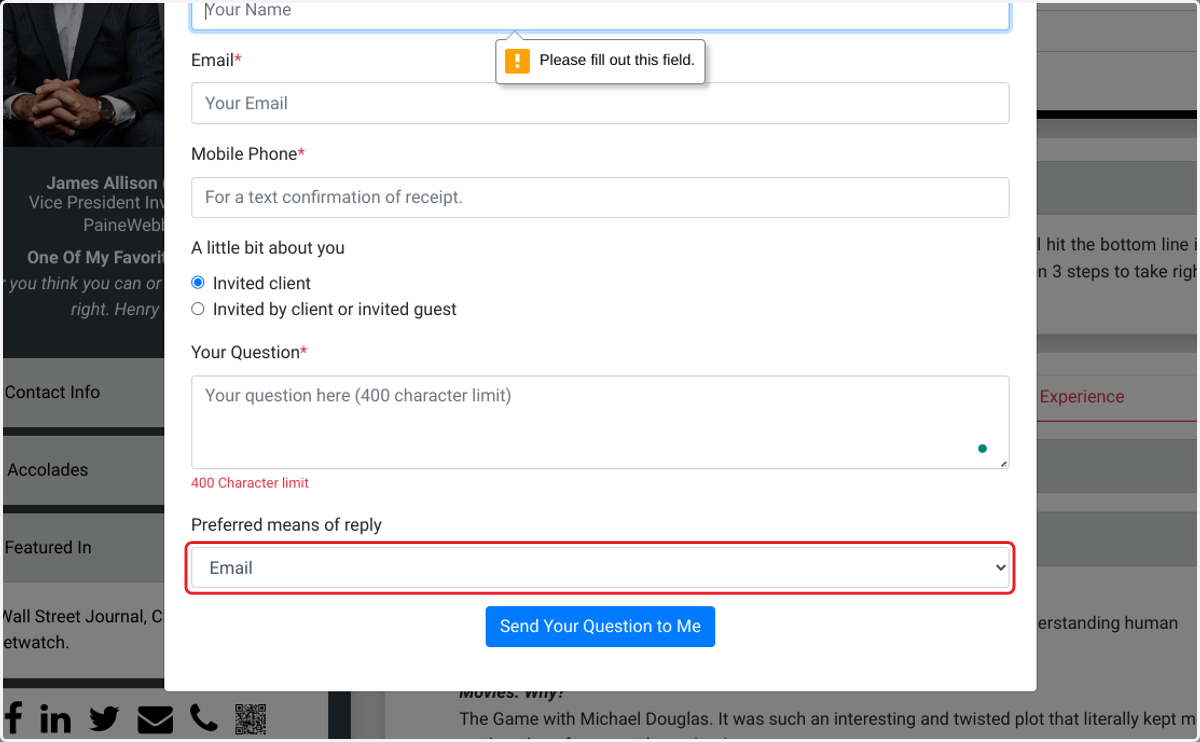
17. Click on Email from Preferred means of reply
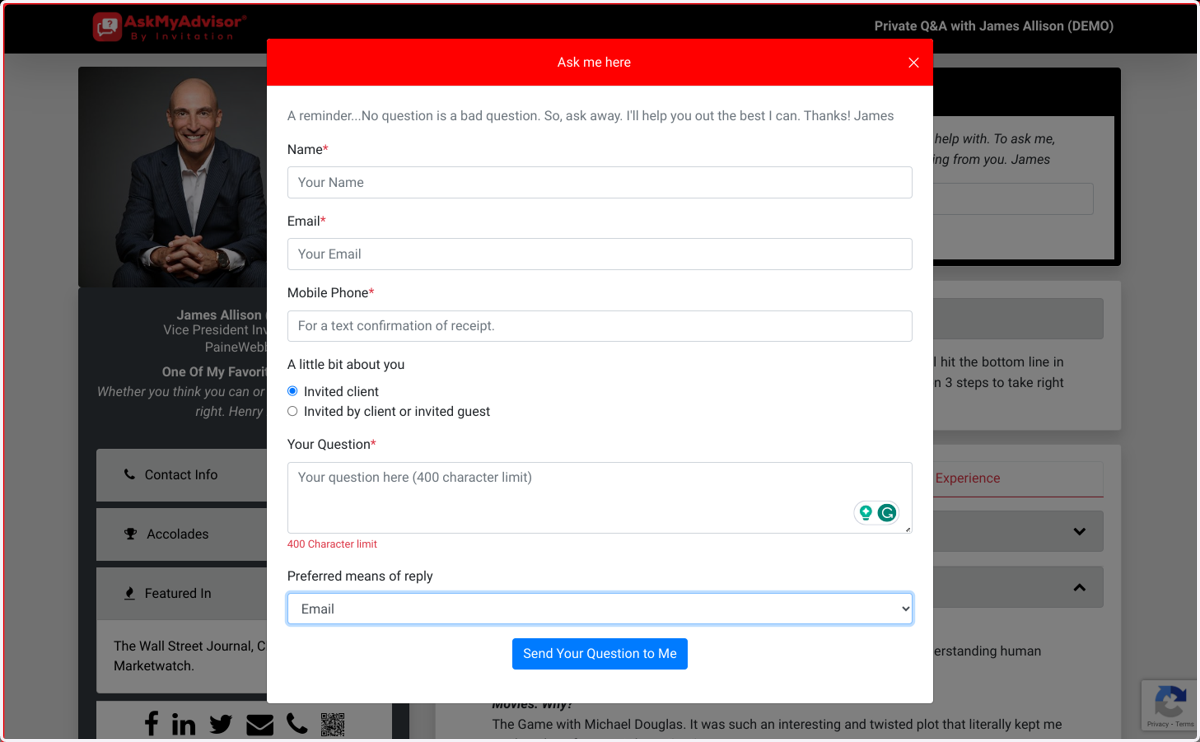
18. Click on dialog
19. Click on Dashboard
20. Click on document
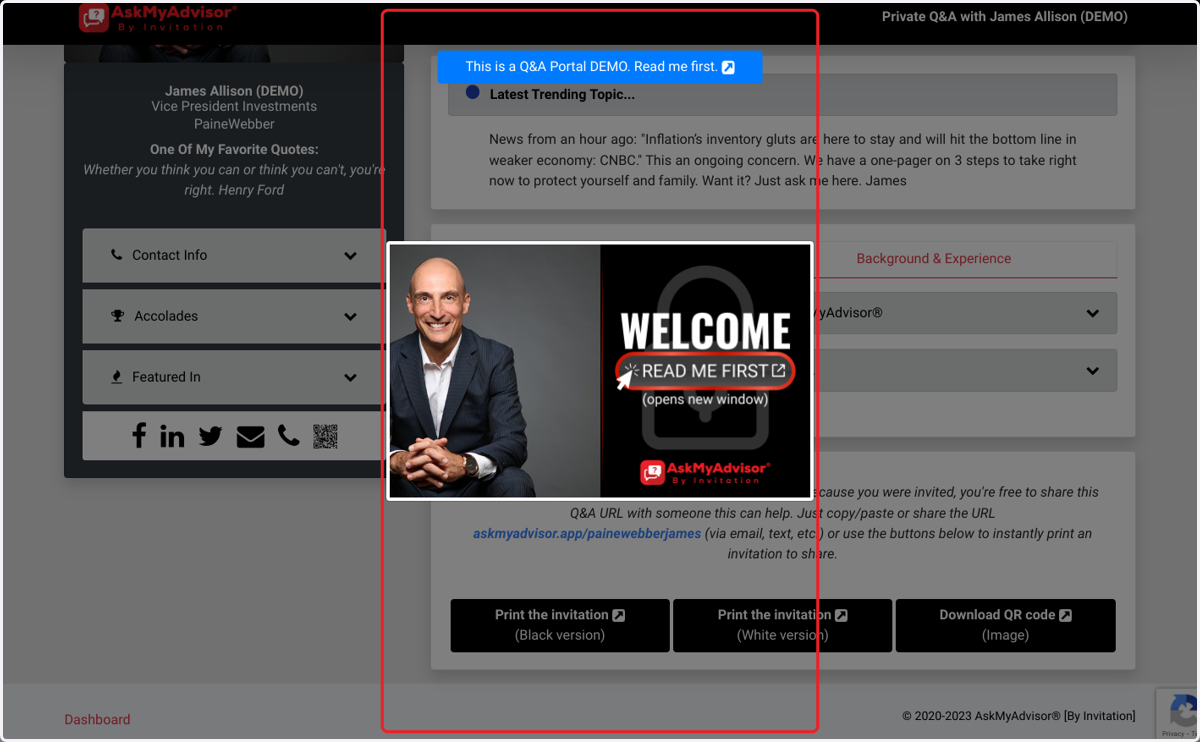
21. Click on document
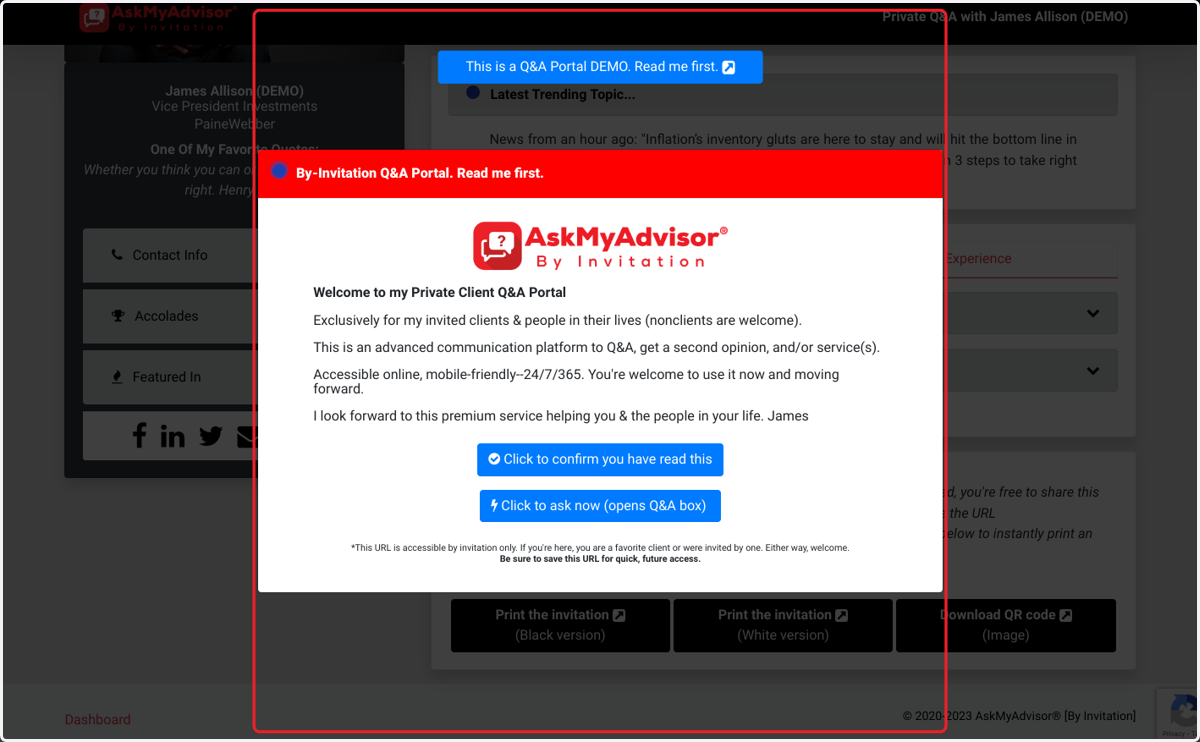
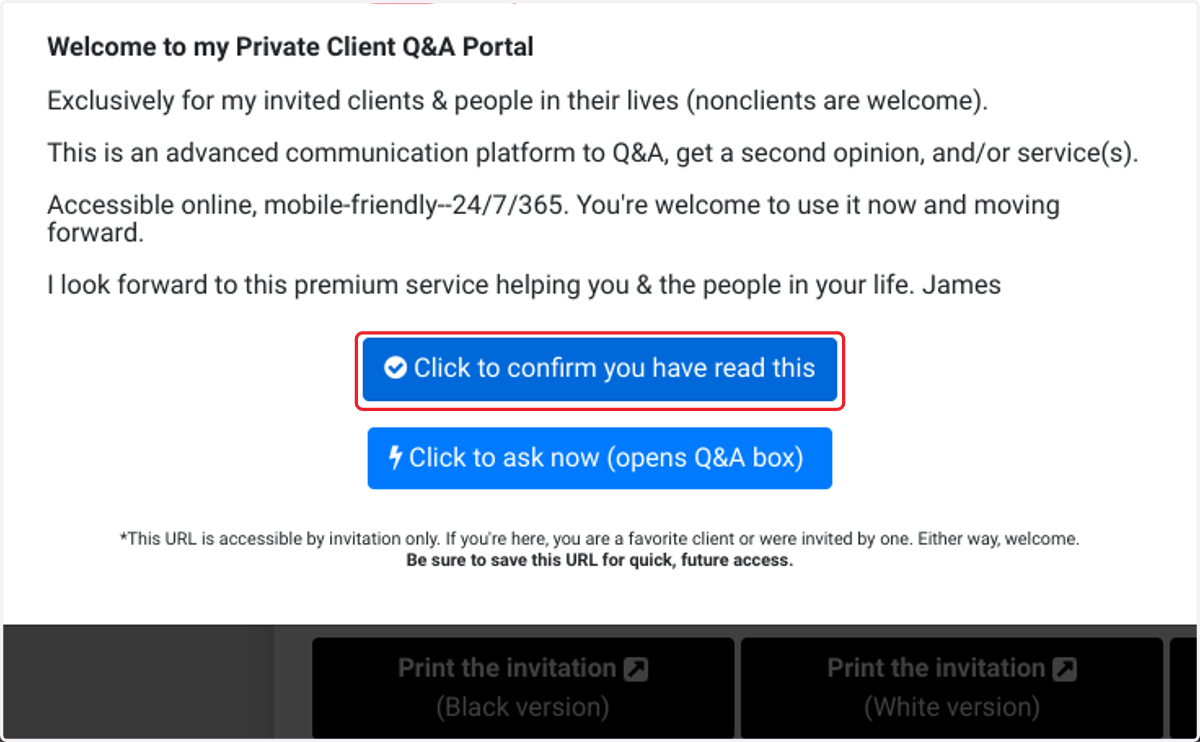
22. Click on Click to confirm you have read this
23. Click on Dashboard