Leasing Workflow: Generate Quote
Senior CRM
This user guide outlines the basic steps for creating a proposal for a single occupancy resident. Ensure you have met the pre-requisites before proceeding:
Must be in Future Resident or Waitlisted Status.
Primary Payer Selection
Appropriate contacts have valid email addresses
Correct apartment number is selected
**Please note we do not need to include the community fee in this quote sheet
Senior CRM
1. Open Future Resident Profile

2. Click on Documents
In the applicant profile, select Documents from the left side menu.

3. Click on New Quote Sheet
Any existing proposals will show here. To add a new one, click New Quote Sheet.

4. (1) Terms Header
Enter:
Description: You can rename your proposal, just keep in mind that the signer will be able to see whatever you call this in the RentCafe Portal once the lease document is sent.
Sales Counselor: Select from dropdown, this will default based on prospect
Unit: This will pull in based on what was selected in the profile, but can be changed
Physical Move-In Date: This is the date that they will be Physically in the Unit
Financial Rate End date: One year from the Financial move-in date. Use the term dates cheat sheet here for more information.
Proposal Expires On: 30 days from deposit date (IL) or 14 days from deposit date (AL, WS, EC)
Primary Payer: Who will be responsible for paying the bill.
Then hit Save and Next

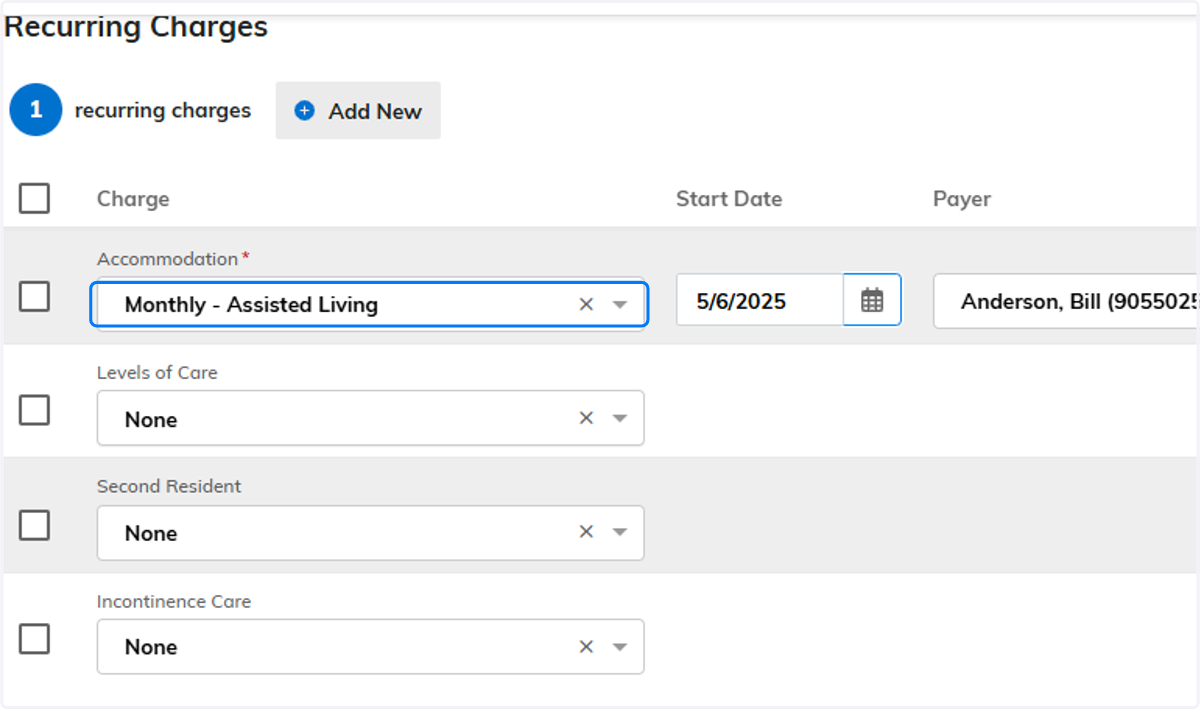
5. (2) Charges- Accommodation
All charges that need to be added to the resident will be completed in this one page.
Accommodation: The rate will pull based off of the unit selected. The start date should be the Financial Start date.
**If you notice that the rate is incorrect, send a ticket to helpdesk@bvsl.net with the apartment number and correct market rate.
6. (2) Charges- Level of Care
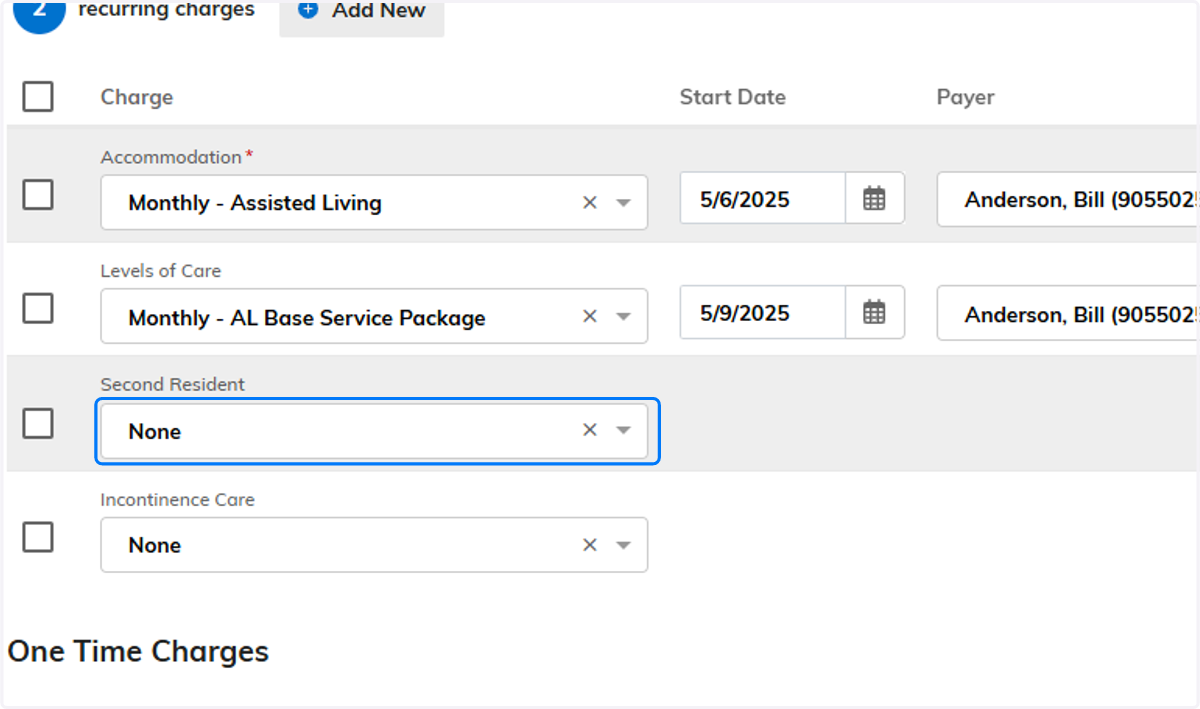
Levels of care (AL, WSV, EC Only): Select the appropriate service package. If a preliminary assessment has been completed, select the Apply Recommendation button to automatically select the correct service package. Start date should stay the Physical Move-In Date.
**If you notice that the rate is incorrect, send a ticket to helpdesk@bvsl.net with the service level and correct market rate.

7. (2) Charges- Second Resident
Second Resident: This can be ignored for the primary resident. If there was a second resident, the charge would be on their tab.
8. (2) Charges- Incontinence Care
Incontinence Care (AL, WSV, EC Only): Select incontinence package (if applicable) and the start date should be the Physical Move-In Date.

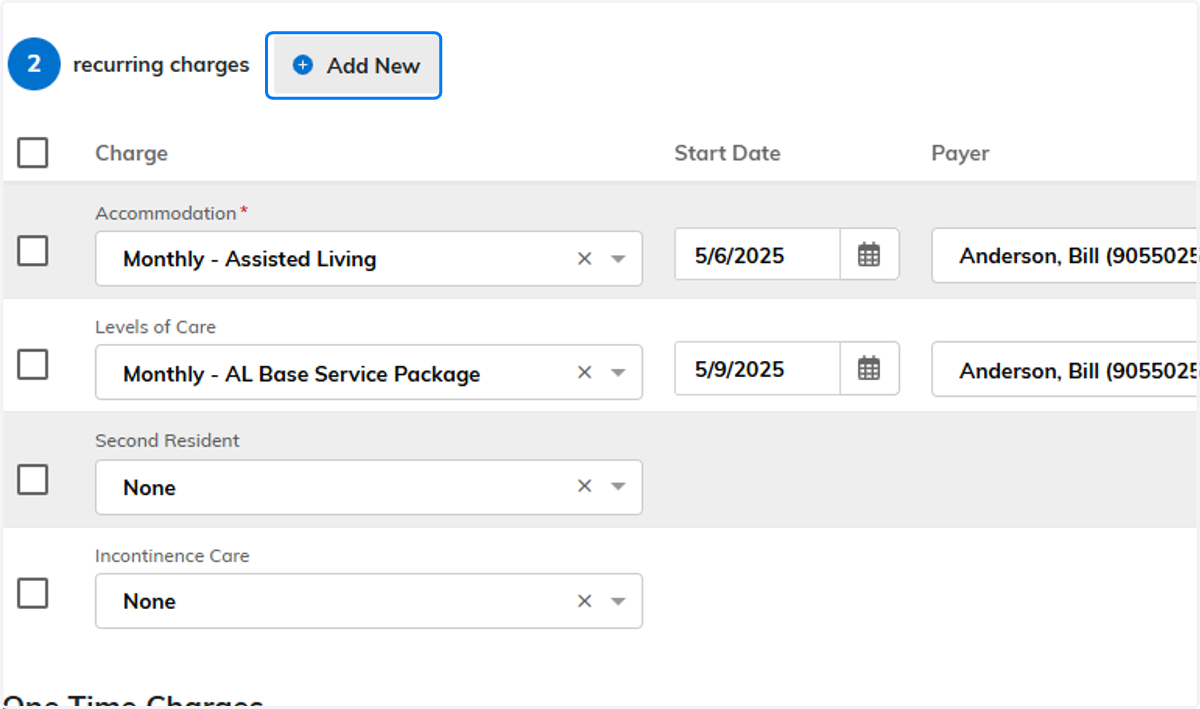
9. (2) Charges- Addition Recurring Charges
Hit "Add New" and additional blank box will appear. Enter any recurring charges as needed. See the Recurring & One Time Charges user guide for more information.
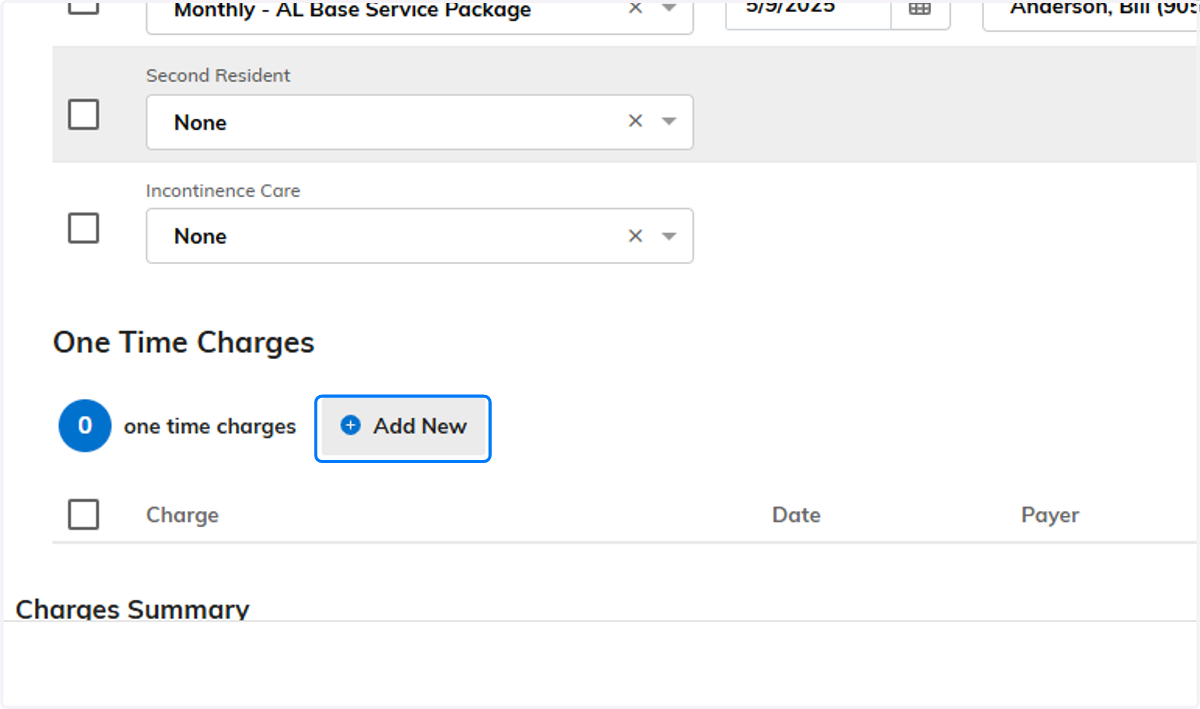
10. (2) Charges- One Time Charges
Hit "Add New" and additional blank box will appear. Enter any one time charges as needed. See the Recurring & One Time Charges user guide for more information.
Then when done, hit Save and Next
11. (3) Concessions
If you need to add a concession, you will do it on this page. Hit the "Add New"

12. (3) Concession
Select the appropriate Concession Charge Code by using the drop down.

13. (3) Concession
Change the concession rate type based off the concession. If its a monthly Concession, it will be a monthly rate type. If its a Lump Sum Concession, use the "One Time" concession.
Do not use the daily concession Rate type
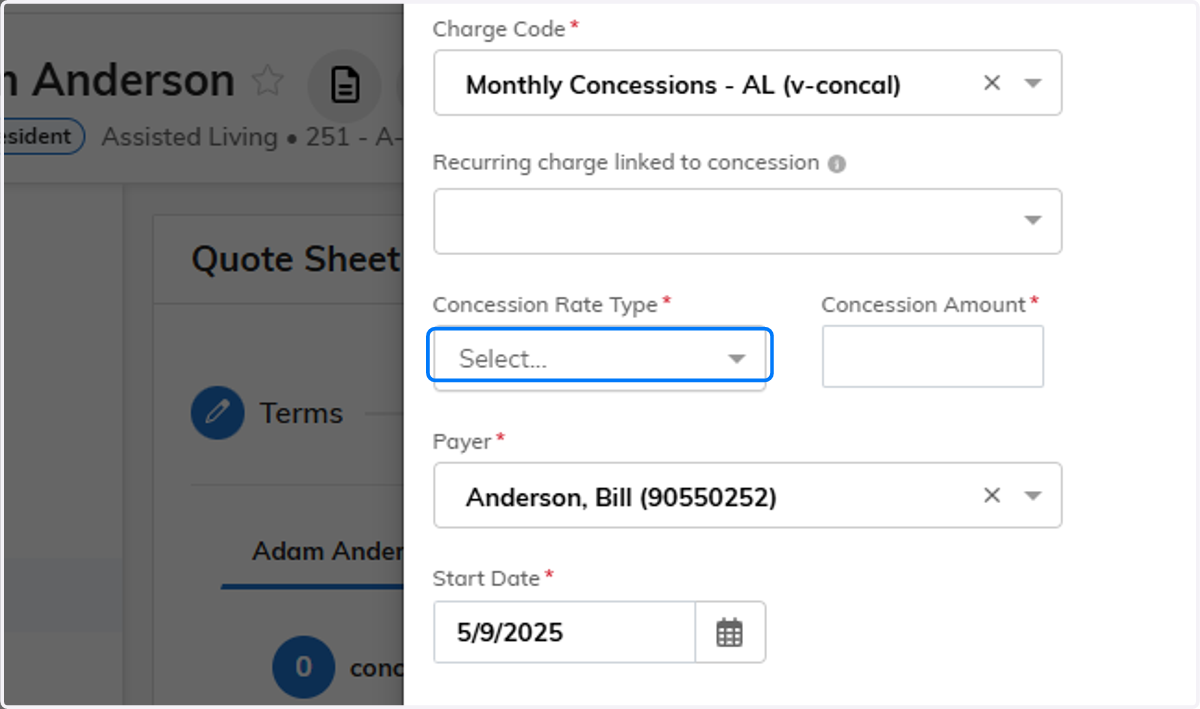
14. (3) Concession
Concessions will now be positive numbers, verses the old negative amount.

15. (3) Concession
Start Dates and End Dates are mandatory for all monthly concessions. Please start all monthly concessions at the beginning of the next full month.
Hit Save.
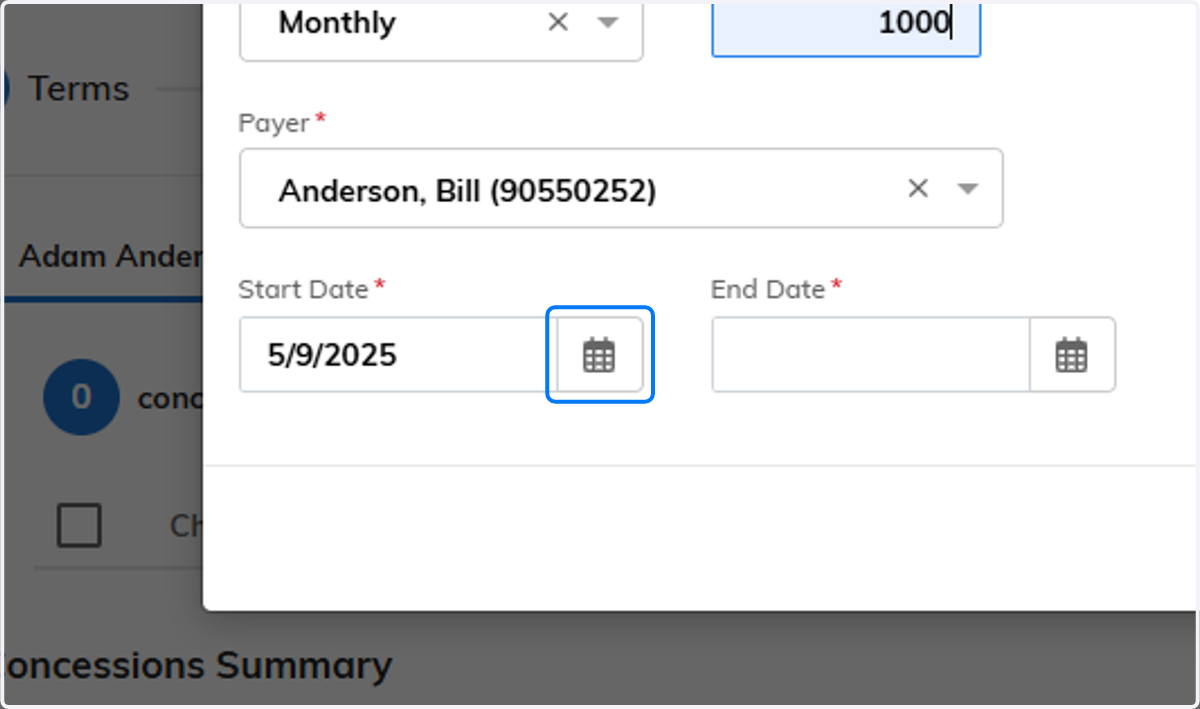
16. (3) Concession
If theres any additional concession you will need to click "Add New" again and do that process over.
If not, click Save and Next
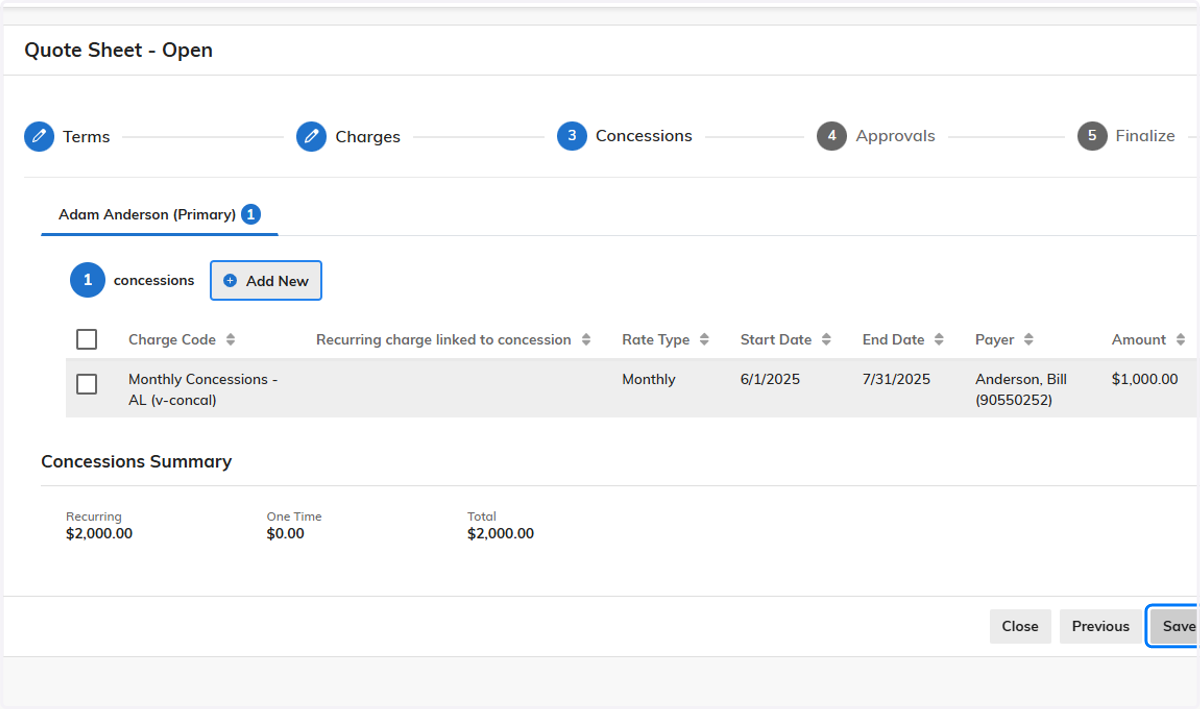
17. (4) Approvals- Ignore this step and hit next

18. (5) Finalize
Please review the Quote sheet and make sure everything looks good.
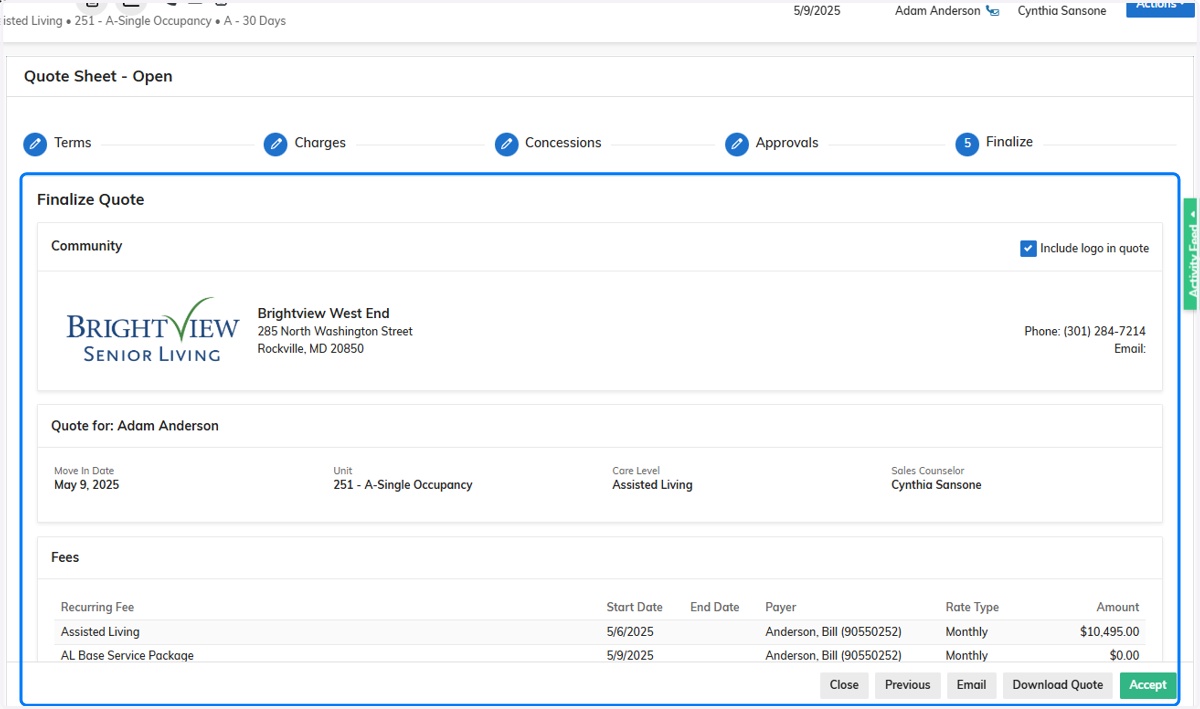
19. (5) Finalize
Check Include next month's charges in quote if they are taking financial possession after the 15th.

20. (5) Finalize
Click on Download Quote to grab the Brightview Standard PDF version of the quote sheet

21. (5) Finalize
Accepting the quote will be done by the BOD/ED
