Instructions for Downloading Photos
Downloading All Photos from the Gallery
Scenes
Go to https://leslienicole.passgallery.com/-scenes/gallery
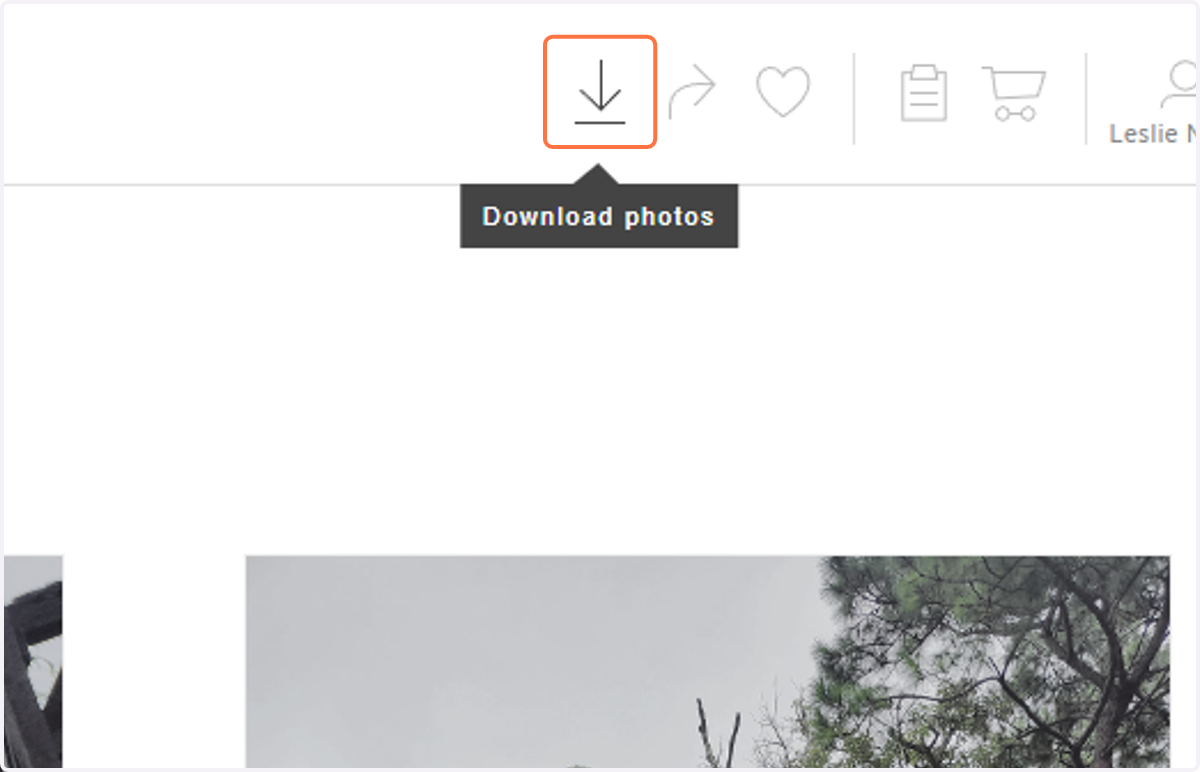
1. To begin downloading all the images in the gallery click the downward-facing arrow in the upper right corner of the screen
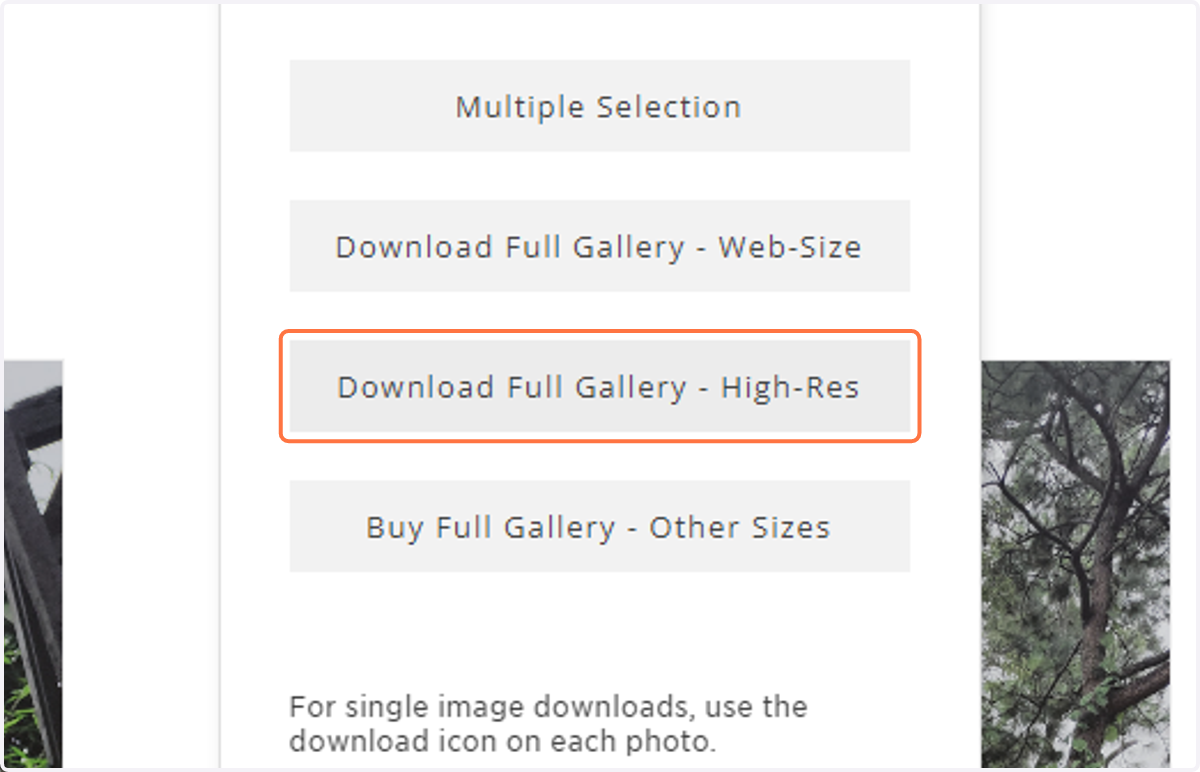
2. Select "Download Full Gallery"
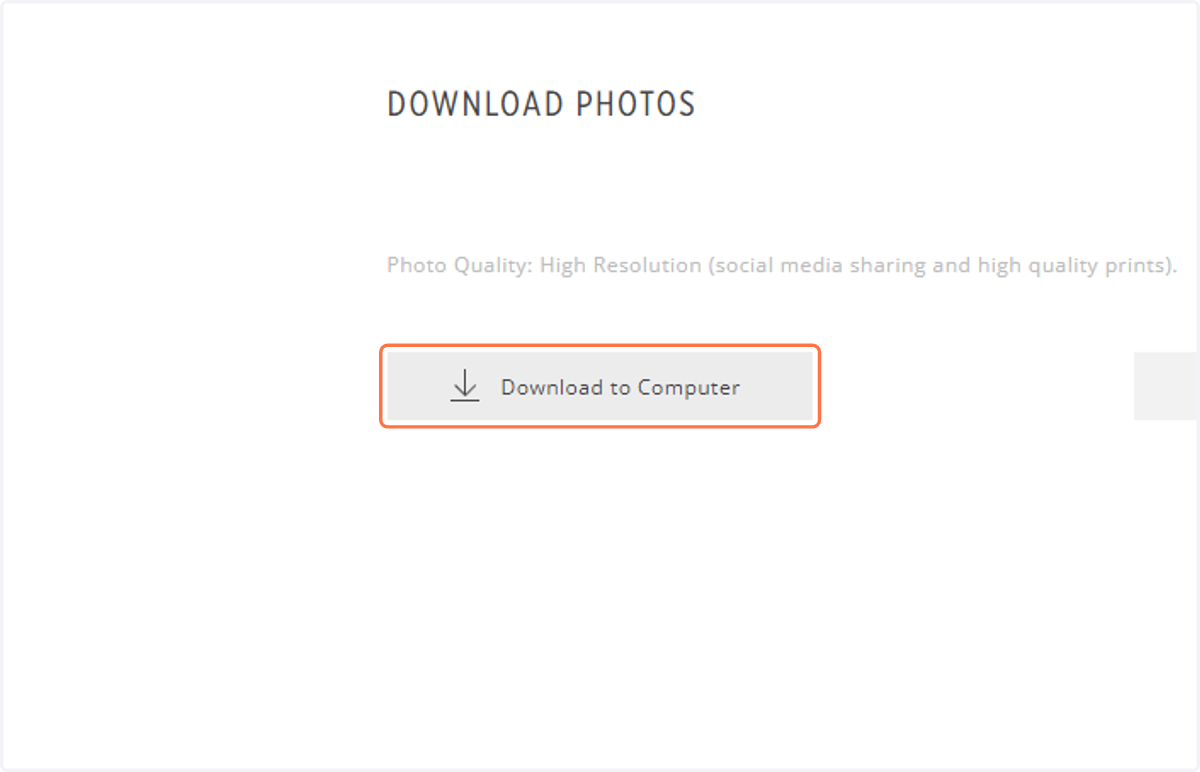
3. Click on "Download to Computer". You can also select to Save to Dropbox or Save to Google Photos
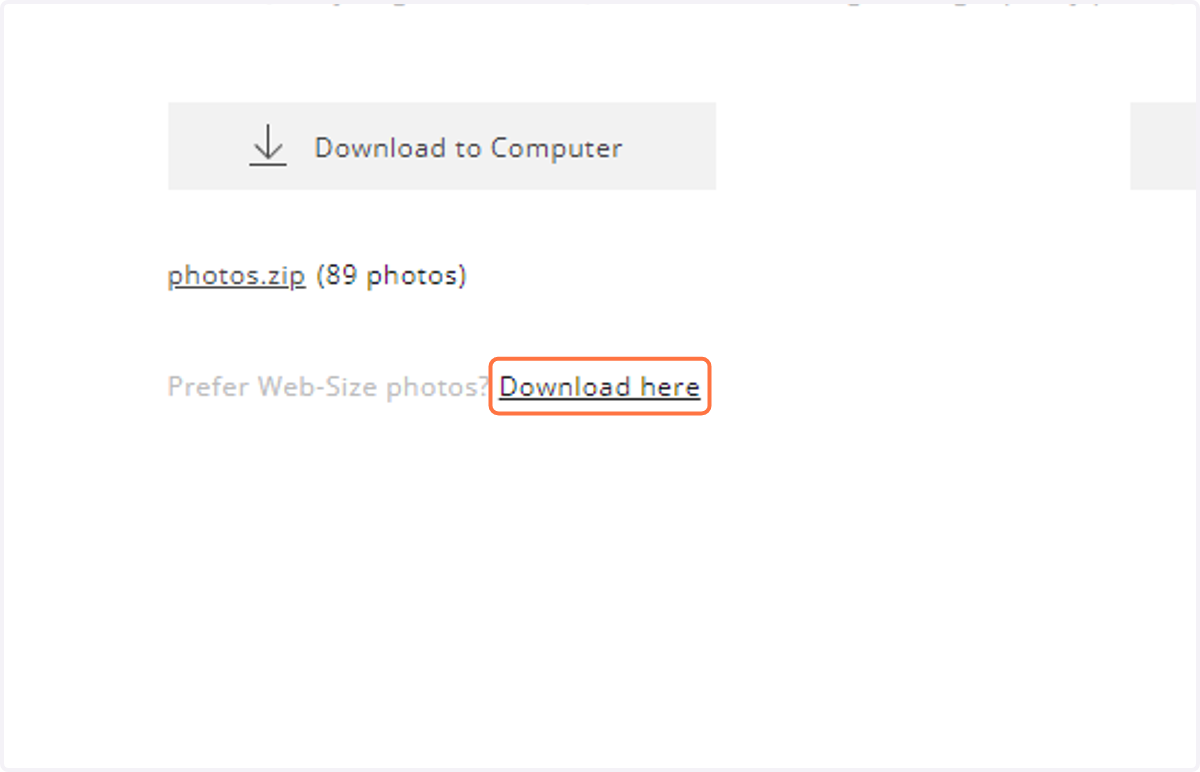
4. To optimize download speed, images are grouped in a zip file(s). Click "photos.zip" to begin the download to your computer
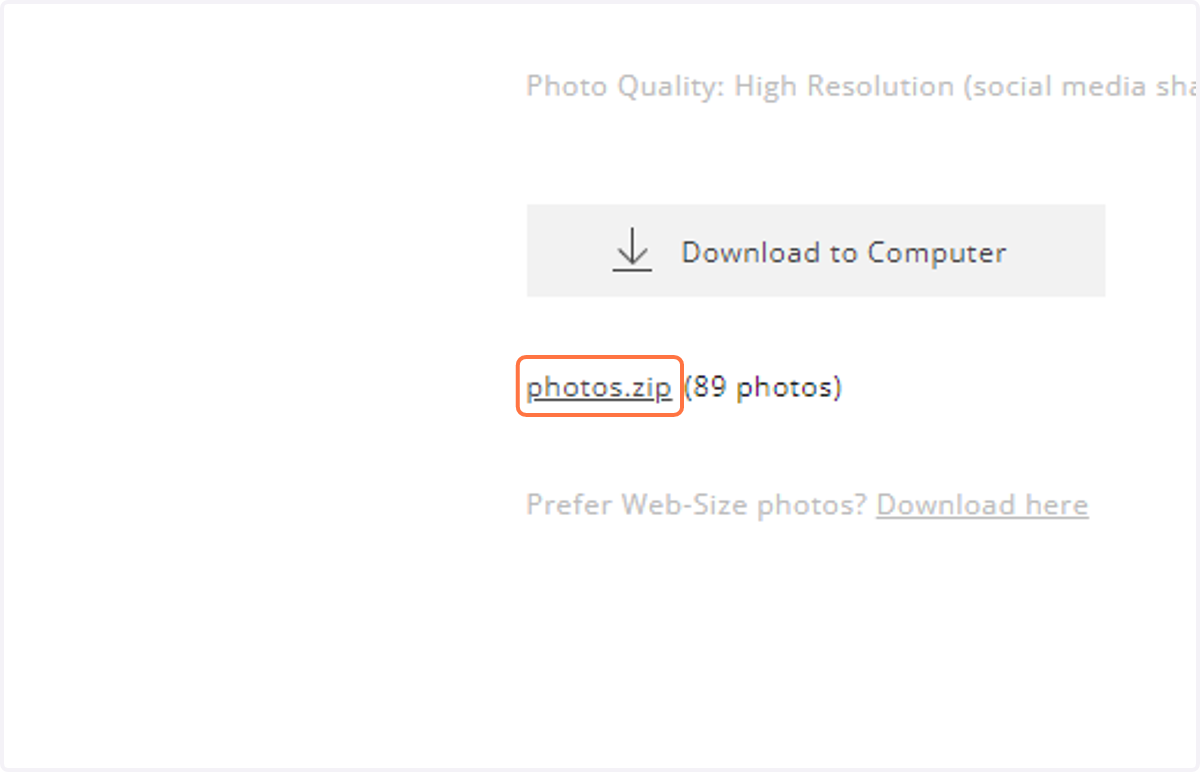
5. You can also select to download the web-size version of the photos by clicking on "Download Here"