How to configure Booking Engine Settings
Booking Engine | Setup - Settings | Hotel Link
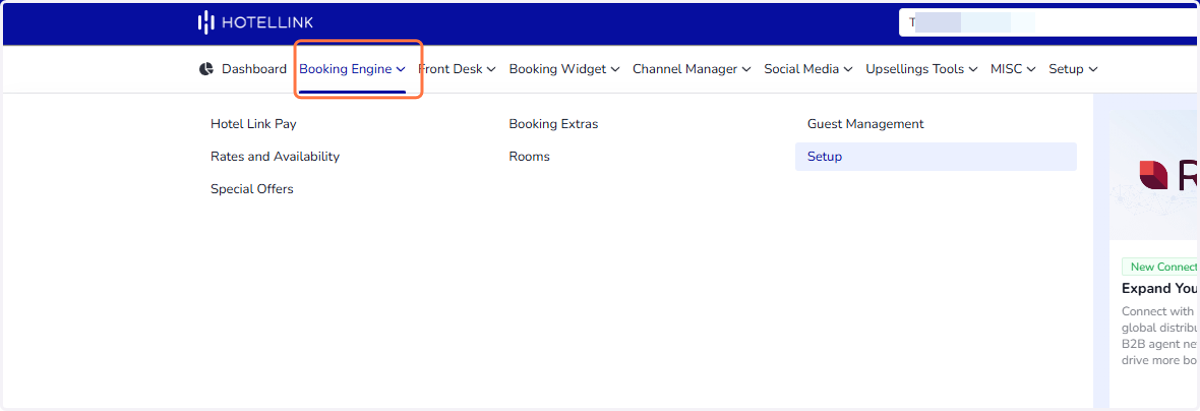
1. Click on Booking Engine
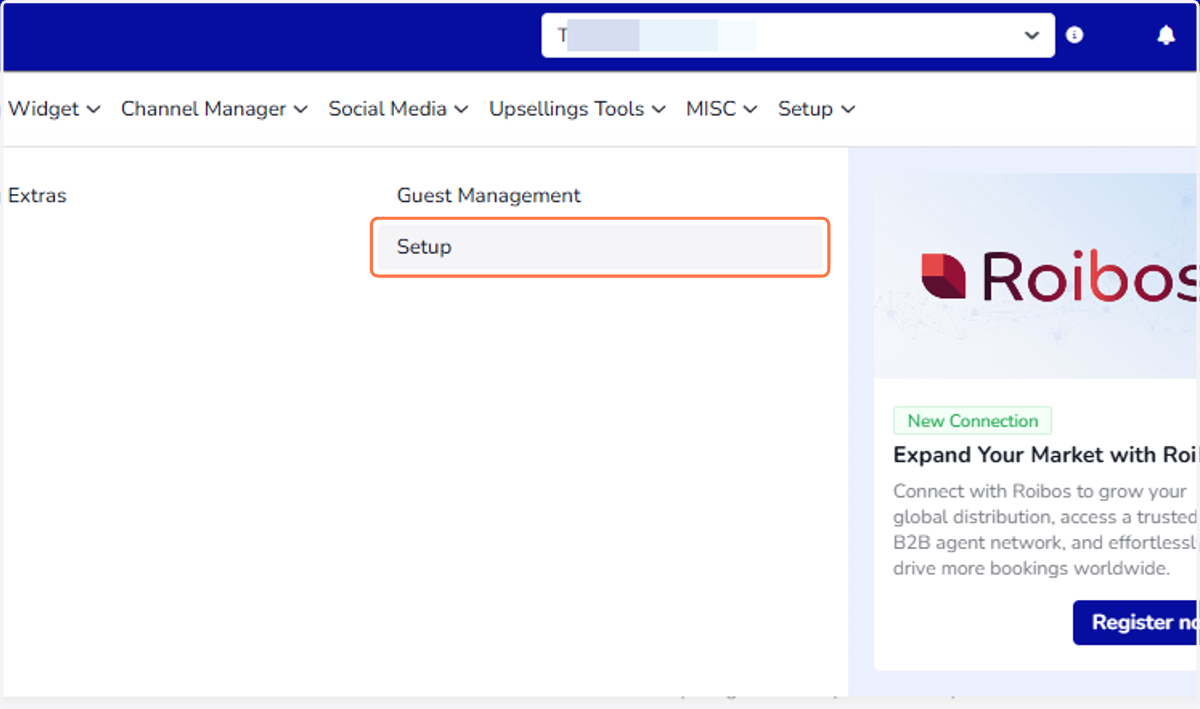
2. Click on Setup
3. In Accommodation name, type your accommodation name
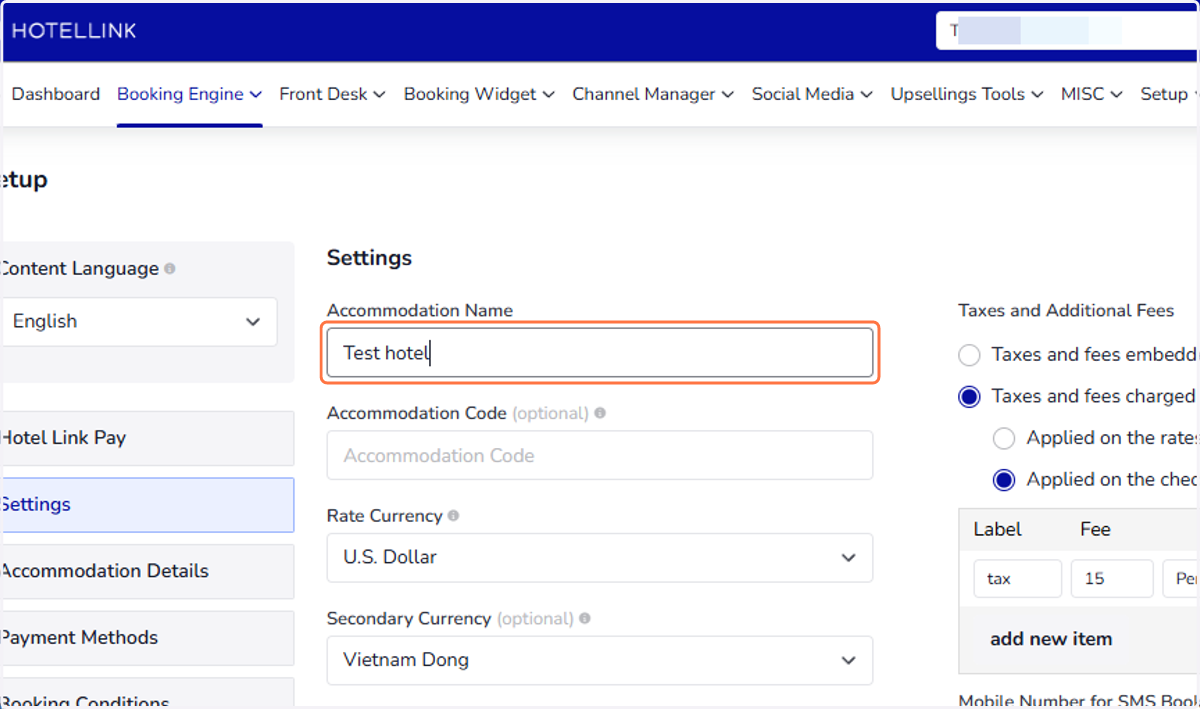
4. Accommodation code: Accommodation Code (hotelcode) is used to connect to the PMS or OTA-API. Please contact us if you need to generate the code. The code is distinct for each hotel.
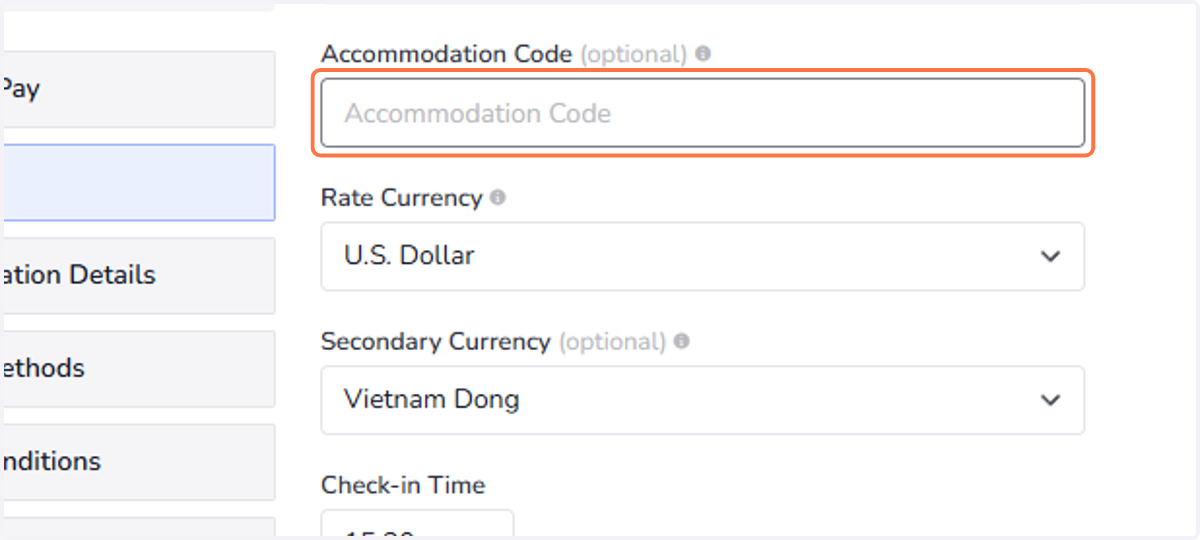
5. Rate Currency: Set the currency of the room rates entered in the Rates and Availability page.
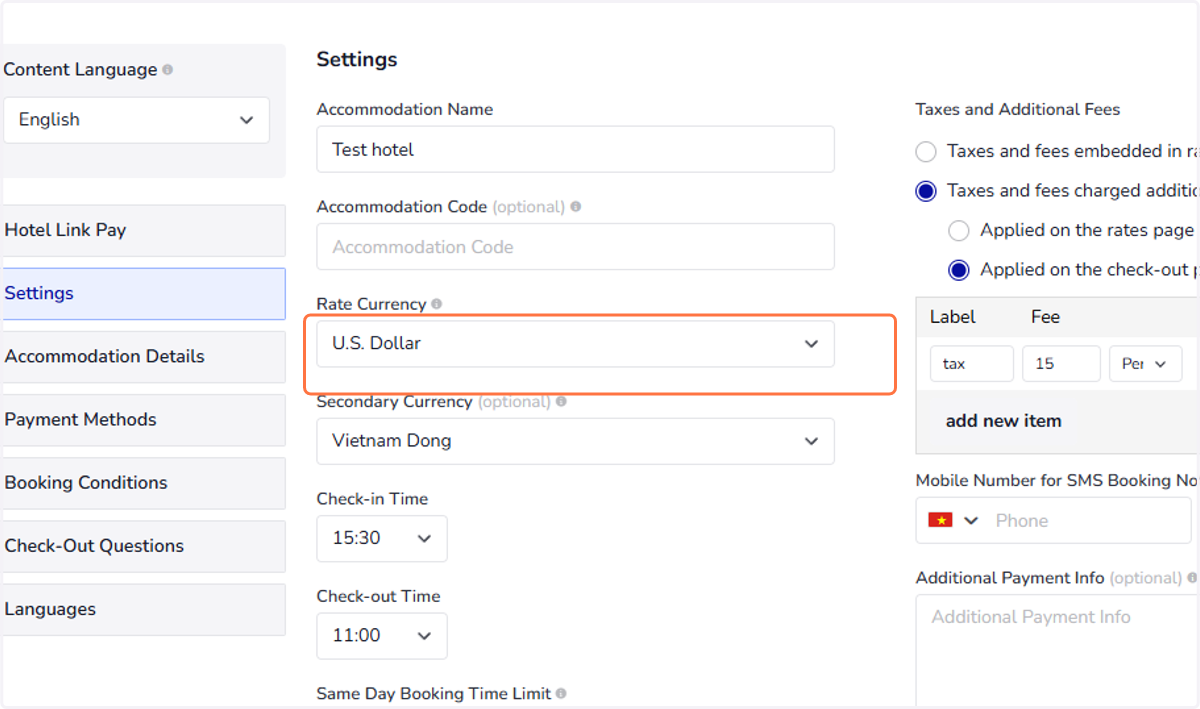
6. Secondary Currency (optional): The secondary currency is used for reference on the Booking Details page. The amount in the default currency is automatically converted to the secondary currency and will be displayed when the user downloads the booking invoice.
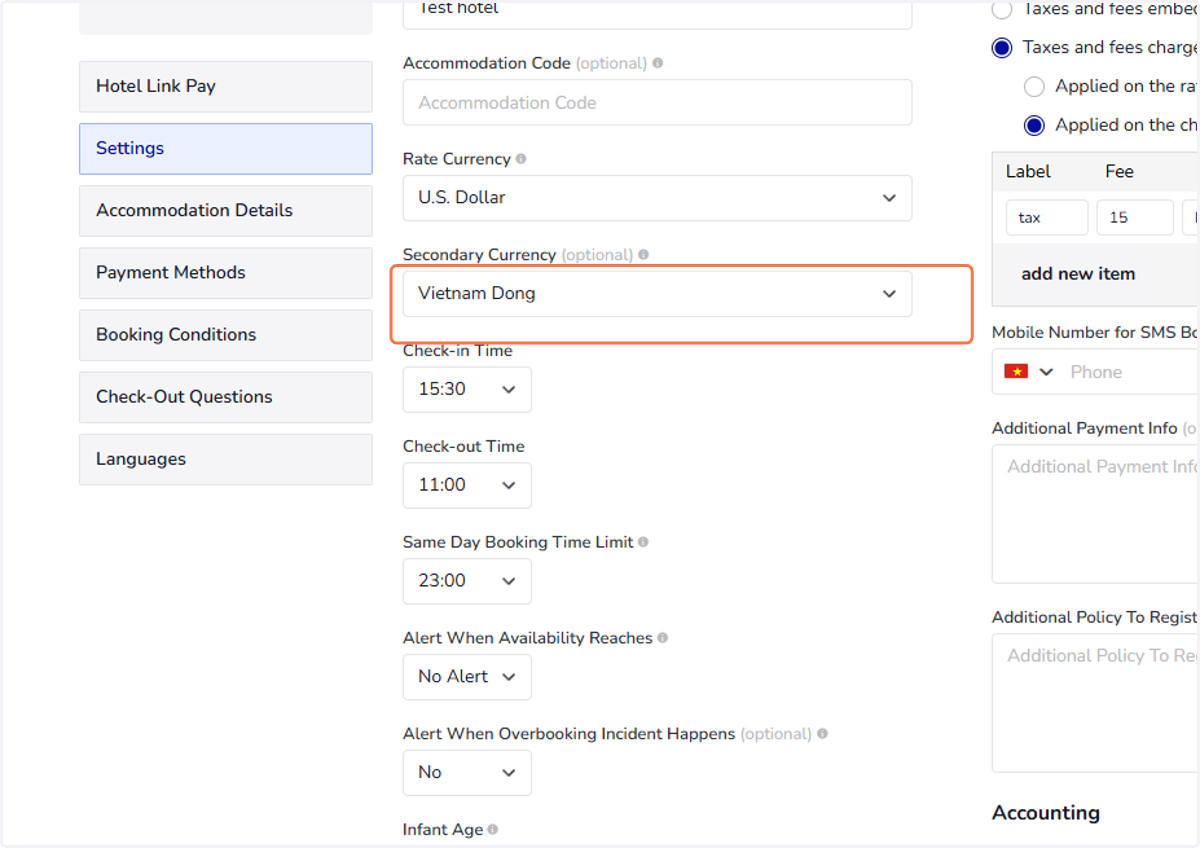
7. Check-in Time: Select time for the guests to check in at your accommodation
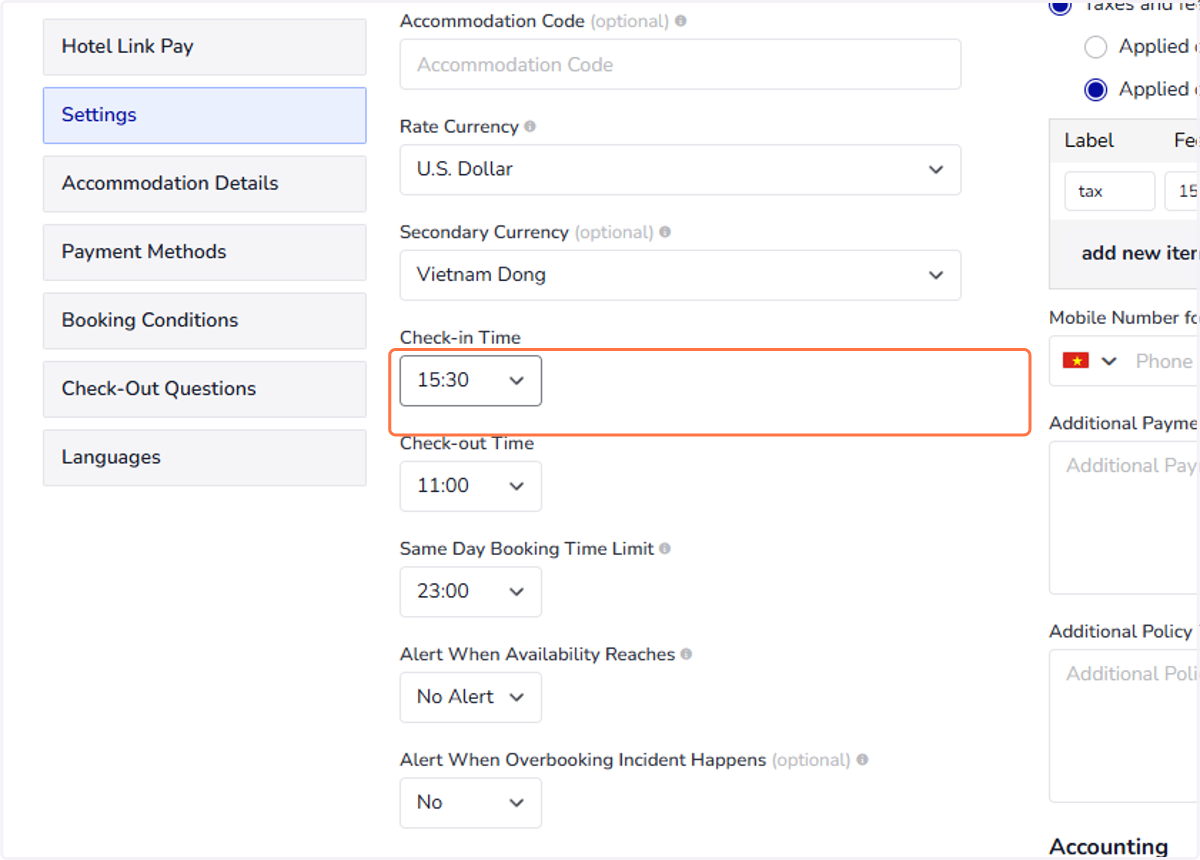
8. Check out time: Select time for the guests to check in at your accommodation
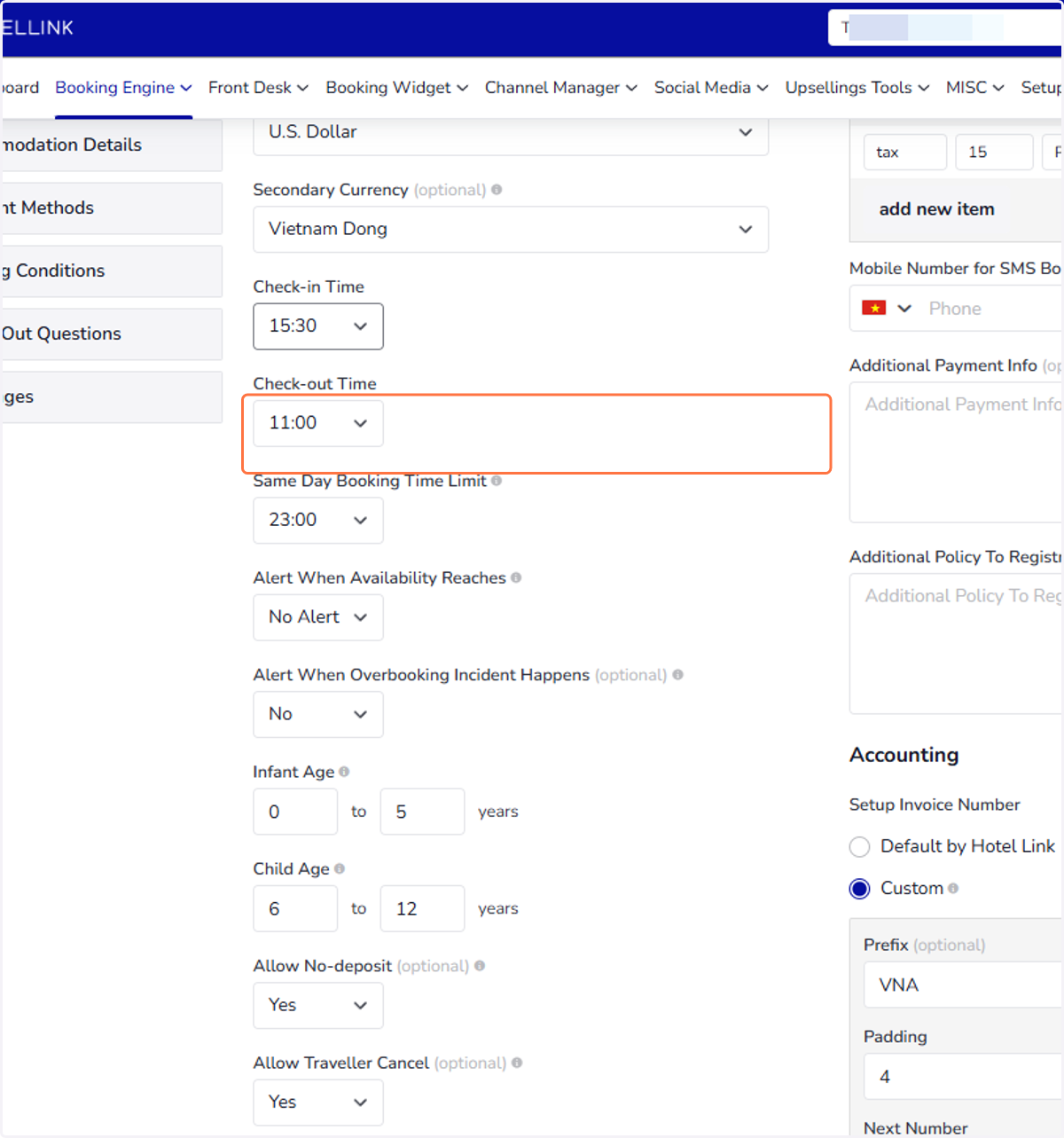
9. Same Day Booking Time Limit: Set the hour limit to receive bookings on the same day. Example: If the set hour is 14:00, travellers won't be able to book the accommodation on the same day after 14:00.
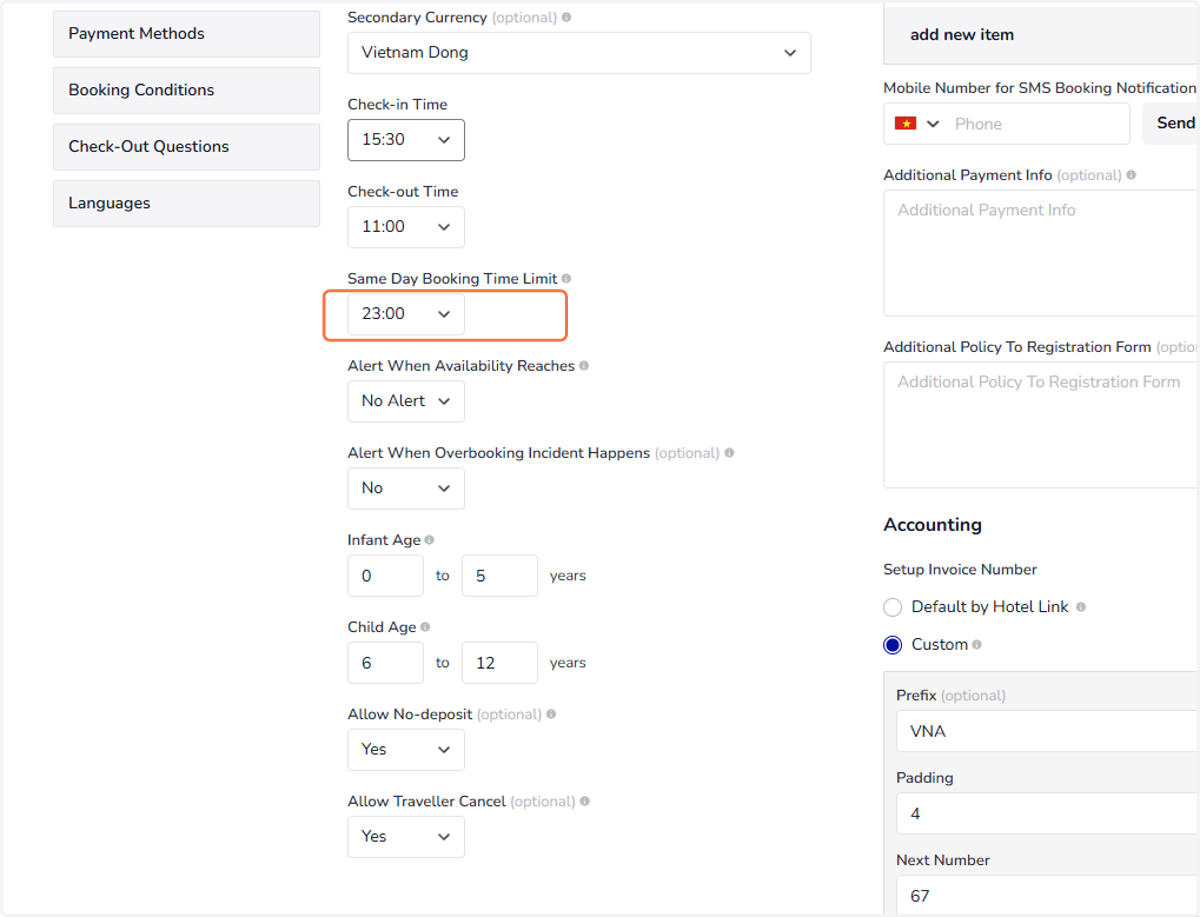
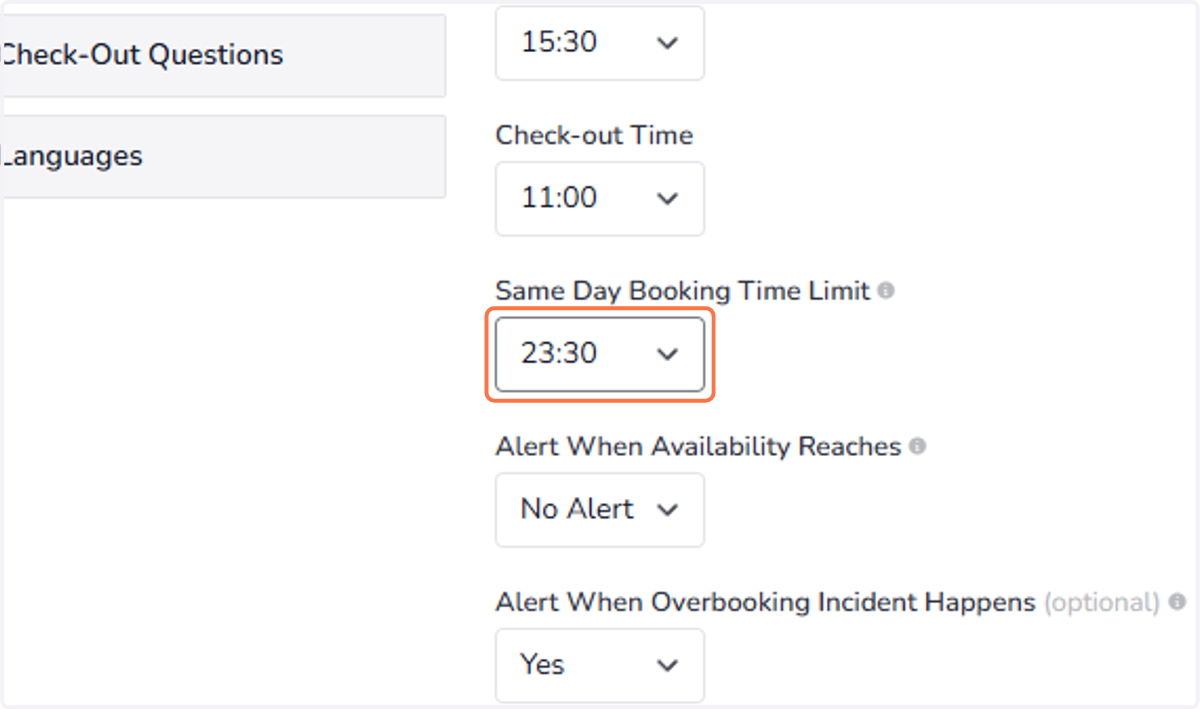
10. Last minute bookings: To always receive last minute bookings set the time to 23:30. To prevent same day bookings to happen set the time to 00:00.
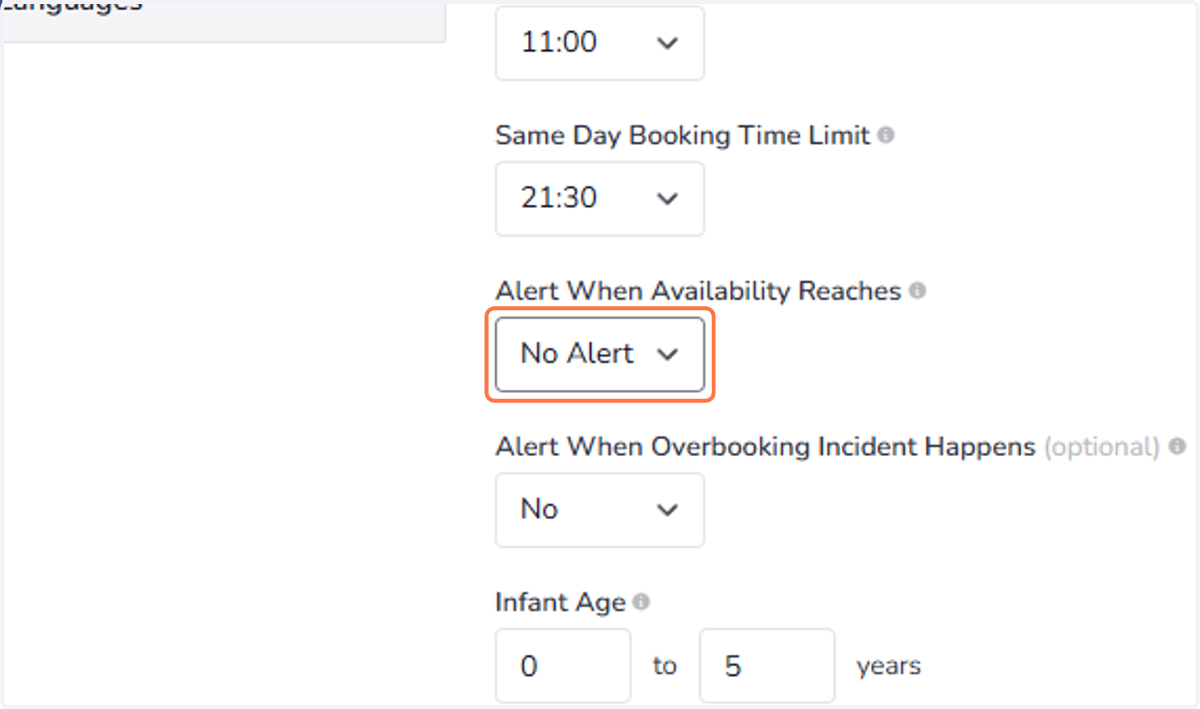
11. Alert When Availability Reaches: Activates an automated alert that is sent whenever the availability reaches the value set in the dropdown. If you do not want to receive alerts, select No Alert.
12. Alert When Overbooking Incident Happens (optional): Activates an automated alert that will be sent whenever the system detects any overbooking incident.
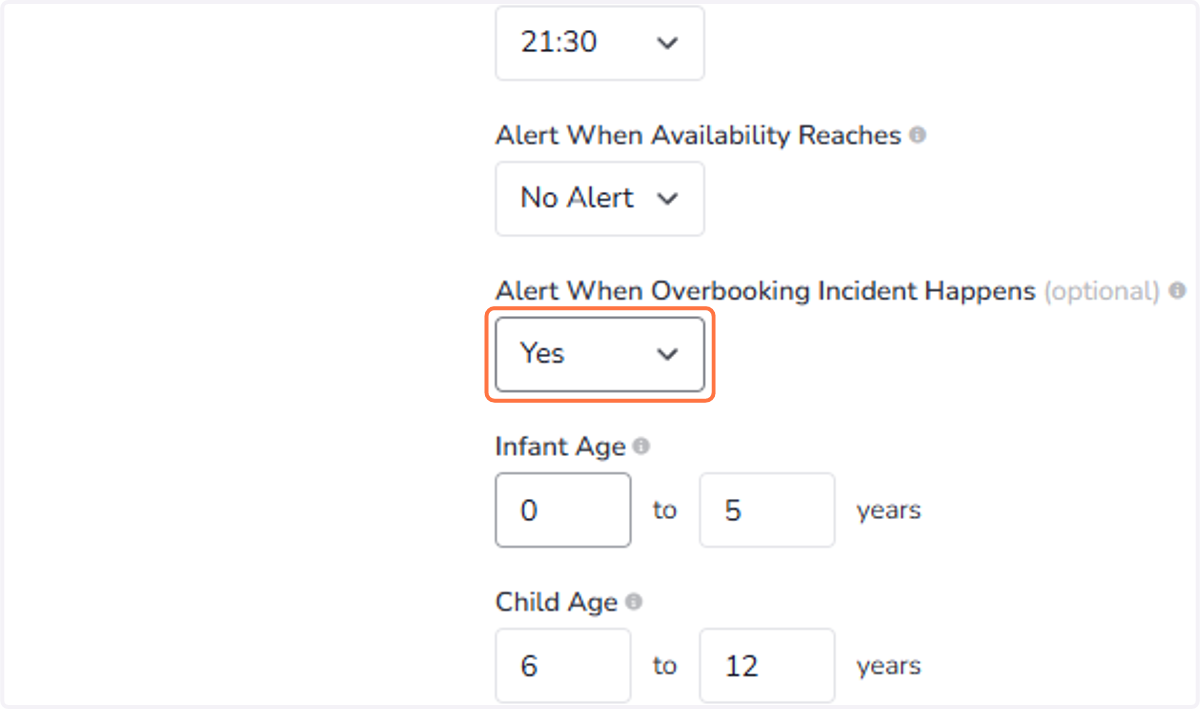
13. Infant Age: Defines the age of guests at which child can share the bed for free. Enter 0 to 0 to deactivate infant age.
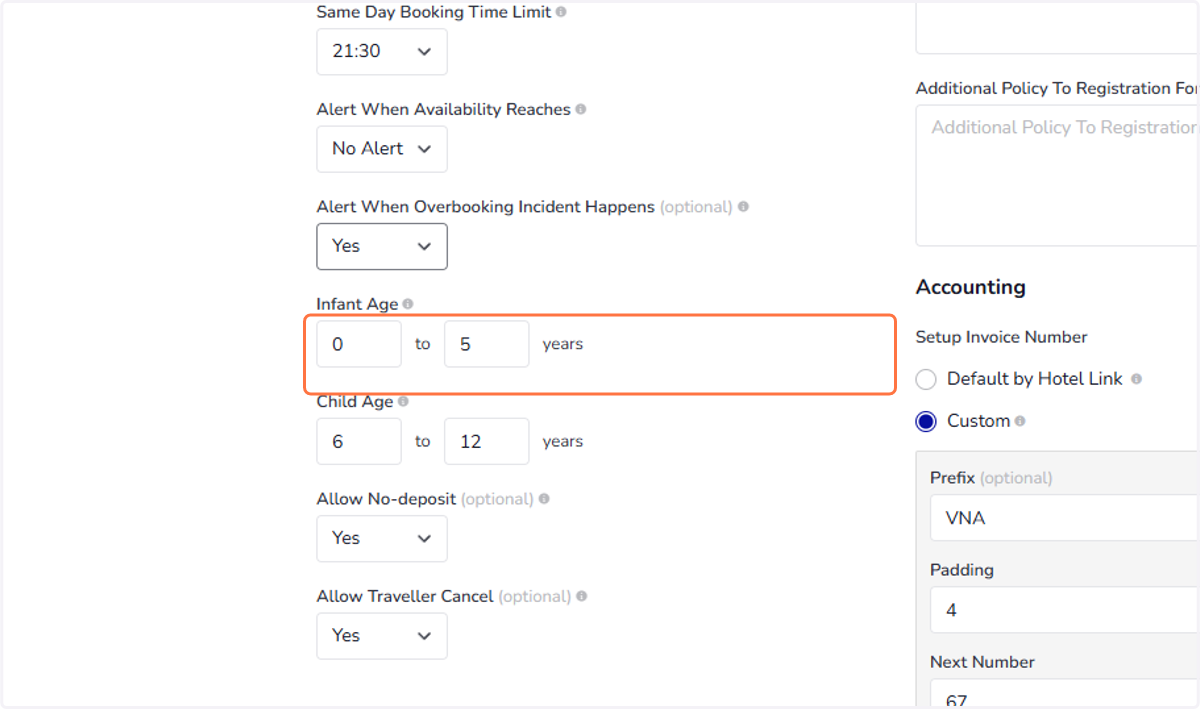
14. Child age: Set the age at which child can be charged extra fee. Enter 0 to 0 to deactivate child age.
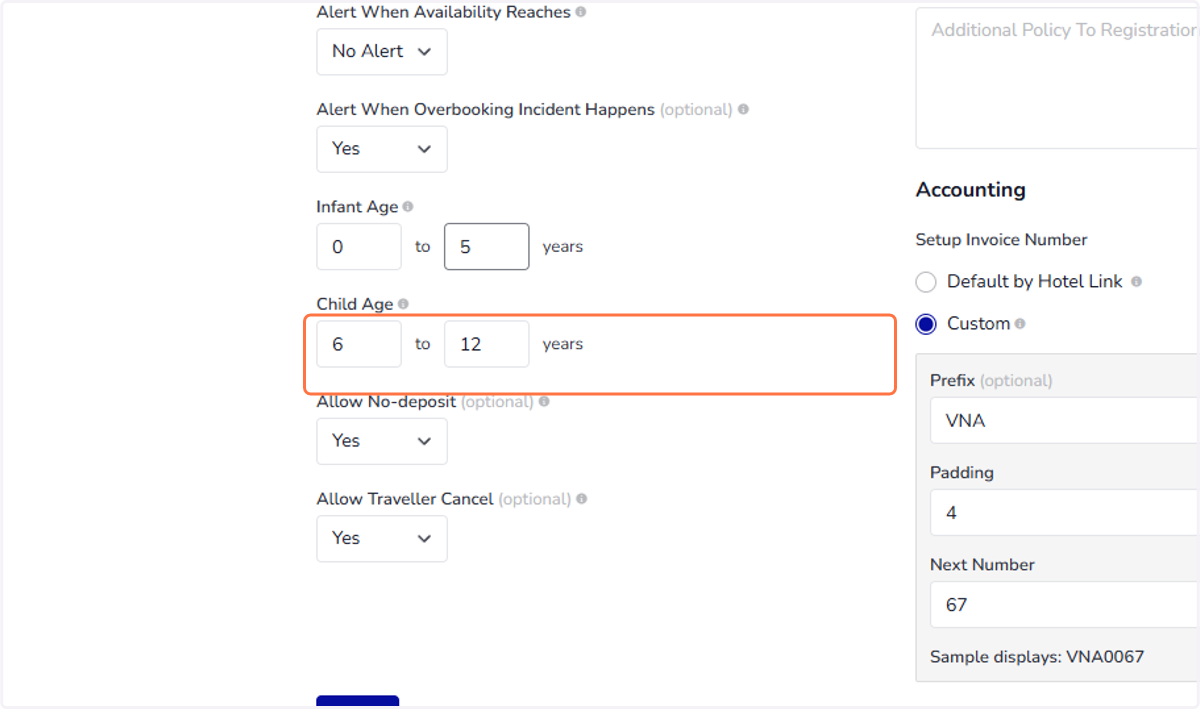
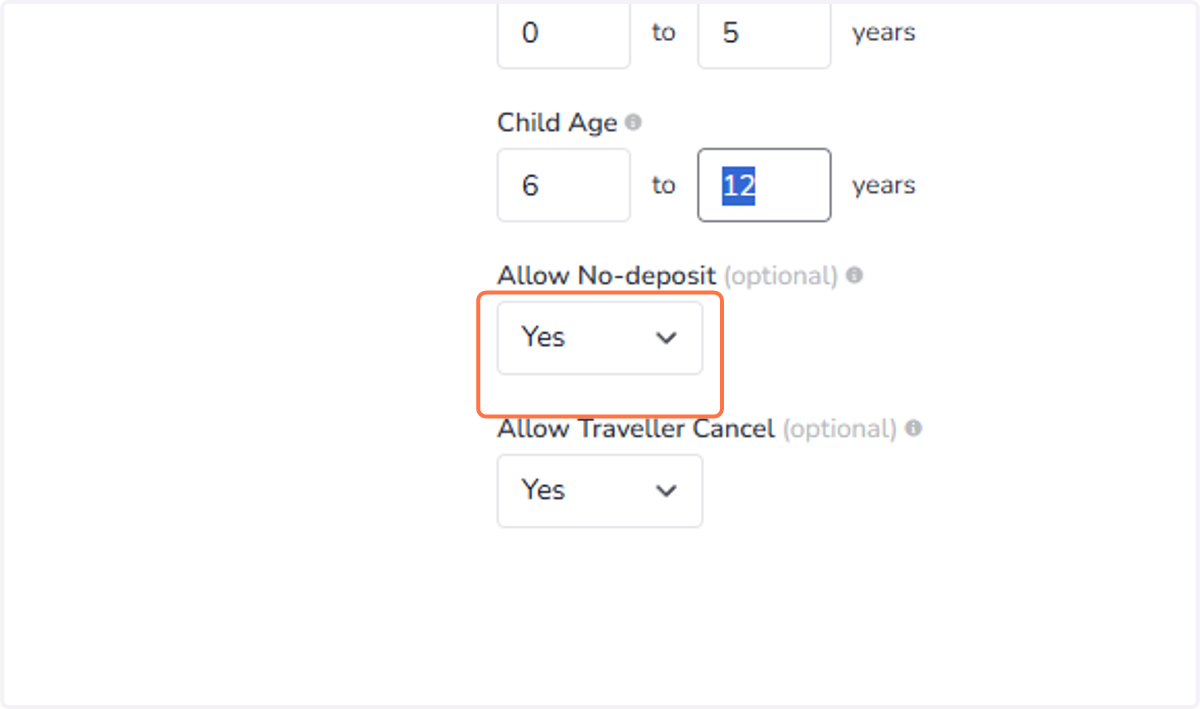
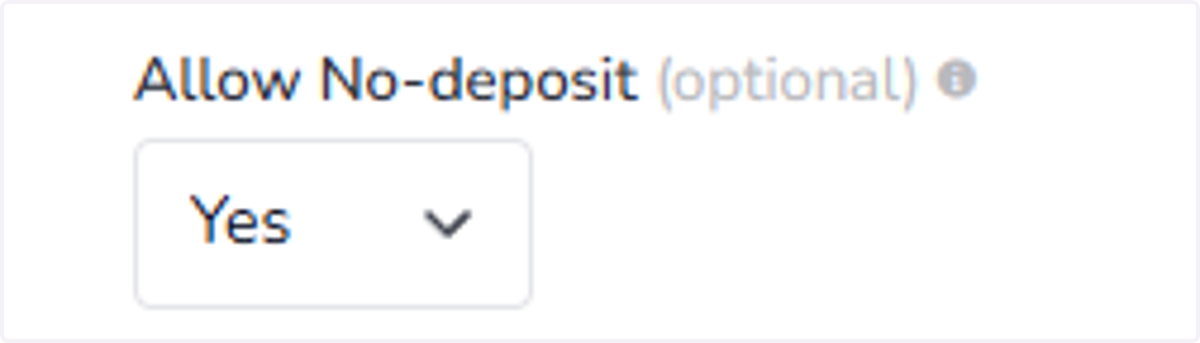
15. Allow No-deposit (optional):Set whether deposit is required when placing booking. After you set "Yes" for No-deposit, the system will hide payment section for travel agencies and show payment as it is for travellers.
16. No-deposit for travel agencies
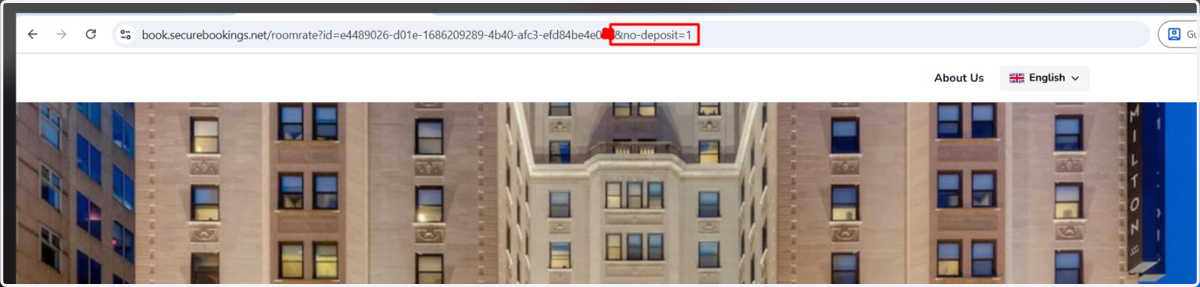
In order to make it work, you need to add 1 more parameter in the standalone booking page so you can send this link directly to your agent partners. With this parameter in the URL, system will not require deposit even it is set in Payment Methods page.
The parameter is: &no-deposit=1
17. For example
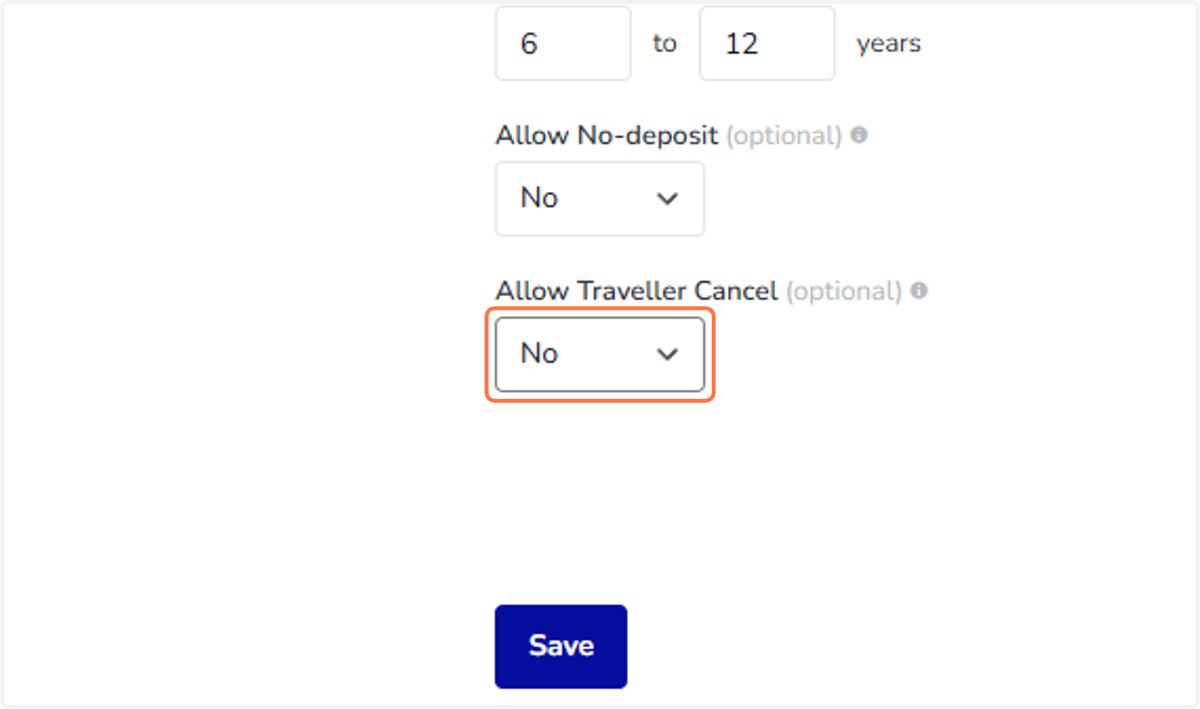
18. Allow Traveller Cancel (optional): Defines if you allow the travellers to cancel the reservation by themselves. If you set "No", the travellers will need to contact you via email or phone call to cancel their reservation.
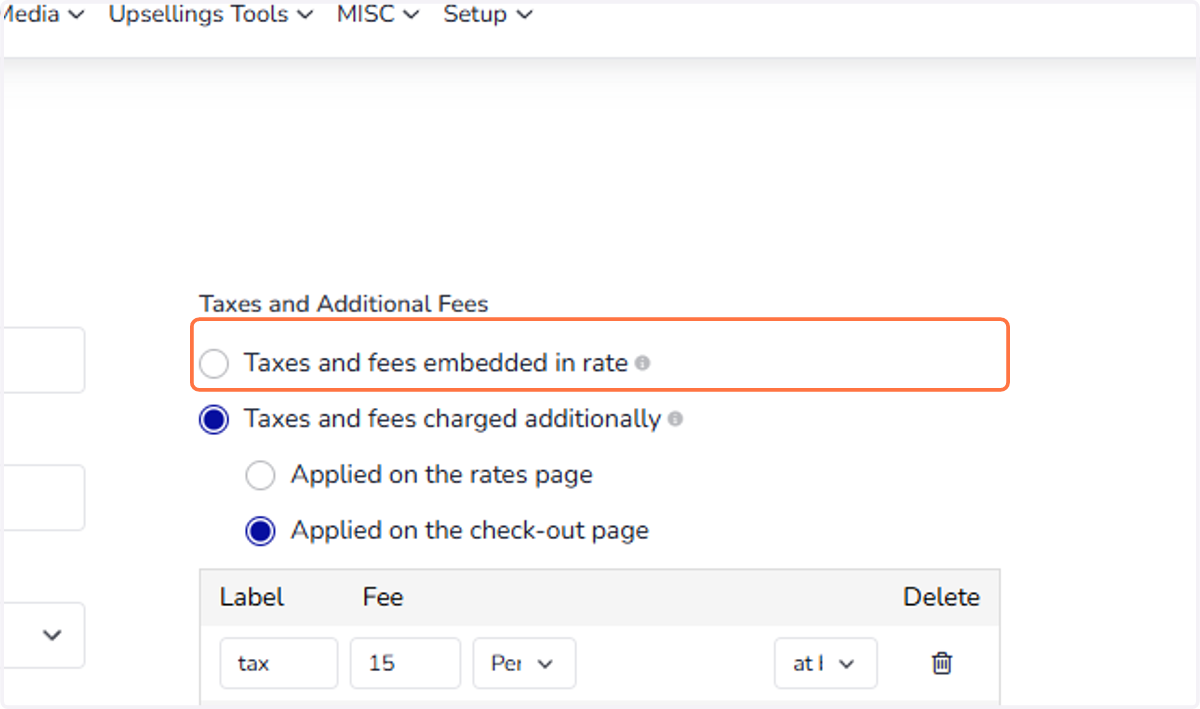
19. Taxes and Additional Fees
To set taxes and additional fees, click here to learn more.
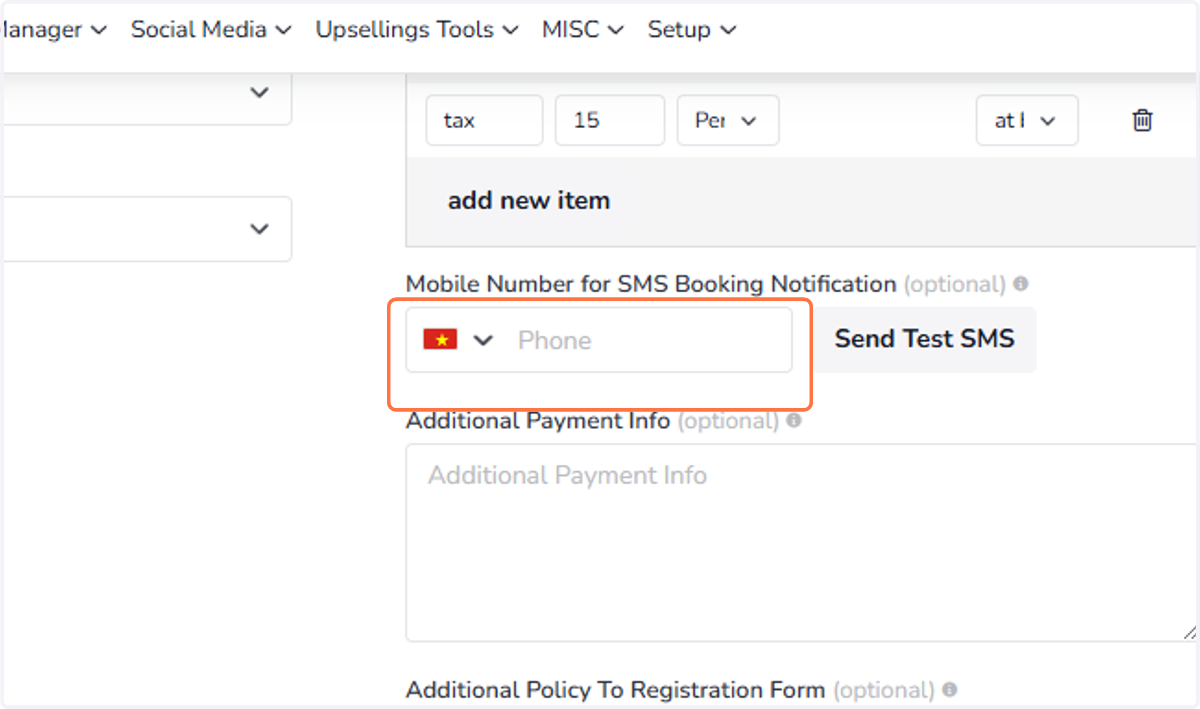
20. Mobile Number for SMS Booking Notification
To set up SMS notification for new bookings via mobile, click here for more details.
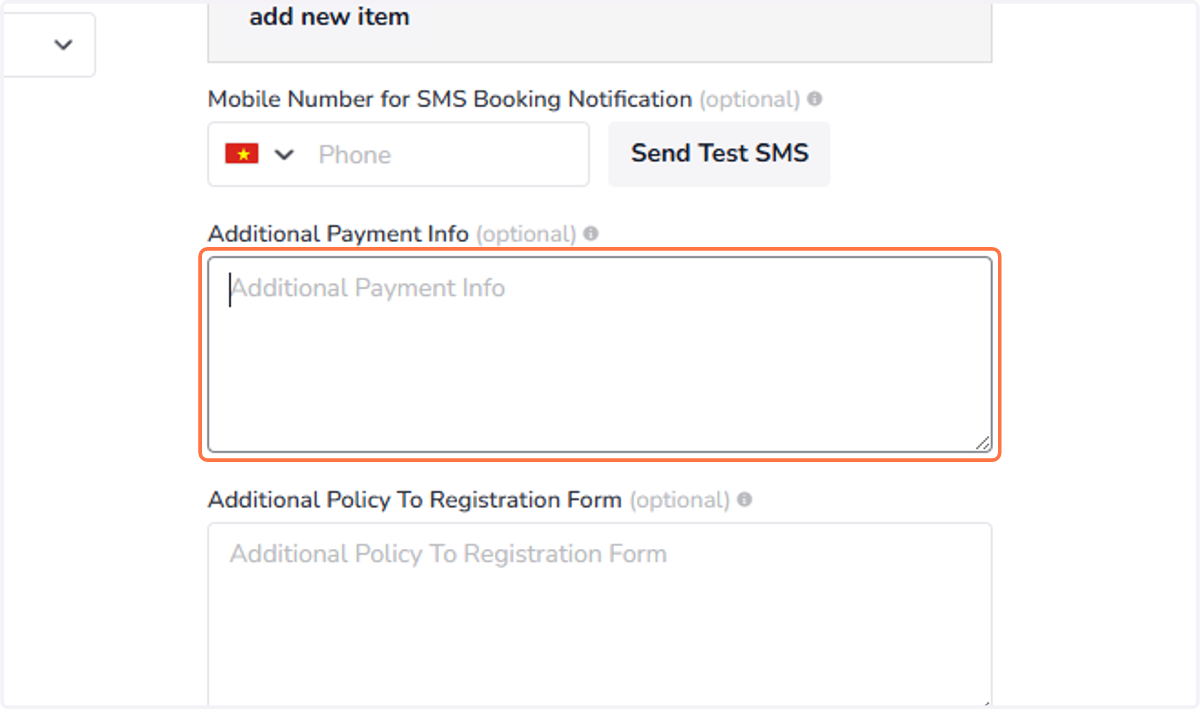
21. Additional Payment Info (optional): Voucher payment info allows to add the payment information text that will appear in both the Invoice voucher and the Registration Form.
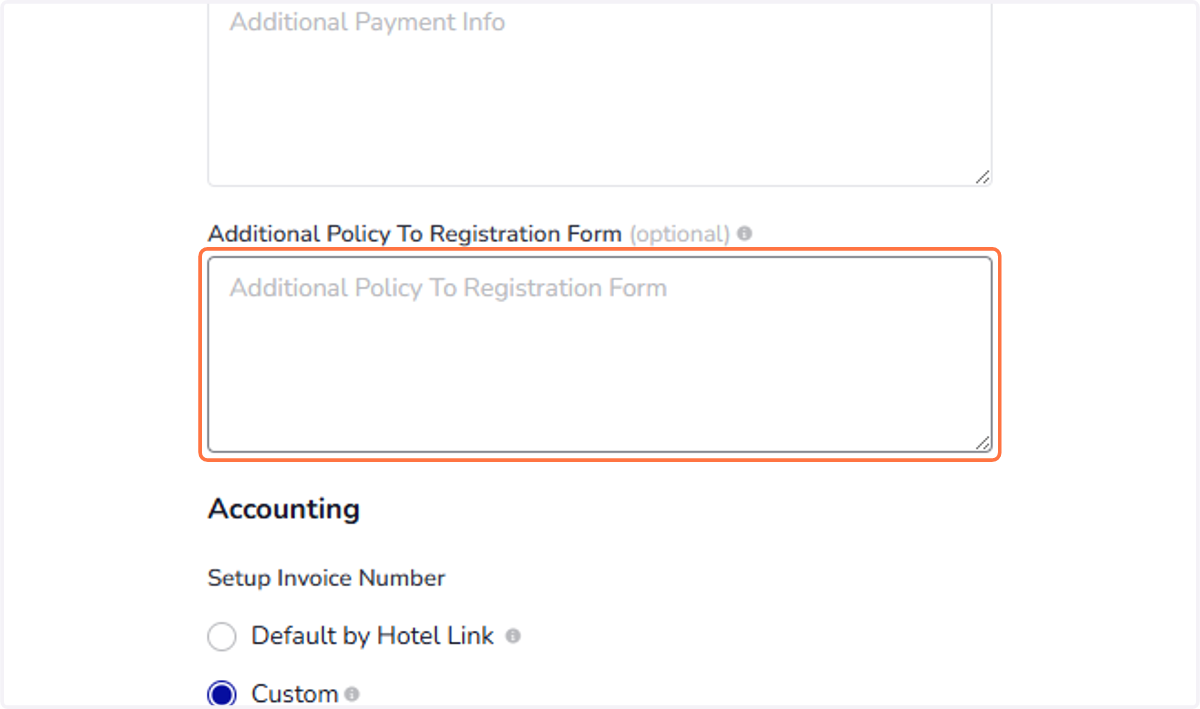
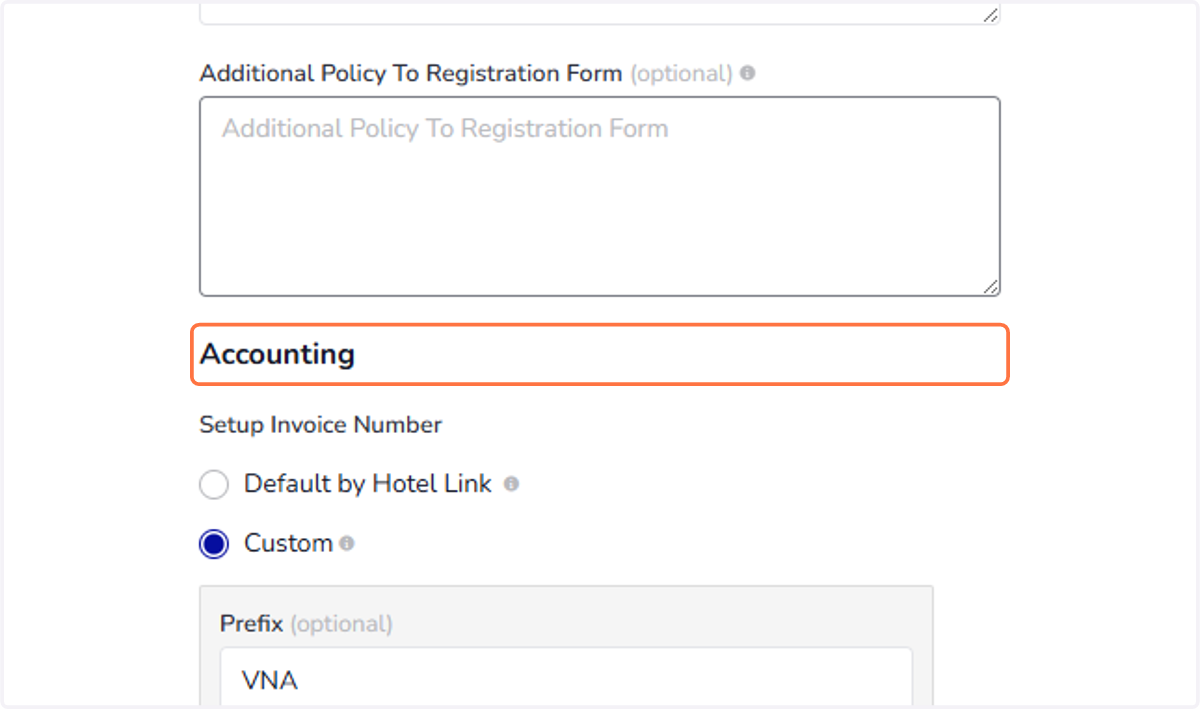
22. Additional Policy To Registration Form (optional): This allows adding the addition policy text. This paragraph content has a limitation of length in the frame of A4 paper.
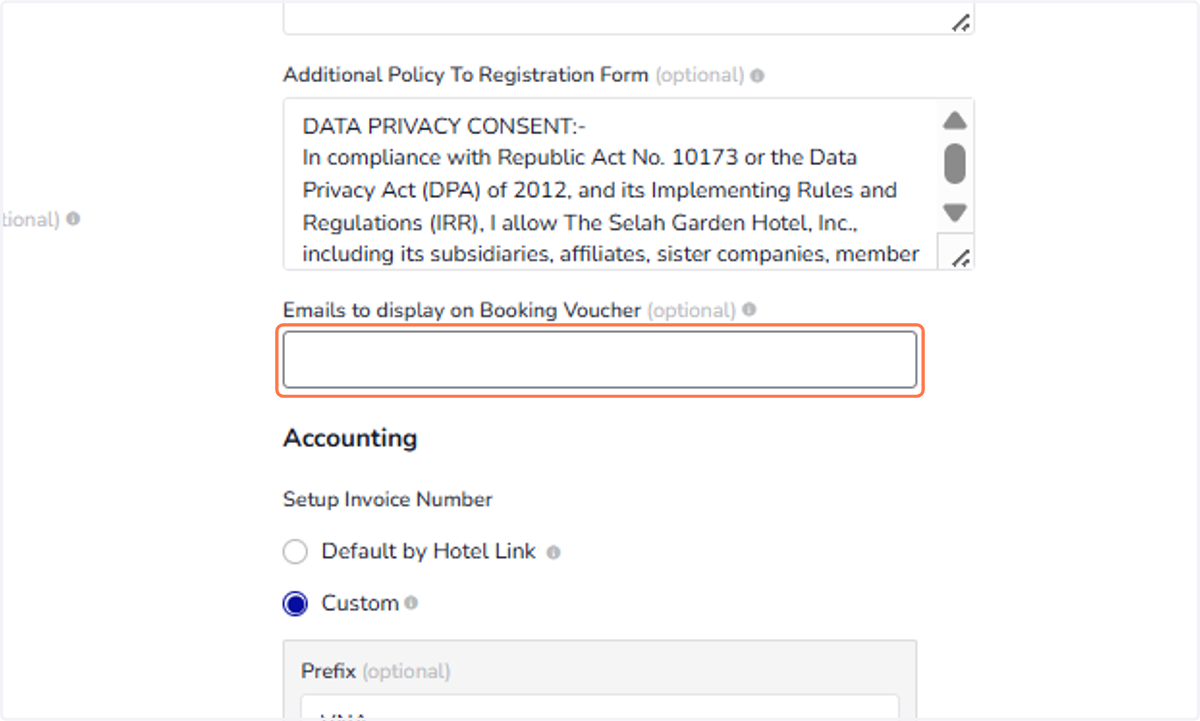
23. Emails to display on Booking Voucher (optional): To show different emails on the Booking Voucher (instead of the ones in Reservation Email), you can enter new email addresses in this new field. As a result, the system will use only these for displaying on the Booking Voucher.
24. Accounting
You can customzie invoice numbers to match your hotel's preferences. To learn more, click here.
25. Once you complete all of the steps, click 'Save'.