Using a Credit Note

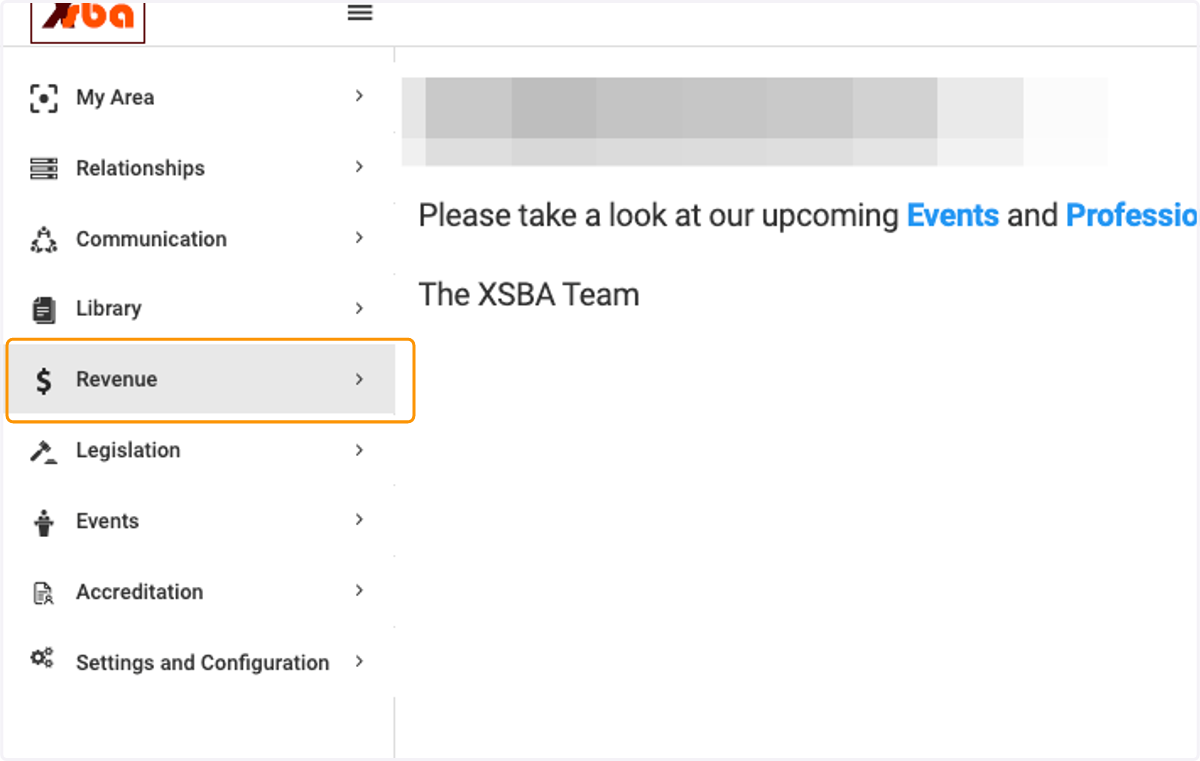
  1. 1. Click on Revenue

    Click on Revenue
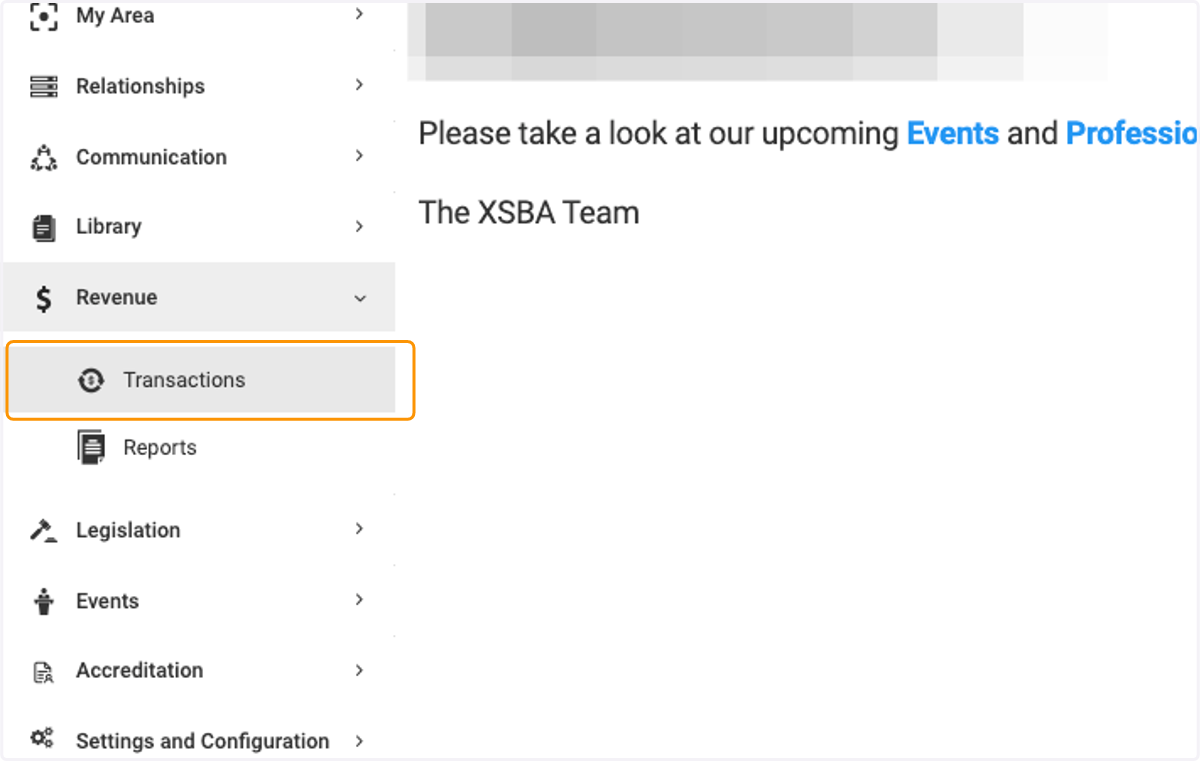
  2. 2. Click on Transactions

    Click on Transactions
  3. 3. Select the Credit Note you wish to use from the list of all transactions
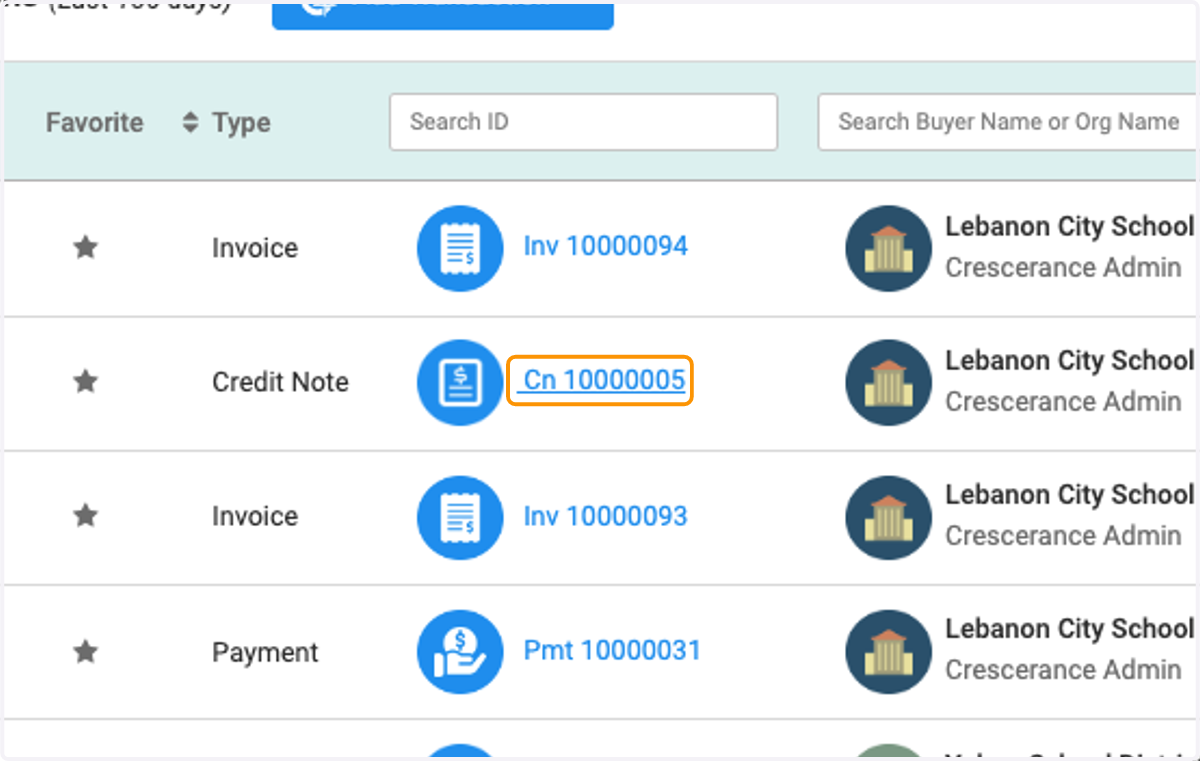
    Select the Credit Note you wish to use from the list of all transactions
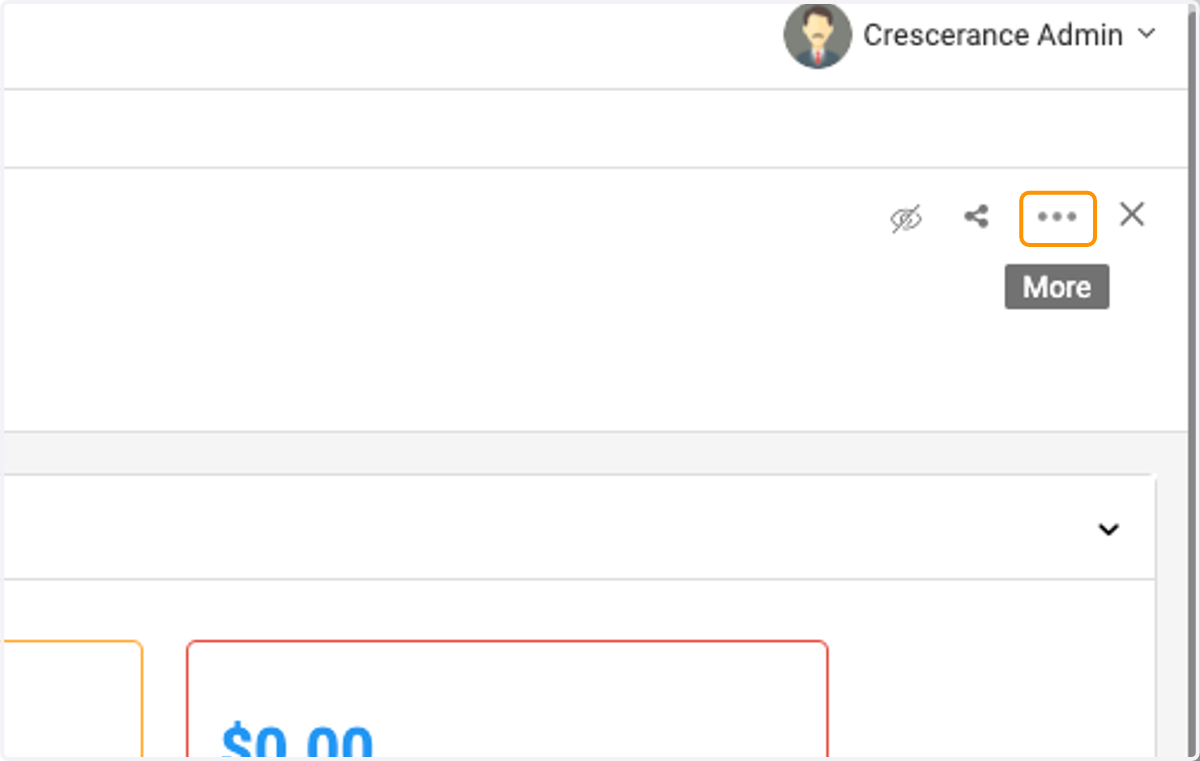
  4. 4. Click on the three dots

    Click on the three dots
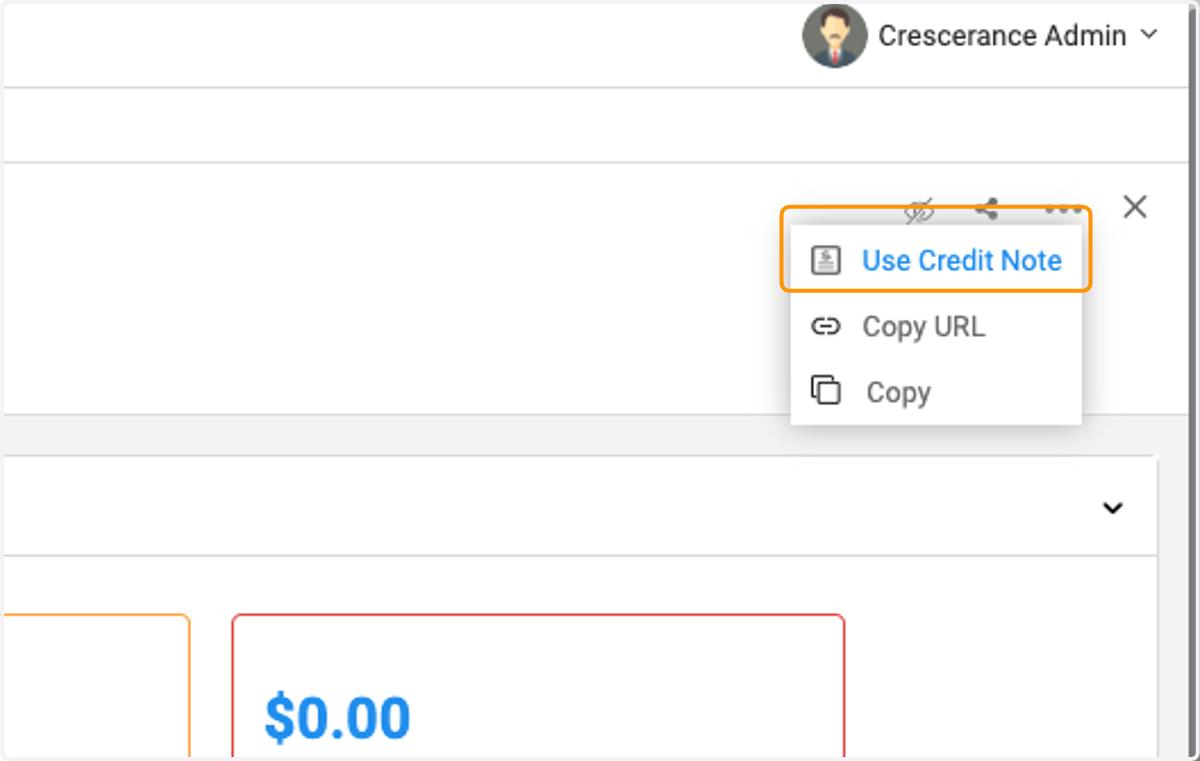
  5. 5. Click on Use Credit Note

    Click on Use Credit Note
  6. 6. Click on Select to apply against an existing unpaid invoice
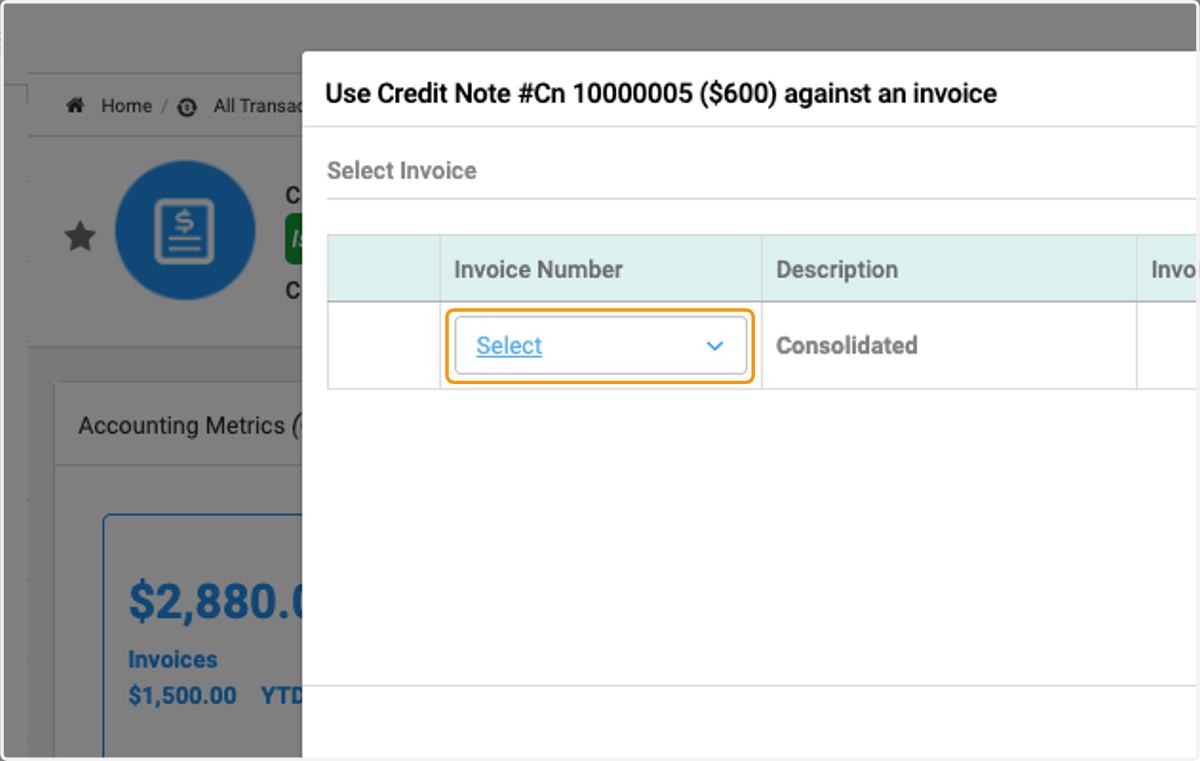
    Click on Select to apply against an existing unpaid invoice
  7. 7. Select invoice from the drop down list
    Select invoice from the drop down list
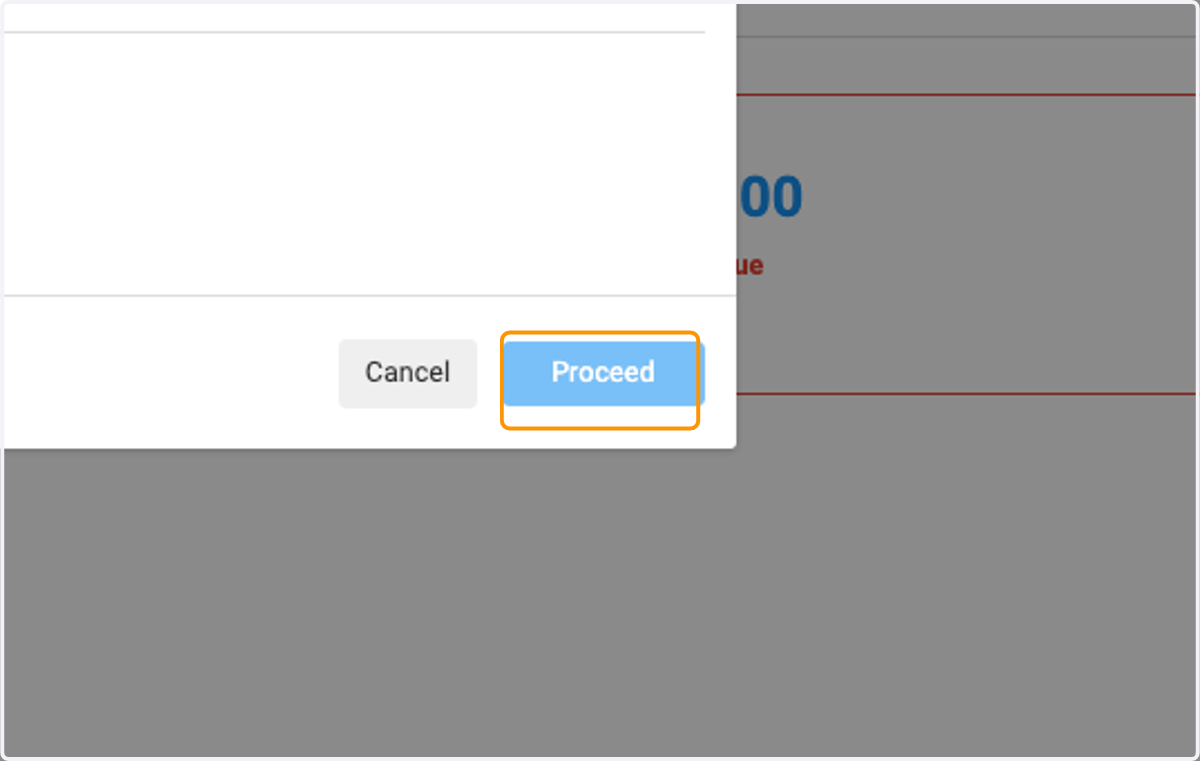
  8. 8. Type amount of credit you wish to use to pay this invoice
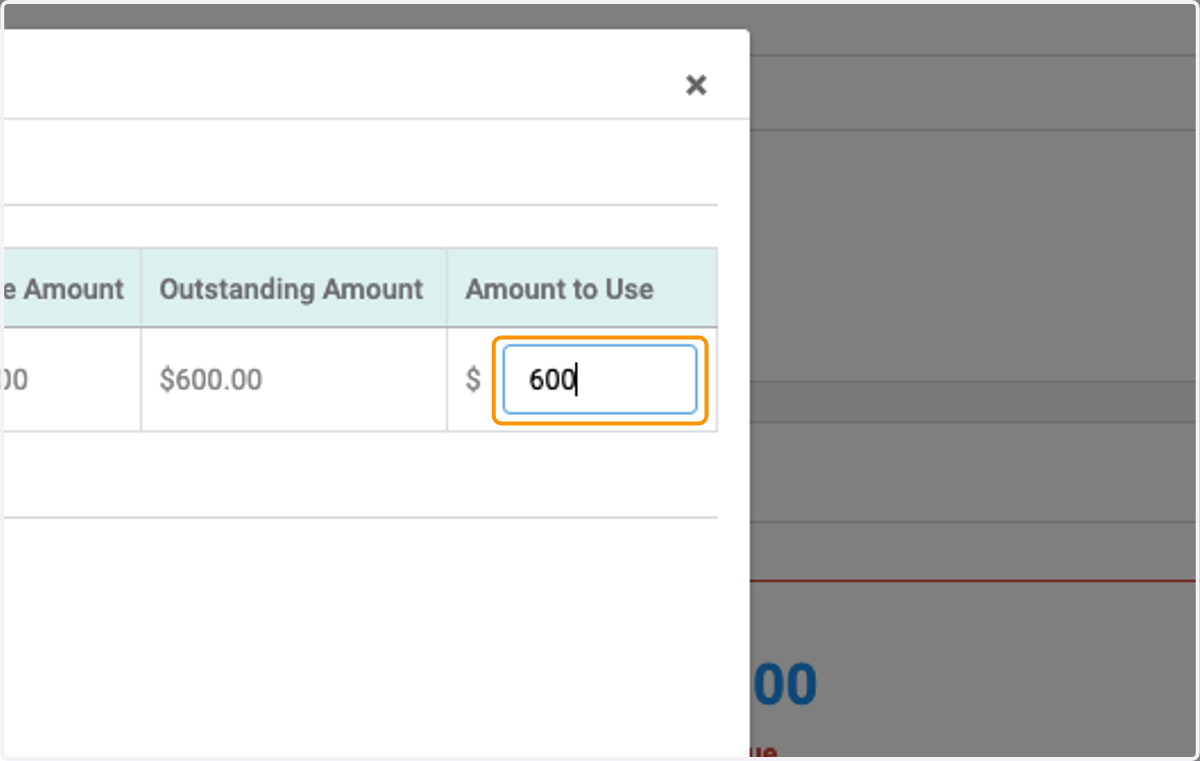
    Type amount of credit you wish to use to pay this invoice
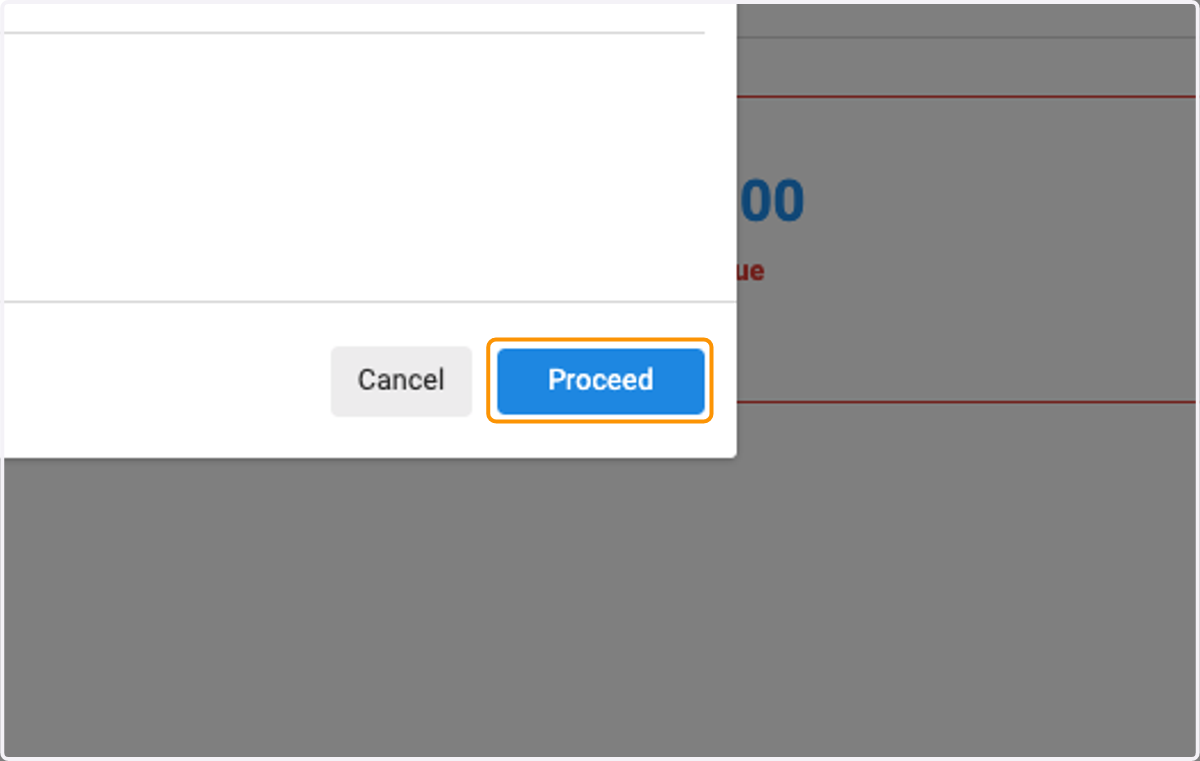
  9. 9. Click on Proceed

    Click on Proceed
  10. 10. Window pops up letting you know credit was applied successfully
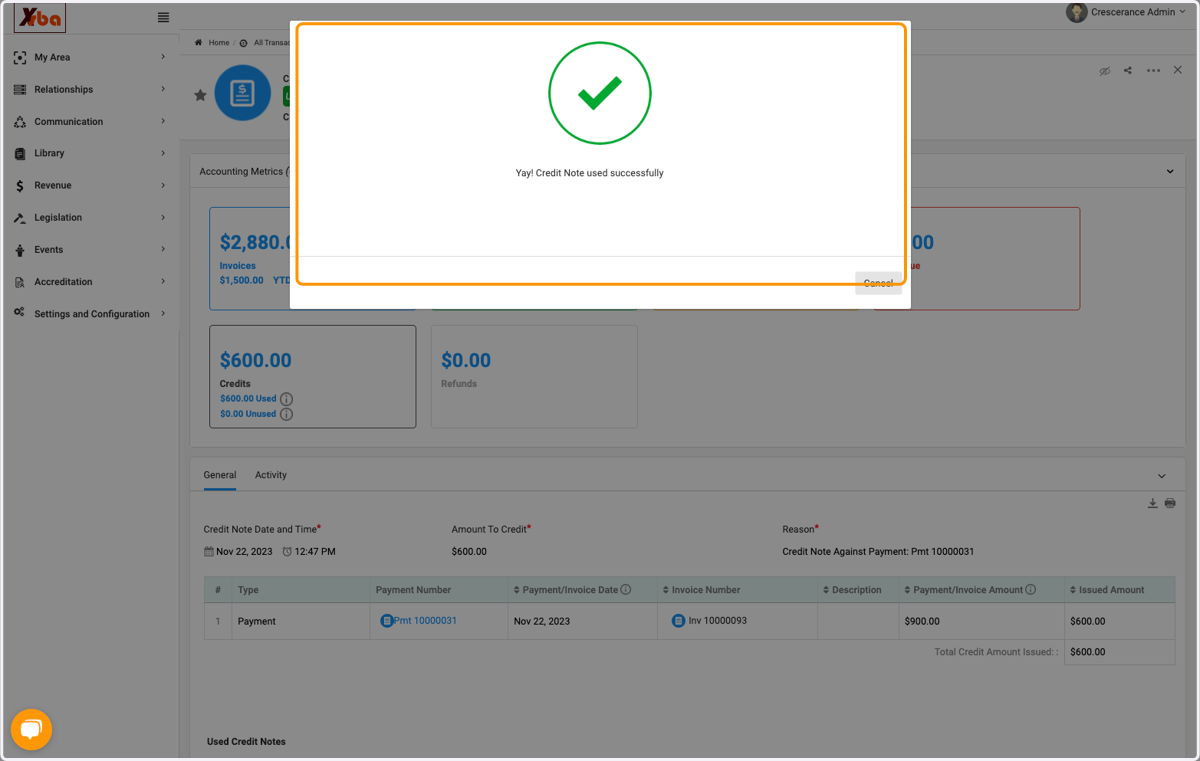
    Window pops up letting you know credit was applied successfully
  11. 11. From the details view, you can see amount of credits and credits used
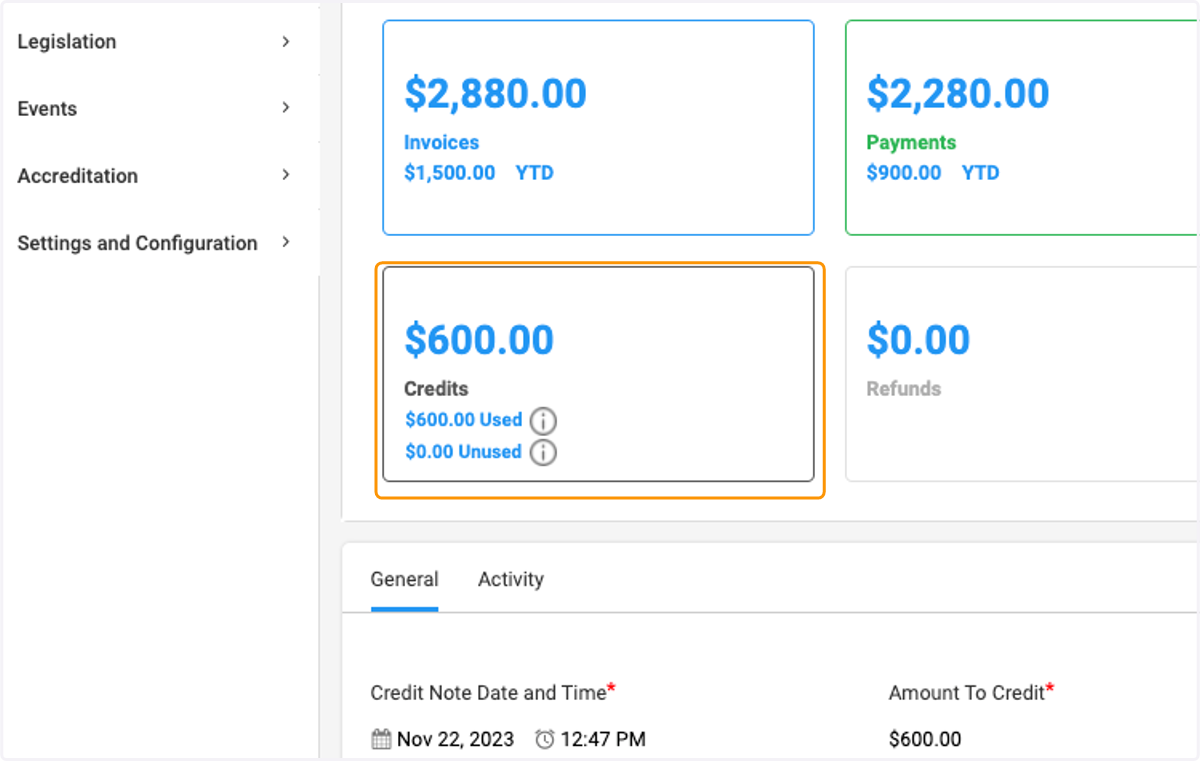
    From the details view, you can see amount of credits and credits used