How to add a new Program Administrator to a Program account
*If the new Program Admin does not yet have an account, skip to Step 5 to Add A New Account first.
firefox
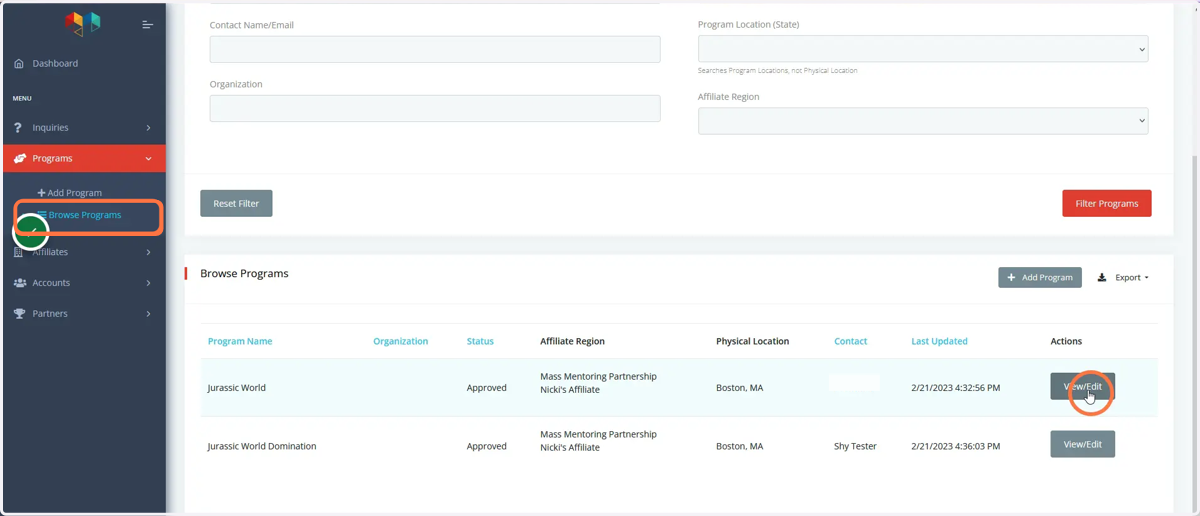
1. 1. Log into your Mentoring Connector account and click Browse Programs to see a list of your programs. 2. Click Edit on the Program that you wish to add the new admin to. 3. Note: there are filters to use here if you are searching for a specific program.
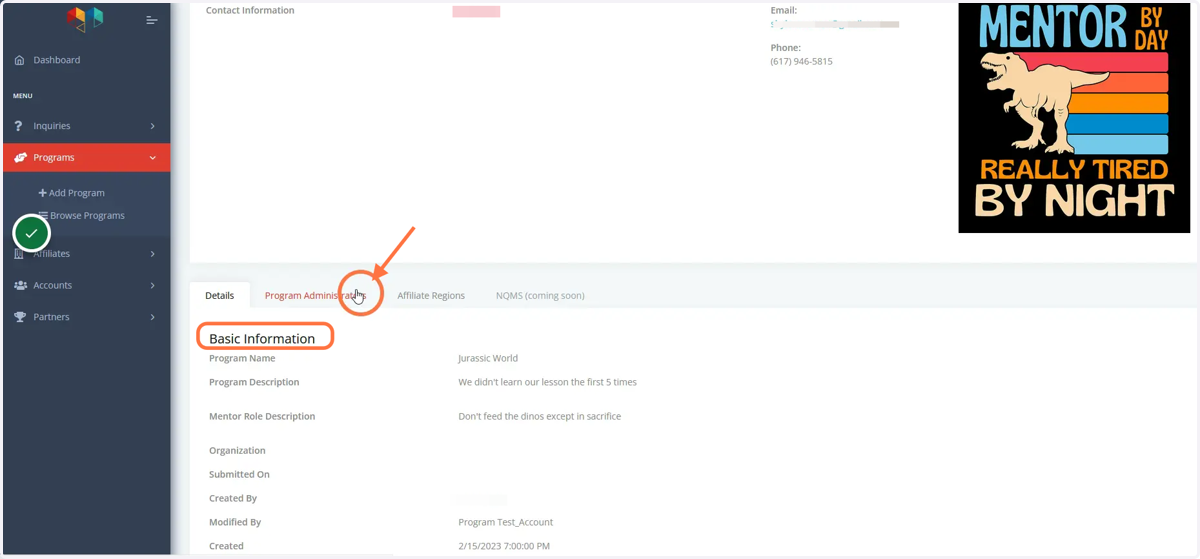
2. Click the Program Administrators tab on the program page to see a list of the admins.
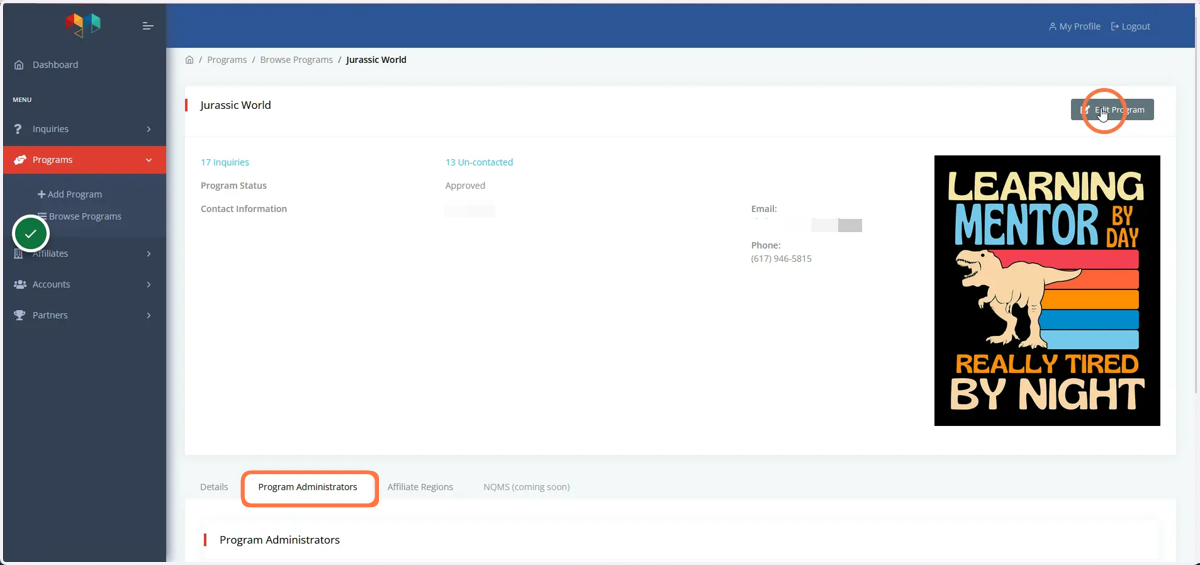
3. To add a new Program Admin, click the Edit Program button in the top right.
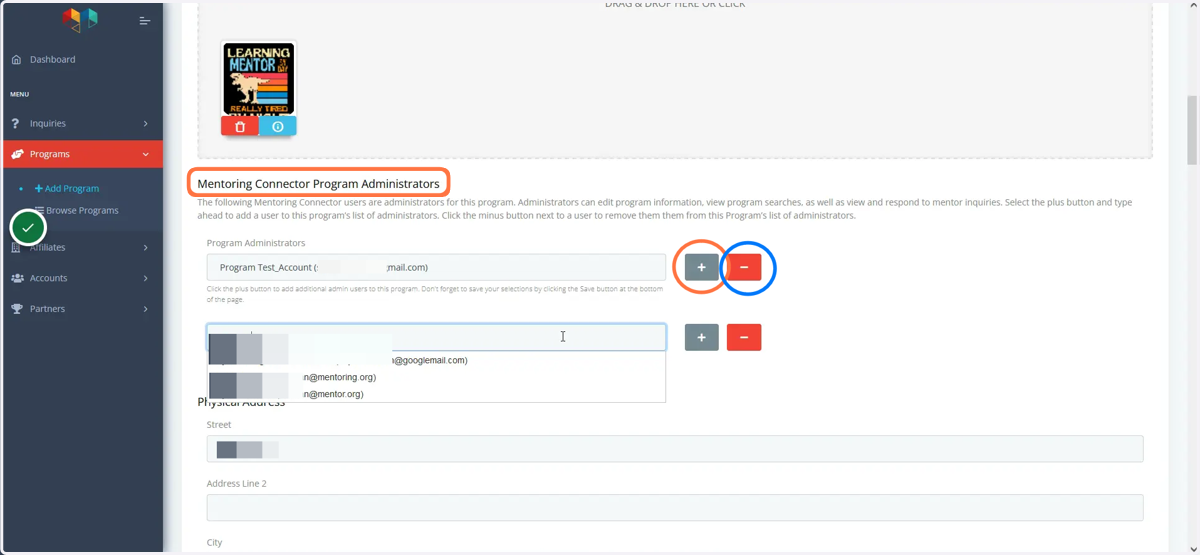
4. To add a Program Admin, click the Plus sign (+) to bring up another Program Admin field. If they have an account, their name and email address will appear to choose. Click Save to finish. To Remove an existing Program Admin, click the Minus sign (-) to remove the account.
5. How to Create A New Admin Account
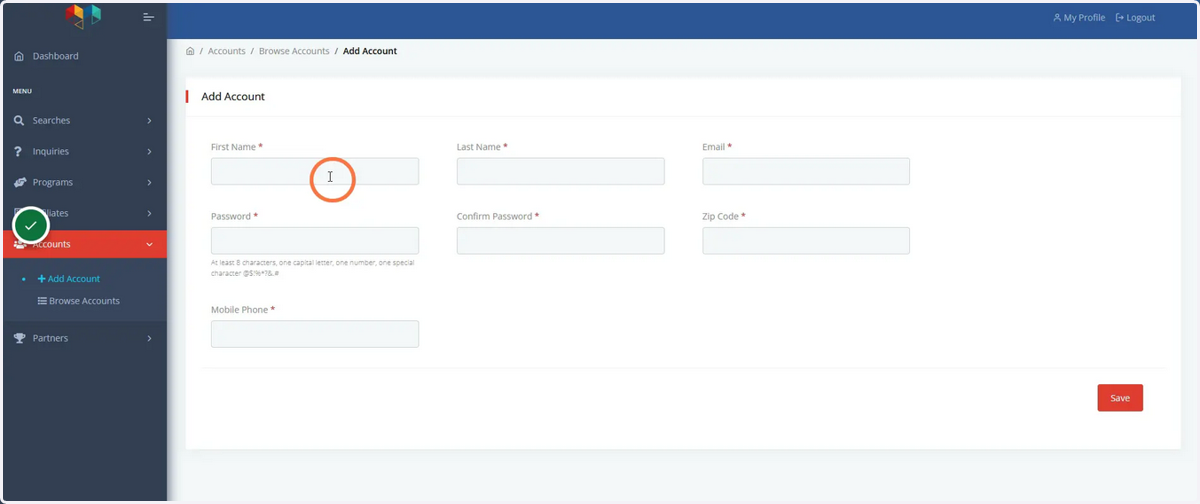
Click Add Account under the Accounts tab.
Fill out the account information, including password and phone number.
Click Save
To add this new account as a Program Admin to a program, return to step 1.