How to set up Google Tag Manager for SightMap Event Tracking?
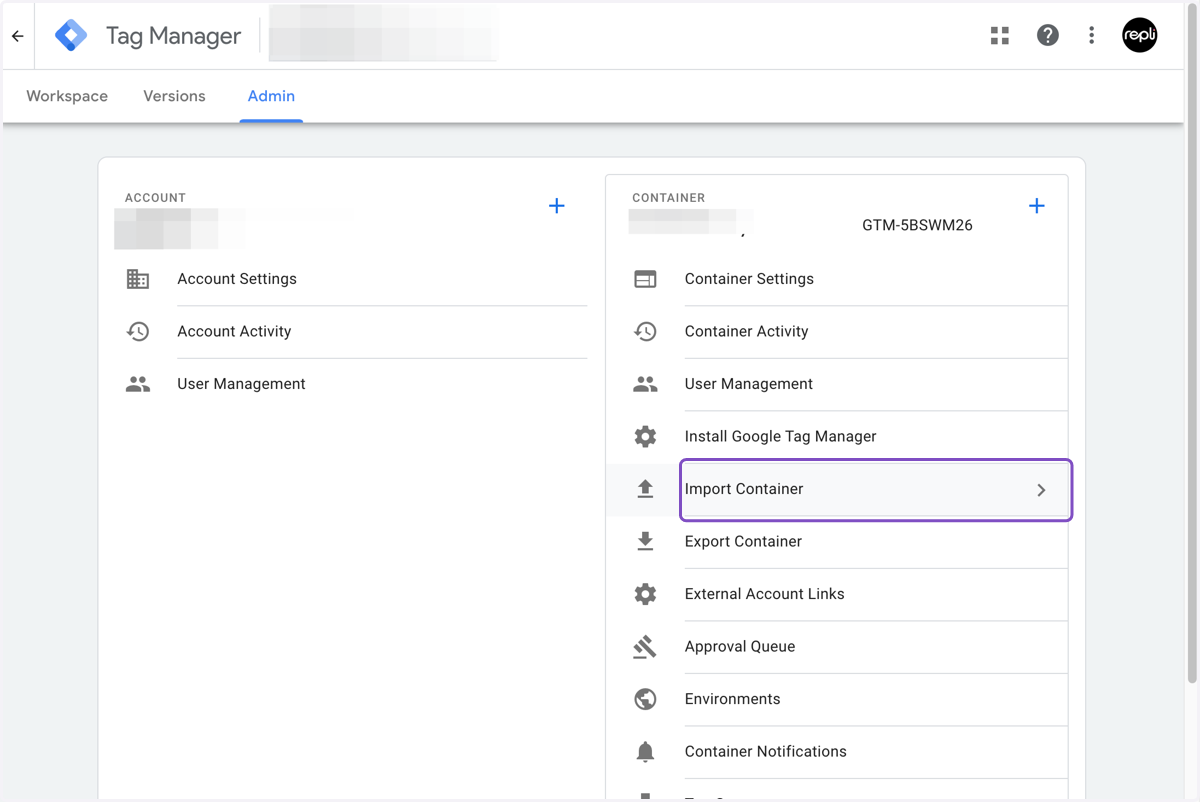
1. Click on Admin
2. Click on Import Container
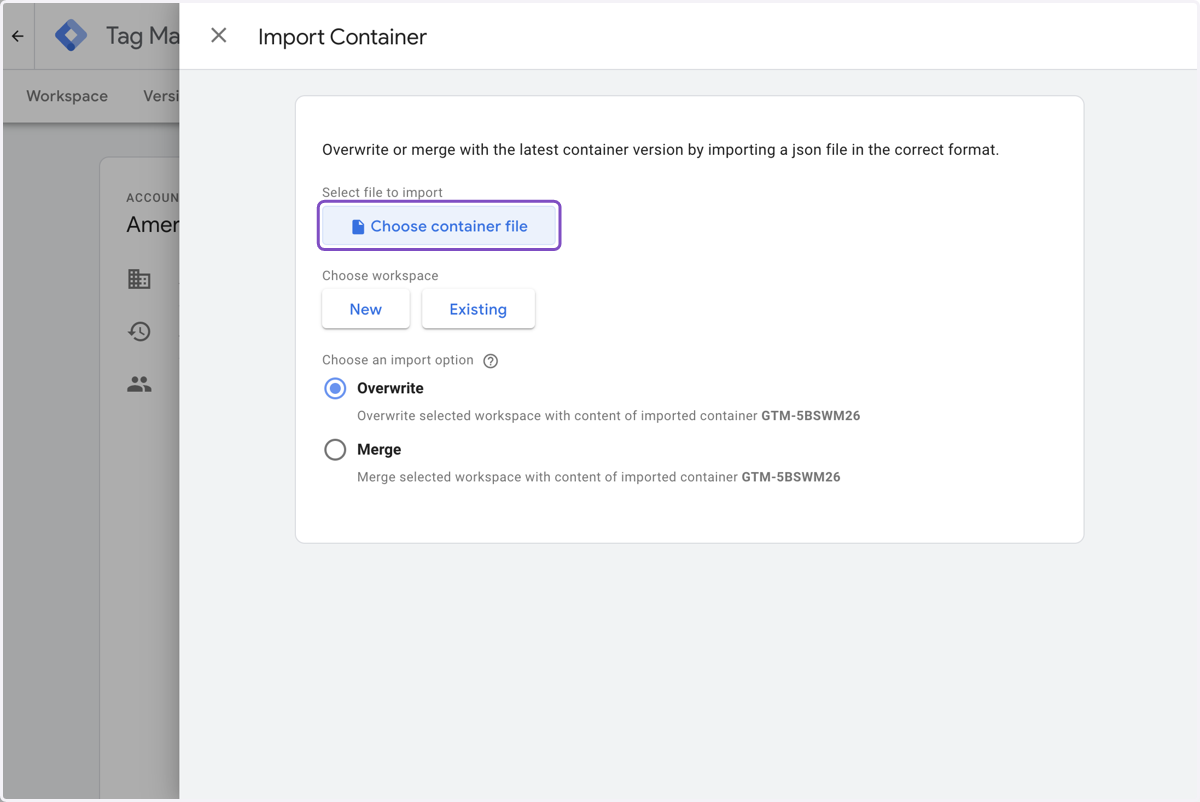
3. Click on Choose container file
4. Select "Engrain SightMap Event Tracking.json" from file upload menu
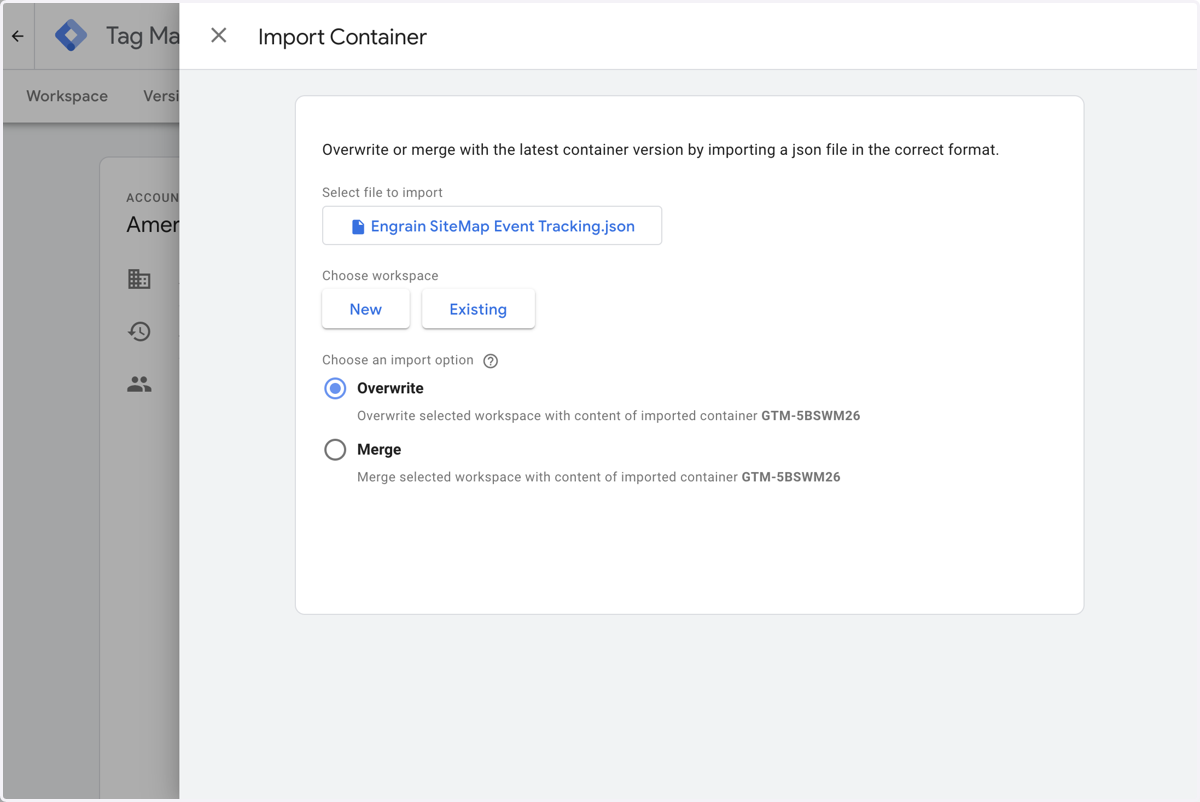
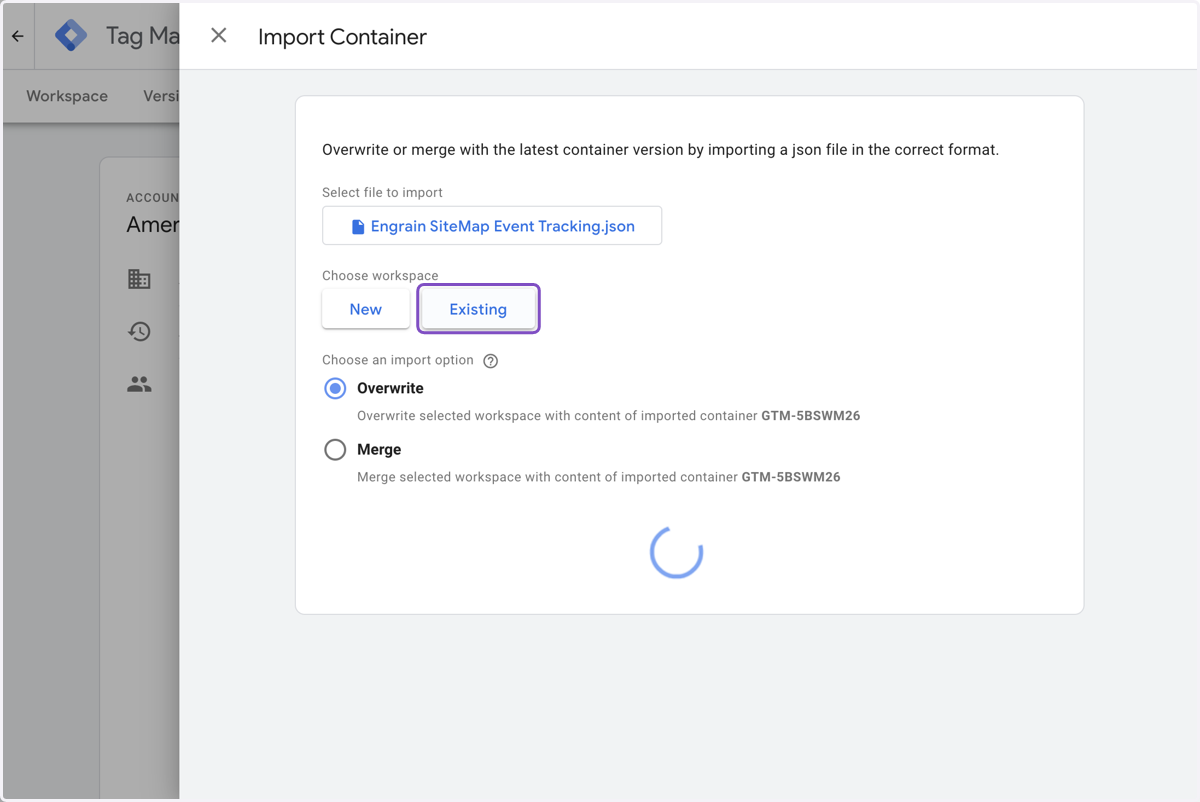
5. Click on Existing
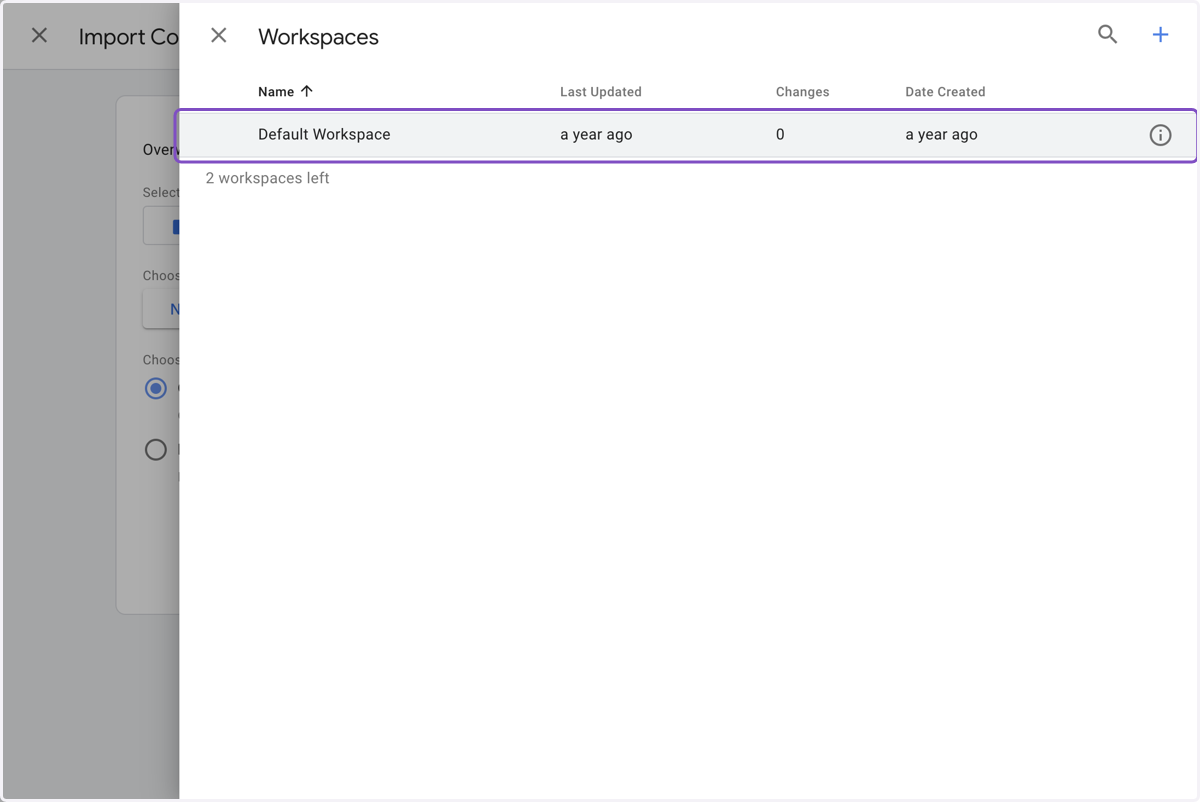
6. Click on Default Workspace…
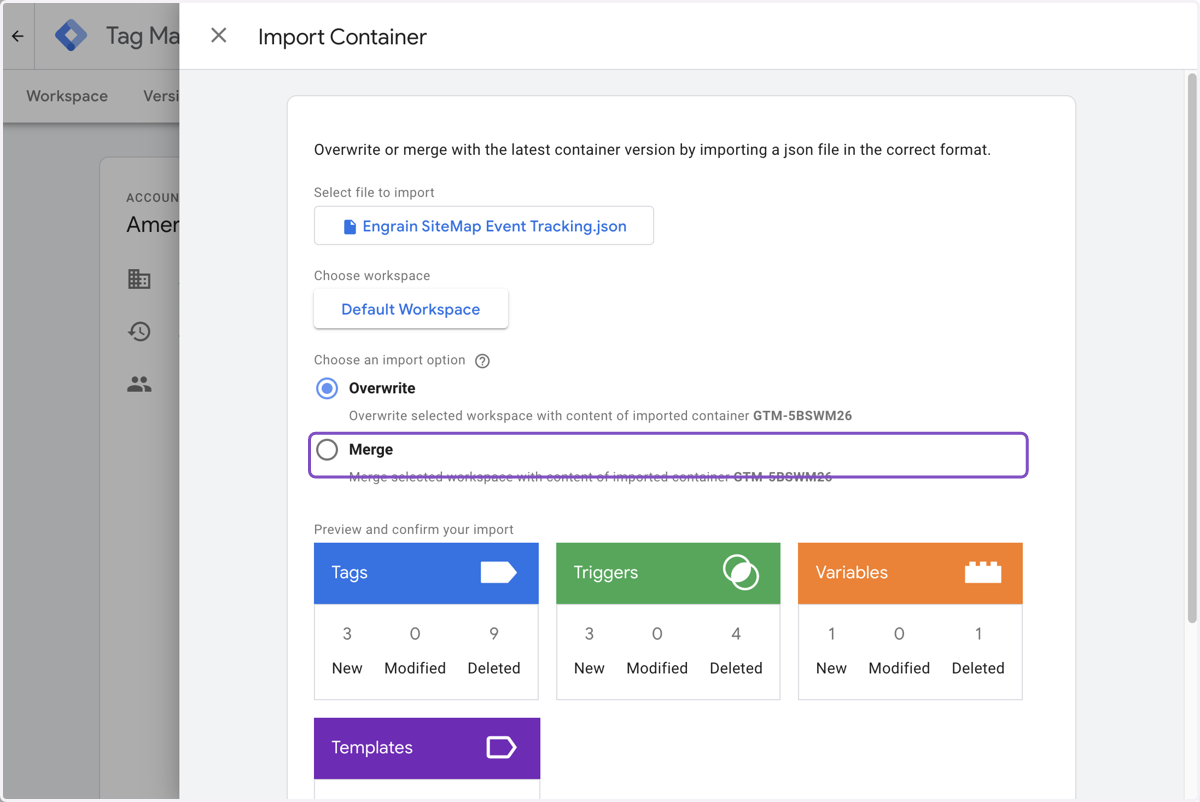
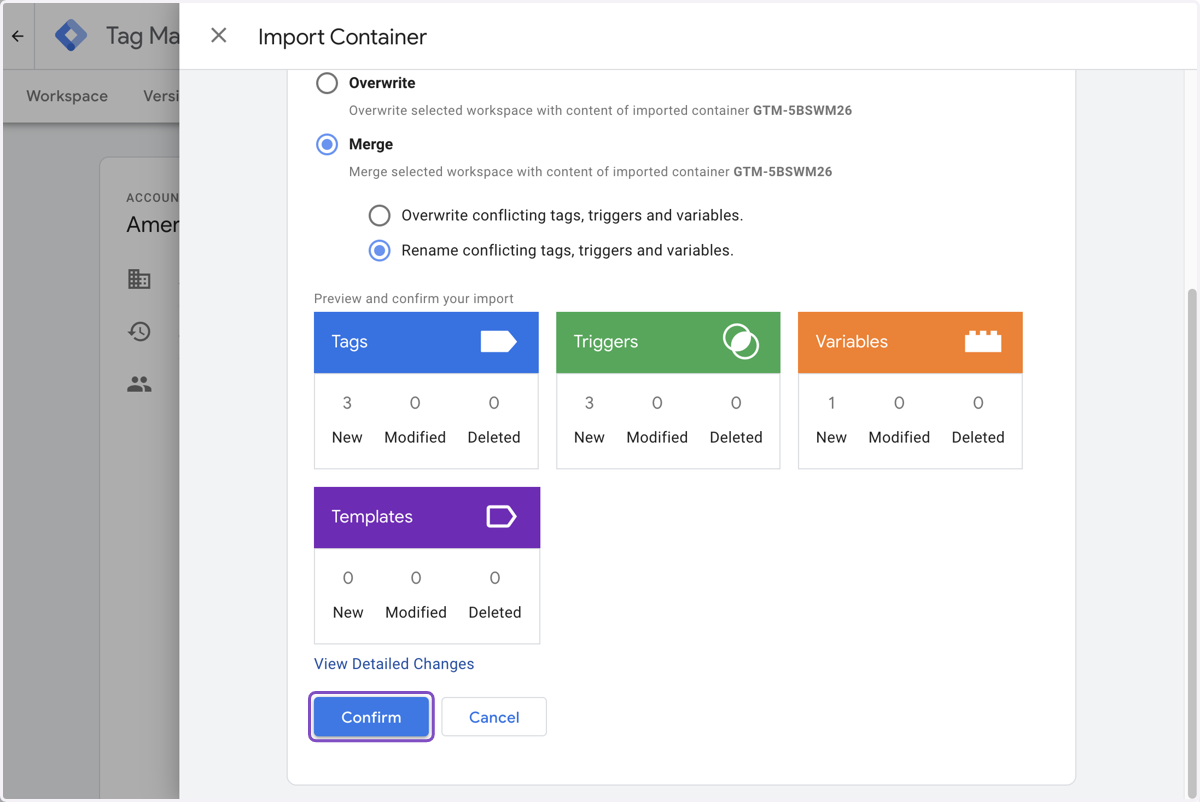
7. Click on Merge
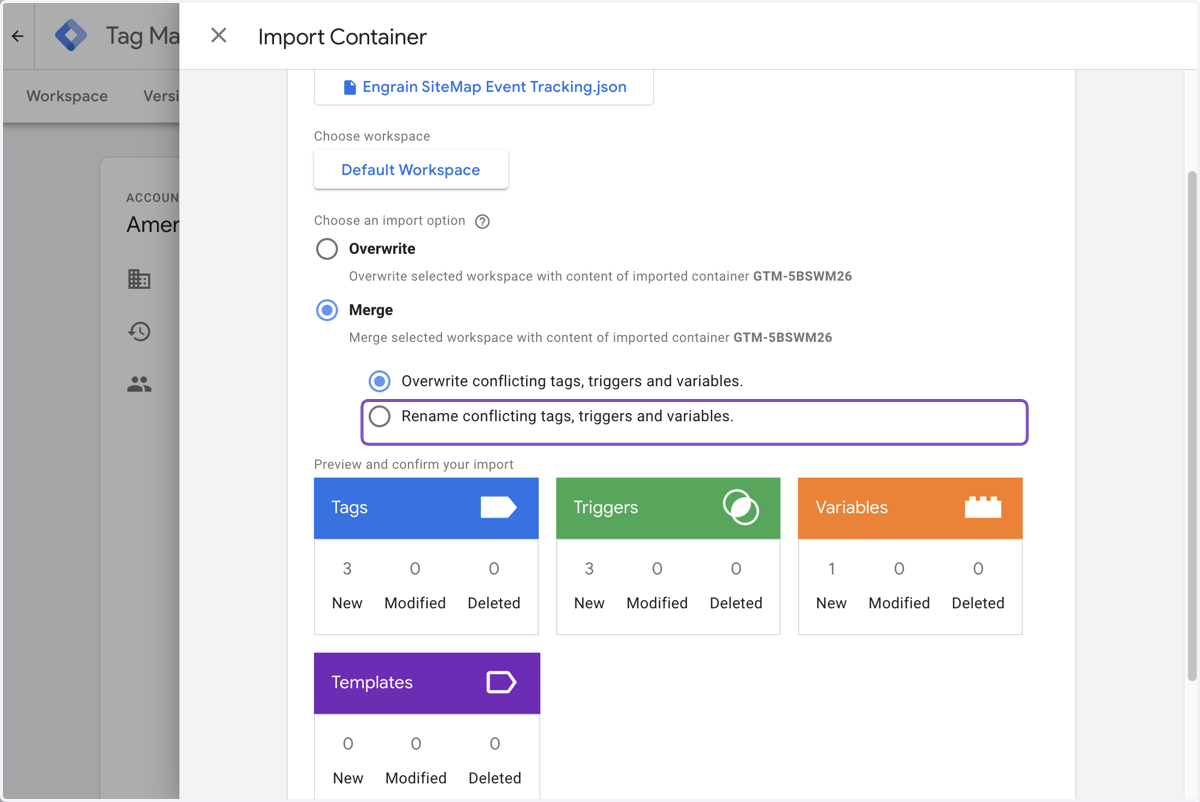
8. Click on Rename conflicting tags, triggers and variables.
9. Click on Confirm
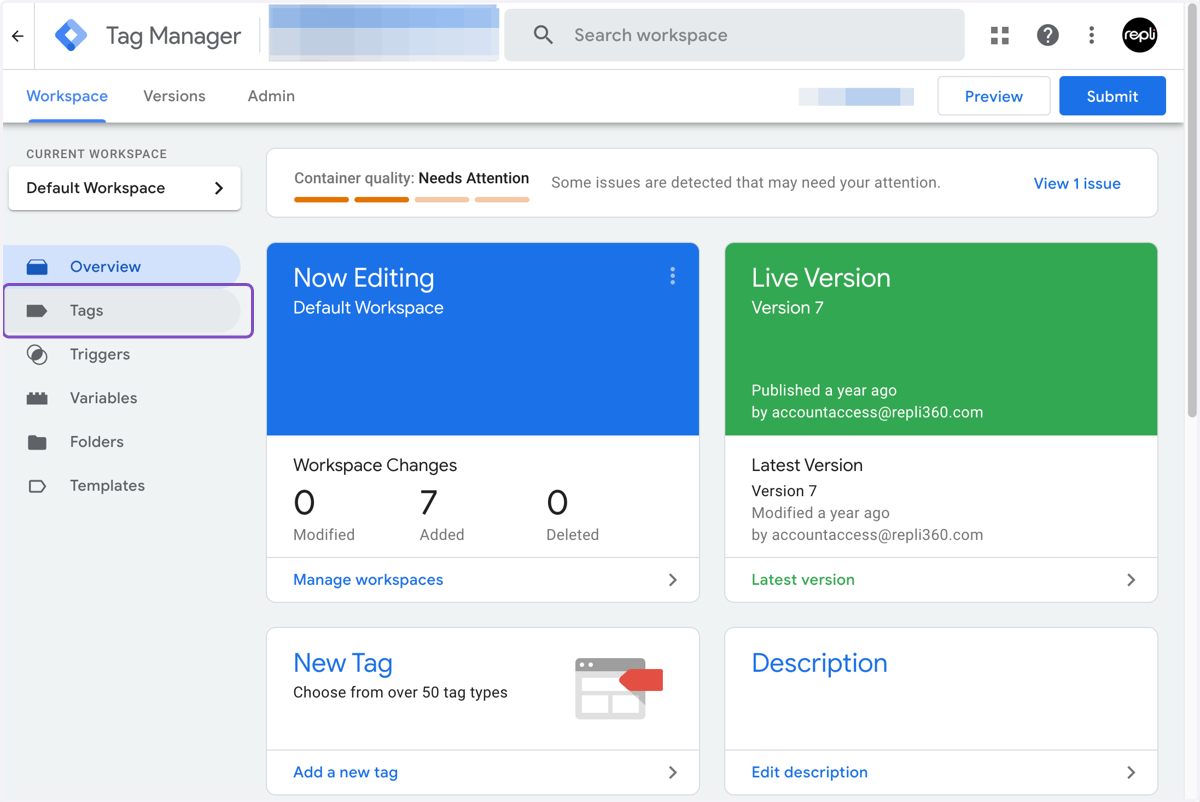
10. Click on Tags
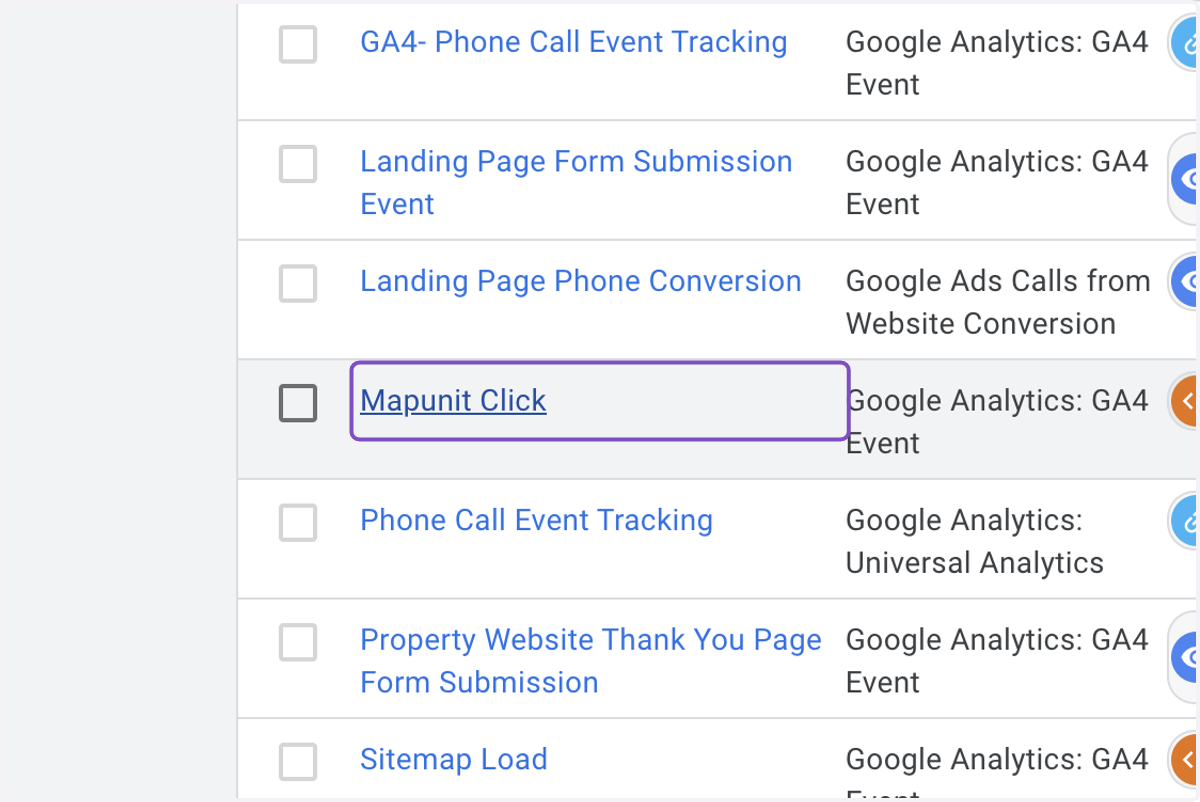
11. Click on Mapunit Click
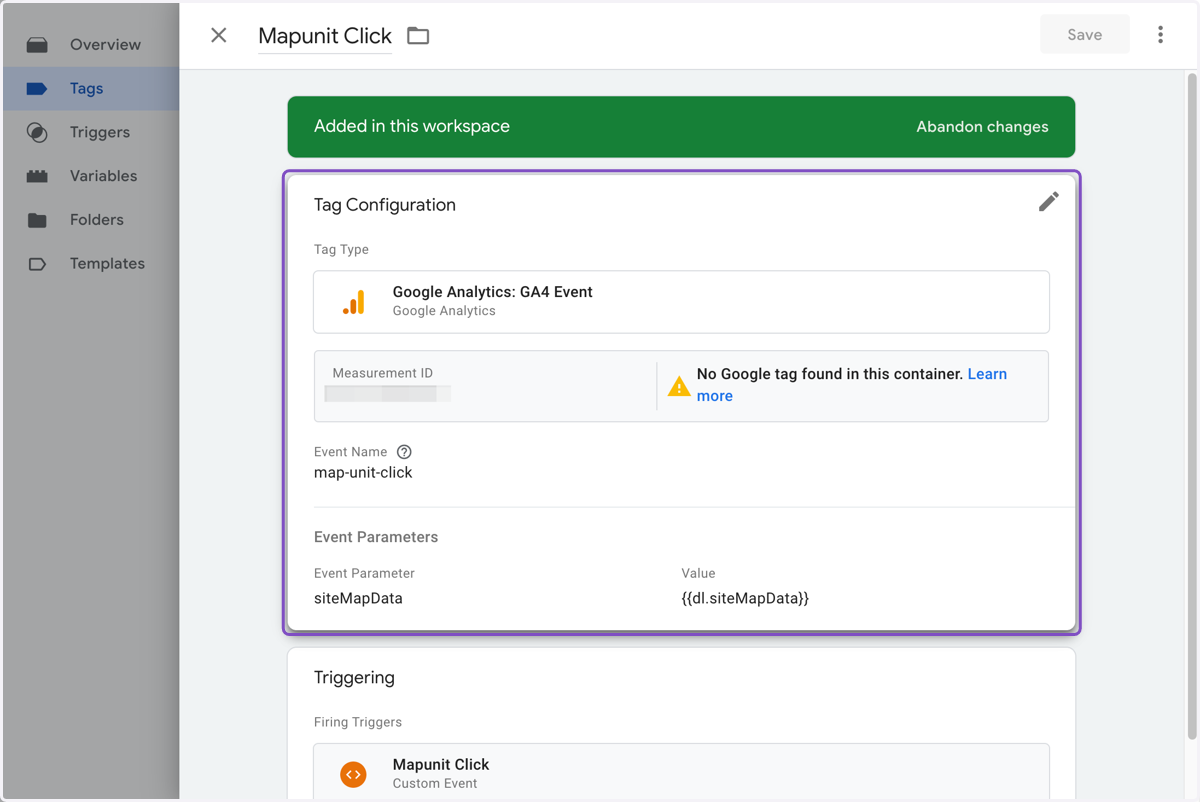
12. Click on Measurement ID
13. Go to GA4
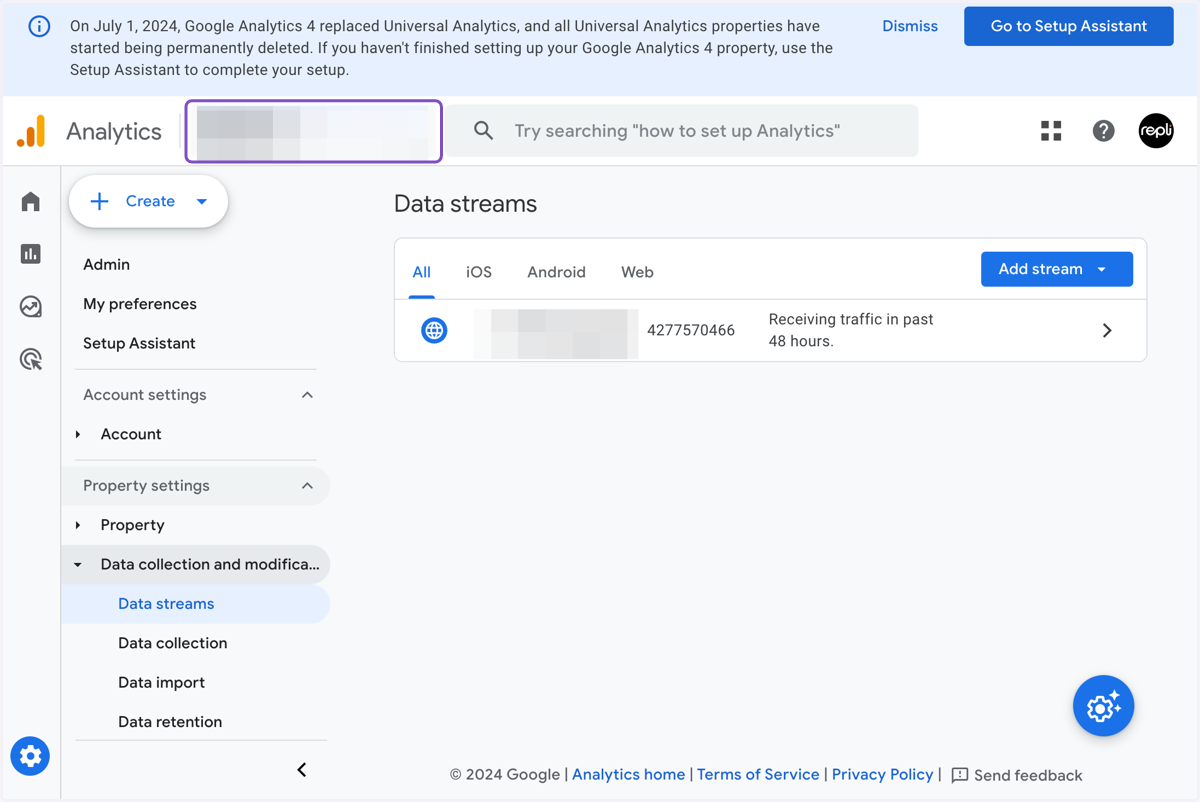
14. Click on Data streams
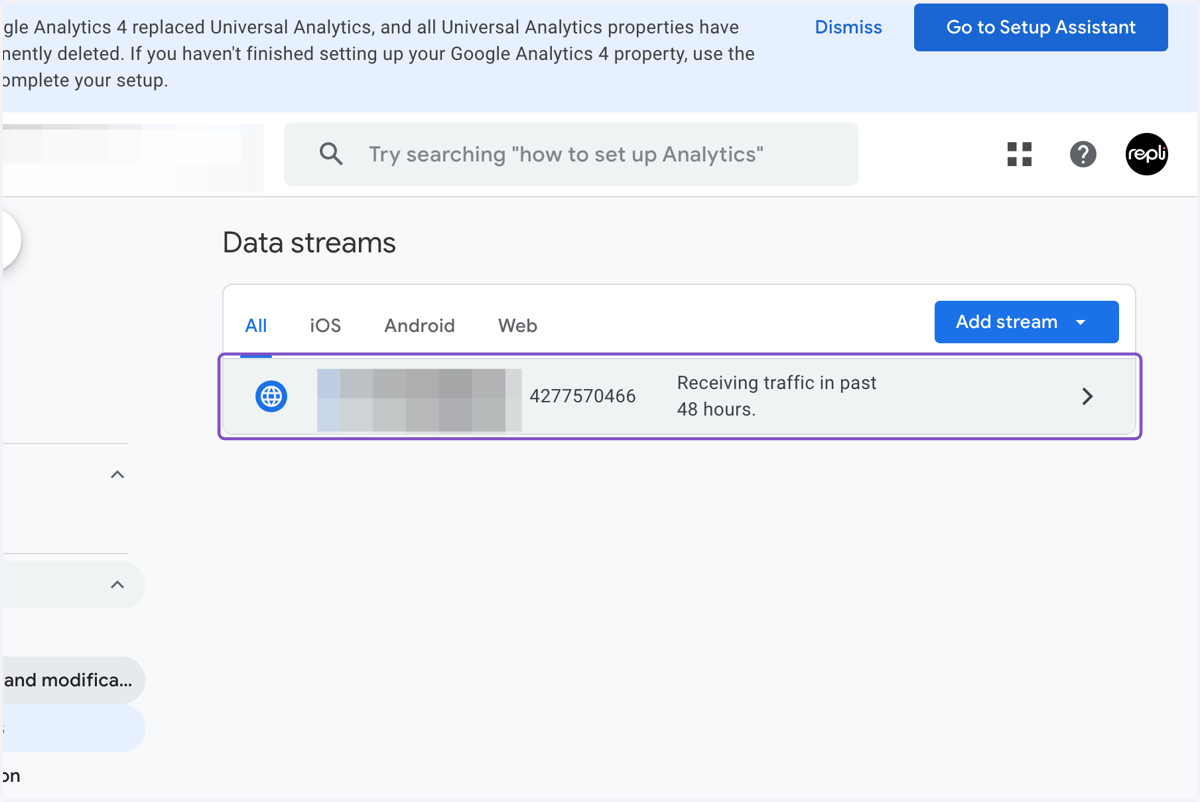
15. Copy the Measurement ID
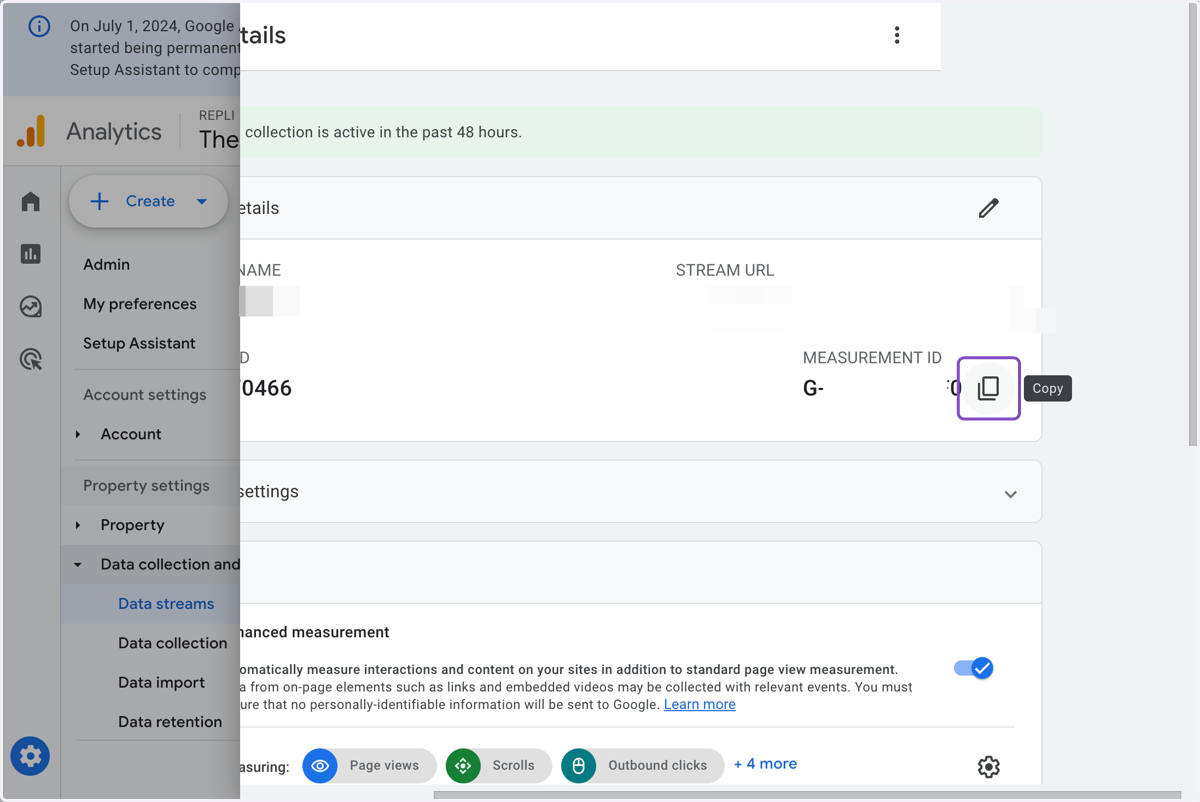
16. Copy text area
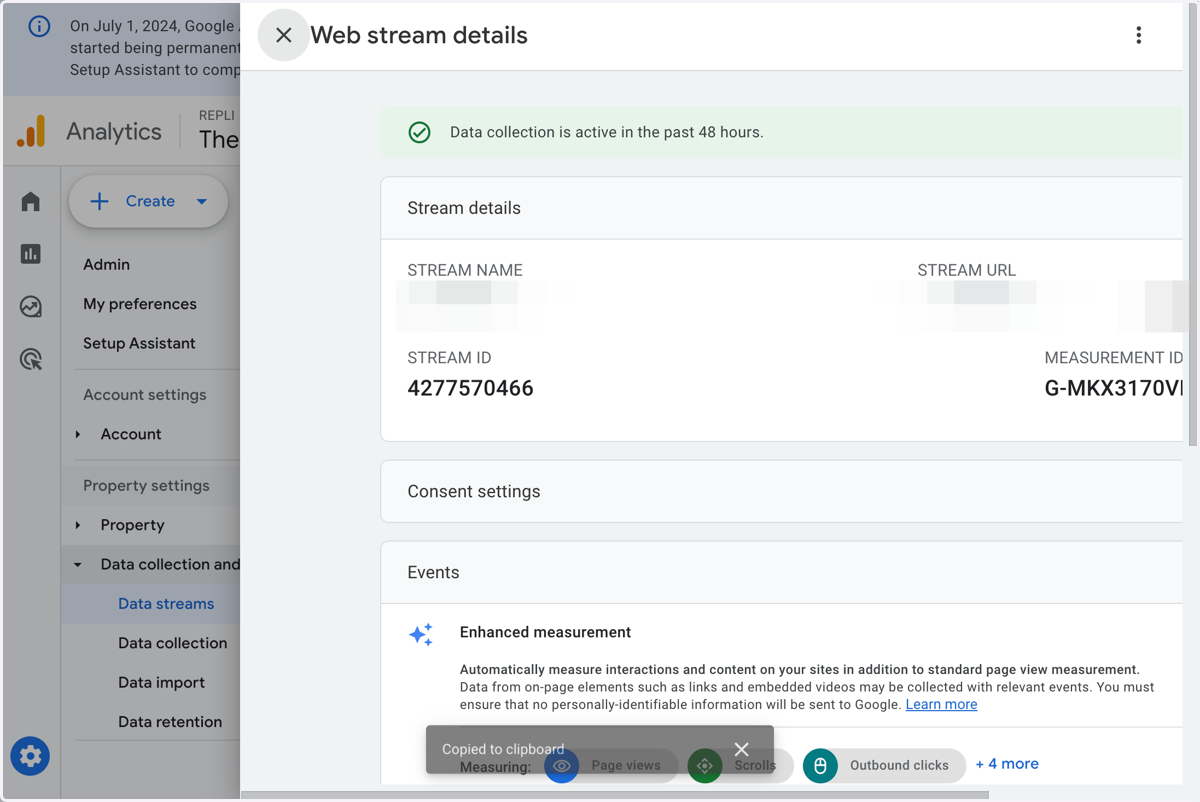
17. Paste the Measurement ID into the GTM tag
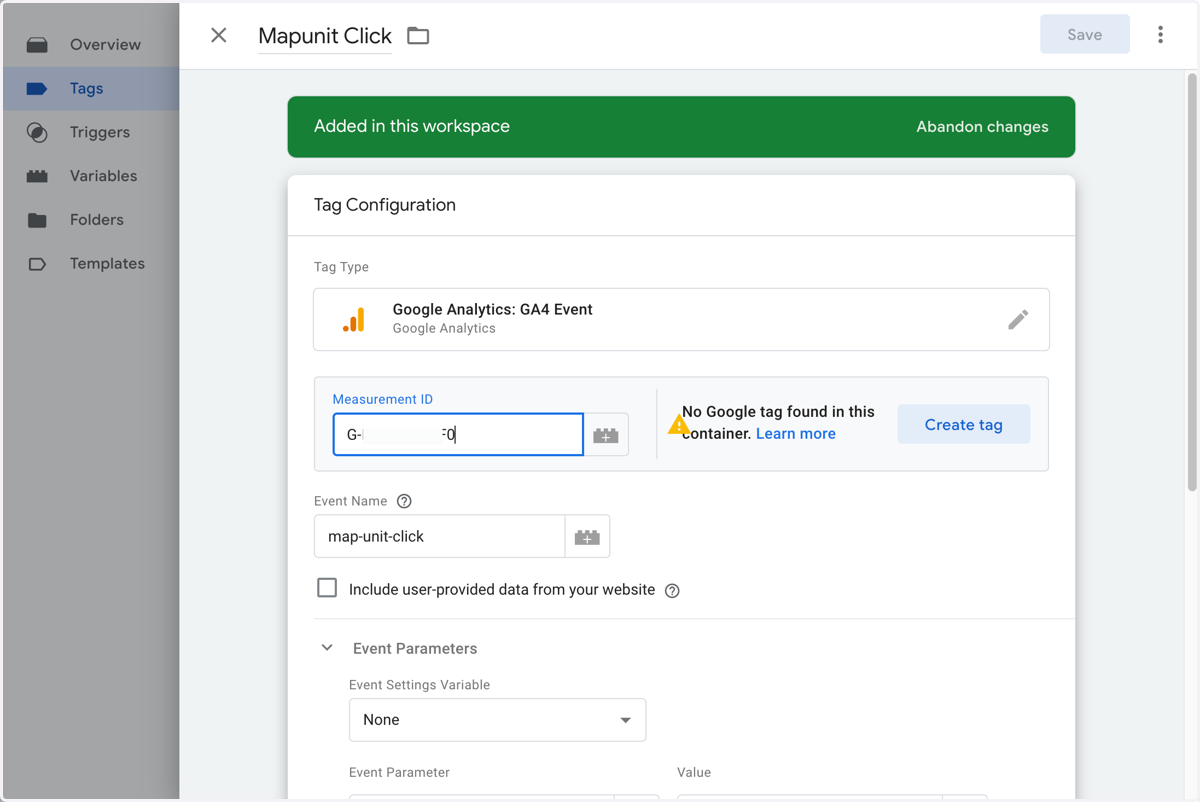
18. Click on Save
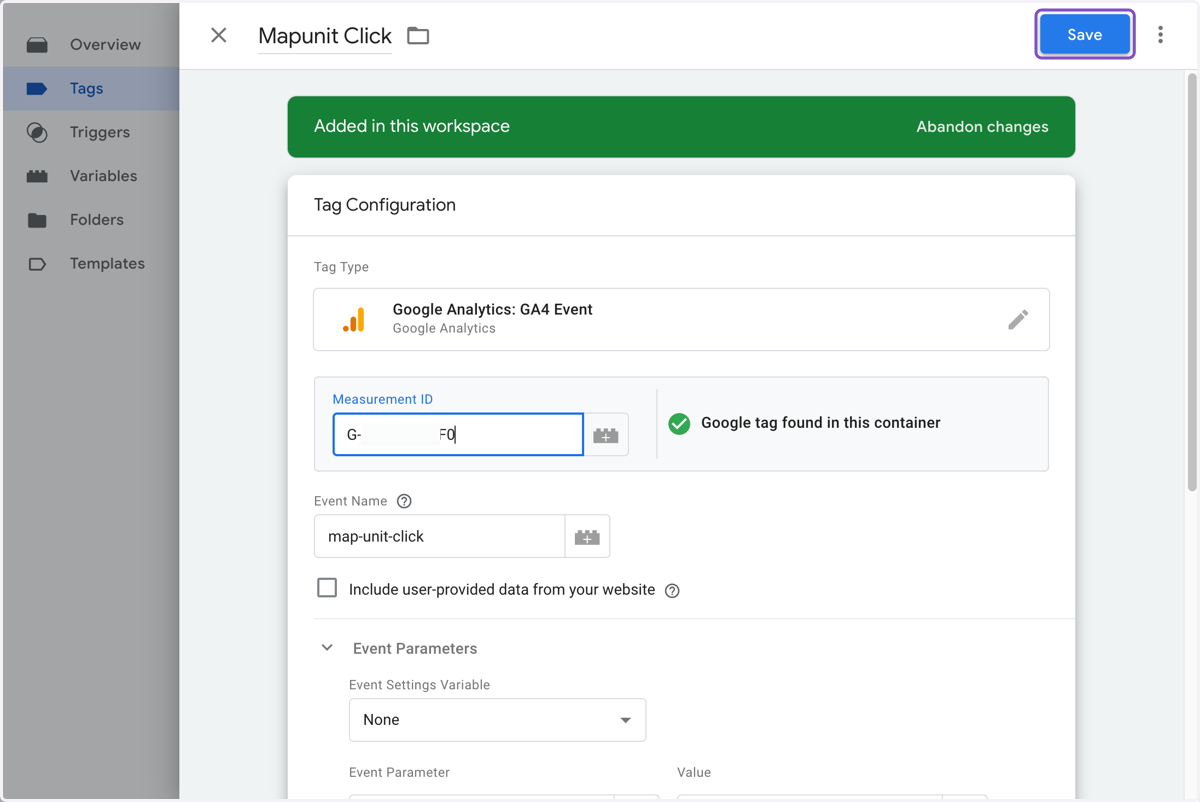
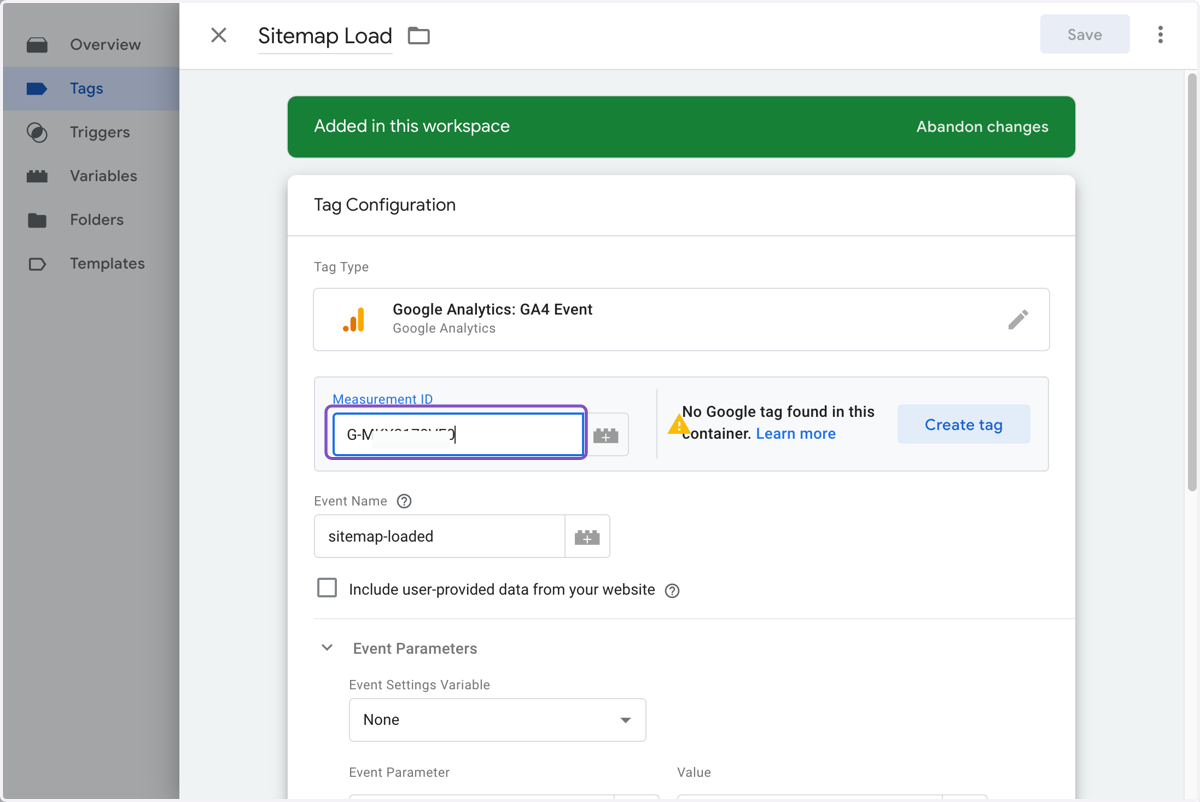
19. Click on Sitemap Load
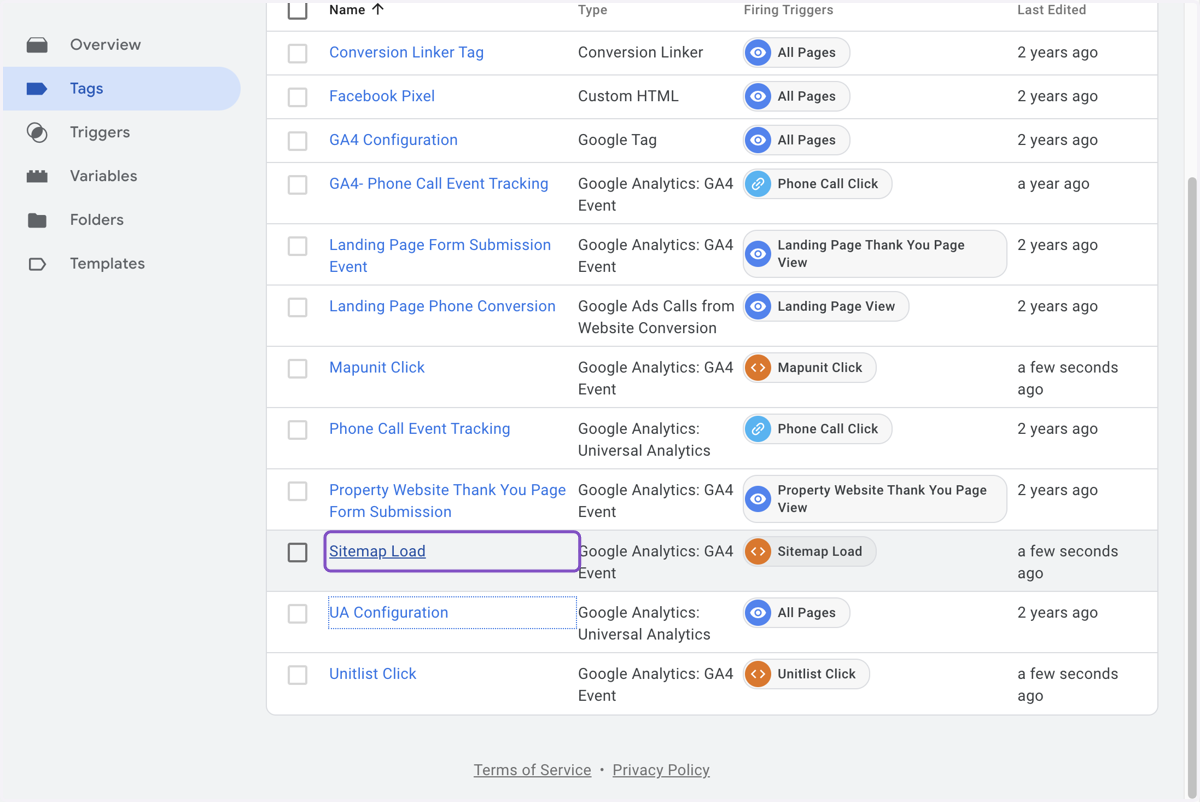
20. Click on Section edit button, click to enable edit mode for this section
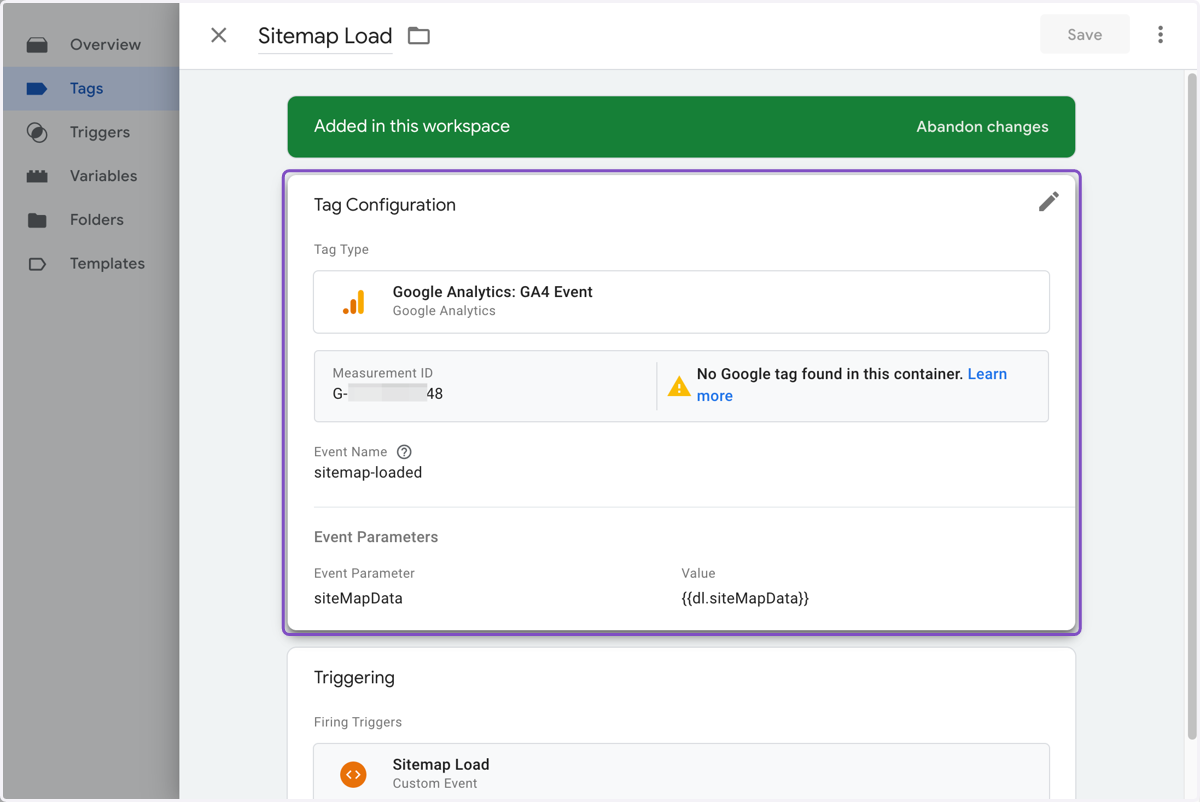
21. Paste the Measurement ID
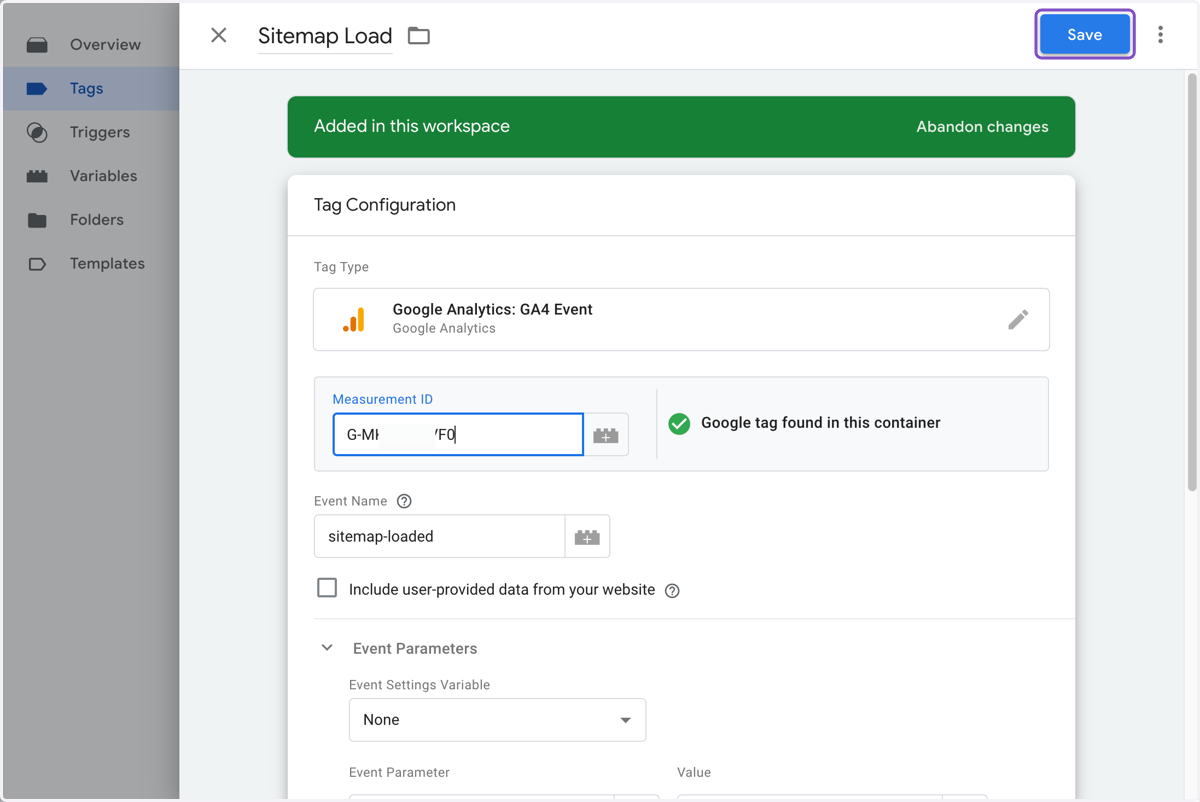
22. Click on Save
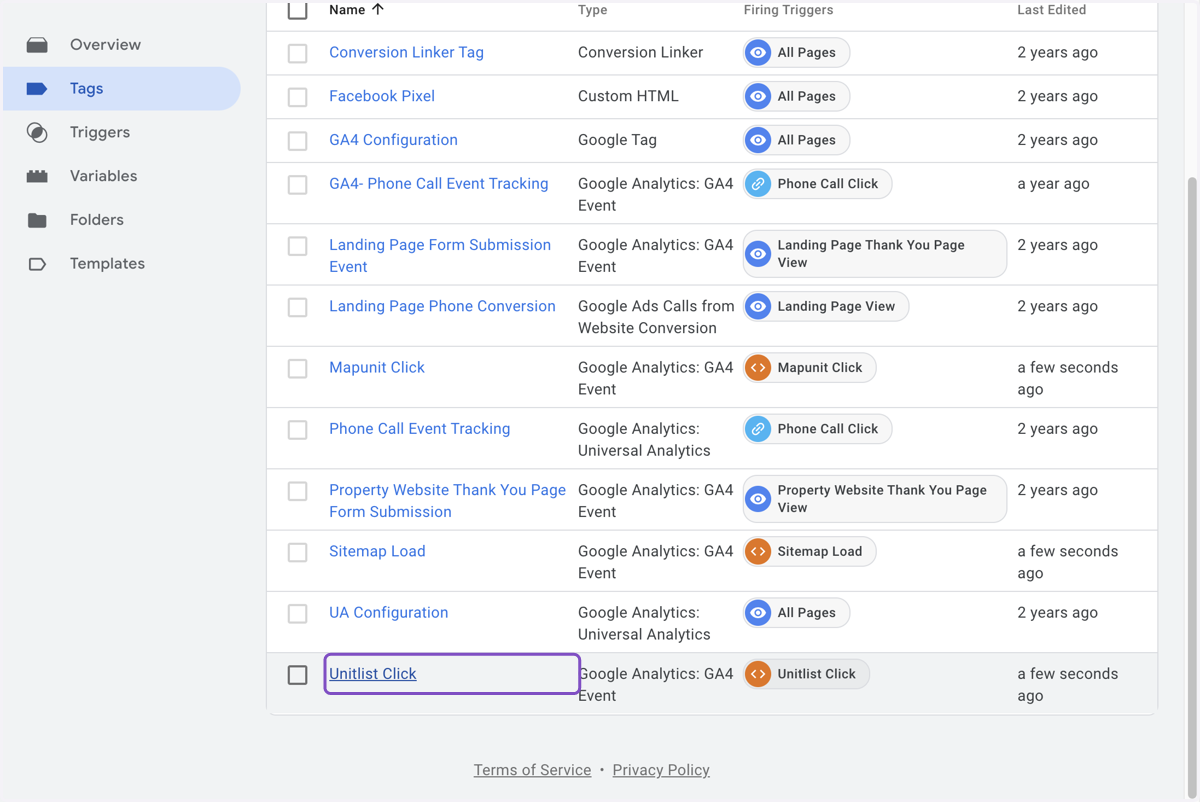
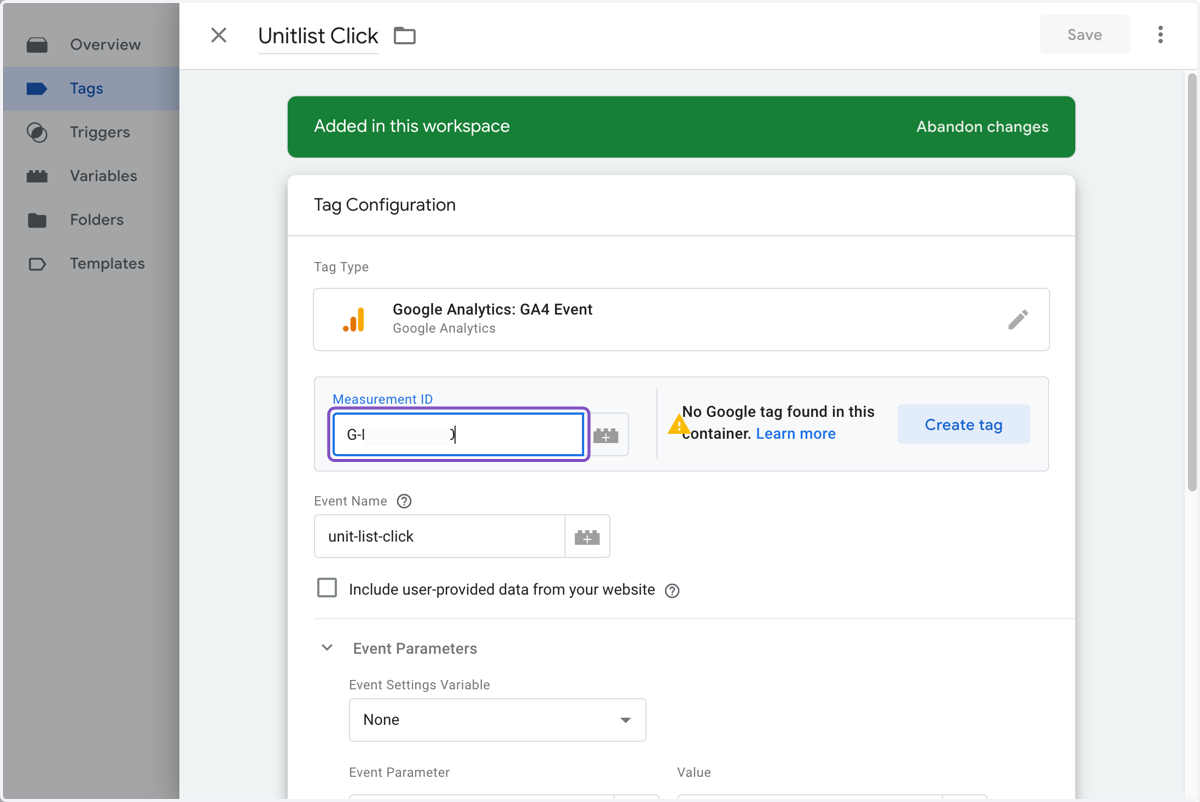
23. Click on Unitlist Click
24. Update the Measurement ID
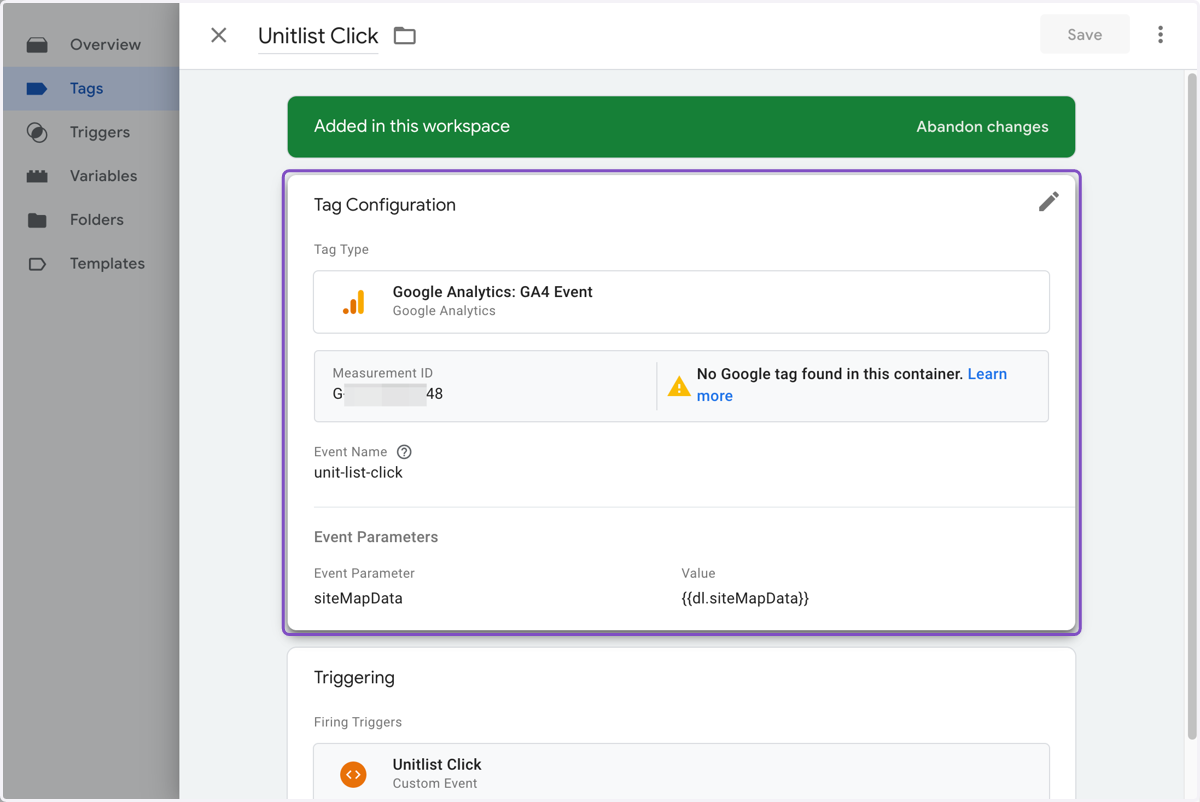
25. Paste GA4 Measurement ID into input
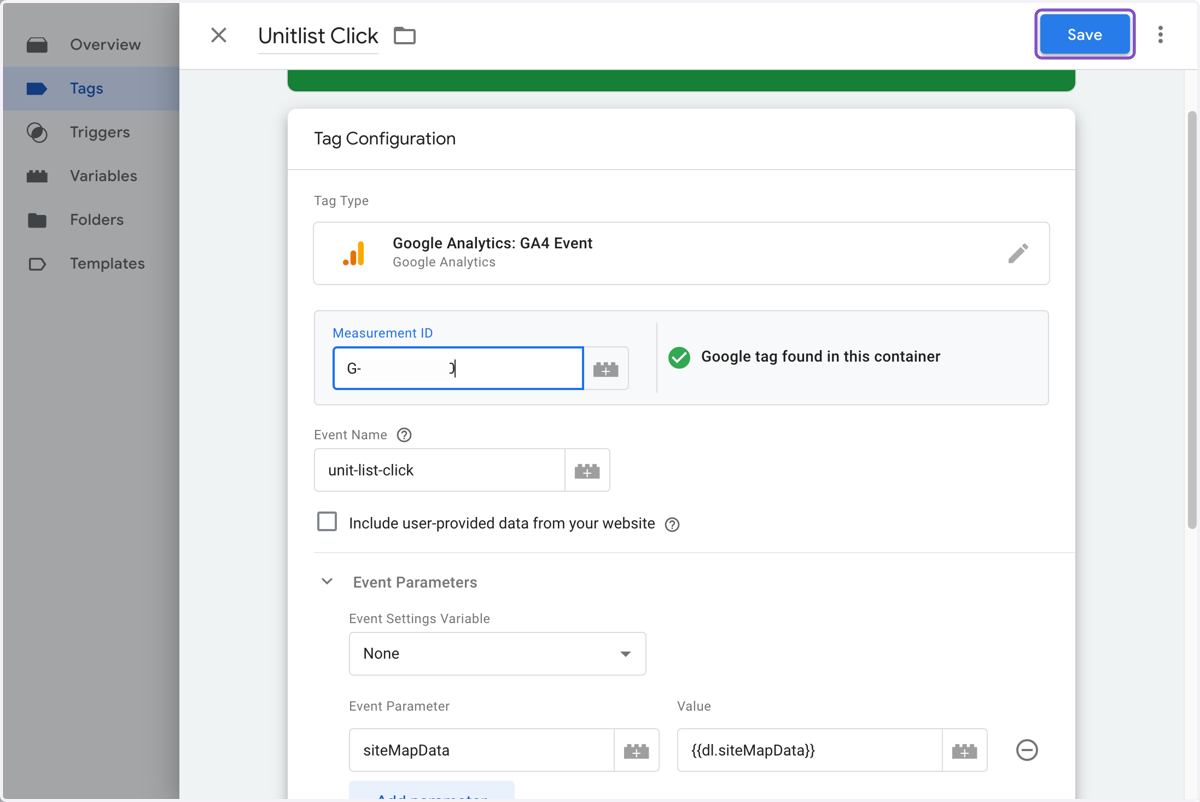
26. Click on Save
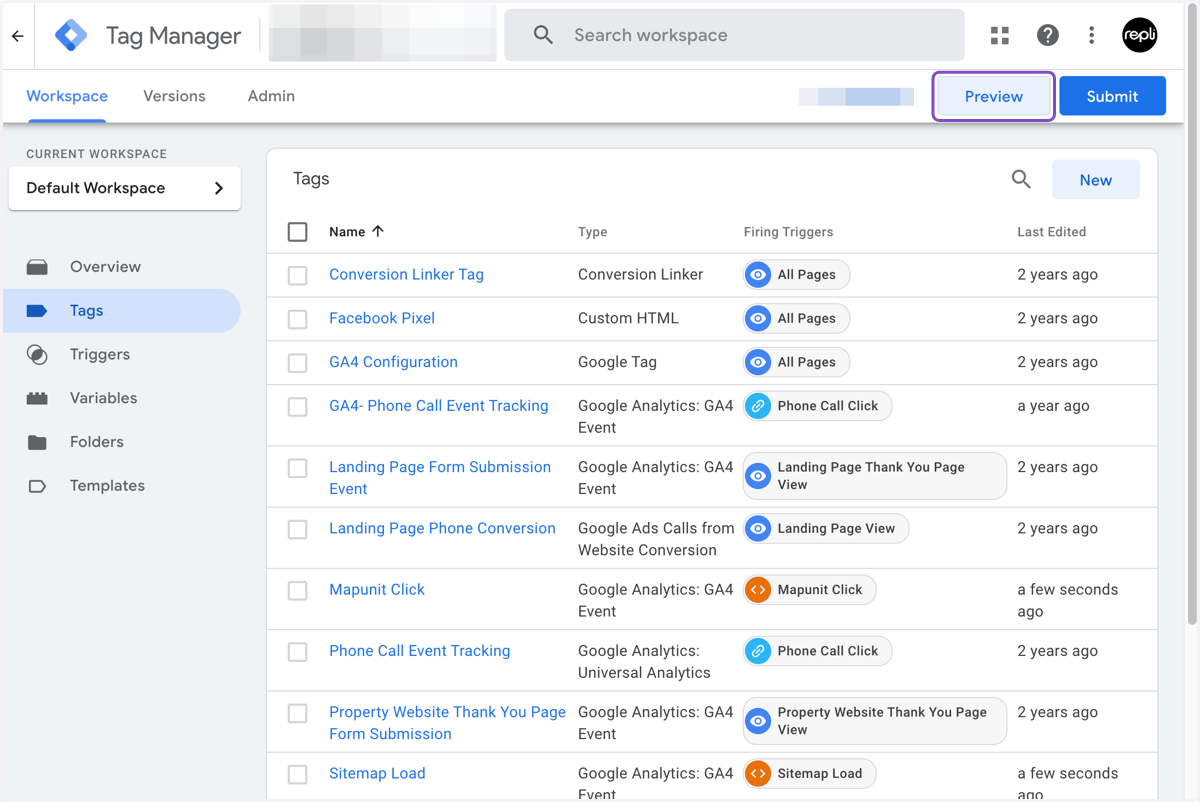
27. Click on Preview
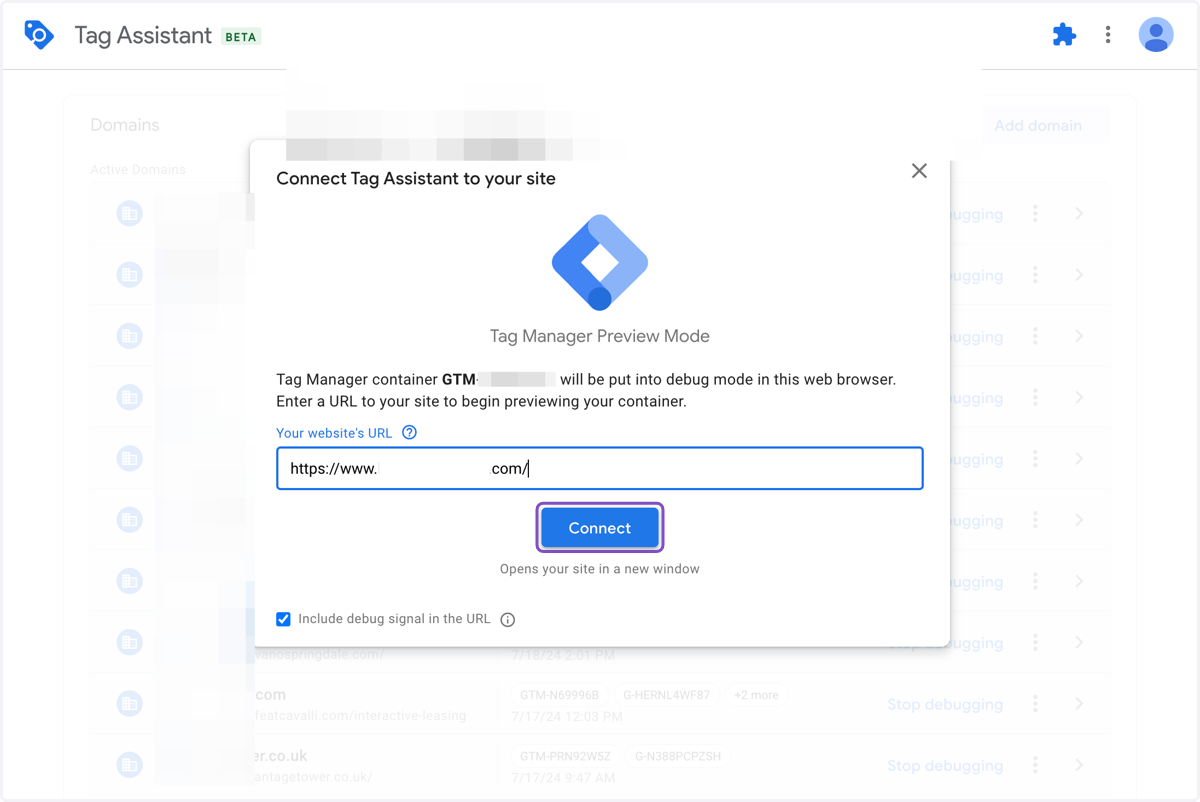
28. Paste the homepage URL
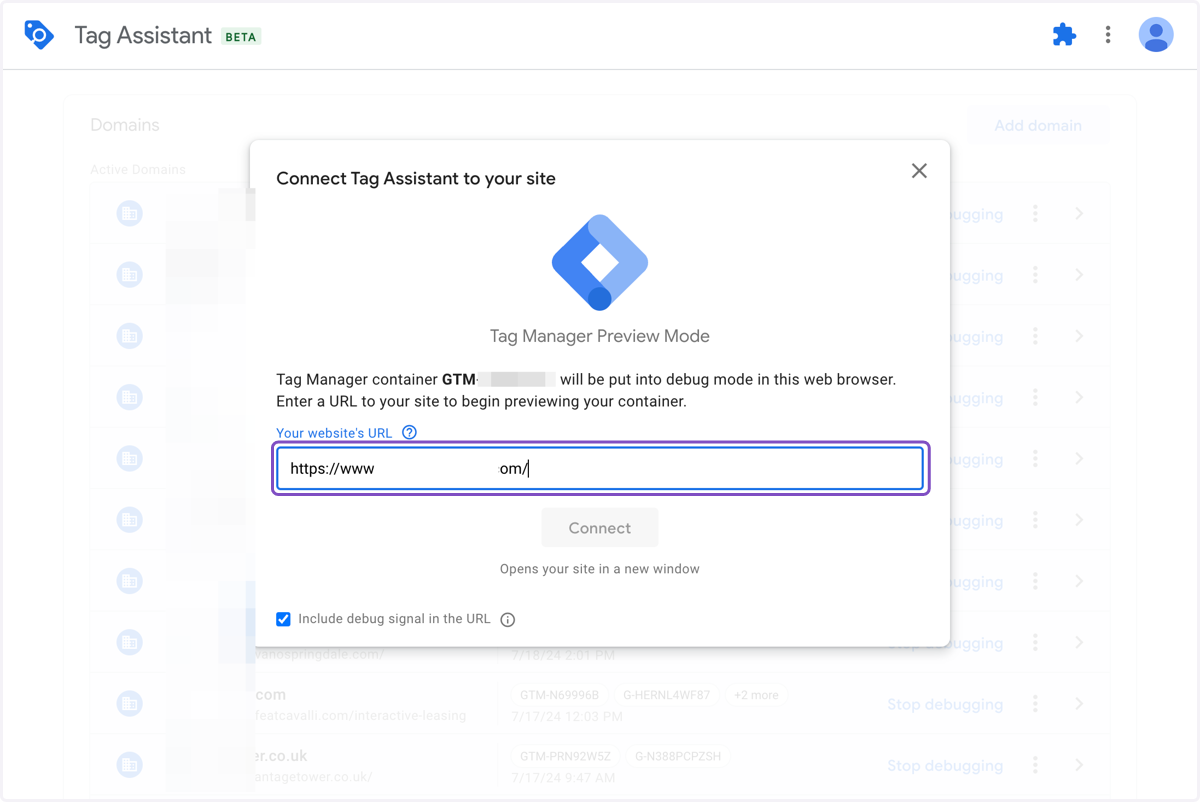
29. Click on Connect
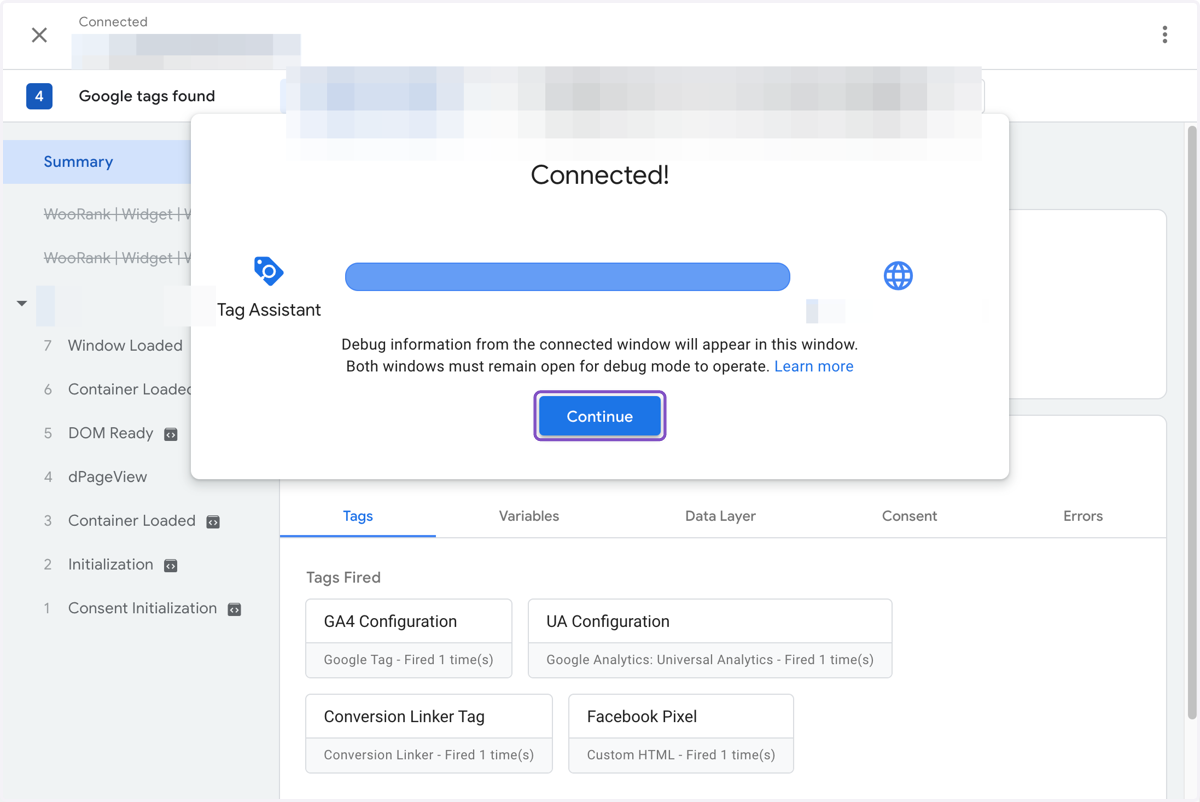
30. Click on Continue
31. Go to the preview site
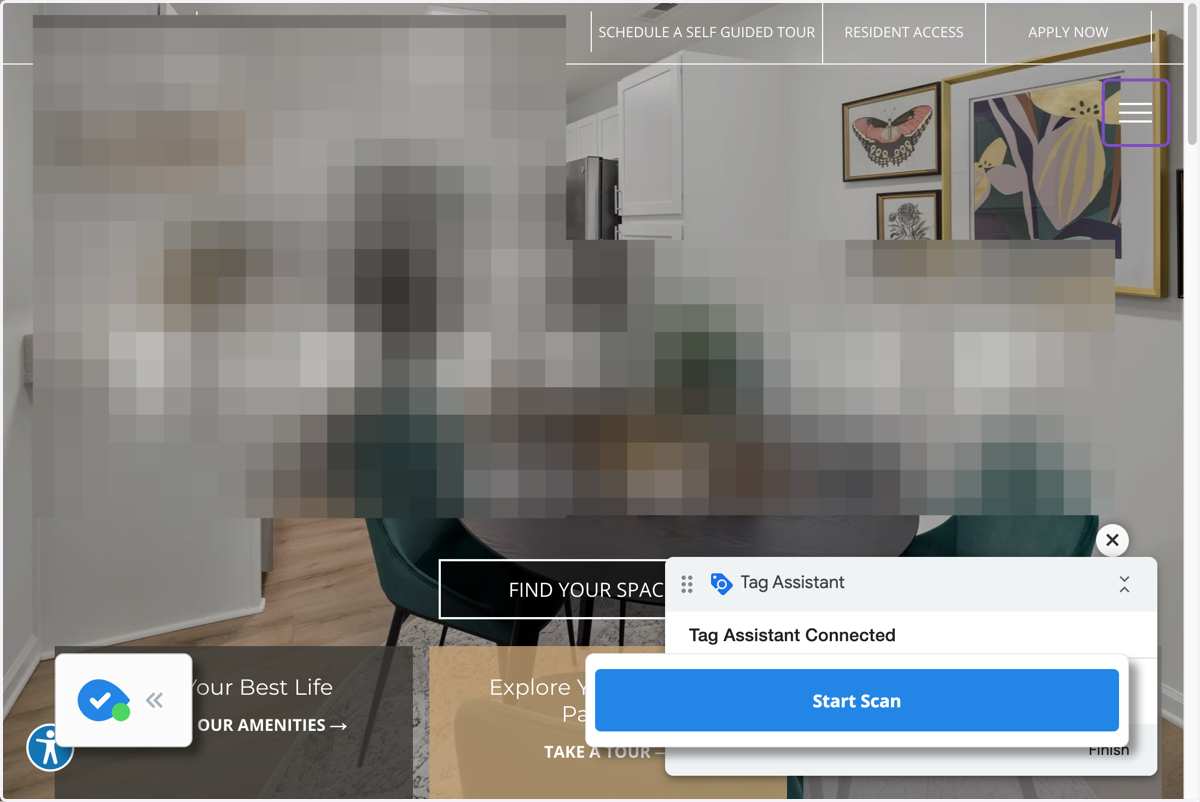
32. Click on Interactive Leasing
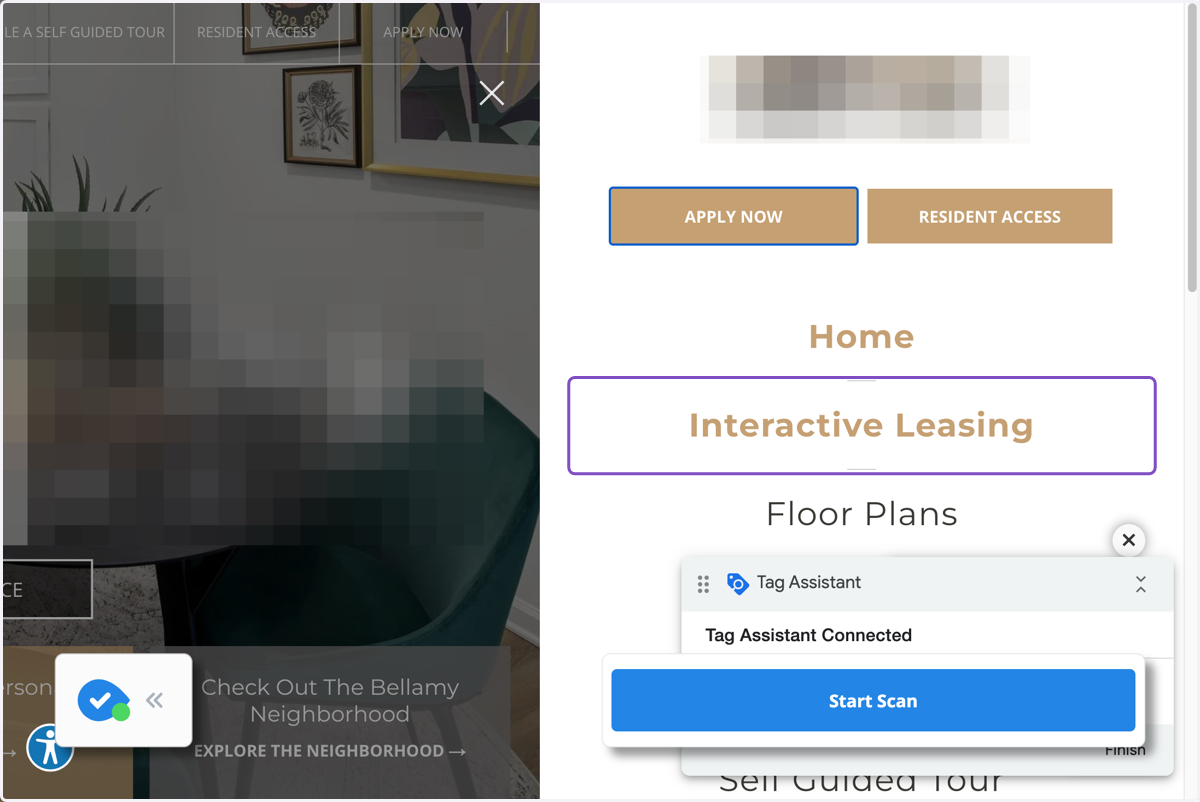
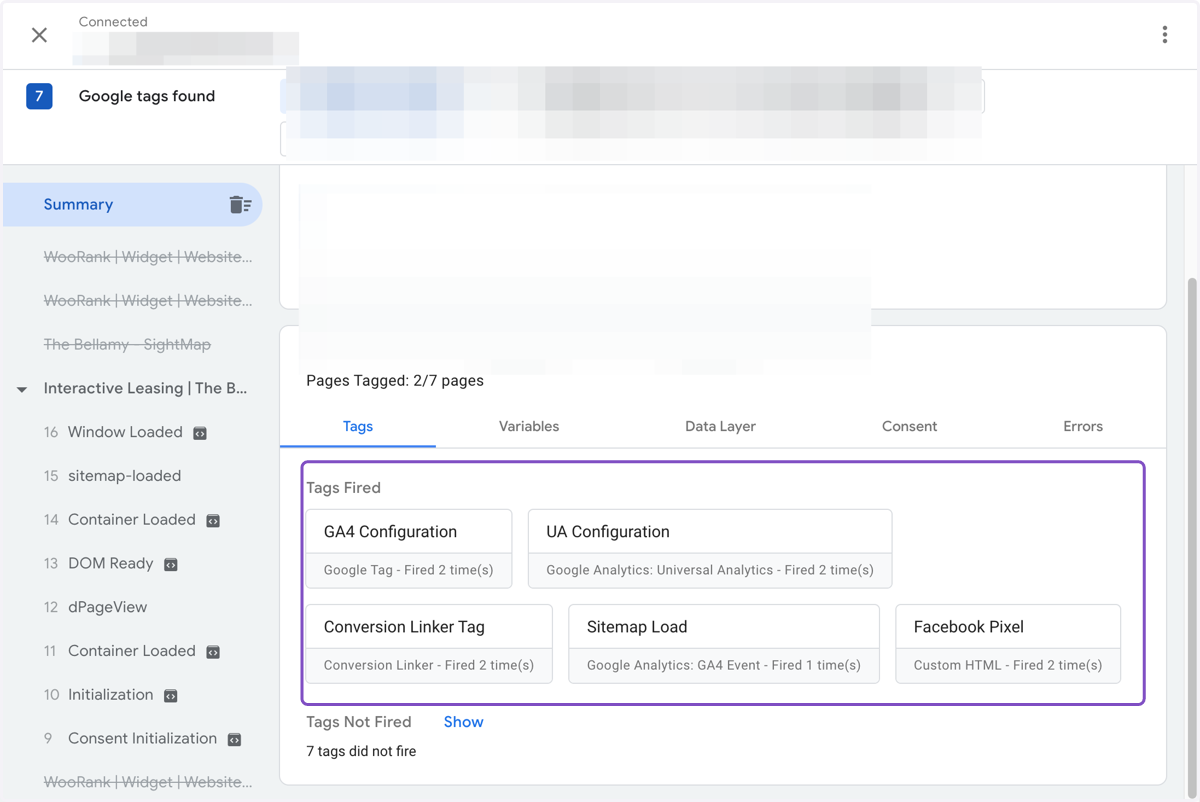
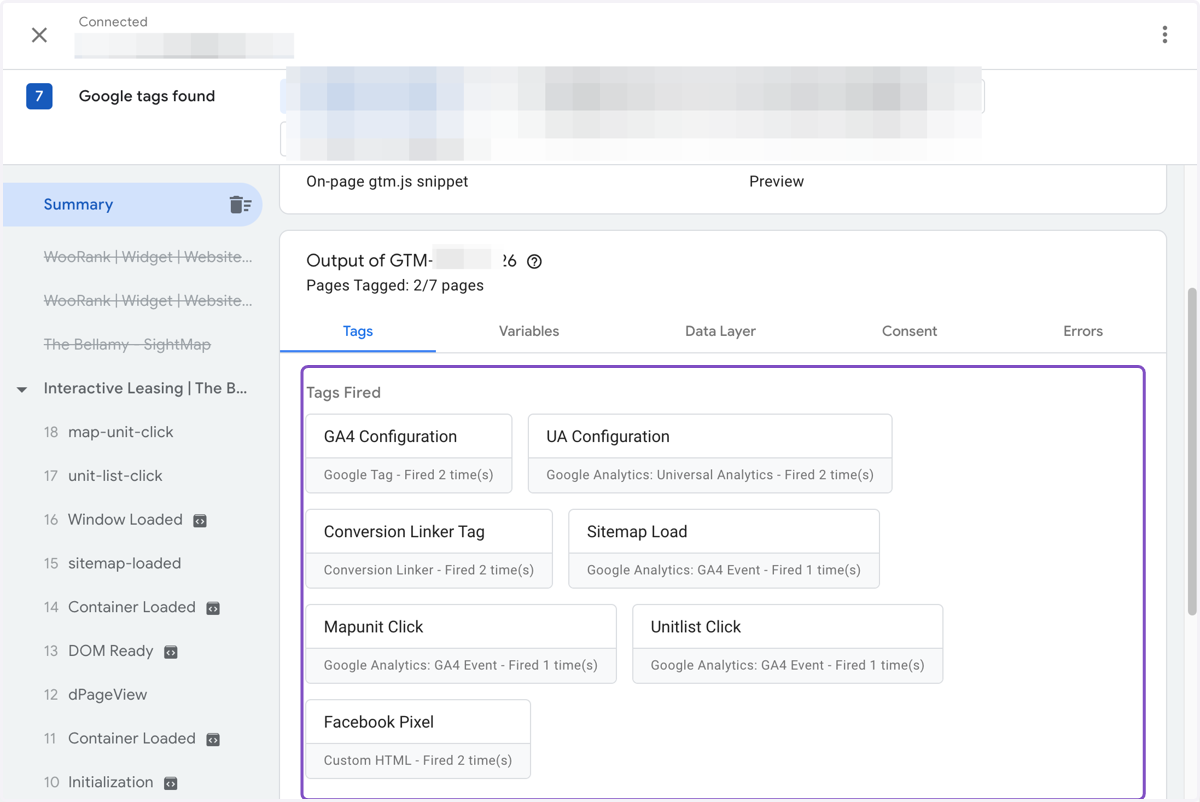
33. Sitemap Load tag fired
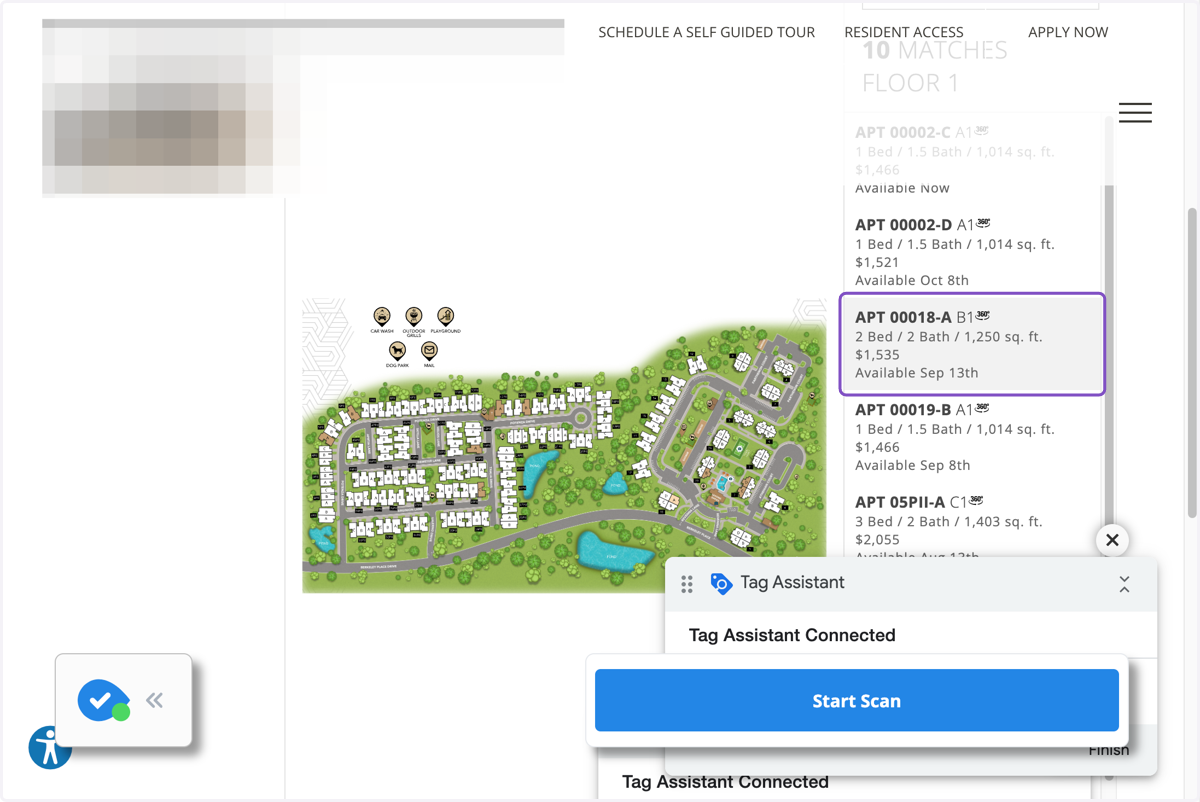
34. Click on the apartment info on the side
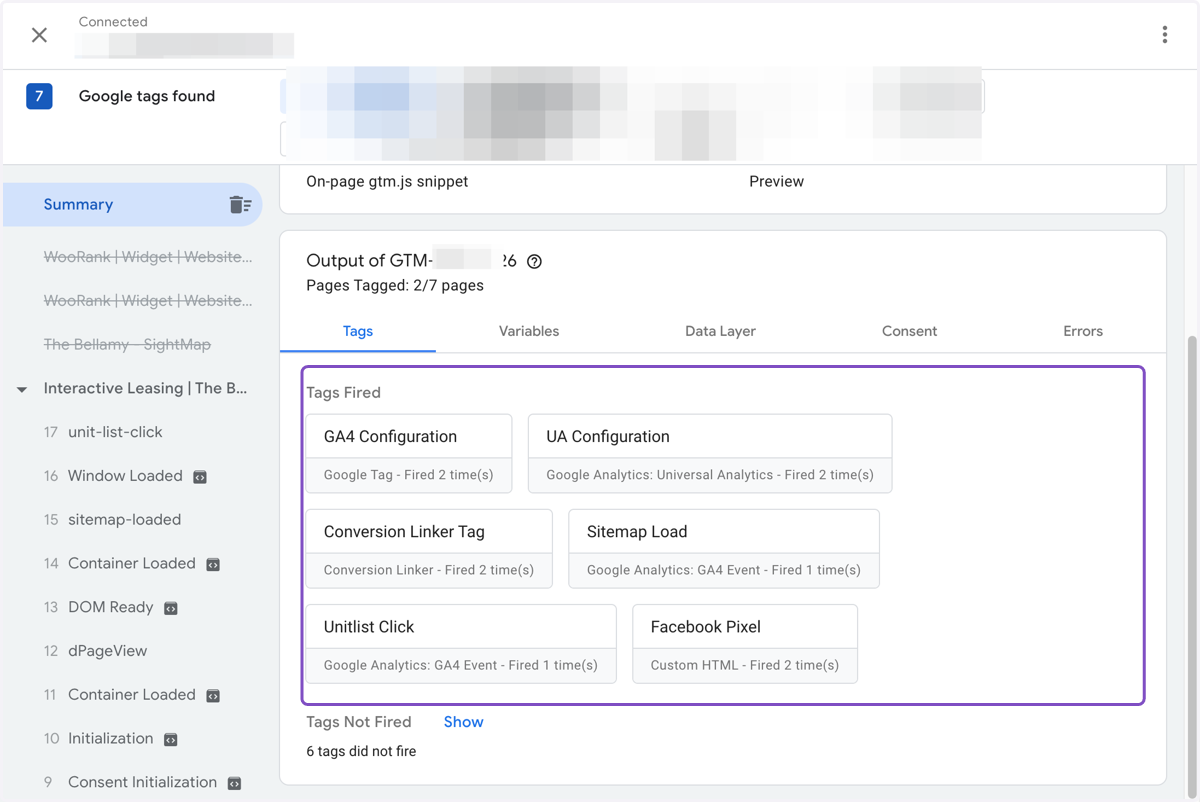
35. Unitlist Click tag fired
36. Click on listing on the Interactive Leasing Map
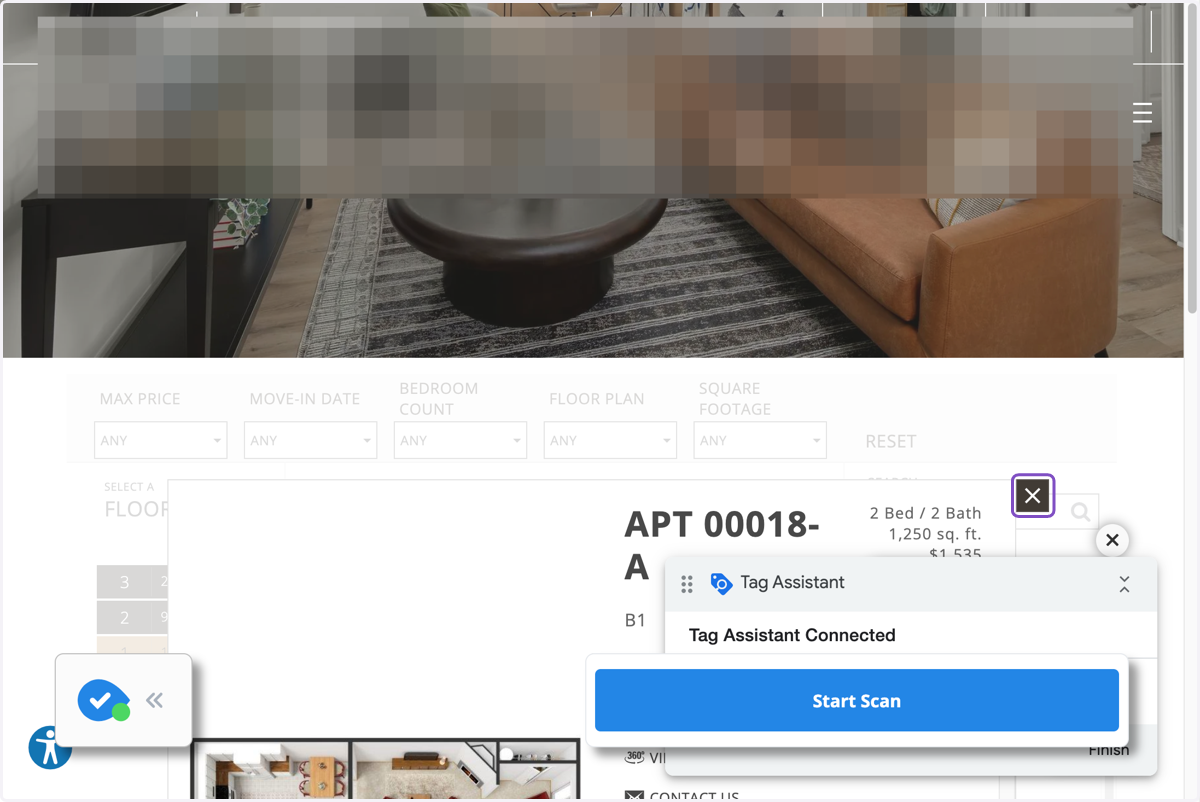
37. Mapunit Click fired
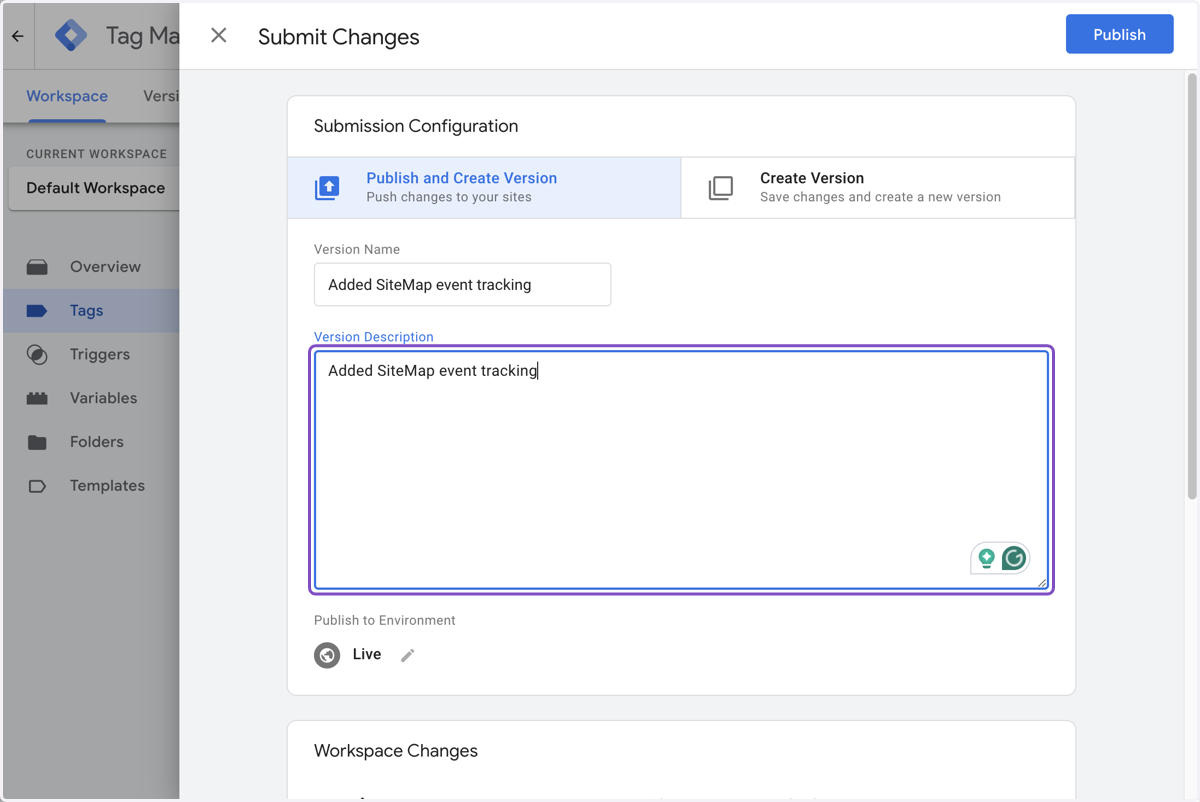
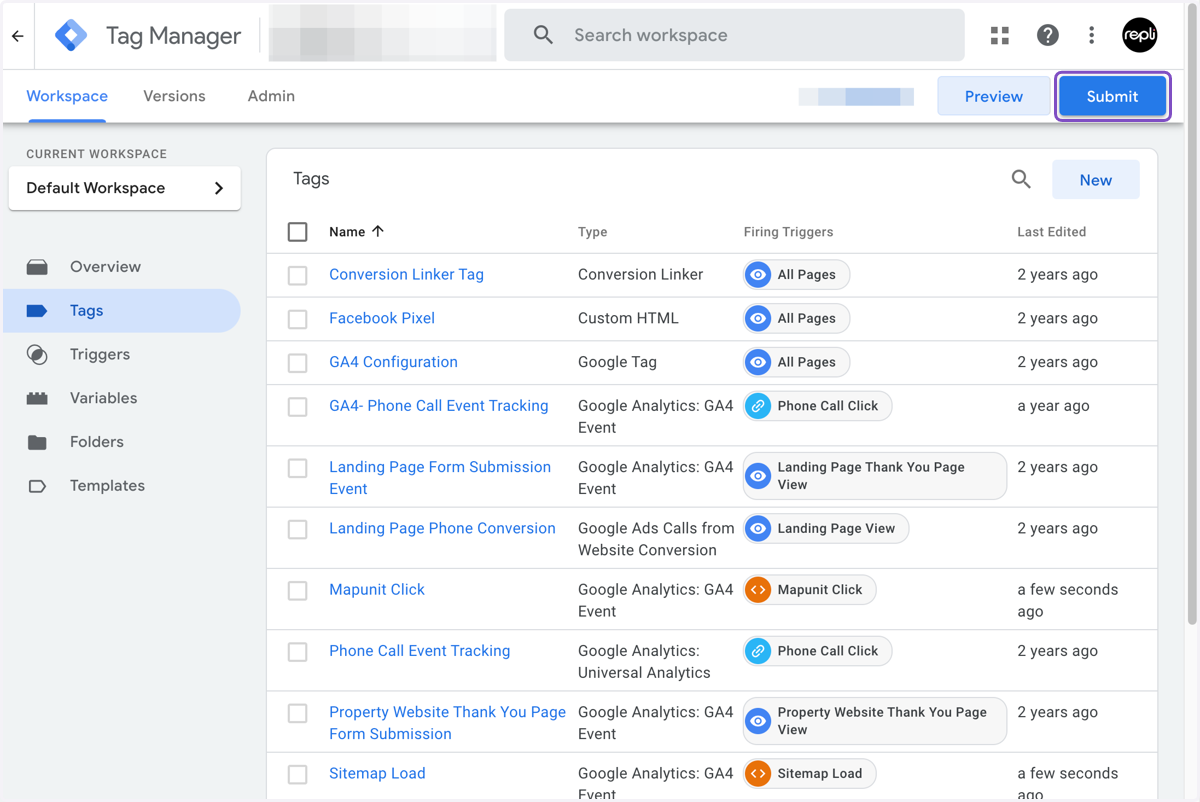
38. Click on Submit
39. Type "Added SightMap event tracking"
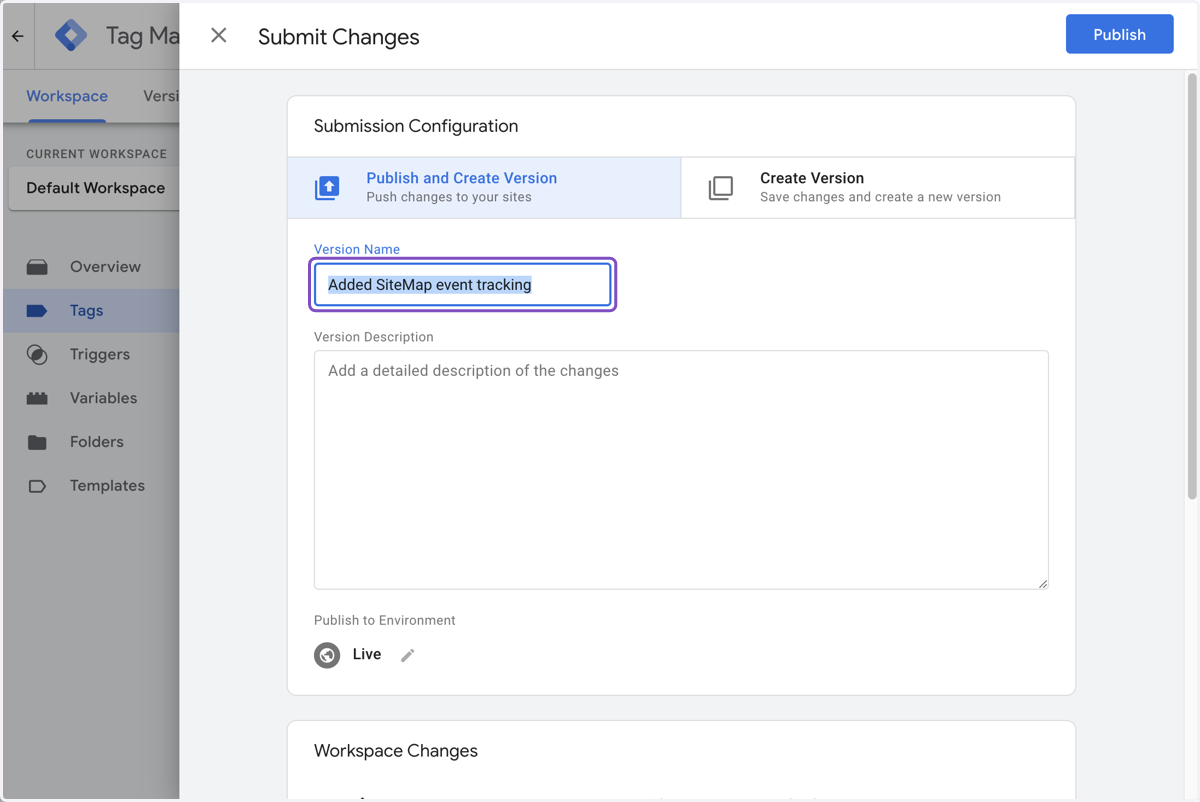
40. Copy input titled "Added SightMap event tracking"
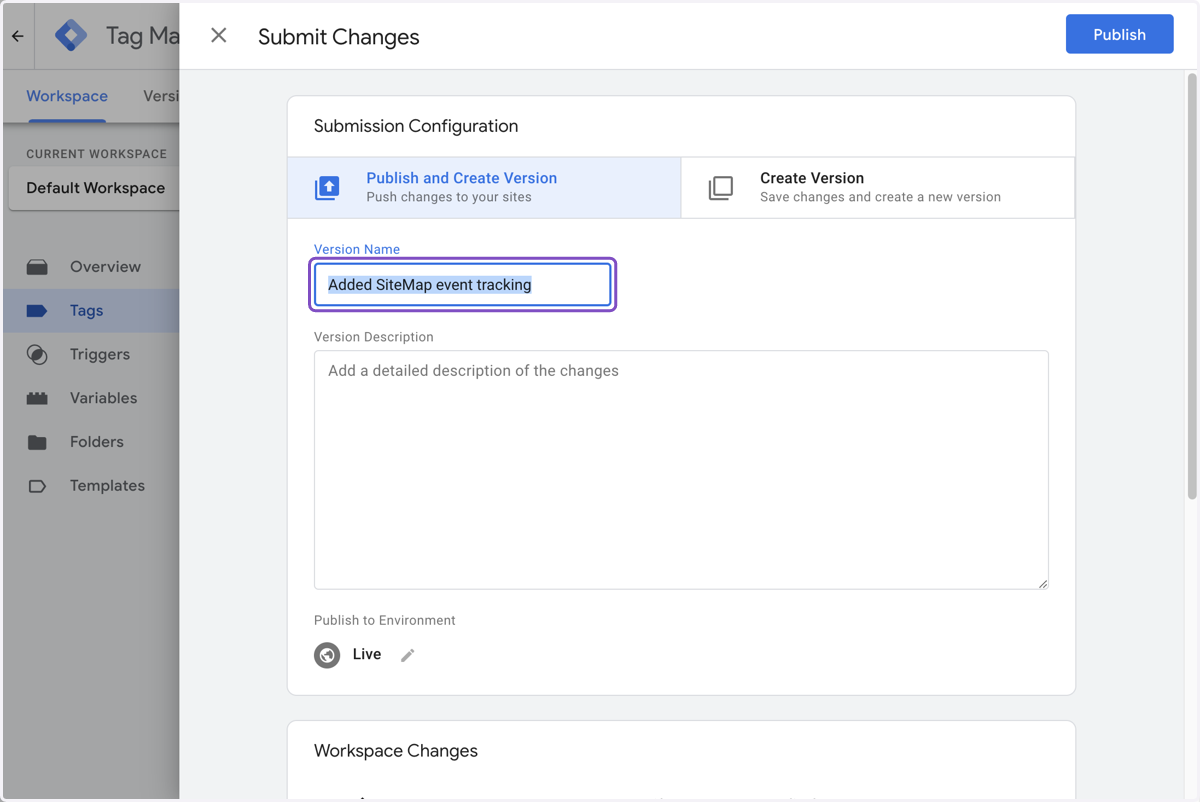
41. Click on Version Description
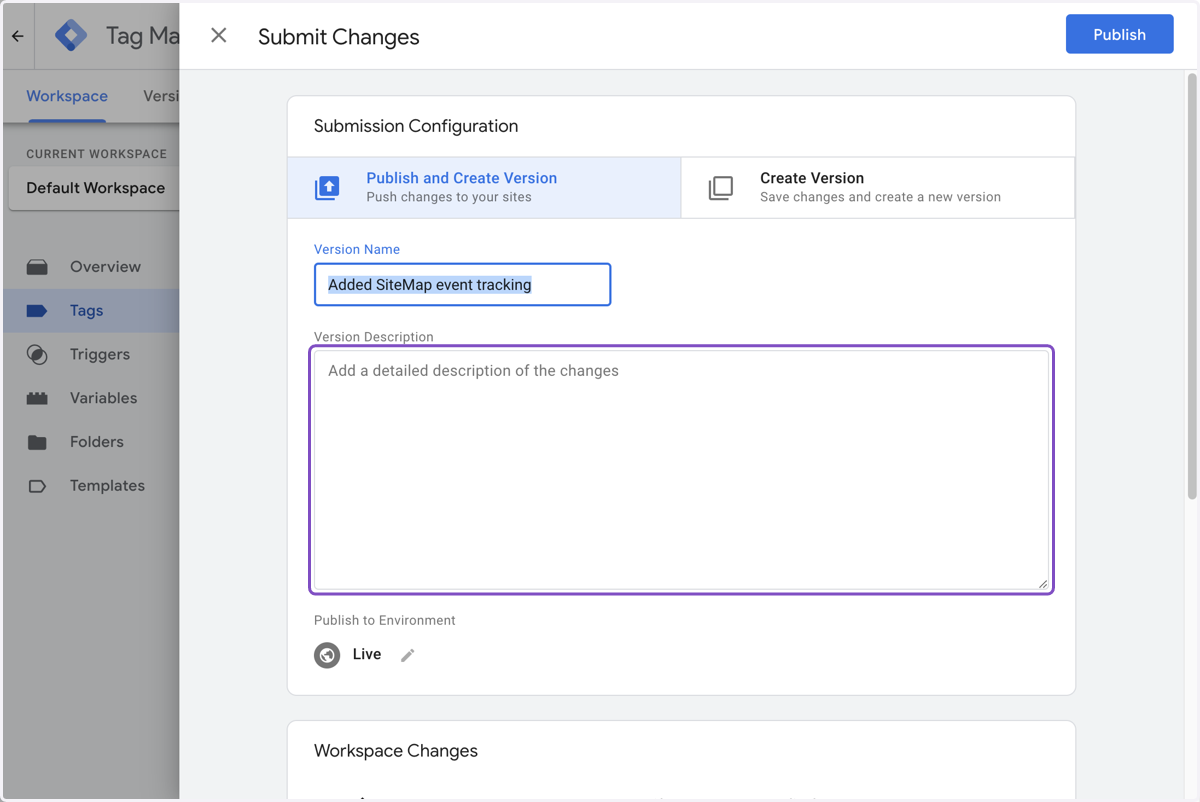
42. Paste "Added SightMap event tracking" into input
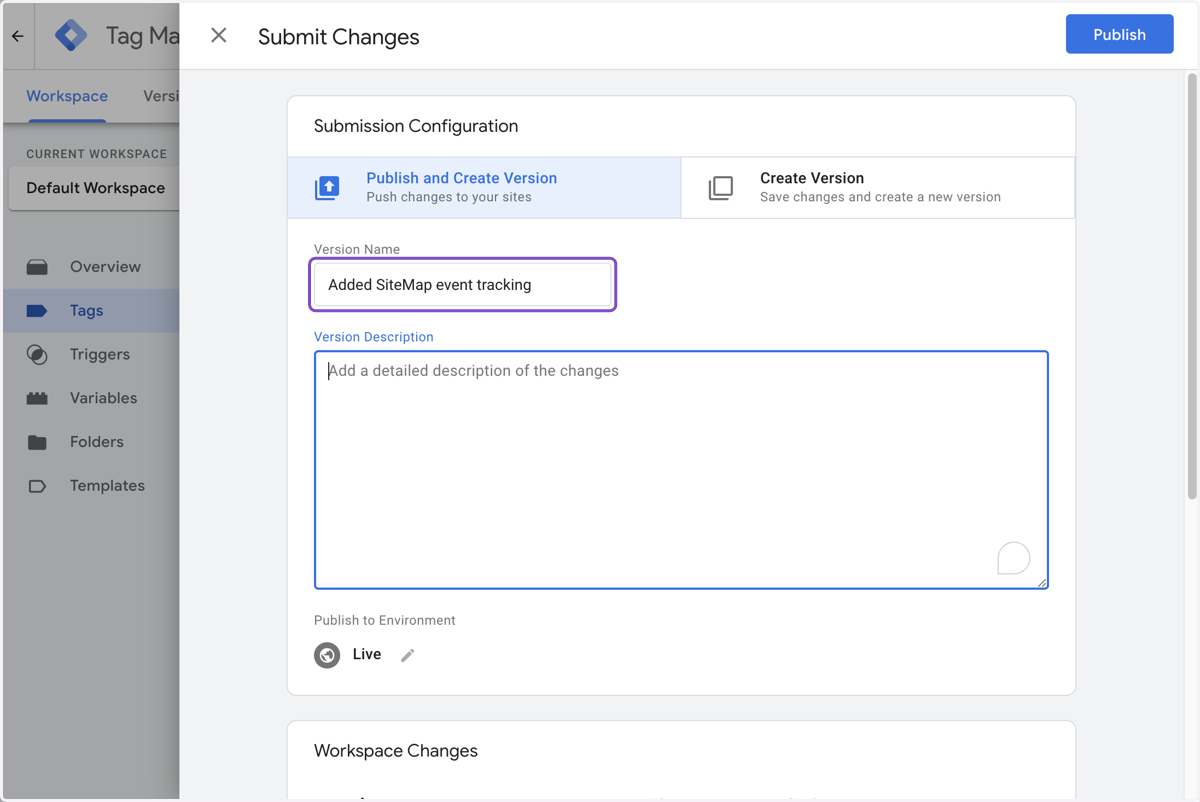
43. Then Publish the container