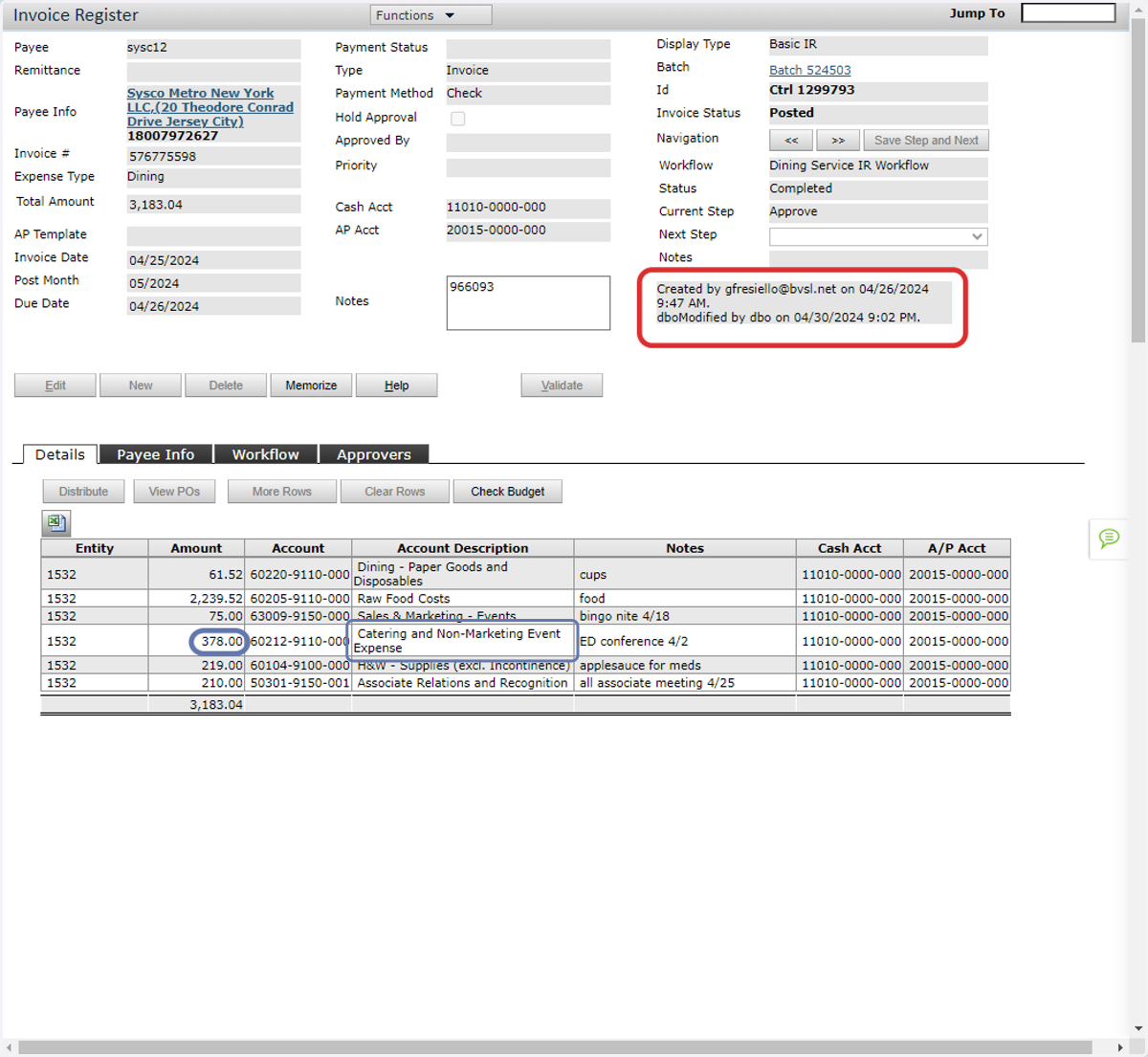
Budget Comparison Steps
Yardi Systems, Inc. - Budget Comparison
1. Note the GL name under Dining Other Costs
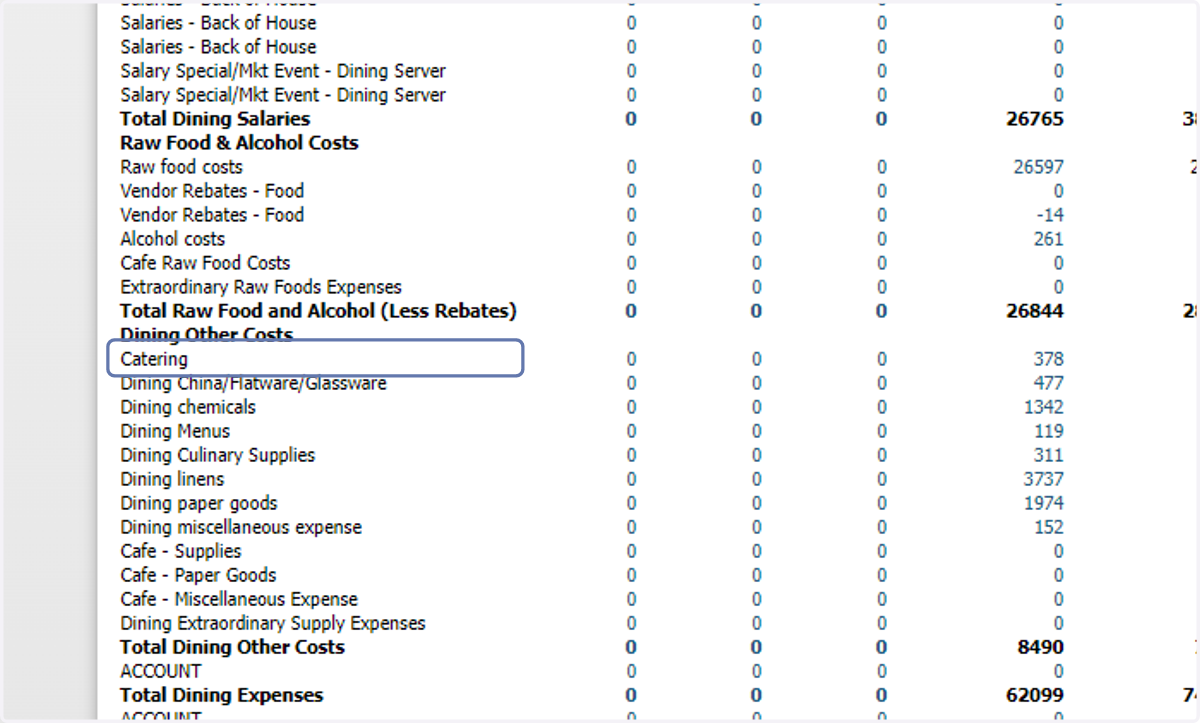
2. Click the dollar amount to further investigate
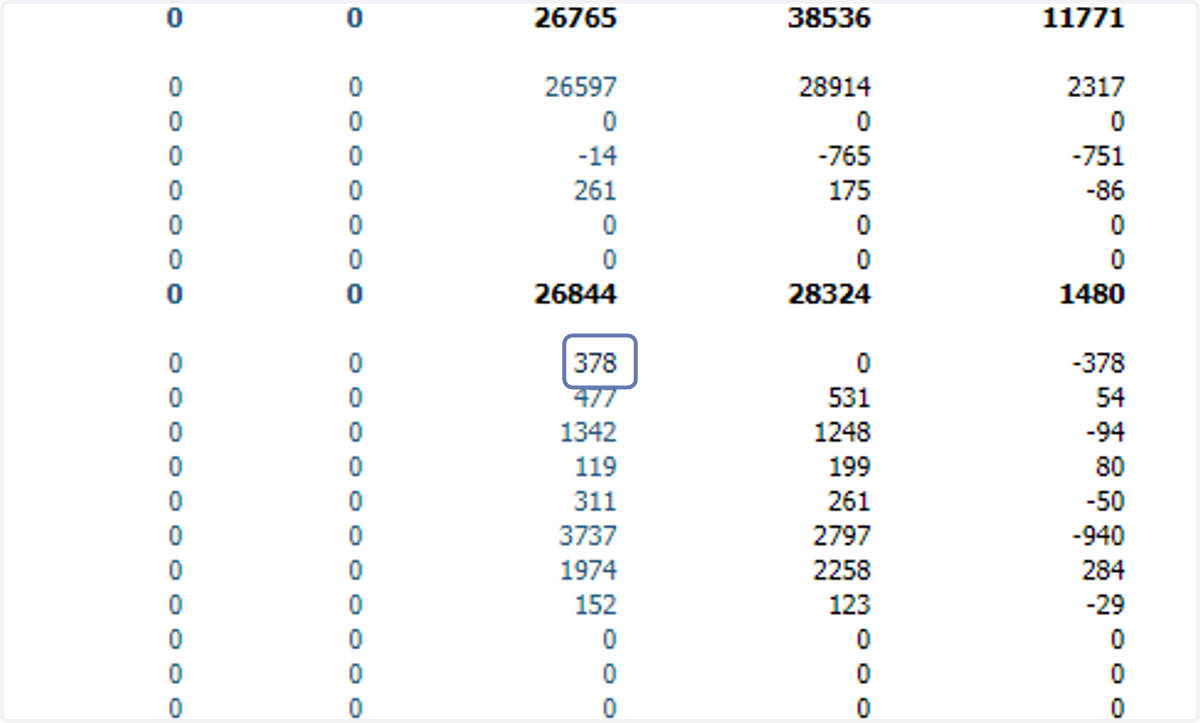
3. Click the dollar amount to view charge info
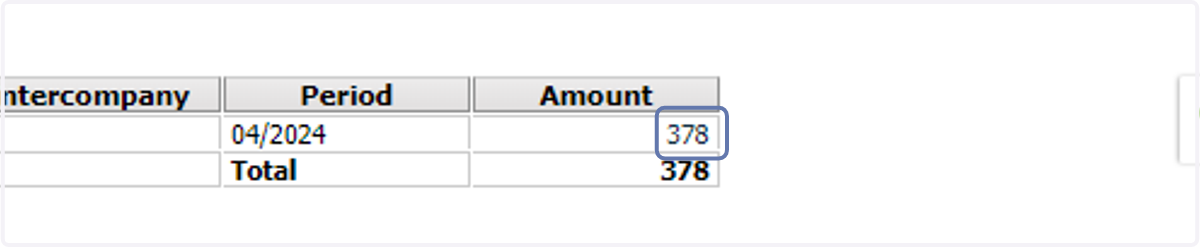
4. Note that this is a GL Accrual from Payscan because it includes an invoice number
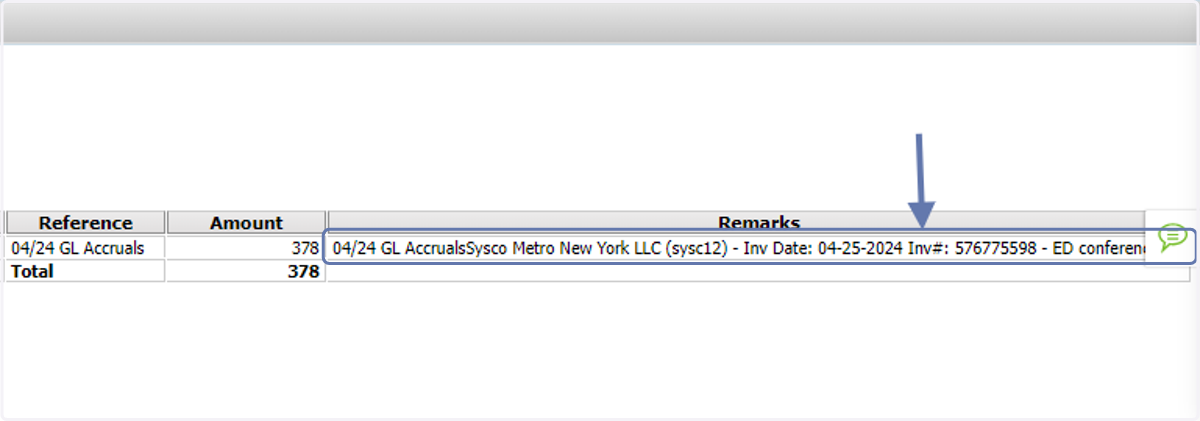
5. To review the invoice, write down the invoice number then click Dashboard
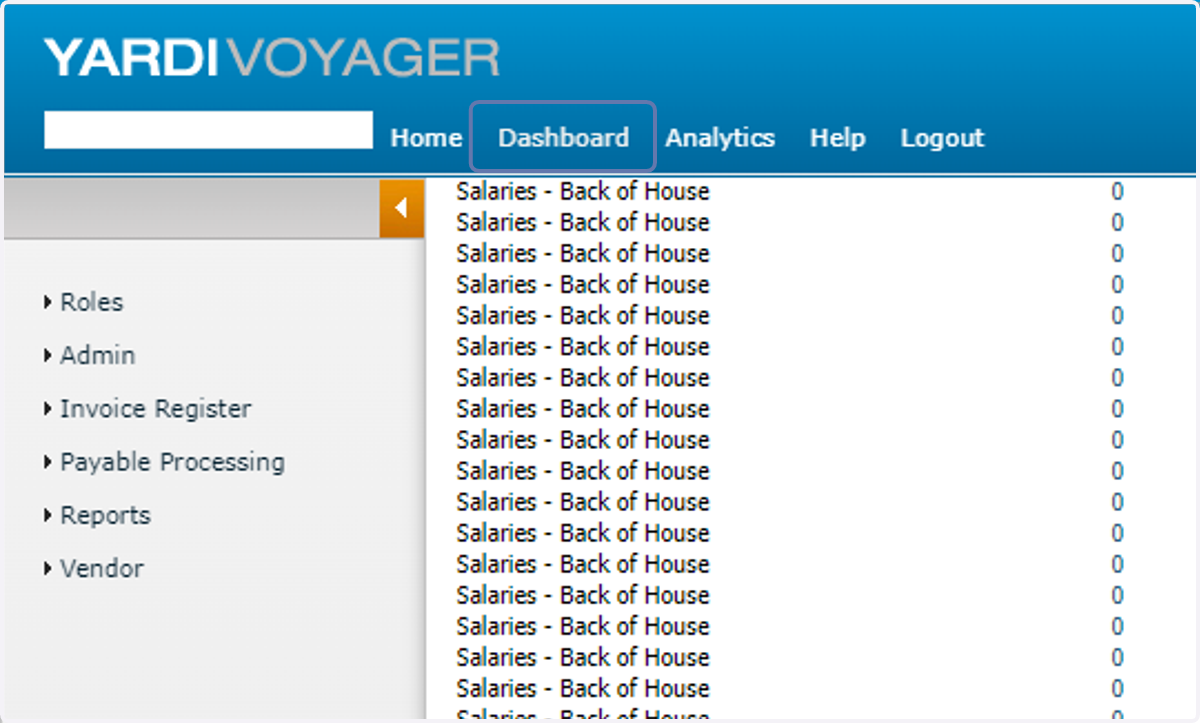
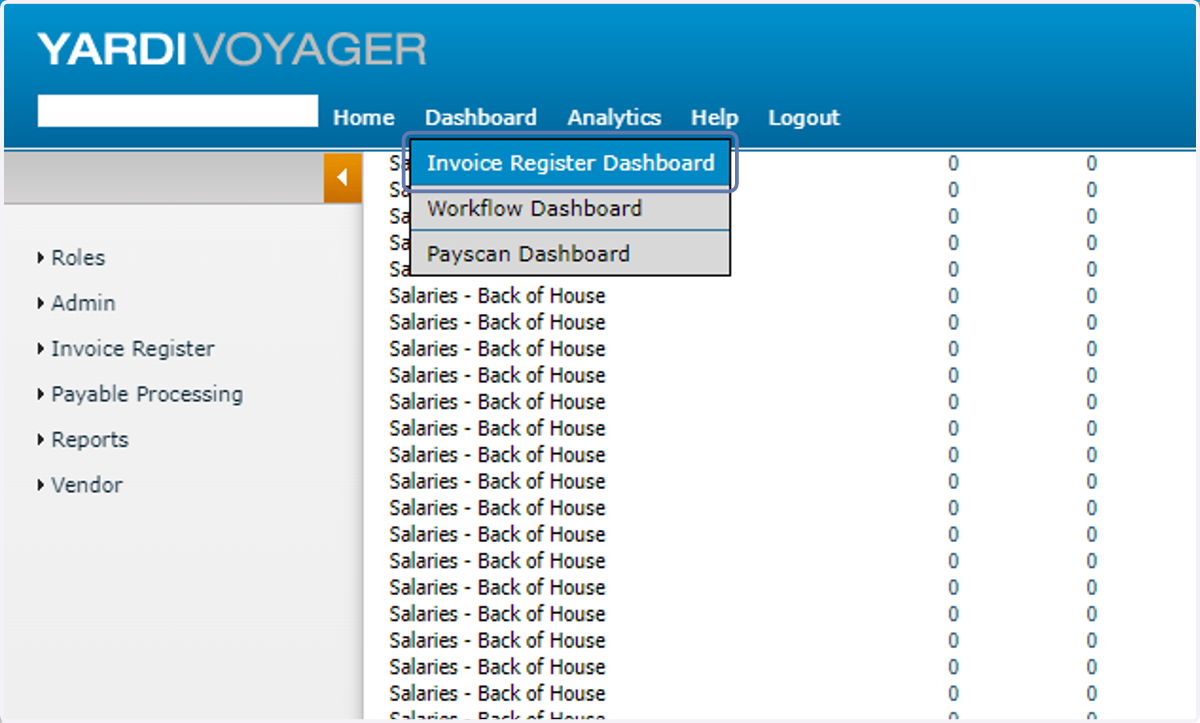
6. Click Invoice Register Dashboard
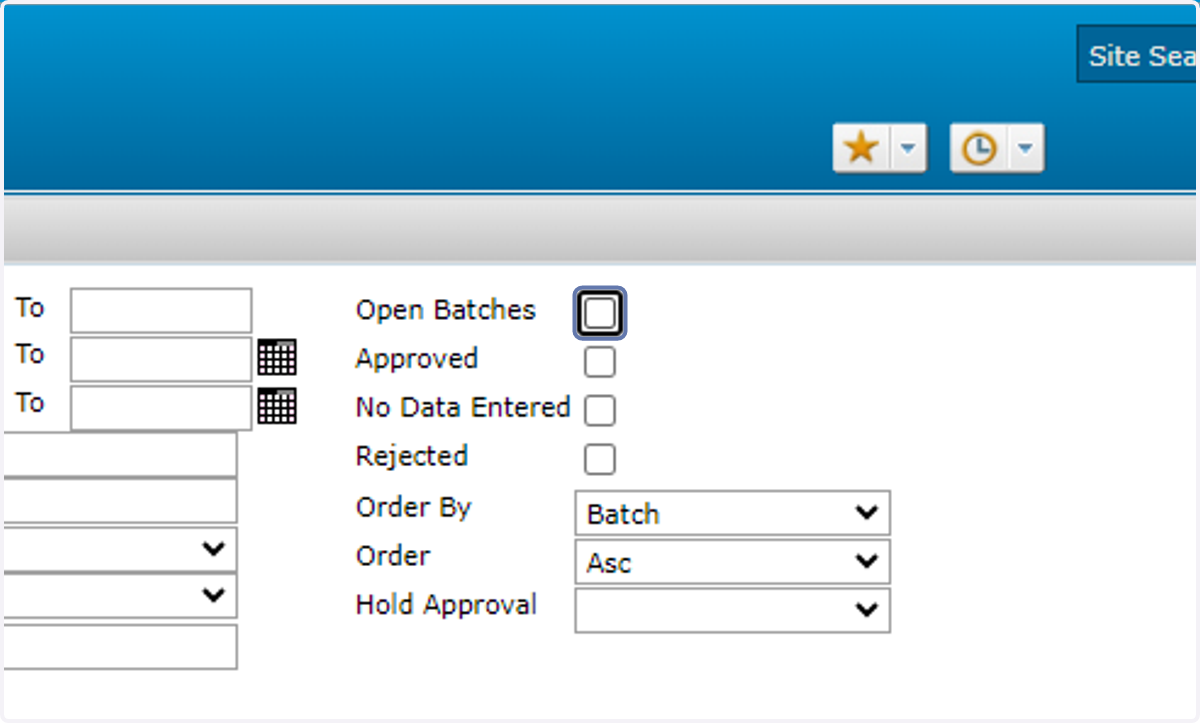
7. Uncheck the Open Batches box
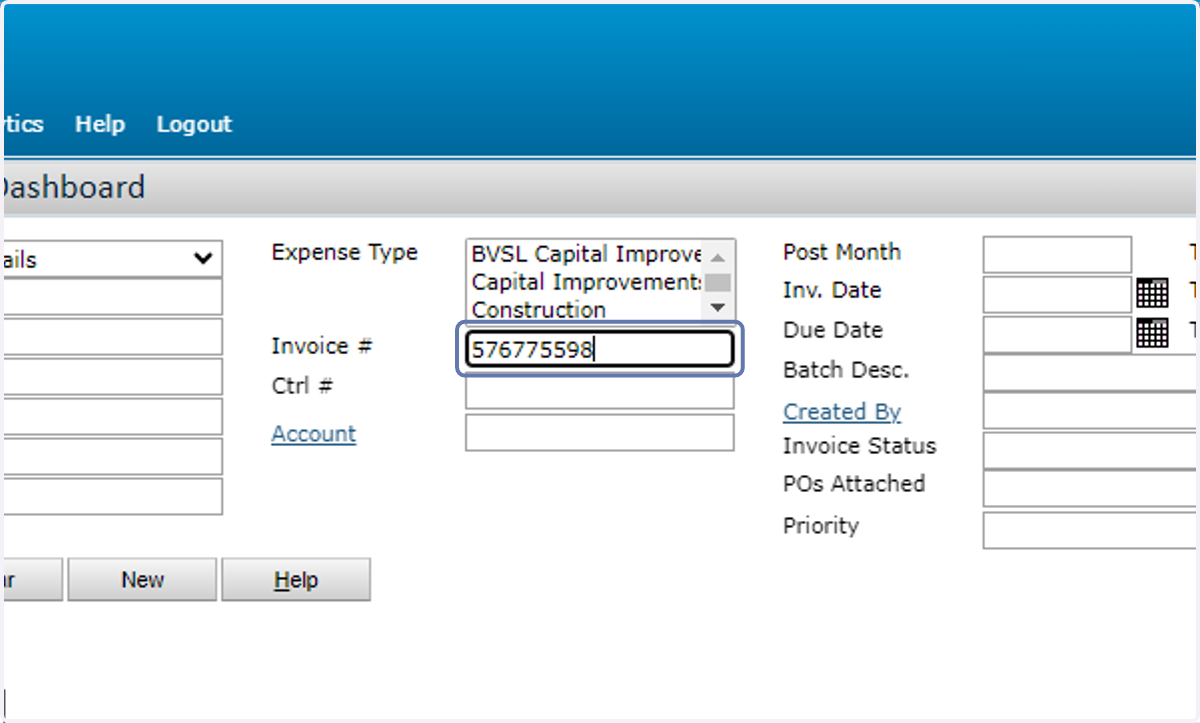
8. Enter the invoice number in the Invoice # field
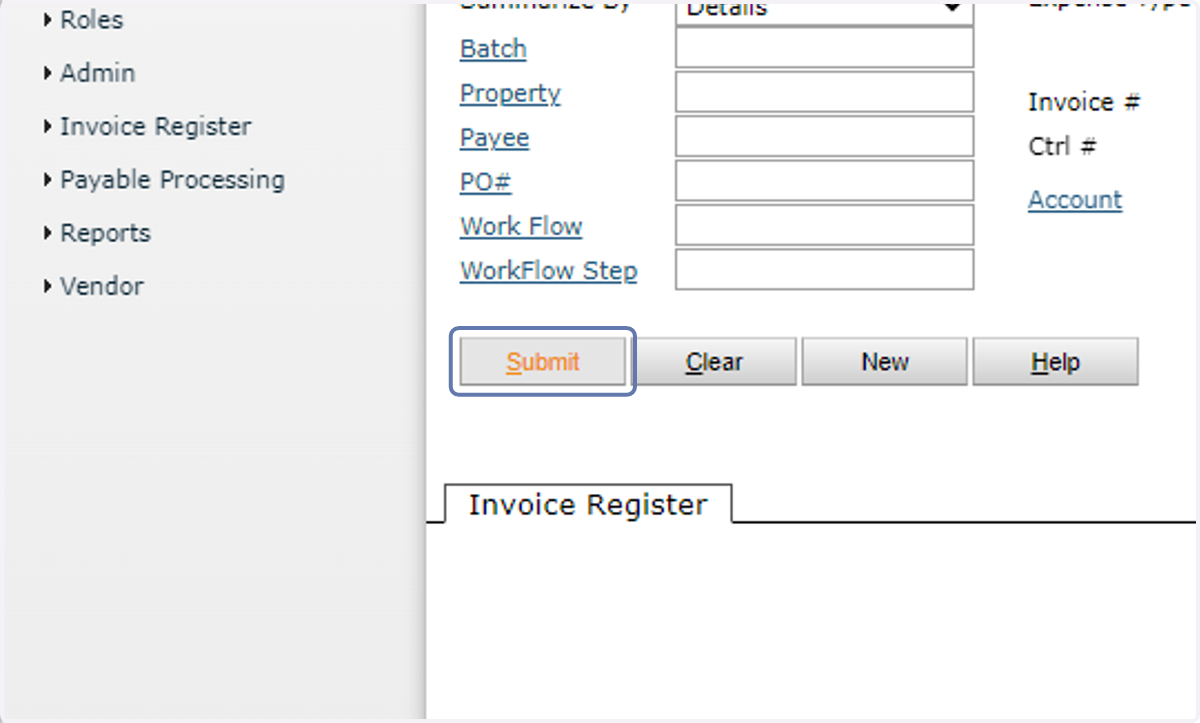
9. Click on Submit
10. Click the Ctrl No
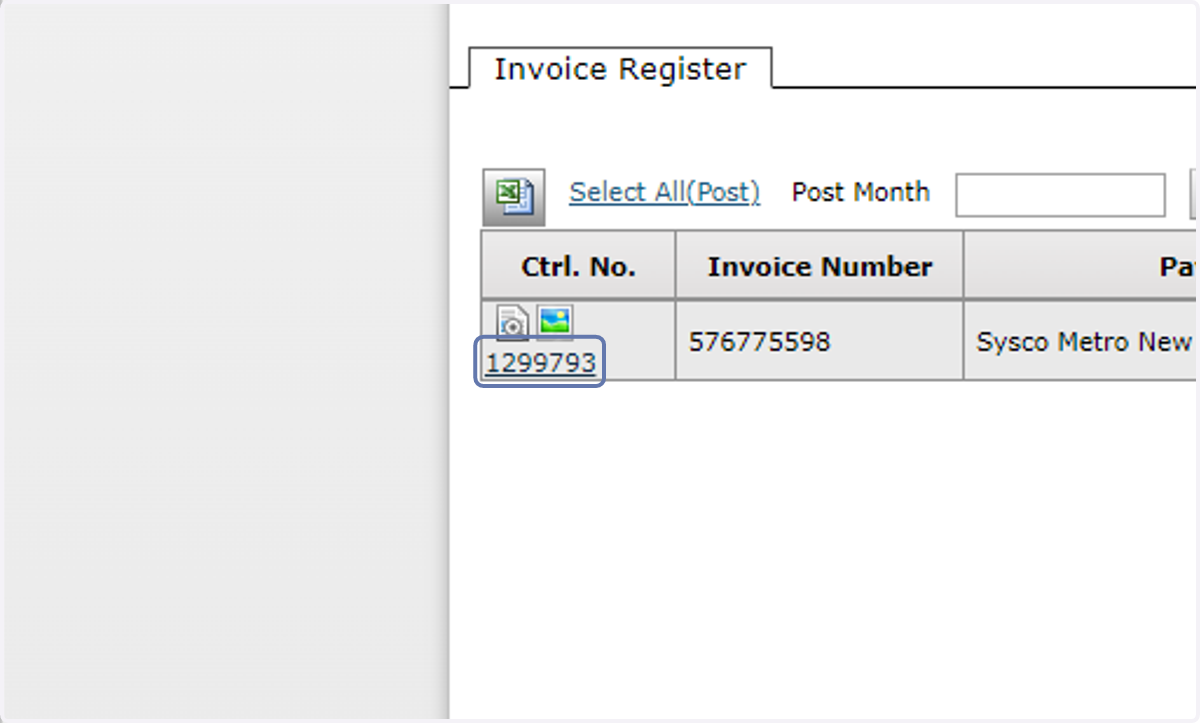
11. Note the charge and corresponding GL chosen during invoice approval
Remember that all invoices coded in payscan through the end of the calendar month are automatically accrued so the charges are captured in the appropriate calendar month.