Effective Rate Wizard Guide
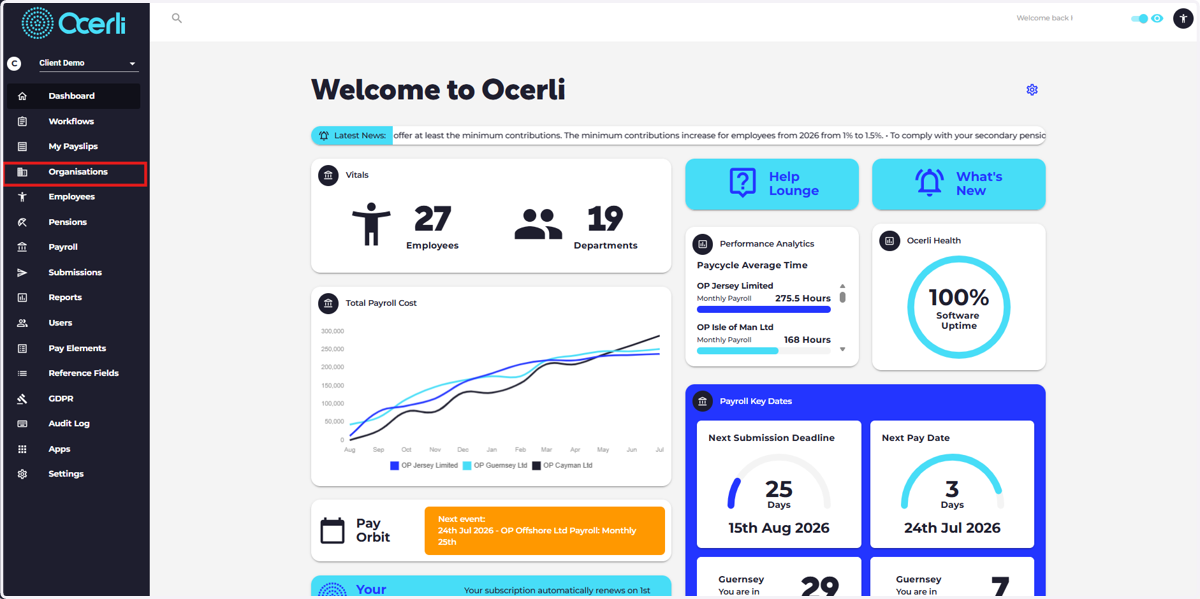
1. Navigate to 'Organisations'
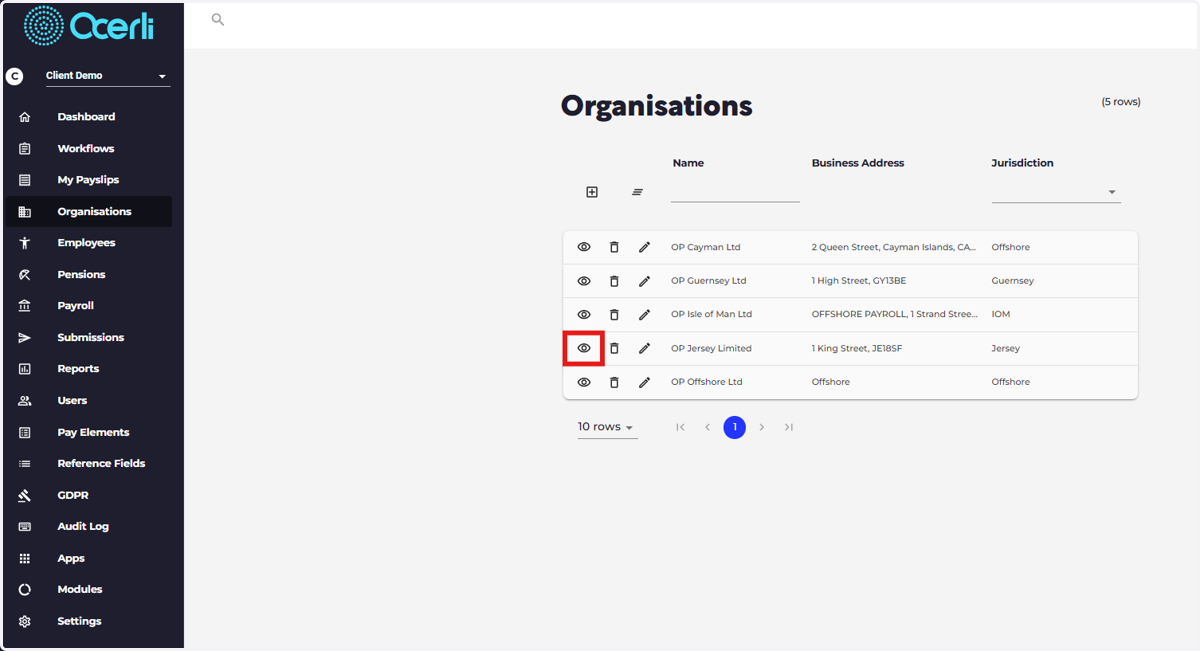
2. Select the required organisation.
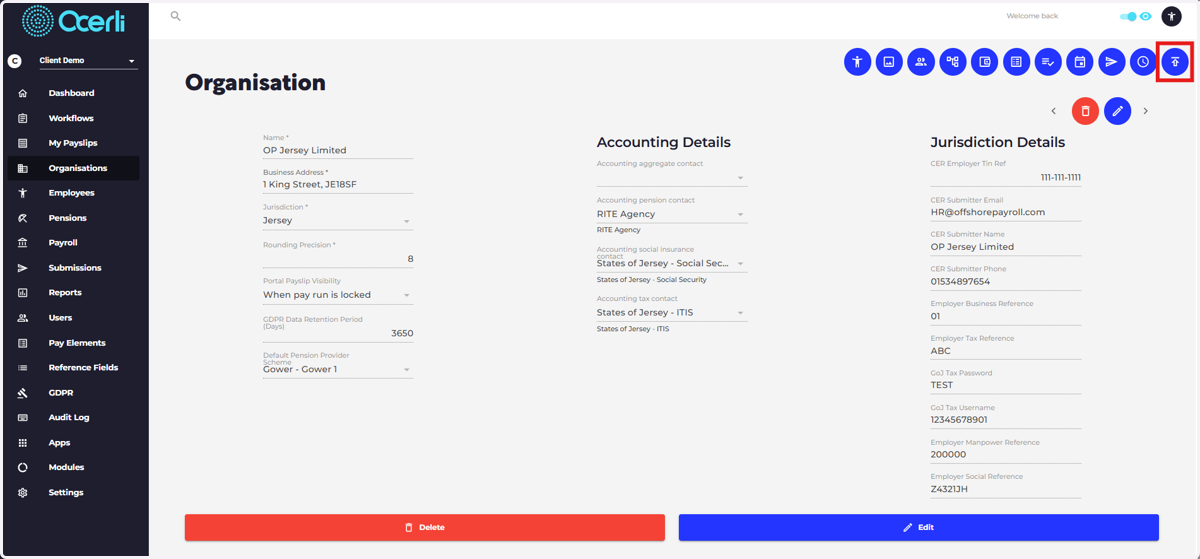
3. Click 'Organisation Imports'
4. Select the Tax Rates tab.
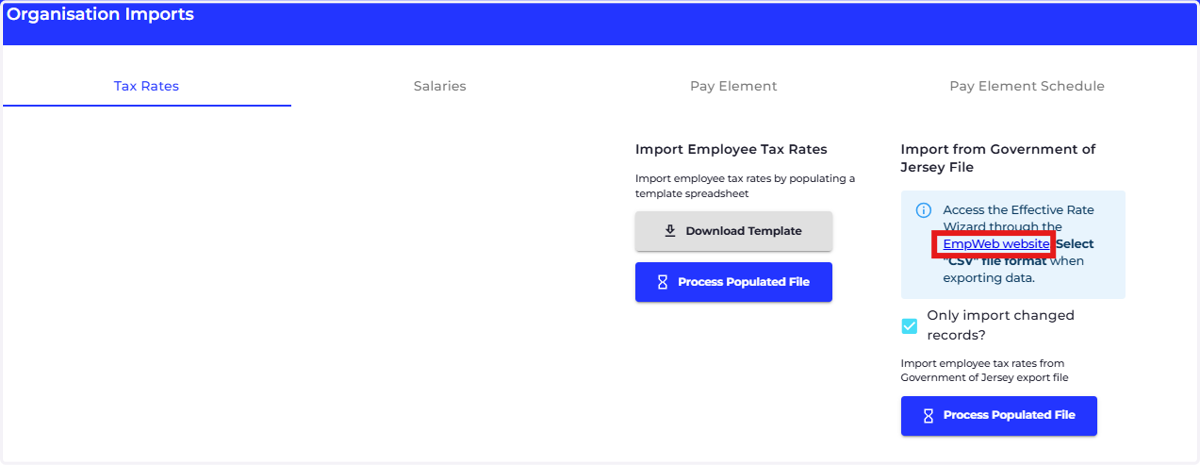
You will see the Import from Government of Jersey File section.
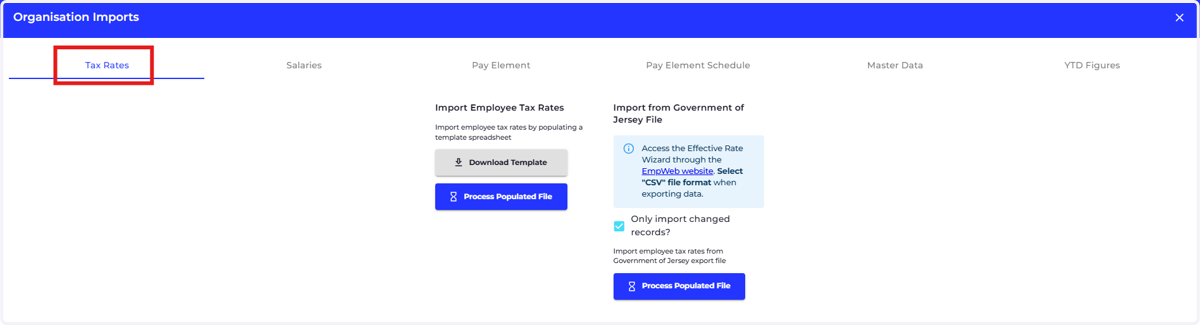
5. Click the 'EmpWeb website' link shown in the information panel.
This will open the Government of Jersey Employer Portal.
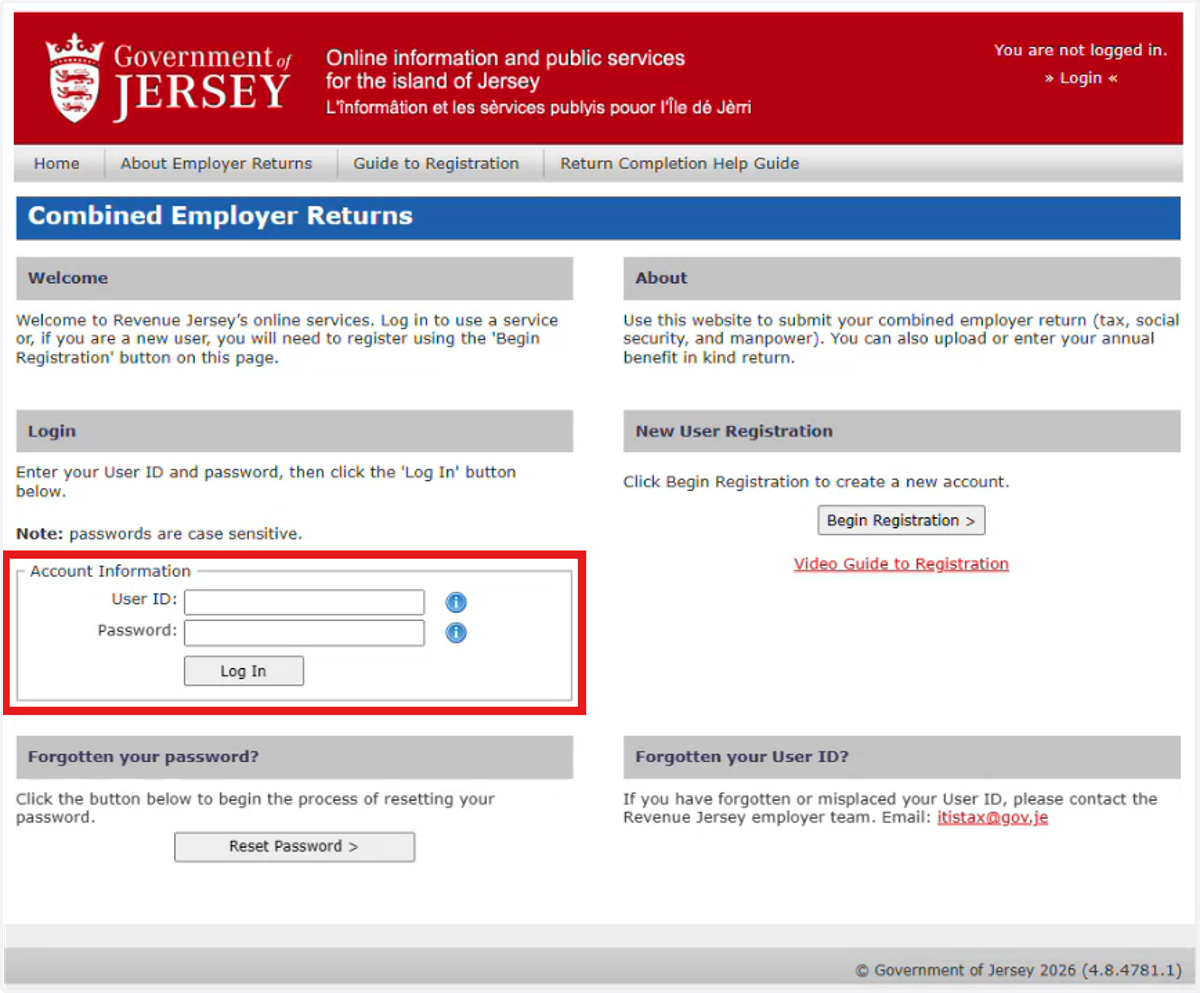
6. Sign in to Empret Portal
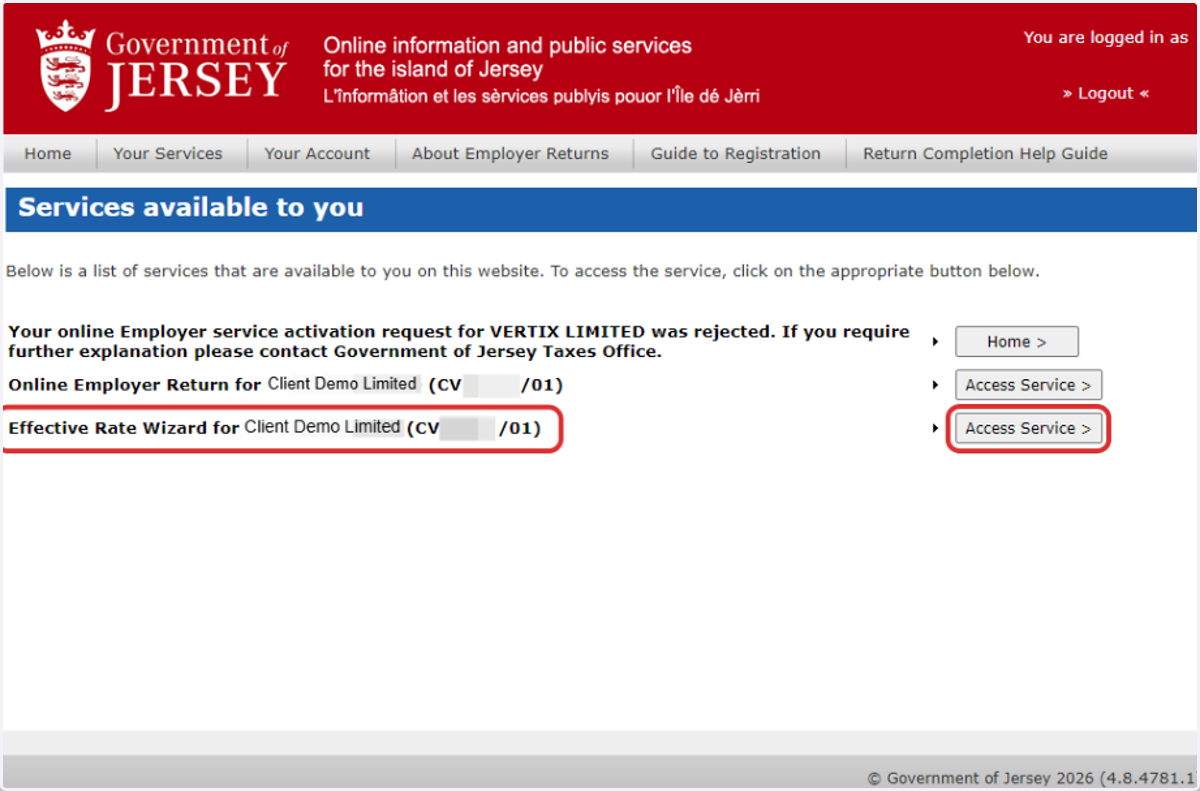
7. Once logged into your Empret Portal Account, you will see a screen similar to this.
Please select 'Access Service' next to the 'Effective Rate Wizard' option
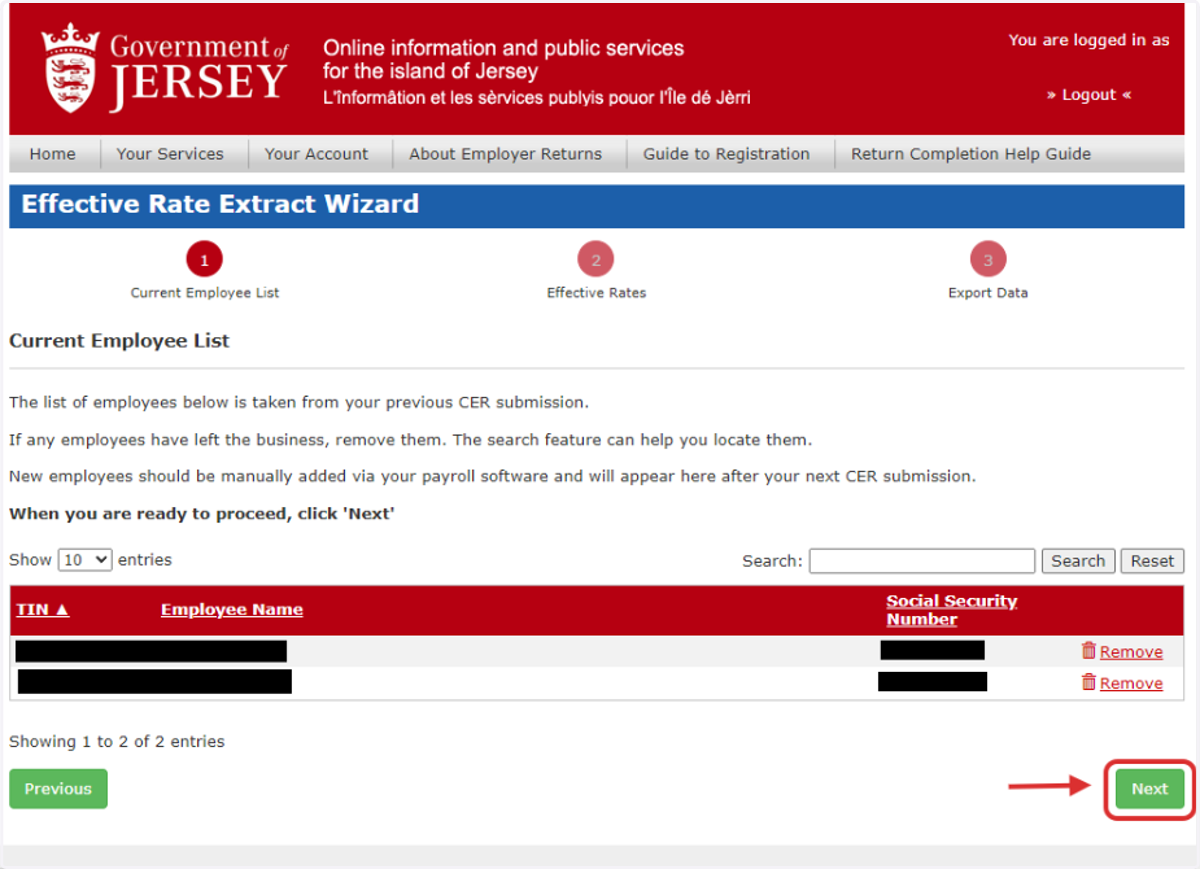
8. Select 'Next'
9. Please ensure you select 'Download Csv'
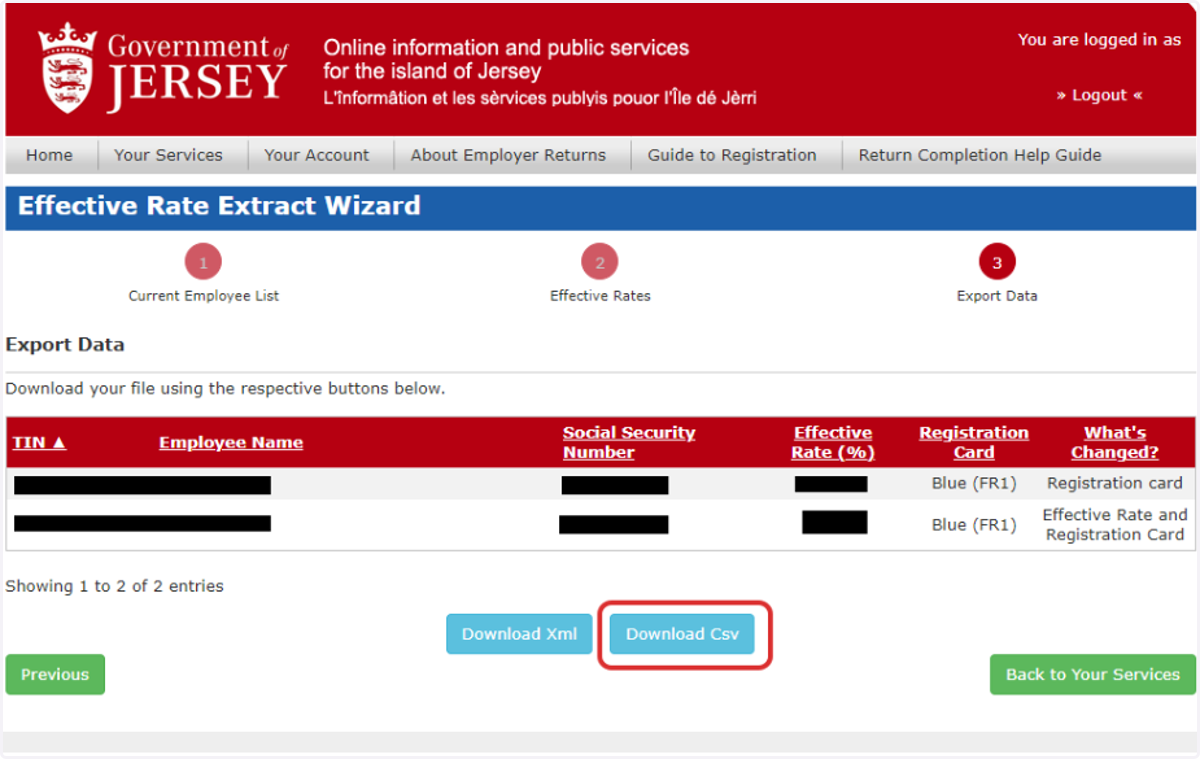
10. Navigate back to Ocerli. Import the CSV File into Ocerli
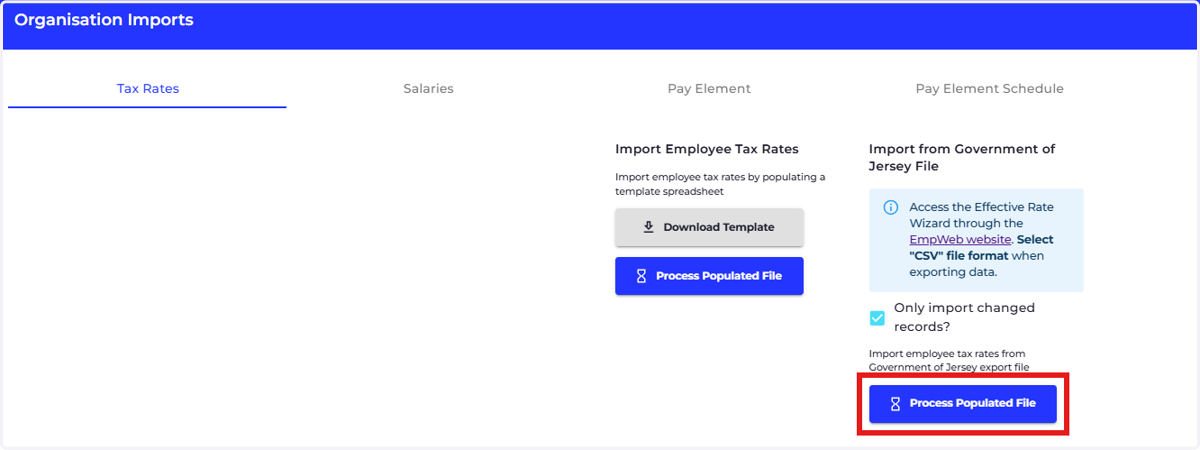
Under Import from Government of Jersey File:
Tick Only import changed records? if you only wish to update employees whose Effective Rate or Registration Card has changed.
Leave the option unticked if you wish to import all records contained in the Government export.
Click Process Populated File.
Browse to the CSV file downloaded from Empret and select Open.
Ocerli will validate and import the data.
11. Review the Import
Once the import has completed:
Review any validation messages.
Confirm that the employee Effective Rates have been updated.
Resolve any errors before attempting the import again if required.
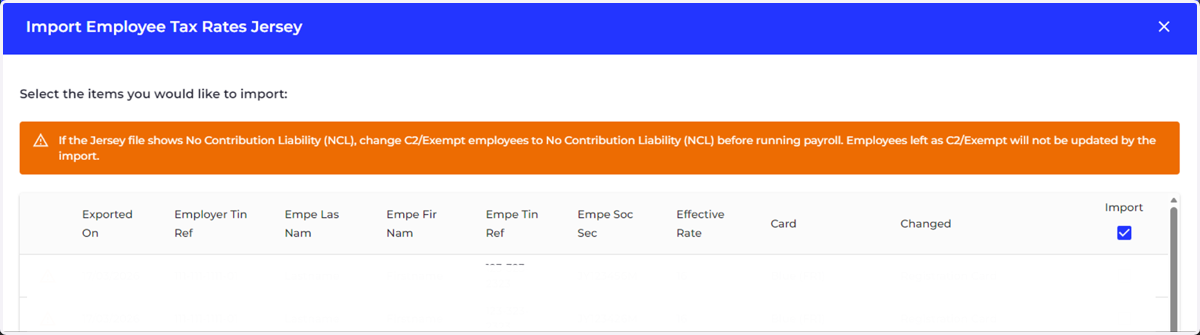
12. Click 'Apply Selected Items'
