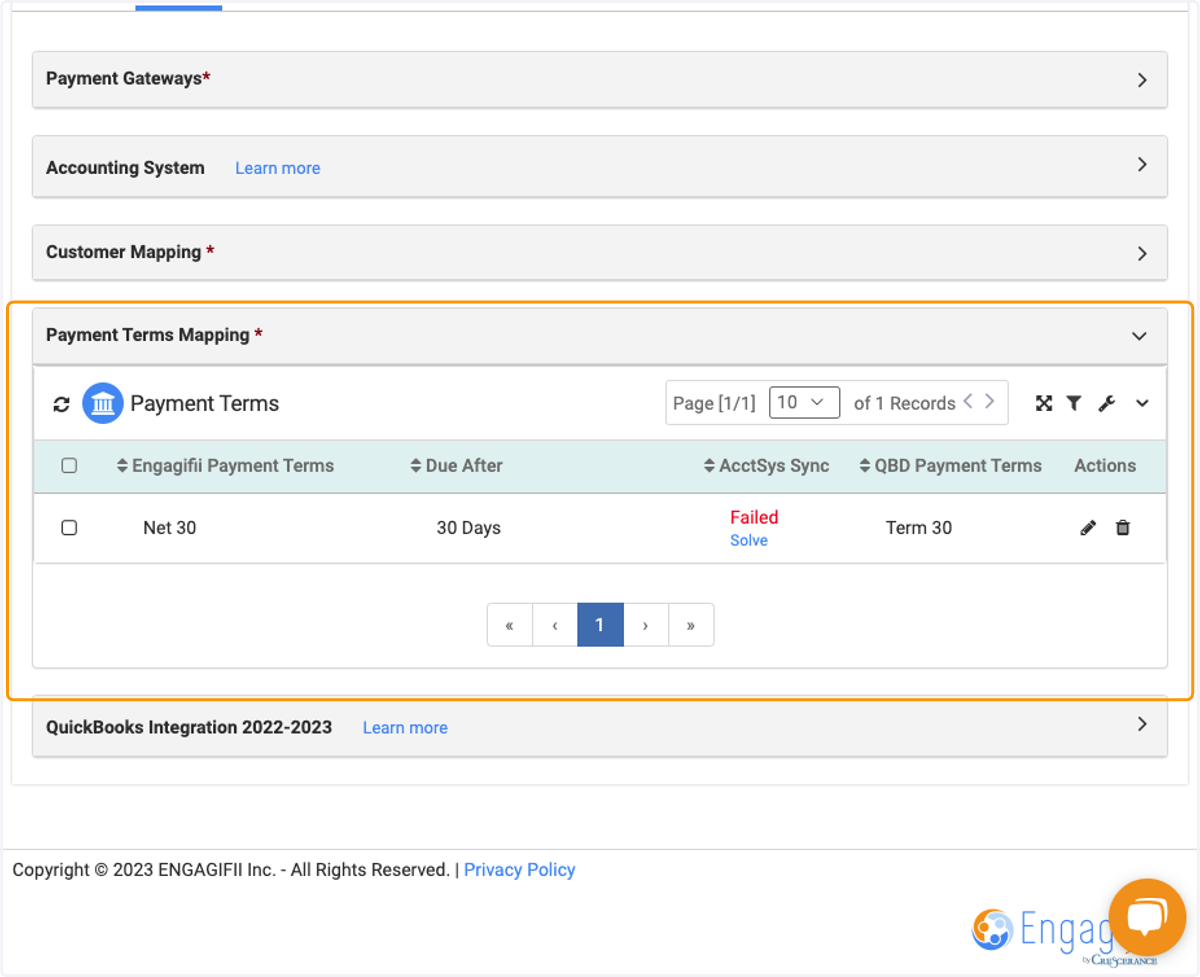
Revenue Integrations
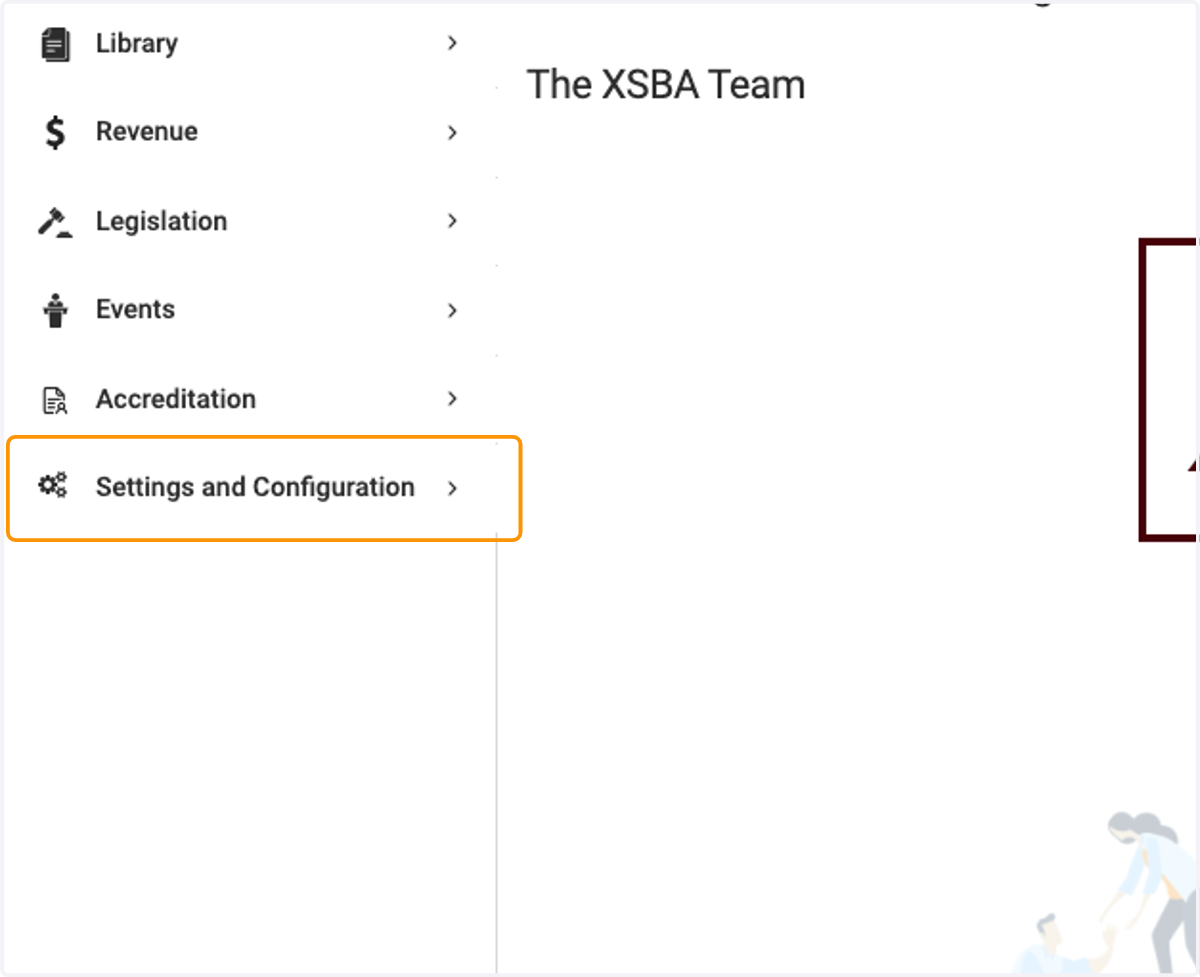
1. Click on Settings and Configuration
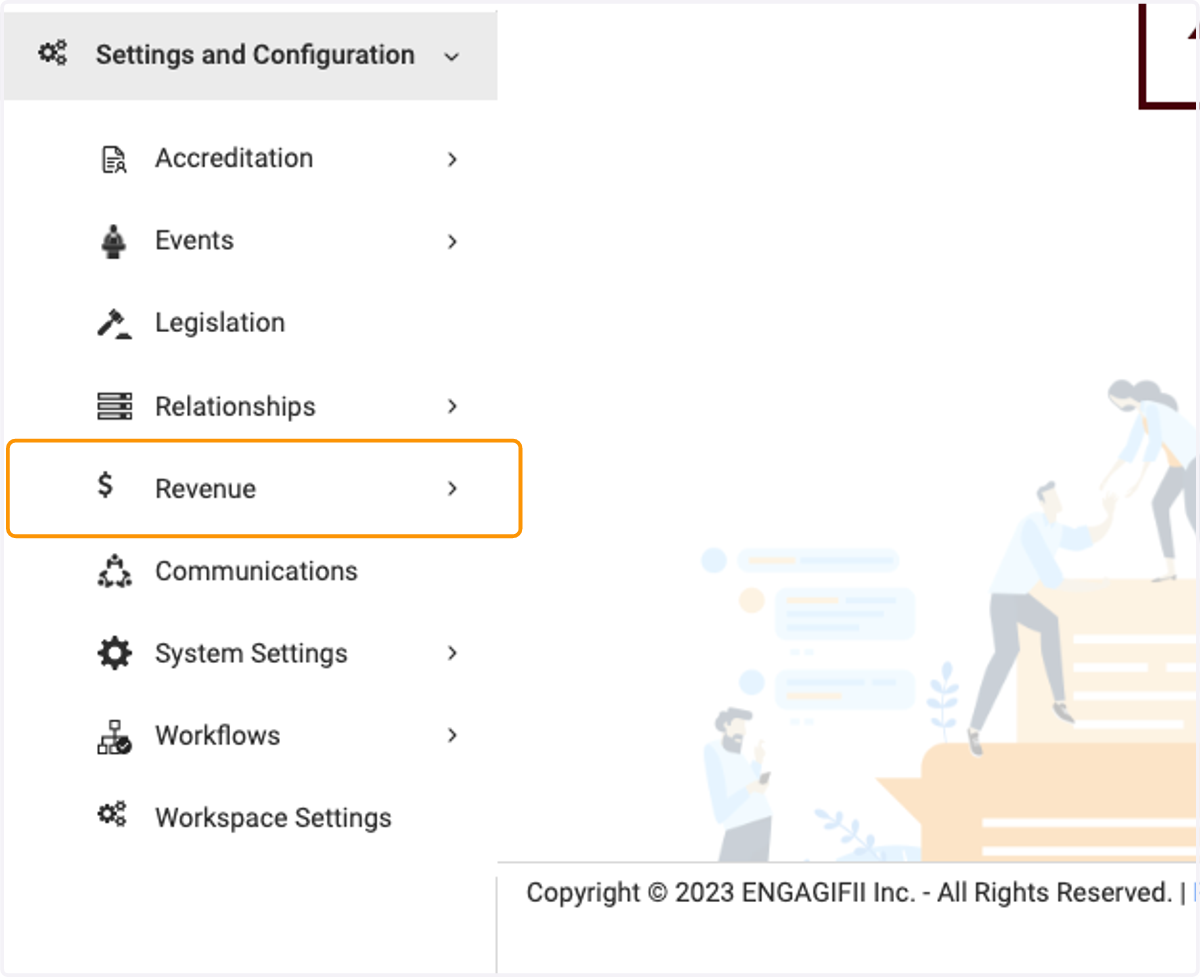
2. Click on Revenue
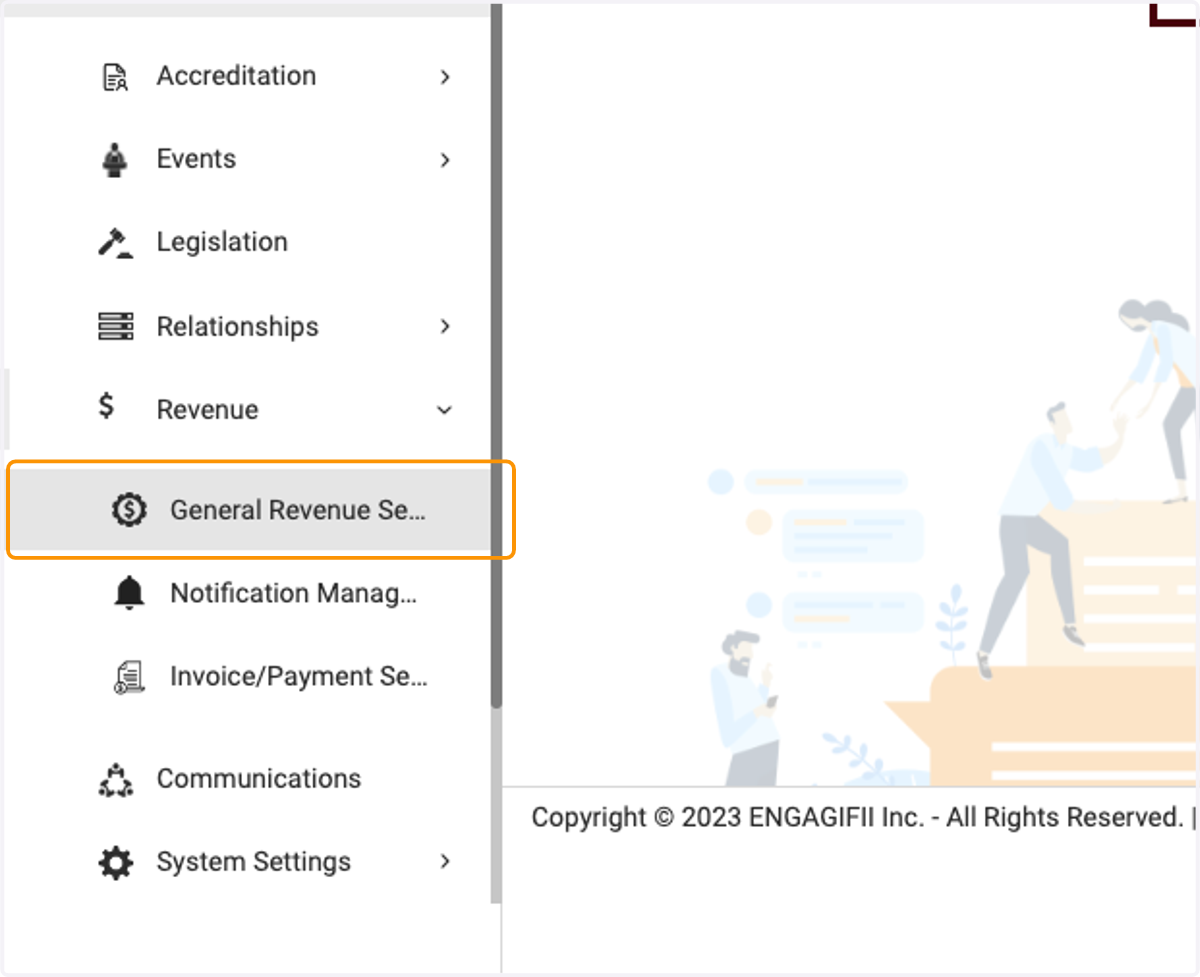
3. Click on General Revenue Settings
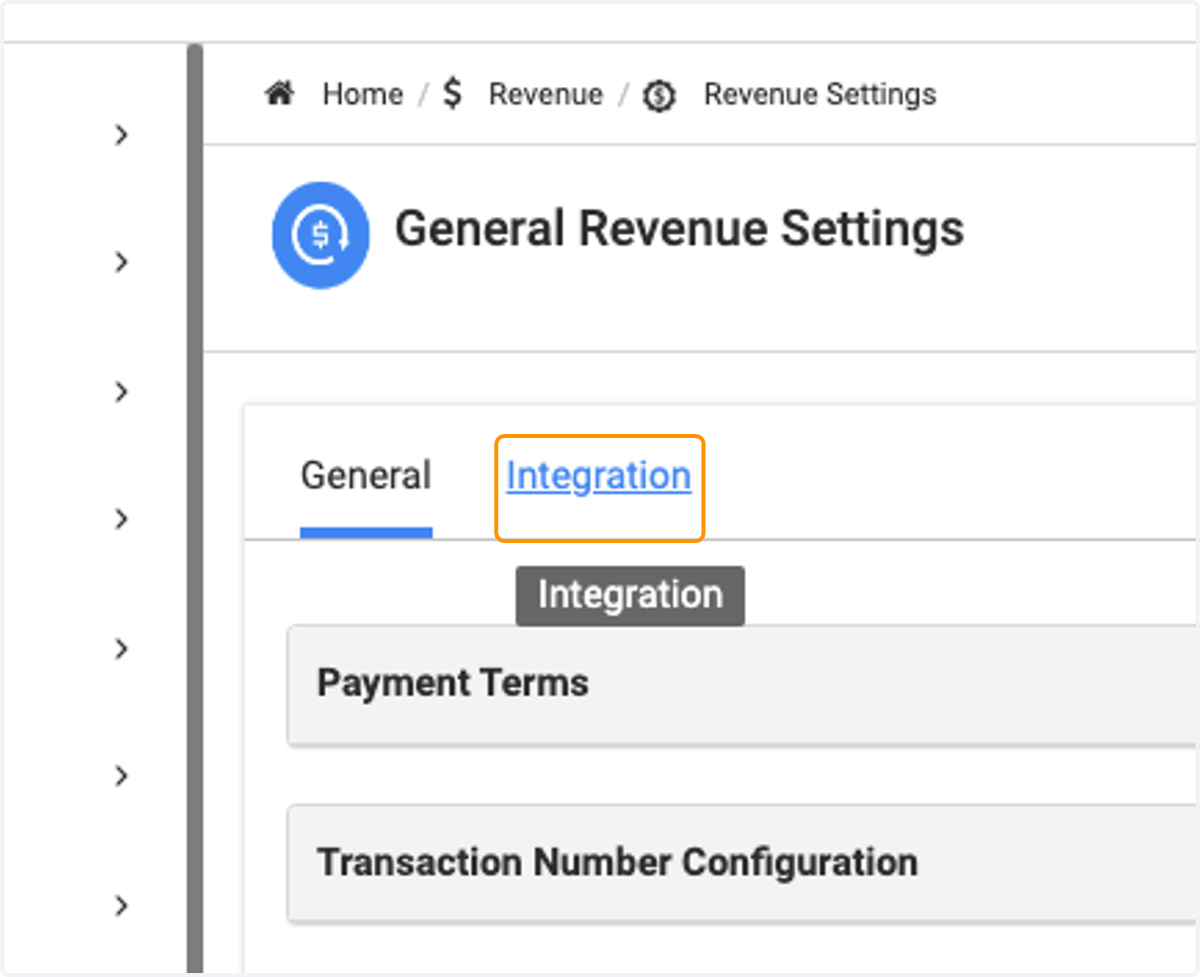
4. Click on Integration
5. There are two different Integrations available in Engagifii: Payment Gateways and Accounting Systems (such as QuickBooks)
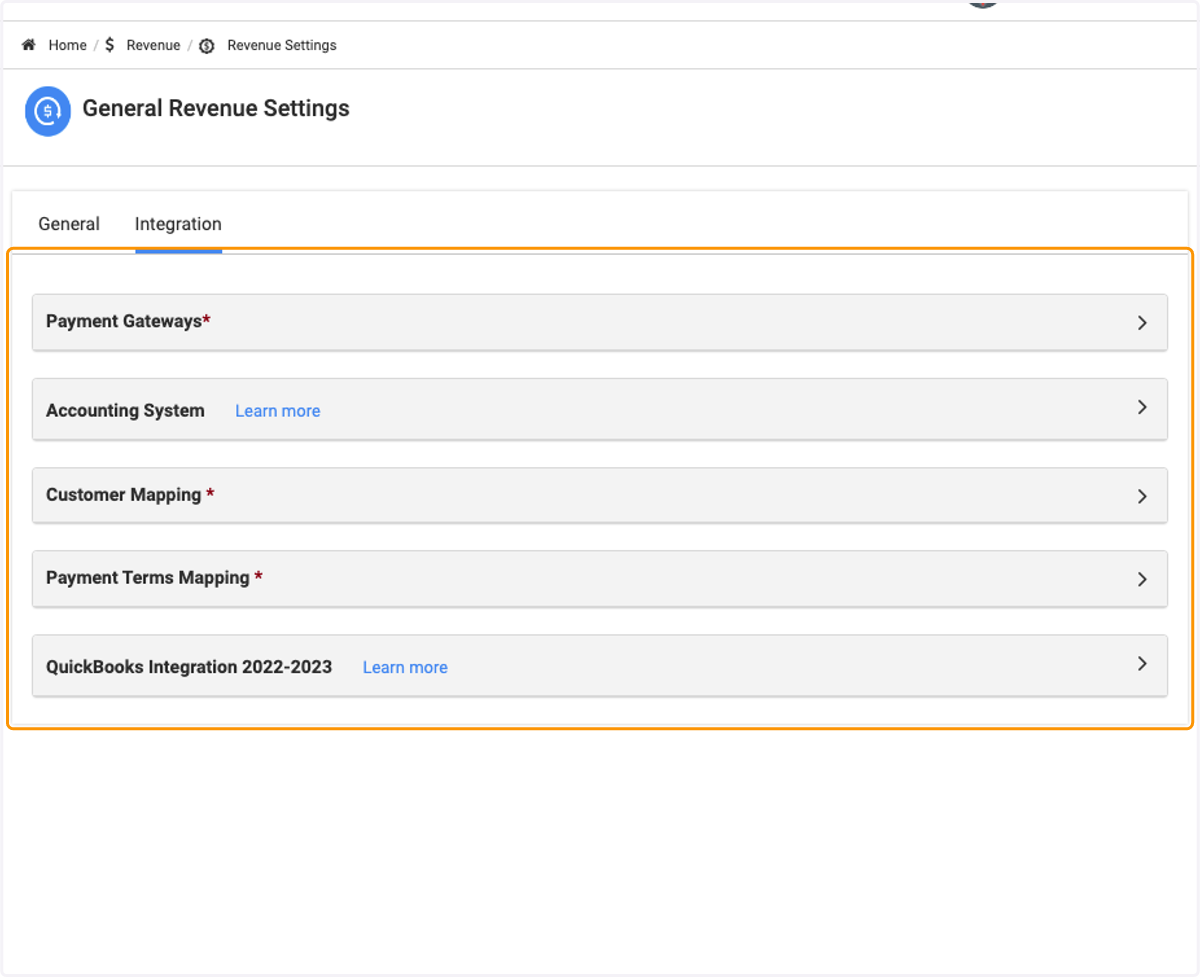
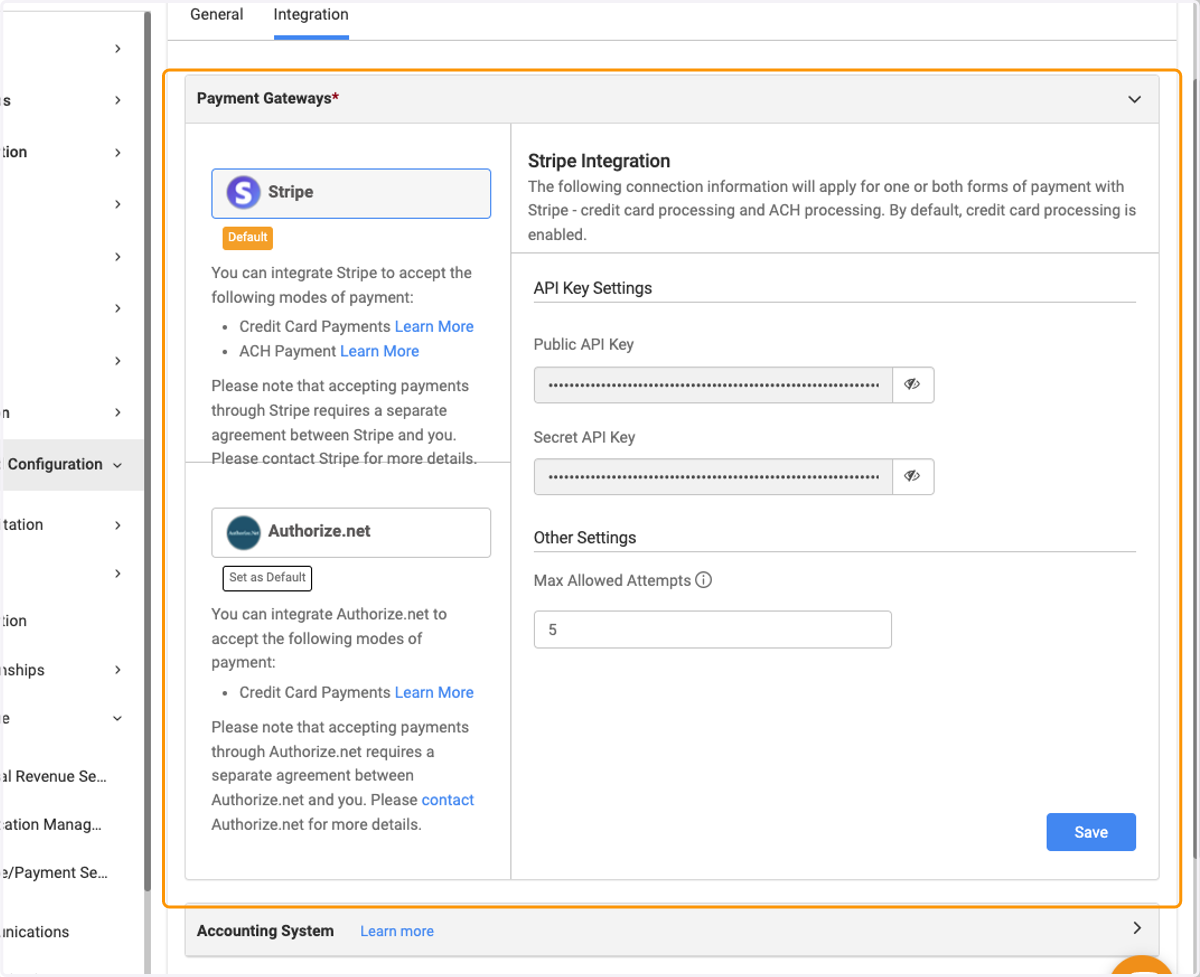
6. The first option is Payment Gateways
We have two integrations available for Payment Gateways: Stripe and Authorize.net. We are also working on adding PayPal to the list of available Payment Gateways
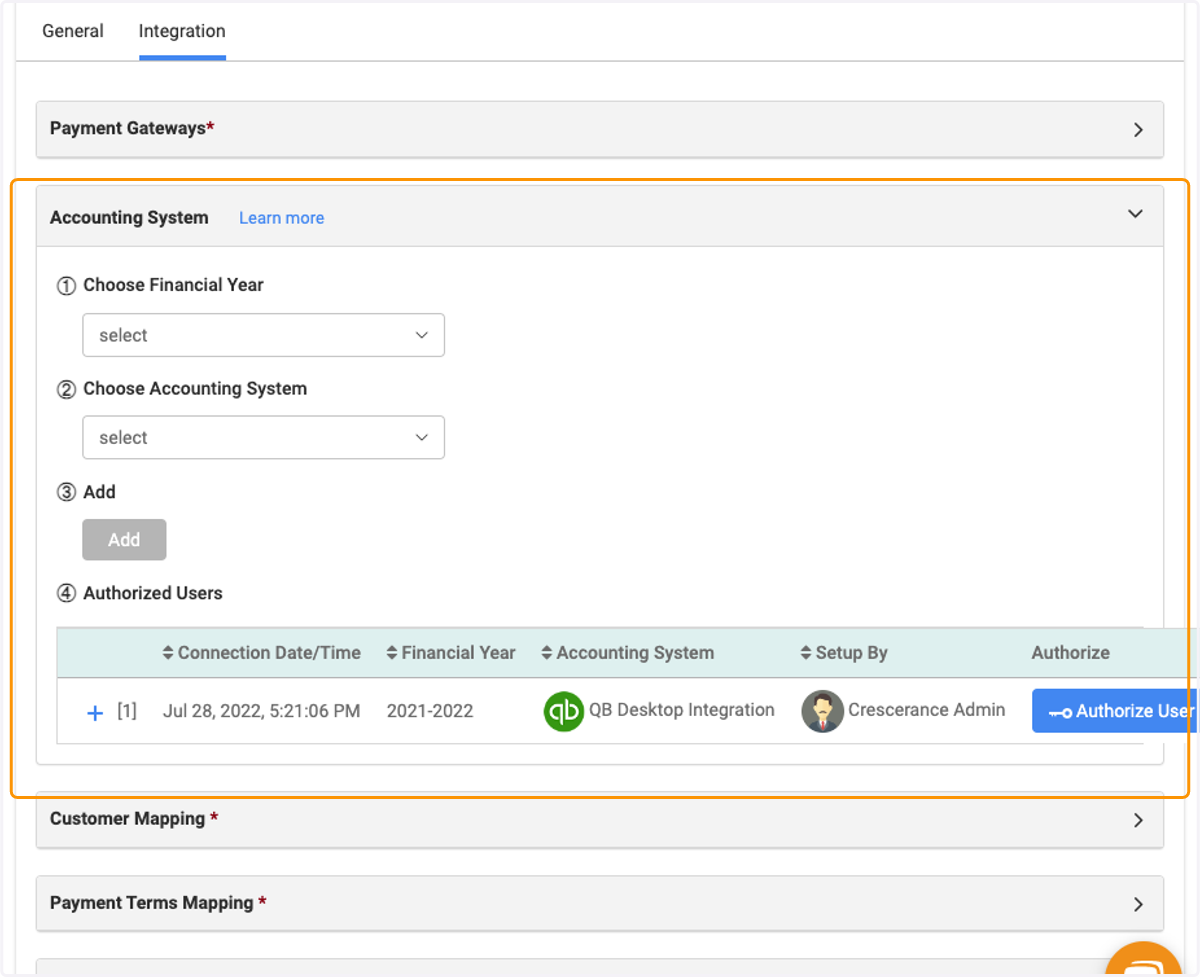
7. Next we have Accounting System, where you can set up your QuickBooks (Desktop) link
Within this section, you can choose the Financial Year, which accounting system you'd like to use (we only have QB Desktop at this time), and you're able to add Authorized Users
8. The following two steps are related to the Accounting System integration
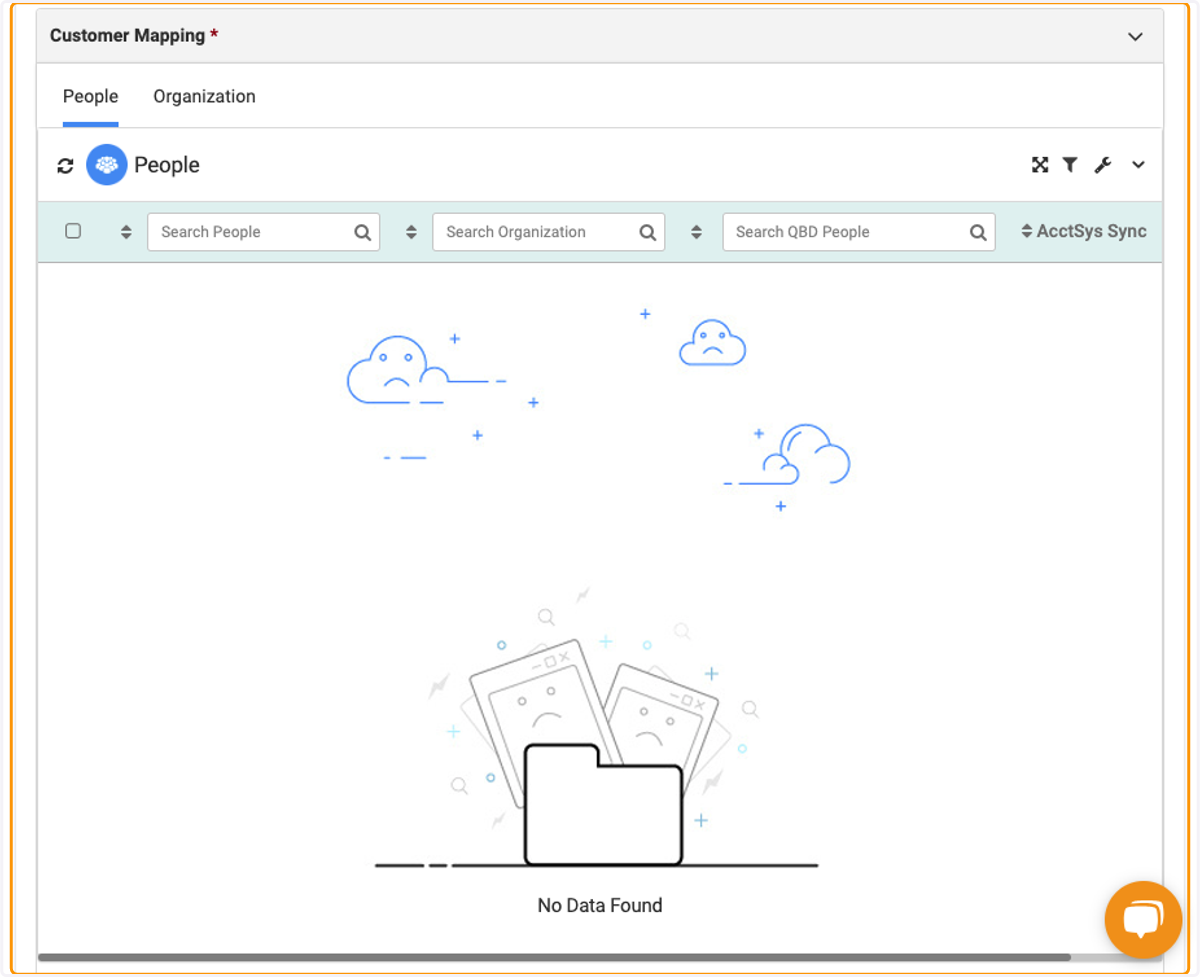
9. Customer Mapping will allow you to clone the mapping within your QB system
10. The next one is Payment Terms Mapping, this will sync with QB Desktop