Managing a Team and Scoring as the home team in Match Point App
MatchPoint Scoring
1. This is the home screen of the scoring app
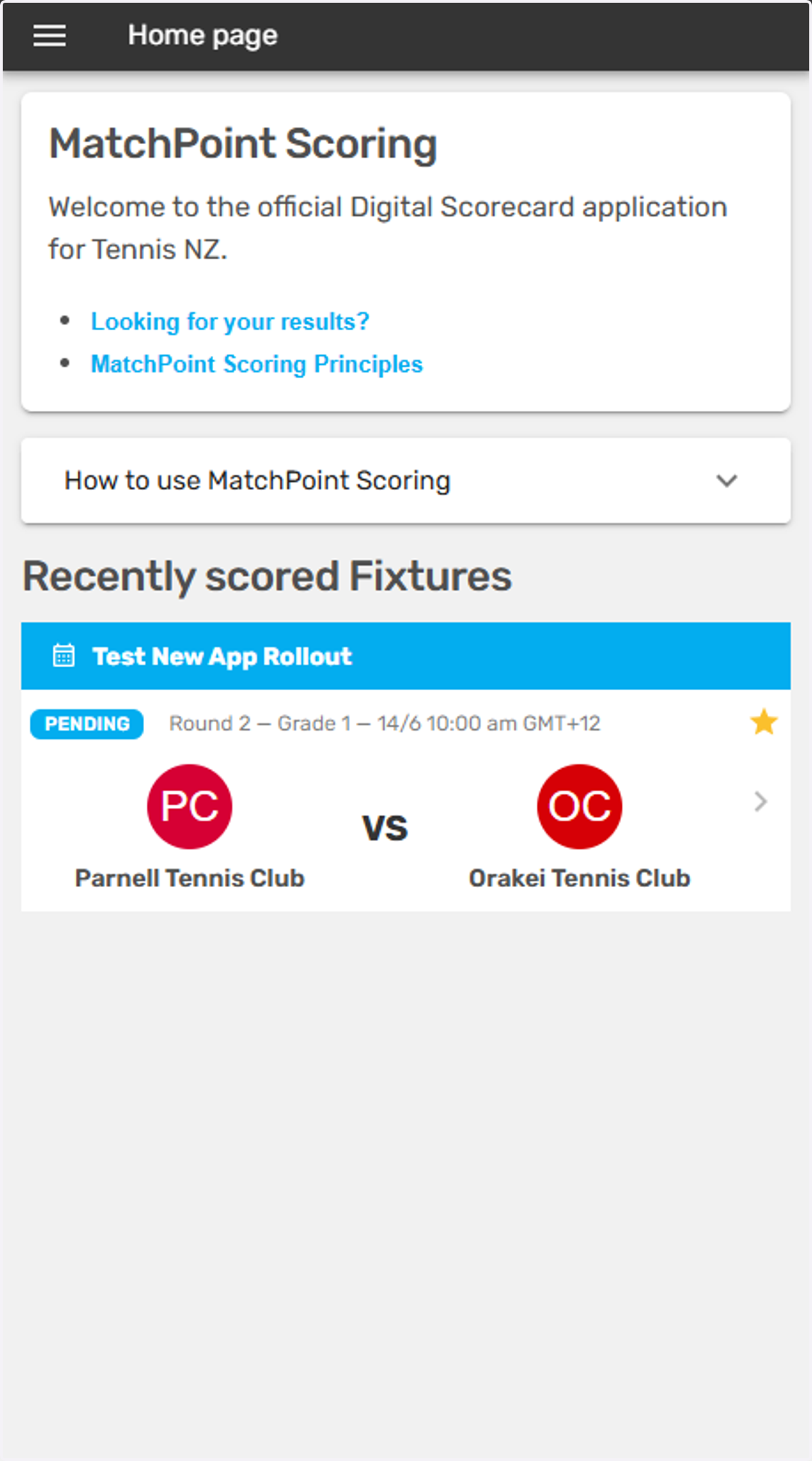
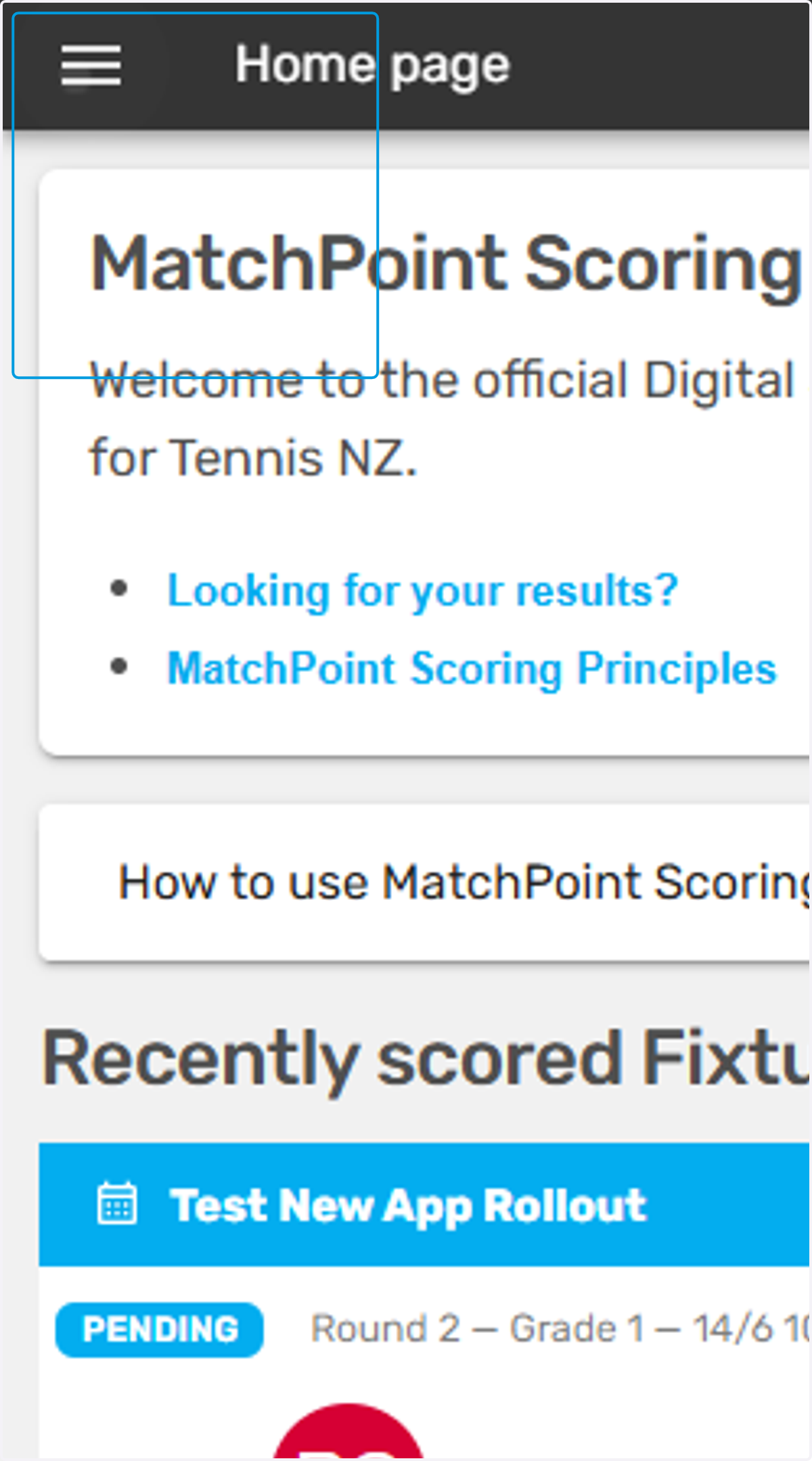
2. Tap here to find a fixture to select your team and score
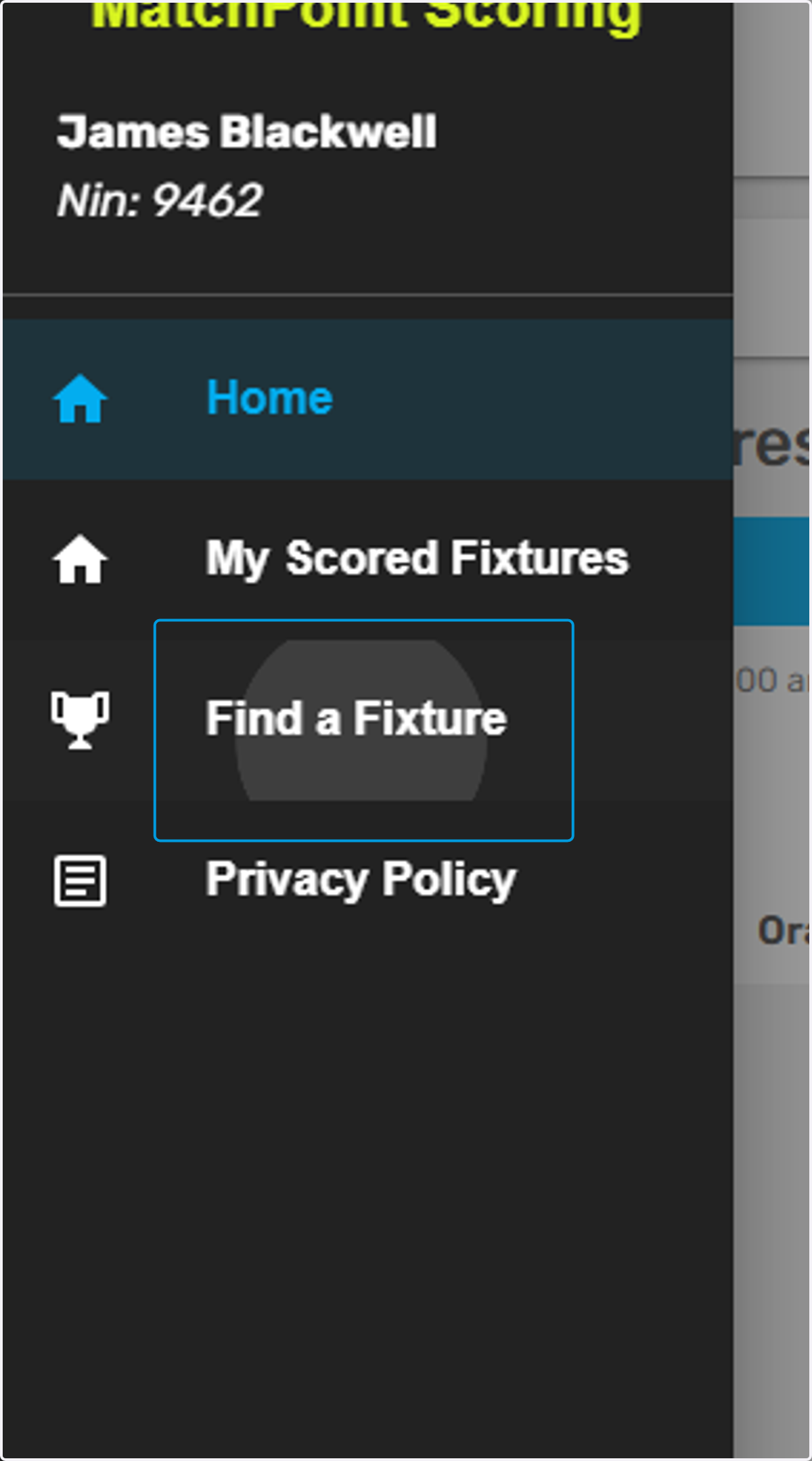
3. Tap on Find a Fixture
4. Here you will find a list of all competitions you are entered in, select the relevant competition
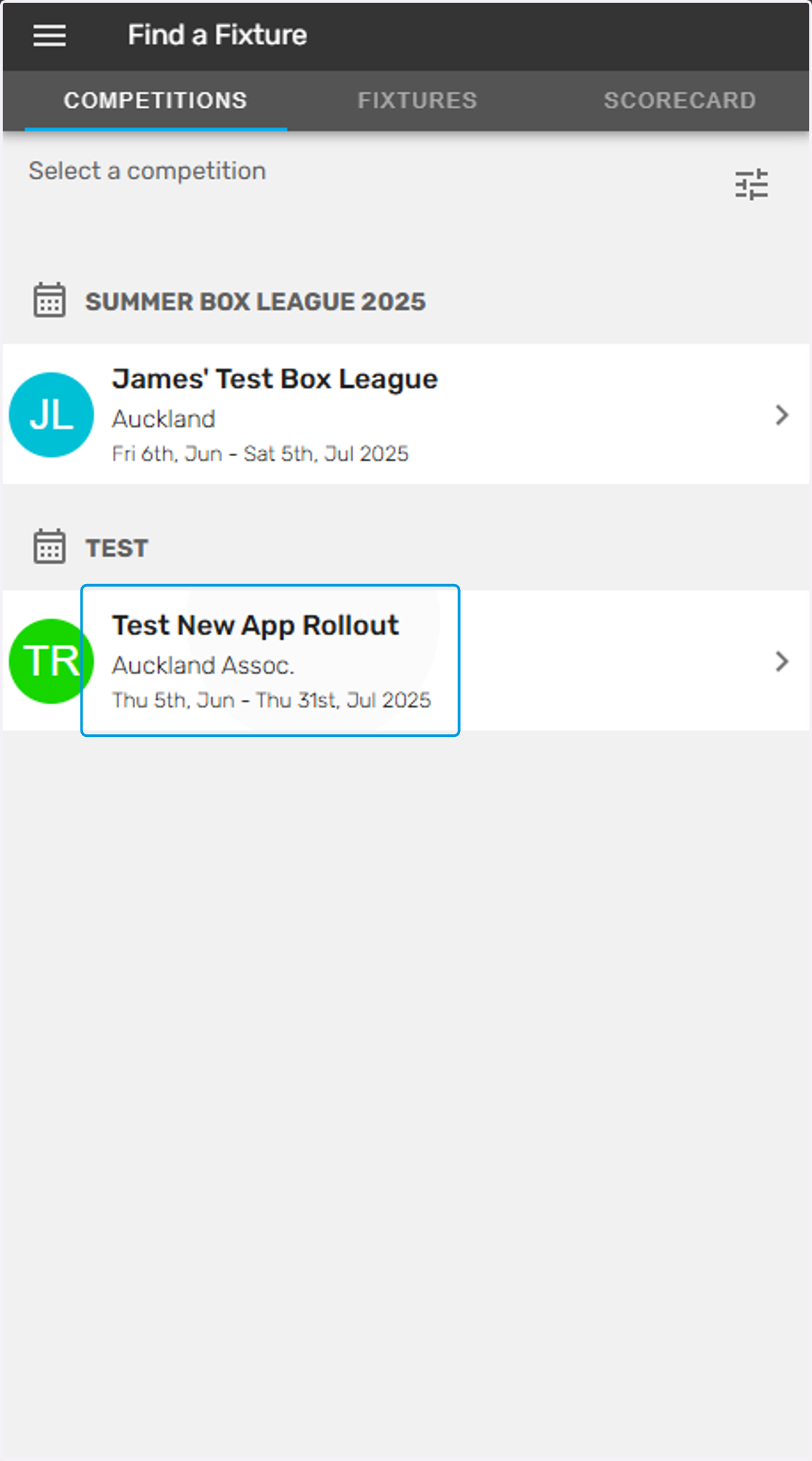
5. Next select the relevant fixture
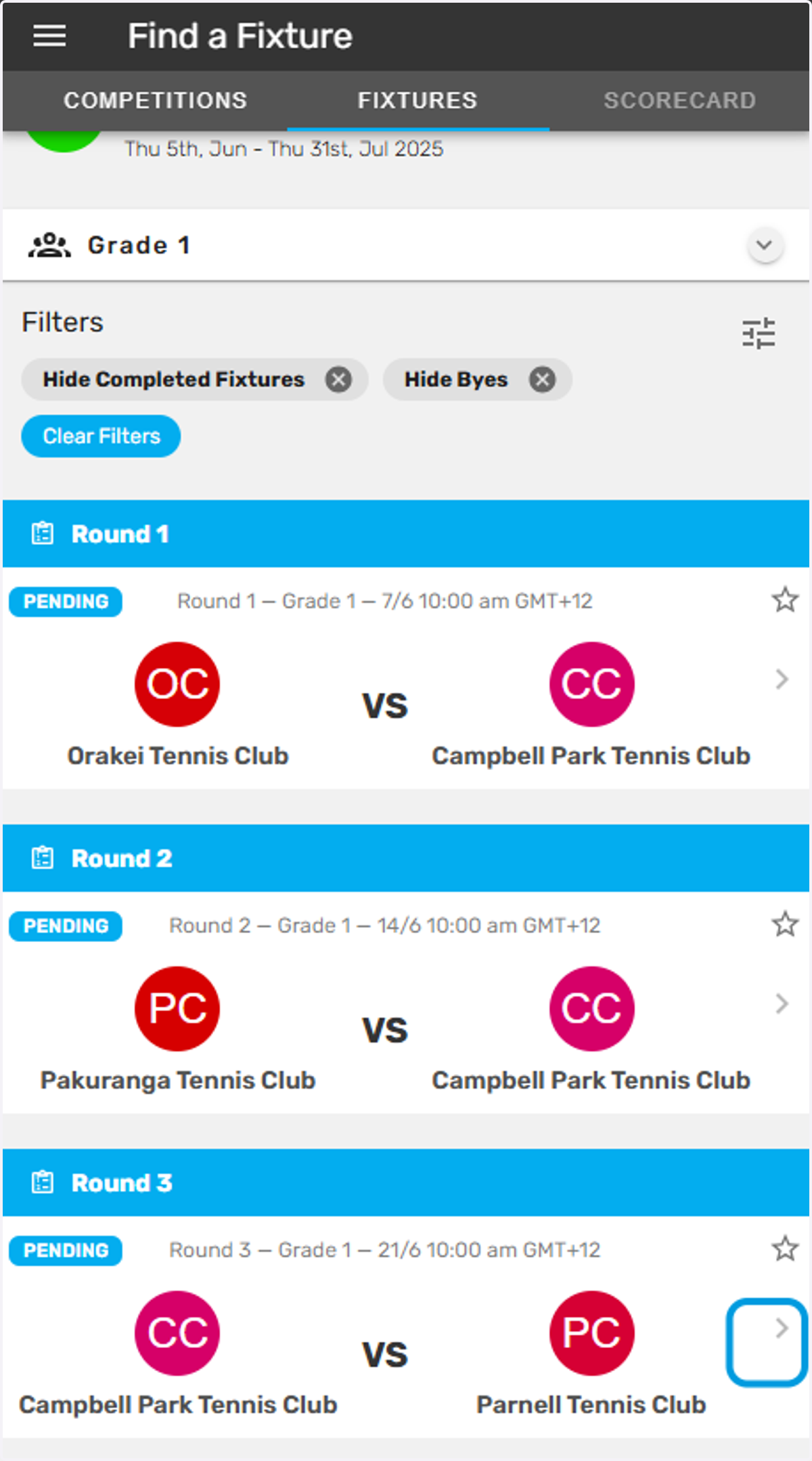
6. Here you will see all matches in the fixture
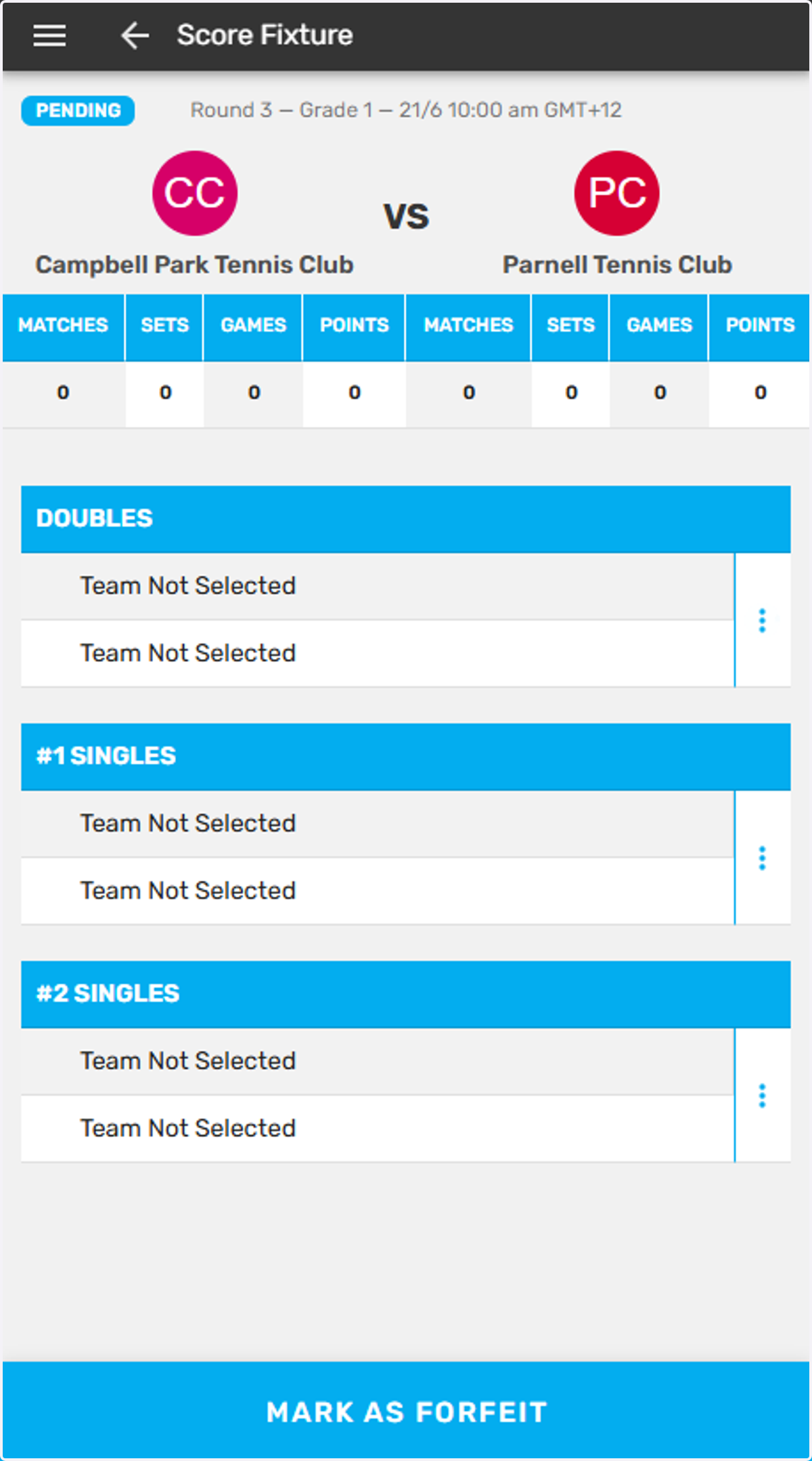
7. Before starting select your players for each match by tapping here
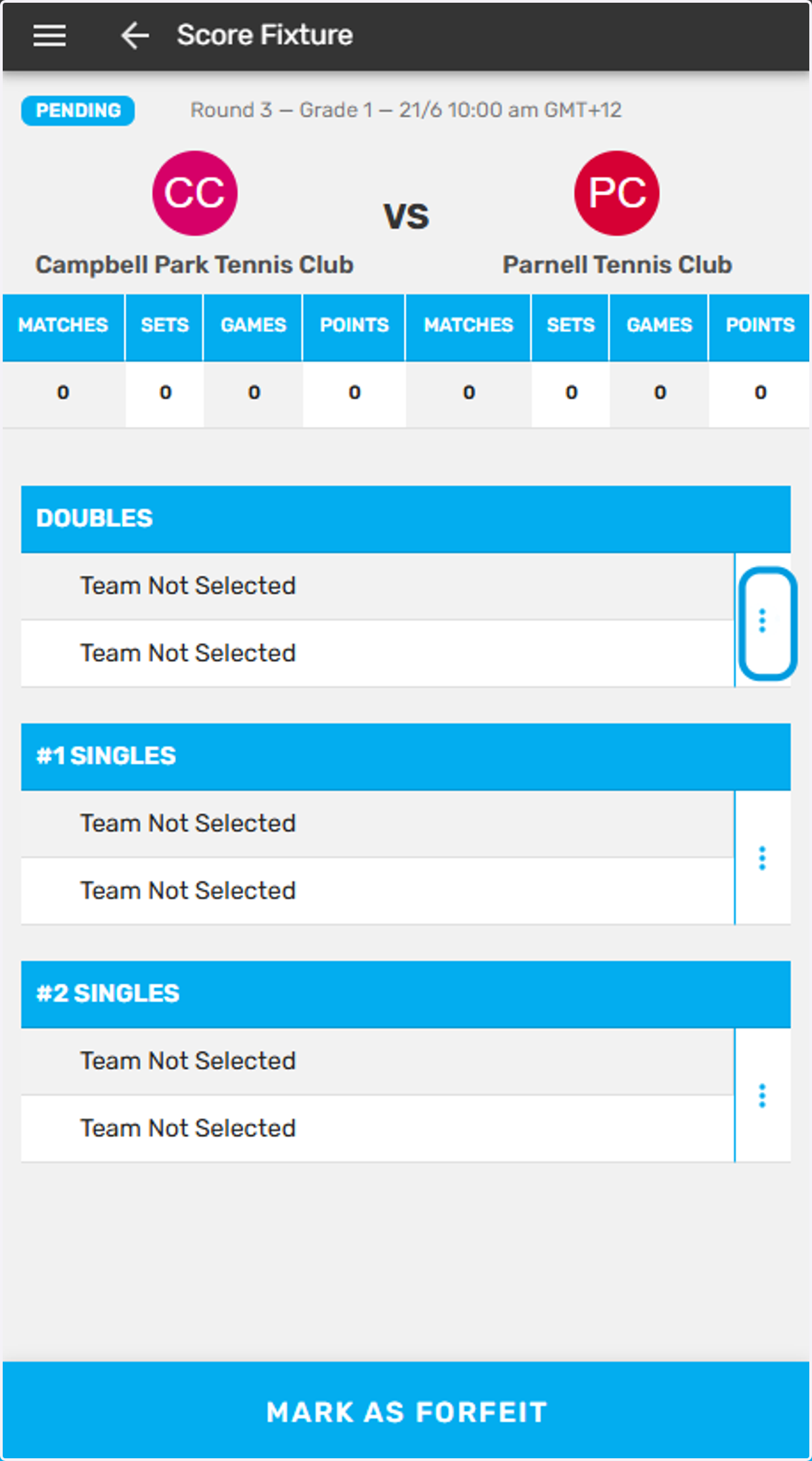
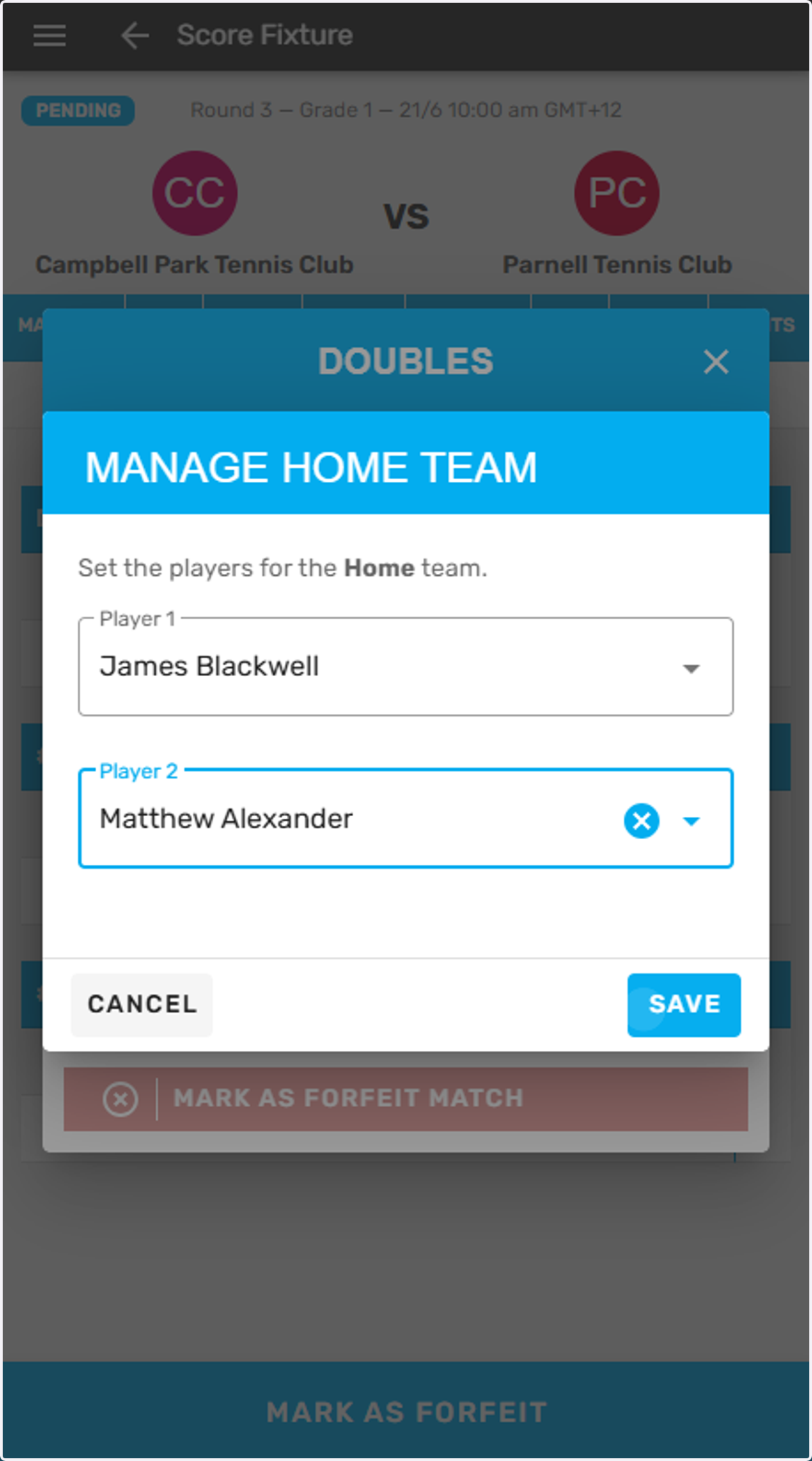
8. Click on Manage Home Team
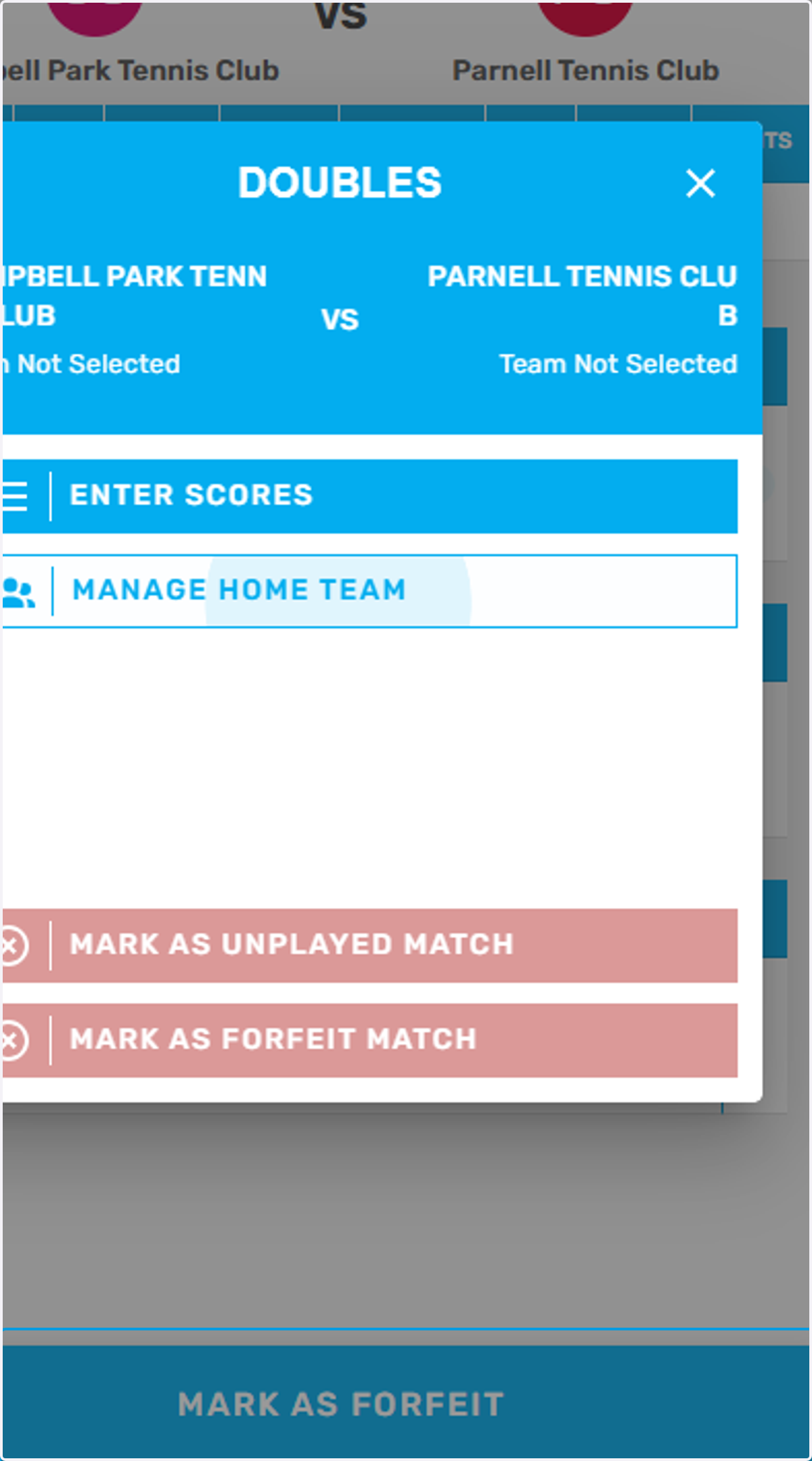
9. Click on Player 1
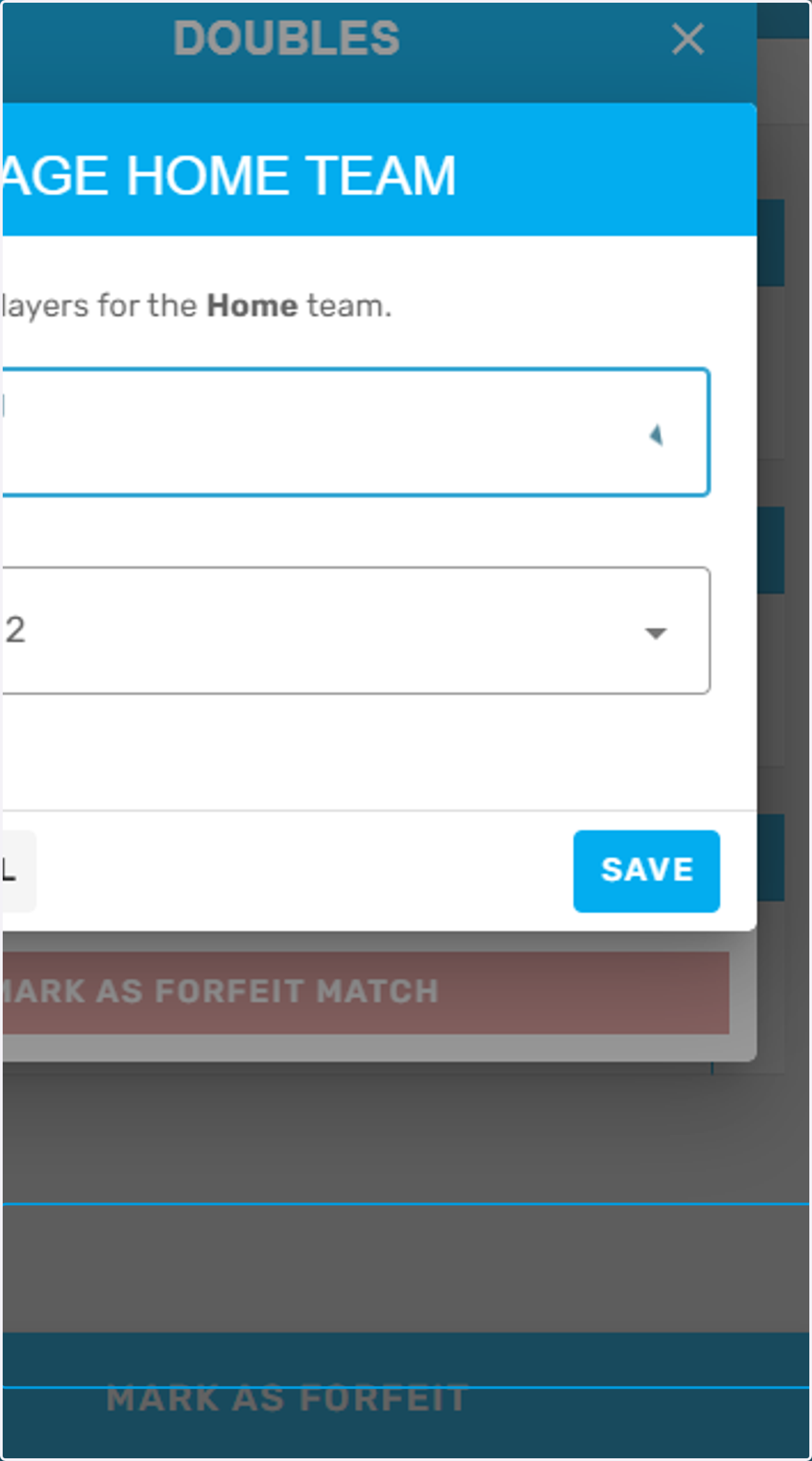
10. Click on Player 2
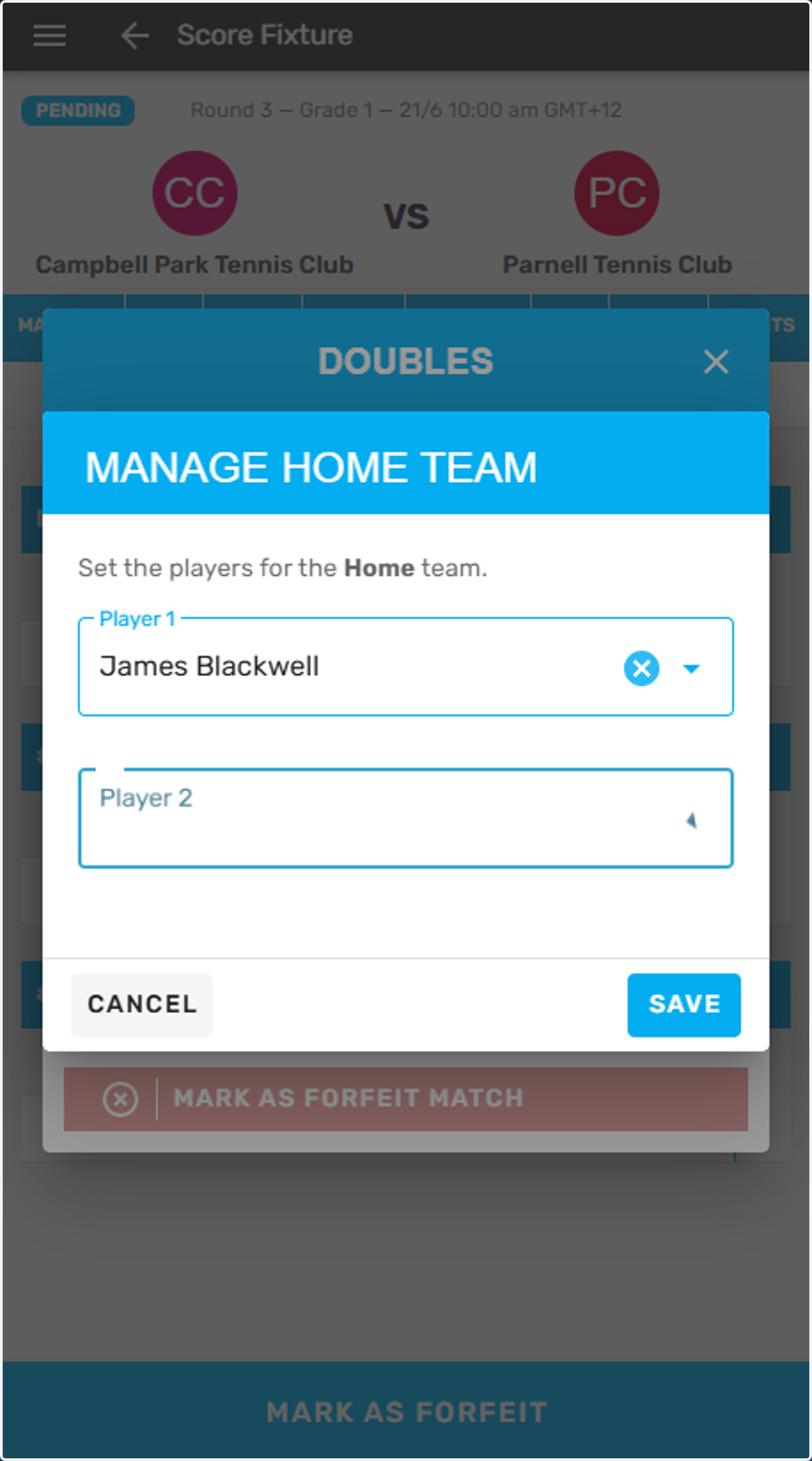
11. Click on the player name
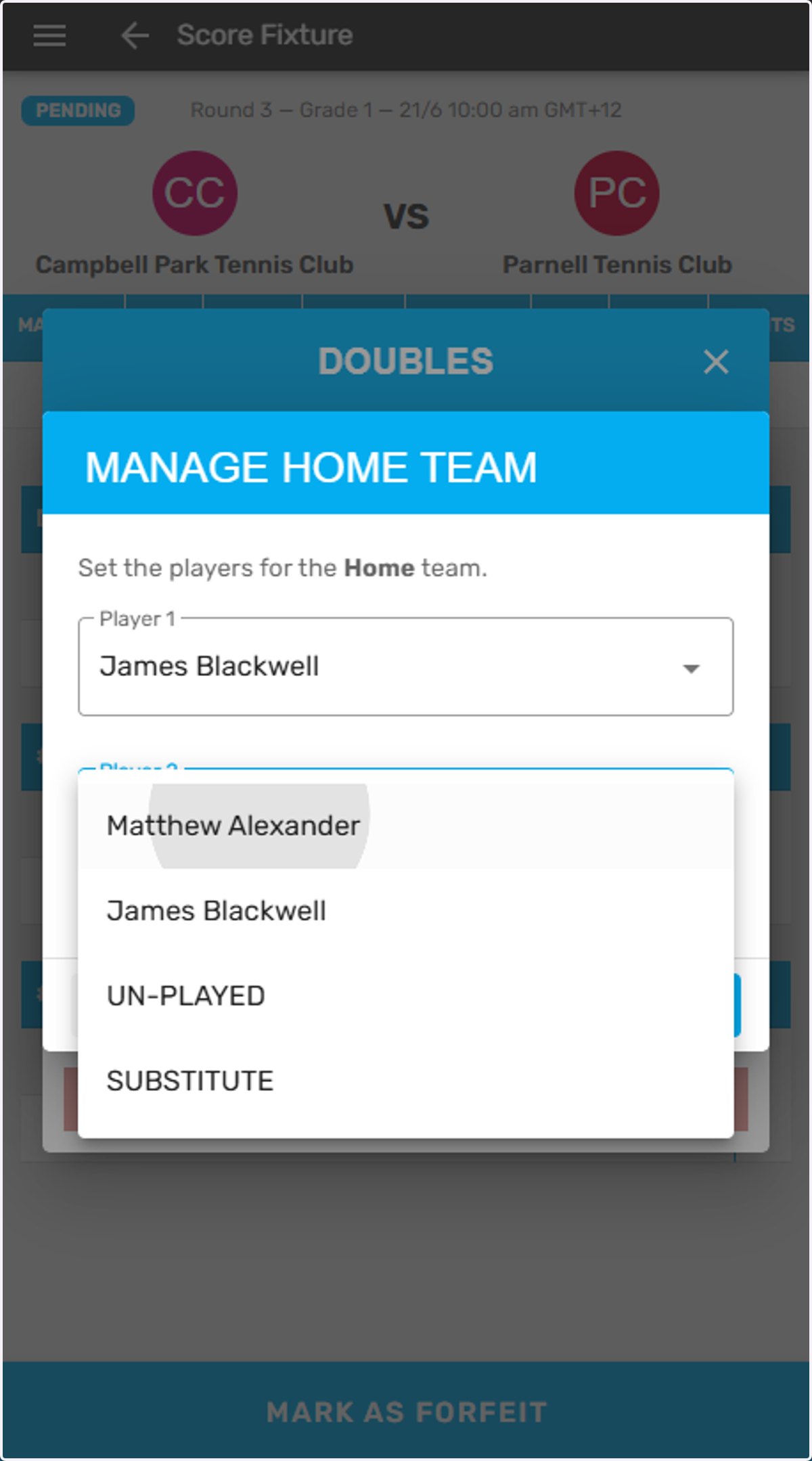
12. Click on SAVE
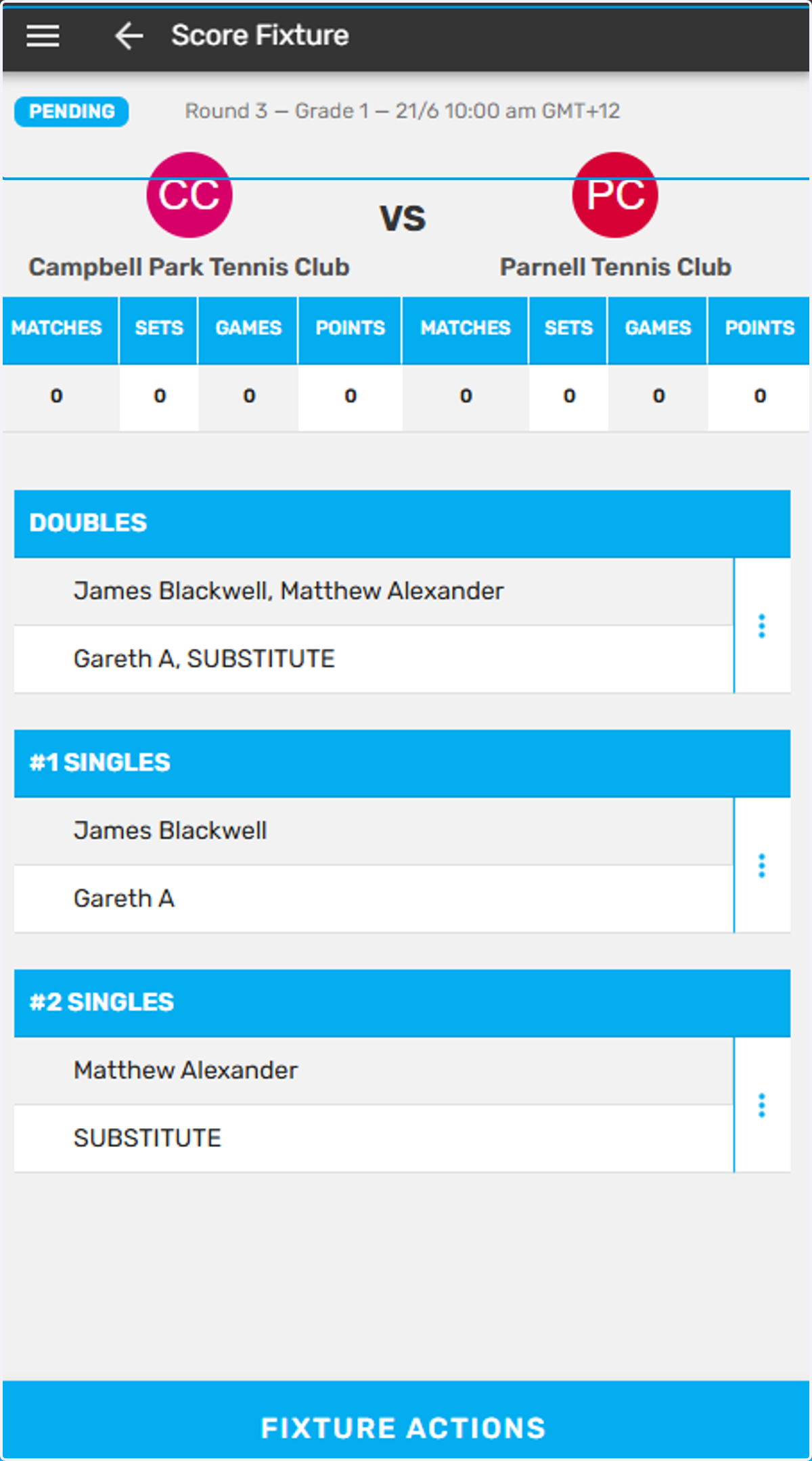
13. Now you can score the fixture
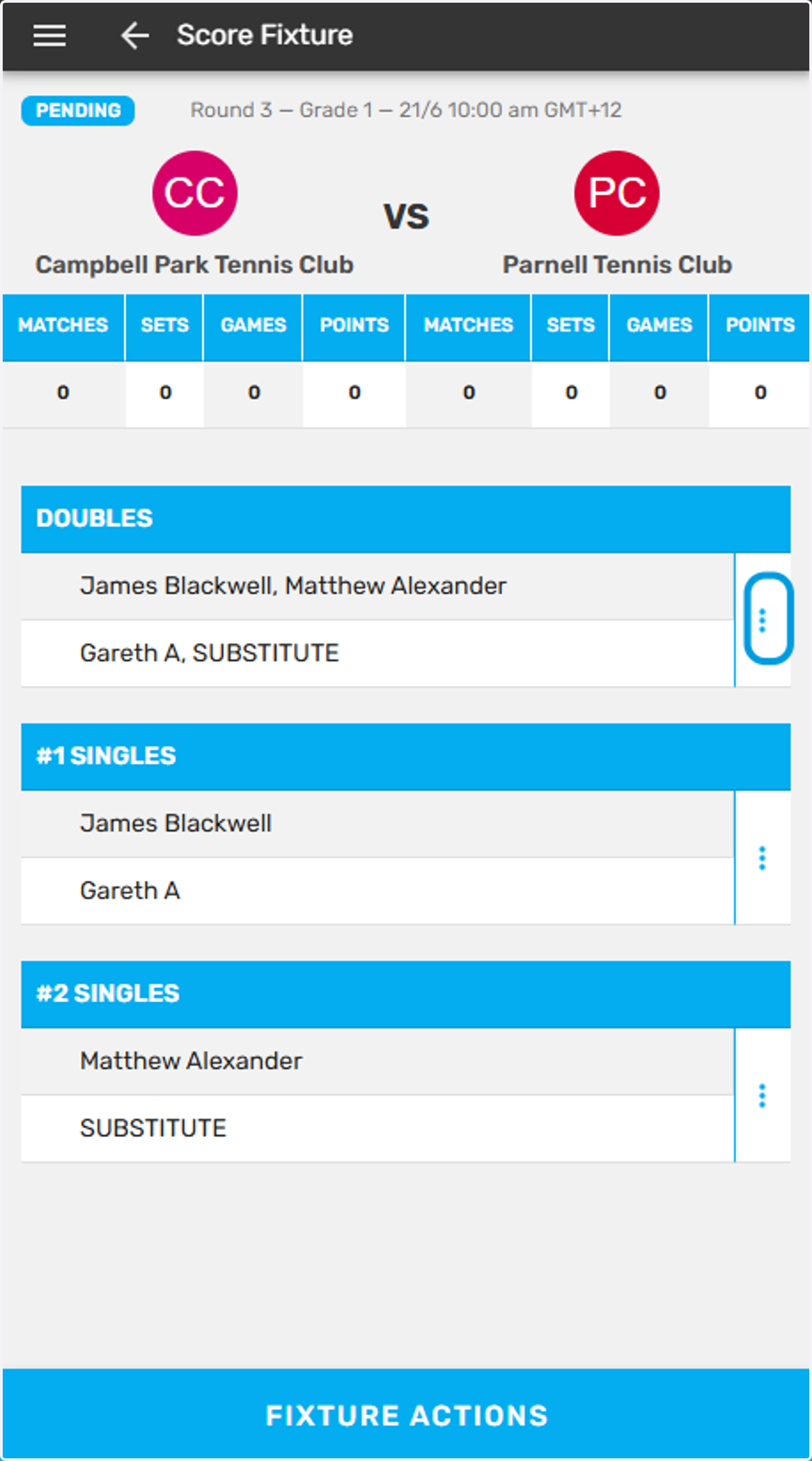
14. Click on the three dots to begin
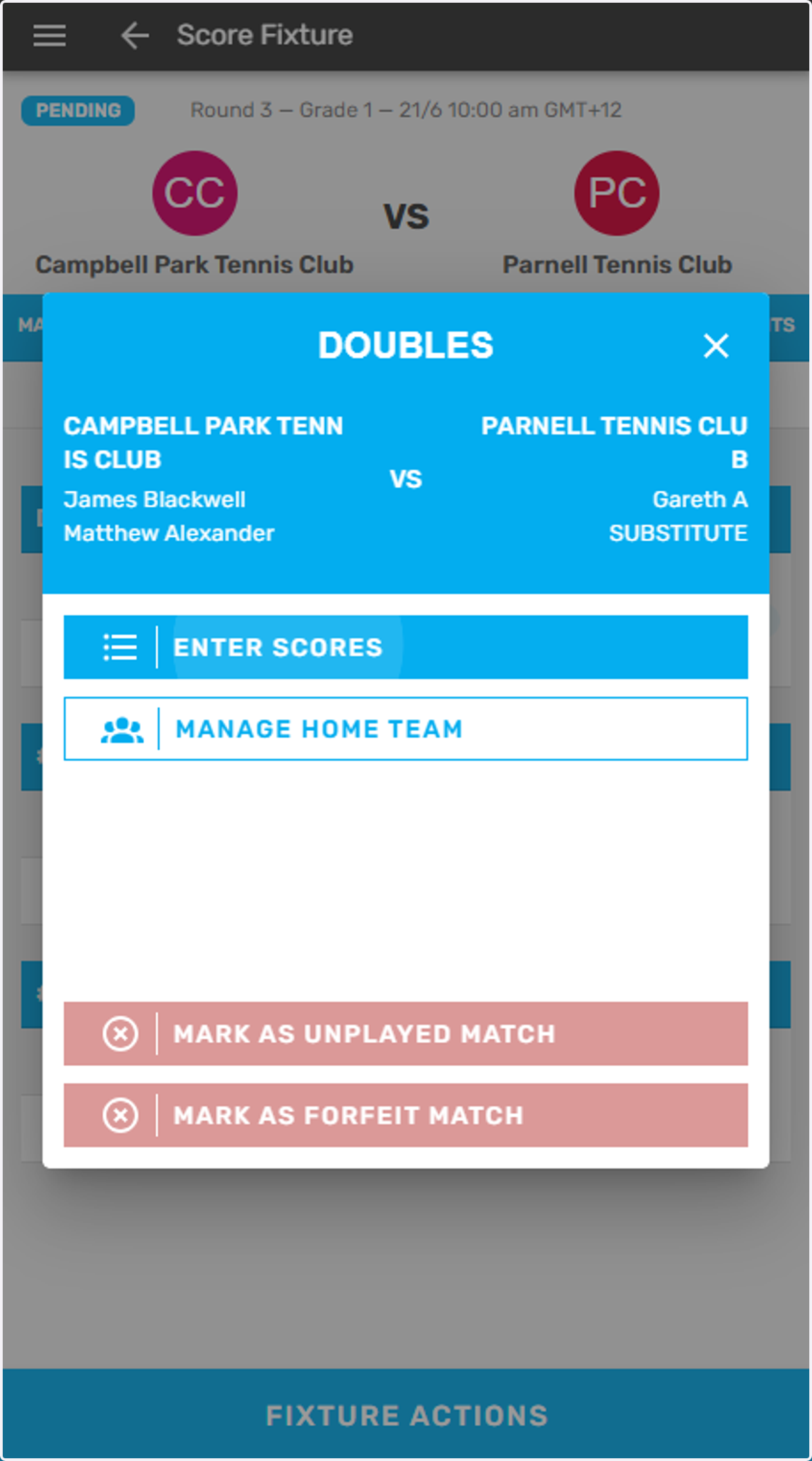
15. Click on Enter Scores
16. Enter the relevant scores for each set
If a match doesn't go to a 3rd set leave it blank
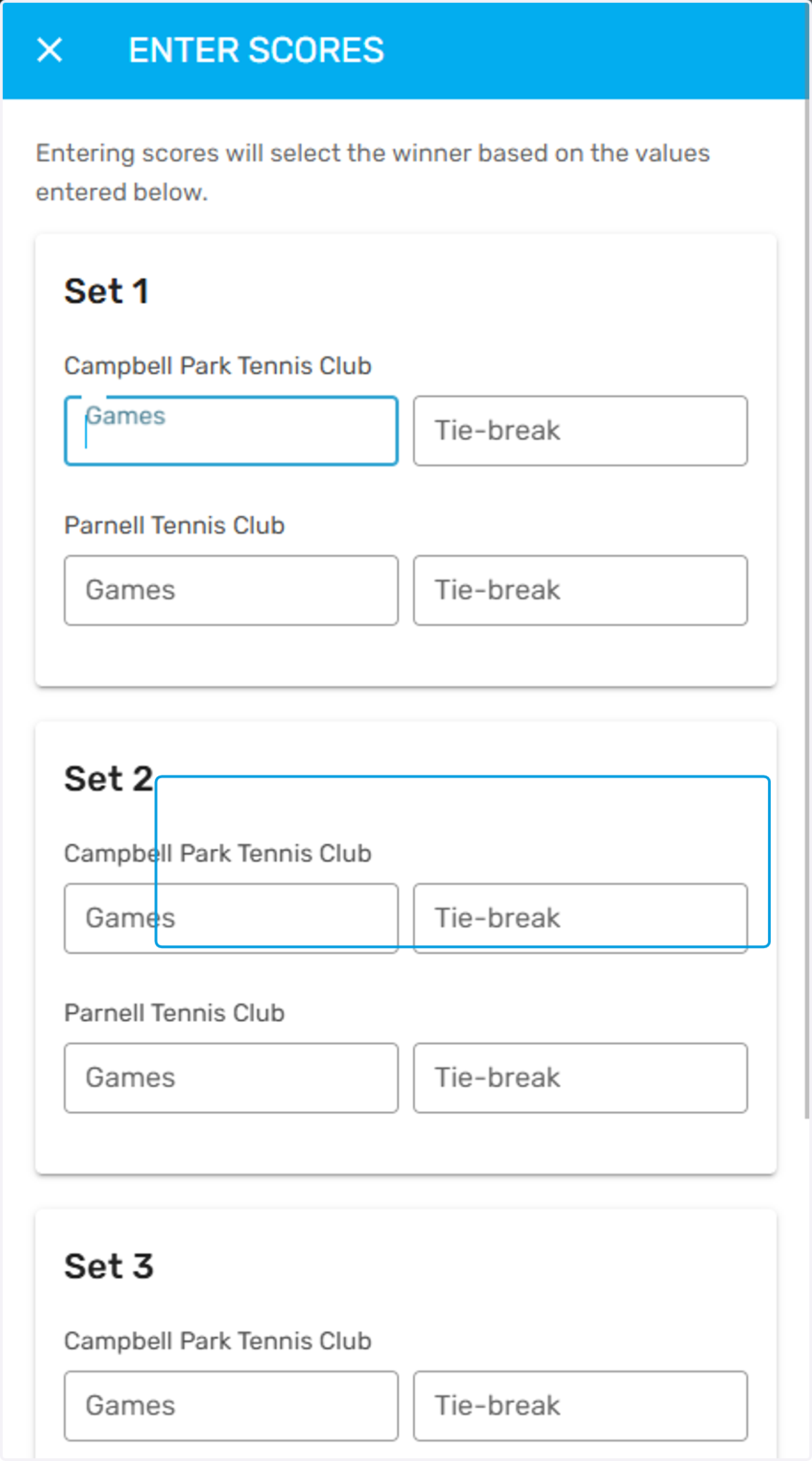
17. Type "6"
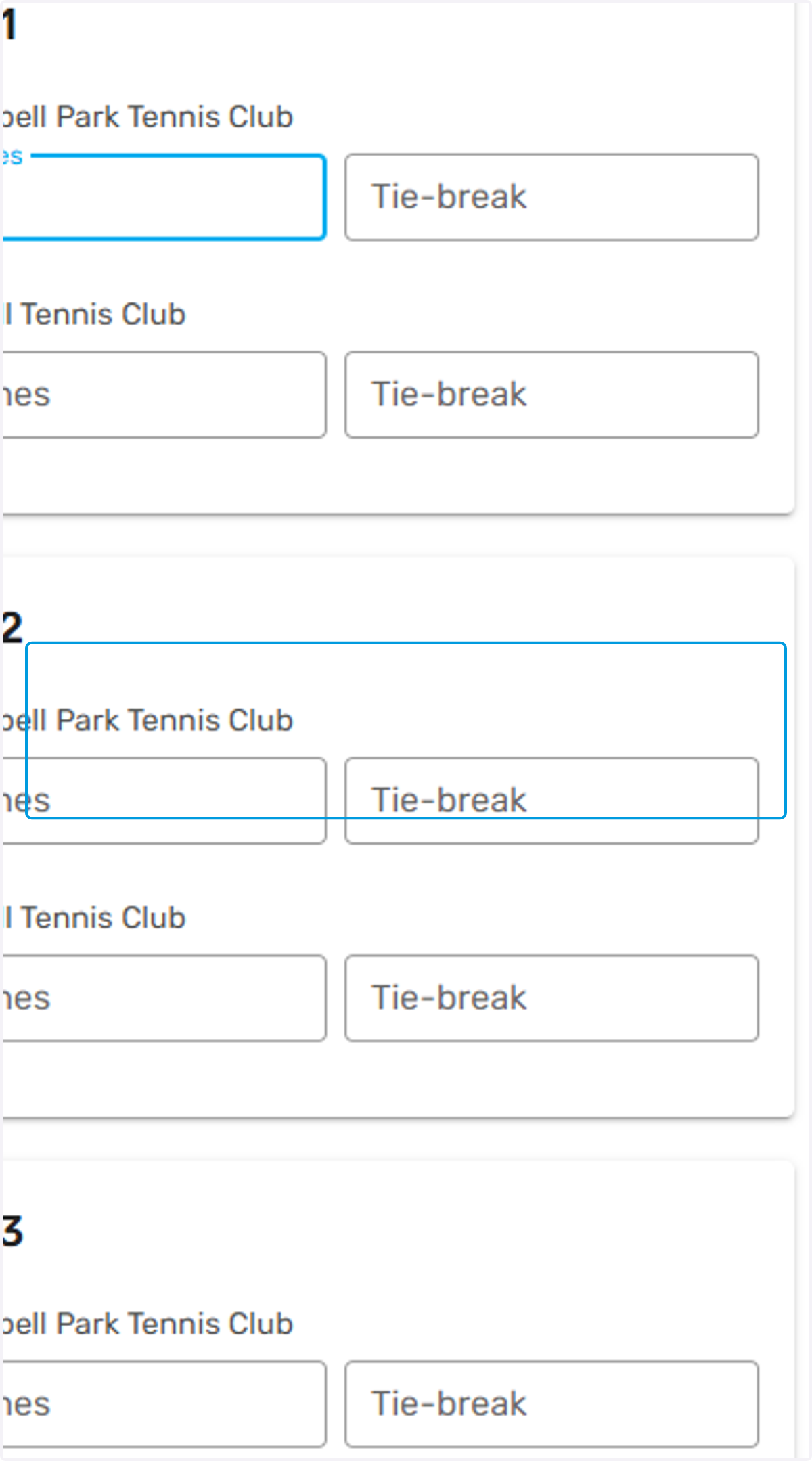
18. Example of score entry
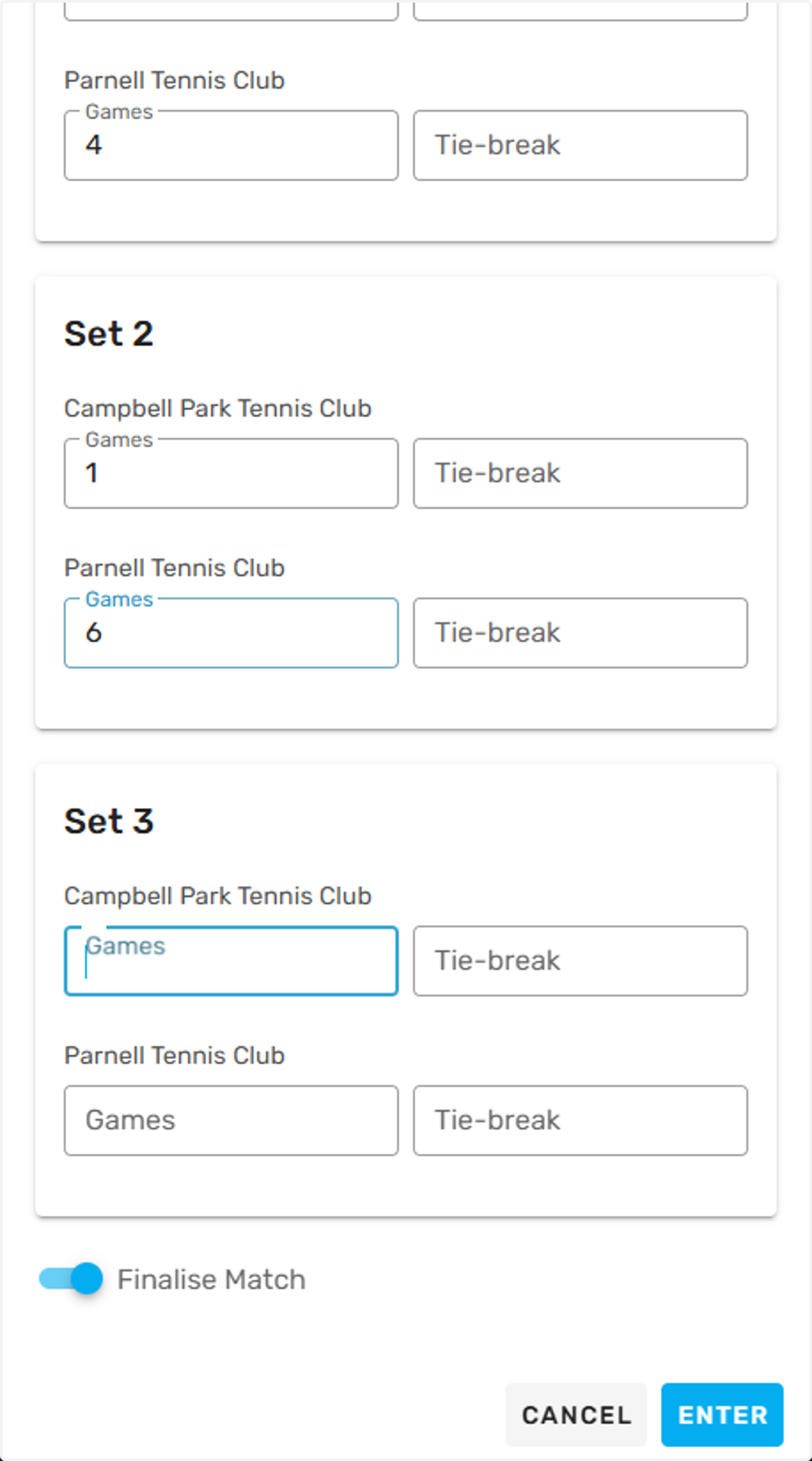
19. Type "1"
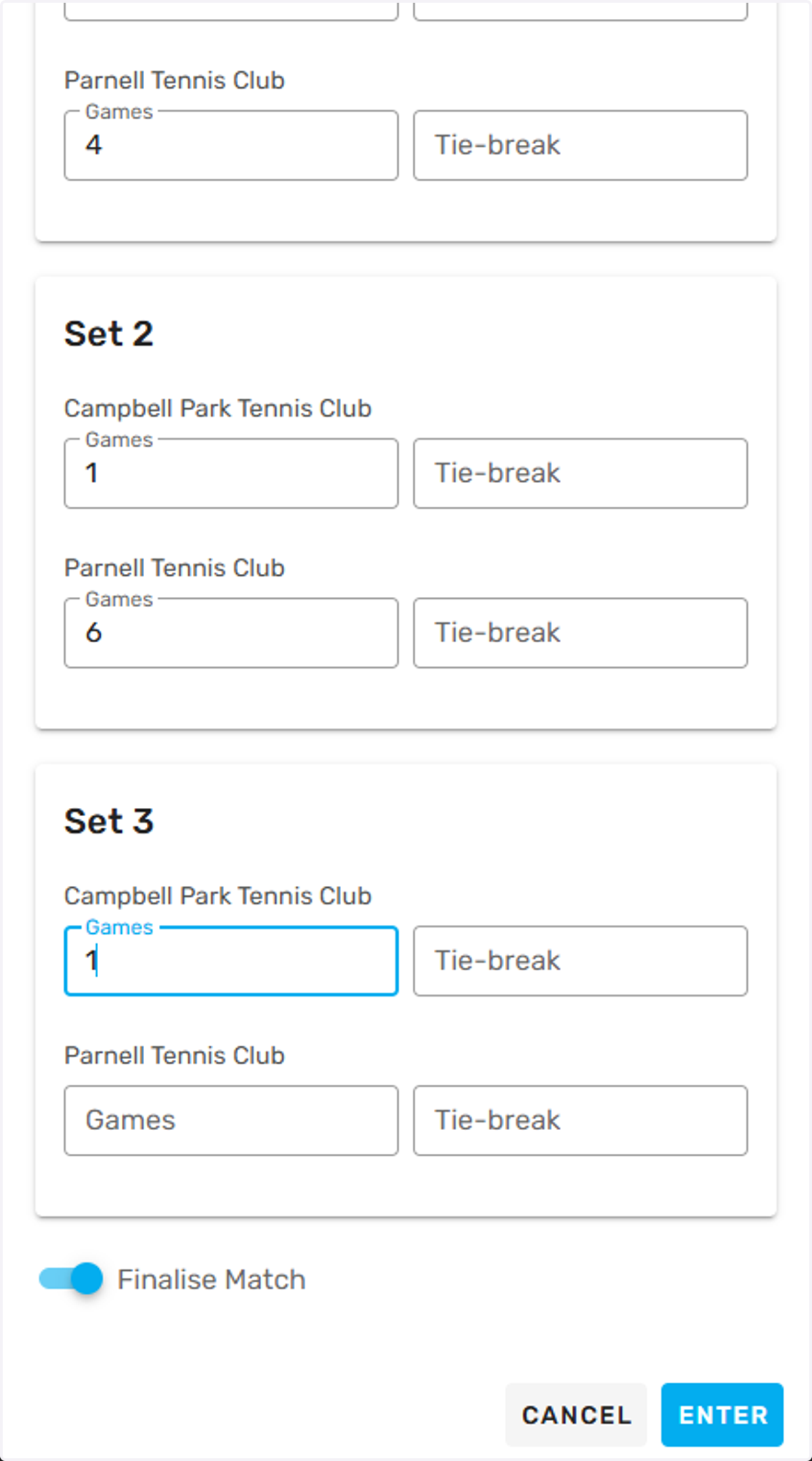
20. Click on Enter Scores…
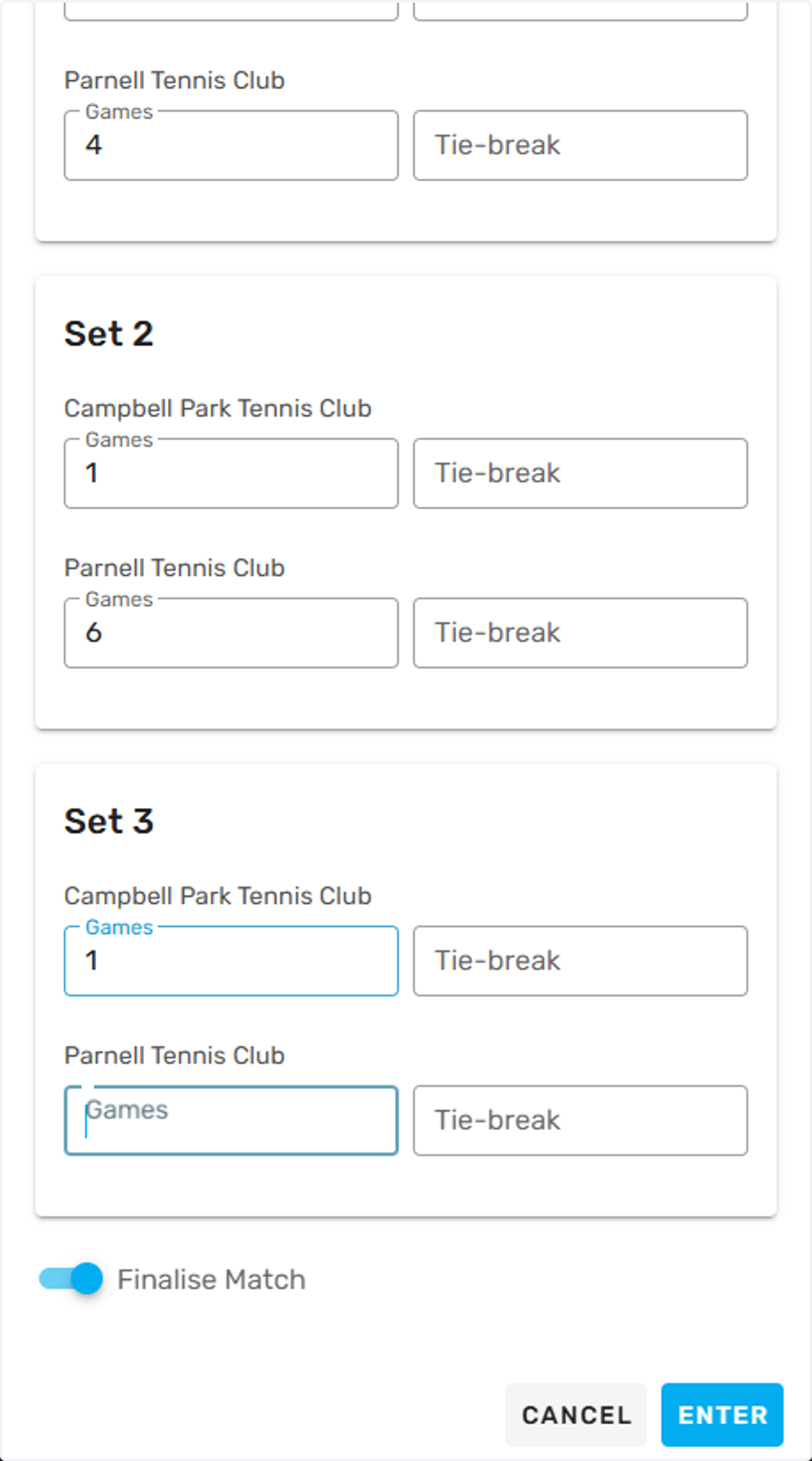
21. Example of tie-break score entry
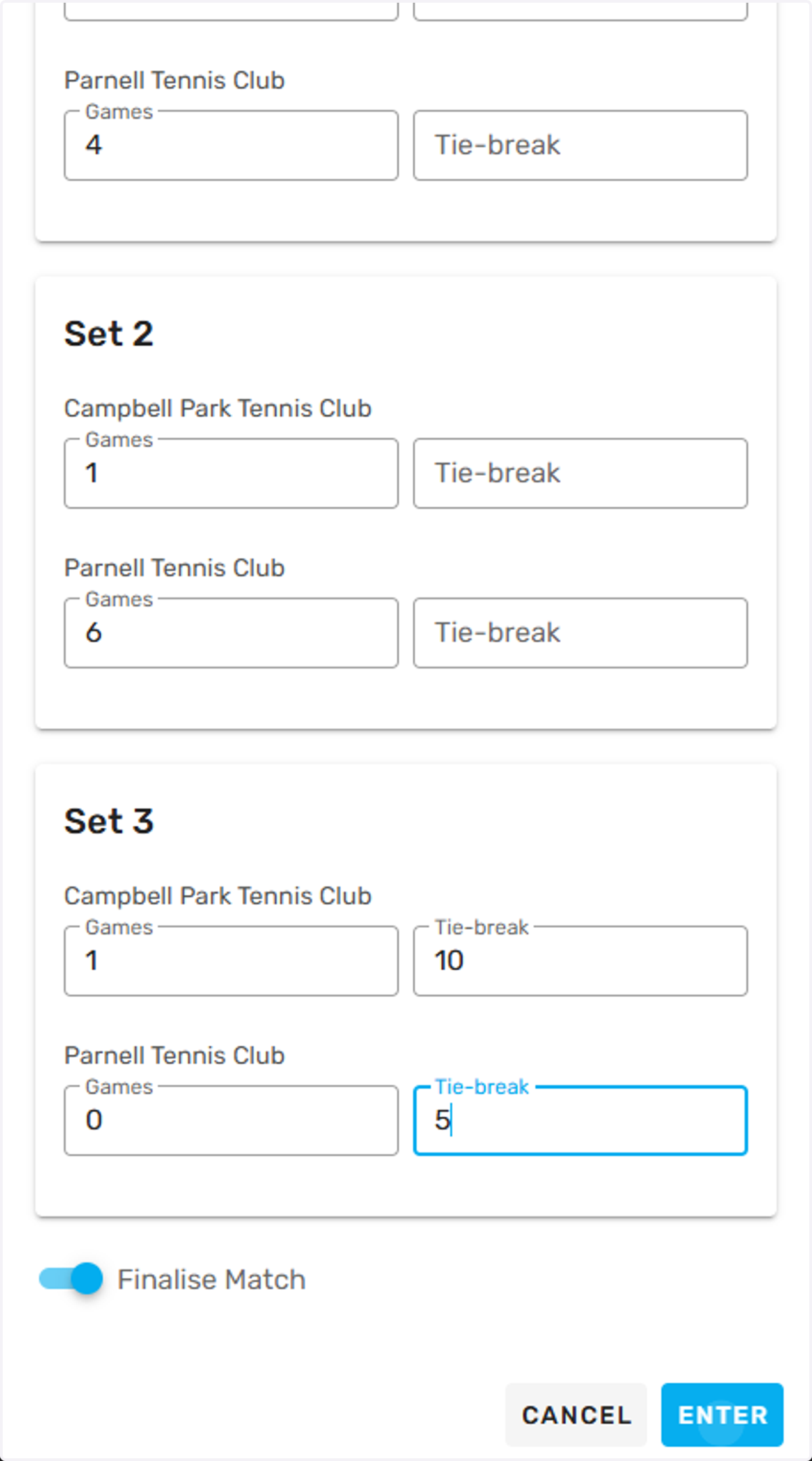
22. Example of fully scored fixture
Note a match isn't finalised by the home team until a yellow tick appears next to the match name
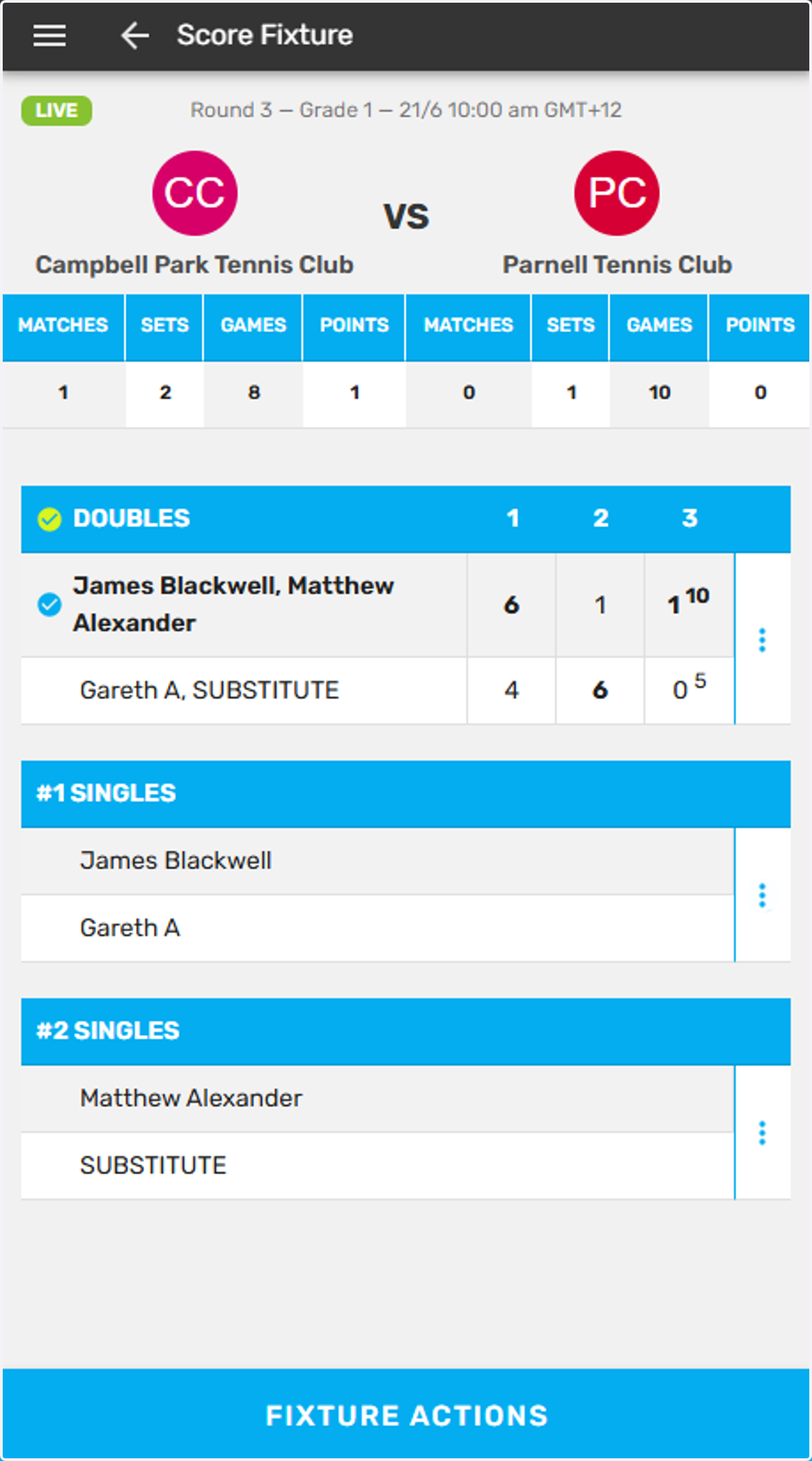
23. Repeat this process following each match
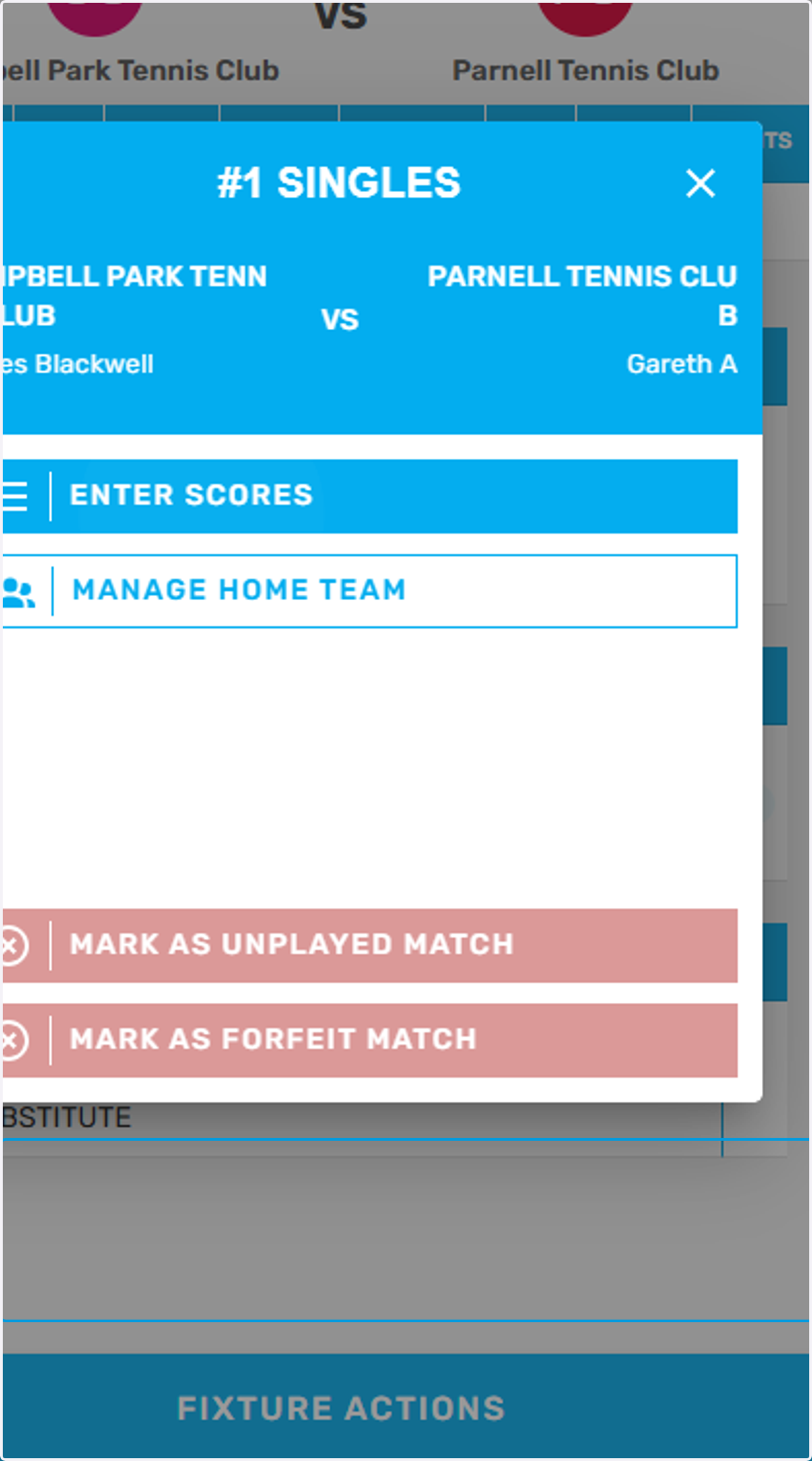
24. Once all players and and scores have been entered the app fixture will appear like this.
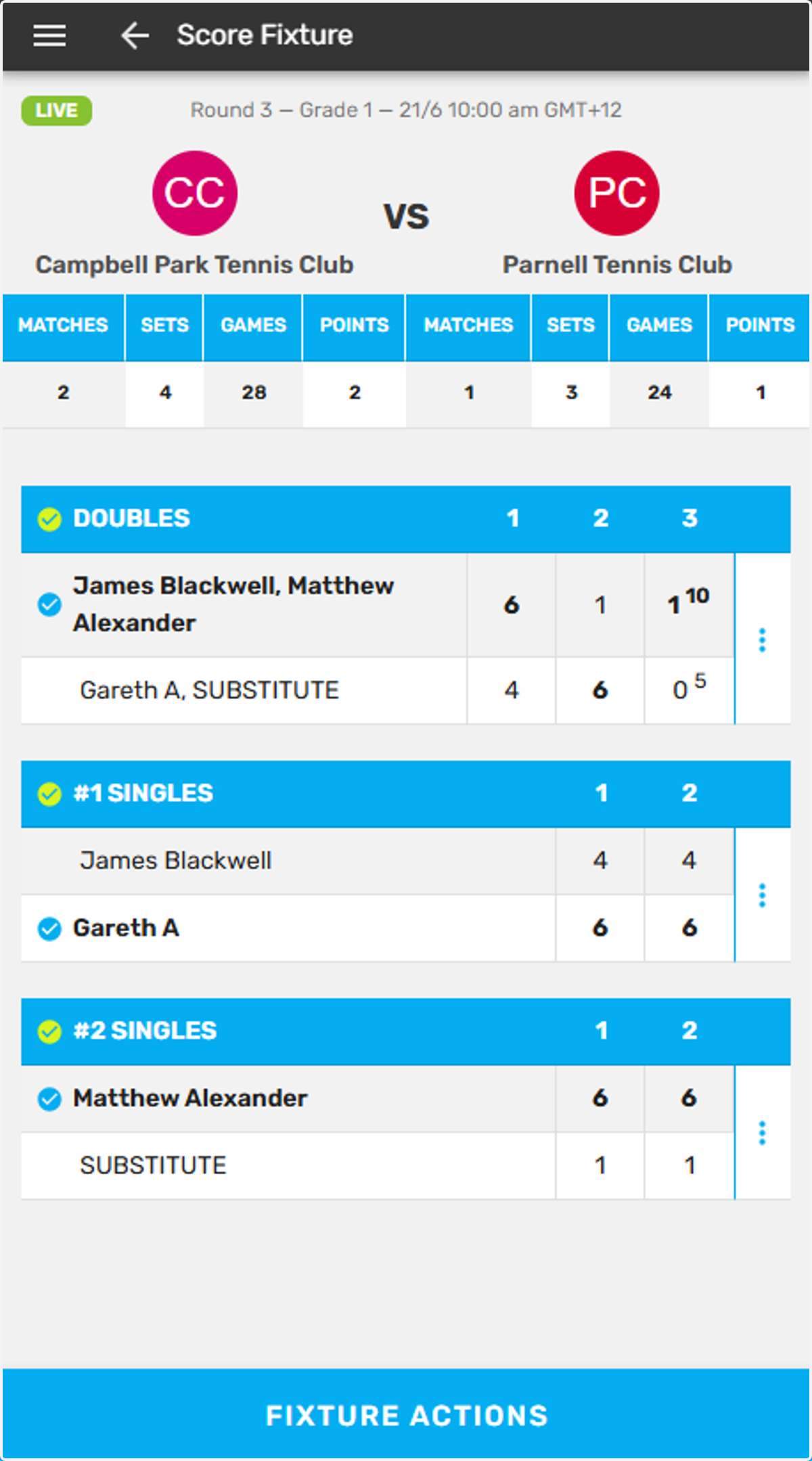
25. To finalise and send to the designated away team for approval, Click on FIXTURE ACTIONS
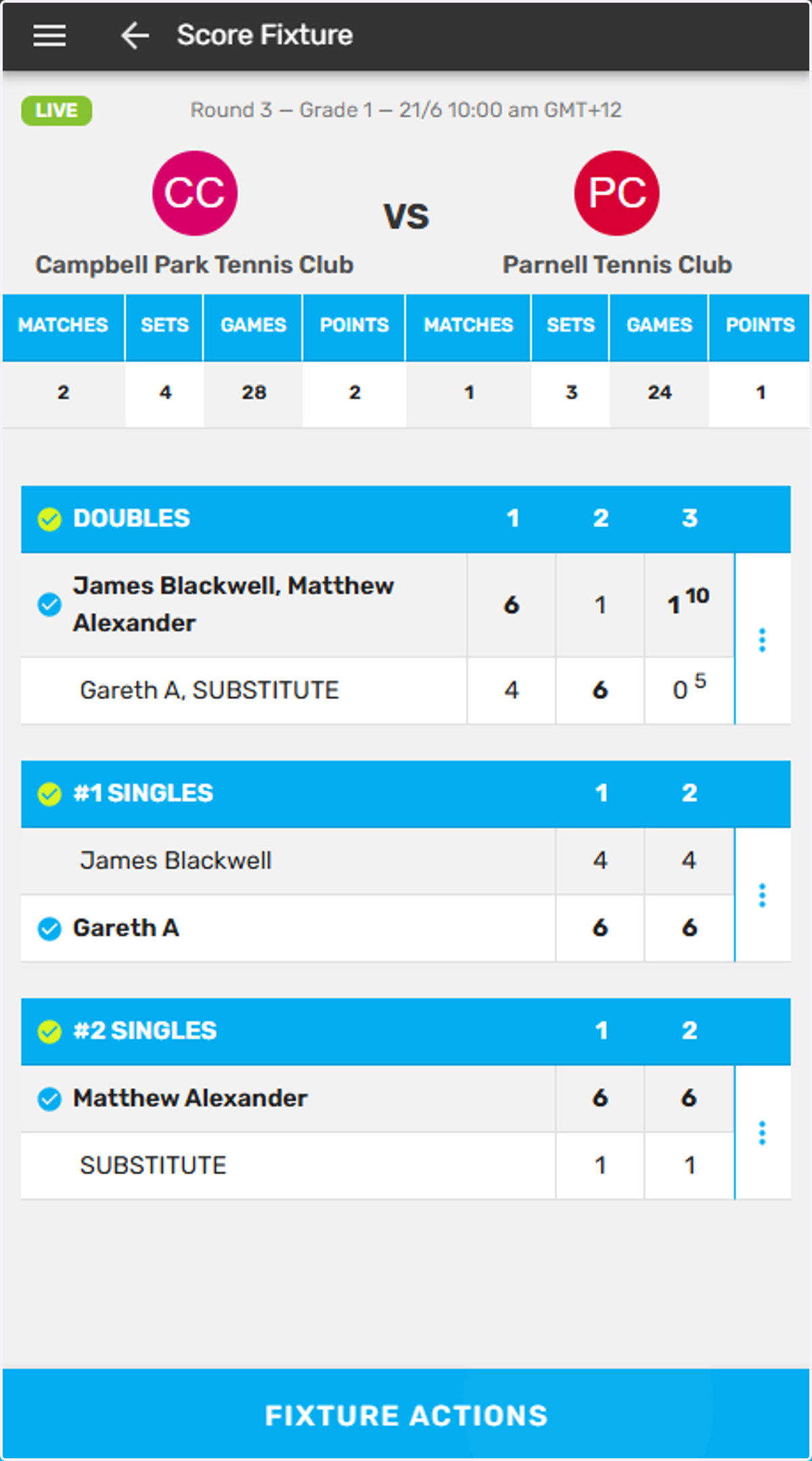
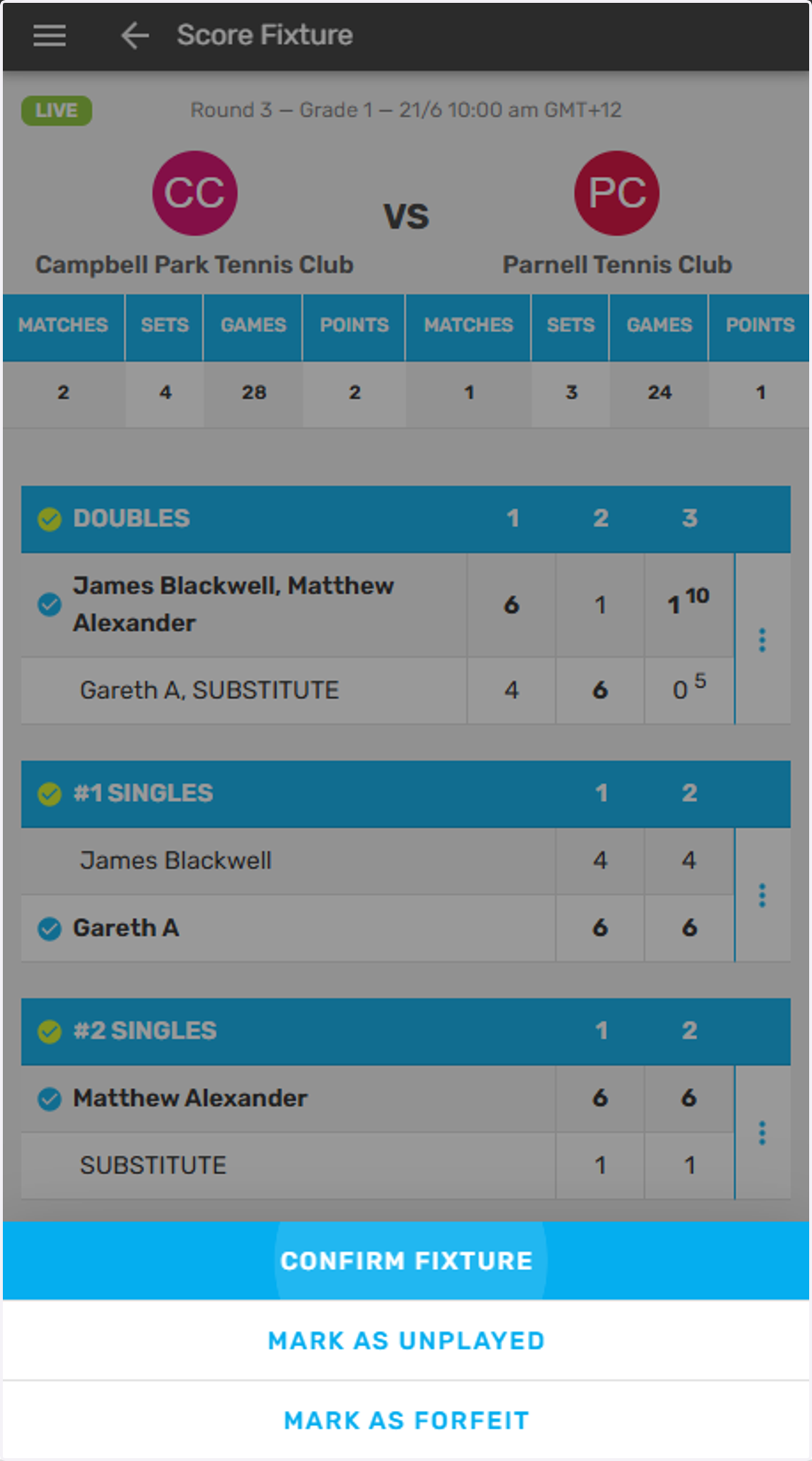
26. Click on CONFIRM FIXTURE
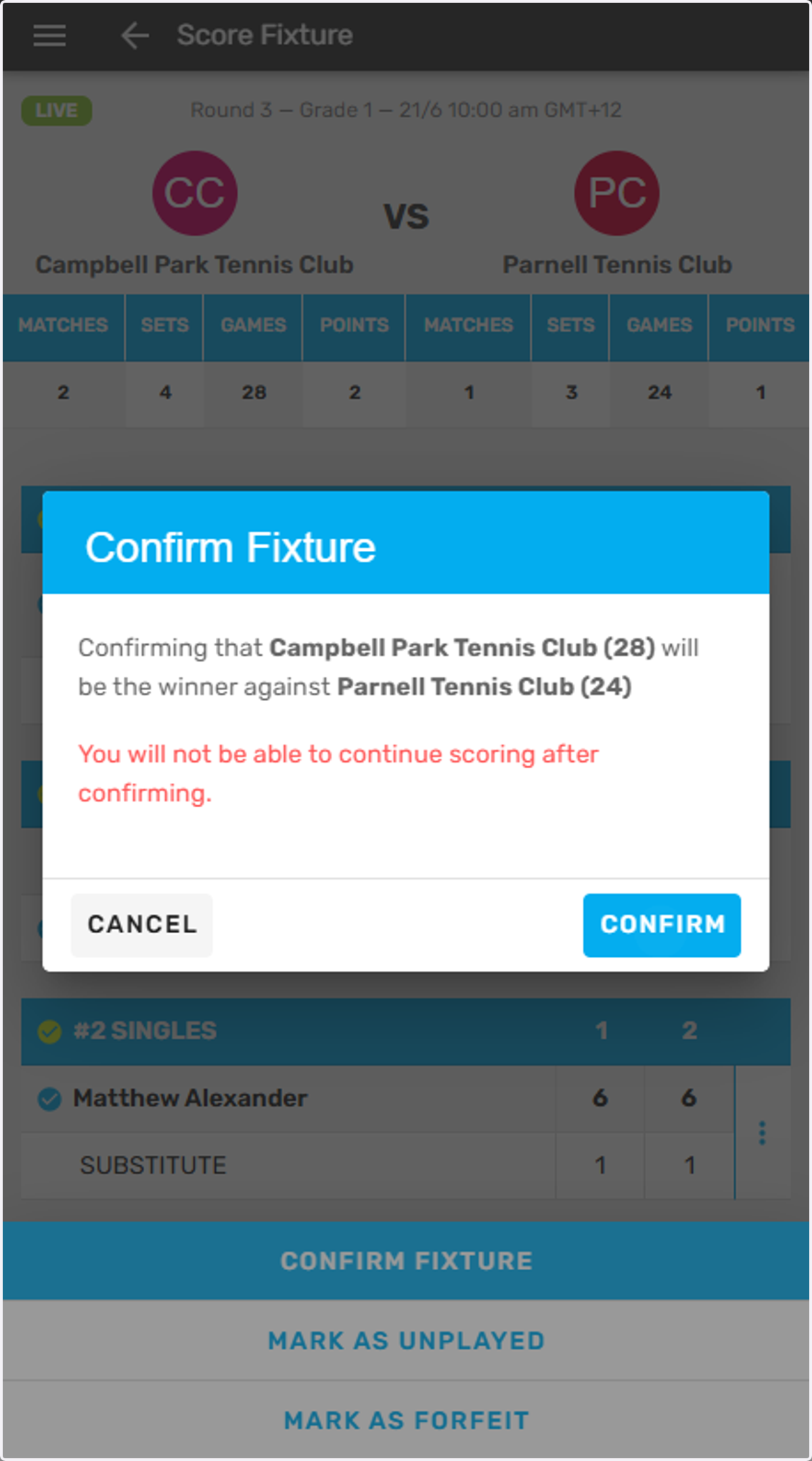
27. Click on CONFIRM
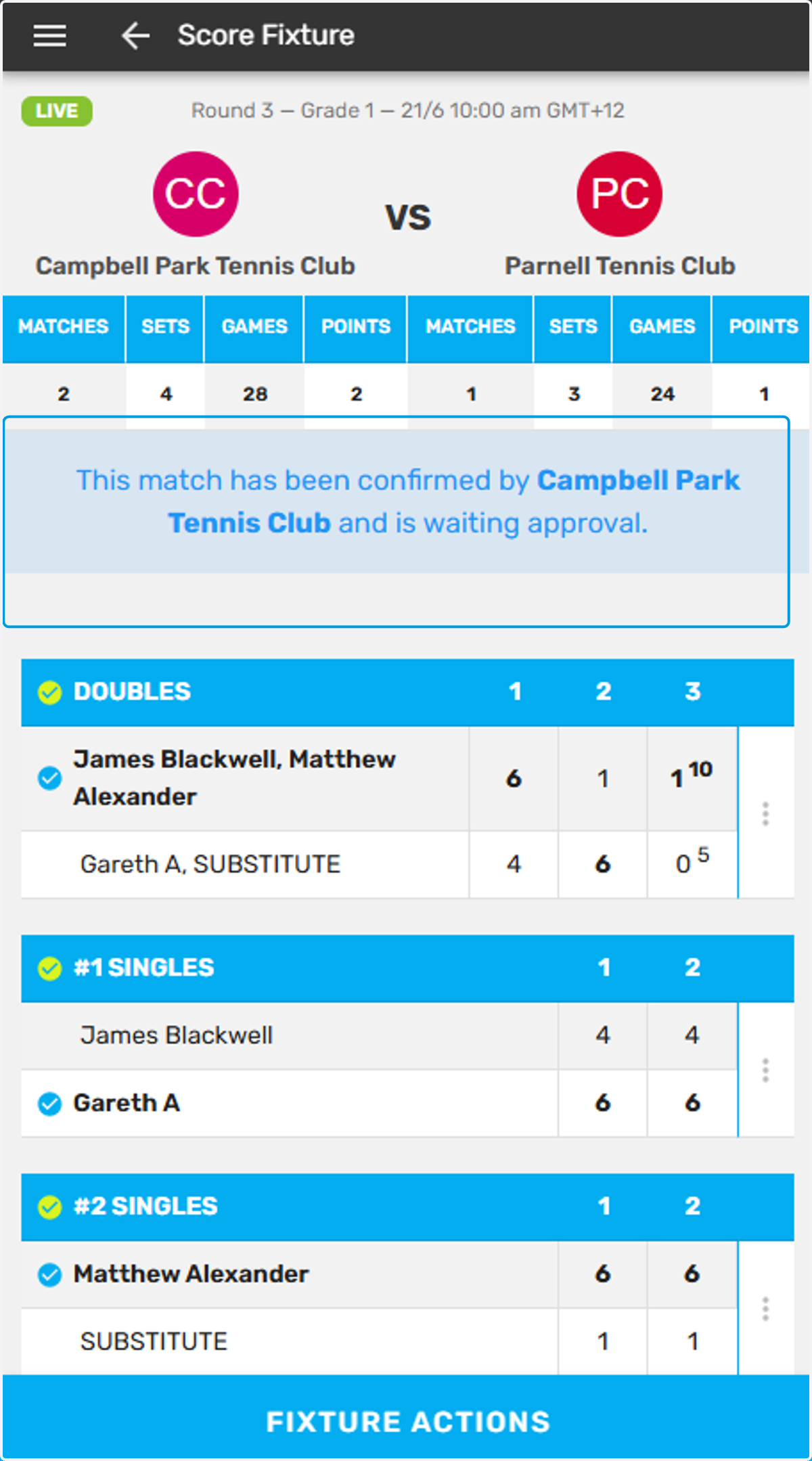
28. If you return to the fixture you will see the message as shown on the screenshot. There remains nothing more to do as the designated "Home" team