[Orum - New UI]: How to use the Power Dialer
Orum - Dashboard
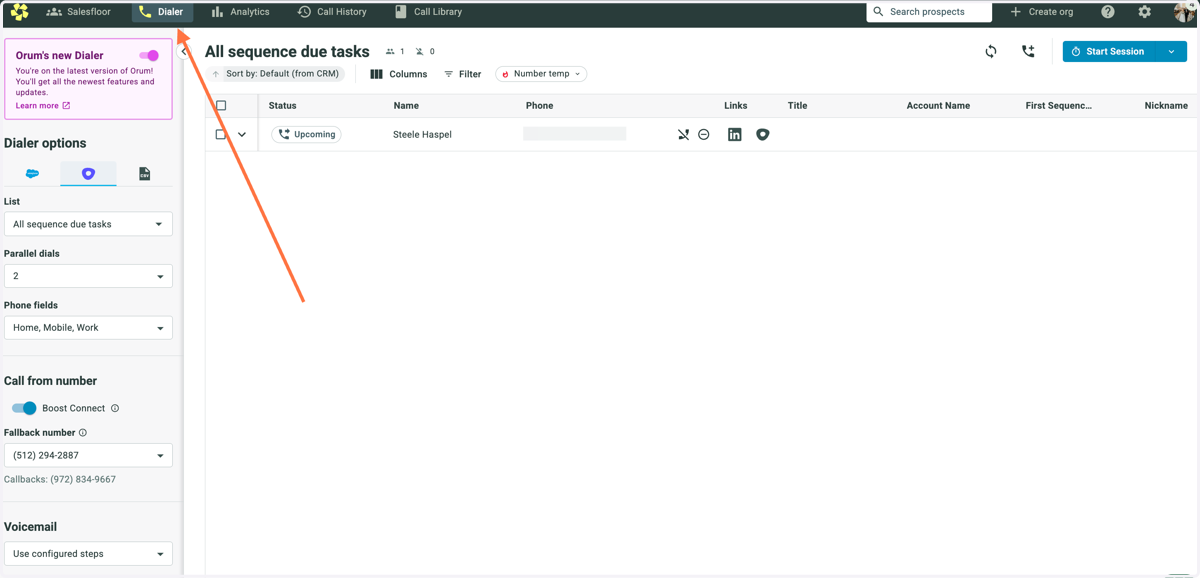
1. Start in the Dialer tab
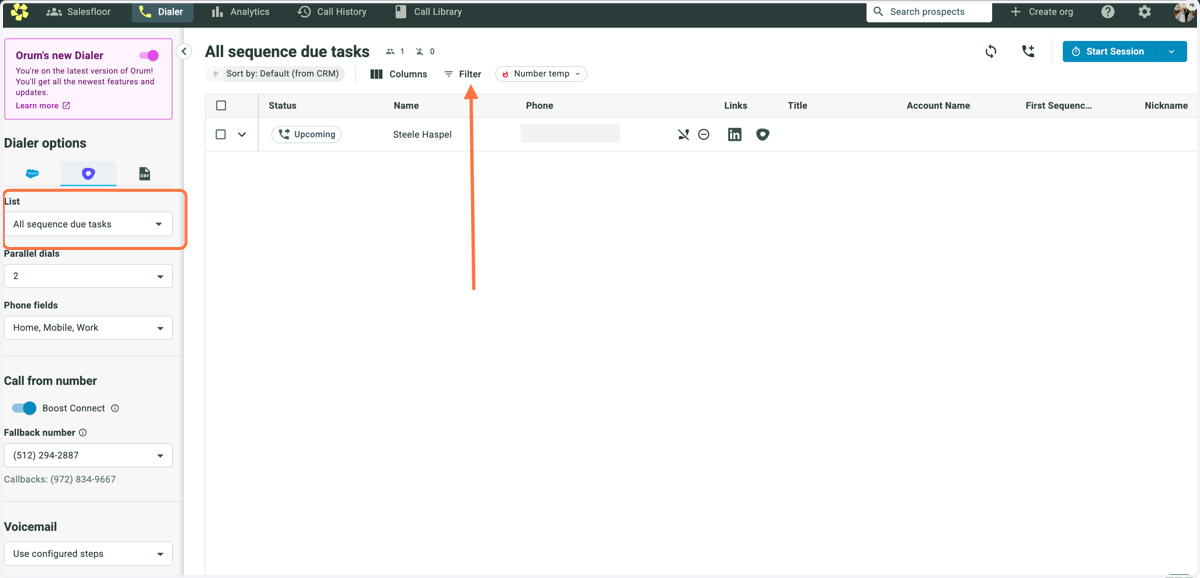
2. Select the List you want to dial down and apply any filters needed to narrow that list (if needed). A filtered list allows you to get in a pitch rhythm when calling.
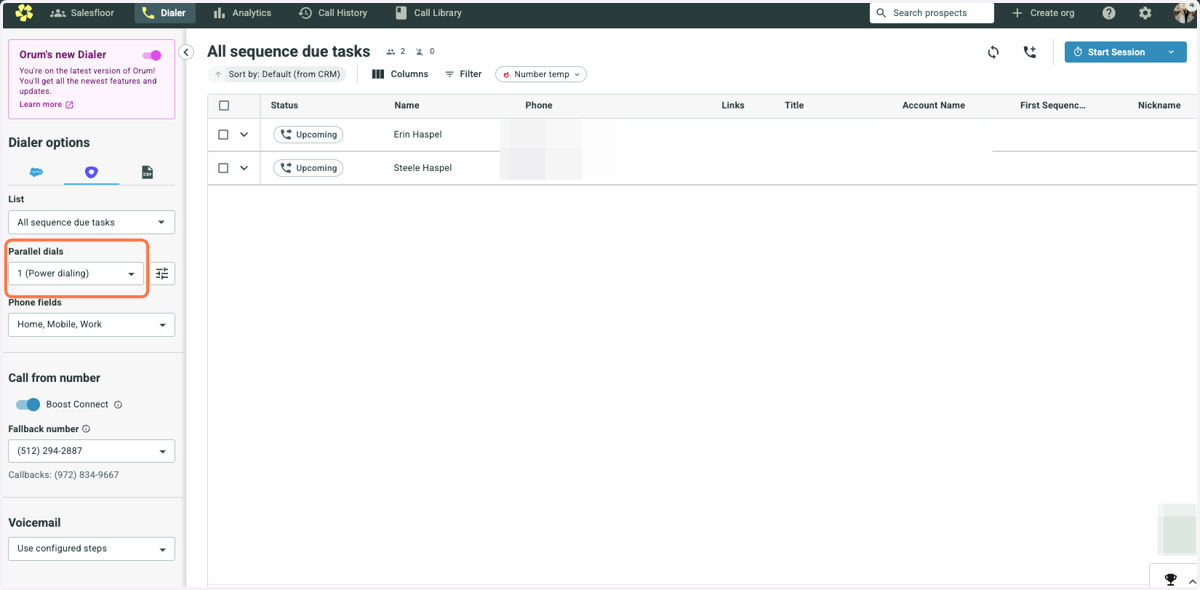
3. On the lefthand side under "Parallel dials," select "1 (Power dialing)." This is what enables the Power Dialer.
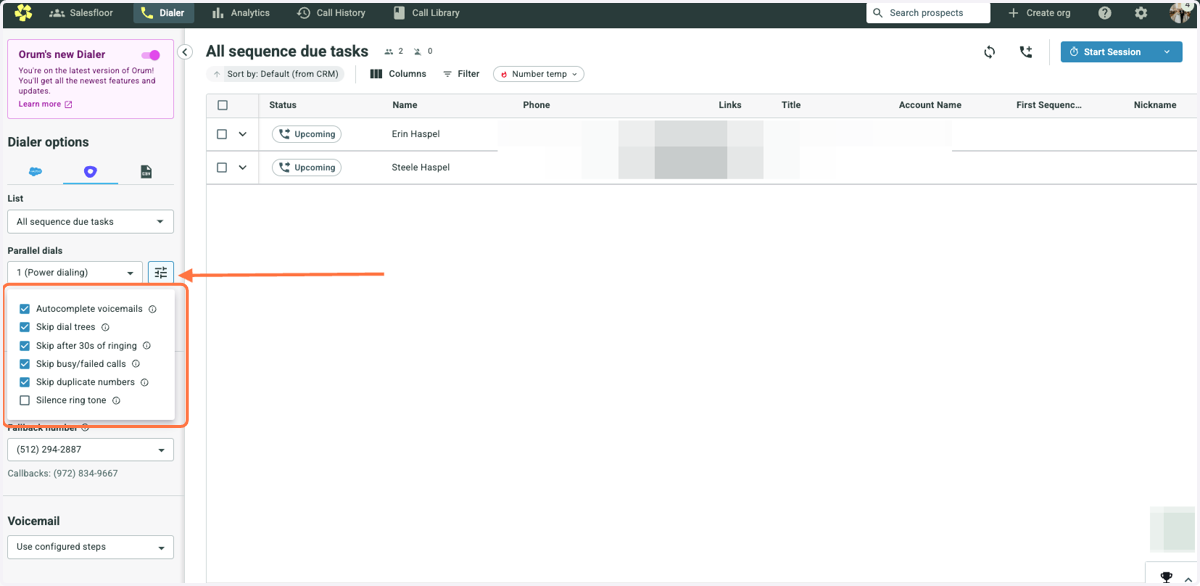
4. You can automate repetitive tasks when Power dialing to accelerate your dialing speed. Check each box / automation you wish to apply. Hover over the "?" icon if you need more information on the automation.
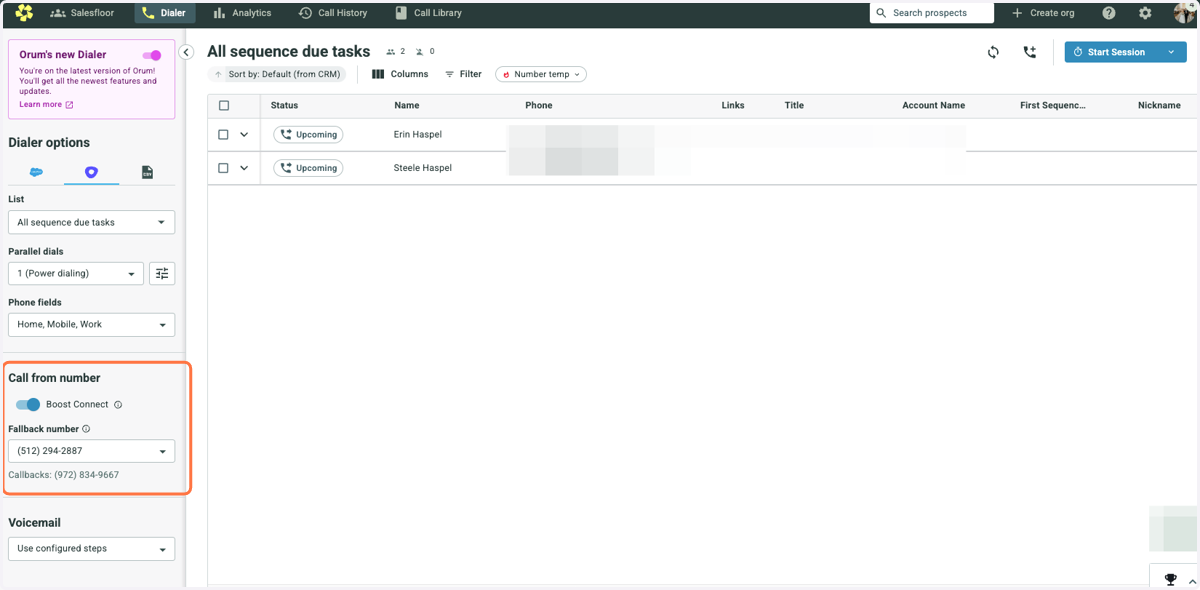
5. Ensure you select the appropriate Fallback number and also ensure callbacks are setup. The former will be the number your Prospect sees when you dial them. The latter is where returned calls go if the Prospect calls you back.
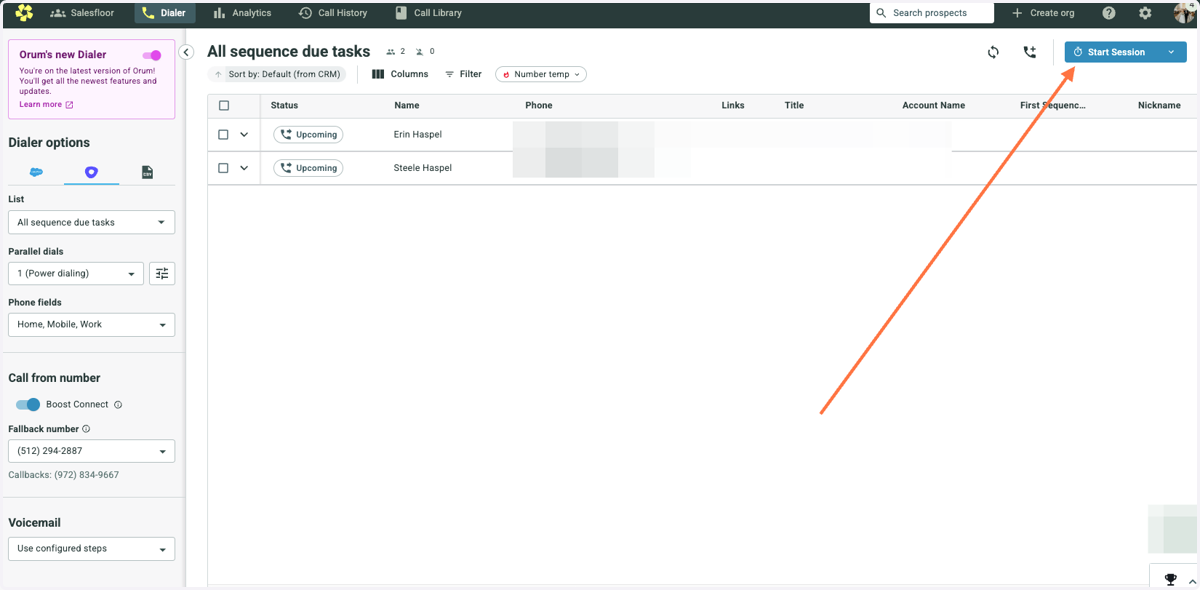
6. Click "Start Session" to dial into the lobby. You may be prompted to allow permissions if it is your first time dialing. The dialer WILL NOT start yet.
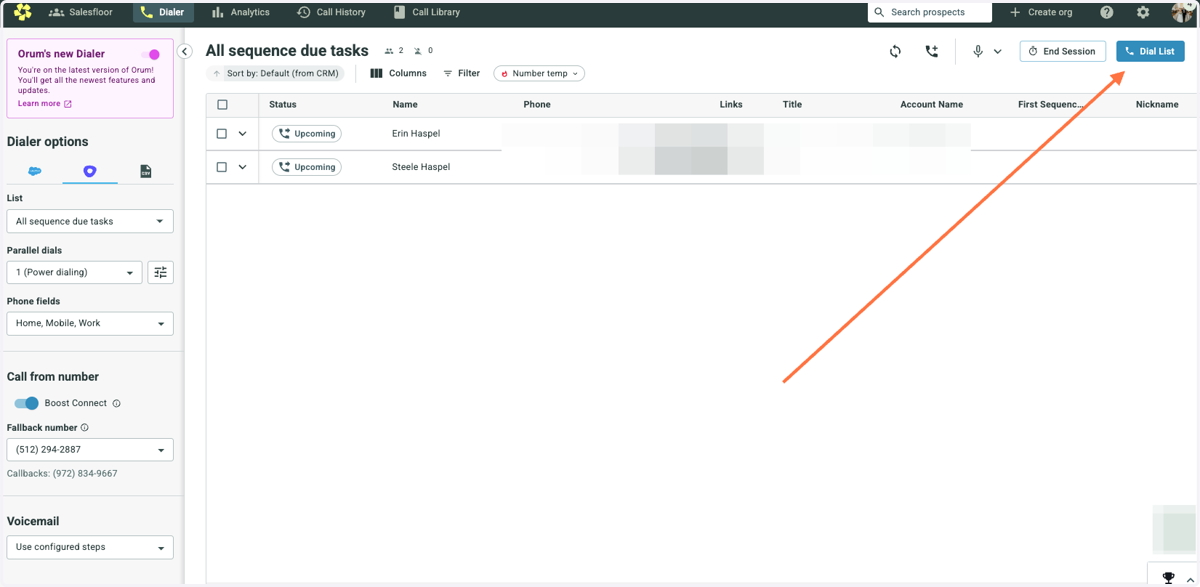
7. When you are ready to begin dialing, select "Dial List."
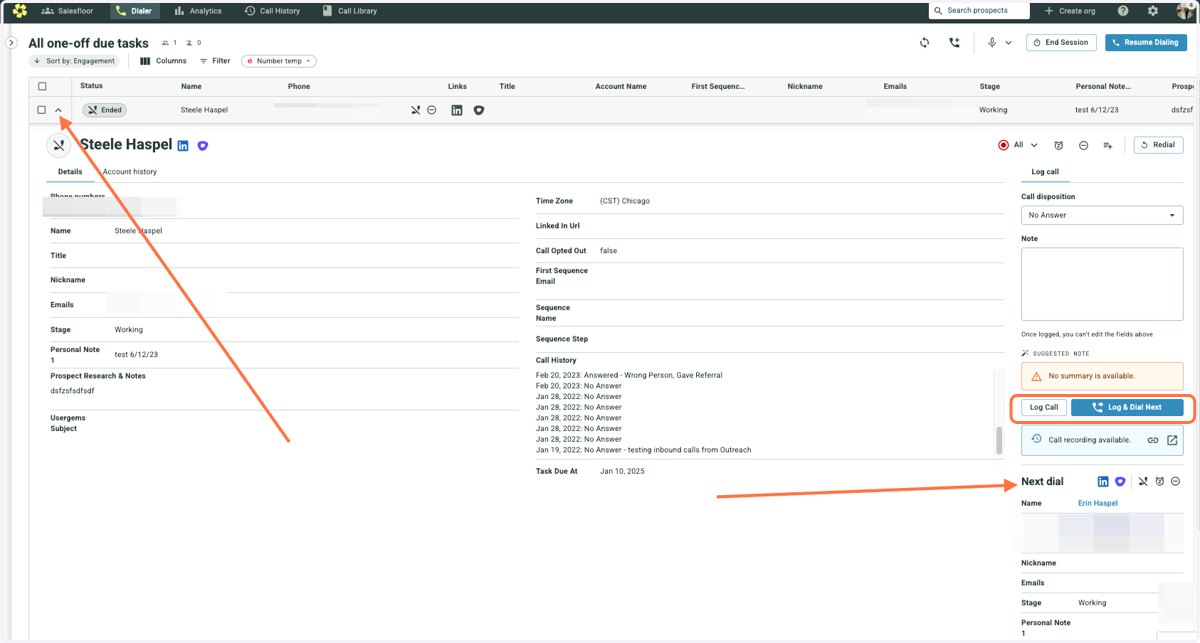
8. Your Orum interface will change to show the Prospect you are dialing. The Power Dialer is now running! Use the dialpad to enter extensions as needed. For directories, spell names using the Orum dialpad as you would on your phone.
Pro Tip: Have a consistent opener for all your calls, this helps speak quickly, my favorite is:
'Hey this is Steele from Orum, are they keeping you busy today?'
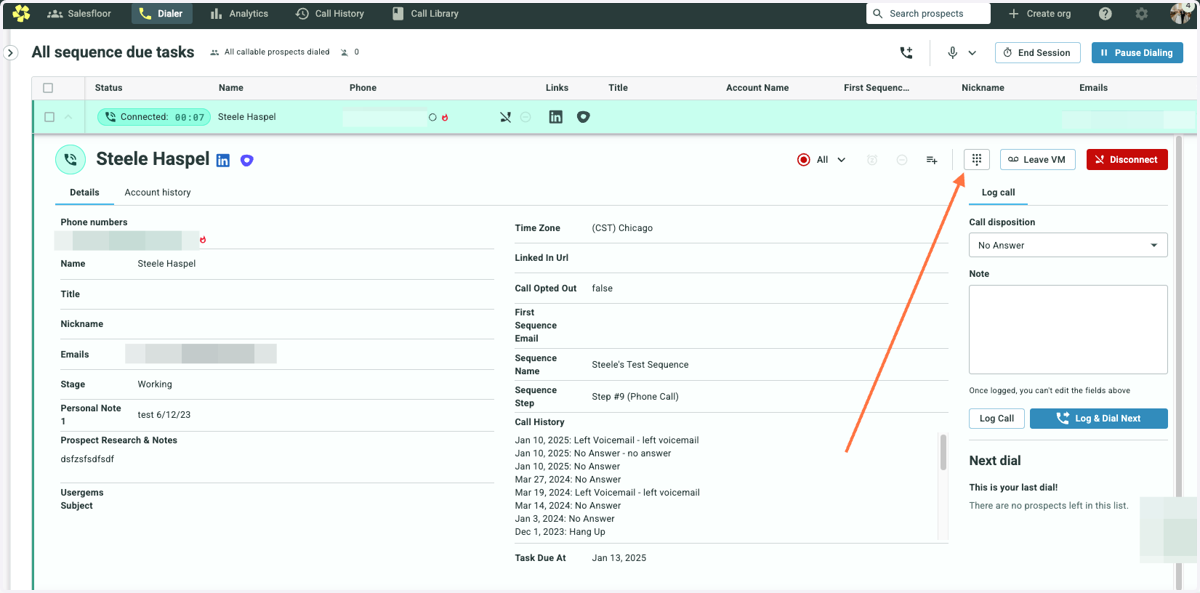
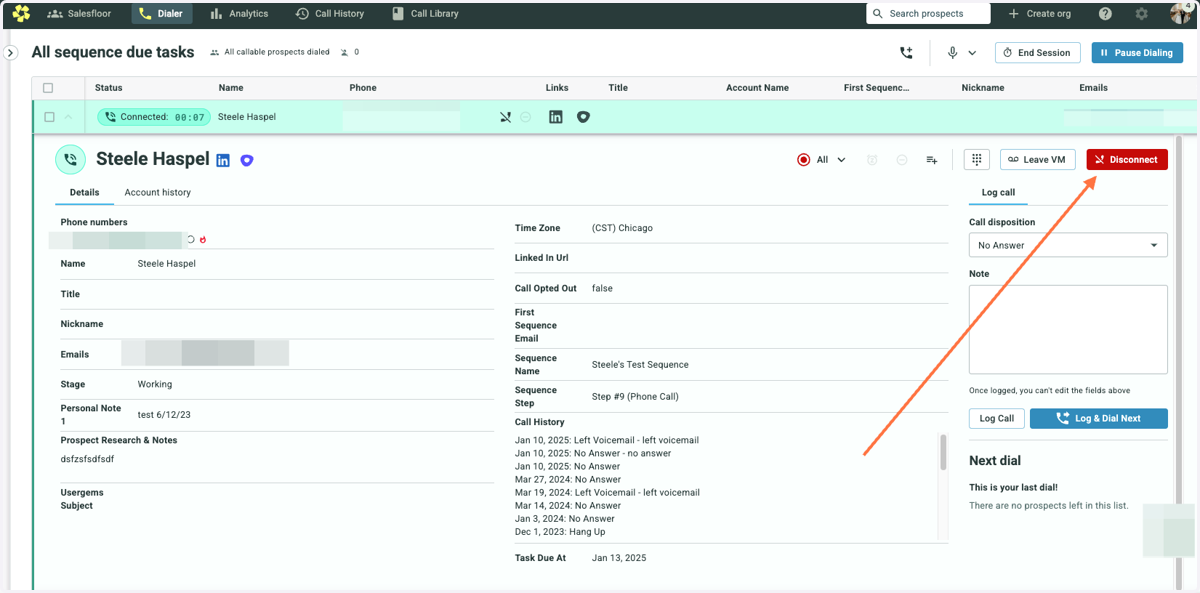
9. If the Prospect doesn't answer, or a preconfigured Automation rule kicks in, the Power dialier will automatically advance you to the next call. No action needed. If a Prospect answers, the dialer will stop for you to deliver your pitch. Press disconnect to end the call.
10. On the righthand side, select the Disposition of the call and write your notes. This information will post in the integrated platform (if any).
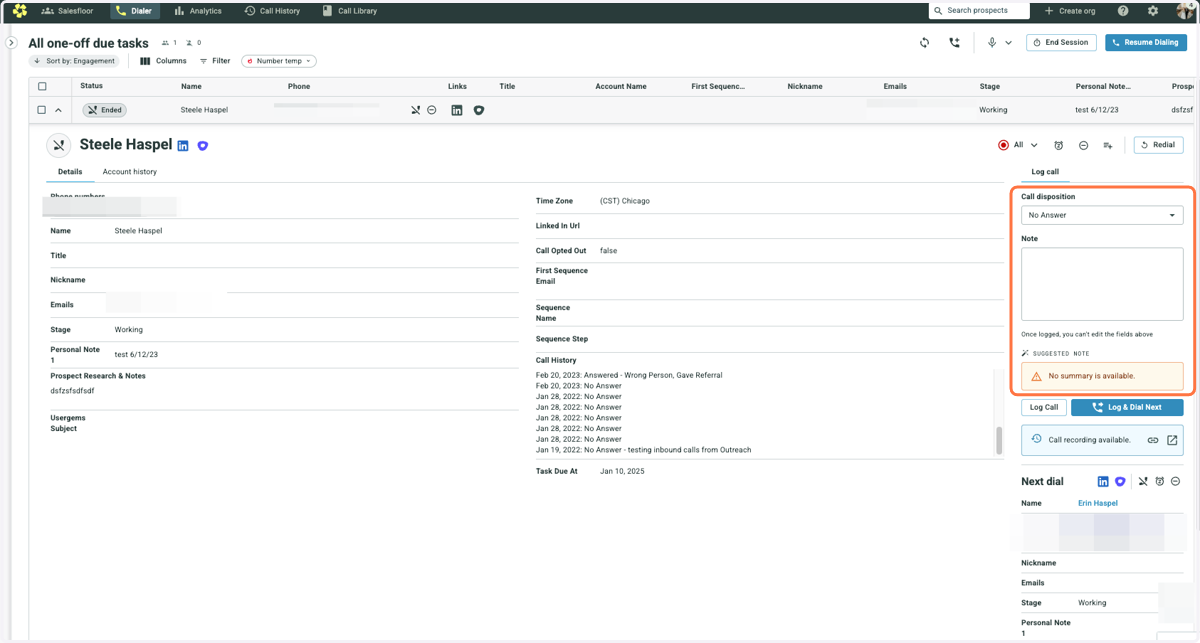
11. When you are ready to continue dialing, select "Log & Dial Next." Or if you want continue dialing later, select "Log Call." You can preview your next call with the "Next dial" section or minimize Prospect overview to see your list.