Step-by-Step Instructions for Creating a Facebook Business Page
1. Look for the Pages option in the left hand toolbar

2. If you don't see it at the top of the list click on See more and scroll down to locate it

3. Once on the Pages dashboard click on Create new Page in the left toolbar

4. Add the Business Name to the Page Name input

5. Locate the business category and select it

6. Copy the company bio from your Guiding Doc

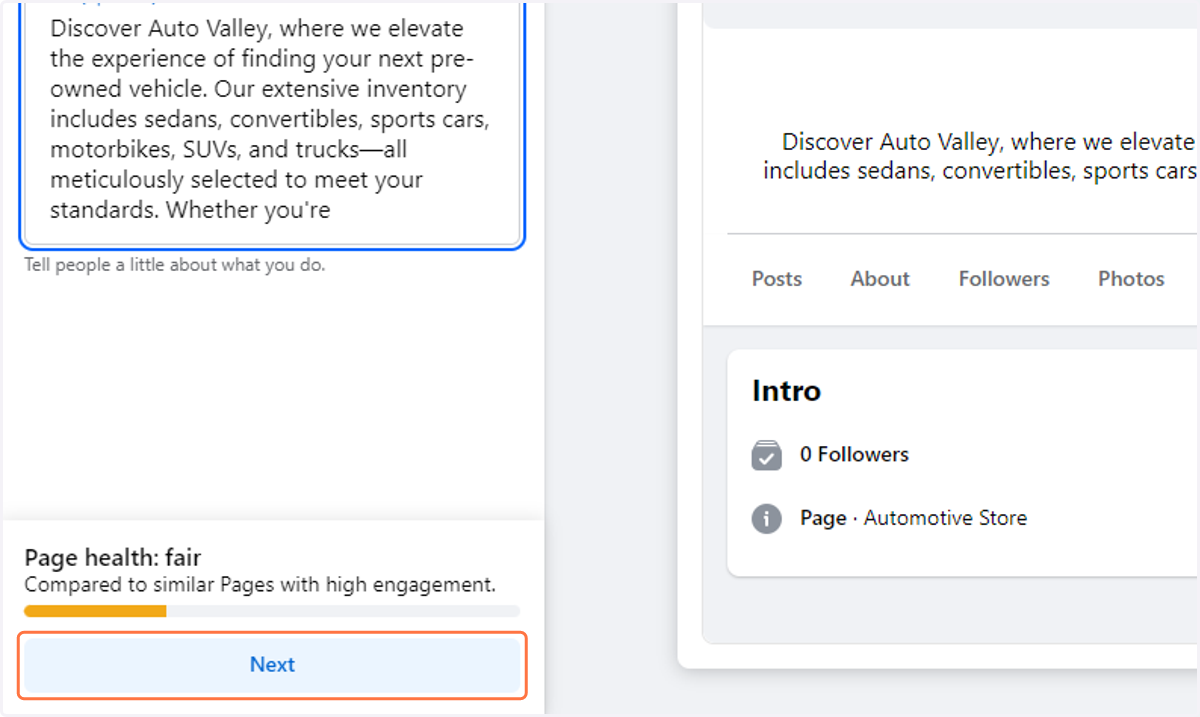
7. Paste the company bio into the corresponding text area

8. Click on Next
9. Add the website URL to the corresponding input

10. Copy the phone number from your Guiding Doc
11. Paste the phone number into the corresponding input
12. Complete the rest of the inputs copying from your guiding doc

13. Pasting the proper information into the remaining corresponding inputs

14. Select Open at selected hours
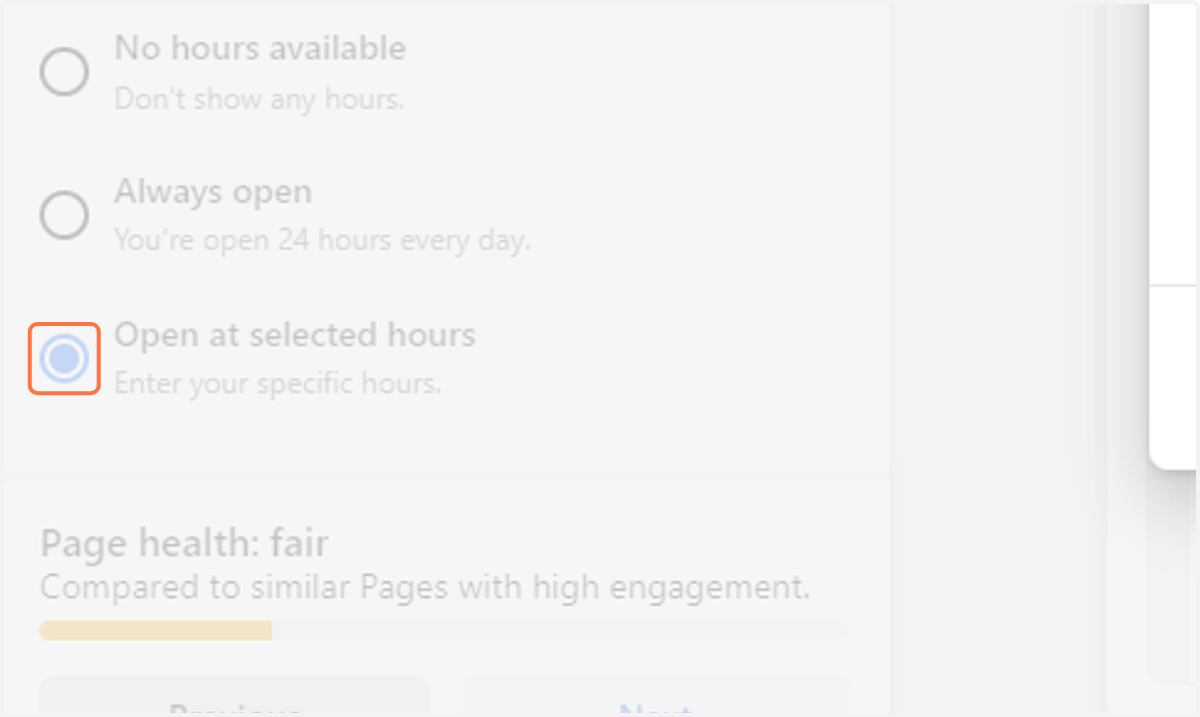
15. Complete the business hours from your Guiding Doc

16. Click on Save

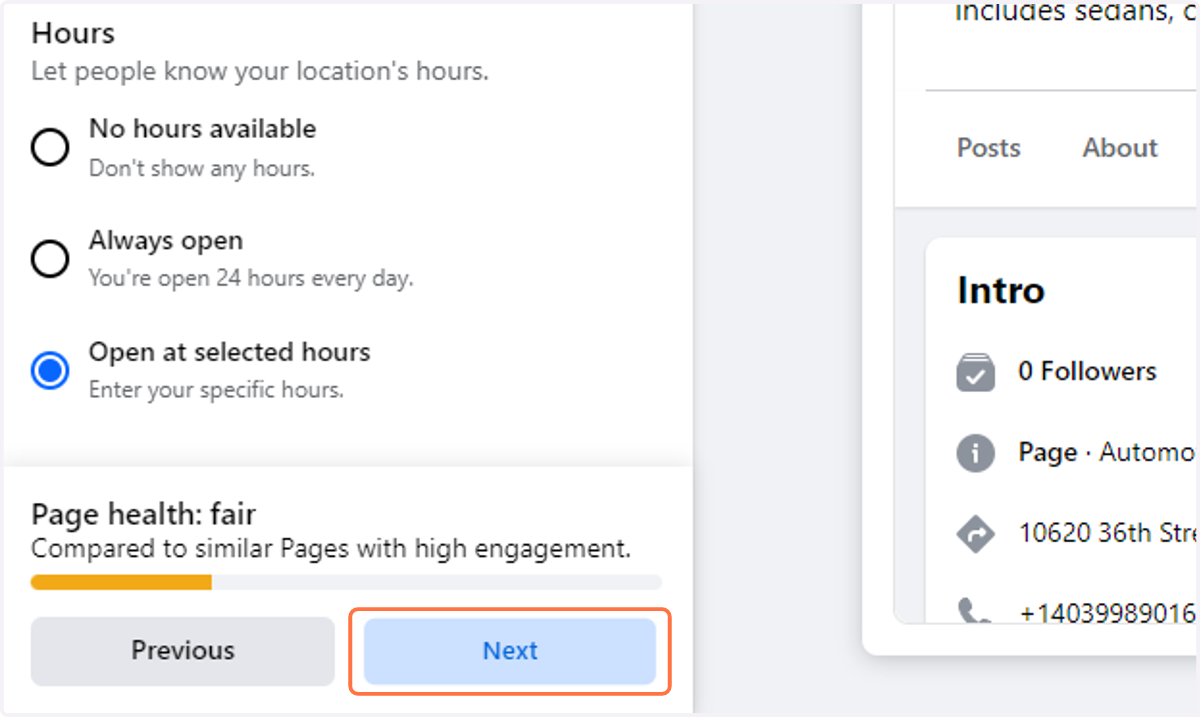
17. Click on Next
18. Click on the Instagram Post option
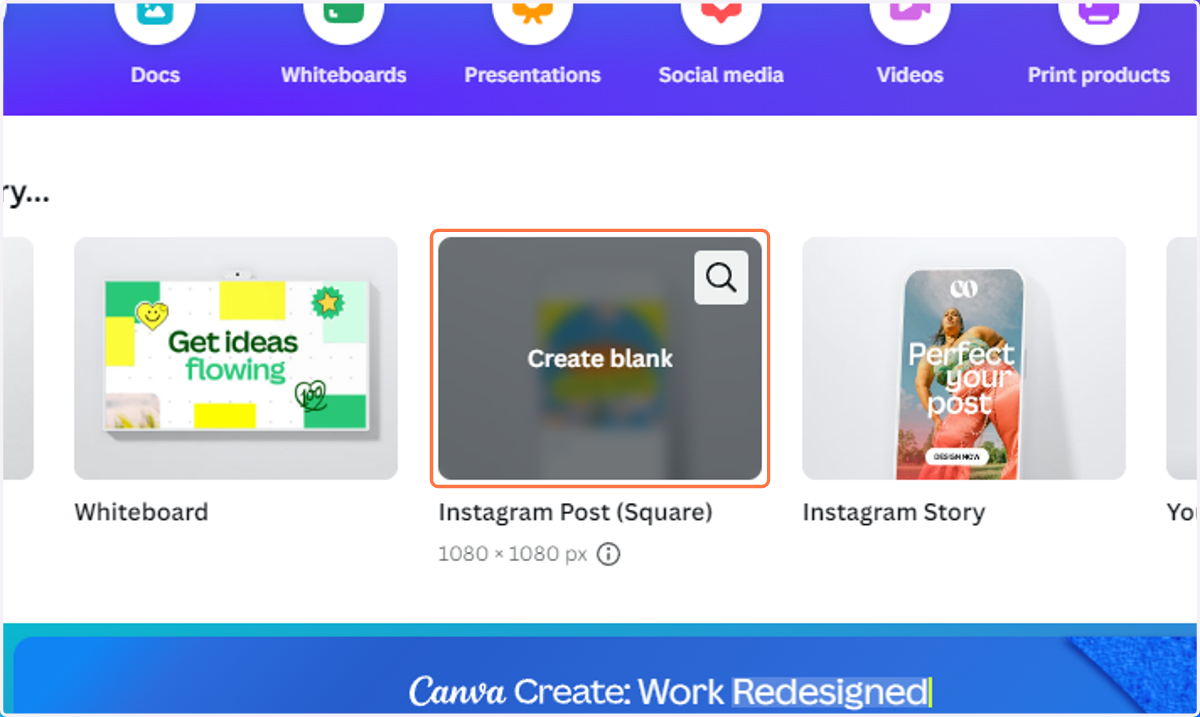
19. Click on the link provided or copy and paste it into your URL bar

20. Locate the Logo folder and double click to enter the folder

21. Click on the three dots to open the More actions menu
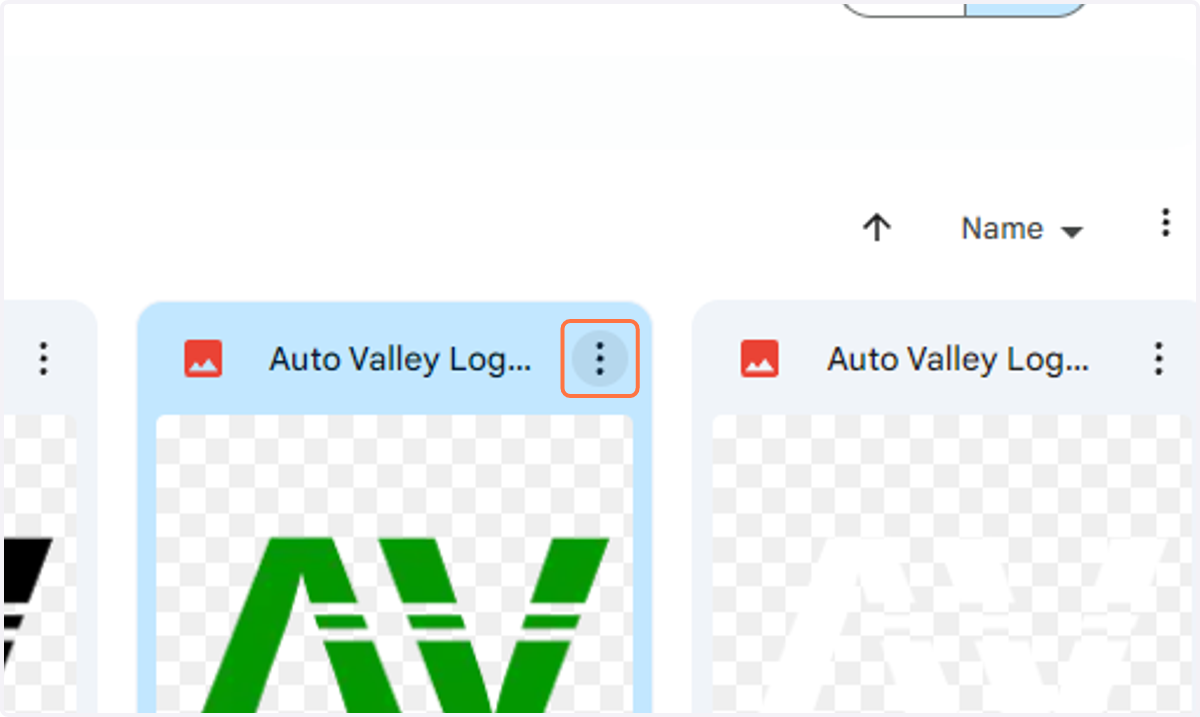
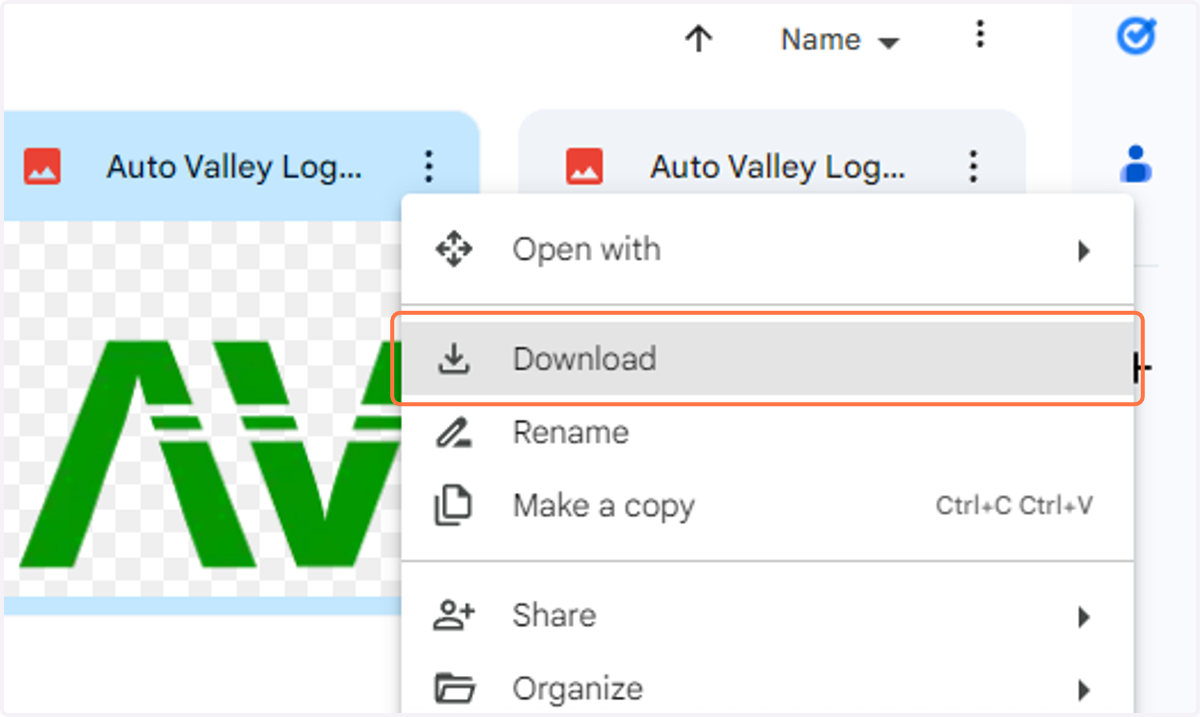
22. Download all of the assets in this folder
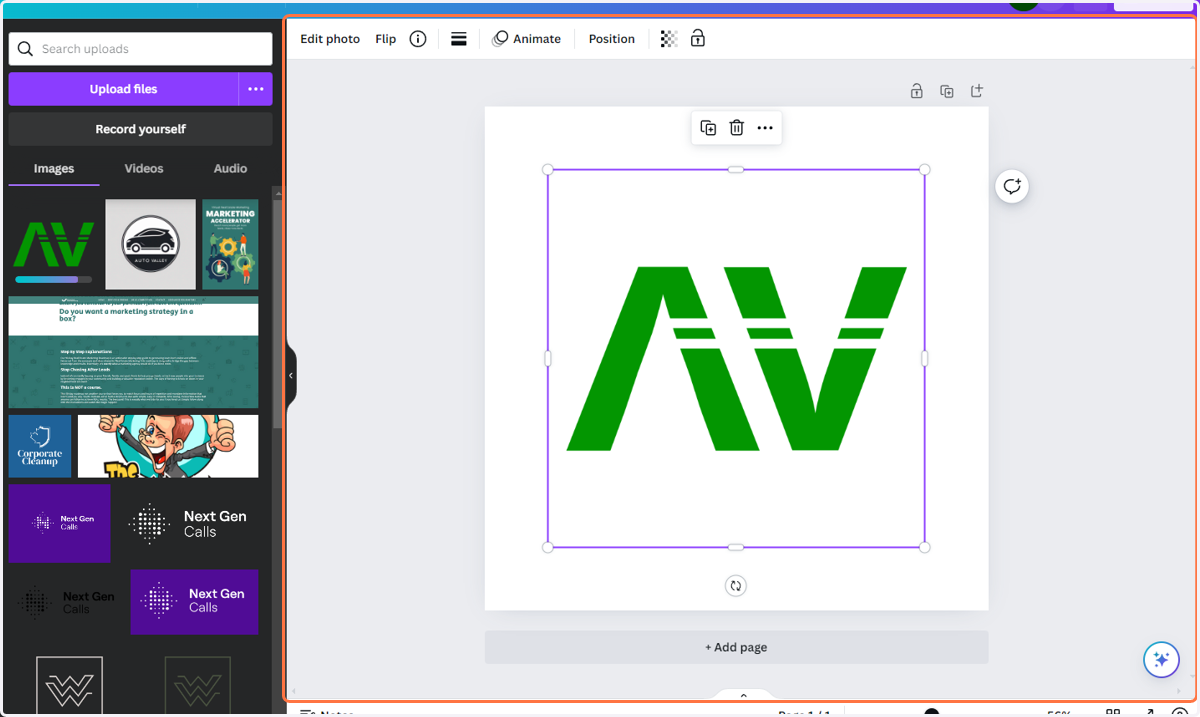
23. Add the appropriate square logo file to the canvas board and center it
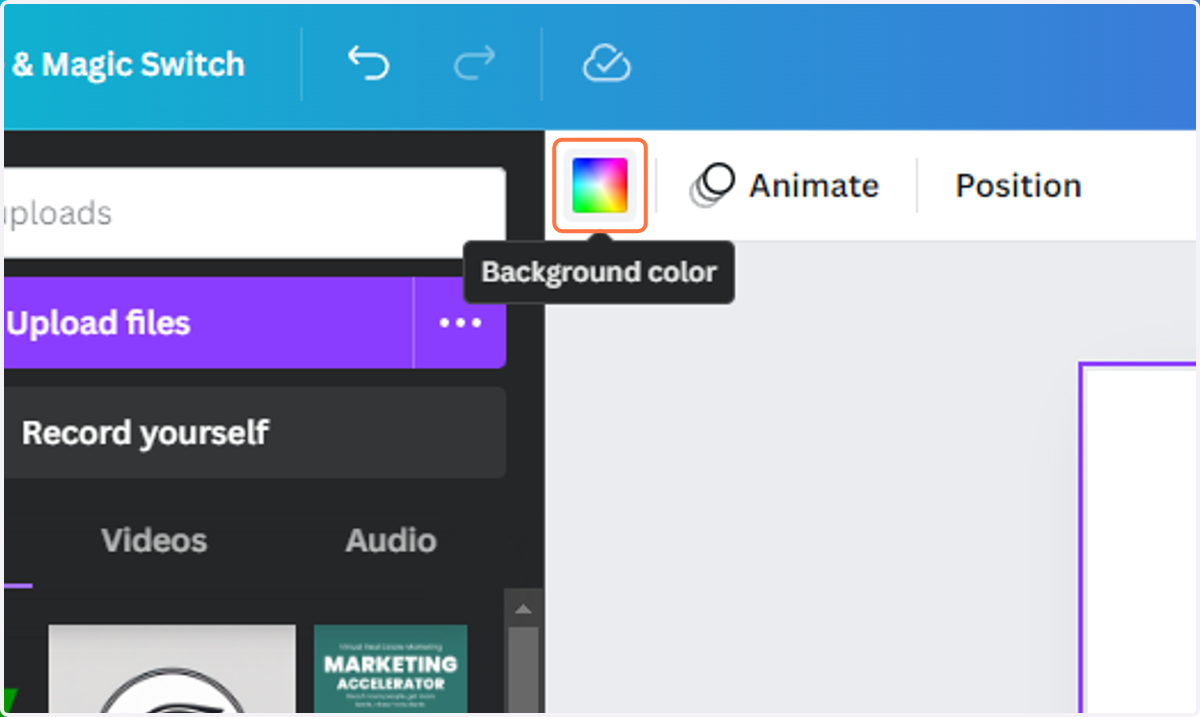
24. Click on the Background color button
25. Locate the appropriate color code in your Guiding Doc

26. Click on Add a new color
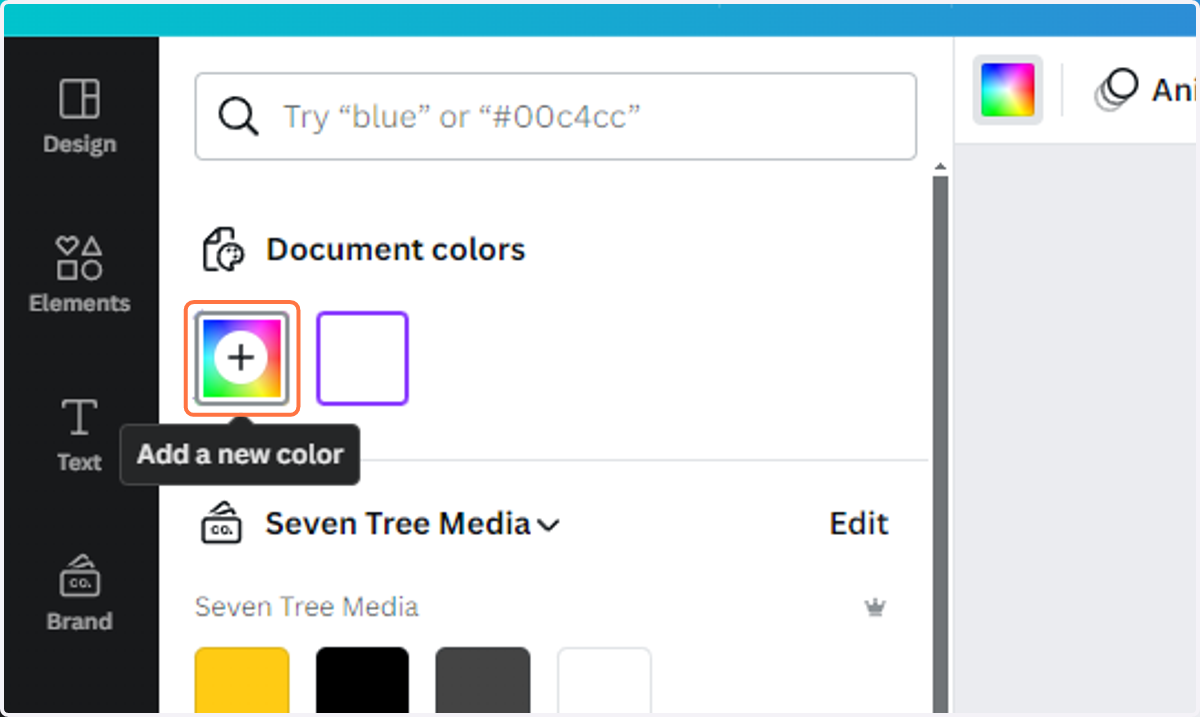
27. Paste the color Hex Code into the corresponding input
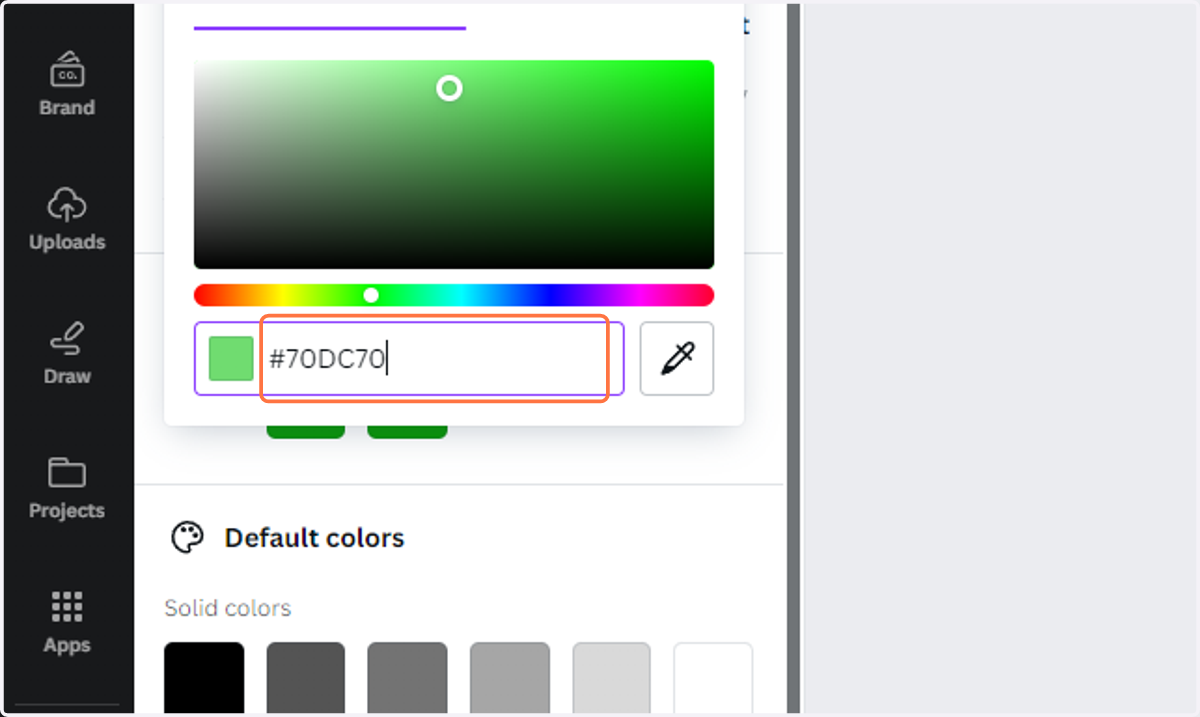
28. Be sure to rename the design so you can easily locate it when you've downloaded it

29. Click on Share

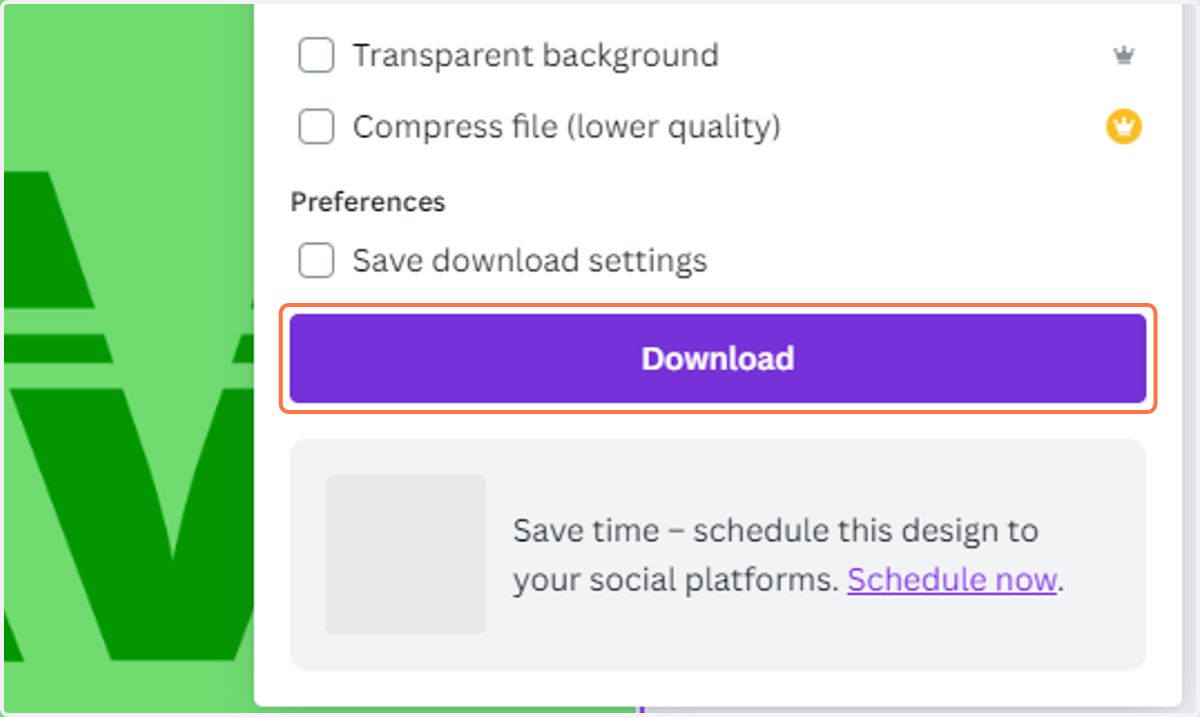
30. Click on Download

31. Click on Download
32. Click on Create a design to create a secondary banner image

33. Type "social banner" in the search bar

34. Locate and choose Blog Banner

35. Click on Design in the upper left of the toolbar

36. Search for a relevant design template

37. When you've found one you're ready to edit click on it to apply it to the canvas board

38. Edit the design to match the brand of the business
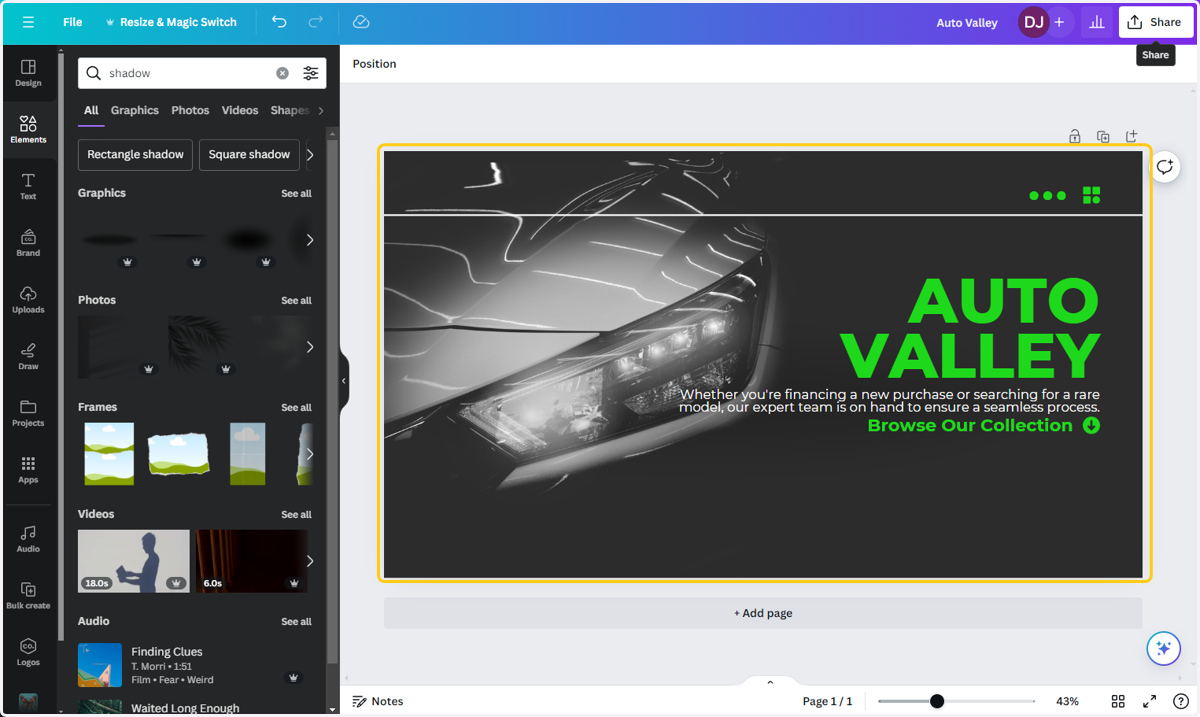
39. When you're satisfied with your edits click on Share
40. Click on Download

41. Click on Download

42. Upload the corresponding images

43. Click on Add Action Button

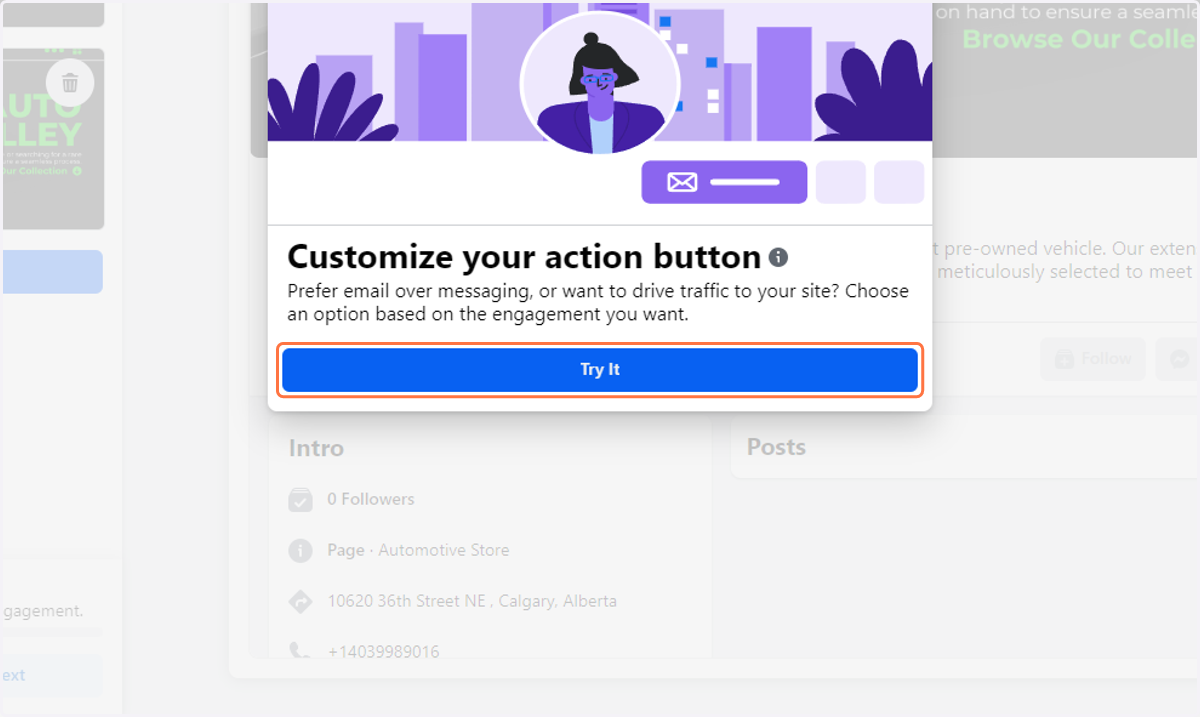
44. Click on Try It
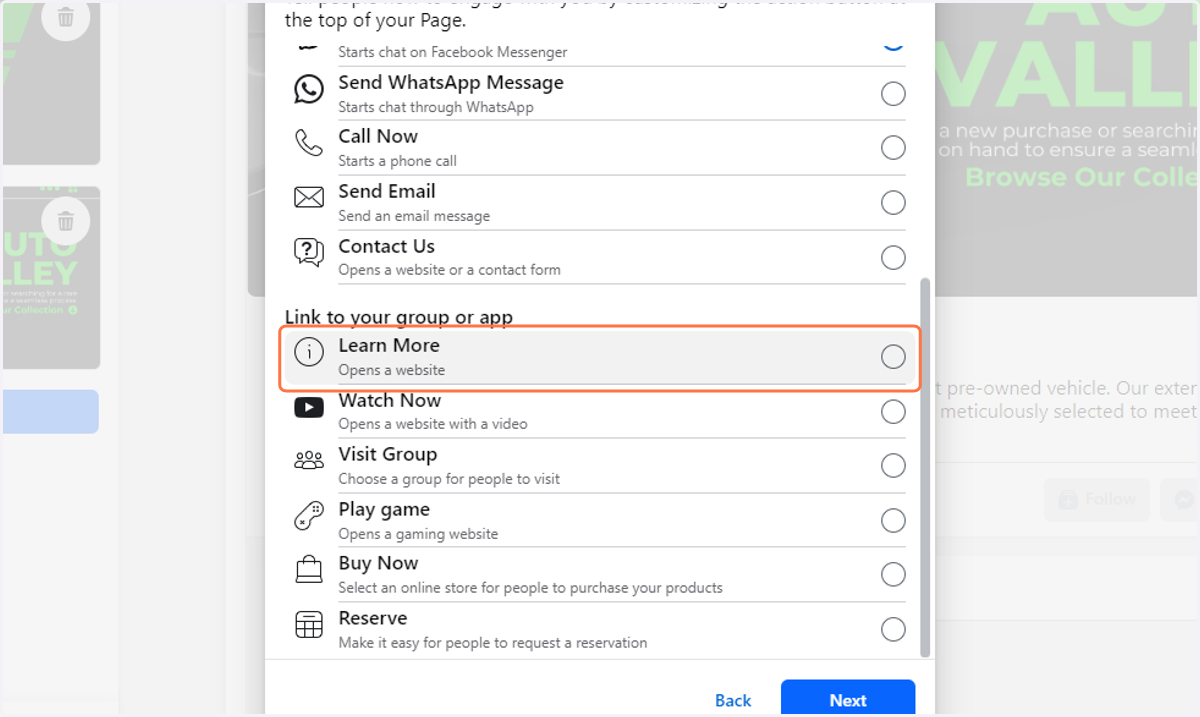
45. Click on the Learn More option
46. Click on Next

47. Copy the business website URL from your Guiding Doc

48. Paste the URL into the corresponding input

49. Click on Save

50. Click on Next
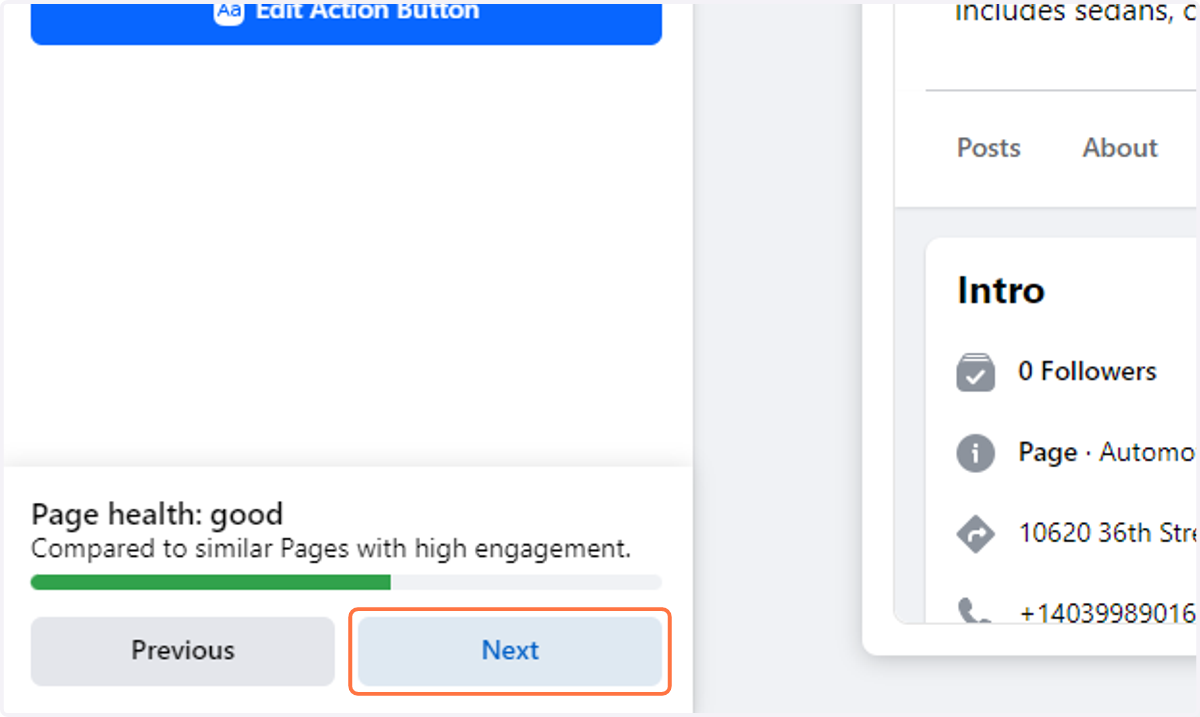
51. Click on Skip

52. Toggle off the Page Notifications option

53. Click on Done

54. Click on Close

55. Click on Settings

56. Click on Page setup
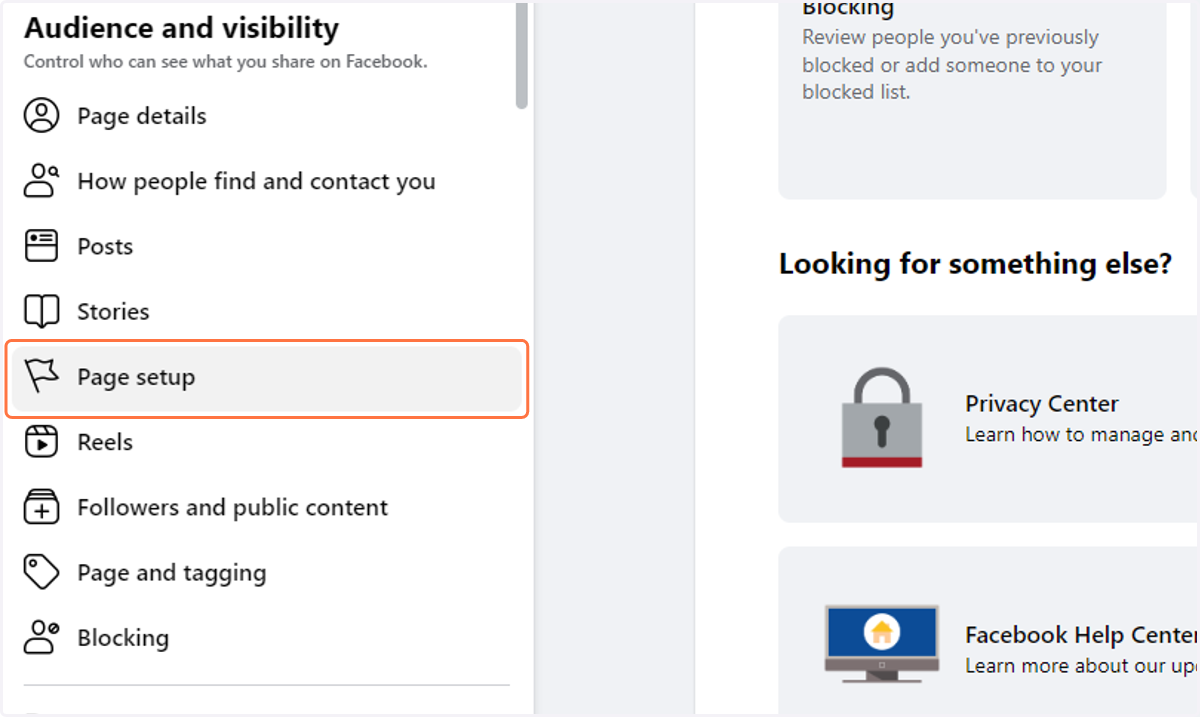
57. Click on View

58. Click on the edit link to change the Username to reflect the business name then save and return

59. Click on the View button for Page access
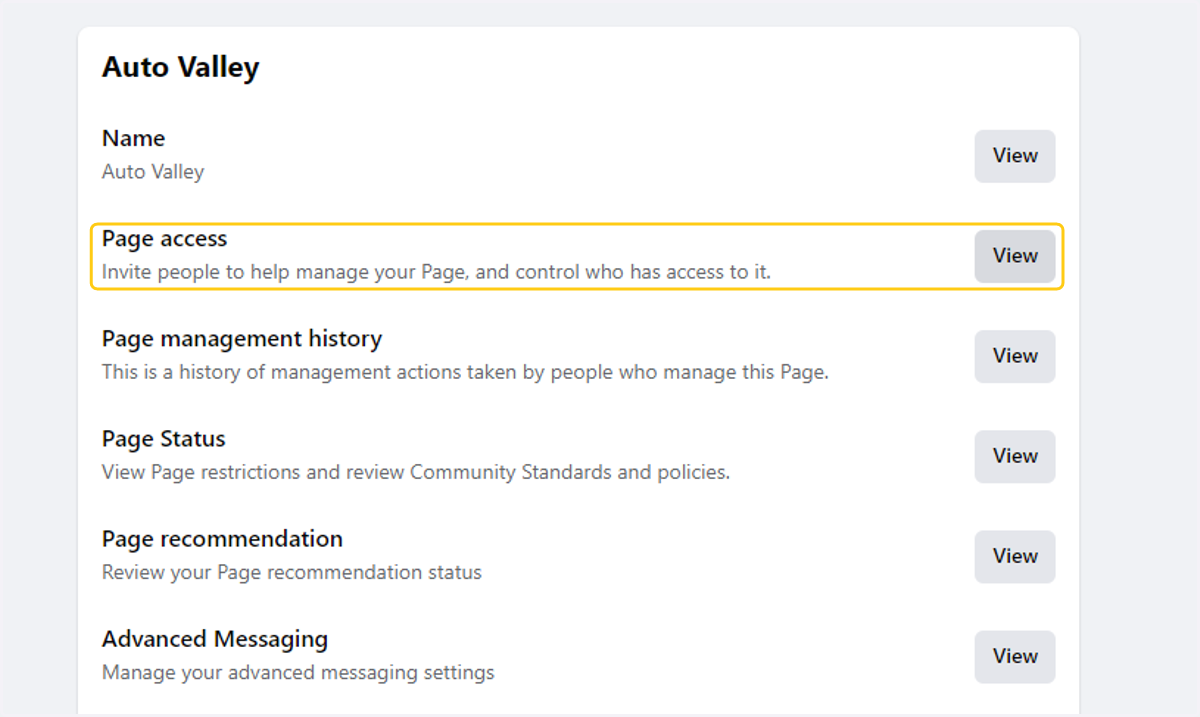
60. Click on Add New

61. Click on Next

62. Copy and add each of the names in your Guiding Doc

63. Search for the name in the search bar

64. Confirm you are adding the correct profile by checking the links in your Guiding Doc
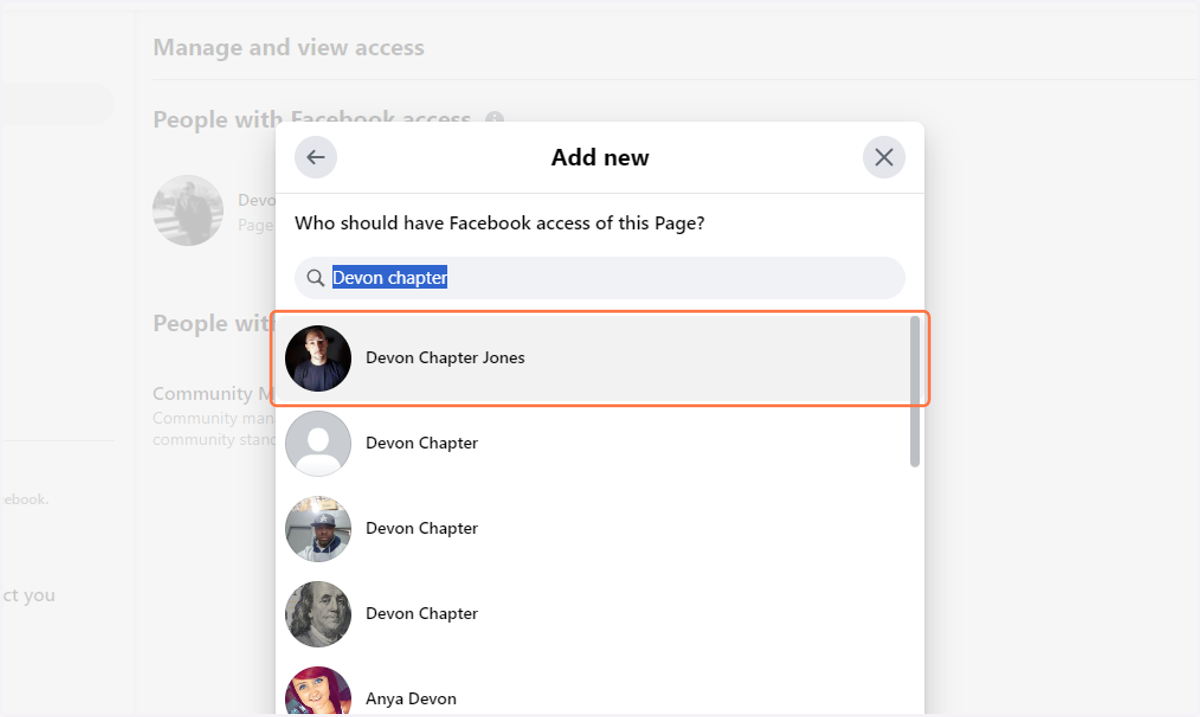
65. Toggle on the Allow this person to have full control option
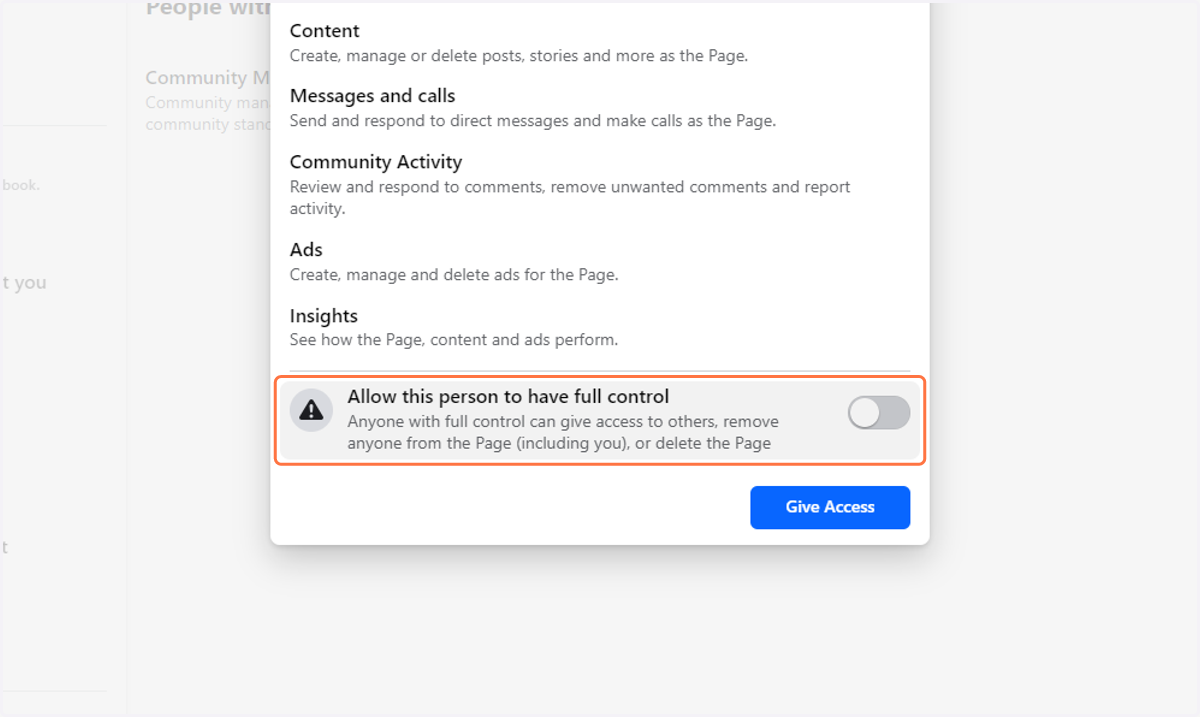
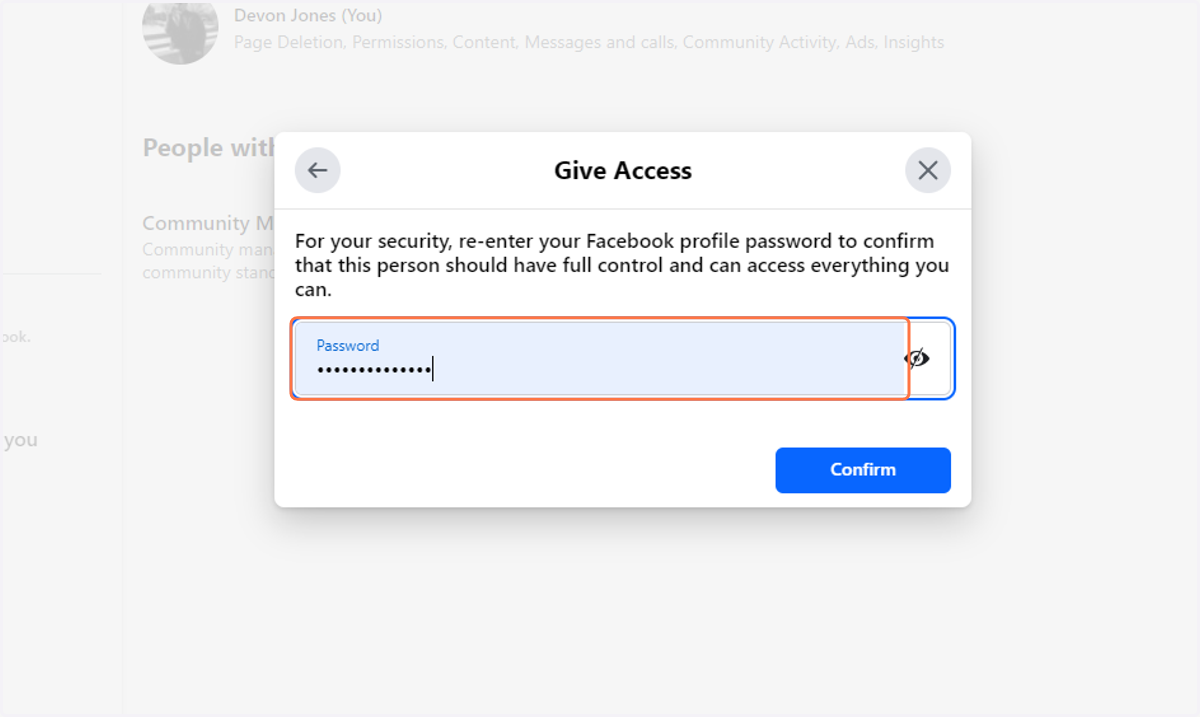
66. Click on Give Access

67. Type password and click confirm
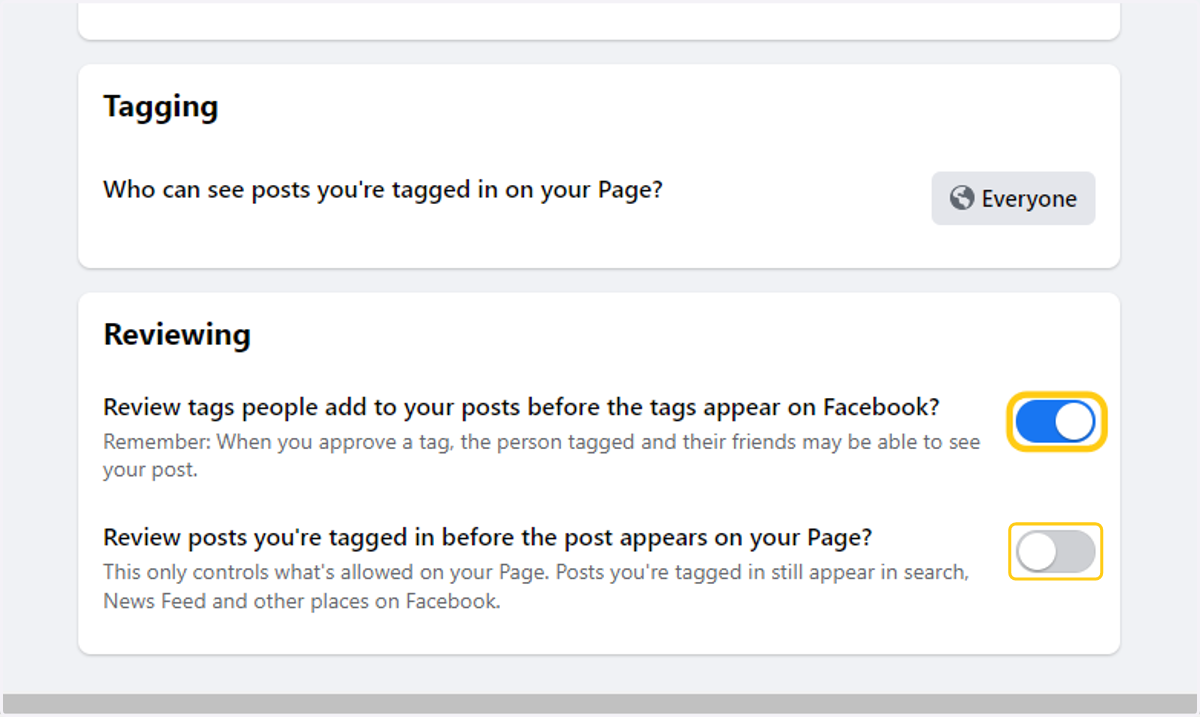
68. Locate and click on Page and tagging in the left side toolbar

69. Toggle on BOTH of the Reviewing options