Understanding Smart Dropdowns
Smart Dropdowns allow your members to add values to fields they need (in our example below, we have 'Favorite Pizza Topping'. The step by step below is going through the process of how someone may update their profile information.
1. In this example, I'll go into my profile and update/add a field
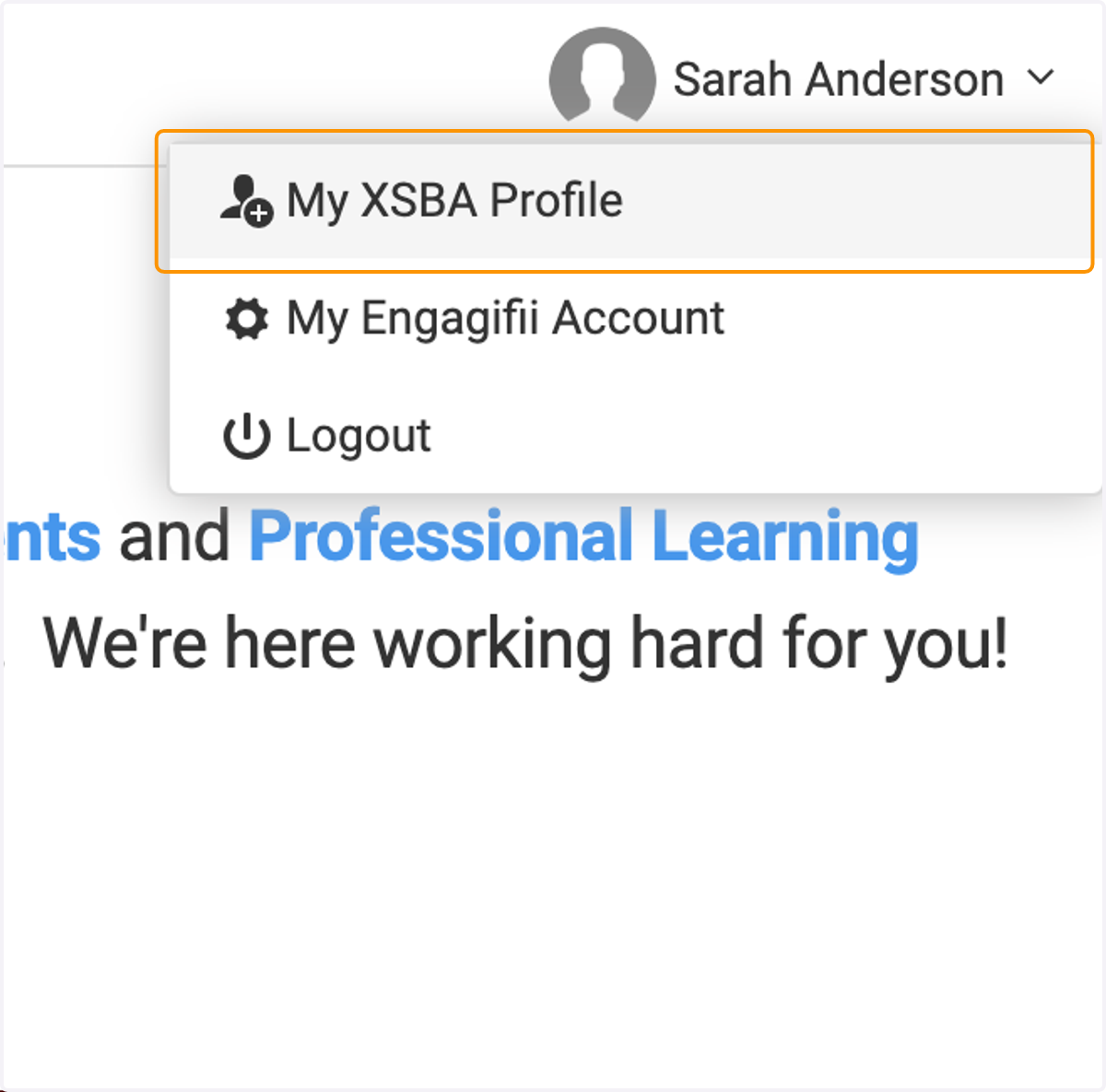
I've clicked on my name to bring up the drop down for the available actions

2. Click on 'My XSBA Profile' - In place of 'XSBA' it will show your workspace name
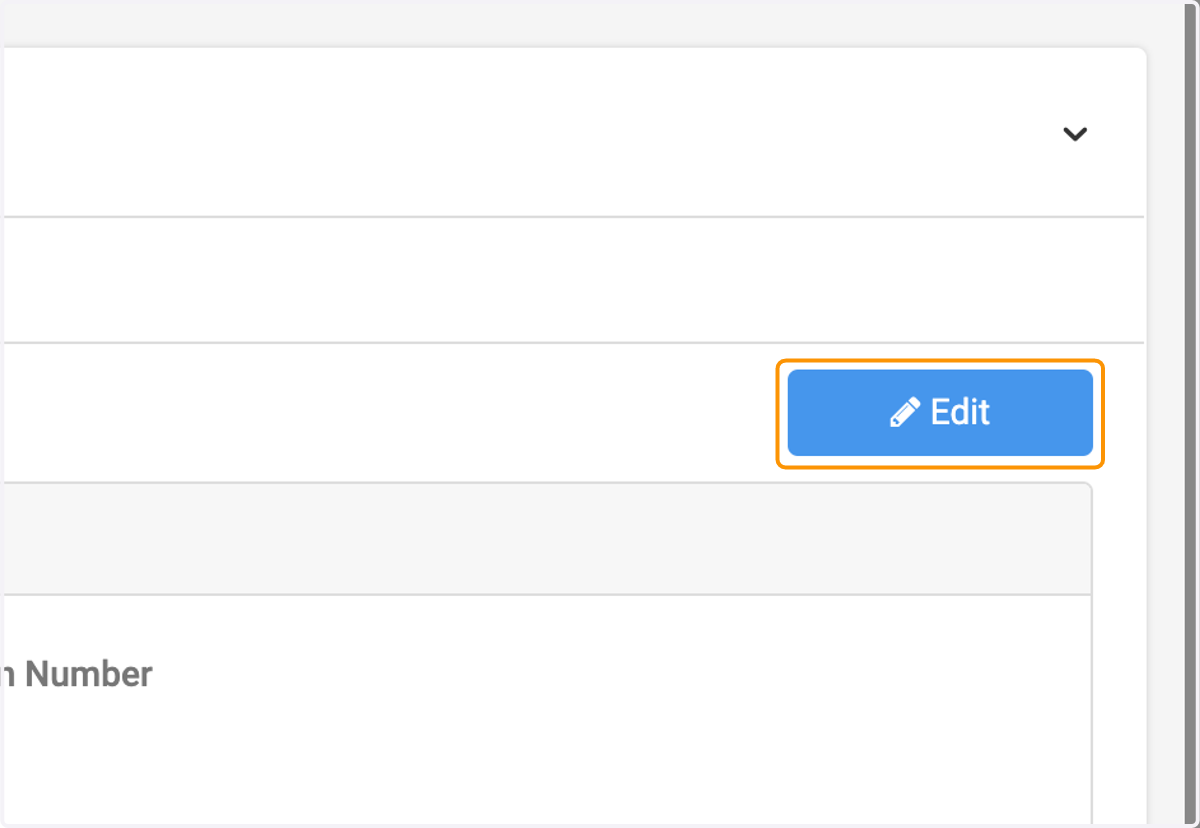
3. Click on Edit
4. Find the field that needs to be updated
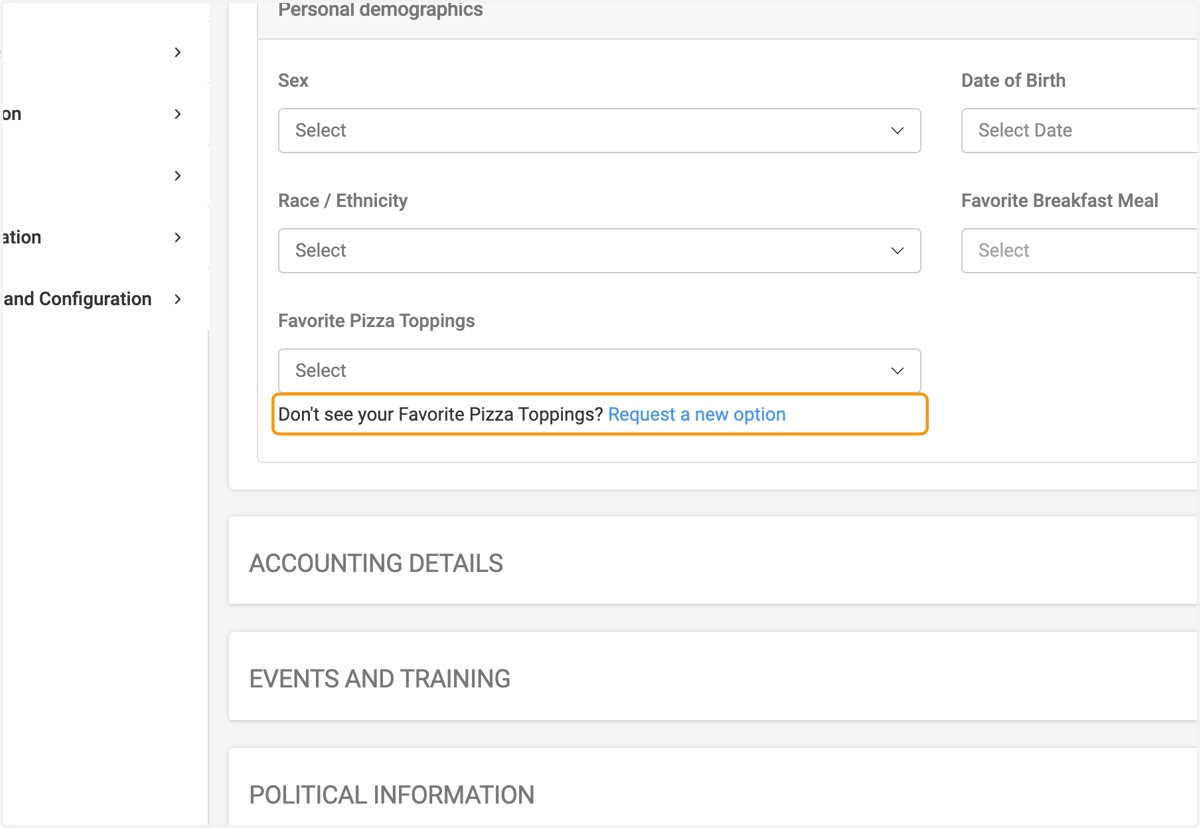
In our example, we have Favorite Pizza Toppings
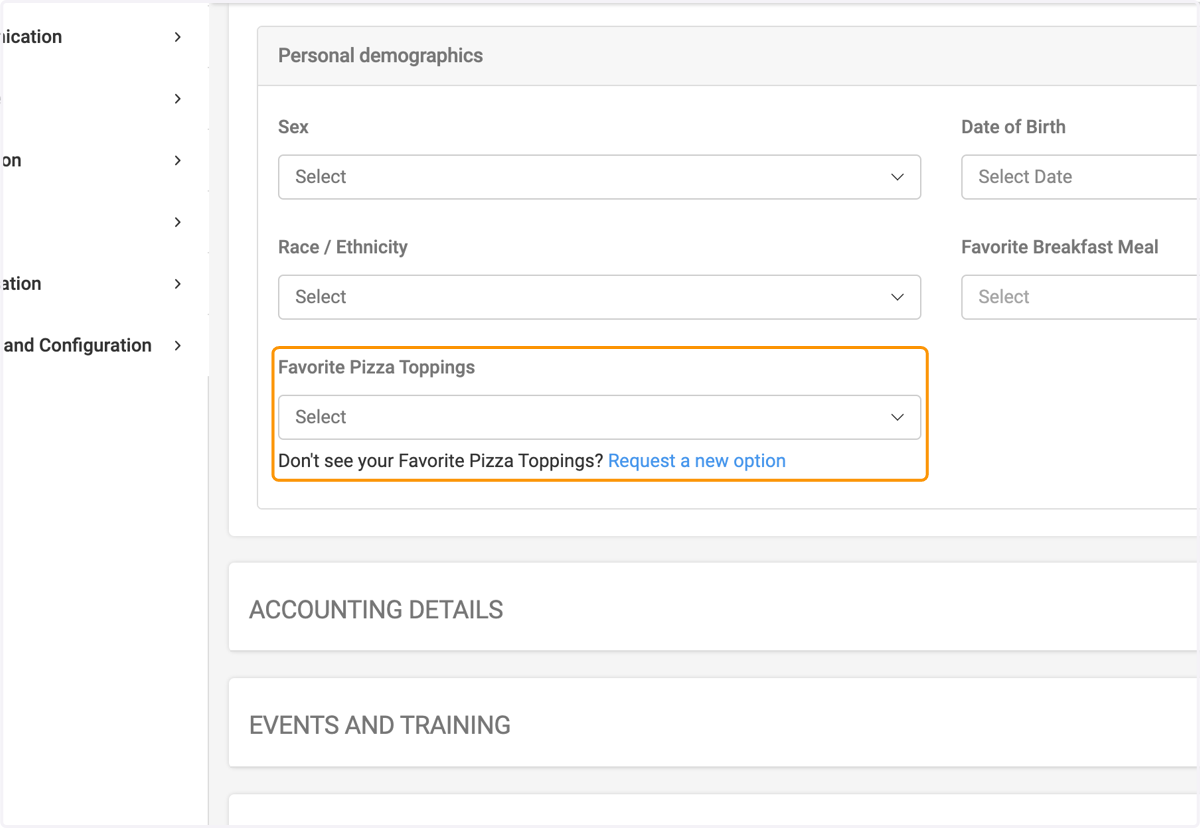
5. Request a new option
Below the drop down box, there's a link that will allow the member to add in a new field to the drop down
6. Type in the new option you'd like to see available
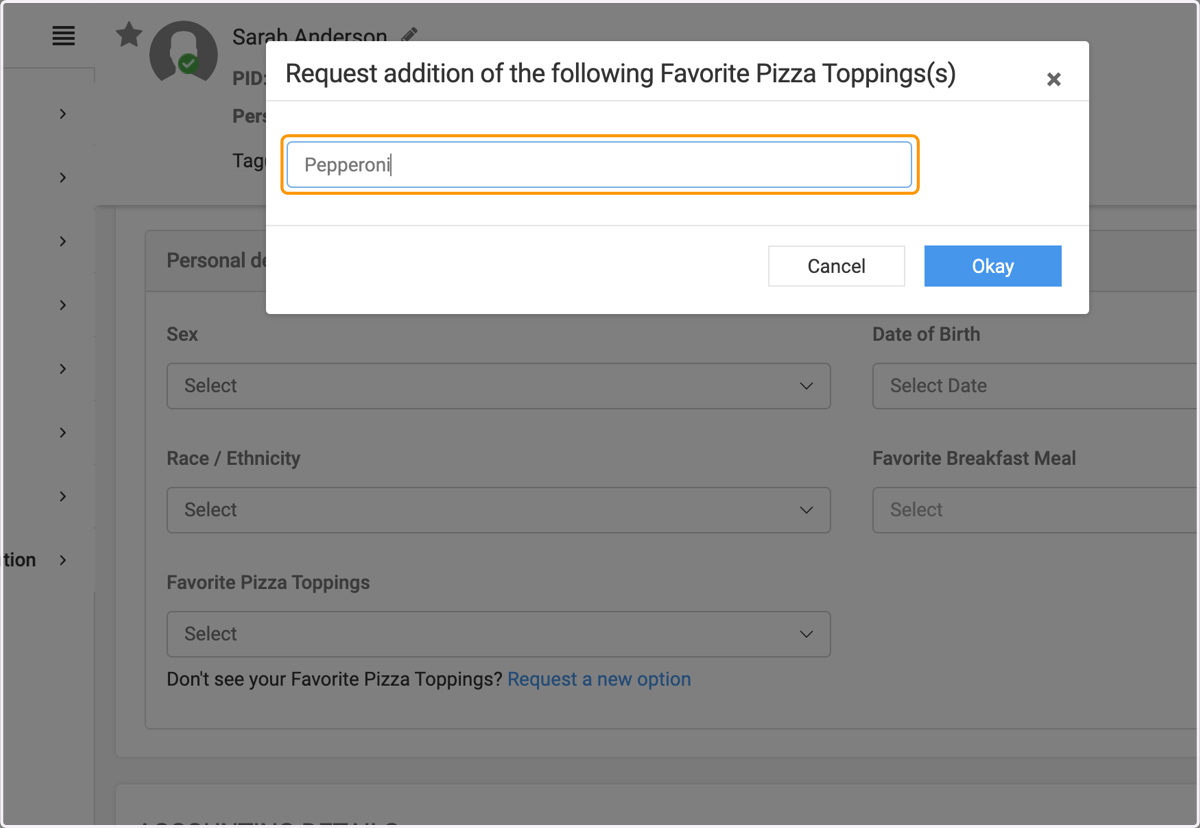
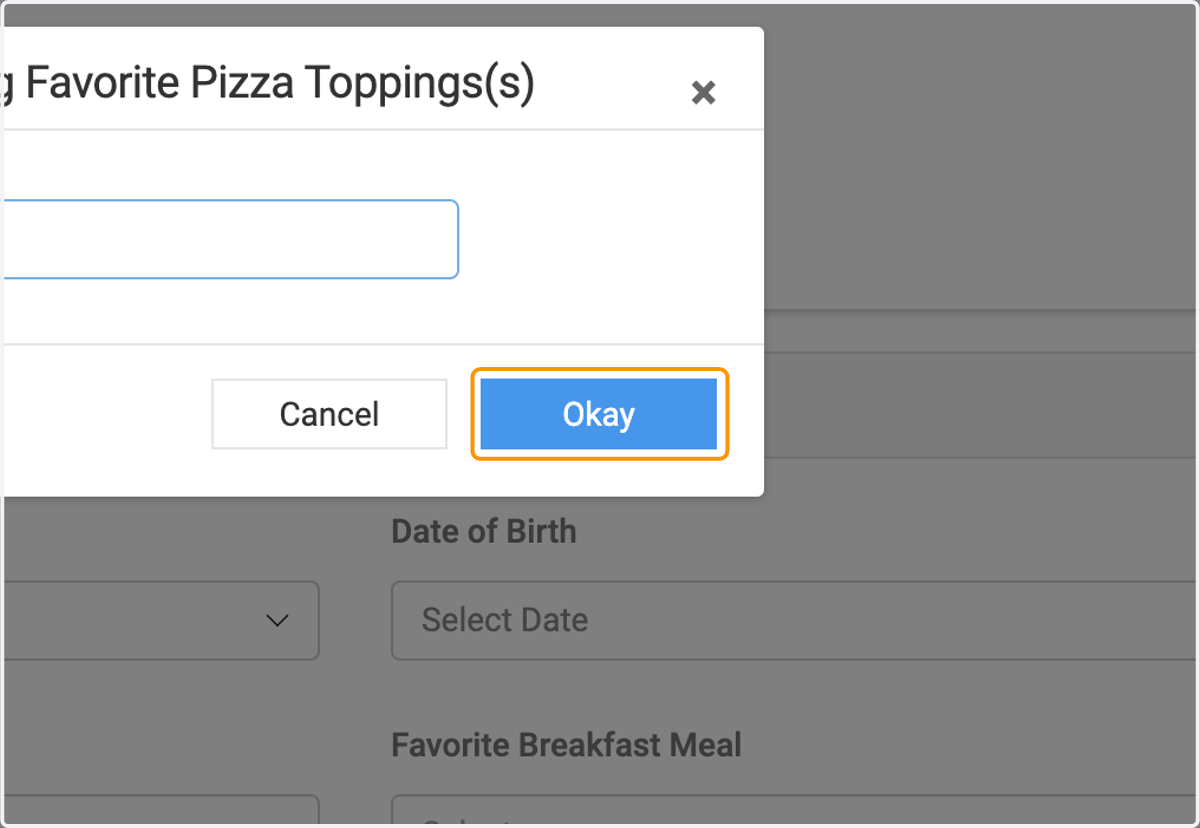
7. Click on Okay