Navigating your Teacher Dashboard

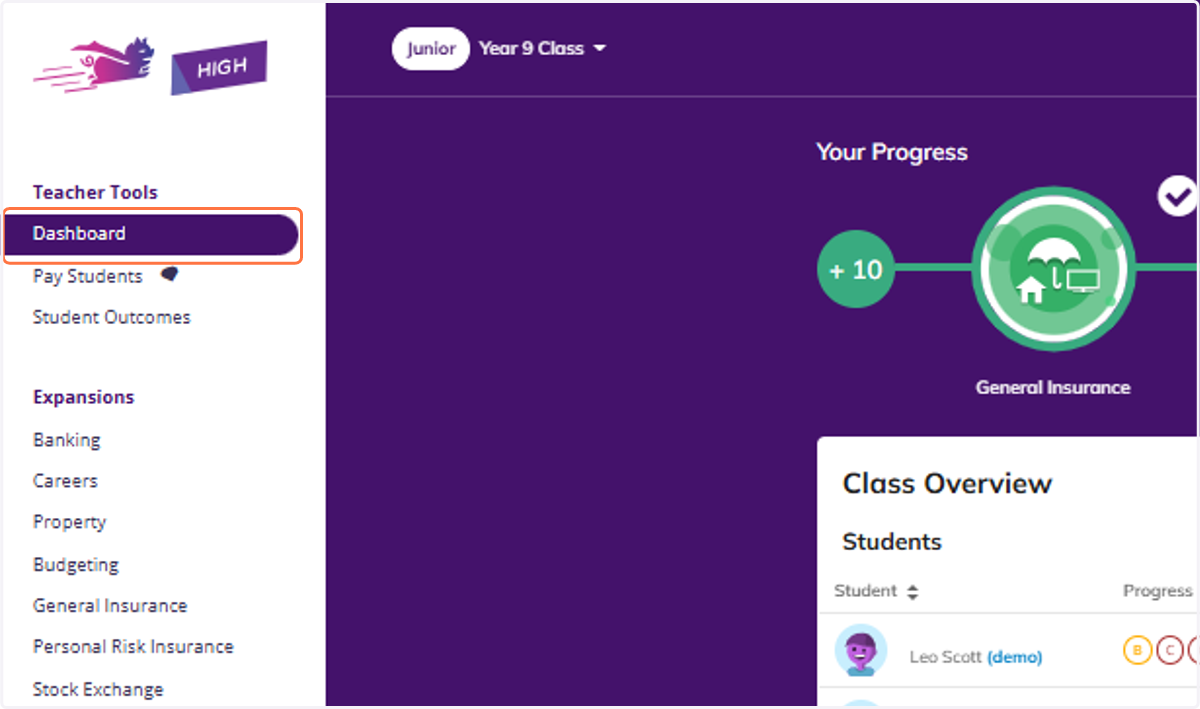
  1. 1. Click on Dashboard

    Click on Dashboard
  2. 2. You can view your progress through the platform with your Progress Bar at the top of your dashboard.
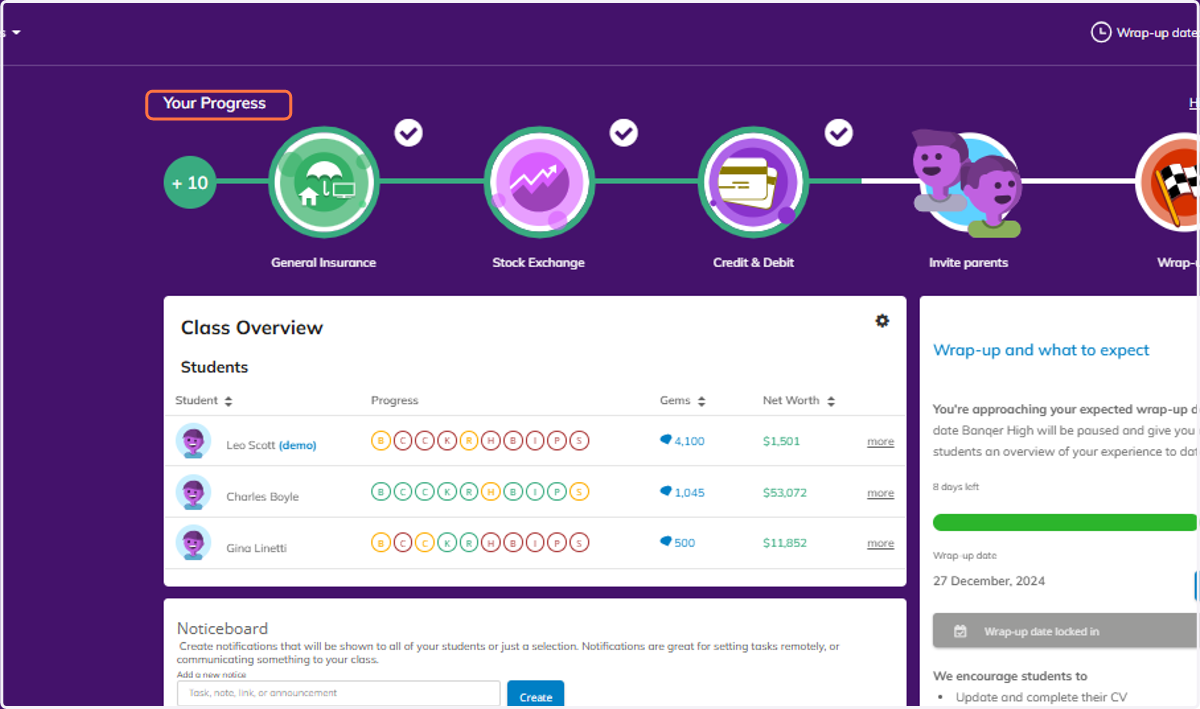
    You can view your progress through the platform with your Progress Bar at the top of your dashboard.
  3. 3. Your Class Overview is always at the top of your Dashboard view.
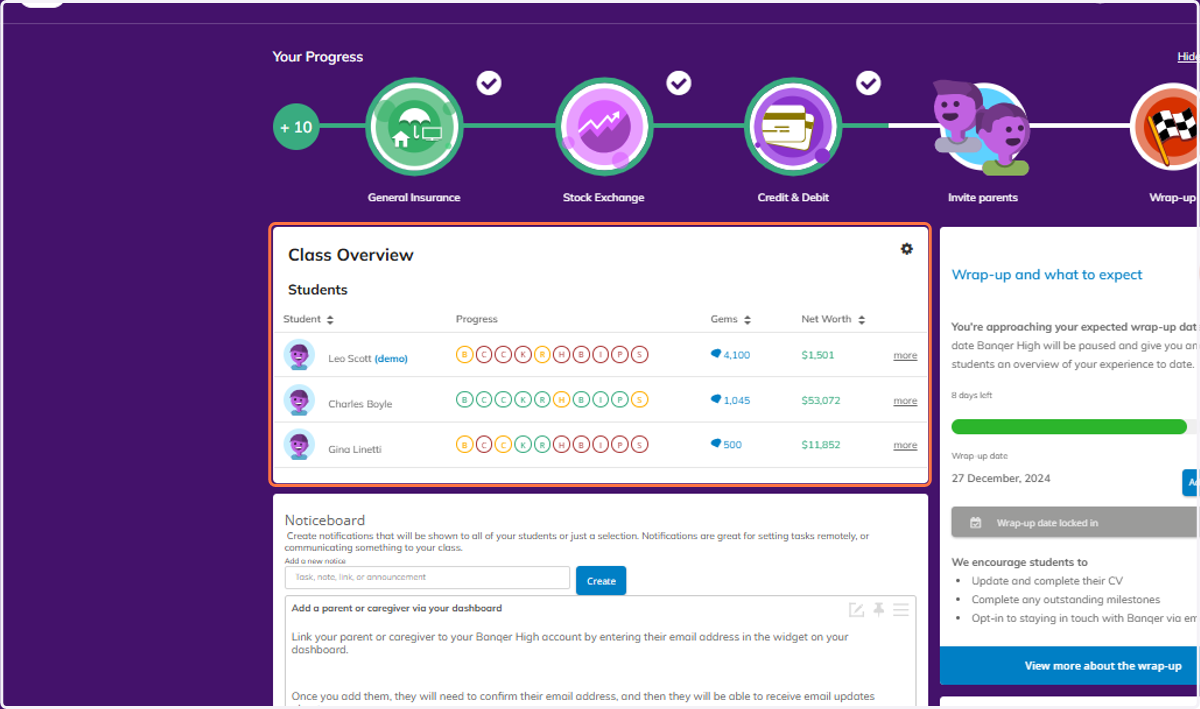
    Your Class Overview is always at the top of your Dashboard view.
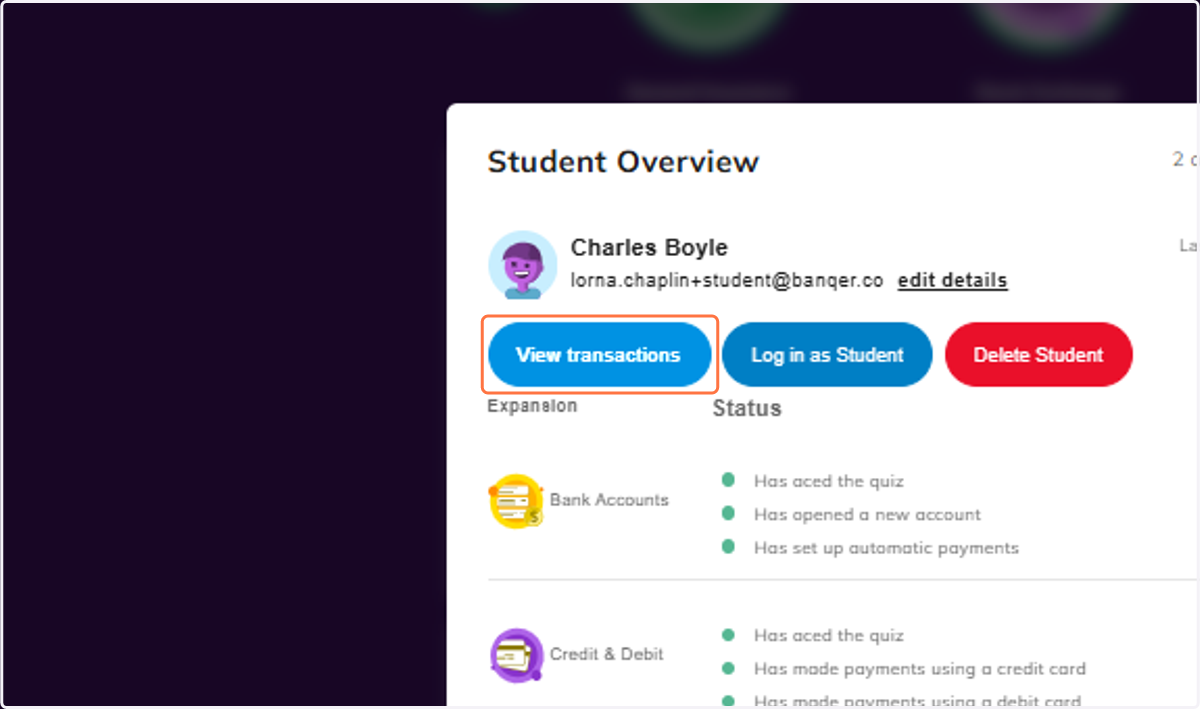
  4. 4. For a more detailed view of any student, click on them from your Class Overview.
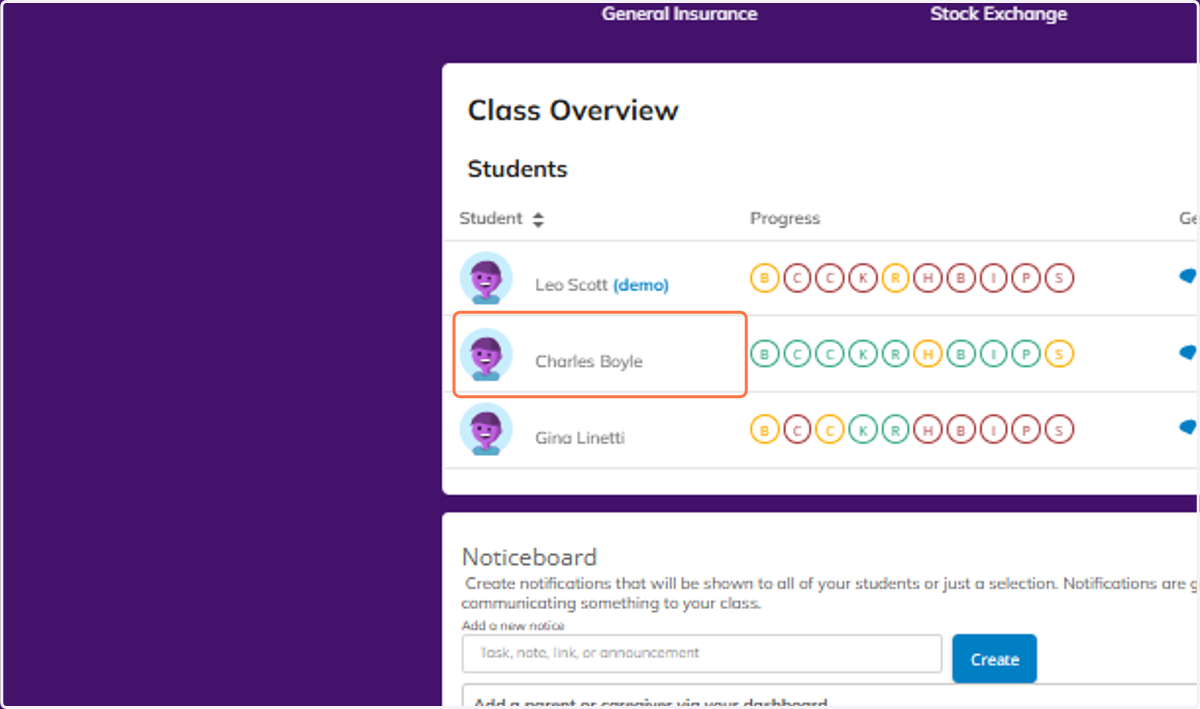
    For a more detailed view of any student, click on them from your Class Overview.
  5. 5. You will see a more detailed breakdown of their activity, with all key activities detailed out.
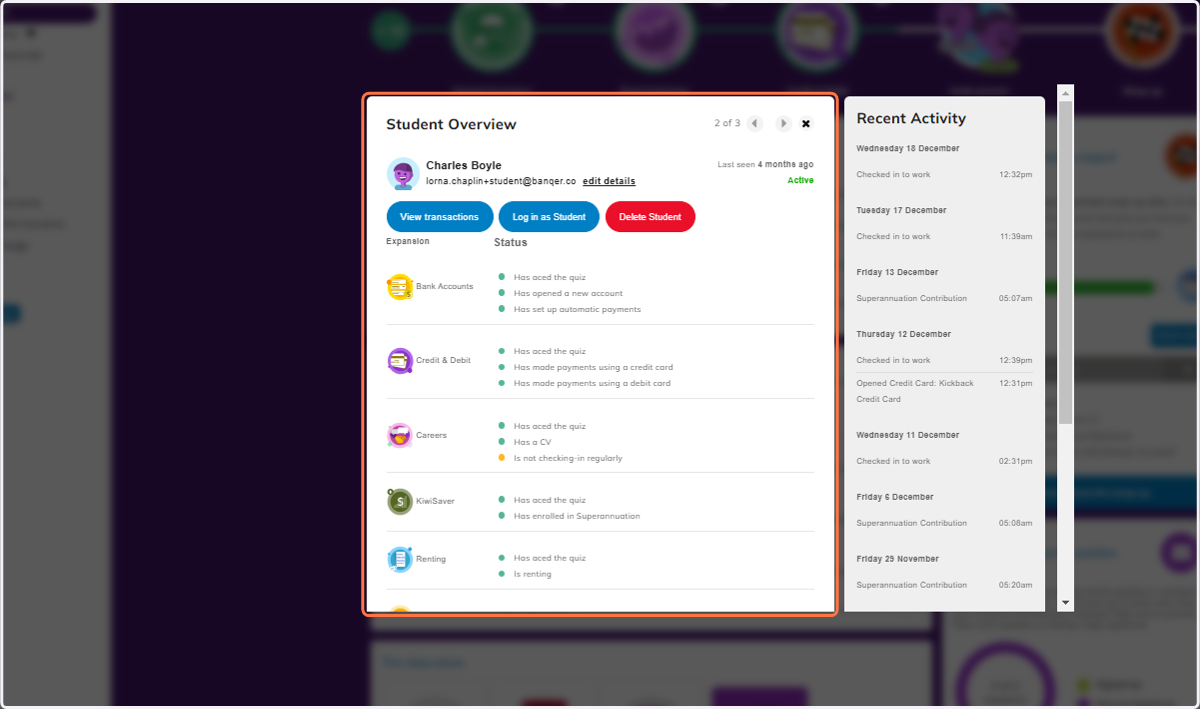
    You will see a more detailed breakdown of their activity, with all key activities detailed out.
  6. 6. Click on View transactions

    Click on View transactions
  7. 7. From here you can see a full view of all accounts the student has, and a breakdown of the transactions for each account.
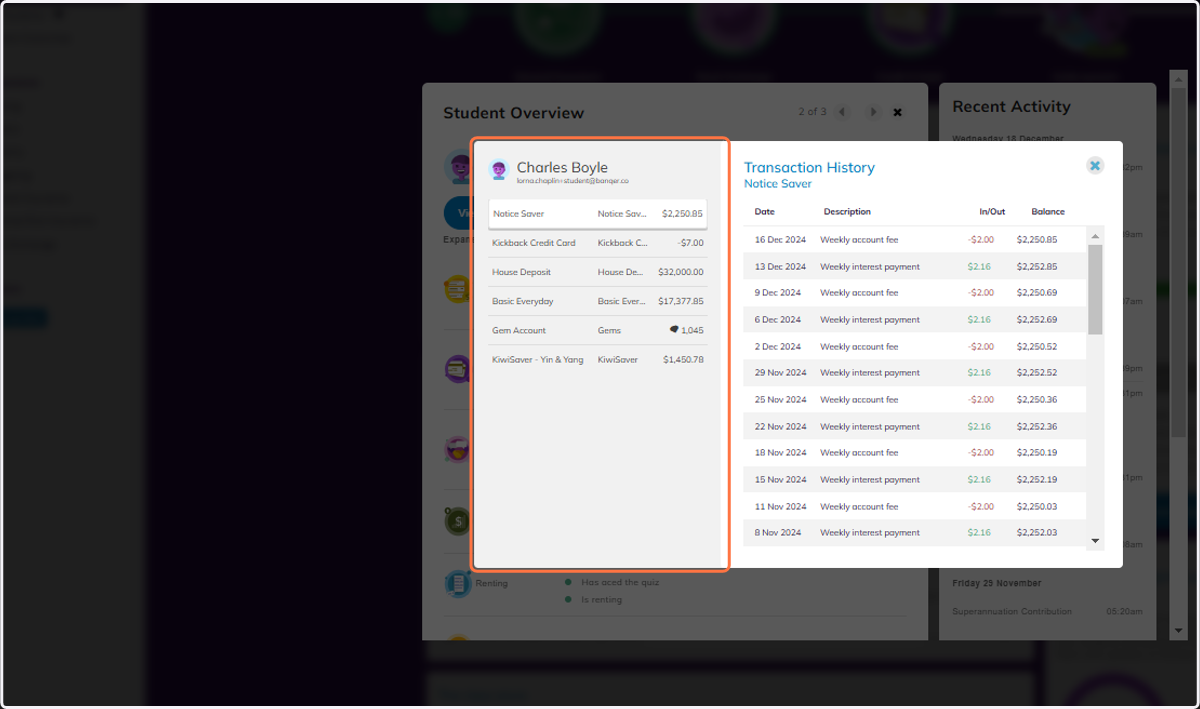
    From here you can see a full view of all accounts the student has, and a breakdown of the transactions for each account.
  8. 8. You also have a Noticeboard, always available via your Dashboard.
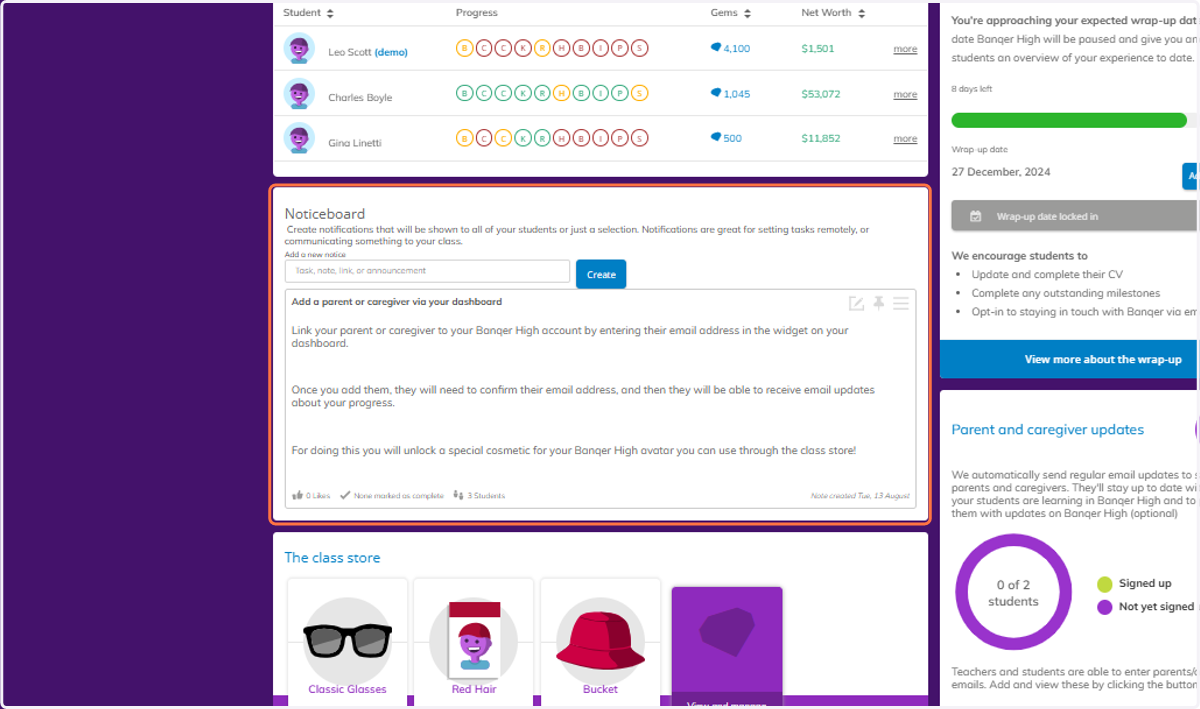
    You also have a Noticeboard, always available via your Dashboard.
  9. 9. You can view and manage your Class Store.
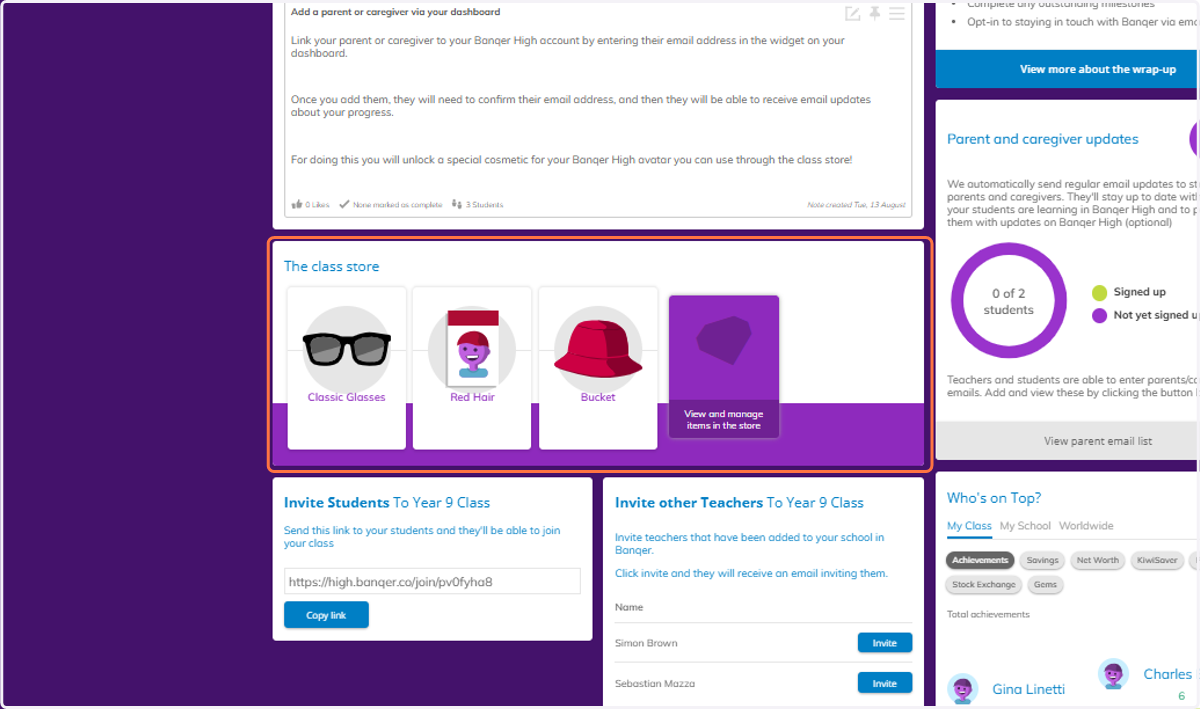
    You can view and manage your Class Store.
  10. 10. And your Invite Students link will always be available.
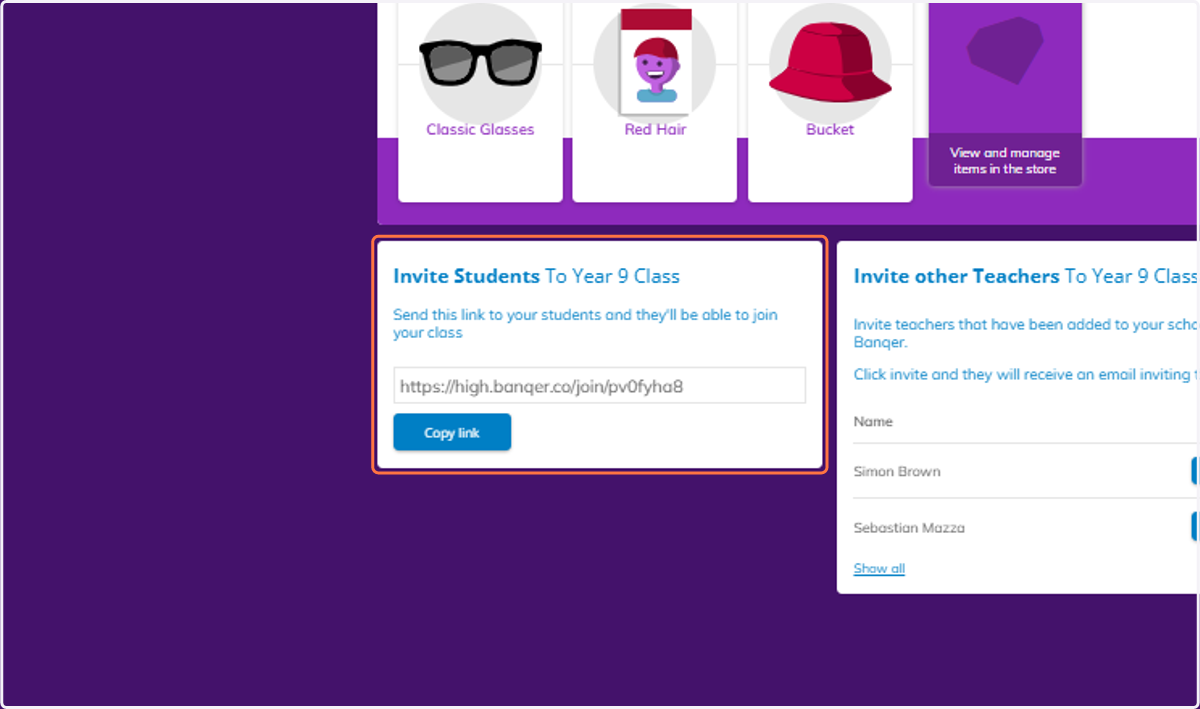
    And your Invite Students link will always be available.
  11. 11. As will your Invite Teachers link.
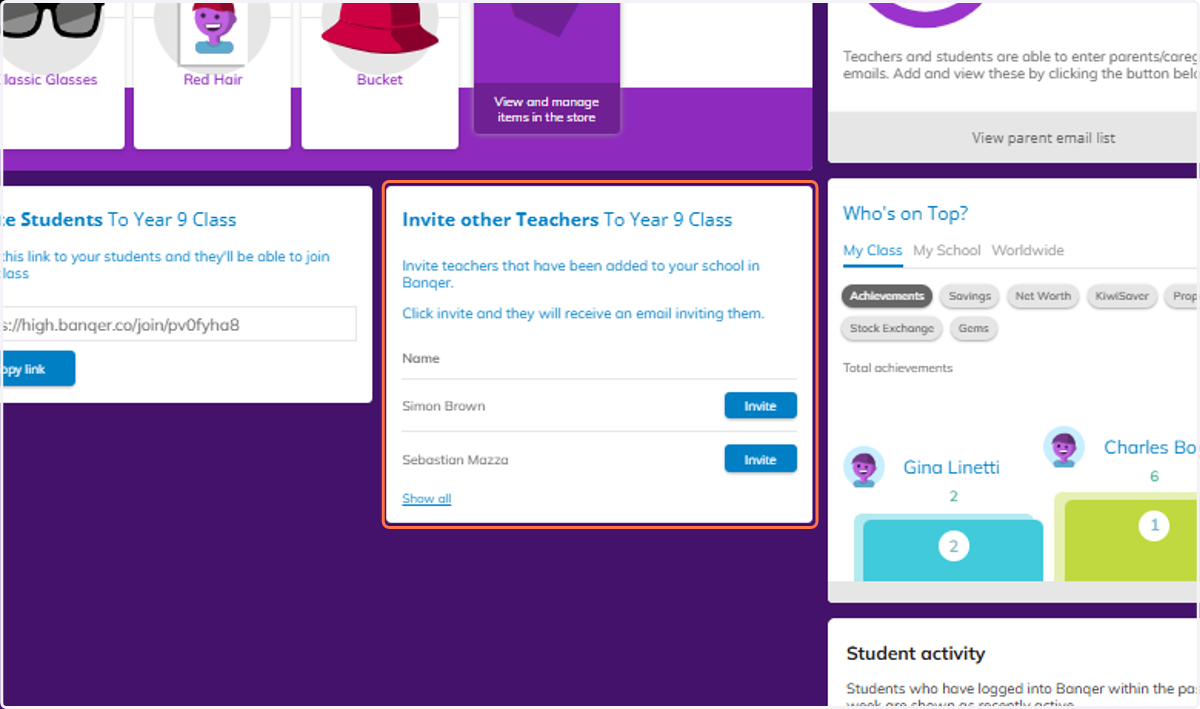
    As will your Invite Teachers link.
  12. 12. Your Leaderboard view is housed on your Dashboard, giving you a Class, School or Worldwide view.
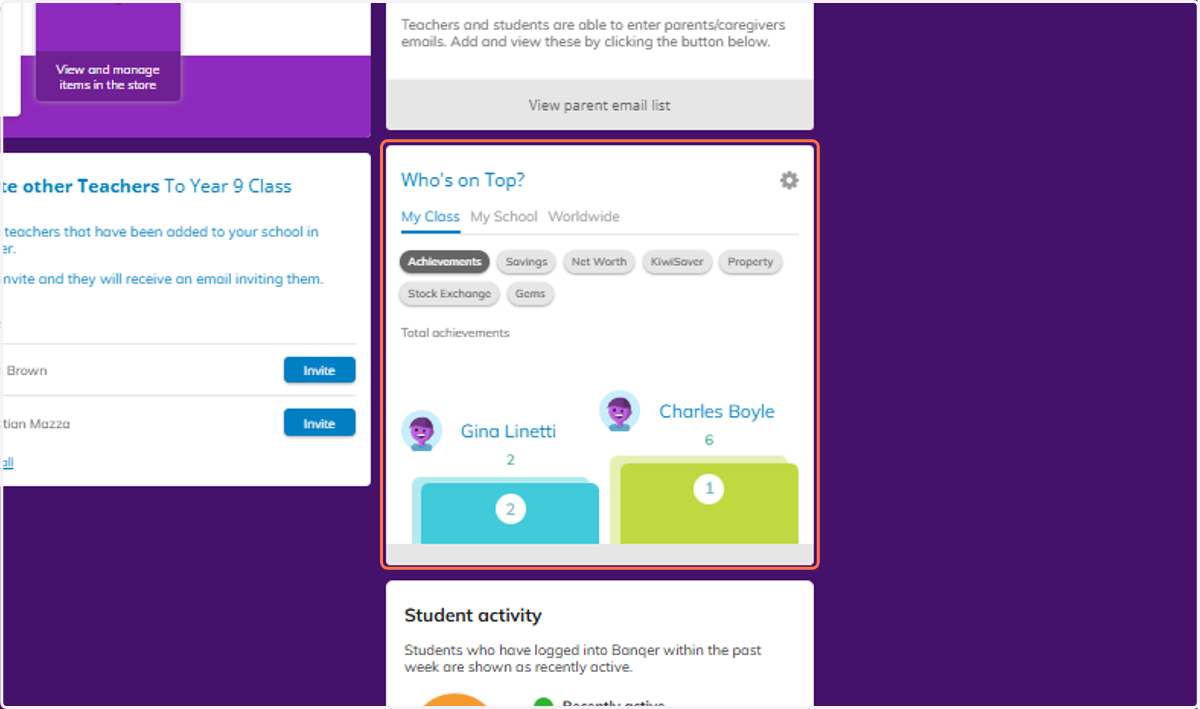
    Your Leaderboard view is housed on your Dashboard, giving you a Class, School or Worldwide view.
  13. 13. You can also see a summary of recent student activity across your class.
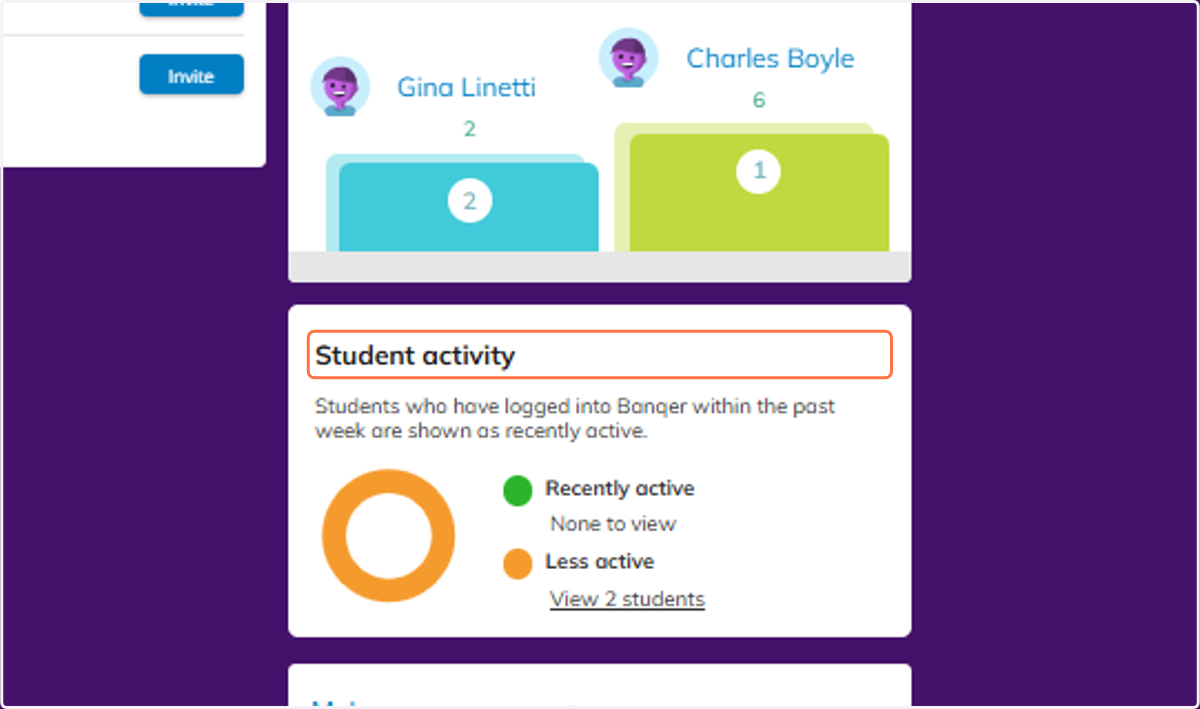
    You can also see a summary of recent student activity across your class.
  14. 14. You can make Gem Payments to your students.
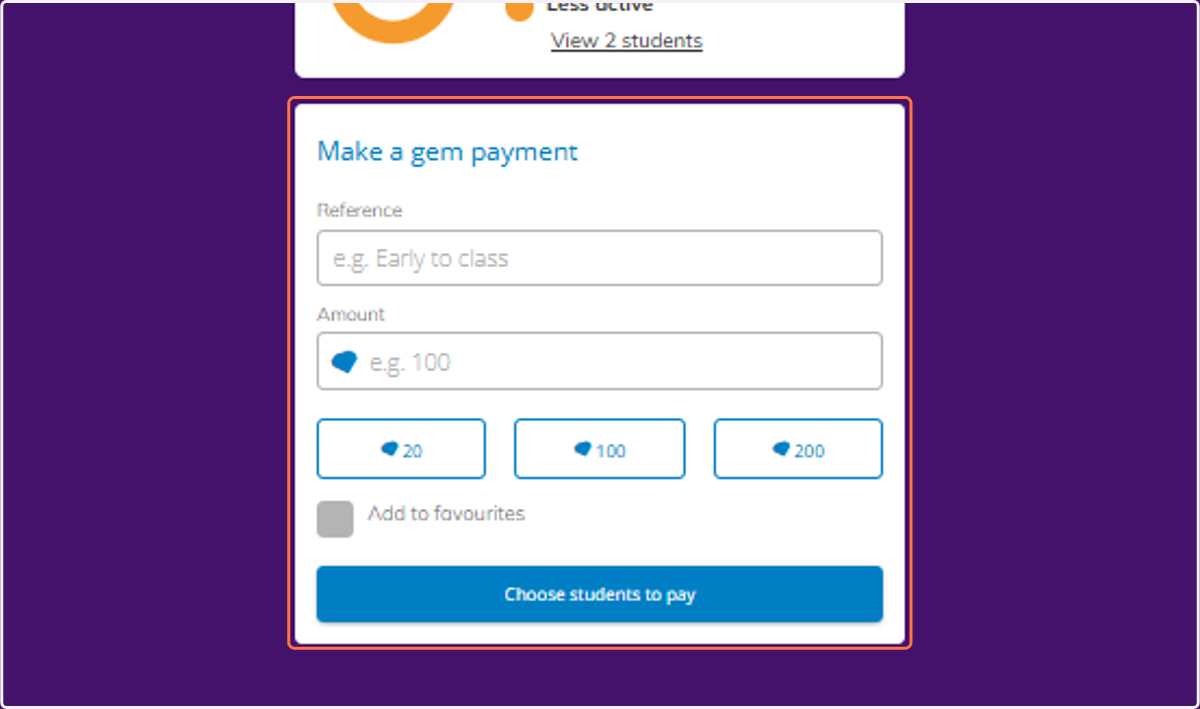
    You can make Gem Payments to your students.
  15. 15. And you can view a summary of which students have entered an email for their parent/caregiver to receive updates.
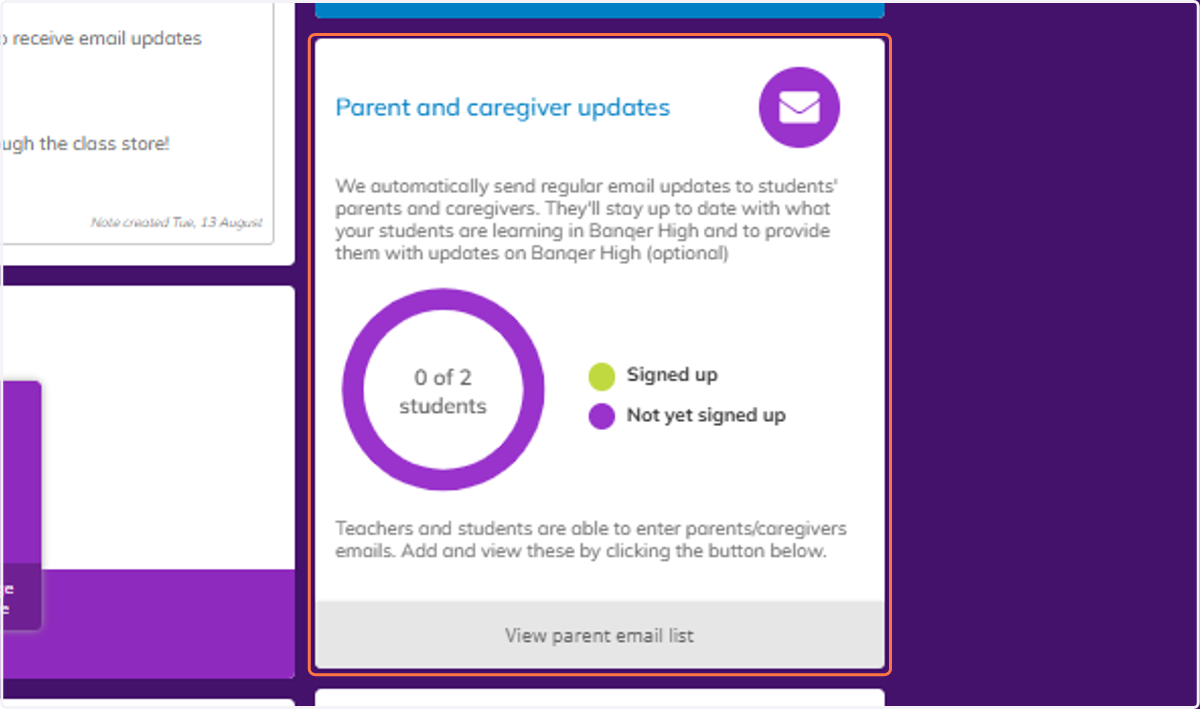
    And you can view a summary of which students have entered an email for their parent/caregiver to receive updates.
  16. 16. Finally, your wrap-up information will appear, and will become more prominent on your dashboard as you near your wrap-up date.
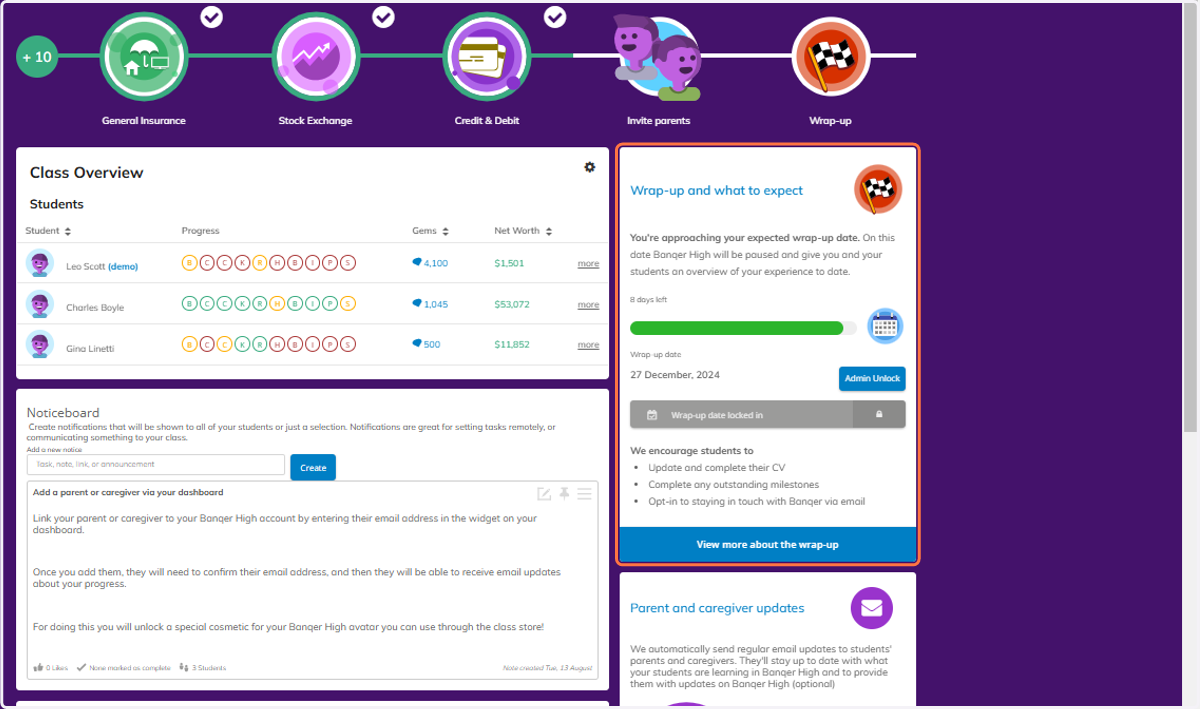
    Finally, your wrap-up information will appear, and will become more prominent on your dashboard as you near your wrap-up date.