Xero Invoice & Employee Option
Xero Invoice Employee Option
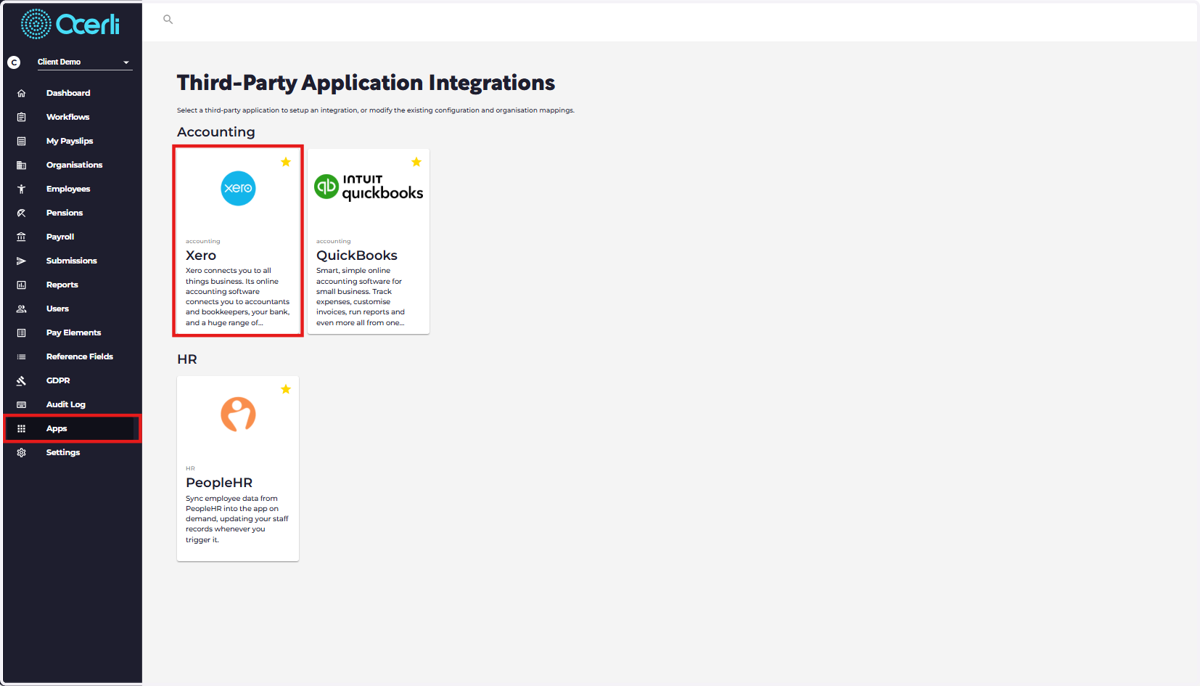
1. Navigate to the main menu on the left
Click on 'Apps' > Click on Xero Accounting Option
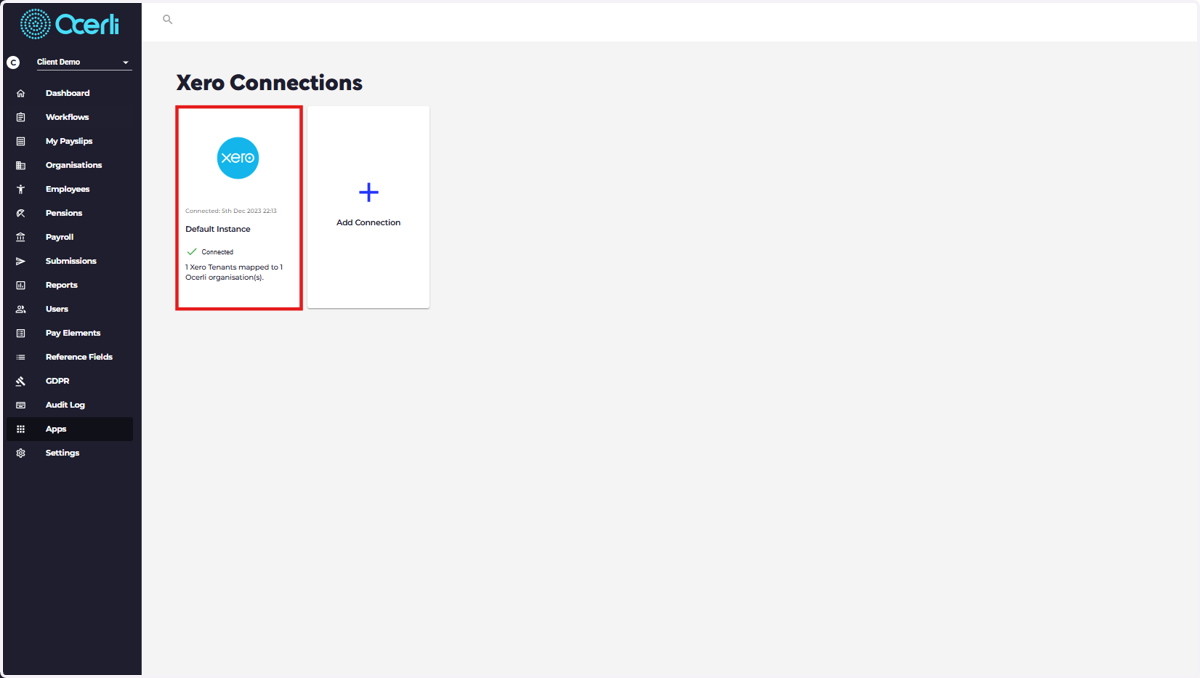
2. Click on your Xero Connected Organisation
If you have not yet connected to Xero, please use this process
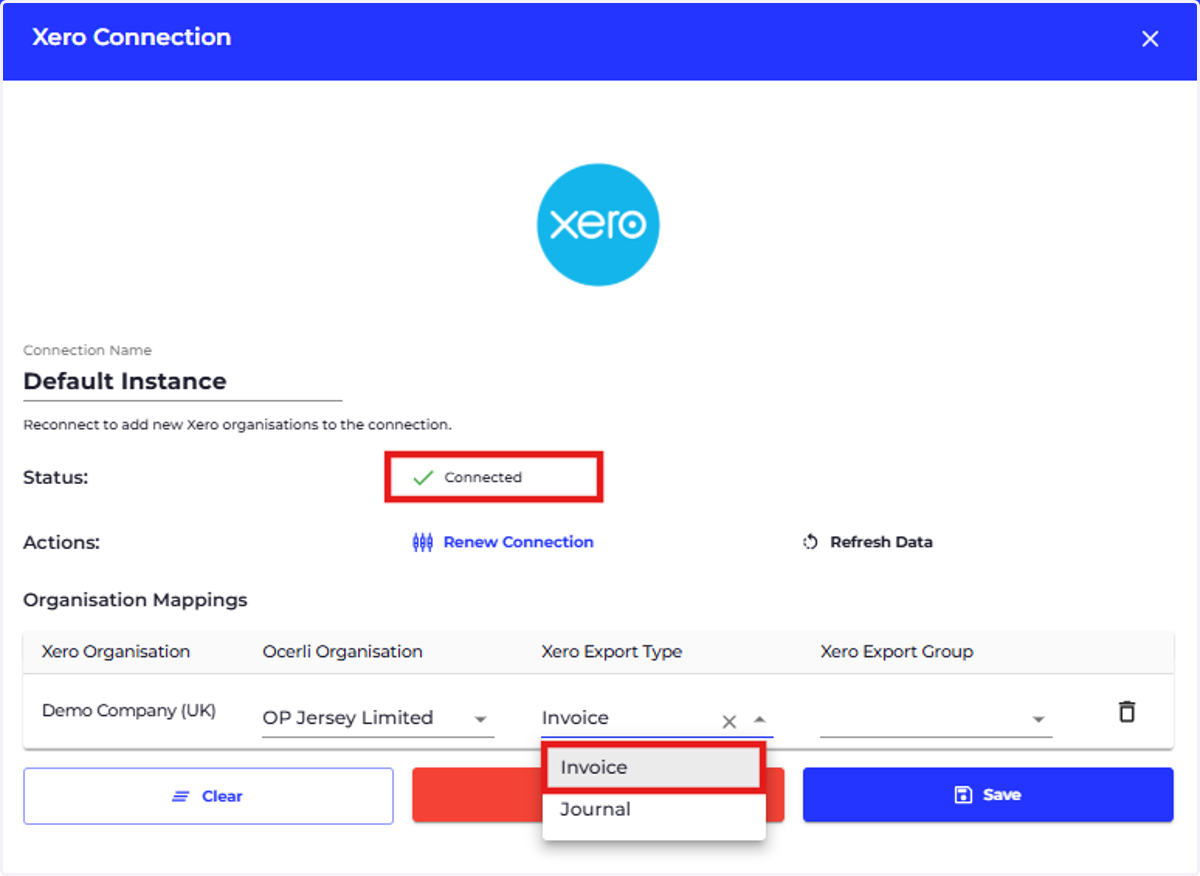
3. Click on Xero Export Type dropdown against the relevant organisation
Click on 'Invoice'
4. Click on Xero Export Group dropdown
Select 'Employee'
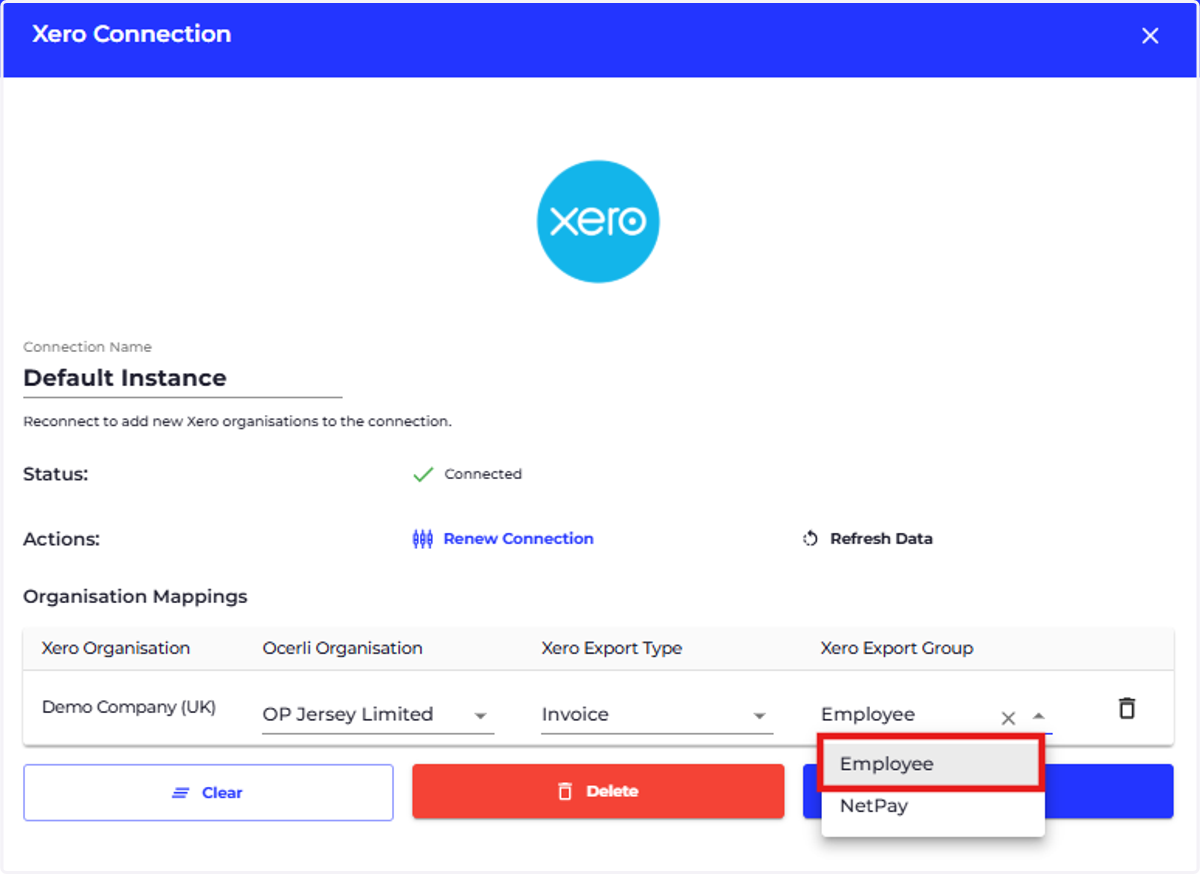
5. Select 'Save'
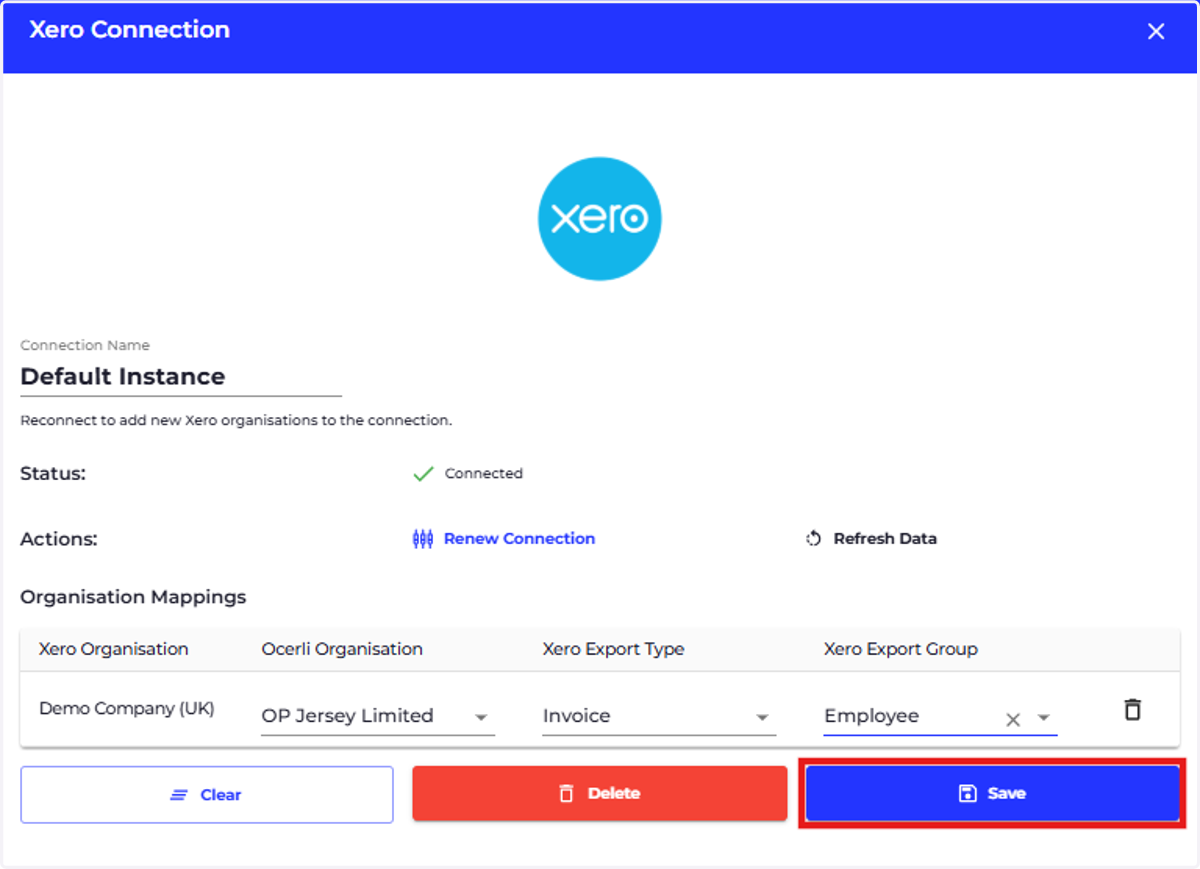
6. Select 'REFRESH DATA'
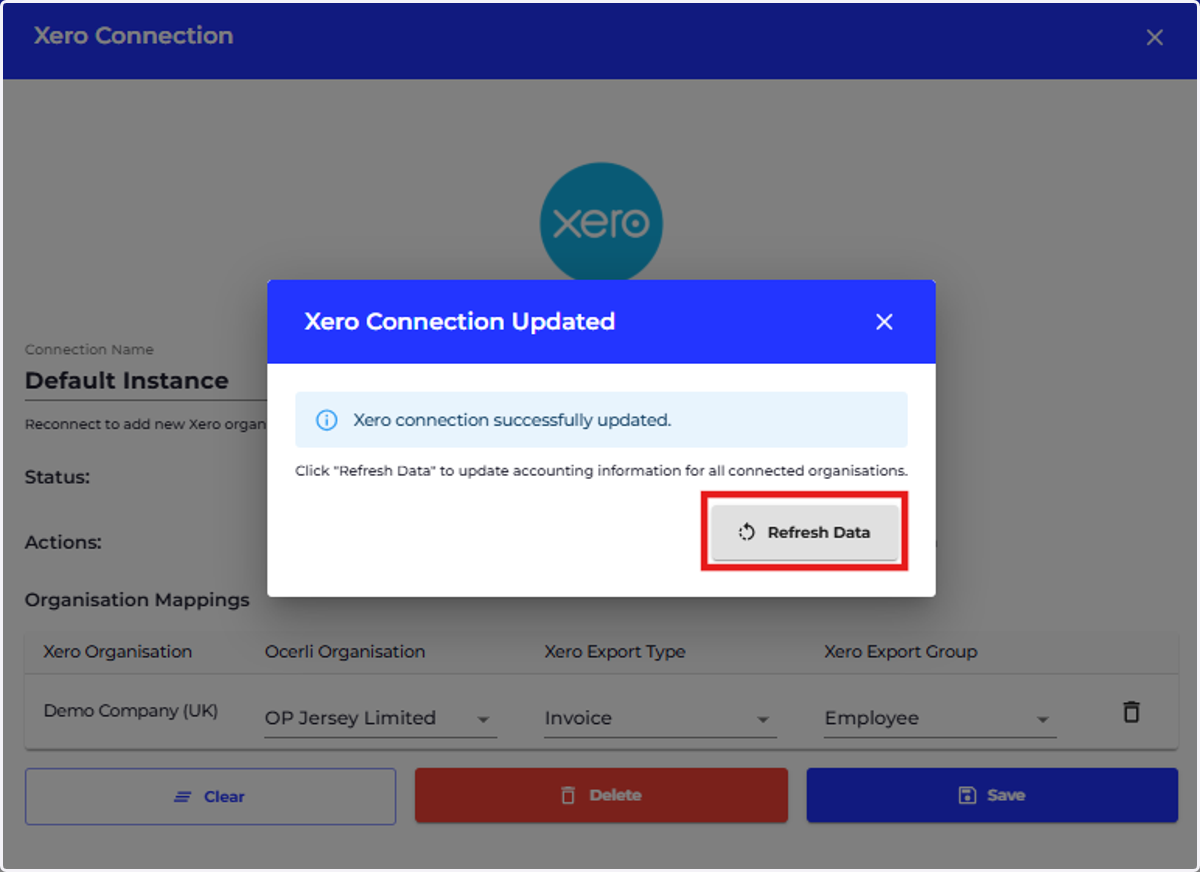
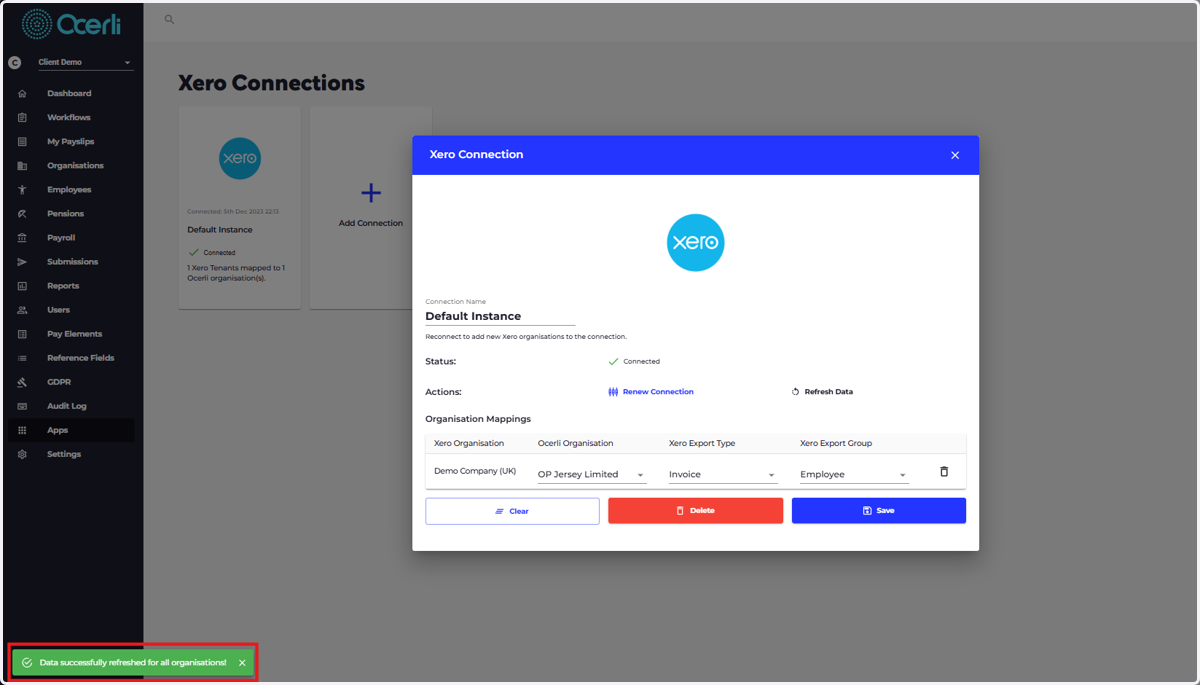
7. A green message will appear at the bottom left of the screen notifying you that the data has been refreshed successfully
8. ASSIGN XERO CONTACTS TO EMPLOYEES
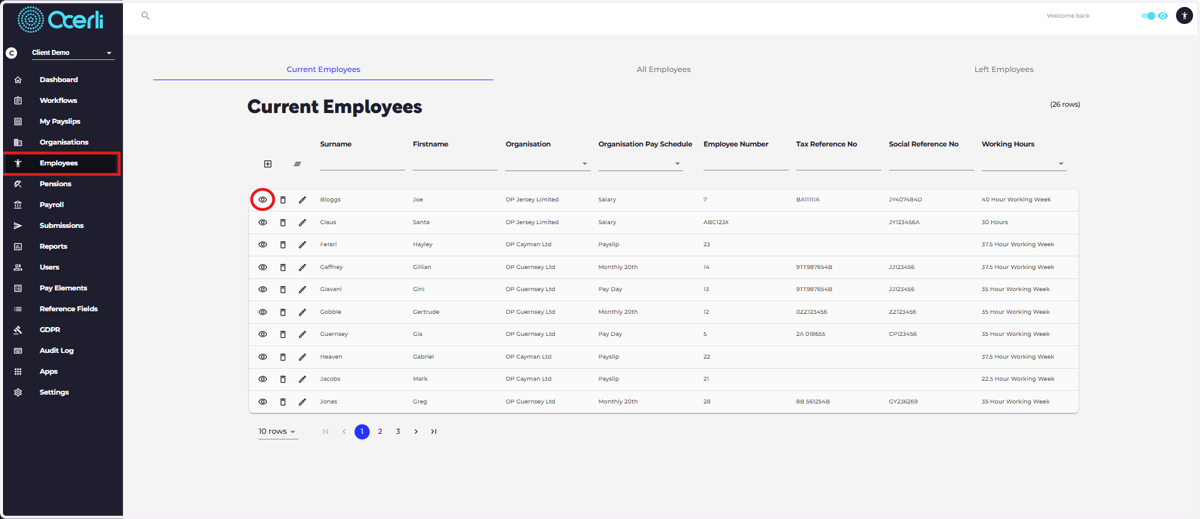
Click on the Employees Menu and view any relevant employee record
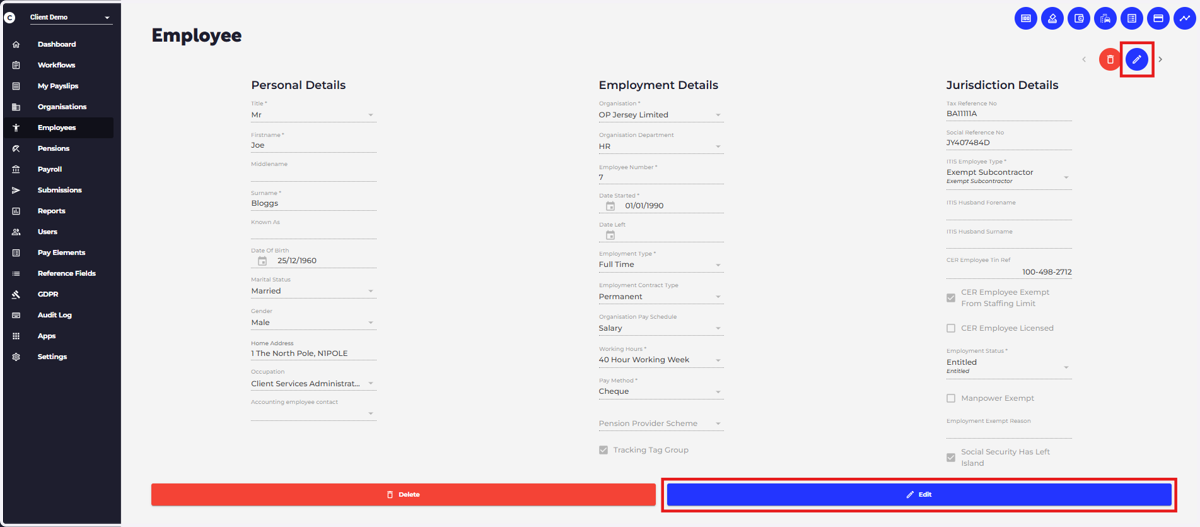
9. Click Edit
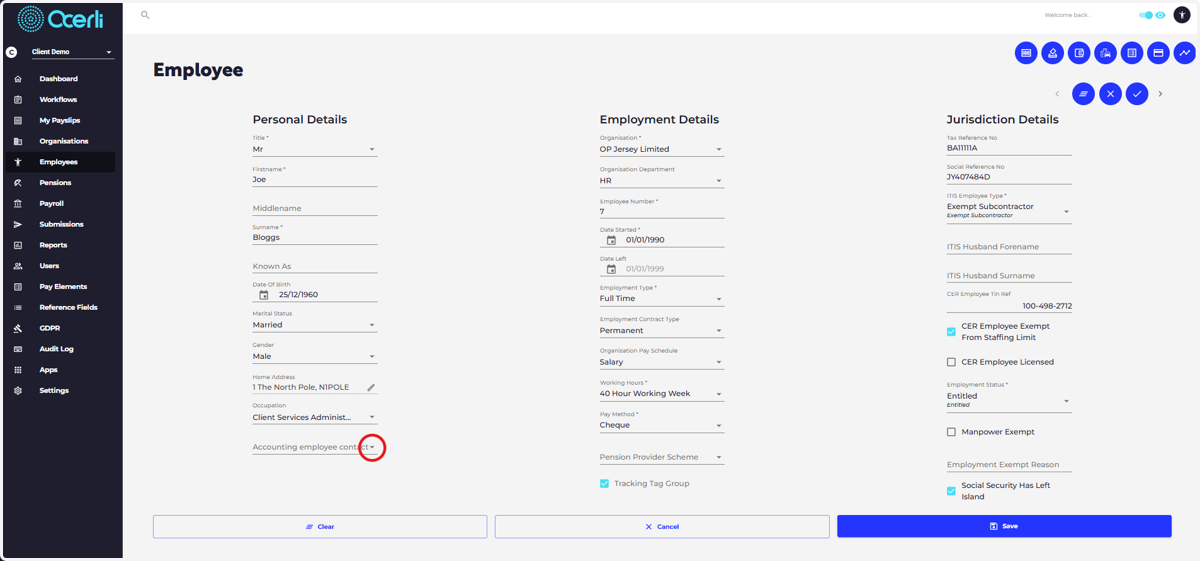
10. Scroll to the bottom of the screen and click on the drop down next to the Accounting Employee Contact
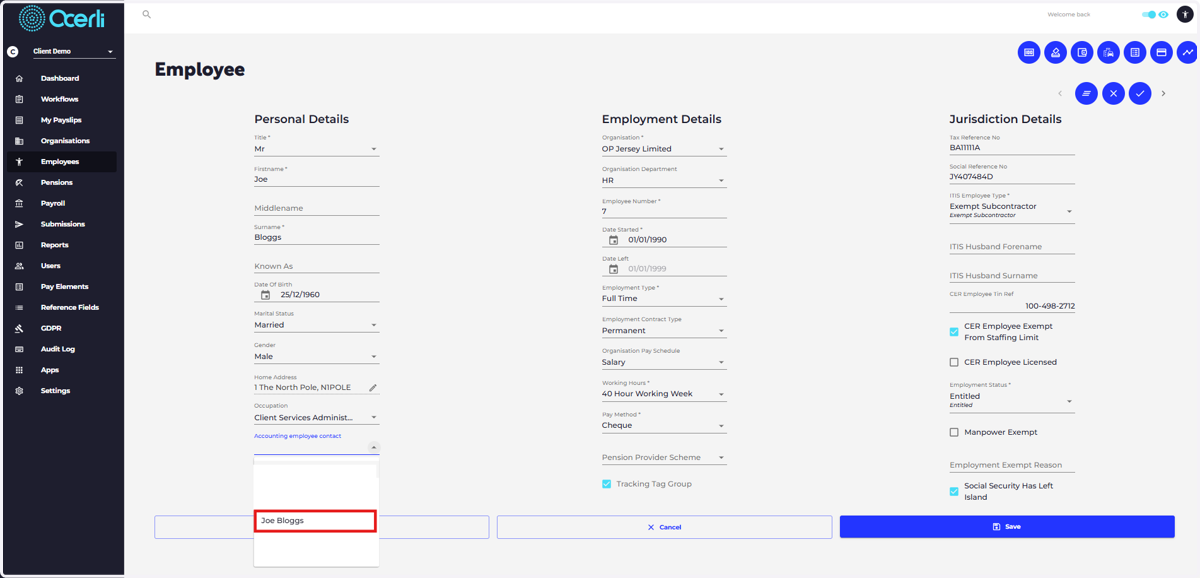
11. Type or Select the relevant Xero Contact record
12. Click on SAVE to save the changes to the employee record
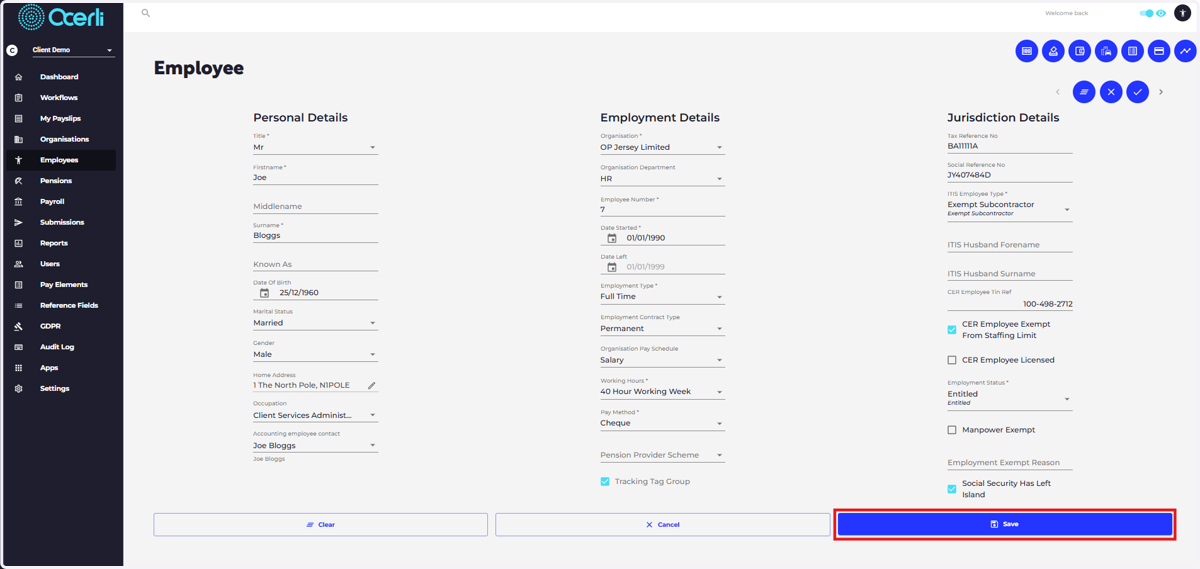
13. Repeat steps 11 - 15 for all employees
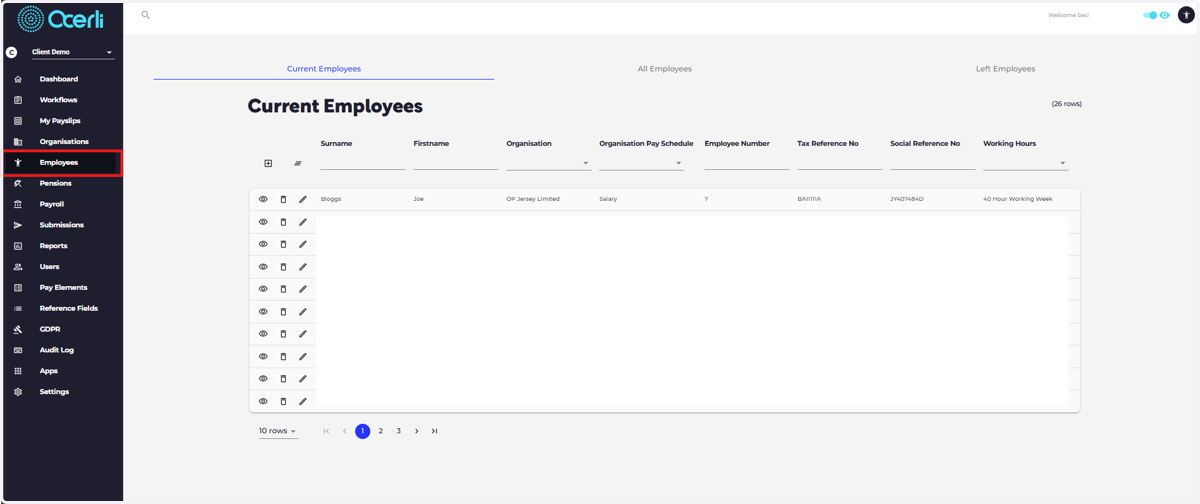
14. ORGANISATION SETUP - Organisation Contacts
Click on Organisations
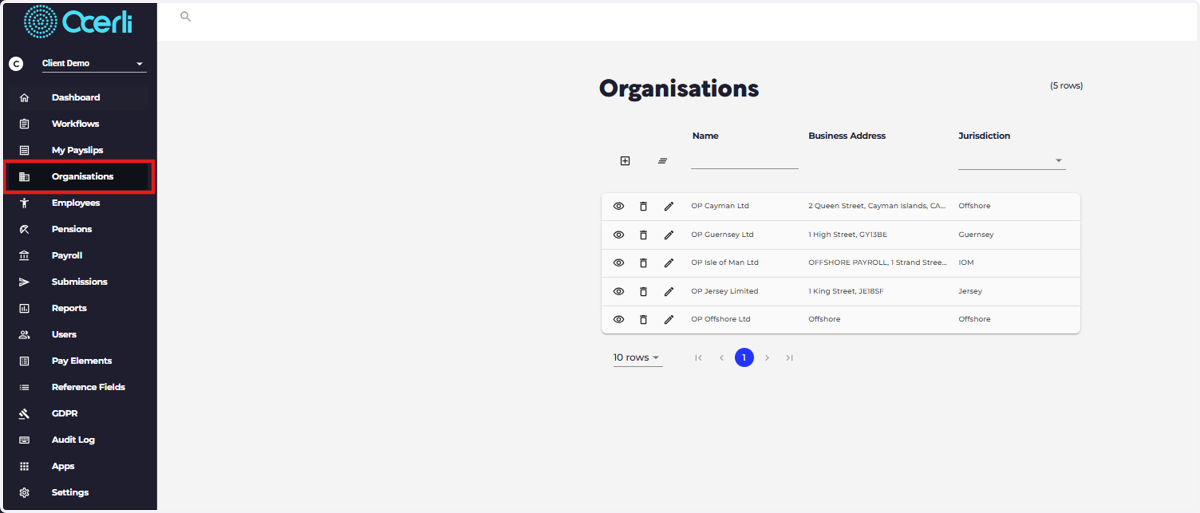
15. Click to View the relevant Organisation
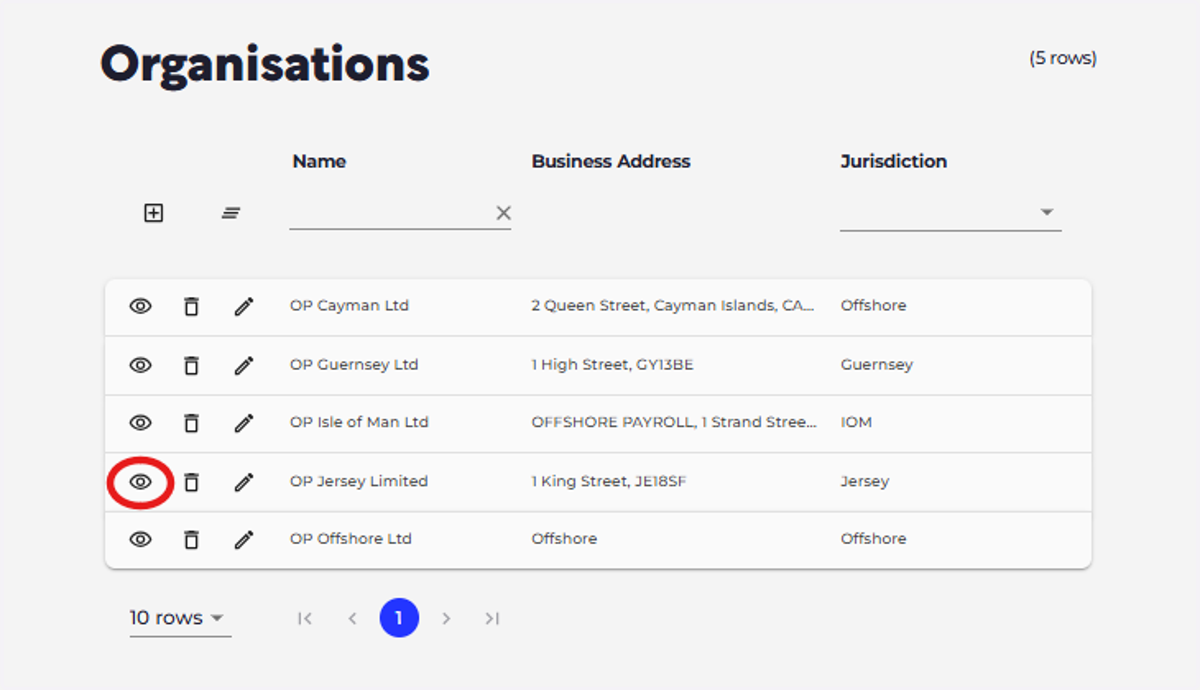
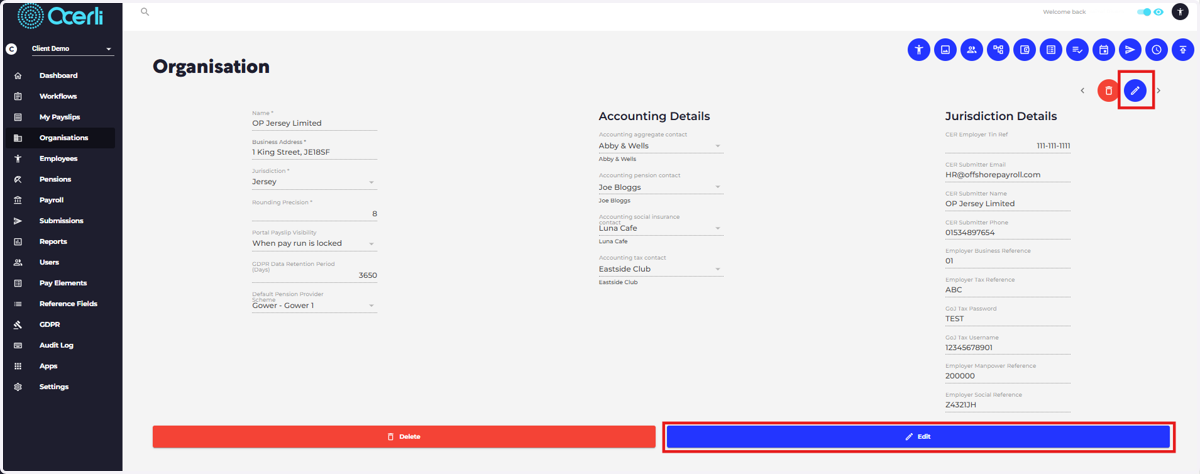
16. Click Edit
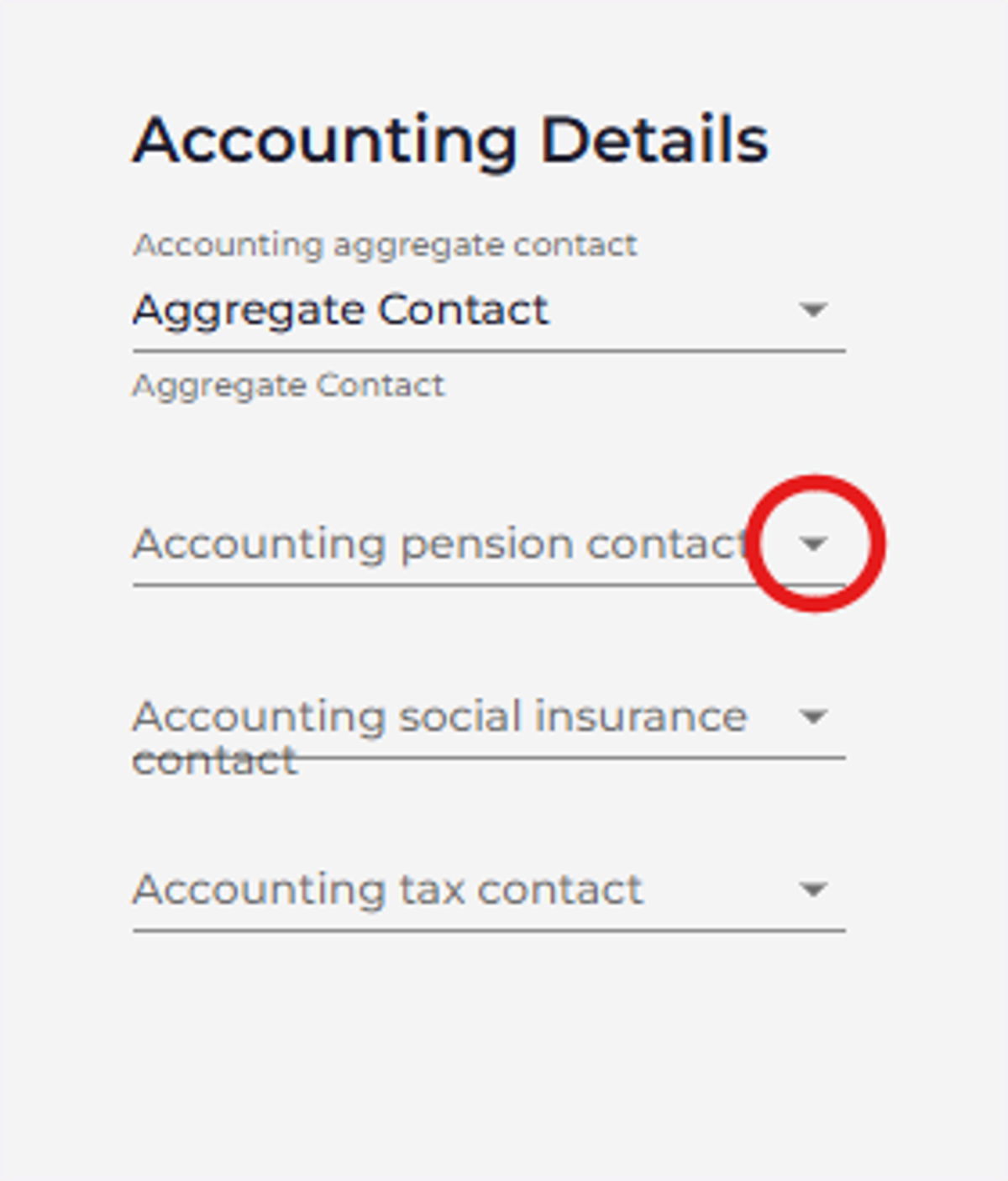
17. If required, Click the Pension Contact drop down
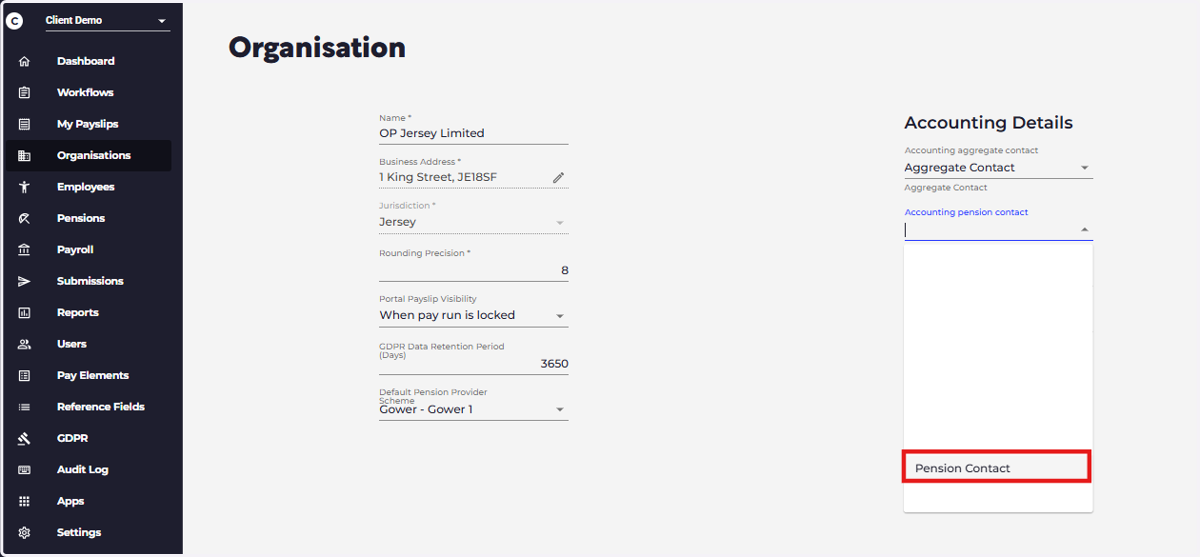
18. Select the relevant Xero Pension Contact
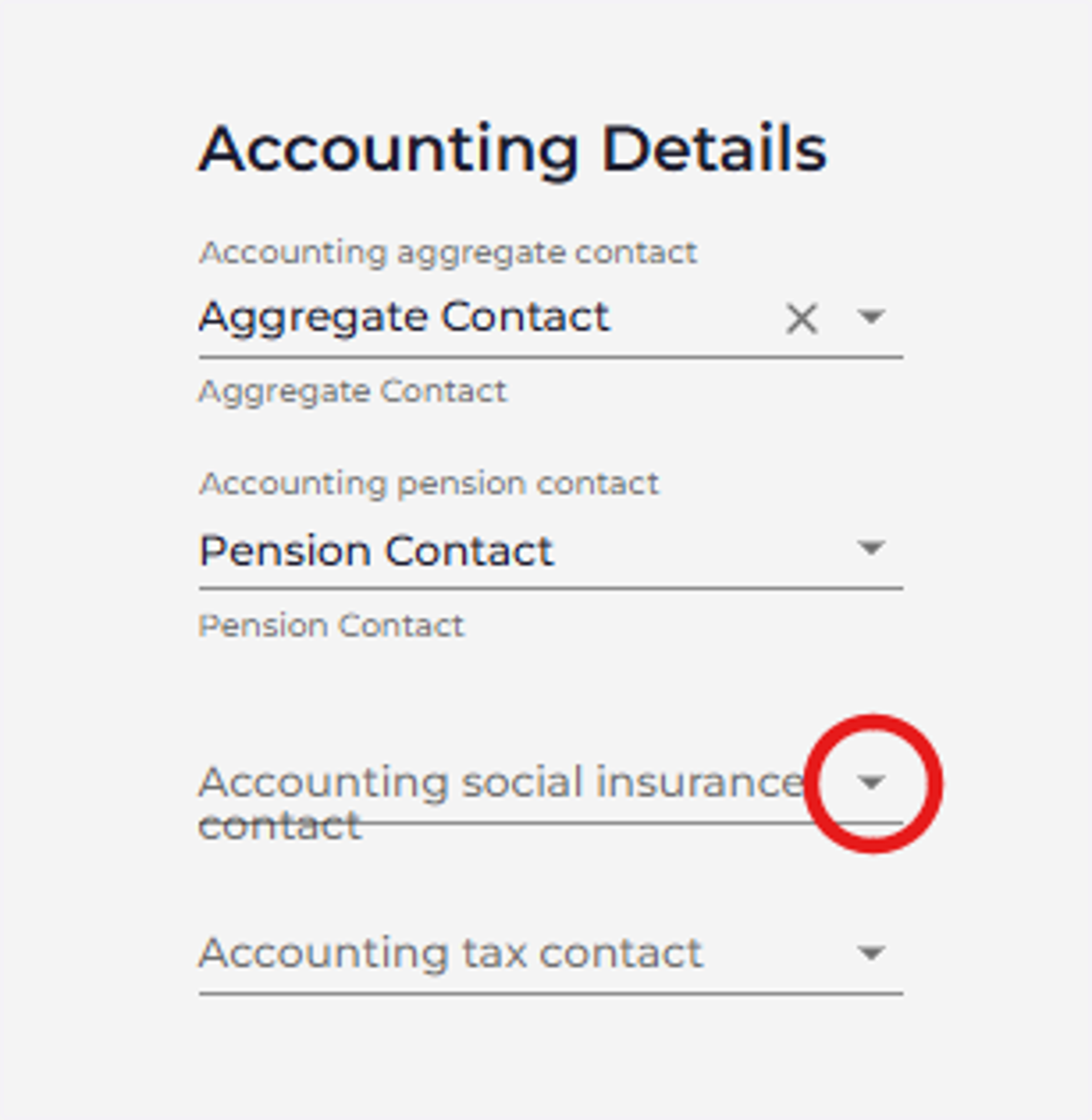
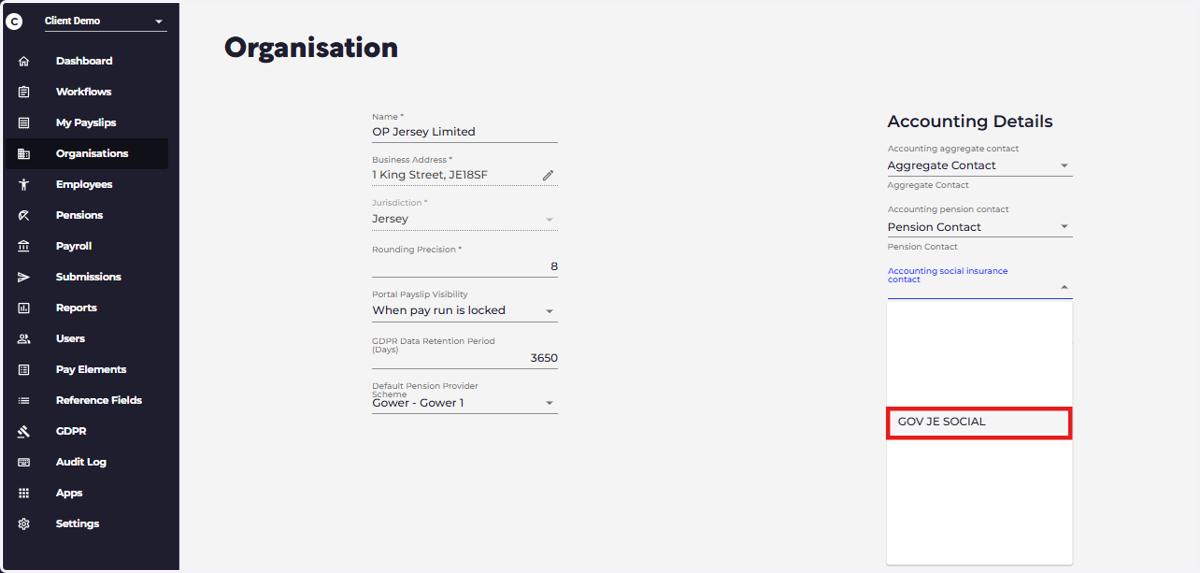
19. Click on the Accounting Social Insurance Contact drop down
20. Select the relevant Xero Social Insurance contact
Xero
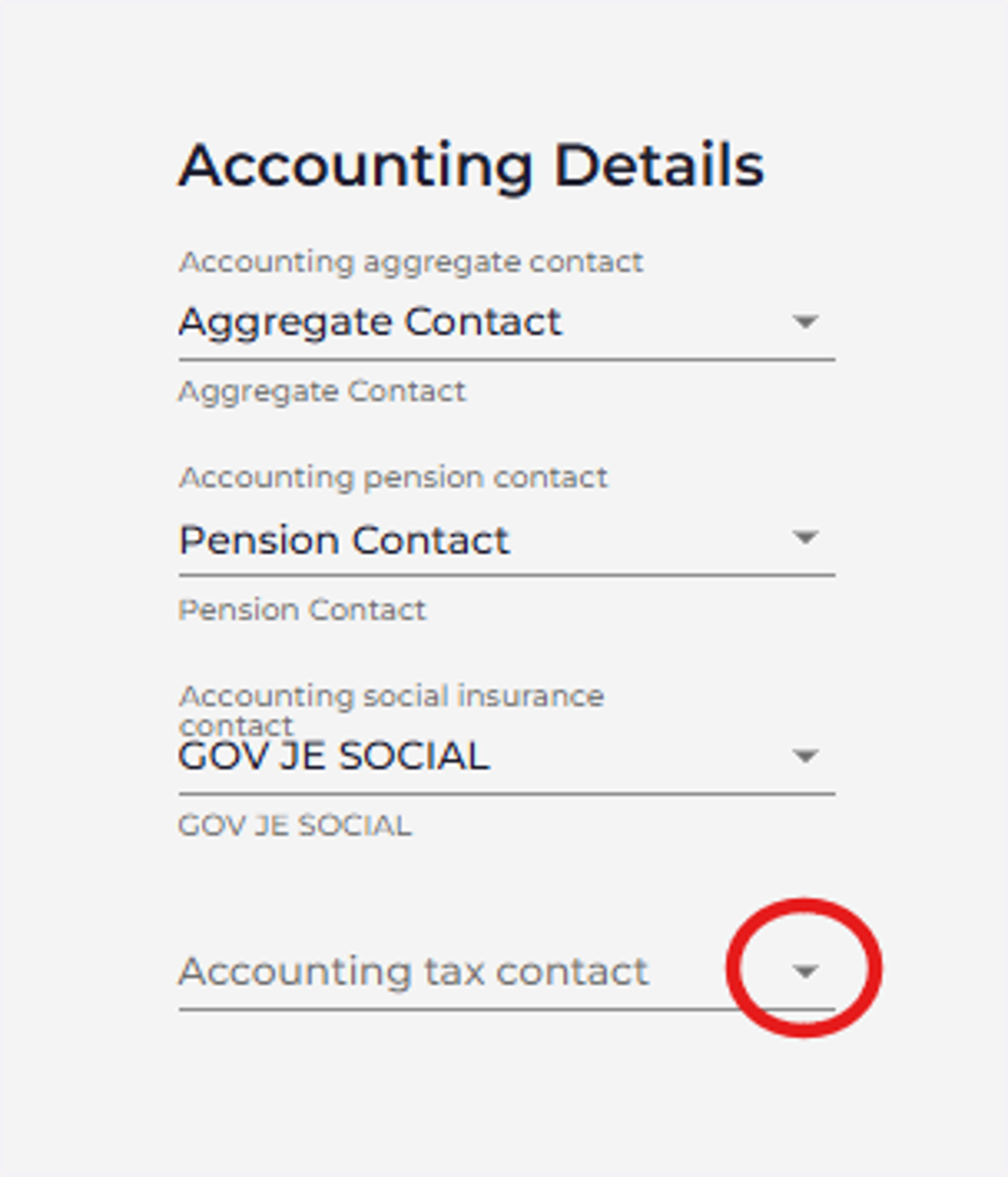
21. Click on the Accounting Tax Contact drop down
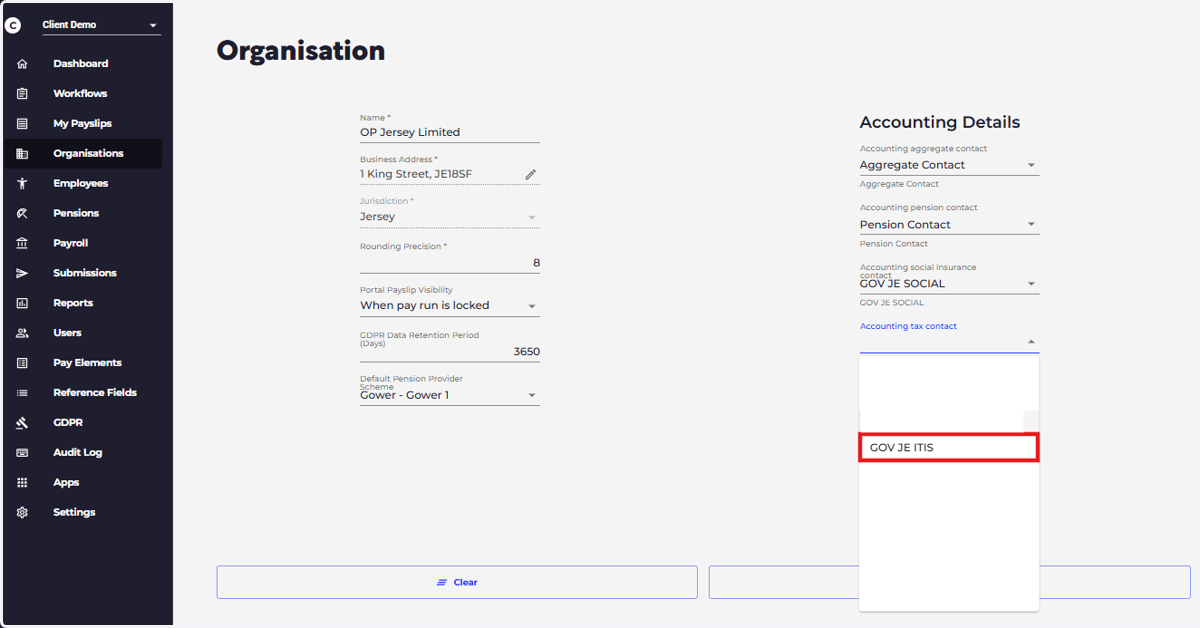
22. Select the relevant Xero Tax contact
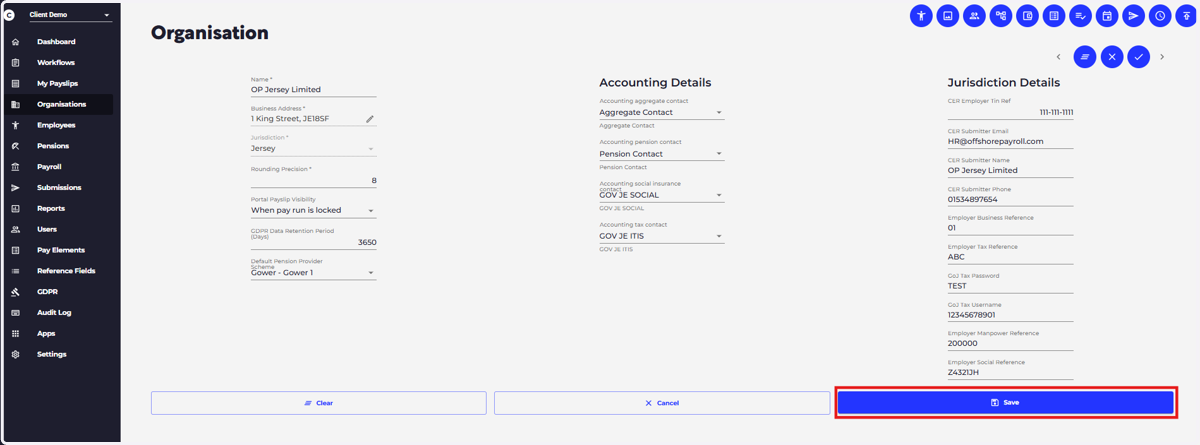
23. Click on SAVE
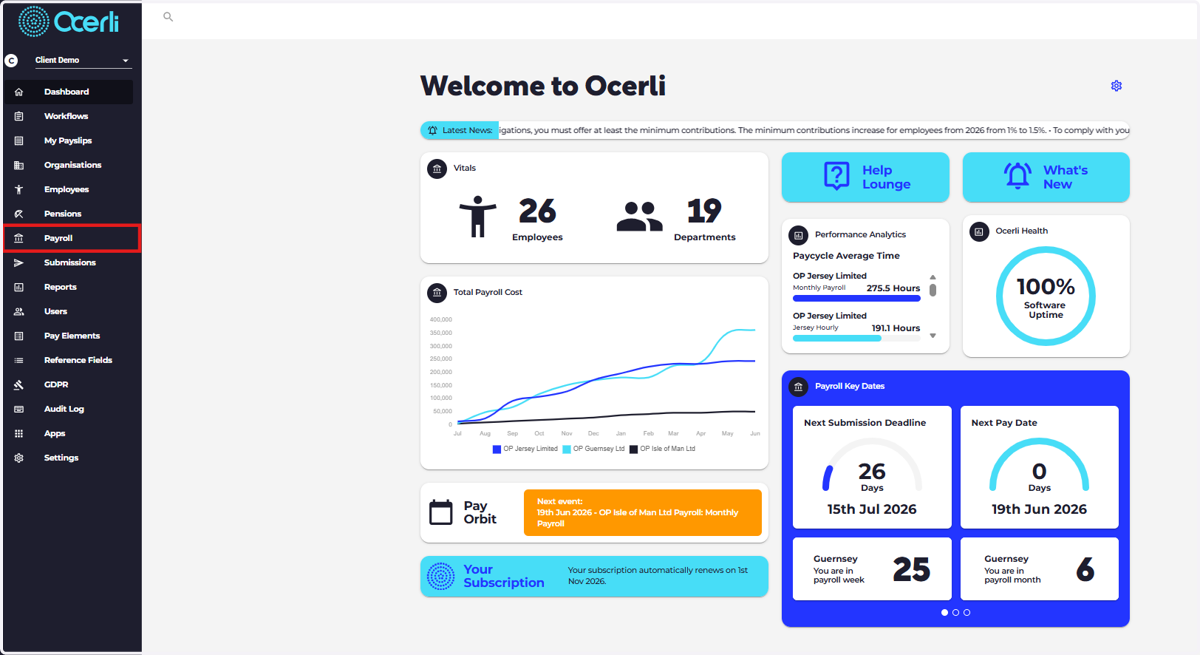
24. EXPORT TO XERO - Click on Payroll
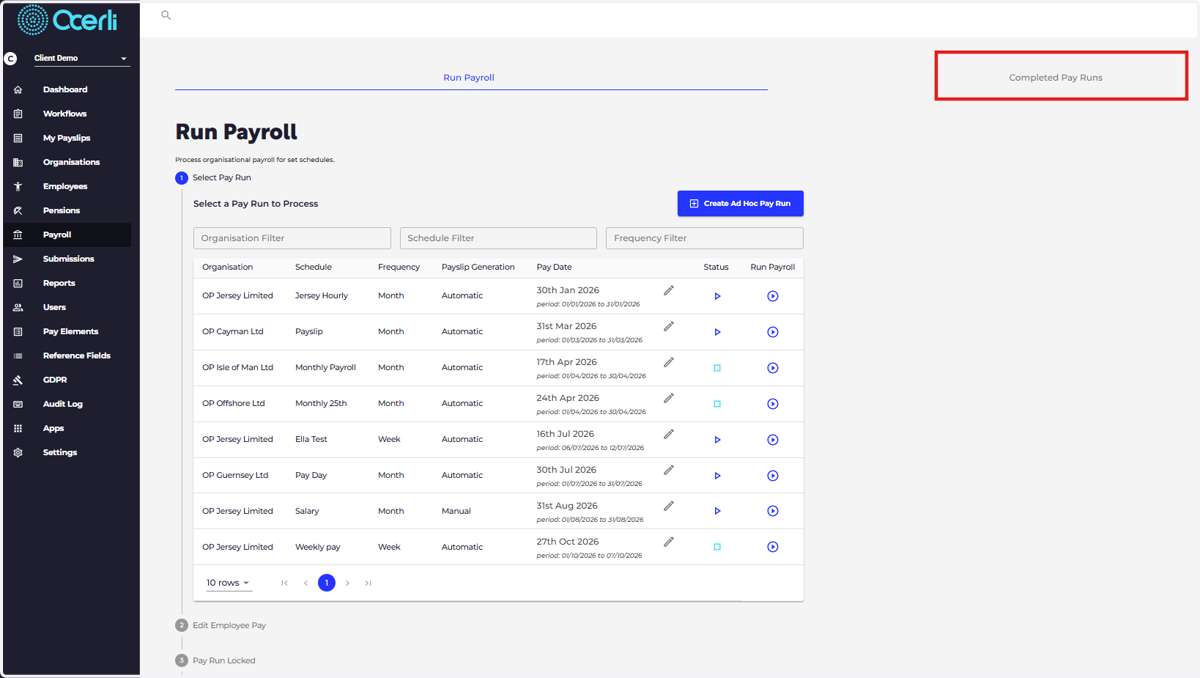
25. Click on Completed Pay Runs
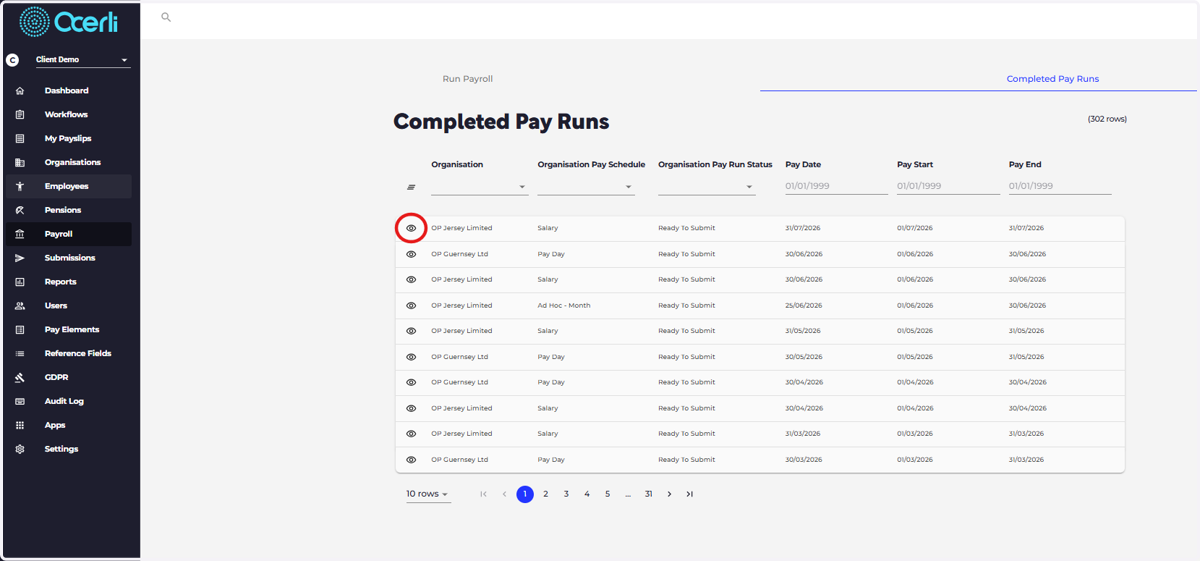
26. View a Completed Pay Run you would like to export to Xero
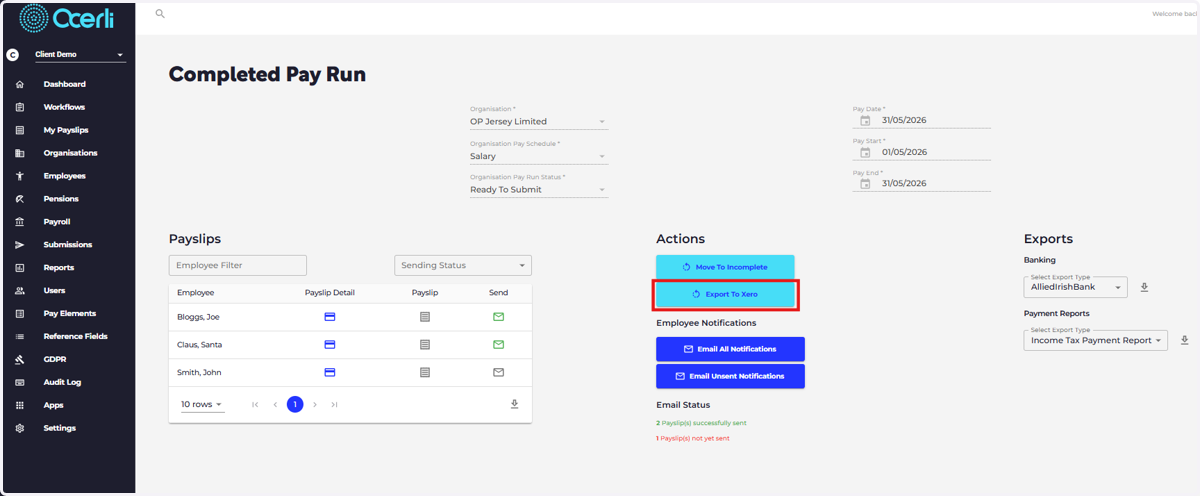
27. Click on EXPORT TO XERO
Ocerli
28. The dialog will show you a preview of the data that is about to be exported to Xero.
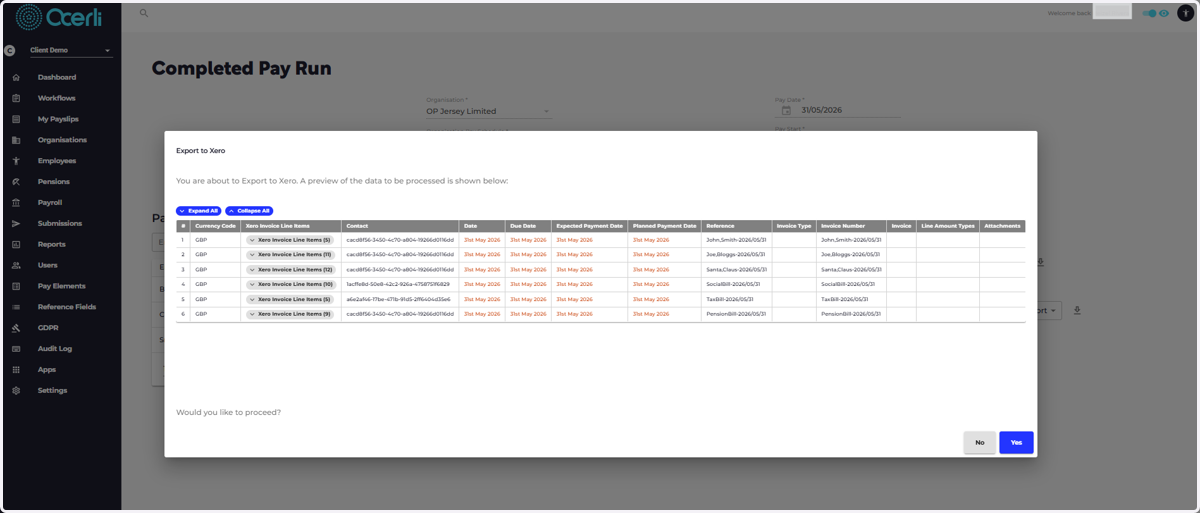
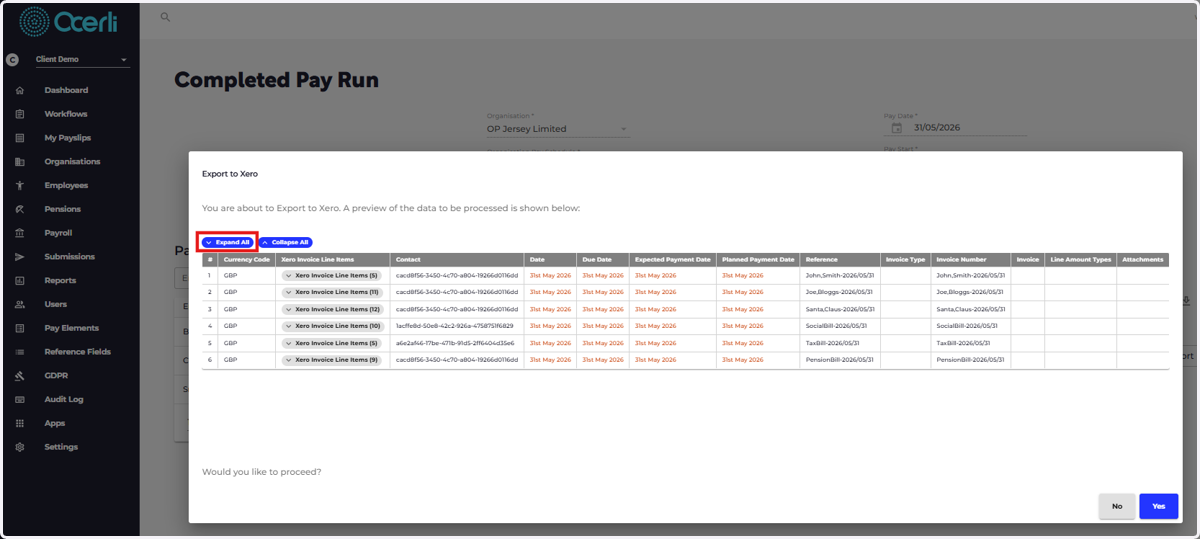
29. Click on Expand All to view all information that will be exported
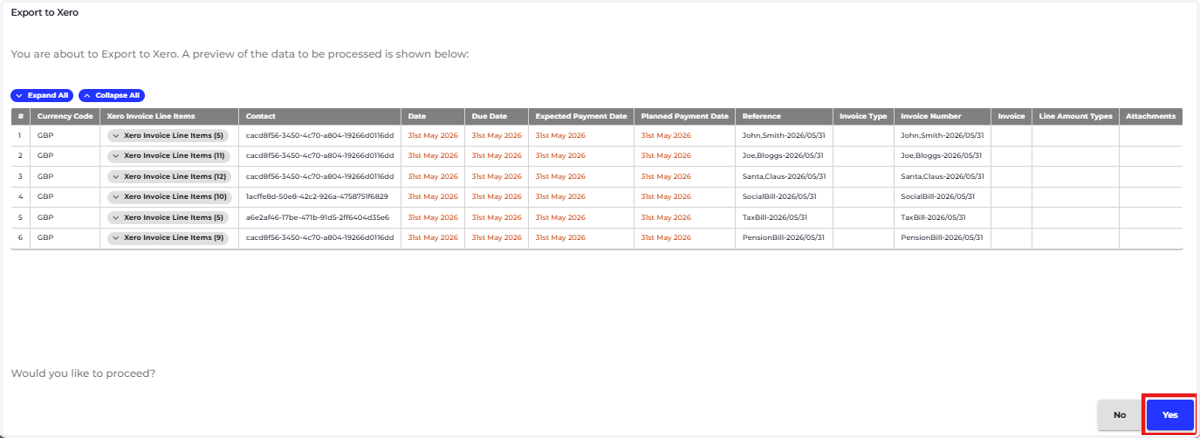
30. If you are happy to complete the Export to Xero, Click on YES
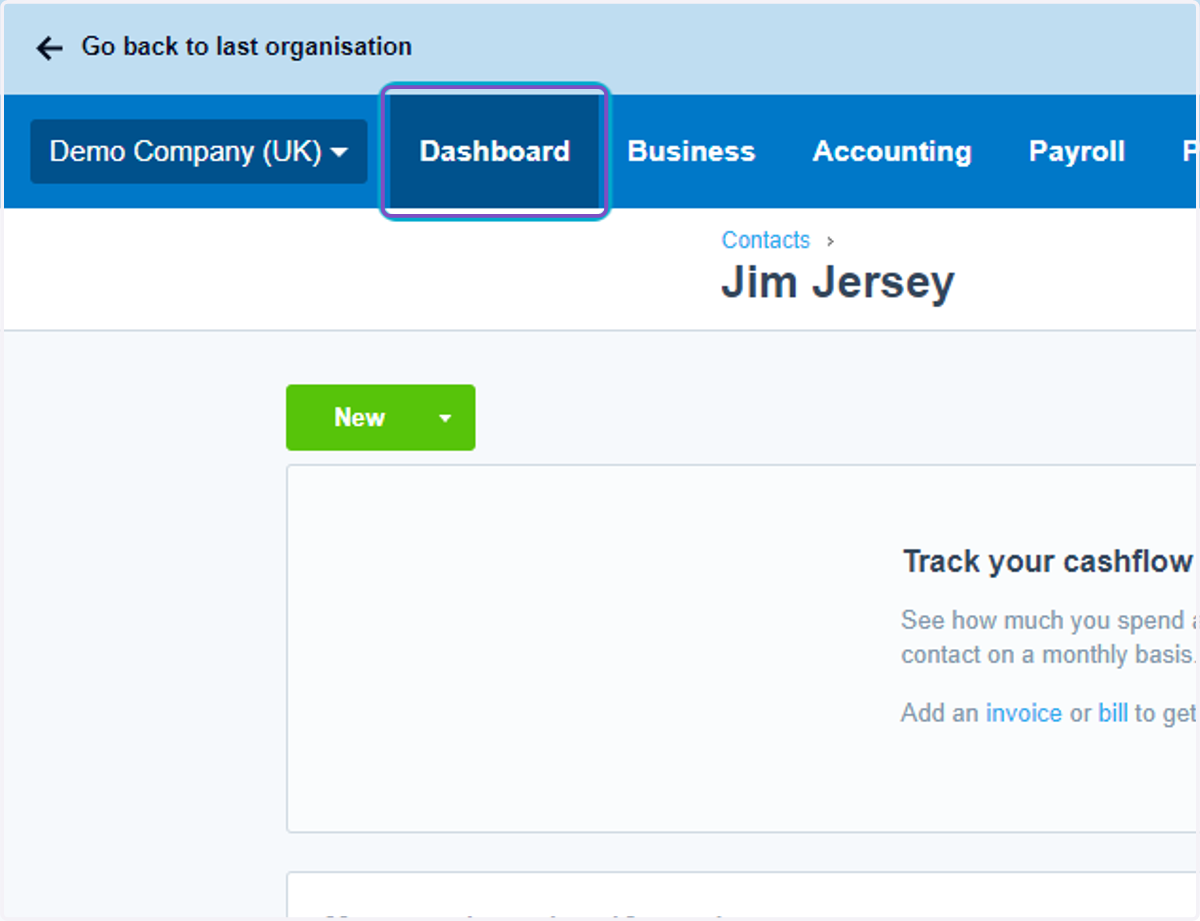
31. Go to go.xero.com
32. Click on Dashboard
33. Click on Bills you need to pay
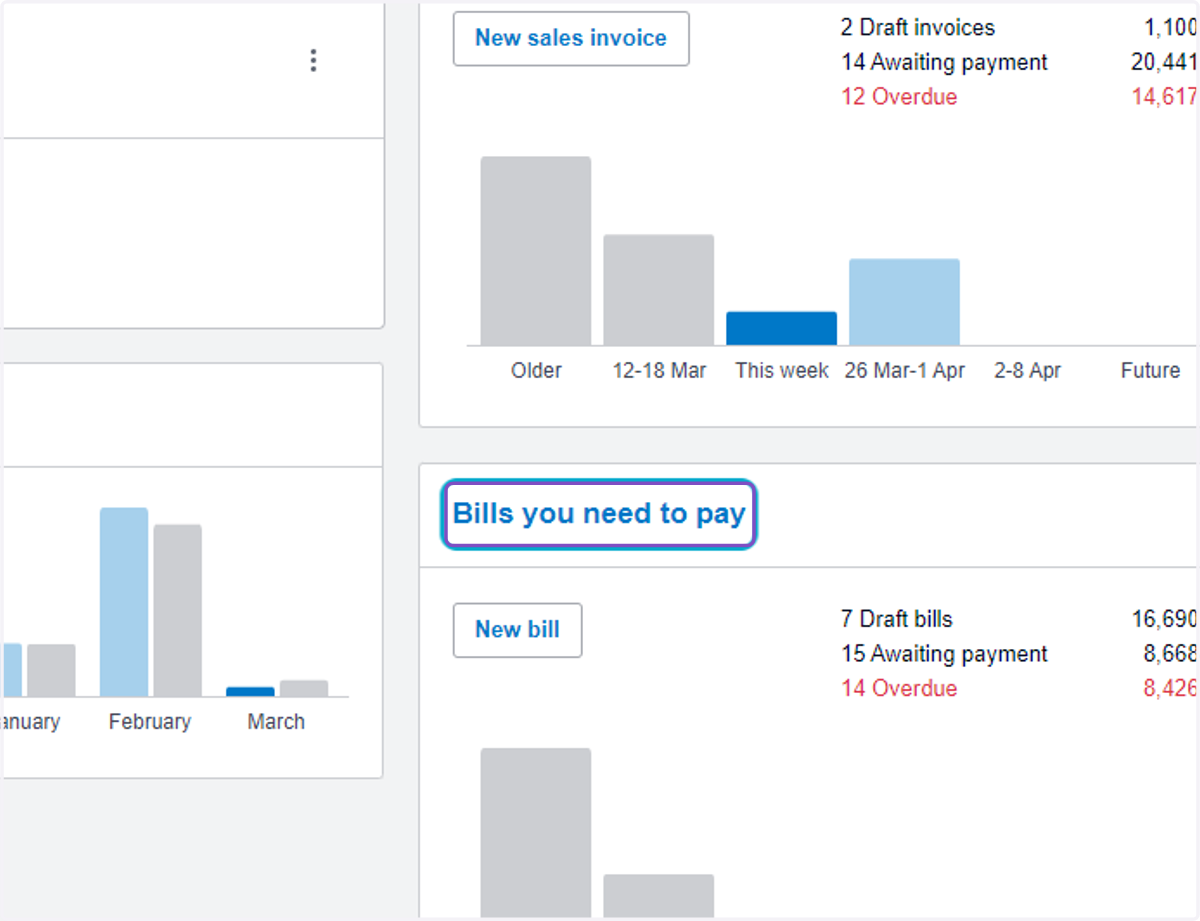
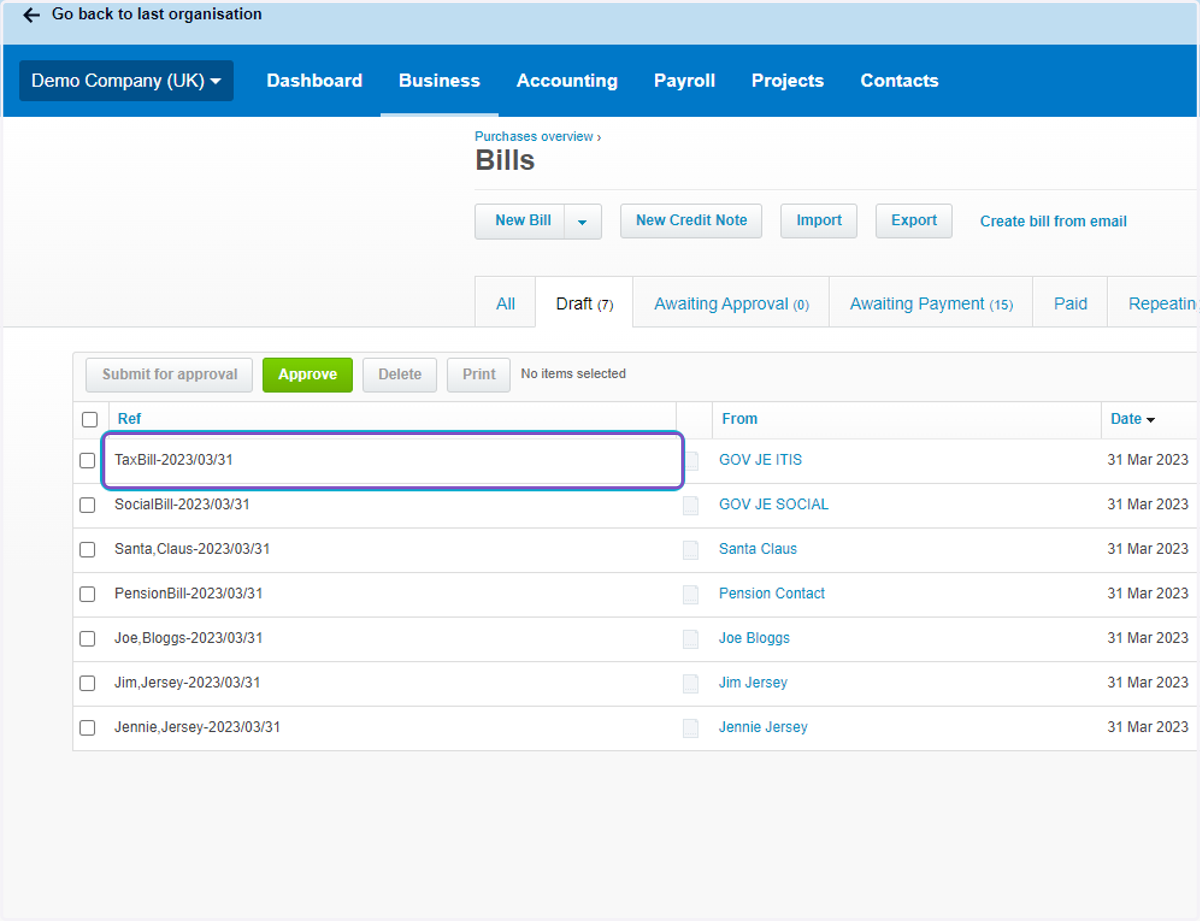
34. You will notice new Draft bills
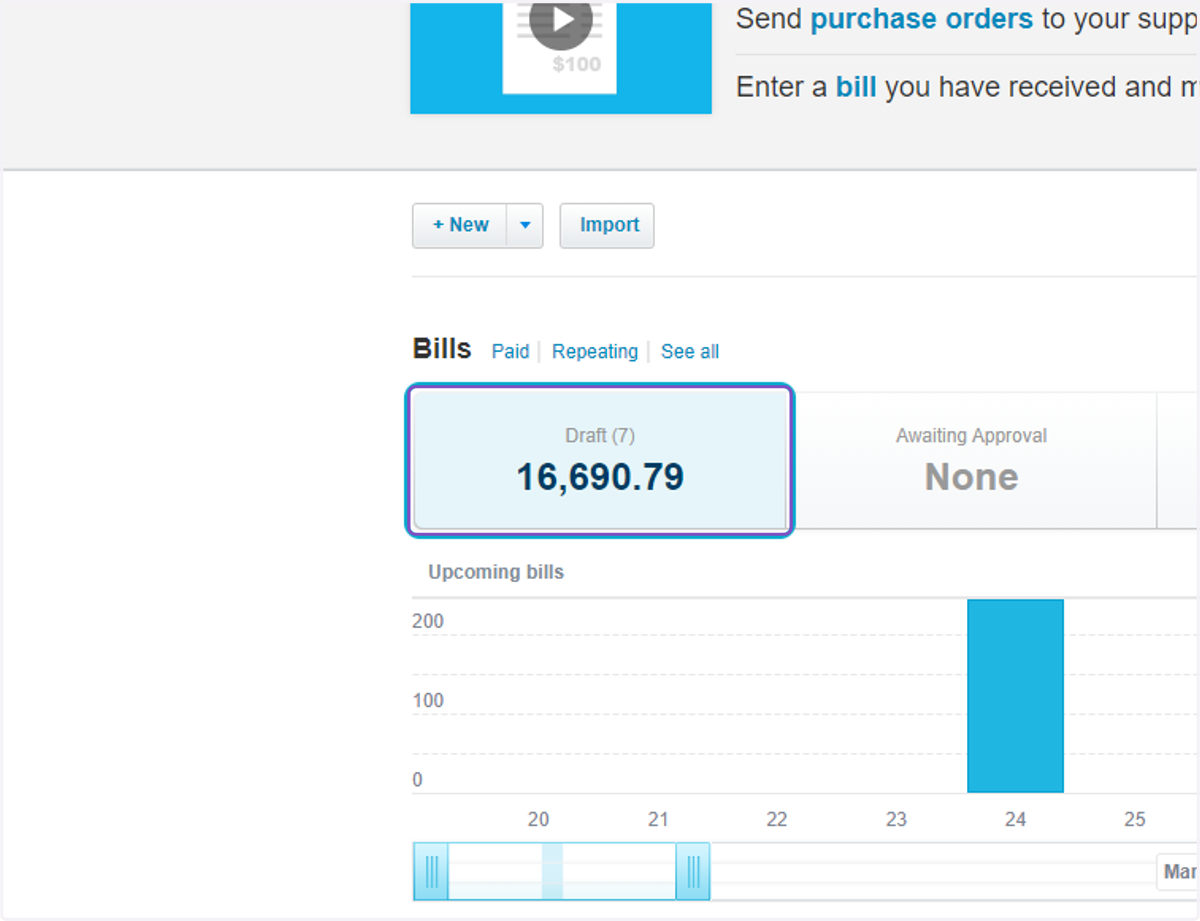
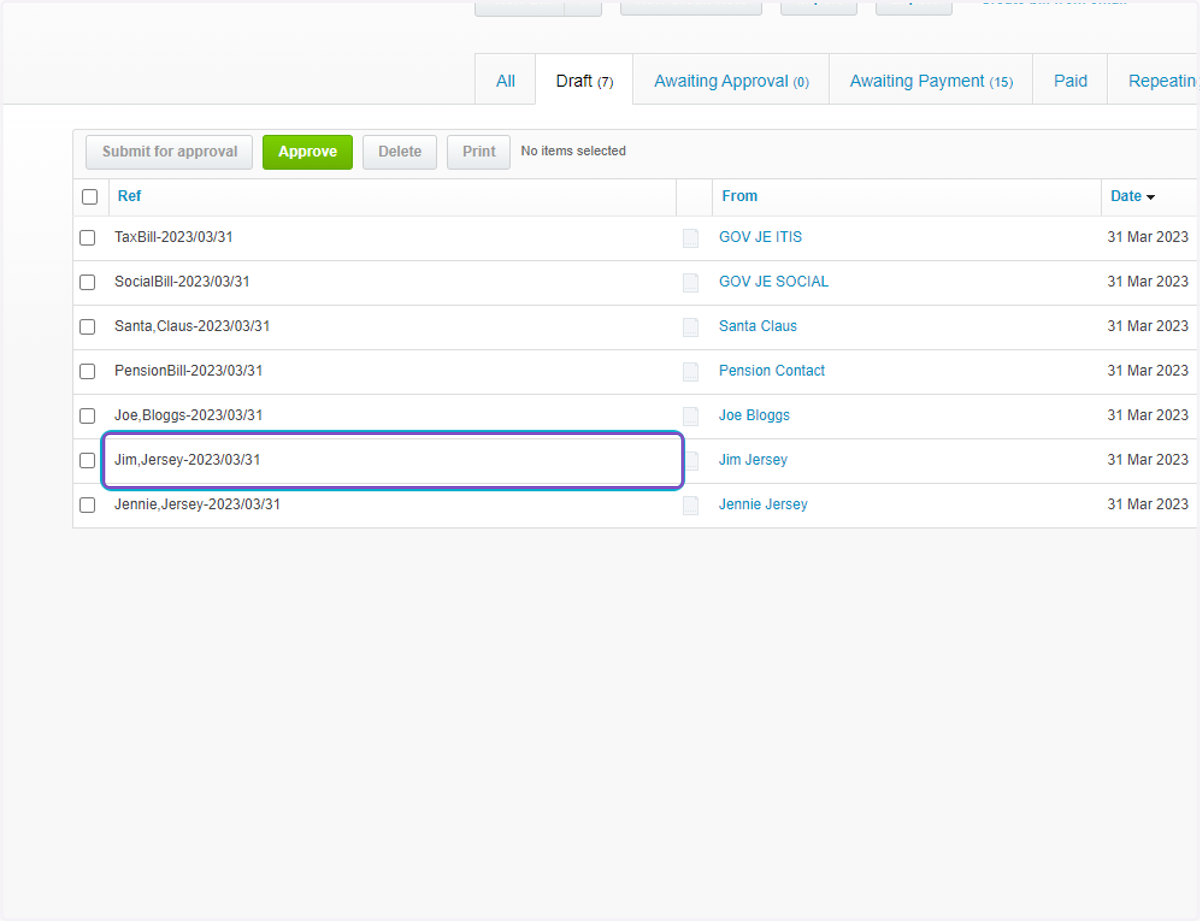
35. Click on any Draft bill to review the information
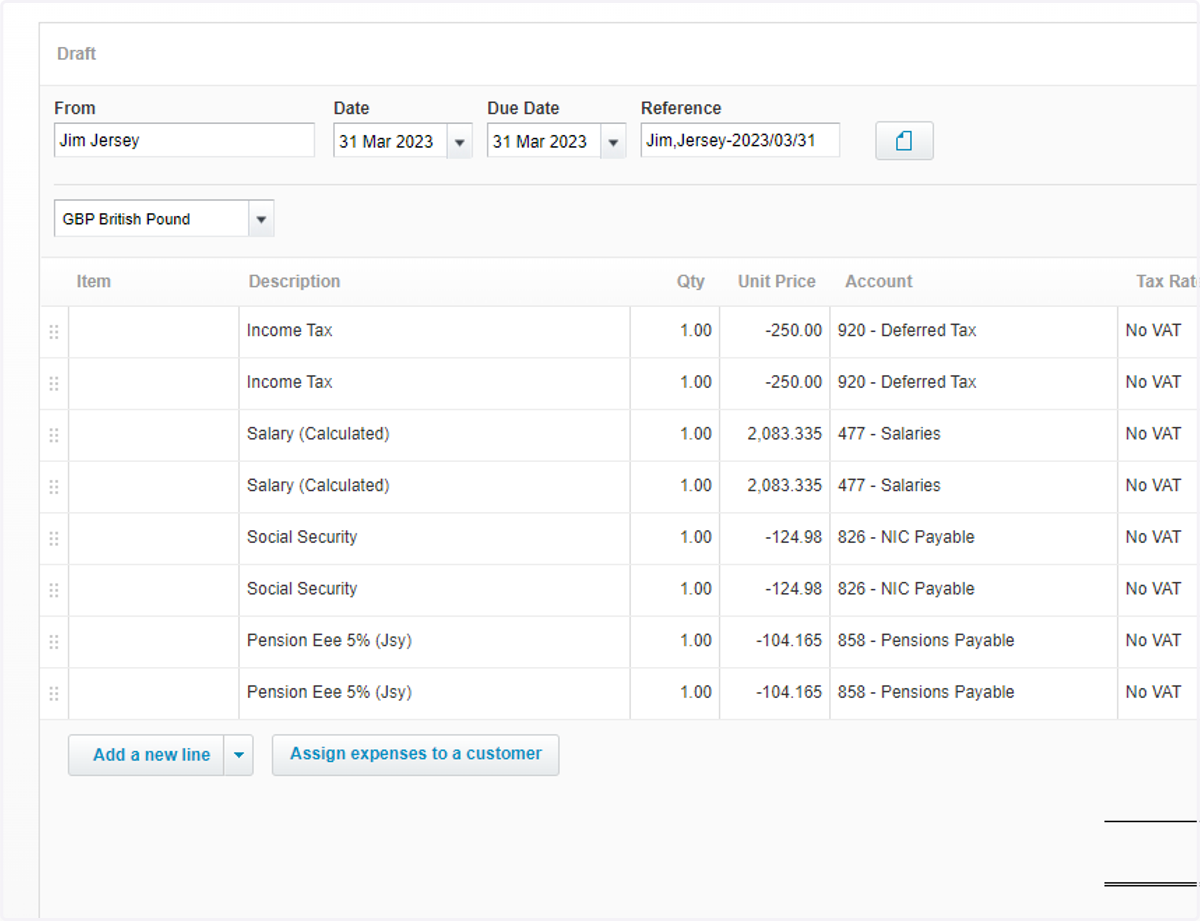
36. Review the bill detail and amend as necessary
37. Click to view any other bills you wish to review