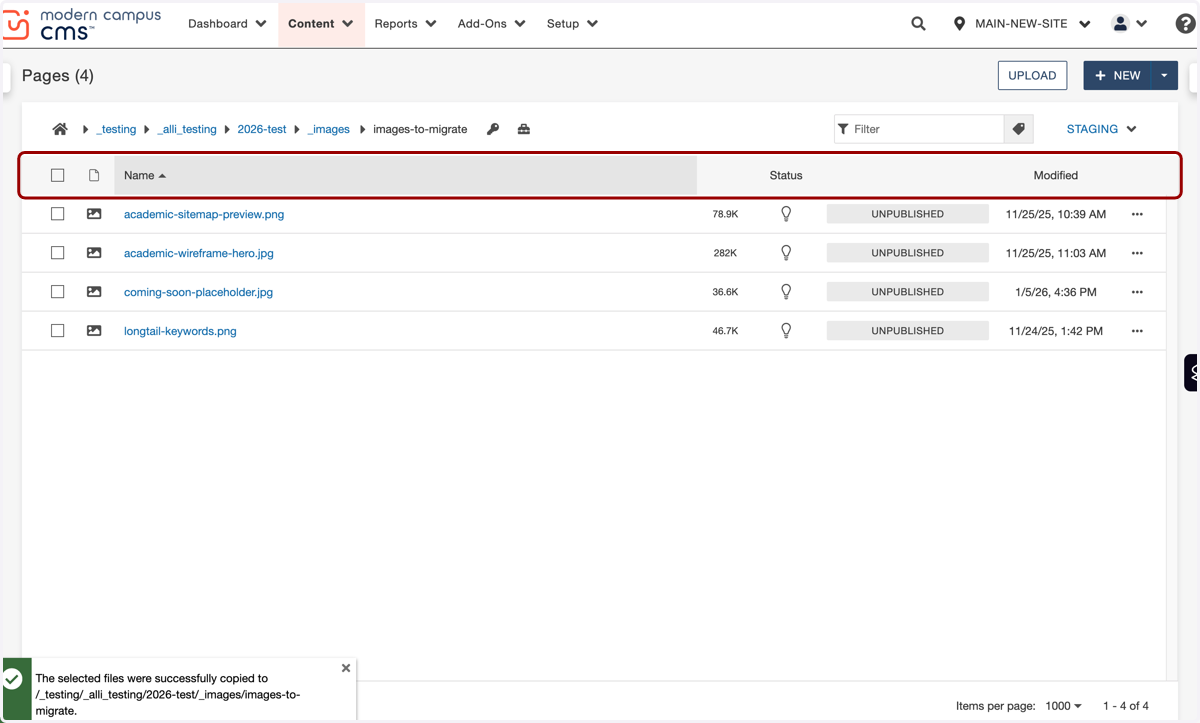
[TUTORIAL] How to Copy Image Files for Migration
We will ask if you have this folder and move it for you when you fill out the new site creation form. Please be sure to only move images you plan to use on your new site.
1. Navigate to your site in Modern Campus.
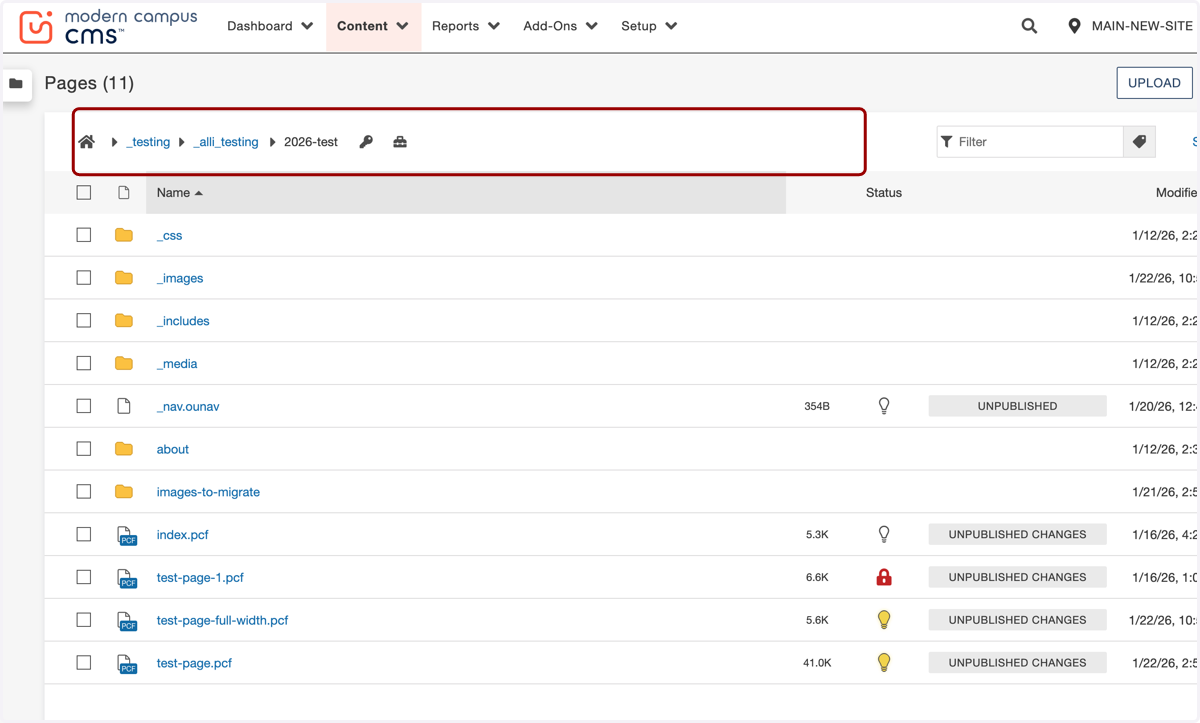
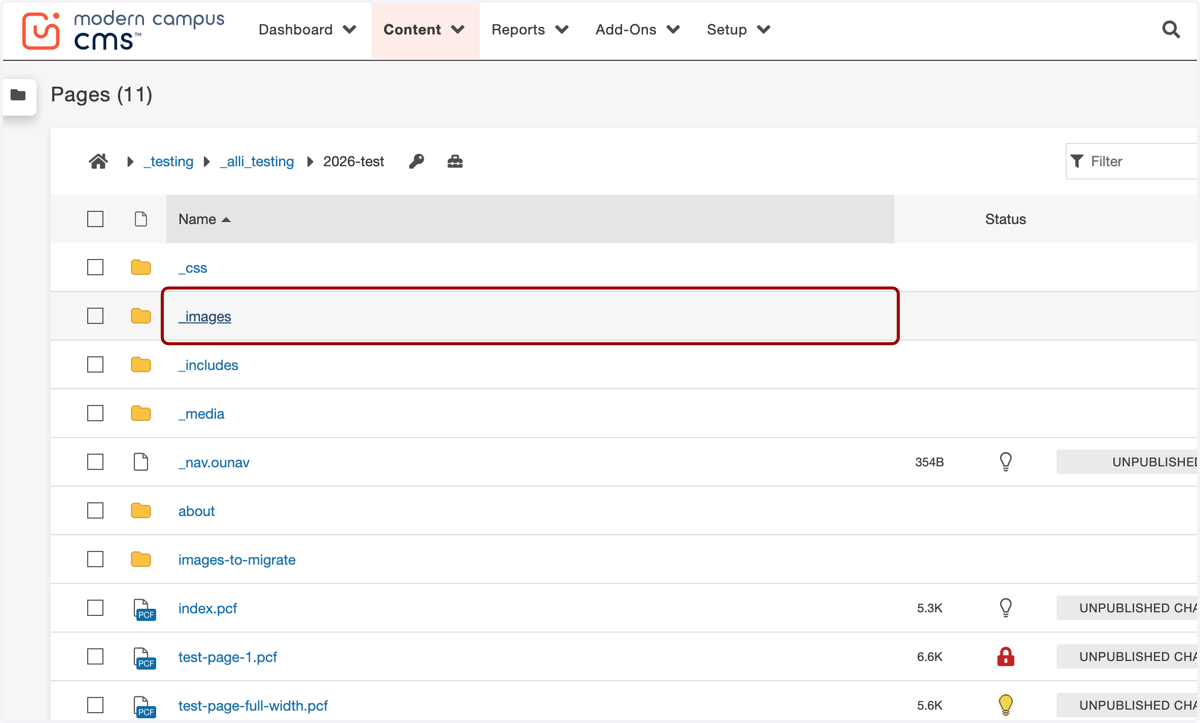
2. Find your Images folder.
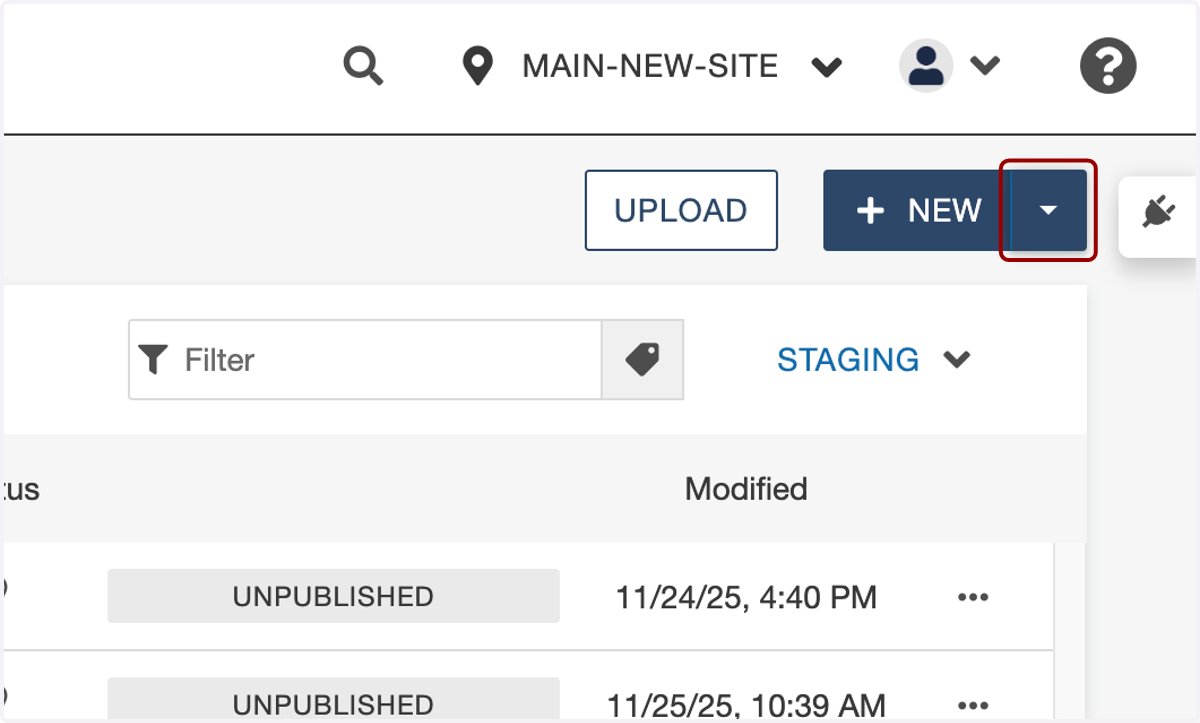
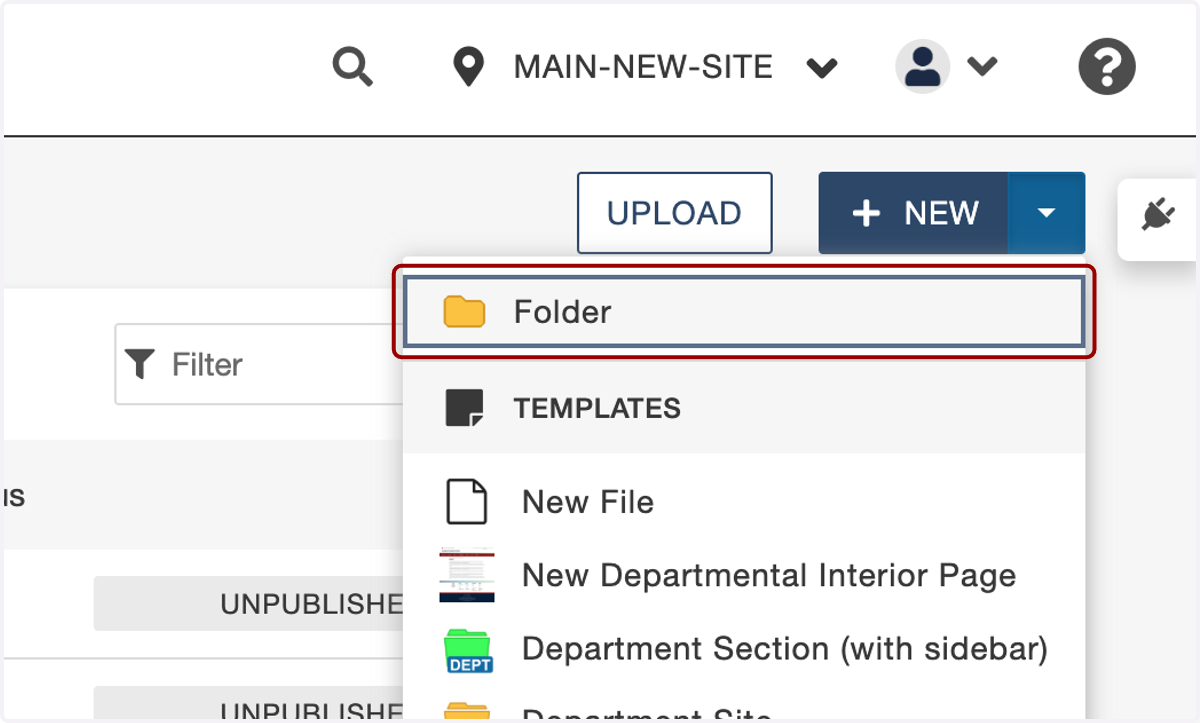
3. Once inside the Images folder, click the New dropdown in the upper right-hand side.
4. Select Folder...
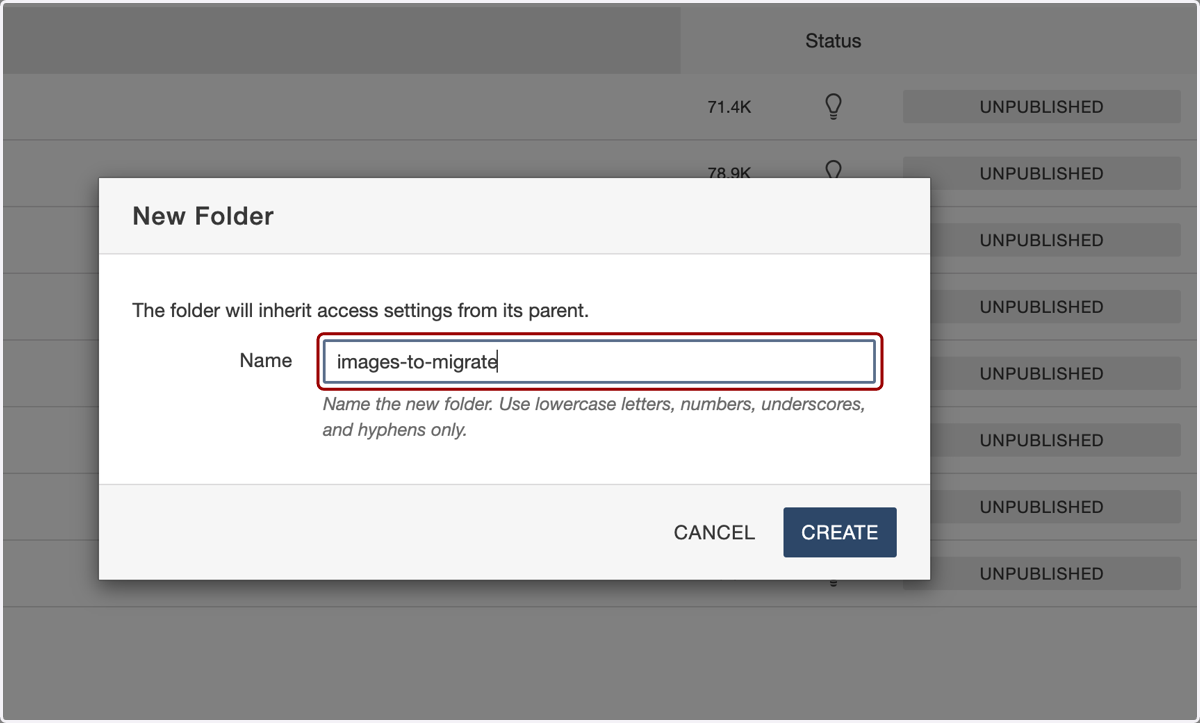
5. ...and call it "images-to-migrate".
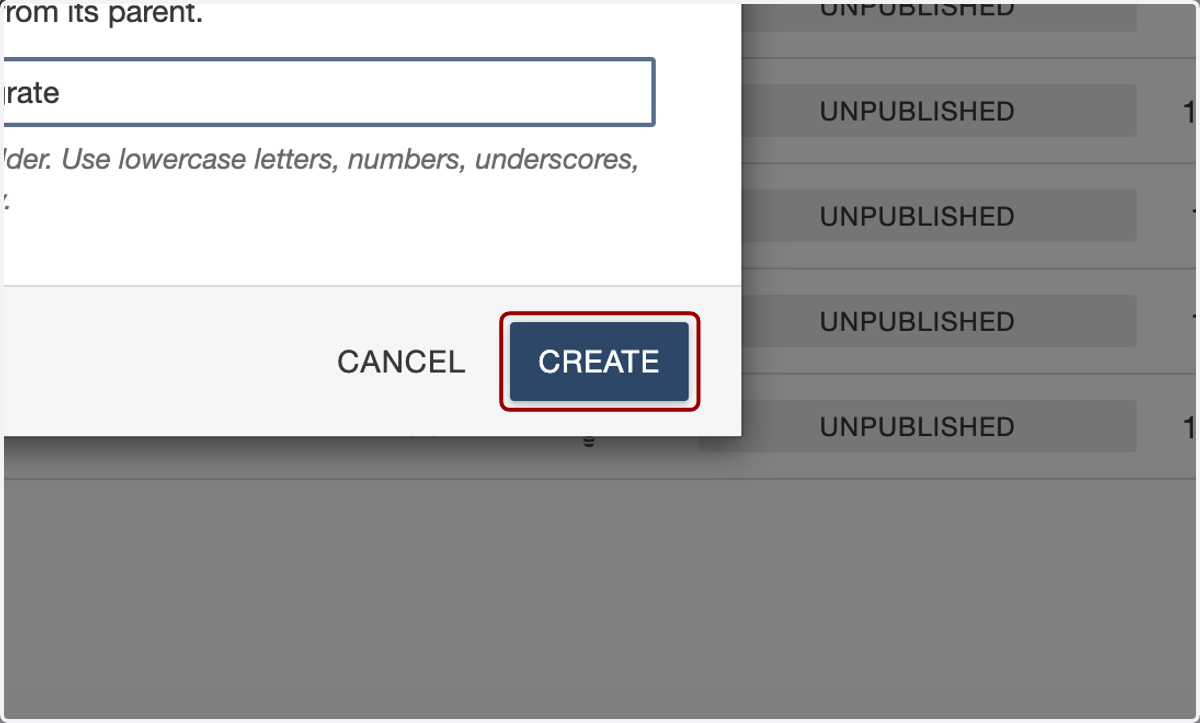
6. Click on Create.
7. You will see the new images-to-migrate folder in your Images folder.
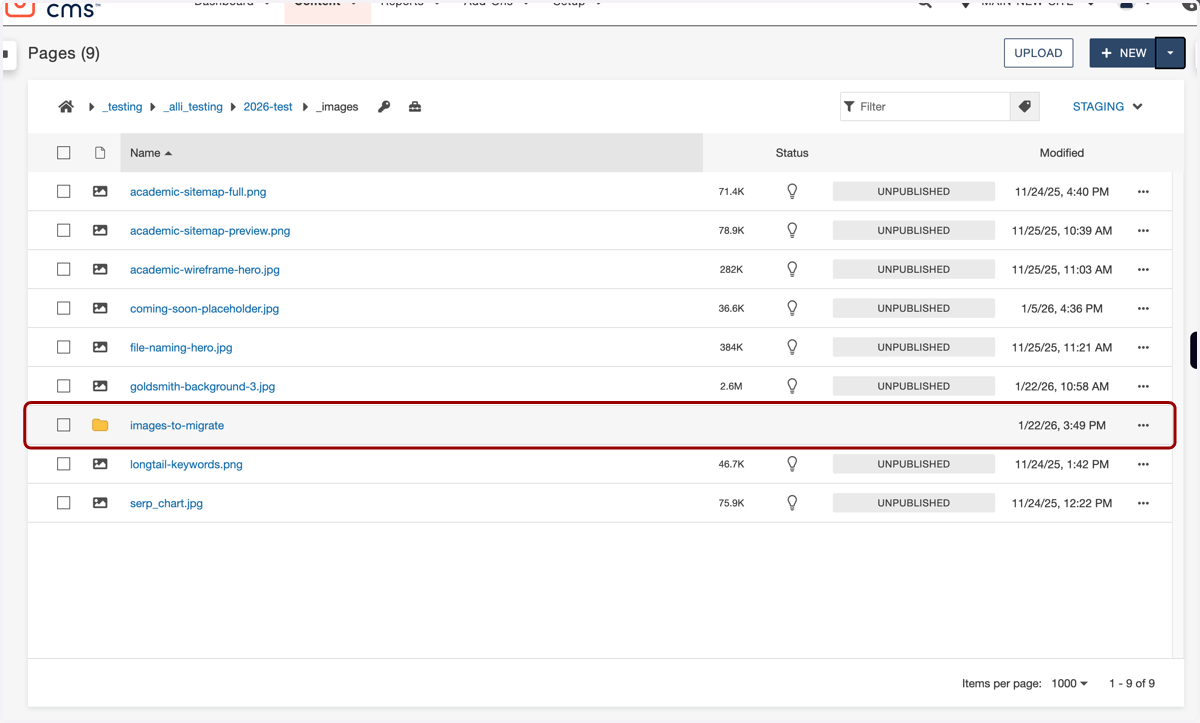
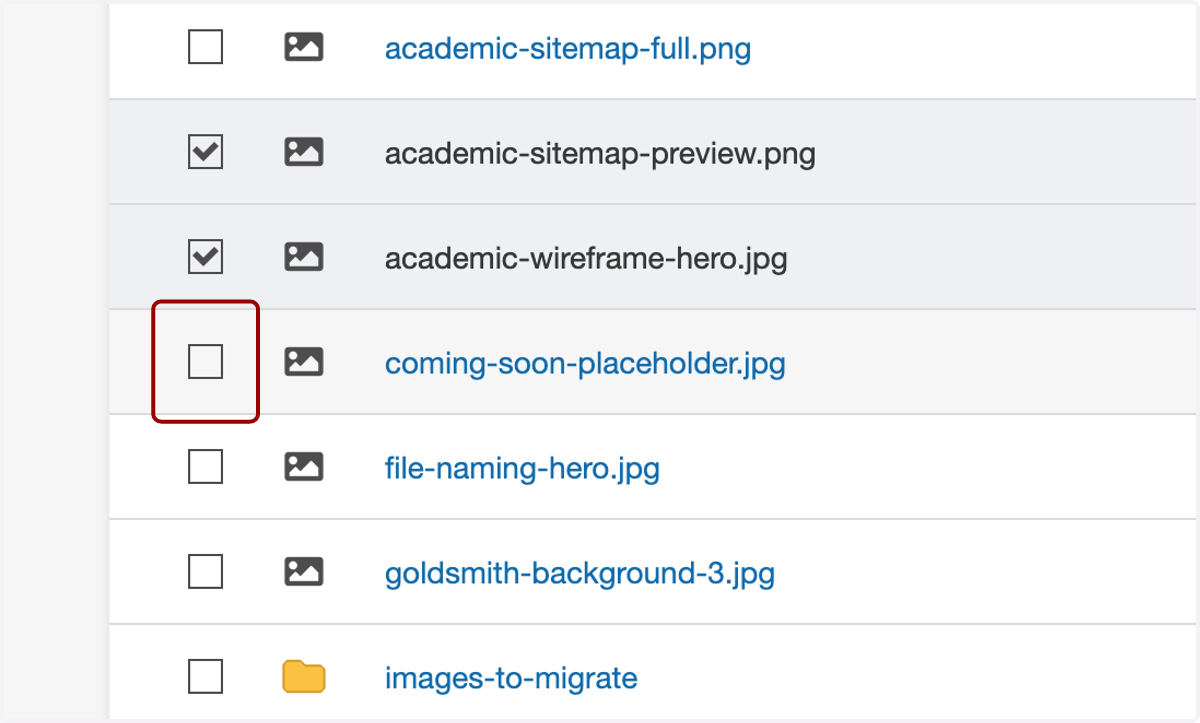
8. In your original _images folder, click on the checkboxes of the images you want to migrate.
9. Once you've selected your images, click on Copy.
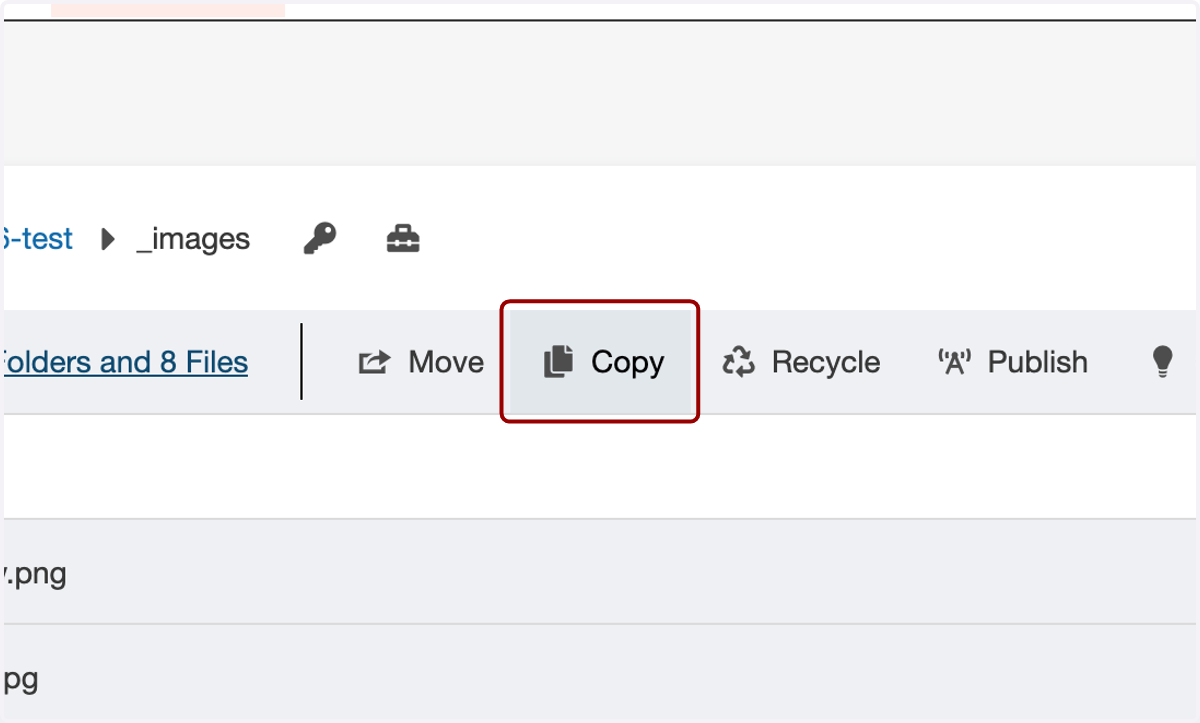
10. You'll see the images-to-migrate folder in the pop-up modal. You may need to scroll to see it depending on how many files you have in your images folder.
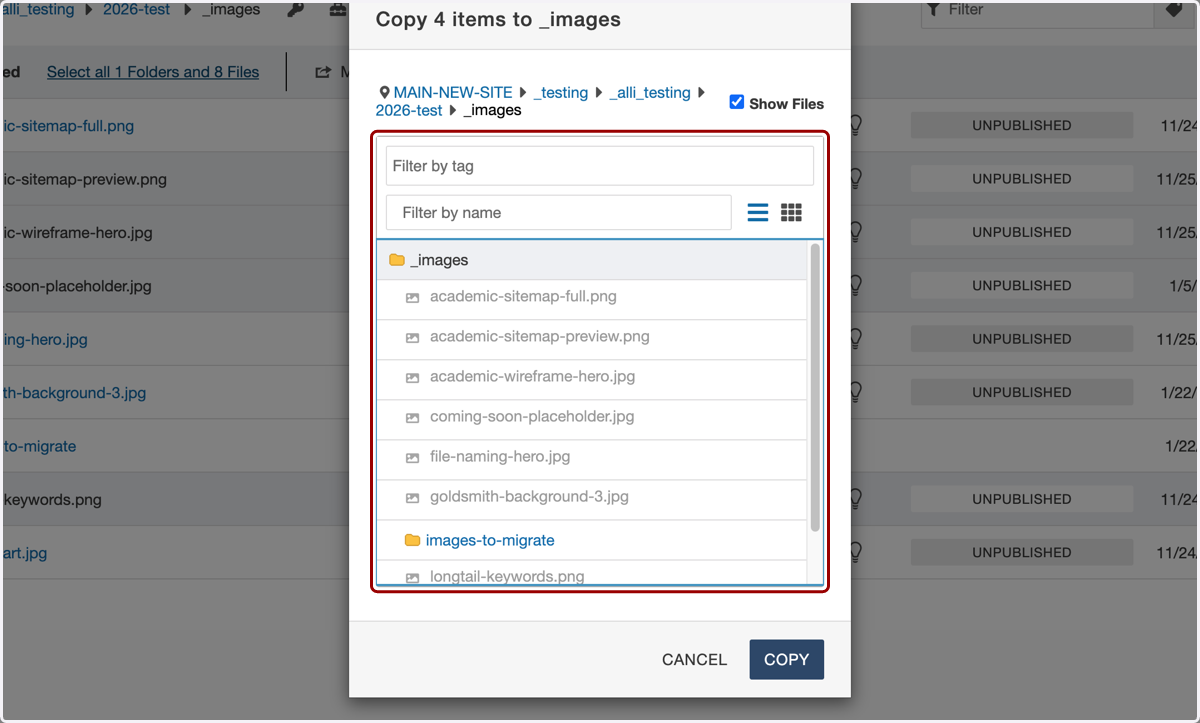
11. Click on the images-to-migrate folder...
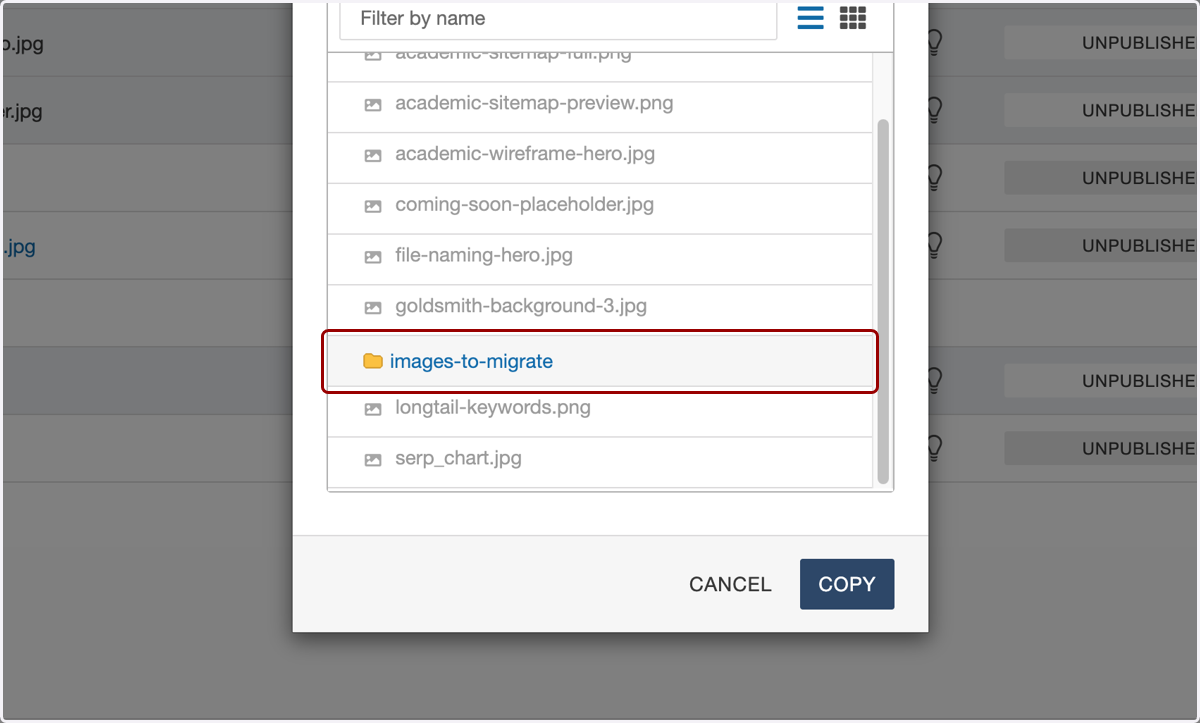
12. ...and you will see the name at the top of an empty box.
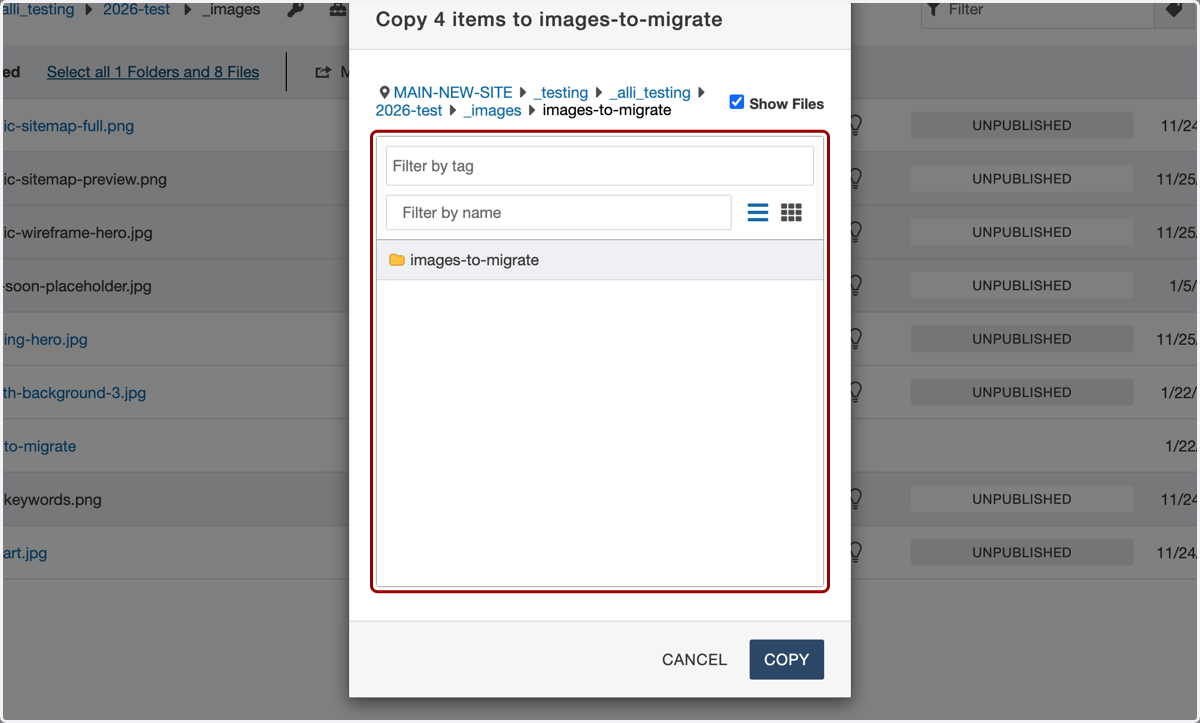
13. Click on Copy...
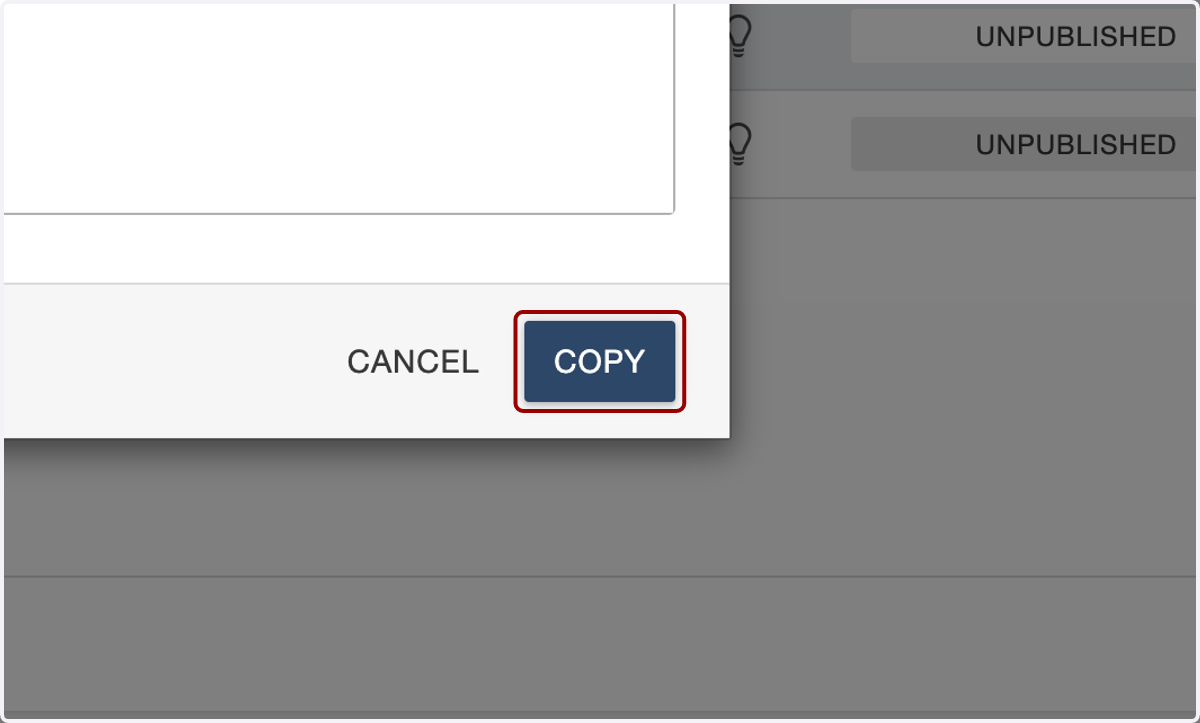
14. ...and you will see a "Copy in progress..." notification in the lower left of your screen.
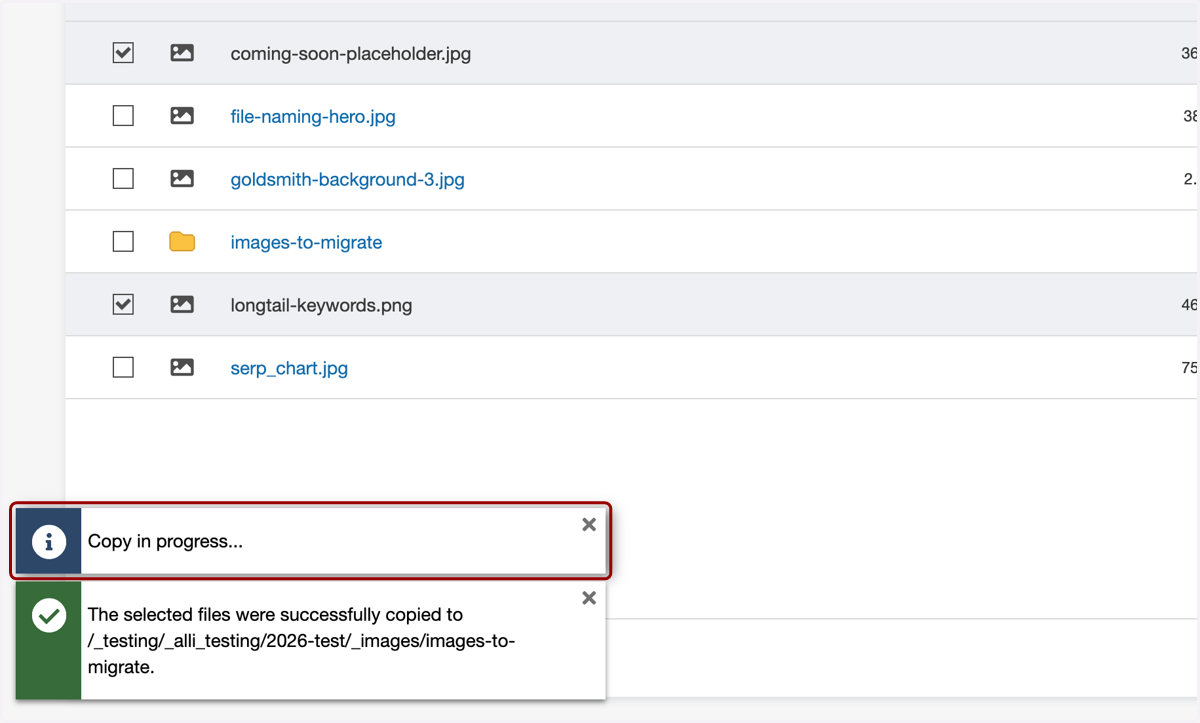
15. That message will be followed by a success message once the copy process is completed.
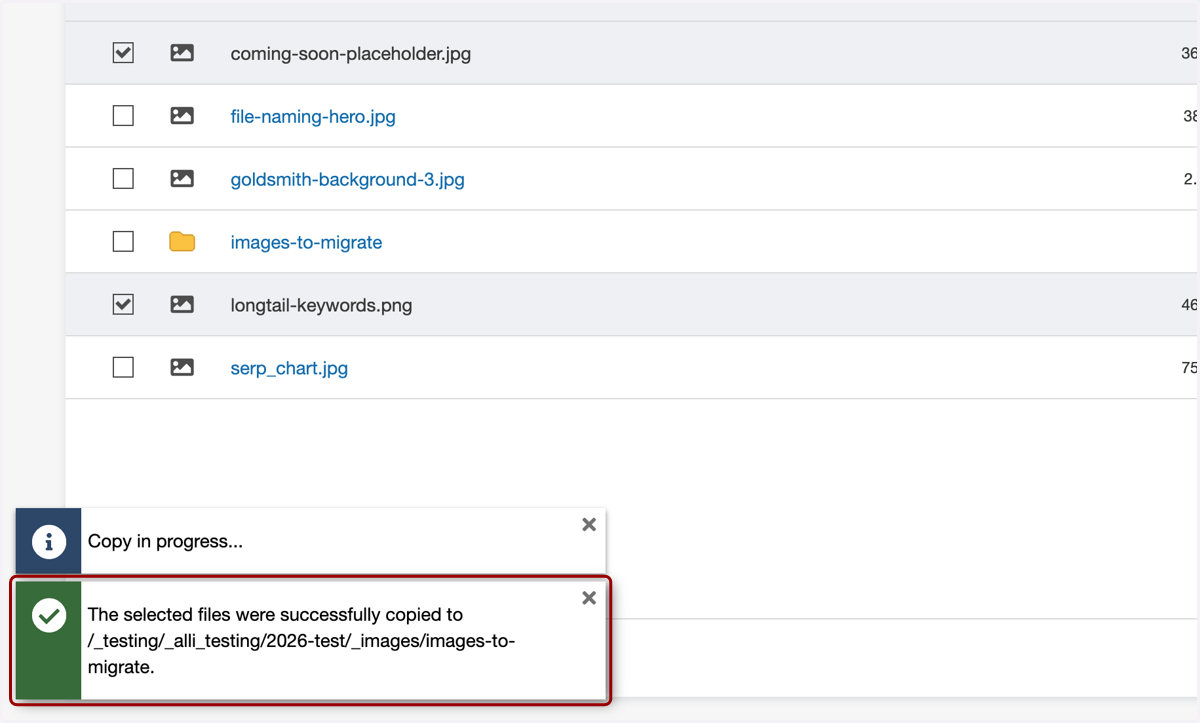
16. If you click into the images-to-migrate folder...
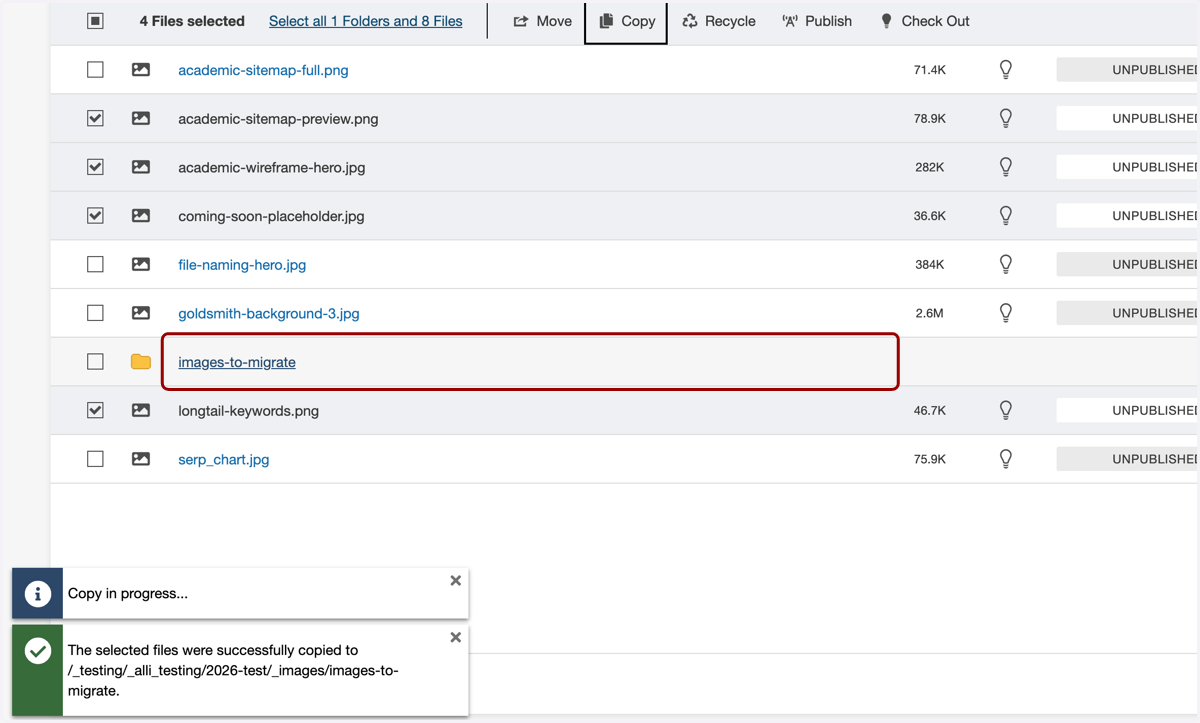
17. ...you'll see all of the images you selected to copy inside.
We will ask if you have this folder and move it for you when you fill out the new site creation form. Please be sure to only move images you plan to use.