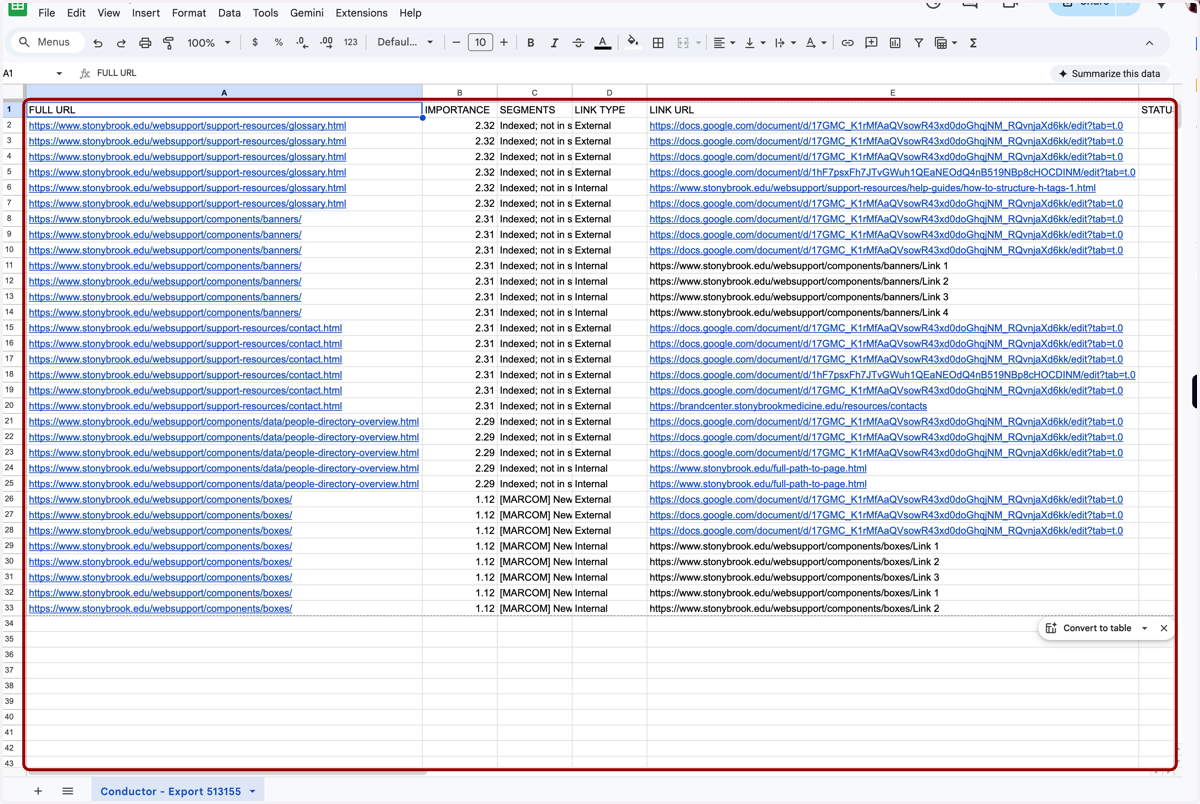
Conductor - How to Export and Use the Broken Links Report
1. Access Conductor Website Monitoring by logging into Conductor and clicking on "Technical" in the sidebar.
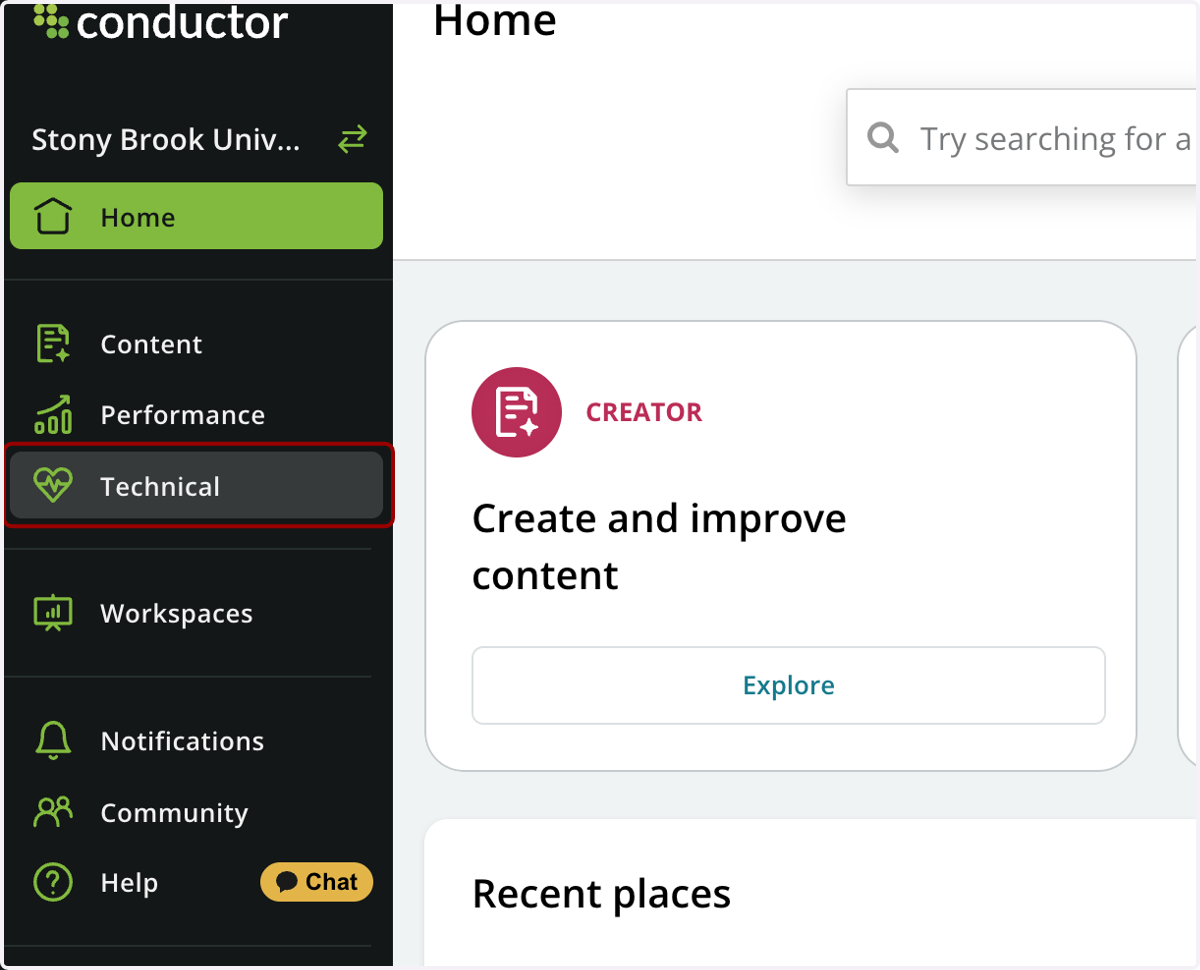
2. Click on Dashboard.
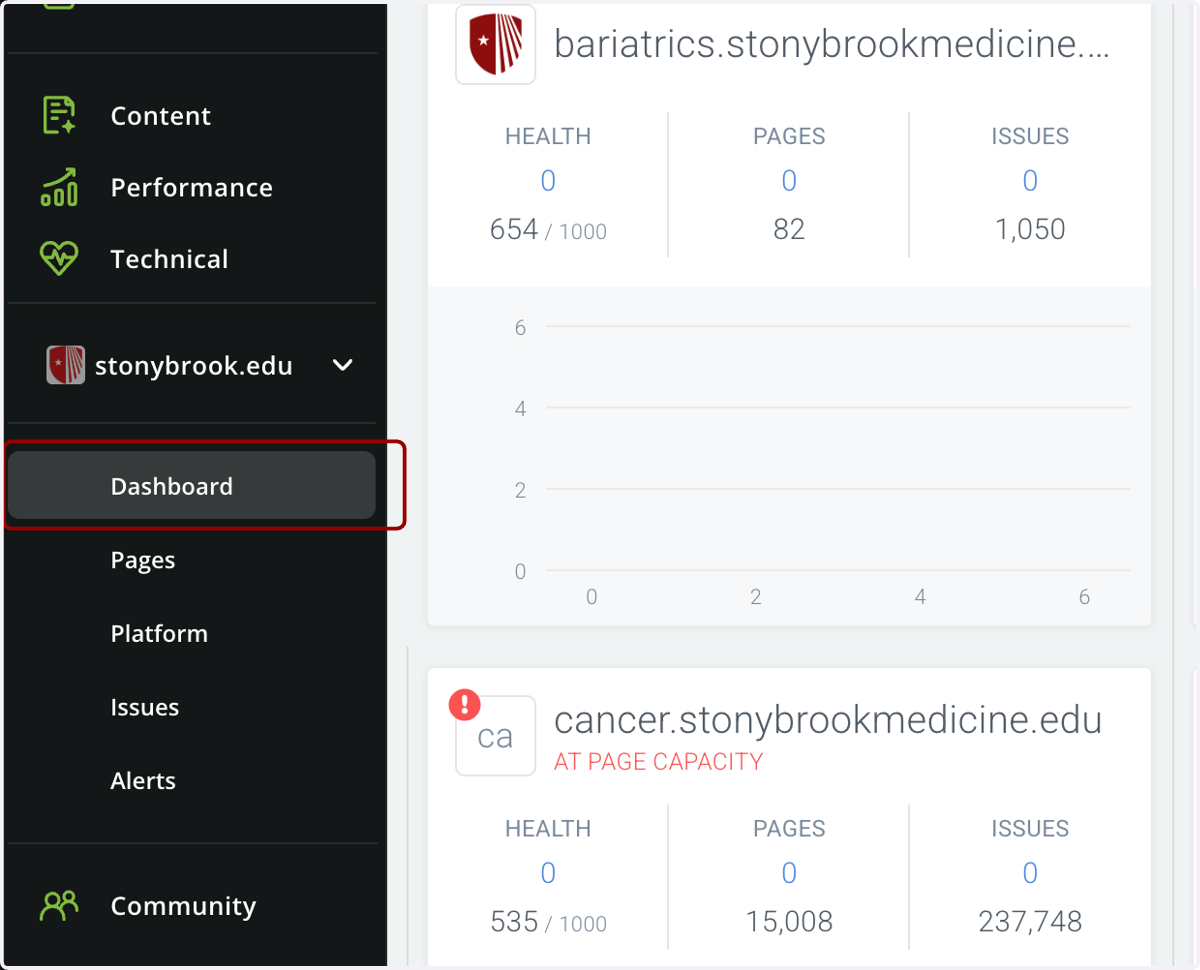
3. Each segment can have its own section on the dashboard. To manage the segments that show up on your dashboard...
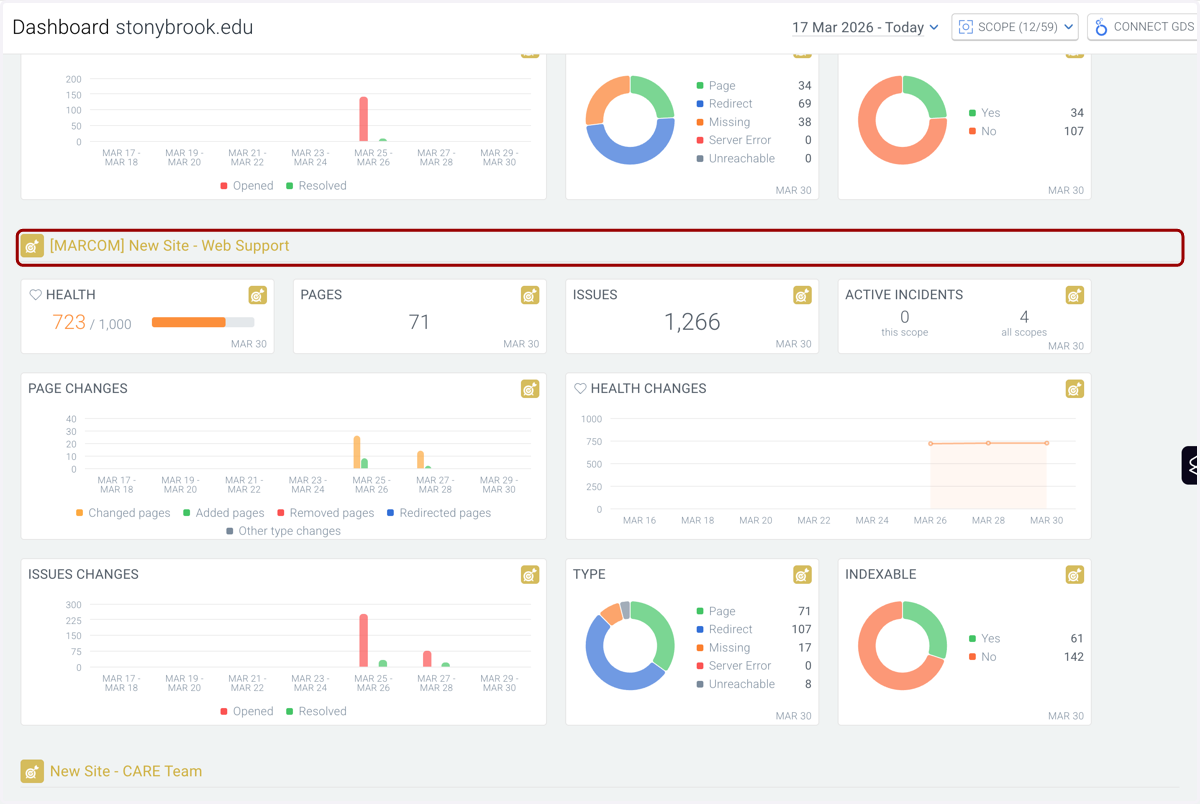
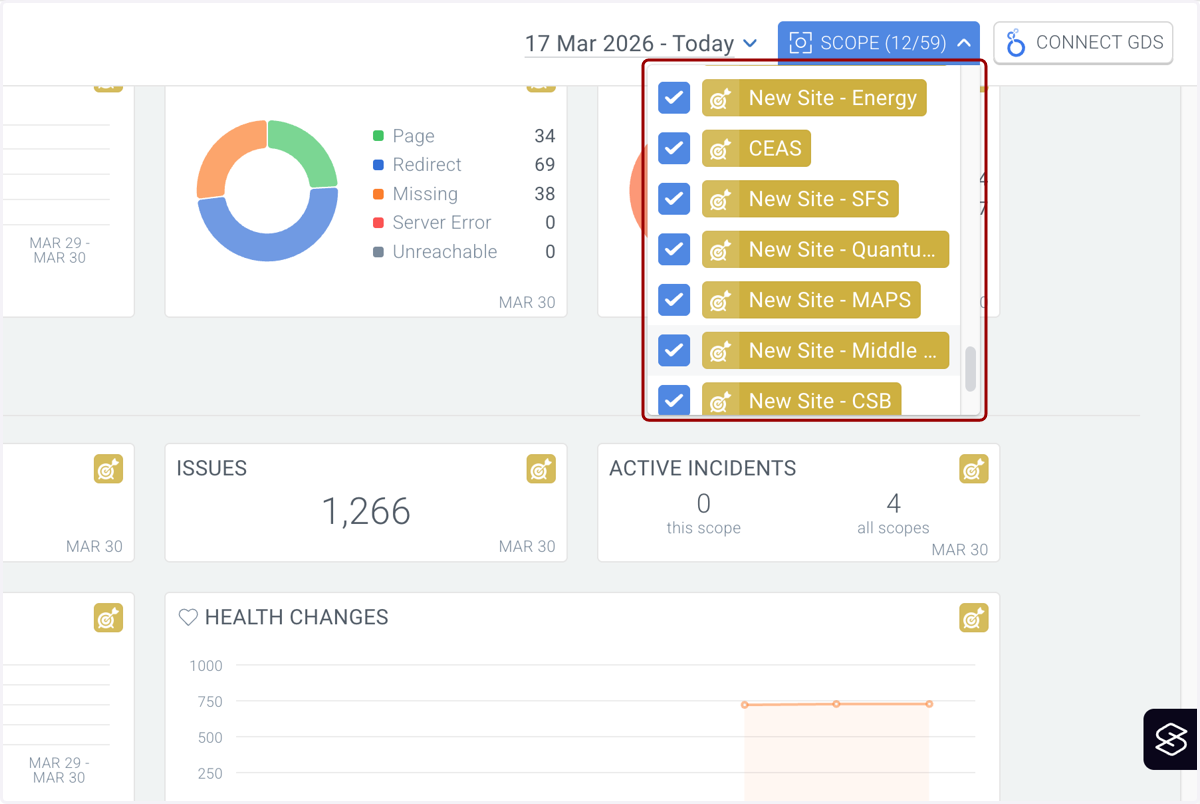
4. ...select the SCOPE dropdown in the upper right-hand corner.
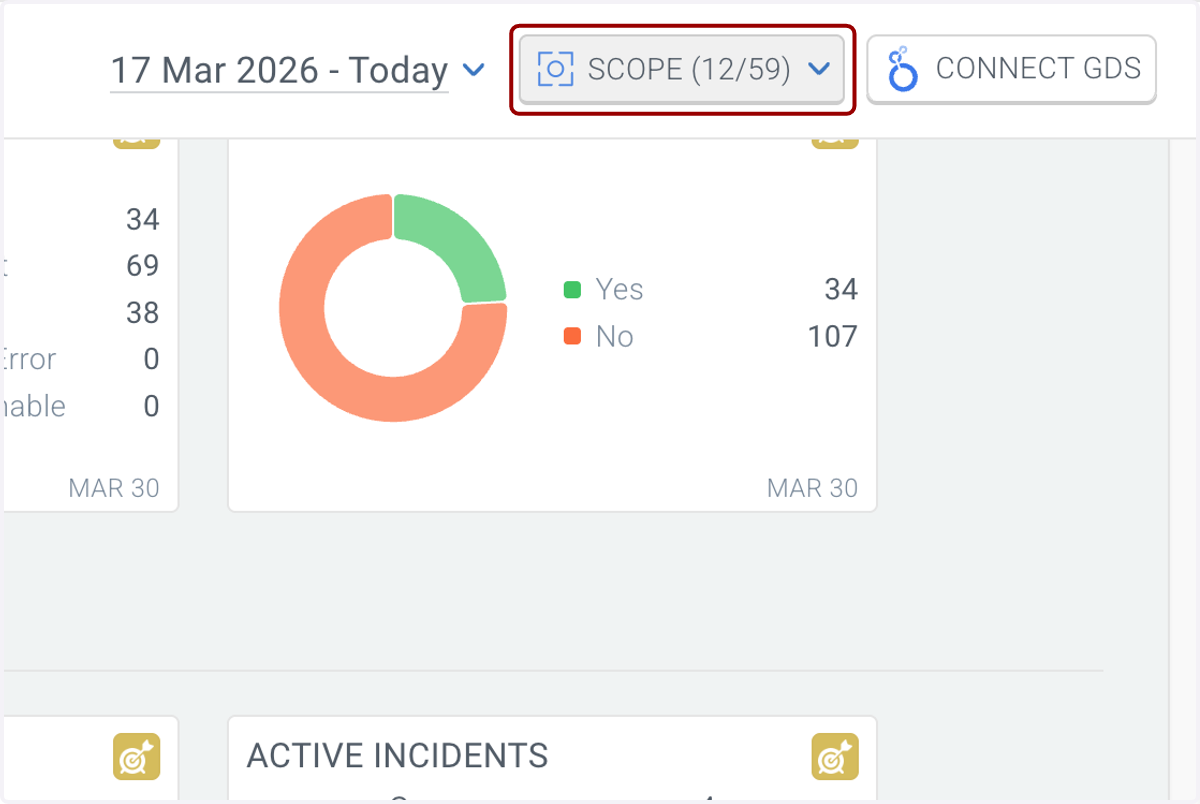
5. There, you can select the segments you wish to see on your dashboard.
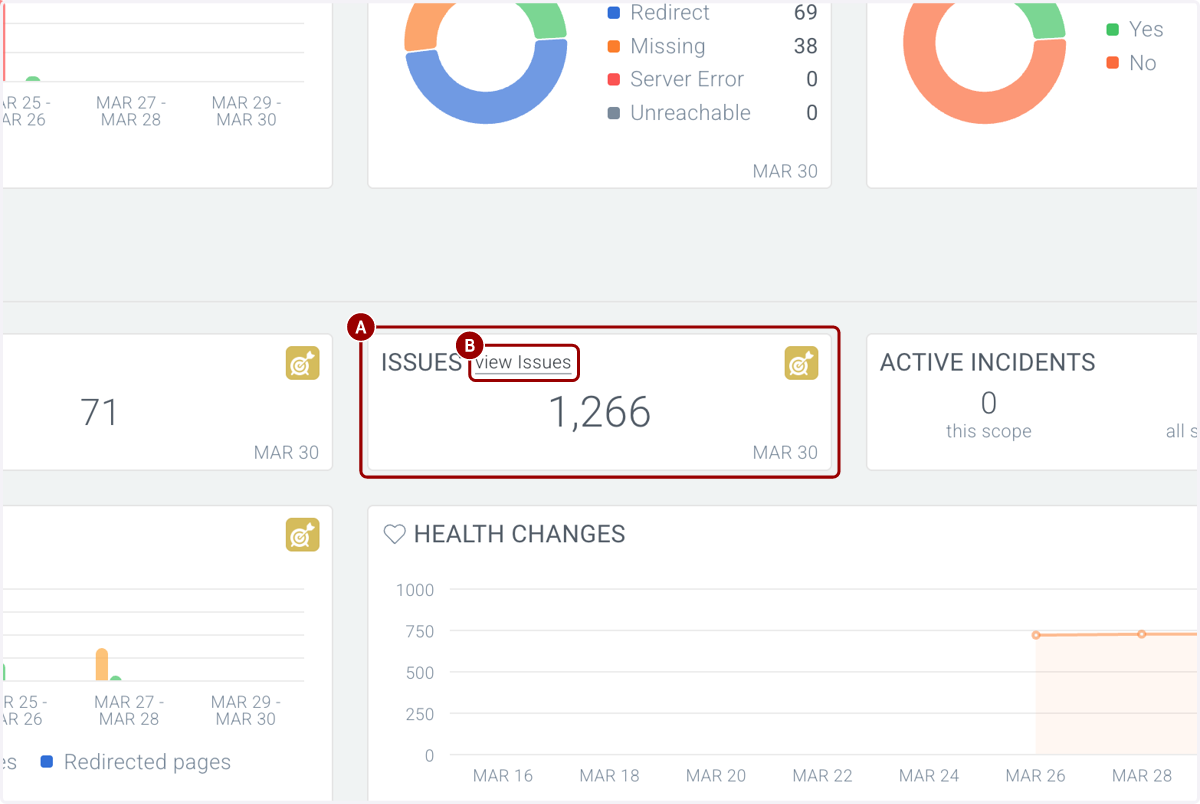
6. A. On the dashboard, find your segment and the ISSUES pane.
6. B. Click on "View Issues."
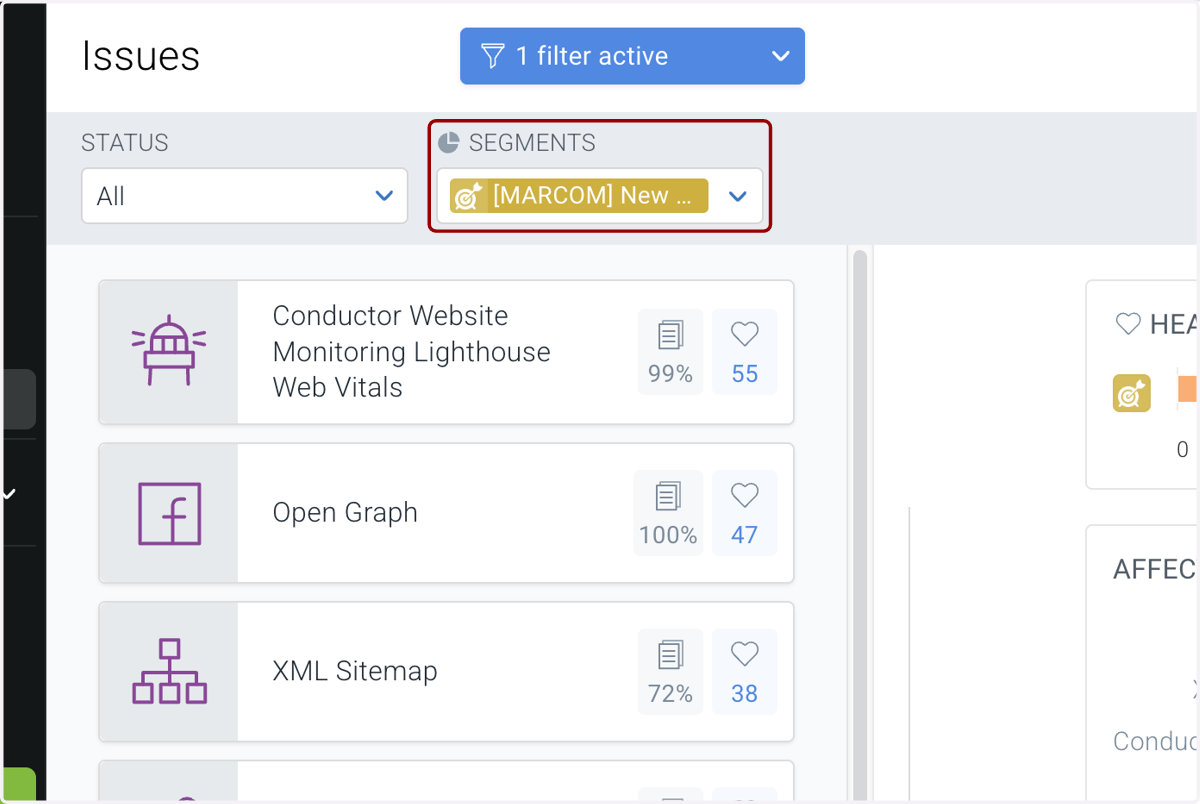
7. You can also find this section by clicking on "Issues" in the sidebar...
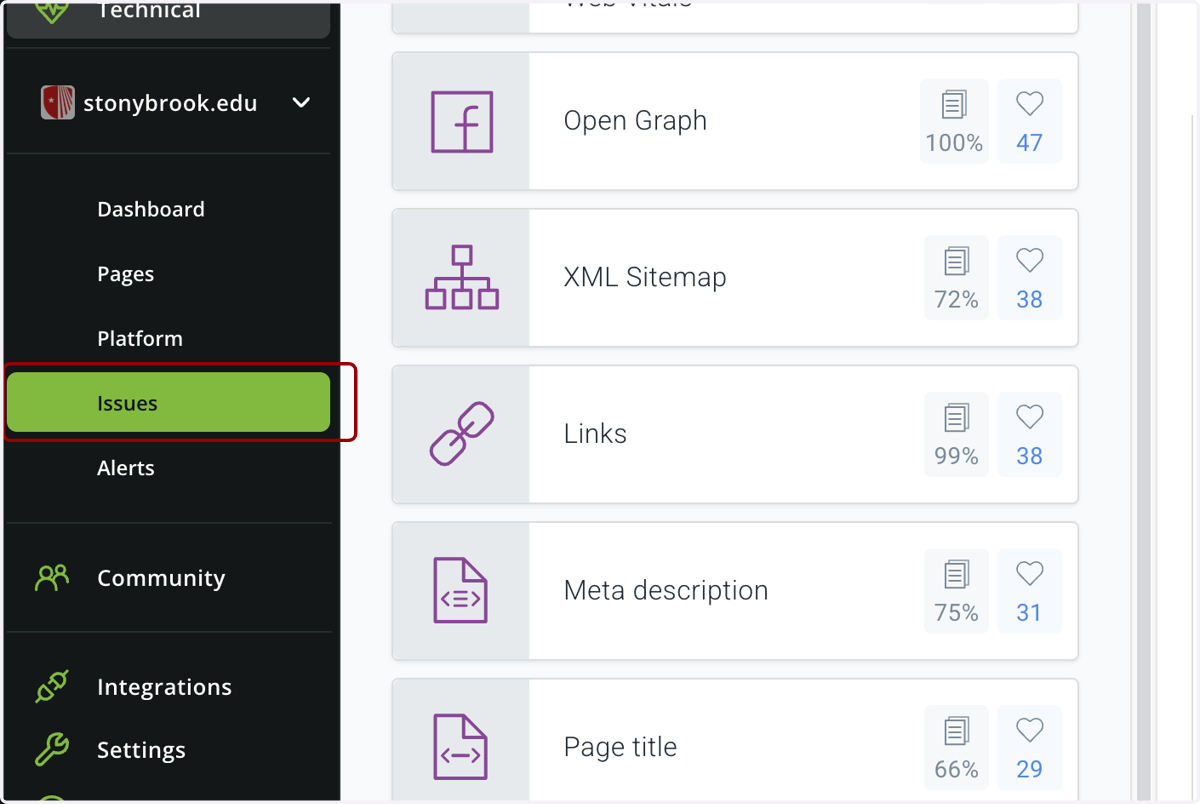
8. ...and filter using the SEGMENTS dropdown.
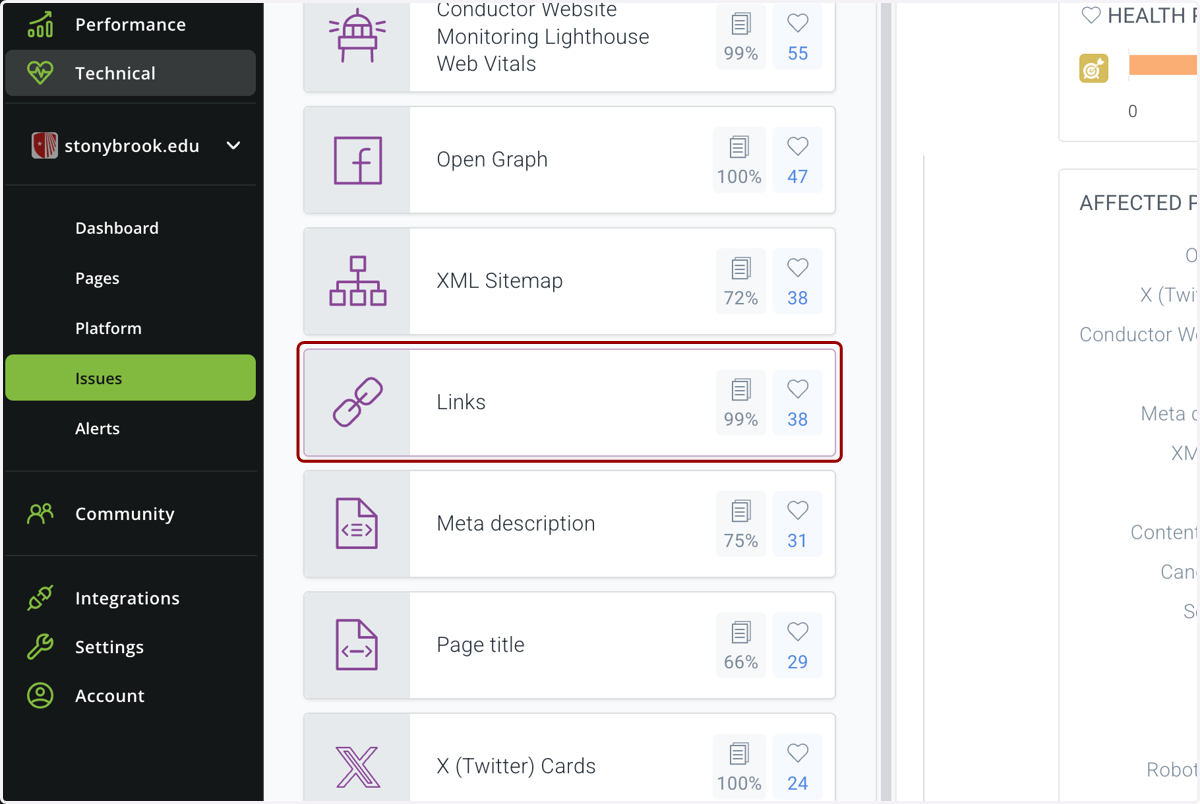
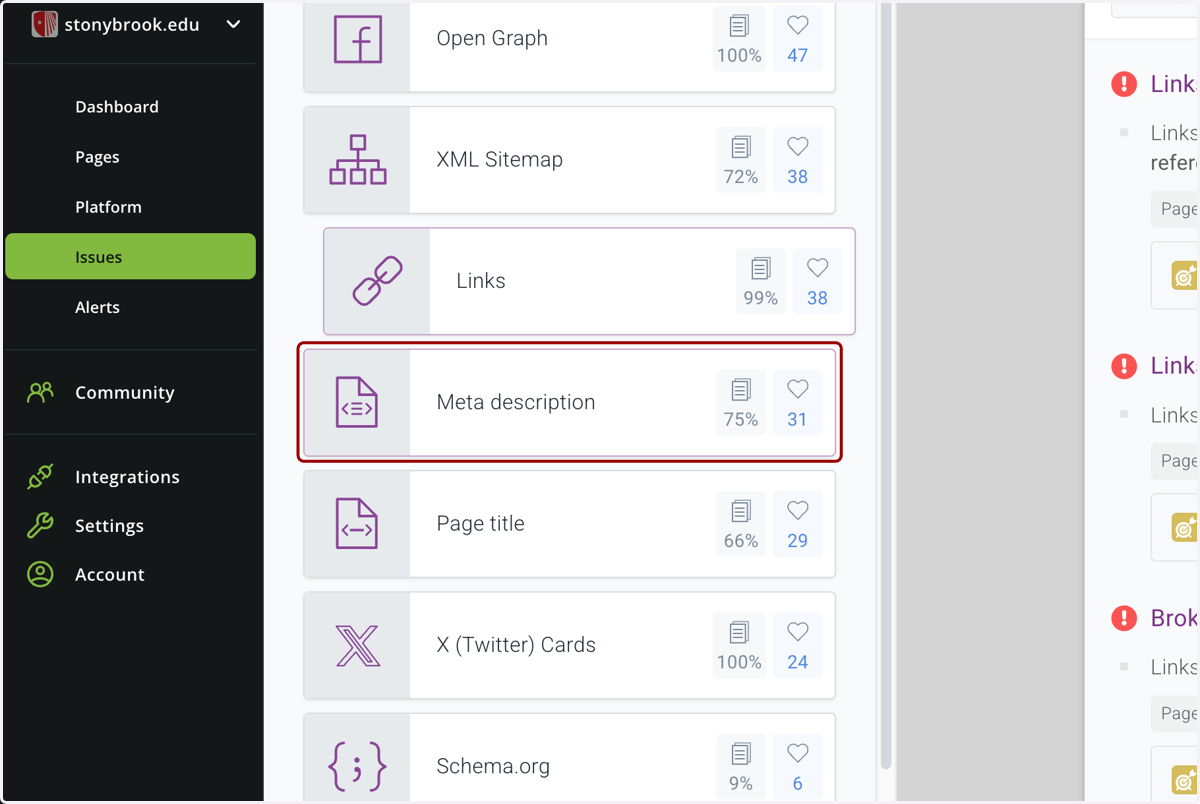
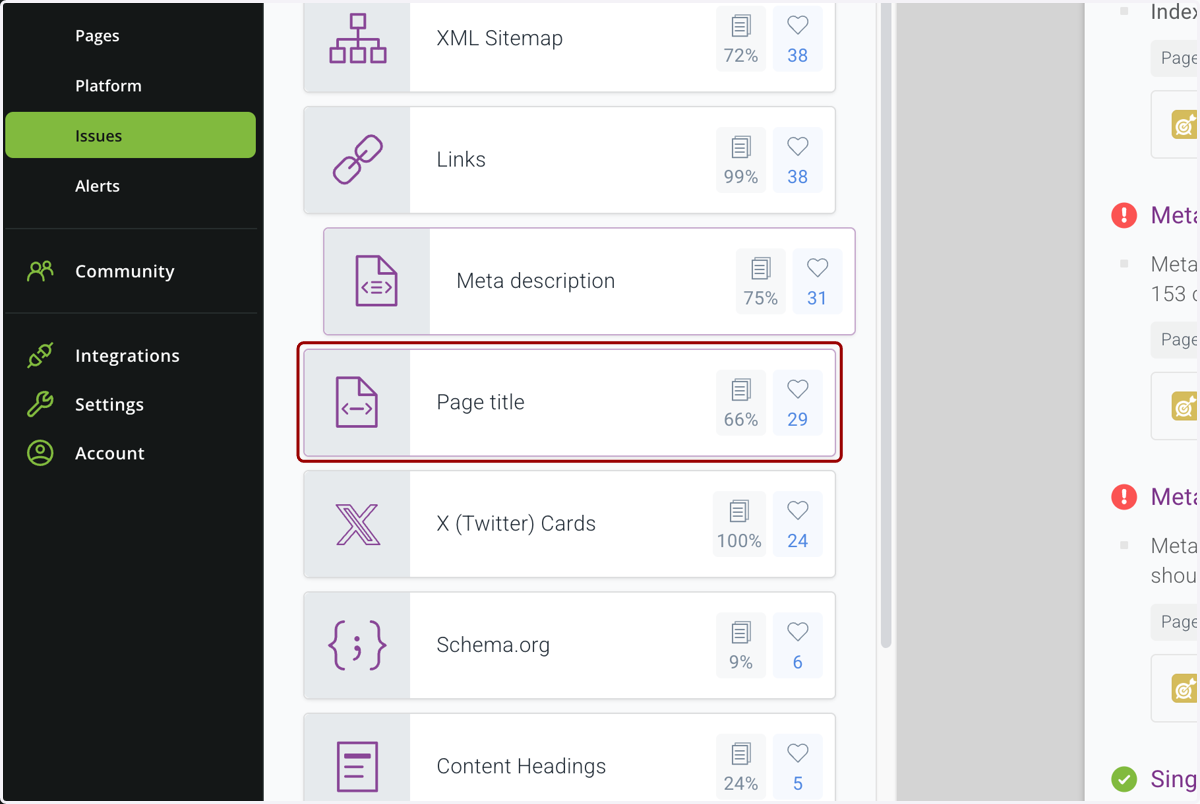
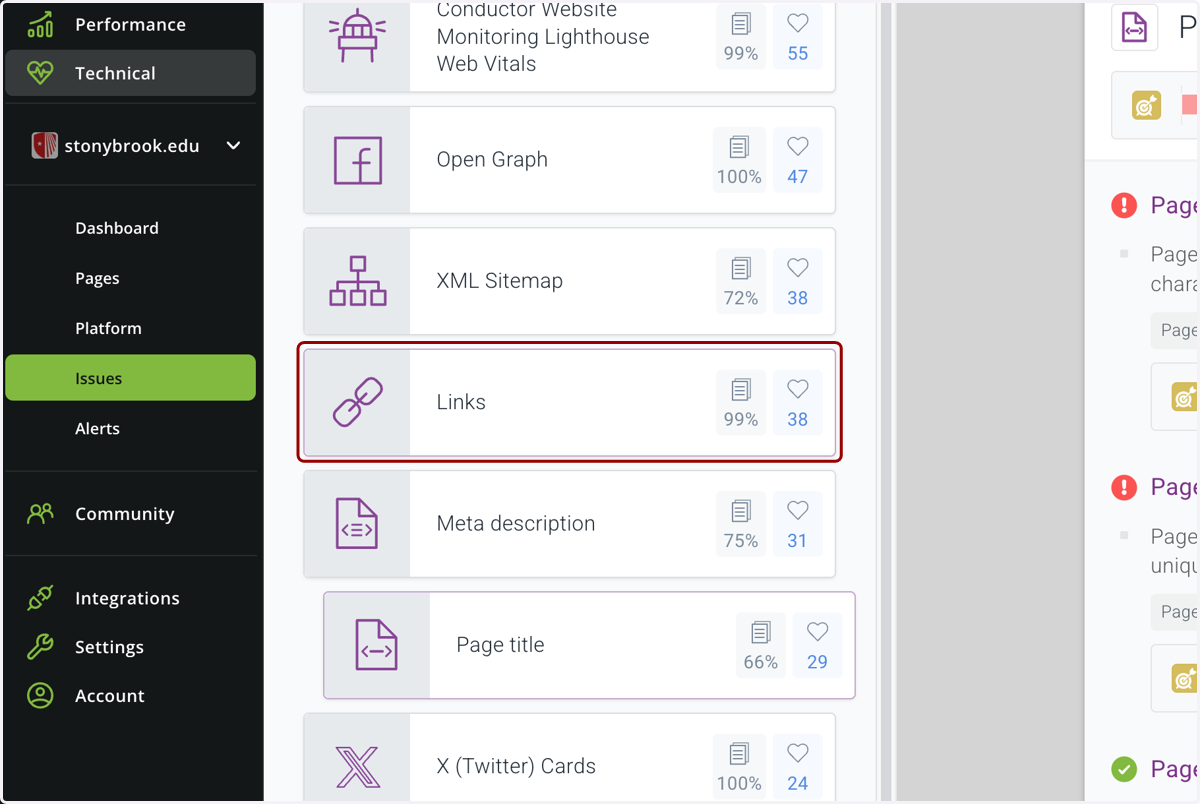
9. There are a variety of technical issues that Conductor flags. Most useful for web editors are Links…
10. ...Meta descriptions…
11. And Page Titles. Feel free to review all other issue types, but these are the ones we use in MARCOM most often.
12. We will first review how to track broken links. Click on Links…
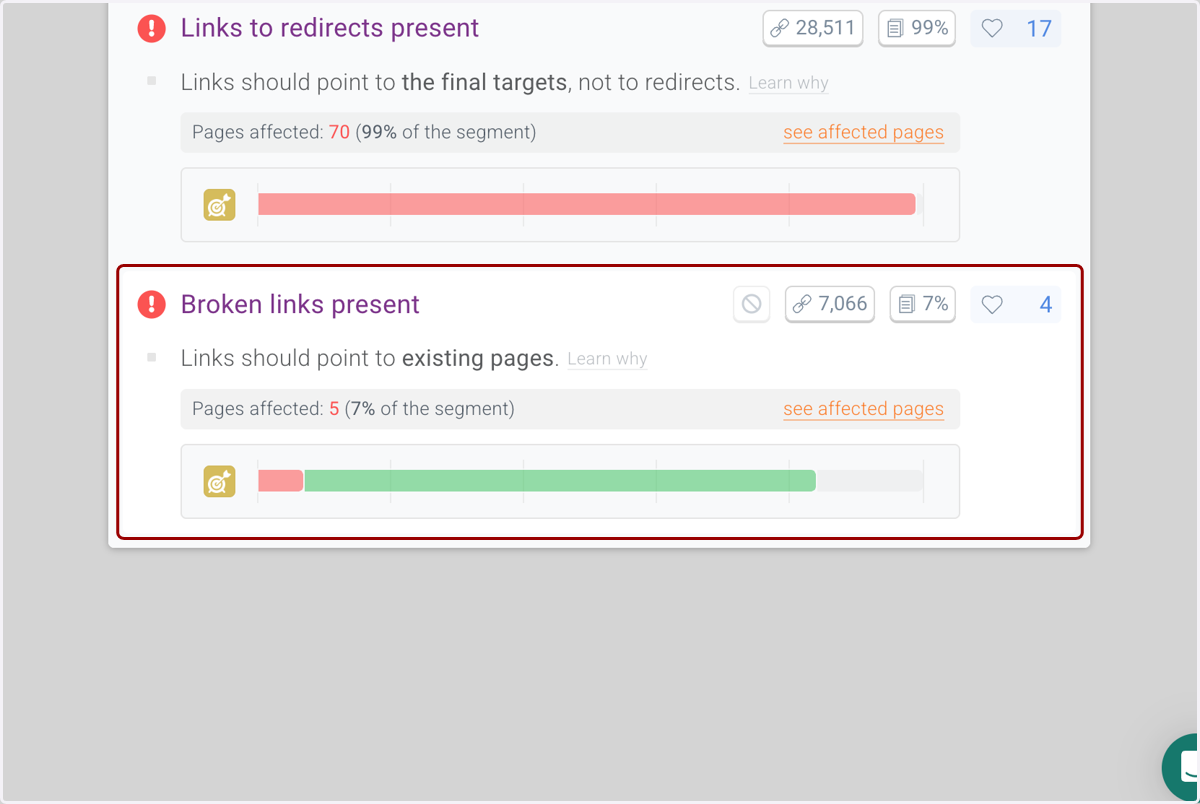
13. Find the Broken links present section…
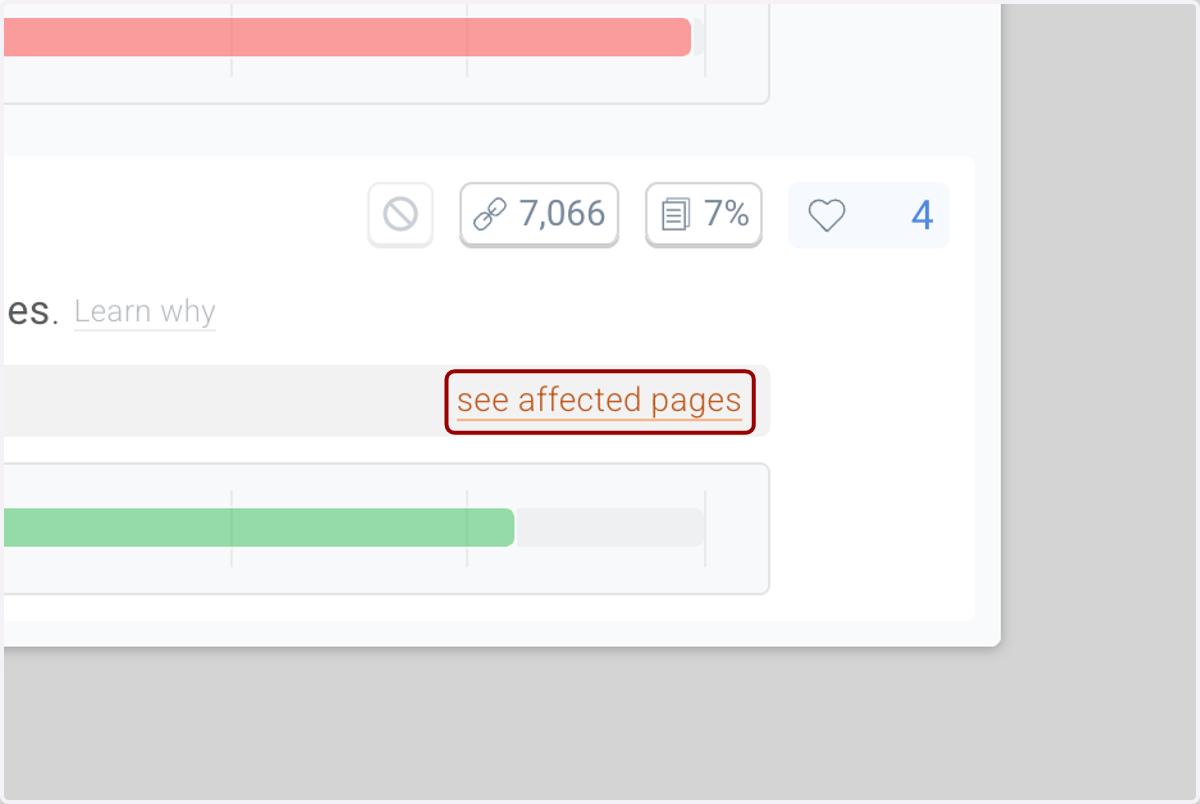
14. ...and click on "see affected pages."
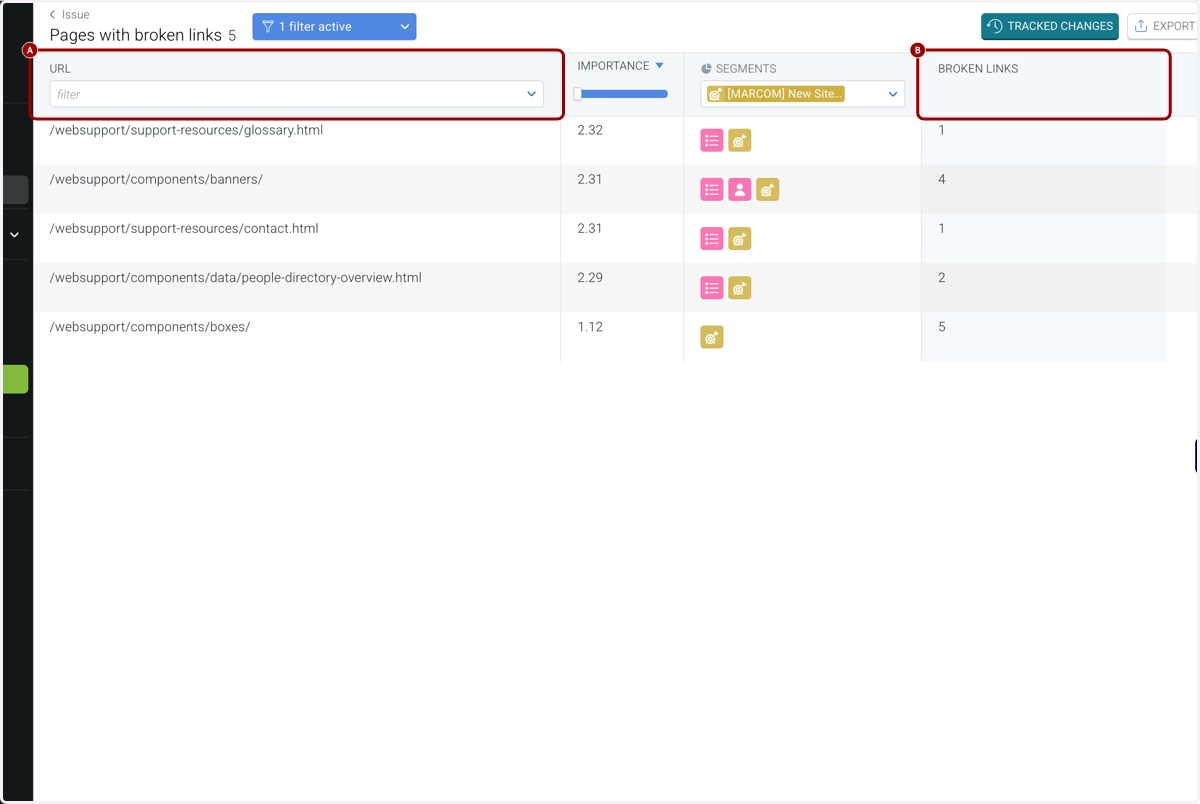
15. A. This will lead you to a view of your site segment's pages by URL...
15. B. ...and how many Broken Links each of those pages has.
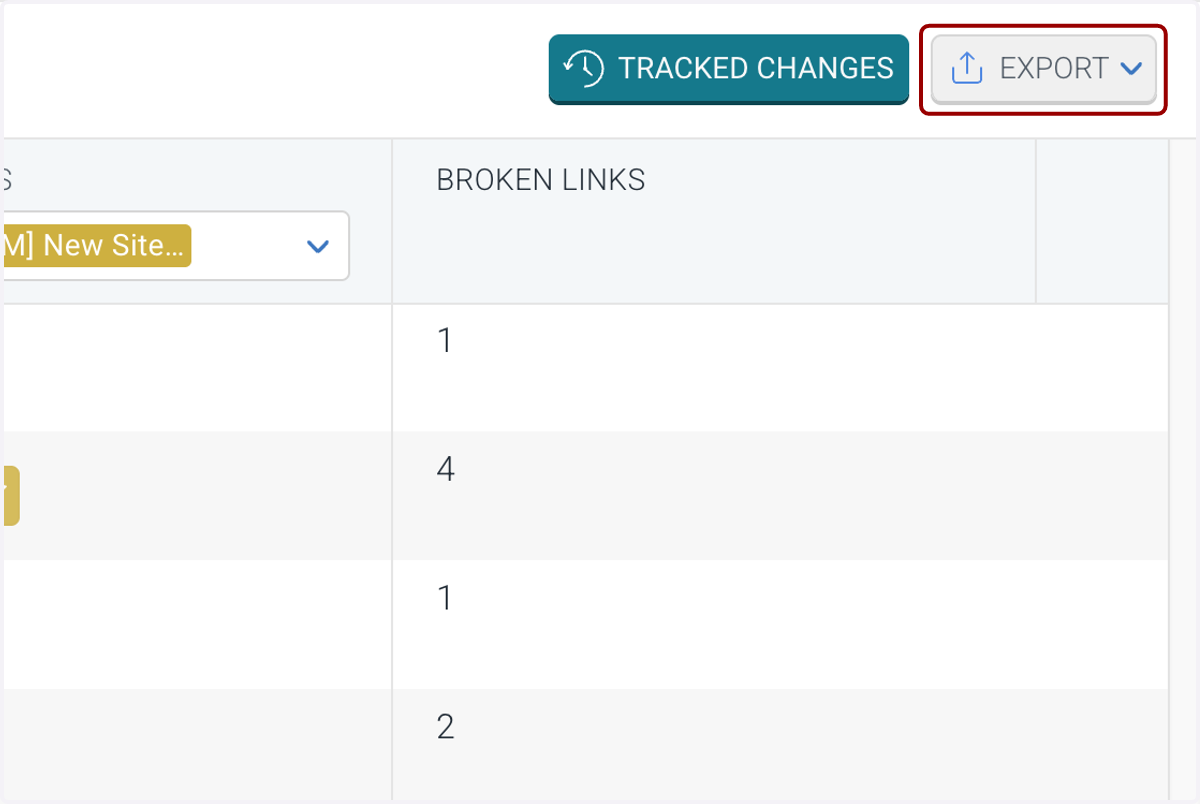
16. For more details, click on EXPORT
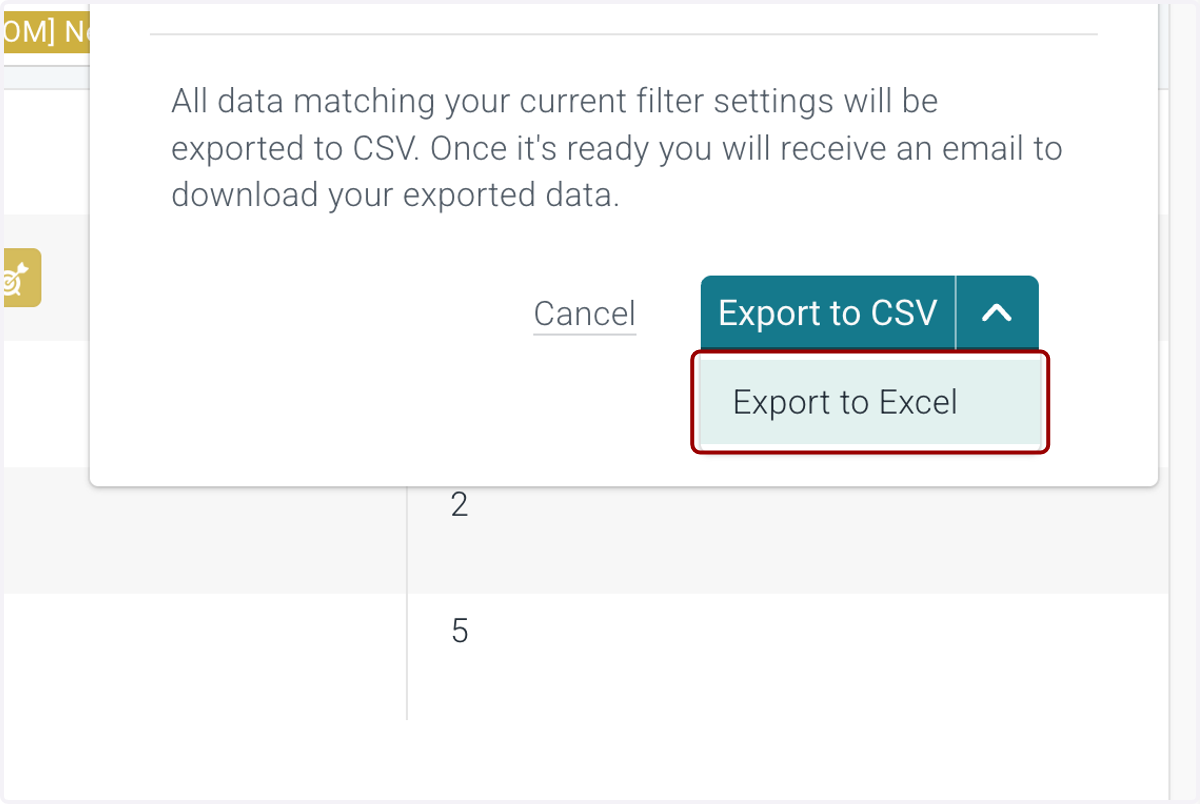
17. You can export by CSV for Excel file.
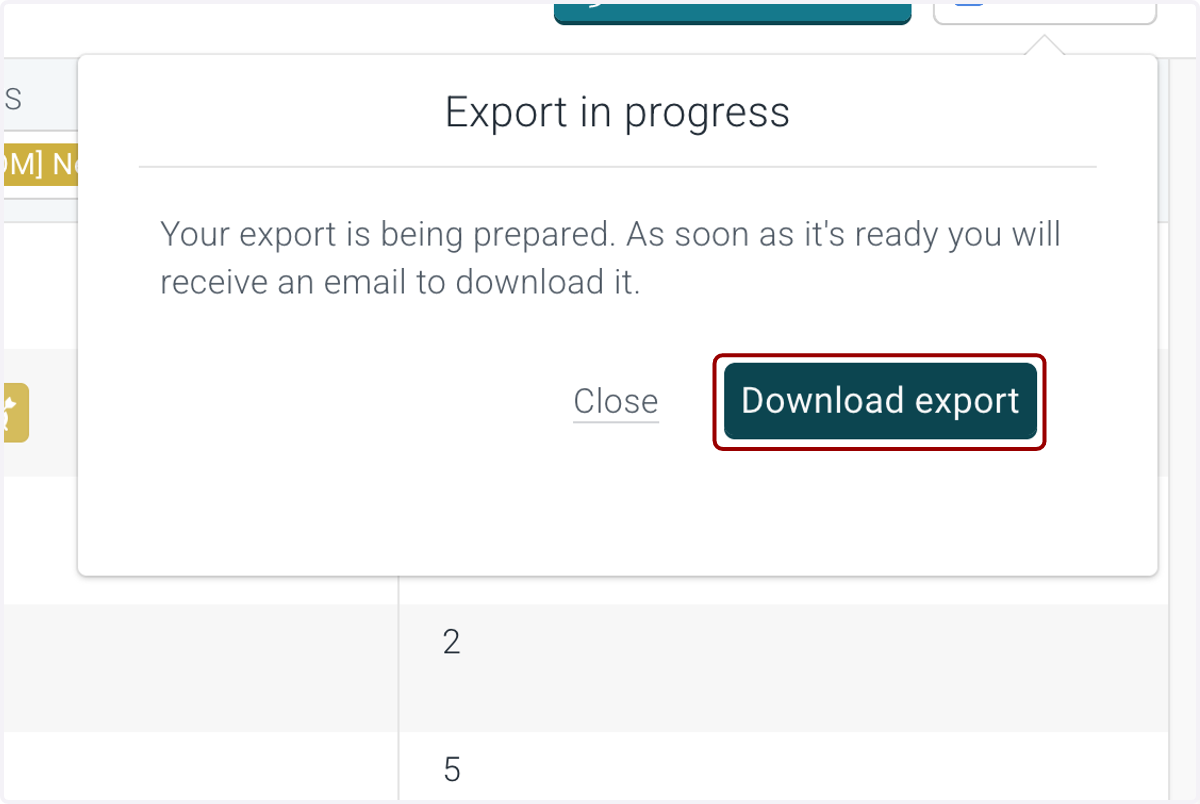
18. Click on Download export.
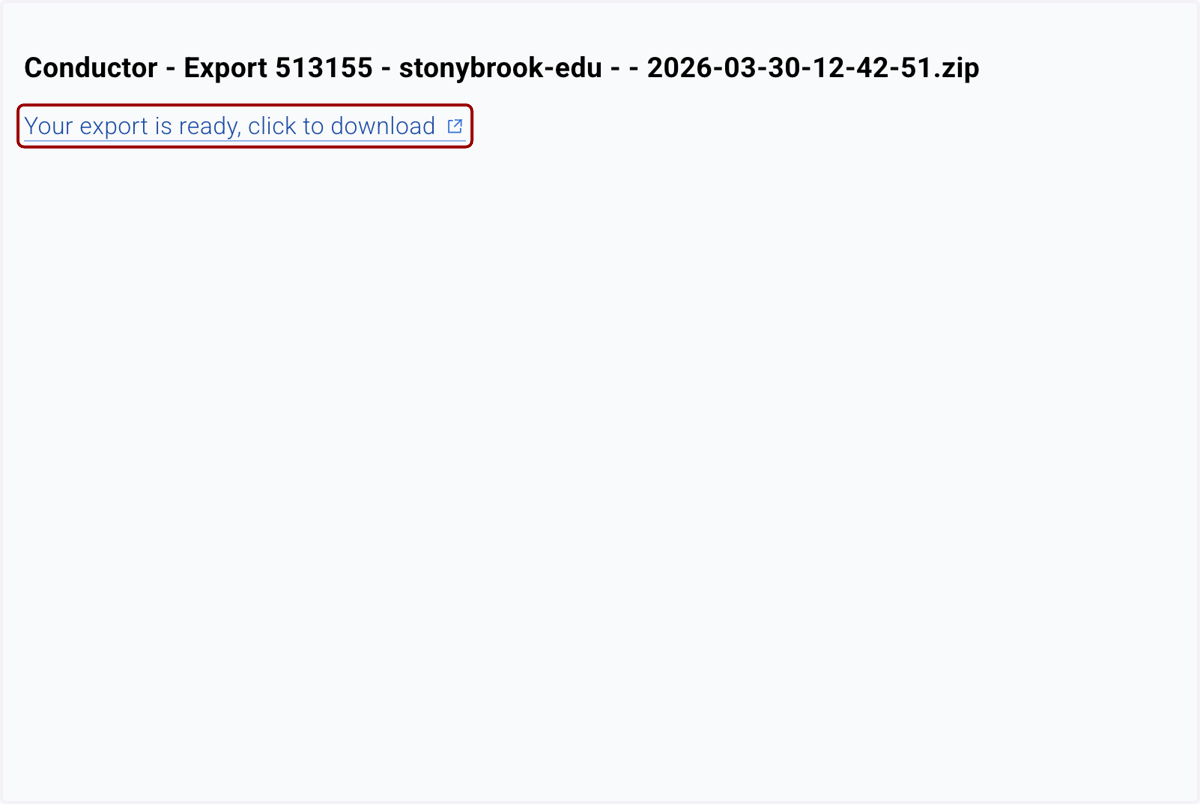
19. Click on Your export is ready, click to download.
20. You will be given a more detailed report. Continue with our help guide article for further instructions.