BVMP: Checkout
Search Products: Brightview
1. Once all items are added to your cart, select Checkout

2. Select the location.
Note: you will only be able to access the locations applicable to your role.
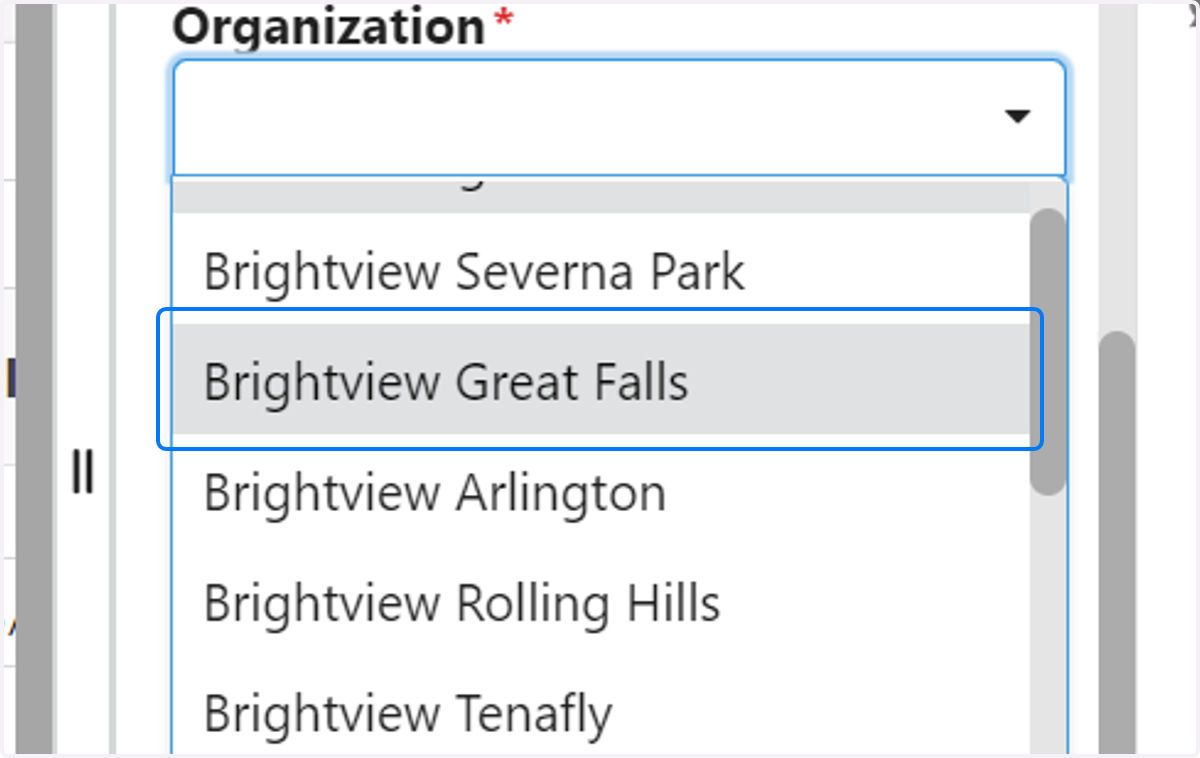
3. Select the Cost Center
Note: You will only have access to the Cost Centers applicable to your role.

4. Click on Continue
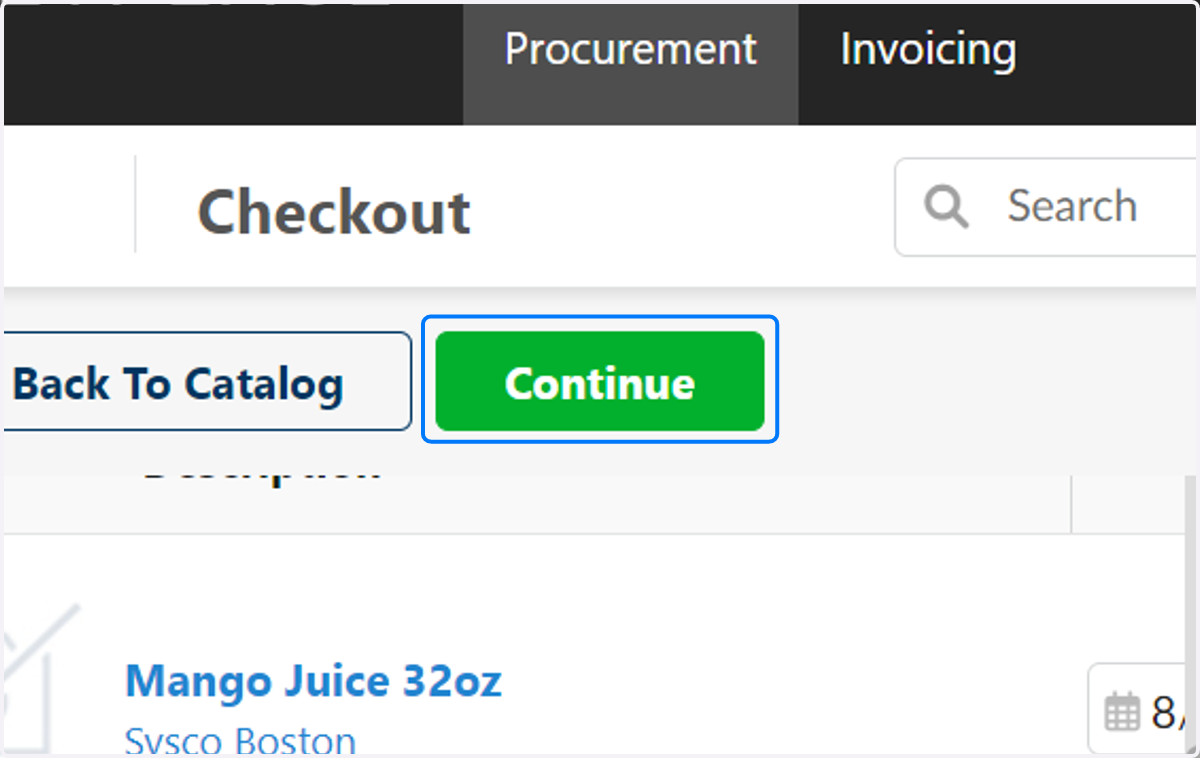
5. Scroll down to Add/Update accounts. Under "I want to bulk edit" click on Update all accounts.

6. Use the drop down to select a Commodity. Only commodities related to your ordered items will populate.

7. Select the GL Code for the Commodity.
Note: only GL Codes applicable to your role will populate

8. Click on Save. Go through the Add/Update account steps for each Commodity.
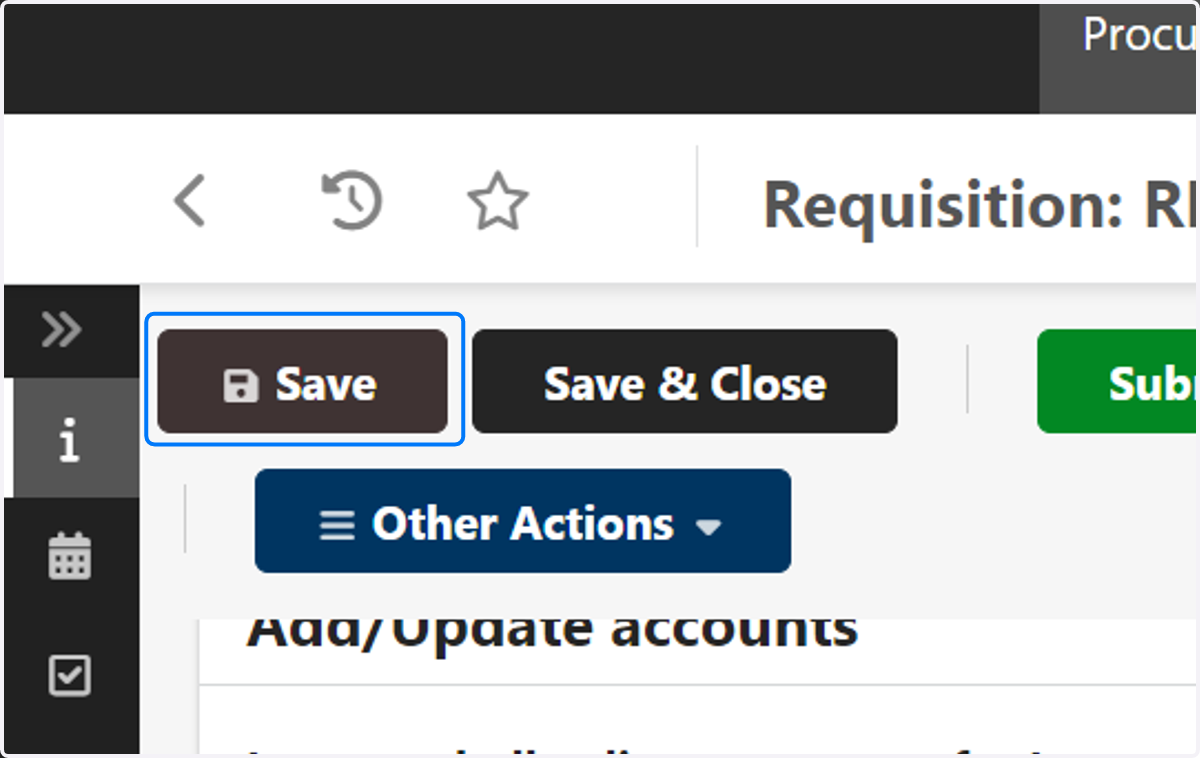
9. Click on Save after each GL Code is selected.

10. Click on Submit for Approval. You did it!!
