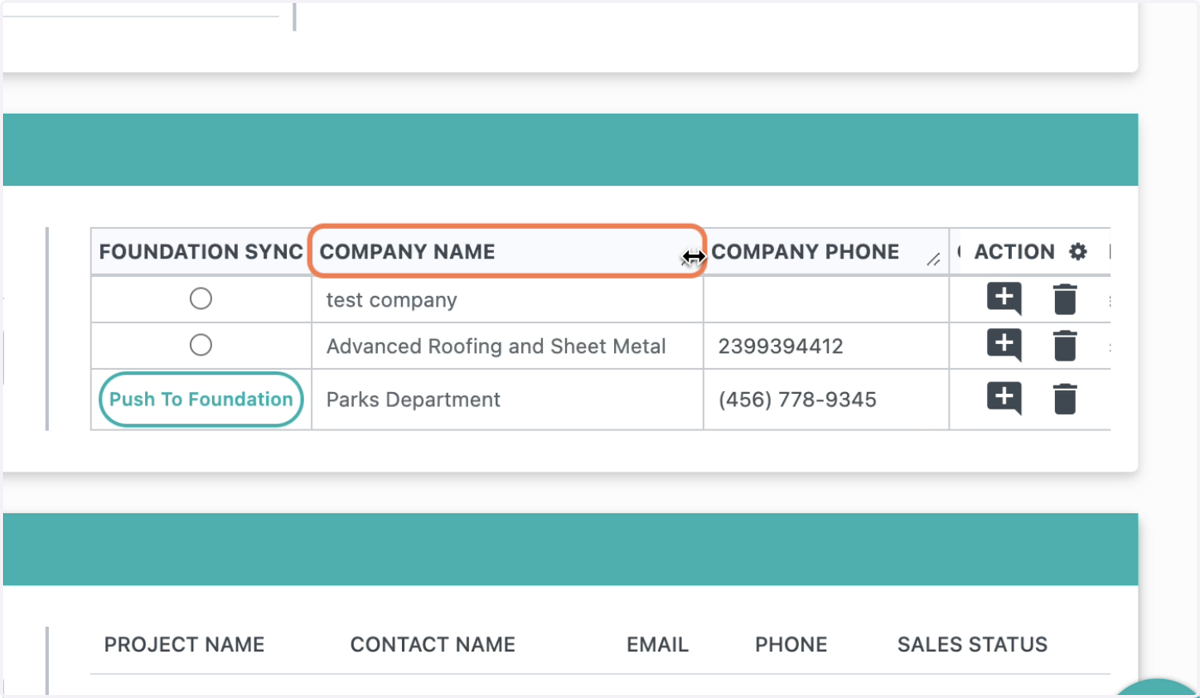
Company Information Section Overview
1. Navigate to a project and scroll down to the Company Information section.
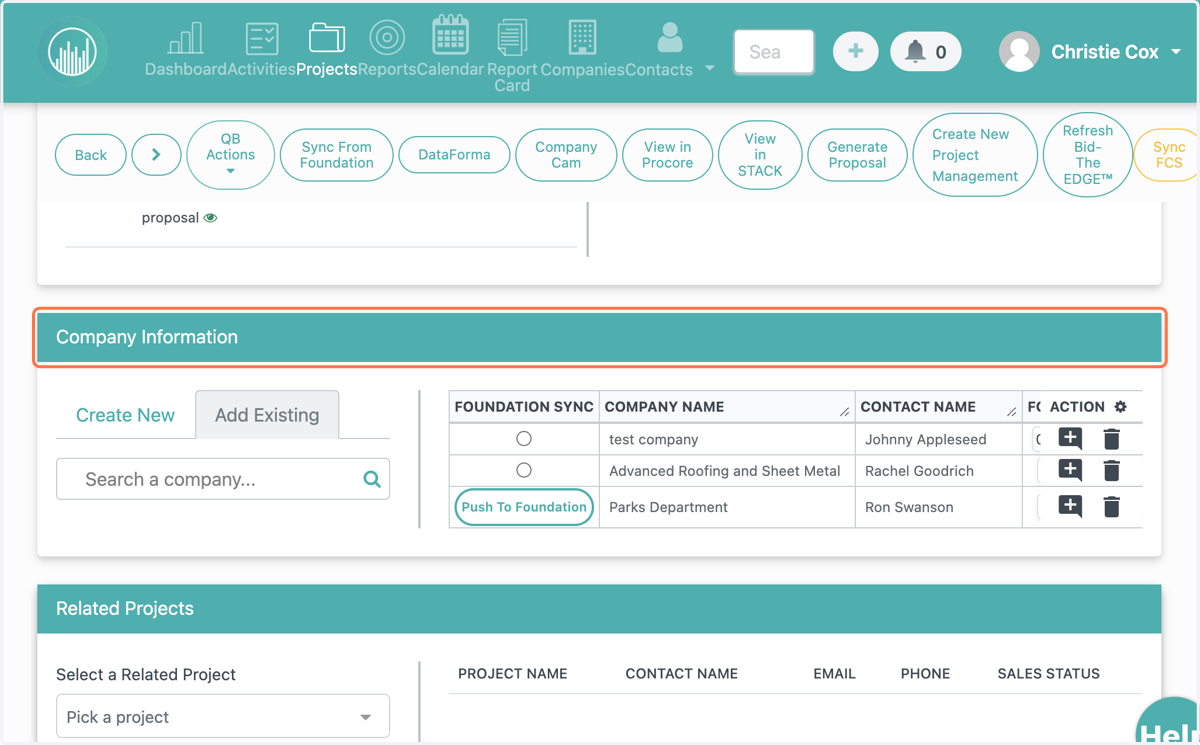
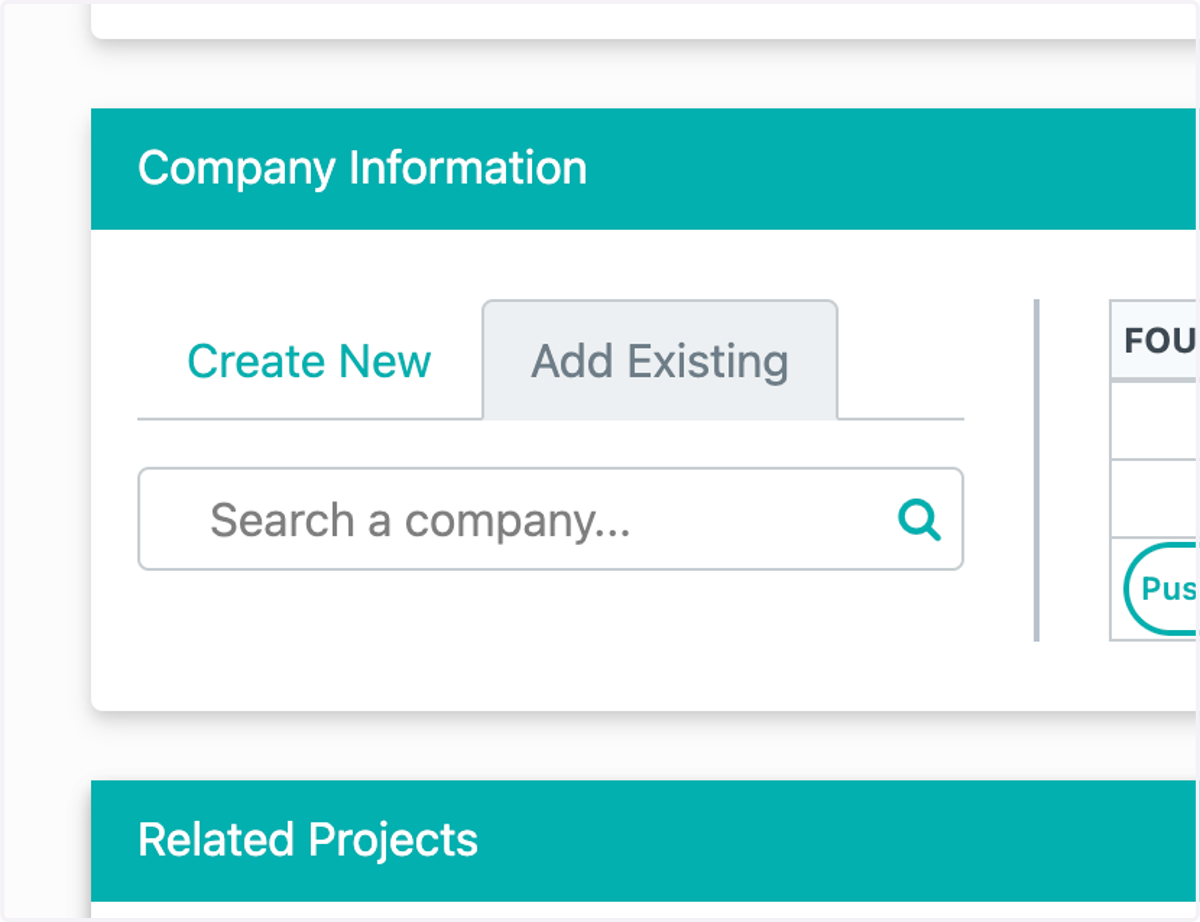
2. You'll see that there are now two tabs on the left for creating a new company or adding an existing company to the project.
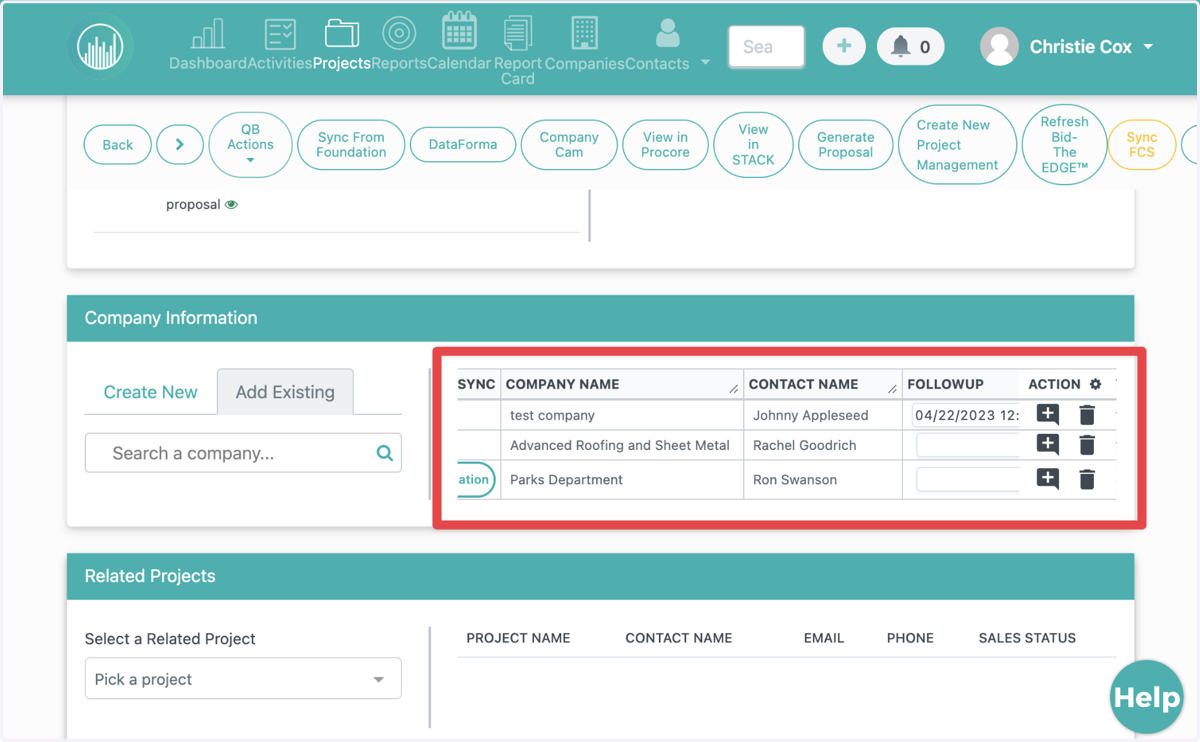
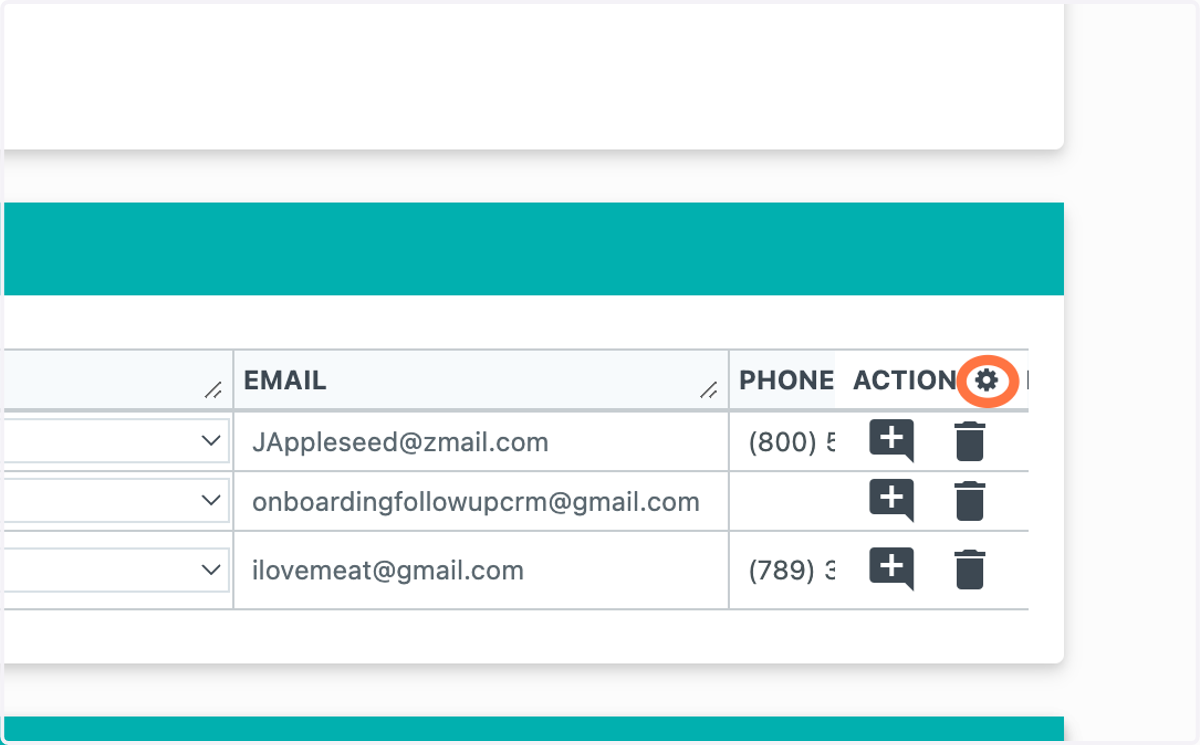
3. You'll notice you can scroll to the right within the table and the Action box will remain fixed in place.
4. Click the Icon gear in the Action box to customize which columns you would like to see in the table.
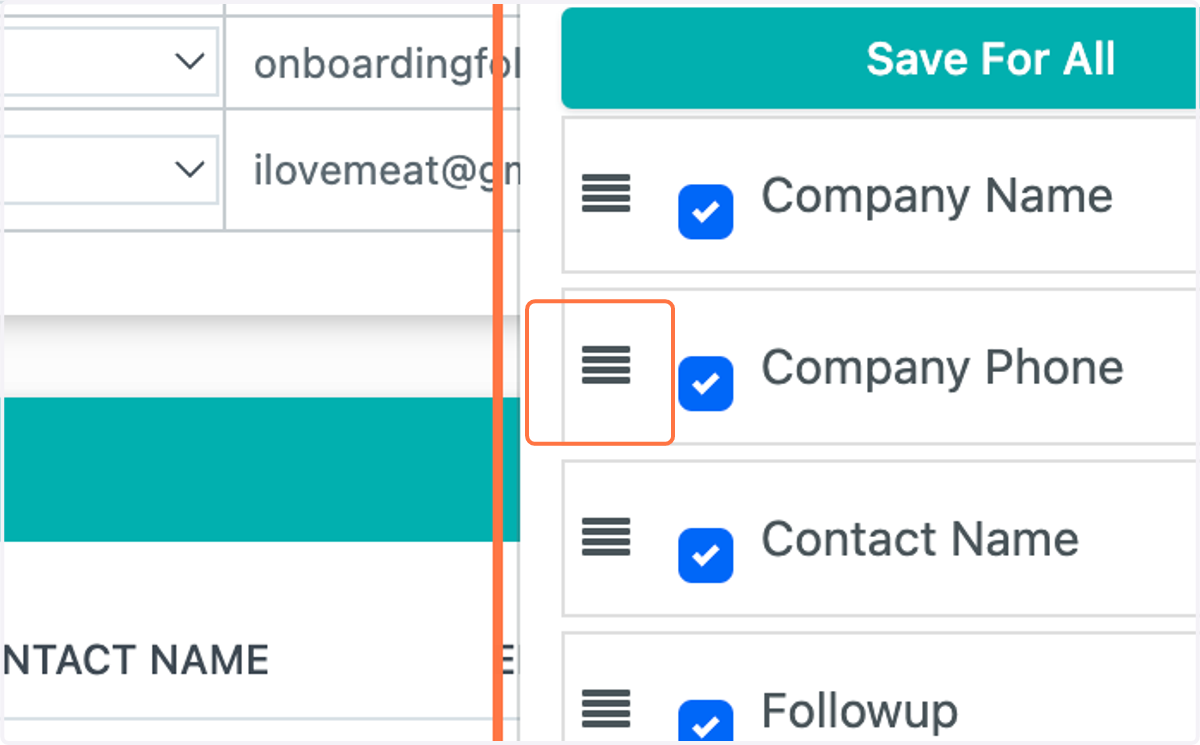
5. Click the three lines to drag and reorganize the order.
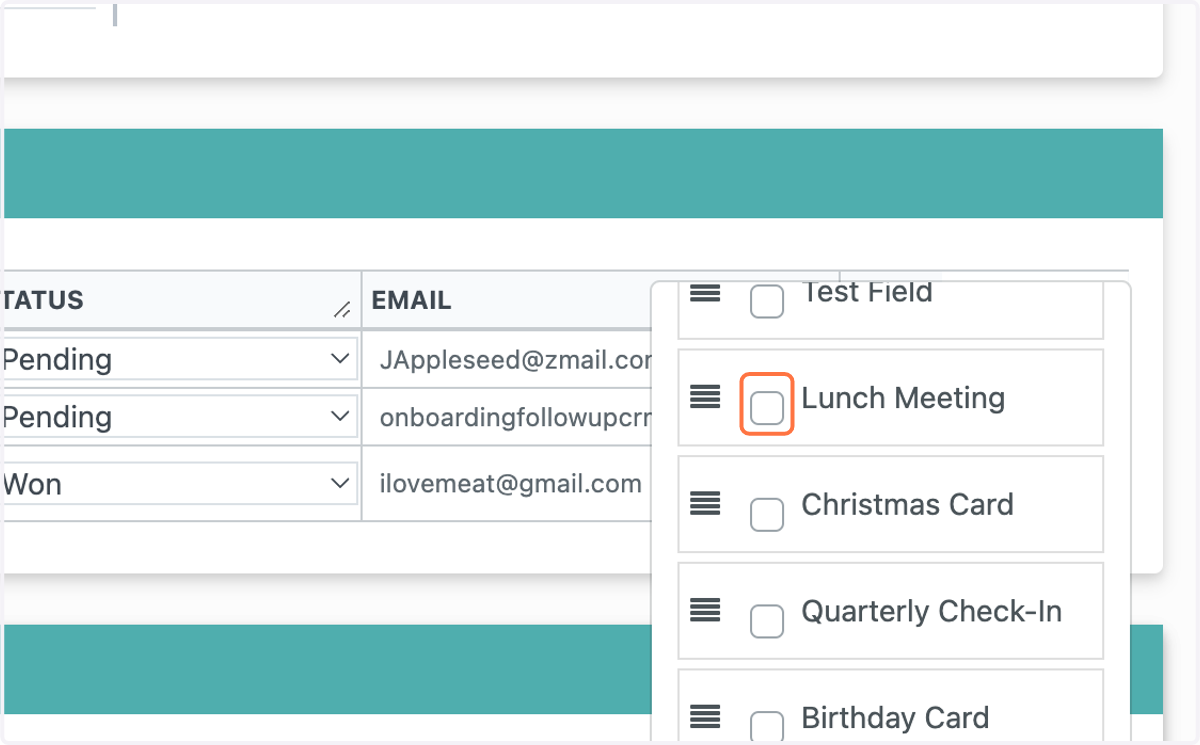
6. Uncheck any boxes you do not wish to see on the table.
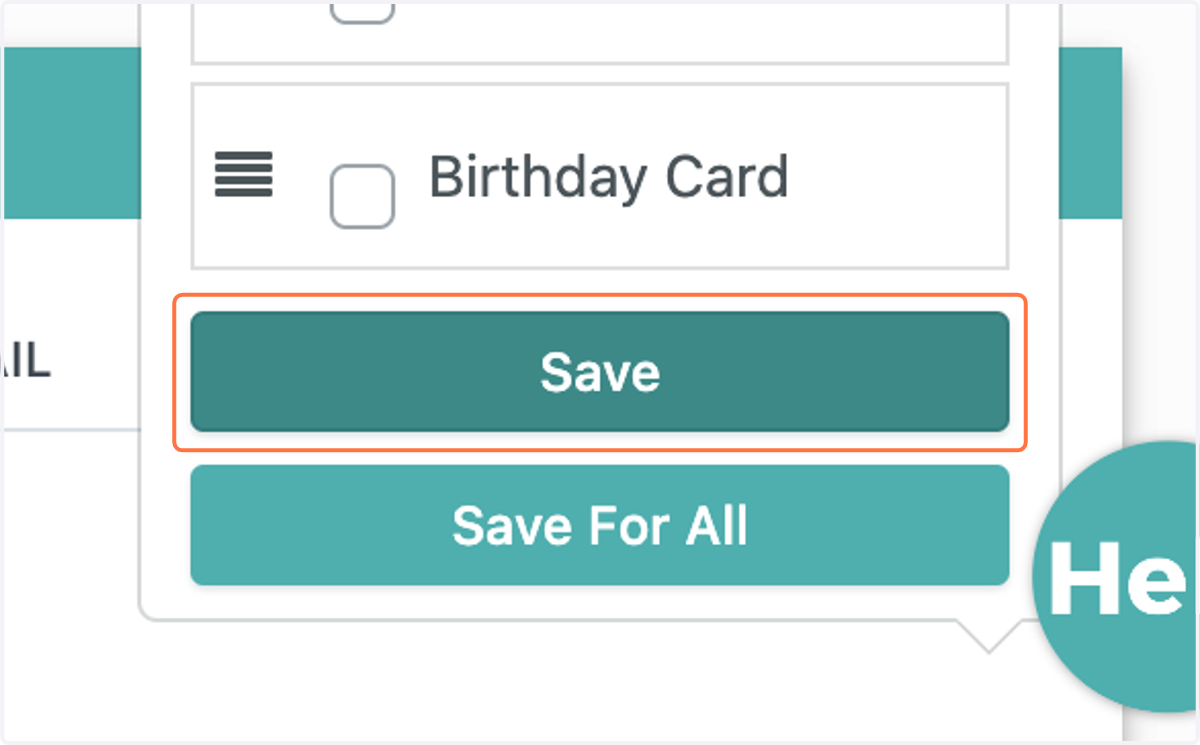
7. Click on "Save" to save the view for this project only, and click "Save For All" to save as a default view for your entire team.
8. Click and drag the hashmarks on the right side of the column headings to resize the view.