Create Title VI Ad Hoc
Use the steps below to create a local Title VI Ad Hoc.
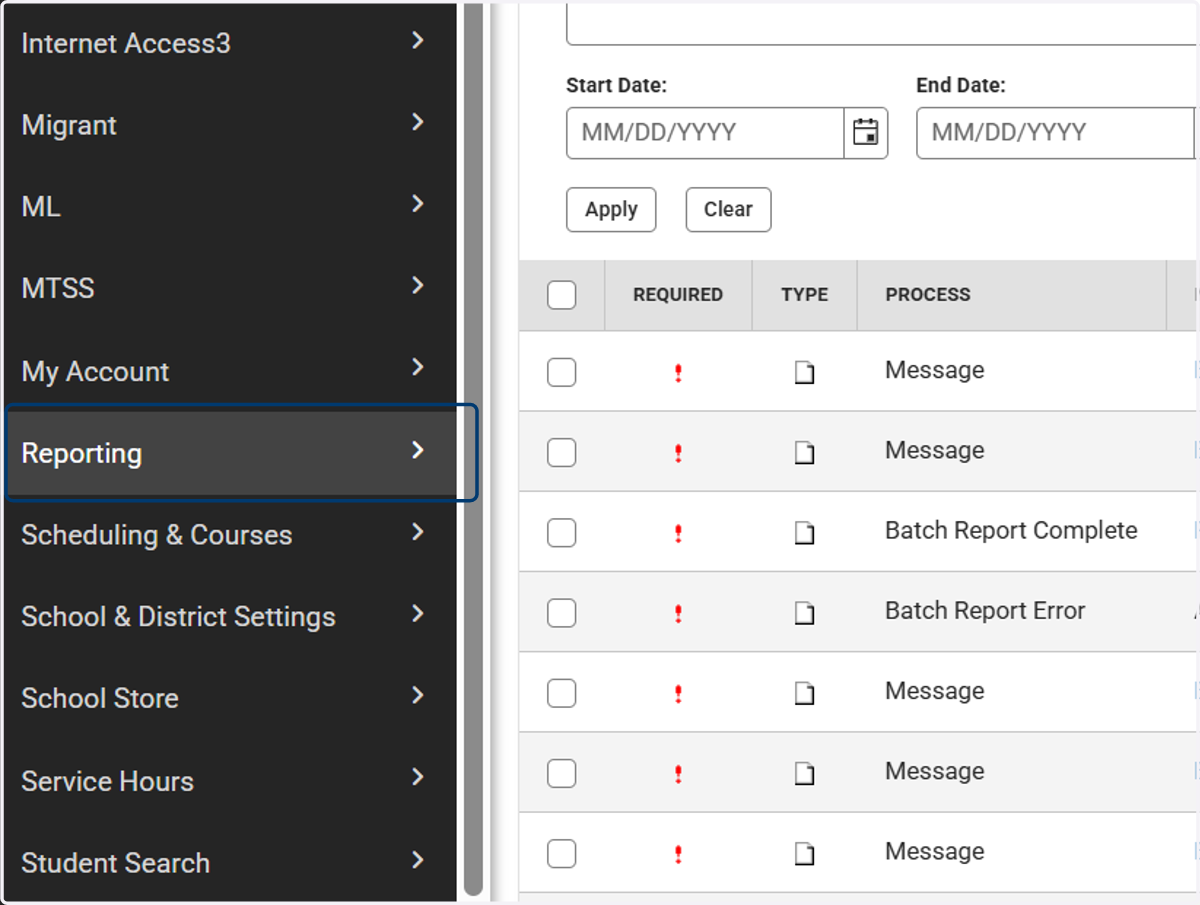
1. Navigate to Reporting
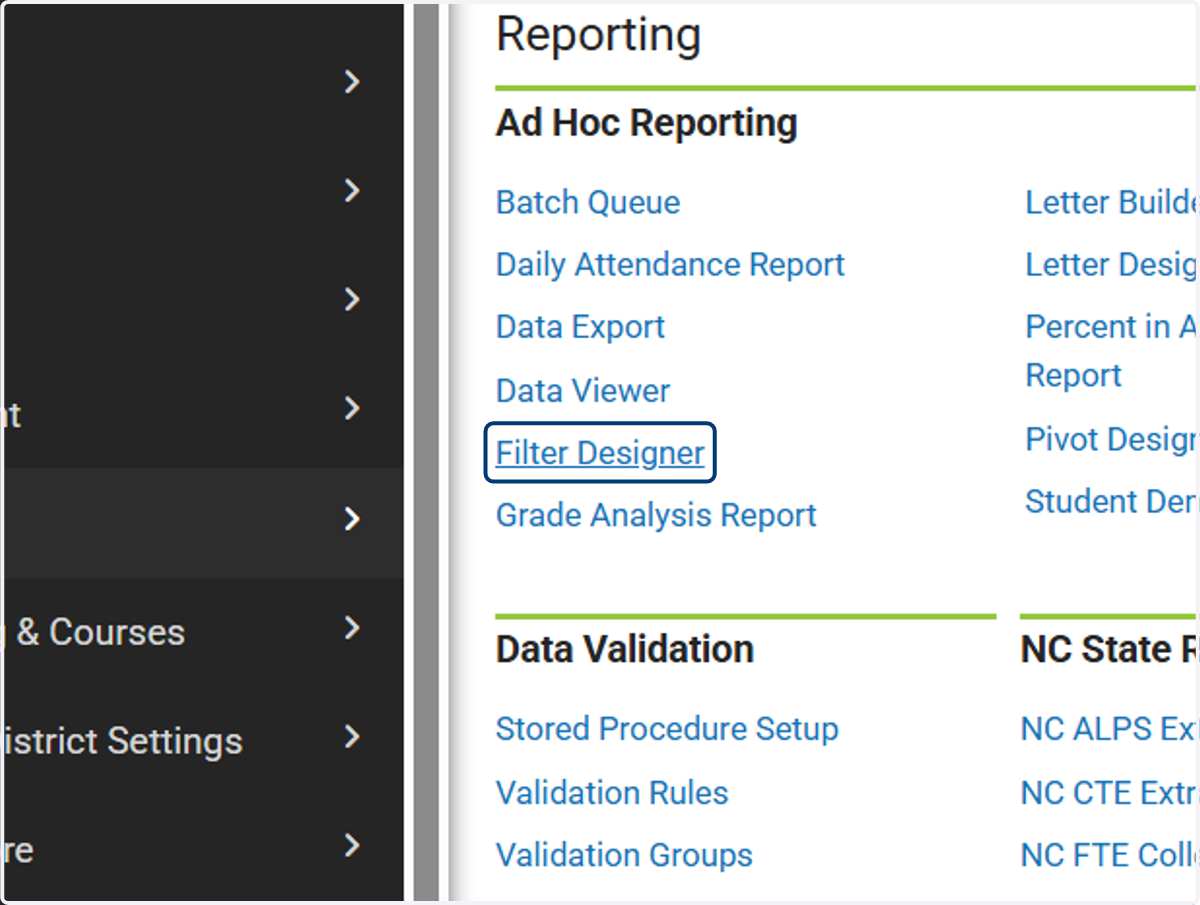
2. Click on Filter Designer
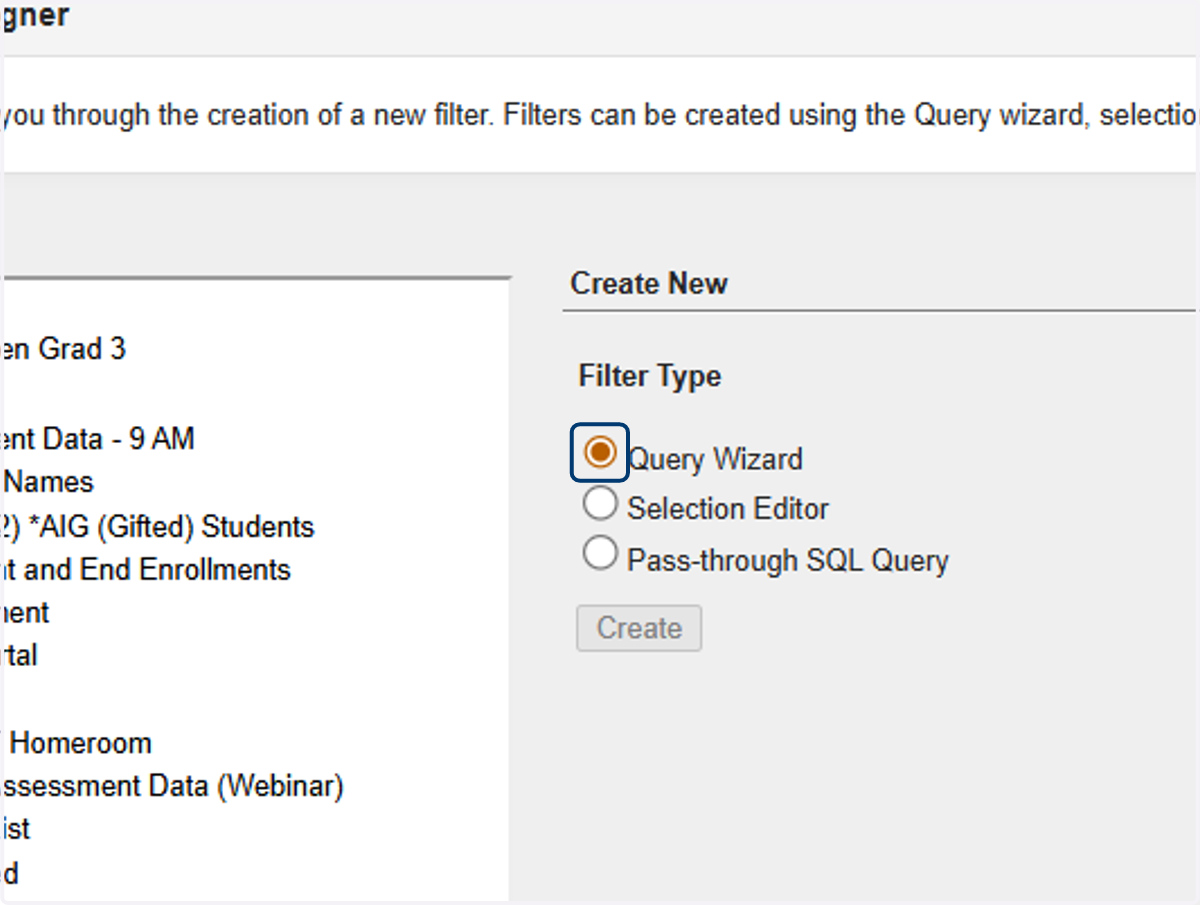
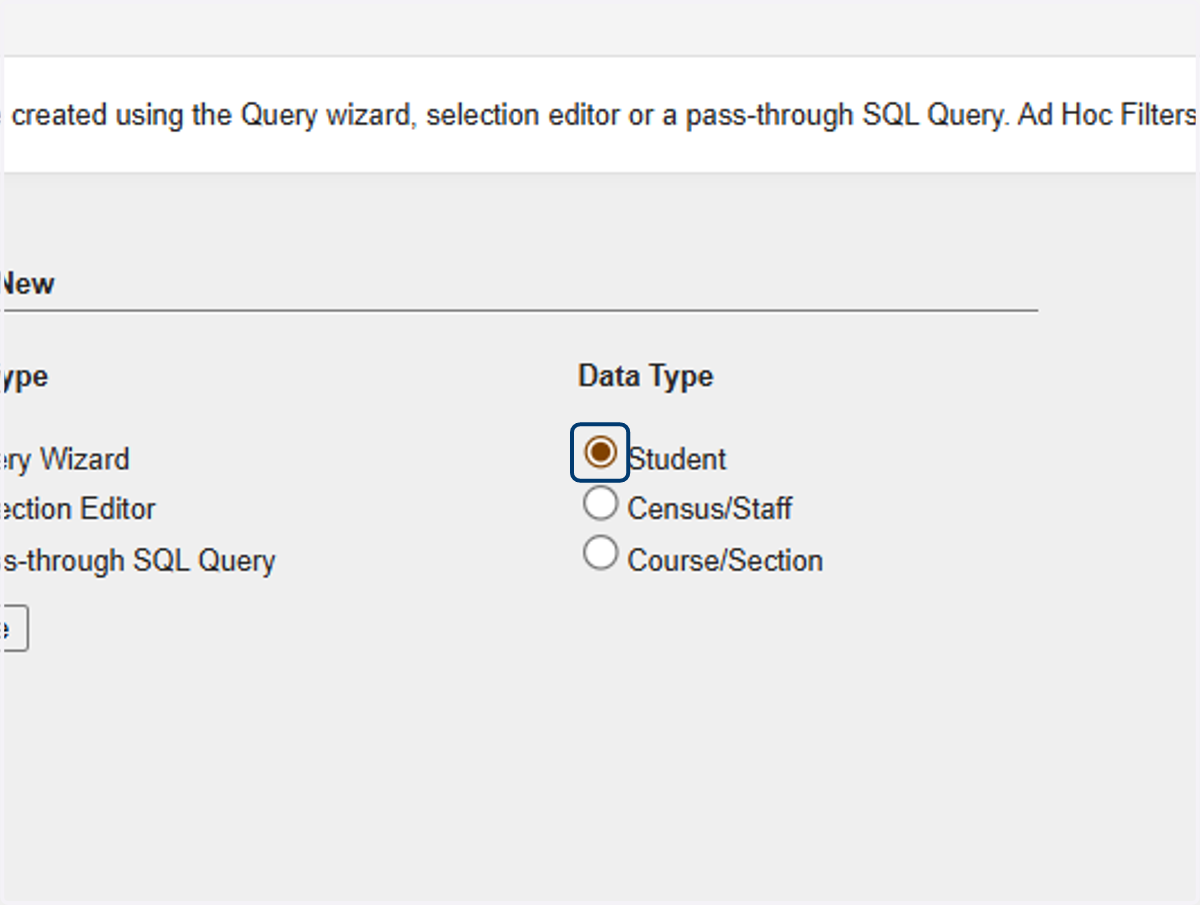
3. In the Create New section, select Query Wizard as the filter Type.
4. Select Student as the Data Type.
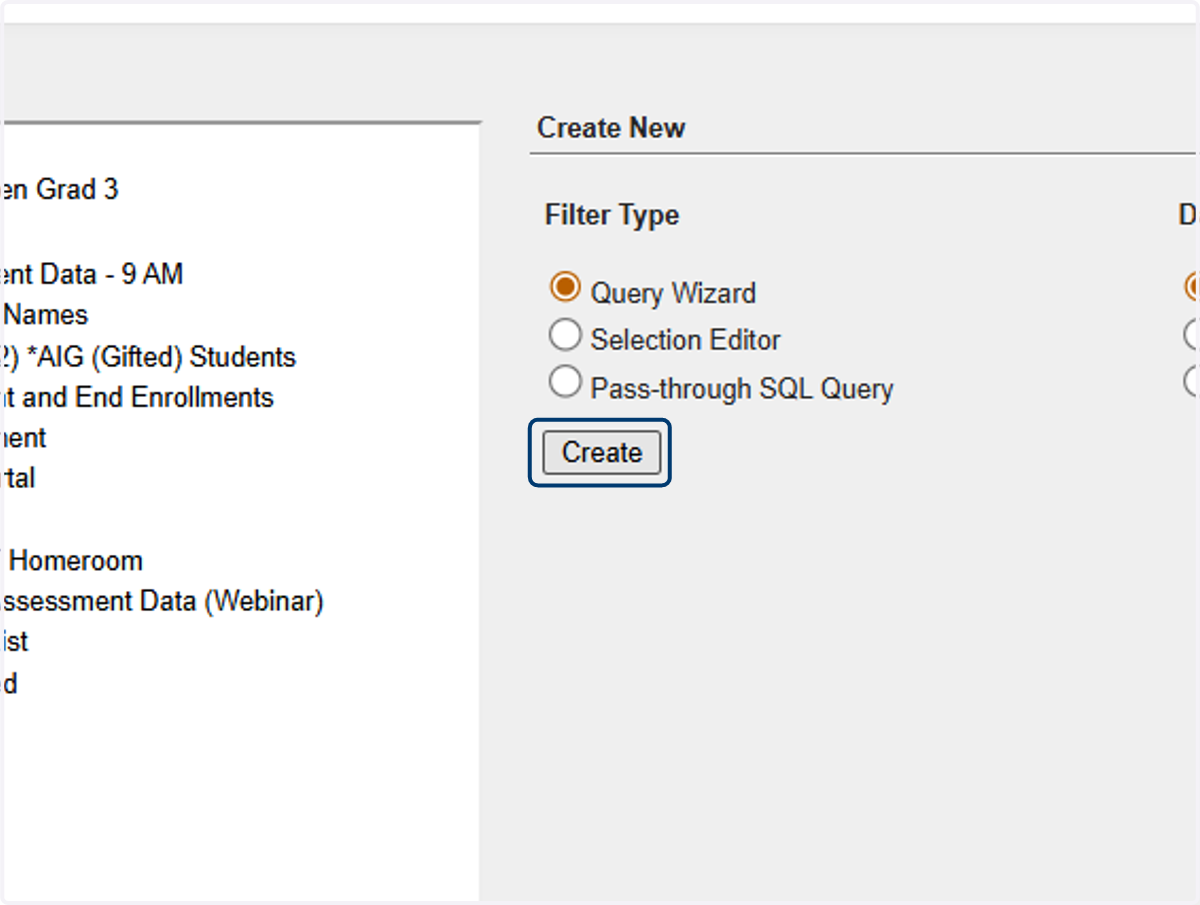
5. Click on Create.
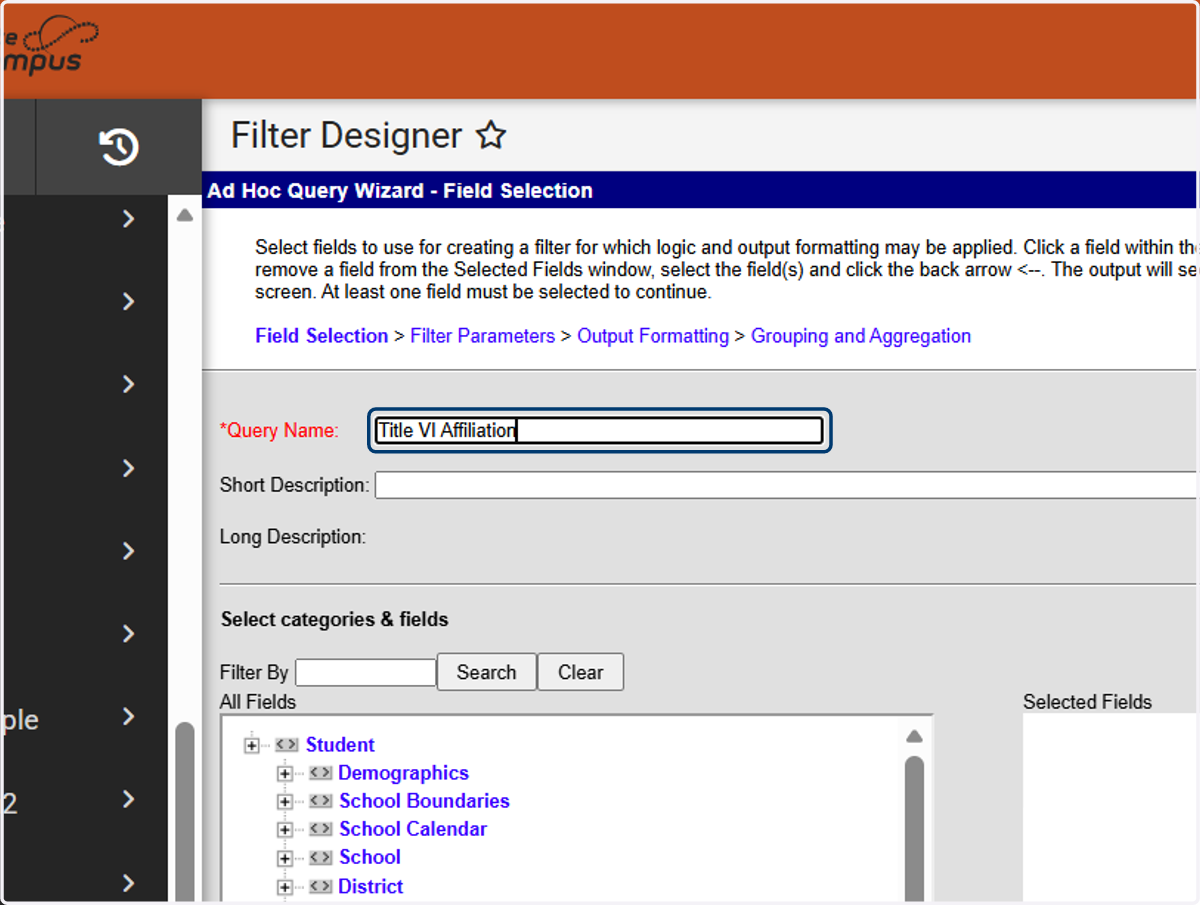
6. Add a Query Name. In the example "Title VI Affiliation" was used.
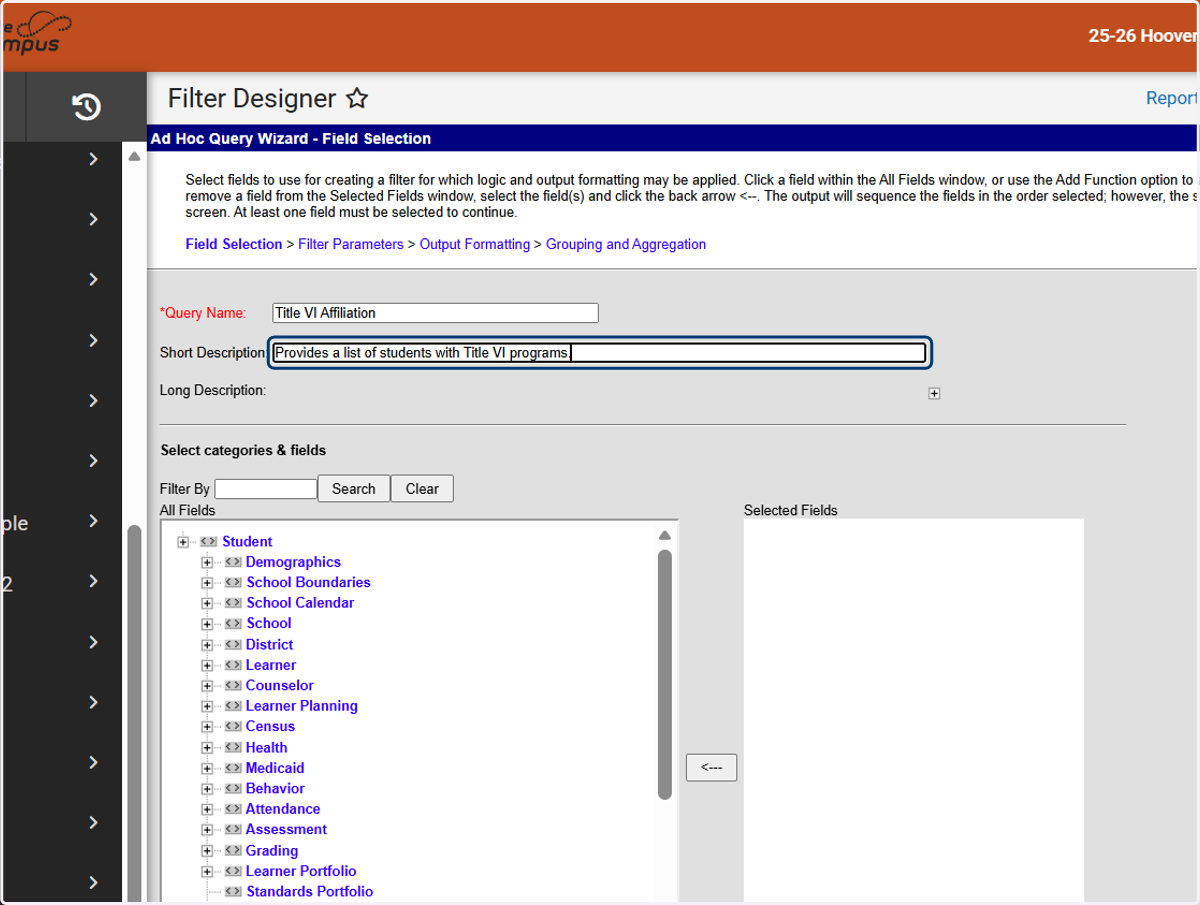
7. Enter a short description to help users know what data is contained in the filter.
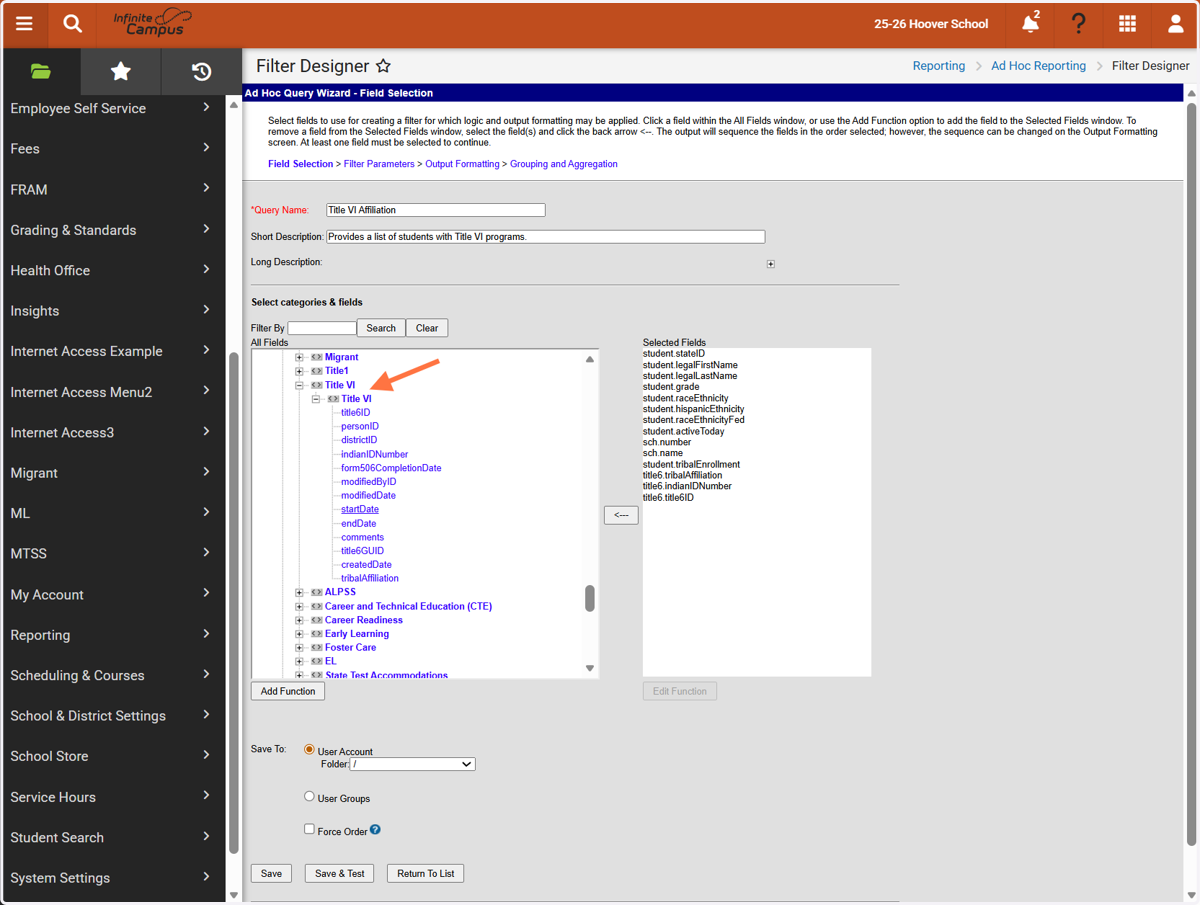
8. Select the fields to add. More fields can be added as needed.
Fields to Include:
Student > Demographics >StateID
Student > Demographics > legalFirstName
Student > Demographics > legalLastName
Student > Demographics > grade
Student > Demographics > raceEthnicity
Student > Demographics > hispanicEthnicity
Student > Demographics > raceEthinicityFed
Student > Demographics > activeToday
Student > School > number
Student > School > name
Student > Demographics > tribalEnrollment
Student > Learner > Title VI > tribalAffiliation
Student > Learner > Title VI > indianIDNumber
Student > Learner > Title VI> title6ID
Student > Learner > Title VI > title6startDate
9. Click on Next to navigate to Filter Parameters.
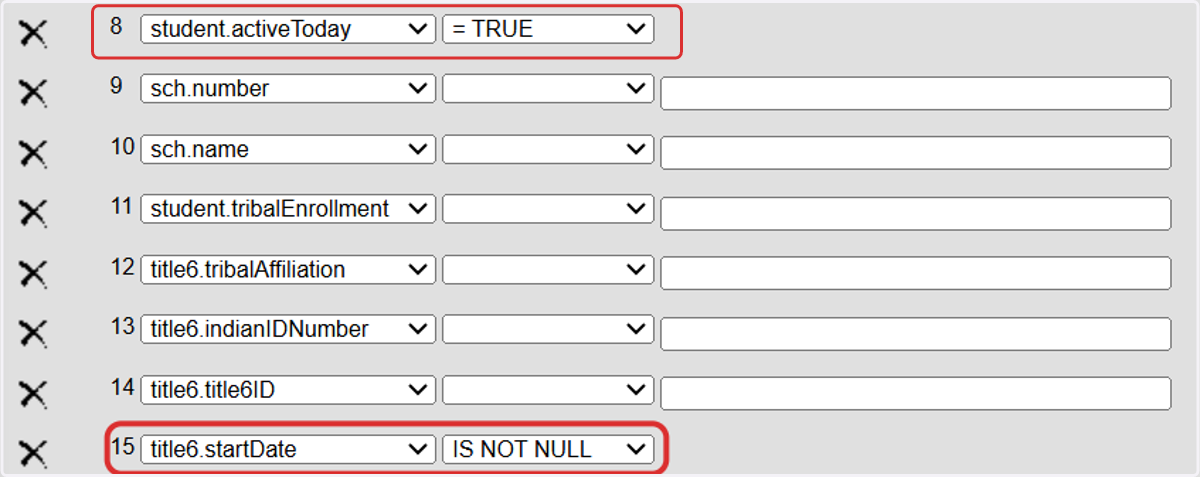
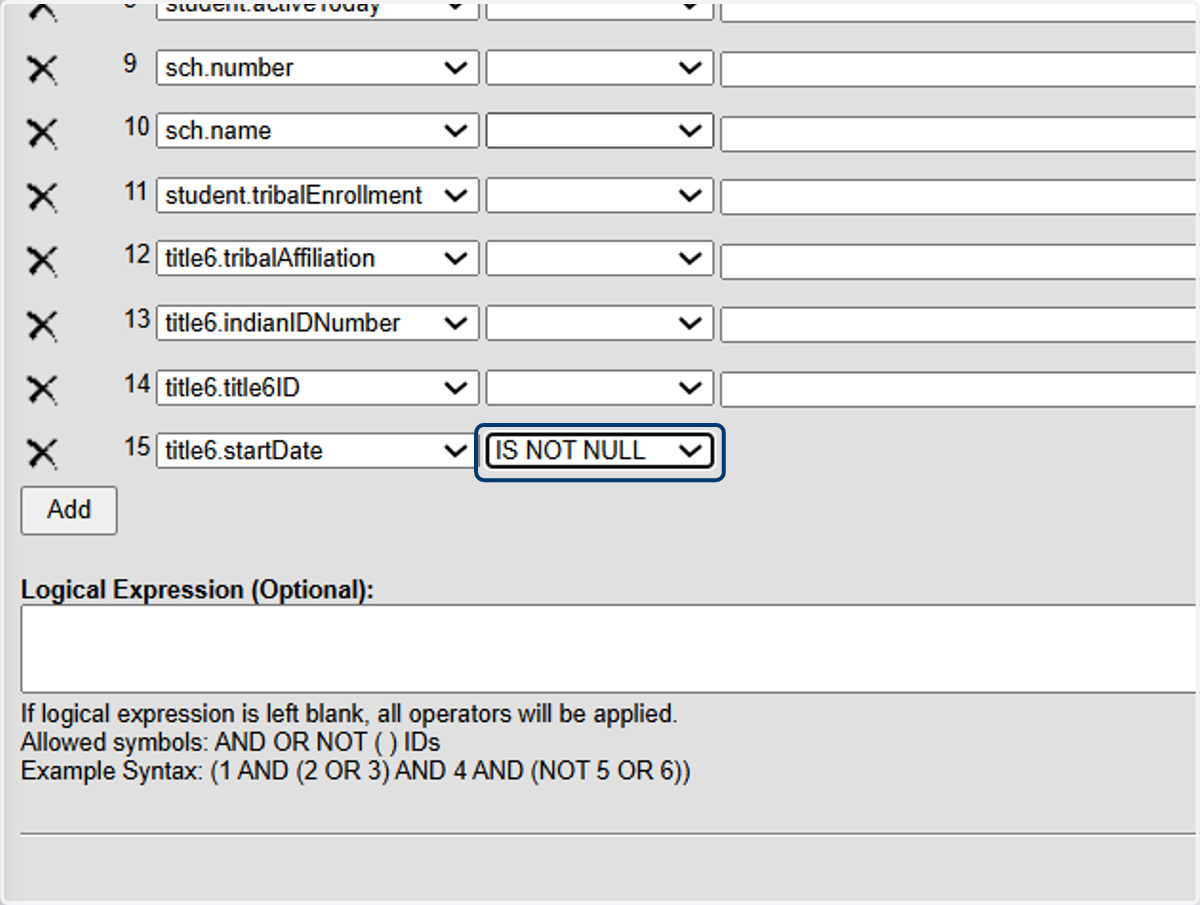
10. Locate title6.startDate and choose the Operator IS NOT NULL to return all students that have a Title VI program.
Other filters can be adjusted based on the needs of the PSU.
11. Click on Next to Navigate to Output Formatting.
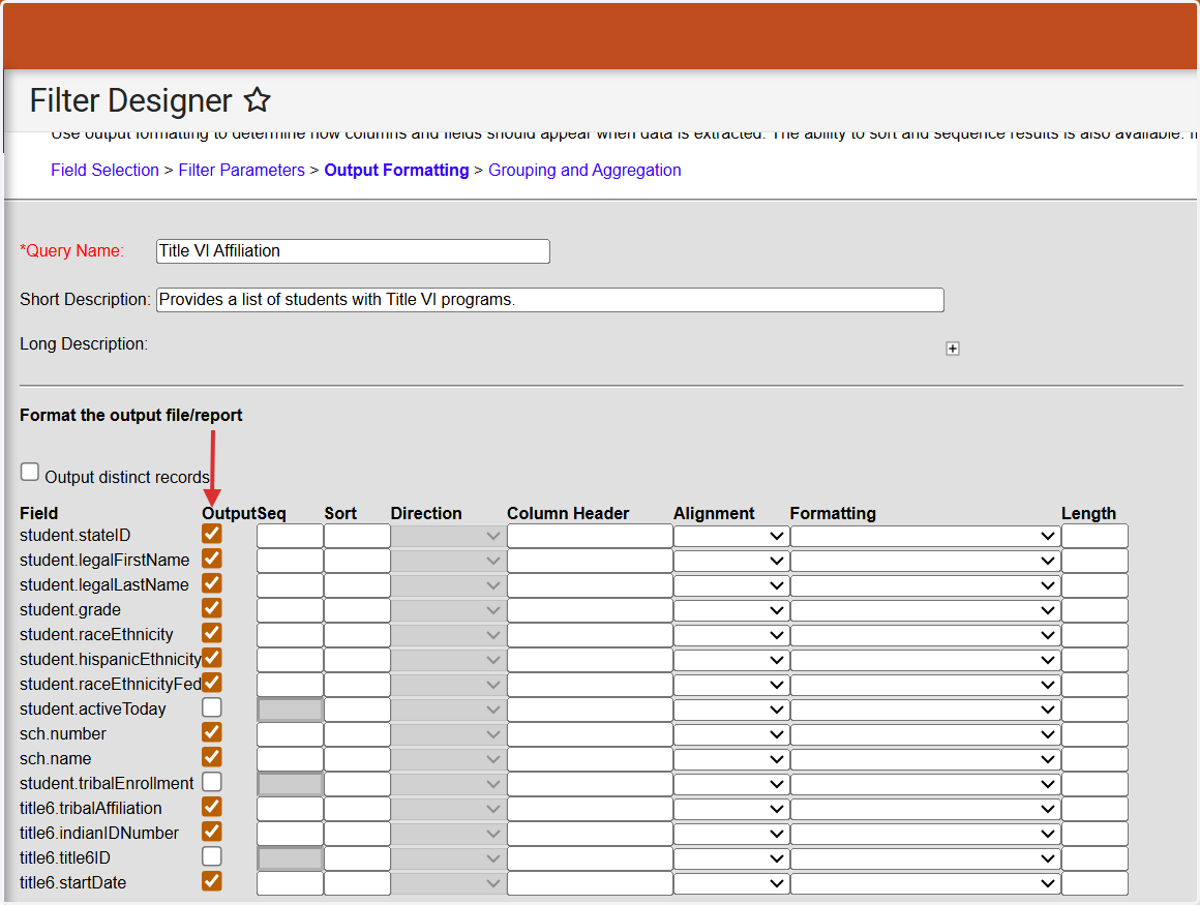
12. Uncheck the fields that should not display on the output. It is recommended to uncheck student.activeToday, student.tribalEnrollment, and title6.title6ID.
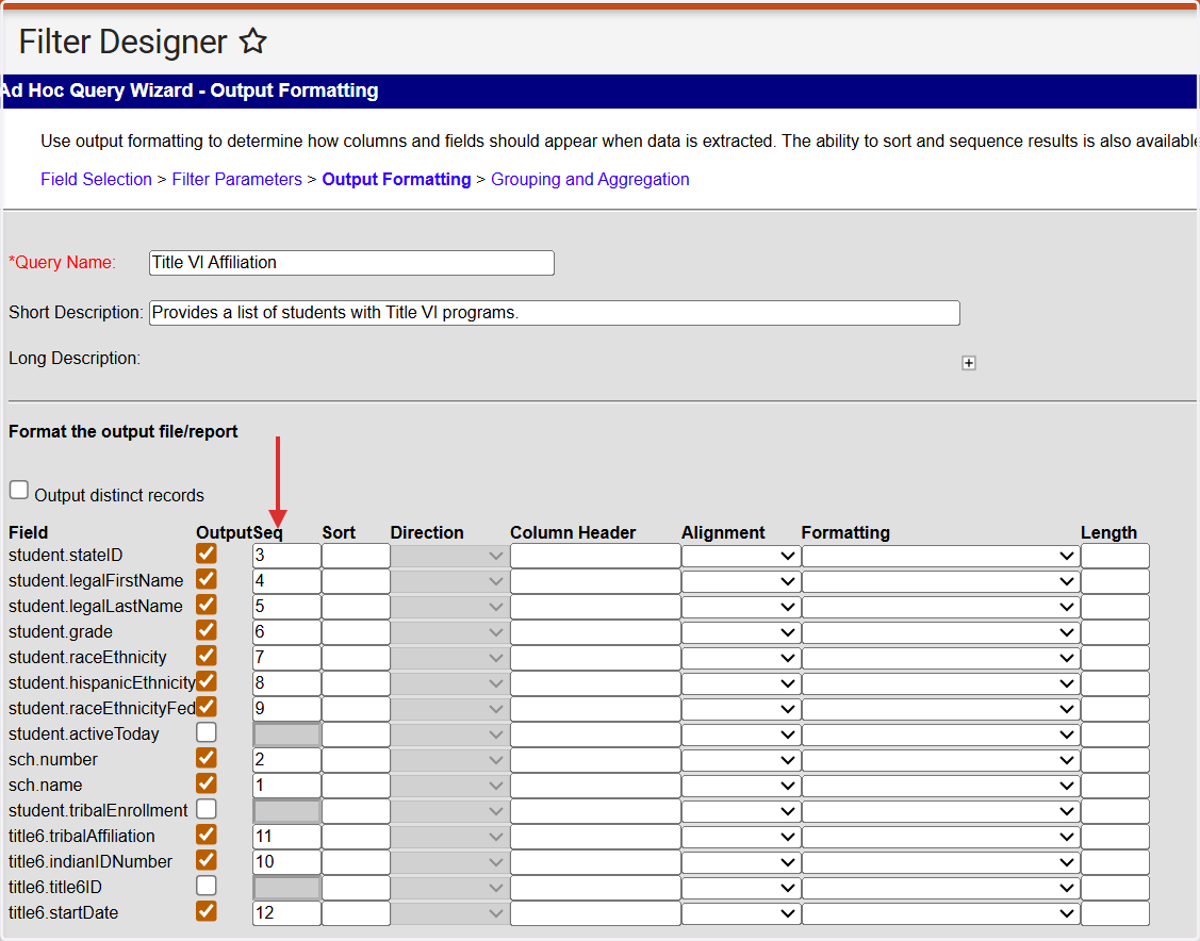
13. Add a sequence order for the fields as needed.
Sequencing may vary based on fields included in the output of the filter.
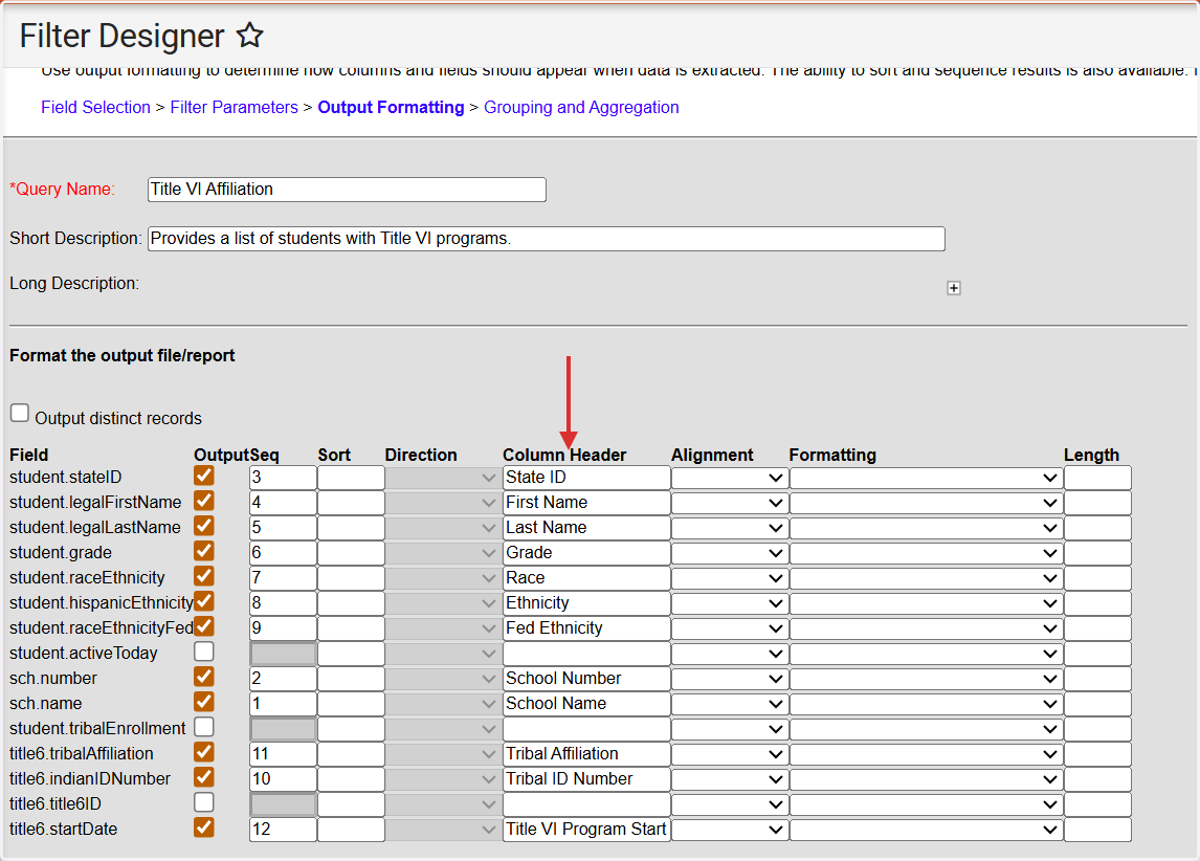
14. Add Column Headers for as needed to help user readability.
15. Click on Save & Test.
Confirm that the data in the preview matches the expectation of the filter.
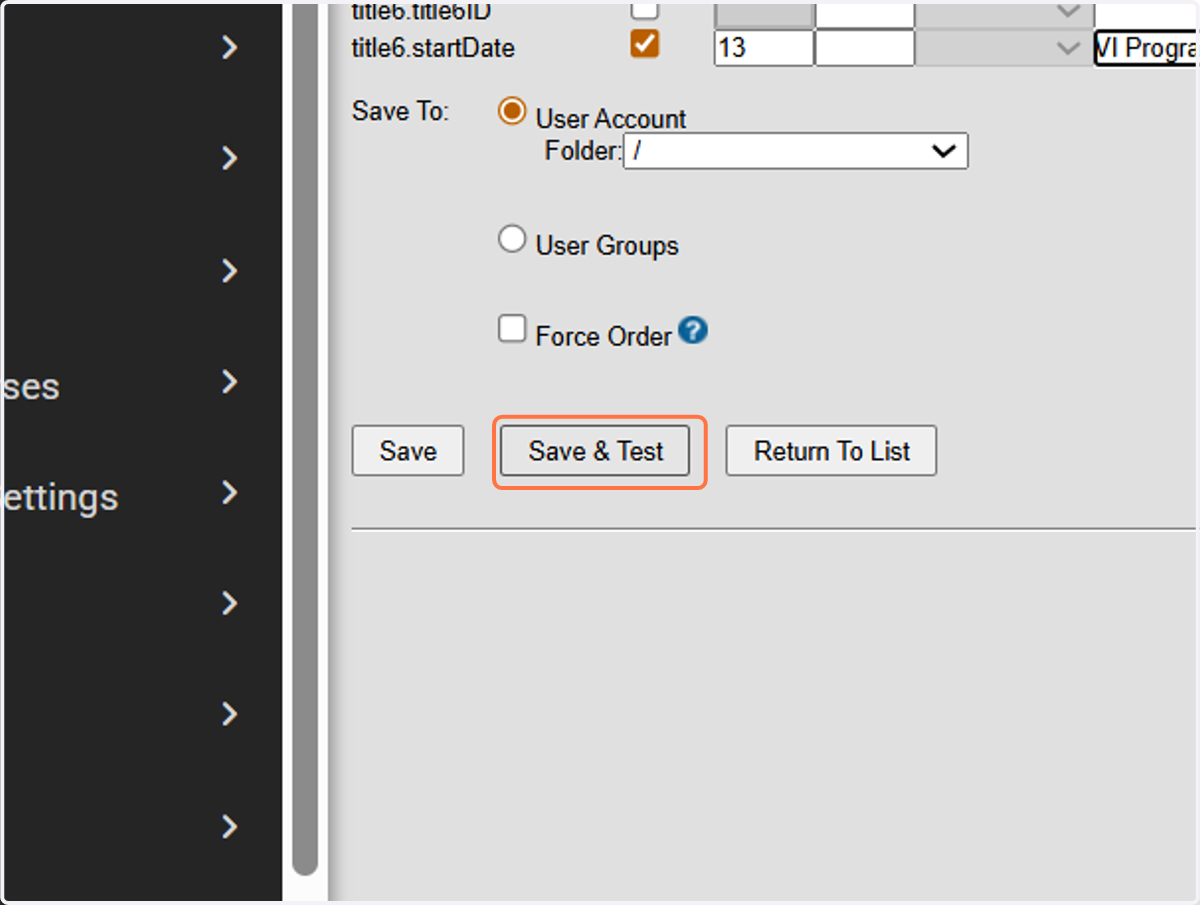
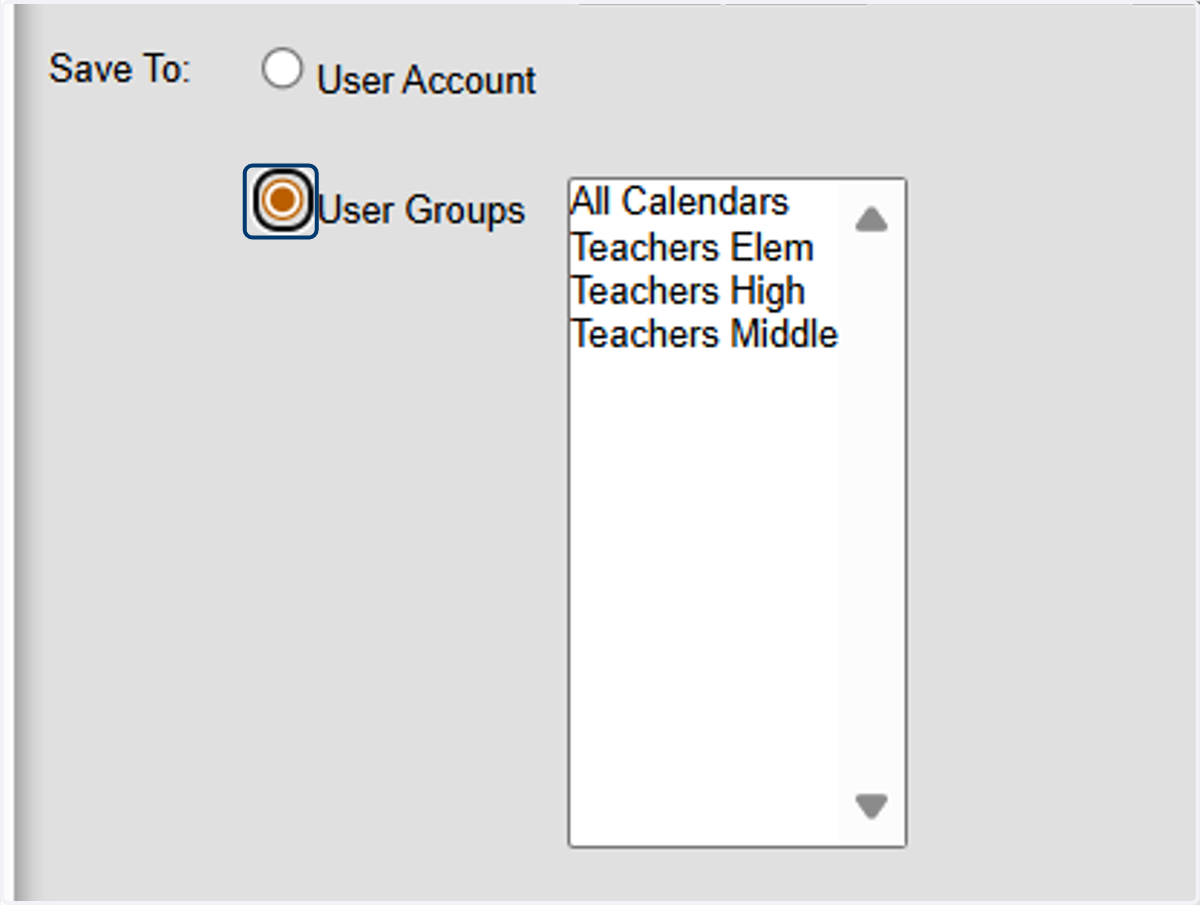
16. By default, Ad Hocs are saved to User Accounts. Once the Ad Hoc is created, save a copy to User Groups that may need access to the filter.
17. Filter for Tribal Enrollment with No Program
This filter can be copied and the filter options adjusted to review different information.
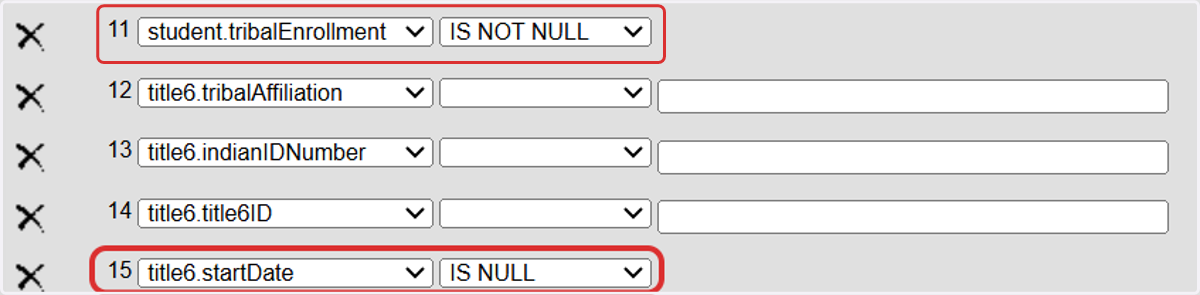
In this example the filters are student.tribalEnrollment IS NOT NULL and title6.startDate IS NULL to find those students with a Tribal Enrollment value in demographics but no Title VI program assigned.
18. Filter for Active Only with a Program
This filter can be copied and the filter options adjusted to review different information.
In this example the filters are student.activeToday = TRUE and title6.startDate IS NOT NULL to find active students with an Title VI program assigned.