Completed Pay Runs Overview
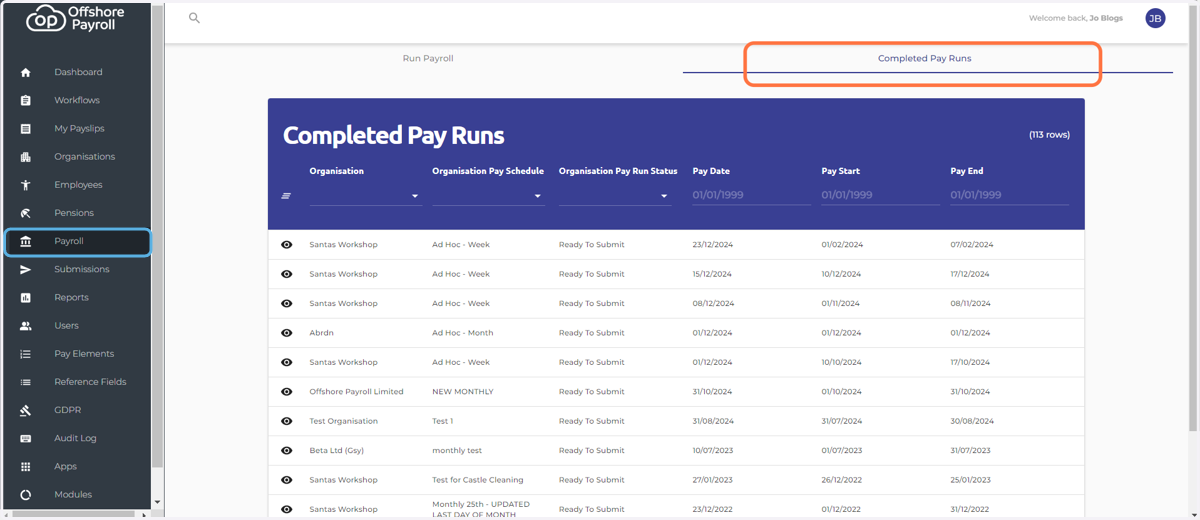
1. Once your Pay Run is completed, you can review it in Completed Pay Runs section
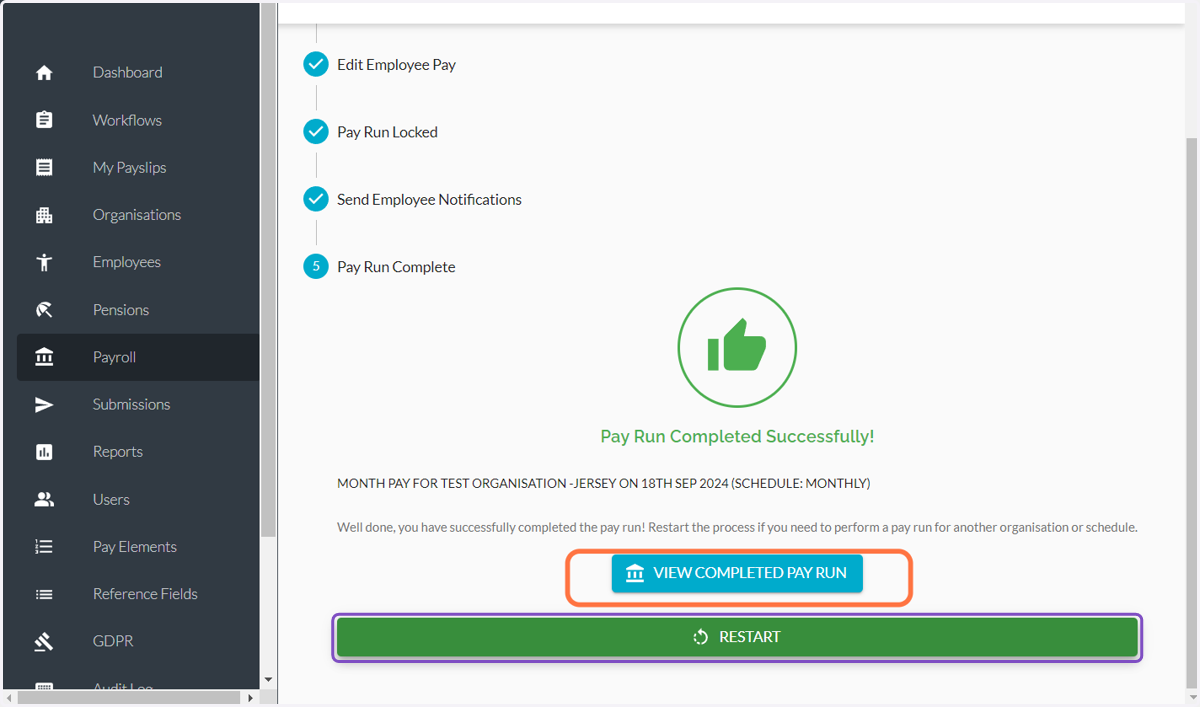
2. At this stage your Pay Run is completed and you can review it in Completed Pay Runs (optional)
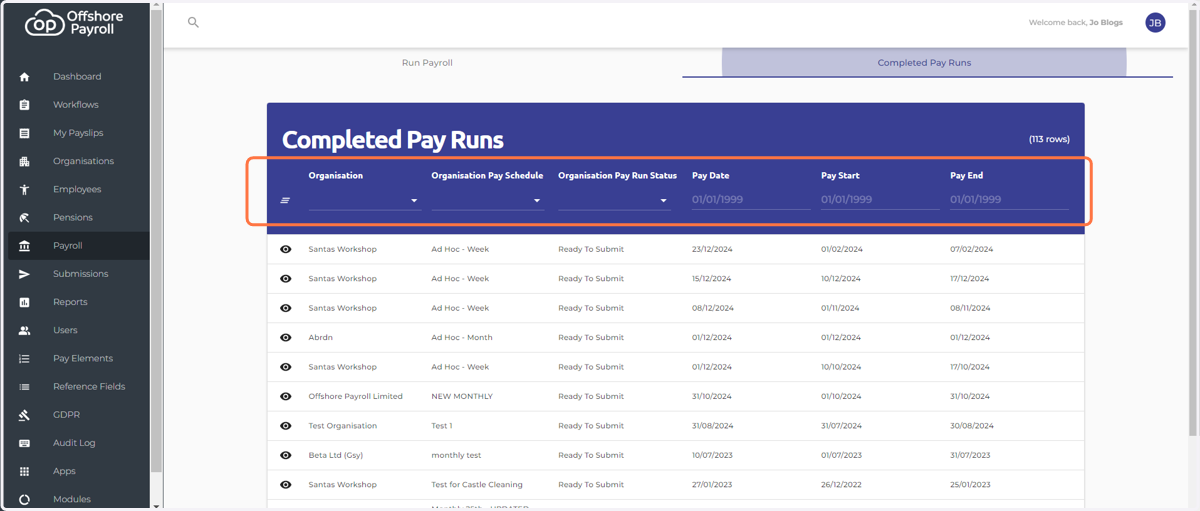
3. Set any filter below to locate the pay run you require.
4. Click to view more detail on the Pay Run
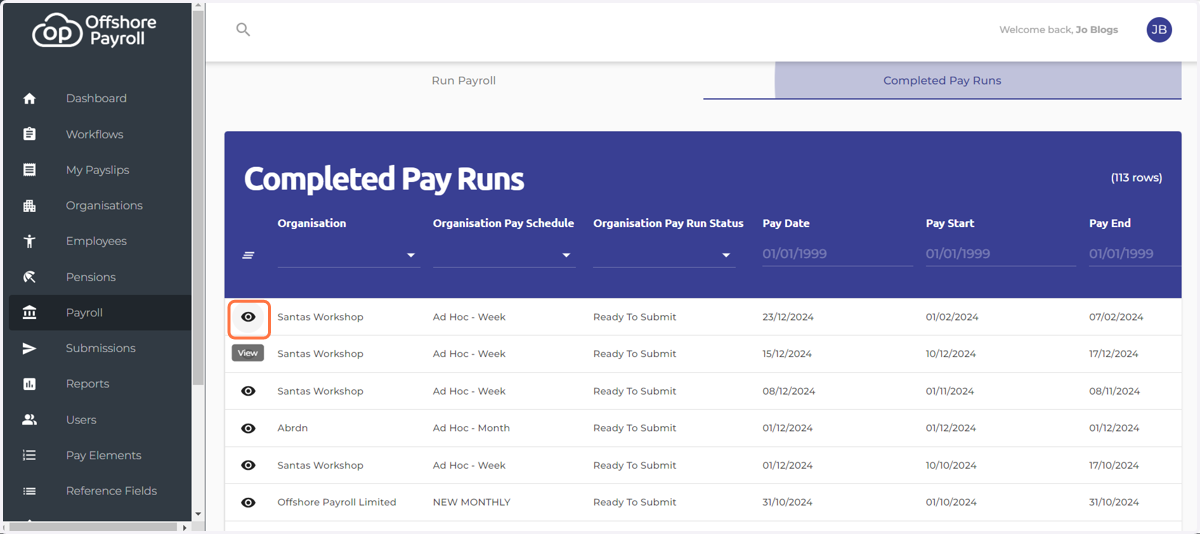
5. The "Ready to Submit" status indicates that a pay run is ready to submit to the government but has not yet been submitted.
Note: Only completed Pay Runs appear in the submissions area. Incomplete Pay Runs will not be submitted.
Submitting an incomplete pay run will result in a Zero return, which informs the government that there are no employees or data. This can be valid in cases such as no employees being paid for a specific period (e.g., temporary workers).
A zero return must be submitted to avoid government follow-up for missing submissions.
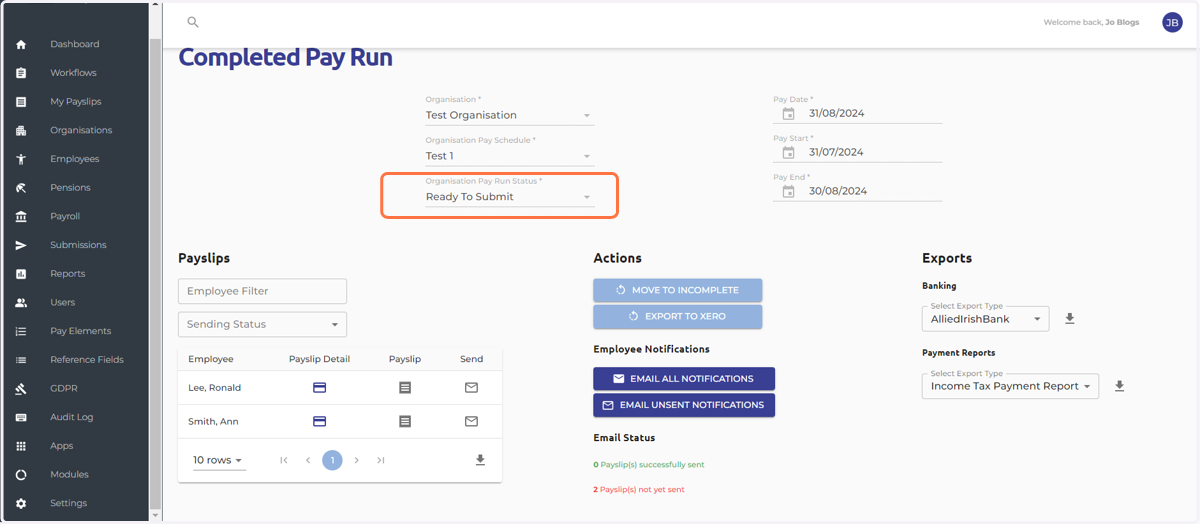
6. Email payslip notifications to employees
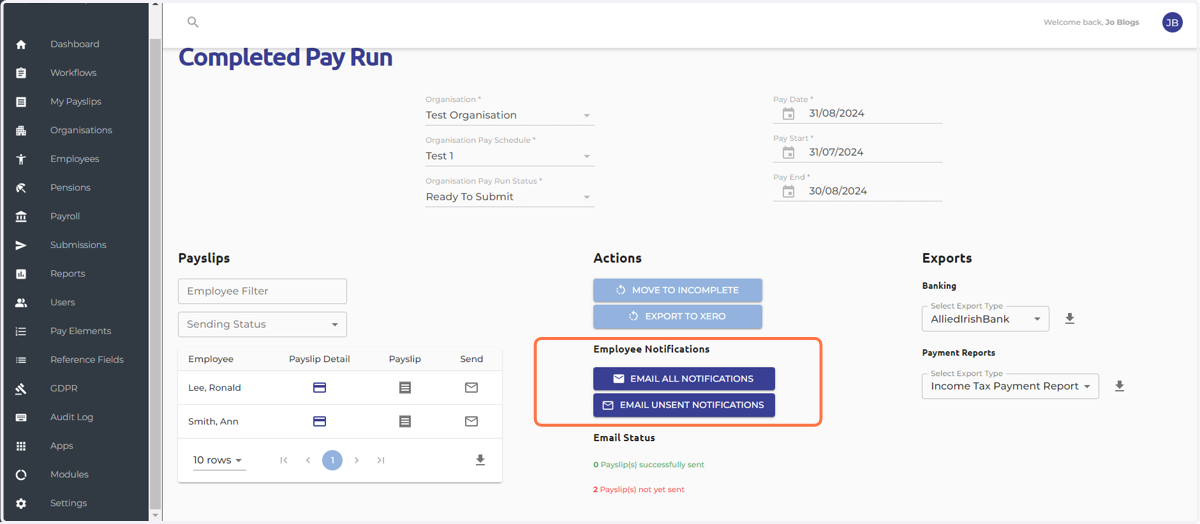
7. Export pay run figures to the Xero App
The "Export to Xero" function allows you to transfer payroll data from the Offshore Payroll system to Xero for streamlined financial management.
Before exporting:
- Verify all employee payslips are accurate and complete.- Check the pay dates and other details to ensure they match the intended pay period.
- Ensure your Xero integration settings are correctly configured before exporting.

8. If you need to change something in the Pay Run that is already done:
- Click MOVE TO INCOMPLETE to move the Pay Run back to step 3 (incomplete
and locked) of the Run payroll screen.
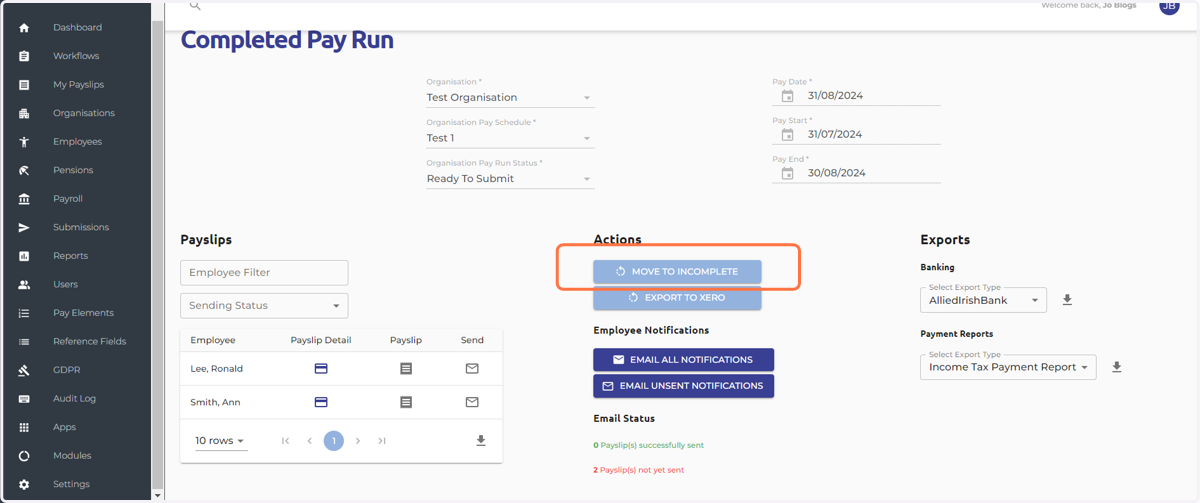
9. Confirm your decision
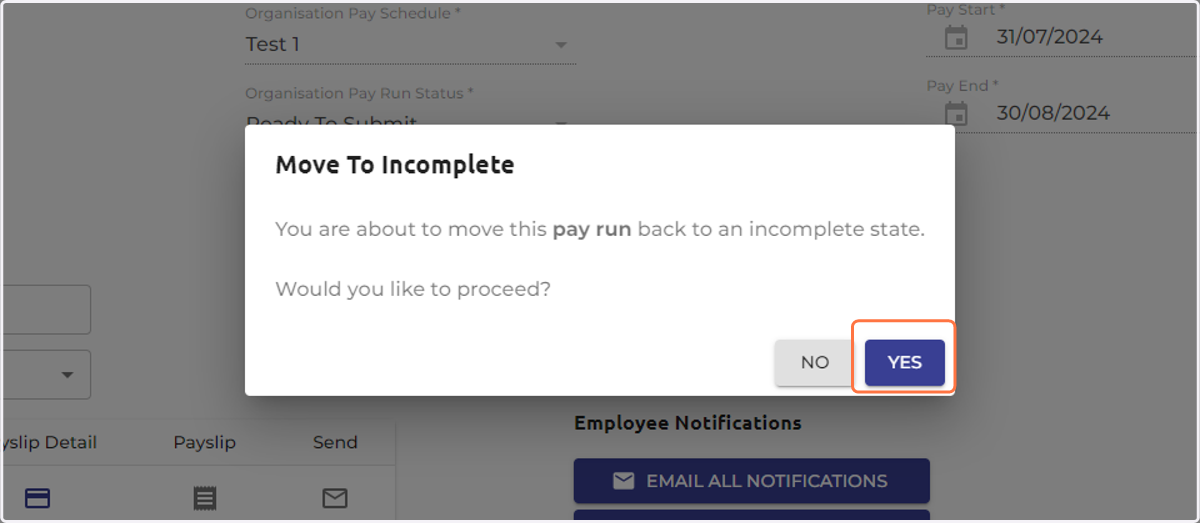
10. Click on the link to back to the Run payroll screen.
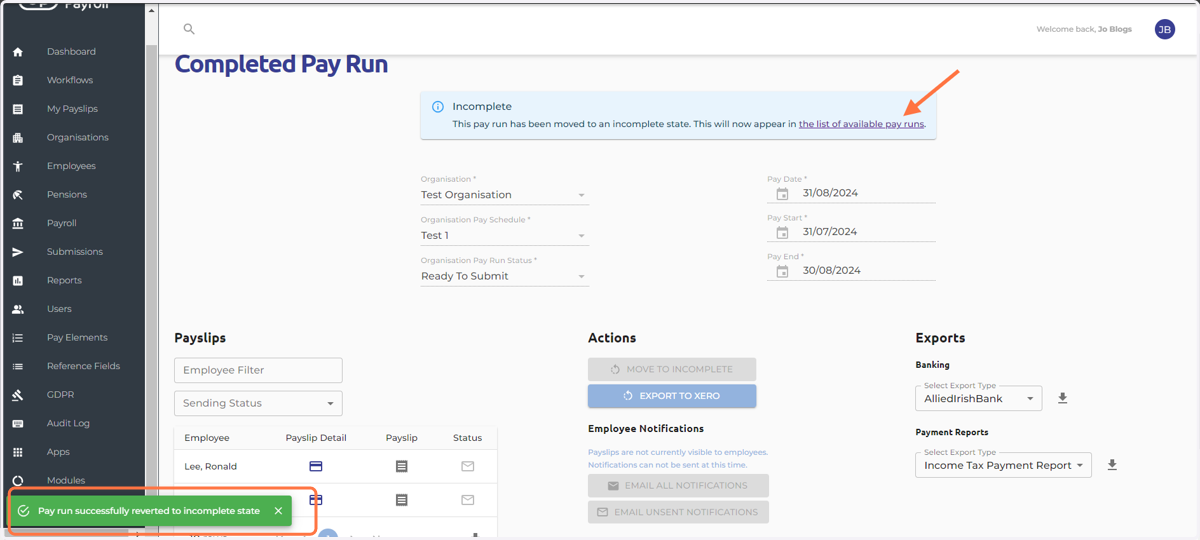
11. Select the required Pay Run
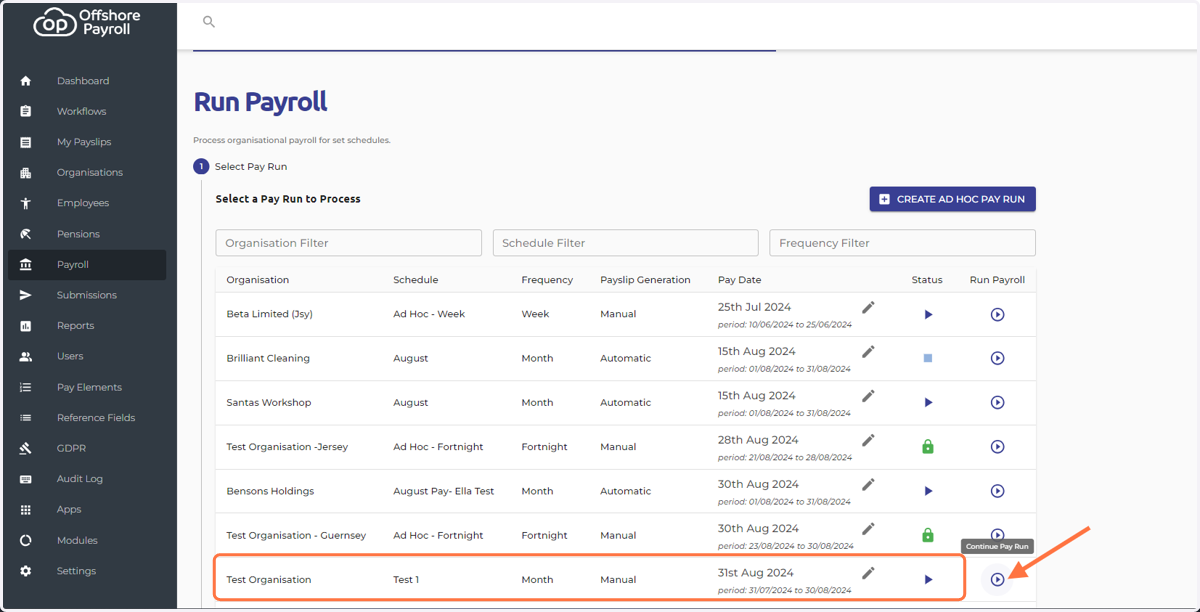
12. Unlock the Pay Run to make necessary adjustments.
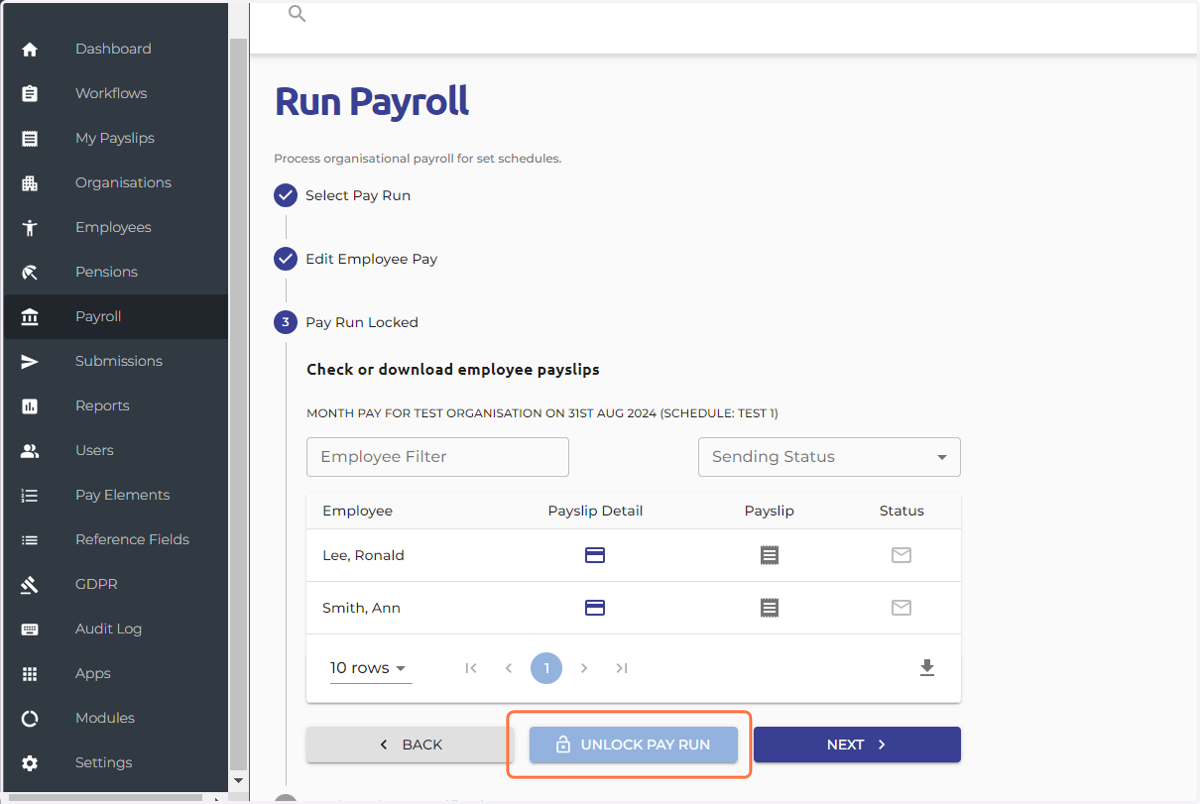
13. Confirm your decision
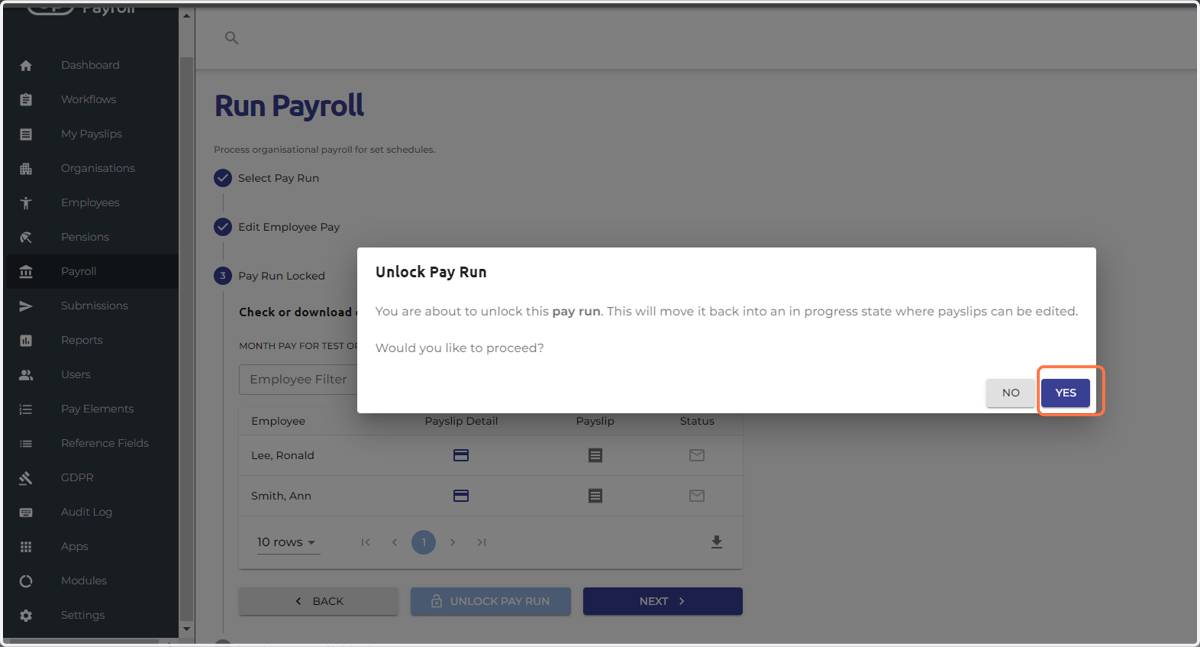
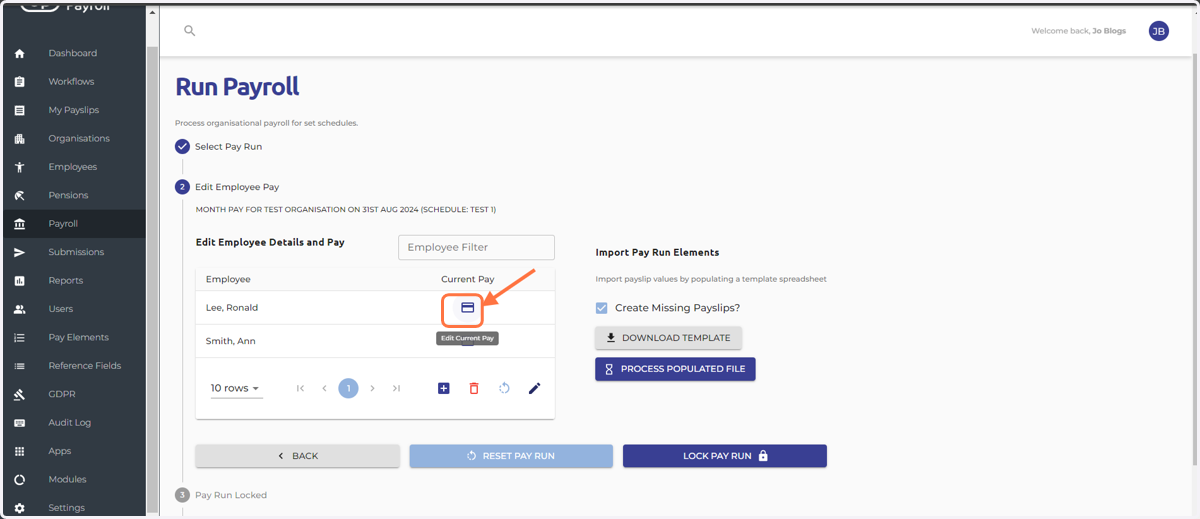
14. - Click the icon to edit current Pay
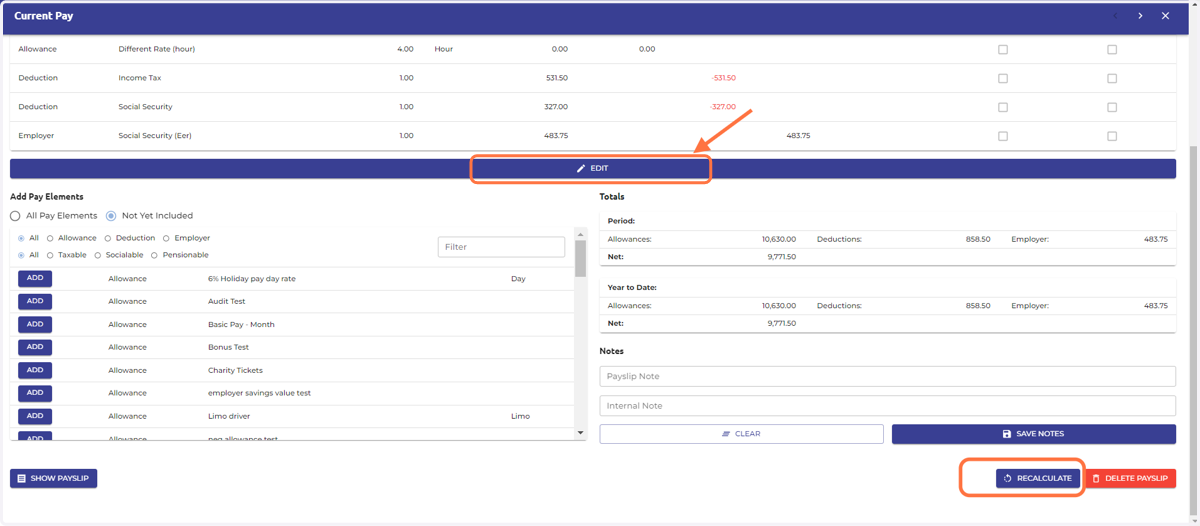
15. Click the EDIT button to make necessary changes
Be cautious when recalculating historical pay runs to ensure that:
- Core data such as pay limits, organization information, or employee details remain consistent with the original pay slip.
- If changes are needed, manually amend individual elements instead of recalculating the entire pay slip.
- There is no undo feature for recalculation. Users must revert changes manually if new data is incorrectly pulled into the pay run.
Key Advice:
Double-check for any changes in core data before recalculating.
Maintain records of previous pay slips to reference historical data if needed.
For errors during recalculations, manually restore old data, refresh the pay slip, and reapply updates as necessary.
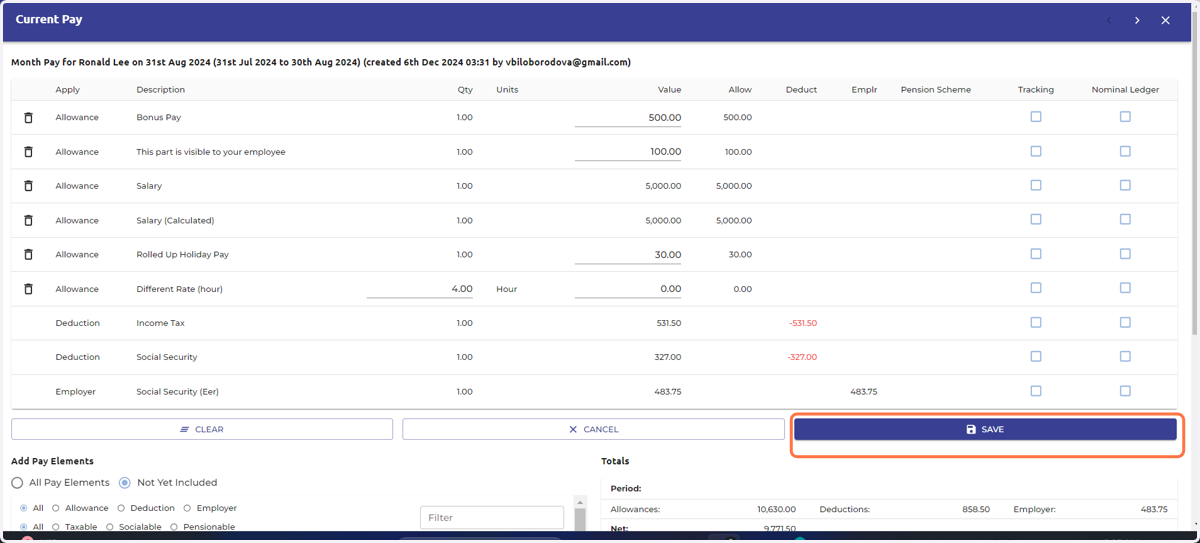
16. Save after edition
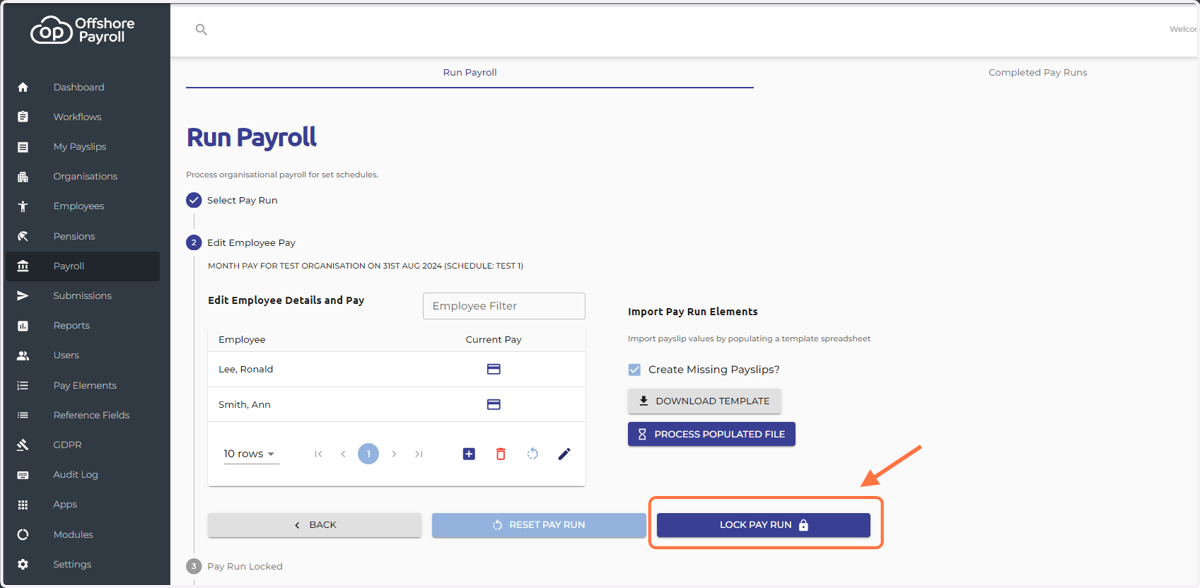
17. Lock updated Pay Run
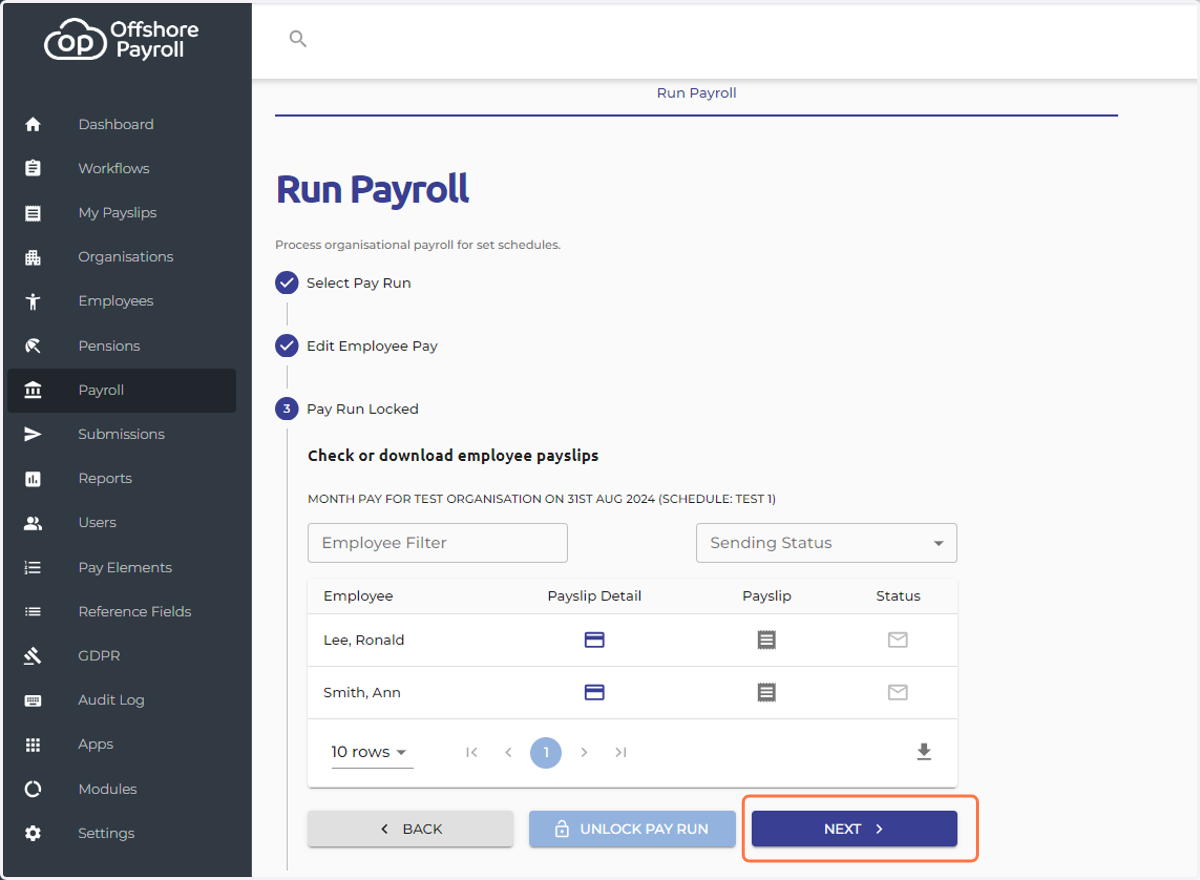
18. Click NEXT
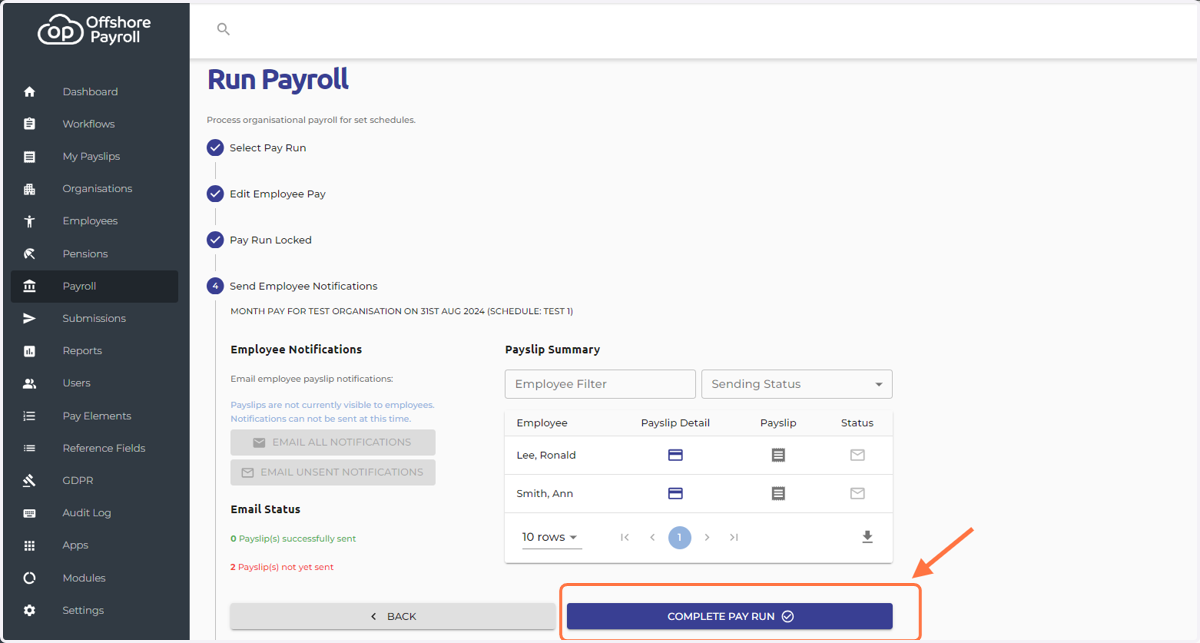
19. Complete Pay Run
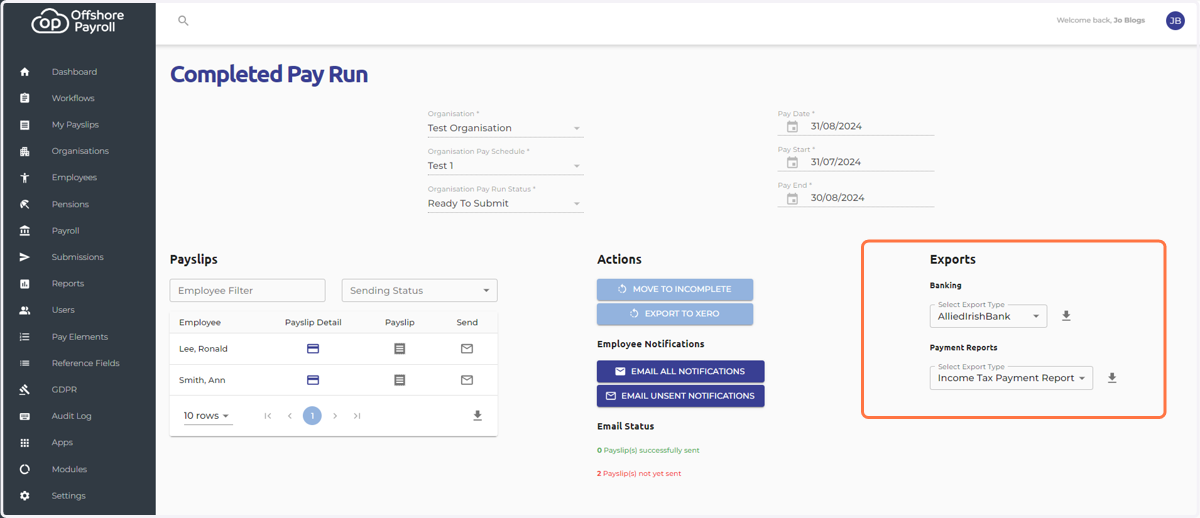
20. Exports
The Exports section of the Completed Pay Run process allows users to generate and download essential payroll-related files. This section is divided into two main export types:
Banking
Payment Reports
21. Banking feature
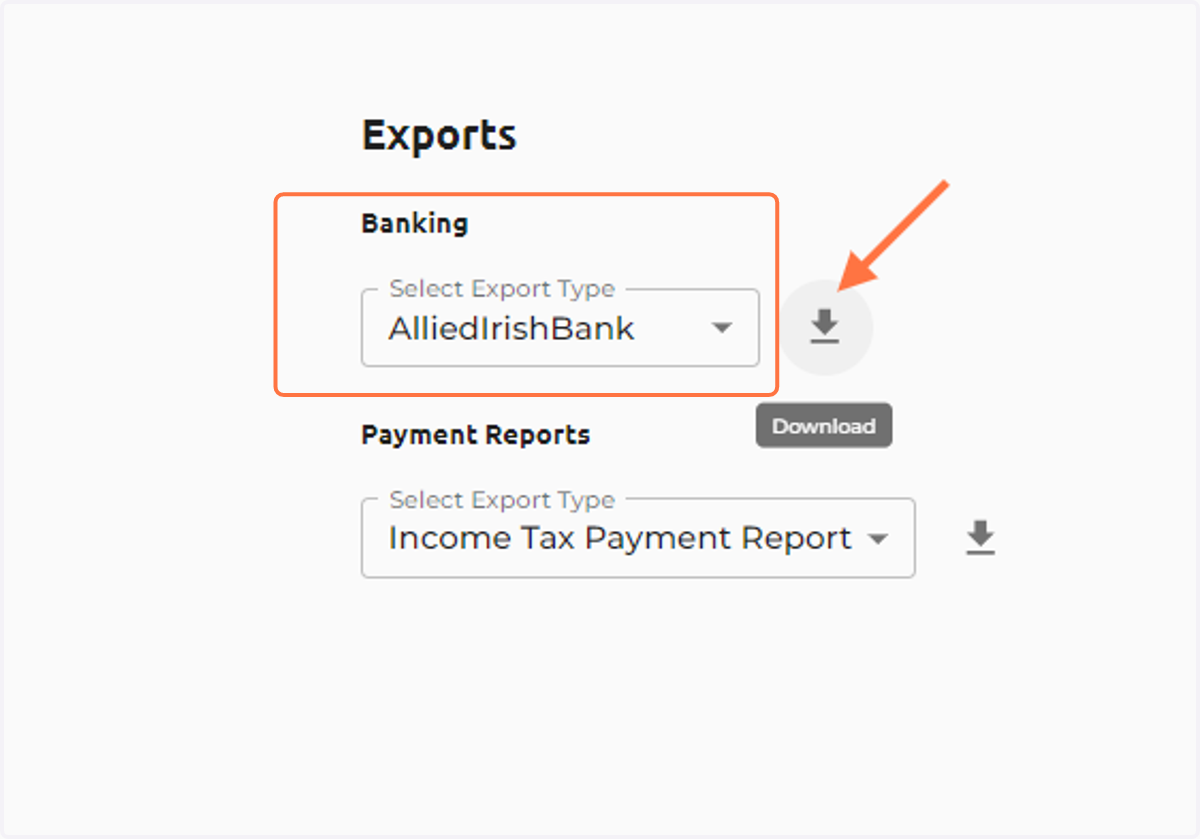
If you pay employees via BACS and need a banking file for your bank’s payment app, you can easily download it from the completed pay run screen.
How to Use the Banking Export:
- Choose the required bank format from the dropdown under "Banking."
- Click the download icon. This will generate and download the file to your computer.With any banking interface files that require a pay date, you have the option to override the pay run pay date.
(For example, if it’s a public holiday and you want the payment to go through before the public holiday.)
22. Payment reports (Social insurance and income tax payment reports)
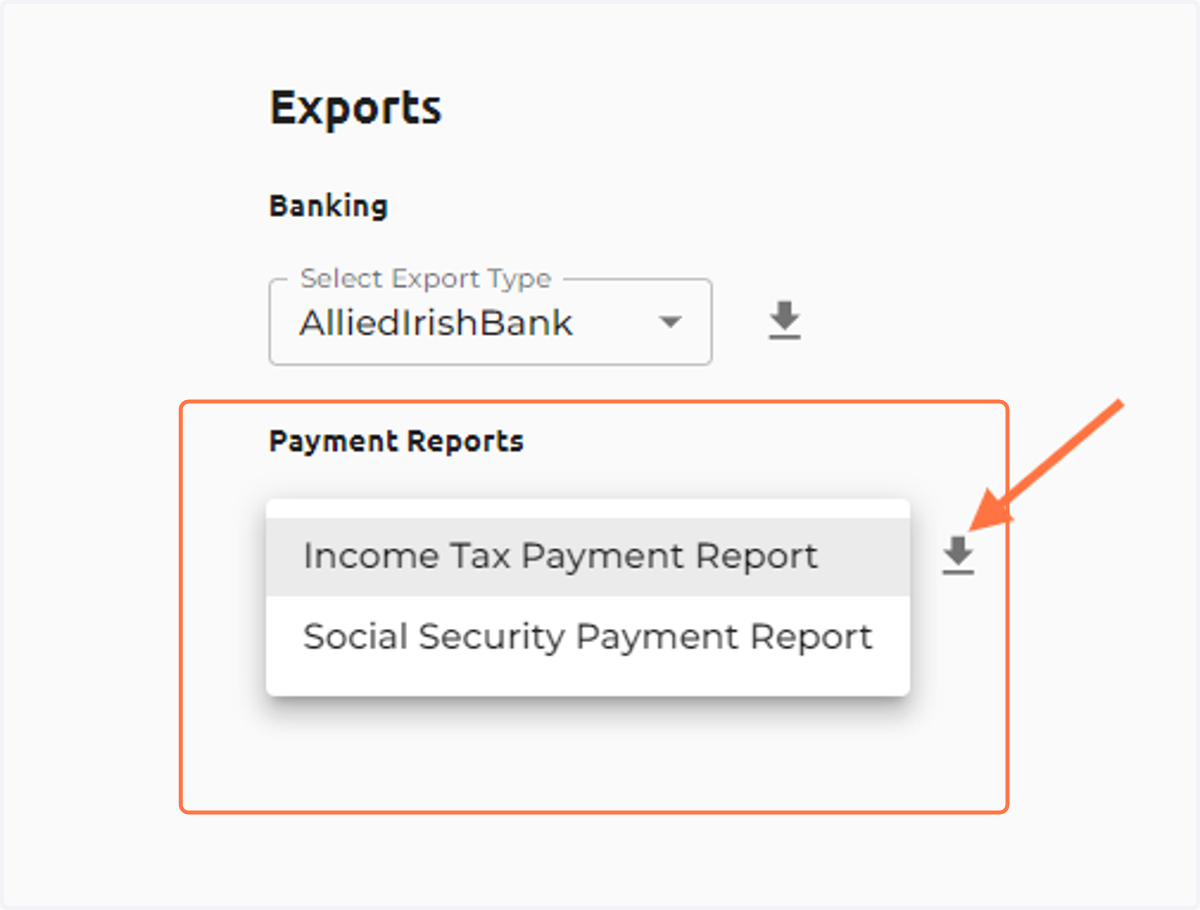
Before you generate the report:
- Double-check that the correct report type is selected in the dropdown menu;- Confirm that the selected report type corresponds to the organization's reporting or compliance requirements (e.g., tax authority submissions, internal records, or audits);
- Confirm the Pay Start, Pay End, and Pay Date fields for the pay run. These dates define the reporting period and must align with the requirements of the report;
- Ensure all employee data, such as salary, deductions, and tax contributions, has been entered correctly and reviewed in the pay run. Incomplete or incorrect data can result in inaccurate reports.
Download a social insurance or income tax PDF payment report to view what total tax or social is payable to the government (if required).
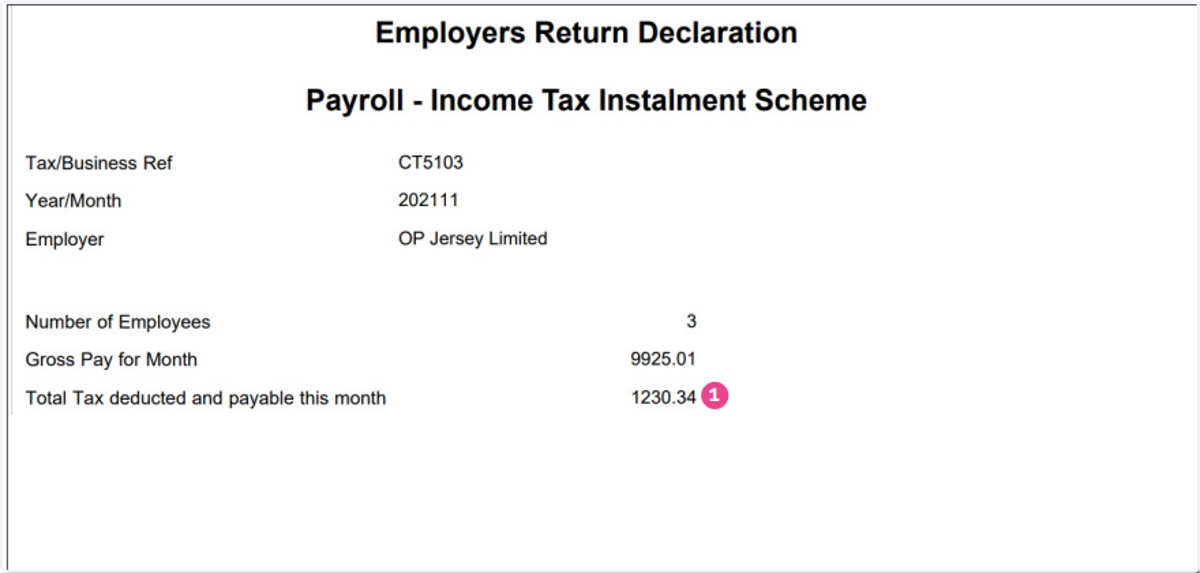
23. Income tax payment report (example for Jersey monthly payment):
1 - Total tax amount due for payment to Jersey Revenue.
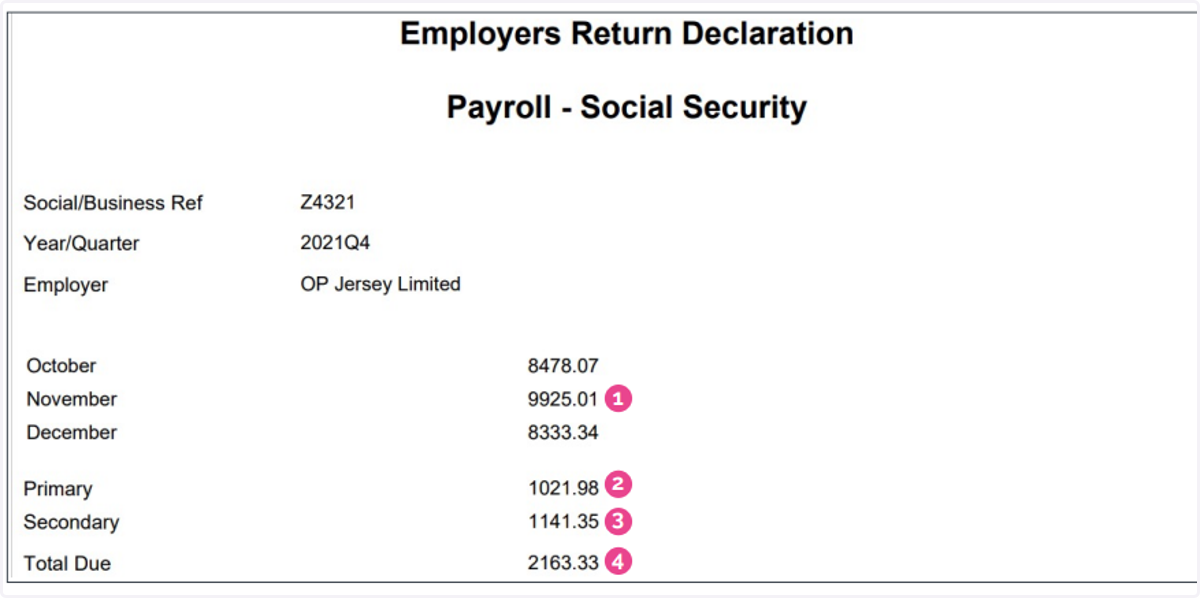
24. Social insurance payment report (example for Jersey quarterly payment):
1 - Total of employer and employee contributions for each month;
2 - Primary refers to total employee social contributions for the quarter;
3 - Secondary refers to total employer social contributions for the quarter;
4 - Total social amount due for payment to Jersey Social.