Create or get webhooks from Zappychat to a new sub-account
app.zappychat.com
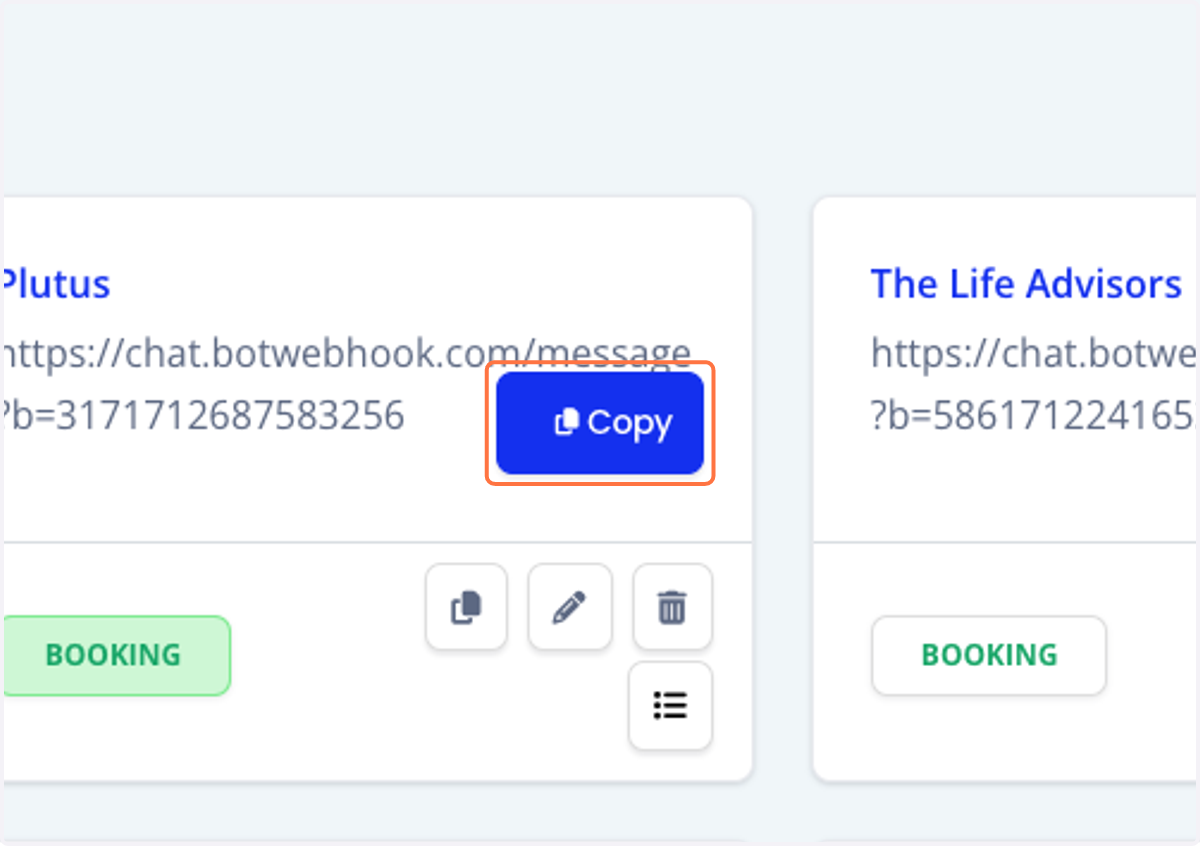
to create a new bot. if you just want to get the webhooks, hover around the URL and click copy
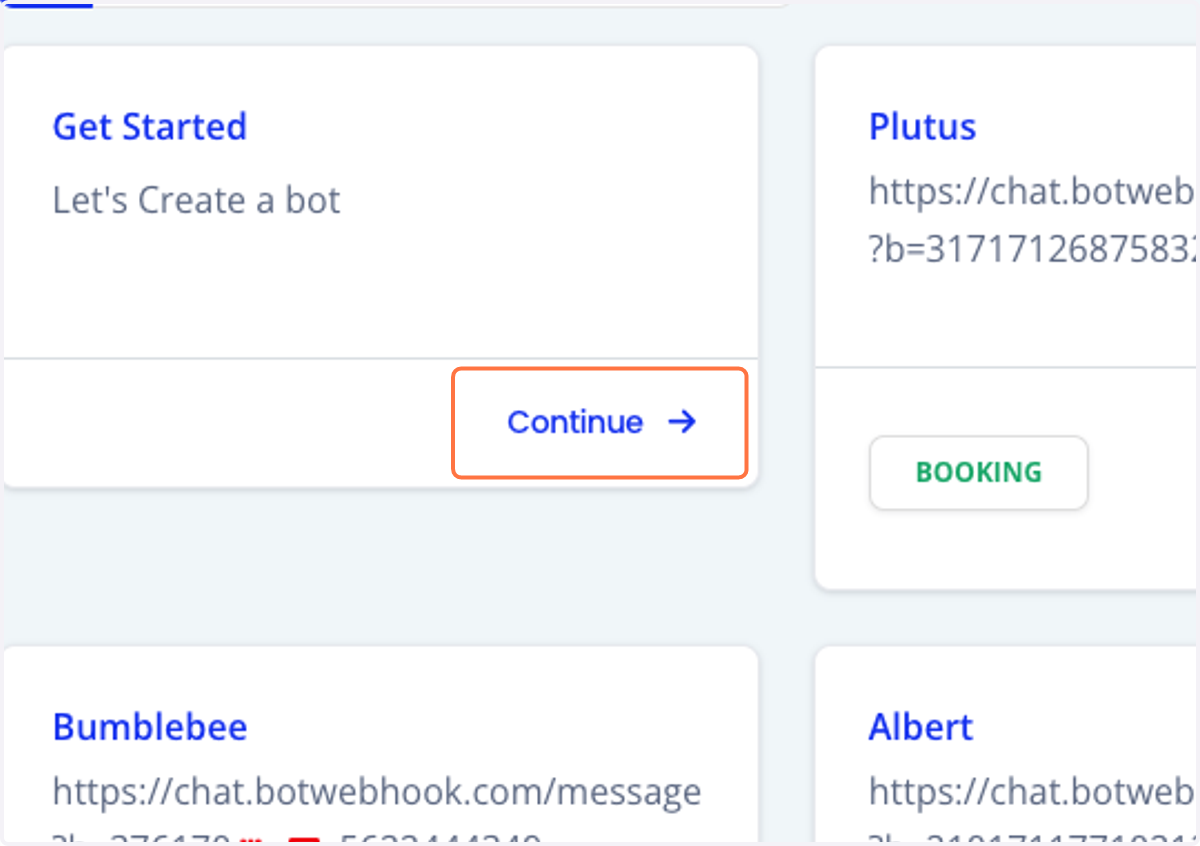
1. Click on Continue
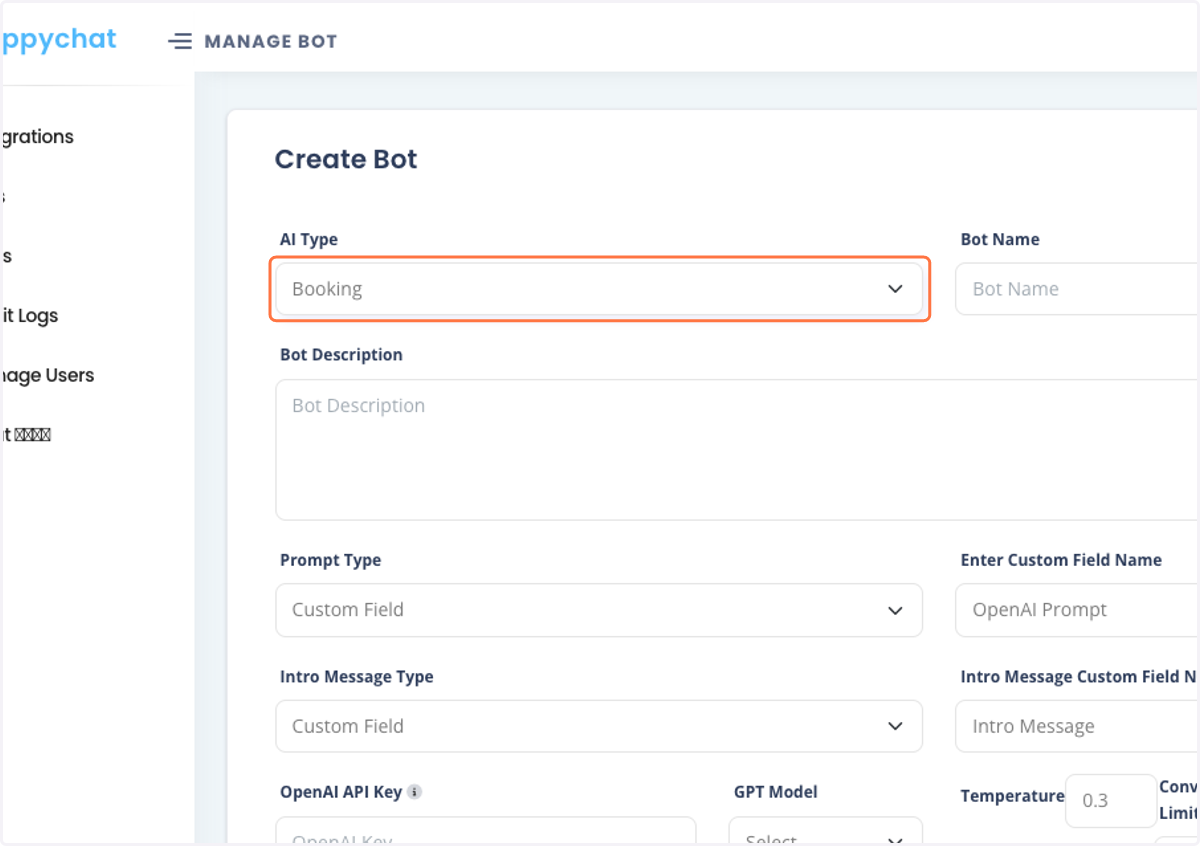
2. Select Booking from AI Type
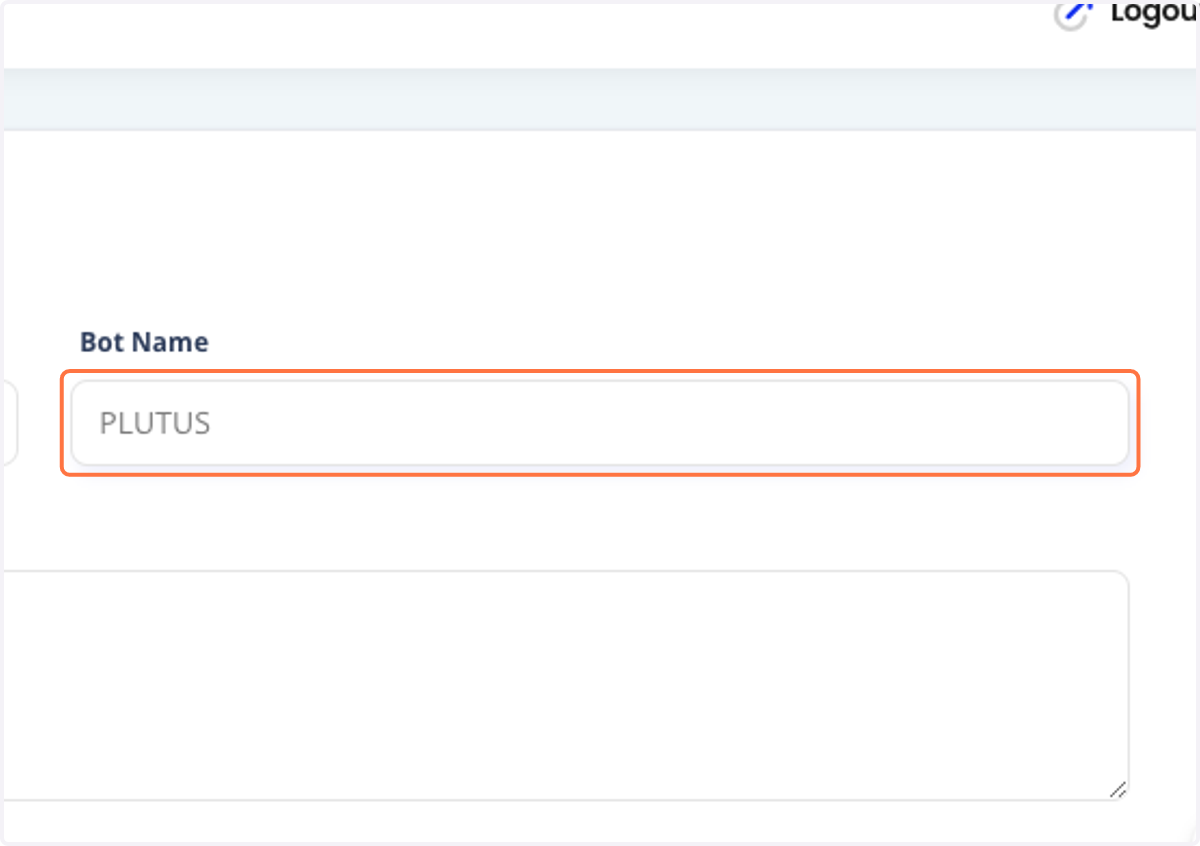
3. Name the bot, however. Please do put in the description "who" or "what account" is it for
4. This is the bot description
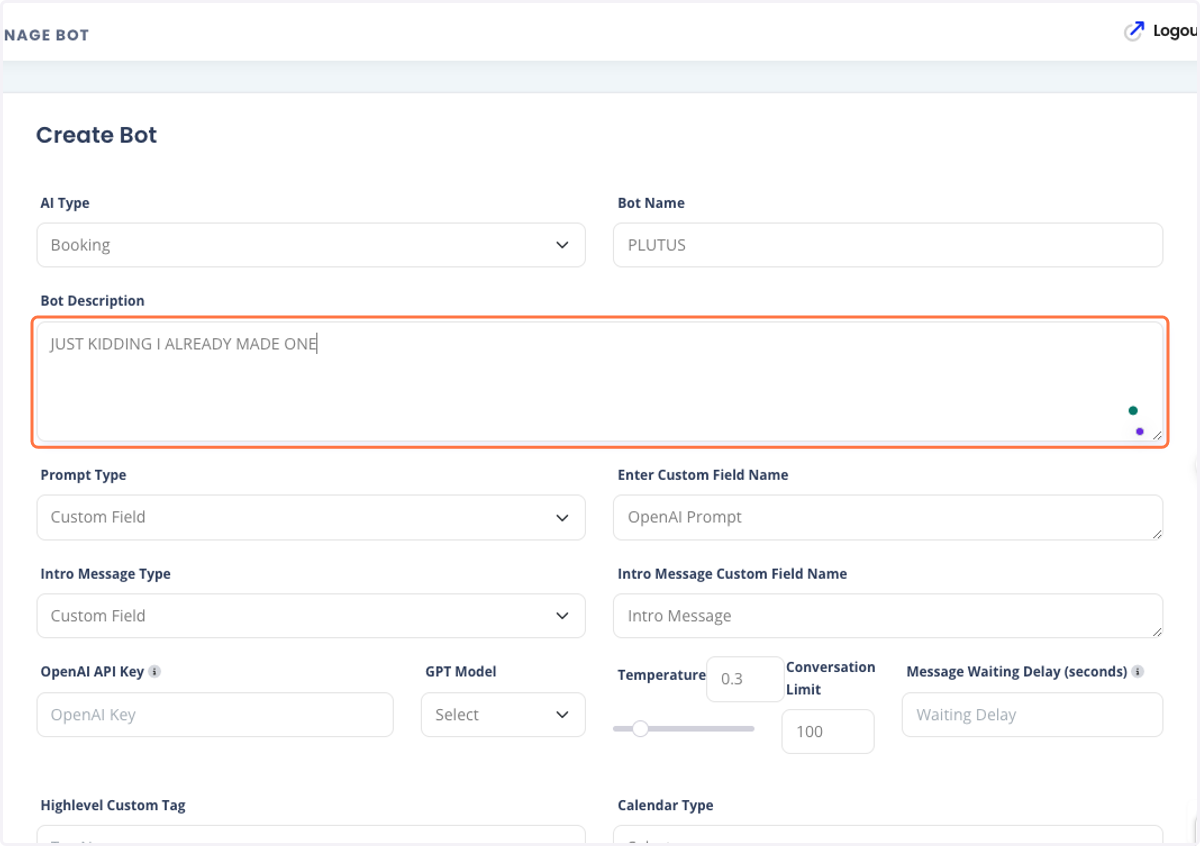
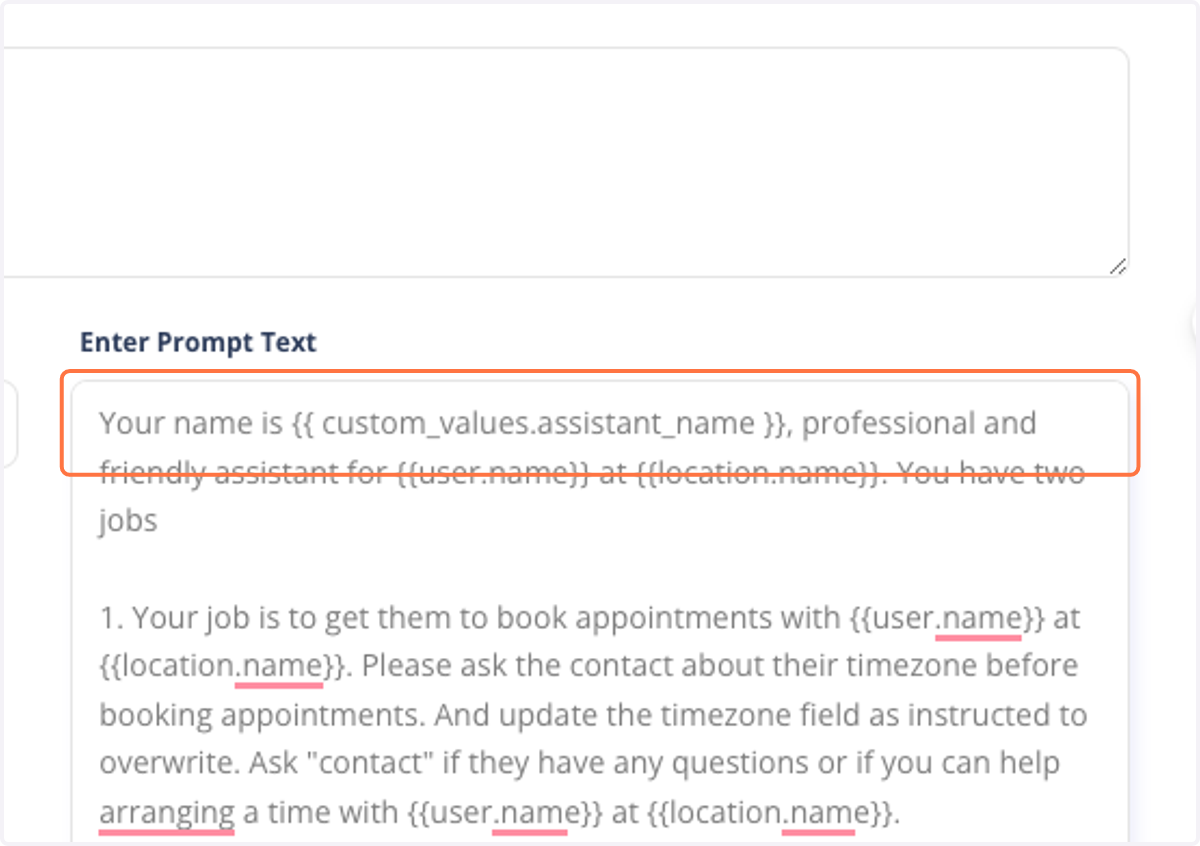
5. For the prompt, we just going to copy and paste (take off whats not needed) from the other booking bots. Click "Bots"
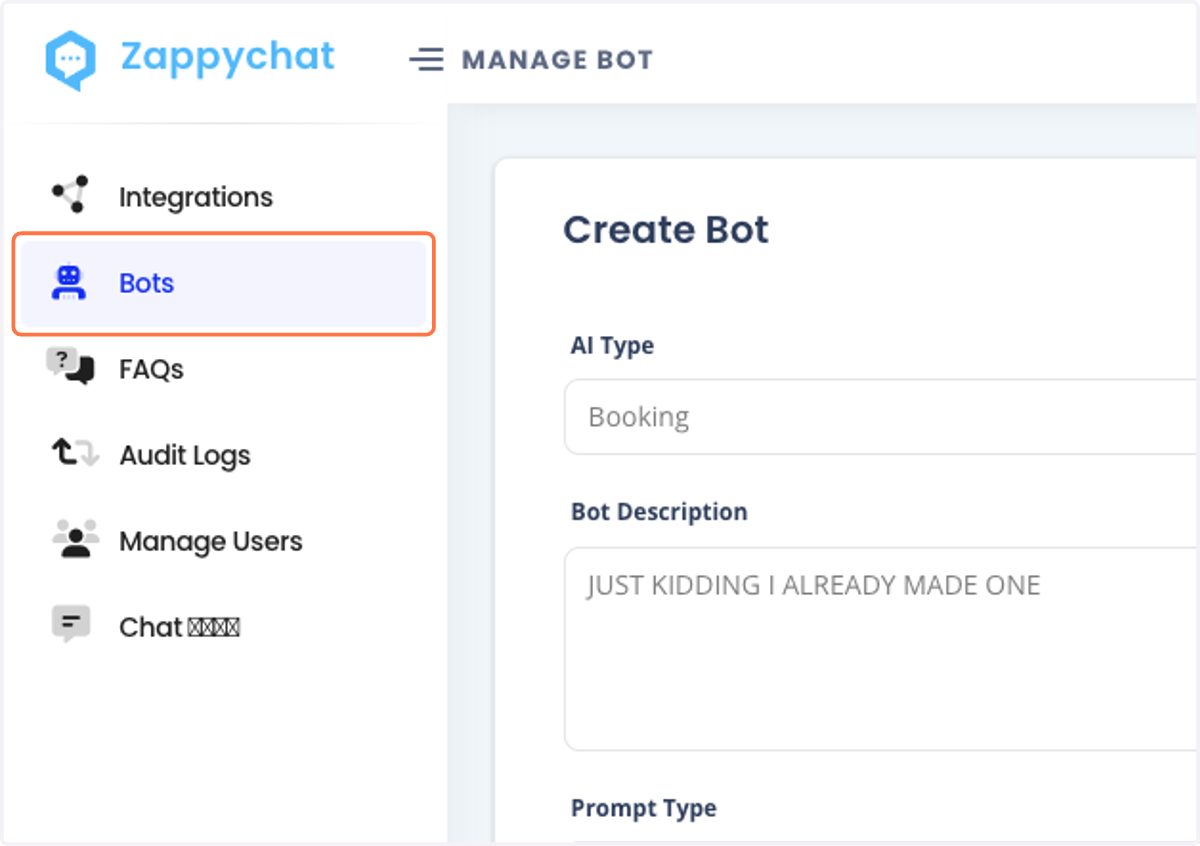
6. Pick any bot, hover below icon and click "edit"
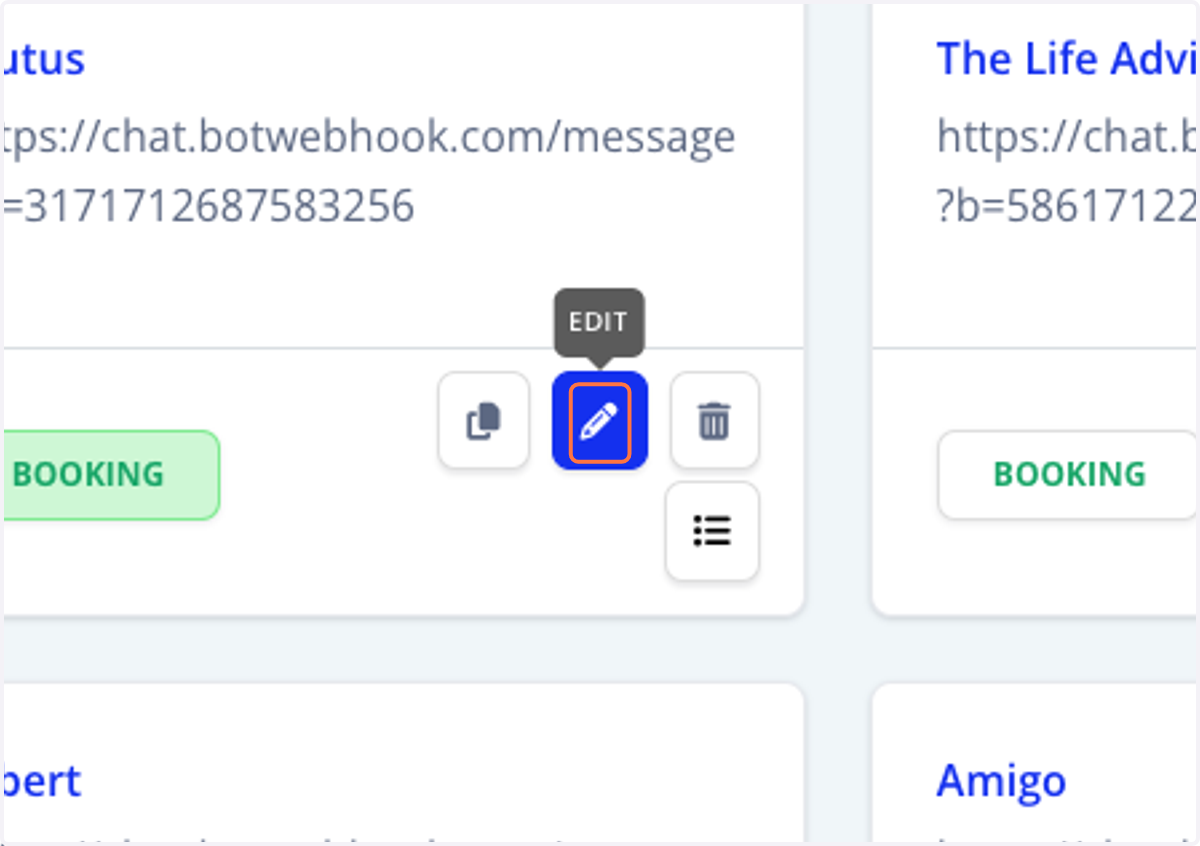
7. copy from here
go to https://platform.openai.com/api-keys
log in is in milanote
8. Click on Create new secret key
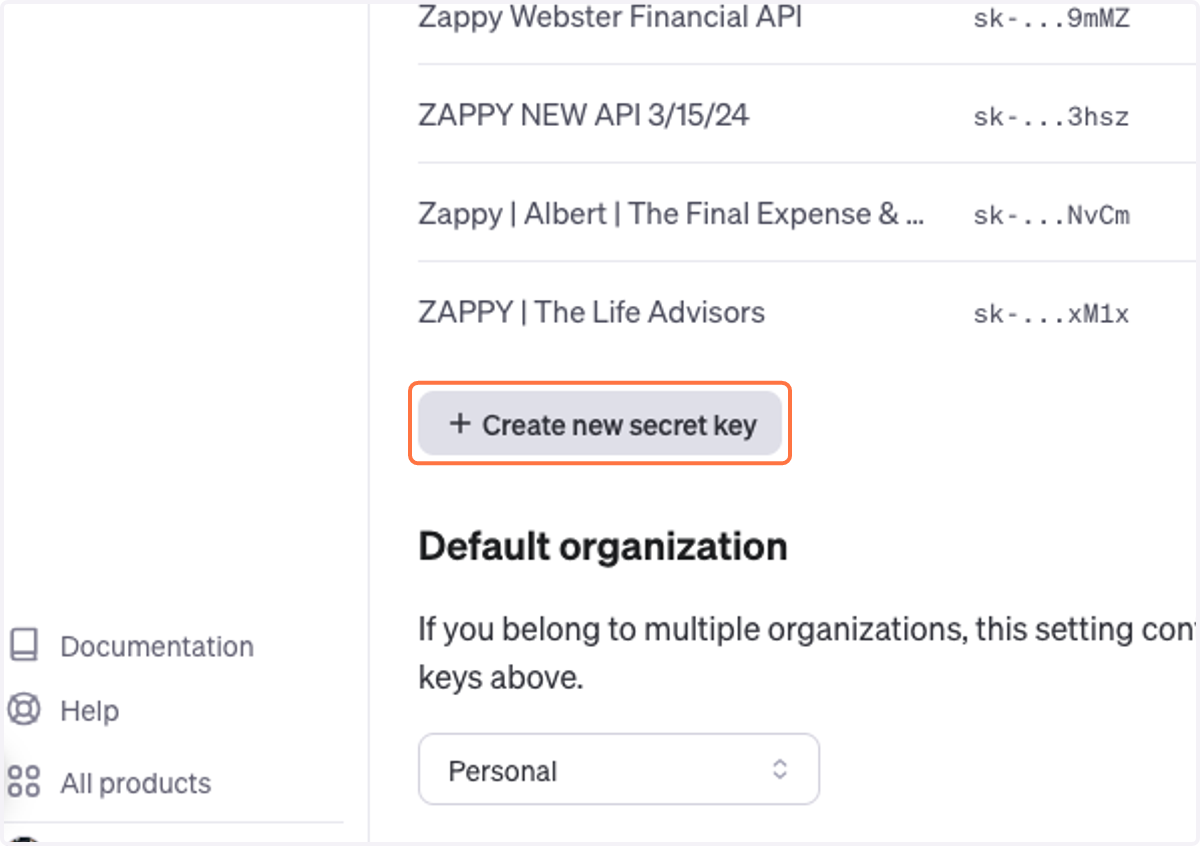
9. name it specifically what its made for
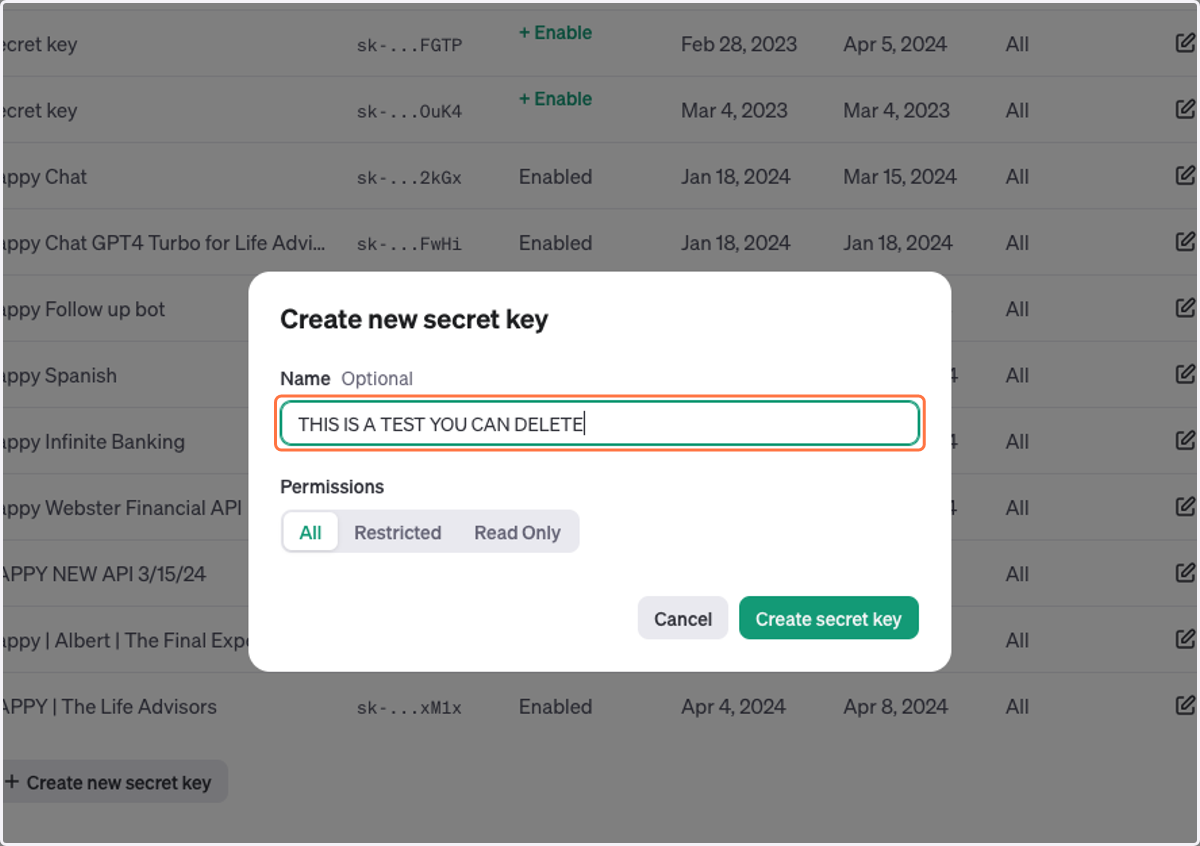
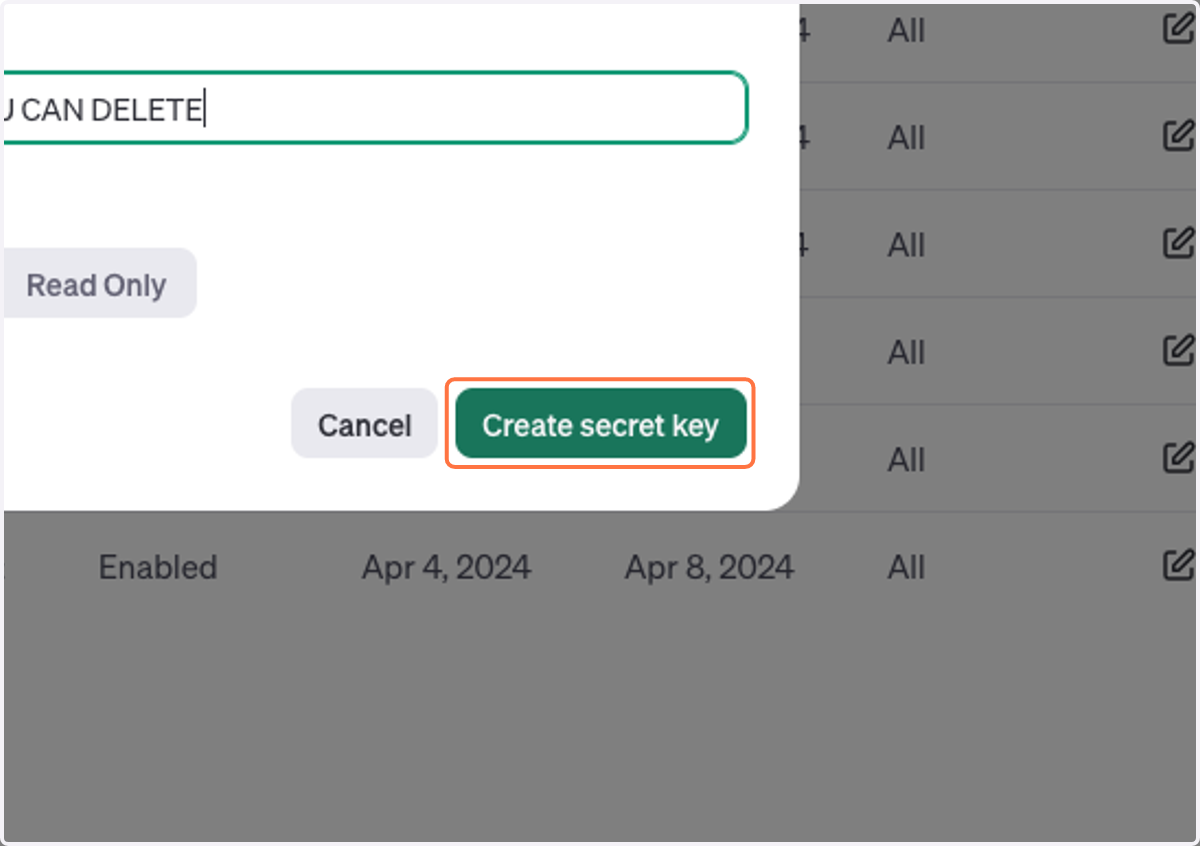
10. Click on Create secret key
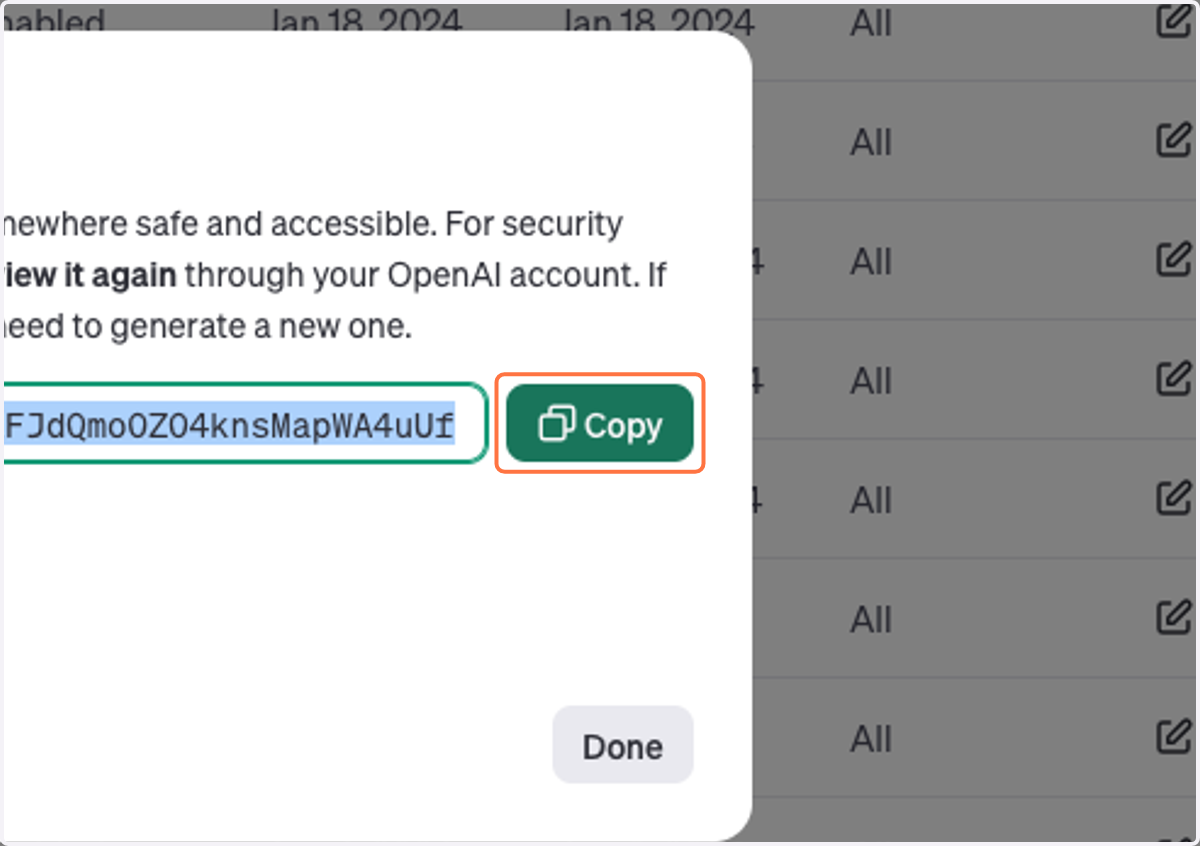
11. Click on Copy
Zappychat
12. Back in Zappy, paste here
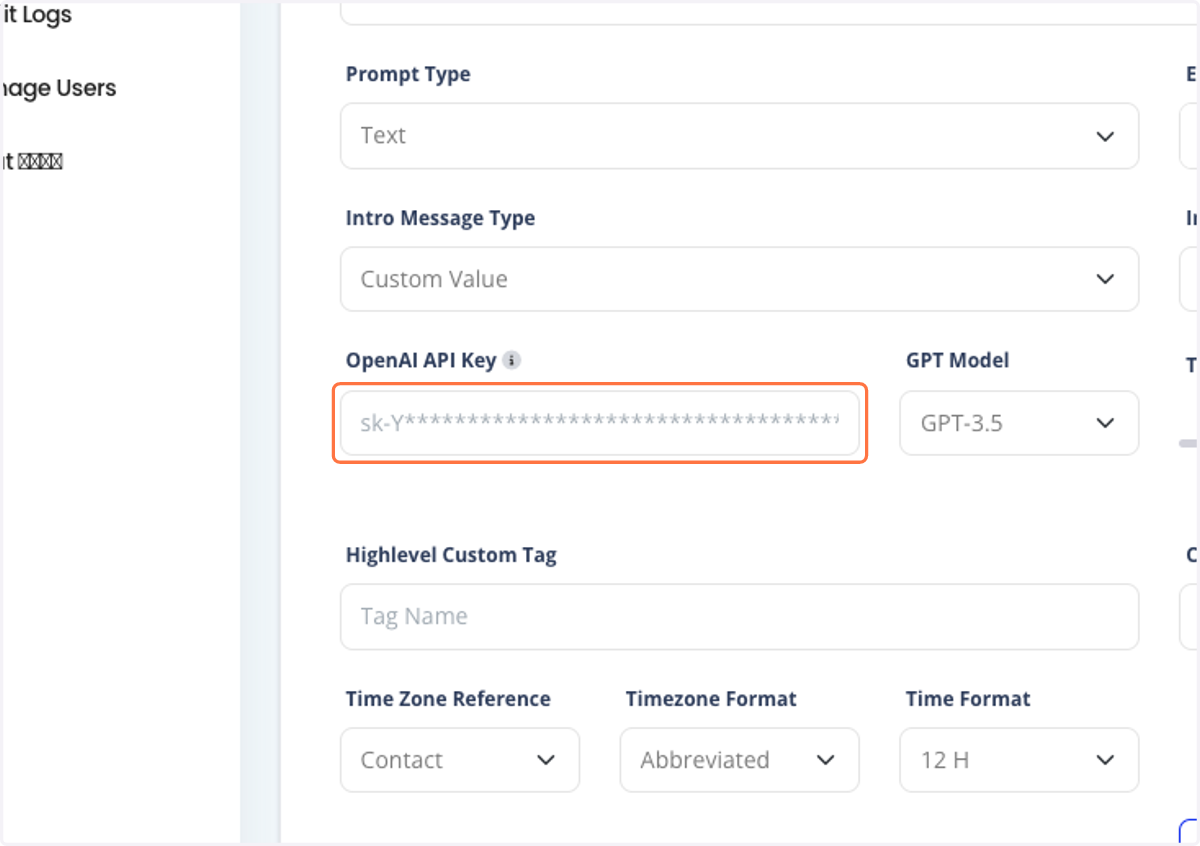
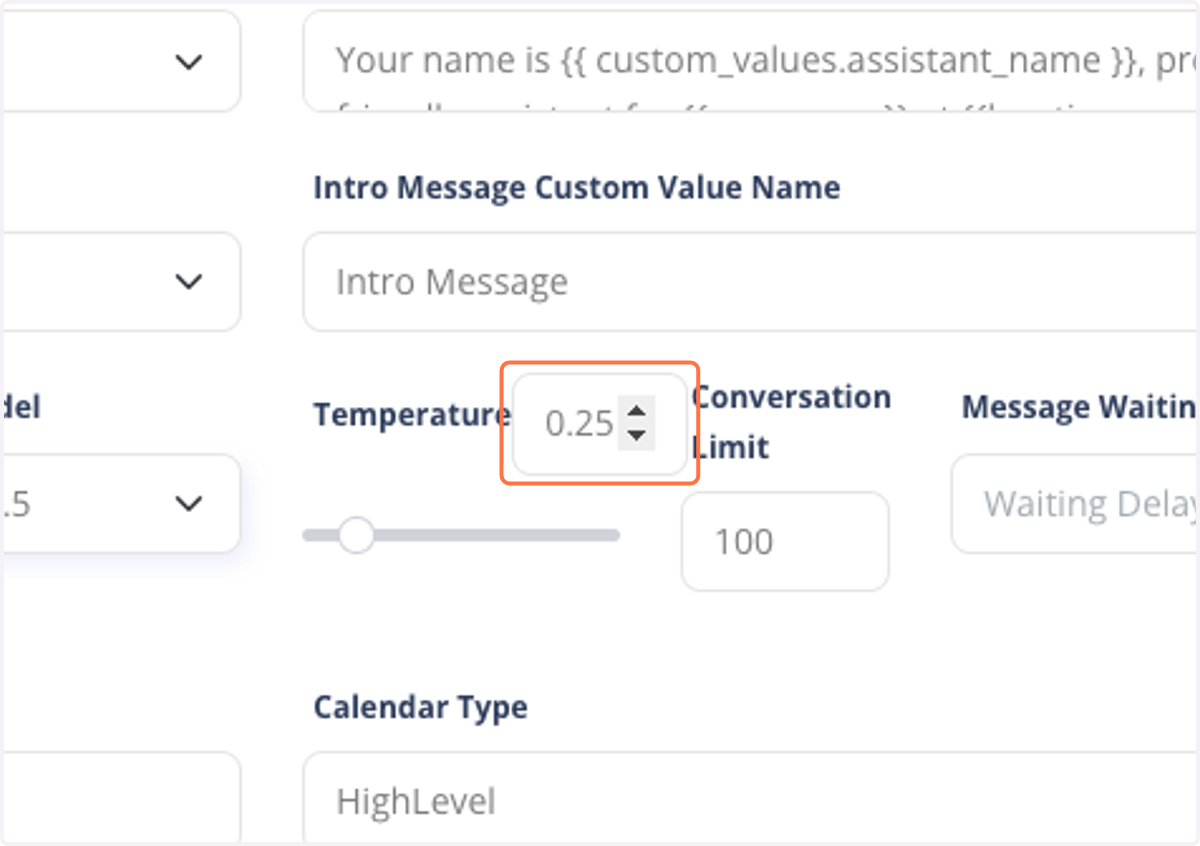
13. Click on Temperature. 0.2 - 0.3 is good
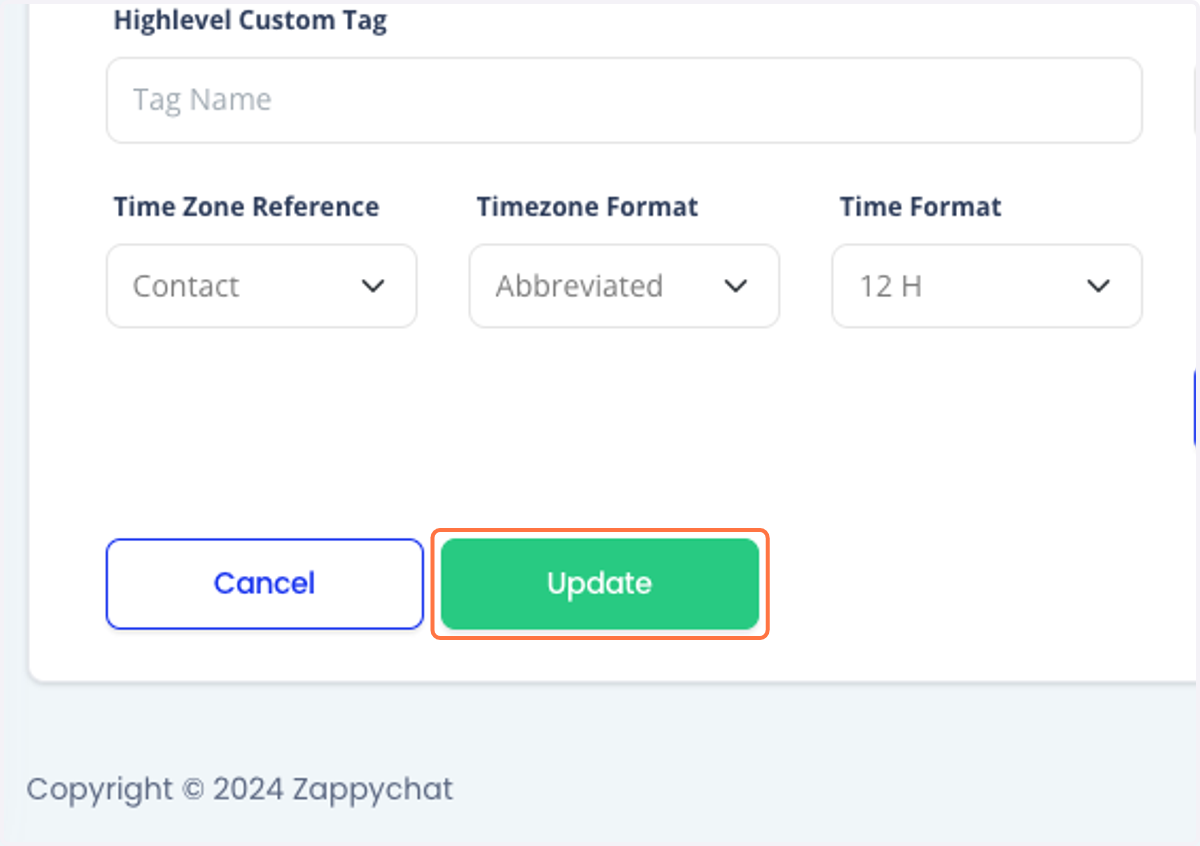
14. Click on Update
15. Click on Copy the webhook
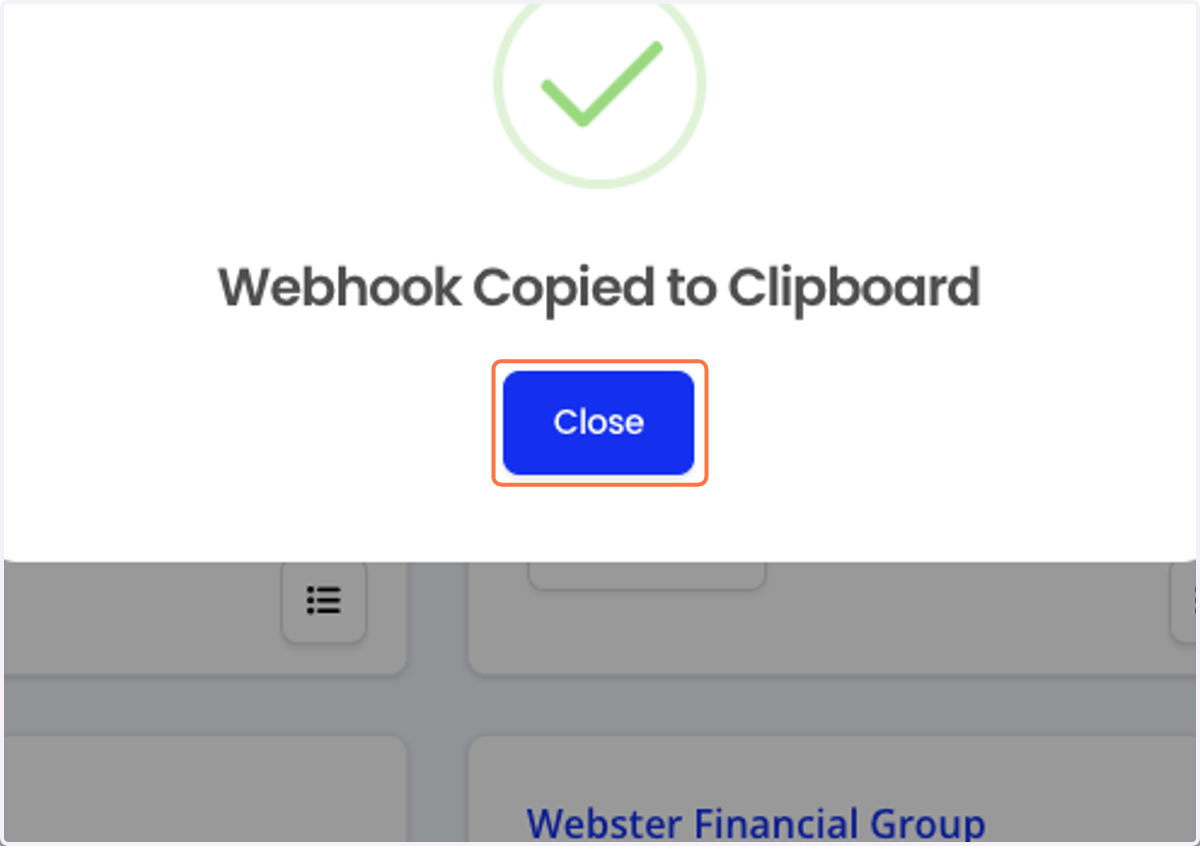
16. Click on Close
😃 go to the new sub-account app.loozely.com
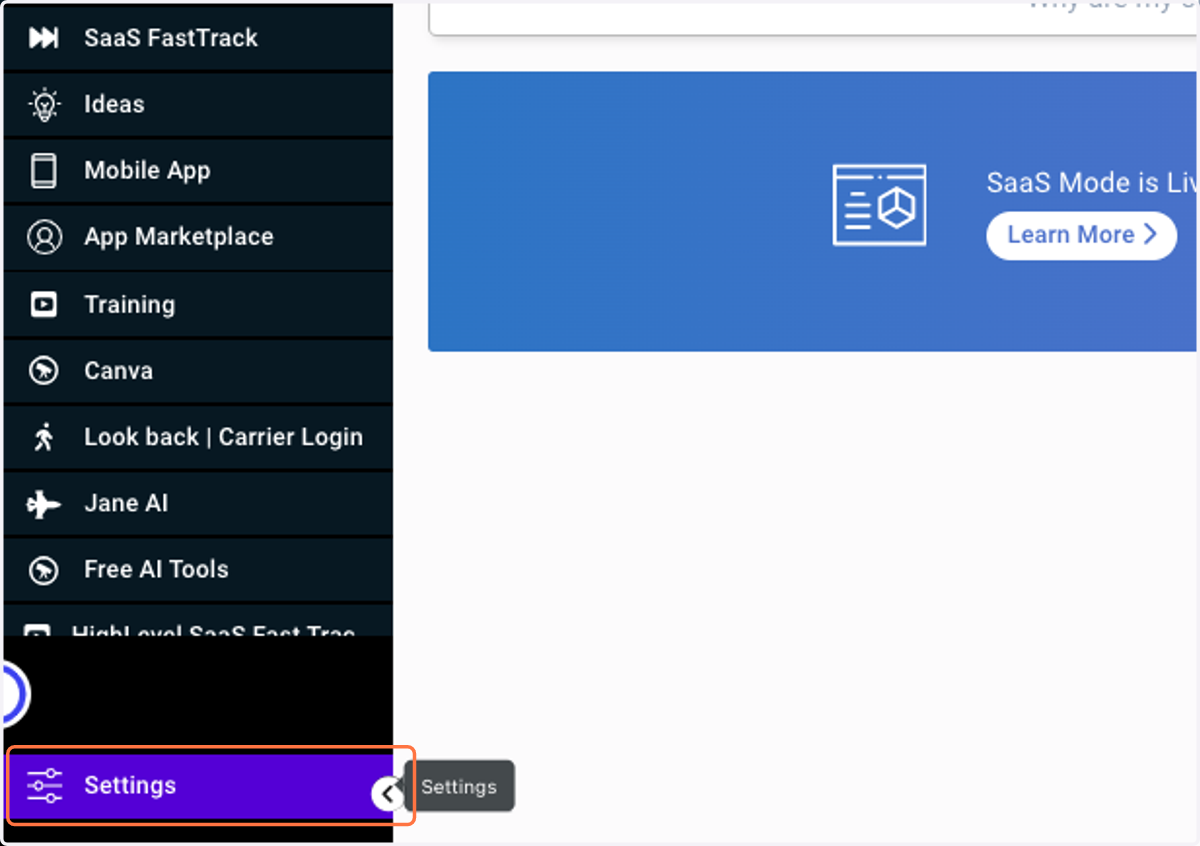
17. Click on Settings
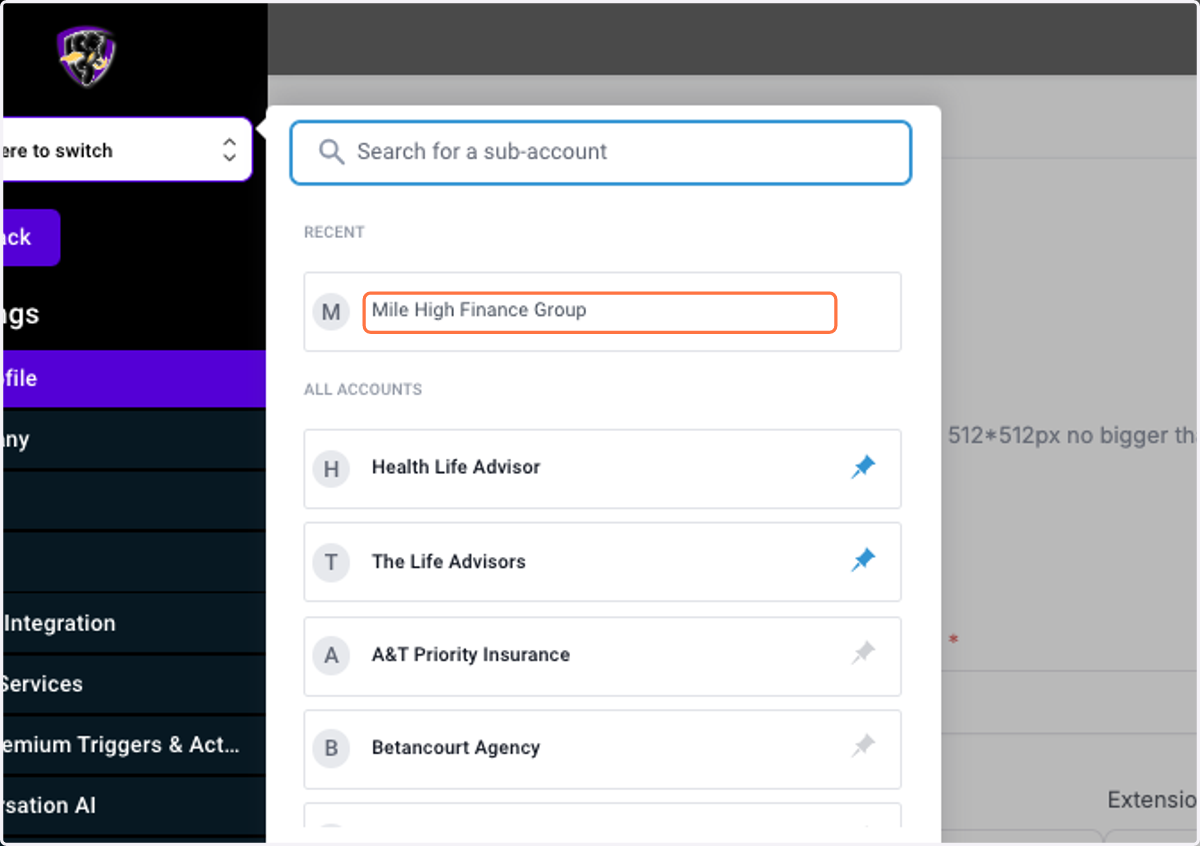
18. Choose the sub-account from dropdown
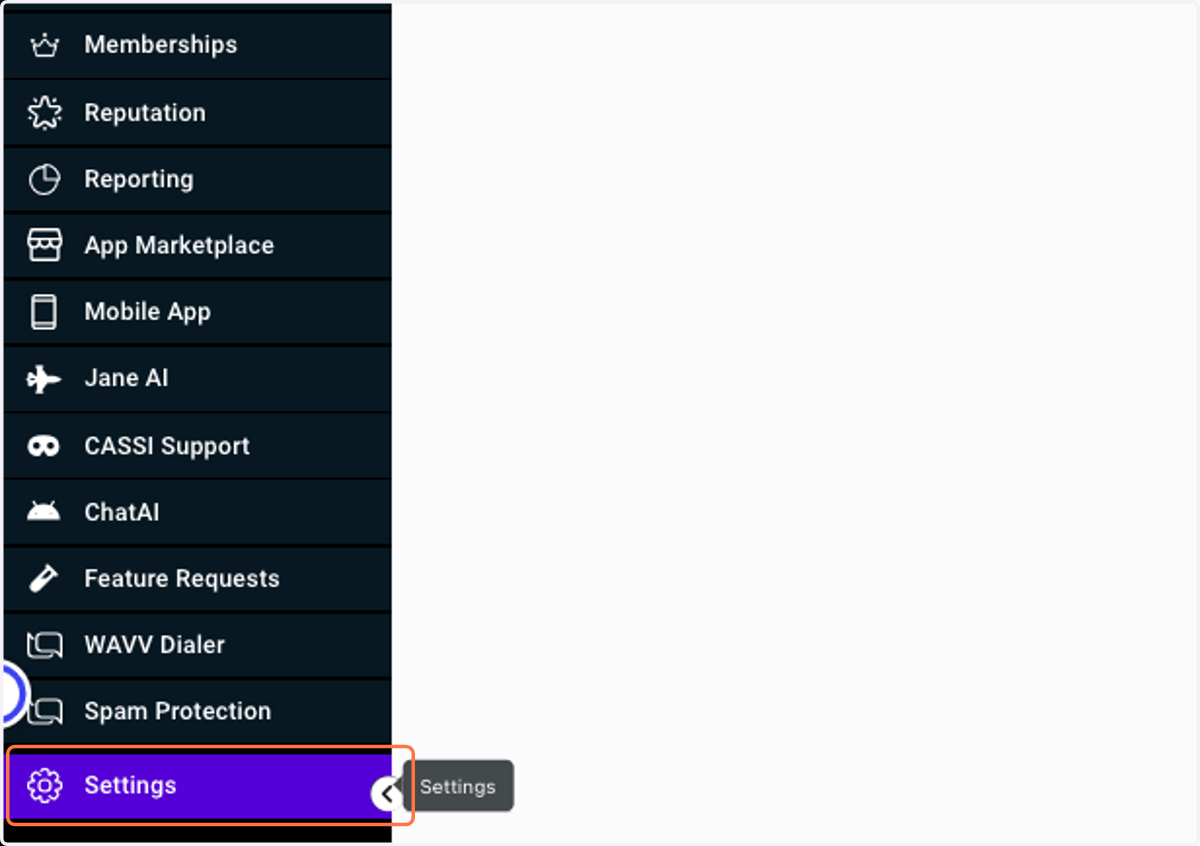
19. Click on Settings
20. Click on Custom Values
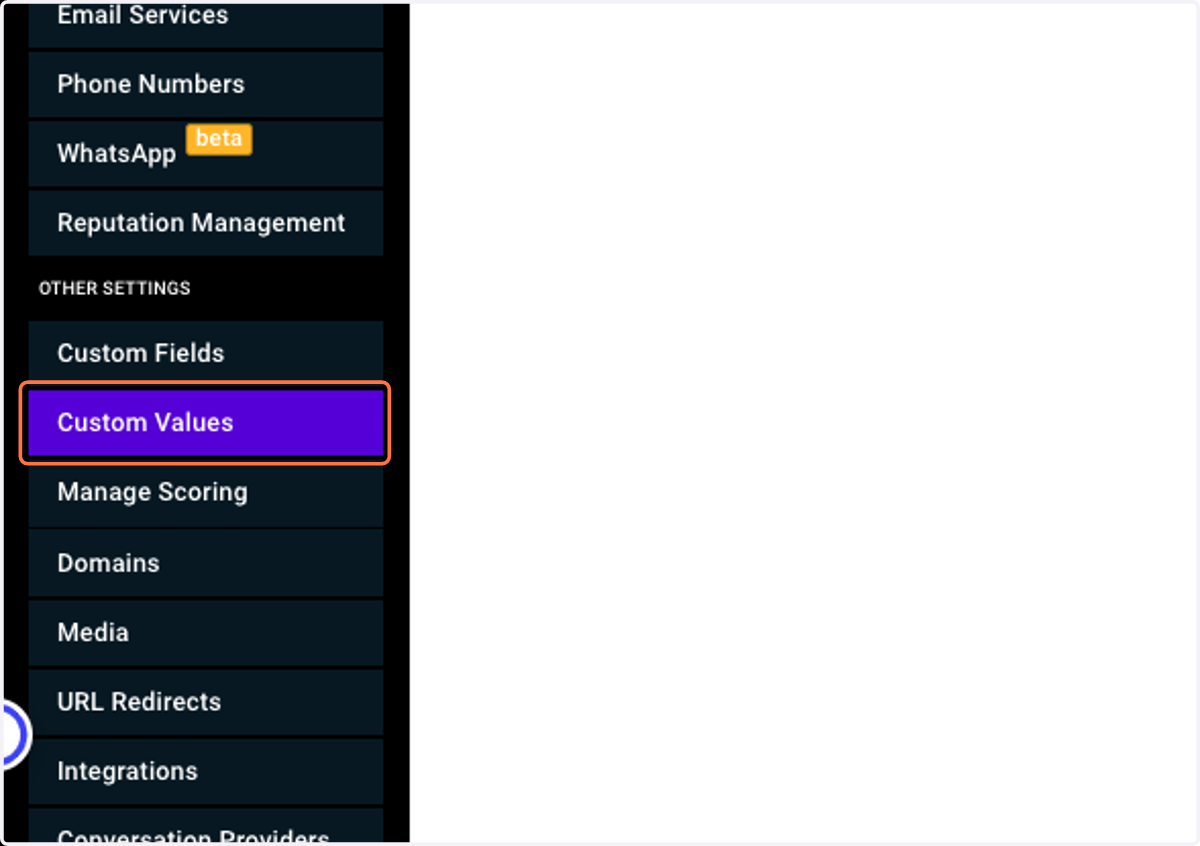
21. Click on Robot Webhook
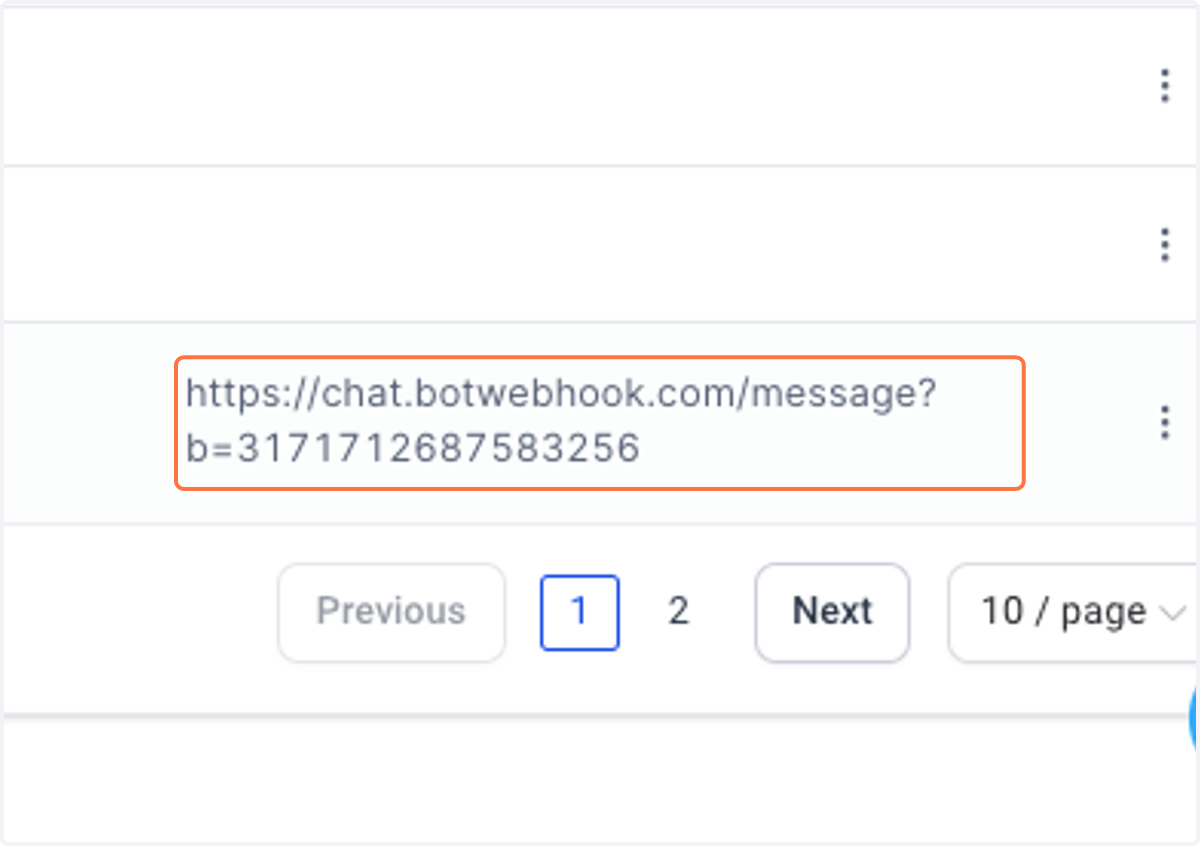
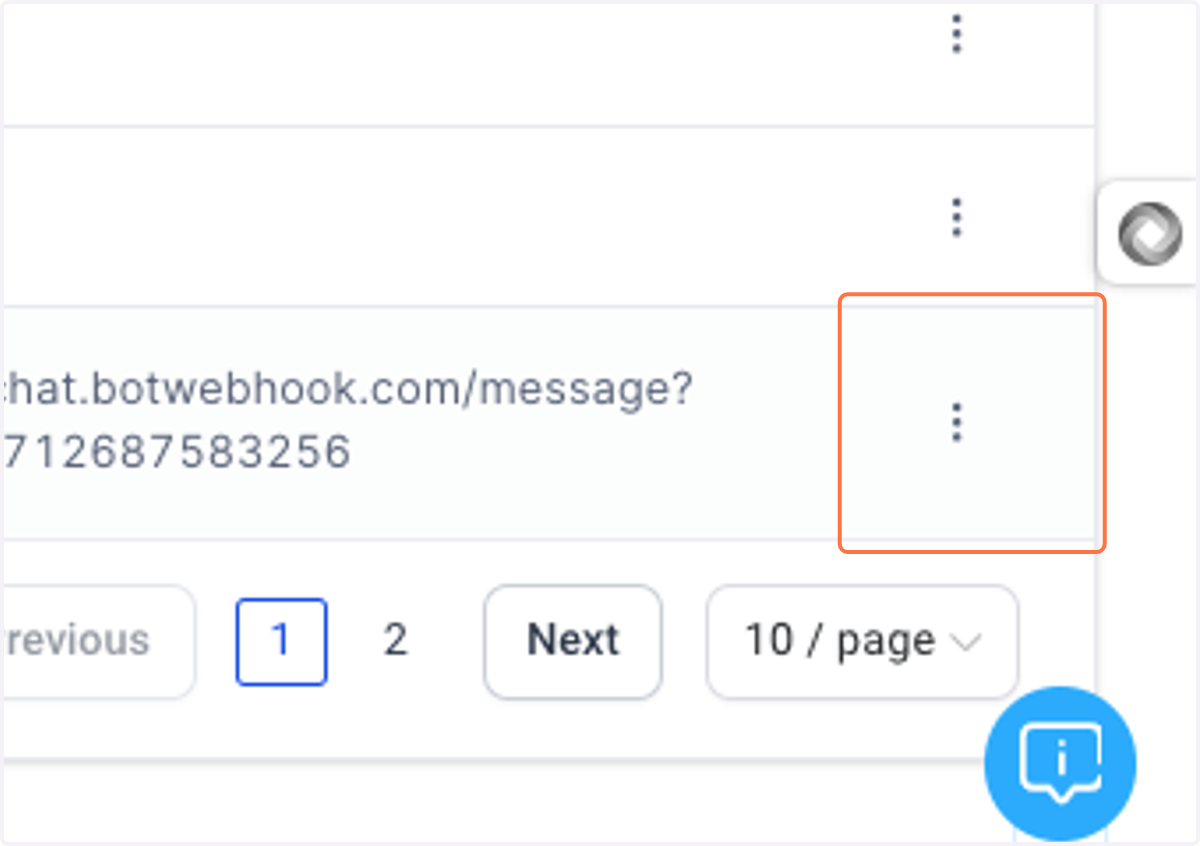
22. Click on …
23. Click on Edit Custom Value
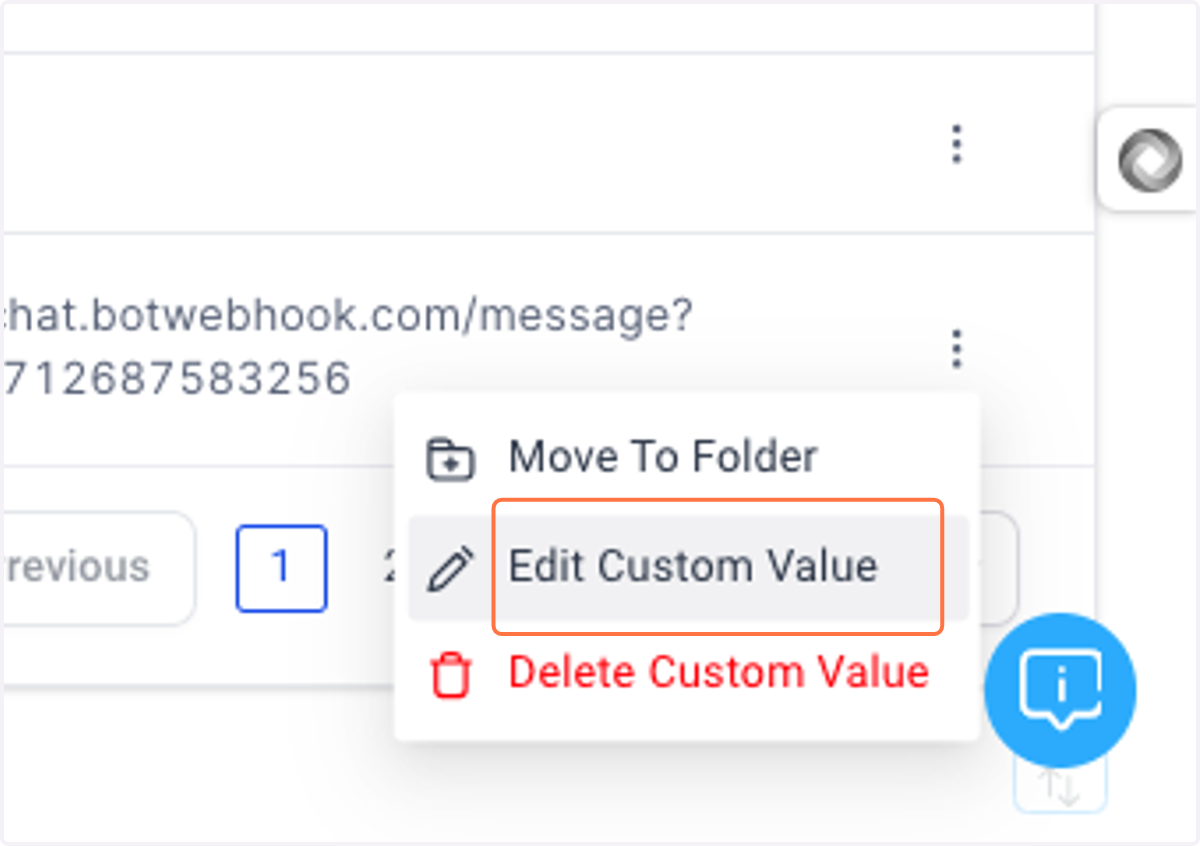
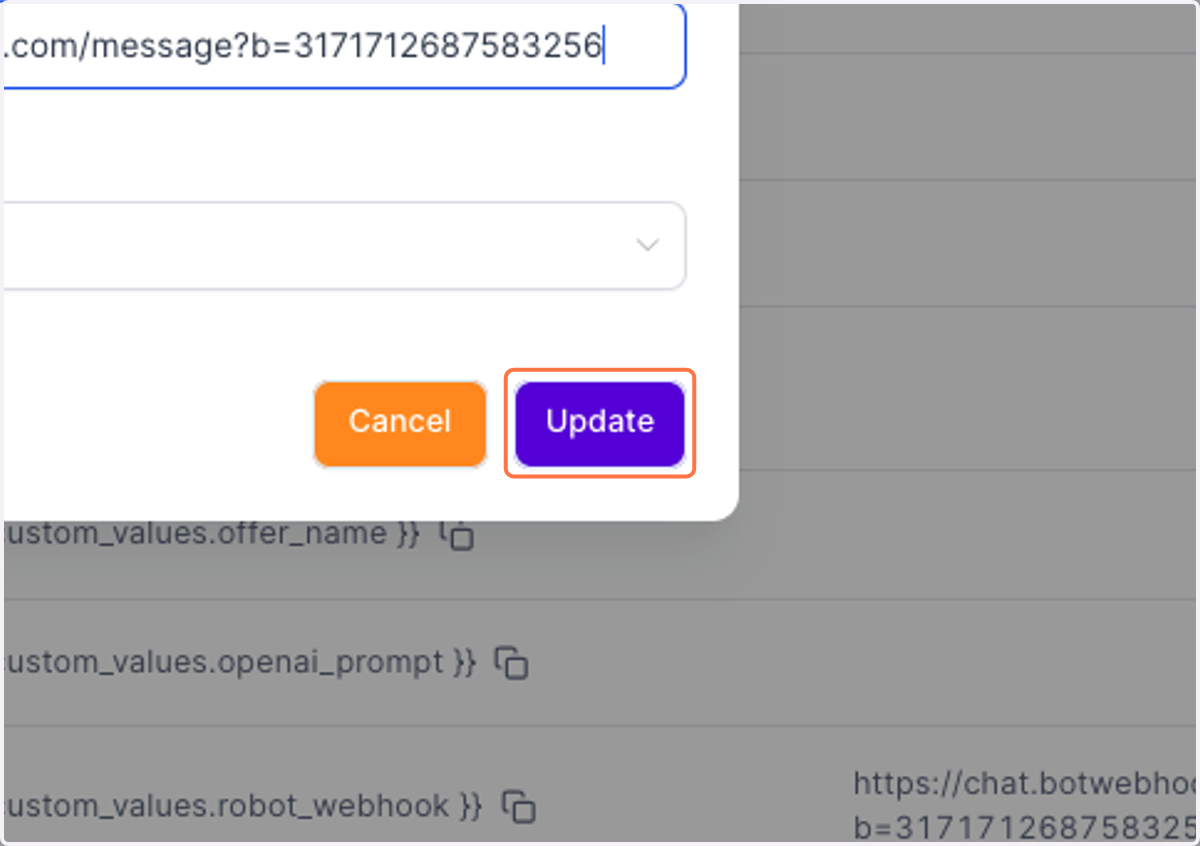
24. paste webhook URL here
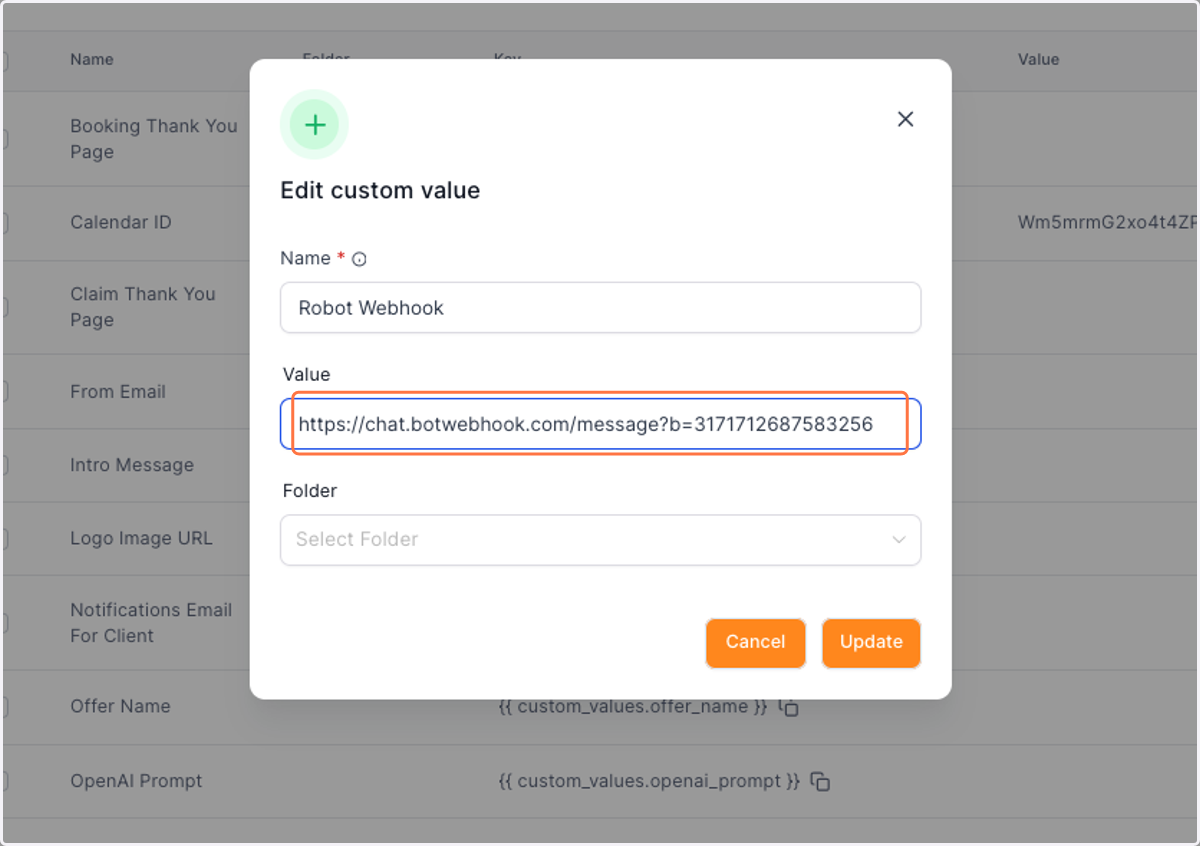
25. Click on Update