How to Resize an Image in Moodle
1. Open the course and click "Turn editing on"

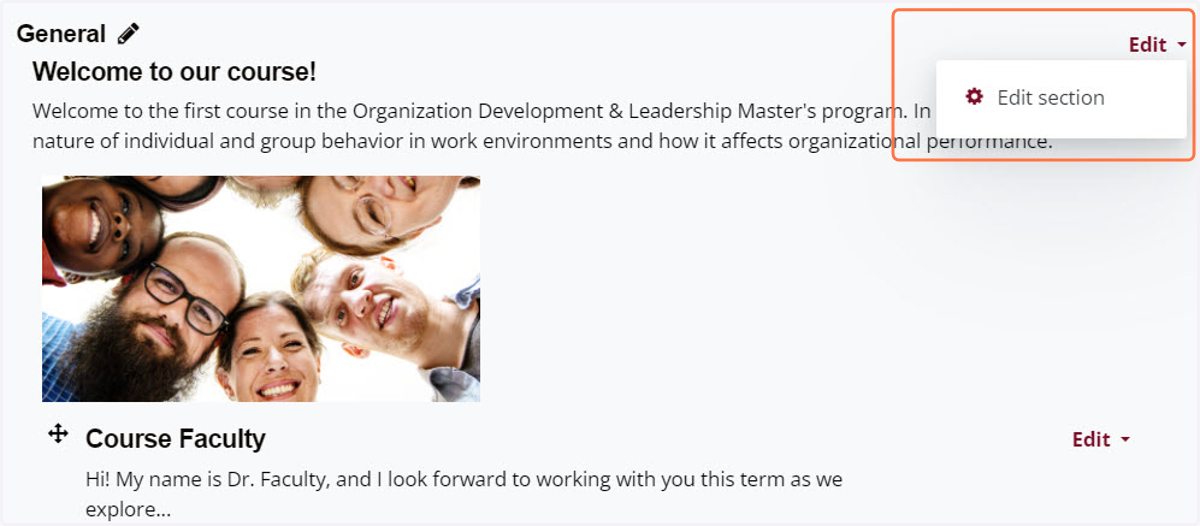
2. Go to the section of the course containing the image, and click "Edit". Then click on "Edit settings"
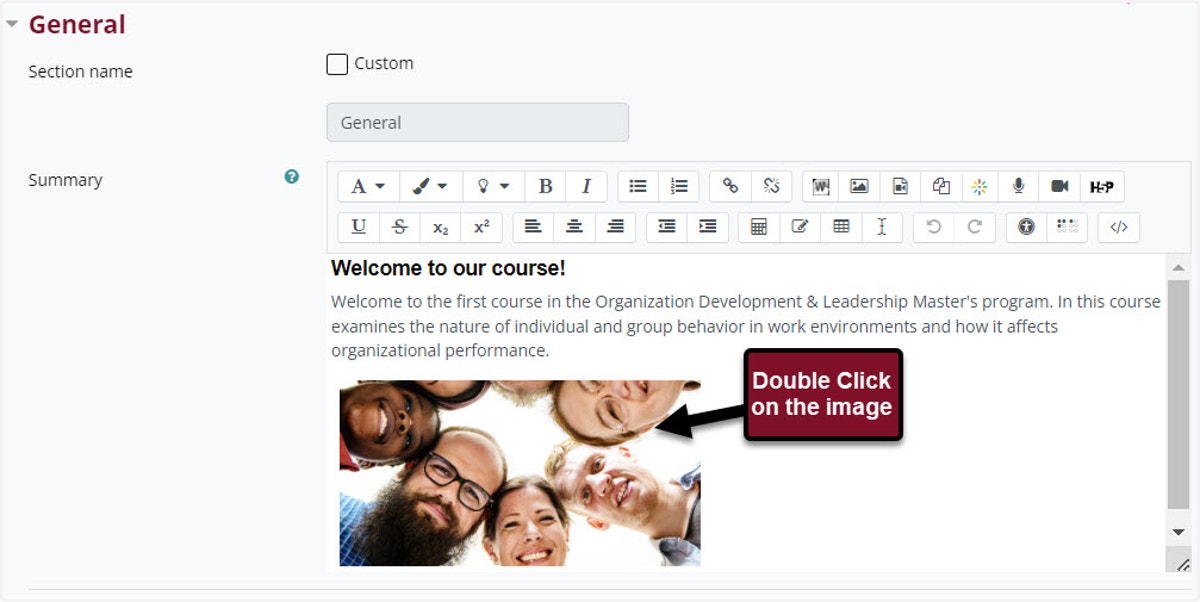
3. In the text editor, double click on the image.
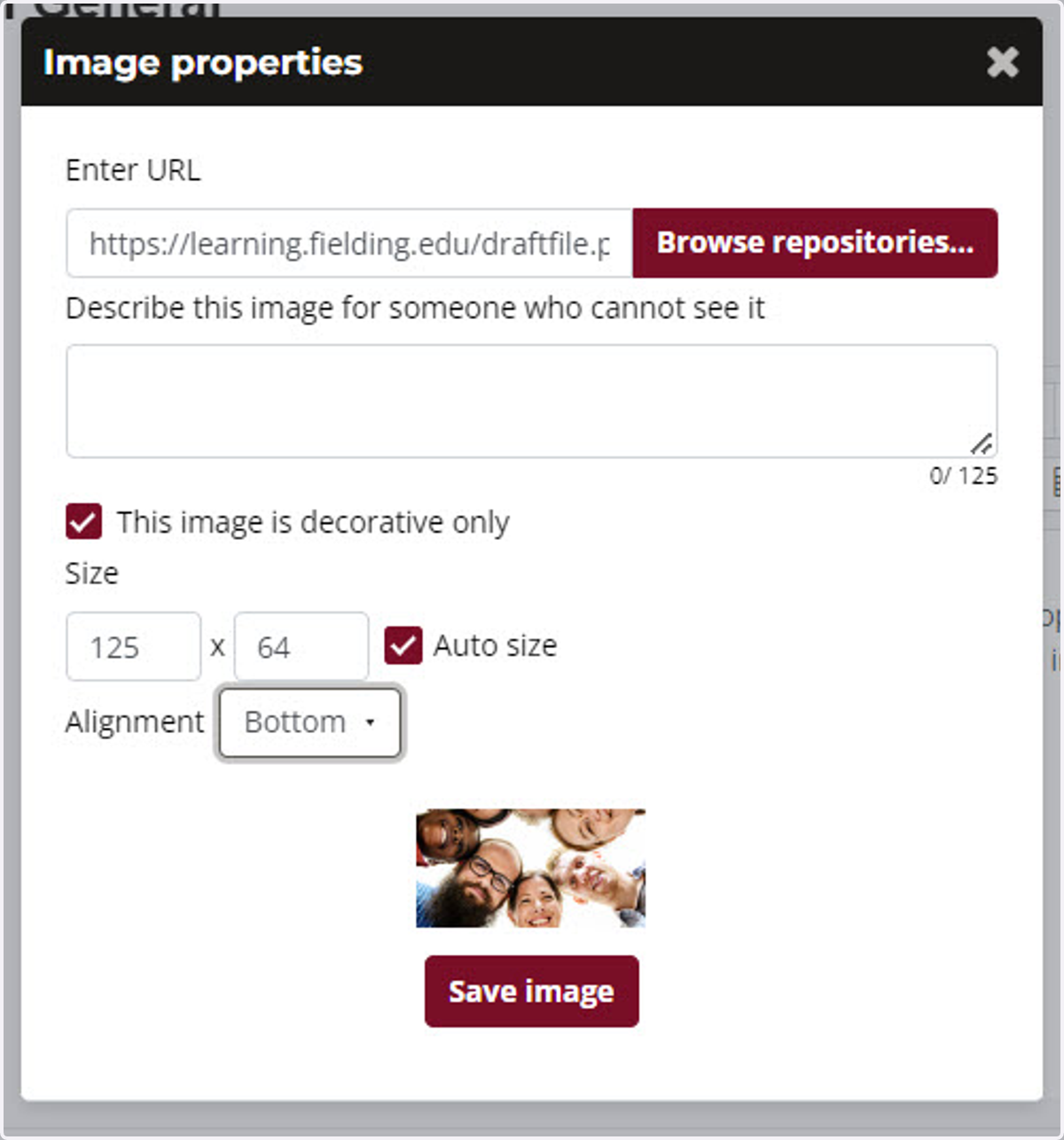
4. The Image Properties window will open.
To ensure accessibility for students using screen readers, be sure to enter a description of the image or check the "decorative image" box.
Enter the desired size for the image.
Check "Auto size" to maintain the aspect ratio of the image.
Click Save.
5. Click on Save at the bottom of the editing window and return to the course
You can repeat these steps, entering different size values to obtain the desired image size.

Click Here for Additional information on images in Moodle.
Notes:
The recommended size for profile images is approximately 100x100.
If you want to change where the image appears on the page, try changing the Alignment.