How to View Contact Details
Horse Business Manager
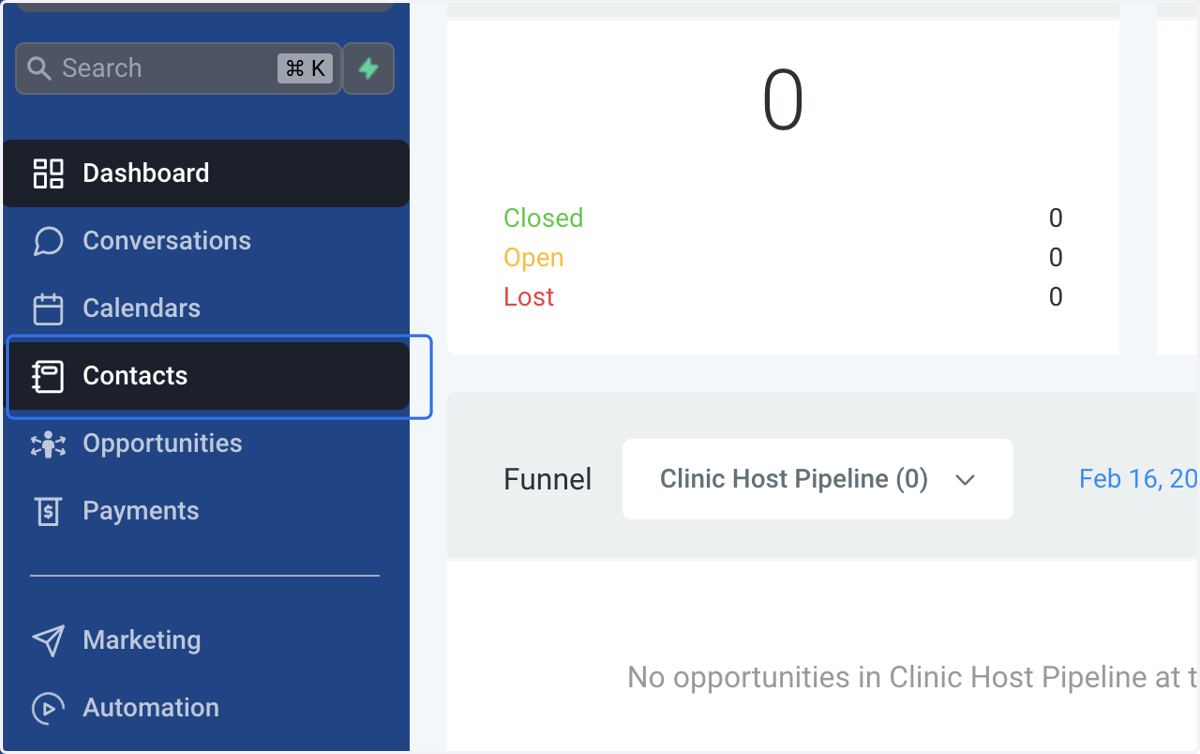
1. Click on Contacts
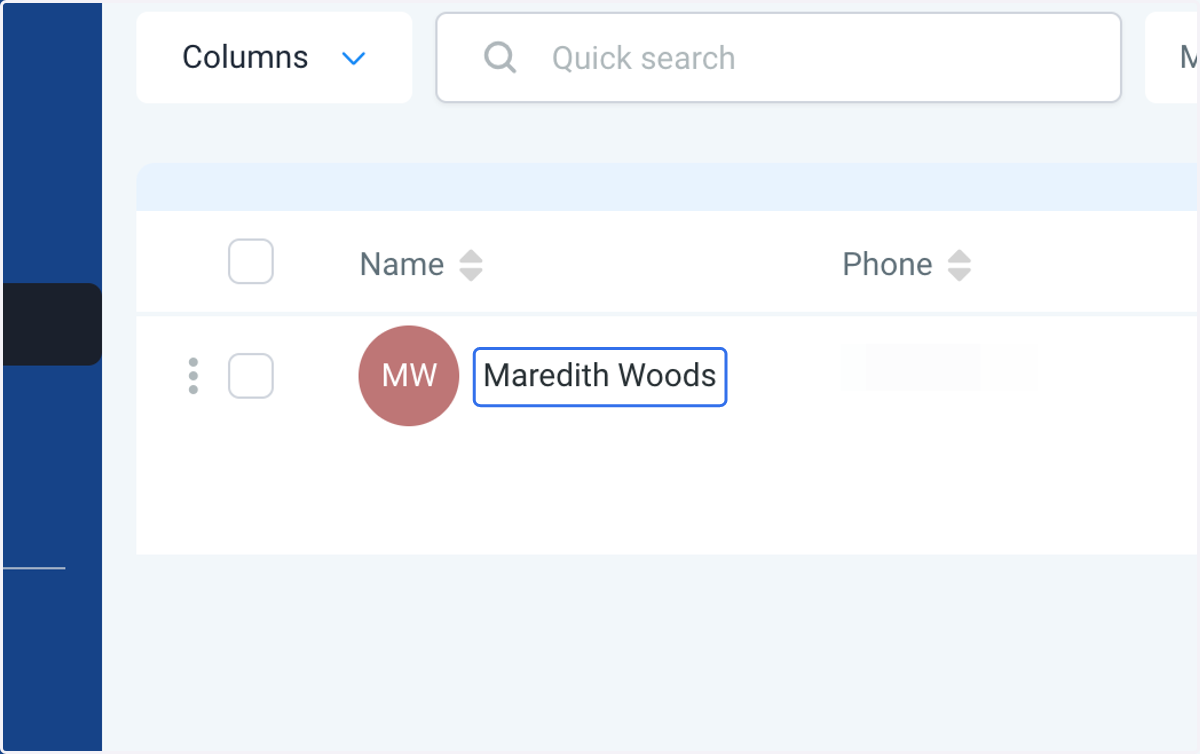
2. Click on the contact you are looking for
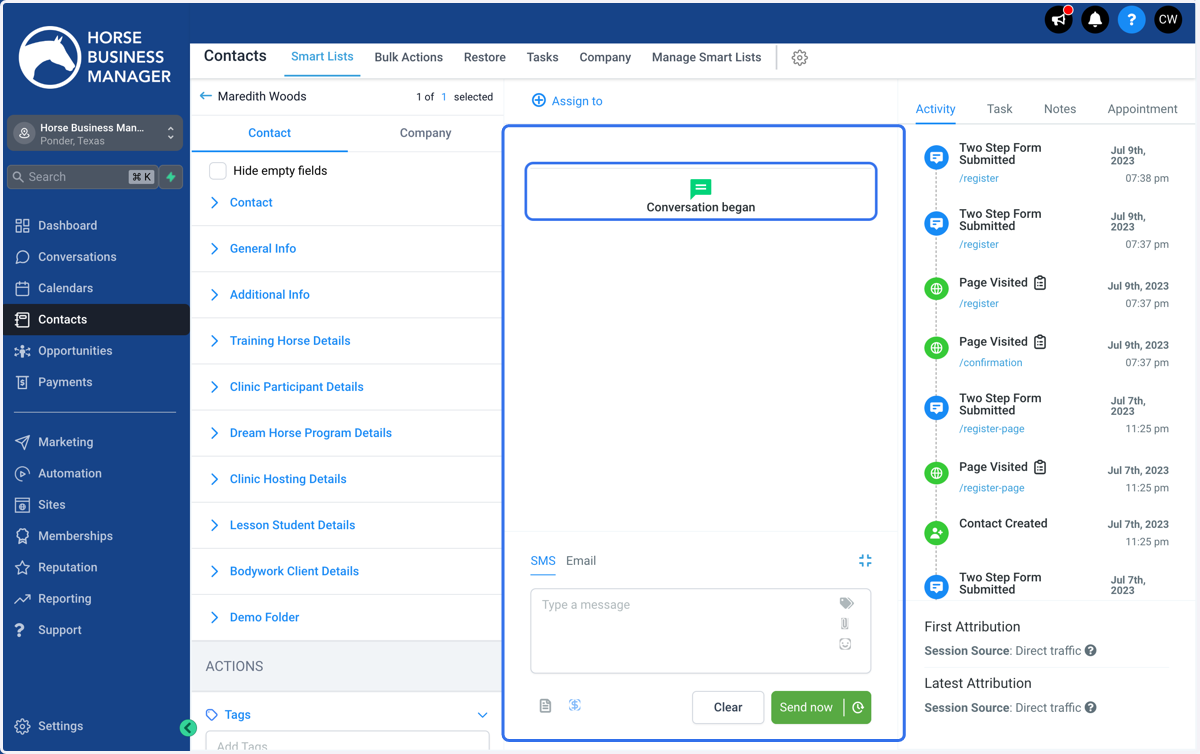
3. Use the blue folders to view the contact's information that you have gathered
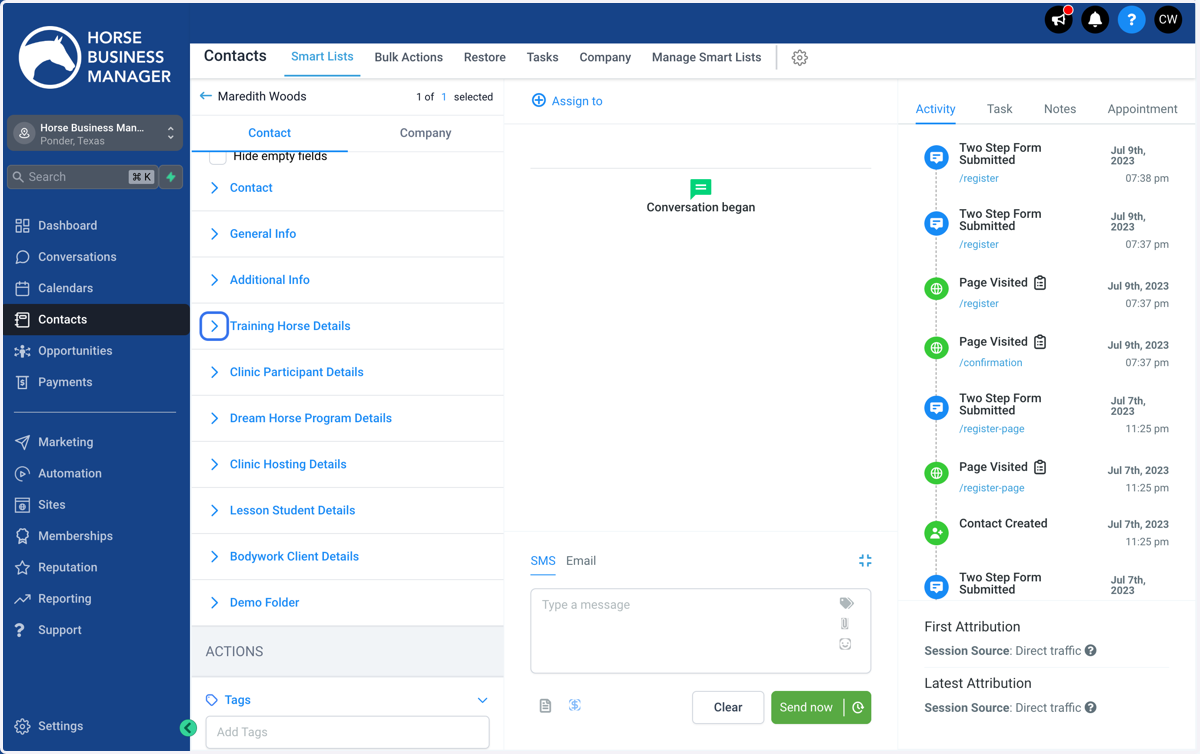
4. Use the center column to send SMS or email messages
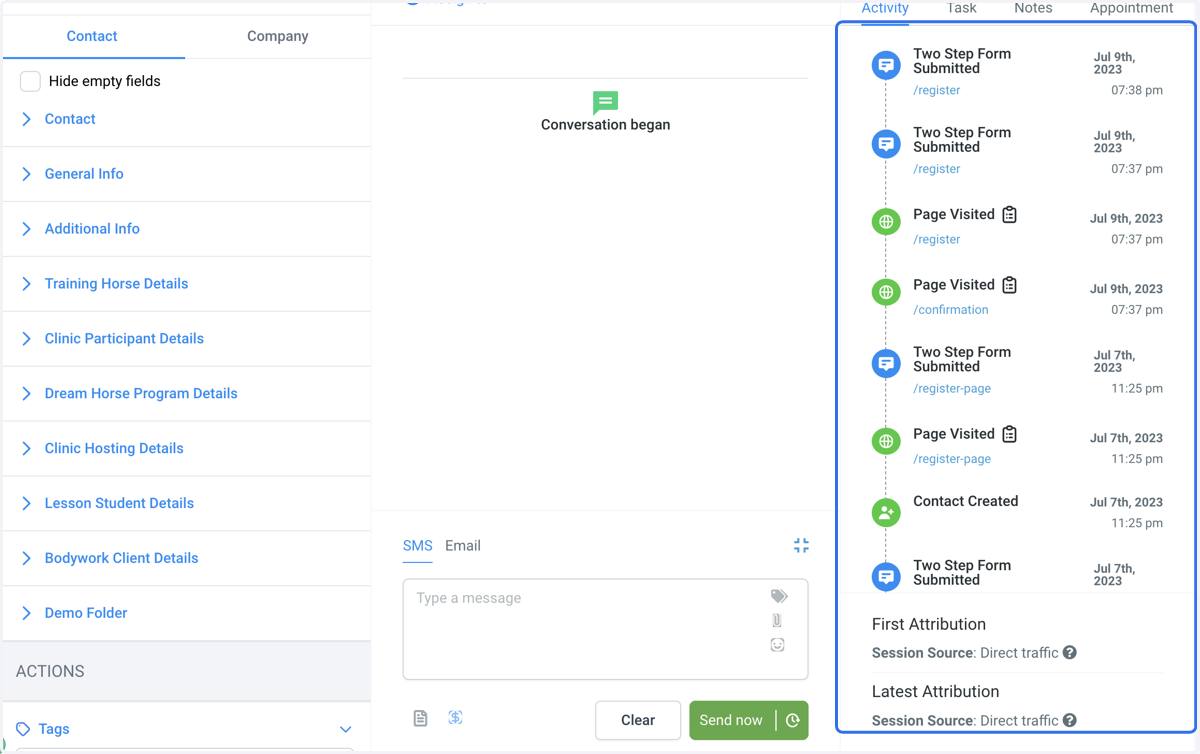
5. Use the far right column to view the contact's activity on your website
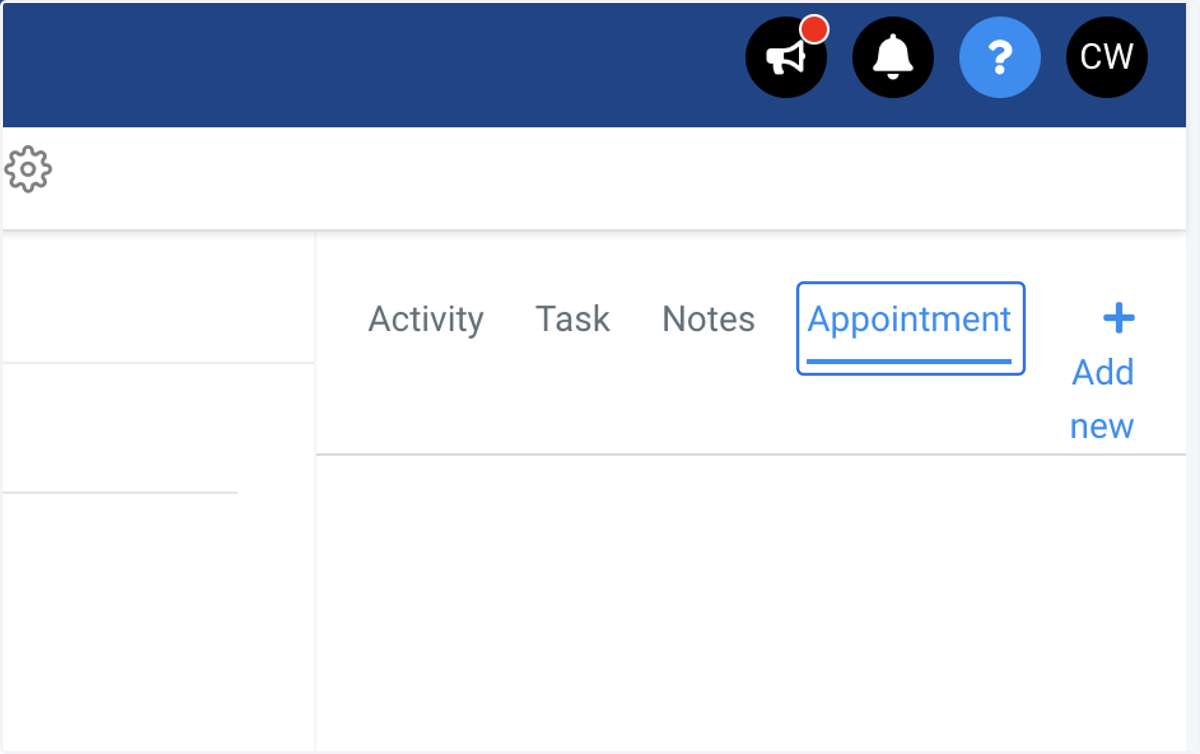
6. Click on Notes to add notes to the contact (the contact cannot see these notes)
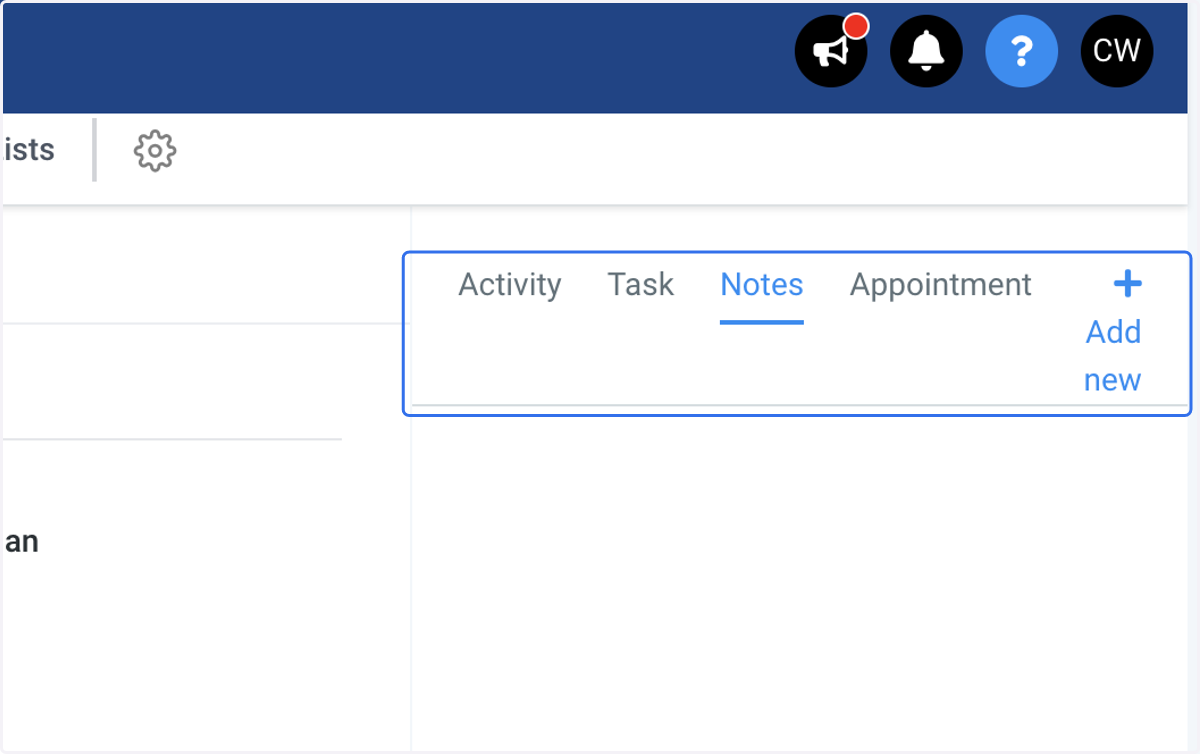
7. Click on Appointment to view any existing appointments the contact has with you