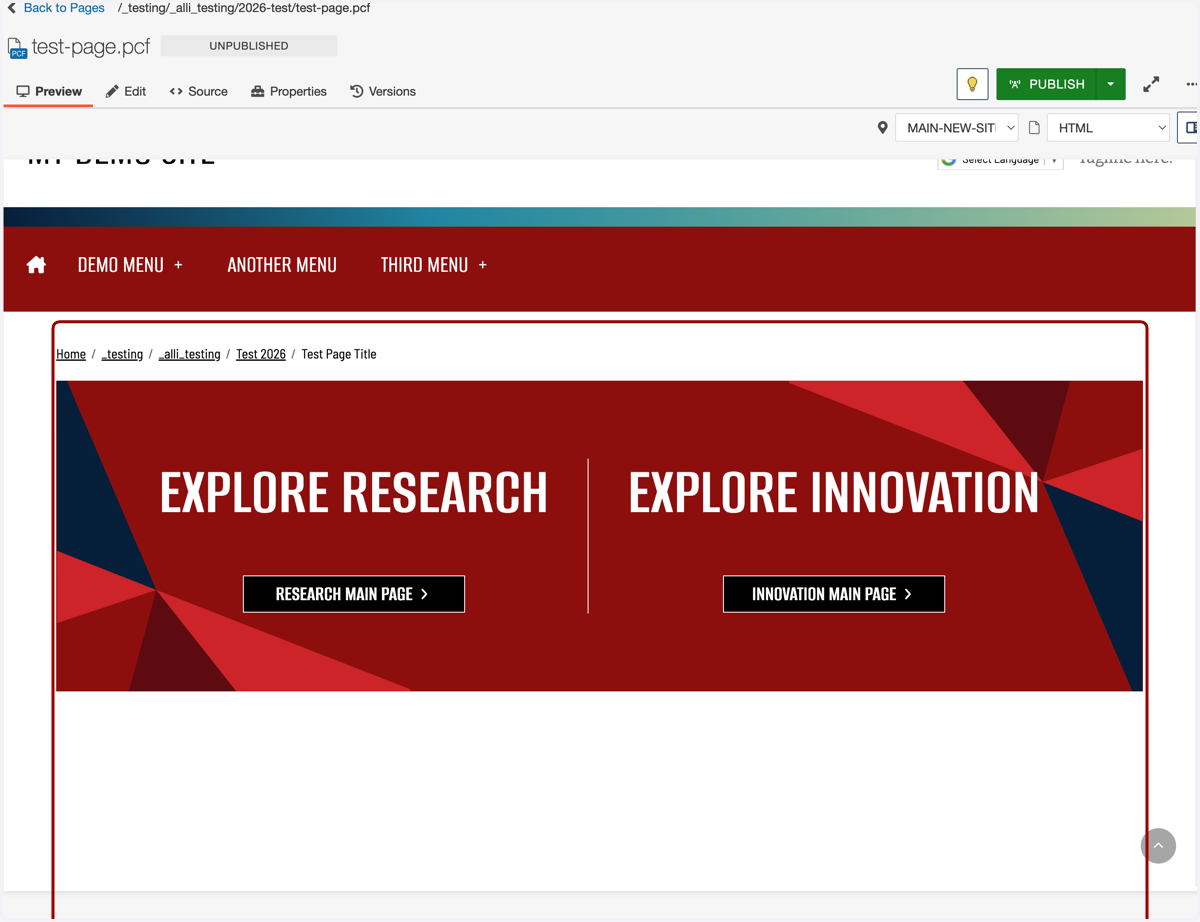
[TUTORIAL] Component: Banners - Section of Buttons
1. First, select which area you would like to add this component into. In this example, we'll use Main Content.
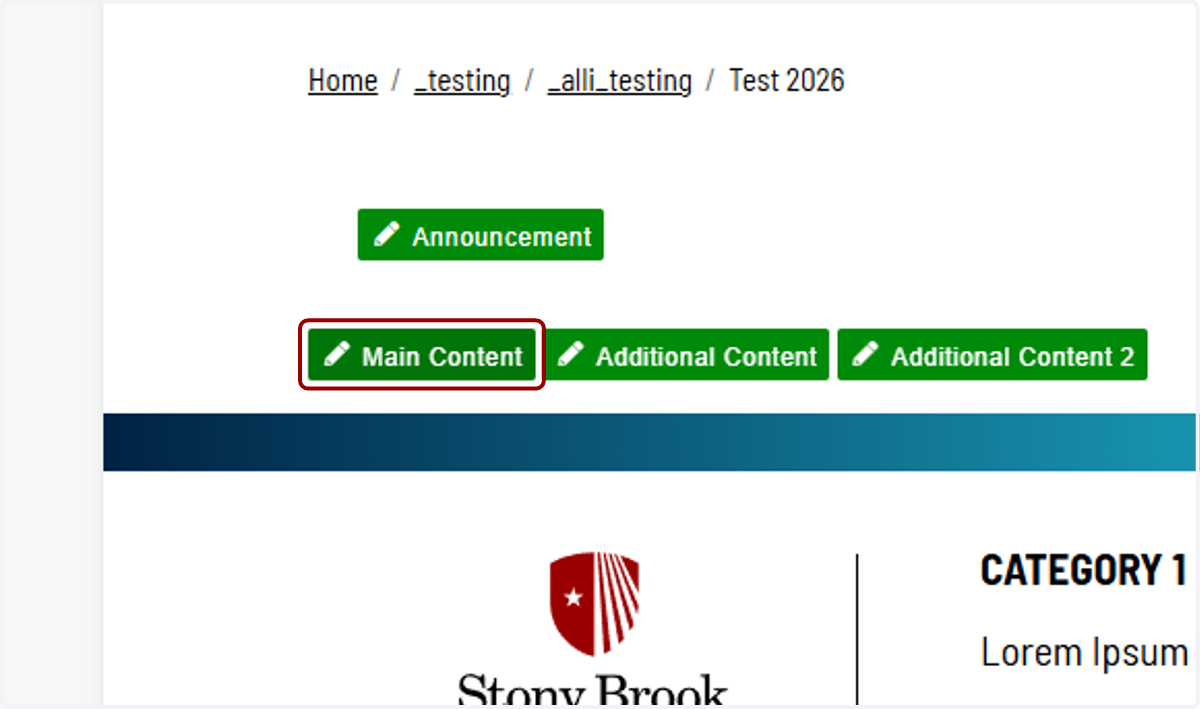
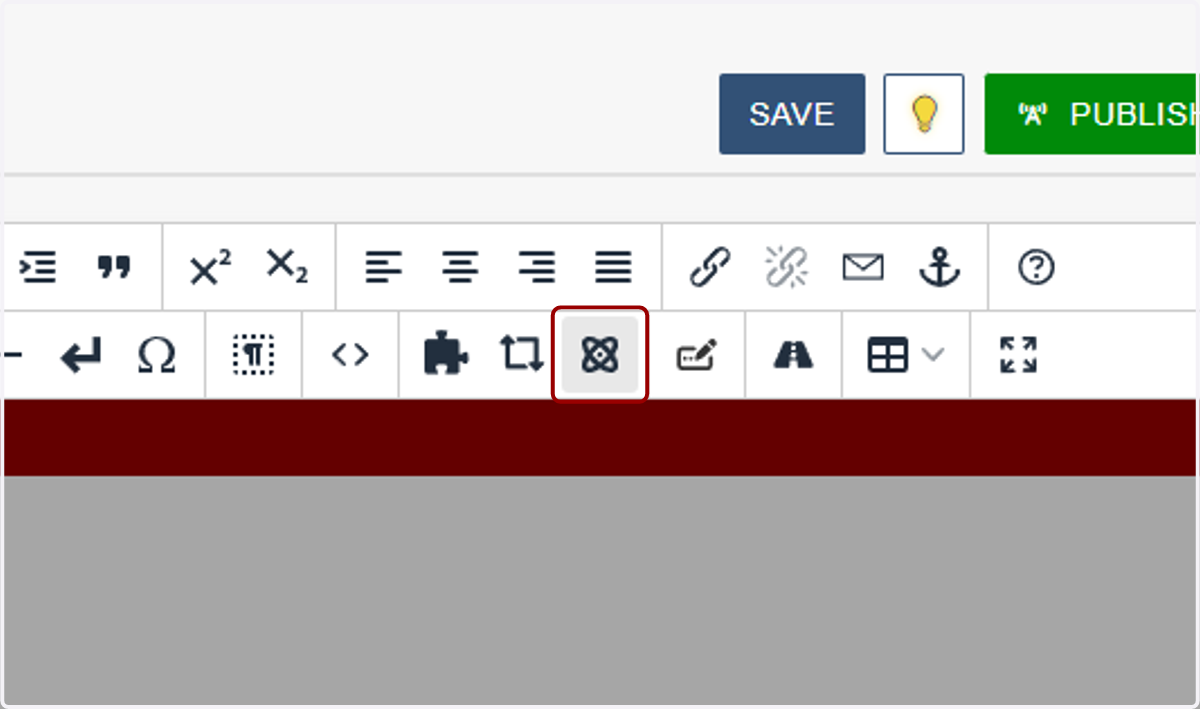
2. Click on Insert Component.
3. Click on or filter by name for "1_Banners – Section of Buttons."
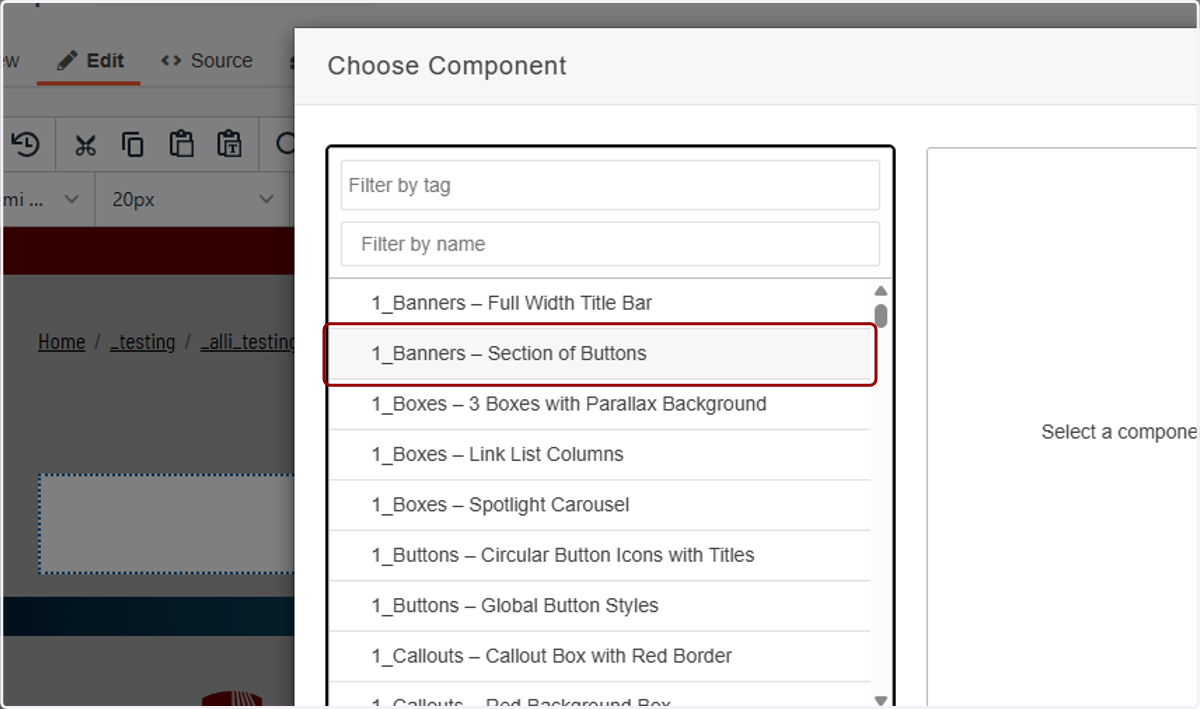
4. You'll see a preview of the two versions of this component appear on the right-hand side.
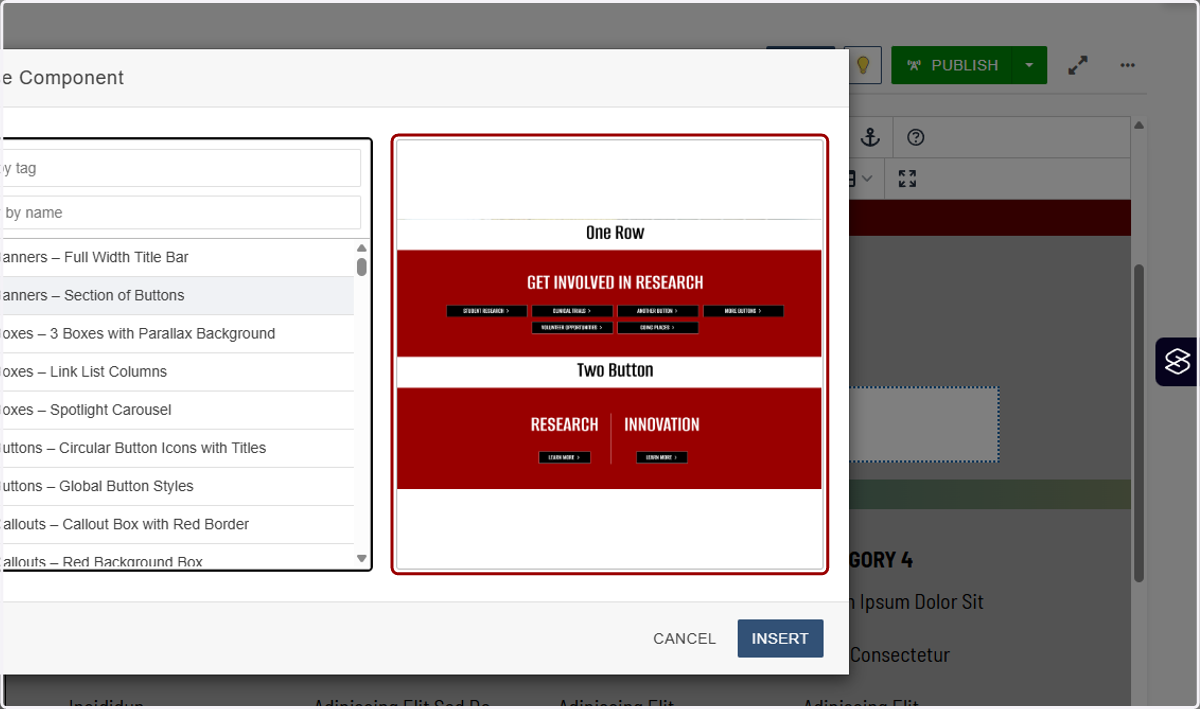
5. Click on INSERT.
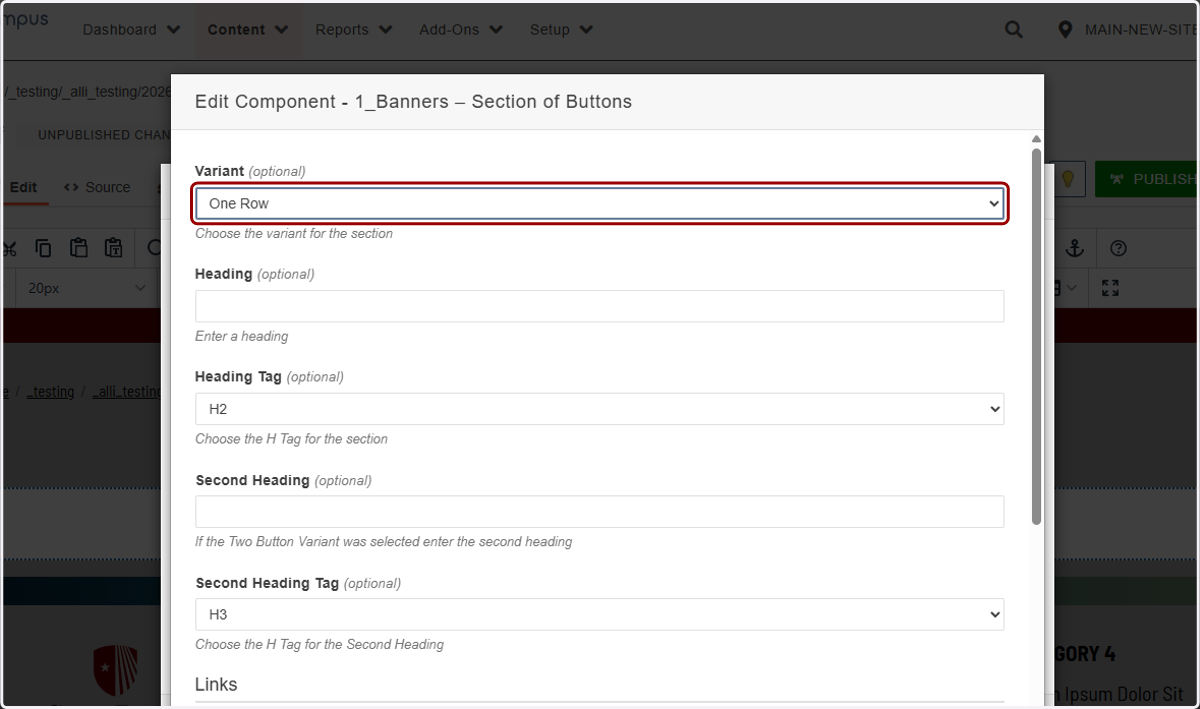
6. In Variant, you'll have your choice of "One Row" or "Two Button." We'll start with "One Row," which is the version that allows for many buttons all in a row. They'll wrap into multiple rows if needed.
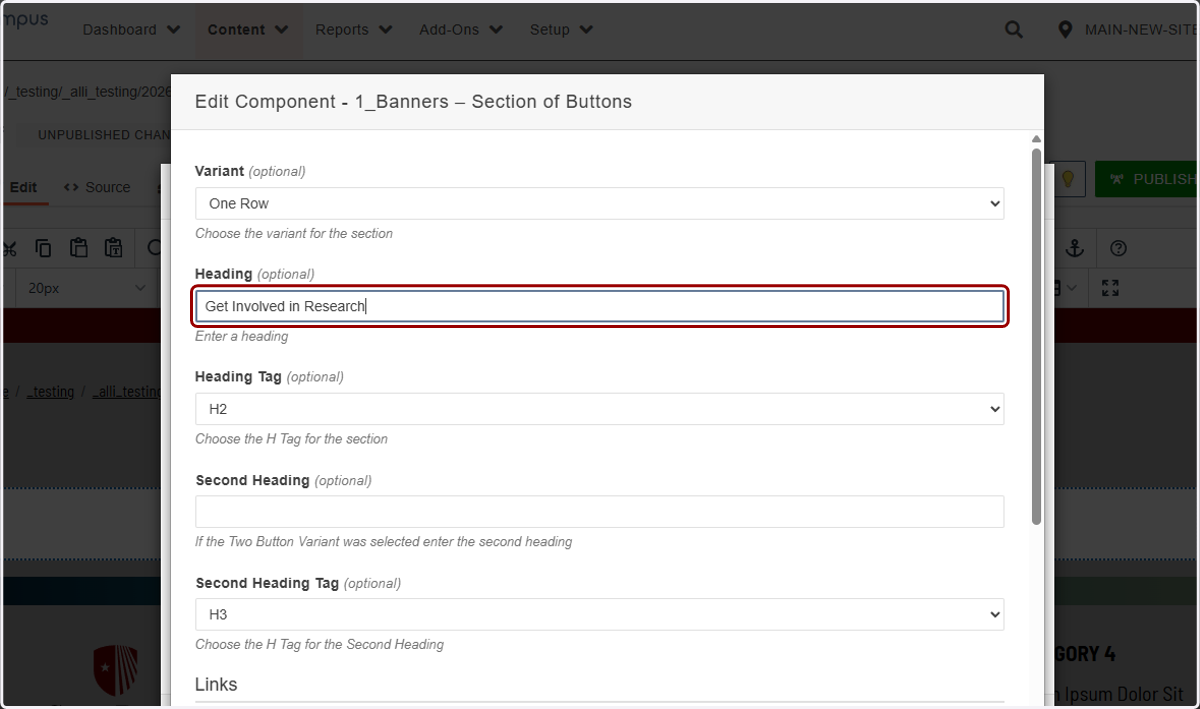
7. Add a heading for your buttons in the Heading field.
8. Next, you'll select the heading H tag you would like to assign that headline. Unless you are using this section as the hero of your page (unlikely), you will likely want to keep this as the default H2.
For more information about when to use different H tags, see our help guide.
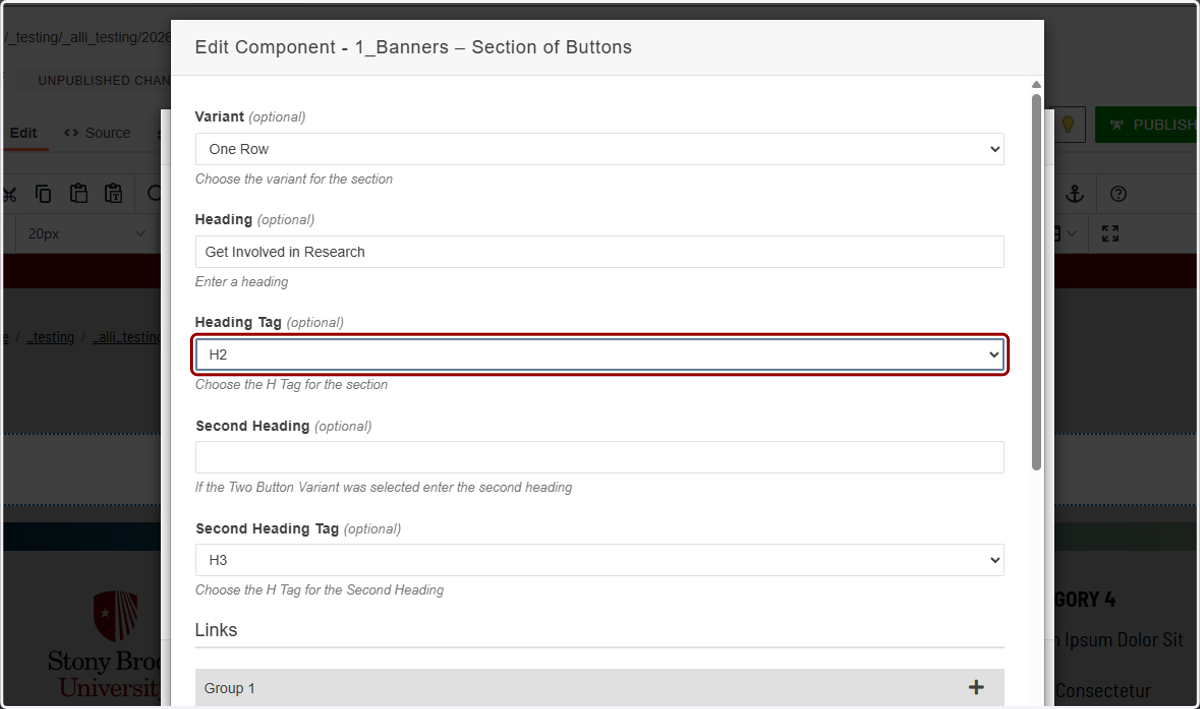
9. We'll skip the Second Heading field because we selected One Row as our variant.
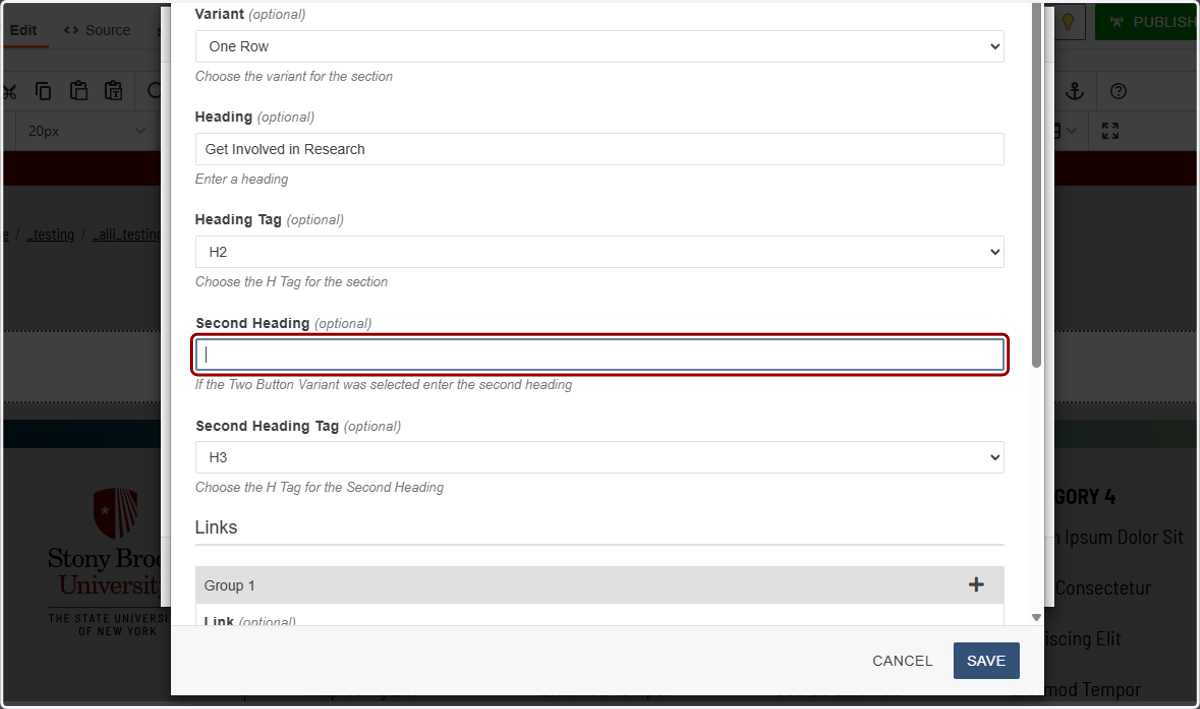
10. We'll also skip Second Heading Tag.
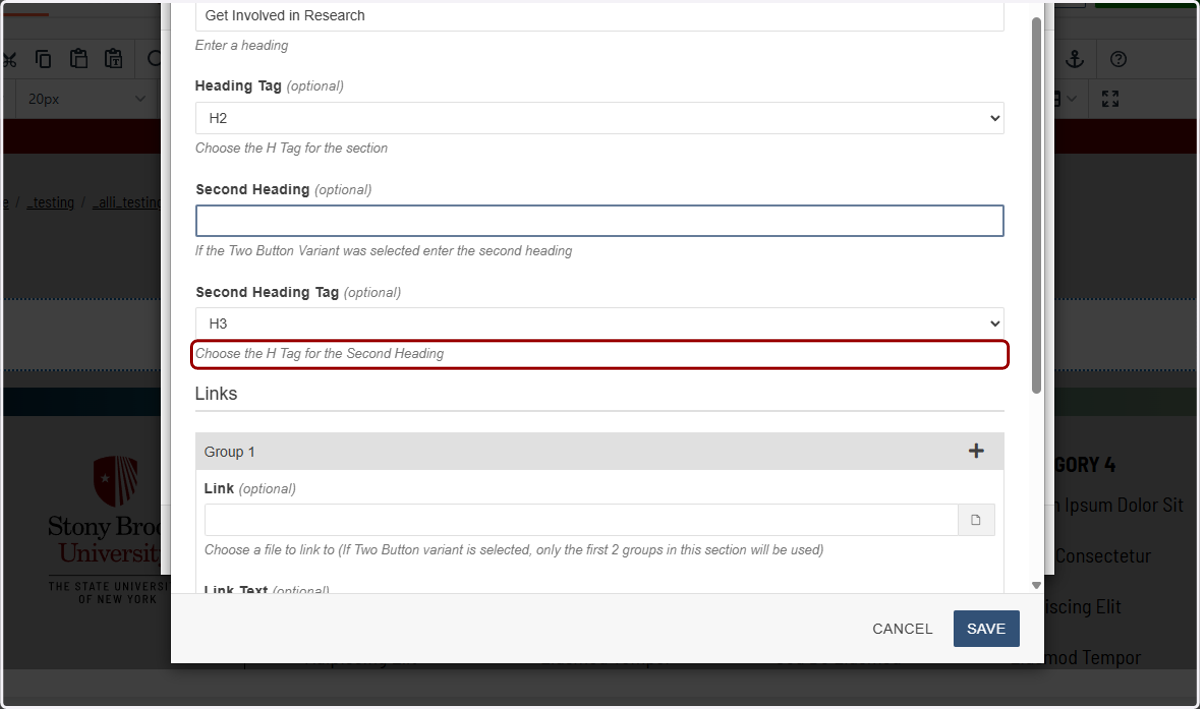
11. Now you'll add your buttons. Each button is a Group. In the Link field, you can use the file chooser to select a page on stonybrook.edu, or paste an external URL into the field.
For more information on how to use the File Chooser, see our help guides.
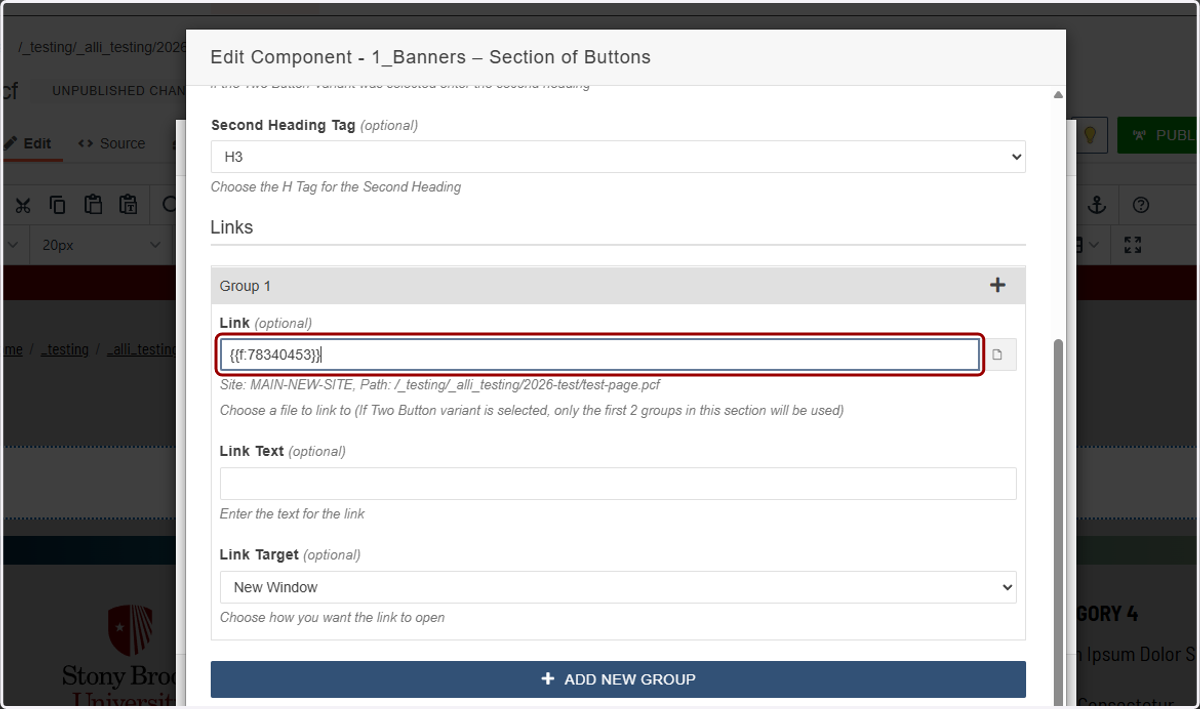
12. Use the "Link Text" field to describe where the link goes or what it does. Avoid vague labels like "Learn more," as they don’t provide enough context for screen-reader users.
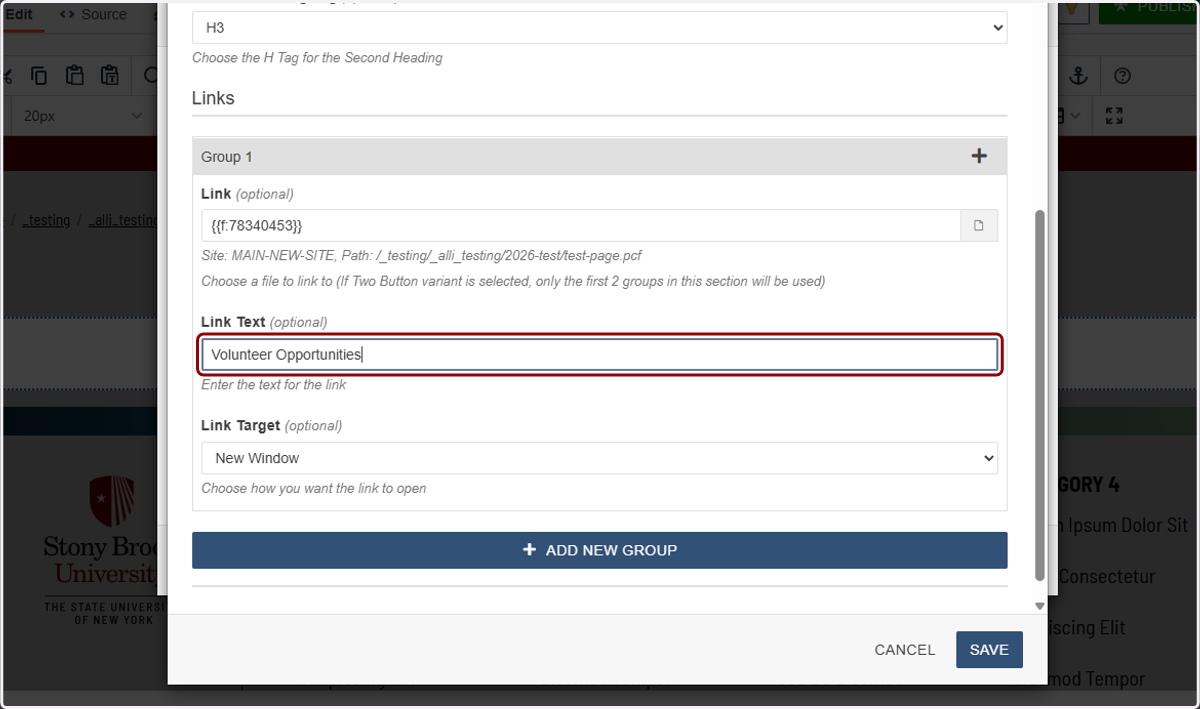
13. You have the option to have this link open in the current window or a new one. We recommend any link going to the same site open in the same window, and any external link go to a new window, but you can set the target however you'd like.
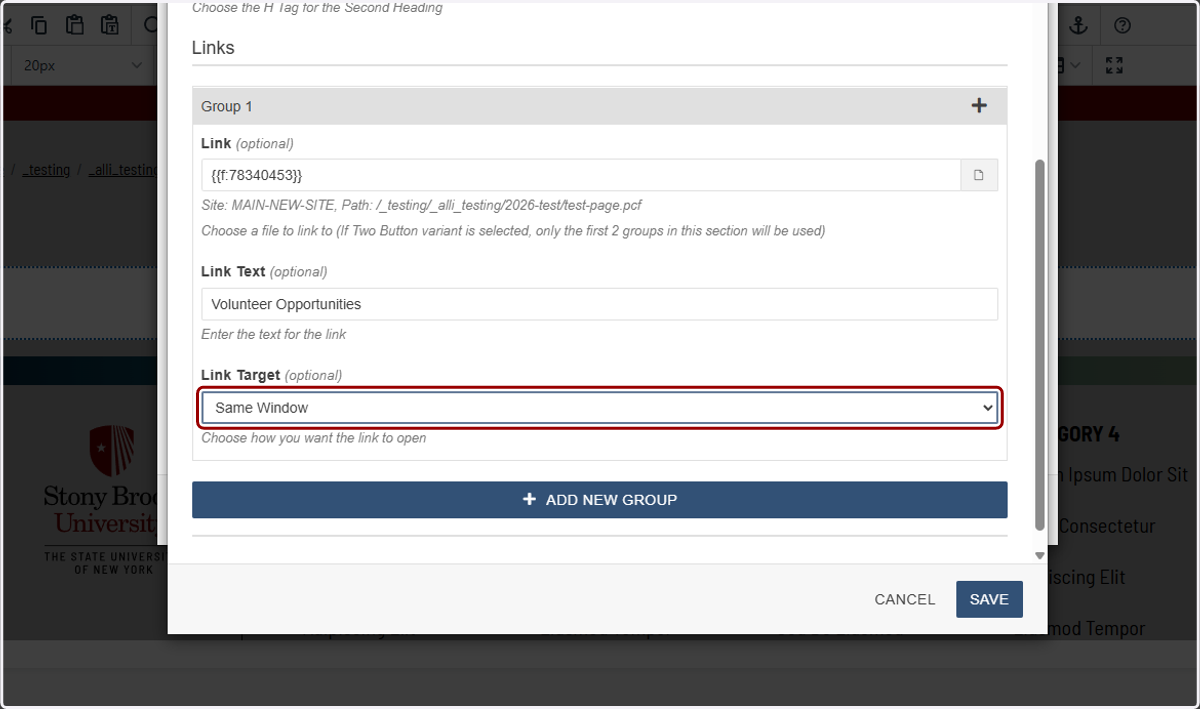
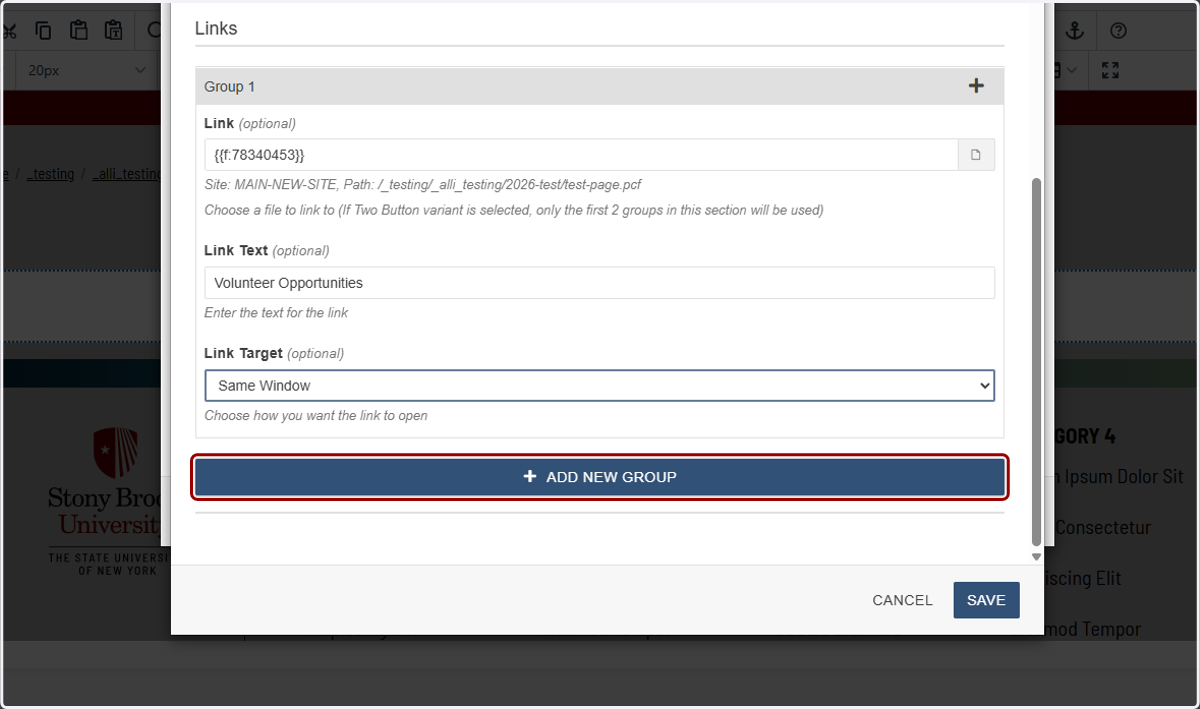
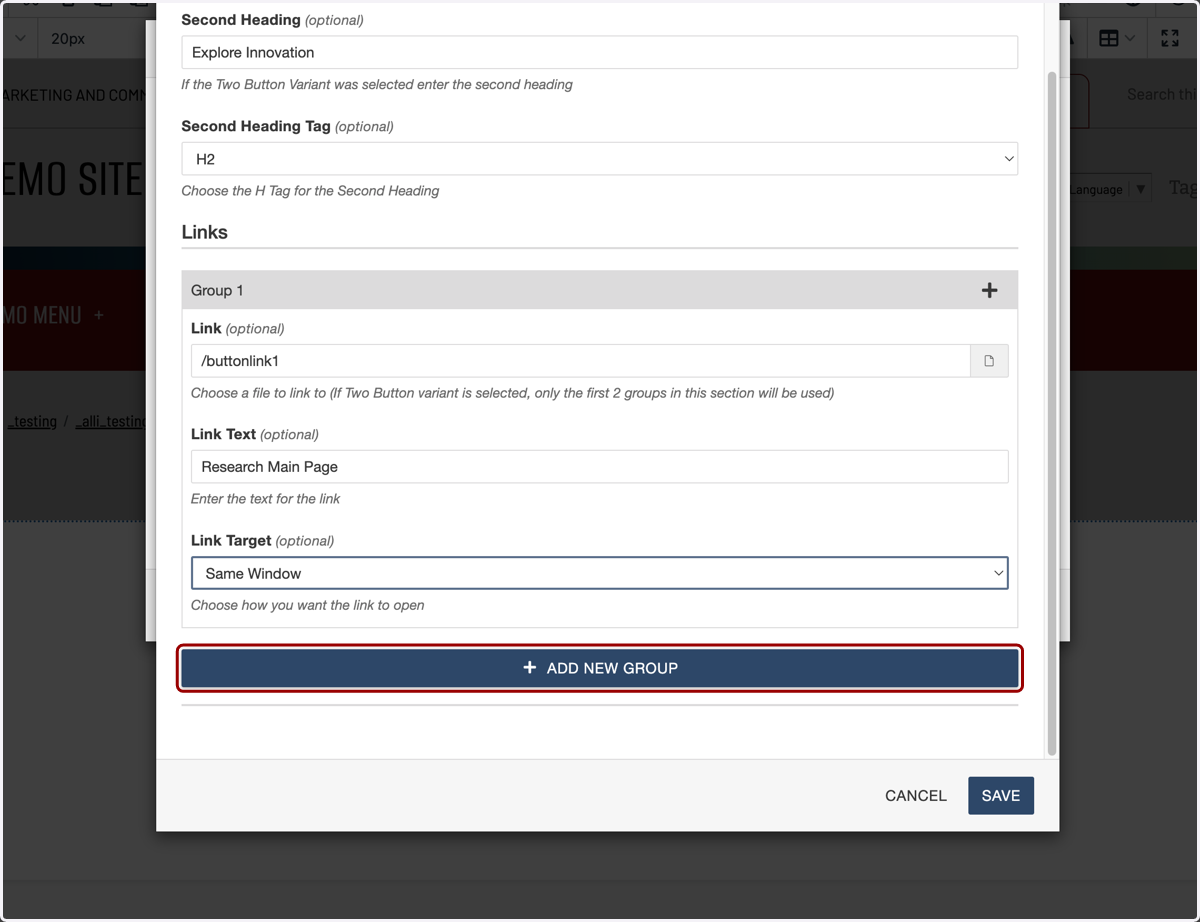
14. Clicking on "Add New Group" will add a new section to add another button. Follow the same steps as above to create as many buttons as you need.
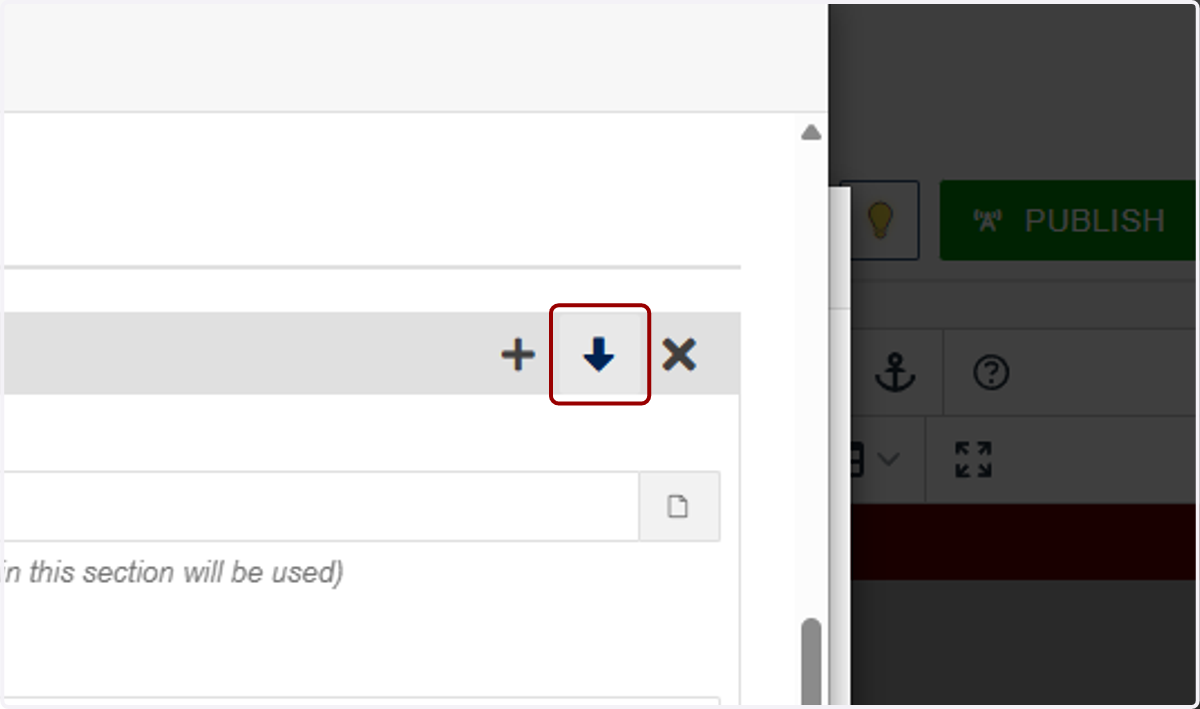
15. You can change the order of your buttons by using the up and down arrows in the top bar of each Group.
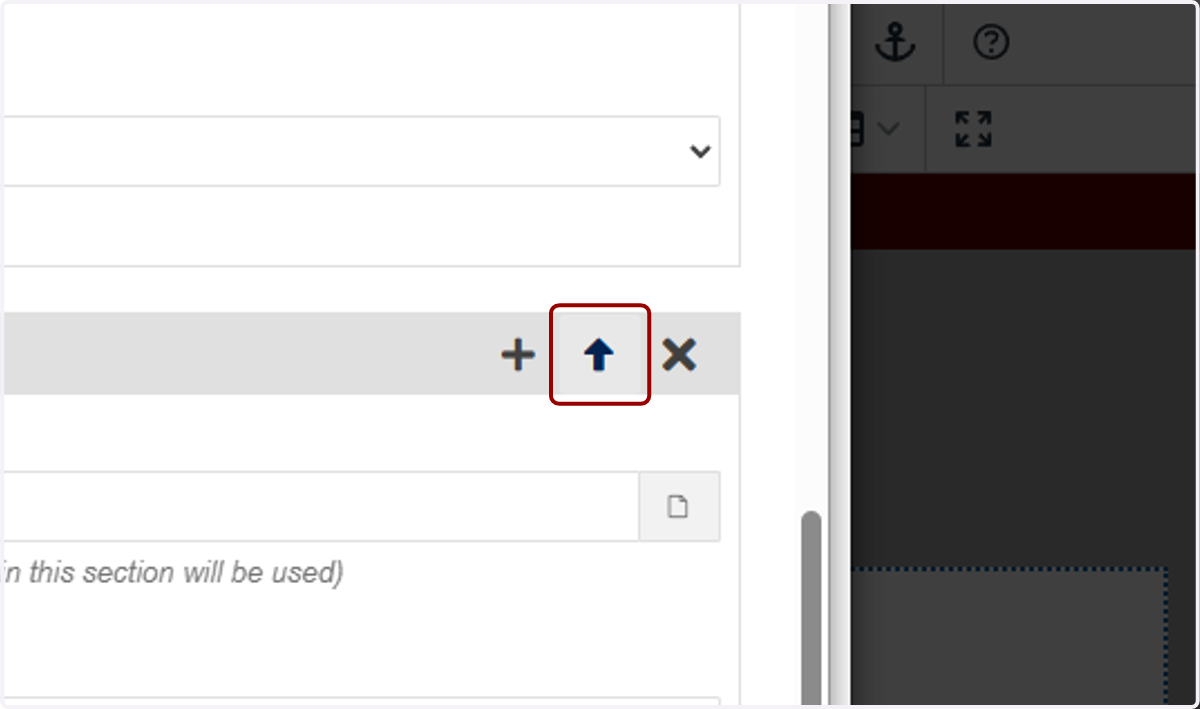
16. Click on Move Element Group down one
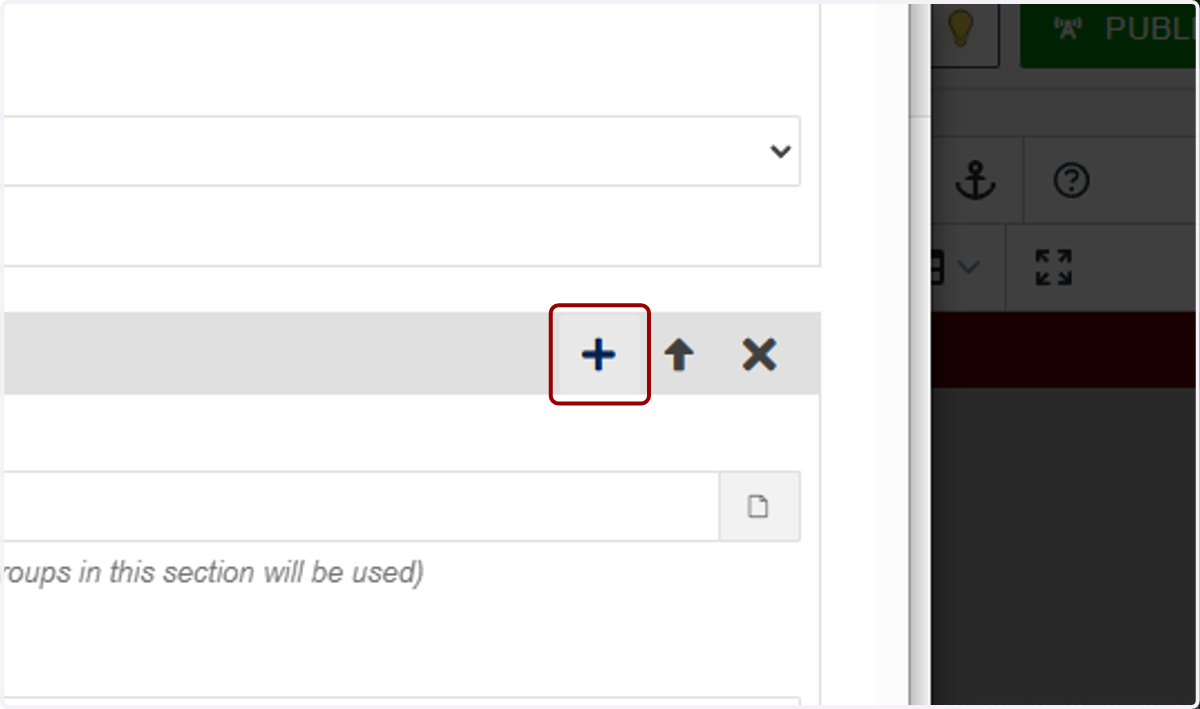
17. You can also add new button groups using the + button,
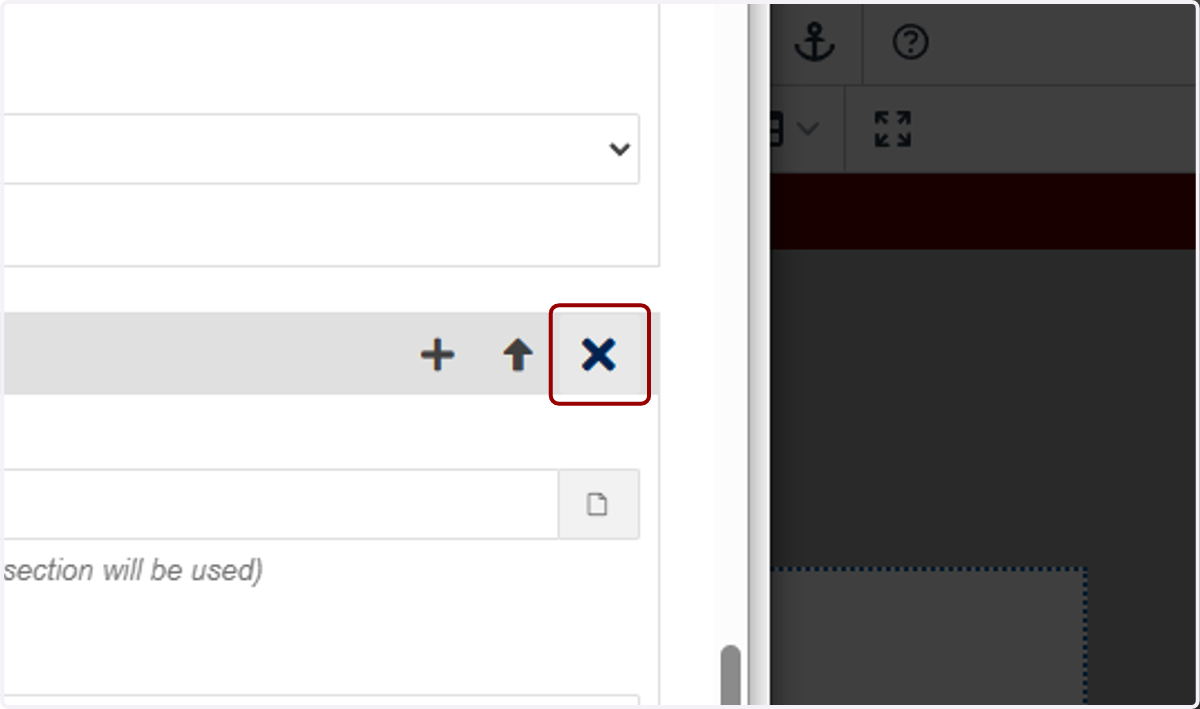
18. ...or delete button groups using the X icon.
19. When you're done, click the Save button.
20. You'll see your finished work in the Preview tab.

21. Now we will review how to set up the "Two Button" variant of this component.
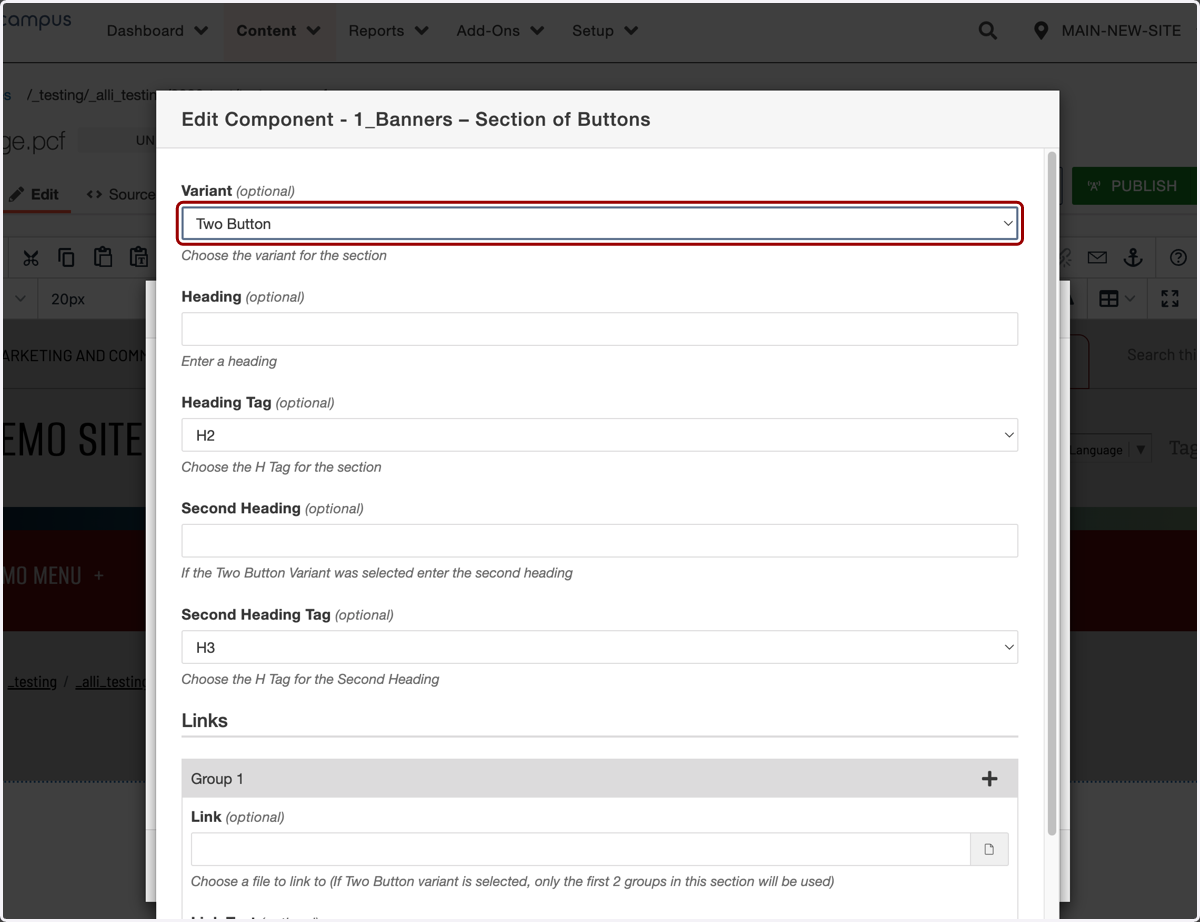
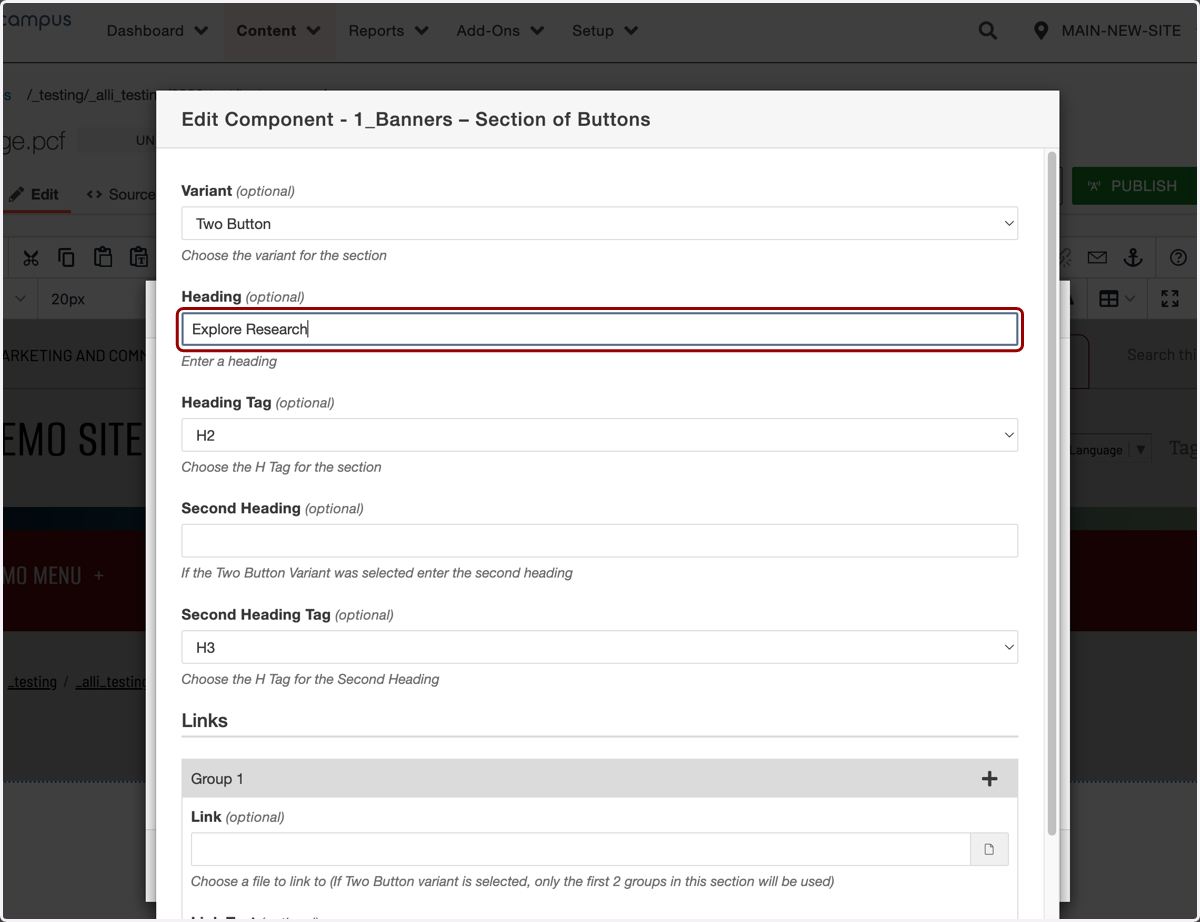
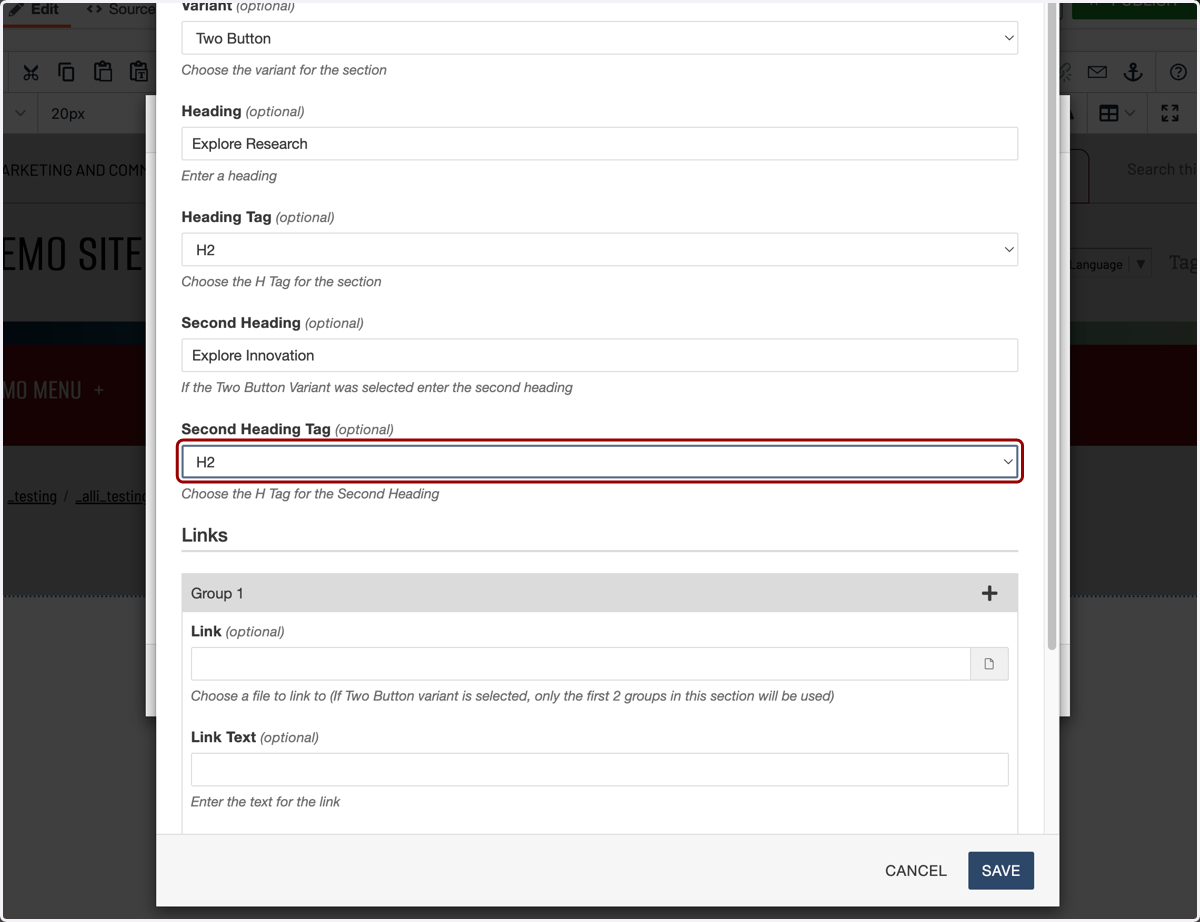
22. The "Heading" field will be the headline that displays in the left-hand column. Here, I'll type "Explore Research."
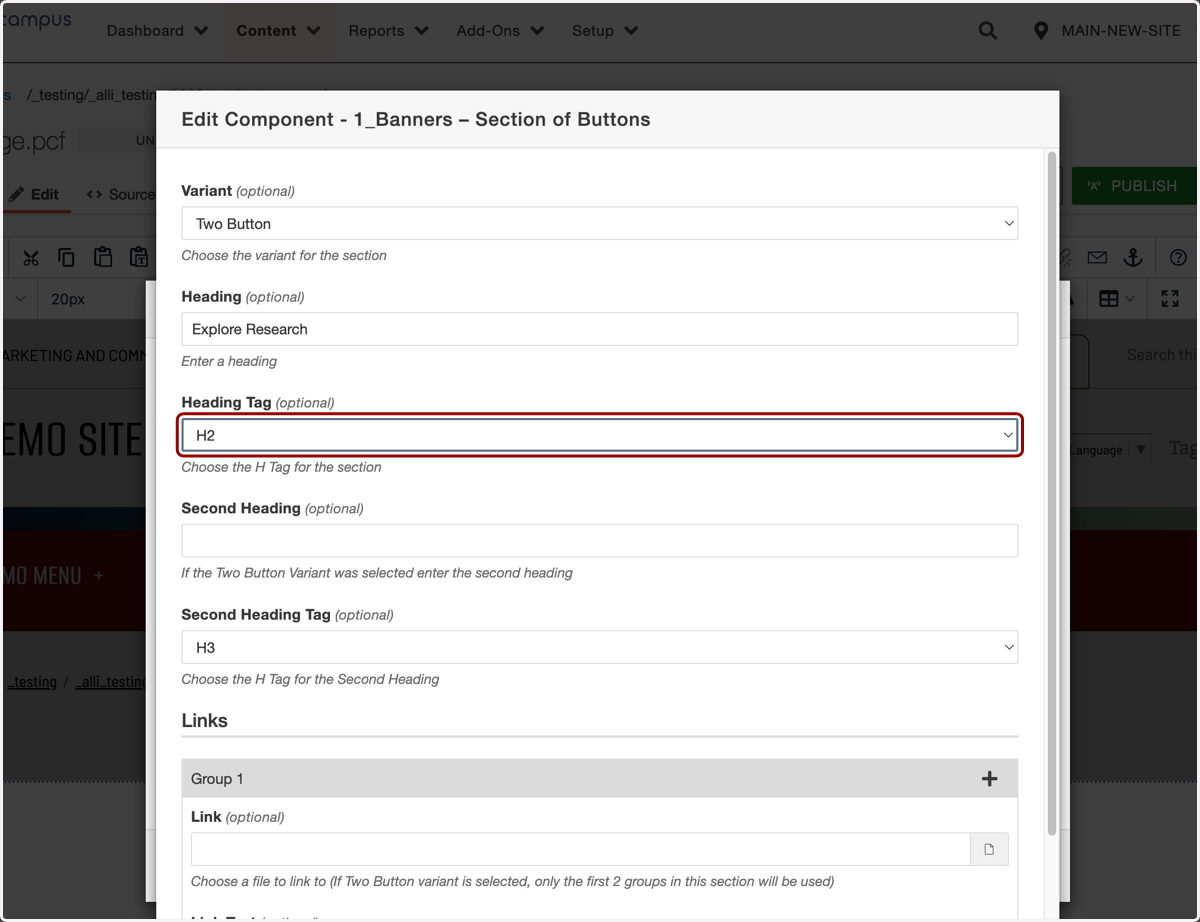
23. I will leave this heading as an H2.
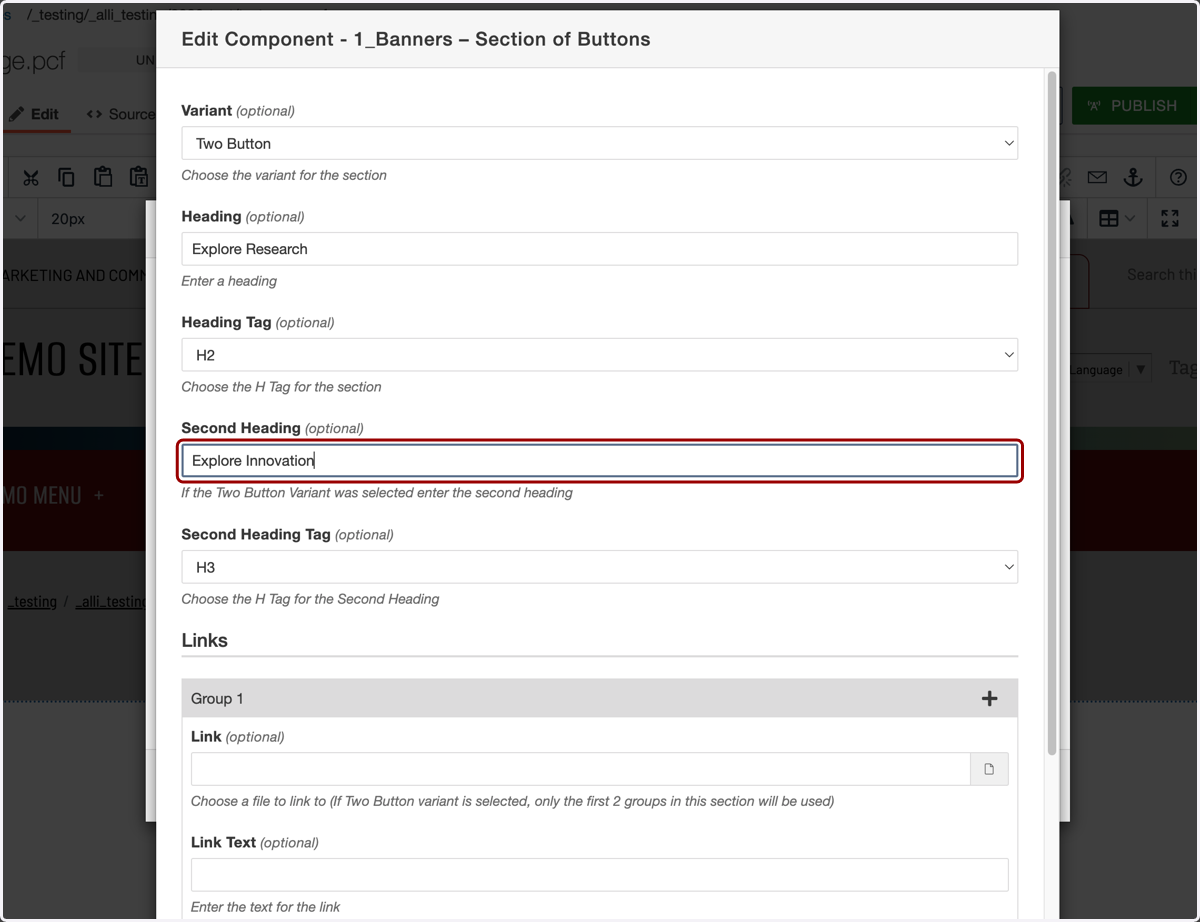
24. The "Second Heading" will be the headline that displays on the right-hand side of the box. I'll put "Explore Innovation" as an example.
25. I will also keep this headline as an H2.
26. The Group 1 button will be the button that displays on the left-hand side, under the "Heading" headline. Add your link the same way that we showed above.
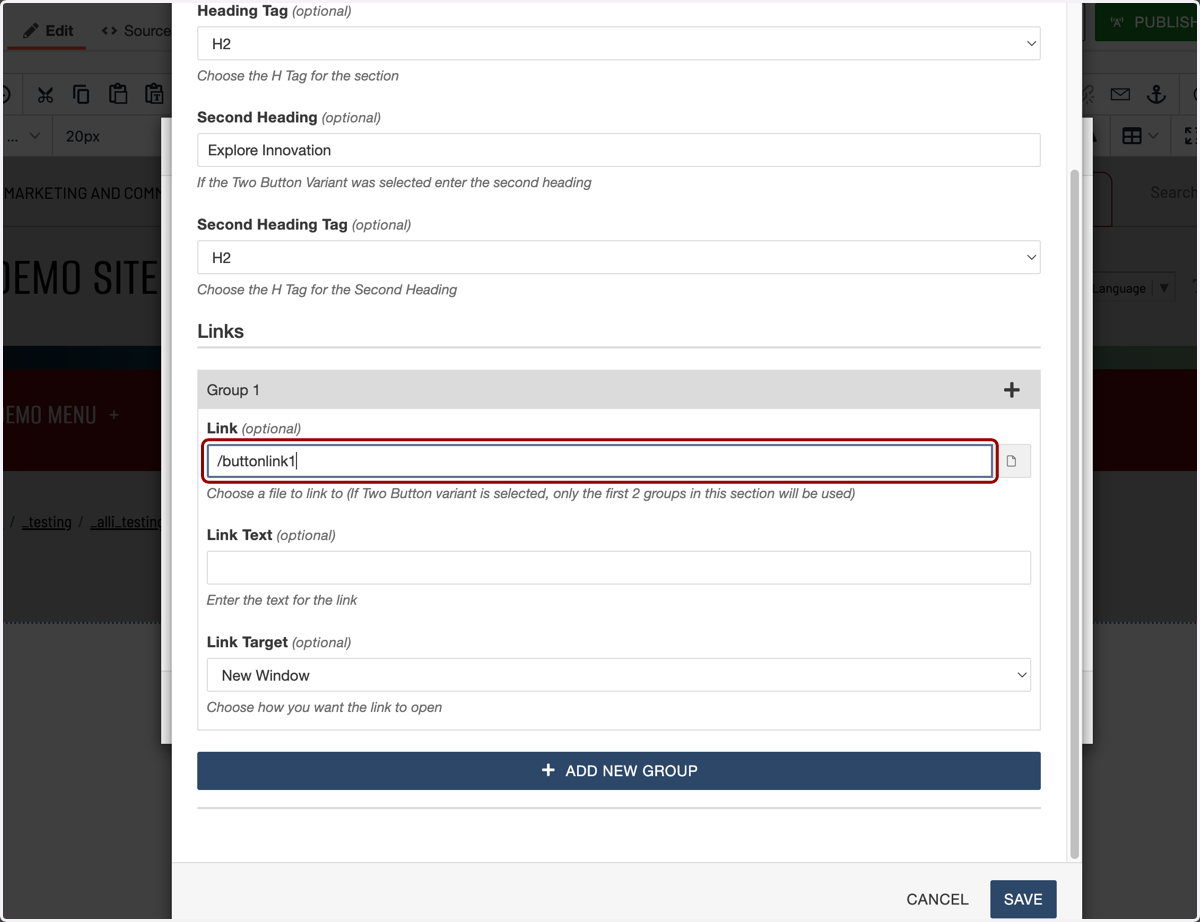
27. Next, click on "ADD NEW GROUP"...
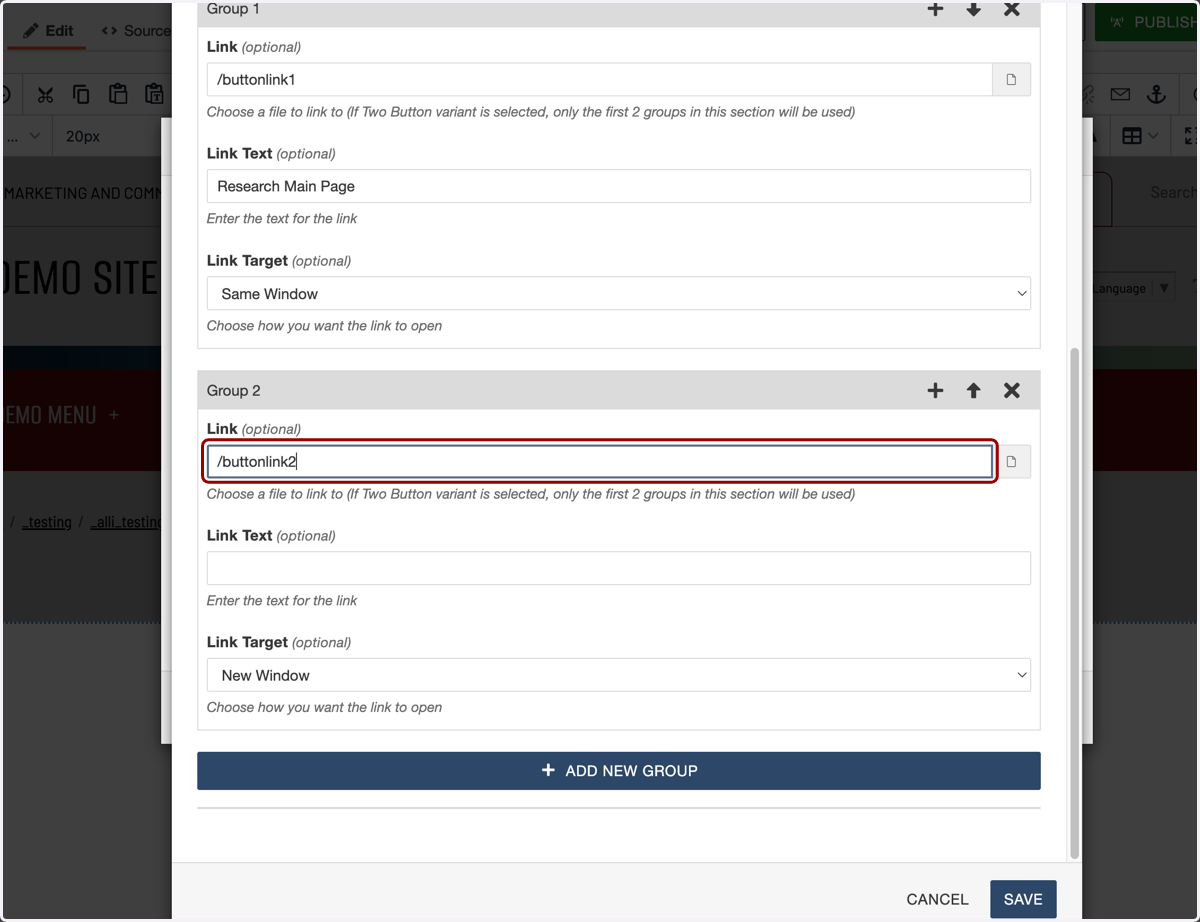
28. ...and the Group 2 button will be the one that displays on the right-hand side, under the "Second Heading" headline. Again, add your link in the same way we showed above.
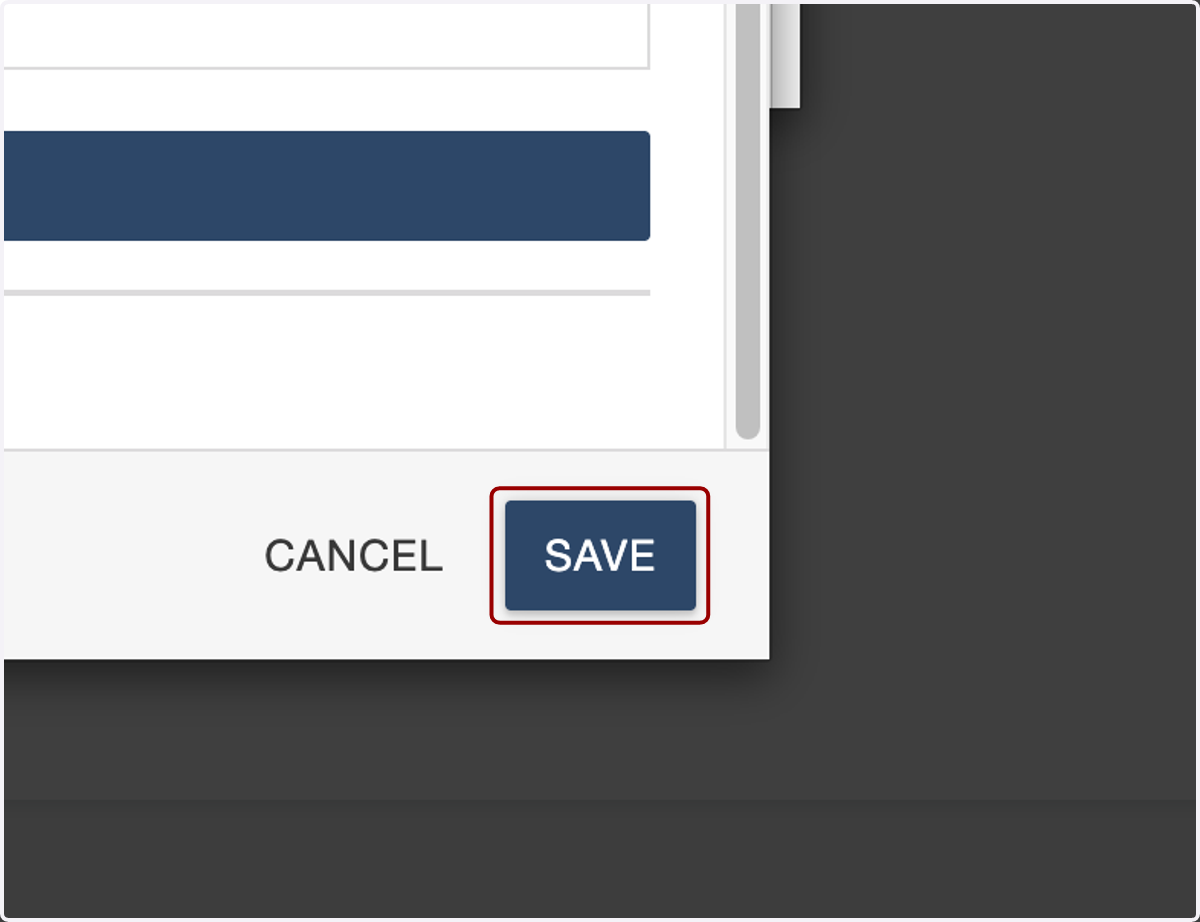
29. Click on SAVE.
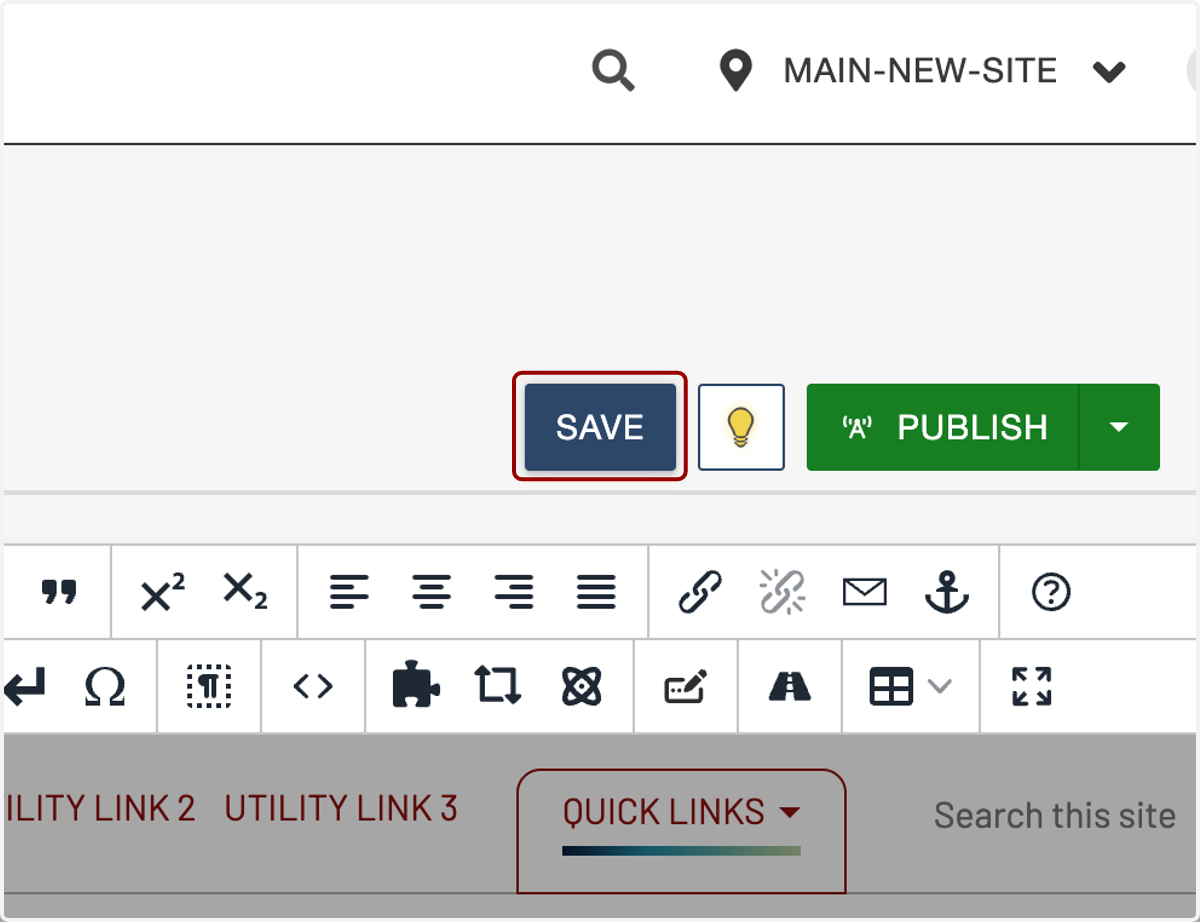
30. Click on SAVE again at the top of the page...
31. ...then the Preview tab...
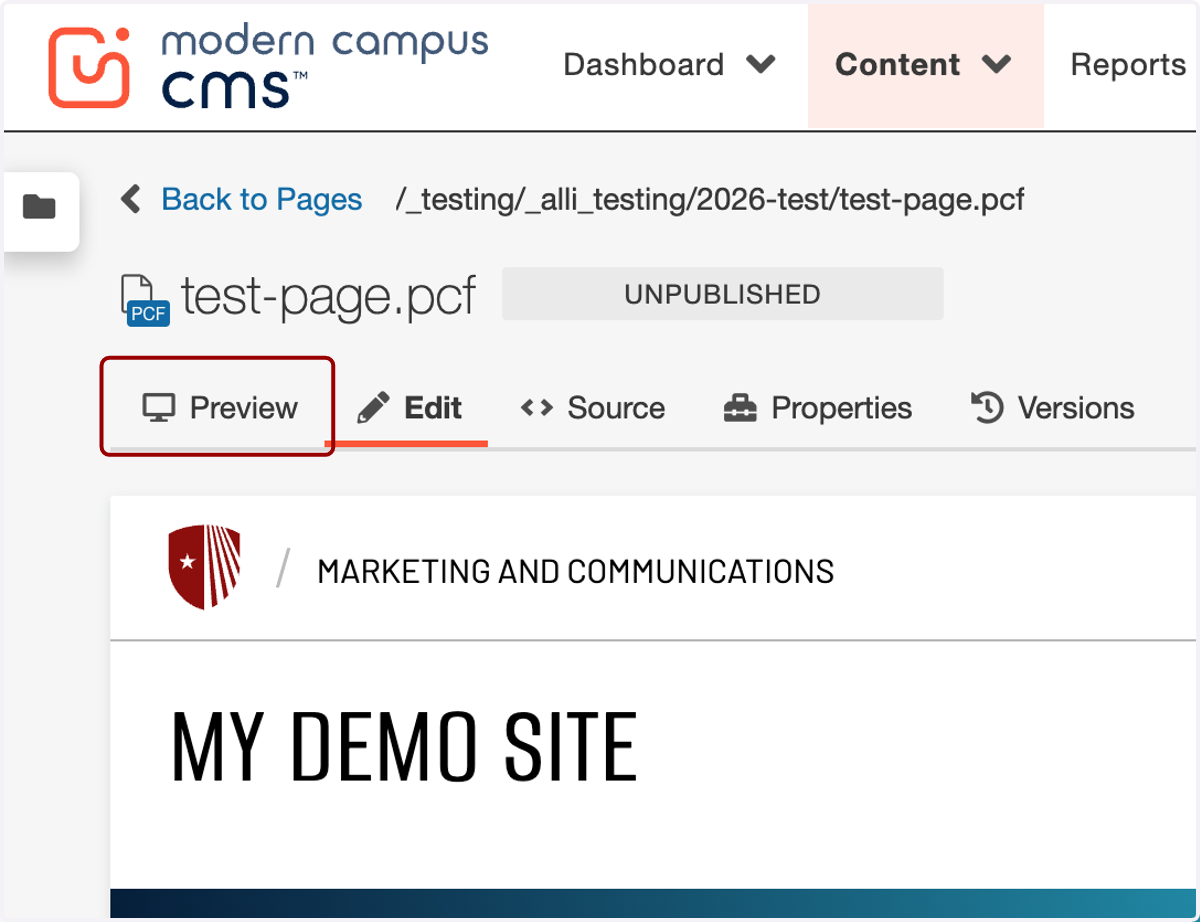
32. ...and you will see your work. Great job!