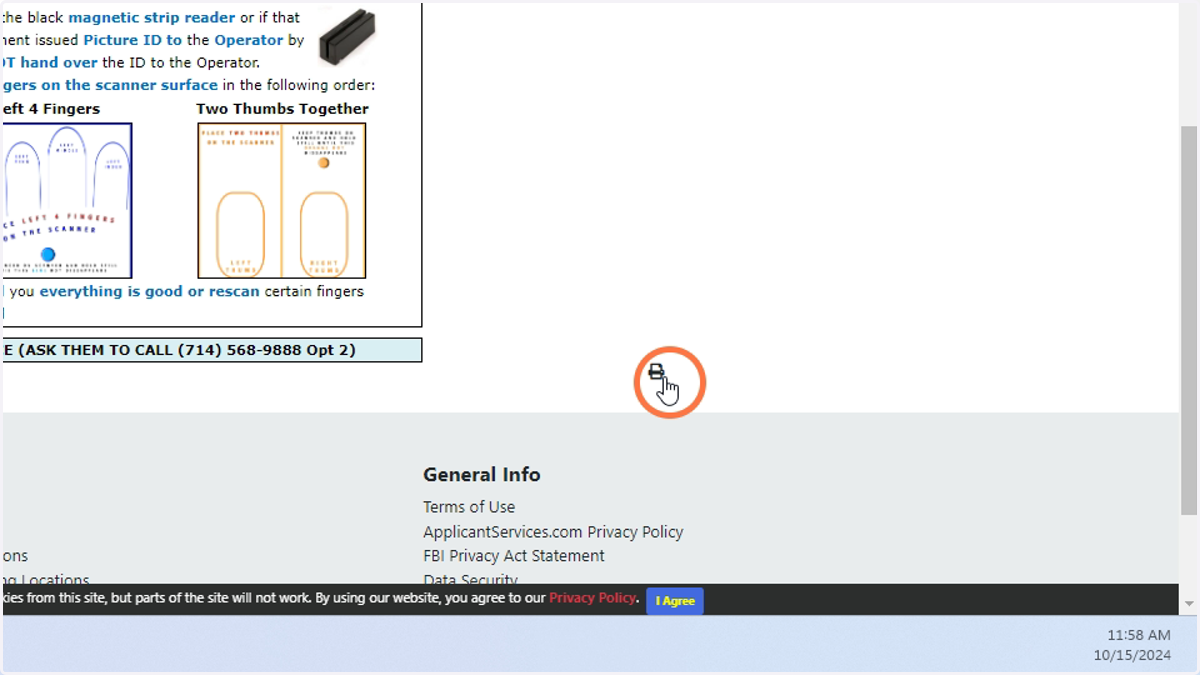
How to print payment QR Code
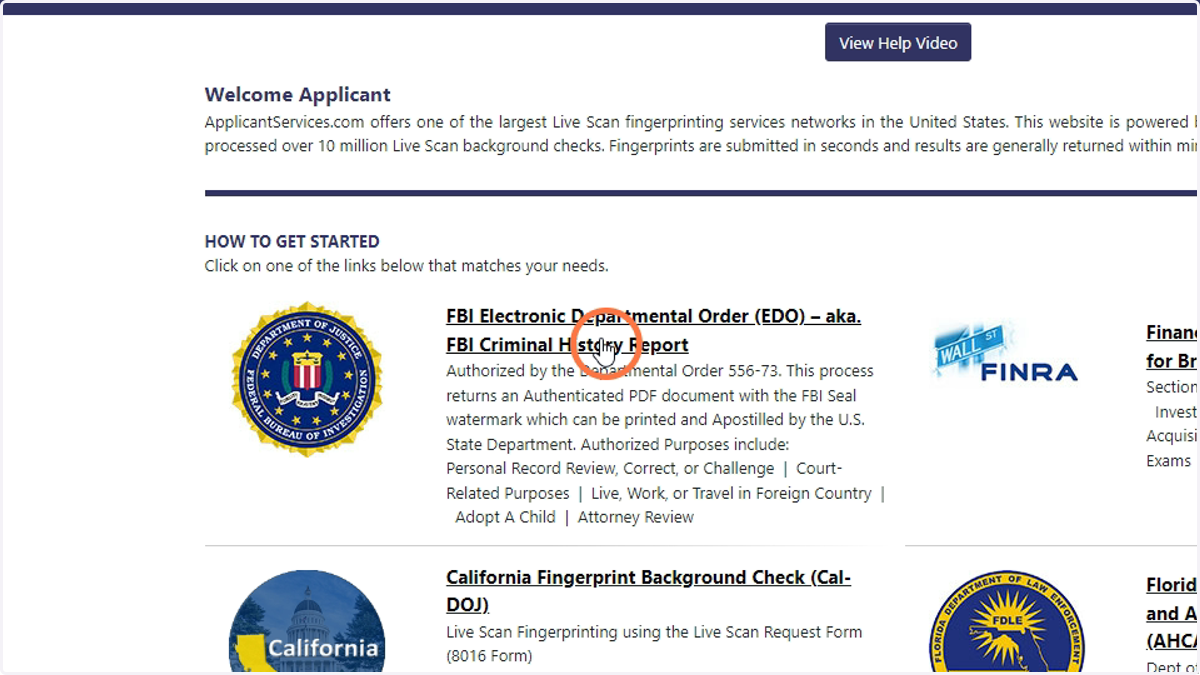
Launch a web browser and proceed to applicantservices.com. Then, click on the EDO link below
1. Click here
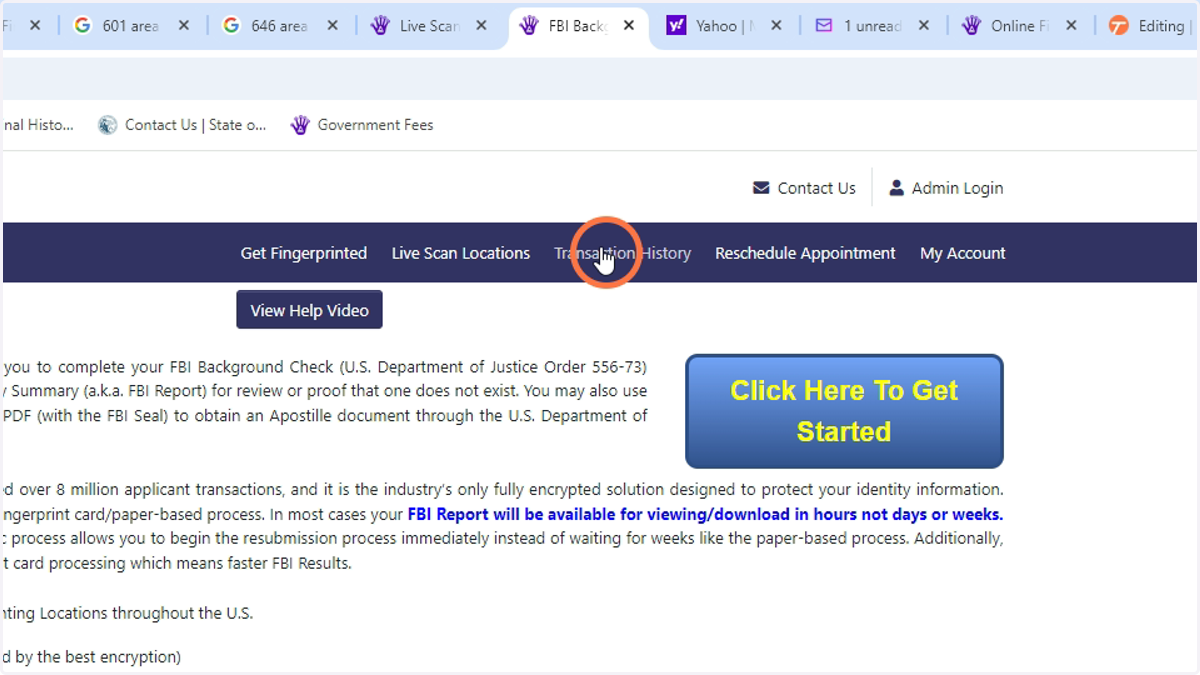
2. Click on transaction history on the top ribbon
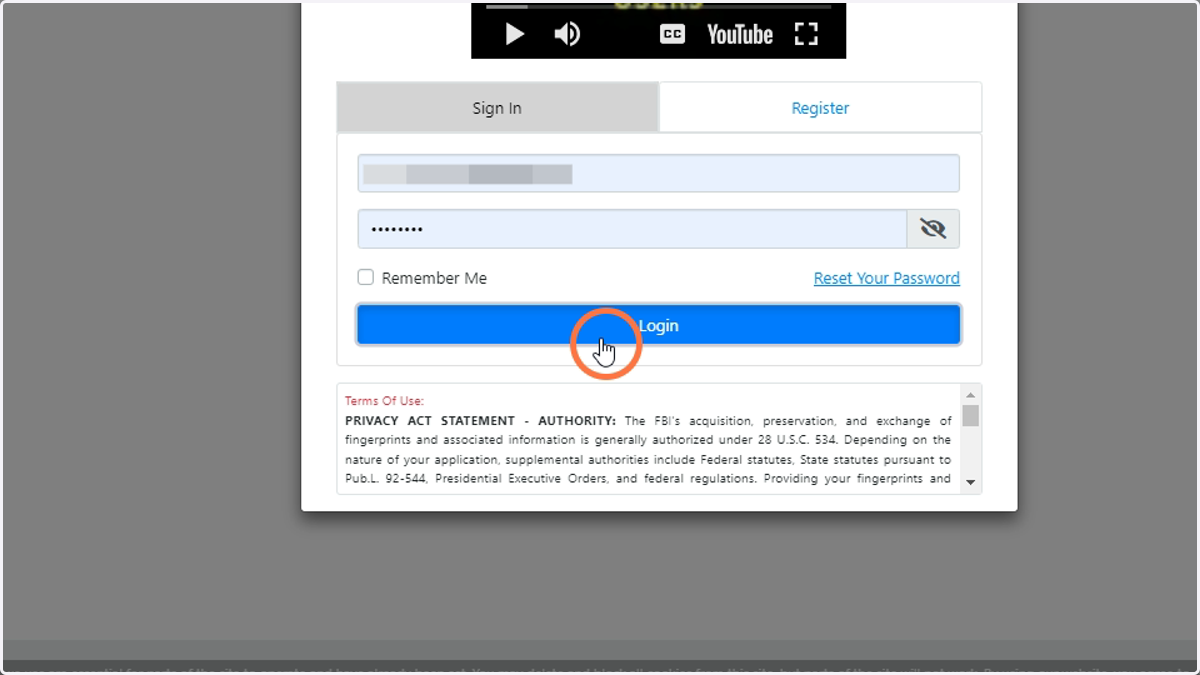
3. Login to your account
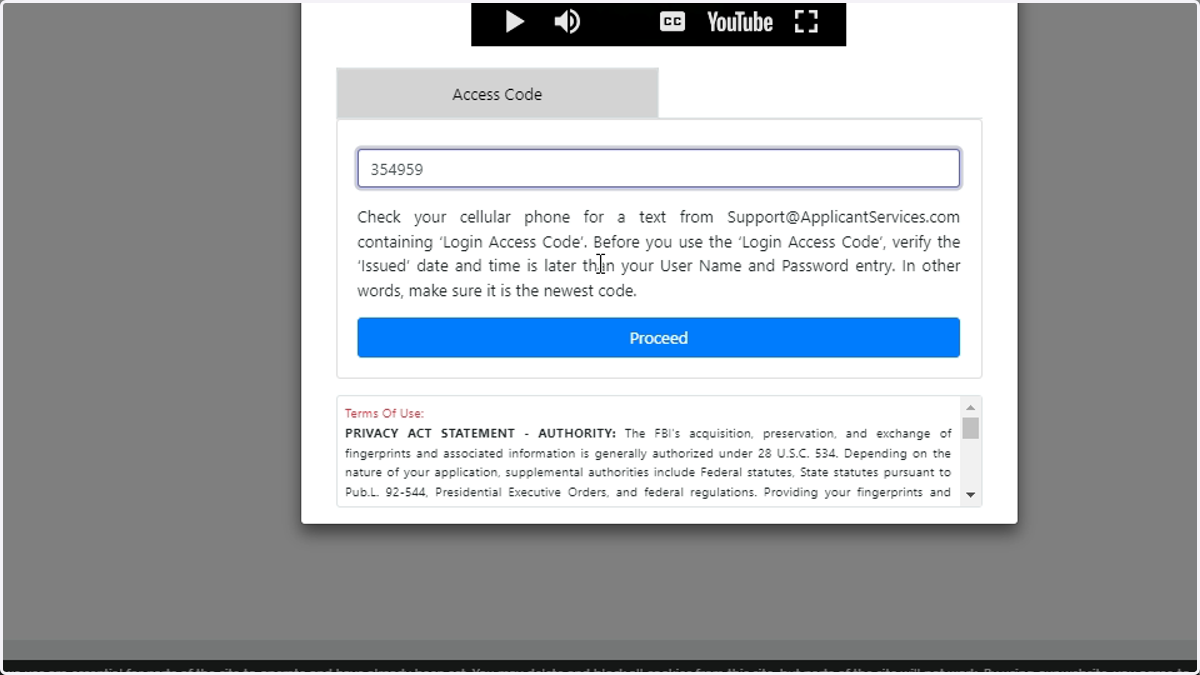
4. Check your cell phone for a Two-Factor-Authentication access code. Type the code into the box
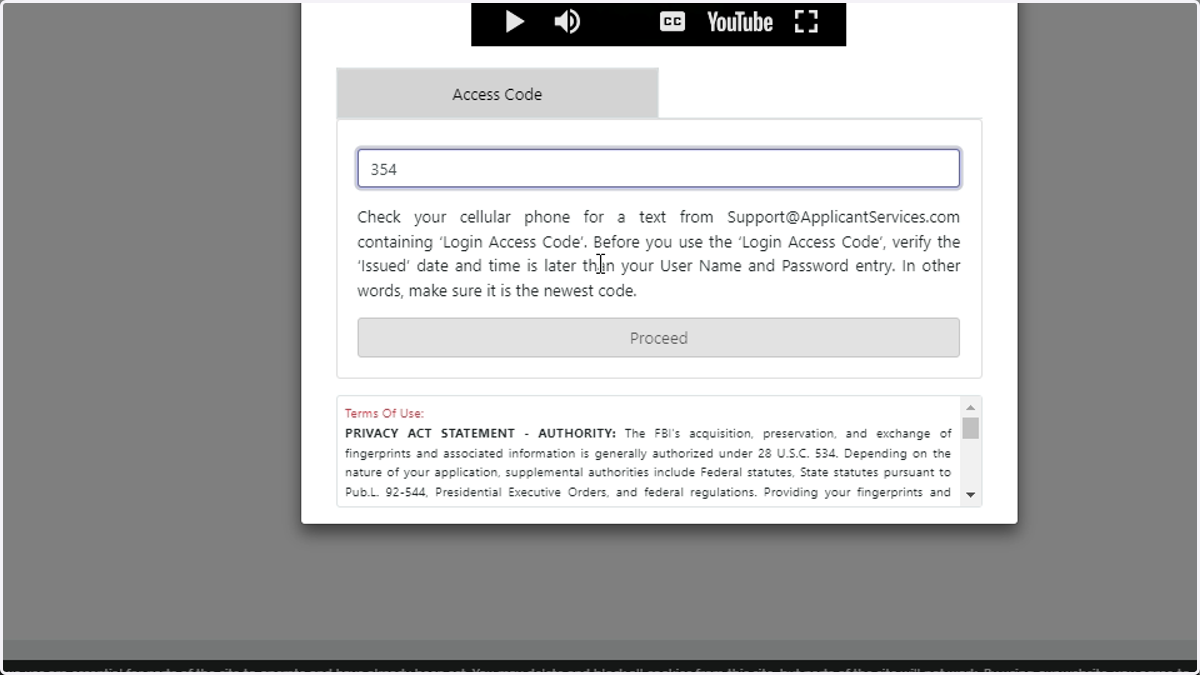
5. Click proceed
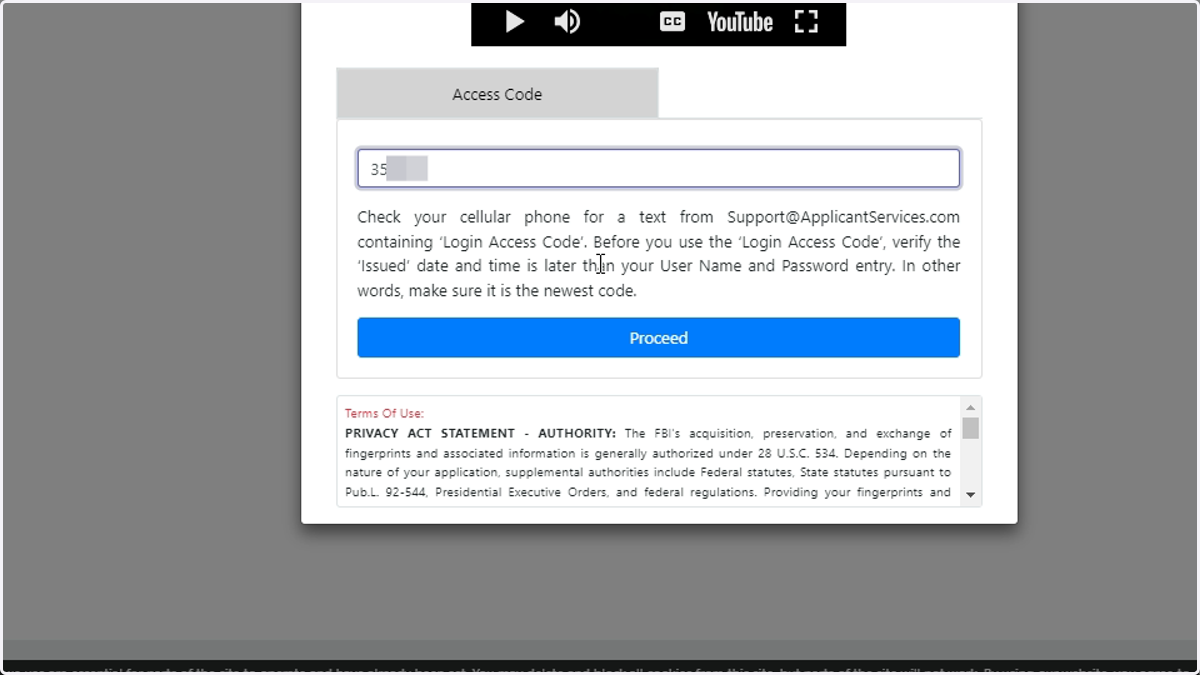
6. Type here
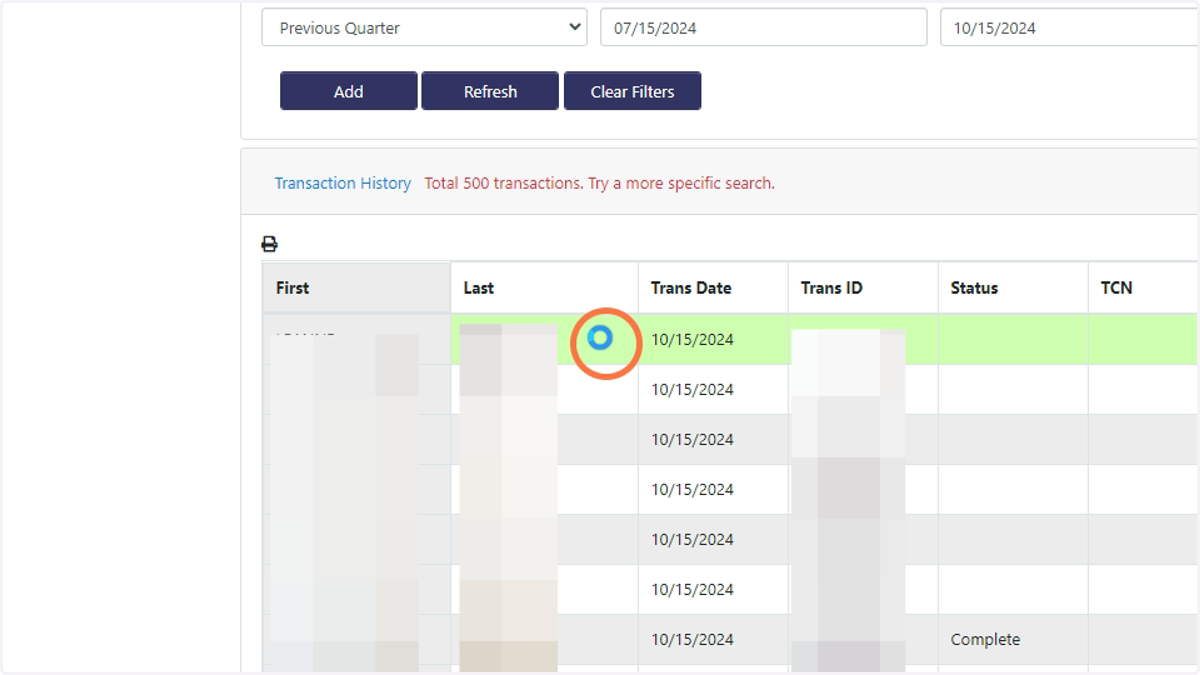
7. Click on the transaction you want to print the payment QE code from
8. Select the 'Print Form' link
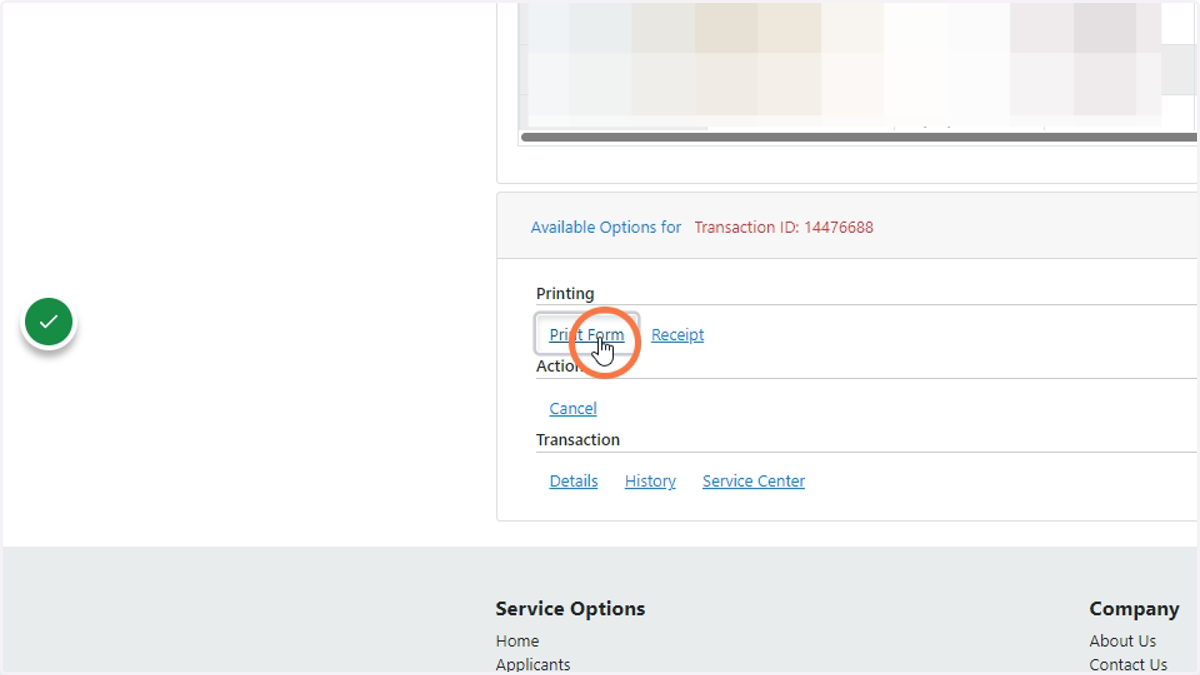
9. Complete the print
If you are on your mobile device, you can screenshot the QR code and use to scan at the Live Scan location