Editing Your Program's Information
firefox
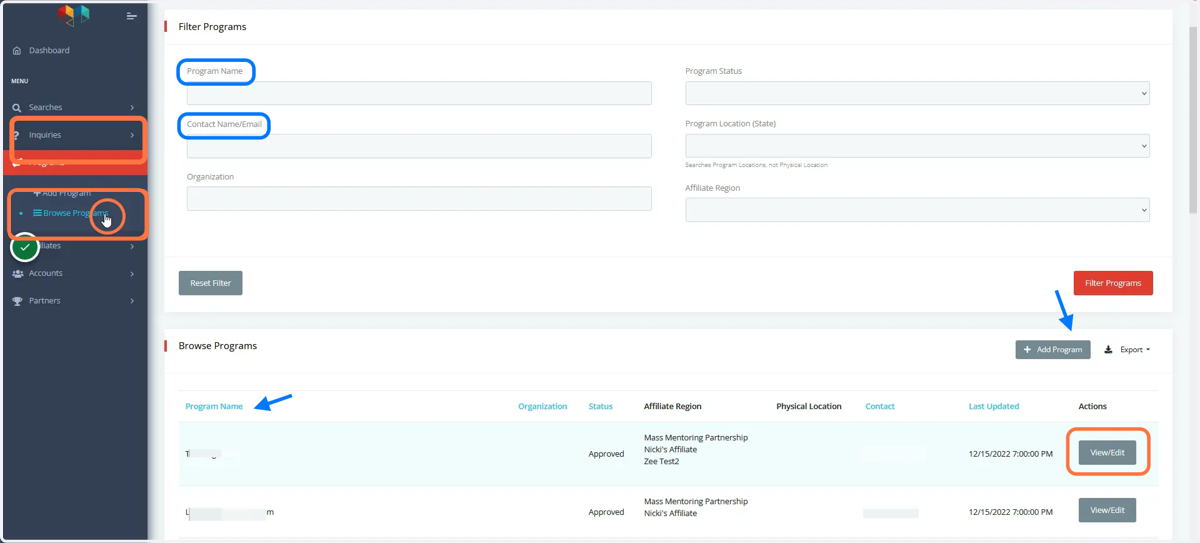
1. Start by clicking Browse Programs to see a list of all mentoring programs tied to your Program Admin account. If you manage multiple programs, there are filters to select to narrow down the list. Next click the View/Edit button next to the program you wish to edit.
The Browse Programs tab also allows you Export your list of programs and to add a new program by clicking the Add Program button.
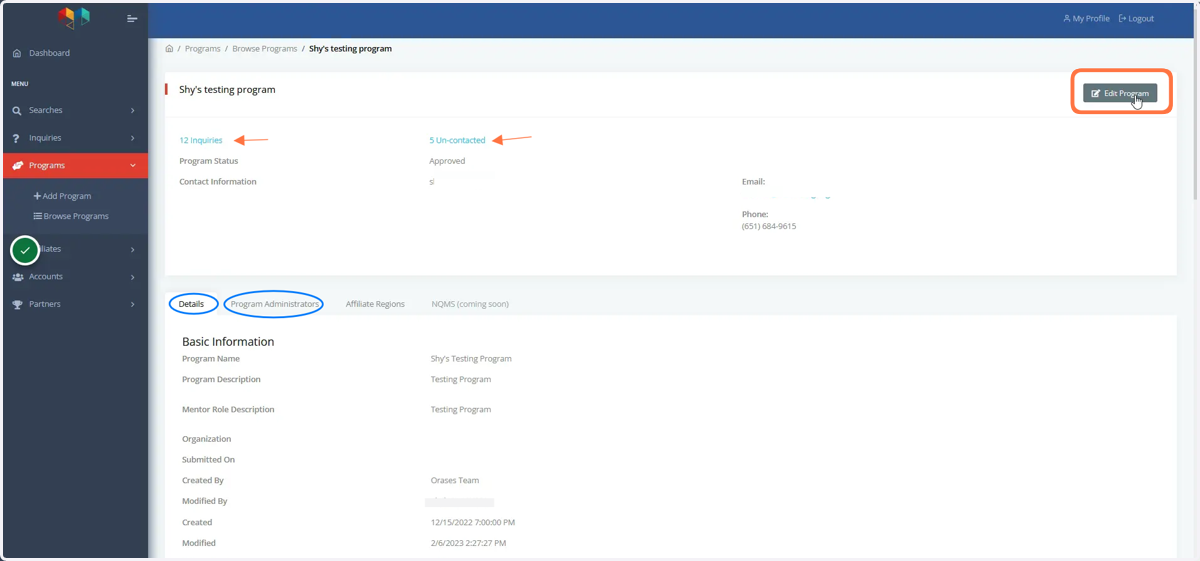
2. To update the program's information, click the Edit Program button outlined in orange. The Program's page also has its basic information displayed here, including: a quick glance at # of inquiries and # of uncontacted inquiries, Basic Information and Program Admins.
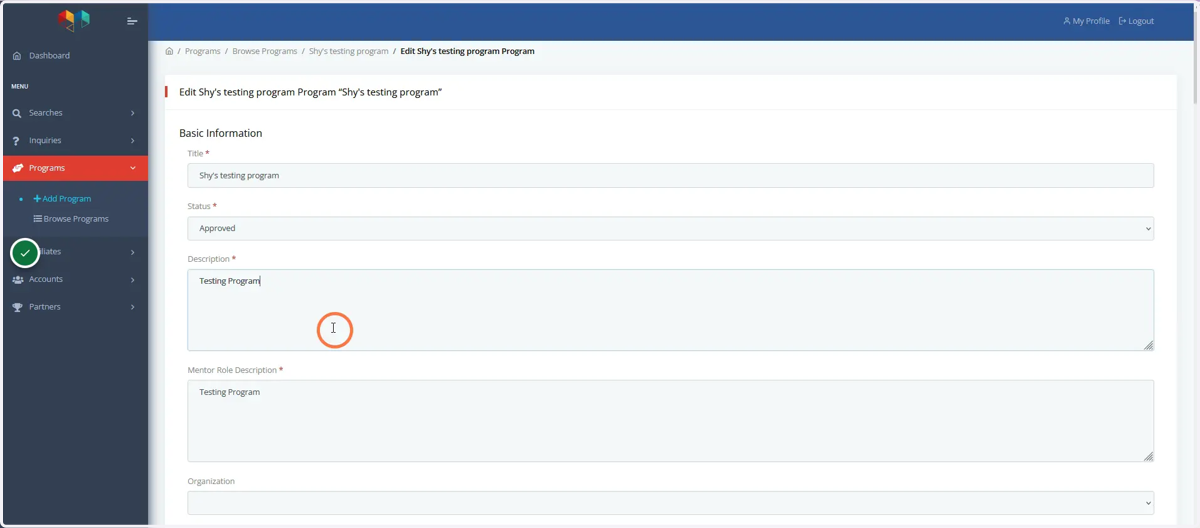
3. Update your program's Basic Information here. Keep in mind that this information will be displayed for potential mentors when looking at your program's details in the search results.
Many volunteers would like to know more about the application process, such as how long it might take to become a mentor after inquiring with your program. You can also include this information in your email response to the volunteer after they inquire.
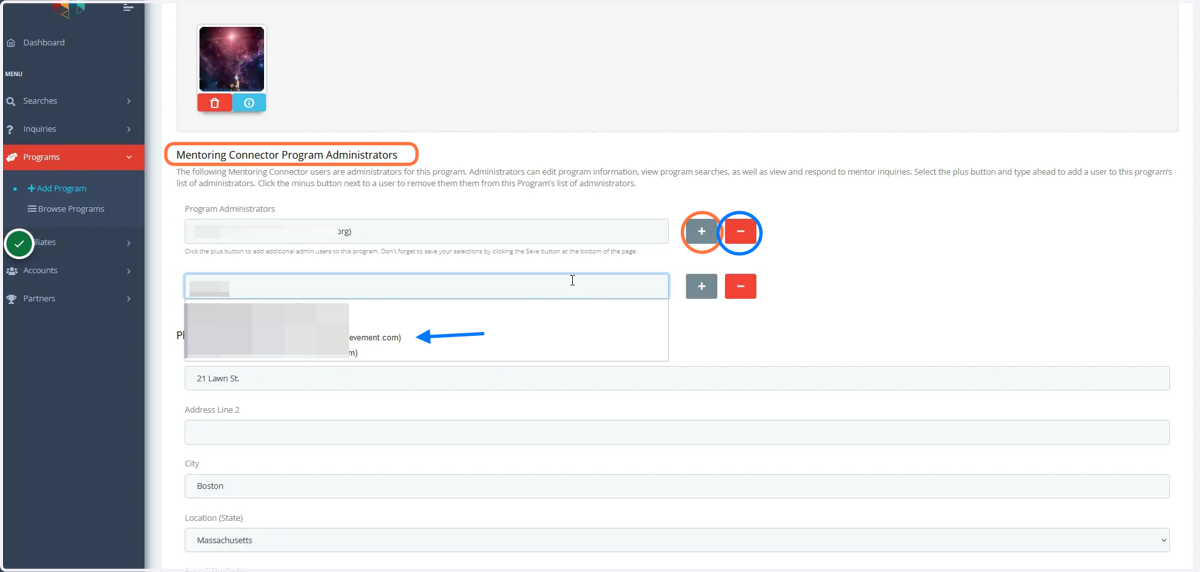
4. To Add another Program Admin to the program, click the plus (+) button to start. If they have an account in the system, their name and email address will appear as you type it in. Click the desired account and then SAVE. To Remove an Admin , simply click the minus (-) button.
*If they do not have an account, click Add Account to create one for them. Make sure to hit SAVE if you edited any other information before leaving, it will not auto-save any changes.
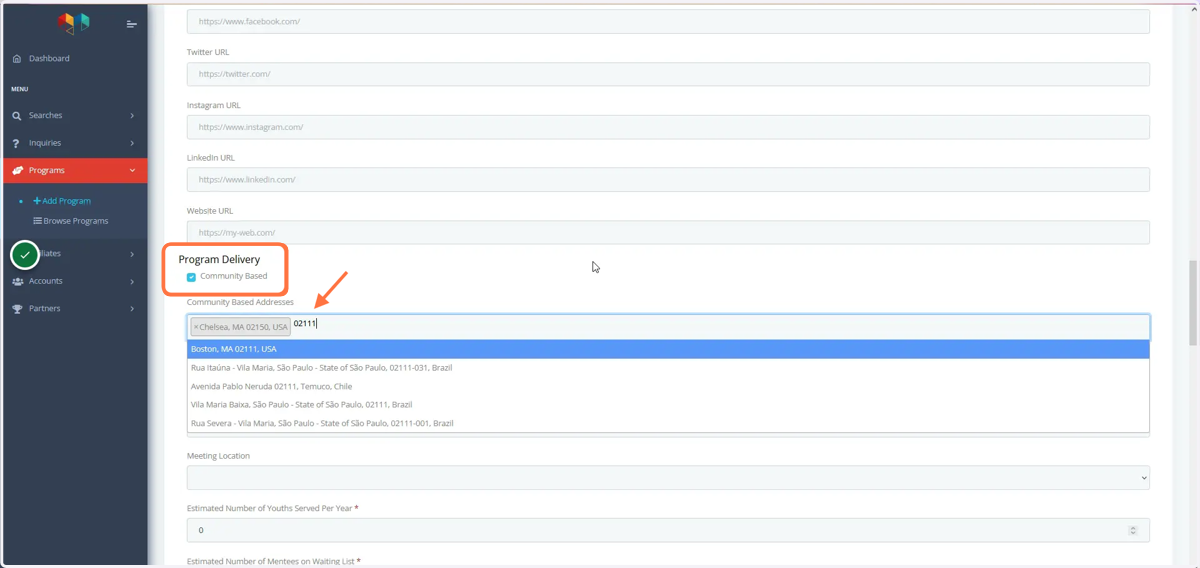
5. Program Delivery: For Community and Site-based programs, make sure to input the program's Zip Codes of areas they serve into the data field. The zip code is used to show the program in search results. If just the city name appears but no zip code, please manually enter it.
Add ALL zip codes of areas that the program serves. For example, if the program serves Boston, MA, enter all zip codes tied to Boston.
The Become a Mentor search form allows volunteers to search up to a distance of 25 miles based on their zip code entered. National E-mentoring programs do not need a zip code.
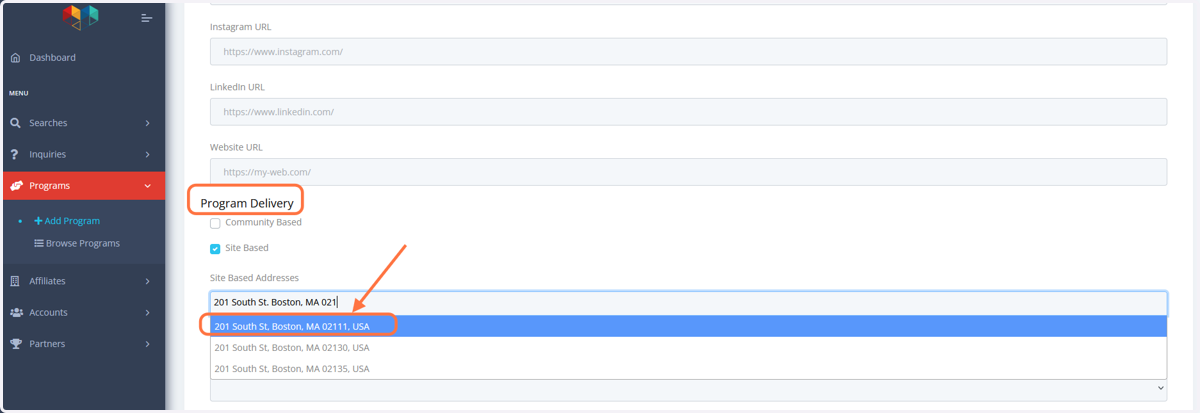
6. For Site Based mentoring programs, enter the program's physical address and include the site's zip code here. If the zip code does not automatically appear, manually enter it after the address.
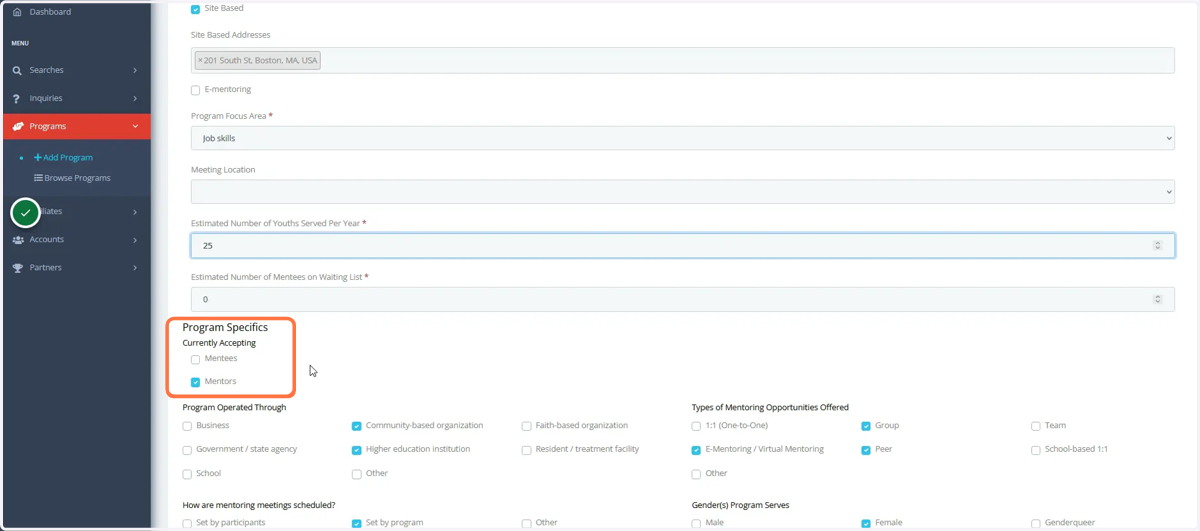
7. There is an option for selecting if your program is currently accepting Mentors and or Mentees currently. Please update this accordingly and this will update on the Become A Mentor search page for volunteers to see.
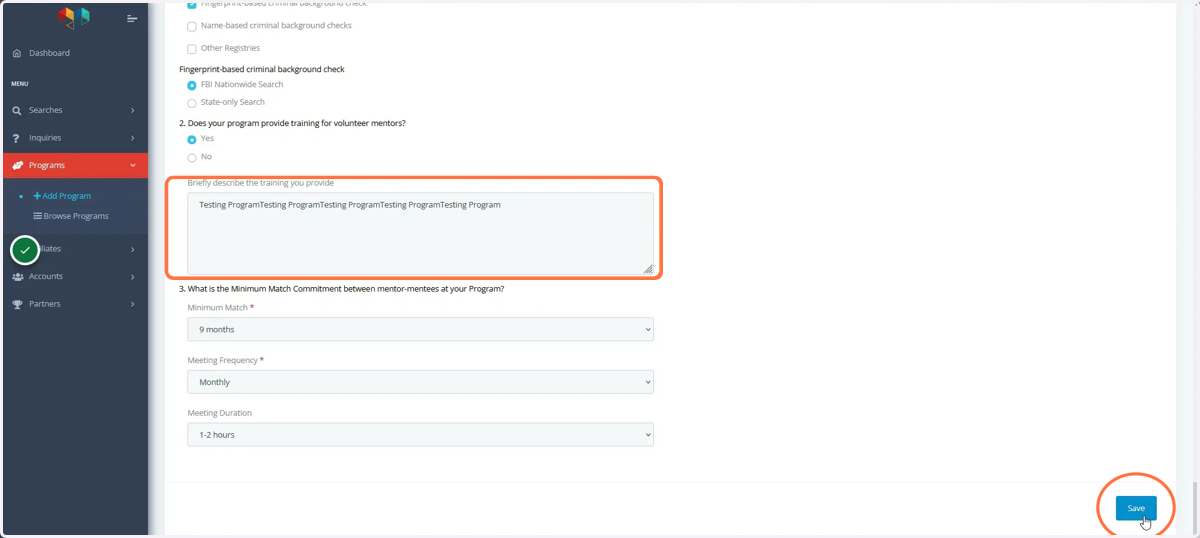
8. Volunteers are able to see the program's training description on the Become A Mentor page, it is helpful to provide a snapshot of how the process works.
Click Save when you are done editing the program's information, it will not autosave.