Creating Products, Taxes, and Cost Centers in Number Accounting System
This guide outlines the step-by-step process for creating products, managing taxes, bulk uploading products, and adding cost centers in the Number Accounting System. Efficiently manage your inventory, taxes, and cost allocation with these simple instructions.
1. Creating Taxes: Navigating tax structures can be complex, but with Number's intuitive design, it becomes a breeze. In the Taxes menu, effortlessly create and manage taxes for your products or services. Customize the percentage ratio, assign a name, and voila – your tax is ready to go. Dive into the world of tax management with ease and precision.
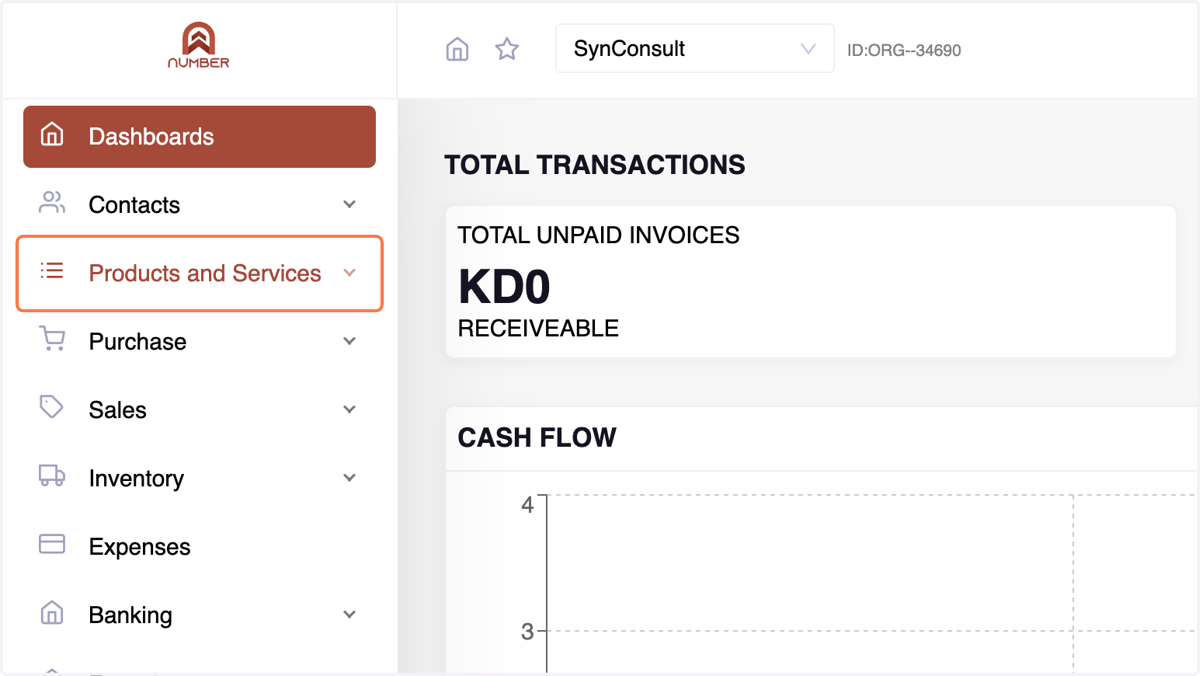
1. Click on Products and Services
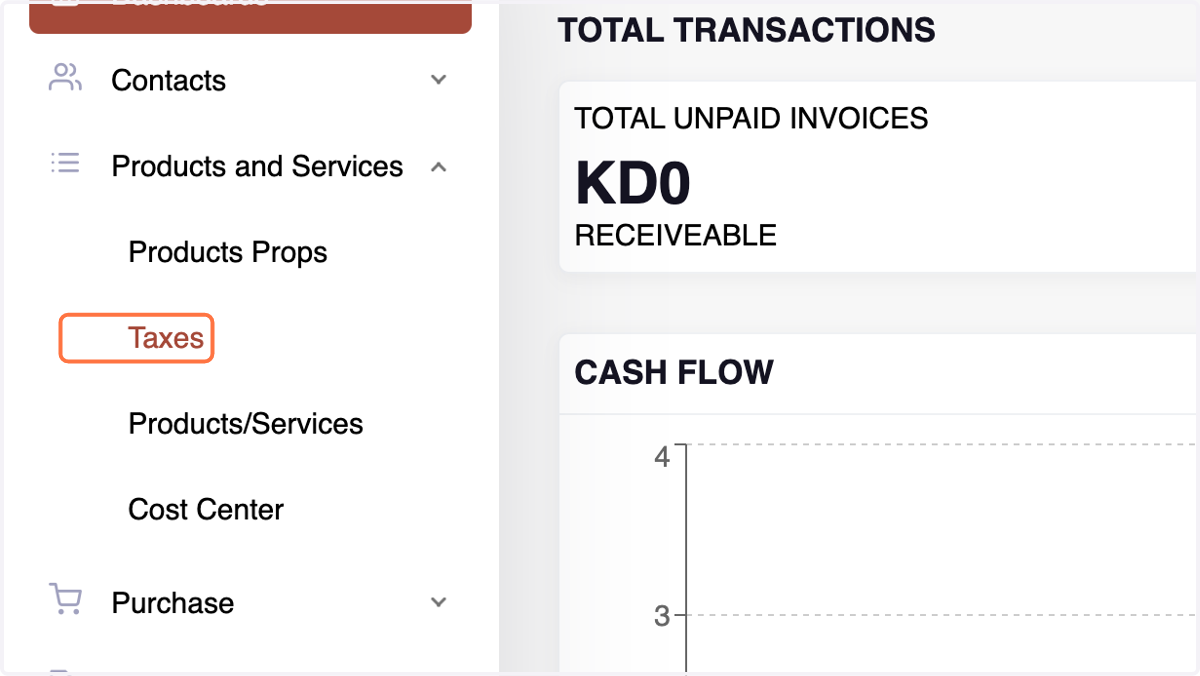
2. Click on Taxes
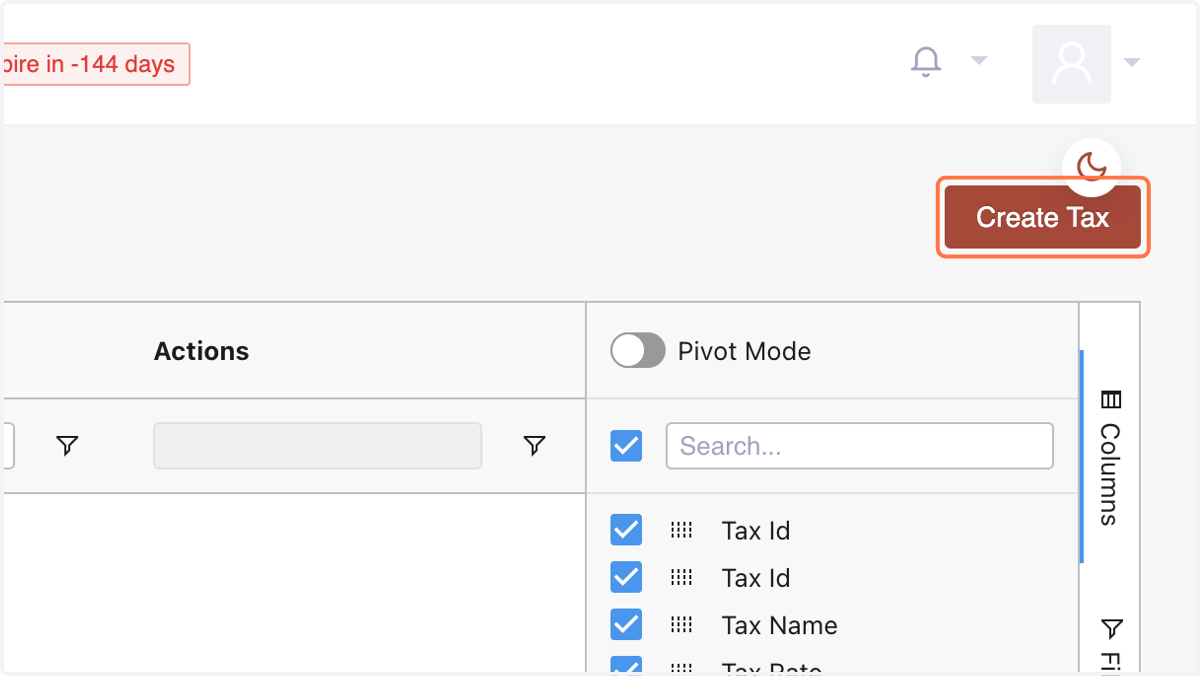
3. Click on Create Tax
4. enter the Percentage Ratio of the tax
% value
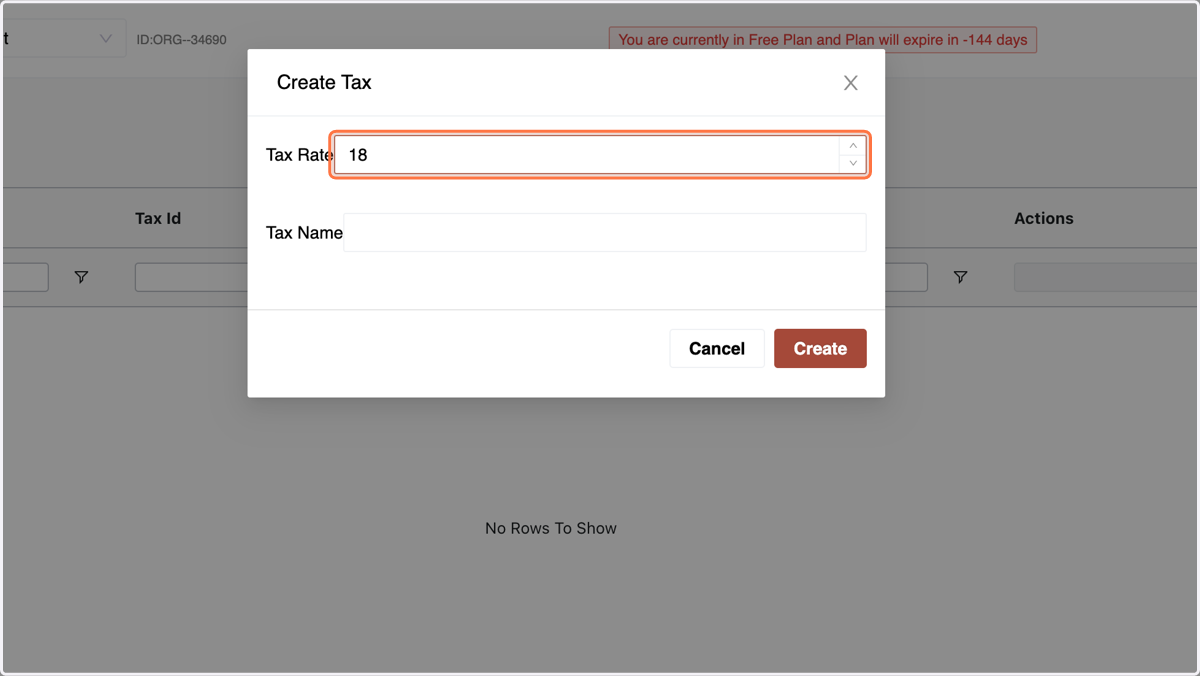
5. Provide a name for the tax
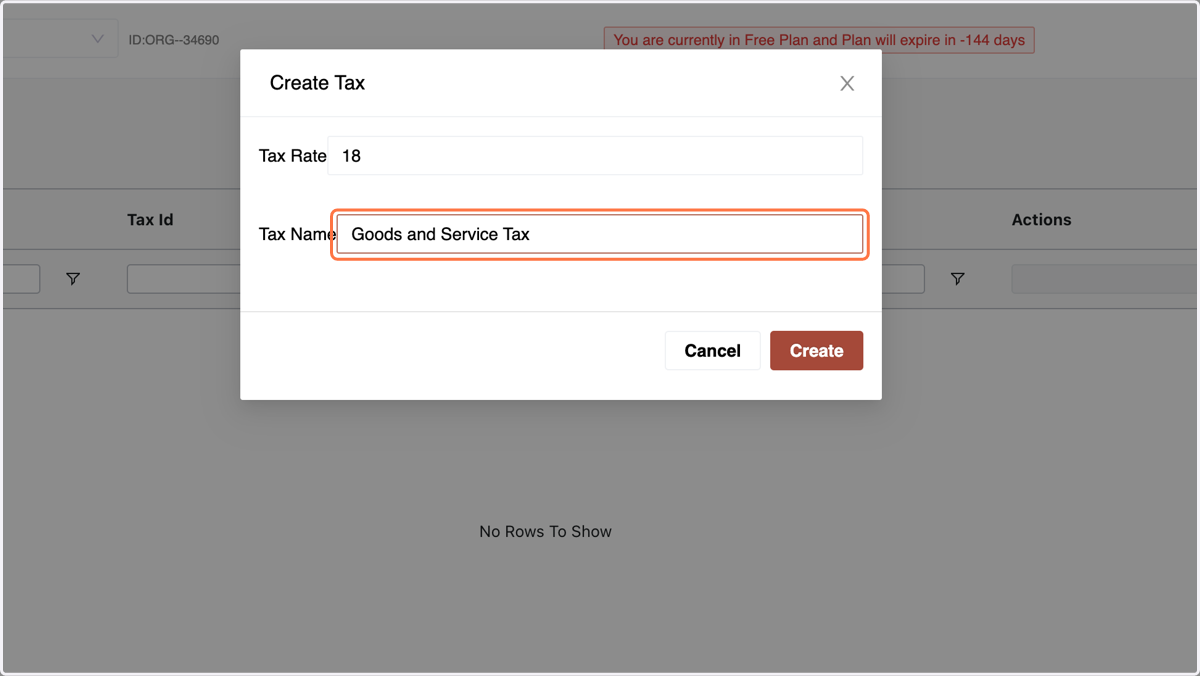
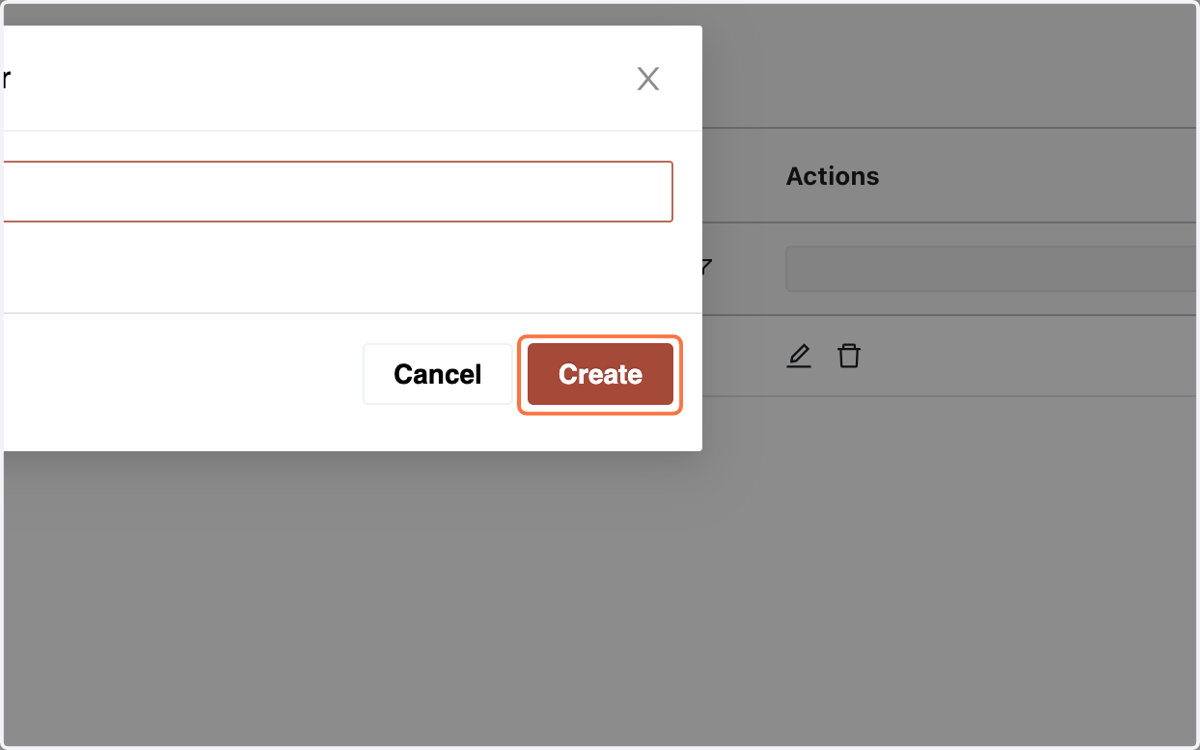
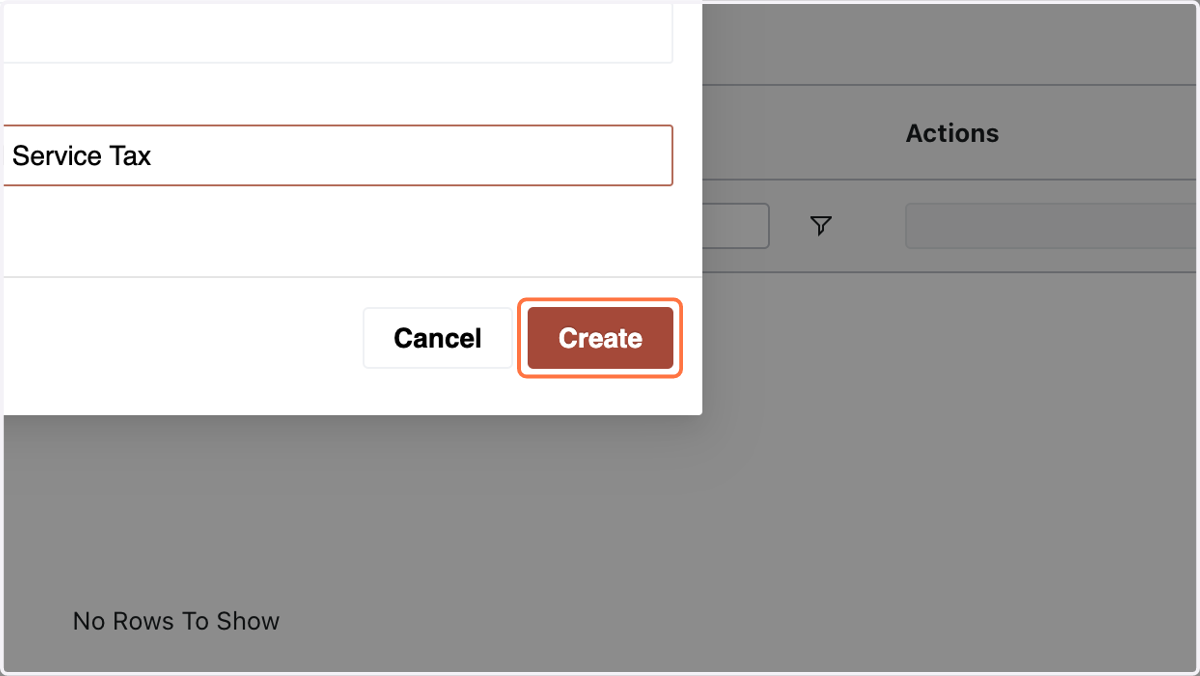
6. hit "Create." View and edit created taxes as needed.
Note: Changes to taxes won't affect existing invoices, but updates to existing invoices reflect the new tax rate.
2. Creating Products/Services: Products and services are the lifeblood of any business. In the Products/Services menu, Number offers a comprehensive solution. From basic product information to intricate details like tax rates and inventory tracking, every aspect is covered. Whether you're creating a single item or bulk uploading an extensive list, Number streamlines the process for efficient product management.
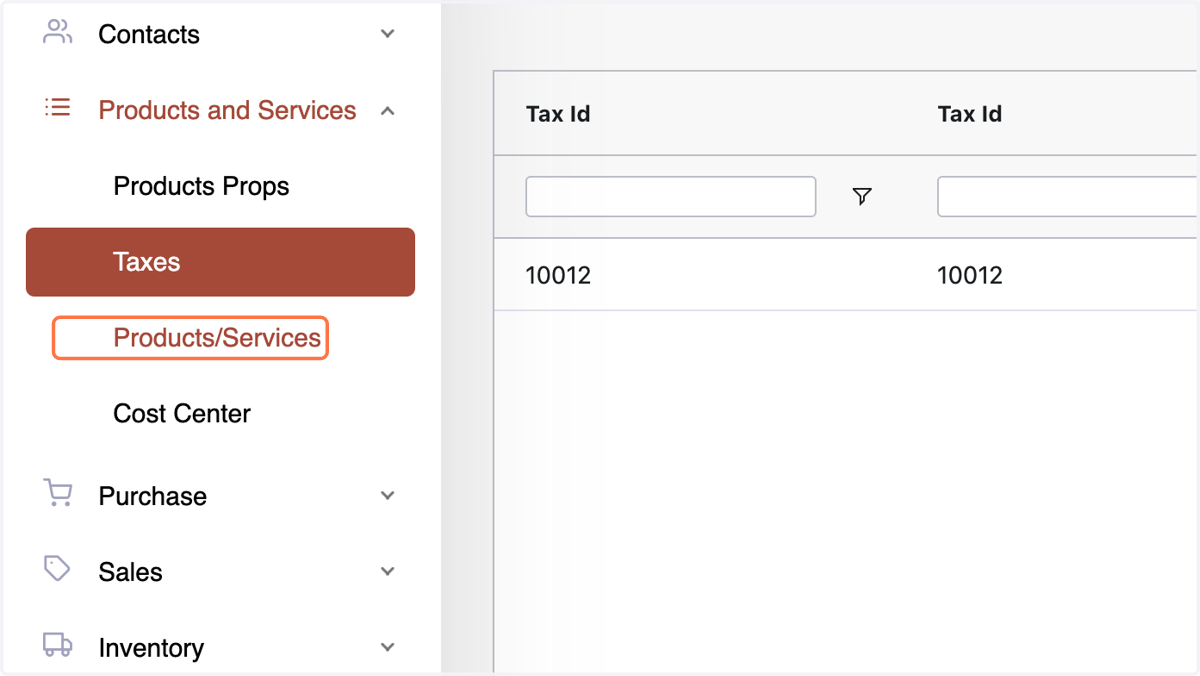
7. Access "Products/Services" under the Products & Services menu.
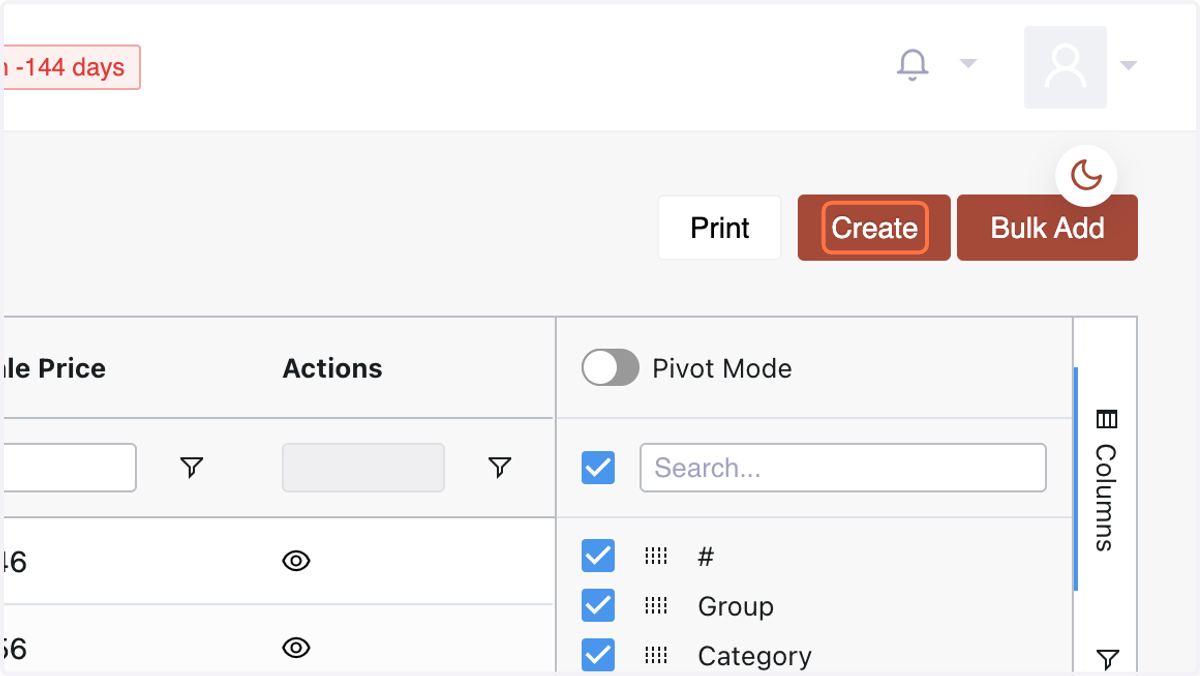
8. b. Click "Create" and fill in accurate product information:
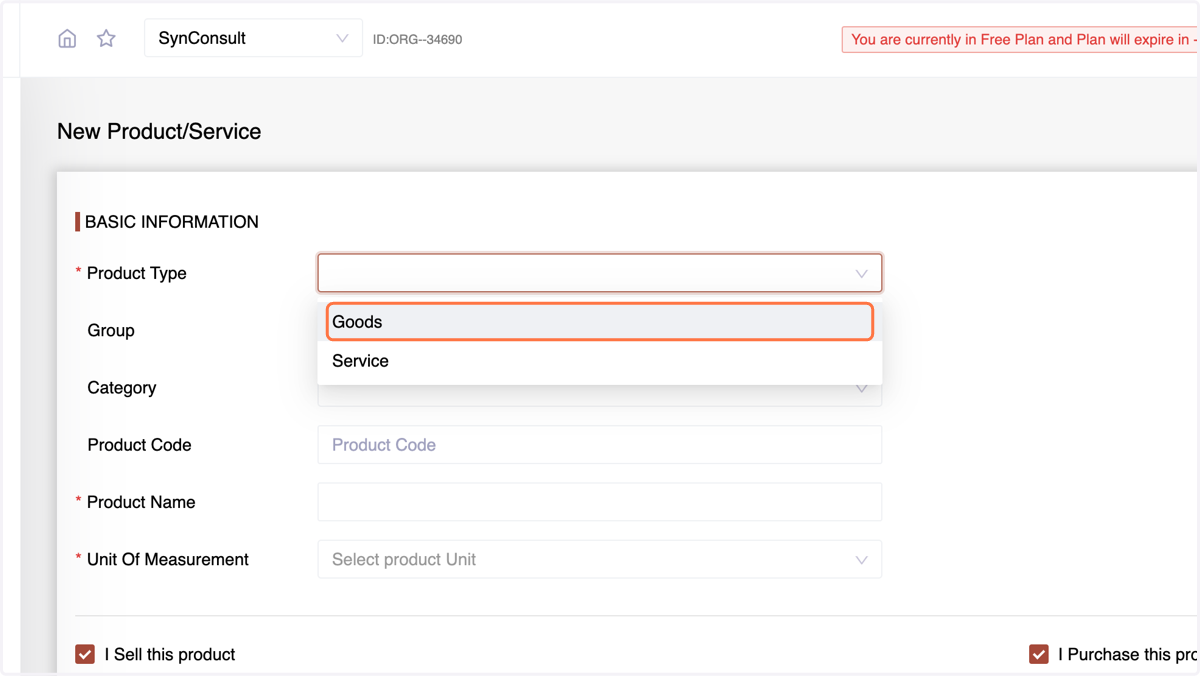
9. - Product Type (Goods or Service)
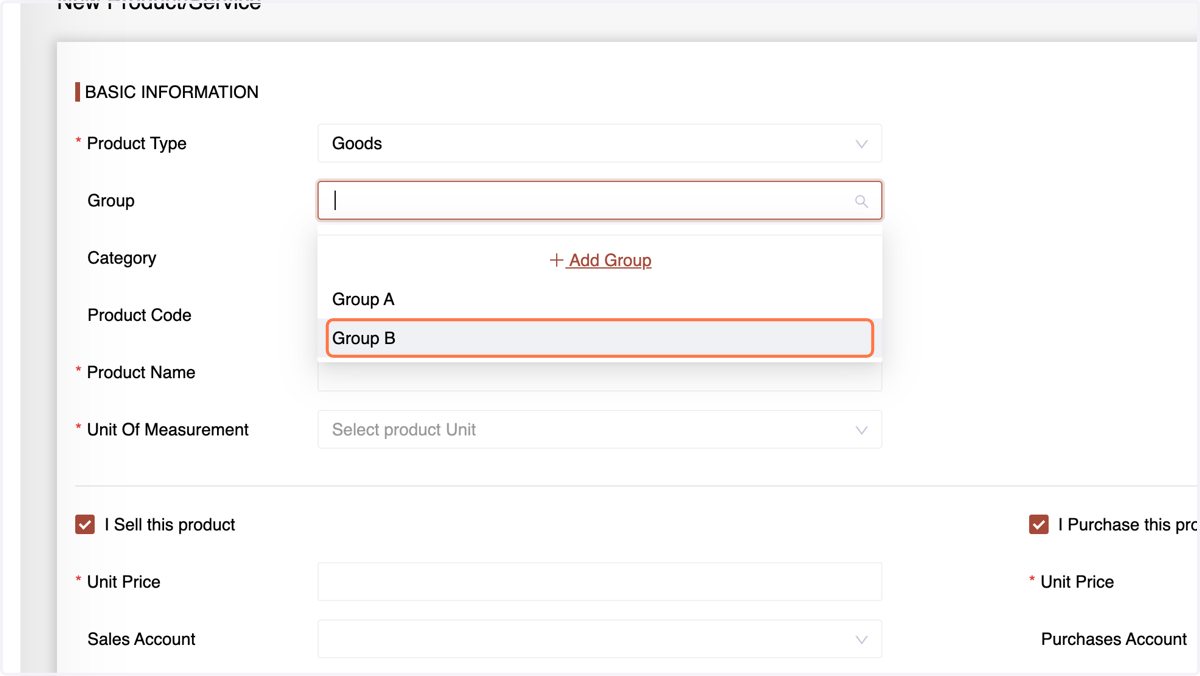
10. Assign the groups from the existing list or click on Add group to create a new one then and there.
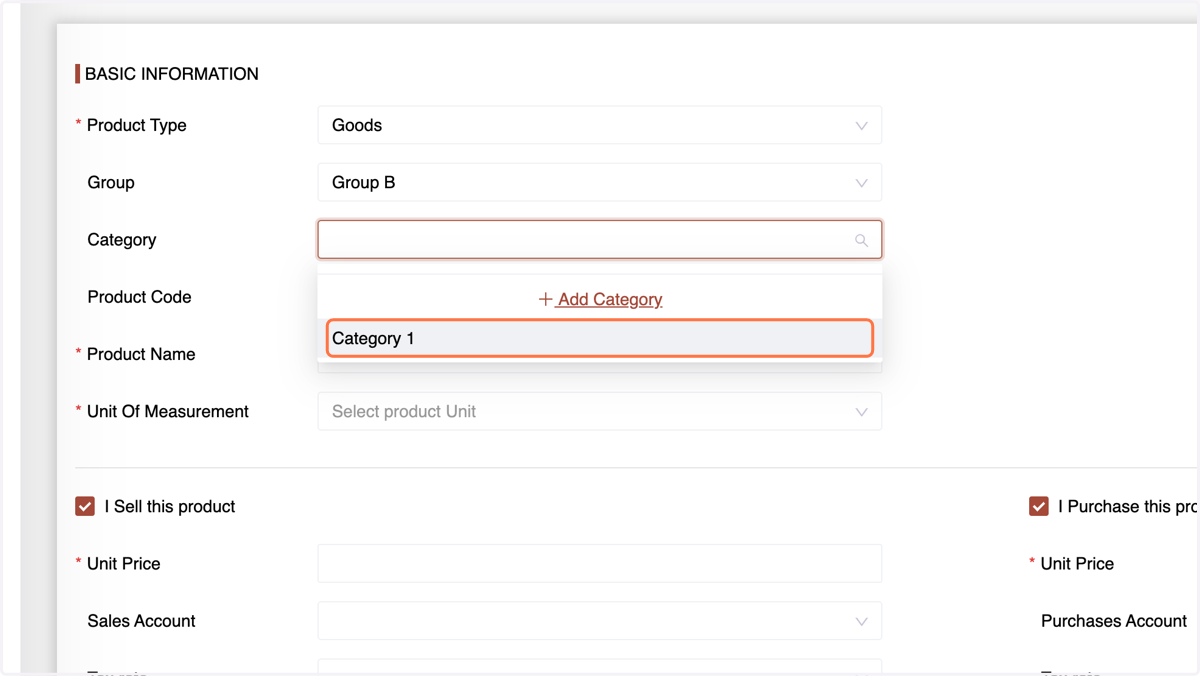
11. Choose the Category
12. Enter the Product Code or SKU
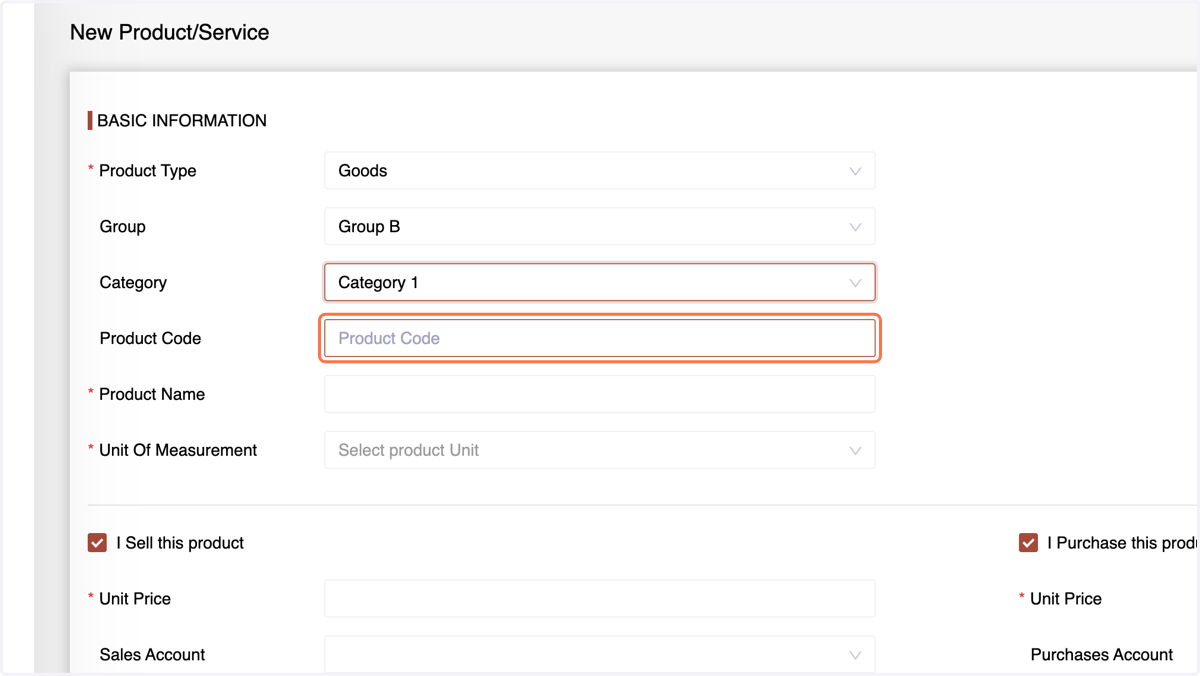
13. Enter the Product Name
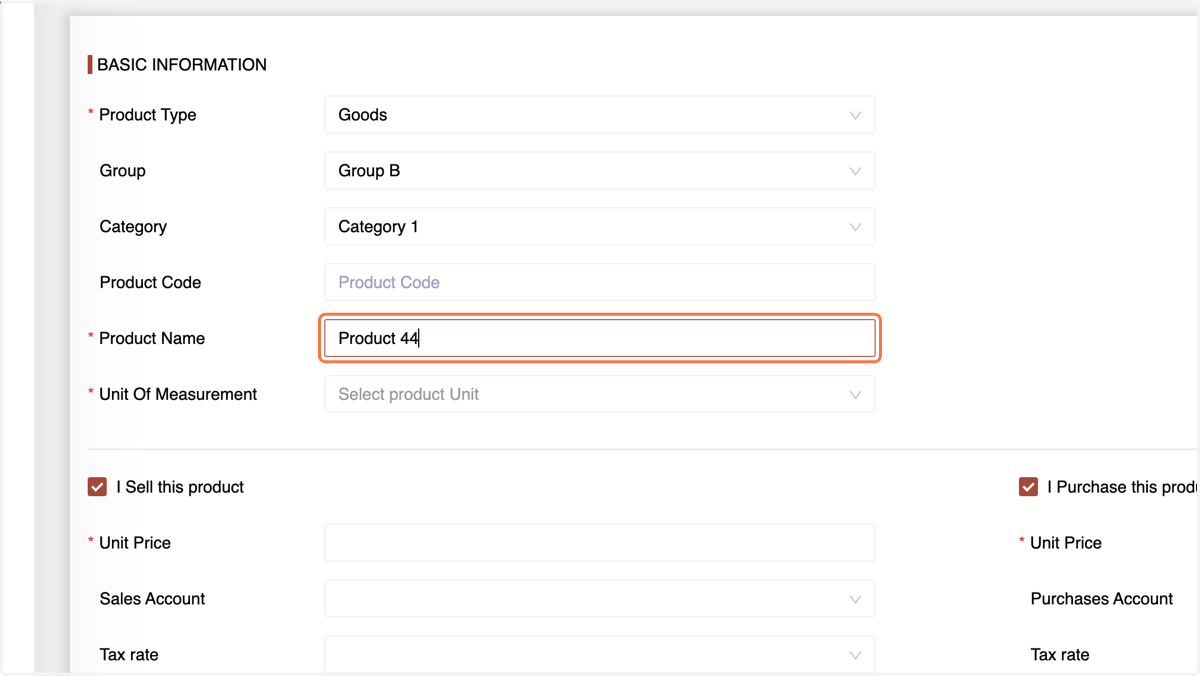
14. Assign the UOM
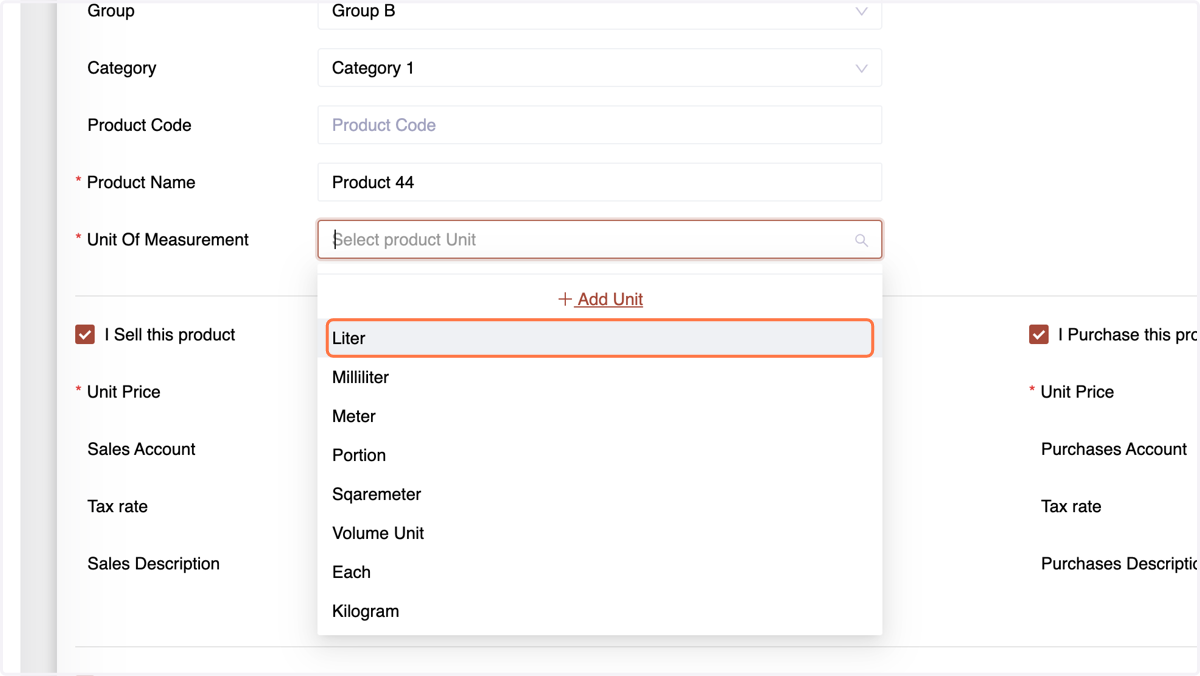
15. If the product is for sale enter the details below, Start with entering the Unit price.
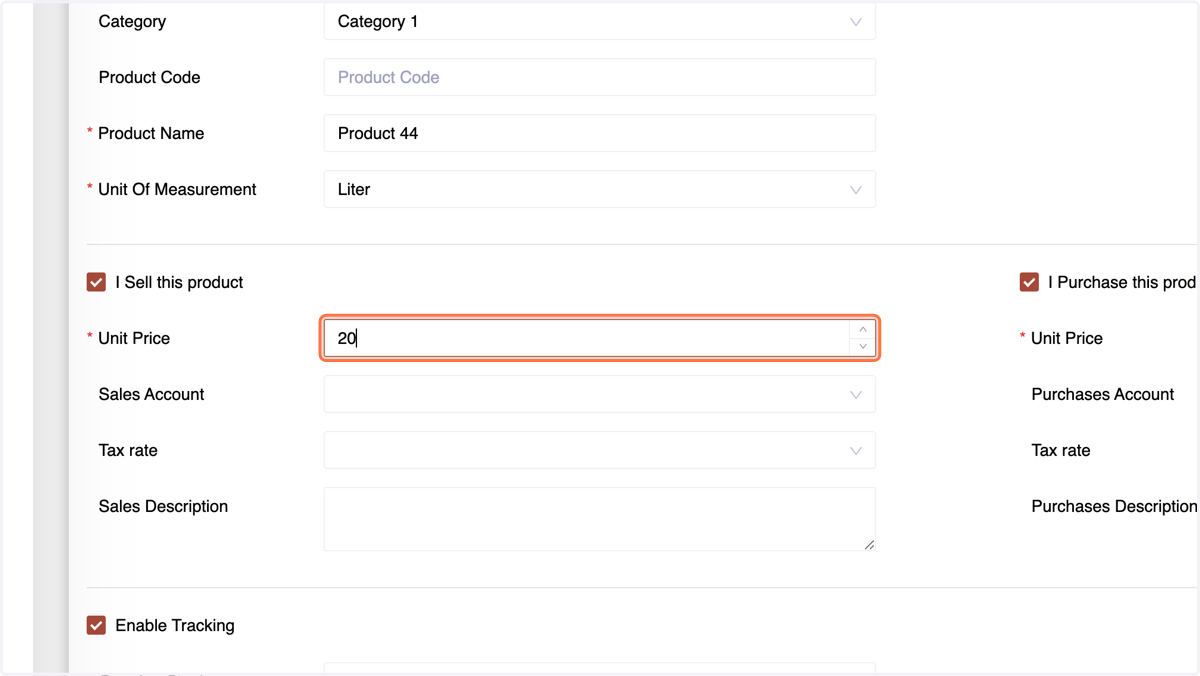
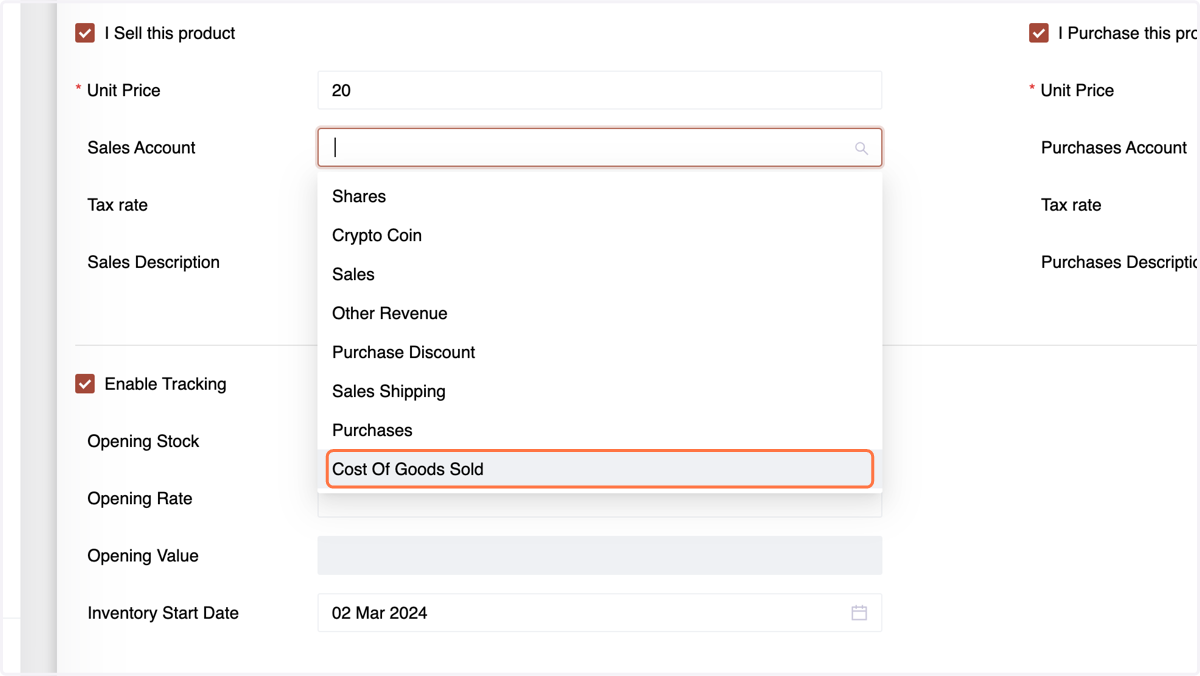
16. Assign a Sales Account
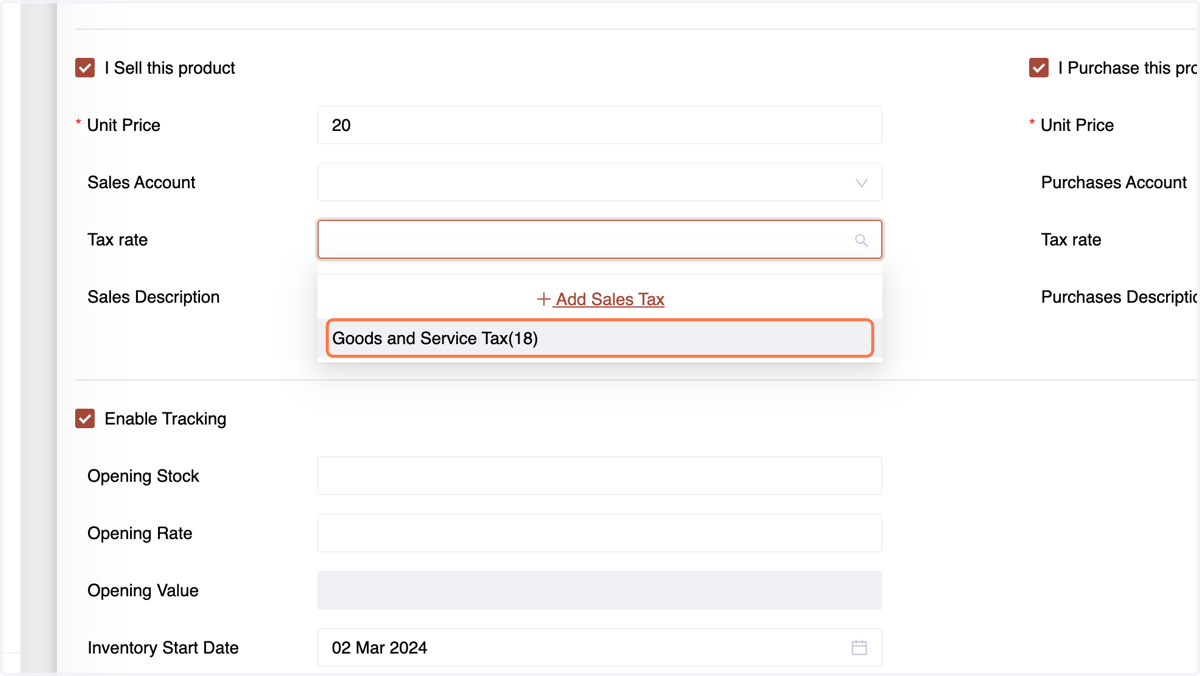
17. Choose the Tax rate
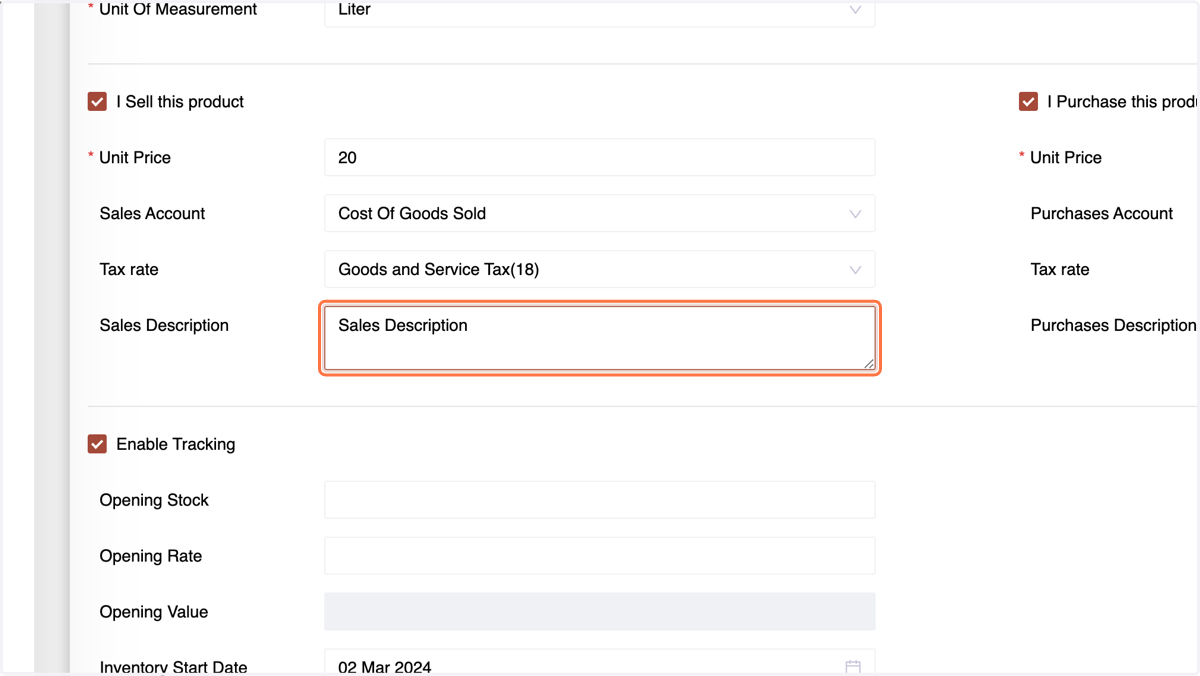
18. Type "Sales Description"
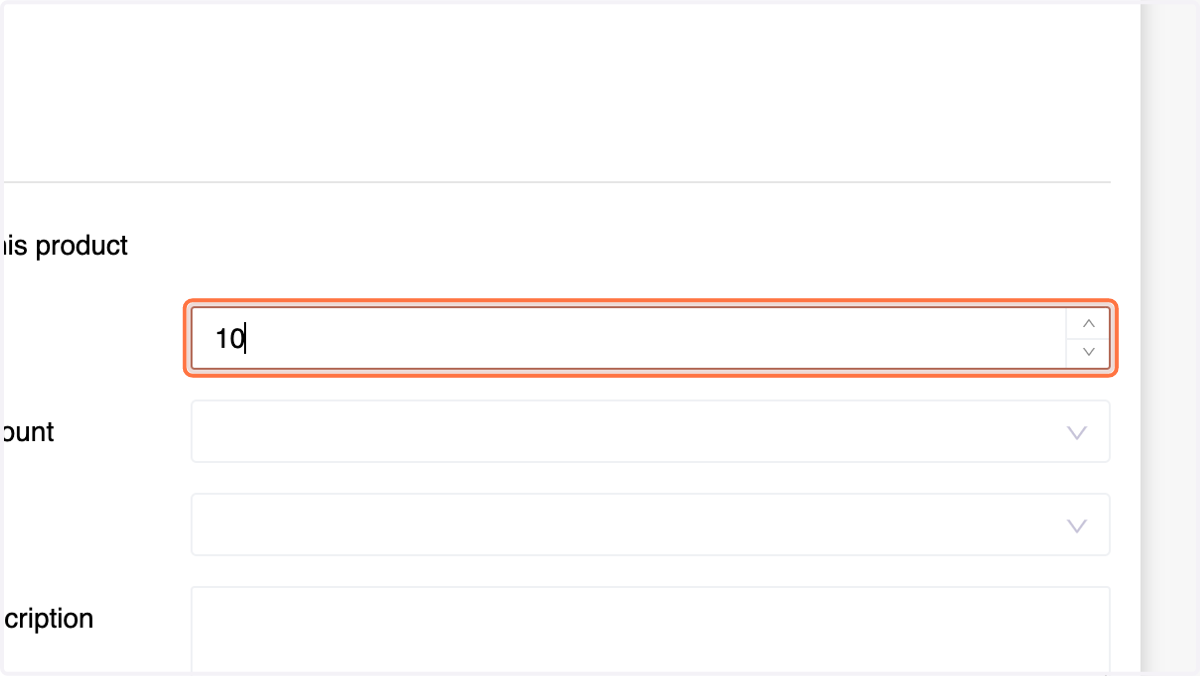
19. Enter the Purchase information, Start with Purchase Unit Price
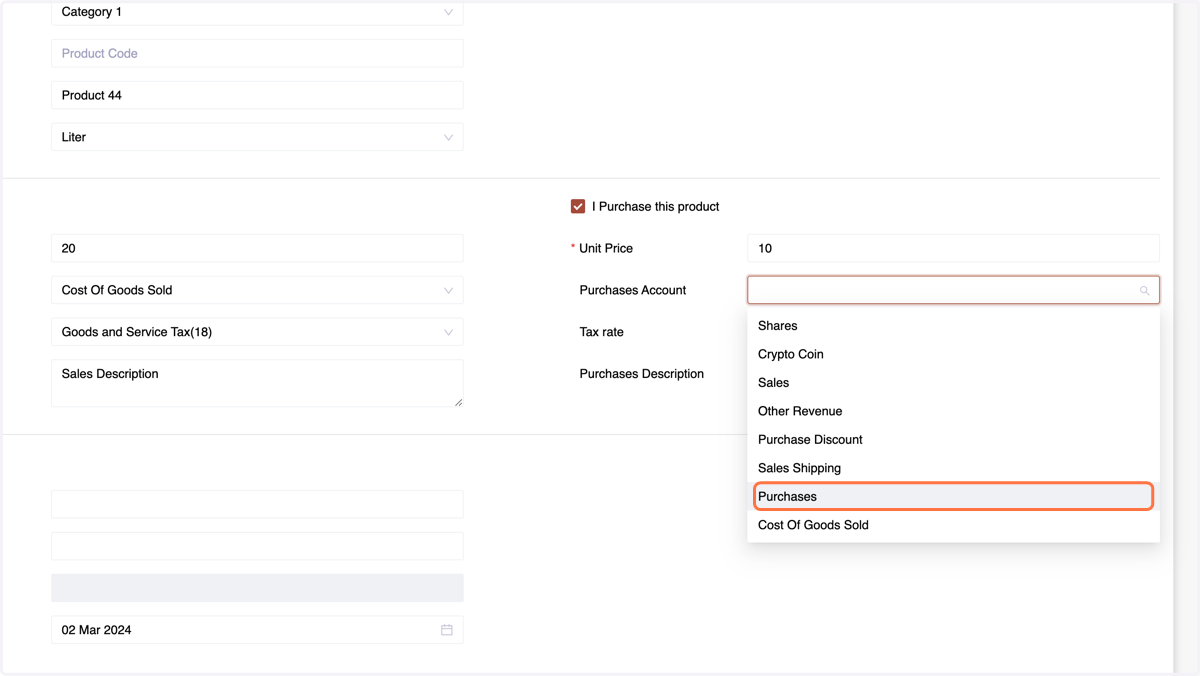
20. Choose the Purchase account
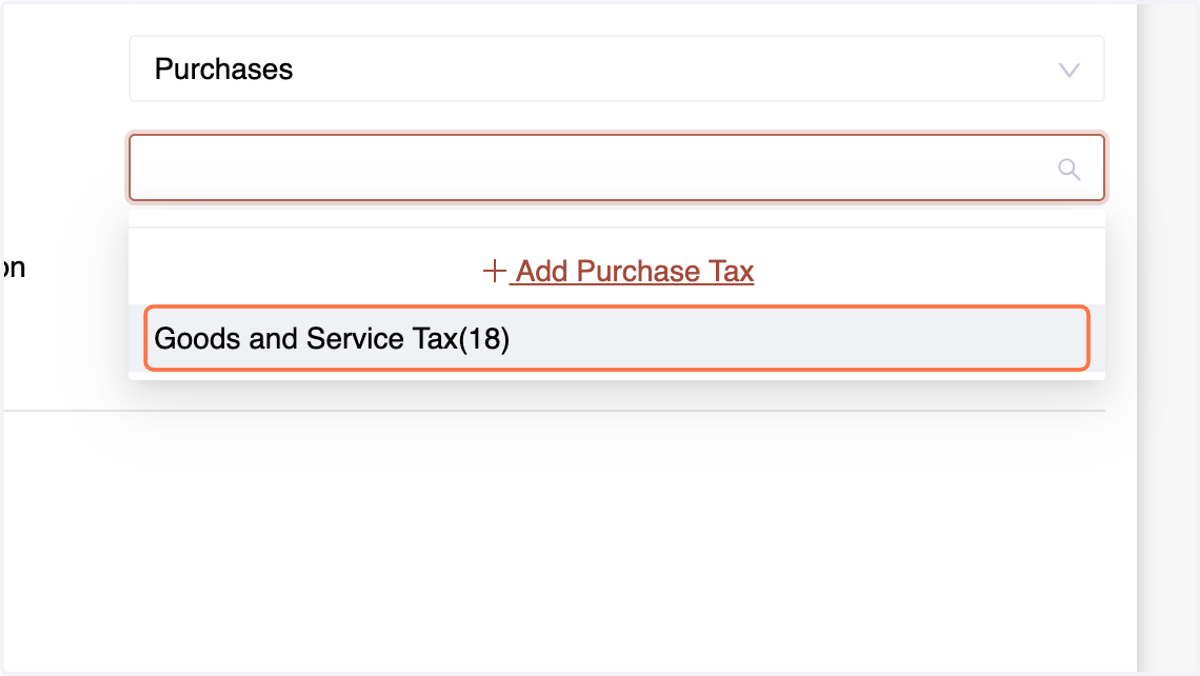
21. Assign the tax rate
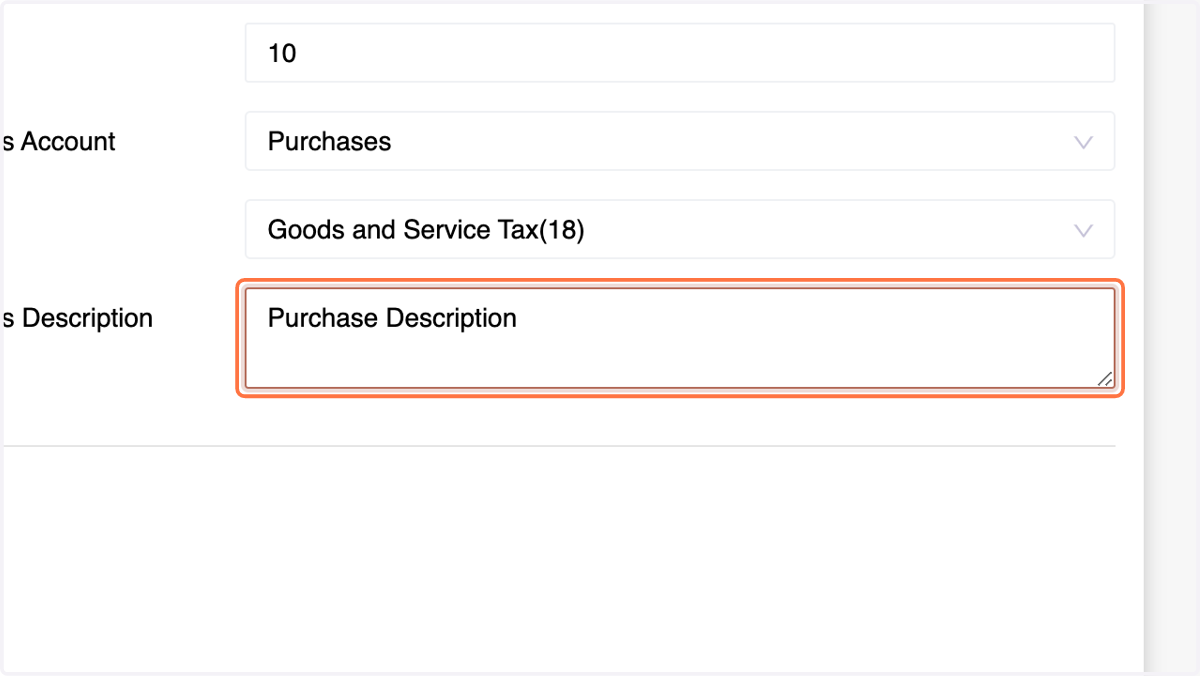
22. Enter the Description
23. Enable tracking if inventory tracking is required; enter opening stock details.
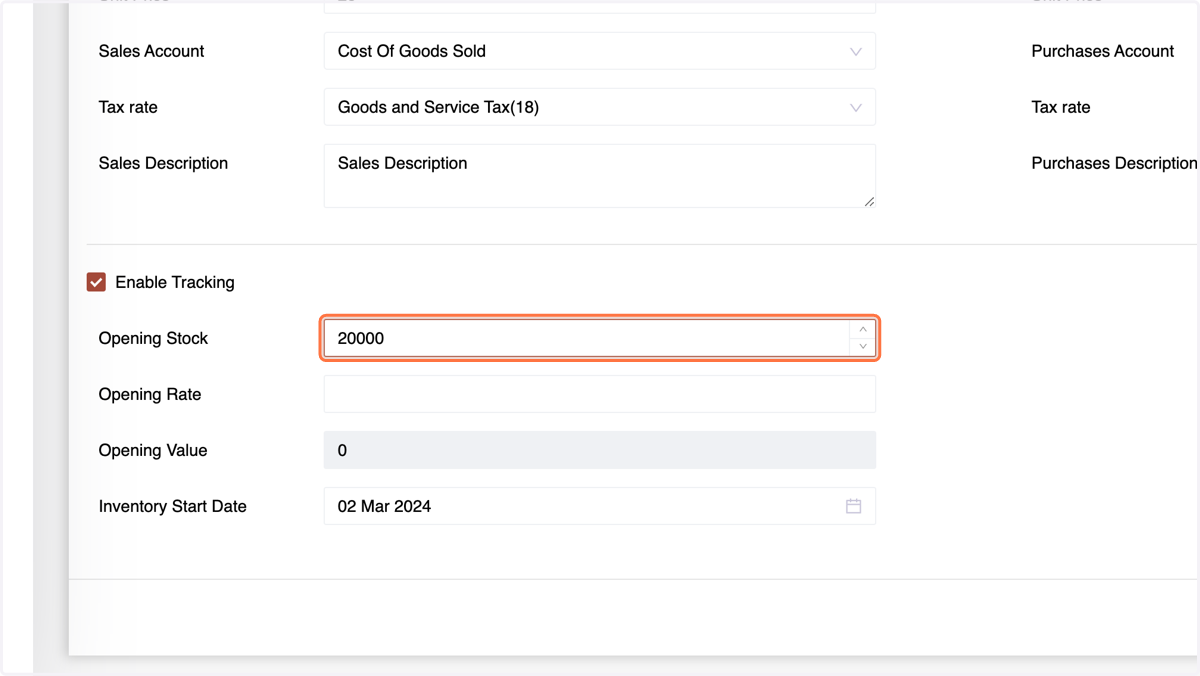
24. Enter the Opening stock value
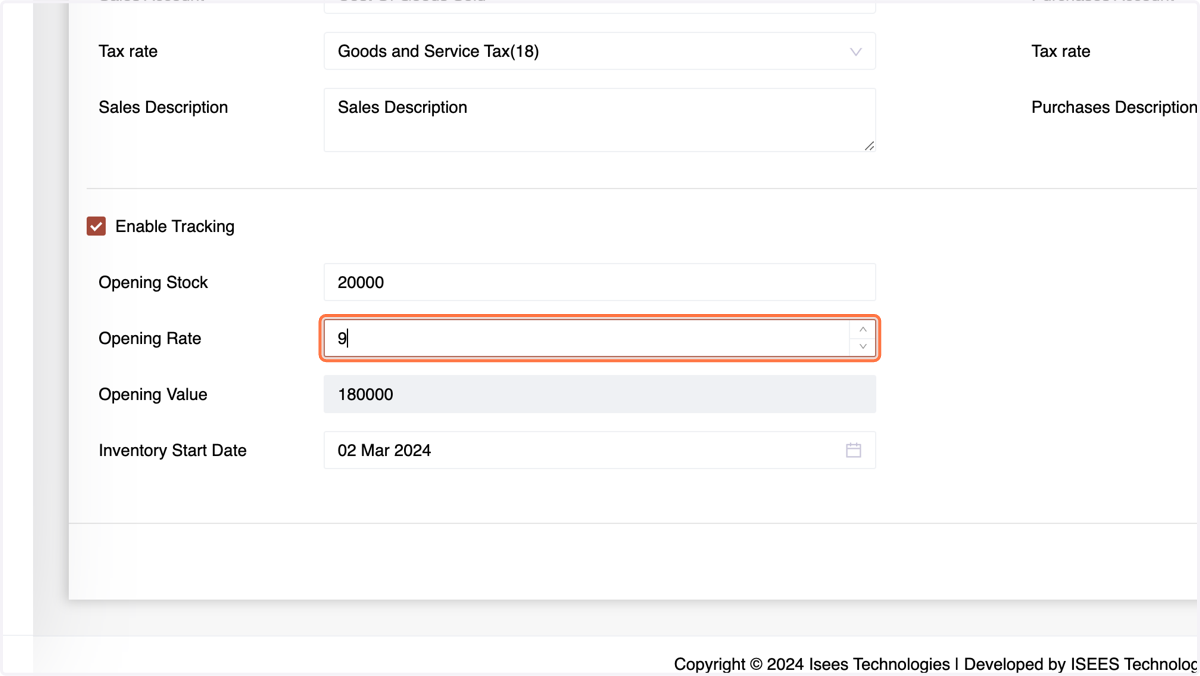
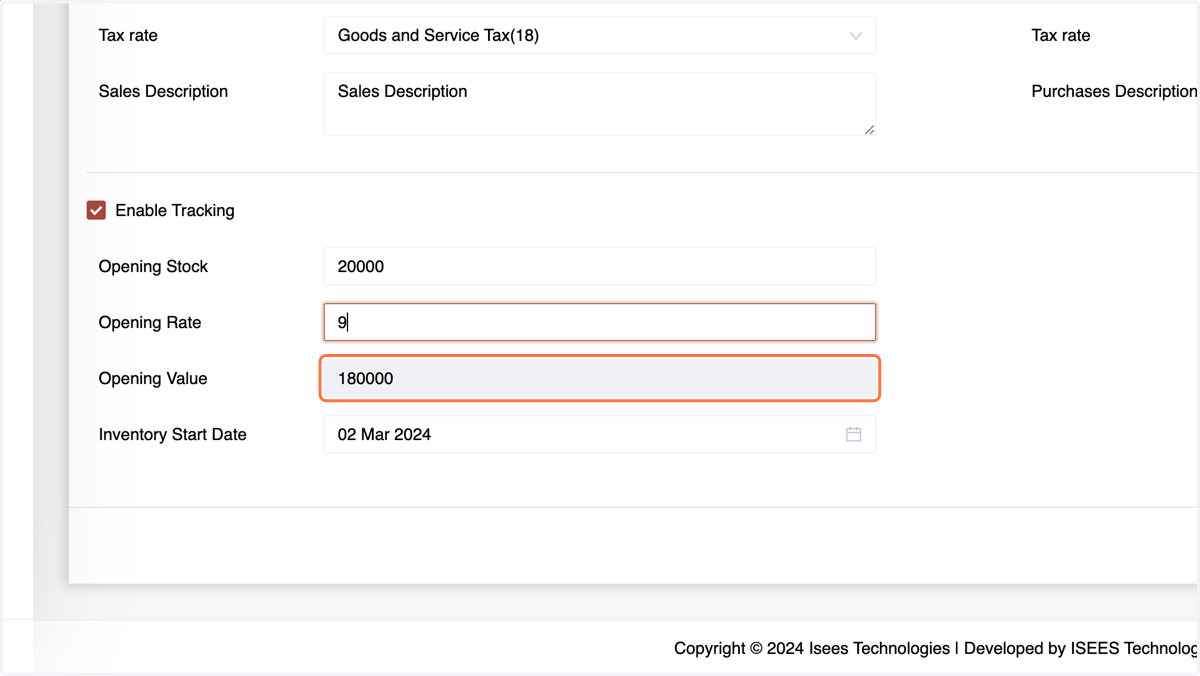
25. The system will calculate the value of the opening stock, The opening rate will be used further for purchases(you may change it in purchase section if the prices are updated), the opening stock and opening value will be used in in the inventory.
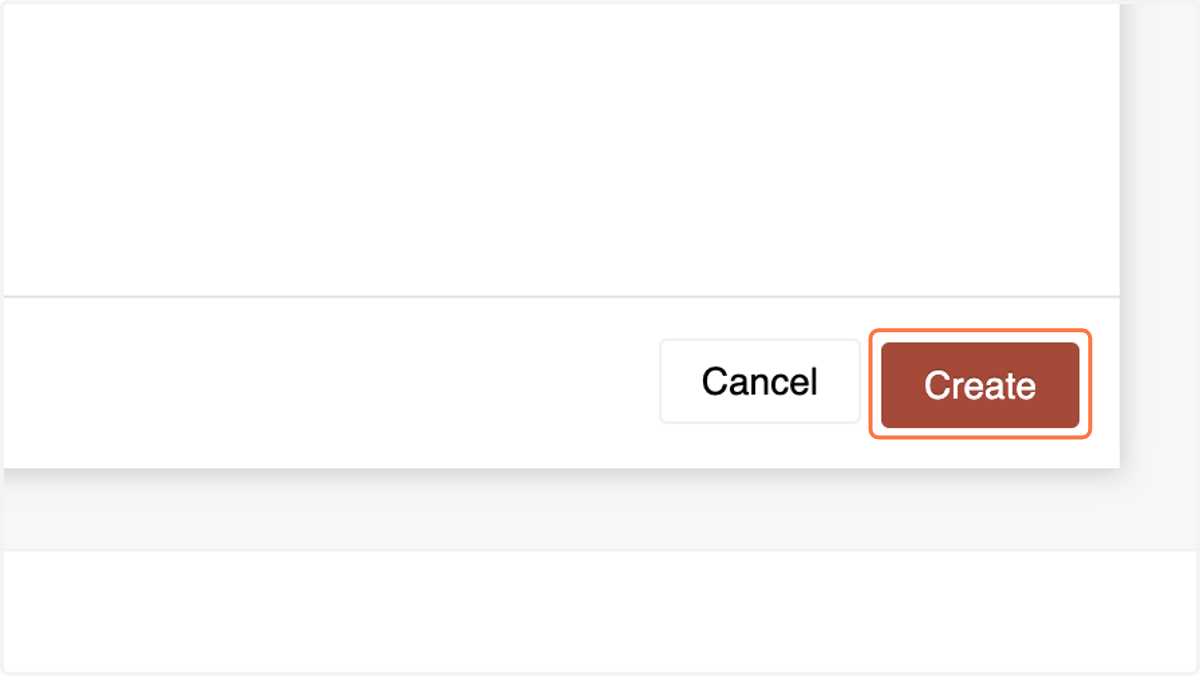
26. g. Click "Create" to finalize product creation.
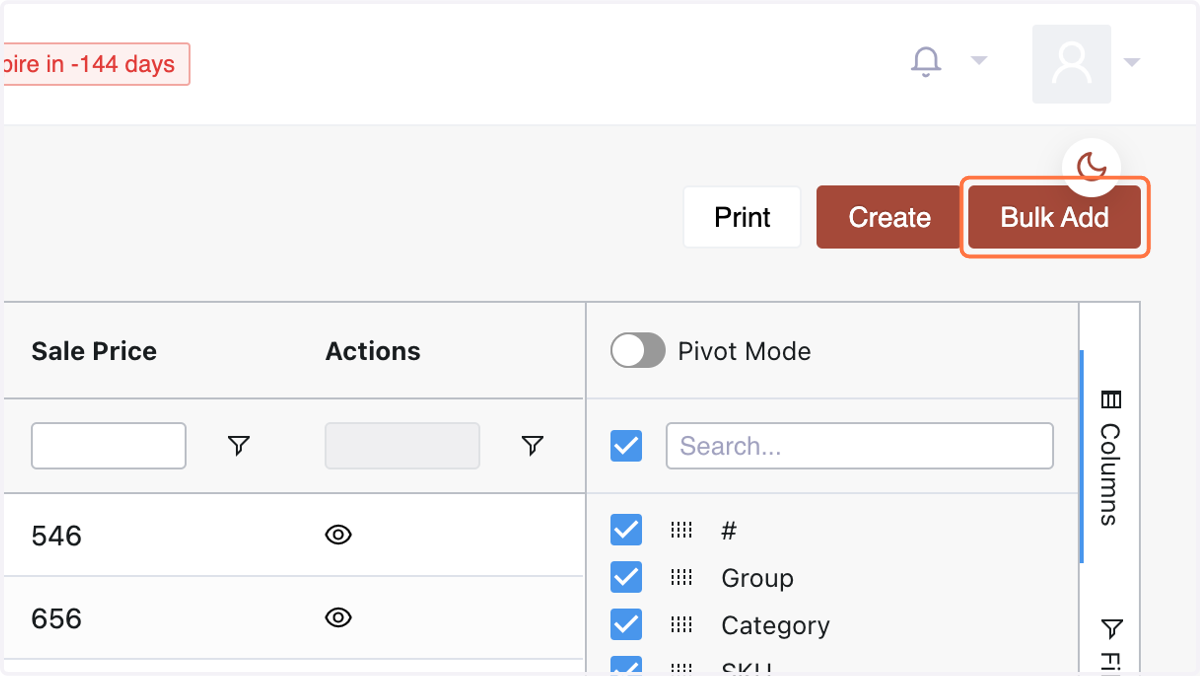
27. For bulk upload, click "Bulk Add,"
28. Click on Sample File
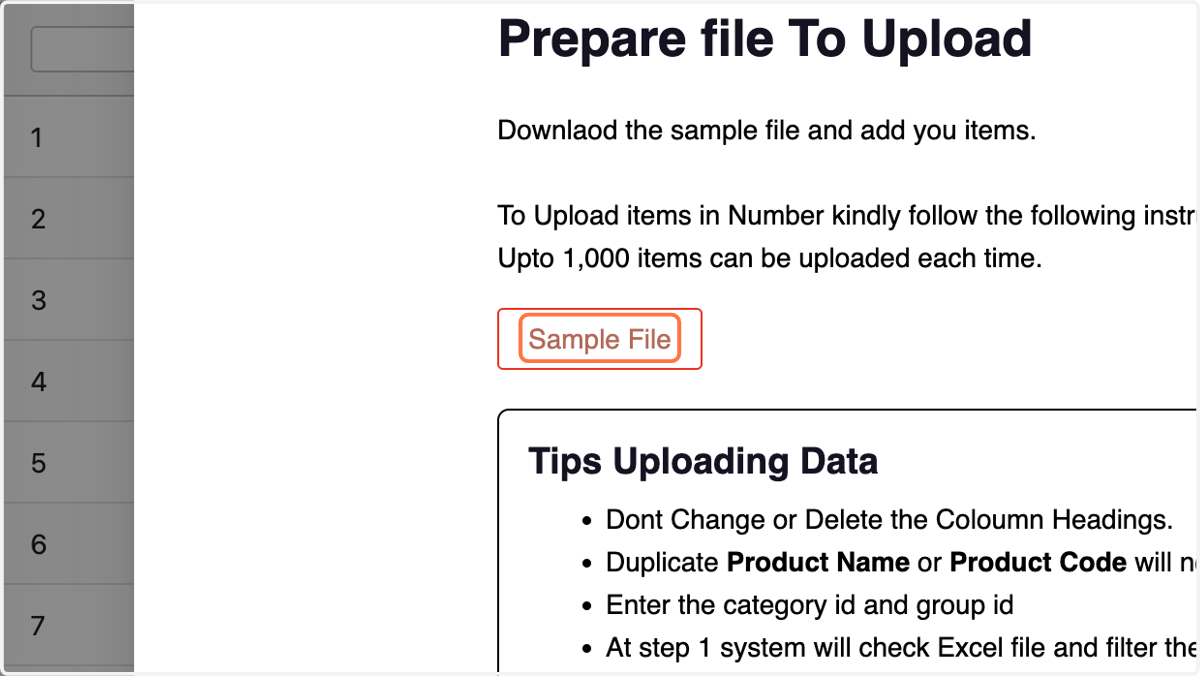
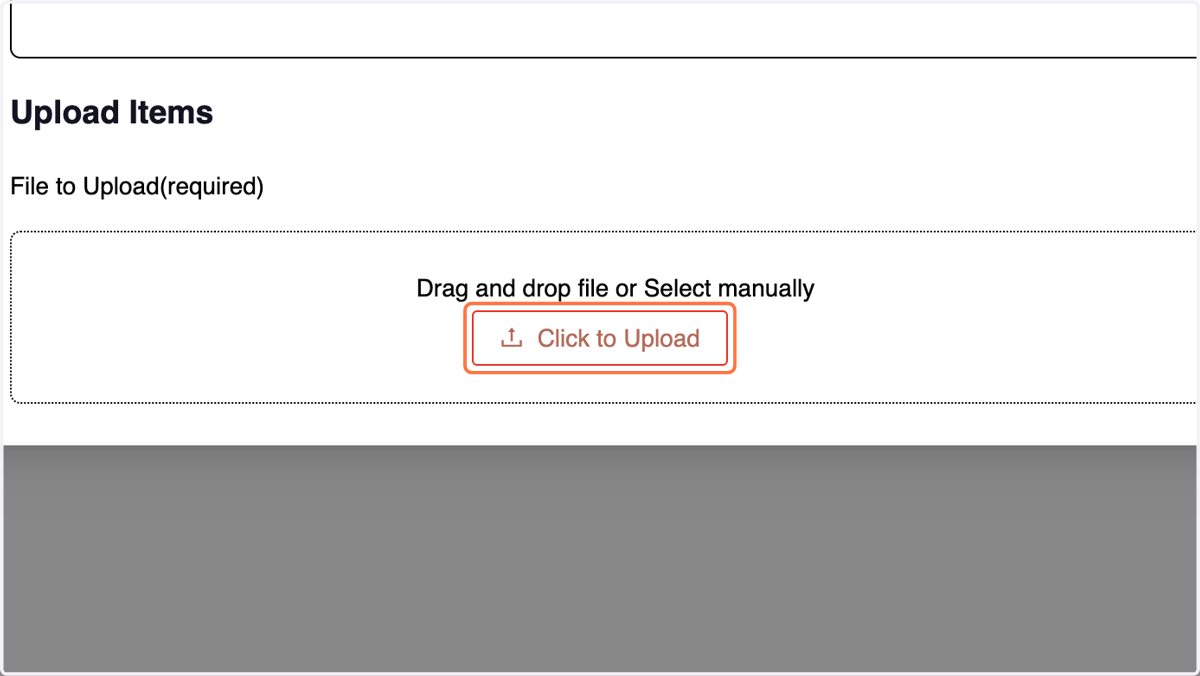
29. add products, upload the file
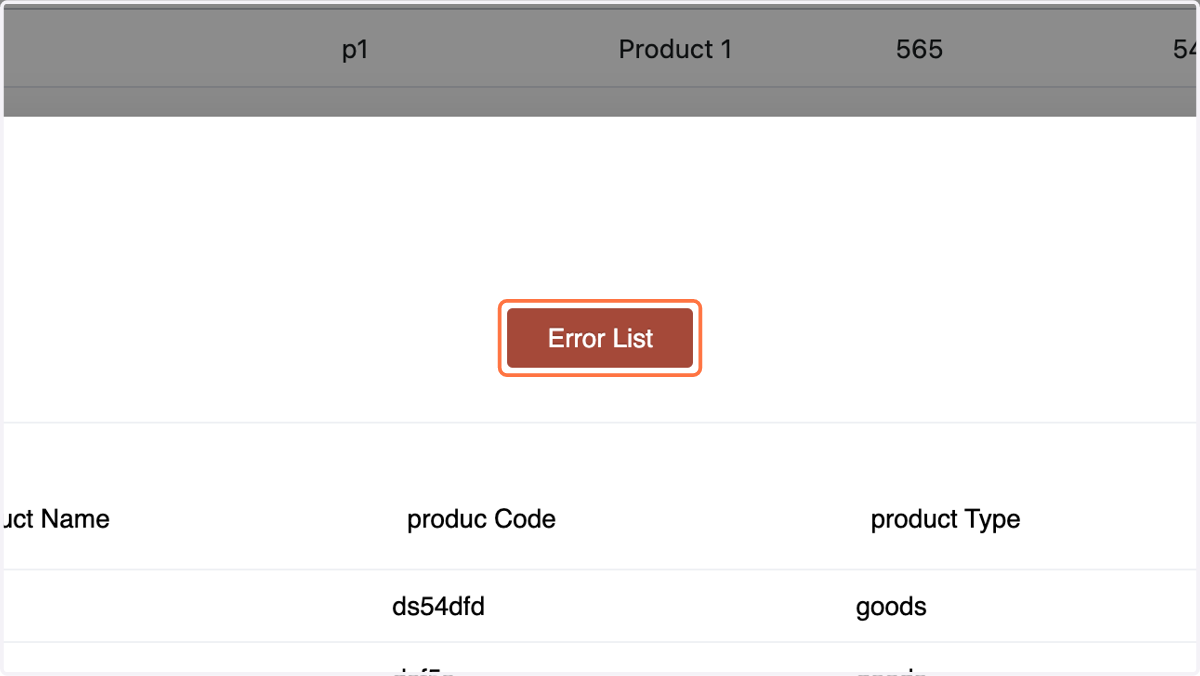
30. Check for Error list
31. verify data,
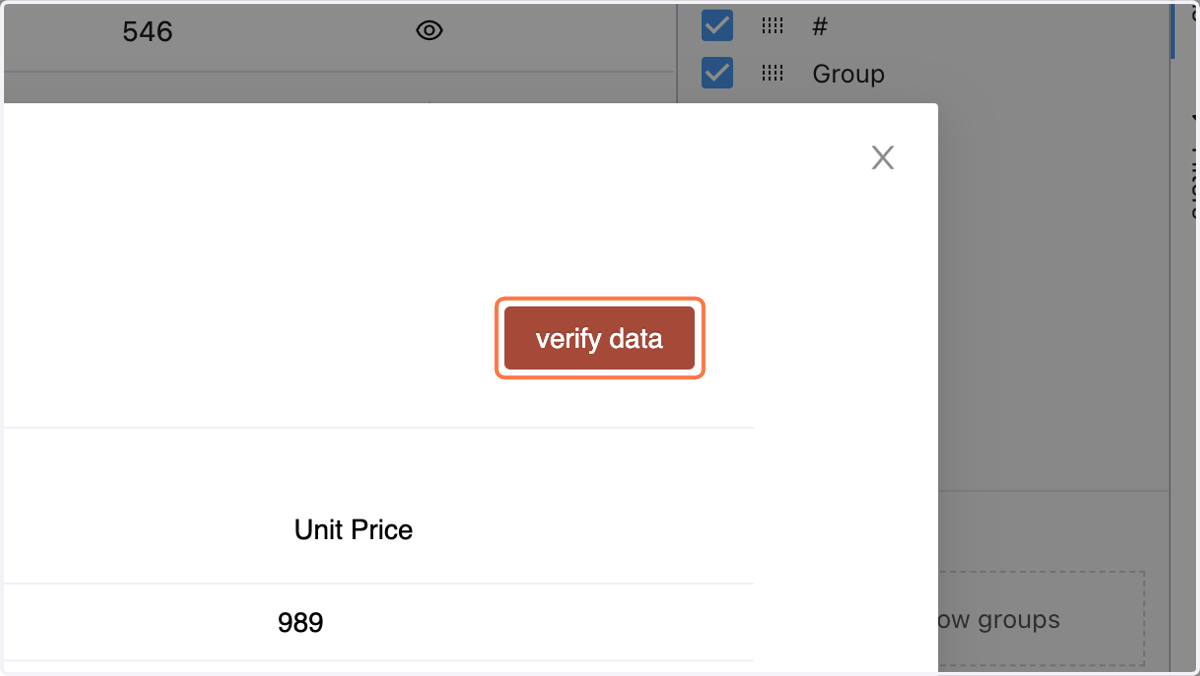
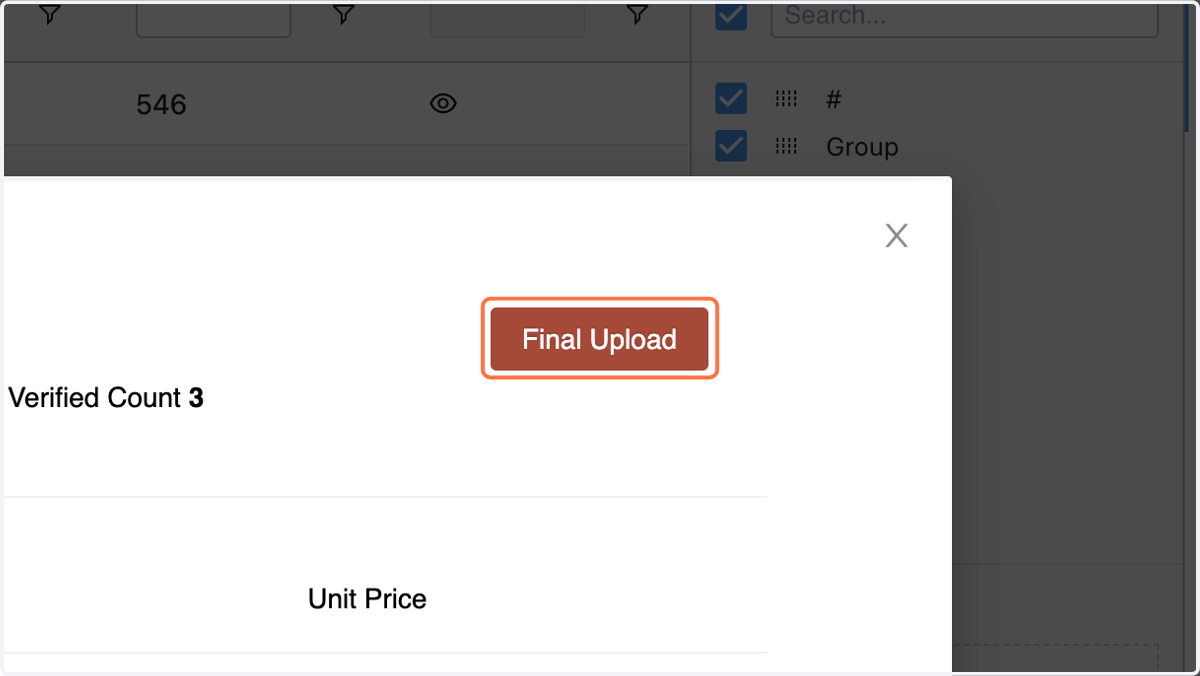
32. Click on Final Upload
Creating Cost Centers: Cost centers provide a strategic approach to financial categorization. In the Cost Center menu, Number allows you to add and manage various cost centers effortlessly. By assigning transactions to specific cost centers, you gain a granular view of your financial activities. Streamline reporting and gain insights into different facets of your business.
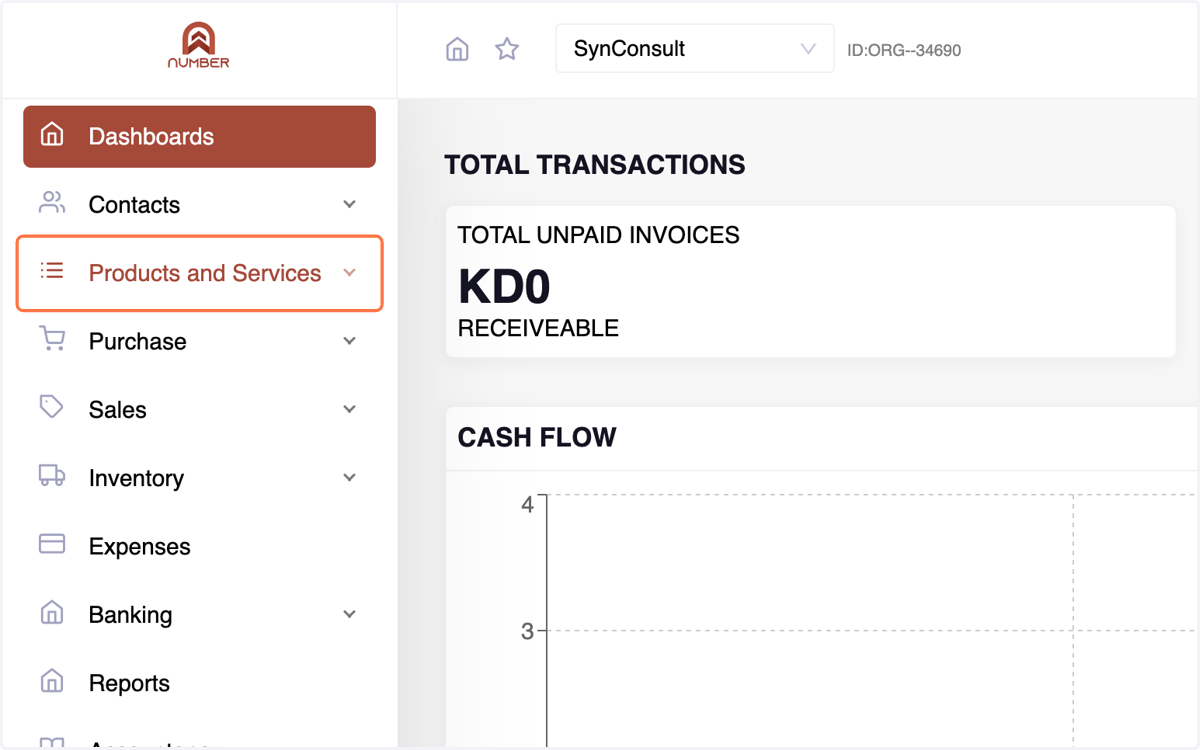
33. Click on "Products & Services"
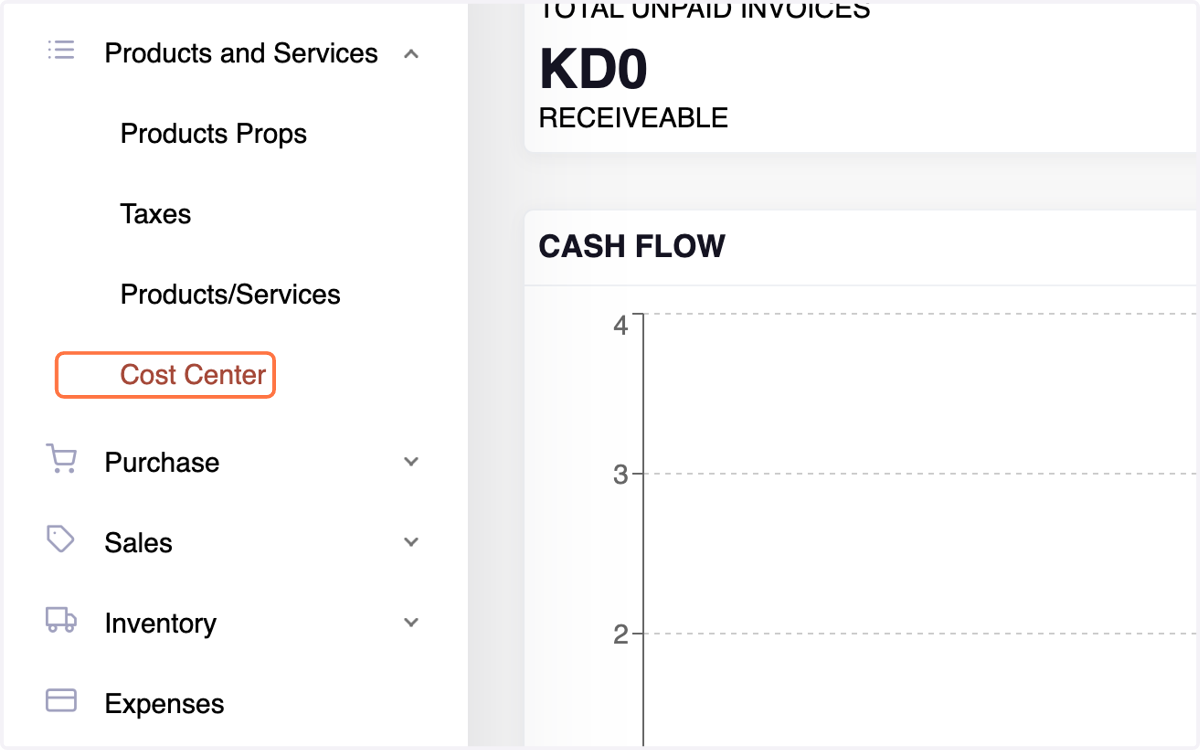
34. Access "Cost Center" under the Products & Services menu.
35. b. Click "Create" and
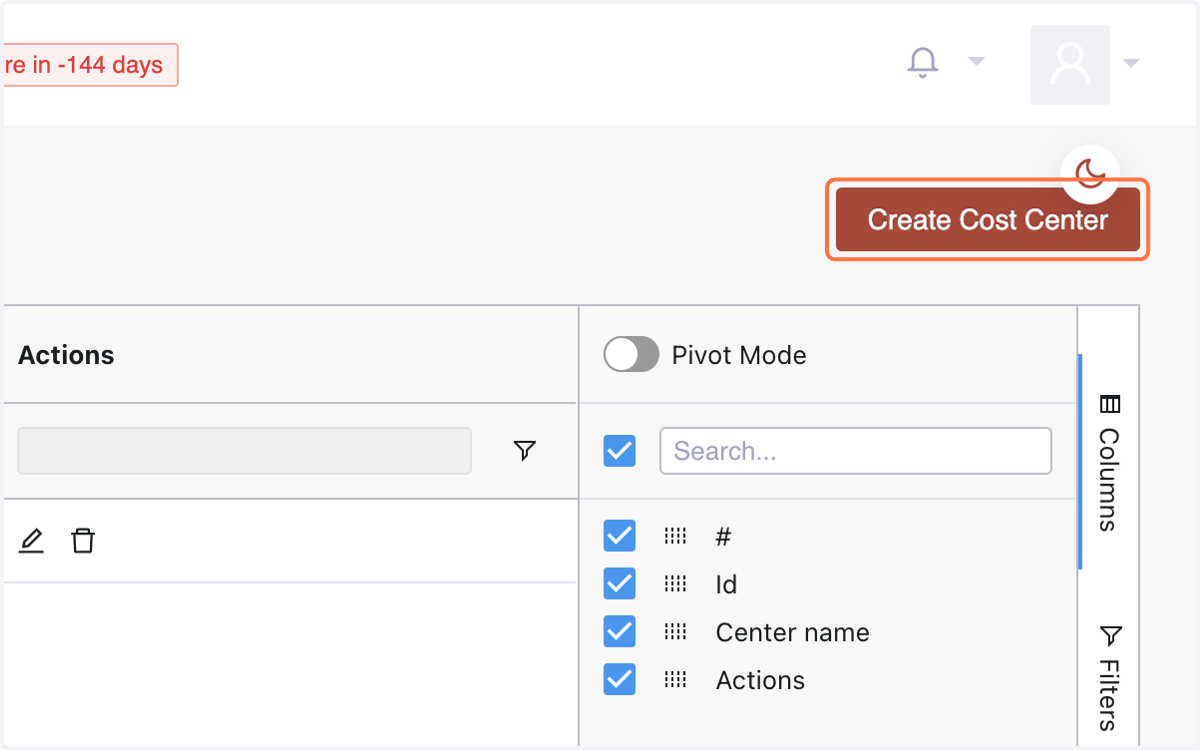
36. enter the Name of the Cost Center.
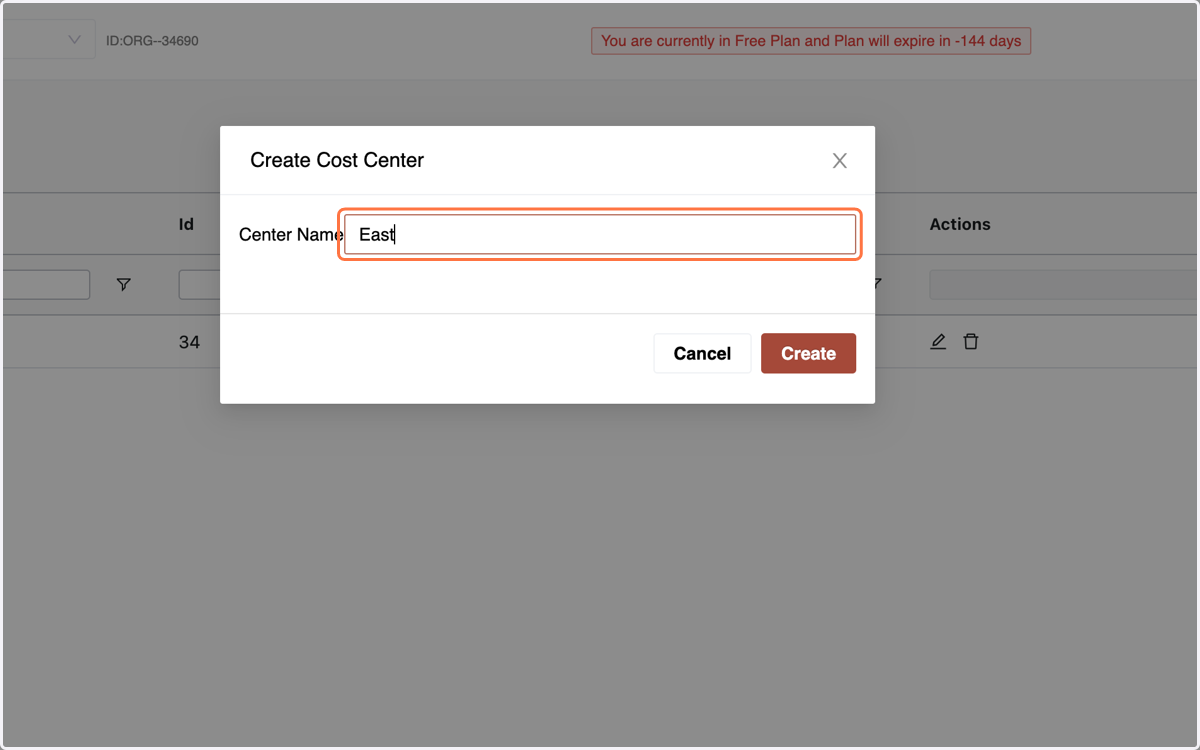
37. Hit "Create" to add the cost center.
Cost centers help segregate and manage Purchase, Sales, Expenses, and Journals for specific reporting.