Create Recipe in Notion Meal Planner
chefbobby on Notion
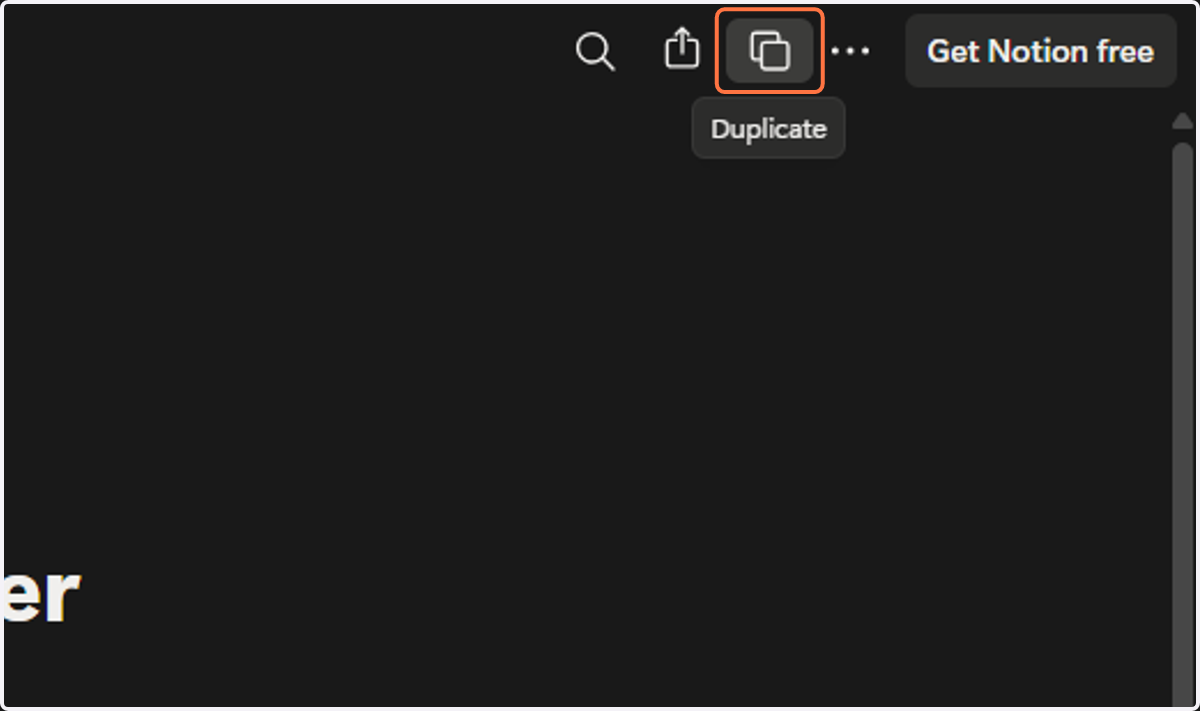
1. Click on button called "Duplicate"
The duplicate button at the top of the screen will allow you to edit and add your own custom meal options within the Meal Planner
Notion
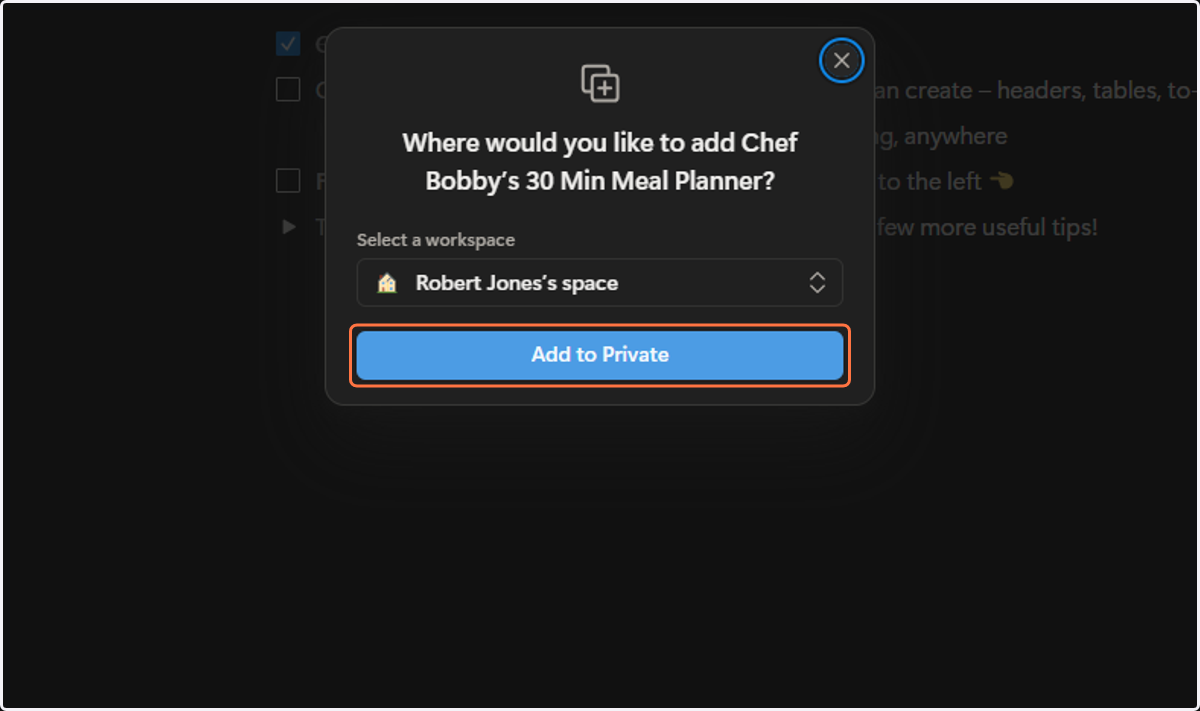
2. Click on Add to Private
Add the Meal Planner to the workspace of your choice. You can move it to a different location after doing this.
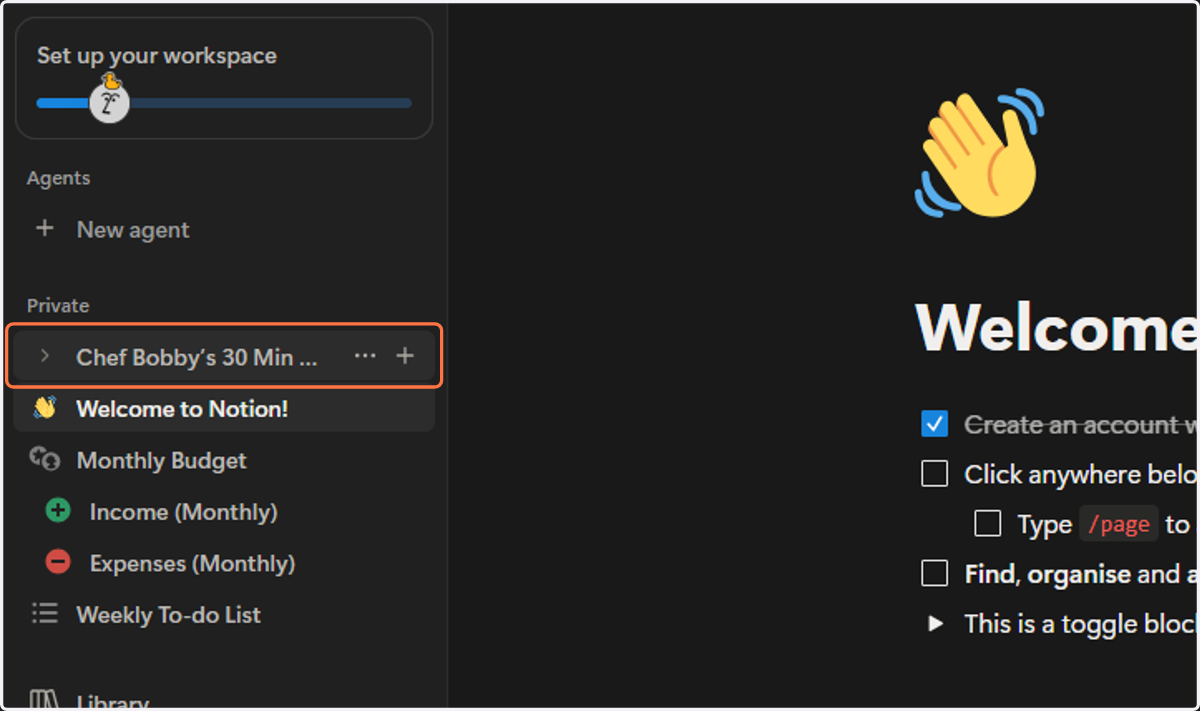
3. Click on Chef Bobby’s 30 Min Meal Planner
Expand the pages - there are 2 pages to select from: The Kitchen Dashboard, where you put your meals together and the Kitchen Engine, where you can add/edit/delete meal components. There are some meal components to get you started, but you will need to add your own here. You can do this as you go, too, so no need to spend too much time all at once.
4. Click on Chef Engine
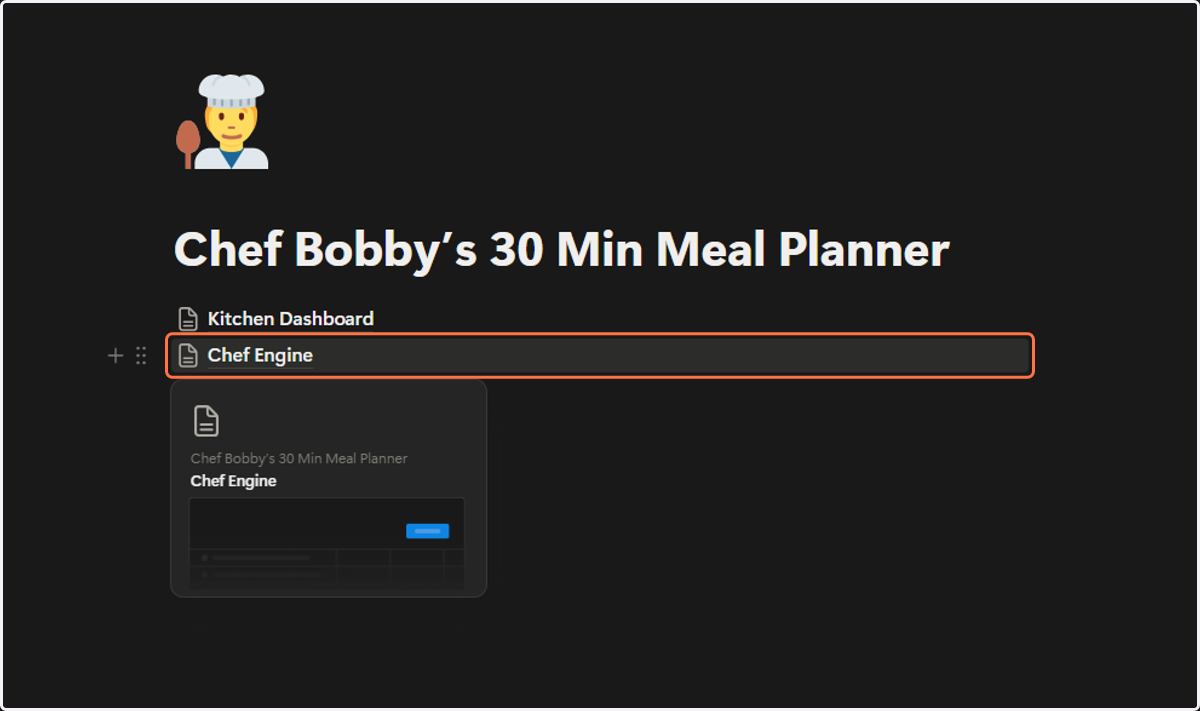
5. Under the Sauces secion
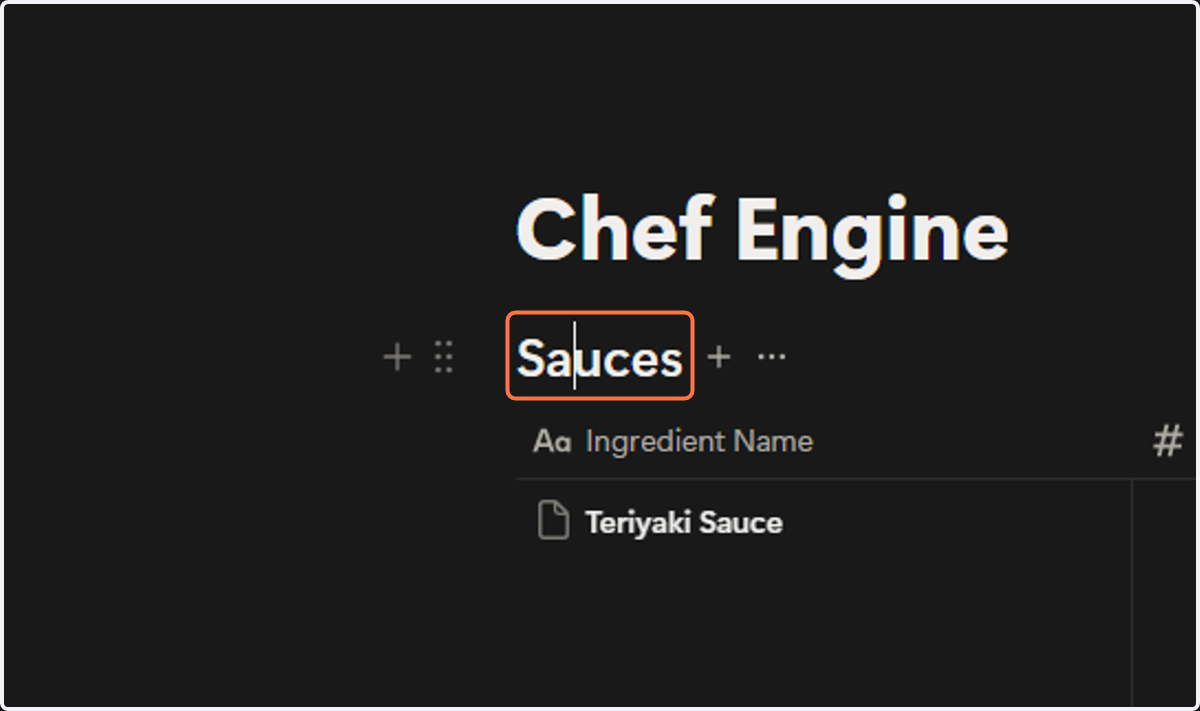
6. Click on New page
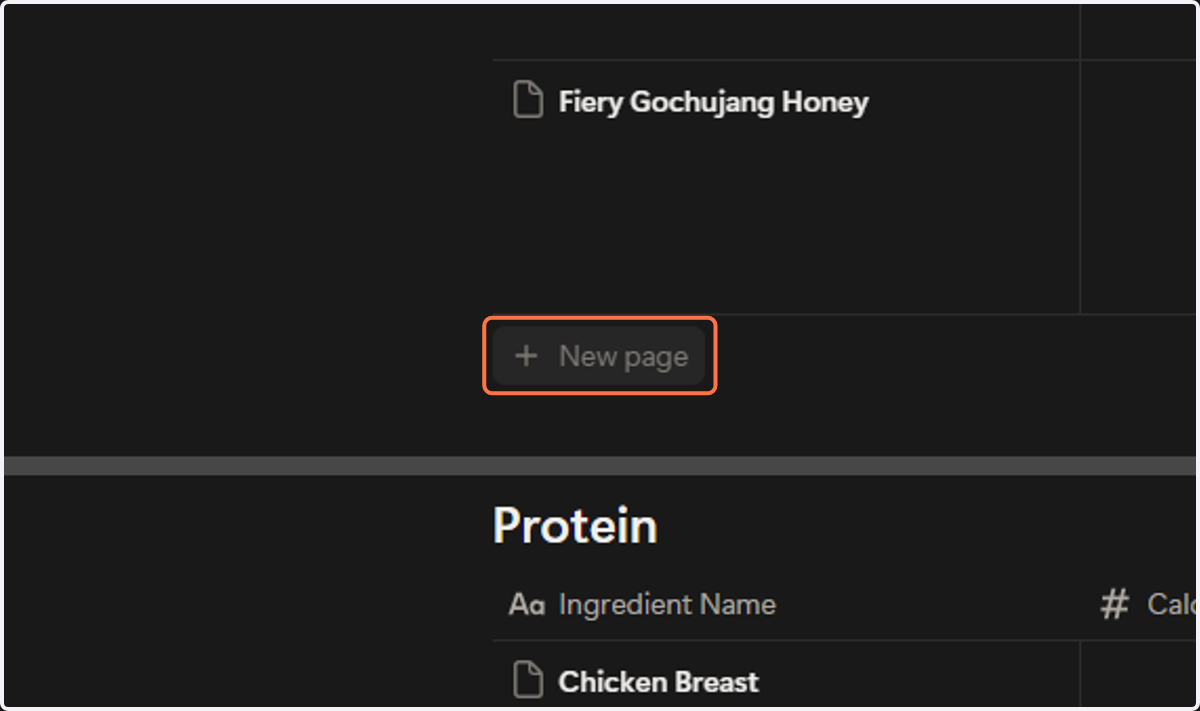
7. Type Tomato Ketchup
You can add whatever sauce you want here - this is just an example.
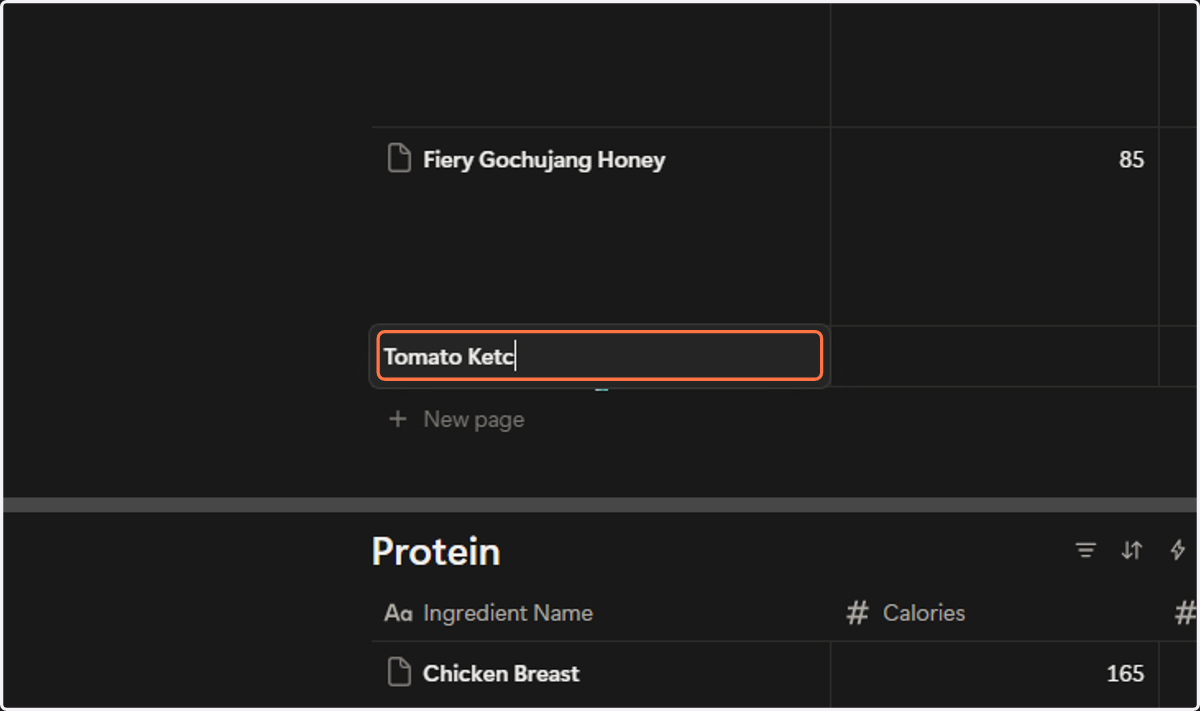
8. Click on empty cell next to Tomato Ketcup - this is under Calories
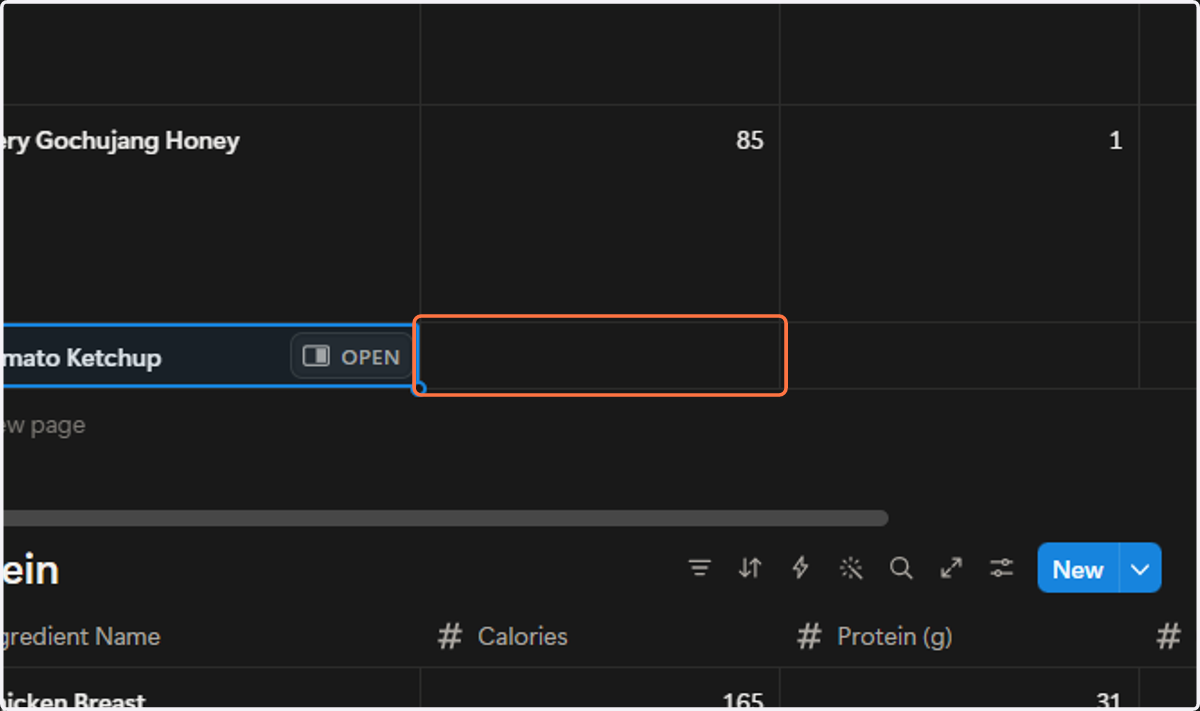
9. Type "54"
Enter whatever the calories are for your menu item.
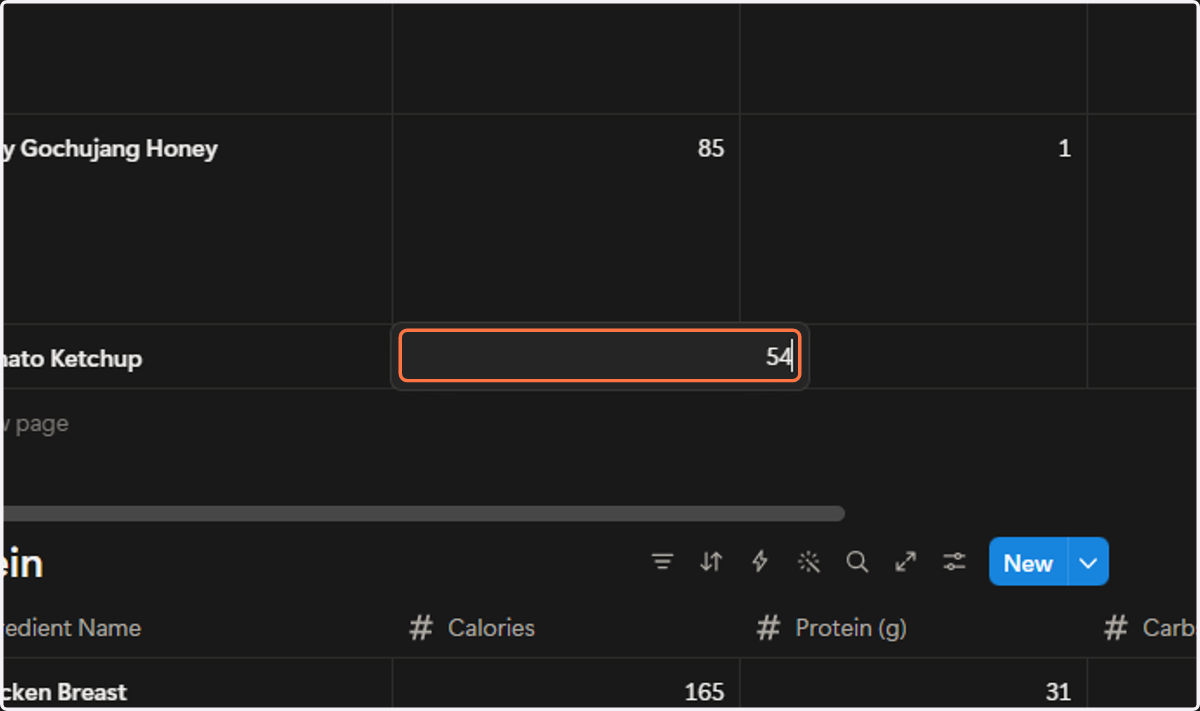
10. Click the next cell and enter grams protein.
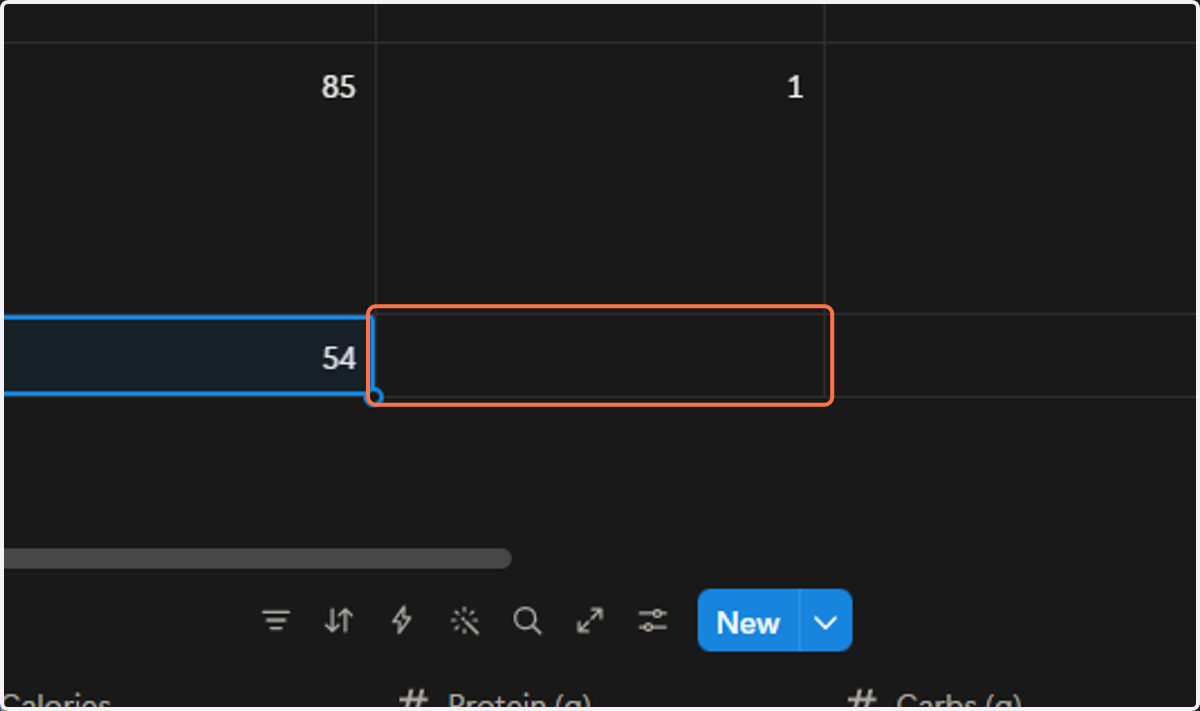
11. Type "26"
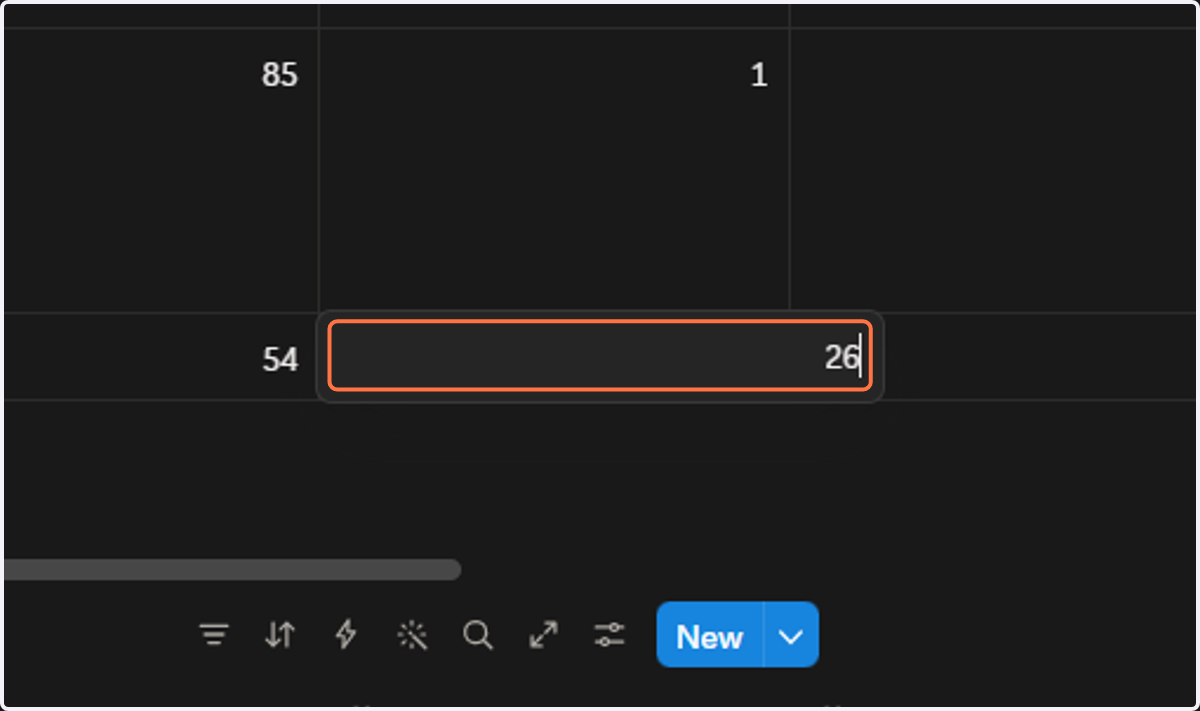
12. Click the next cell and enter grams carbs.
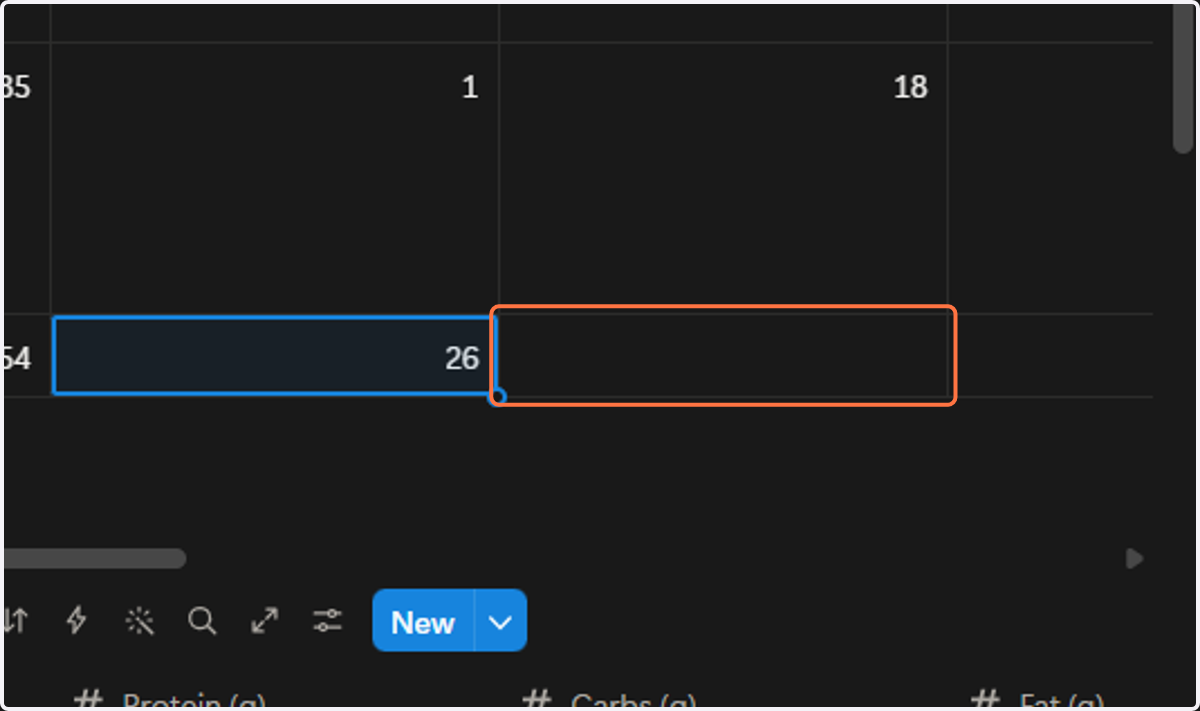
13. Type "10"
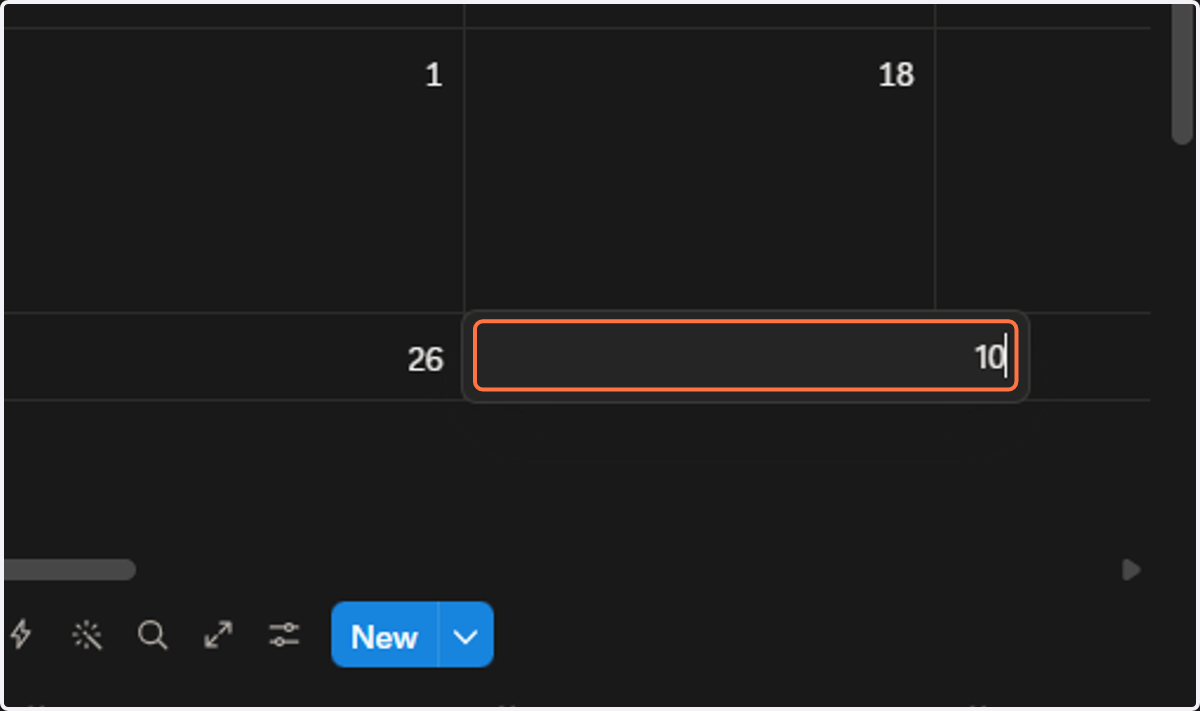
14. Click the next cell and enter grams fats.
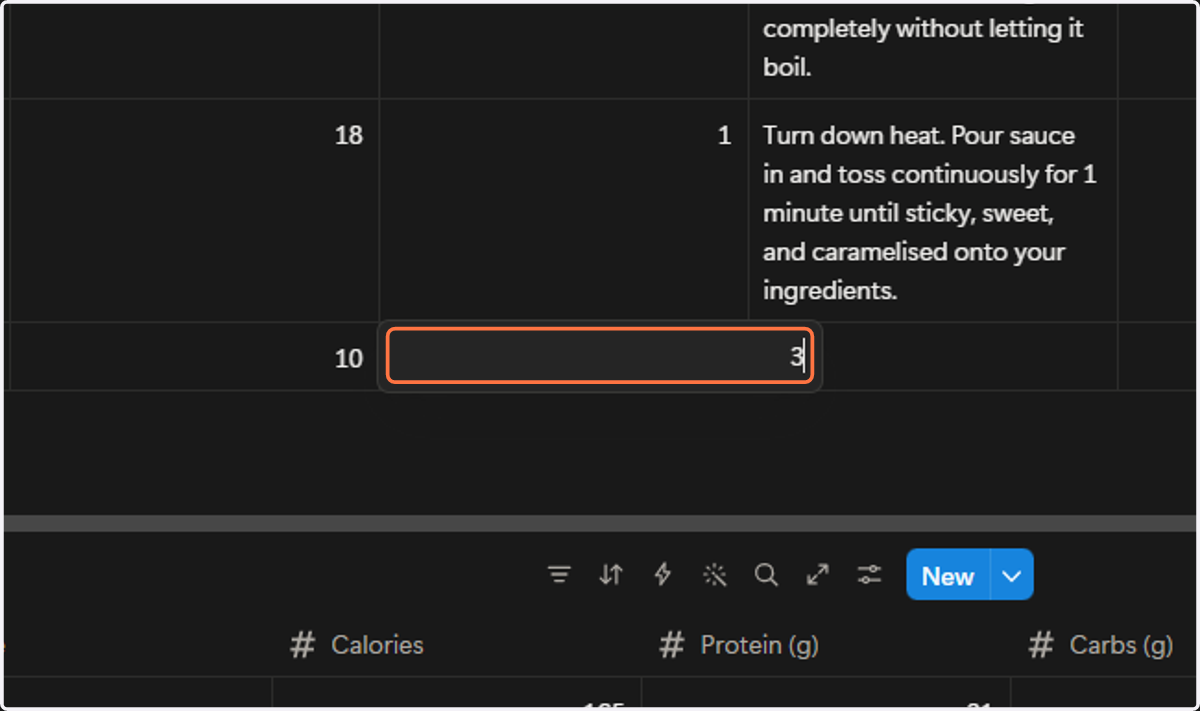
15. Click on next cell for cooking instruction.
This is completely optional, but will give you a visual representation of a recipe for your menu.
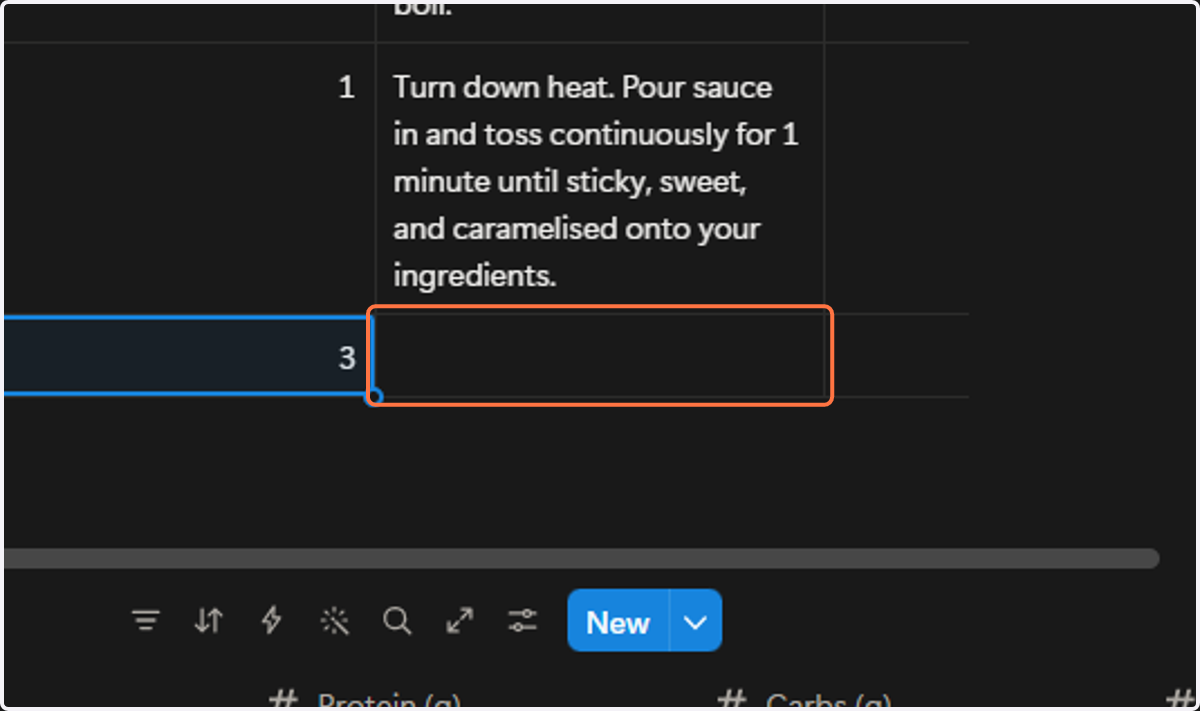
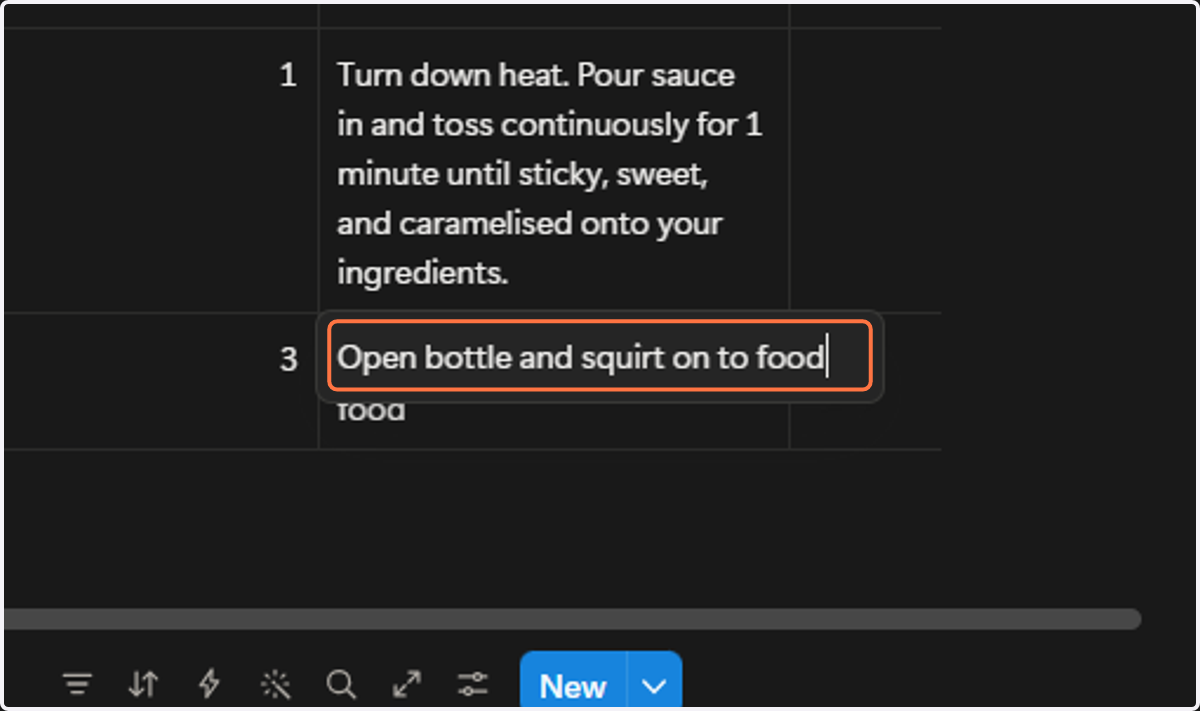
16. Type Open bottle and squirt on to food
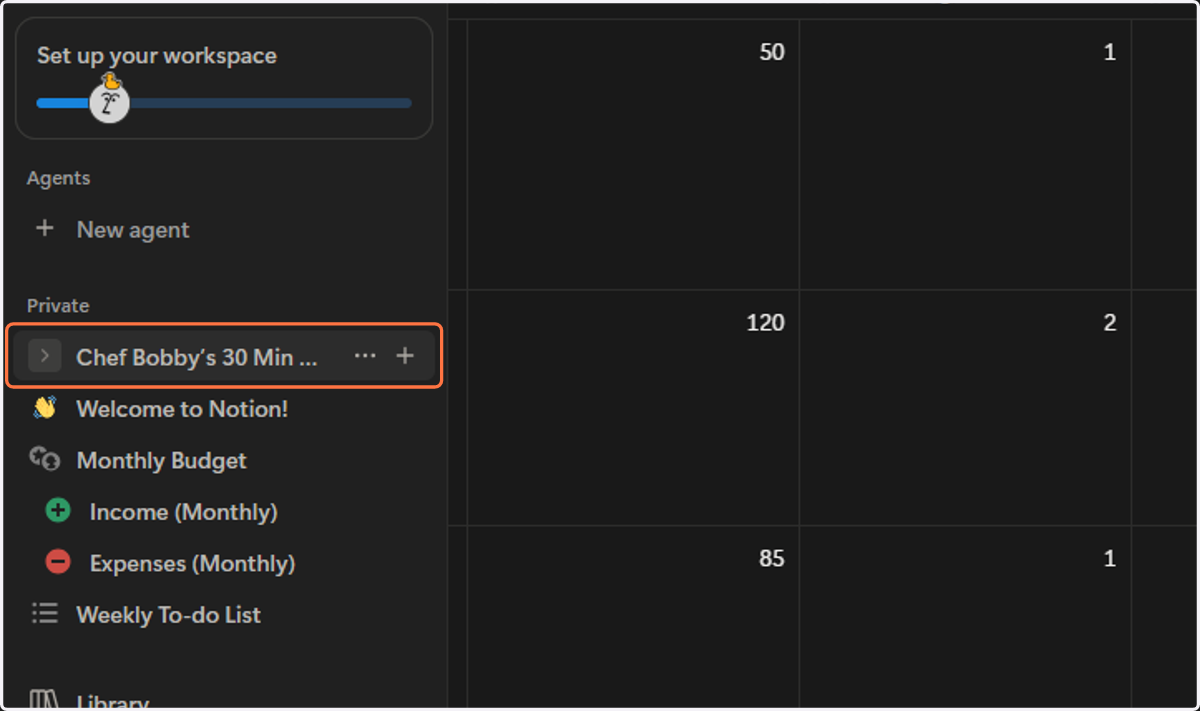
17. Click on Chef Bobby’s 30 Min Meal Planner to expand the pages
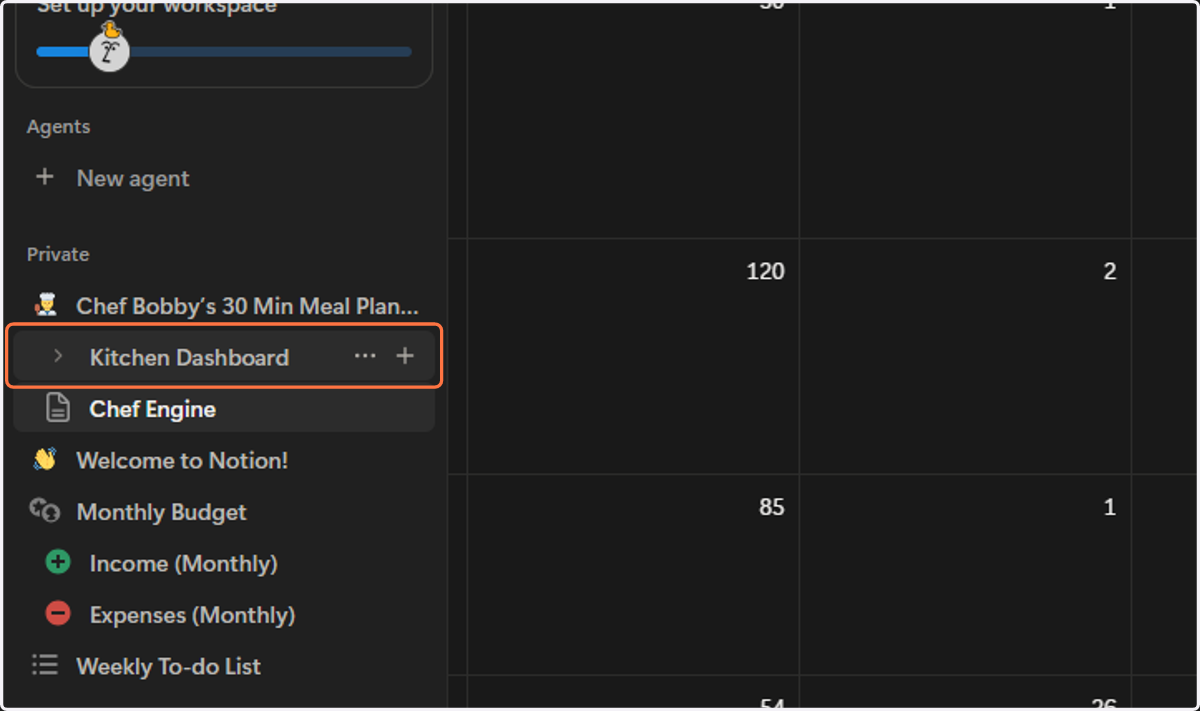
18. Click on Kitchen Dashboard
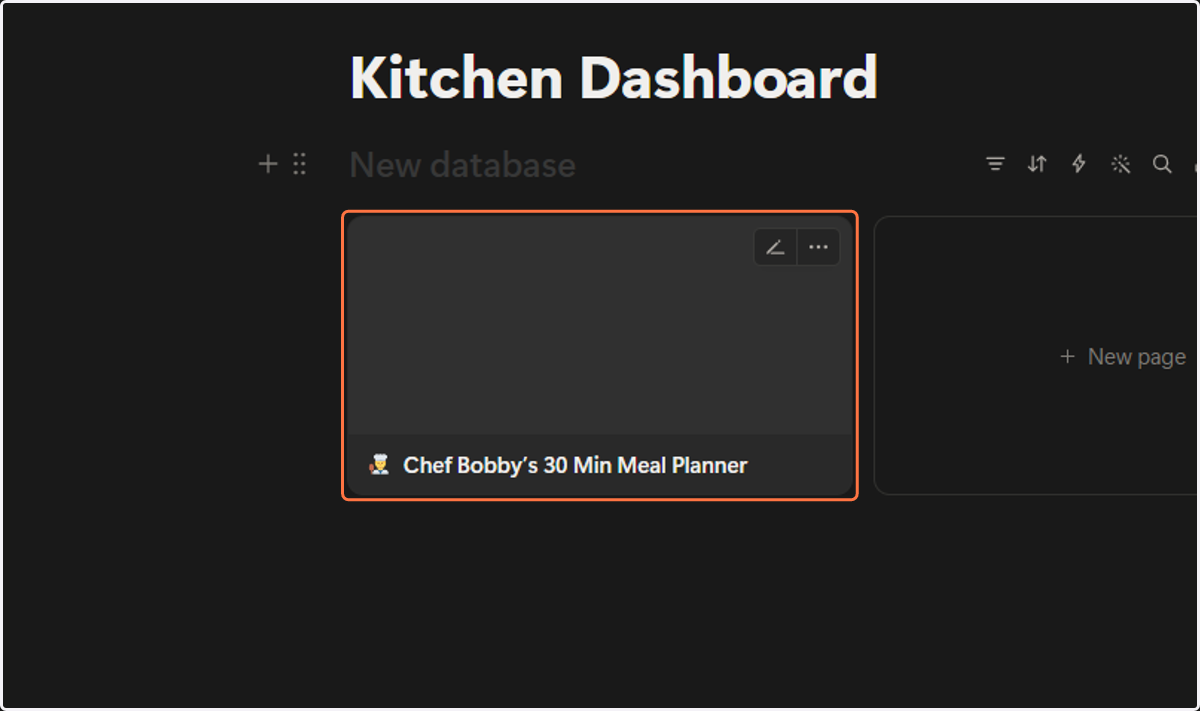
19. Click on Chef Bobby’s 30 Min Meal Planner
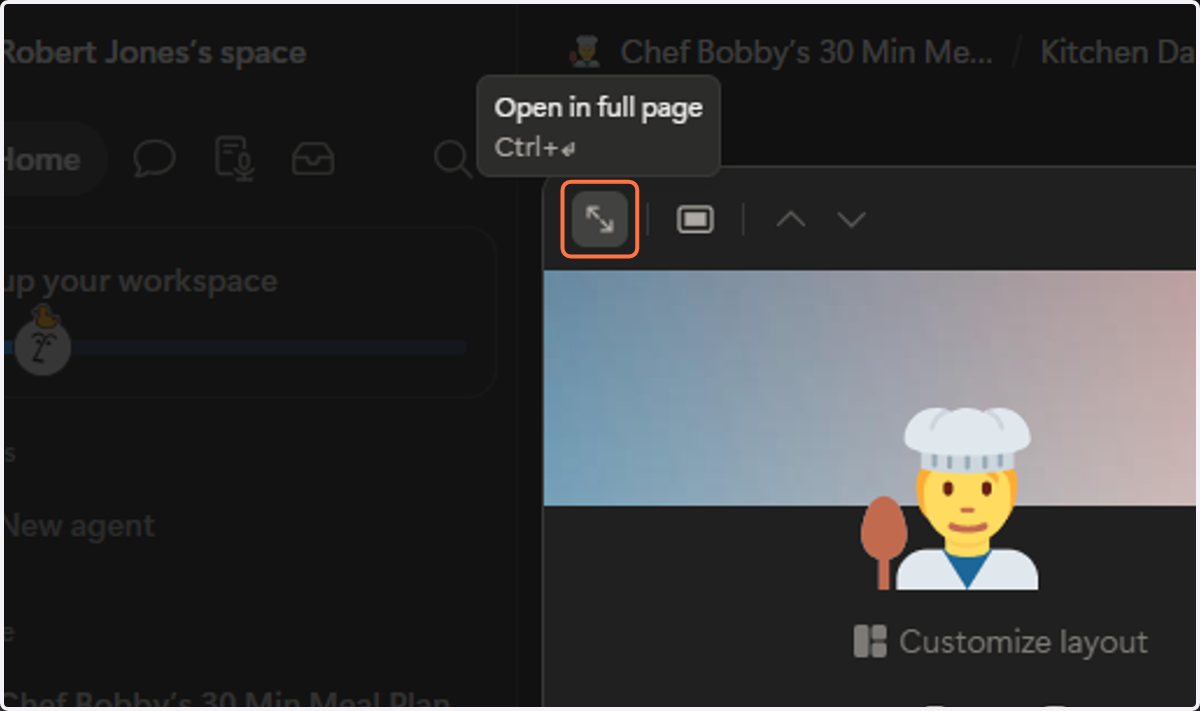
20. Click on Open in full page
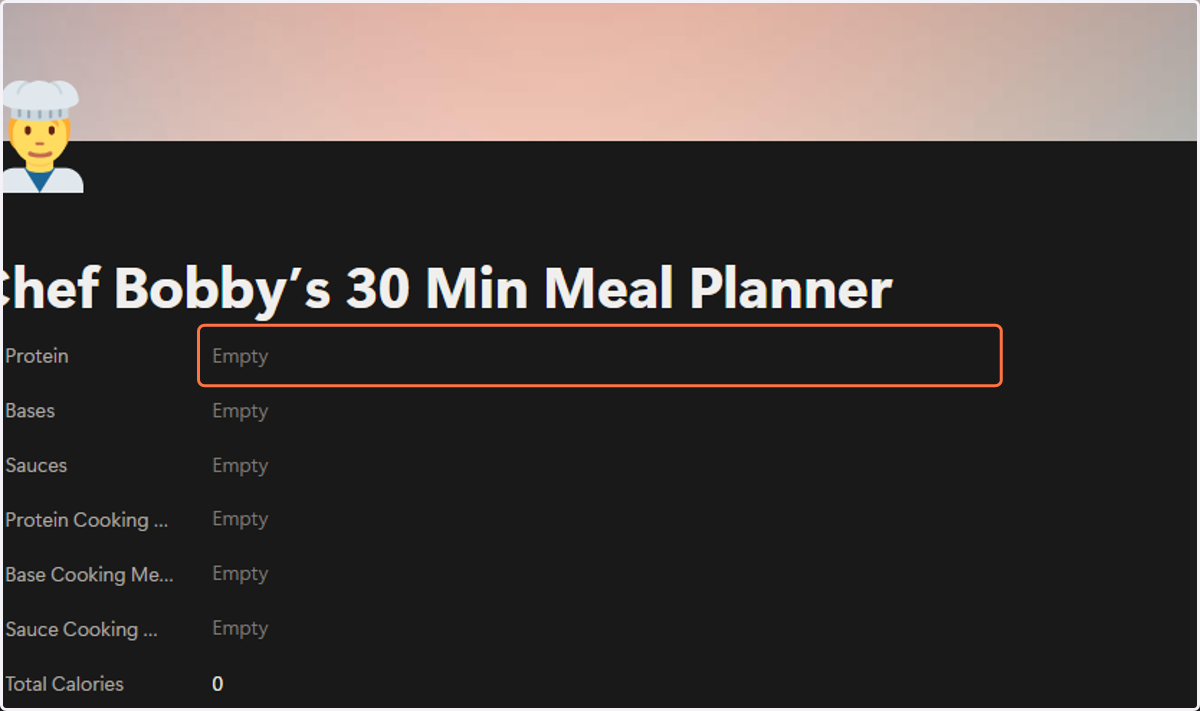
21. Click on Empty to select a protein from the list of proteins from the Kitchen Engine
If you have deleted these, then nothing will show.
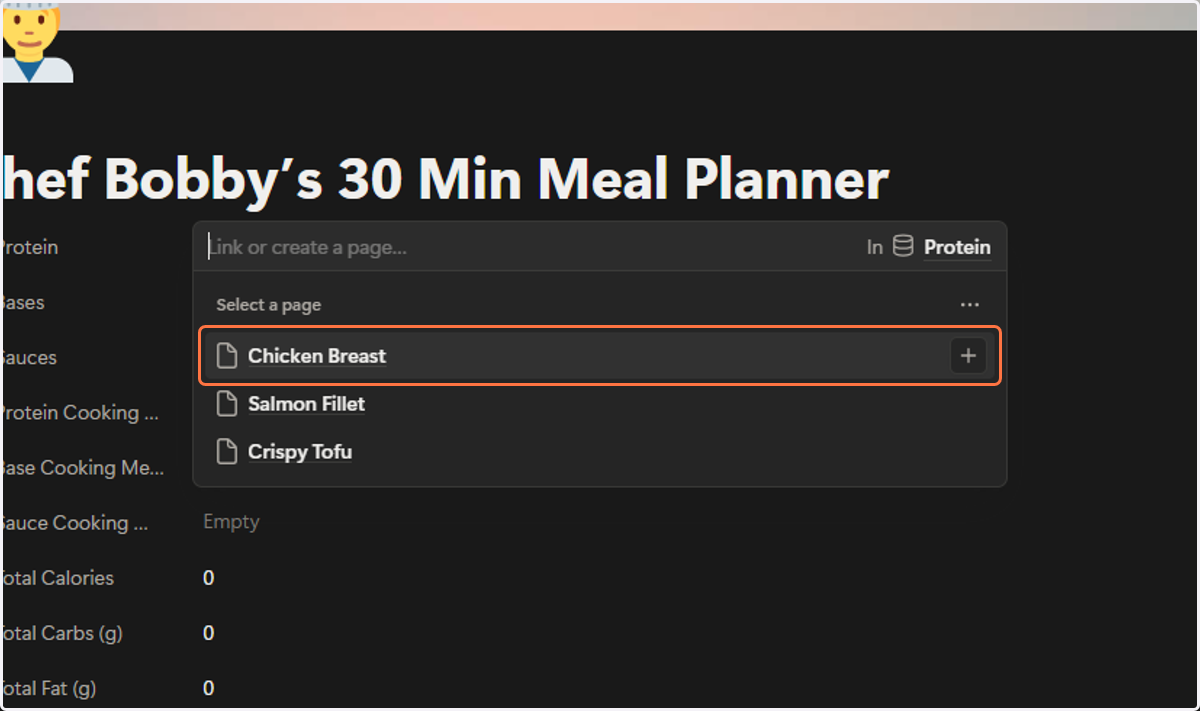
22. Click on Chicken Breast
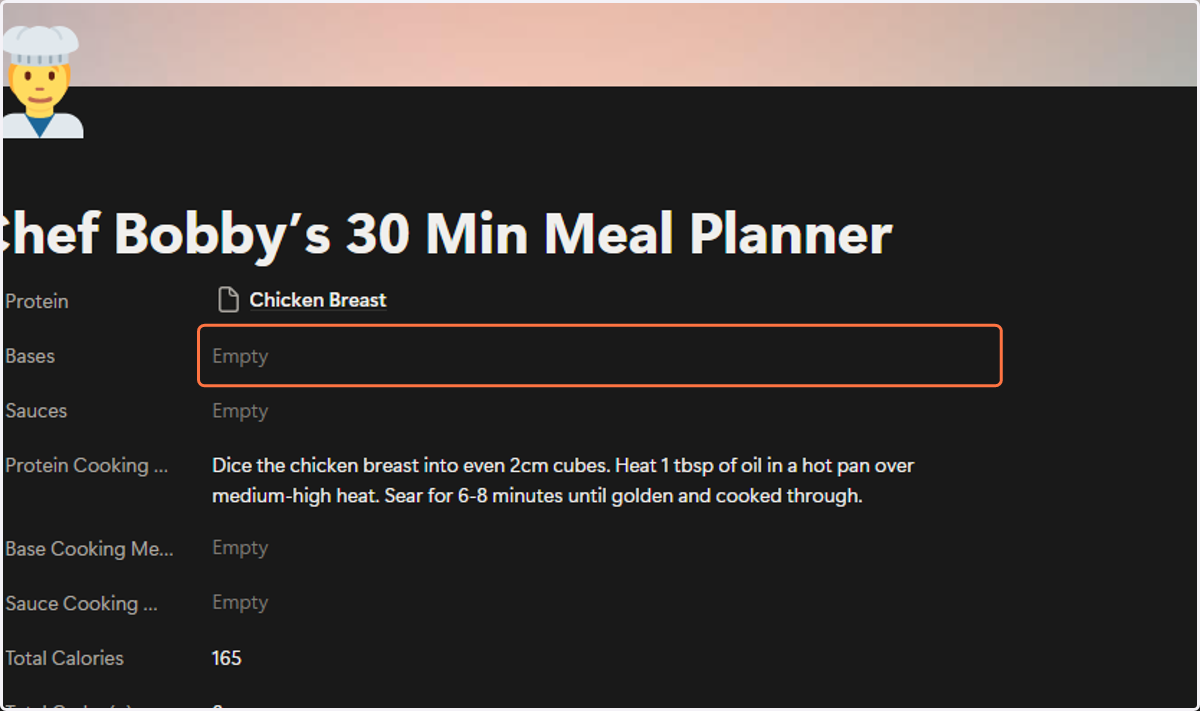
This has updated the calories and macros below.
23. Click on Empty next to bases to selcect a base.
24. Click on Rice Noodles
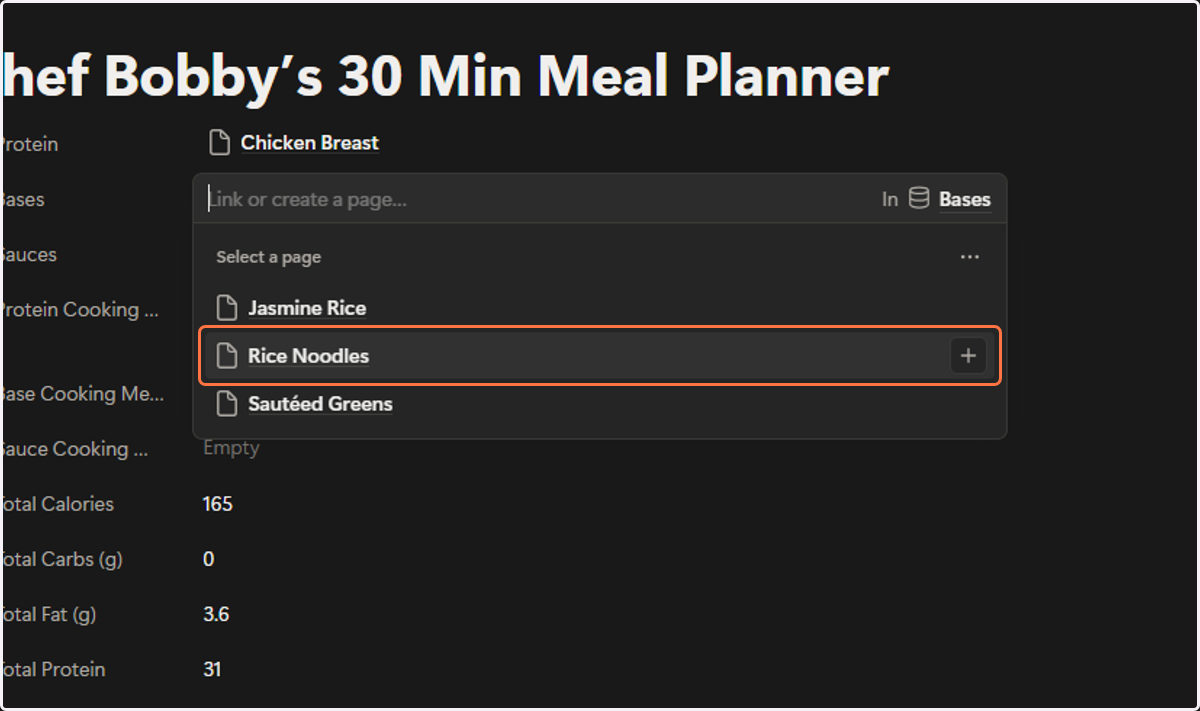
25. Click on Empty next to sauces.
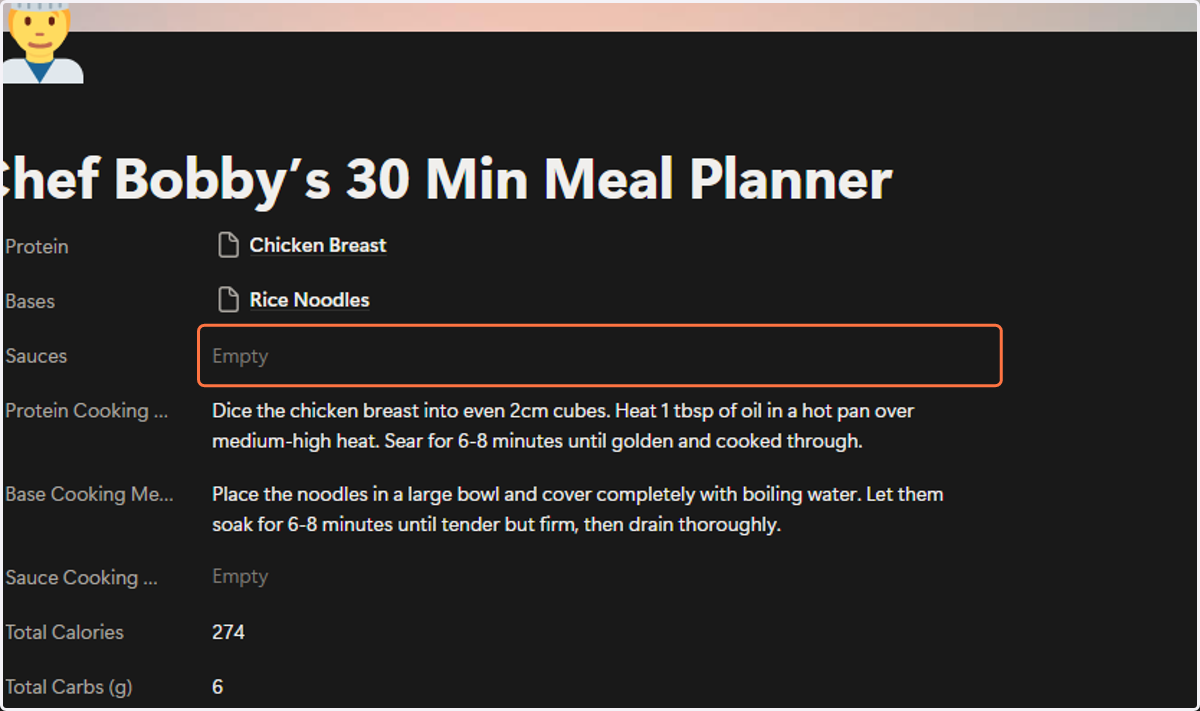
26. Click on Tomato Ketchup
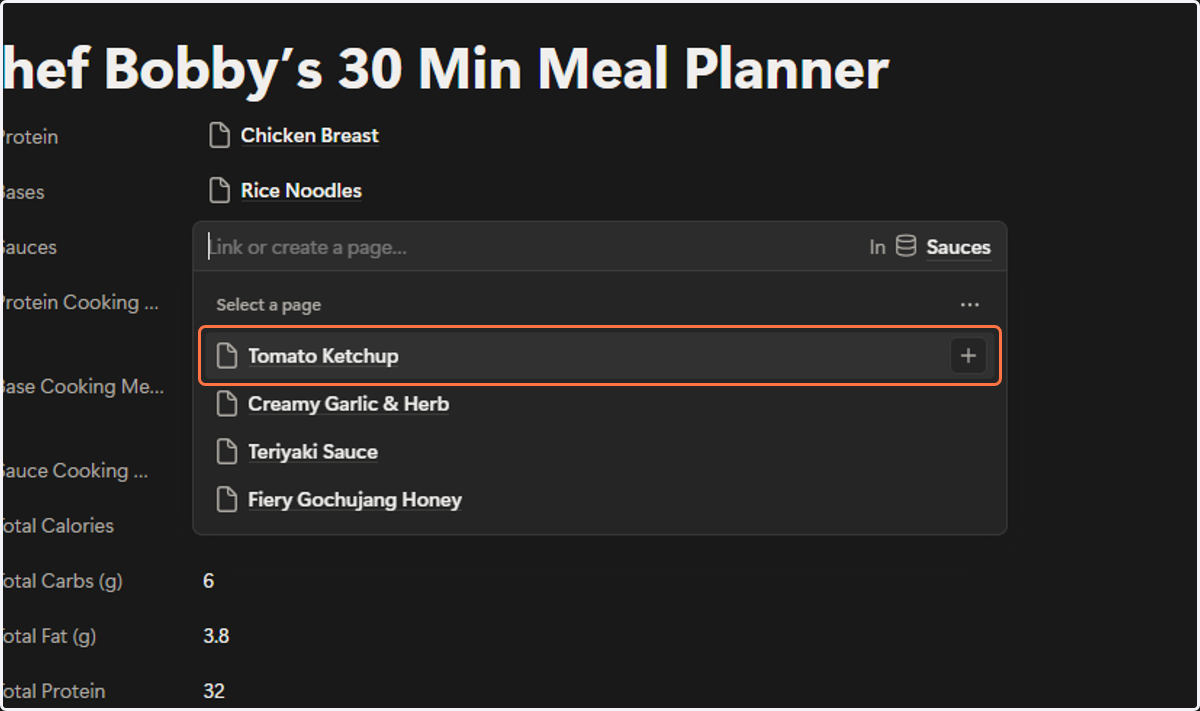
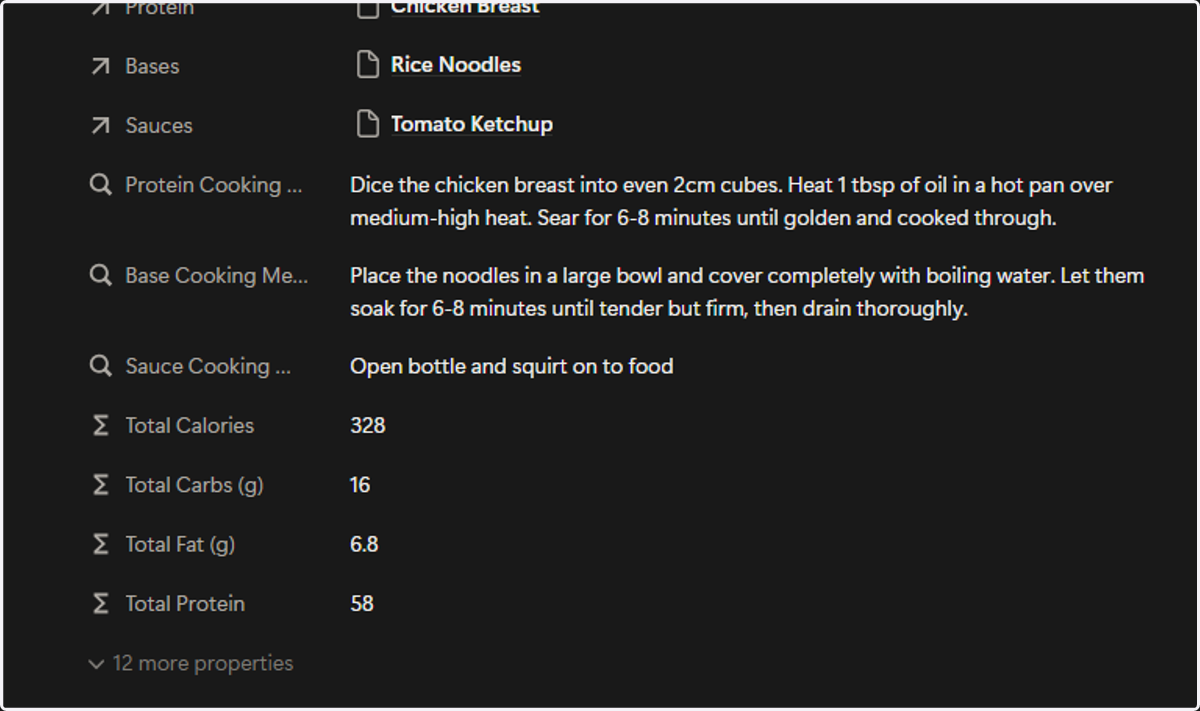
27. You now have your custom meal.
As you can see, we now have a meal of chicken breast with rice noodles, topped with a squirt of tomato ketchup. This 328-calorie meal is made up of 16g carbs, 6.8g fat, and 58g protein.
You can change any of these meal components, and the values below will automatically update after you select them. This allows you to mix and match - especially handy if you need to hit certain macro goals.