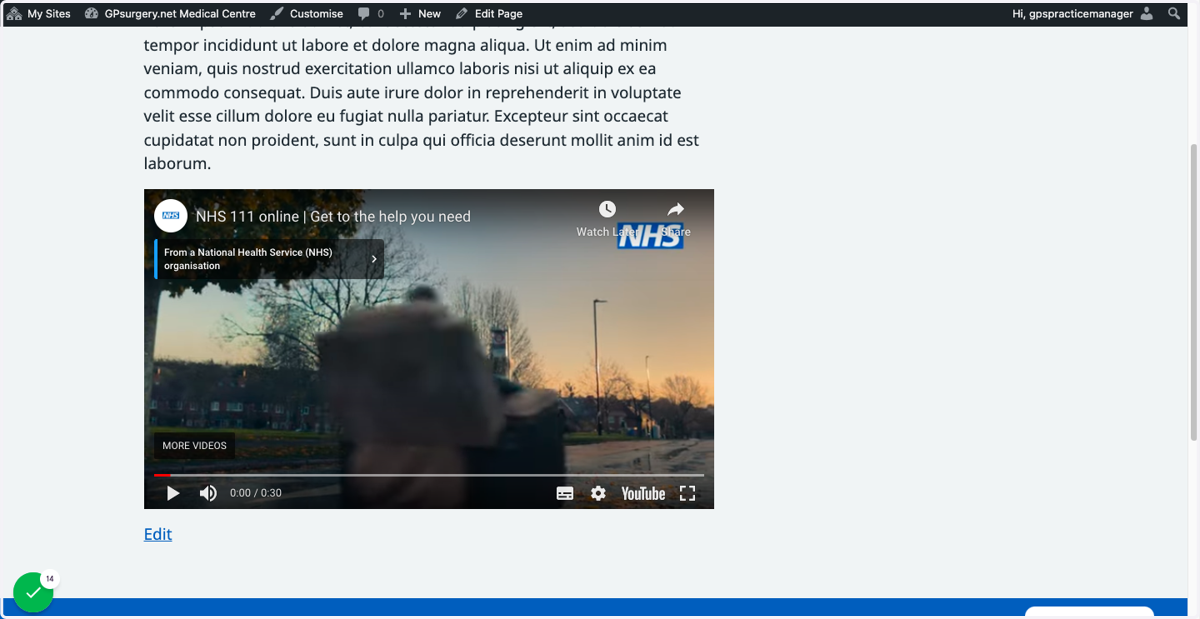
Add a YouTube video to a page
This tutorial will show you how to add a YouTube video to a page on a GPsurgery.net website. You can move through the tutorial at your own pace using the NEXT button below.
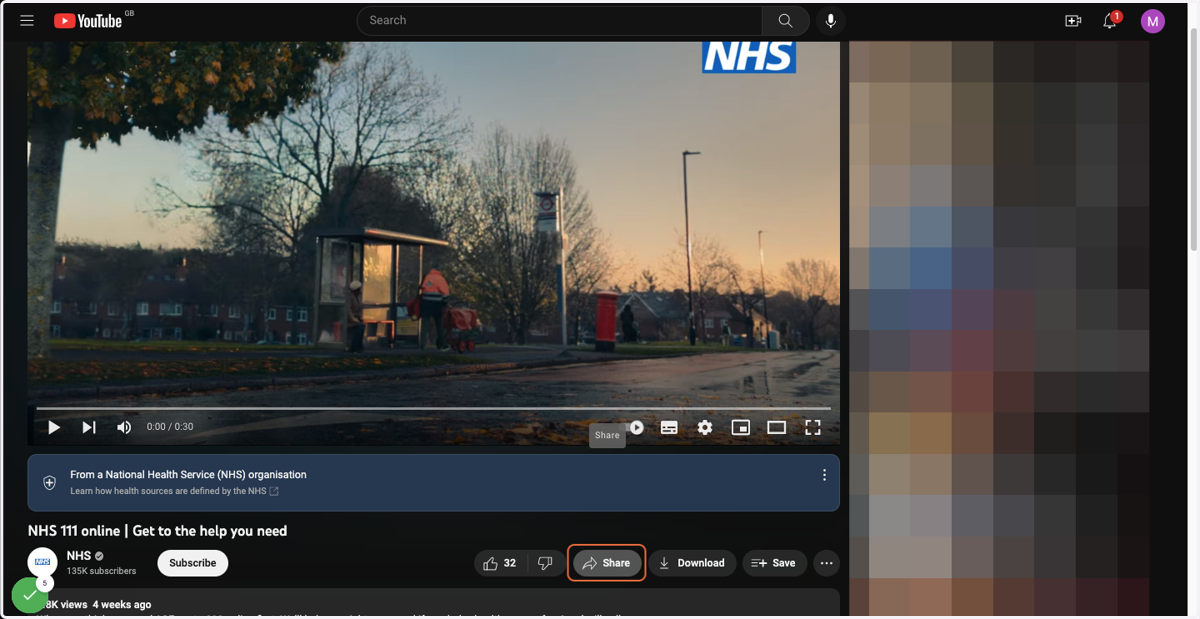
1. Go to the YouTube video that you would like to add to your website. Click the Share button below the video.
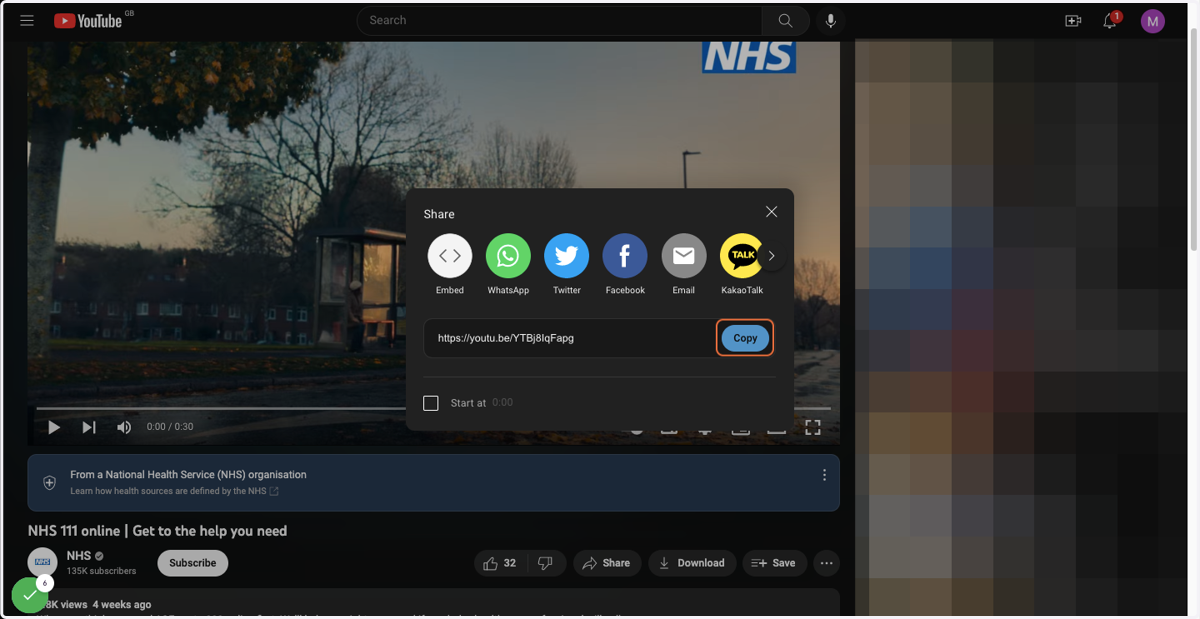
2. In the Share box that appears, click the Copy button to copy the short share link for the video.
3. Ensure that you are logged into your website. The black admin toolbar should be visible at the top of the screen.
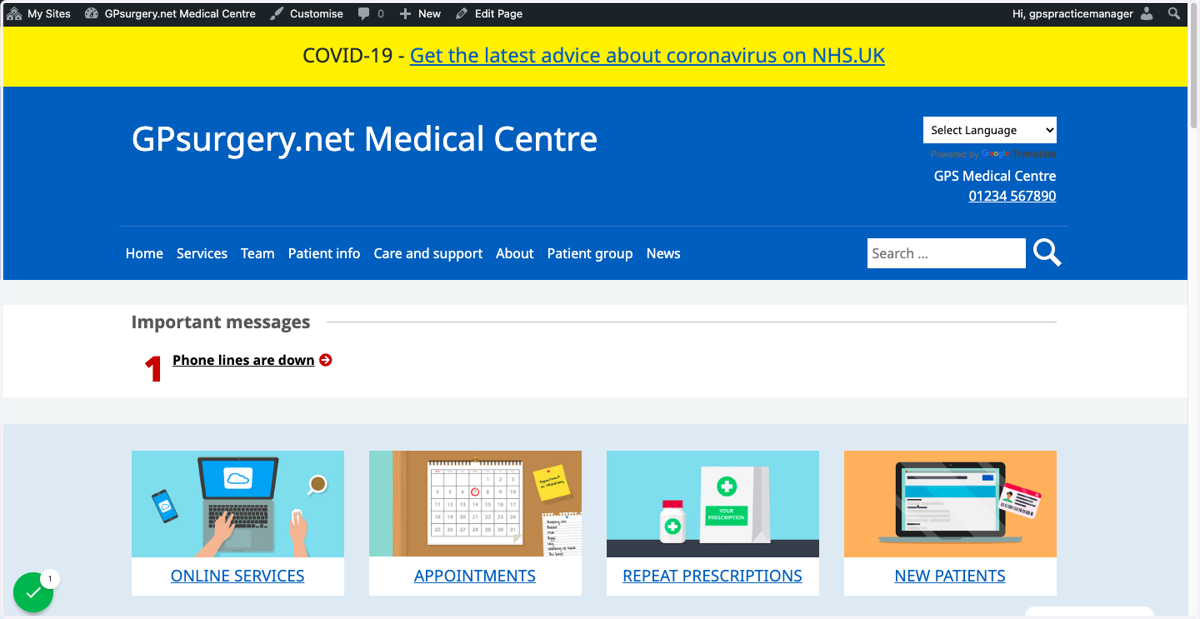
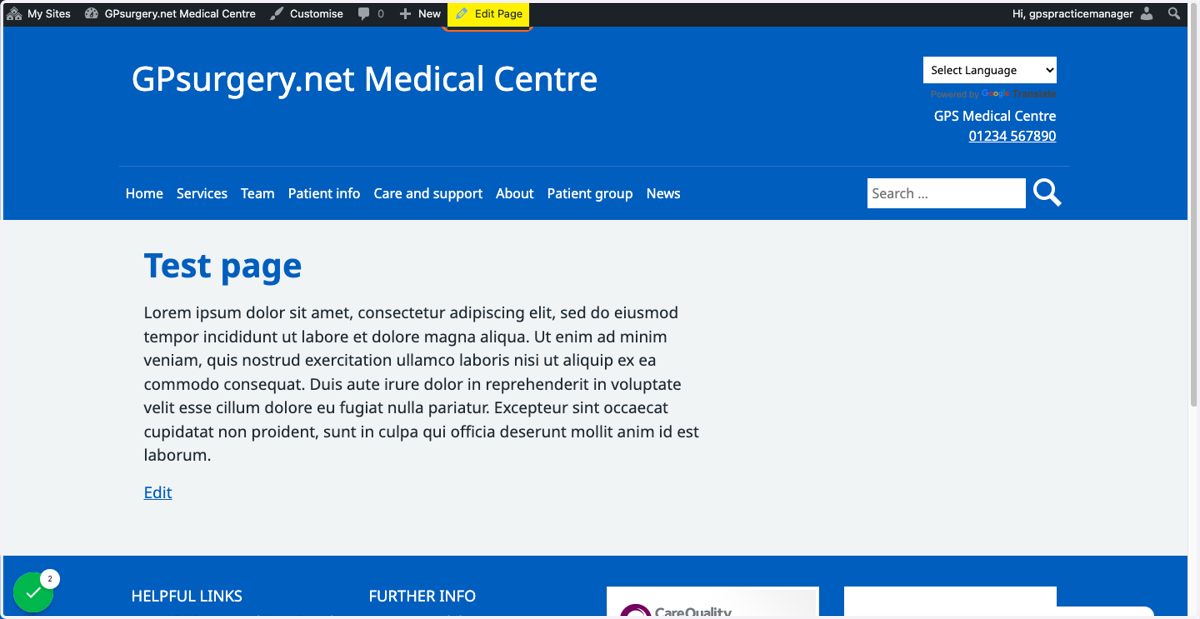
4. Go to the page to which you would like to add the YouTube video, and click Edit Page in the admin toolbar.
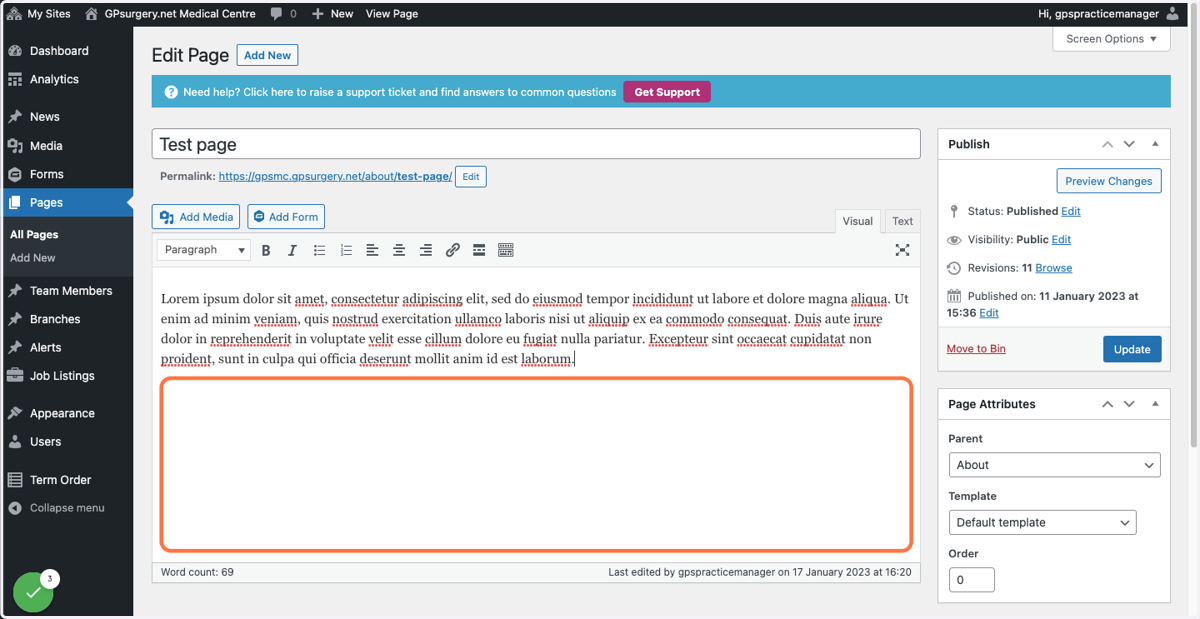
5. In the page editor, click in the main text box. Ensure that your cursor is where you would like the YouTube video to be on the page.
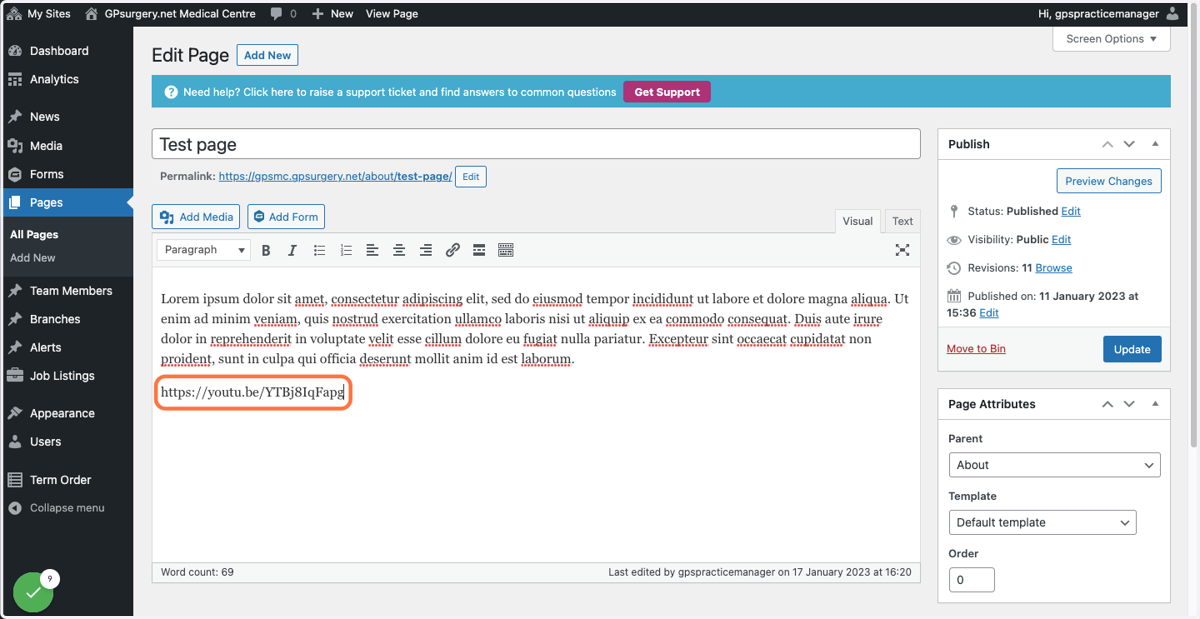
6. Paste the youtube link into the page.
7. In a few seconds, the link will be replaced by the embedded YouTube video. When this has happened, click the Update button in the Publish box to save the video to the page.
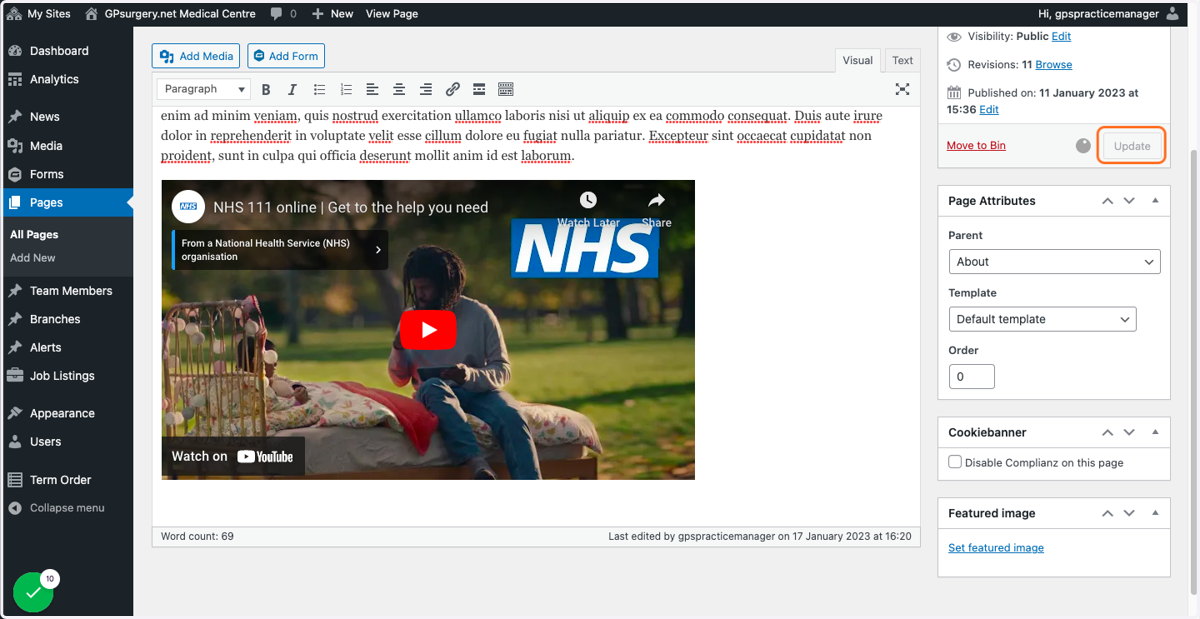
8. The YouTube video will now be embedded into your page.