CompPass Distribution Form: Status Visibility and Actions
Distributors can now view the status of individual CompPasses directly on the distribution form and take quick actions – including revoking or deactivating passes, resending pass emails, and copying pass links.
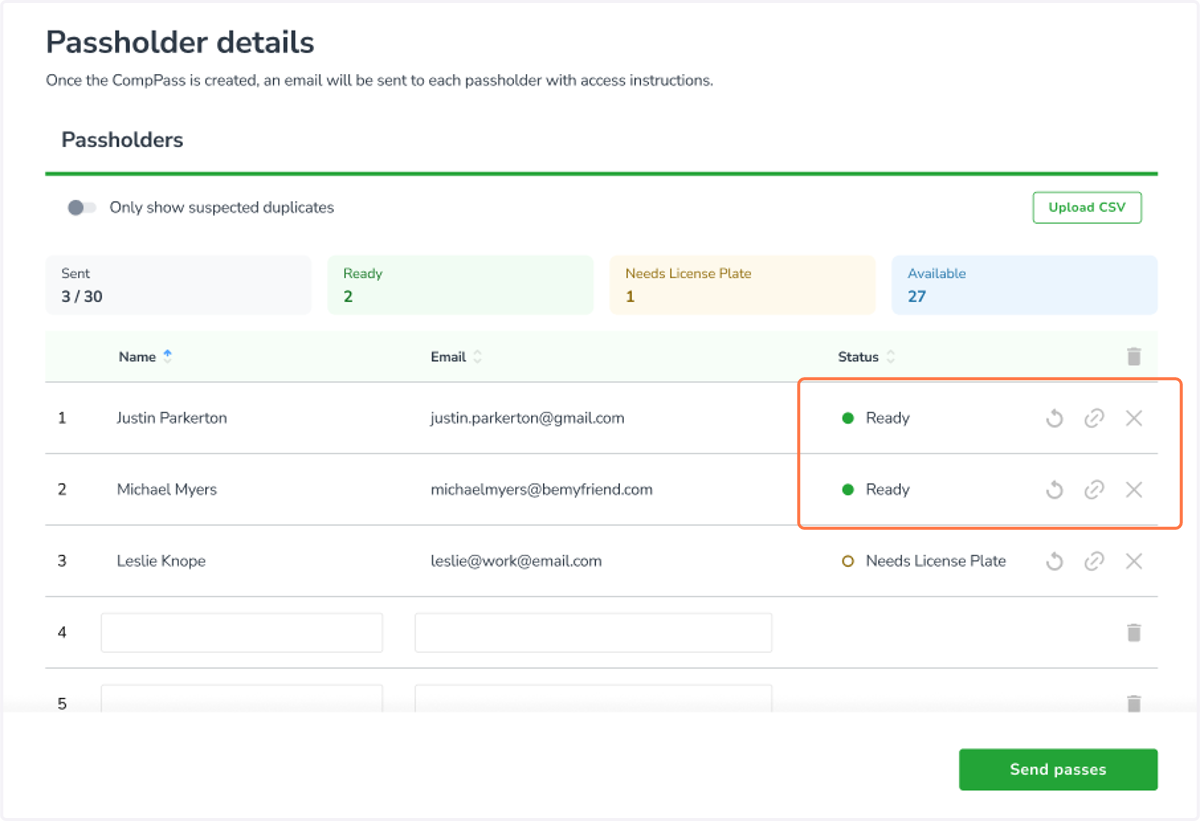
1. For passes that are "Ready" (pass requires no further action from the passholder):
Click the arrow icon to resend the CompPass, the chain link icon to copy the CompPass, or the X to deactivate the pass.
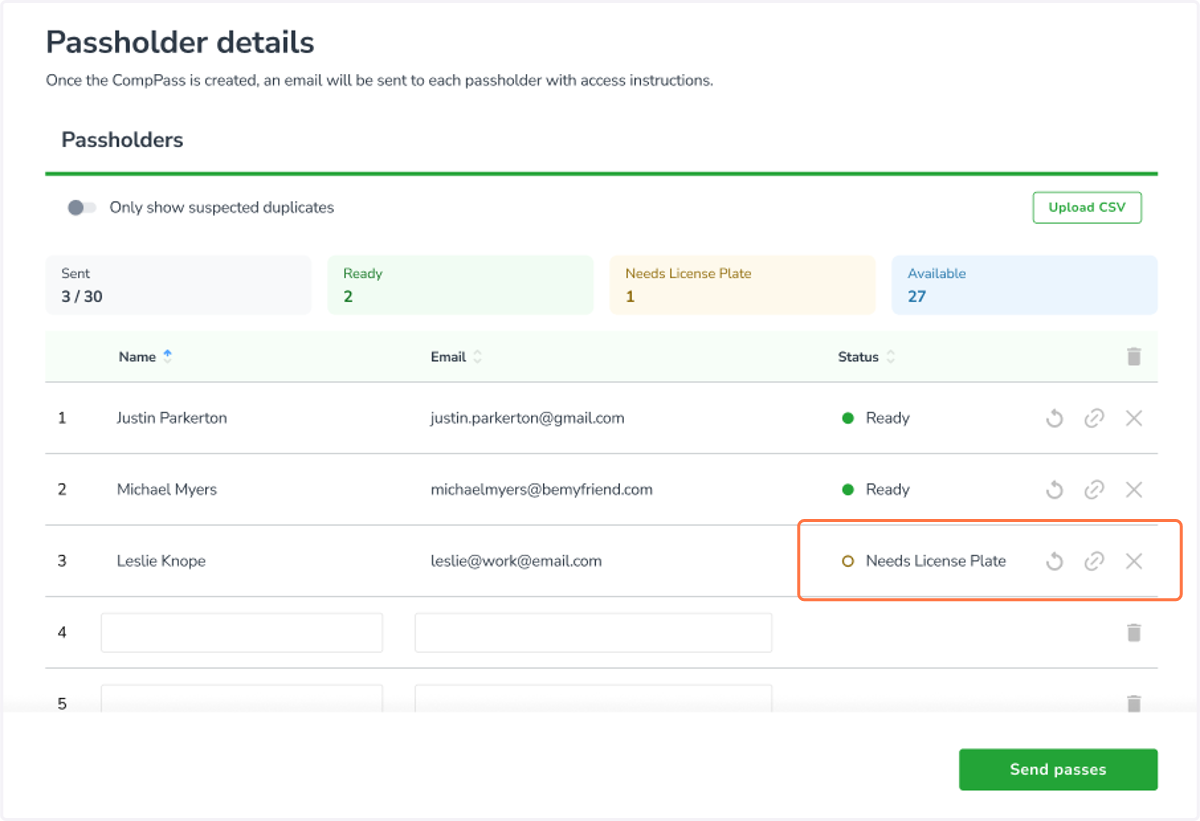
2. For passes that still "Needs License Plate" information:
Click the arrow icon to resend the CompPass/acceptance email, the chain link icon to copy the CompPass/acceptance link, or the X to deactivate/revoke the pass entirely.
Note that the LP setting on the lot(s) determines which email is sent/link is copied:
Optional → QR code in the email/link
Required (any lot) → Accept Pass email/link (QR code not included until LP entered)
None → Does not apply (see step 1)
For passes covering multiple lots, the strictest LP setting applies (Required is stricter than Optional, which is stricter than None).
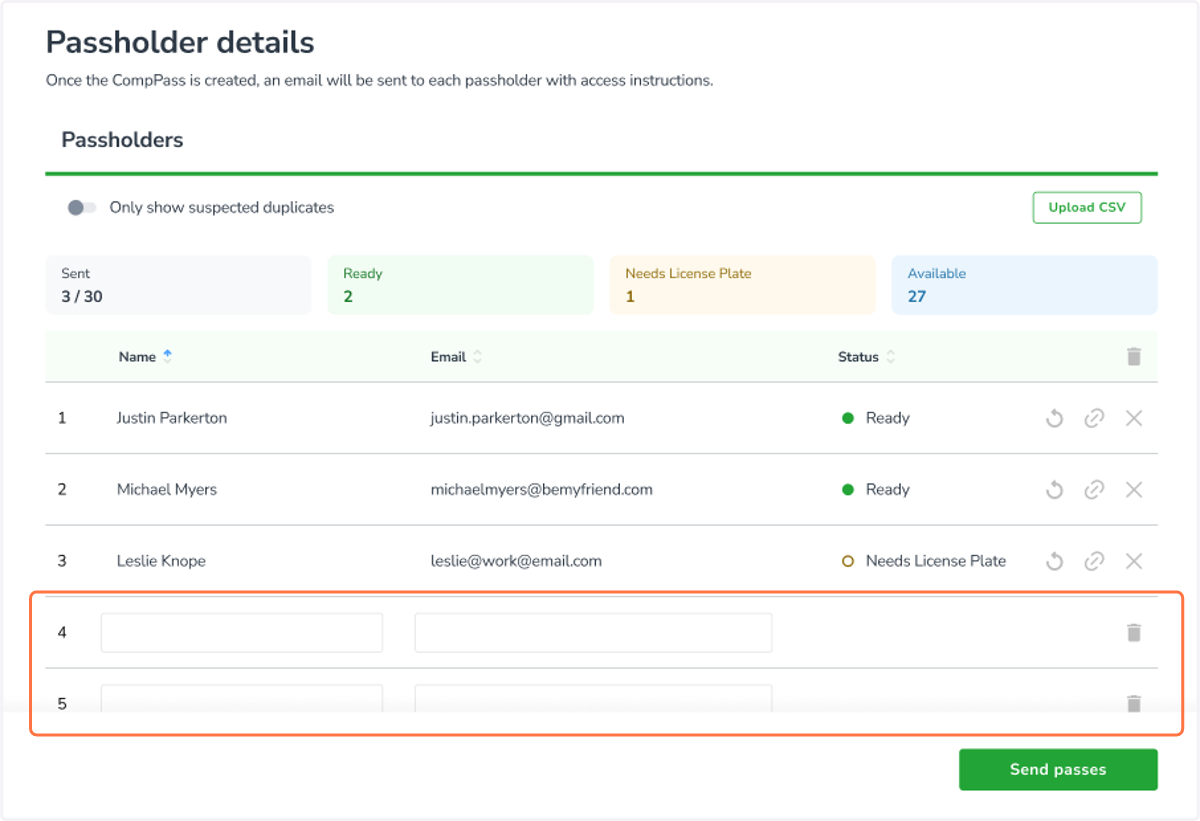
3. For passes that have not yet been sent:
Click the trash icon on the row to clear that individual entry, or click the trash icon in the form header to clear the entire form at once.