Steps for Creating a Facebook Page and Google Account Integration

Facebook

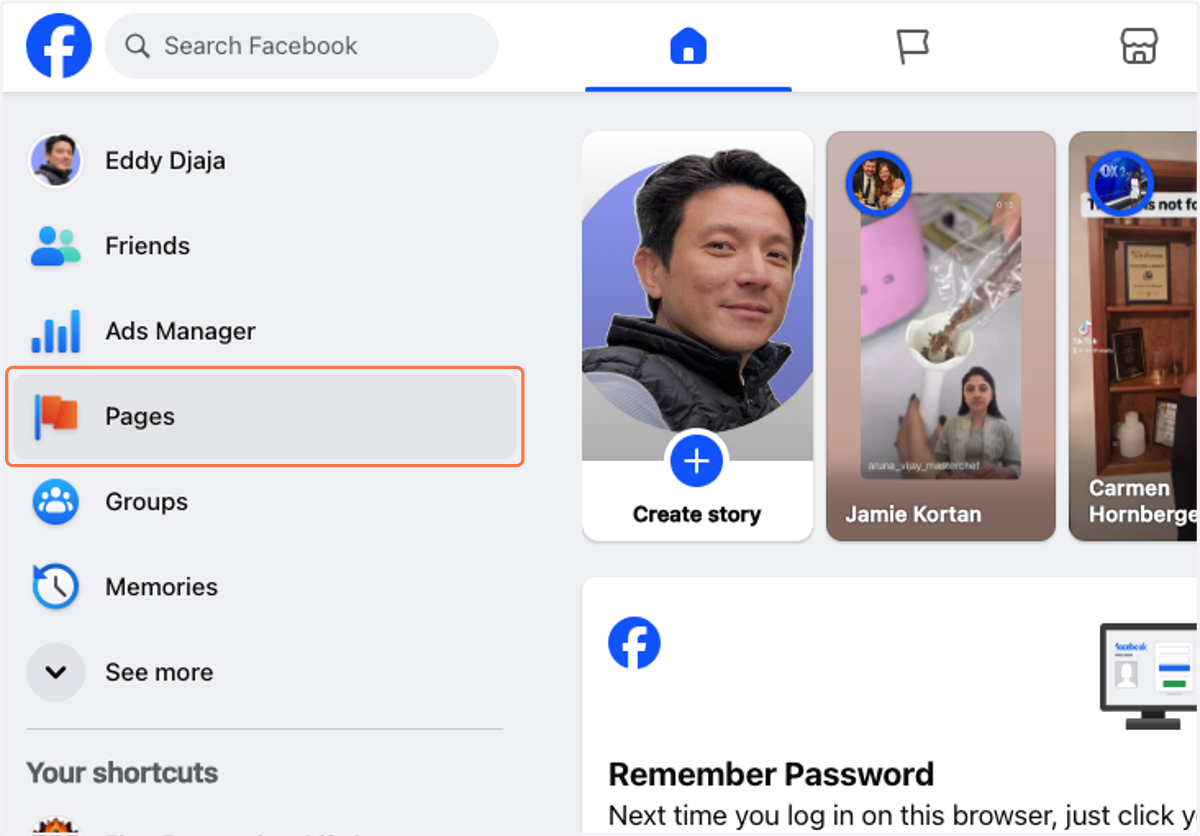
  1. 1. Click on Pages

    Click on Pages
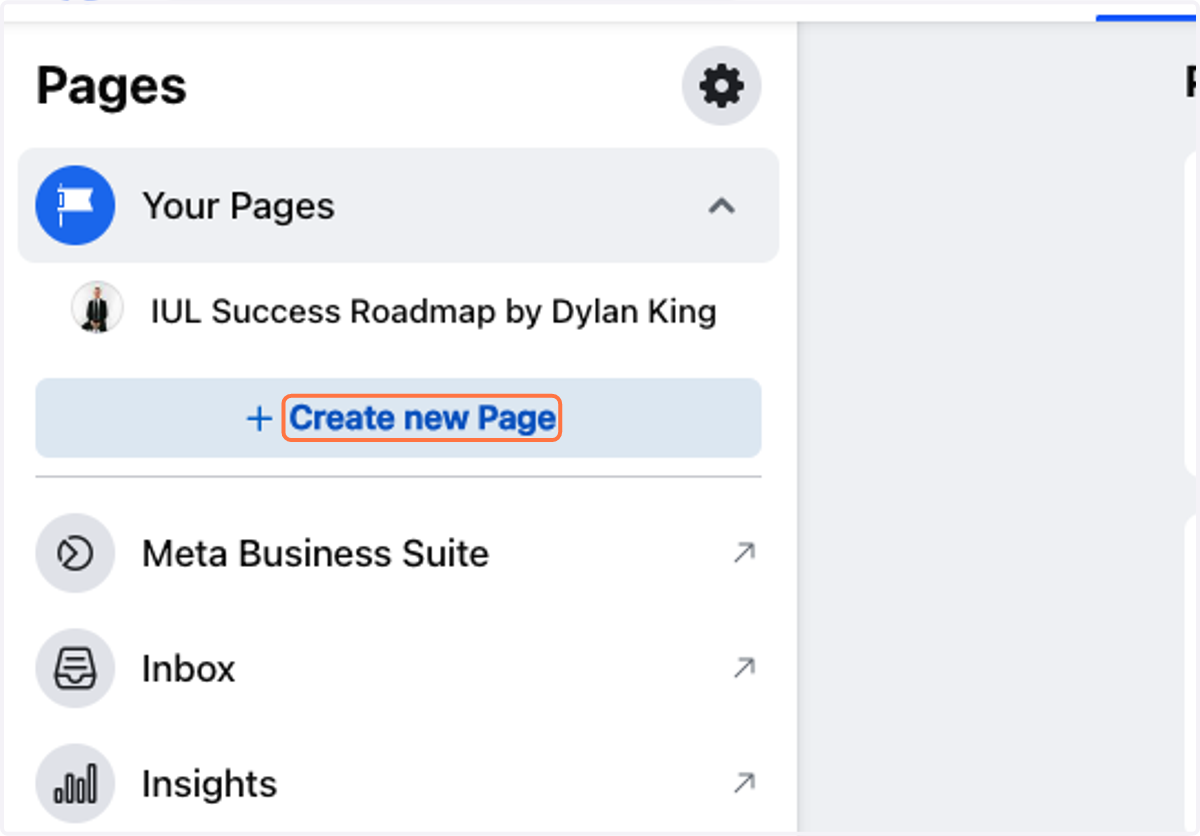
  2. 2. Click on Create new Page

    Click on Create new Page

auth0.openai.com/u/login/identifier?state=hKFo2SBlRnBGcW9pSDBSRU5EcTFLNFFCcnE2NXBVYm9mUnBrZ6Fur3VuaXZlcnNhbC1sb2dpbqN0aWTZIEdQeUNhc1JkbE83YVBXak1TUHNQbmpBZHM2dTI5MUxMo2NpZNkgRFJpdnNubTJNdTQyVDNLT3BxZHR3QjNOWXZpSFl6d0Q

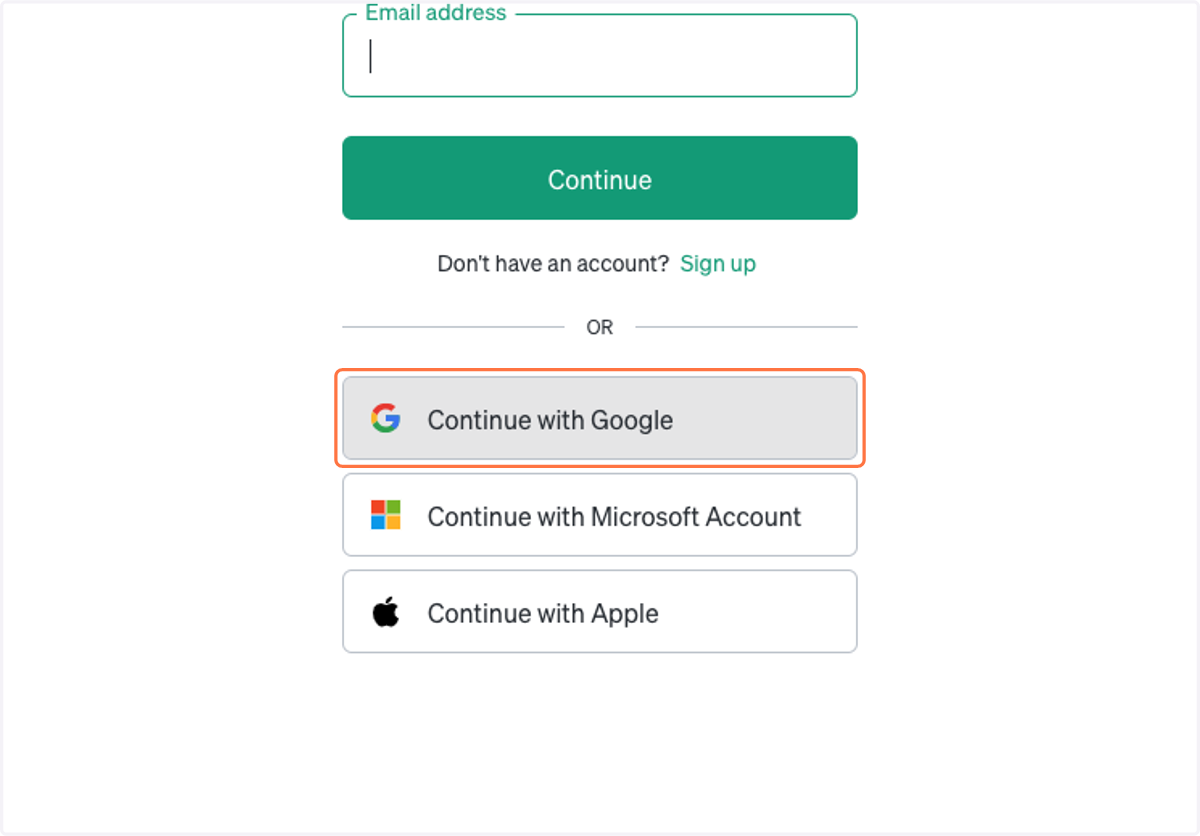
  1. 3. Click on Continue with Google

    Click on Continue with Google

Sign in - Google Accounts

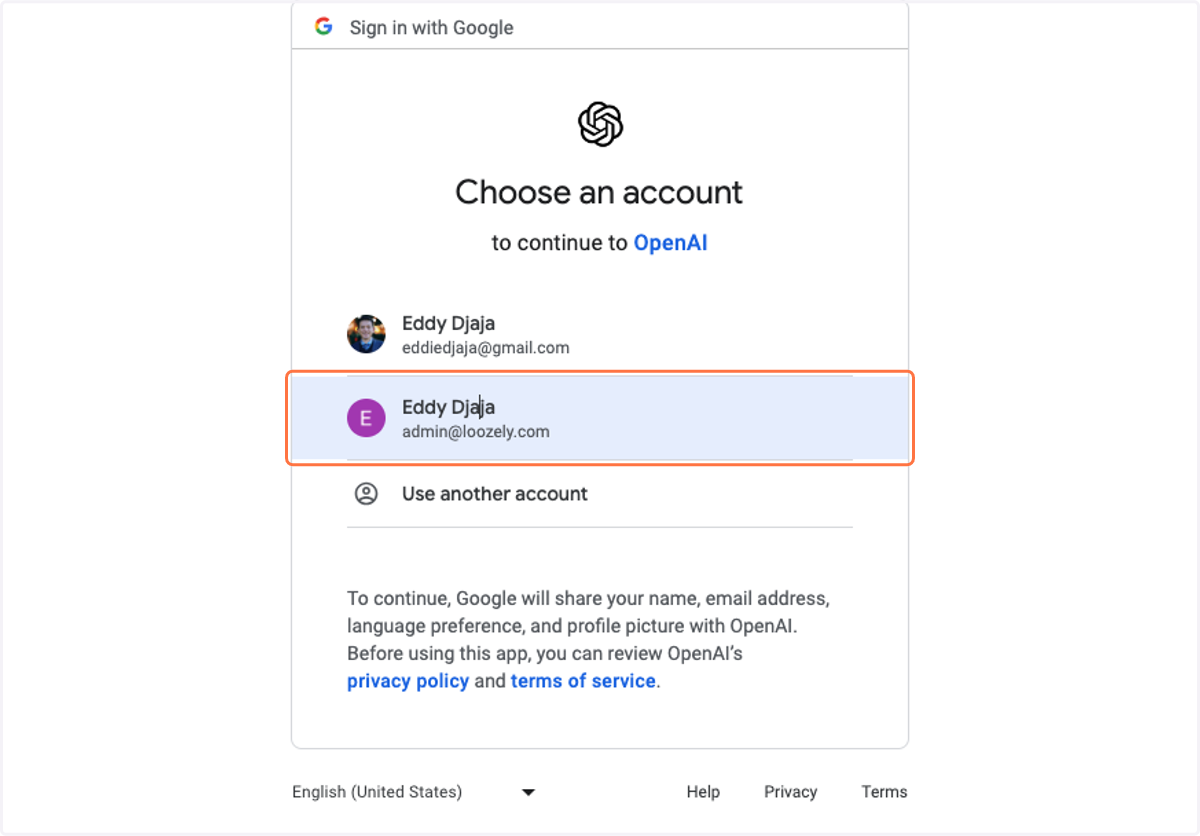
  1. 4. Click on Eddy Djaja…

    Click on Eddy Djaja…

OpenAI Platform

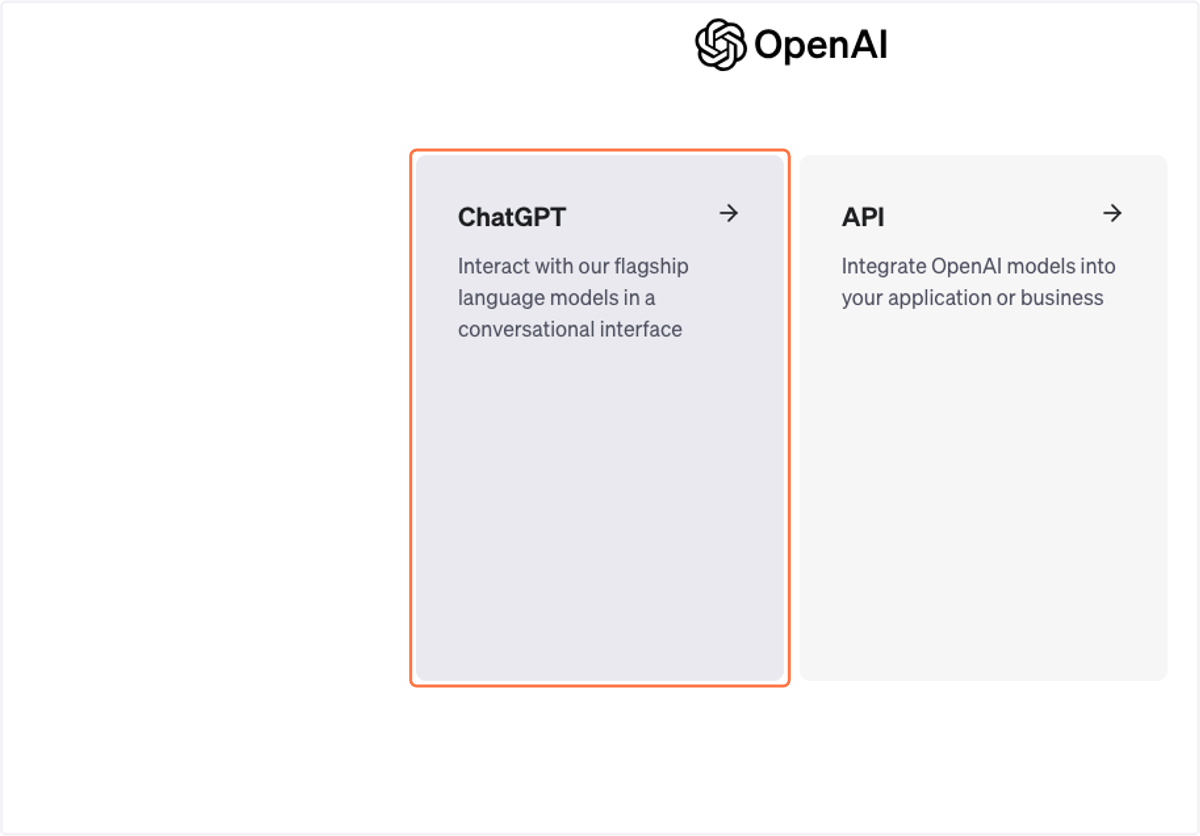
  1. 5. Click on ChatGPT…

    Click on ChatGPT…
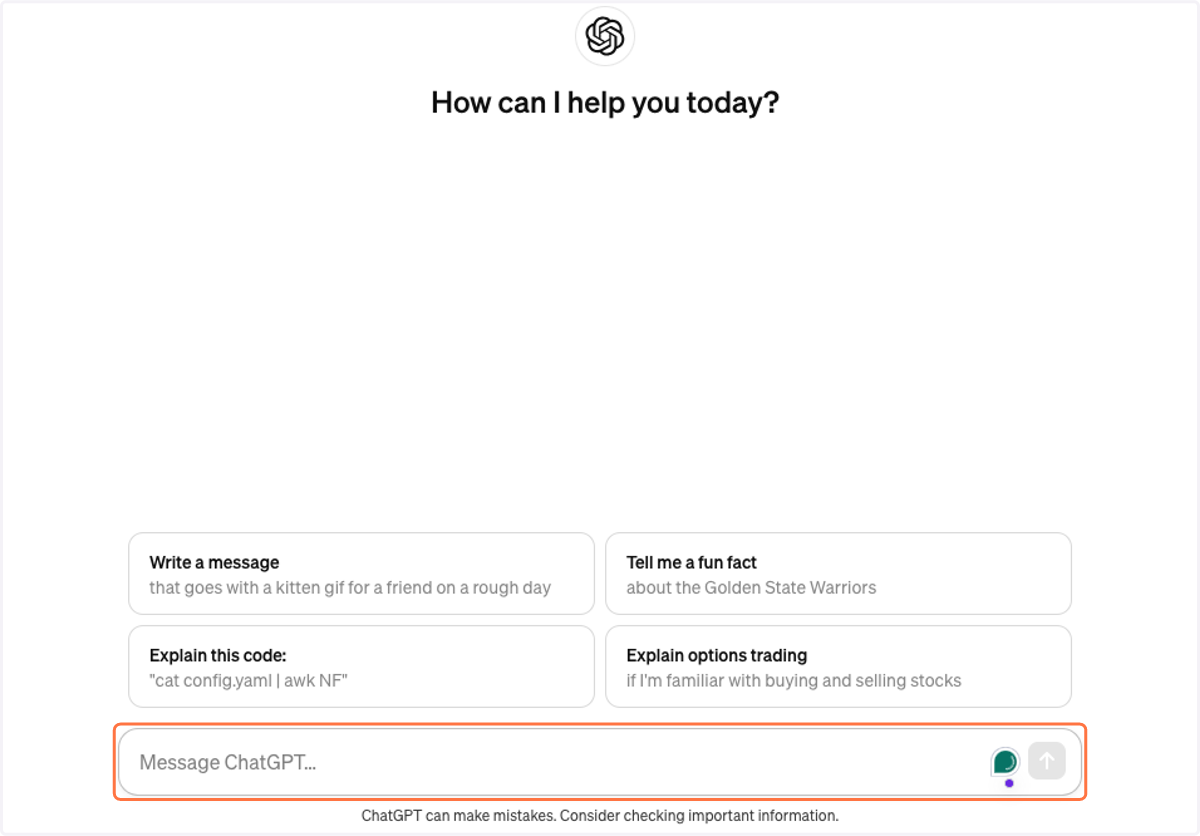
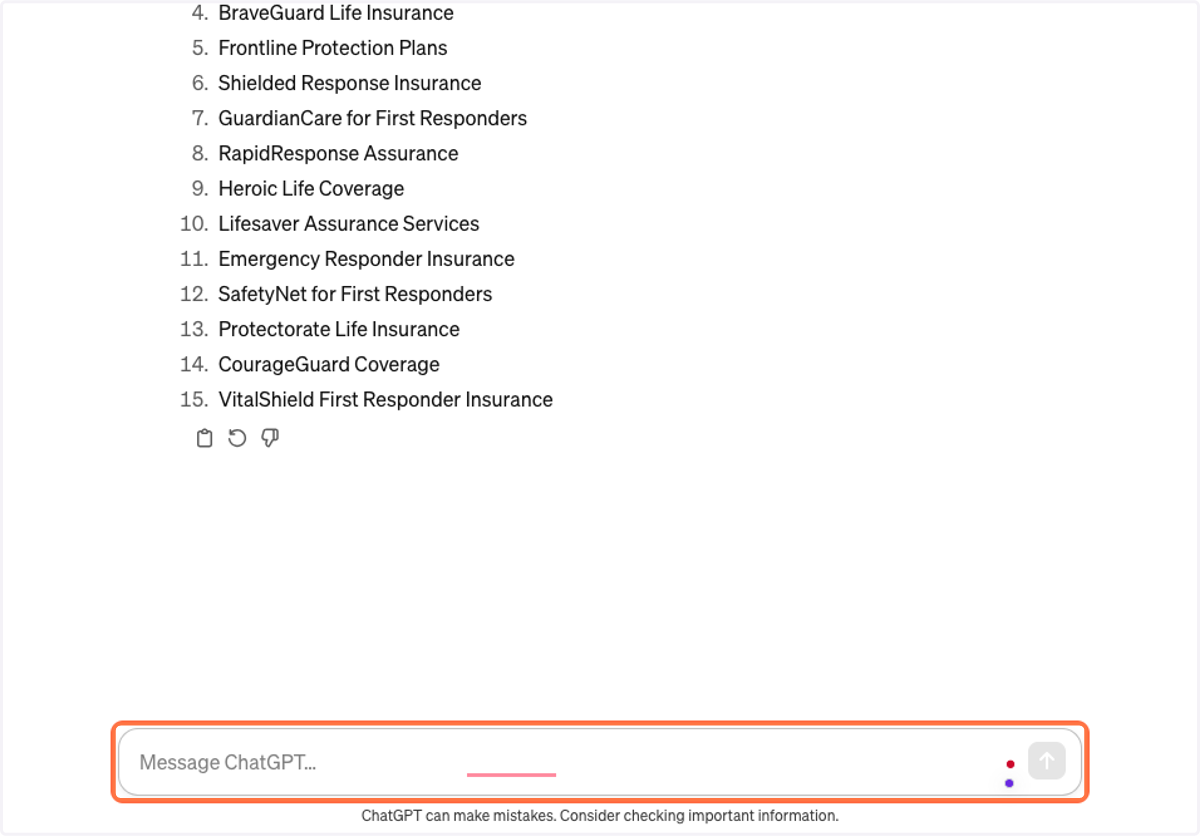
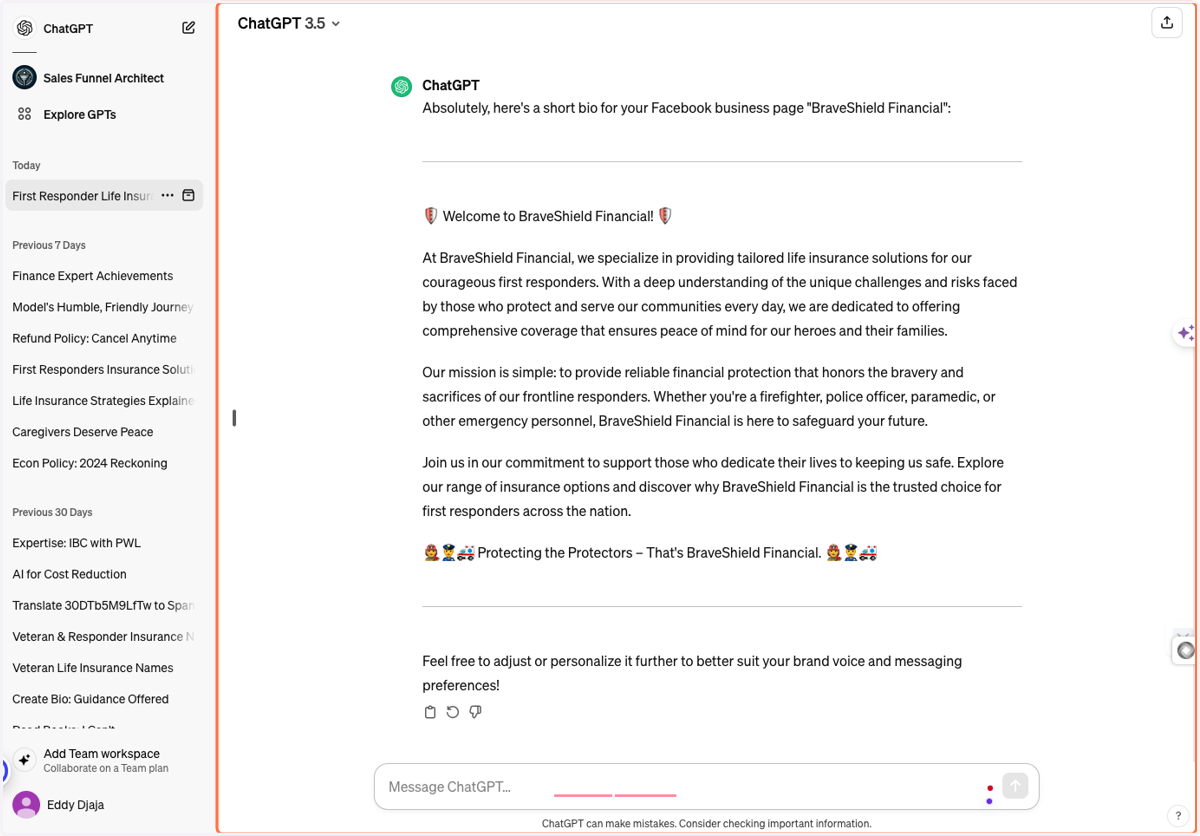
  2. 6. Type Message ChatGPT…

    Type Message ChatGPT…
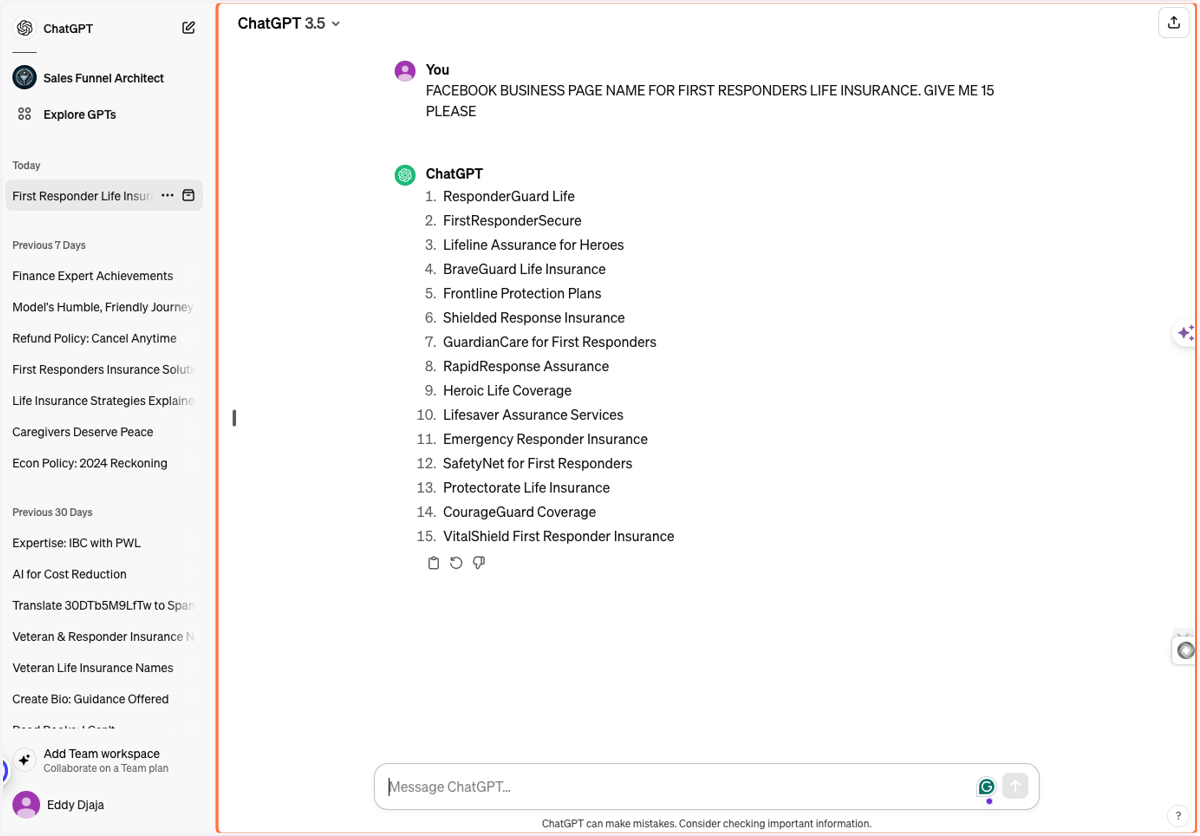
  3. 7. Drag highlighted element

    Drag highlighted element

Facebook

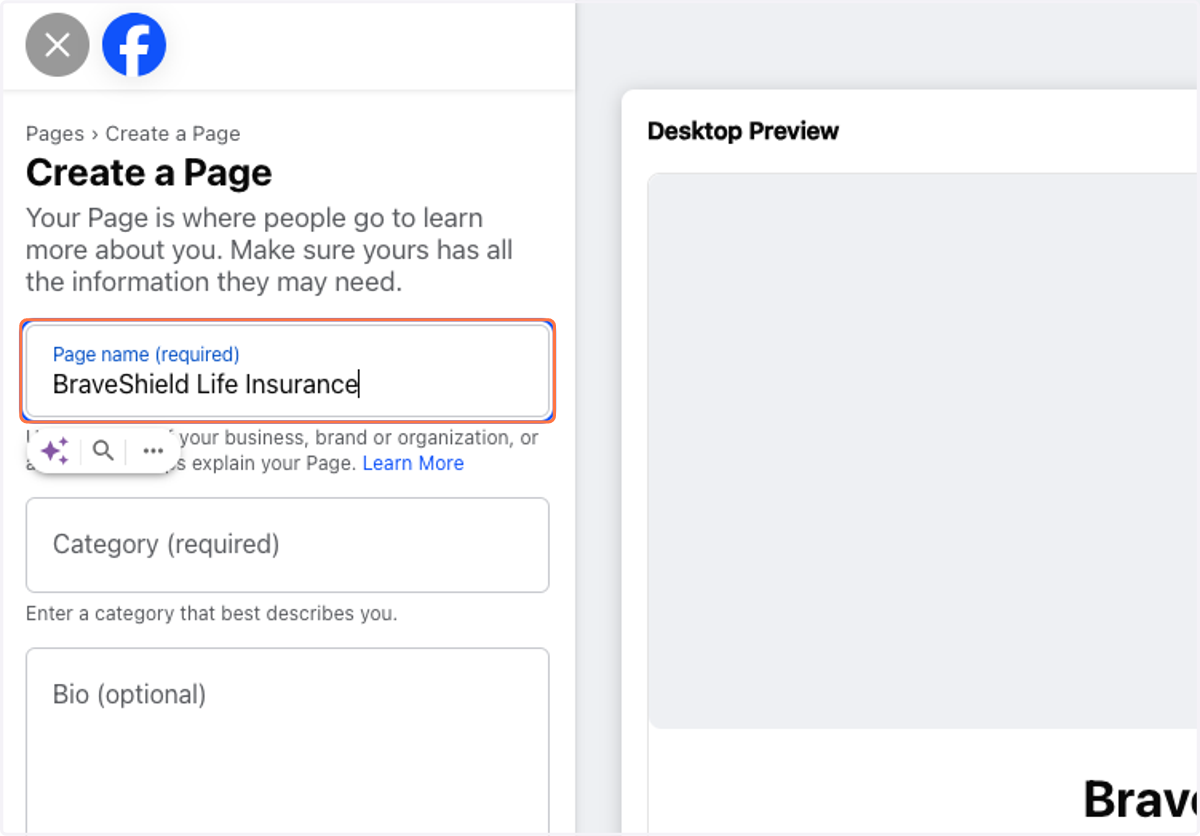
  1. 8. Type "BraveShield Life Insurance"

    Type "BraveShield Life Insurance"
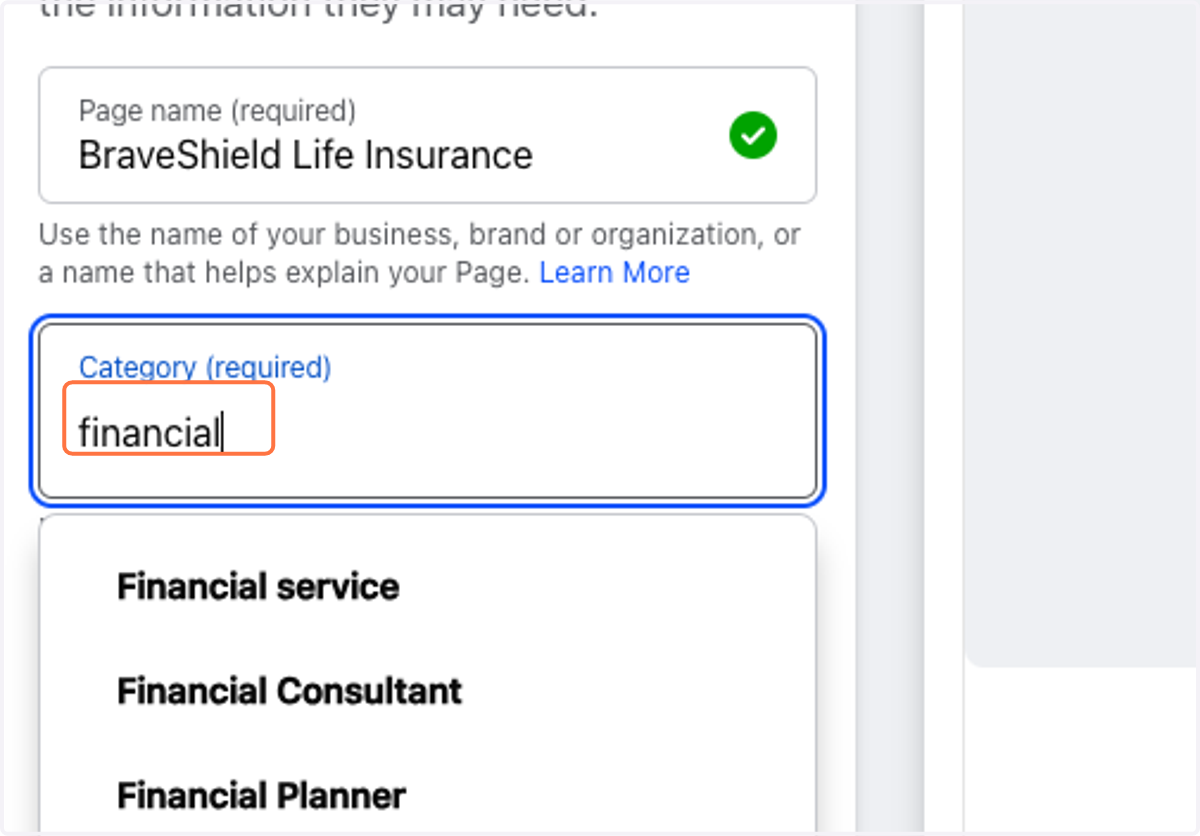
  2. 9. Type "financial"

    Type "financial"
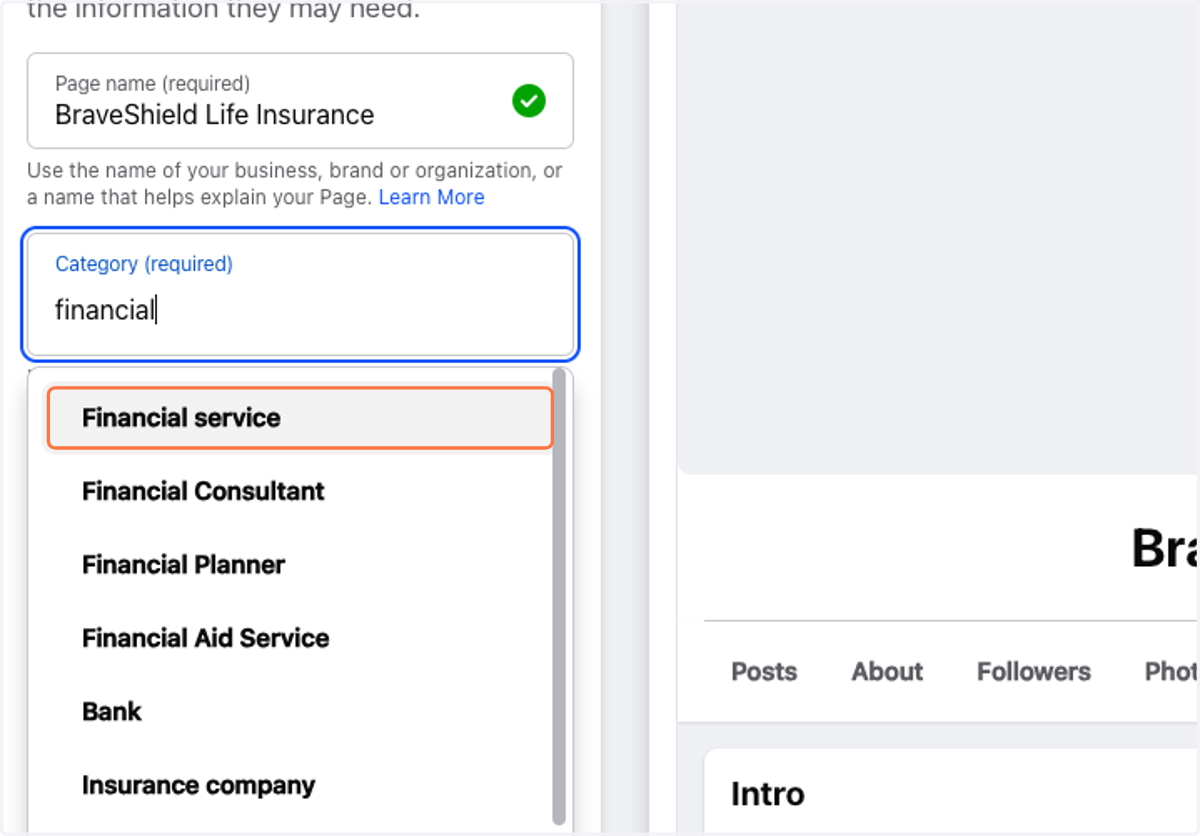
  3. 10. Click on Financial service

    Click on Financial service
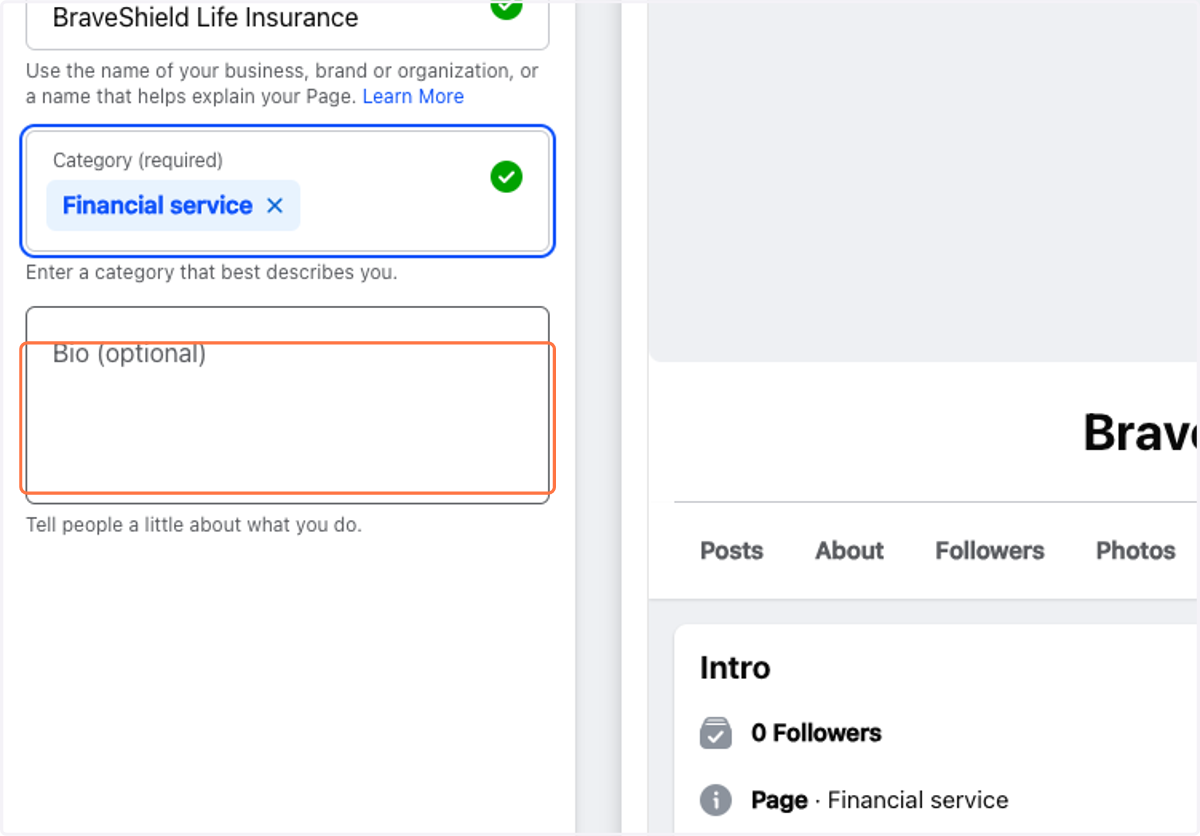
  4. 11. Click on Bio (optional)

    Click on Bio (optional)

ChatGPT

  1. 12. Type Message ChatGPT…

    Type Message ChatGPT…
  2. 13. Drag highlighted element

    Drag highlighted element

Facebook

  1. 14. Type "Providing Tailored Life Insurance for First Responder and Veterans"
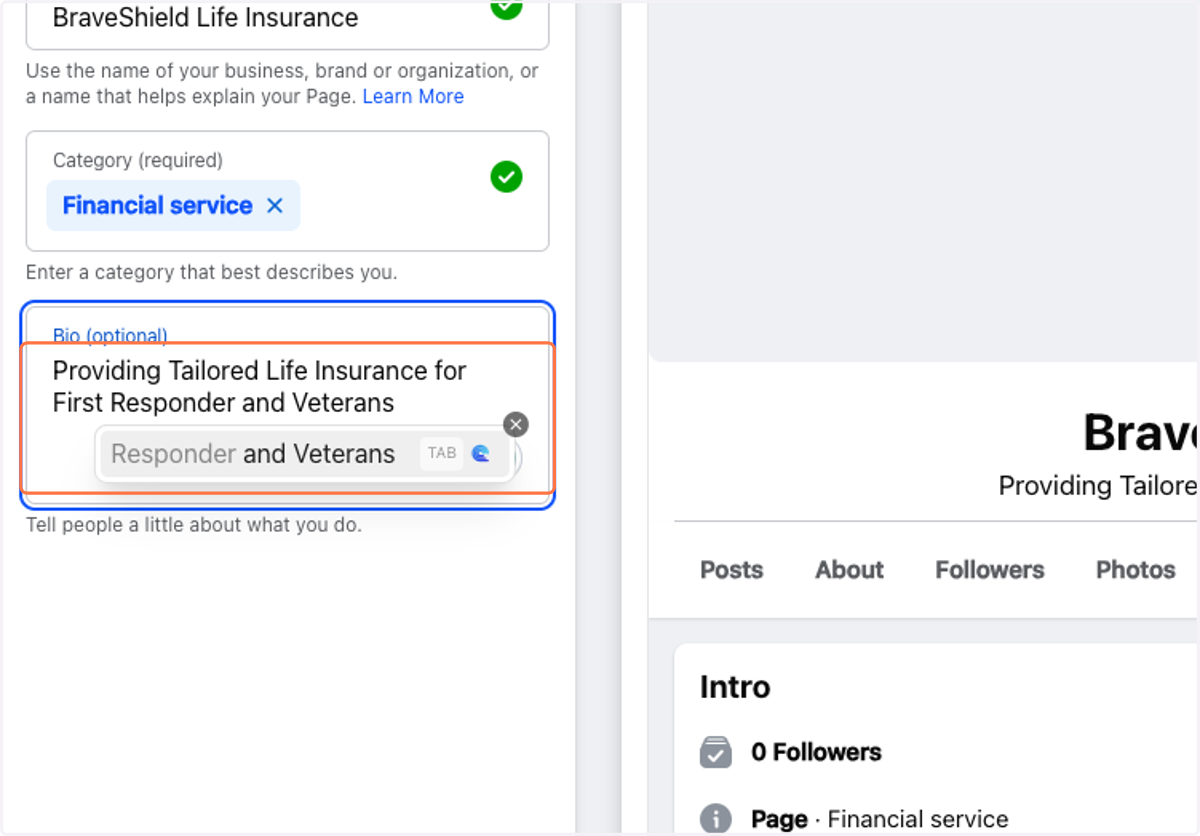
    Type "Providing Tailored Life Insurance for First Responder and Veterans"
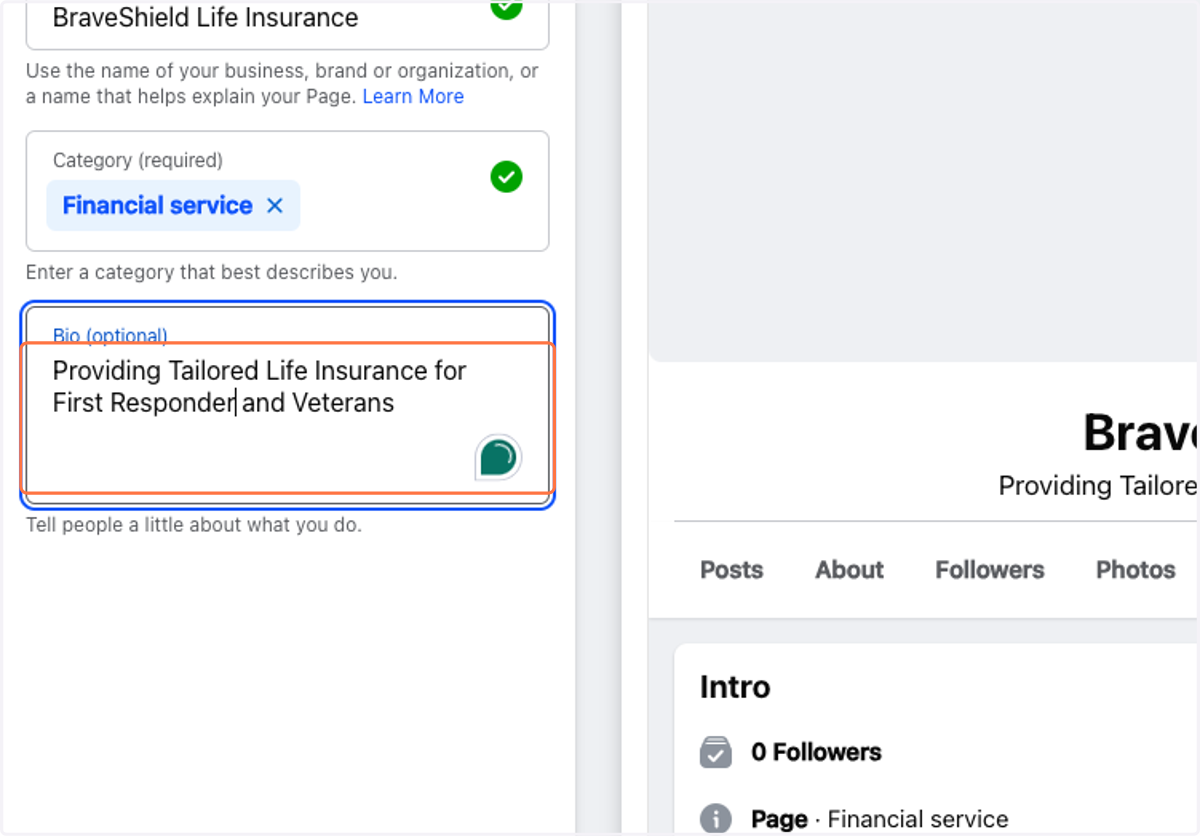
  2. 15. Type "Providing Tailored Life Insurance for First Responder and Veterans"

    Type "Providing Tailored Life Insurance for First Responder and Veterans"
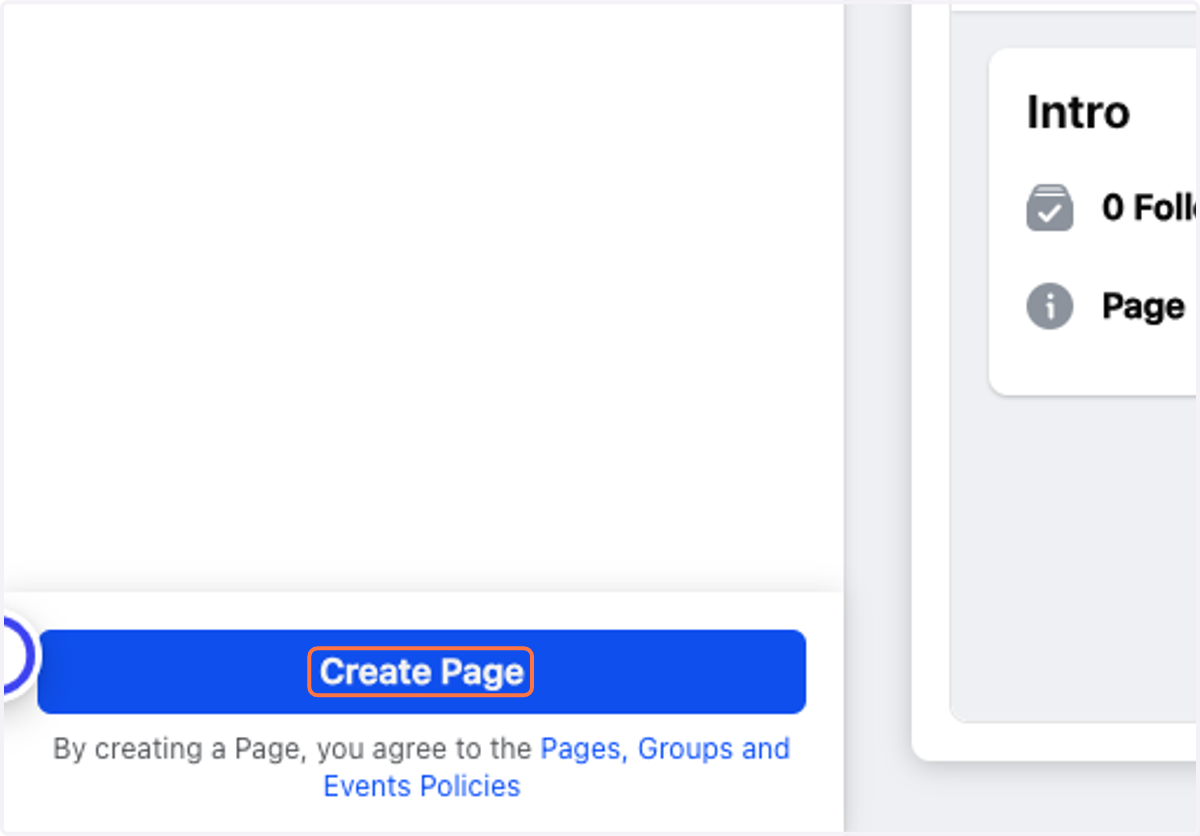
  3. 16. Click on Create Page

    Click on Create Page
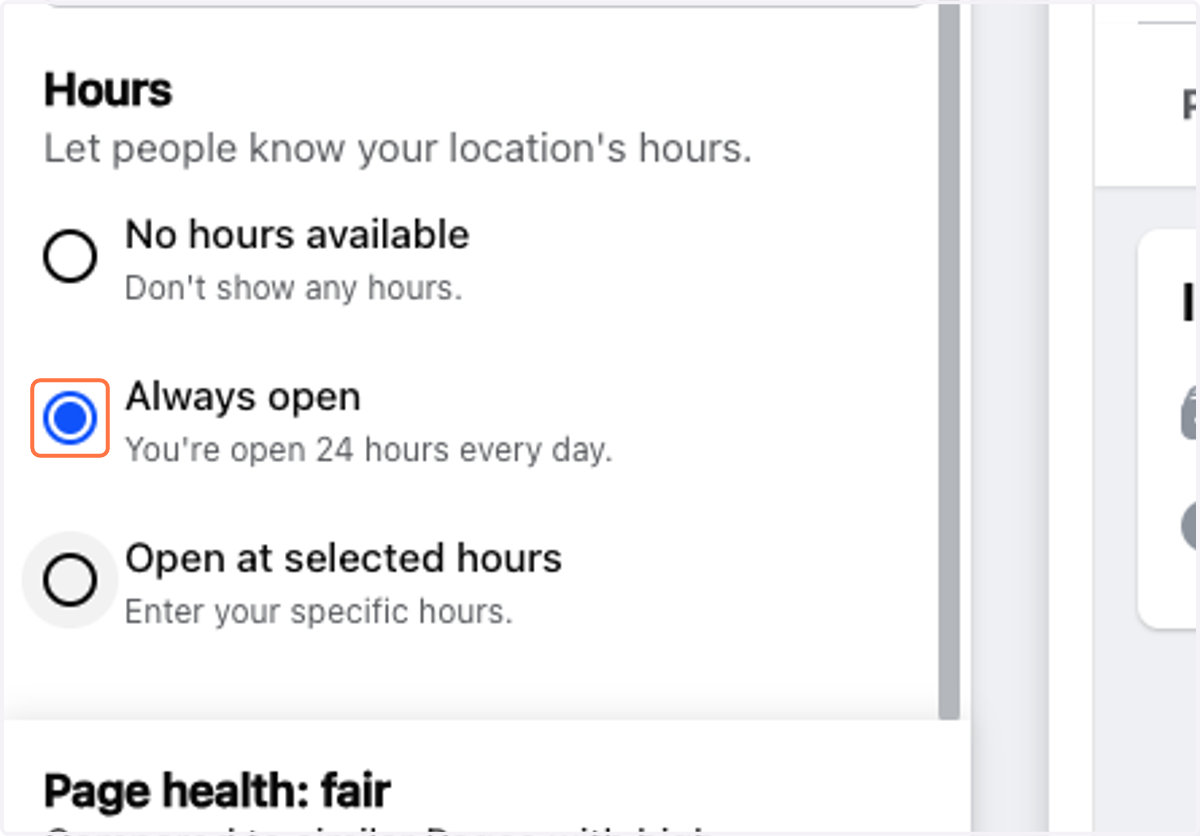
  4. 17. Select Always open

    Select Always open
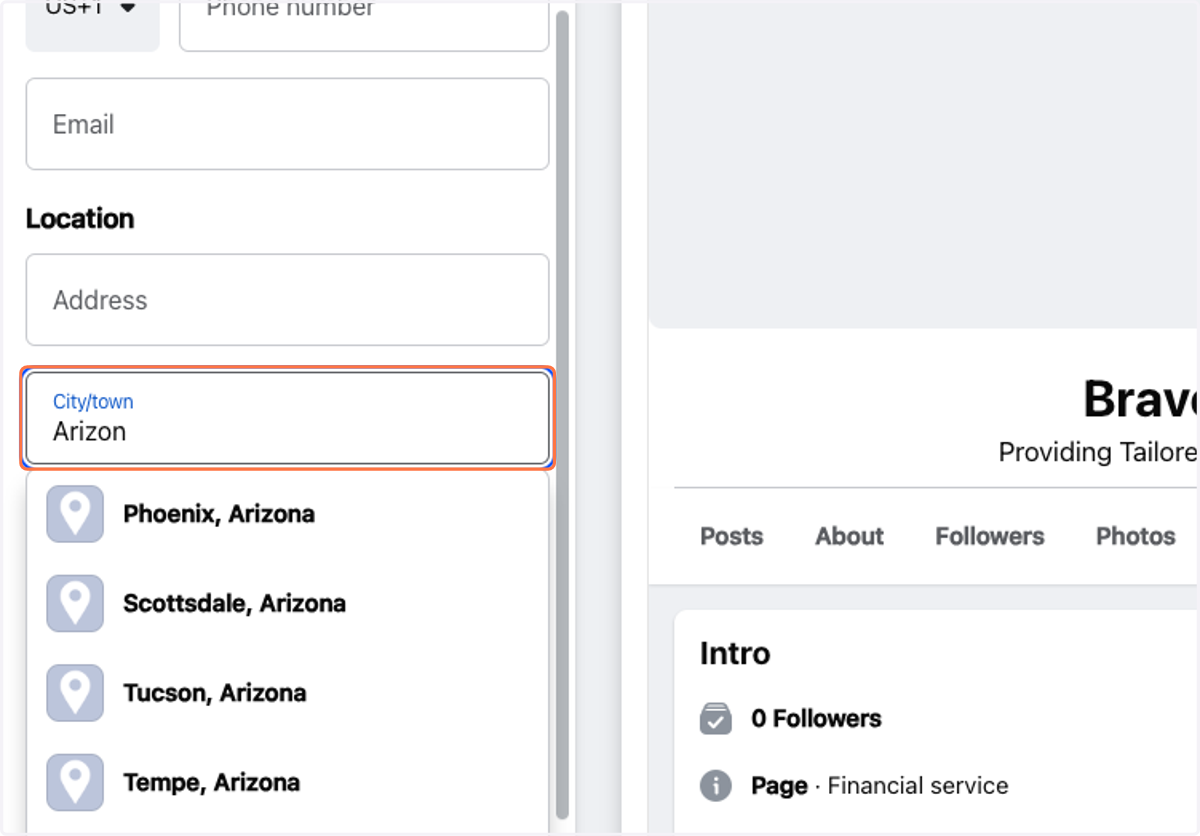
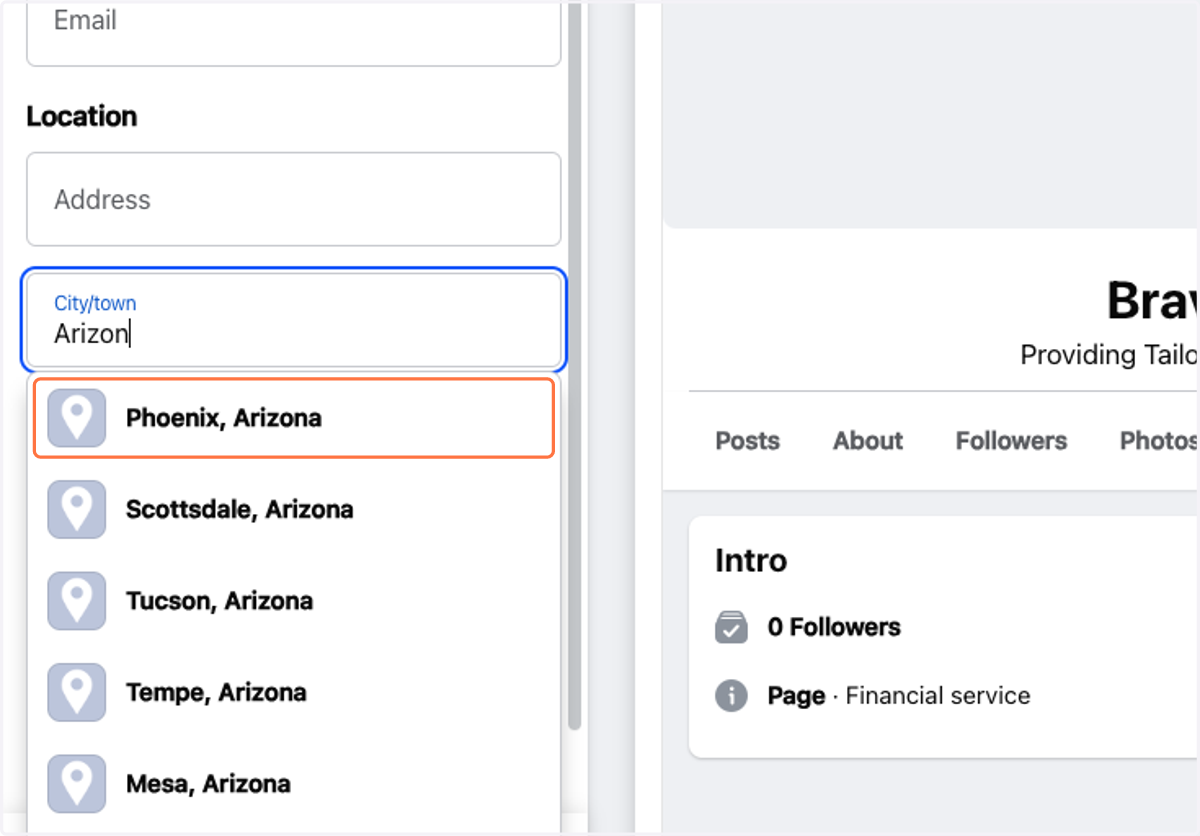
  5. 18. Type "Arizon"

    Type "Arizon"
  6. 19. Click on Phoenix, Arizona

    Click on Phoenix, Arizona
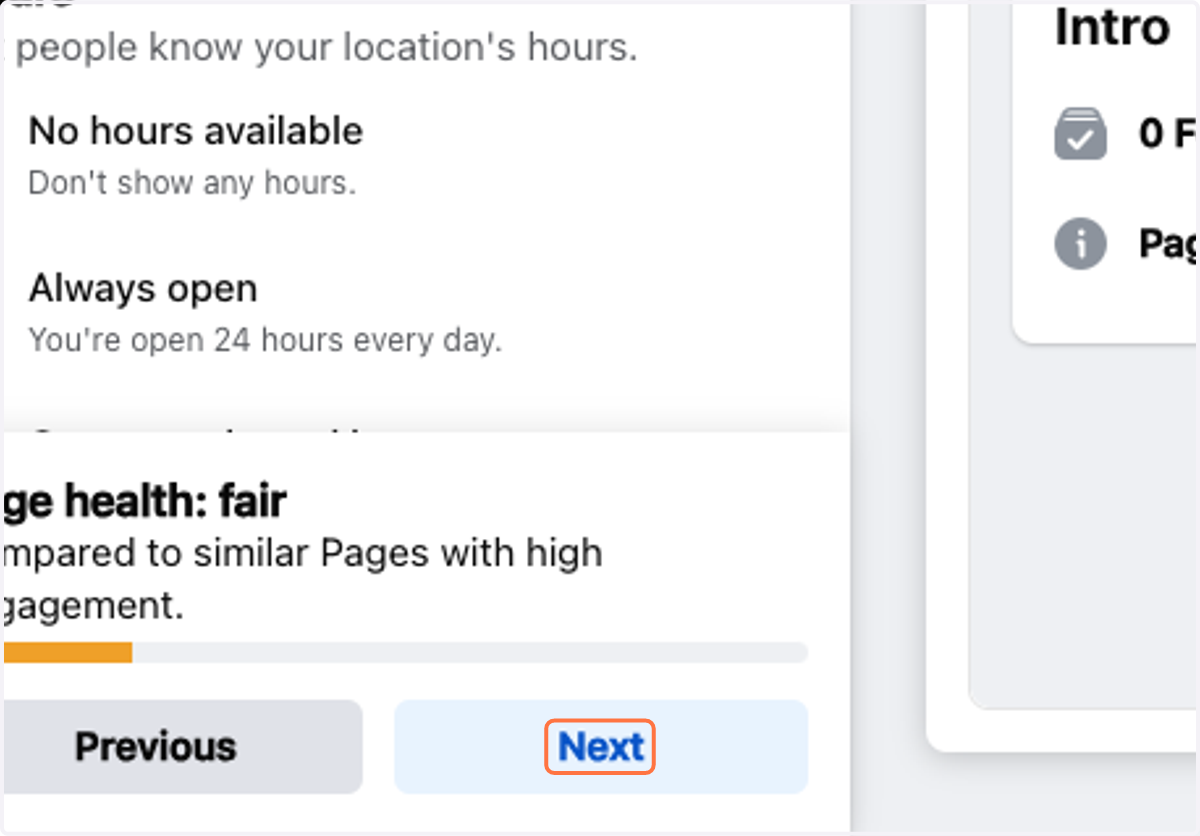
  7. 20. Click on Next

    Click on Next