How to Add Job Posting in Capital Square Living
Duda Site Editor | capital-square-living
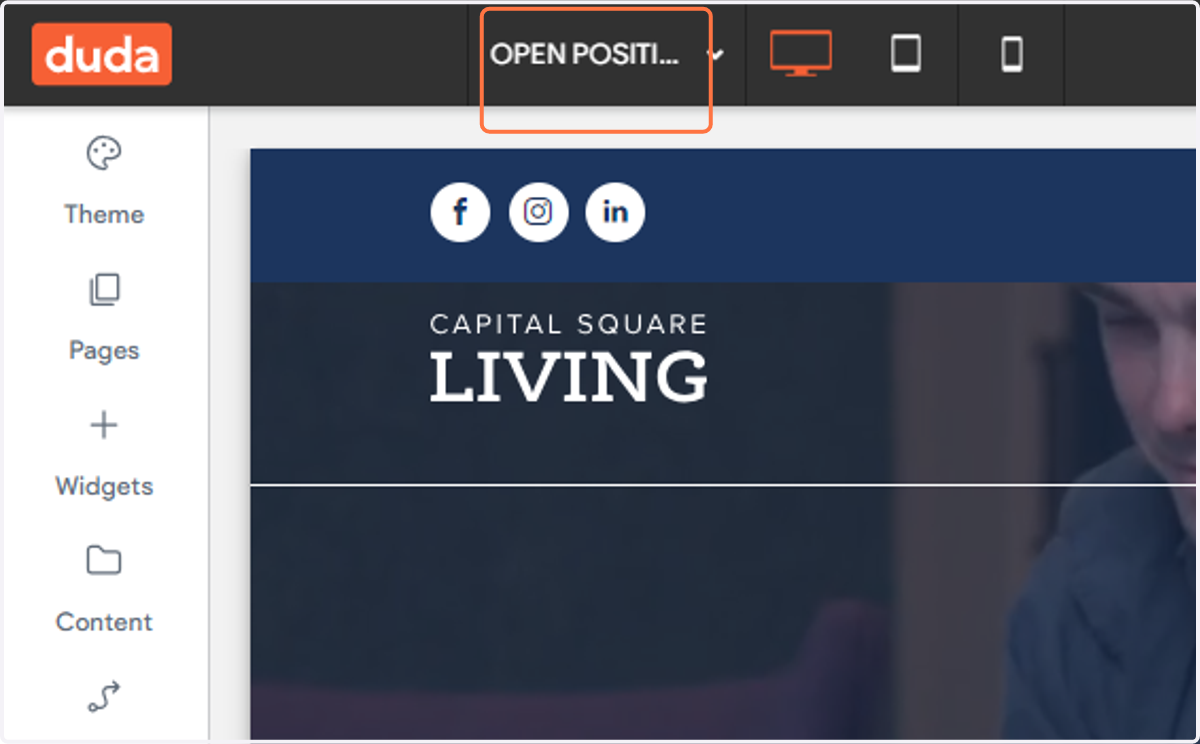
1. Go to Capital Square Living site and click on dropdown trigger. Click on OPEN POSITIONS.
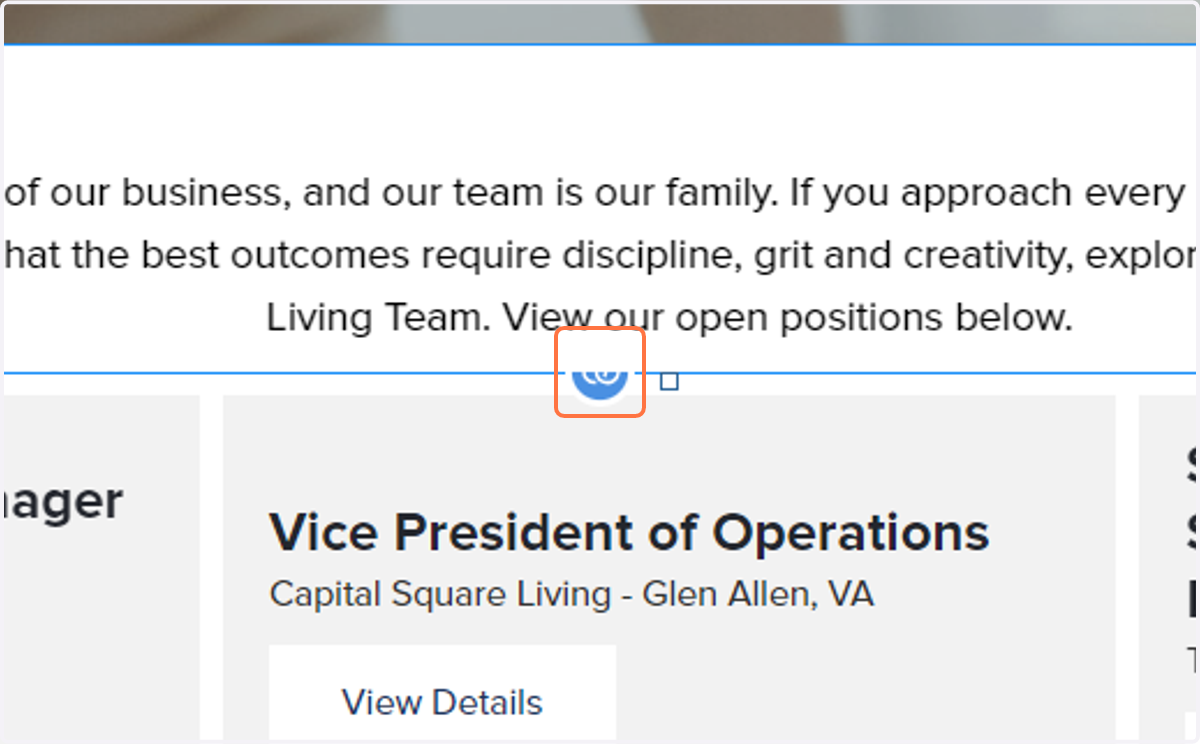
2. Click on the LINK ICON or go to CONTENT > COLLECTIONS > choose Careers: Open Positions
3. Click on Edit
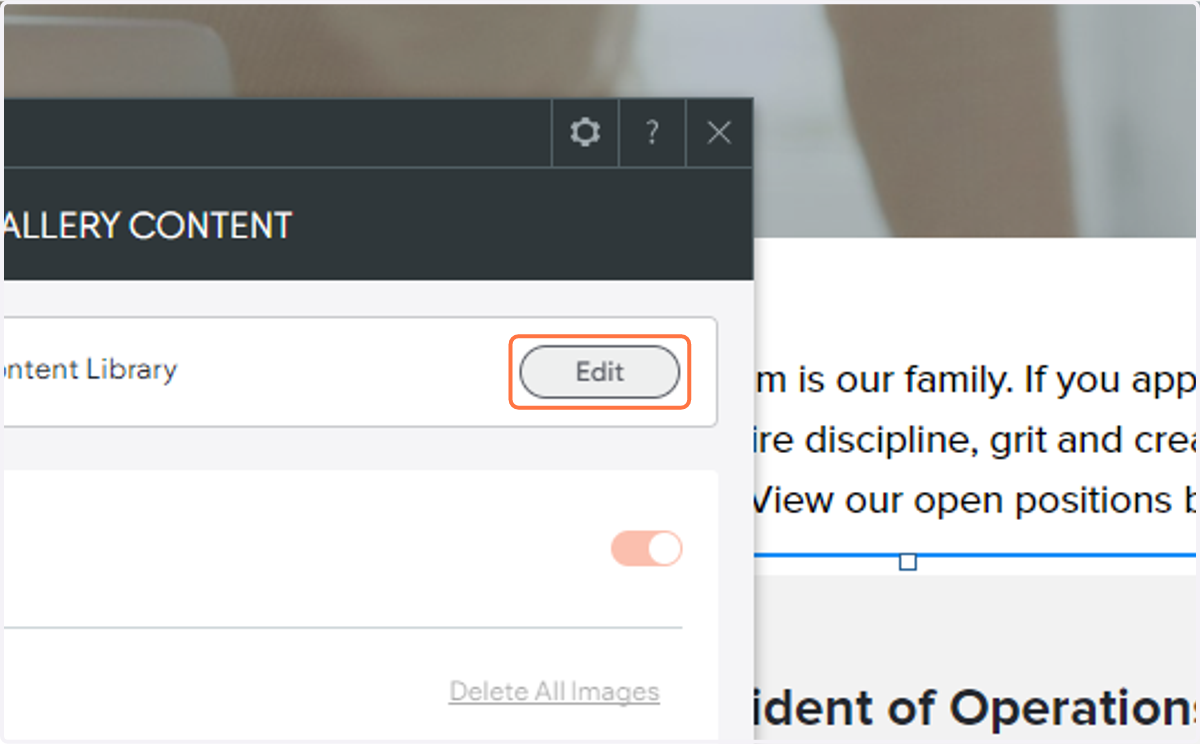
4. Click on Edit
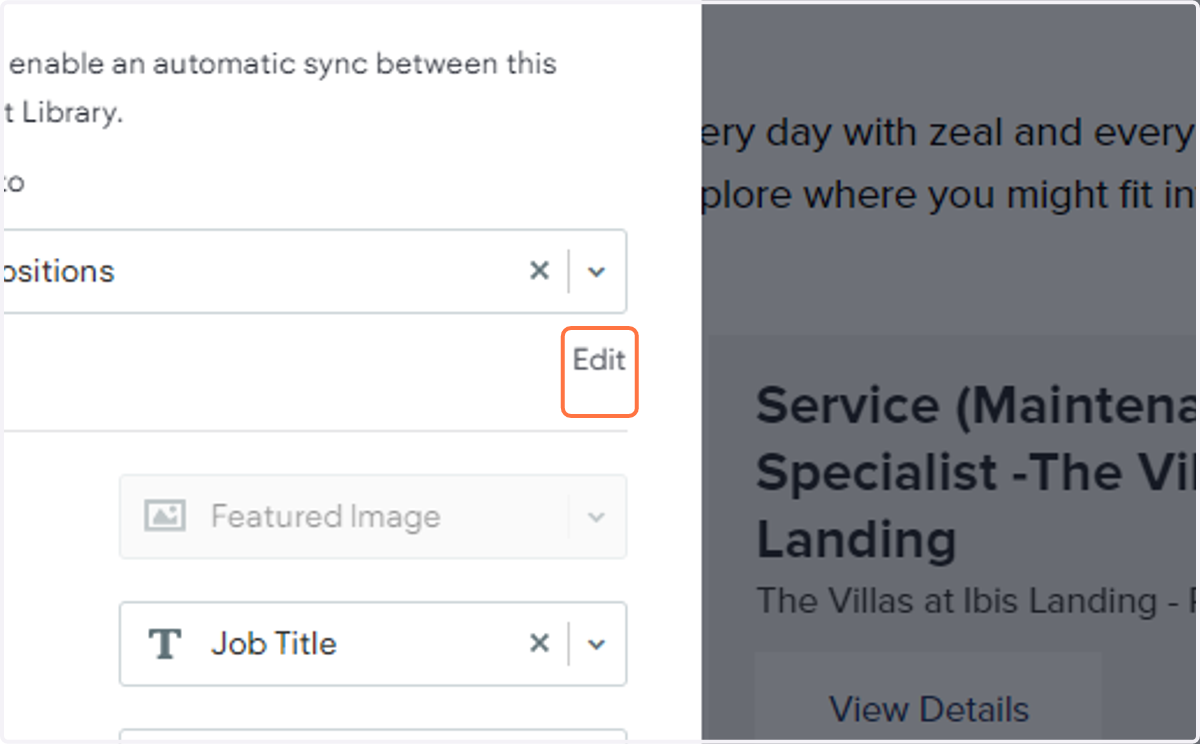
5. On the bottom part, Click on +
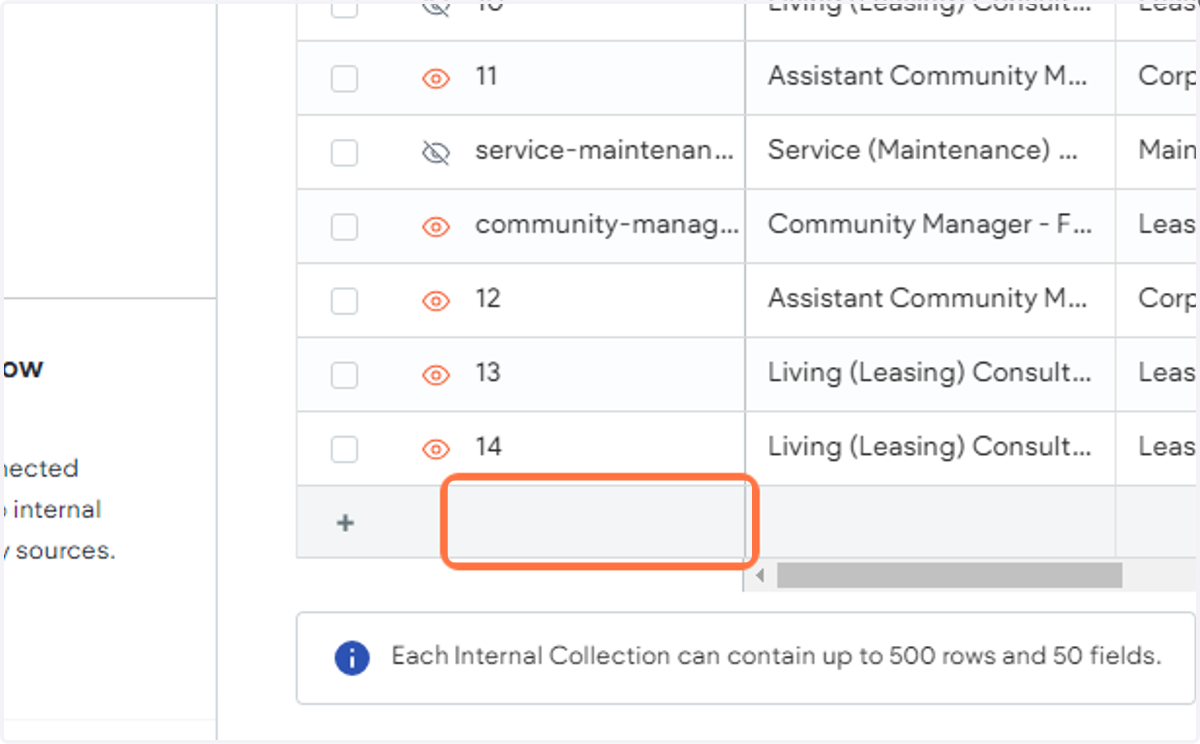
6. Copy element titled ex. "Assistant Community Manager -The Louis Apartment"
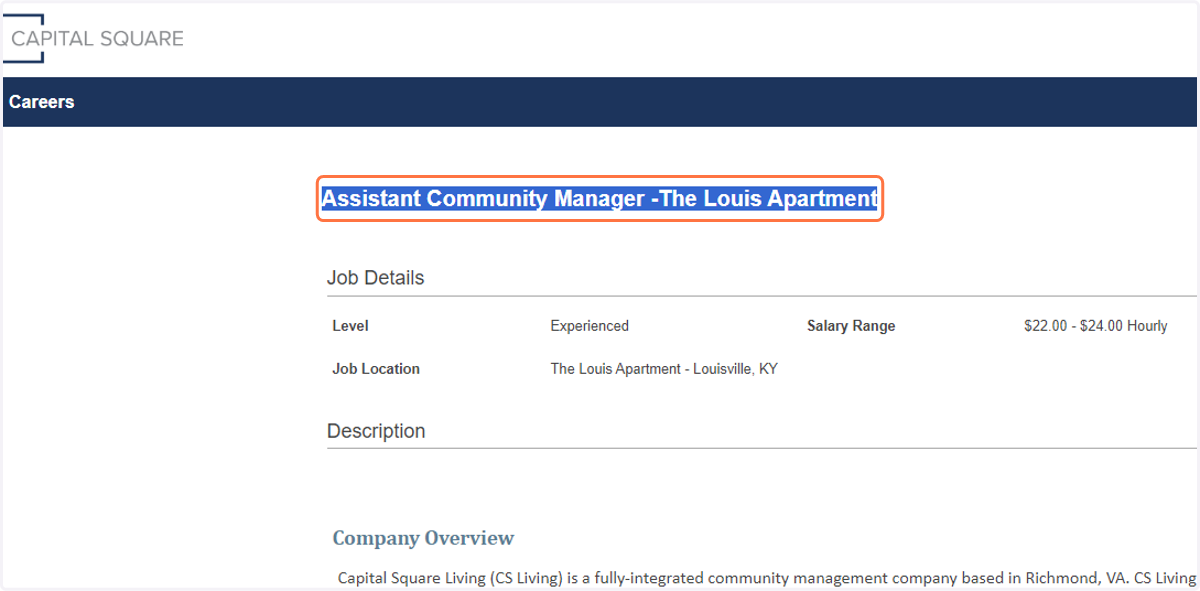
7. Paste "Assistant Community Manager -The Louis Apartment" into text area
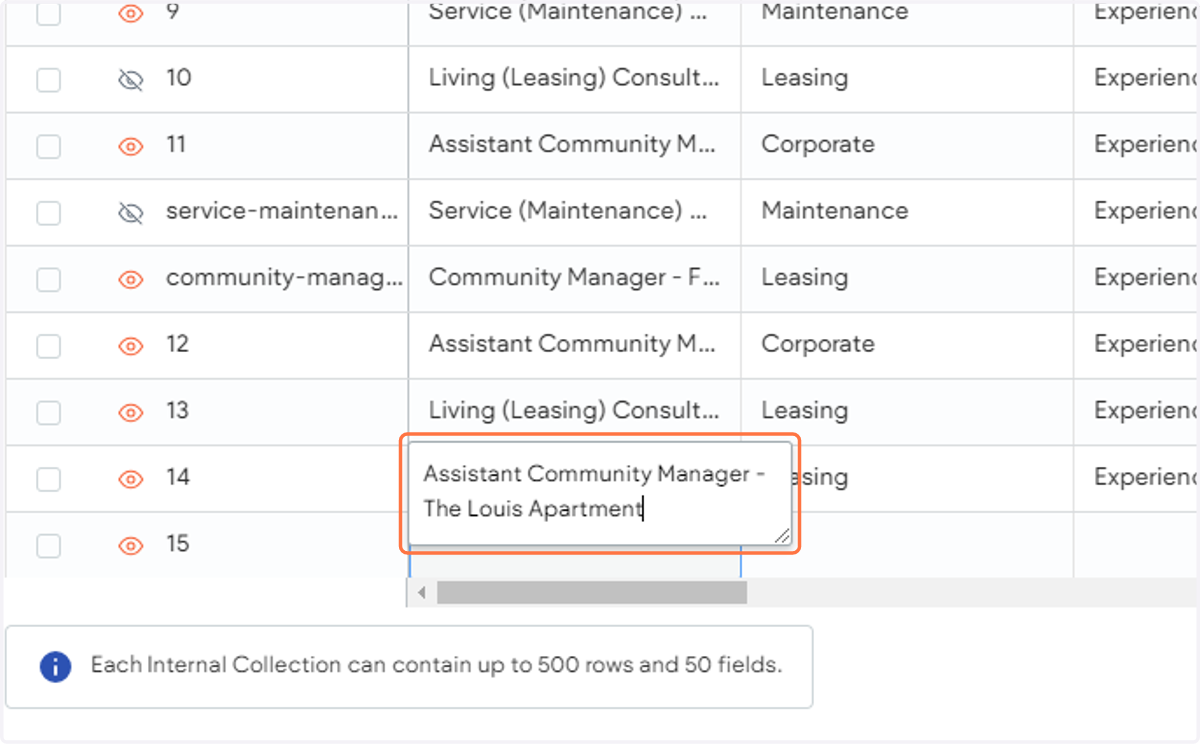
8. Click on row
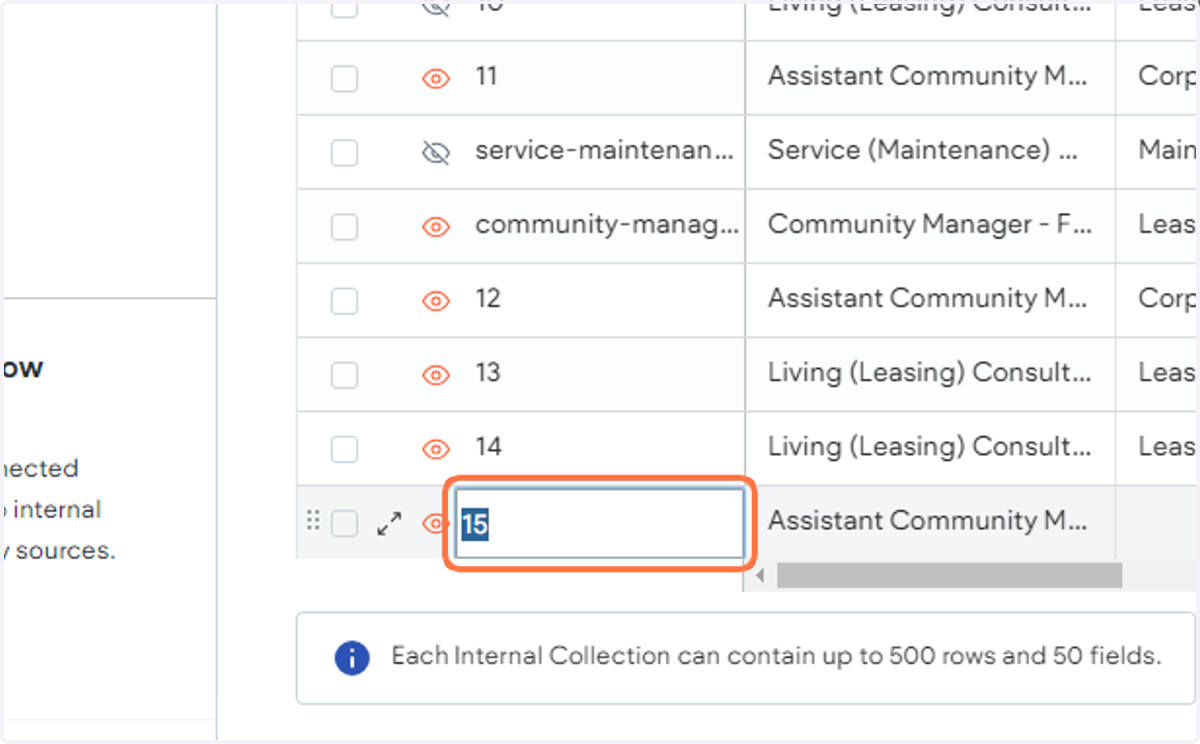
9. Create an item ex. "assistant-community-manager-the-louis-apartment"
Noye: Format should be in lowercase with hyphen on each spaces
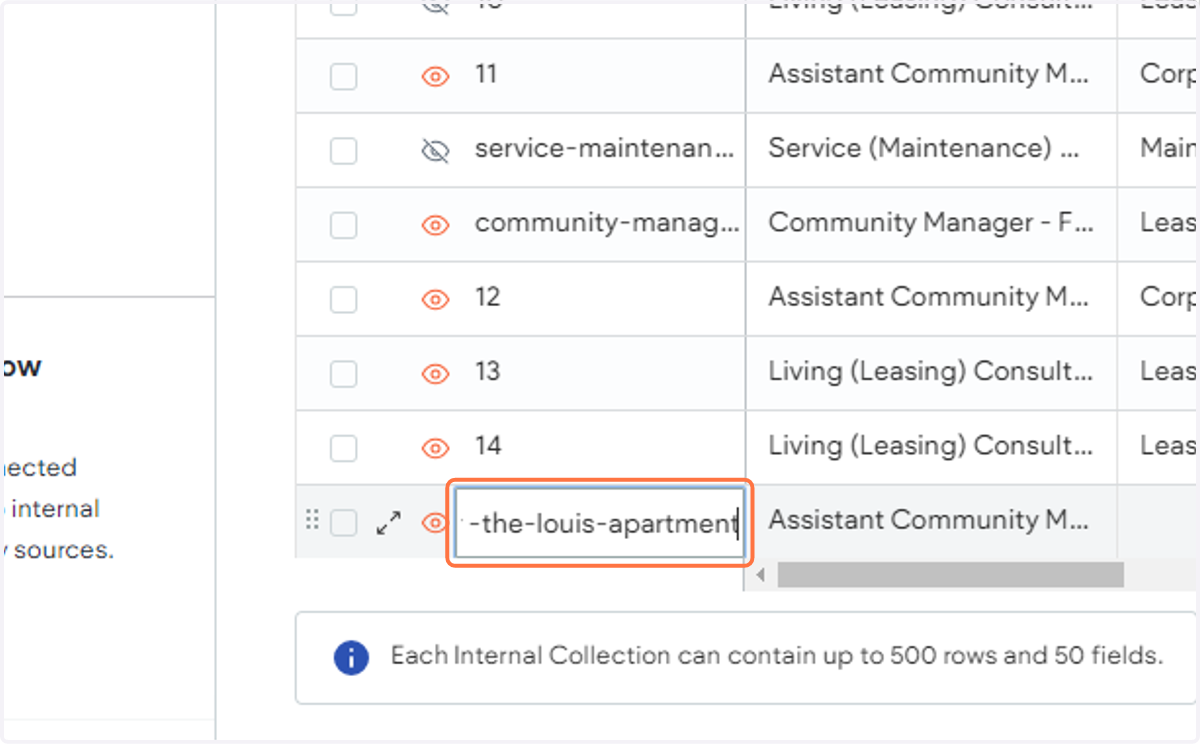
10. Type Corporate if the said position is Corporate, Leasing or Maintenance
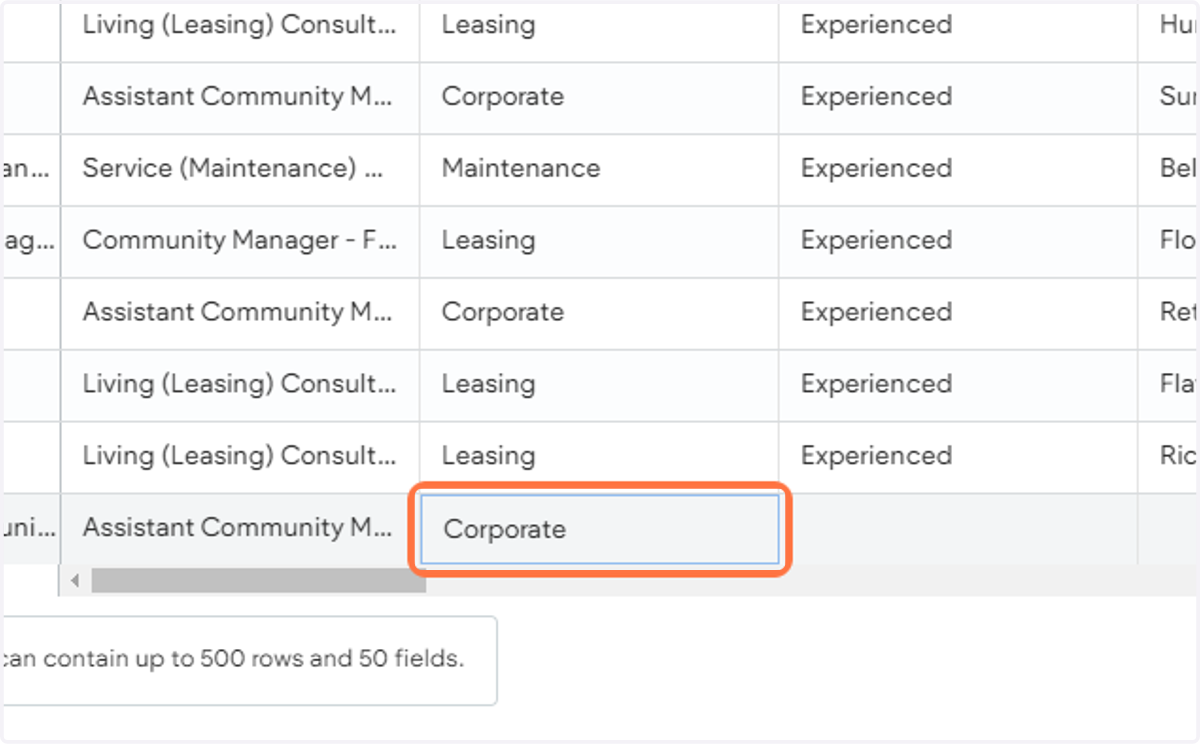
11. Type "Experienced" under Job Level
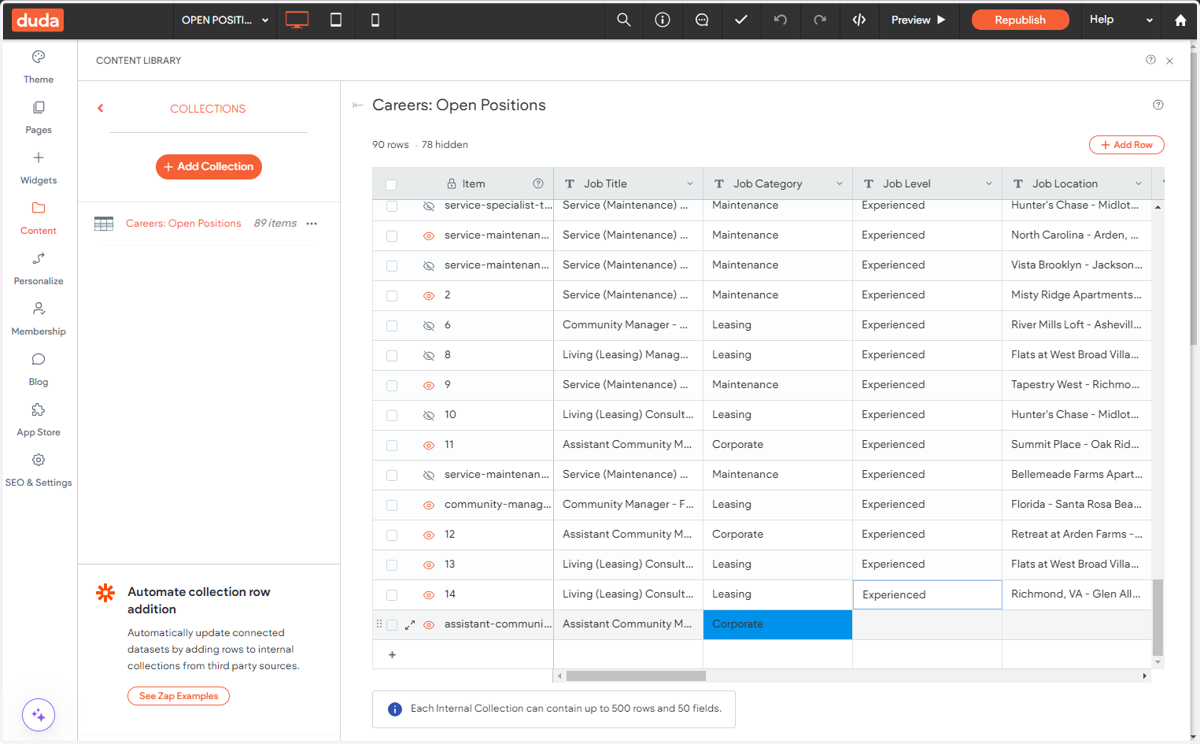
12. Copy the Job Location titled ex. "The Louis Apartment - Louisville, KY"
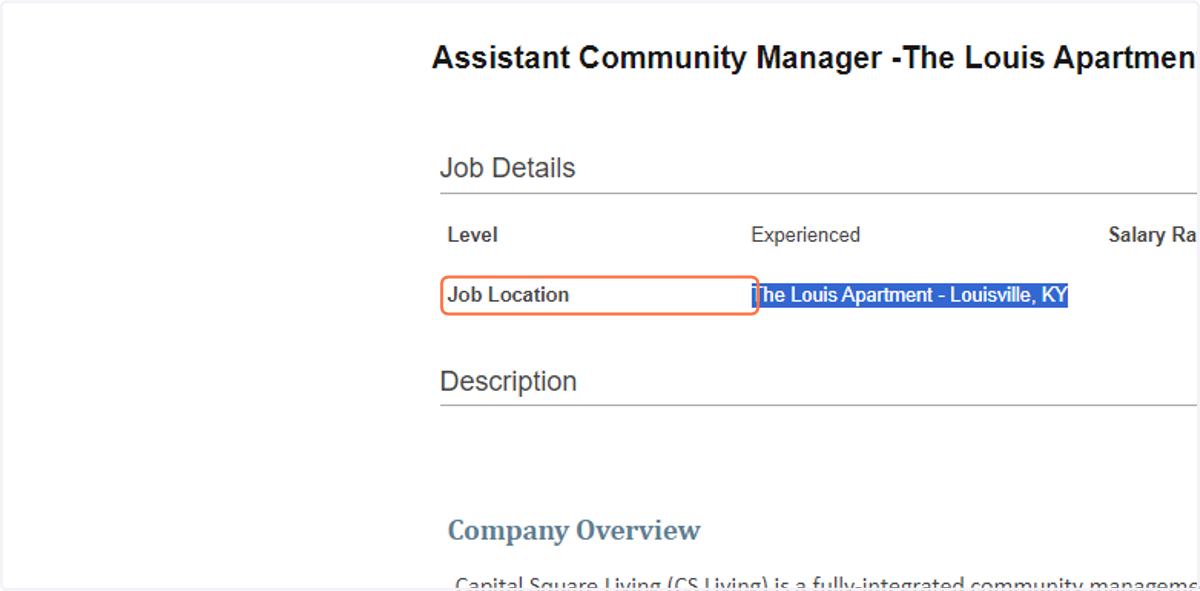
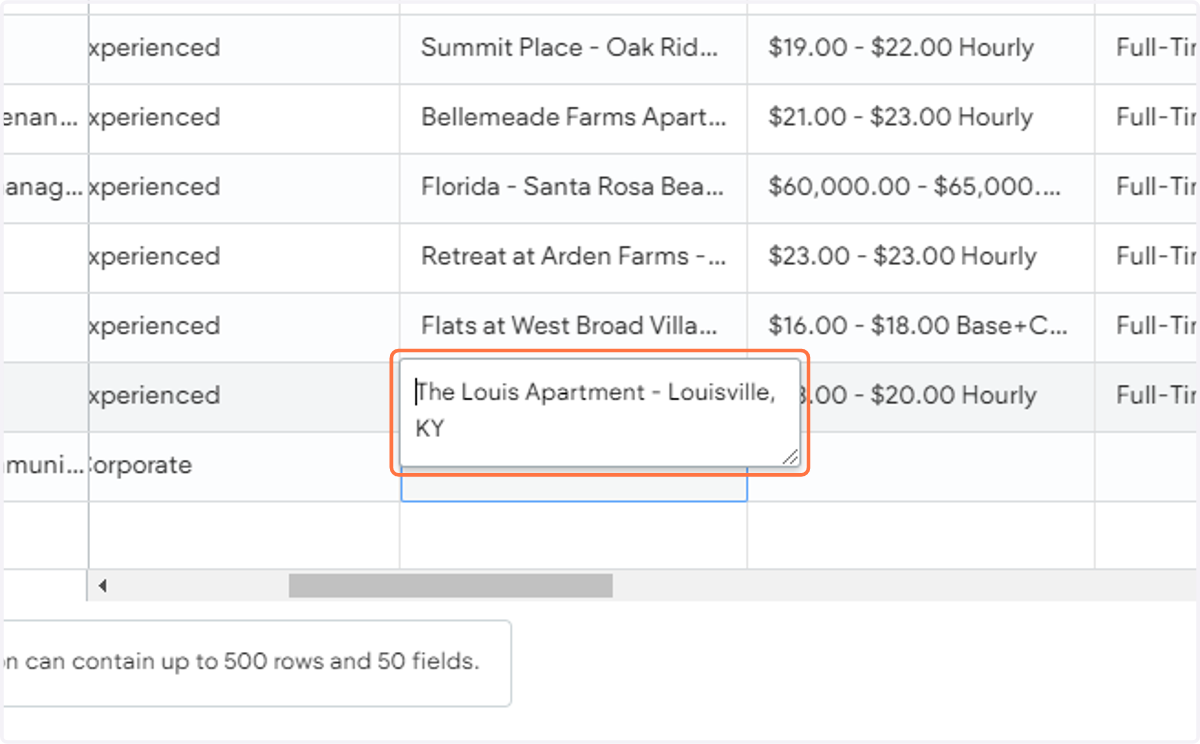
13. Paste the Location under Job Location
14. Copy the salary range ex. "$22.00 - $24.00 Hourly"
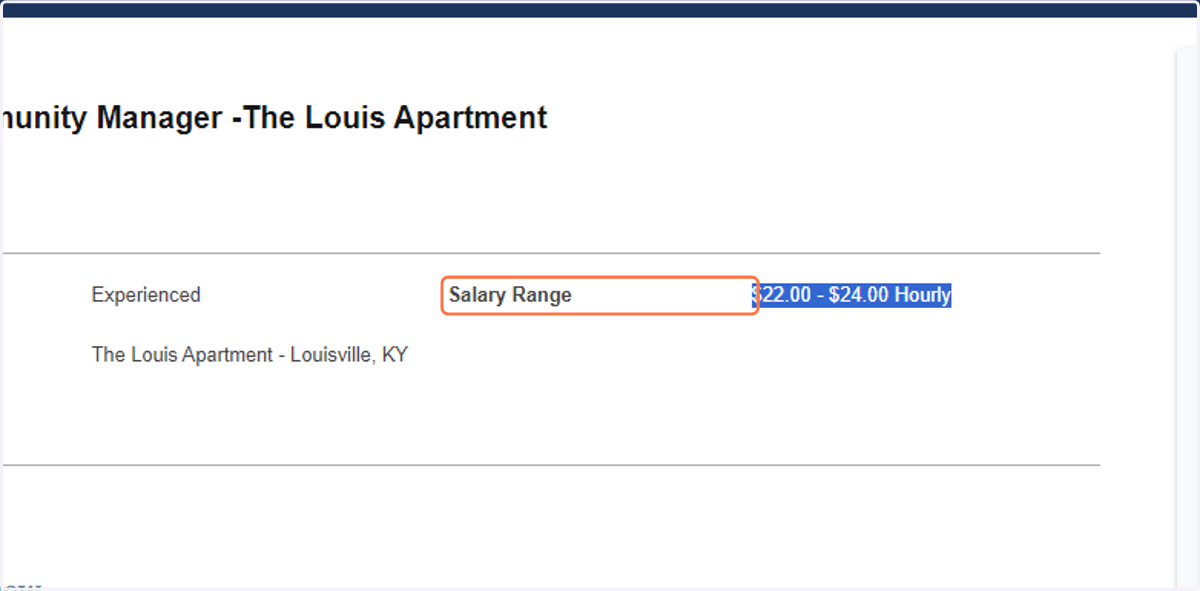
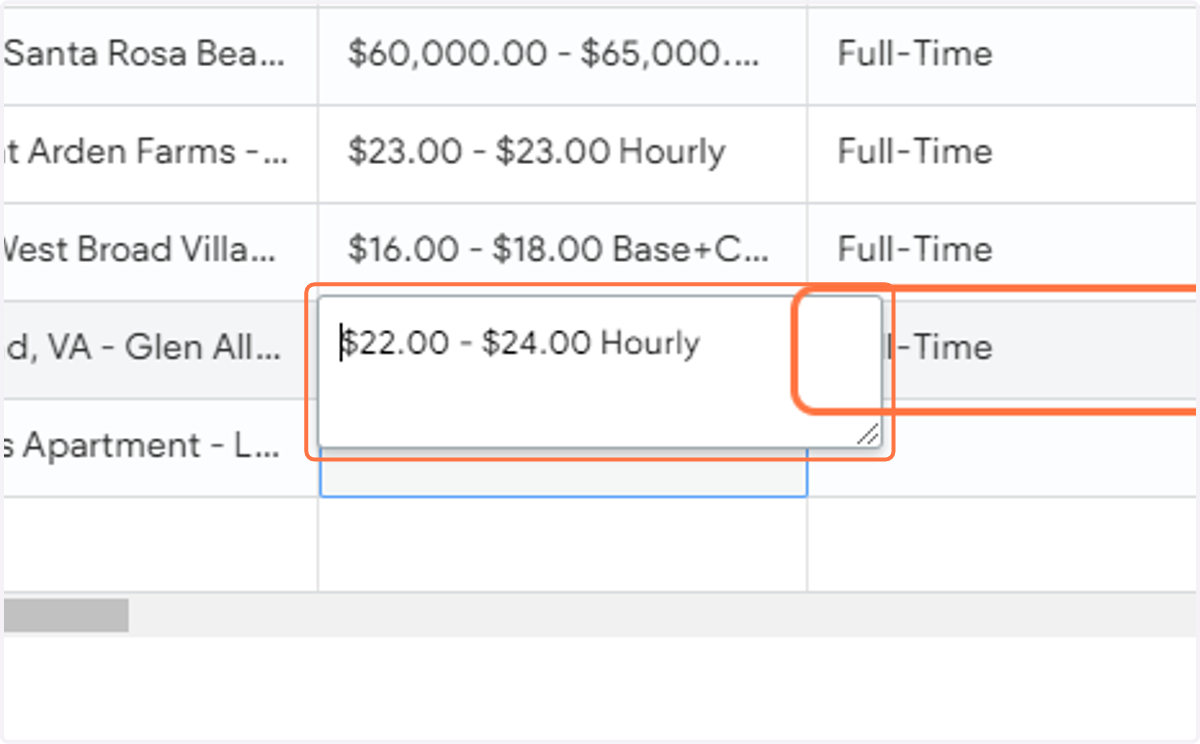
15. Paste it under Salary Range column
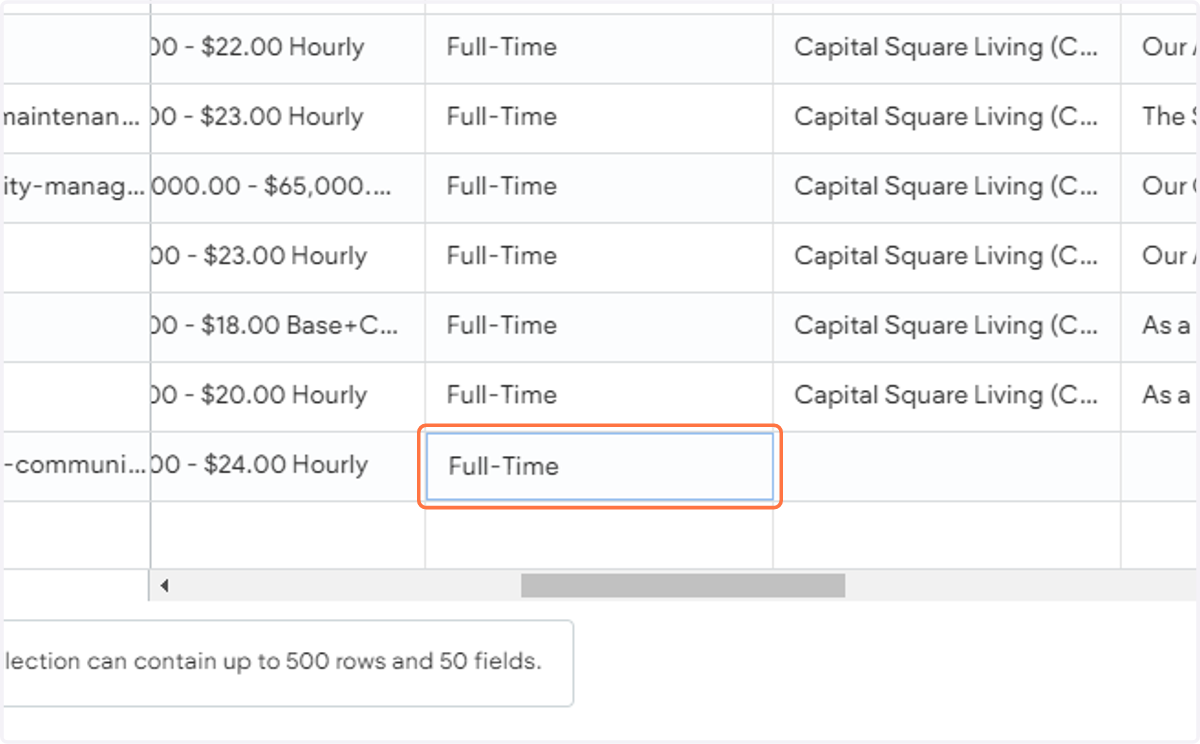
16. Type "Full-Time" under Position Type
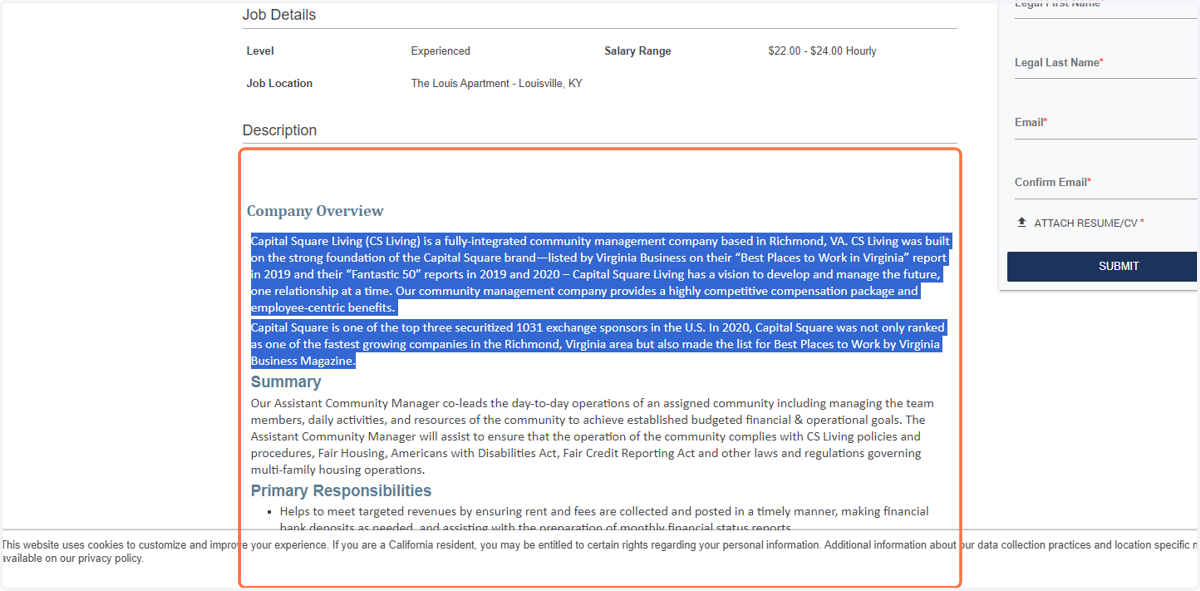
17. Copy "Company Overview"
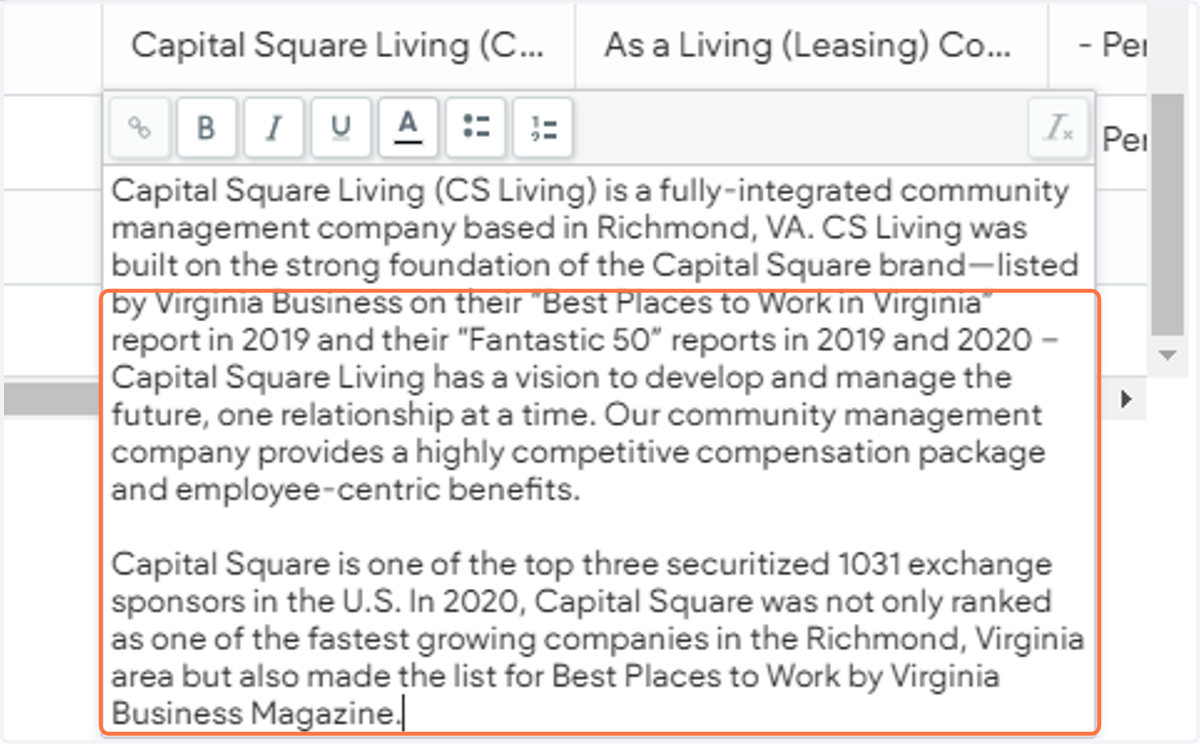
18. Paste selected text into text area
19. Copy "Summary"
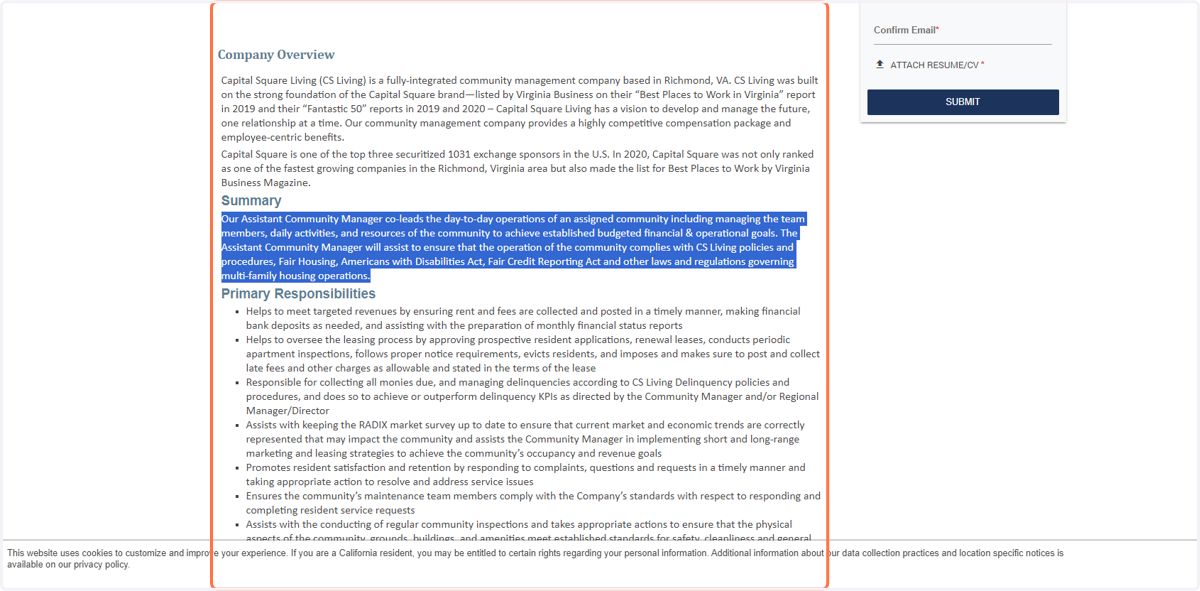
20. Paste selected text into text area
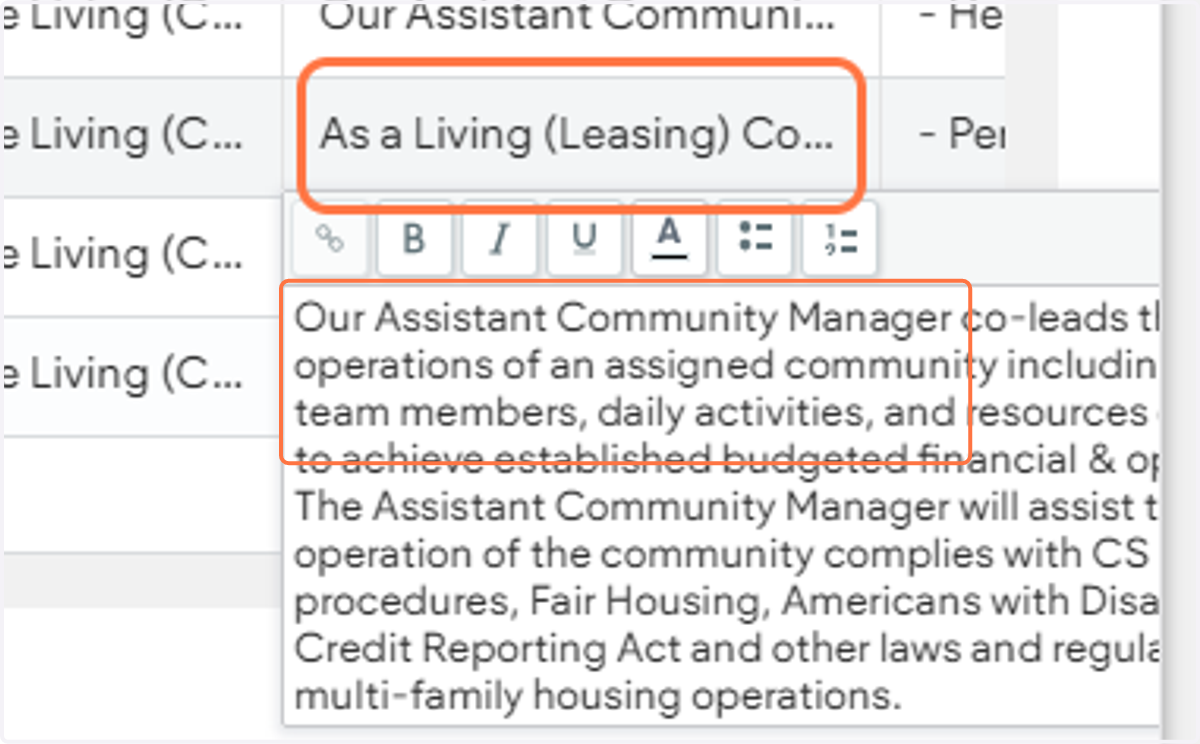
21. Copy Primary Responsibilities
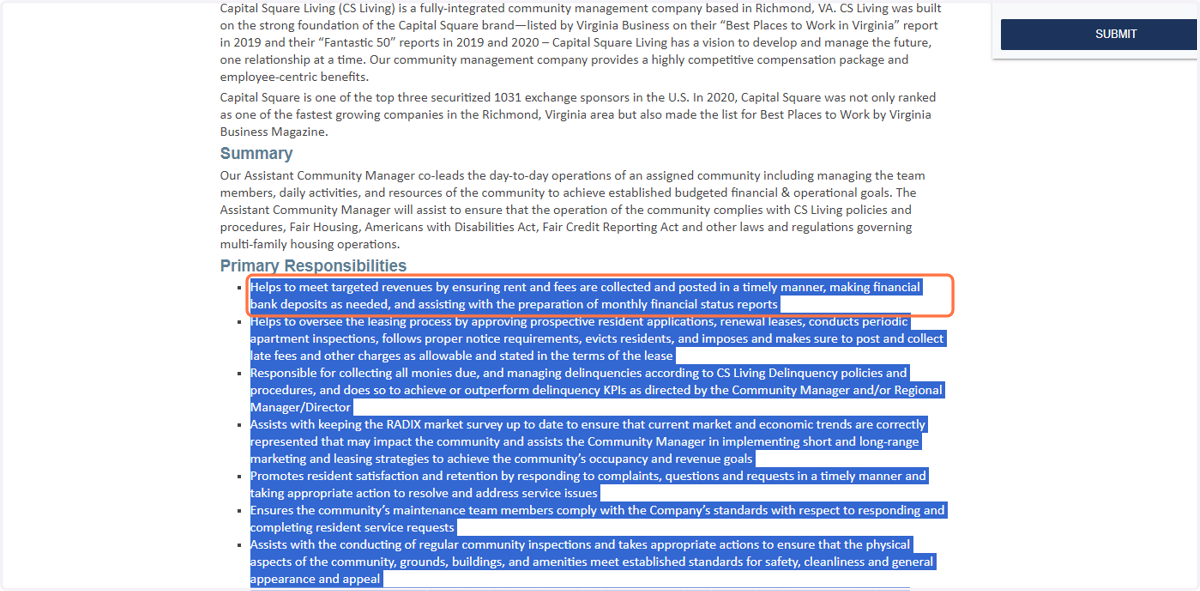
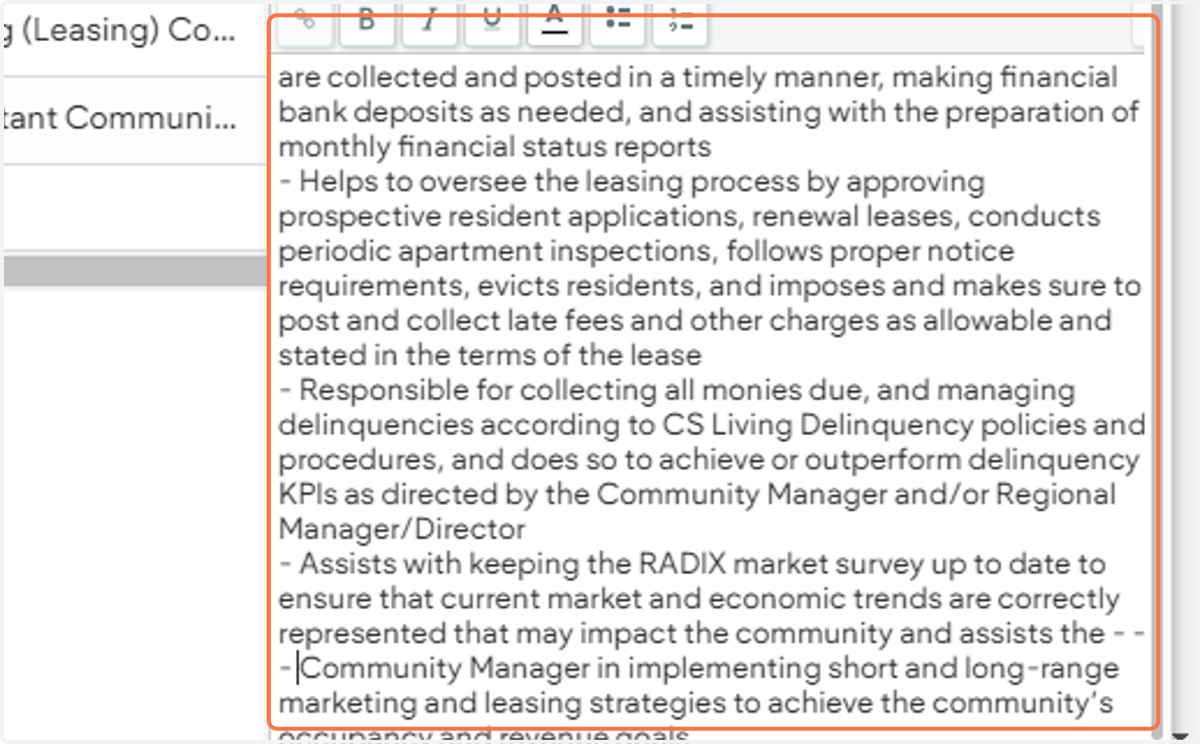
22. Paste it into text area
Note: Put hyphen (-) on each responsibility
23. Click on "Knowledge and Skills Requirements"
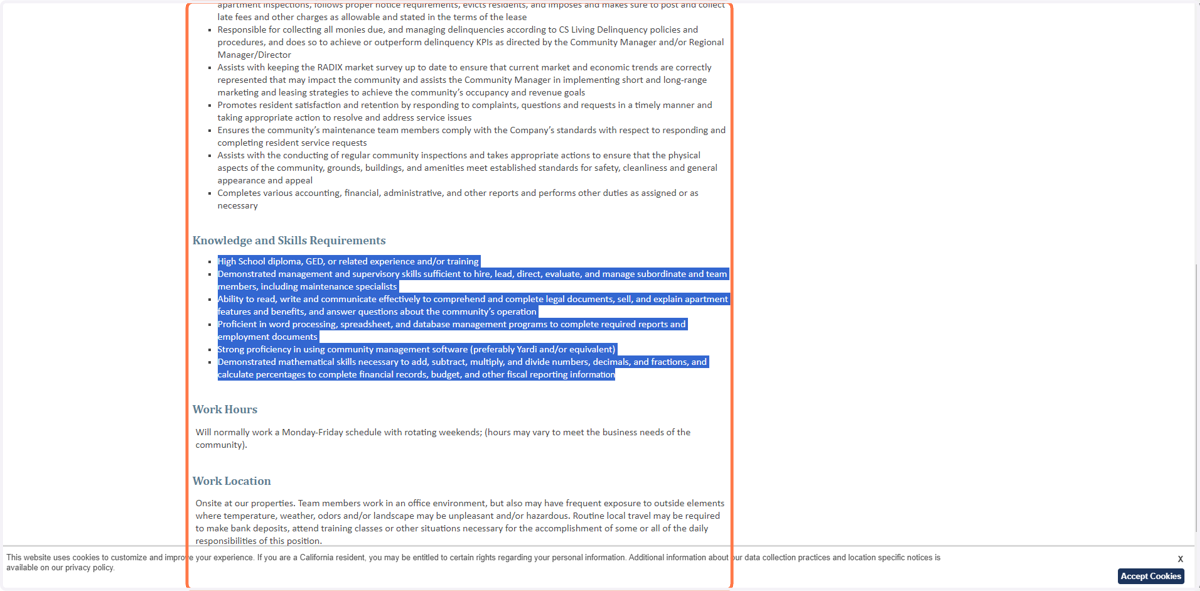
24. Paste it into text area
Note: Put hyphen (-) on each responsibility
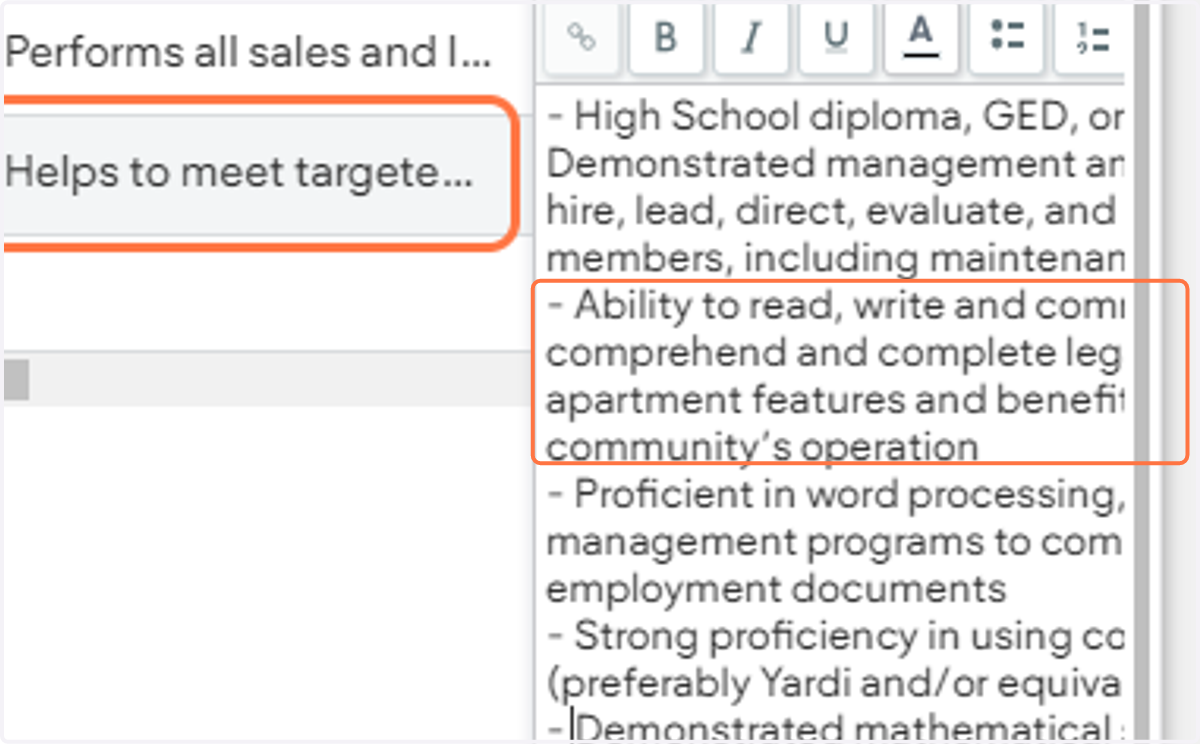
25. Copy "Work Hours"
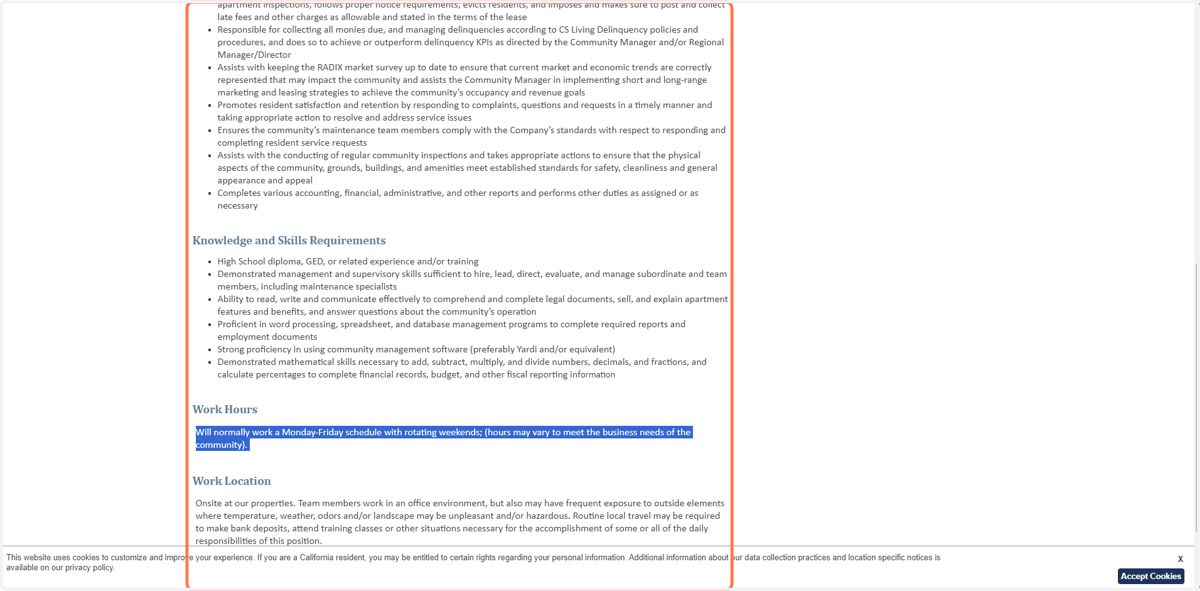
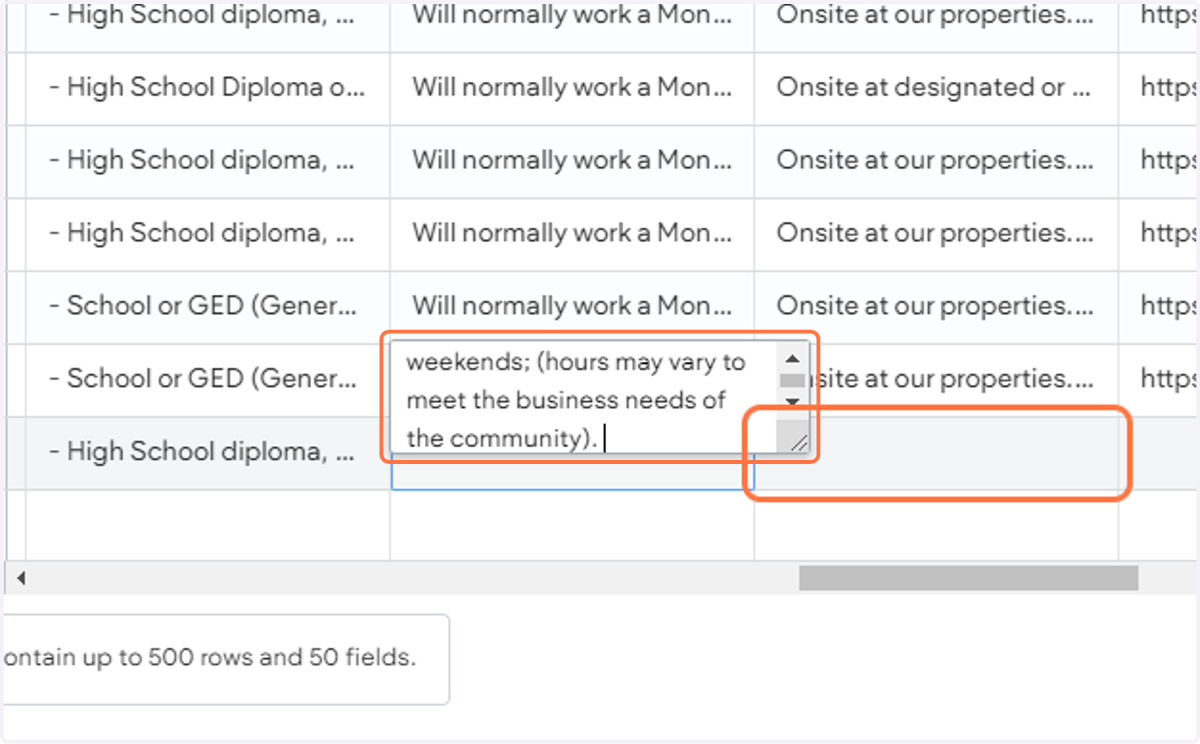
26. Paste selected text into text area
27. Copy "Work Location"
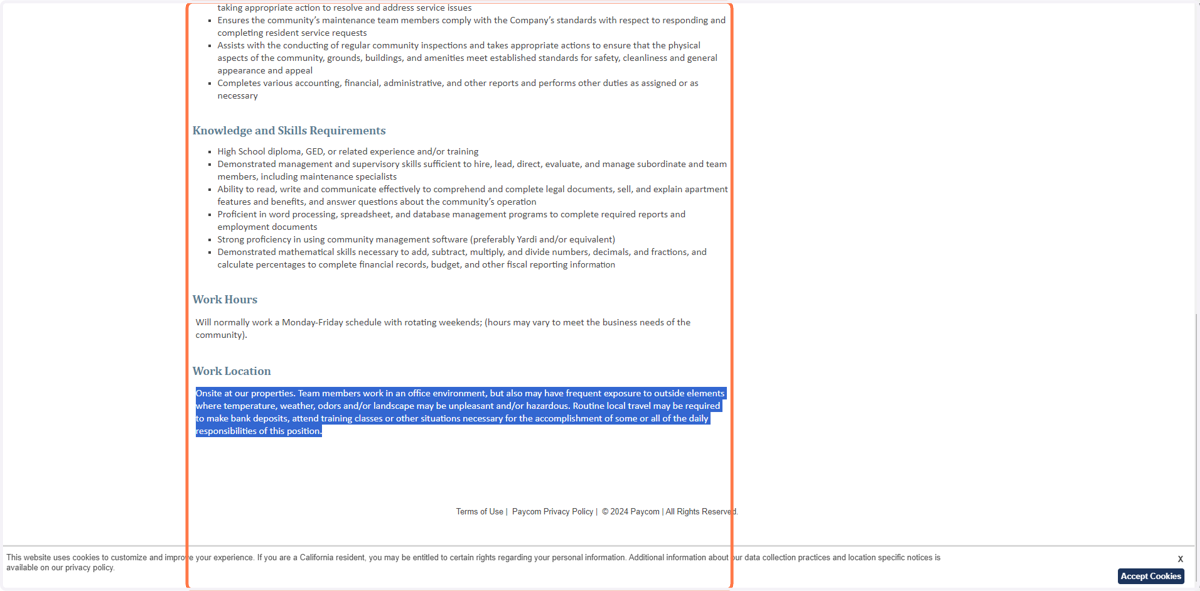
28. Paste selected text into text area
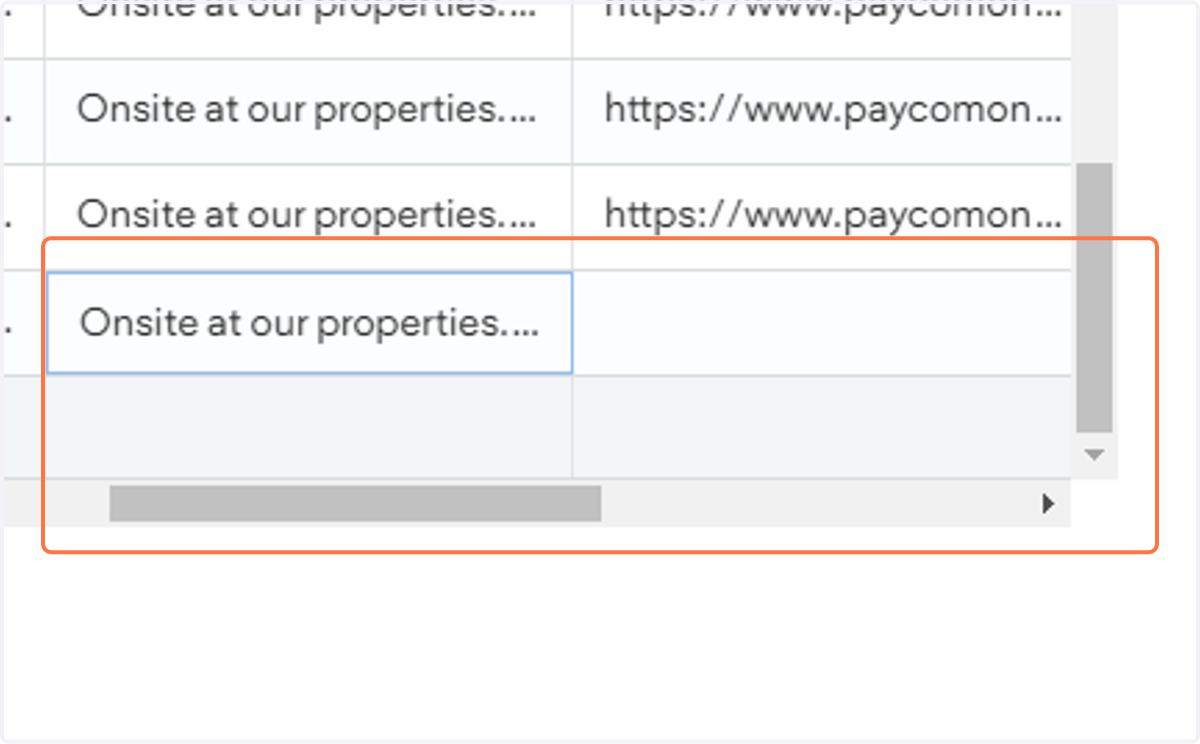
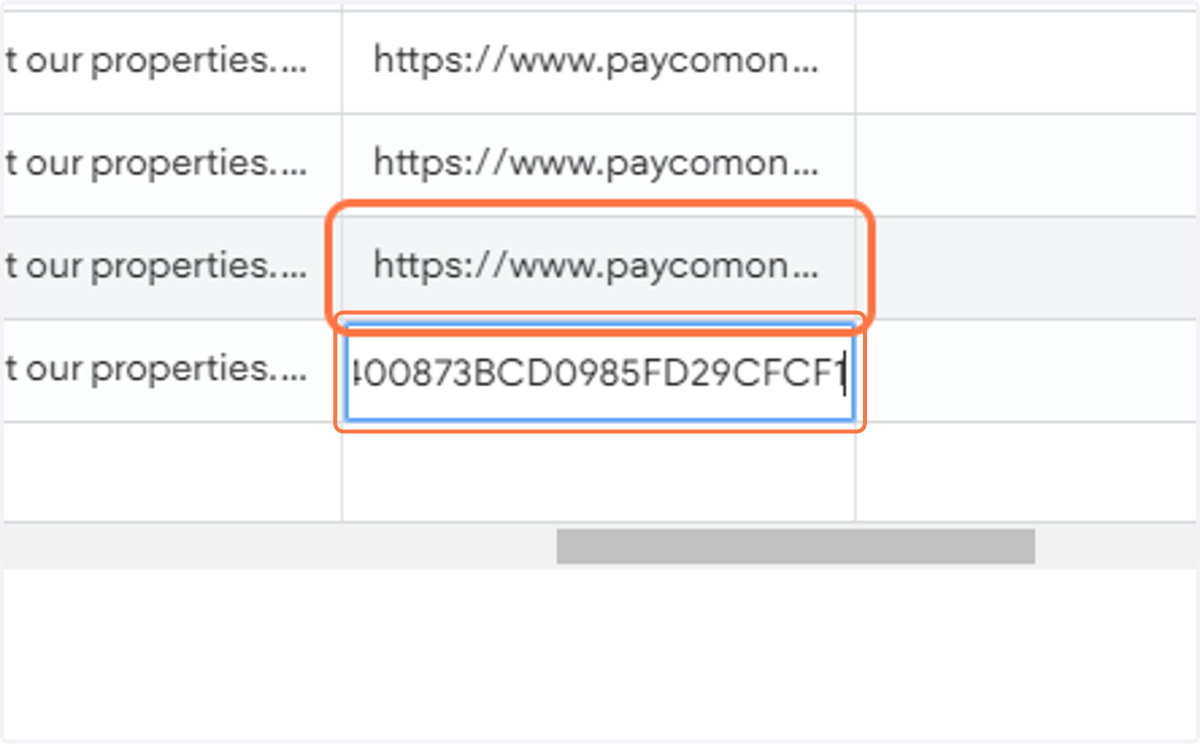
29. Copy the Position Link (paycomonline) and paste it into text area
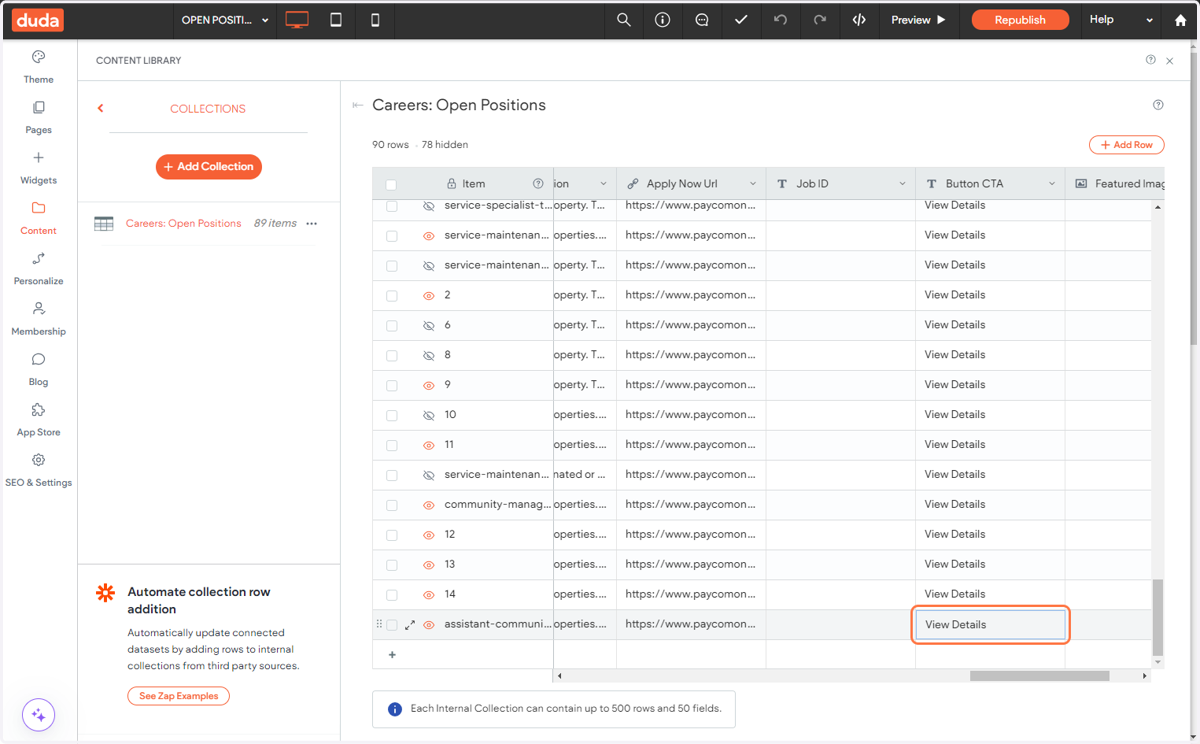
30. Type "View Details" under Button CTA column
31. Double-click "Featured Image"
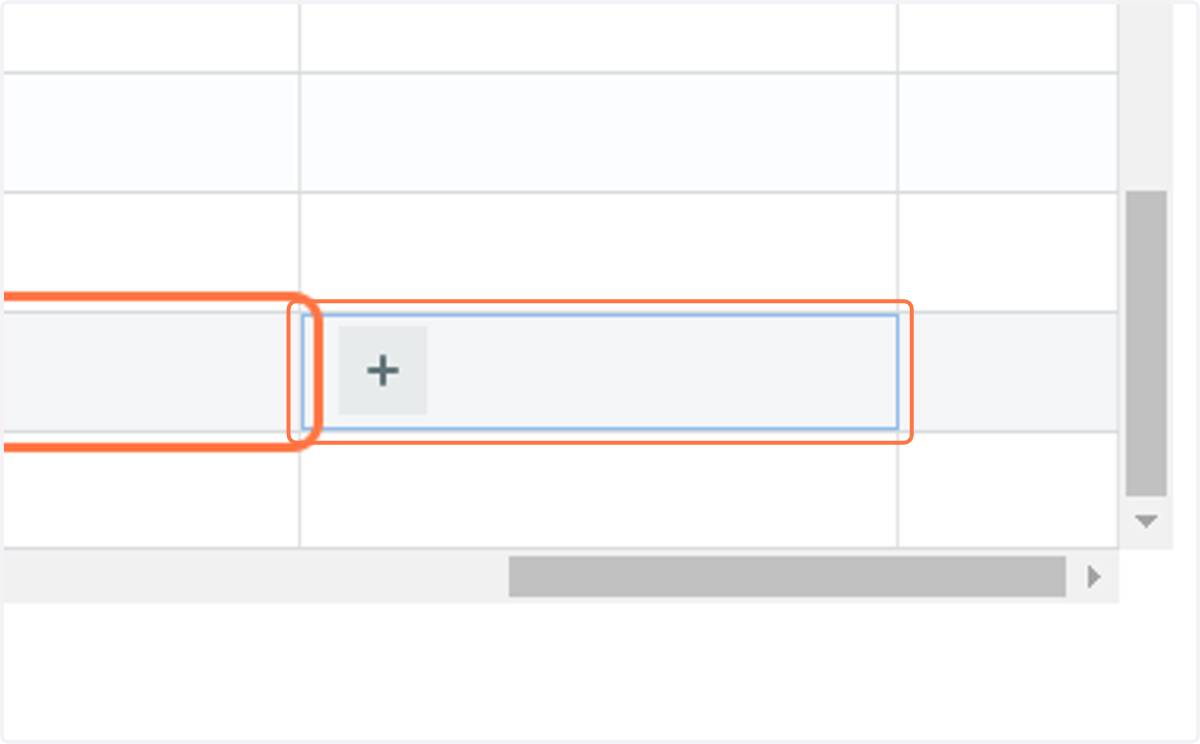
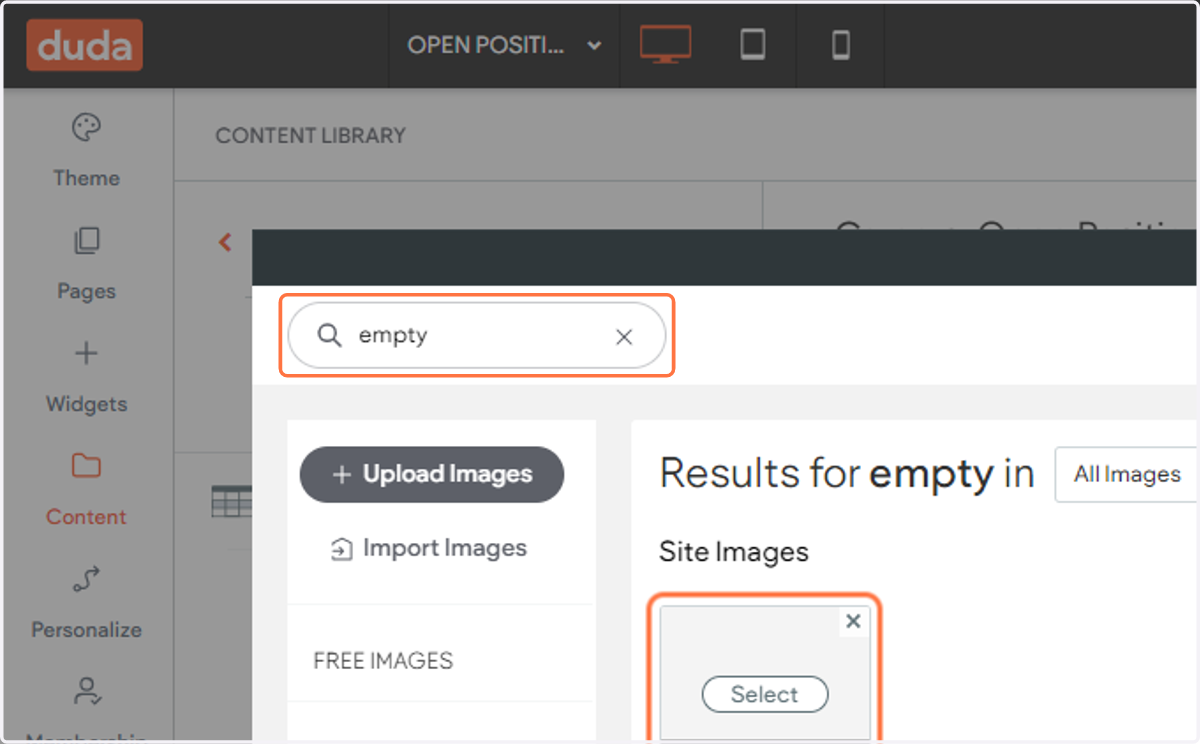
32. On Search bar, Type "empty" and choose "Empty.png"
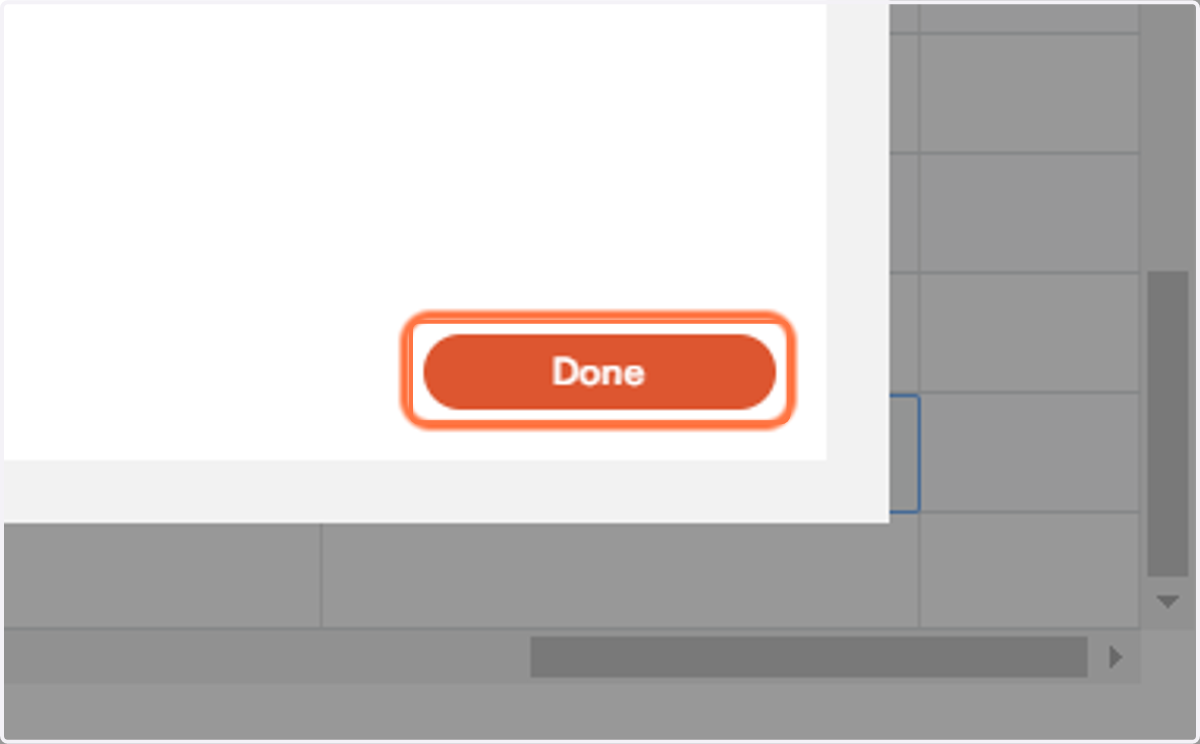
33. Click on Done
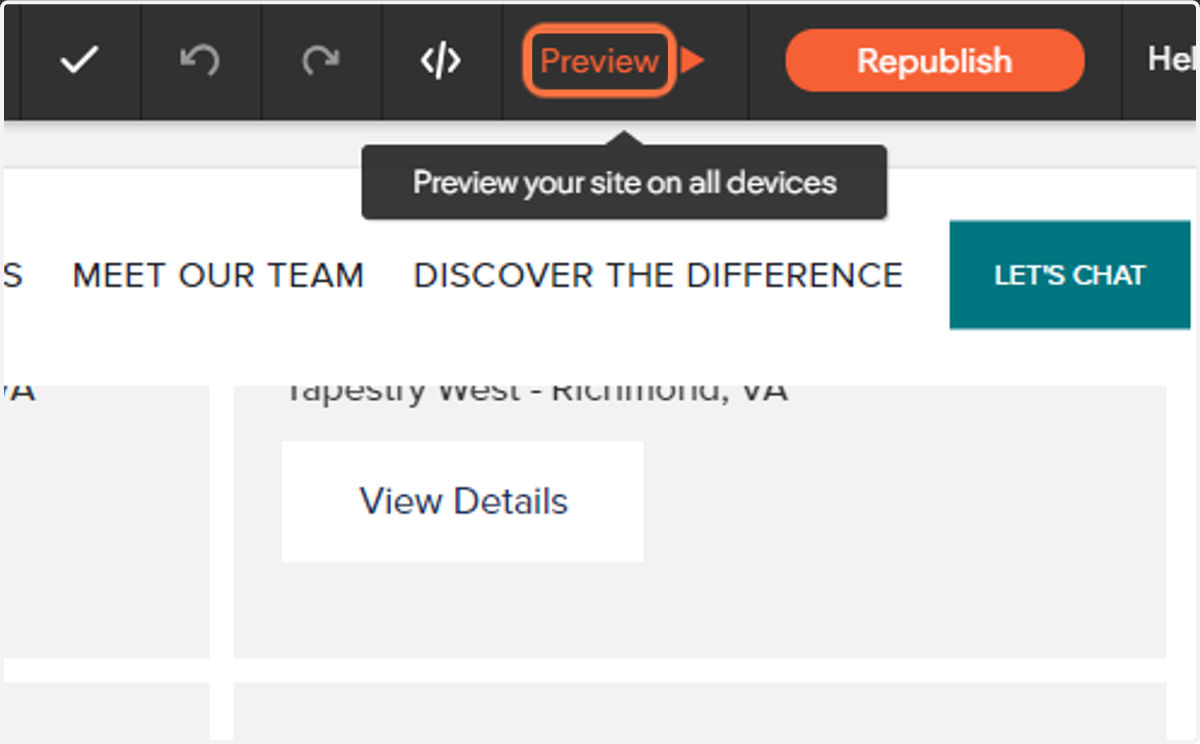
34. Click on "Preview" to check the Position created is working
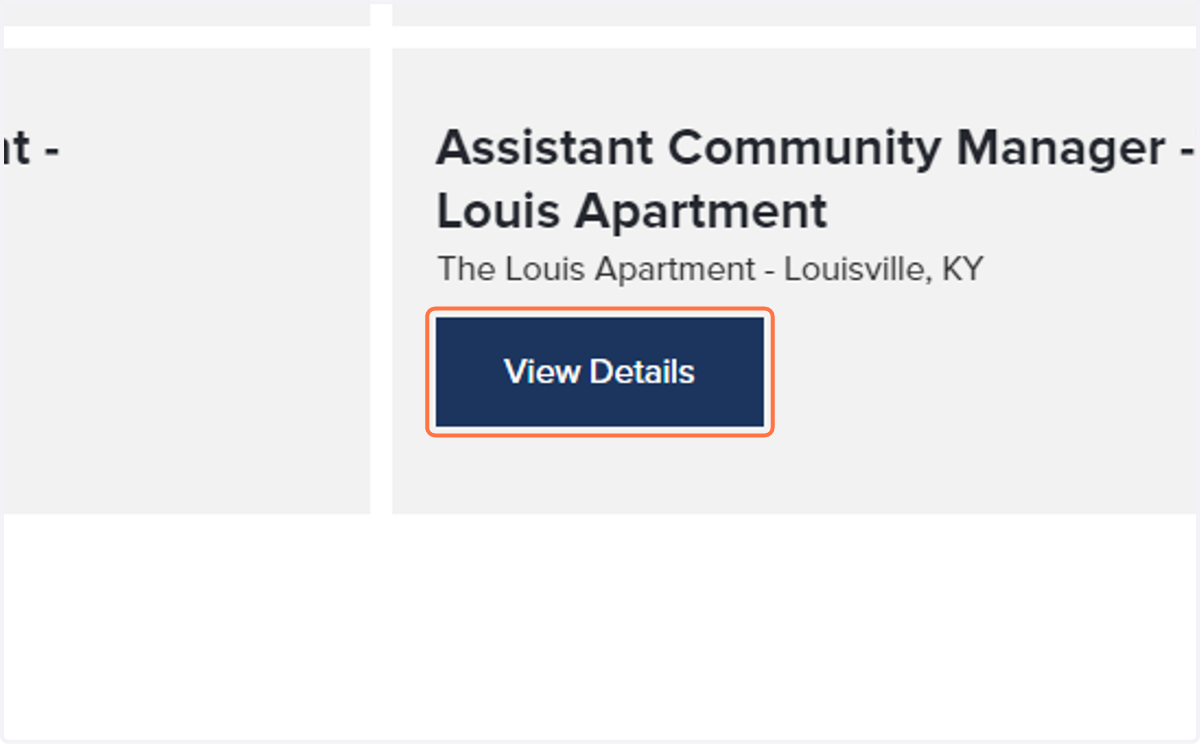
35. Click on View Details and run through if all the information was added
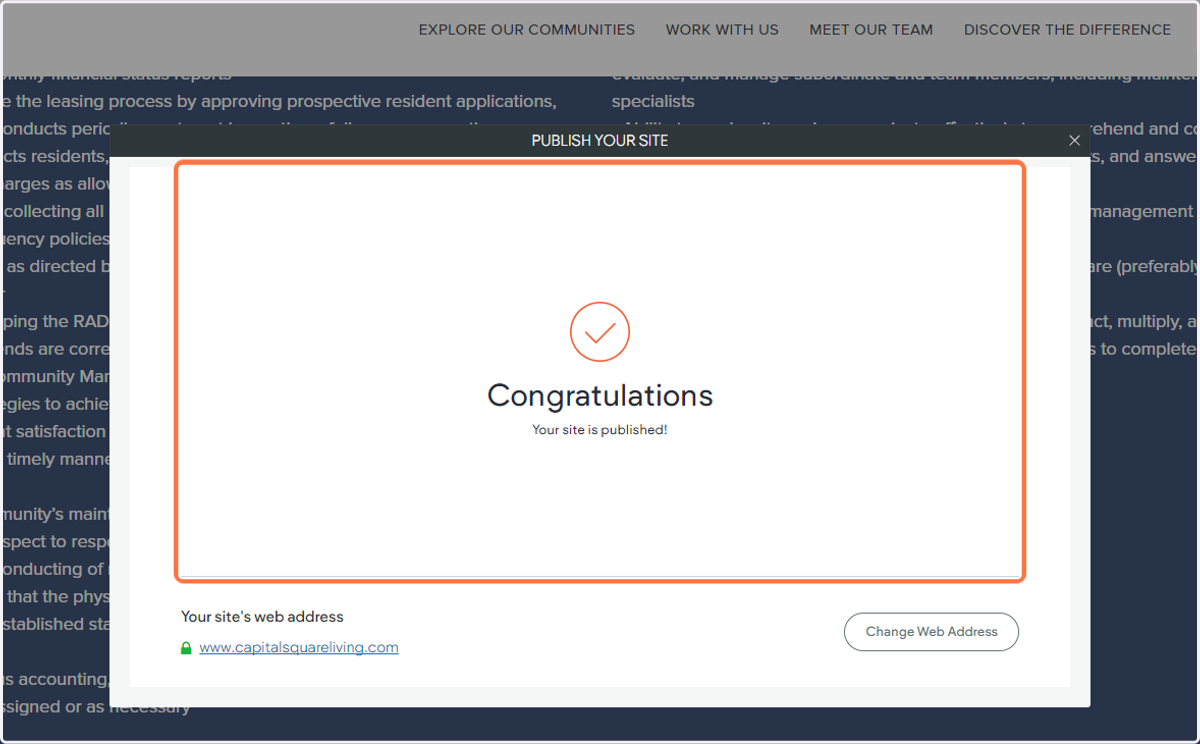
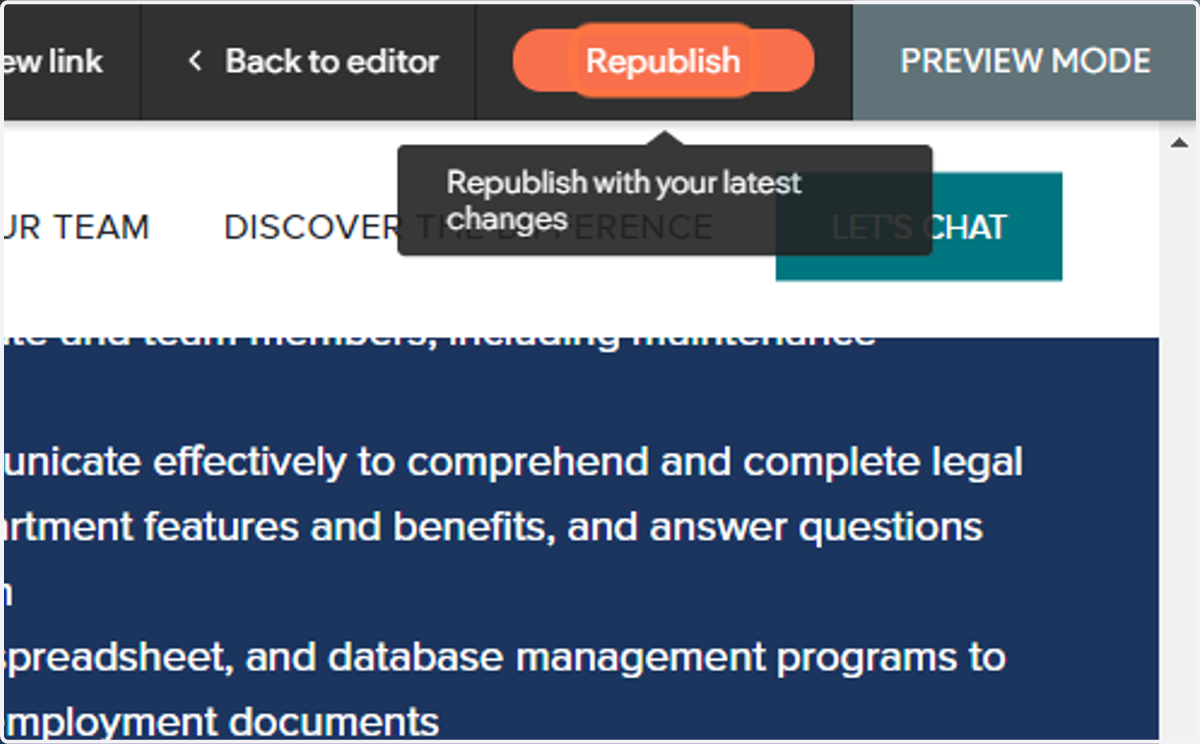
36. Click on Republish
37. Congratulations you've added the position successfully!