How to Switch Exams
How to change products in the Test Prep App. This guide brings you to the sub category of the product you have purchased.
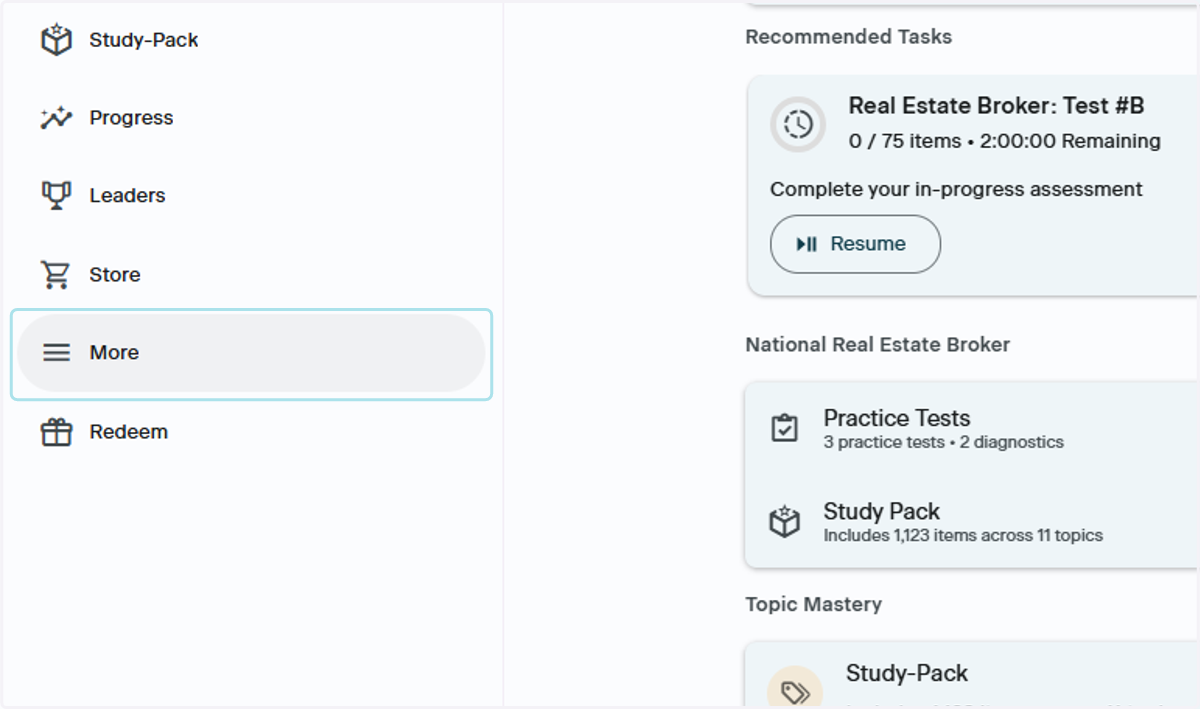
1. Use the More Button
Click the More button in the lefthand navigation bar
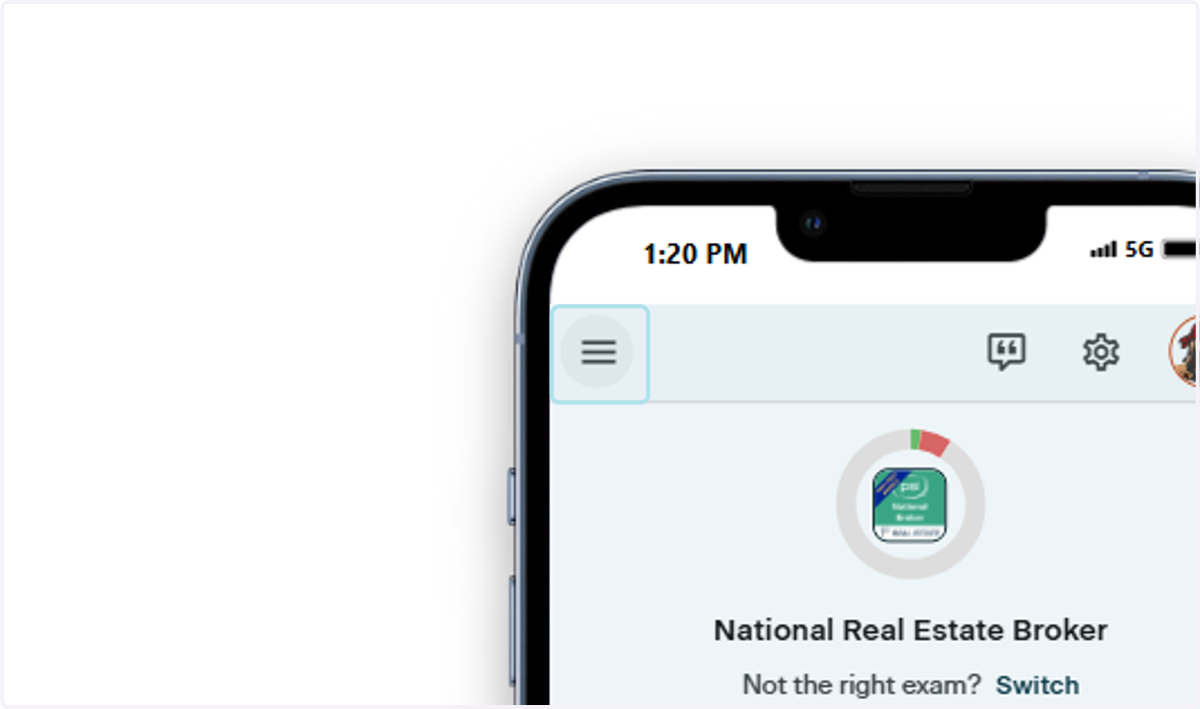
2. For Mobile Users
Navigate to the Hamburger Menu in the upper lefthand corner of your screen
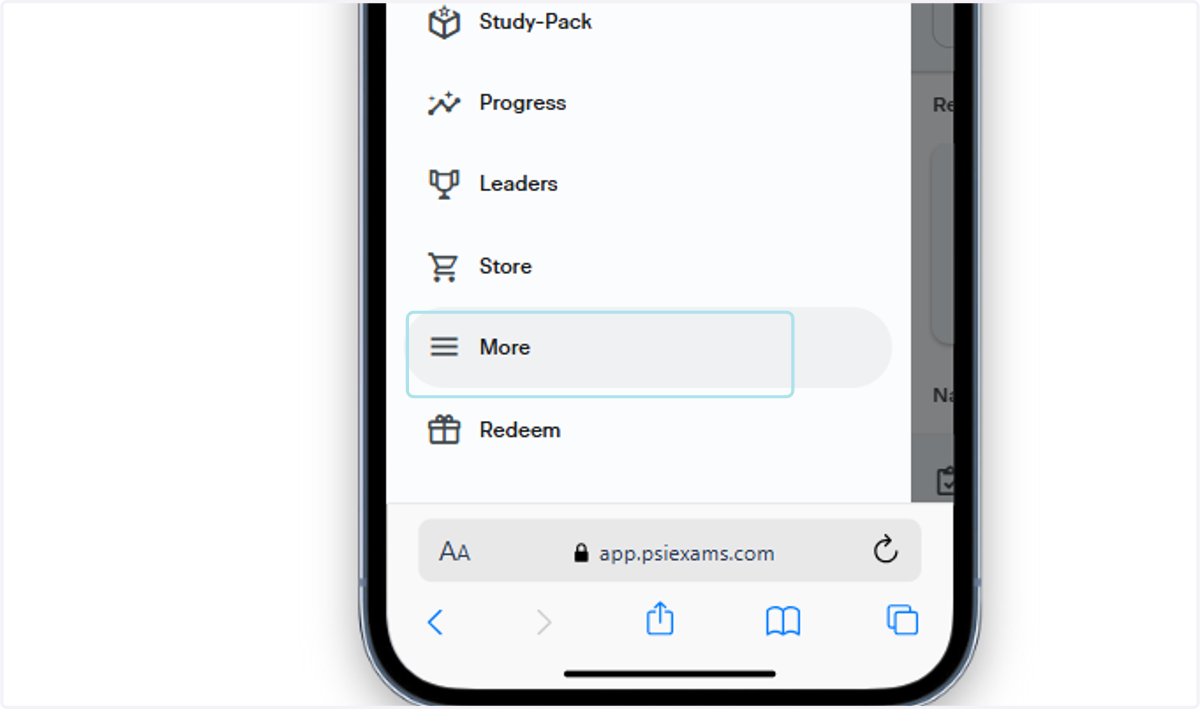
3. Click More
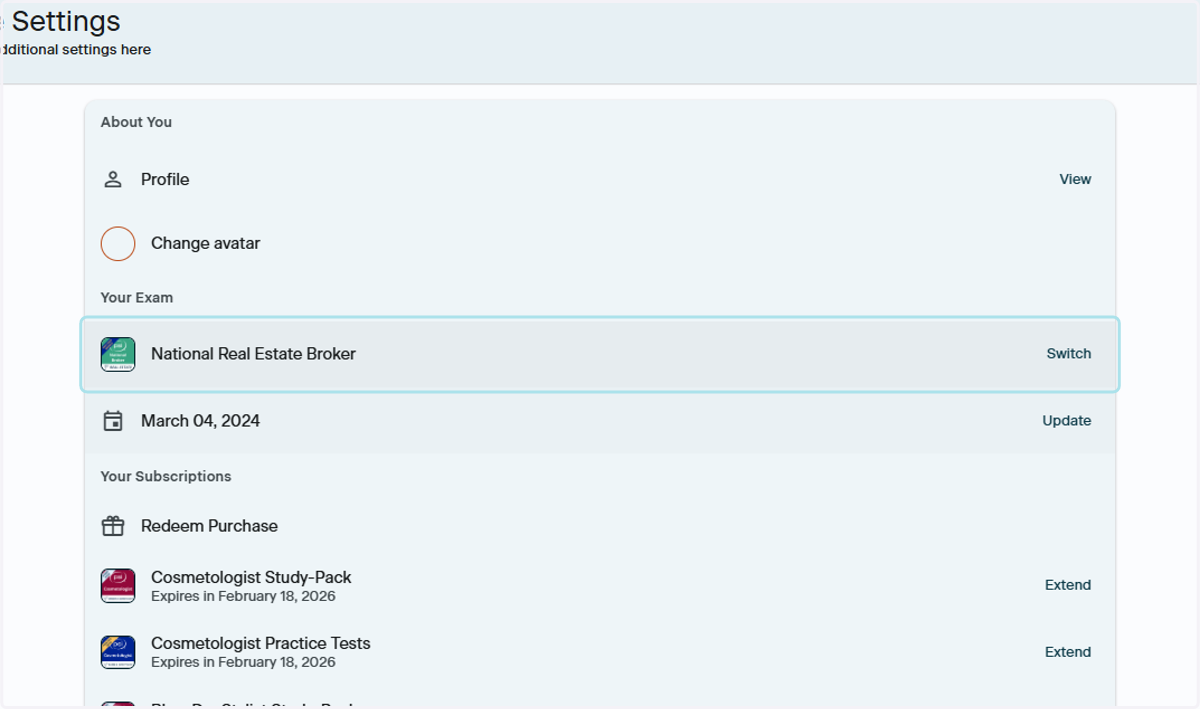
4. Click on Switch
Next to the name of the product you are currently on, click the word Switch
5. Find Your Product
Once you have clicked Change Exam, you can type the name of your sub category into the Search for Exam to Switch to section.
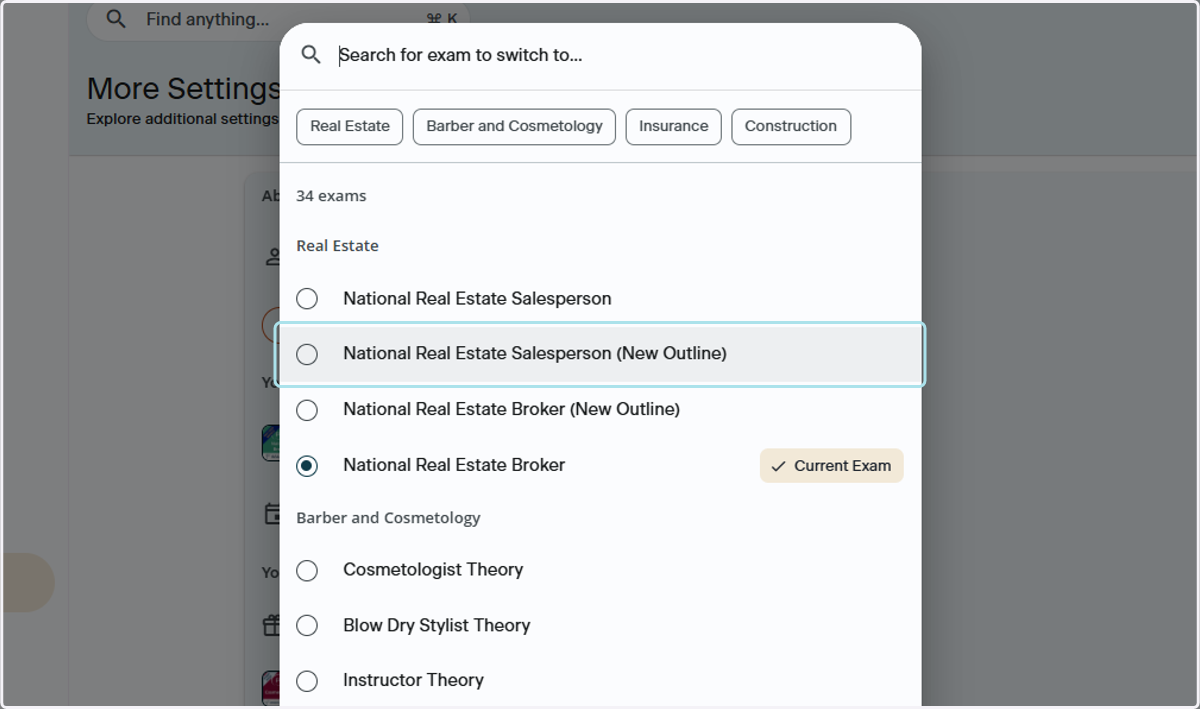
6. Type the Product Name
Begin typing the name of the product you would like to switch to
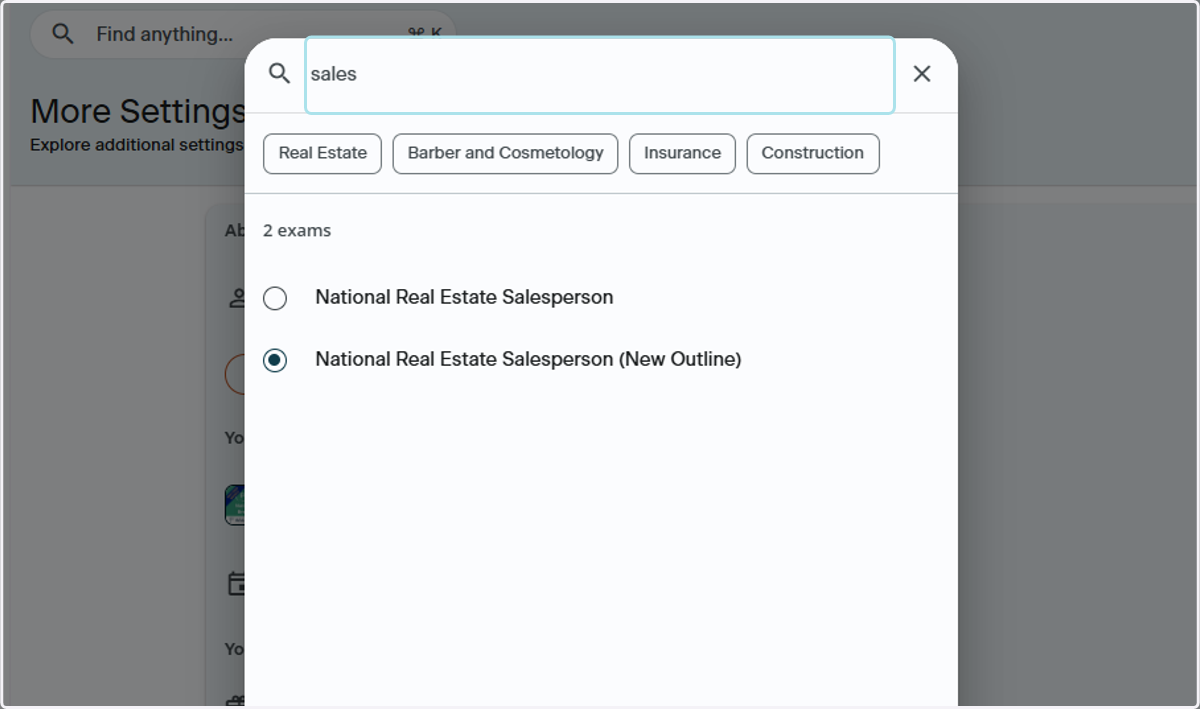
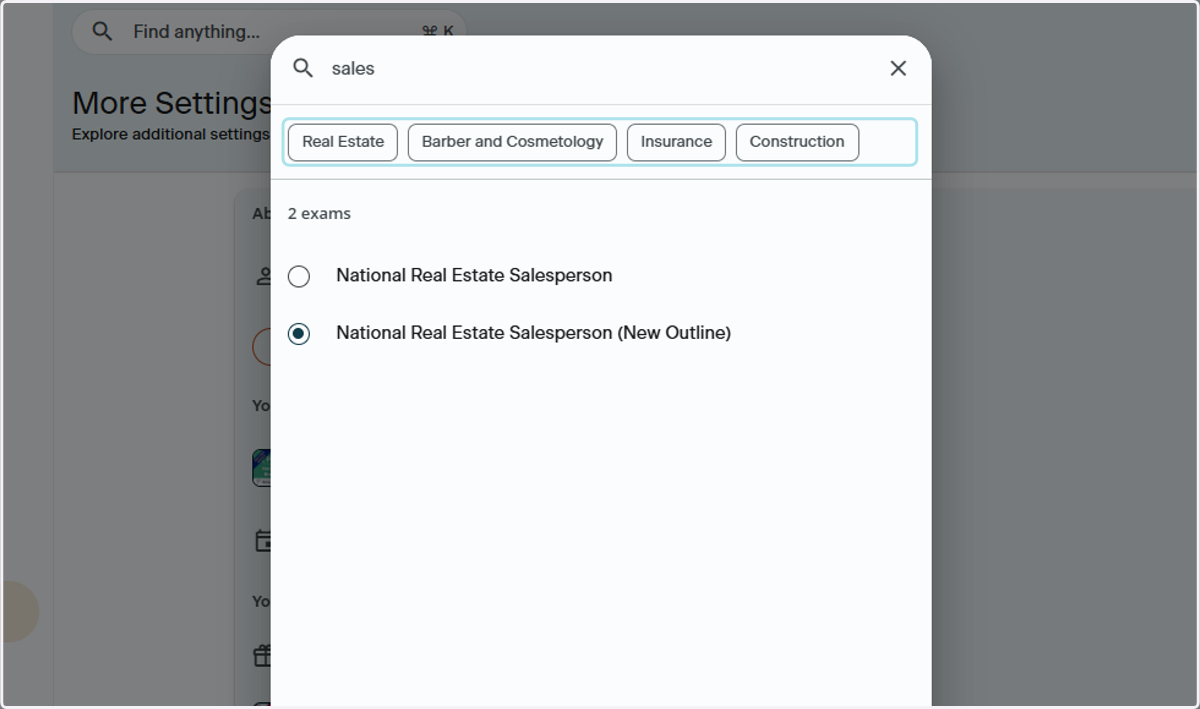
7. Select the Name of the Sub Category
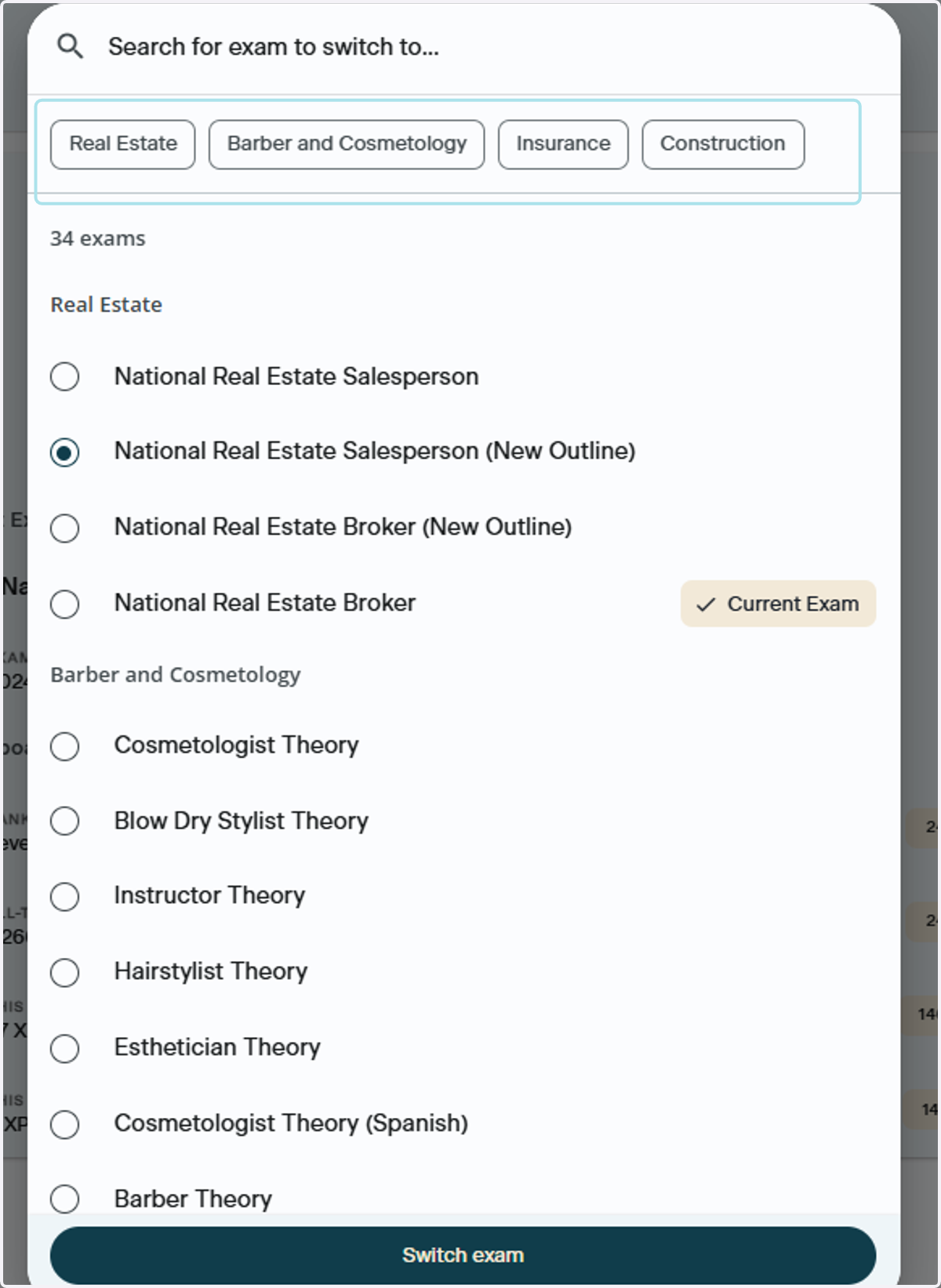
If you are unsure of the name or want to see every product associated with a particular sub category, click one of the sub category buttons to see all products.
8. Select the product
Once you have located the product you want to switch to, click off the bubble next to the name of the product
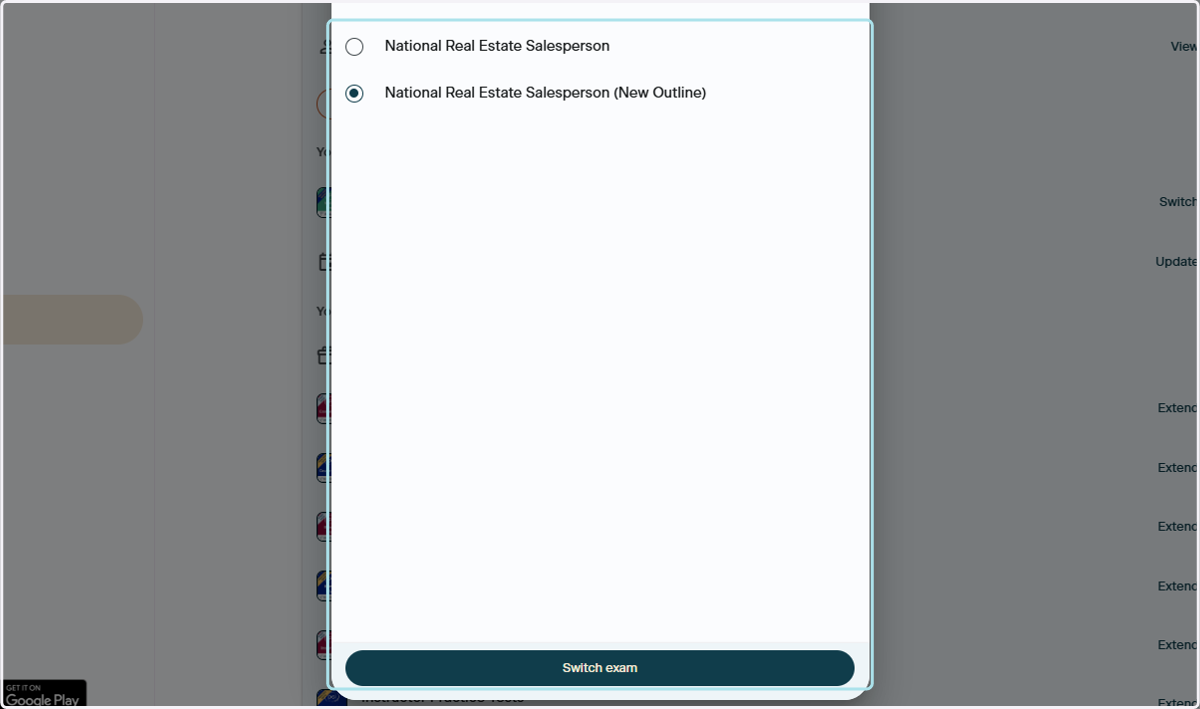
9. Click Switch Exam
Once you have finished clicking off the product, click Switch exam to make the switch to that product
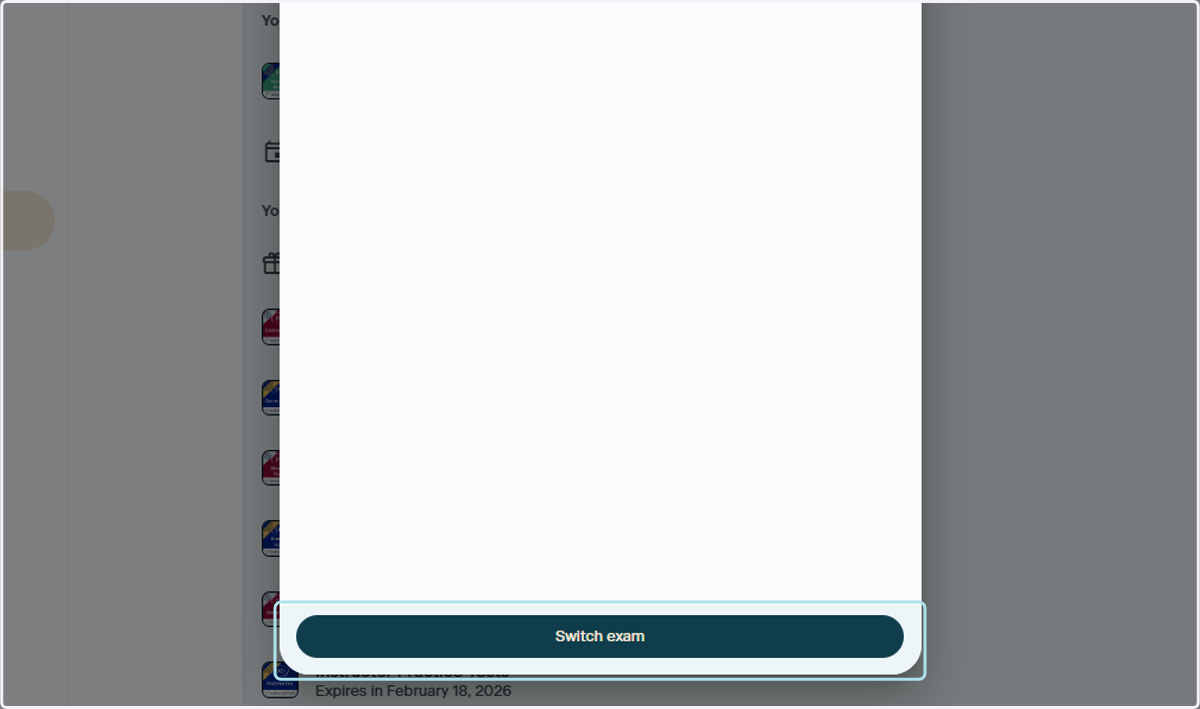
Using the Industry Navigation Buttons in Switch Your Exam
Once you have successfully located the name of the sub category of the product you would like to switch to, navigate to the bottom of the window and click Switch Exam
10. Select Your Industry and Sub Category
You may use the industry navigation buttons to locate the product you are looking for. This also shows what other products are available in that industry
Once you click the industry, the industry category will turn blue
The products associated with that industry will populate
Select the title of the sub category of the product you would like to switch to
Note: You can select more than one industry. If more than one industry is selected, all the products will appear for that selection. To deselect an industry, simply unclick it and it will no longer be highlighted.
11. Click Switch Exam
Once you have located the sub category of your industry and selected the product you want to switch to, click Switch exam.

Contact Support
12. Where to Contact Support
Go to your Account Settings by clicking the Gear icon in the upper righthand corner of the App and click Support. This will launch an email to the PSI Support Team, ptsupport@psionline.com
For help with:
Profile details
Order related issues
Access code assistance
Change username
Errors
Please be sure to take screenshots of any errors
Please include the following in your email:
First name
Last name
Email associated with your order
Order Number
Order Confirmation
Note: If you have made a purchase in-app, or through the App Store or Google Play Store, the PSI team will not be able to assist you with order related issues such as:
Copy of order confirmation
Refunds of purchases made through the App Store, Play Store or in-app