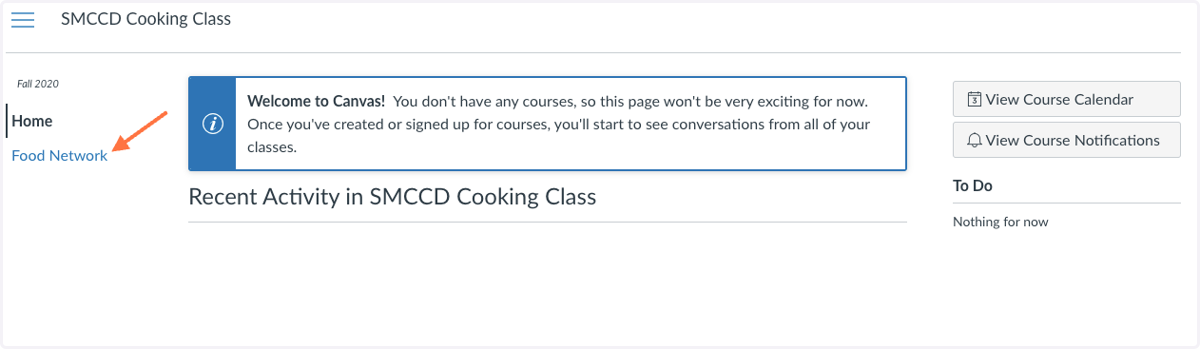
Adding an Custom Link to Your Course Navigation in Canvas
This tutorial walks through the steps to add a custom link to your course's navigation. These steps work for adding a link to an external website or to a page within Canvas that is not added to the course navigation by default.
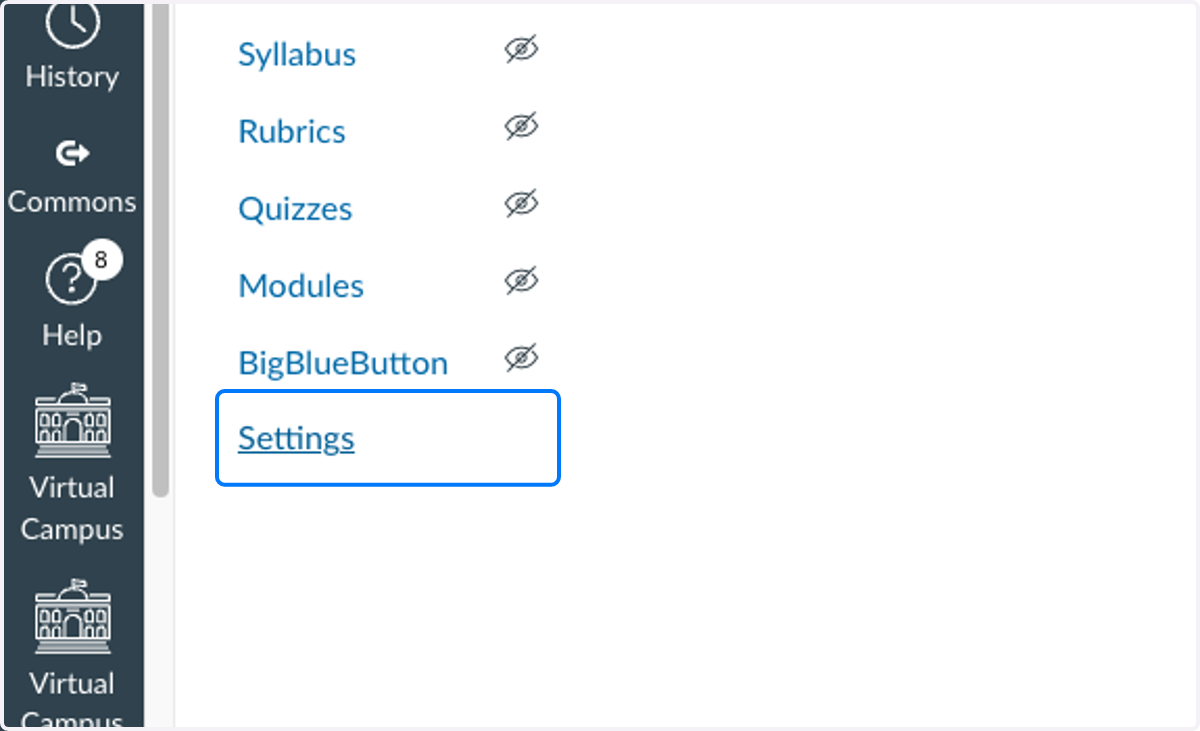
1. Click on Settings
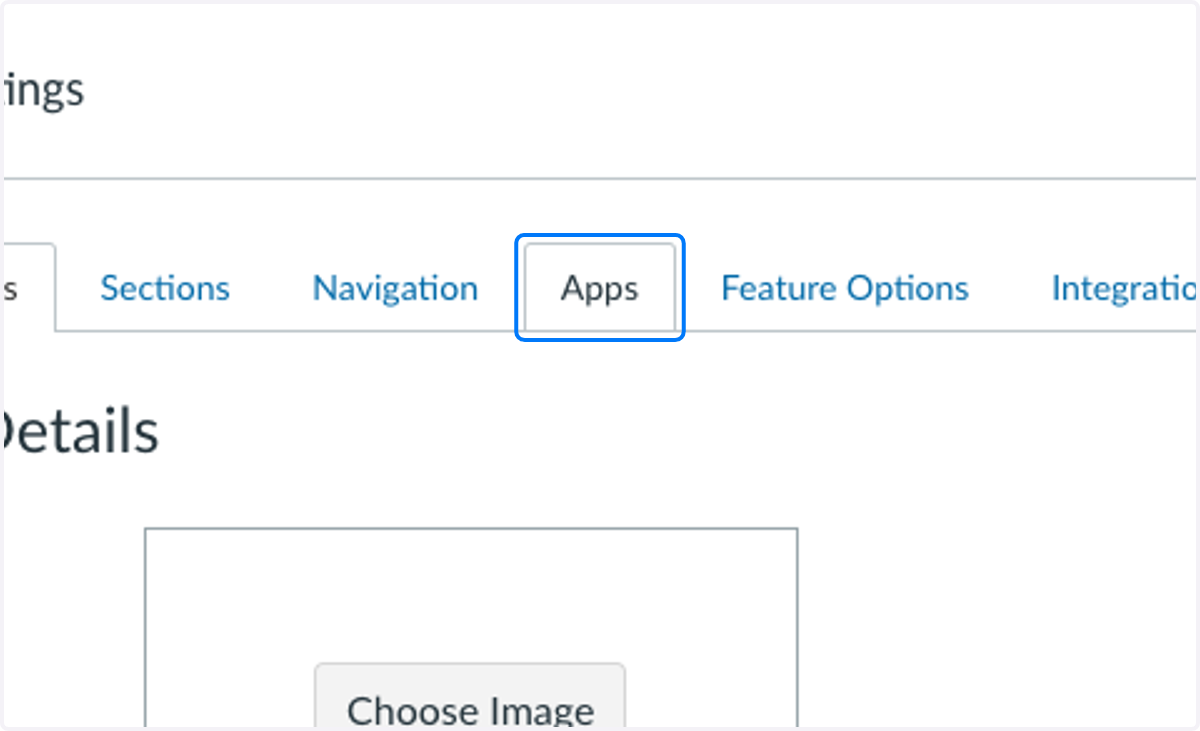
2. Click on Apps
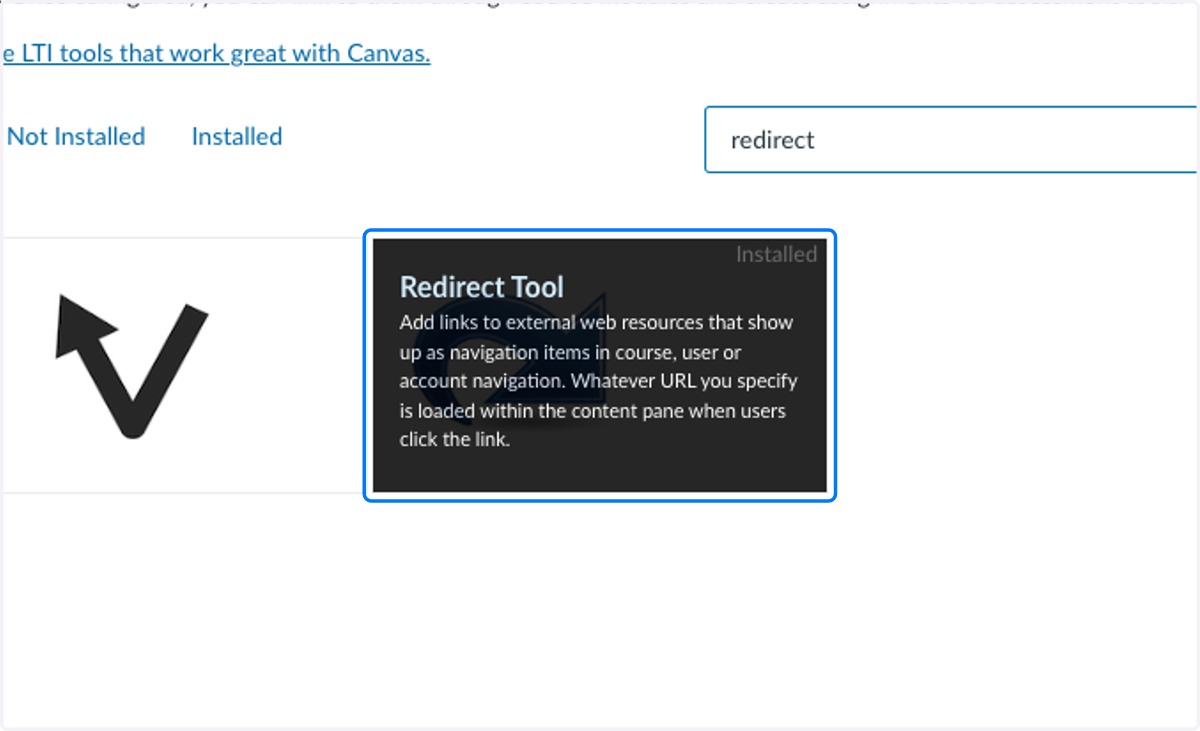
3. In the search bar, type "redirect"
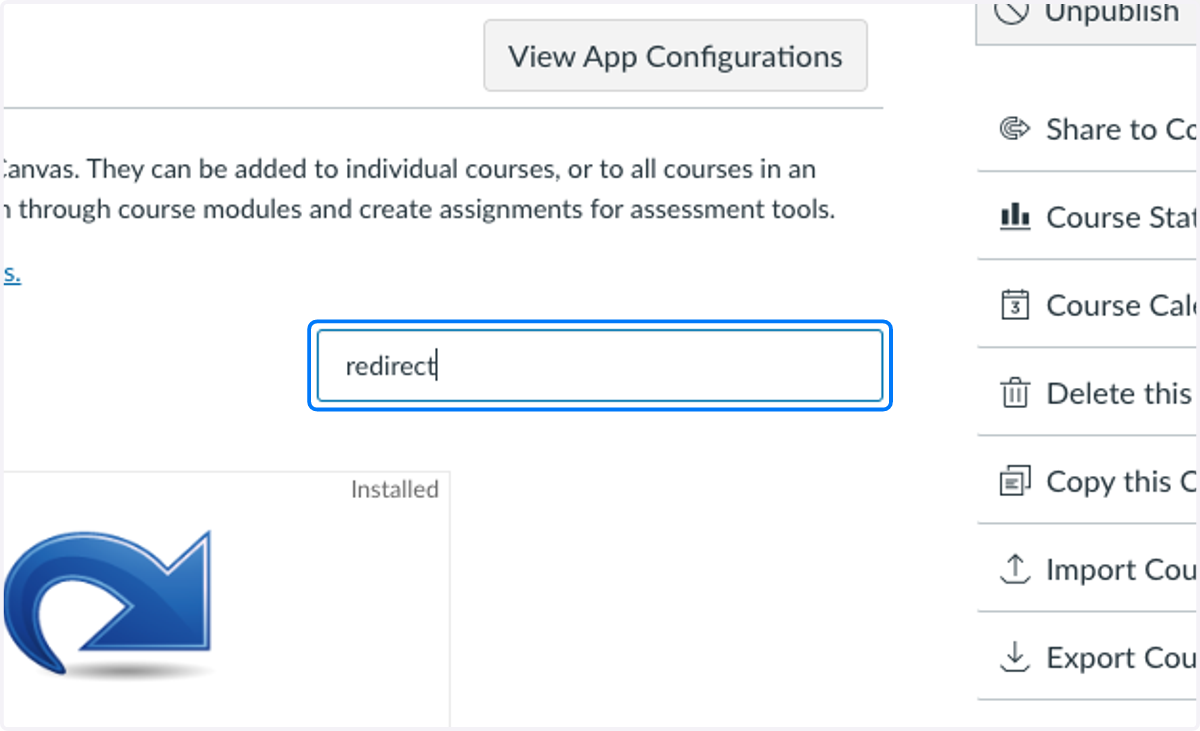
4. Click on the icon for "Redirect Tool"
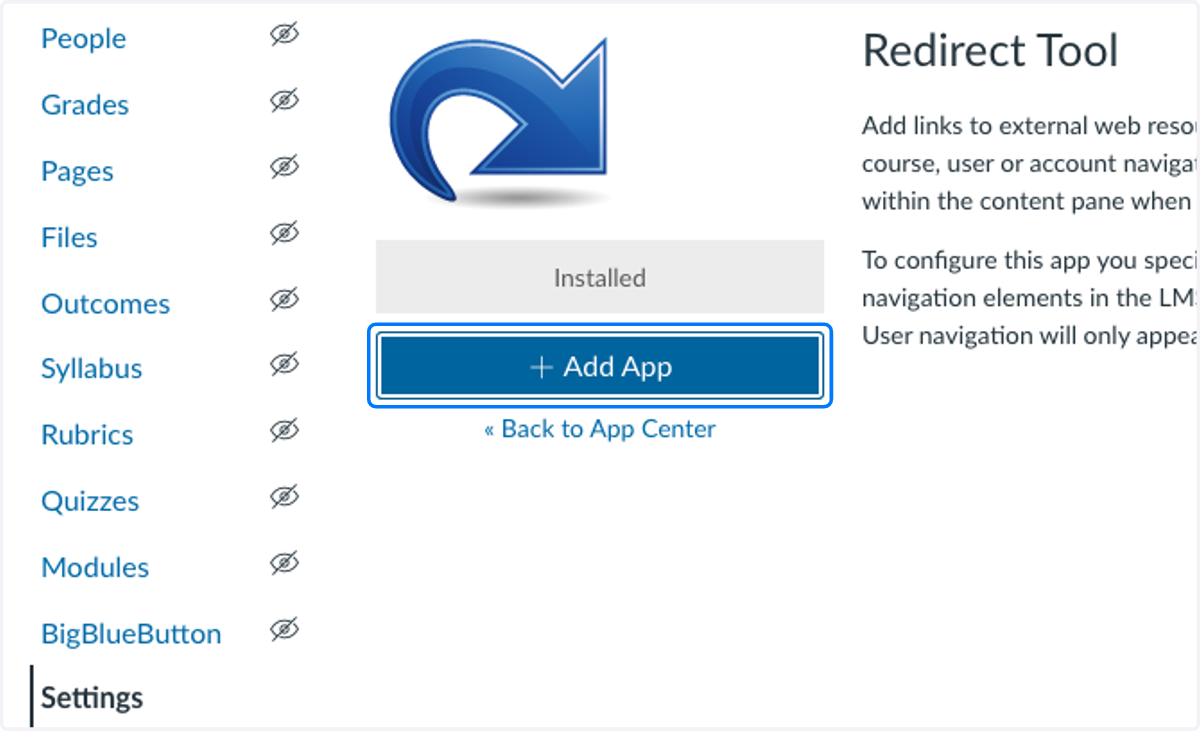
5. Click on "+ Add App"
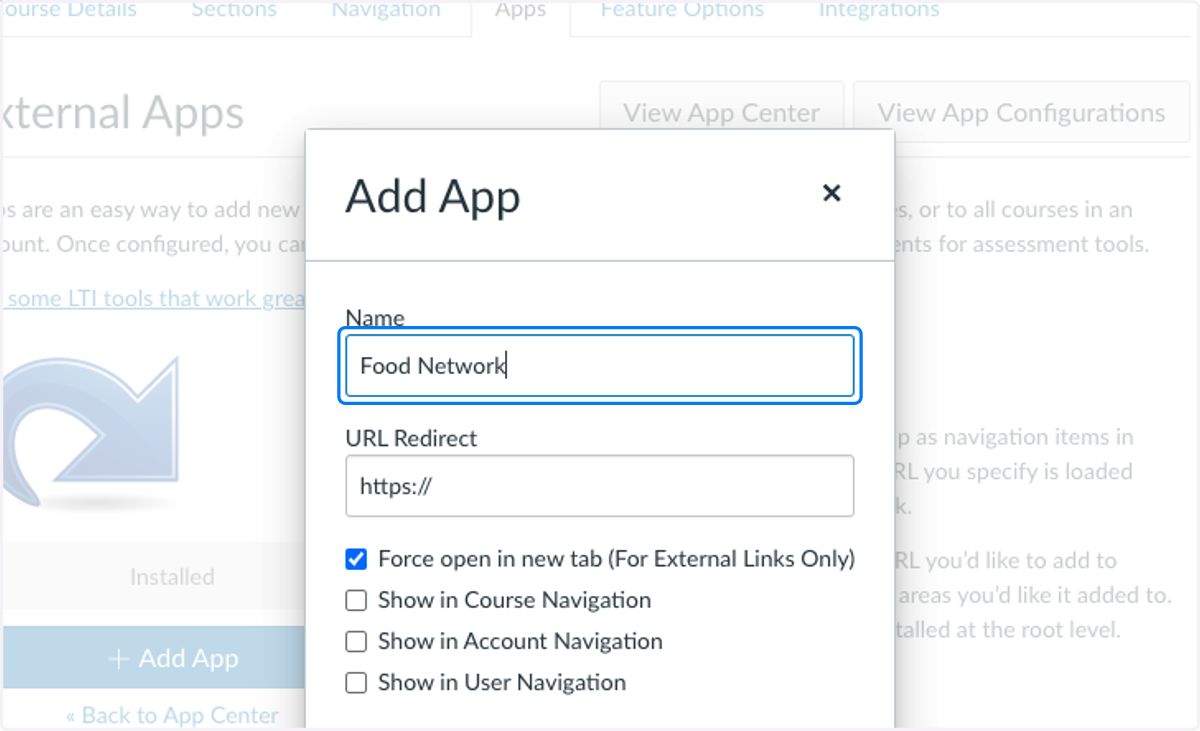
6. Change the name to whatever you'd like.
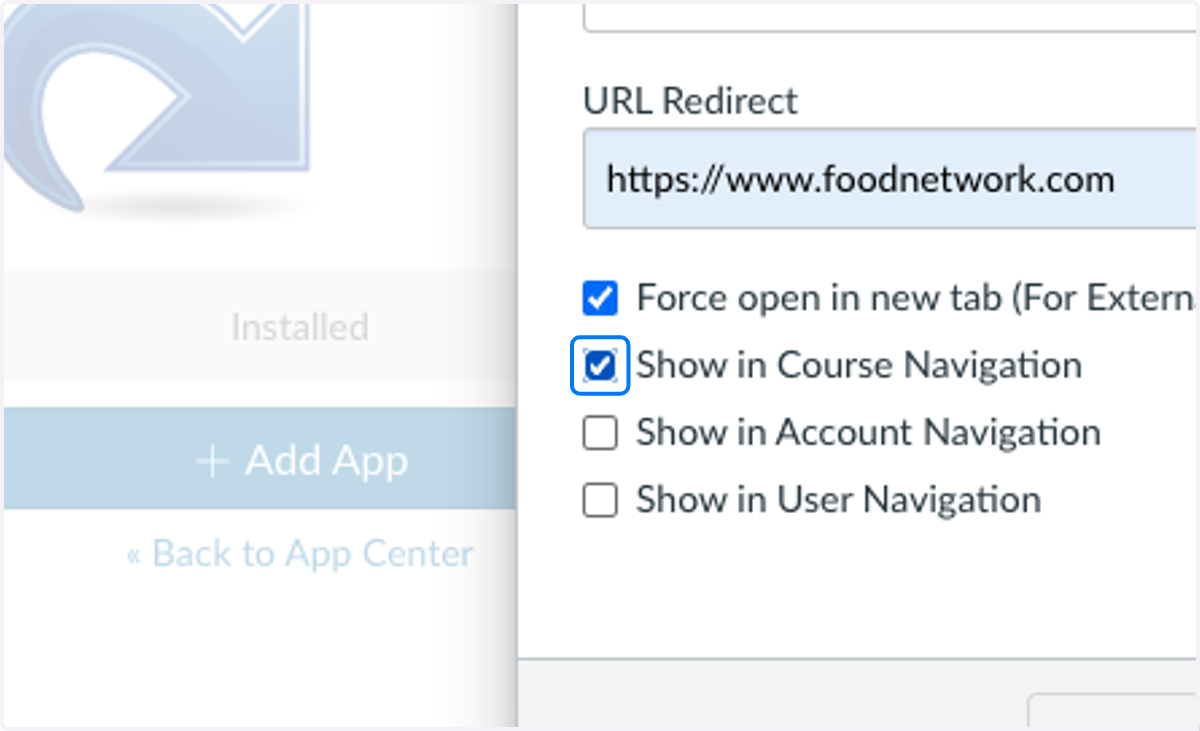
7. Insert the URL in the "URL Redirect" field. (note: this URL could be to a page on your Canvas course if you wanted it to be linked in the navigation)
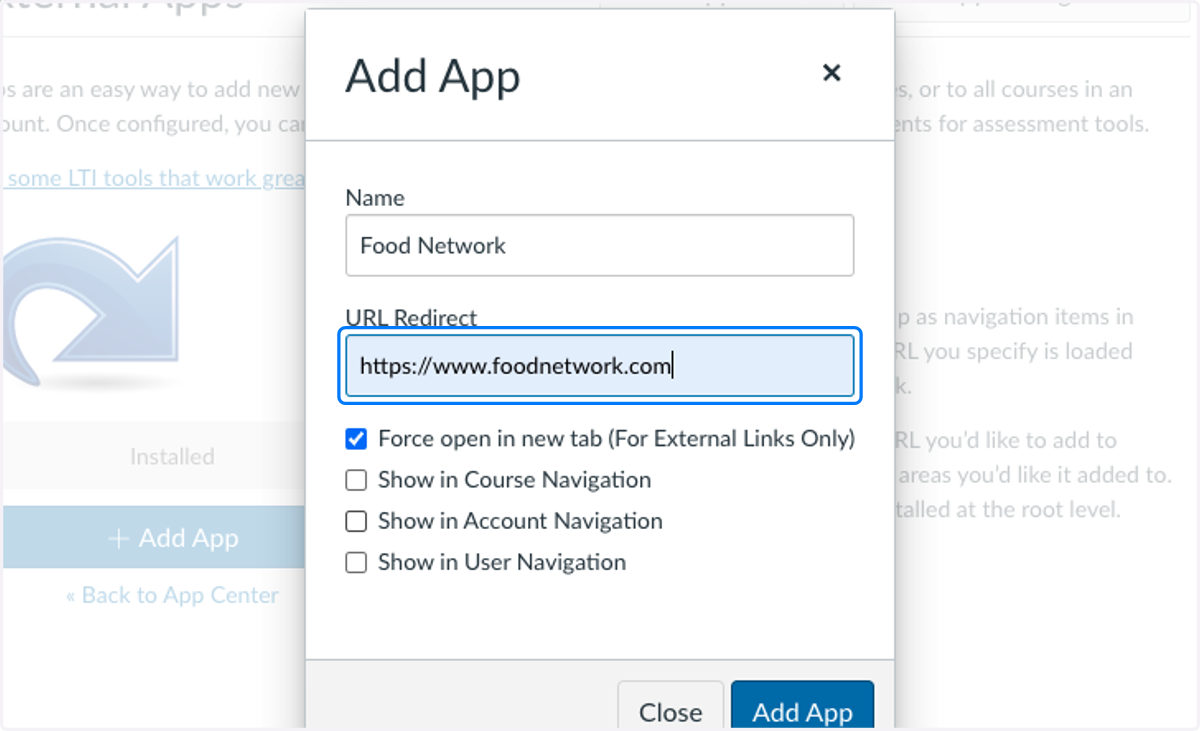
8. Check the box next to "Show in Course Navigation".
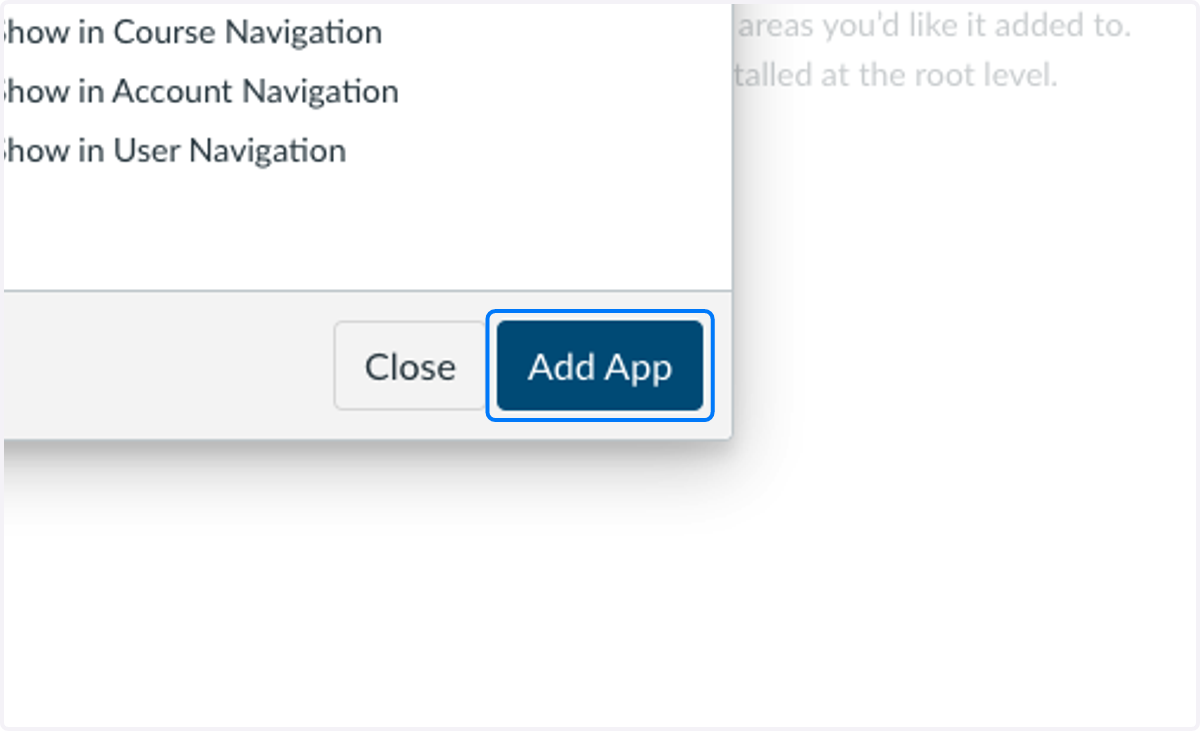
9. When you are finished, click on "Add App".
10. Now your link is in the course navigation and available to students!