Guest Account Setup - On-Demand
IITAP
Begin by going to https://iitap.com
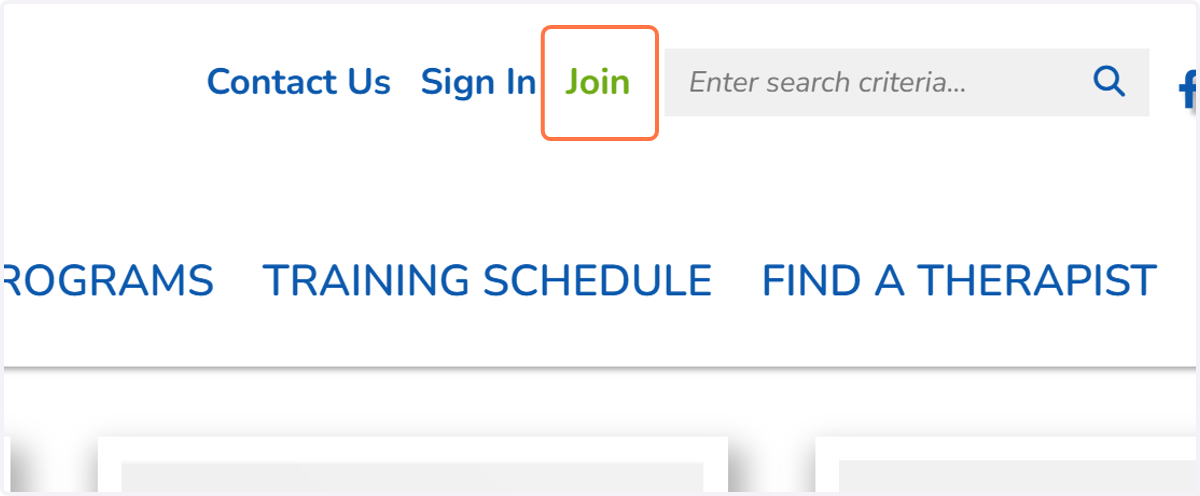
1. Click on Join
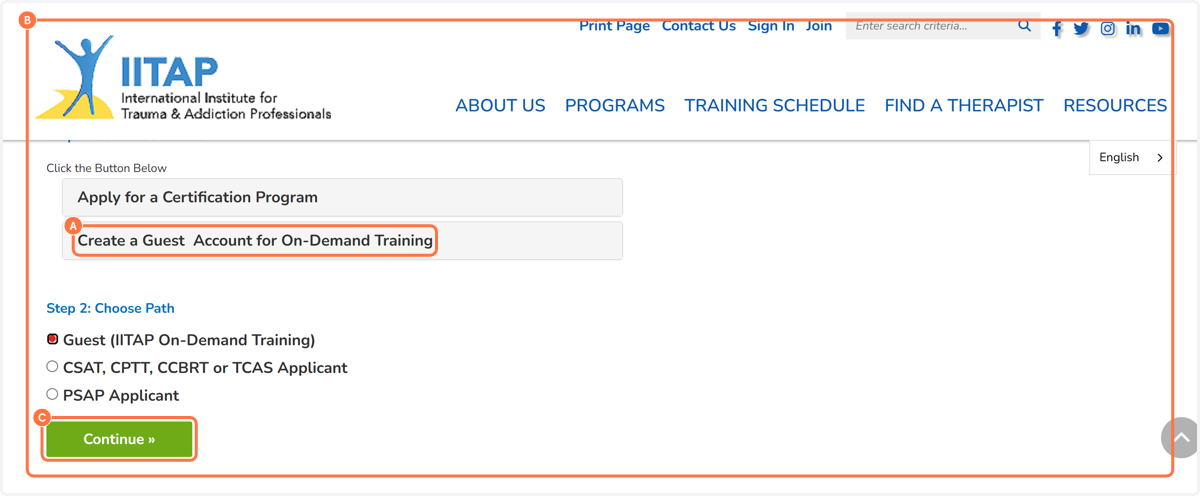
2. A. Click on Create a Guest Account for On-Demand Training
2. B. Select Guest
2. C. Click on Continue »
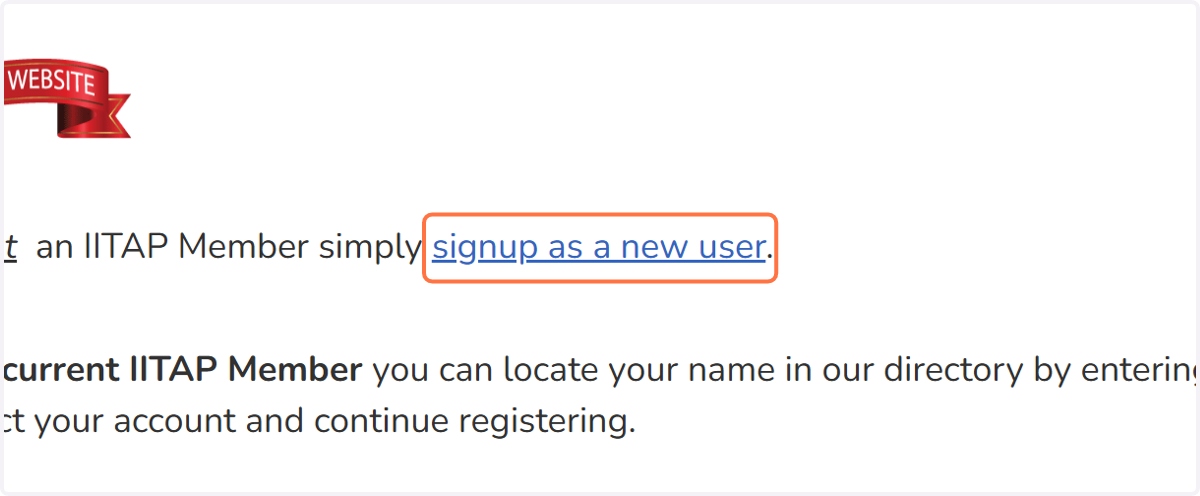
3. Click on signup as a new user
4. A. Type a username in text field
4. B. Type your first name in text field
4. C. Type your last name in text field
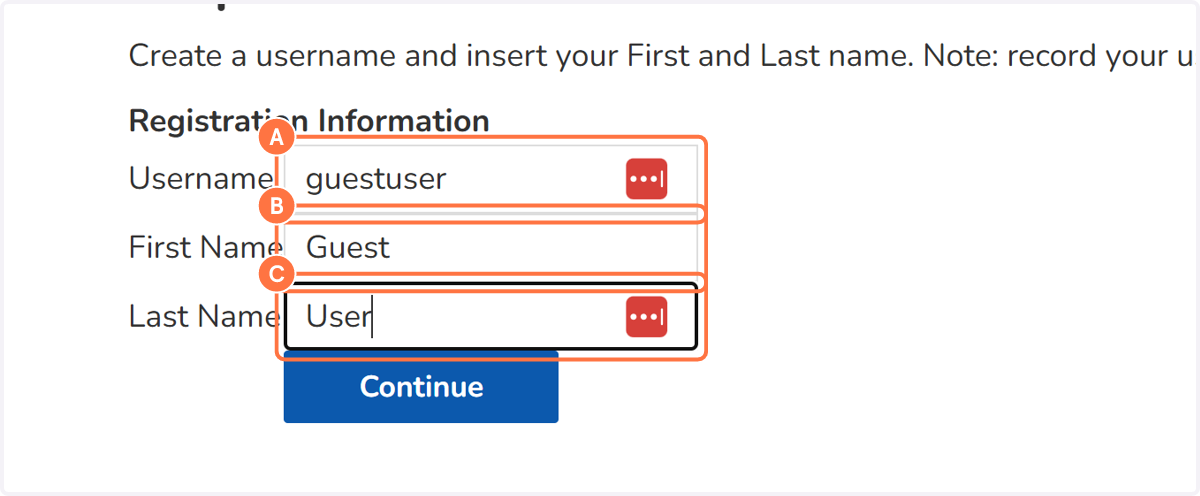
5. Click on Continue
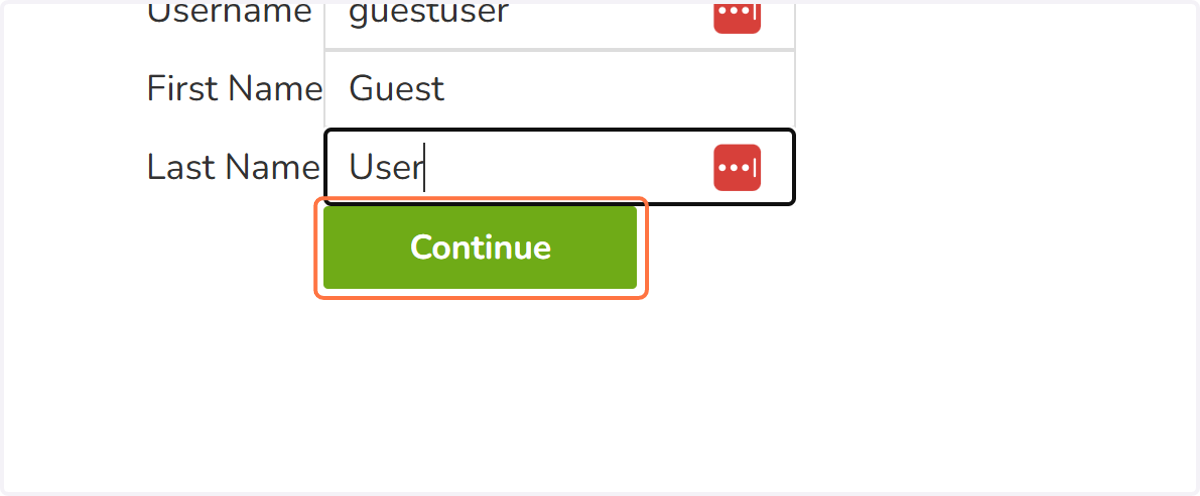
6. Type password
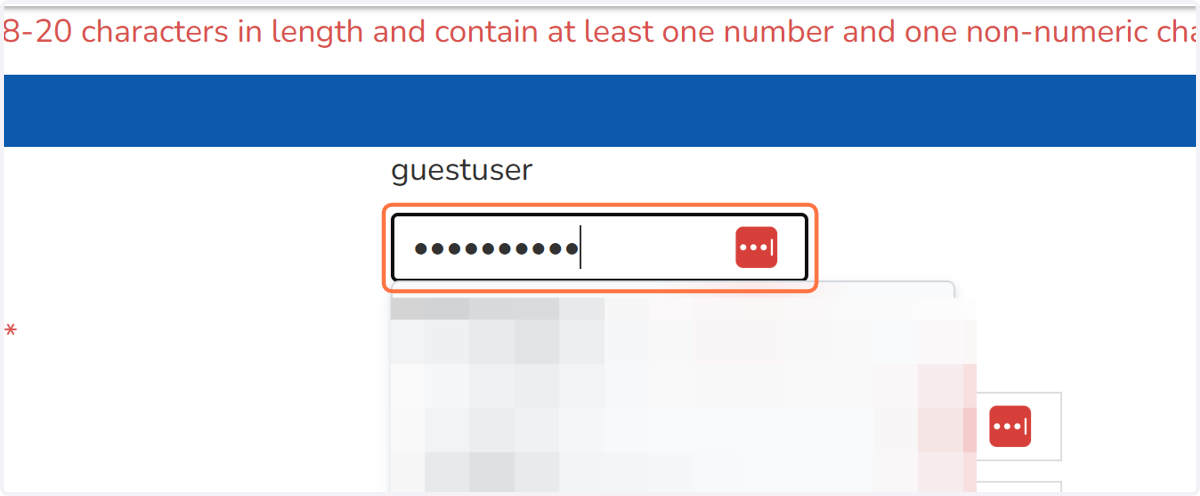
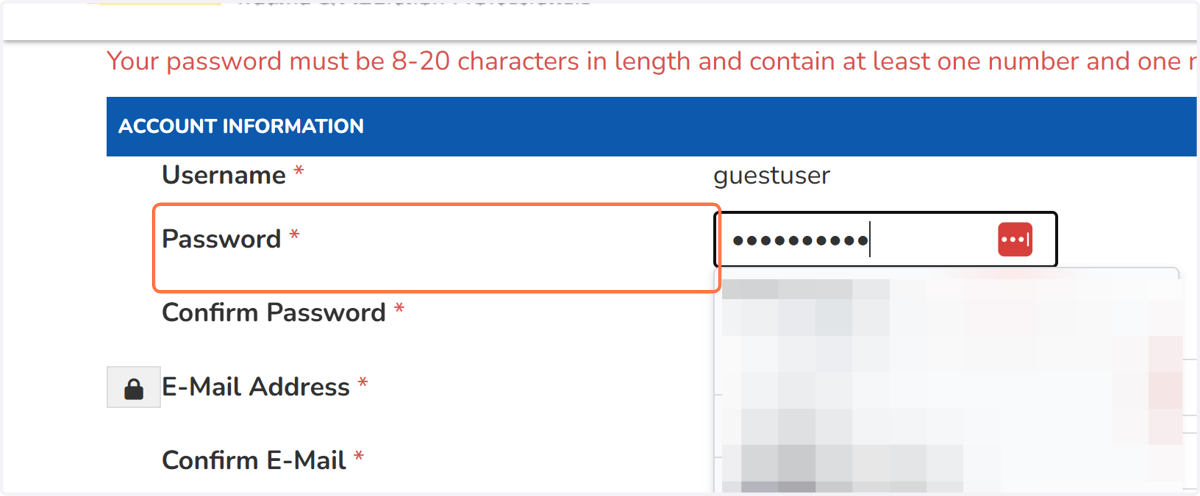
7. Click on Password
Create and Confirm a Password.
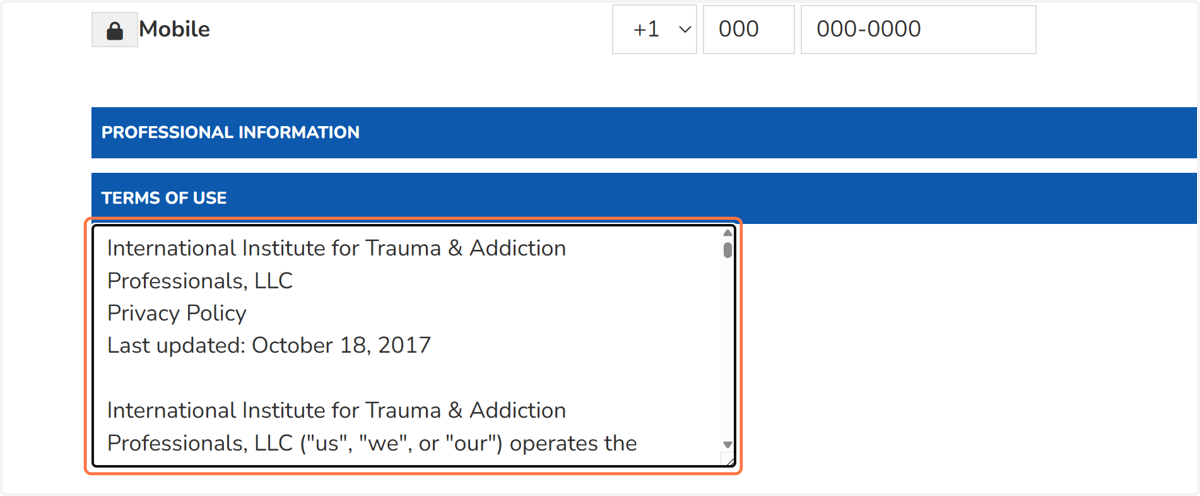
8. Read the Terms of Use
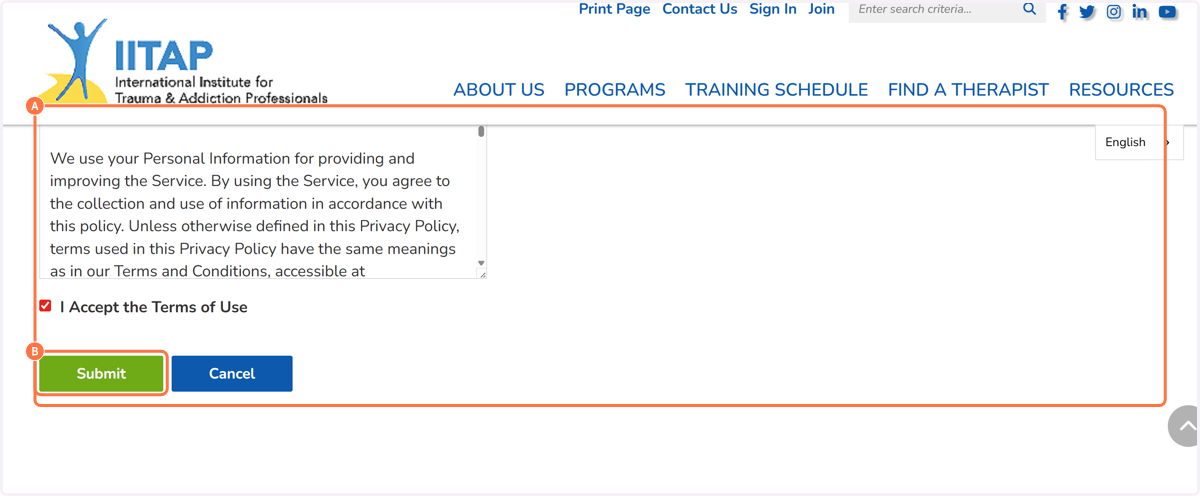
9. A. Select I accept the Terms of Use option
9. B. Click on Submit
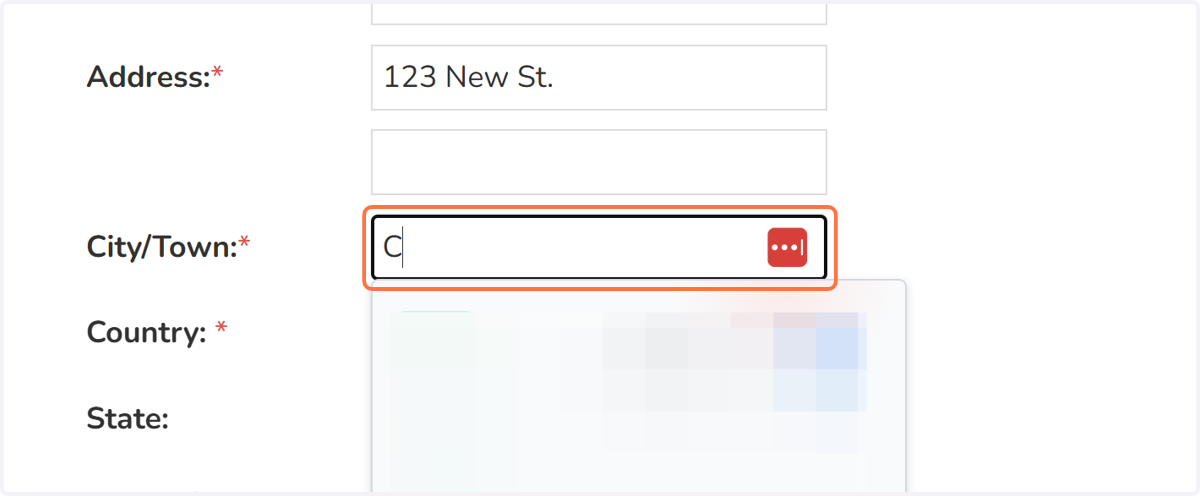
10. Fill out all "Required" text fields
Required fields are designated by a red * asterisk.
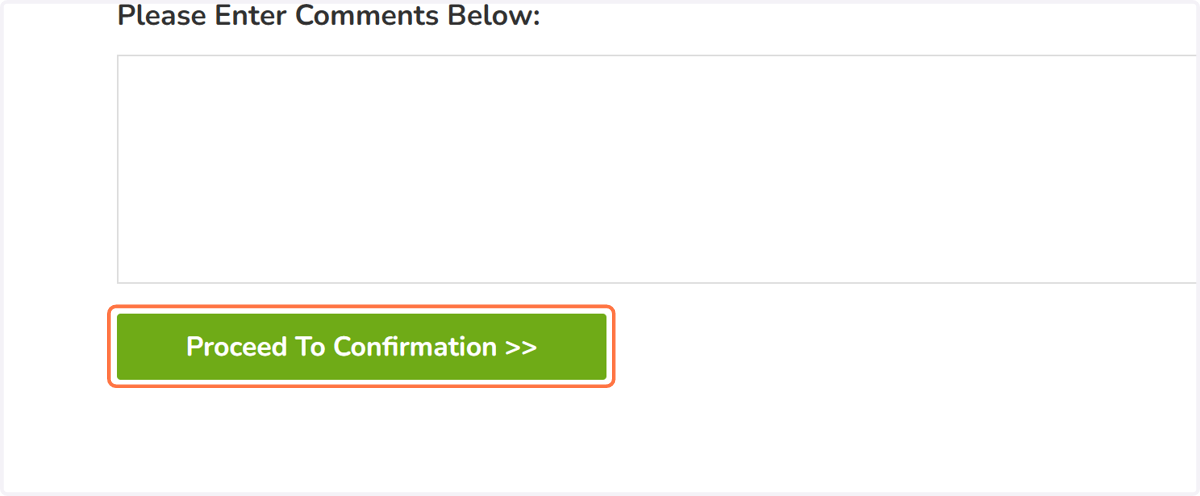
11. Click on Proceed To Confirmation >>
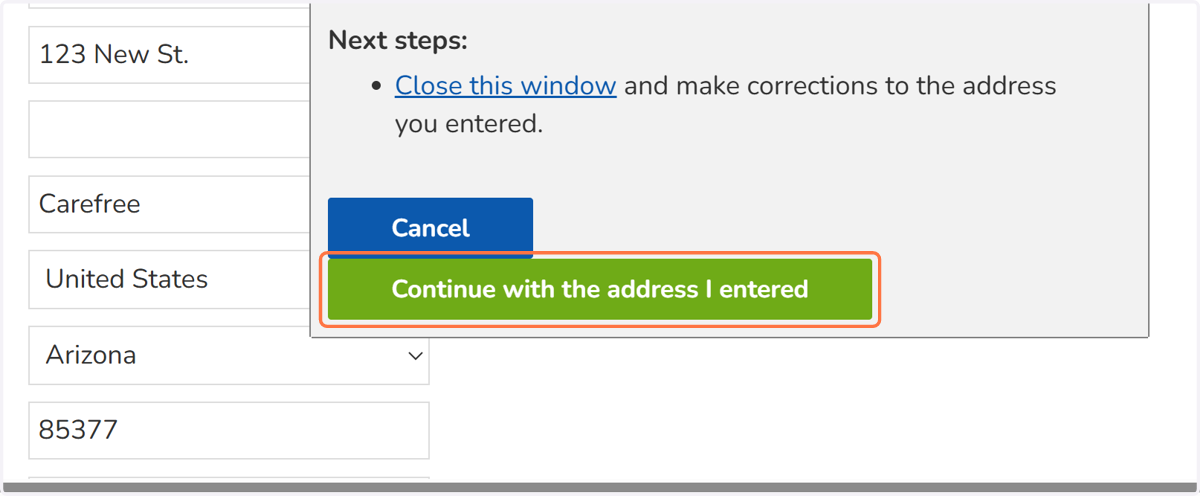
12. Click on Continue with the address I entered
13. Click on Complete Order
14. Click on View Invoice/Receipt
You can save or print your invoice.
Next, navigate to your email.
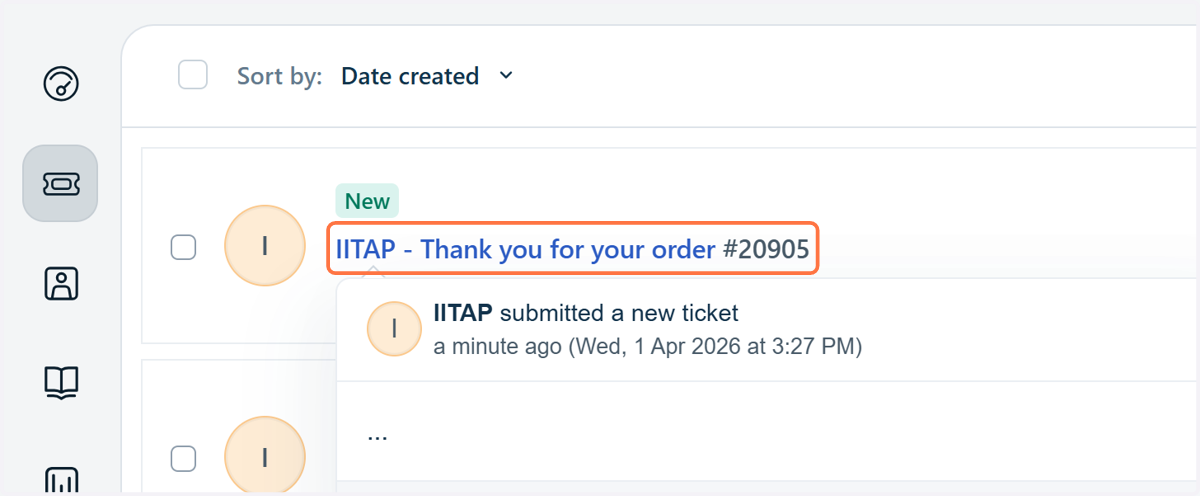
15. Click on IITAP - Thank you for your order #20905
The subject of the email is IITAP-Thank you for your order #number.
If you do not see it in your inbox please check your spam folder.
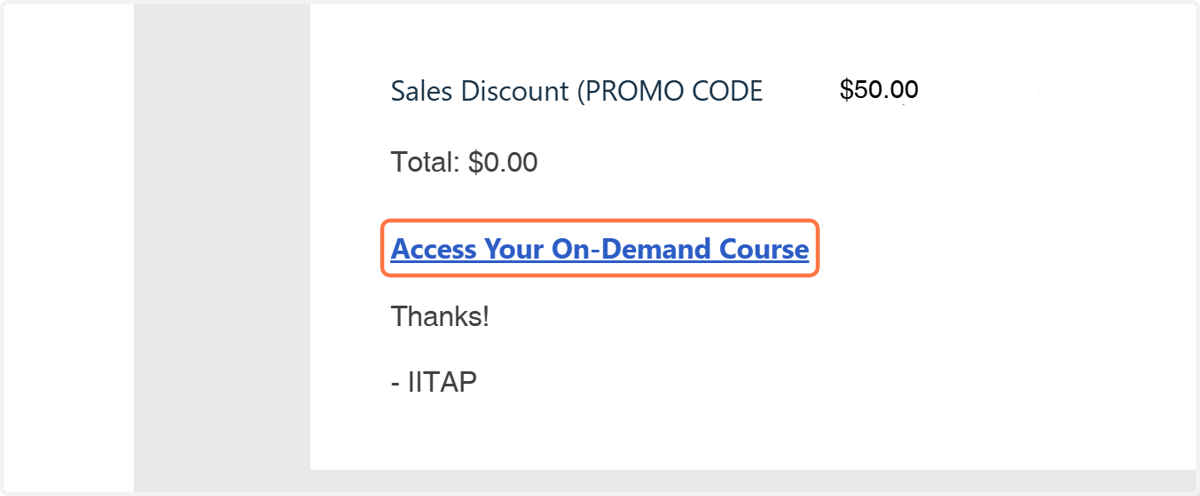
16. Click on Access Your On-Demand Course
pathlms.com
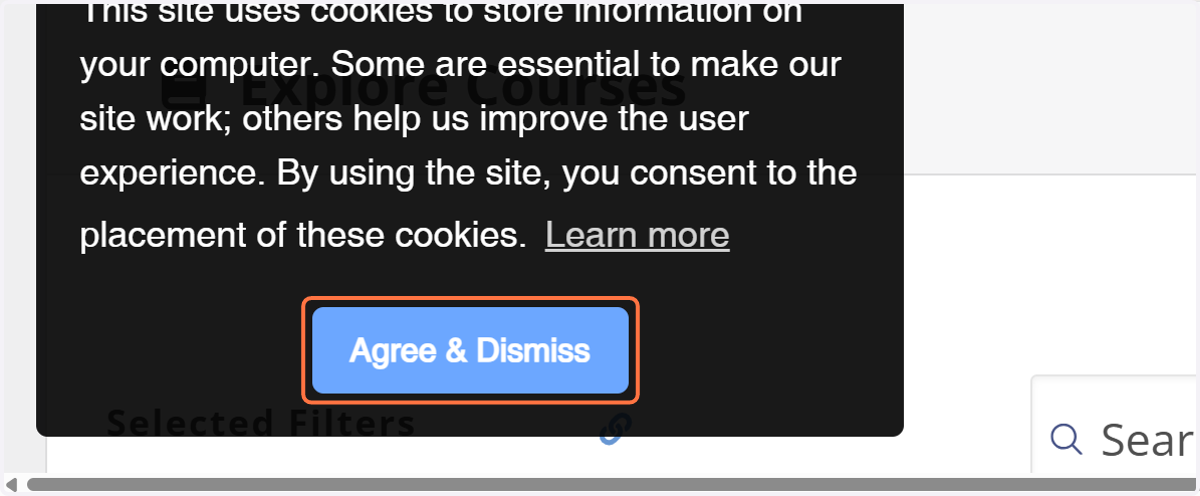
17. Click on Agree & Dismiss
You are now on the IITAP On-demand Training platform.
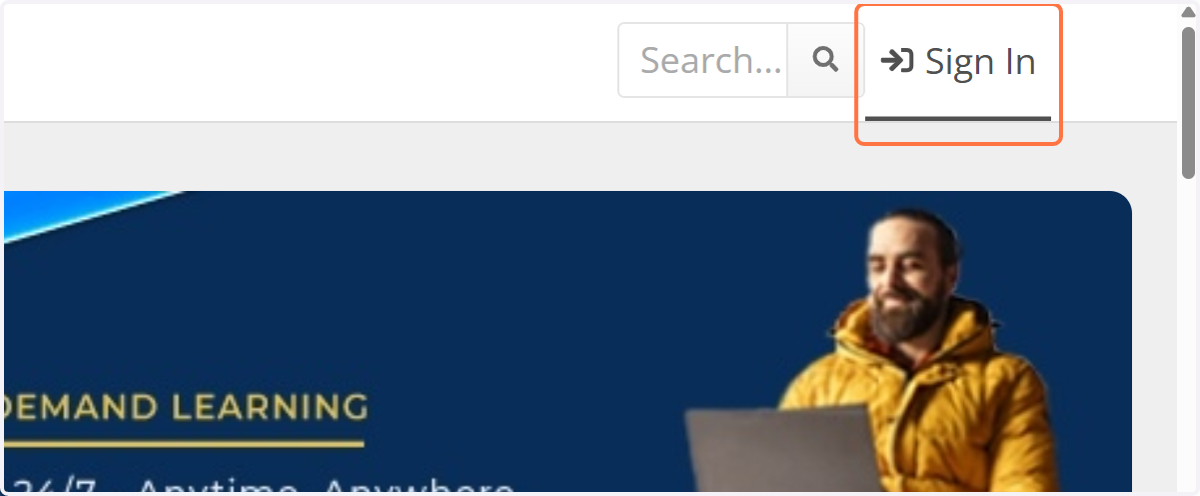
18. Click on Sign In
IMPORTANT! We must link your account on https://iitap.com and the account on the training platform to allow you access to your on-demand training. Each time you want to access your on-demand training make sure you do this step!
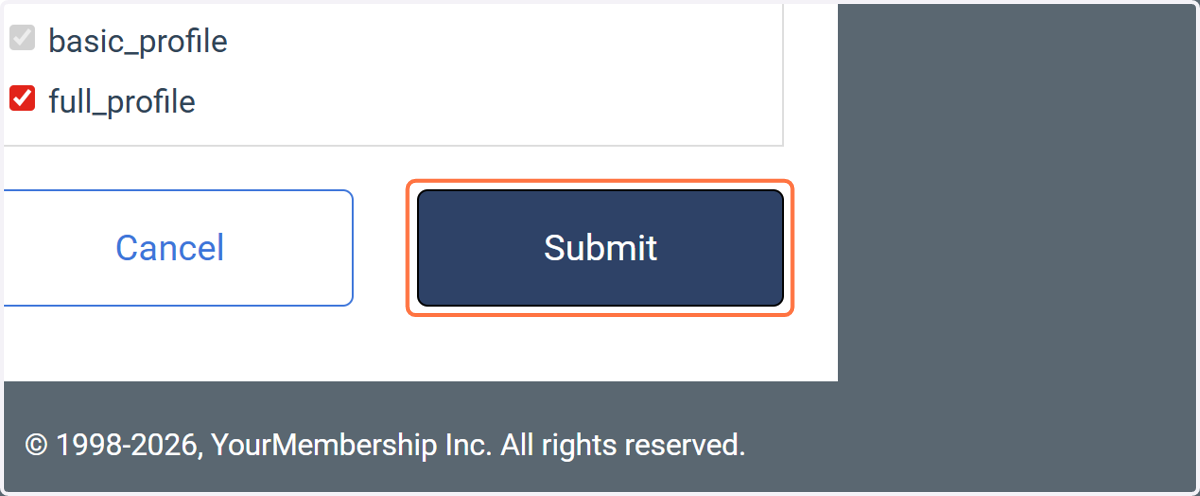
19. Click on Submit
This is where the link happens between the two accounts. Usually, you will see this screen the first time you link your accounts together. This is how the On-demand
International Institute for Trauma and Addiction Professionals
20. Click on the course you purchased.
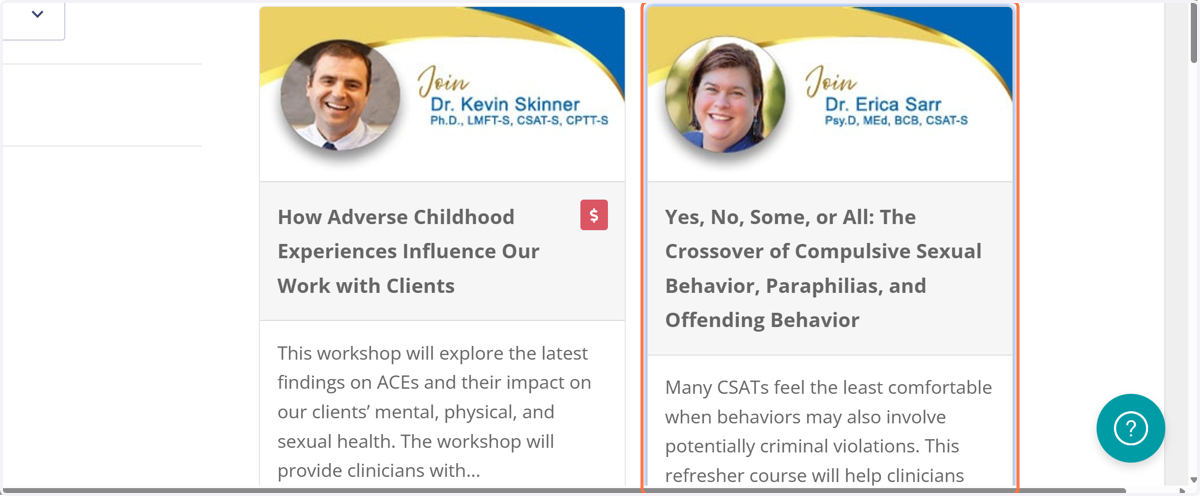
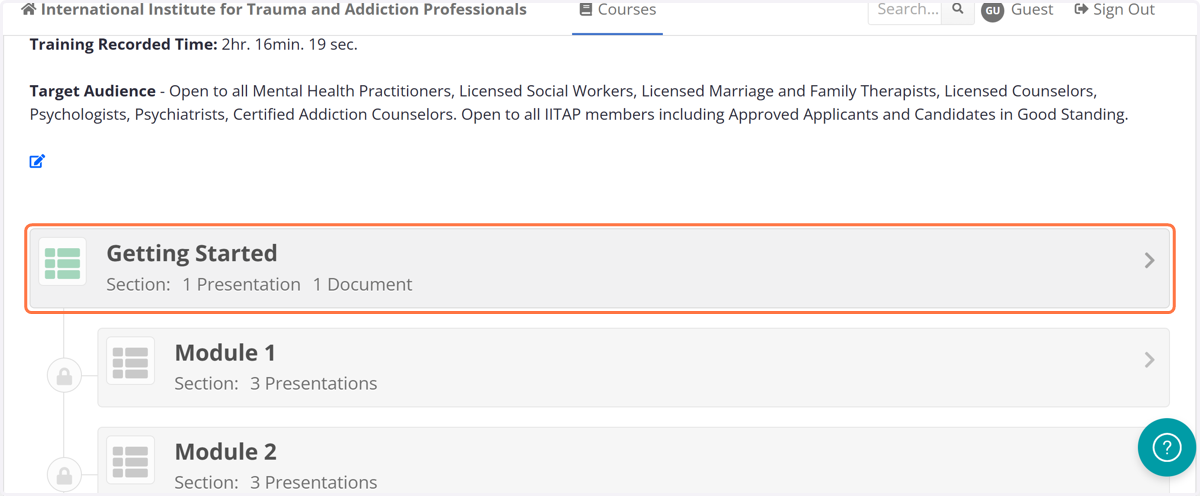
21. Click on Section - Getting Started
Follow the instructions. Videos are in sequential order. Download all materials. There will be a survey and quiz at the end. You can print out your certificate if you have passed the course with a 70% or better.