Customisation
IRM Help Centre
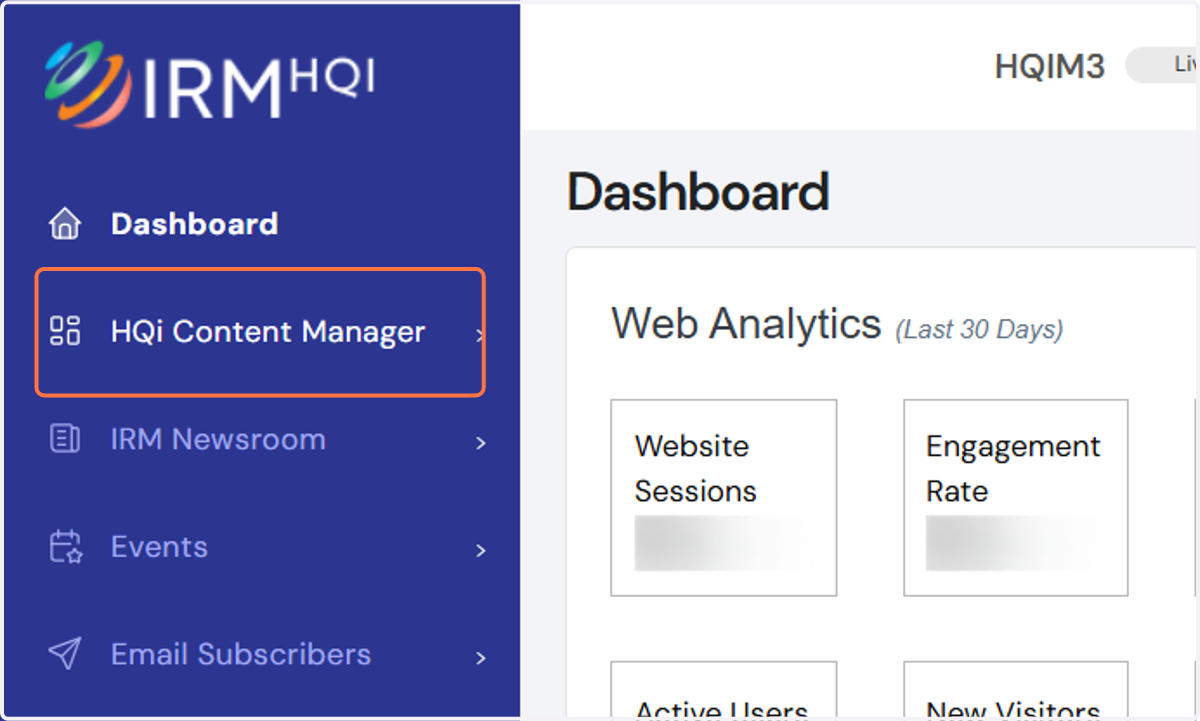
1. 1. On your HQi dashboard, hover to the "HQi Content Manager" section
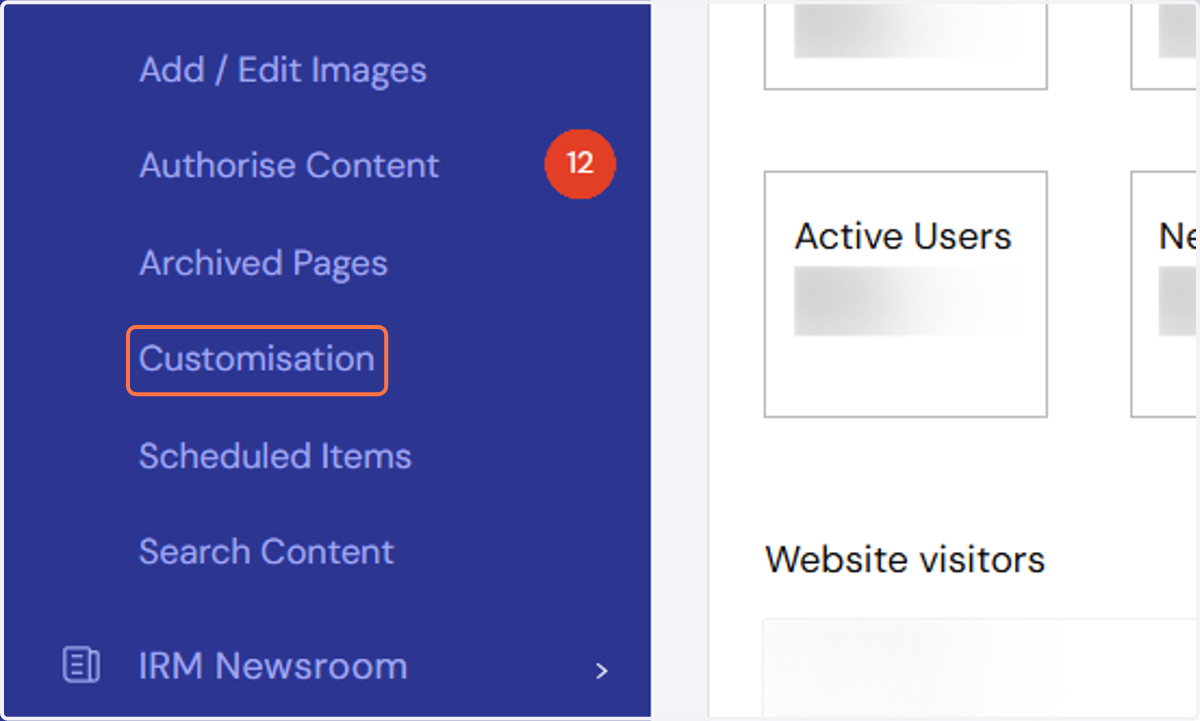
2. Click on Customisation.
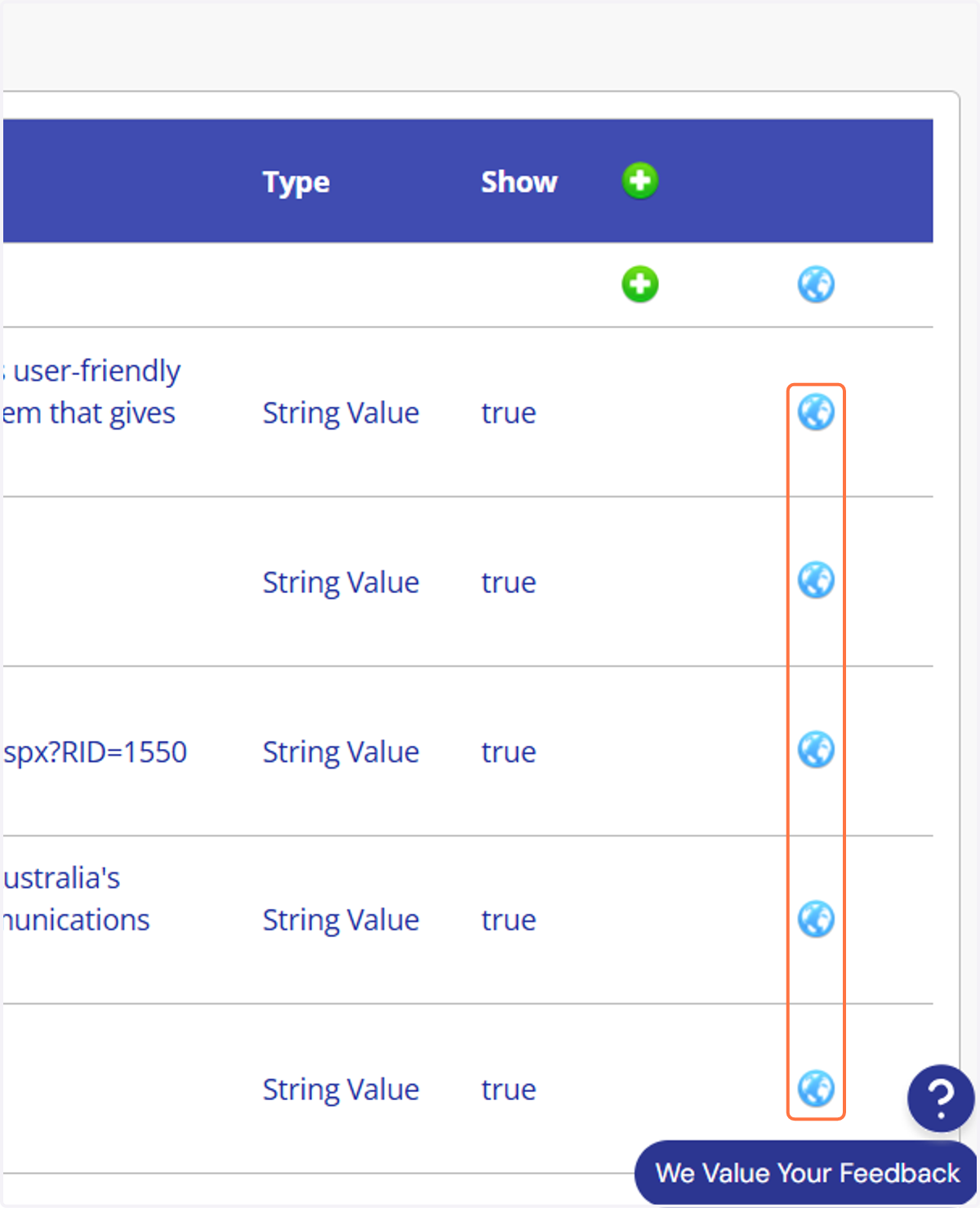
3. 2. From there, you'll see a list of all things on your home page. By clicking on the blue-world icon next to the element you want to edit, you can change the image or text on that section.
The example below shows the home page banner or slider images, headings and sub-headings are highlighted for editing.
4. 3. To change banner or promo box images, select the "Upload/Select Image".
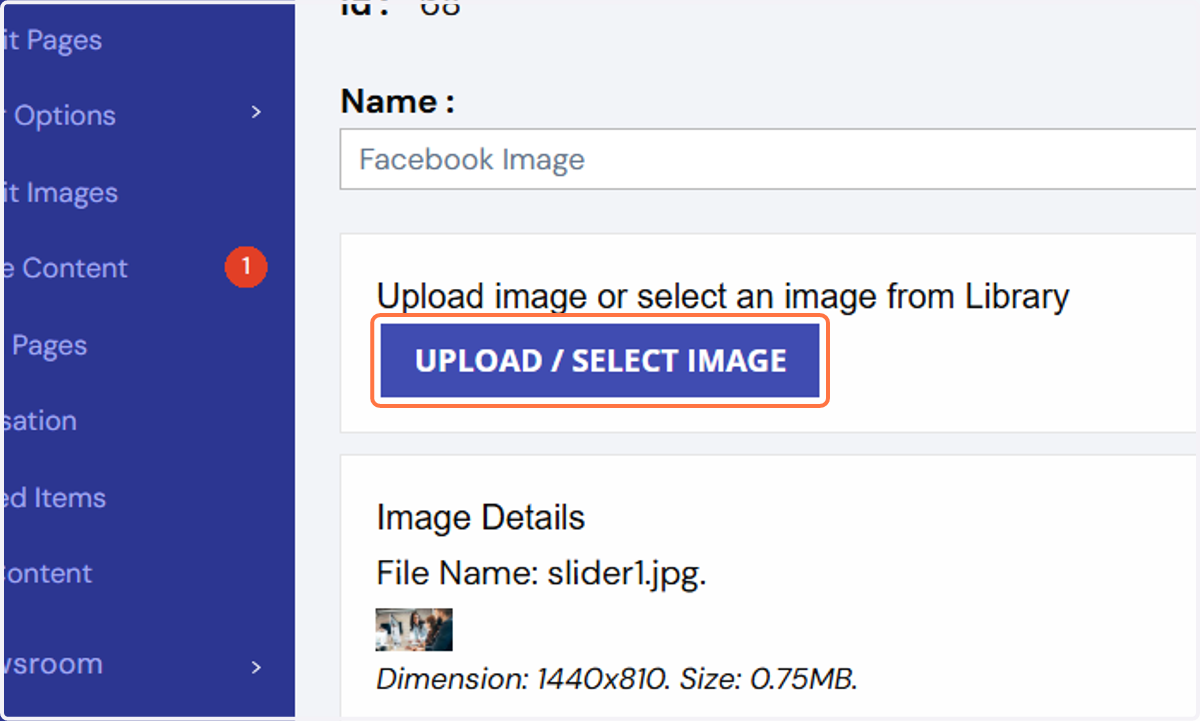
5. 4. On the Add/Edit Image page, select the image that you wish to add.
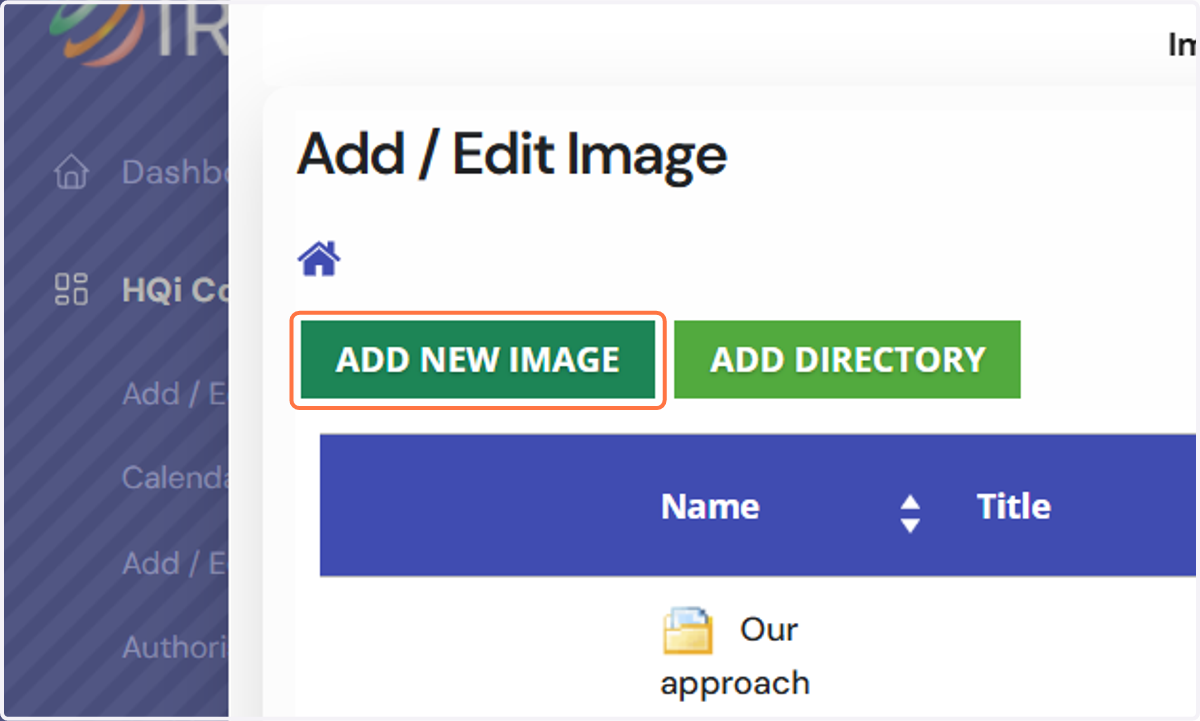
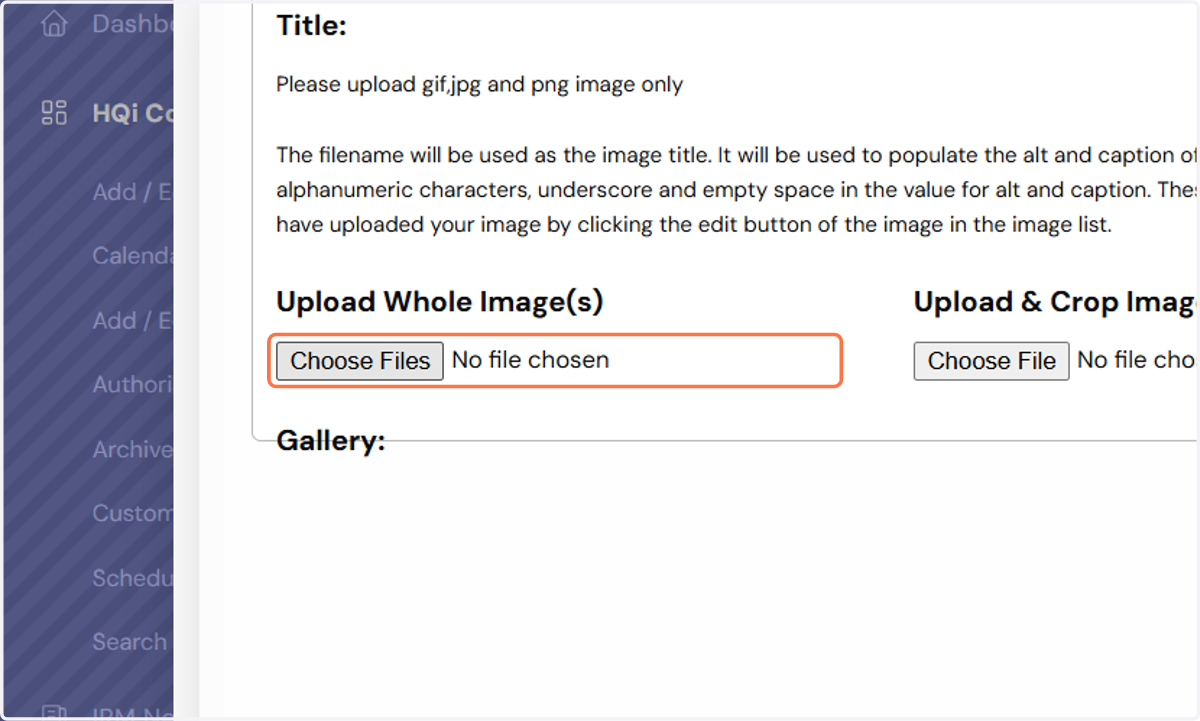
If the image is not yet listed on the image library, click on Add New Image button where you will be given the option to either upload the whole image or crop the image before uploading. Click on Save to retain your changes.
6. Please be guided by the following specifications to achieve optimum results: Banners - 1600 pixels to 2000 pixels, horizontal orientation Promo boxes - 800 pixels to 1000 pixels
Consider that images with smaller resolutions may not appear as sharp, while those with bigger resolutions may slow down how your page loads.
7. 5. If you're changing content, you'll be directed to a screen (see below), after you click on the blue-world icon next to the item. This is where you input your new text in the "Value" field.
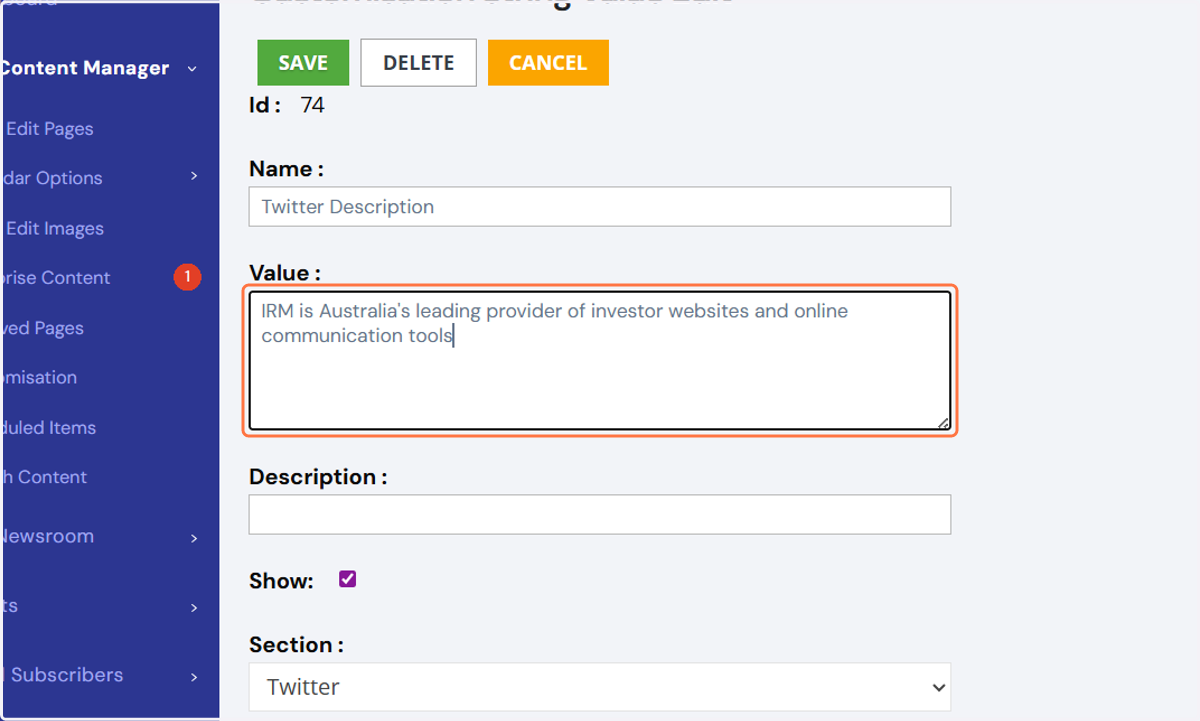
8. 6. Remember to hit "Save" after updating the images or content. Note: Once you click on Save, the changes will immediately show on the website. If you wish to add new elements/sections to the Home page, you may send an email to support@irmau.com so we may add it for you.