Mentoring Connector: How to Reset my Password?
The new system includes a self-reset password feature. Follow these steps to reset your Mentoring Connector Admin Password. If you run into any challenges, or do not know your account's email address, please reach out to connector@mentoring.org - Thank You
Mentoring
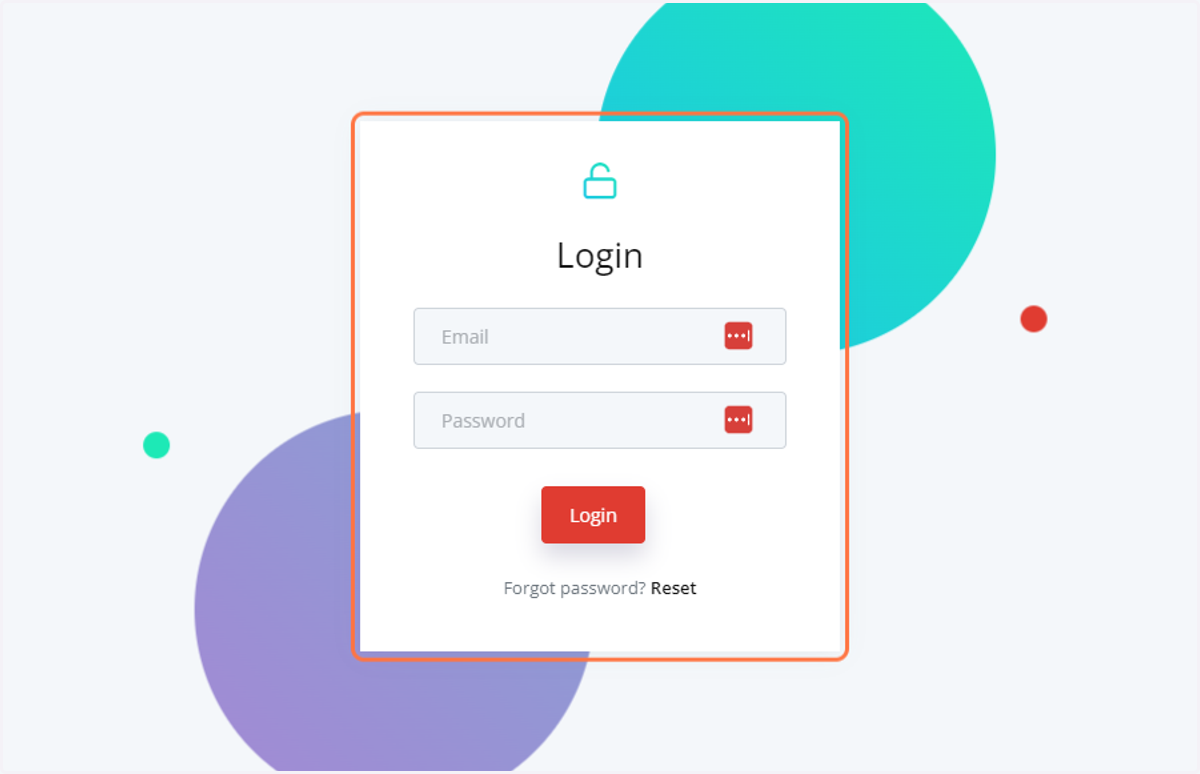
1. Go to portal.mentoring.org. You will see the login screen - below the red login button is the "Forgot Password" Feature
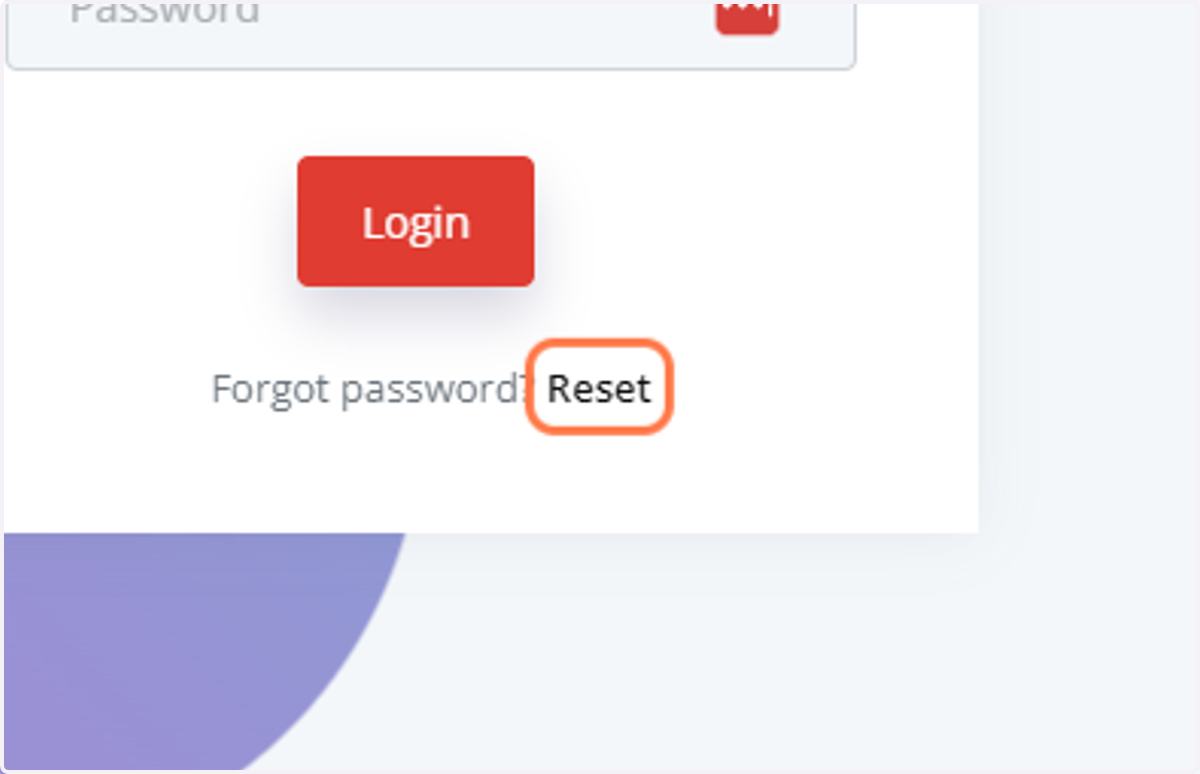
2. Click on Reset
3. Enter the email address associated with your Admin Portal Account
If you do not have an Admin Account, please get in touch with your Admin and request an account in the system.
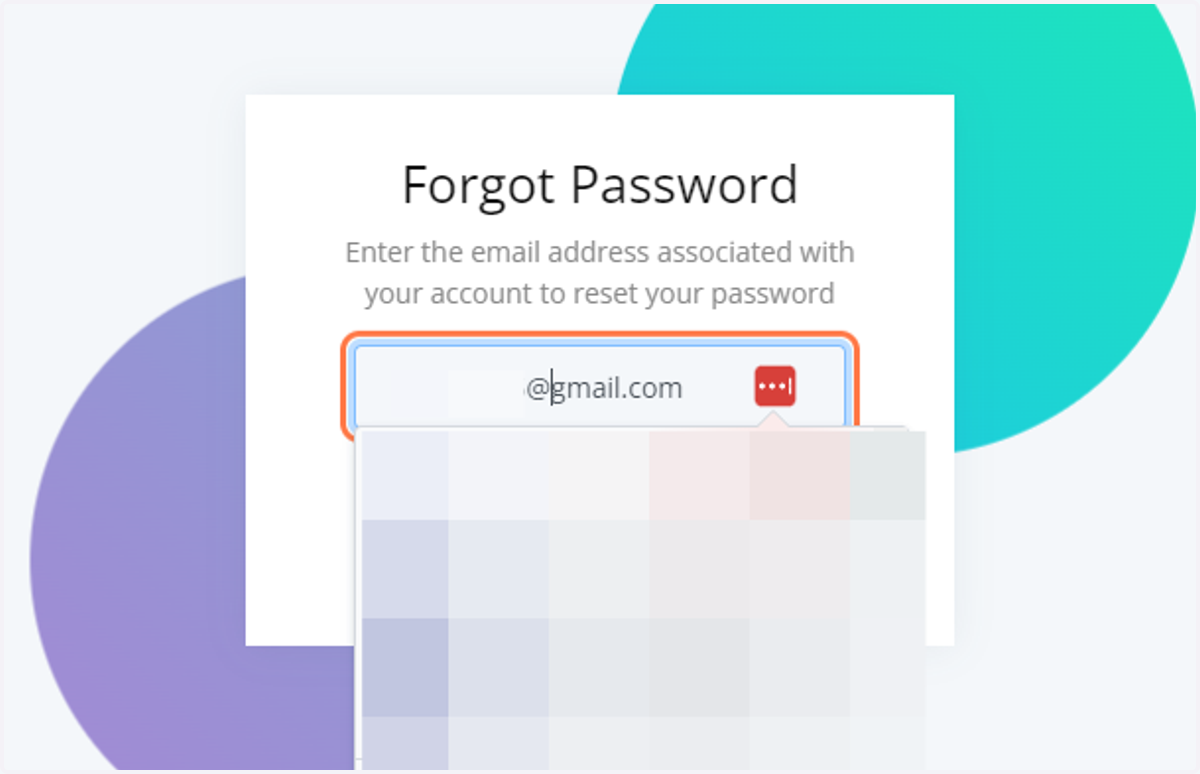
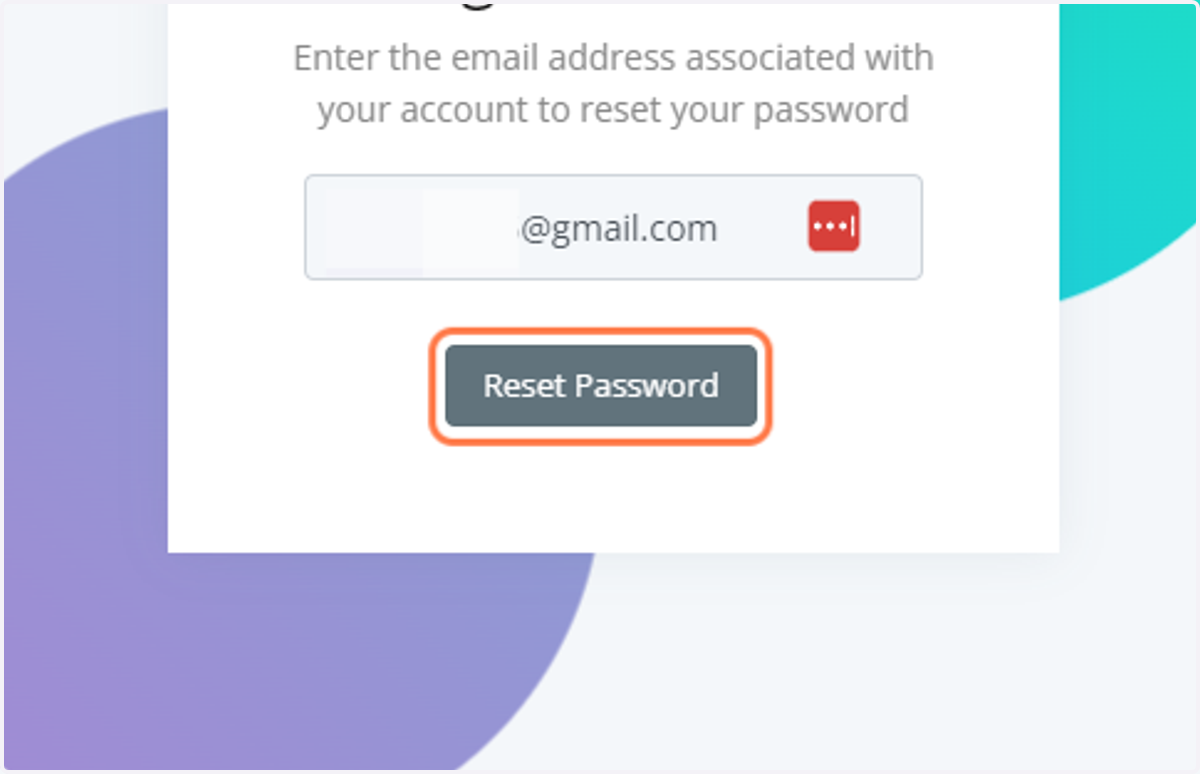
4. Click on Reset Password once you've entered the associated email address
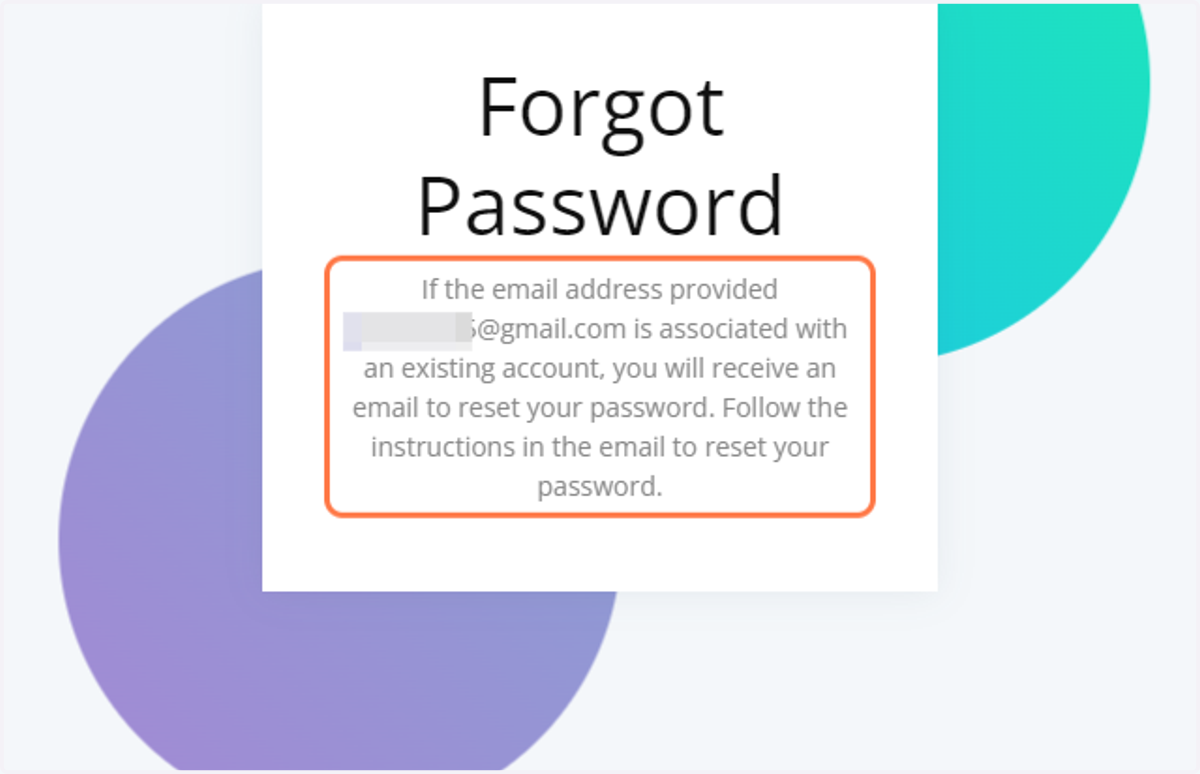
5. The following message will appear once you clicked on the reset button
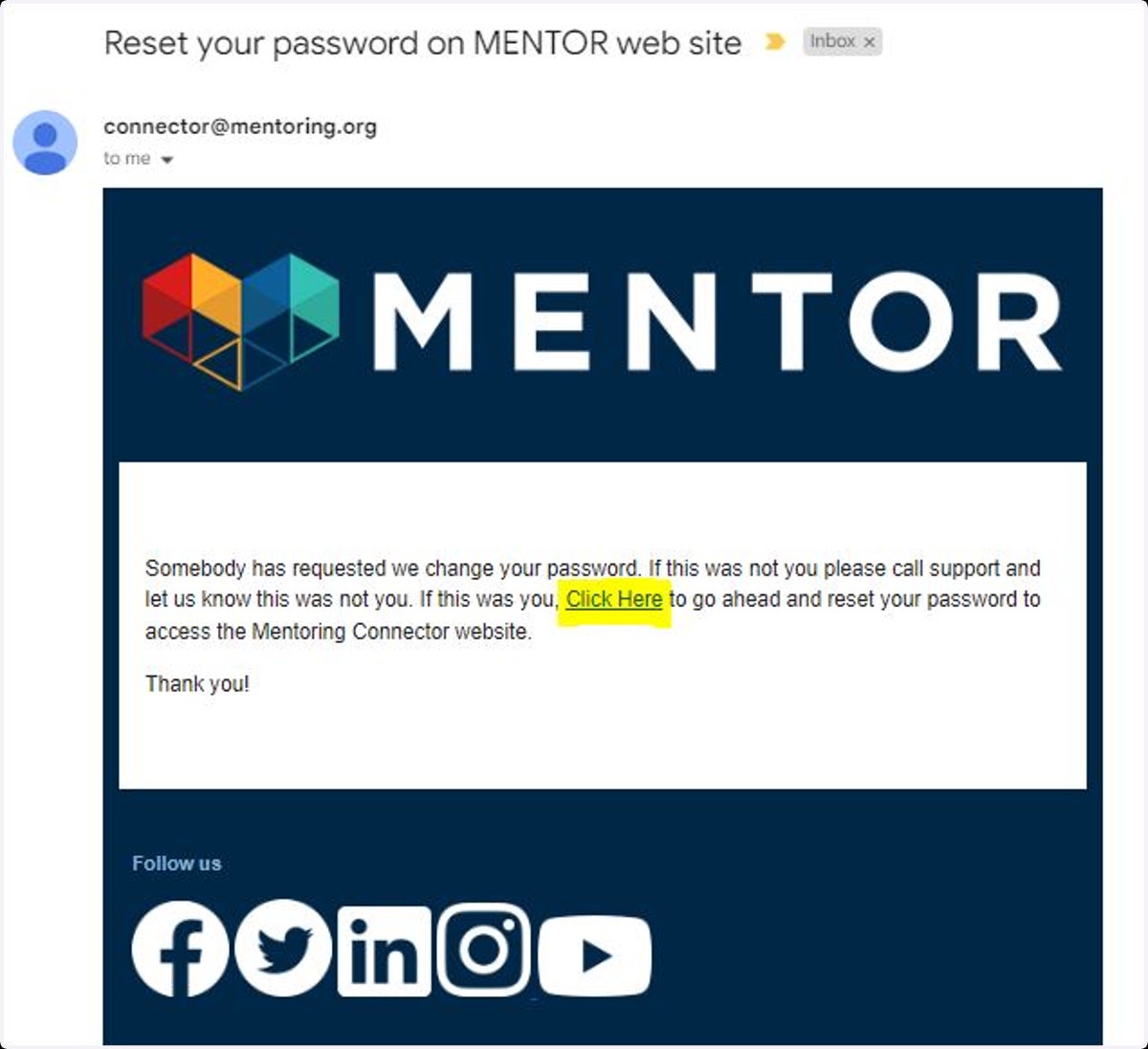
6. Access your email account and find the Reset Password Email. Click the link highlighted below to reset your password.
If you do not receive the email, please check your spam or junk email. Also, remember that the message will go to the email initially associated with the admin account. If you do not have an account in the system, please request your Admin to add you.
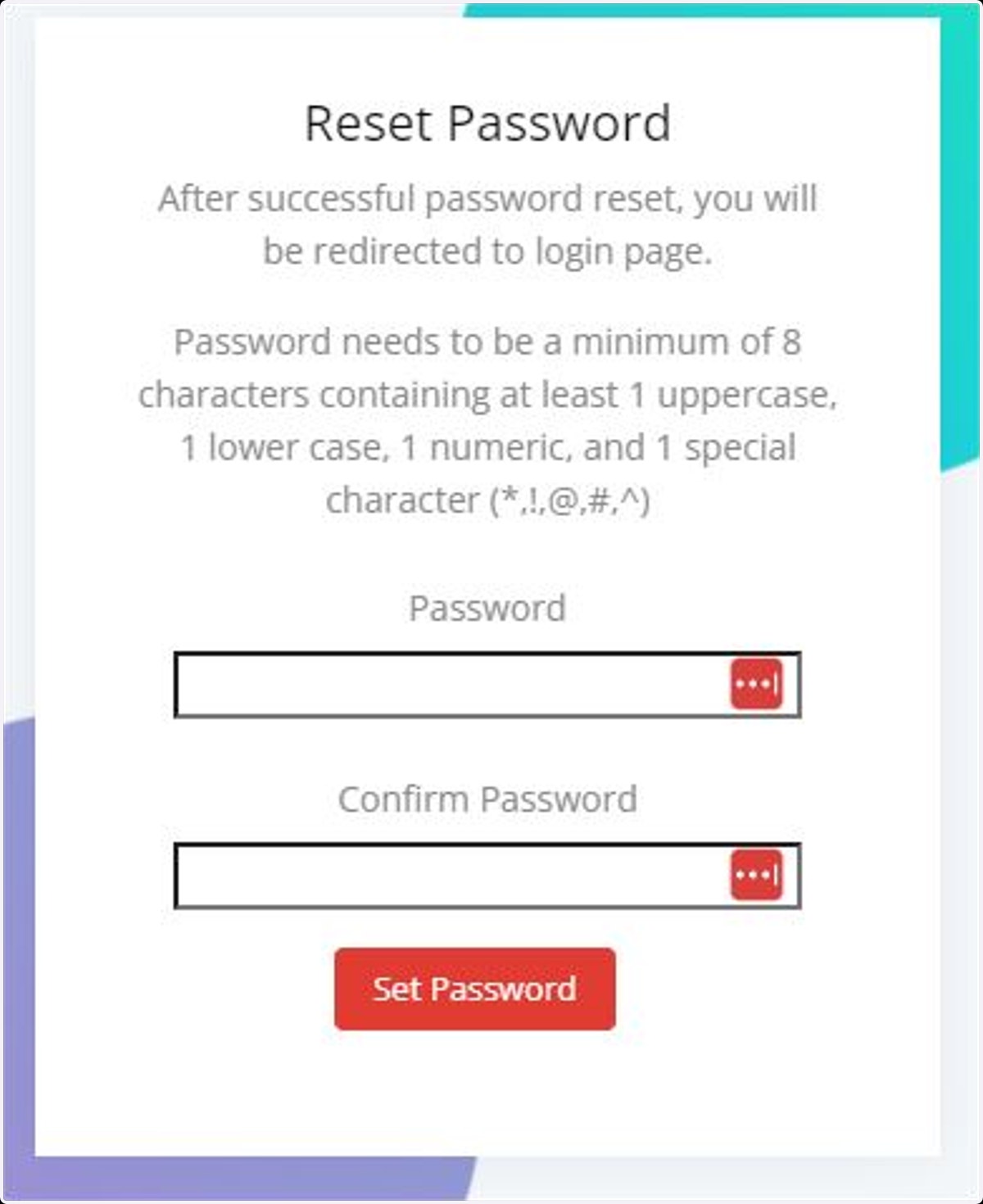
7. The link will take you to the admin portal site, where you can reset your password.
Please remember the security combination requirements as outlined below
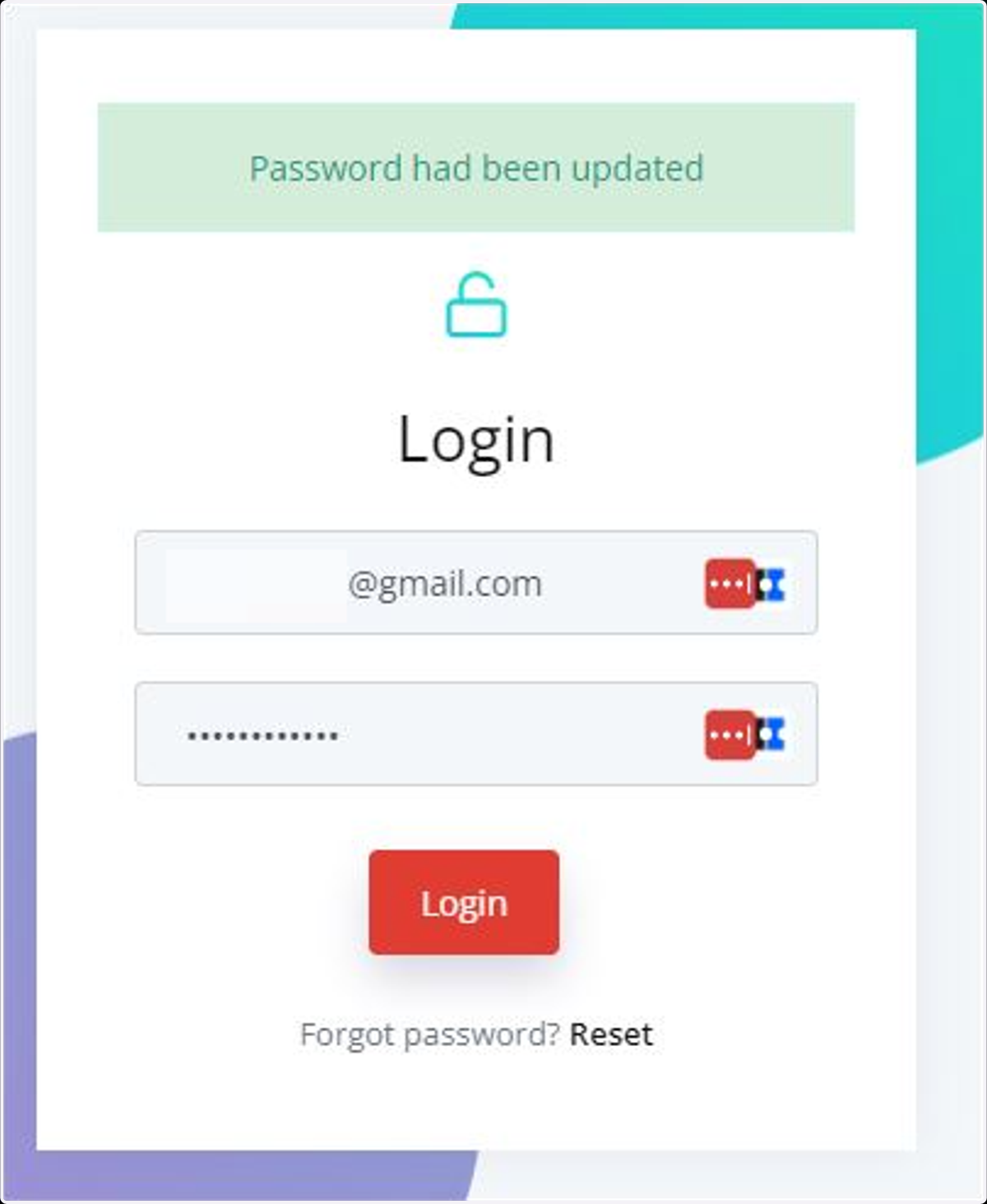
8. Once you've created your password, it will take you back to the login screen where you can enter your updated credentials.
If you run into any challenges, please get in touch with the MC Team via connector@mentoring.org for support.