How Admins manage law firm user access
If you are not an admin, you will not see the User Management Button!
1. ONLY ADMINS can manage law firm user access!
This tutorial starts from your Compliant Clients Home Page.
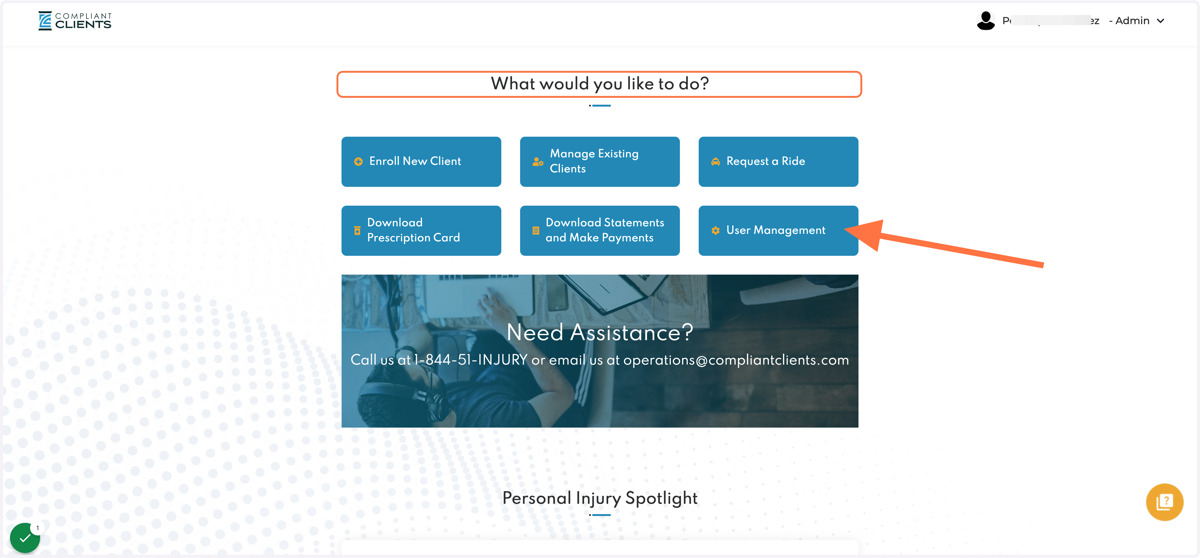
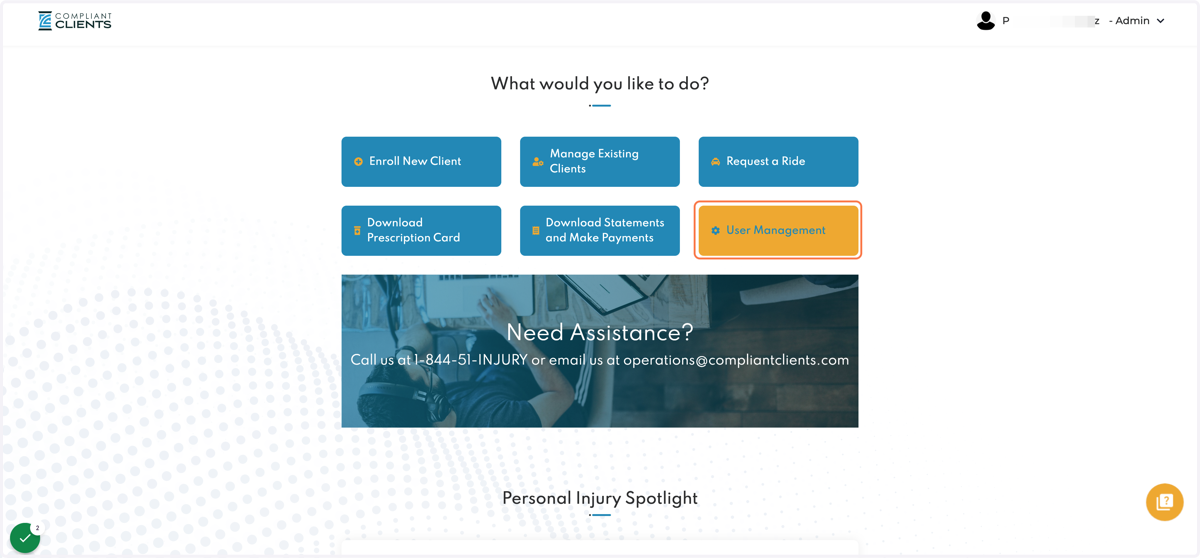
2. Click on User Management
3. To add a new user click 'Add User'
Note: Only Law Firm Admins have access to this option
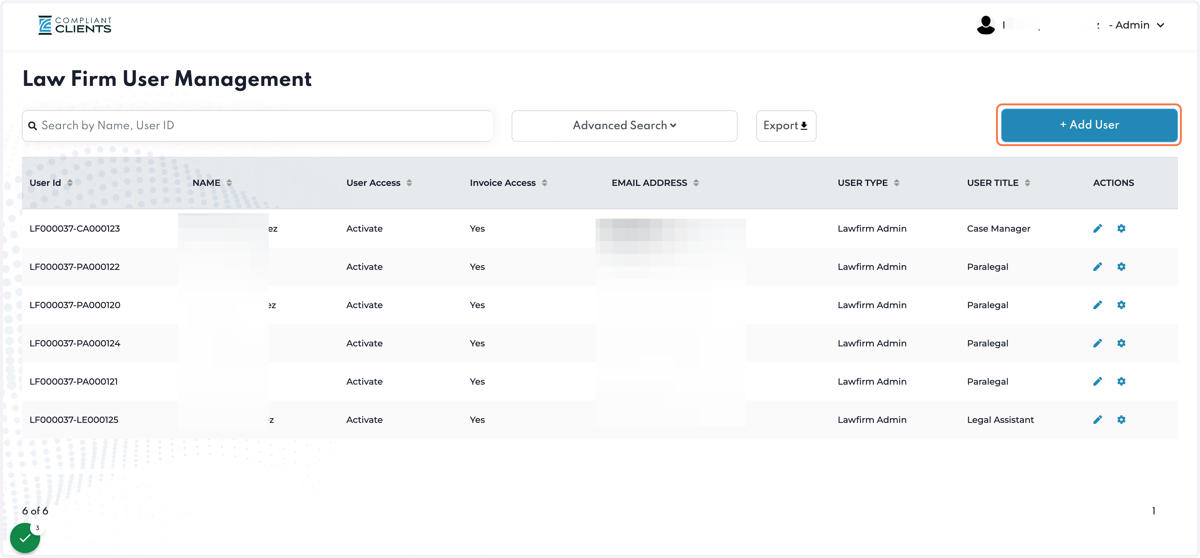
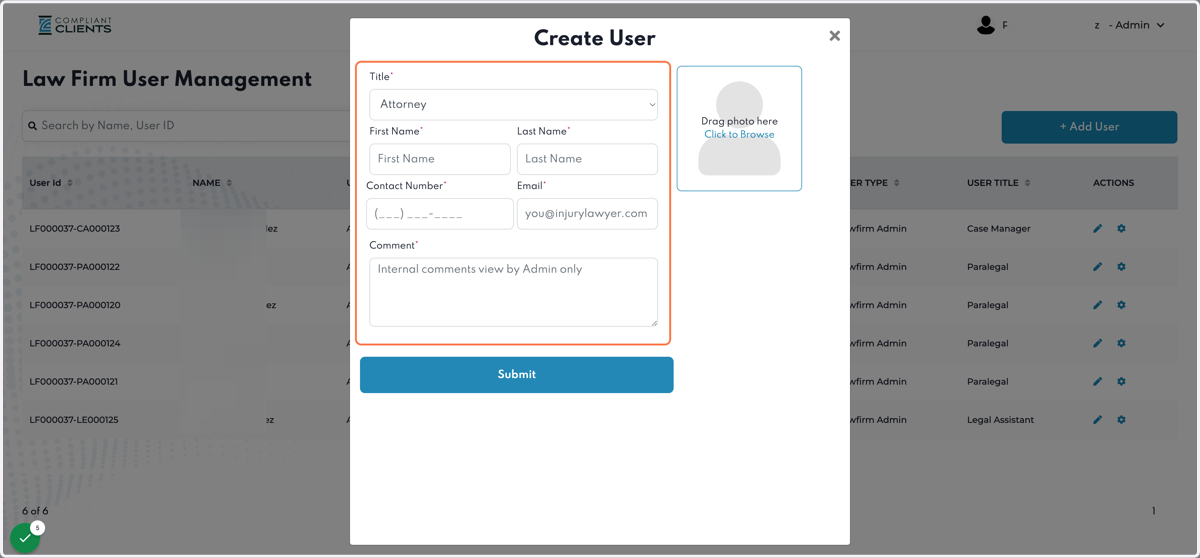
4. Create User
Fill out all the information - add a picture to personalize your experience!
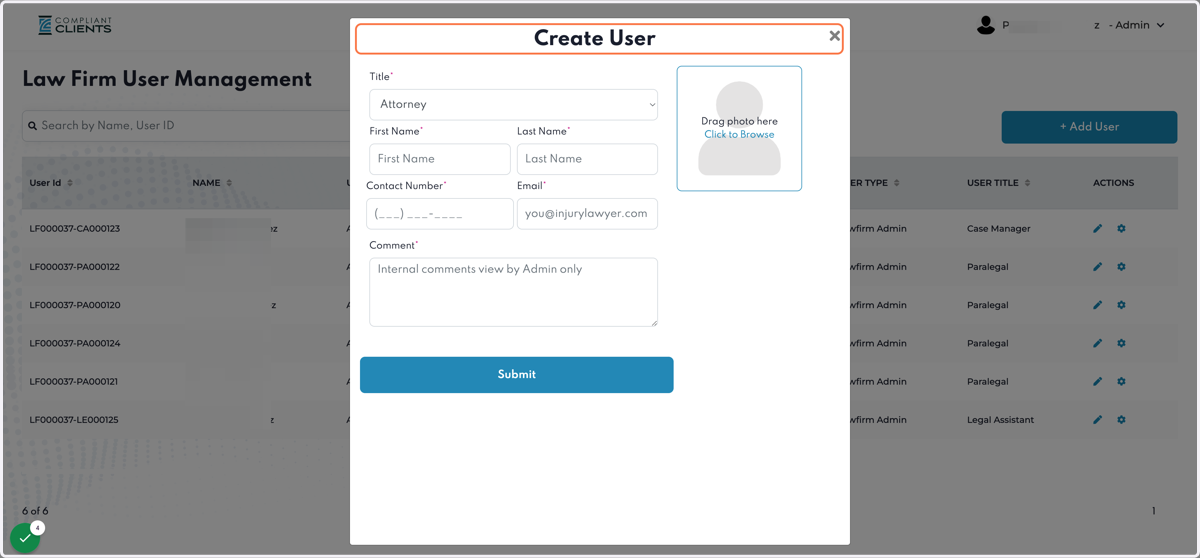
5. Fill out all information
The email address you enter on this screen will be used as their login email address.
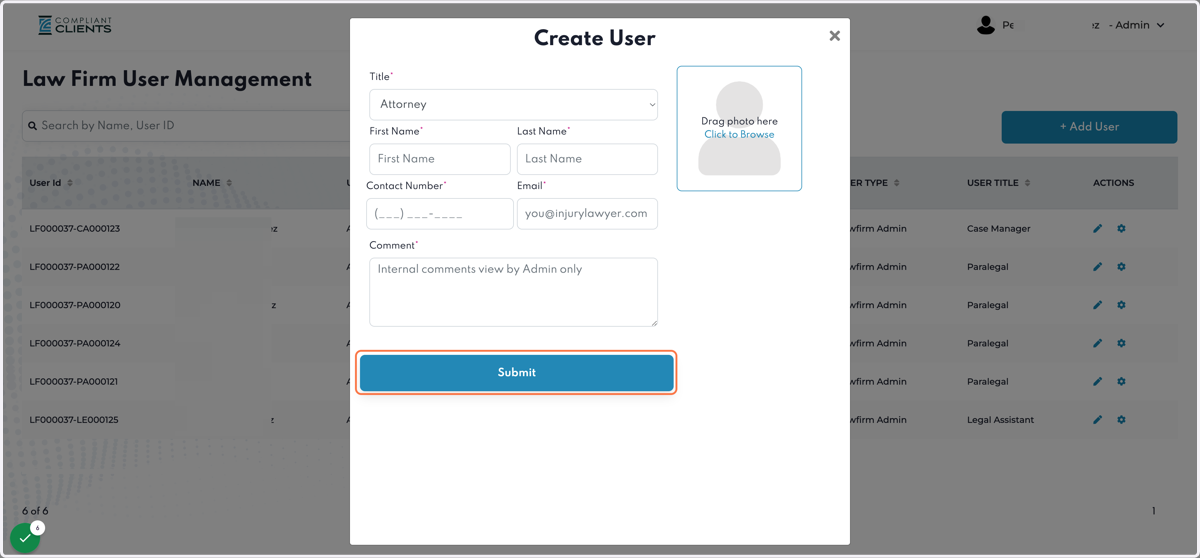
6. Click on Submit to create the user
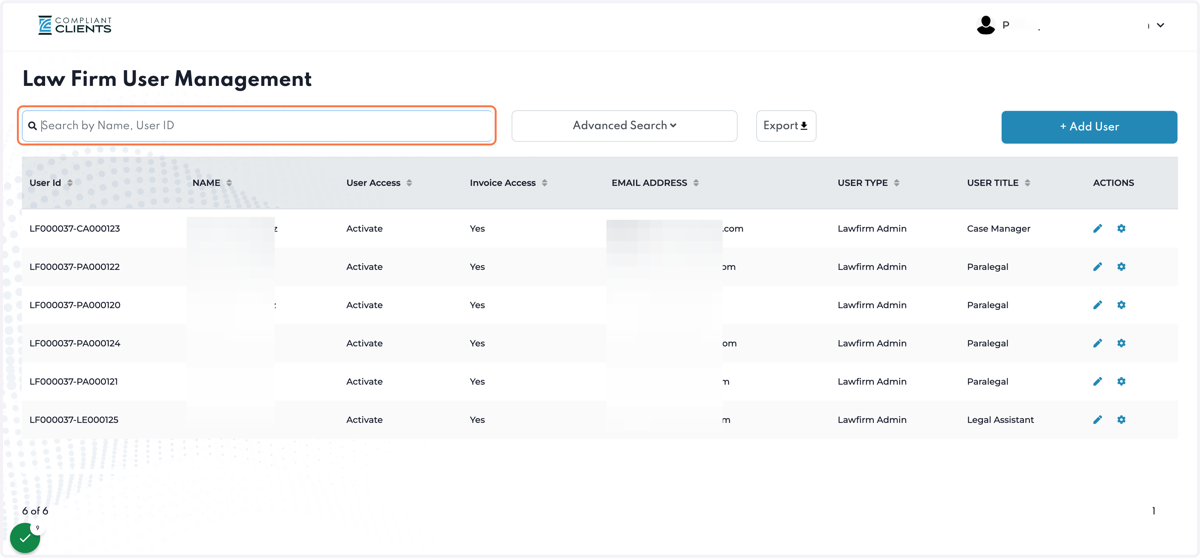
7. Use the search bar to find existing law firm users
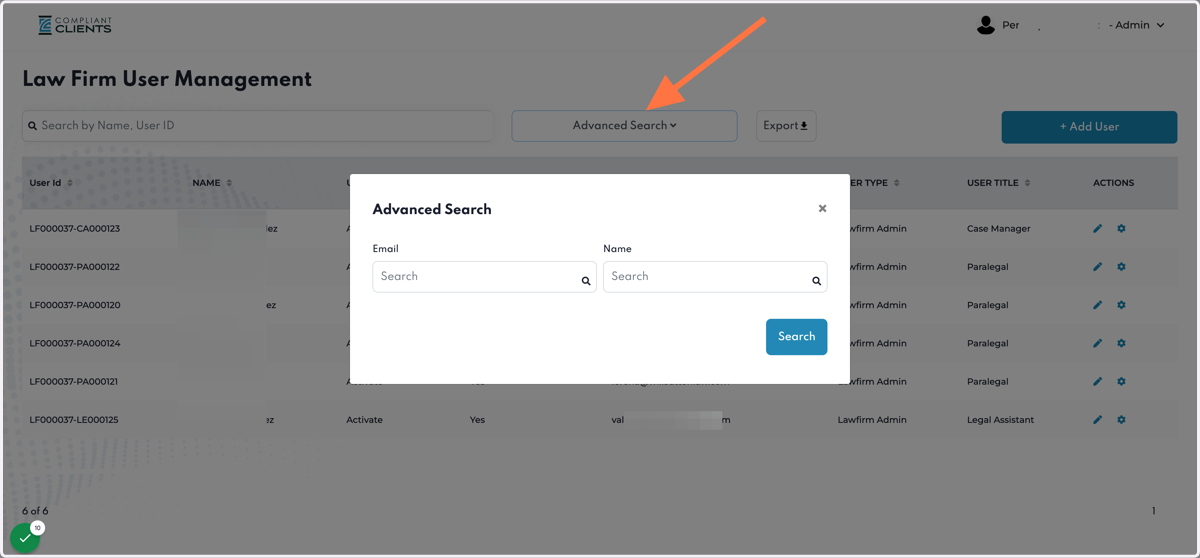
8. Click on Advanced Search to search by email or name
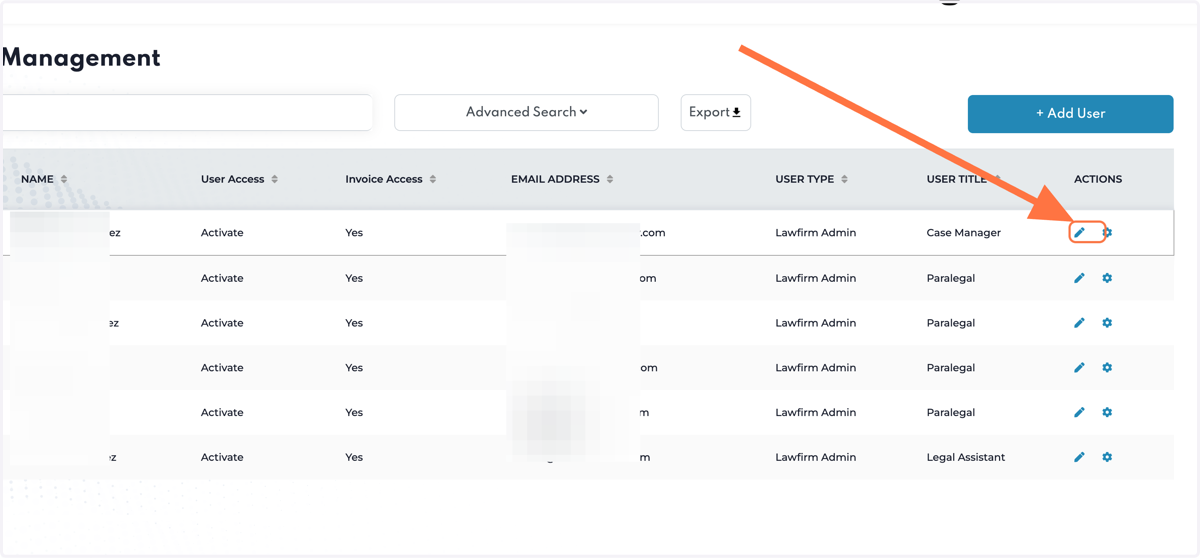
9. Update user details by clicking the 'Pen' icon in the 'Actions' Column
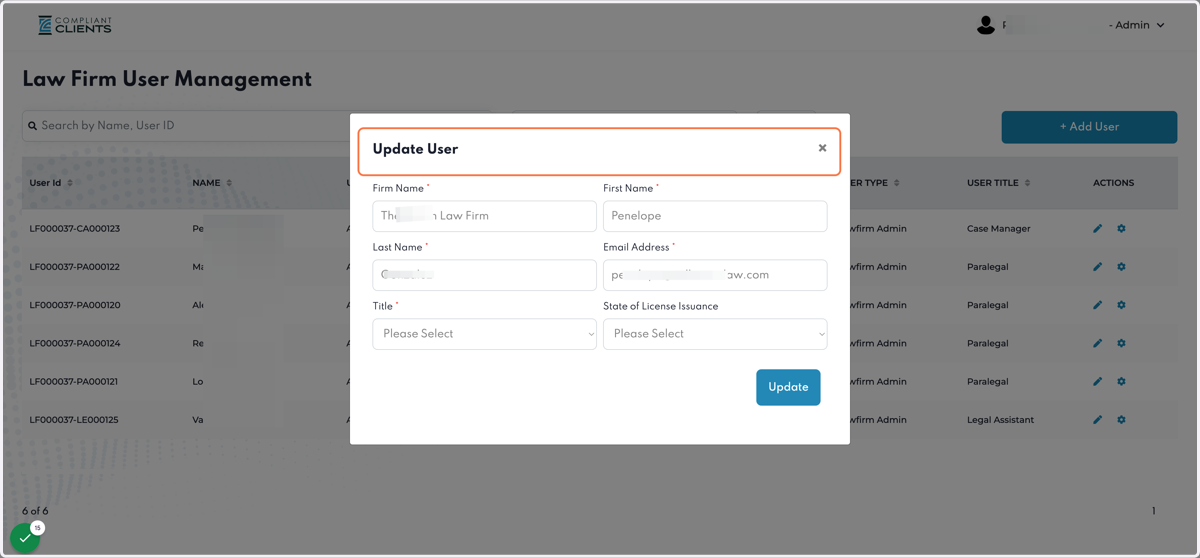
10. Admins can update the selected user's information here, after clicking the Pen icon
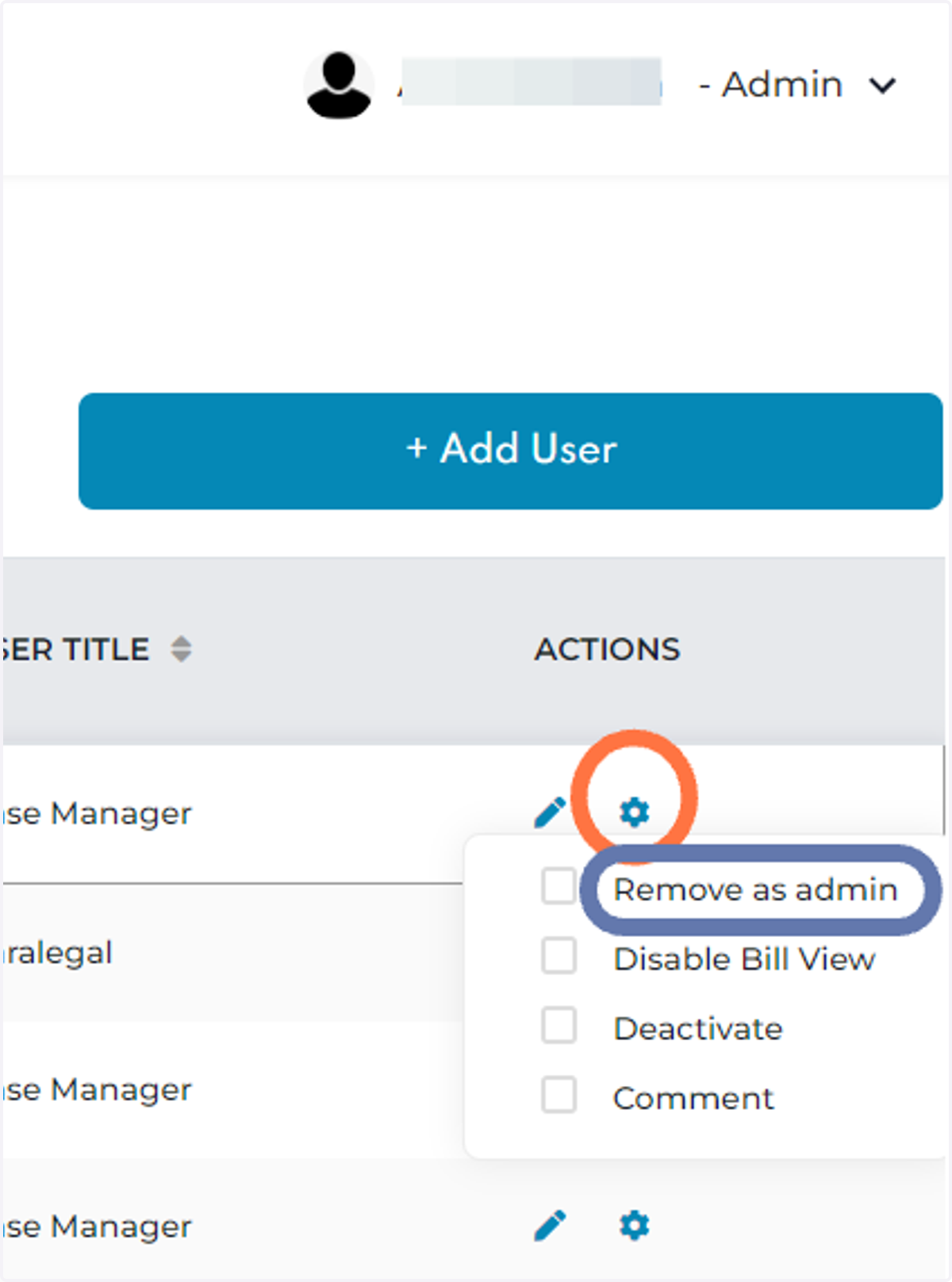
11. HOVER over the Gear icon to view other options
Remove as admin - removes the user's admin privileges
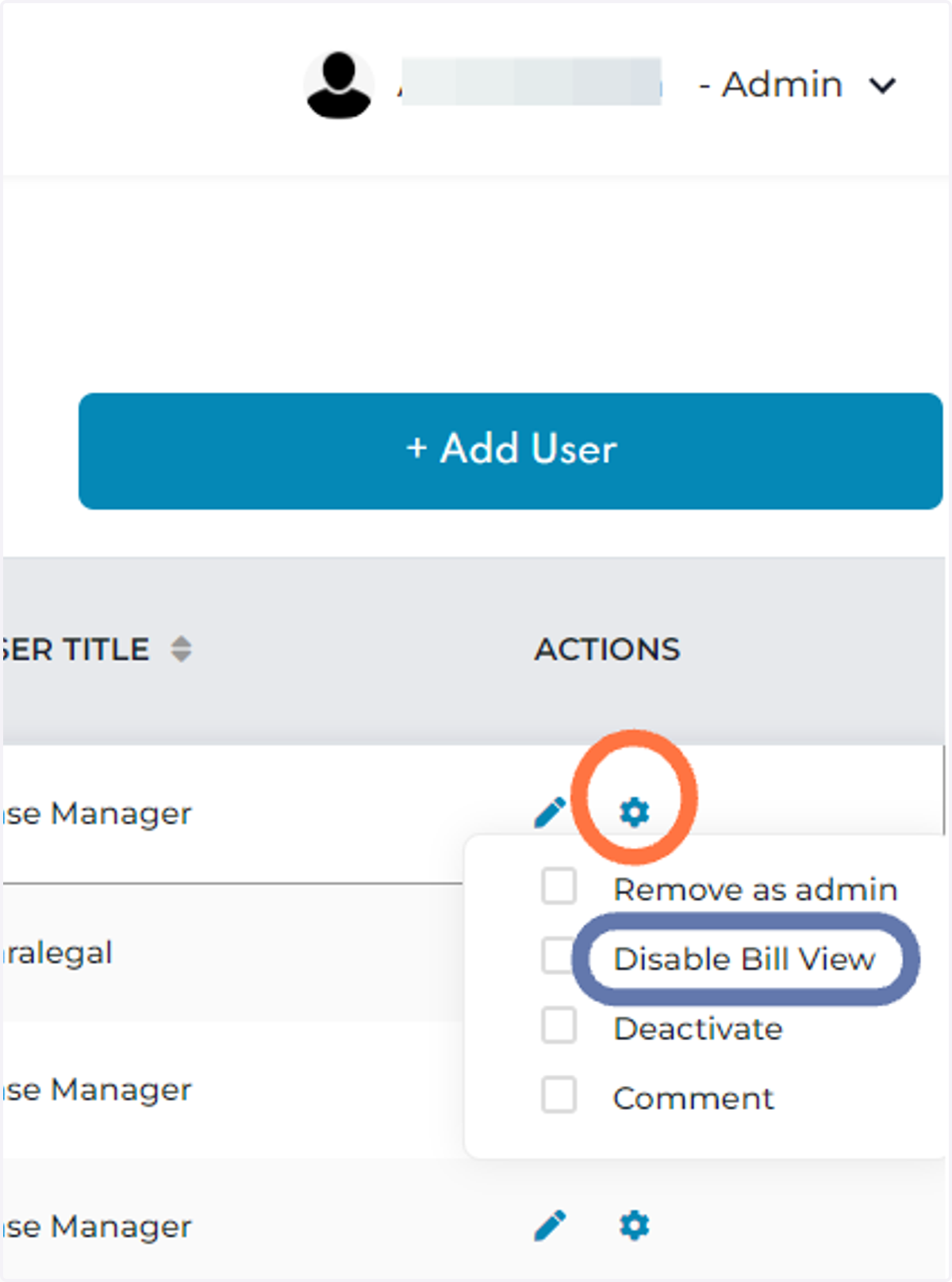
12. HOVER over the Gear icon to view other options
Disable Bill View - removes the user's ability to view and pay invoices
13. HOVER over the Gear icon to view other options
Deactivate - removes the user's ability to log in to the portal. You can reactivate them at any time.
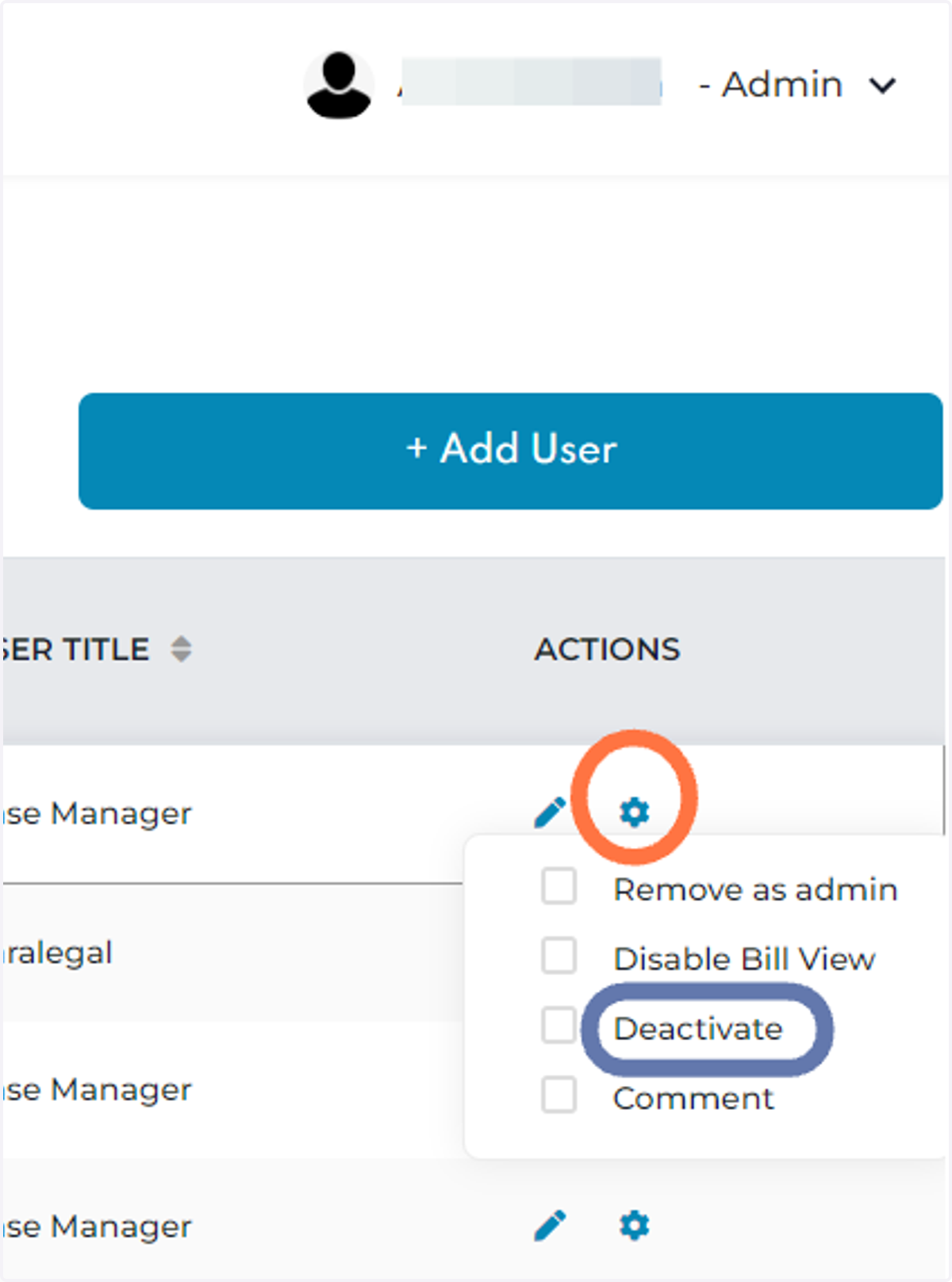
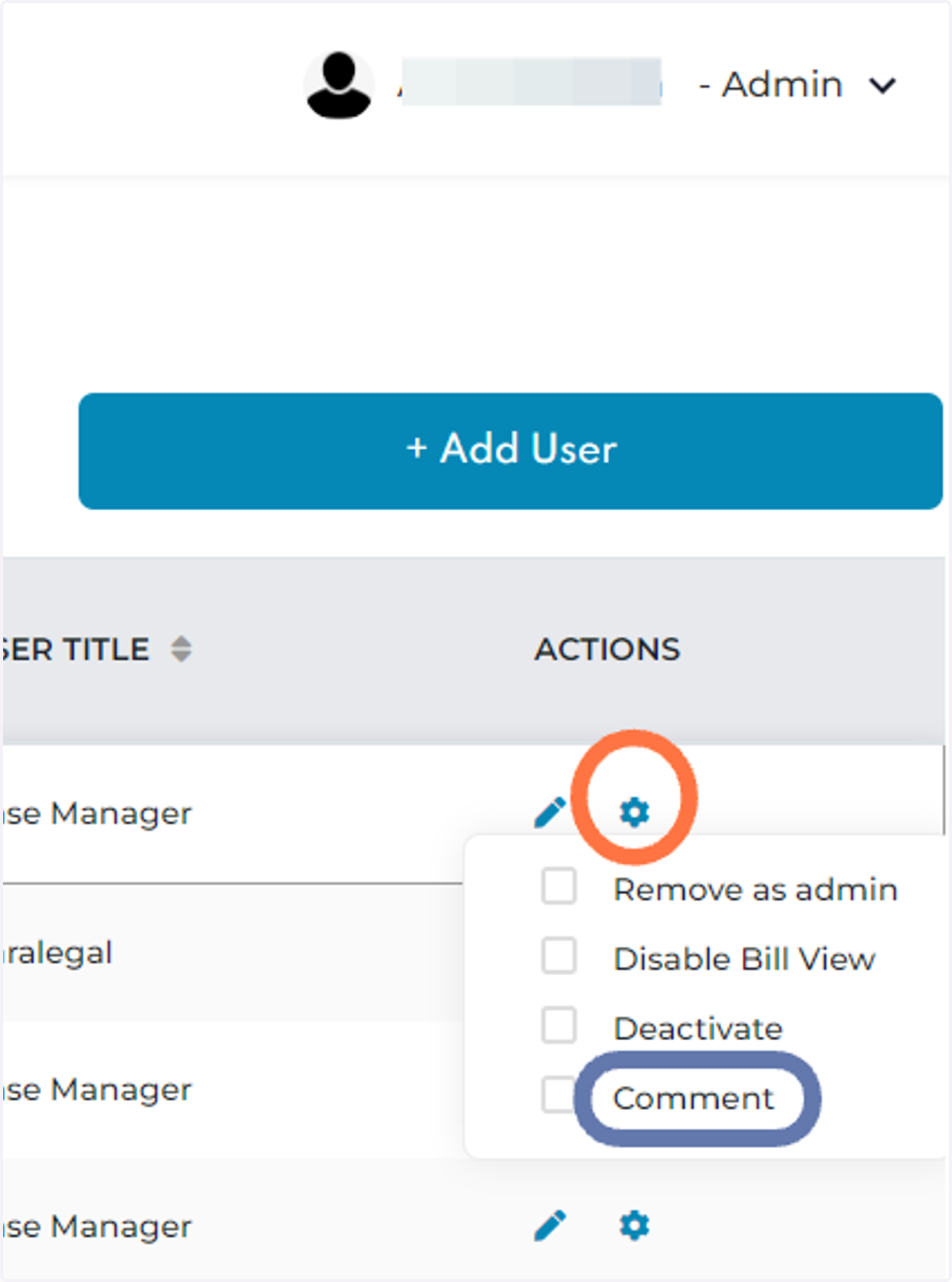
14. HOVER over the Gear icon to view other options
Comment - leave internal comments and upload files for your own reference
15. Contact us if you have any questions
Improve your case outcomes by preventing gaps in treatment!