Adding a custom item to the Class Store
1. From your Teacher Dashboard view, scroll down to The Class Store section.
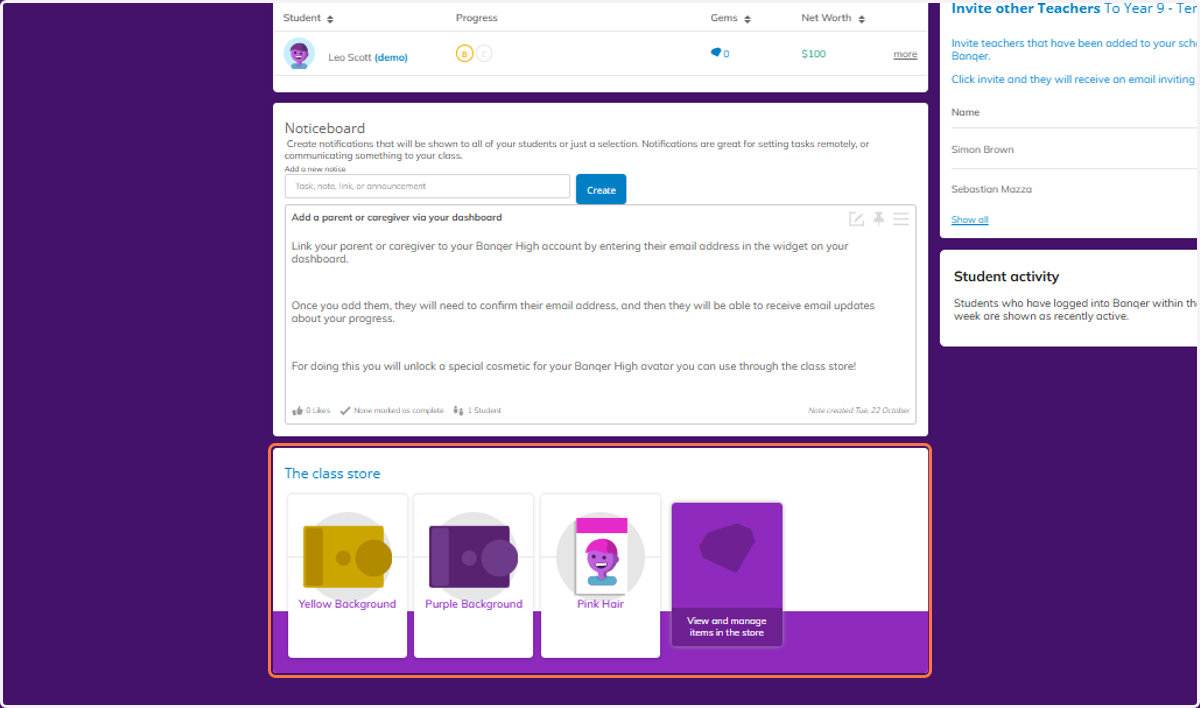
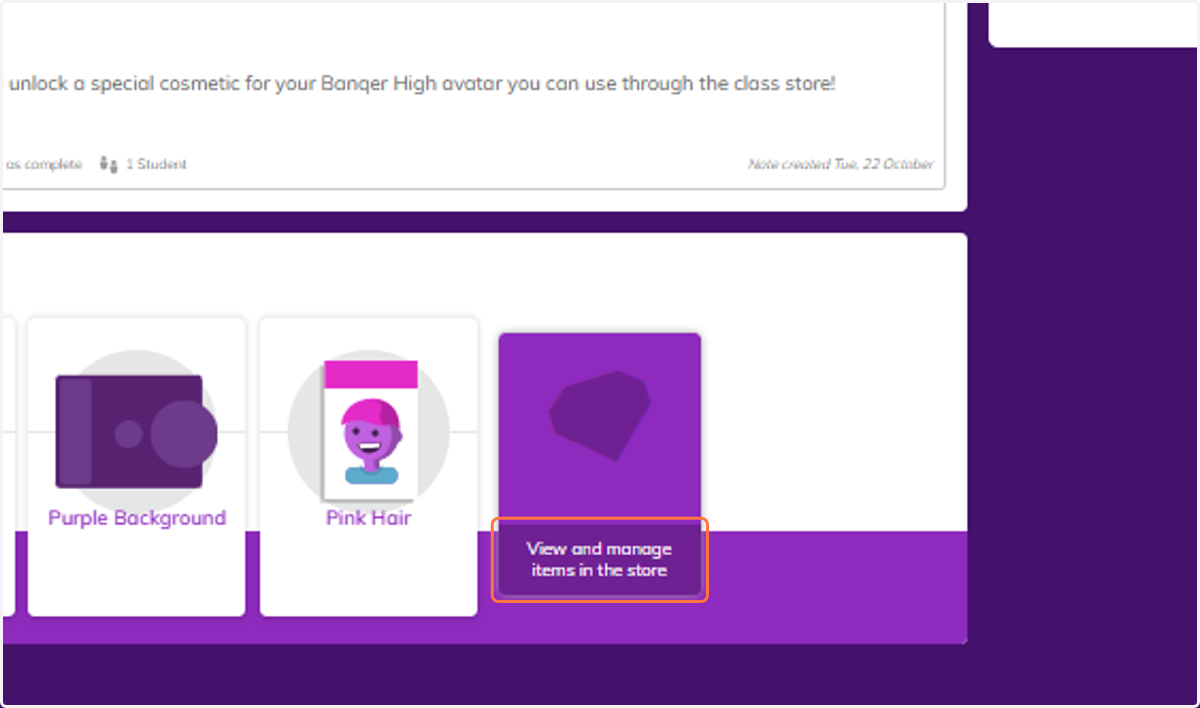
2. Click on View and manage items in the store.
3. You will see the list of items within the Class Store.
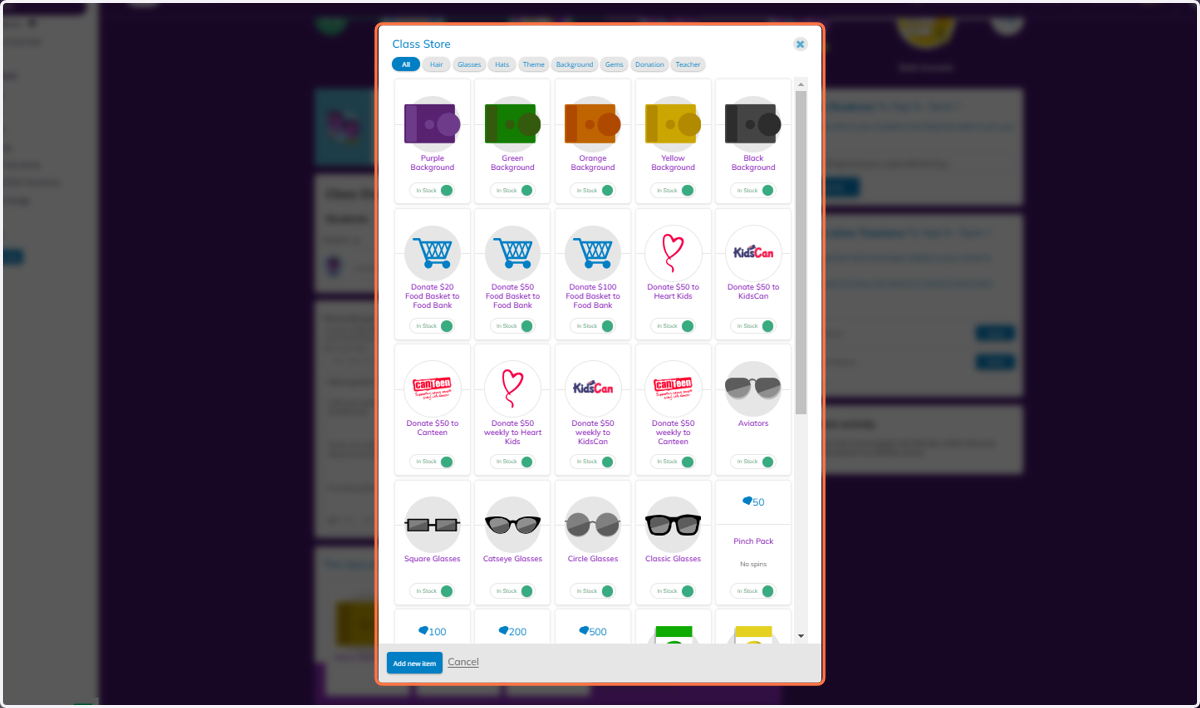
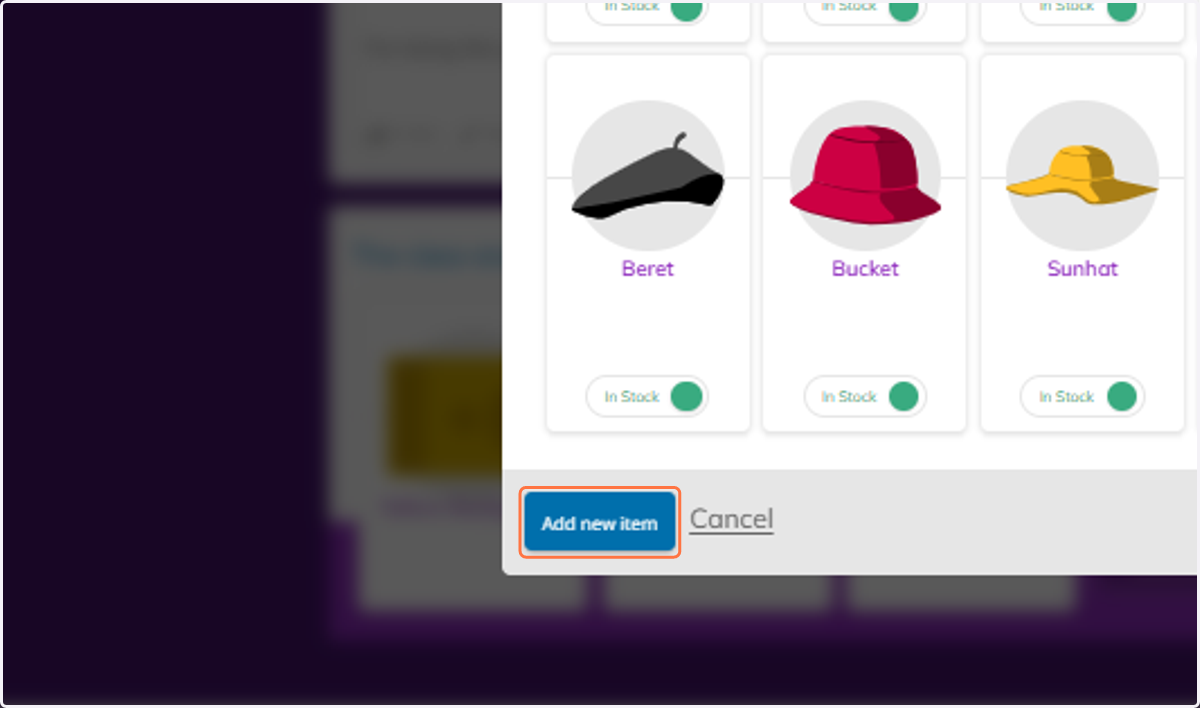
4. In the bottom left of the view, click Add new item.
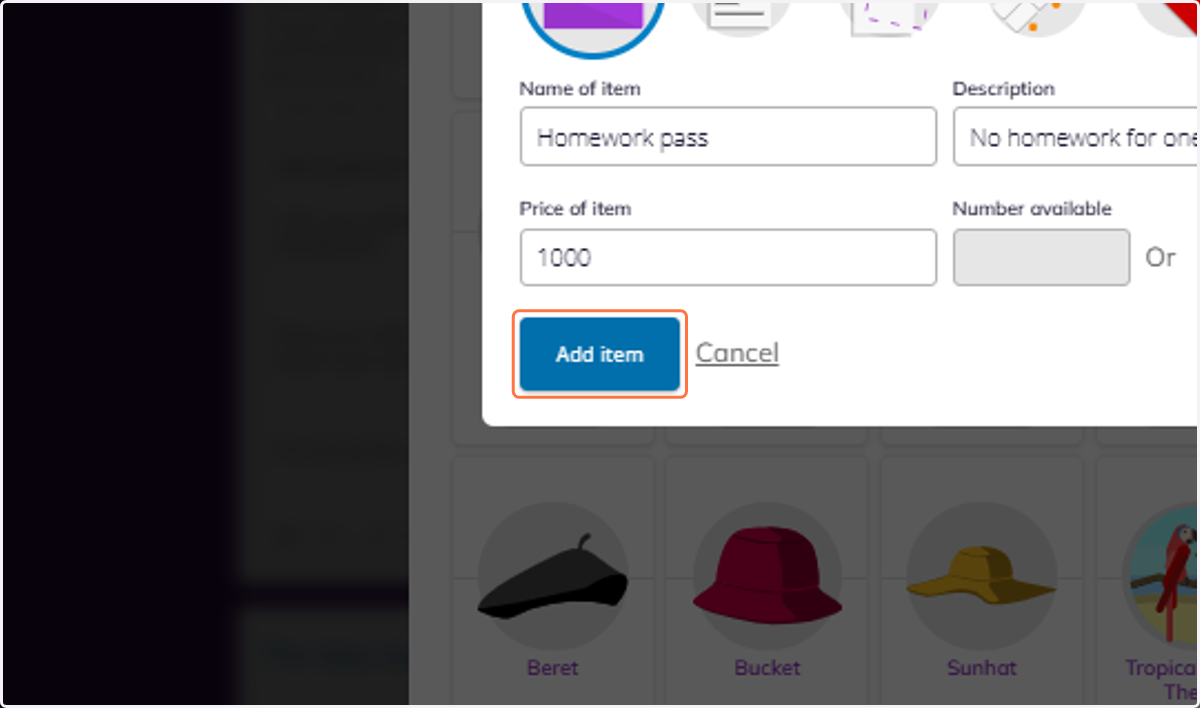
5. Complete the details shown for your item. You can choose to have only a small number available, or select No limit.
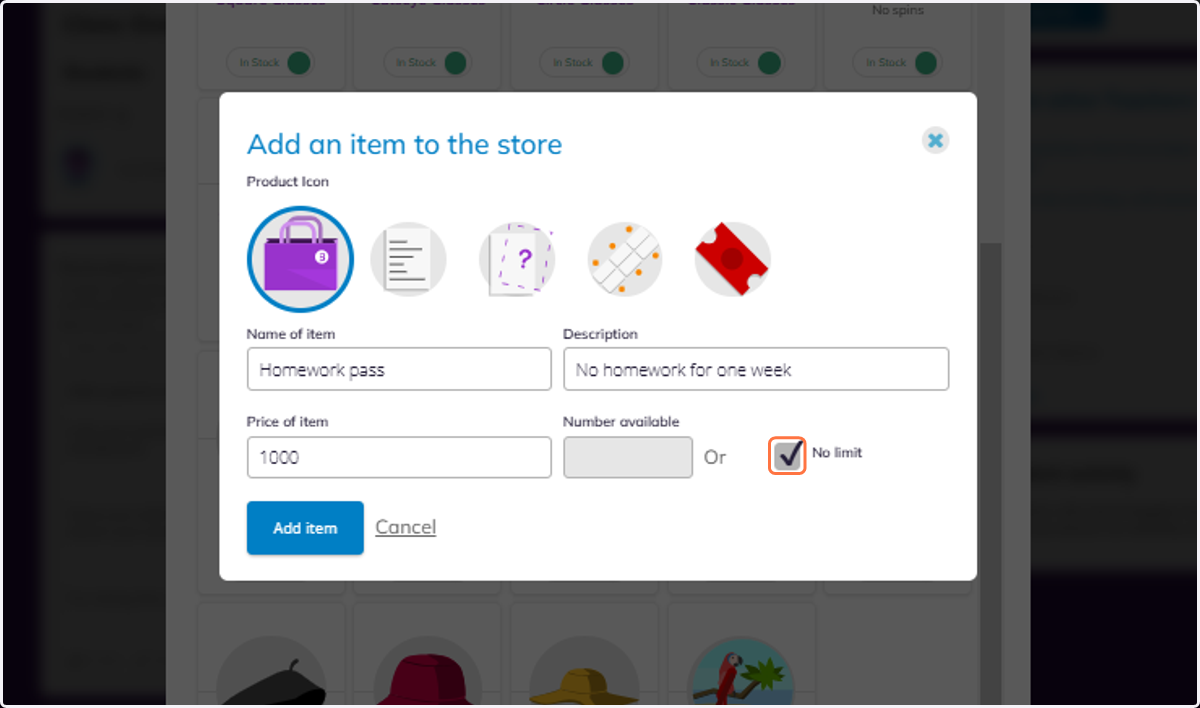
6. Click on Add item - this item will now be available for your students to view and purchase.