How to add or delete a graph for the Firepack detail page
1. Navigate to web.firecoach.app
2. Log in with your Firecoach account
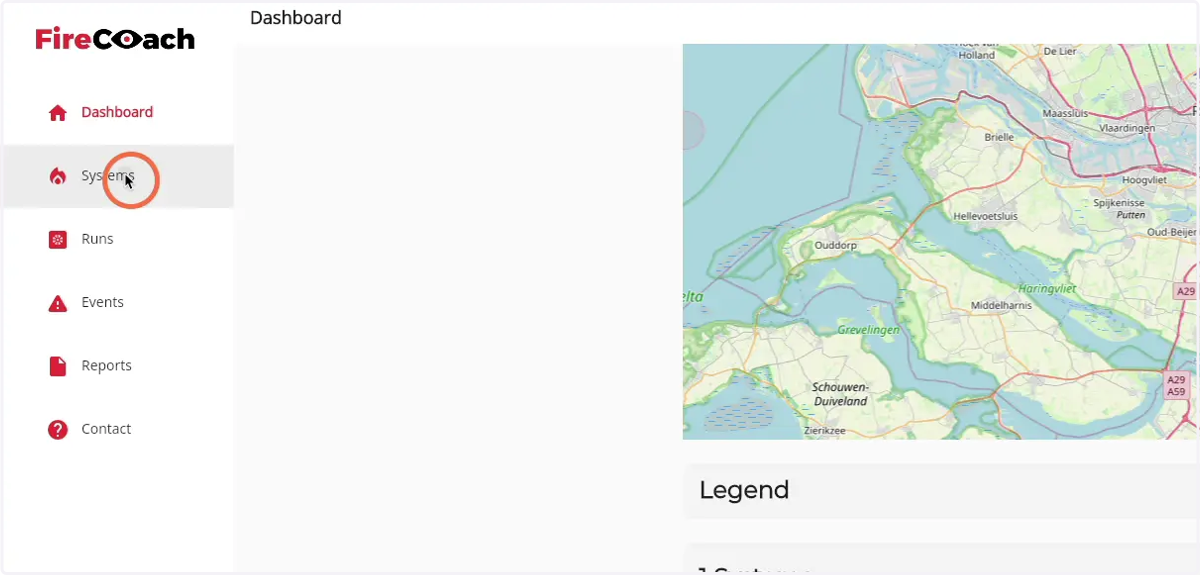
3. Click on 'Systems'
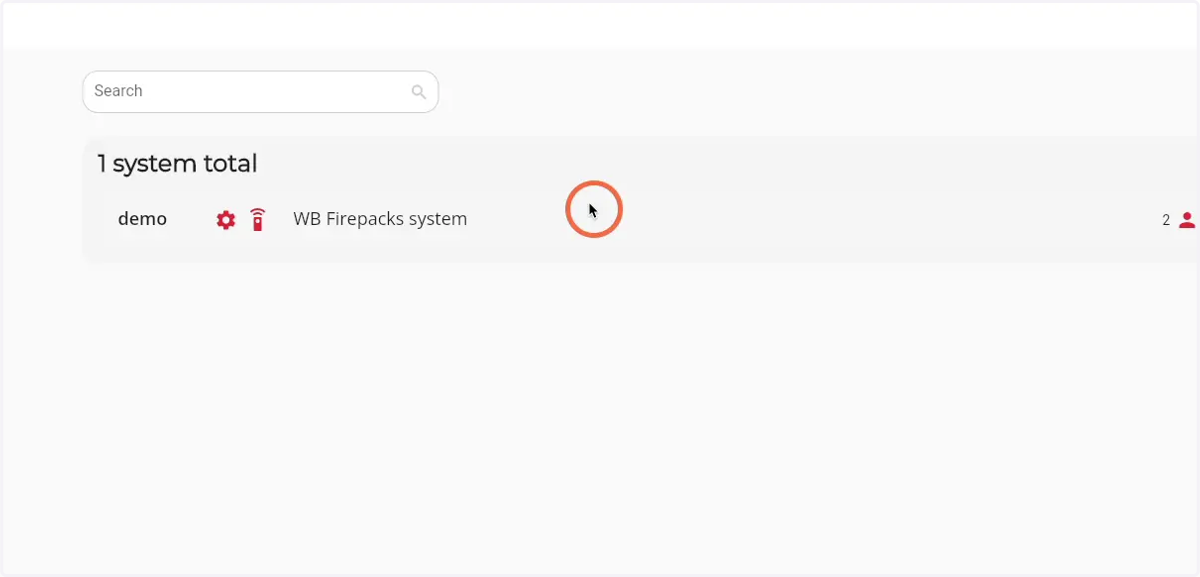
4. Click on the system you would like to add or remove a graph for
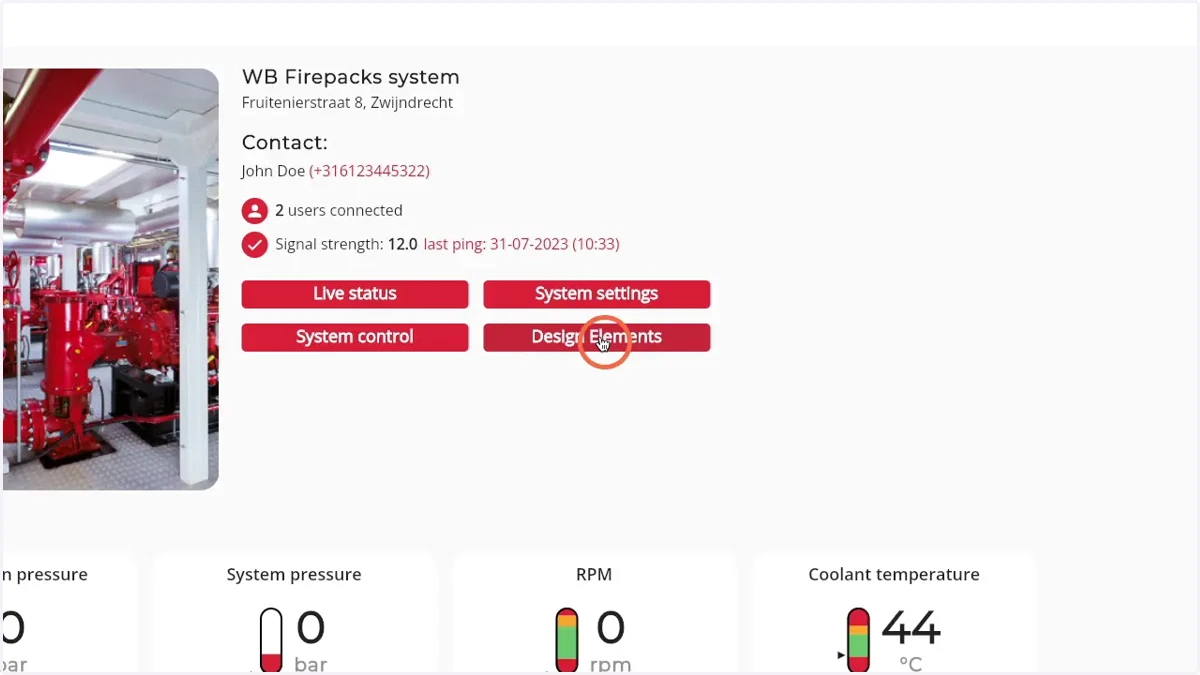
5. Click on 'Design Elements'
6. Scroll down until you see Graph elements shown in detail page
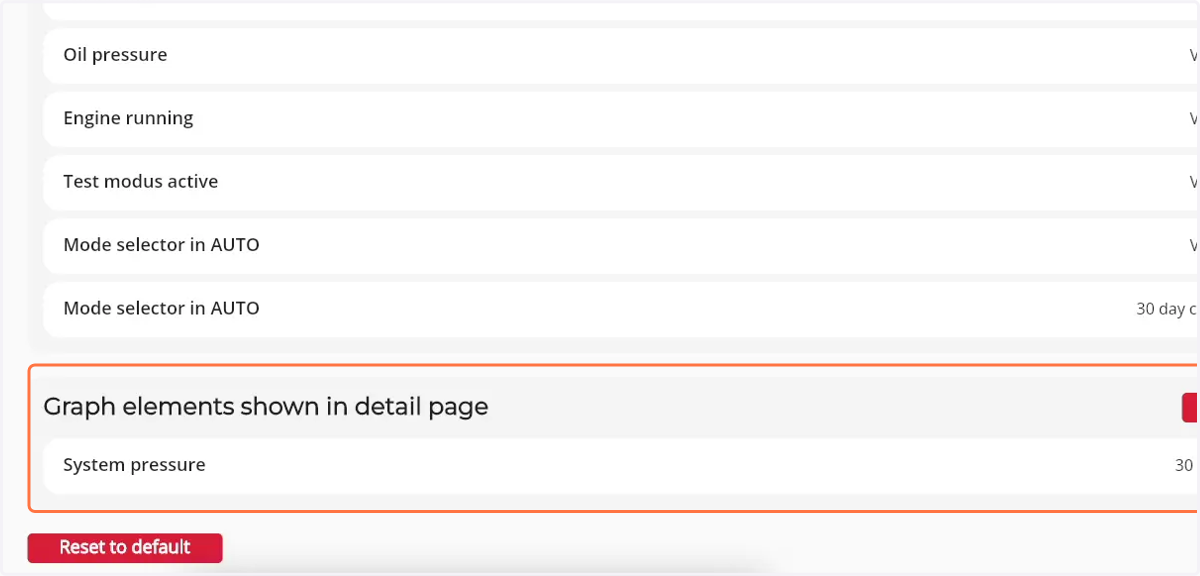
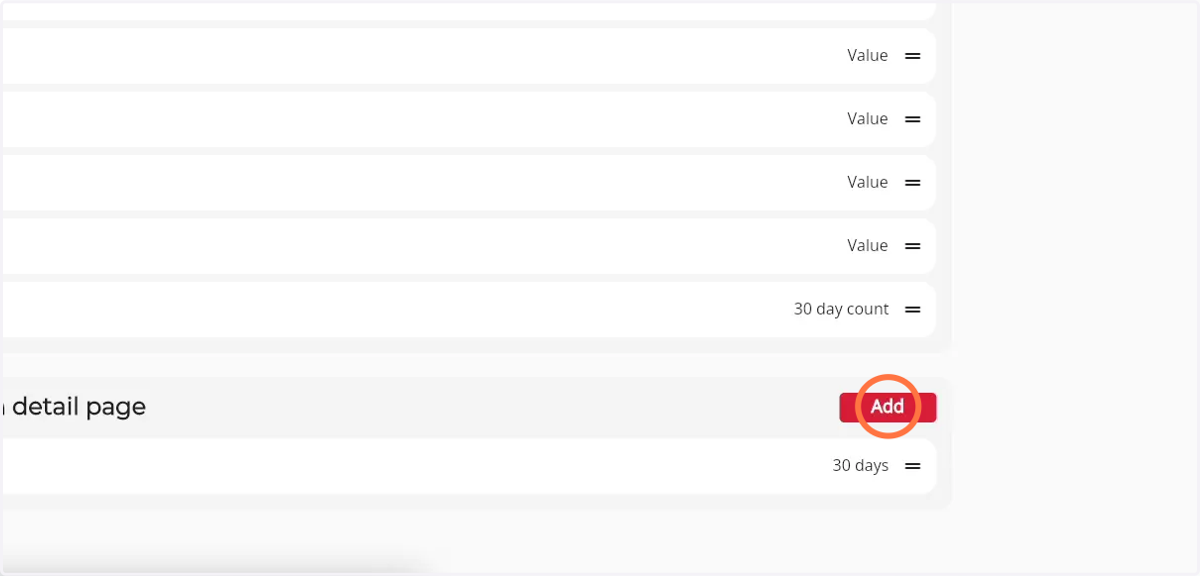
7. Click 'Add' in the Graph elements shown in detail page component to add a new graph
A pop-up will open
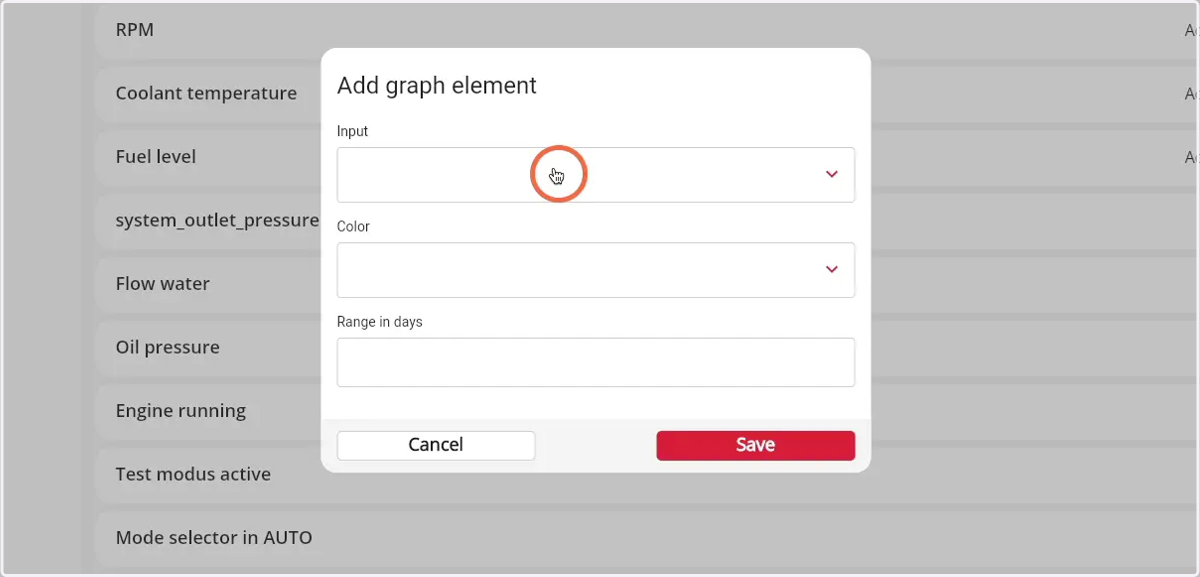
8. Click in the Input field to open a dropdown from all types of inputs
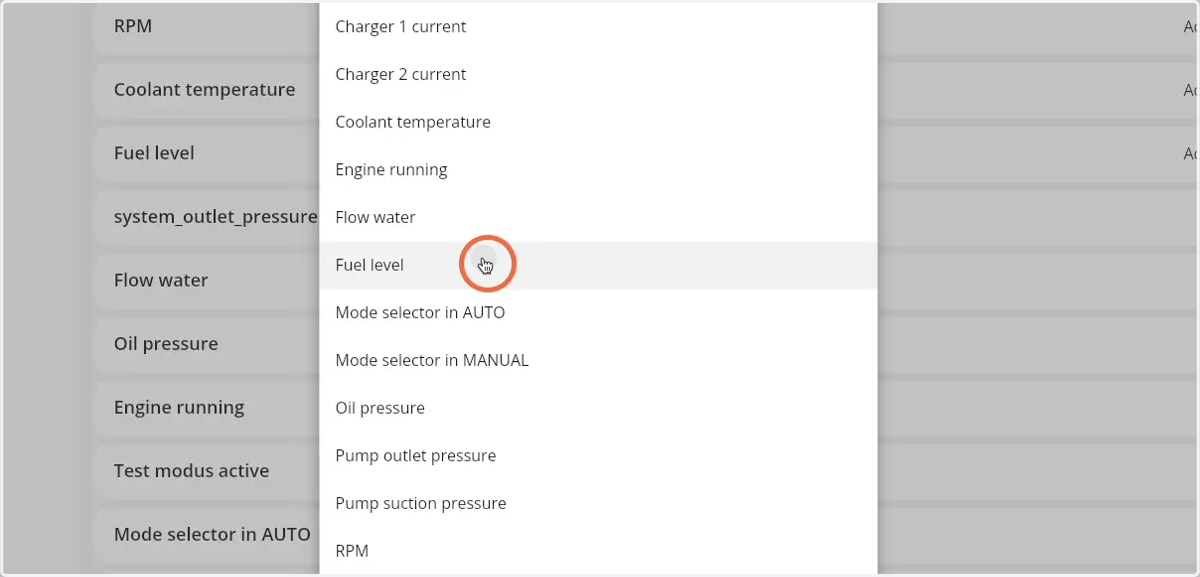
9. Select the preferred type of input
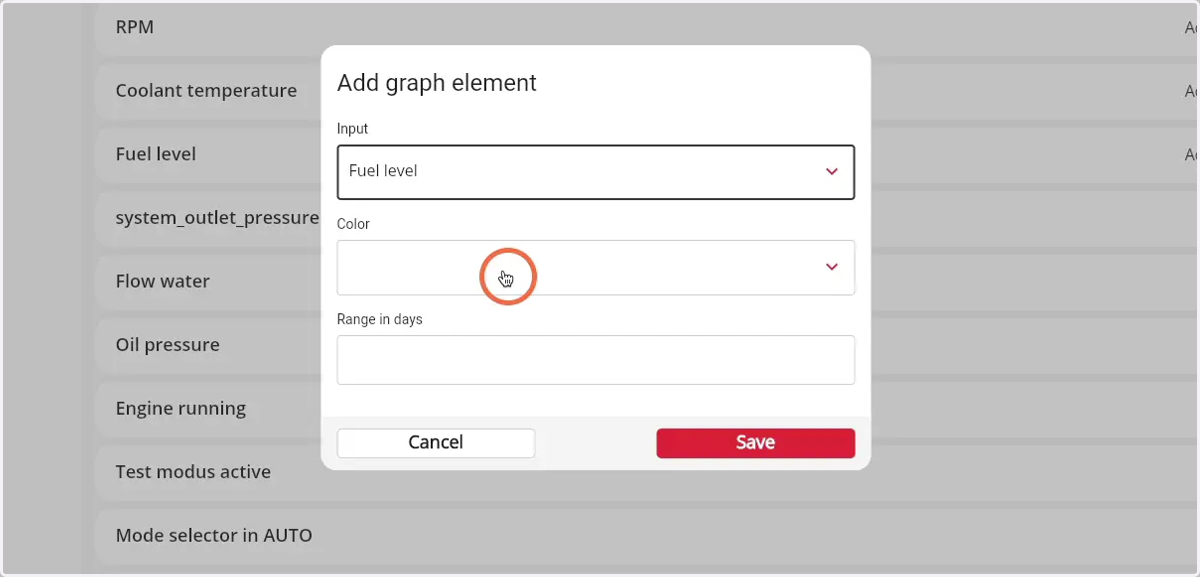
10. Click on the color field to select the color from the graph
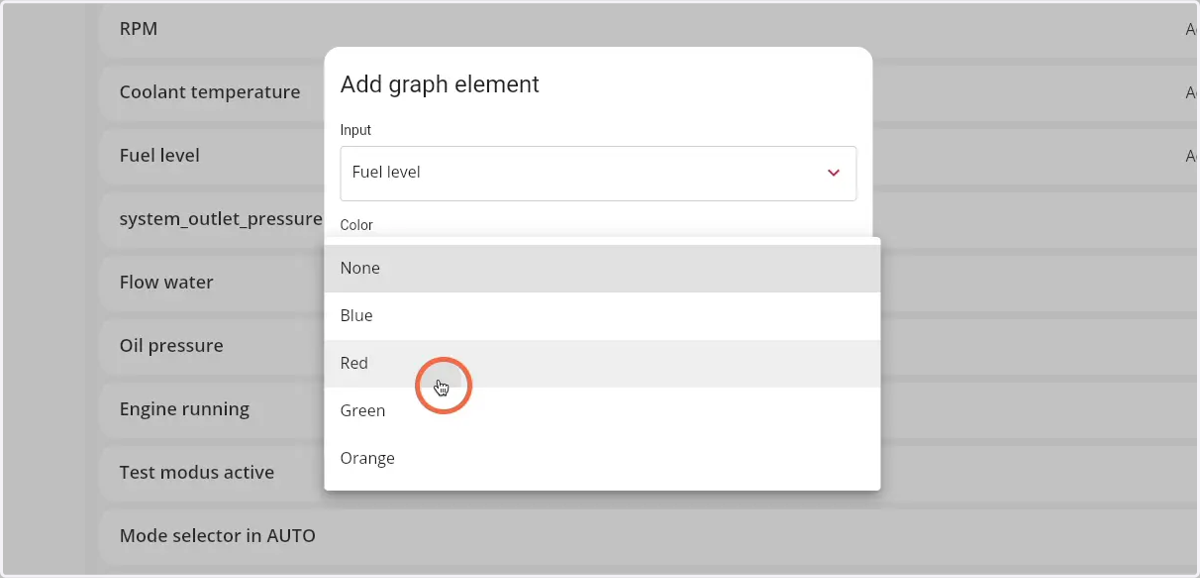
11. Select the preferred color from the dropdown
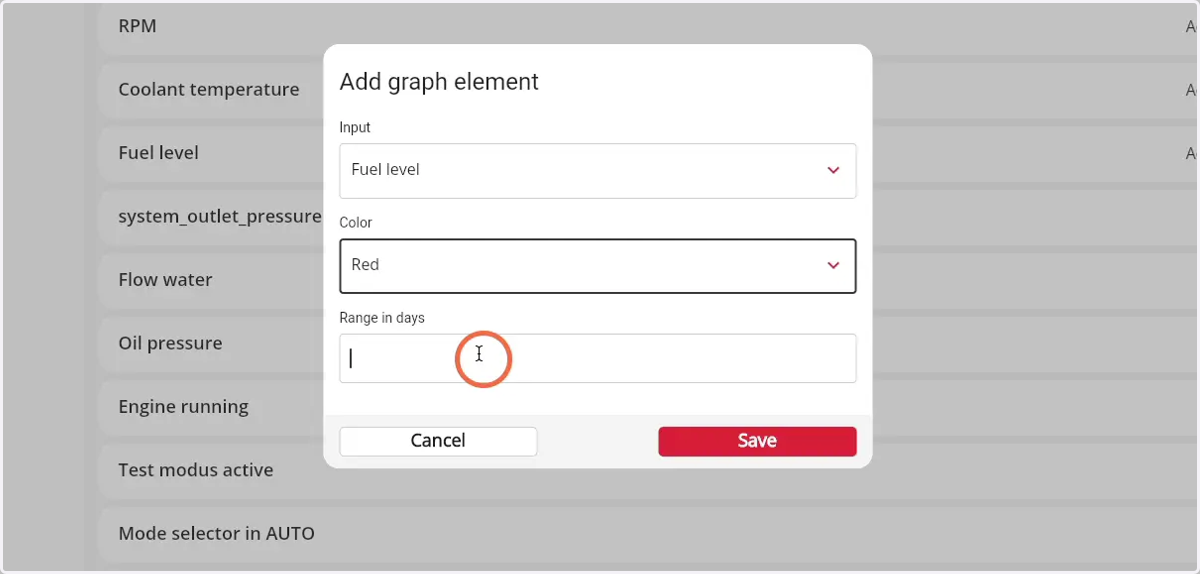
12. Enter the preferred range in days
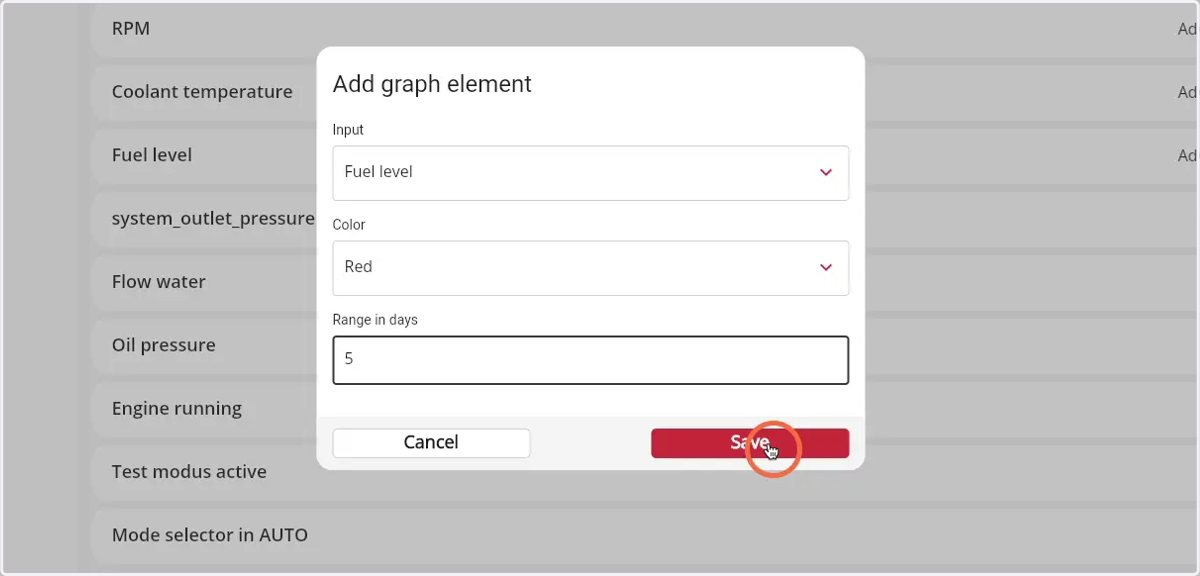
13. Click 'Save' to add the graph to the detail page
14. Click on the name of the graph to open the edit pop-up
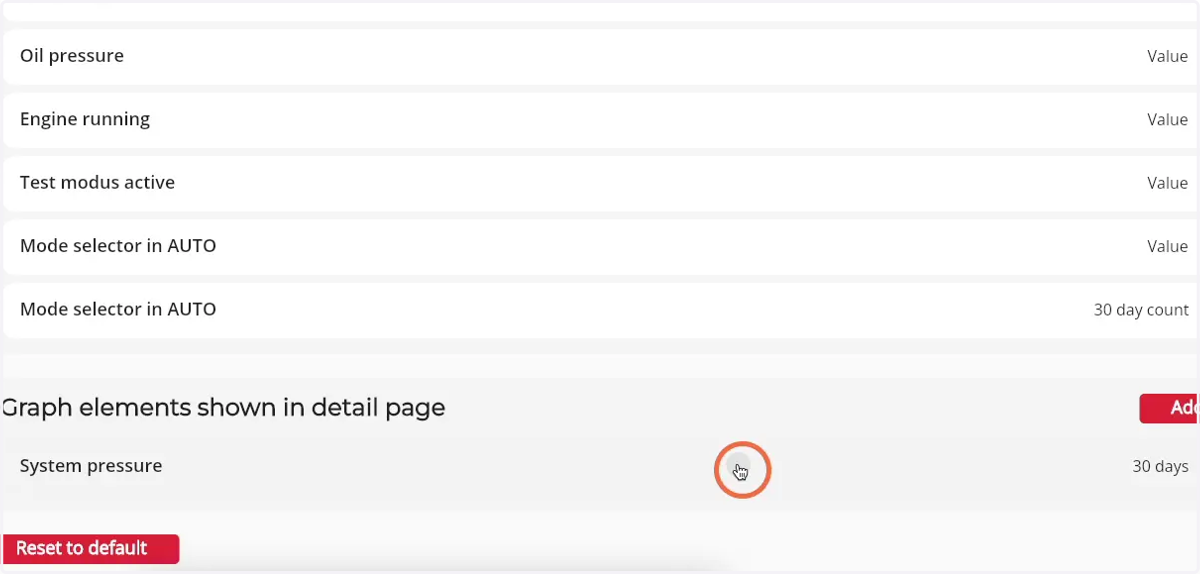
15. Click the 'Bin' icon to delete the graph from the detail page
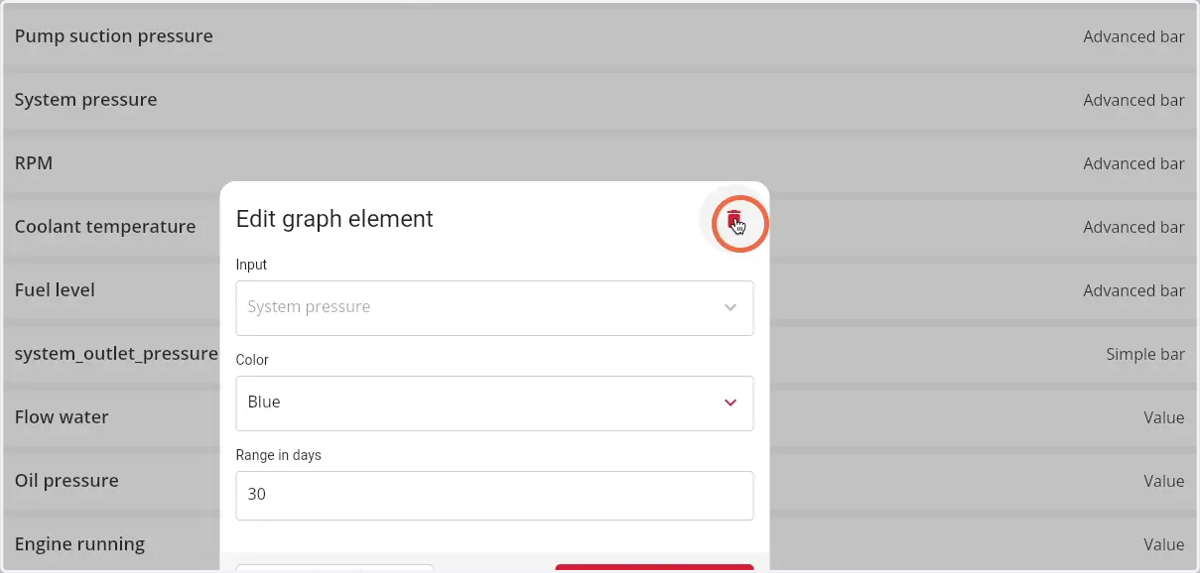
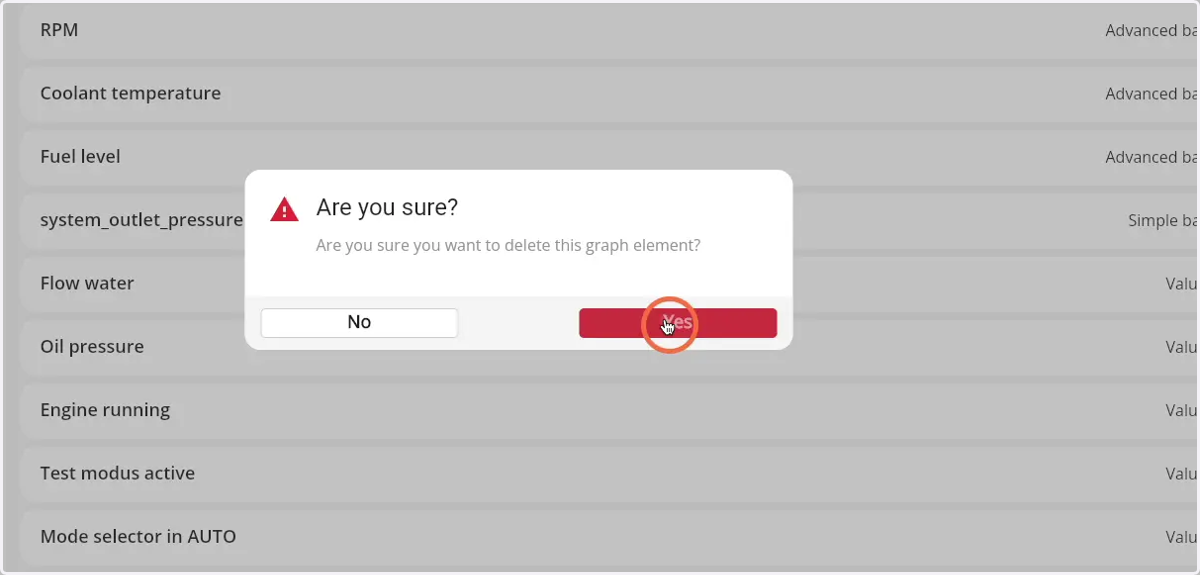
16. Confirm the deletion by clicking 'Yes'